Your internet works perfectly in the living room, but video calls freeze upstairs. The driveway camera keeps going offline, and your phone switches to mobile data as soon as you enter the detached garage. Before spending money on a more powerful router, consider whether your existing network simply needs better distribution.
A reliable large scale WiFi setup uses multiple coverage points connected through dependable backhaul. Mesh systems with Ethernet backhaul and wired access points are generally the best choices for large properties. Range extenders suit isolated coverage gaps, while outdoor access points, wireless bridges and fiber connections can serve gardens and detached buildings.
The following walkthrough explains how to choose your equipment, plan connections between buildings, configure network settings and test coverage without buying hardware you do not need.
Understanding Large Scale WiFi Challenges

A large house presents several networking problems that a smaller apartment does not. Your signal may need to travel through concrete floors, brick walls and long hallways before reaching a connected device.
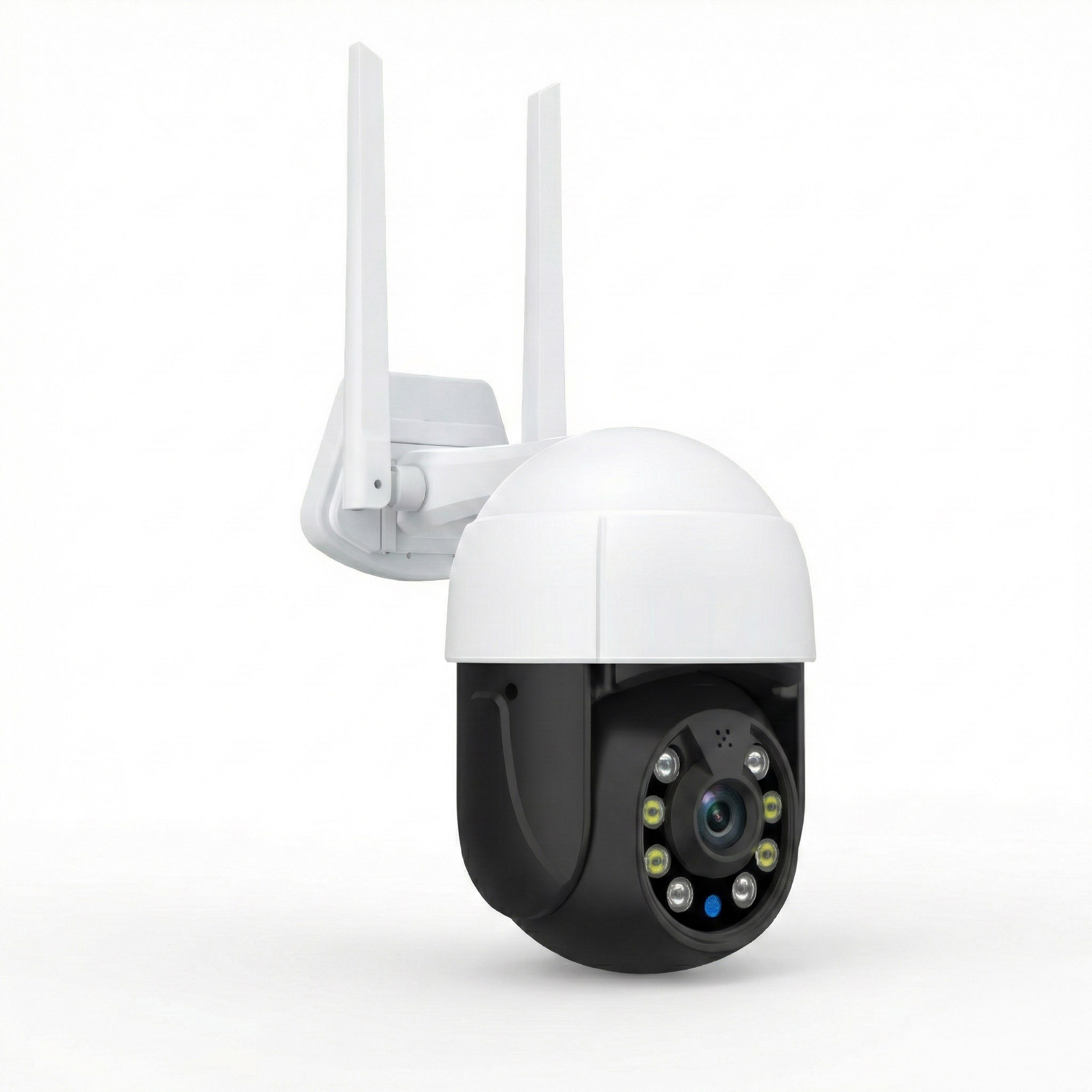
Outdoor cameras introduce another challenge. They often sit at the edge of the network, where reception is weakest, yet need a dependable connection to transmit footage.
Before replacing anything, establish which of the following problems affects your property.
Distance Between the Router and Connected Devices
WiFi reception generally becomes weaker as the distance between the router and connected equipment increases.
However, distance is only part of the problem. Wireless communication works in both directions.
Your router might transmit a signal that reaches a camera mounted above the garage door. The camera's smaller antenna may struggle to transmit information back.
This explains why a camera can appear connected in its application but repeatedly fail to load live footage.
Instead of buying a router with a larger advertised coverage area, consider installing an access point closer to the camera. Shortening the communication distance can improve both reception and transmission.
Thick Walls and Multiple Floors
The materials separating your router from connected devices often matter more than the physical distance.
Common obstacles include:
-
Reinforced concrete floors and walls.
-
Brick and stone construction.
-
Metal garage doors.
-
Foil-backed insulation.
-
Large metal appliances.
-
Windows with metallic coatings.
-
Enclosed utility cupboards.
Consider an upstairs office located directly above the living room router. Although the two rooms are physically close, a reinforced concrete floor may considerably weaken wireless reception.
An Ethernet-connected access point upstairs avoids relying on a signal passing through that floor.
Similarly, a camera outside a brick wall may benefit from an outdoor access point rather than a router positioned closer to the wall inside the house.
Too Many Devices Sharing Wireless Capacity
Having many connected devices does not automatically make your network slow. Their activities determine how much wireless airtime and internet bandwidth they require.
A smart bulb exchanges relatively little information. A camera transmitting video or a laptop downloading a large file requires considerably more capacity.
During a busy evening, your network might need to support:
-
Several security cameras transmitting footage.
-
Televisions streaming video.
-
Computers downloading software updates.
-
Online gaming.
-
Video meetings.
-
Smartphones and tablets.
Distributing active devices across suitable access points can reduce competition for wireless resources. Connecting stationary equipment through Ethernet can also help.
Start with desktop computers, gaming consoles and televisions located near existing Ethernet sockets.
Weak Connections Between Networking Devices
An extender can give your phone full WiFi bars without providing a dependable internet connection.
This happens when the extender has a strong connection to your phone but a weak connection to the main router.
The connection between networking devices is called backhaul.
There are two common approaches:
-
Wireless backhaul: Mesh nodes or extenders communicate with other network points using radio signals.
-
Ethernet backhaul: Networking devices communicate through physical Ethernet cables.
If a mesh node cannot receive data reliably from the main network, adding another node farther away may worsen the problem.
For large properties, improving backhaul often produces better results than buying additional wireless equipment.
What You Need Before Setting Up Large Scale WiFi
Spend some time checking your current installation before ordering equipment. You may already have usable network cables, a capable router or an extender that simply needs repositioning.
Check Your Existing Internet Connection
Connect a laptop directly to a LAN port on your router using Ethernet.
Pause large downloads and run an internet speed test. Record the download speed, upload speed and latency where available.
Repeat the test over WiFi while sitting beside the router.
These results give you a reference for later comparisons.
If the wired connection is consistently slow, investigate your internet service, modem or router before expanding coverage.
A mesh network distributes your existing internet connection. It does not increase the bandwidth supplied by your internet provider.
Create a Simple Property Coverage Plan
Draw a basic floor plan showing the main house and any detached buildings.
Mark the following locations:
-
Main router.
-
Home offices and bedrooms.
-
Staircases and hallways.
-
Outdoor seating areas.
-
Driveways and garages.
-
Security camera mounting positions.
-
Existing Ethernet sockets.
-
Available electrical outlets.
Walk around with your phone connected to WiFi. Temporarily disable mobile data so cellular connectivity cannot hide wireless problems.
Mark where webpages load slowly, video calls disconnect or camera footage becomes unavailable.
Distinguish occasional coverage needs from essential ones. A garden bench used for browsing does not necessarily require the same connection quality as a home office used for daily video meetings.
Identify Existing Network Equipment
Find your router's model number on its label or administration interface.
Check its specifications for:
-
2.4 GHz and 5 GHz support.
-
WiFi 6 compatibility.
-
Ethernet port speeds.
-
Access point mode.
-
Compatible mesh expansion.
-
Wireless security settings.
-
Firmware update availability.
Inspect any existing extenders, switches and network cables.
A supported older router with access point mode may still be useful for providing coverage upstairs. There is no need to discard working equipment if it meets your requirements and continues receiving appropriate security updates.
Check Where Ethernet Cables Can Be Installed
Look for Ethernet wall sockets in bedrooms, offices and utility rooms.
Some houses have network wiring that was installed during construction but never connected to a router or switch.
Locate the central termination point and establish which cables lead to each room.
For rental properties, obtain permission before drilling walls or installing permanent wiring.
Connections between separate buildings require additional care. Ordinary indoor Ethernet cable should not be used as an improvised outdoor connection.
Professionally installed fiber or an appropriate outdoor wireless bridge may be a better choice.
Choosing the Right Hardware: Mesh Systems vs Extenders
Choose equipment according to the size and location of the coverage gap. Replacing your entire network to fix one weak bedroom is rarely necessary.
Conversely, a single extender may be insufficient for a property with several floors and detached structures.
Mesh WiFi Systems
A mesh network uses compatible networking units to provide coverage across different areas.
The main unit connects to your internet service or existing network. Additional nodes extend coverage through the property.
Most mesh systems use a shared network name and a central management interface. This simplifies administration and allows compatible devices to move between coverage areas.
Mesh networking is particularly useful for:
-
Houses with several weak coverage areas.
-
Properties with multiple floors.
-
Long hallways.
-
Homes without extensive Ethernet wiring.
-
Households with many wireless devices.
The limitation is backhaul. A wireless mesh node positioned behind several thick walls may struggle to communicate with the main unit.
Choose a system supporting Ethernet backhaul if you have existing network wiring or plan to install it later.
Also remember that phones and laptops influence when they switch between access points. Mesh networking can improve roaming, but it cannot guarantee immediate switching in every situation.
WiFi Range Extenders
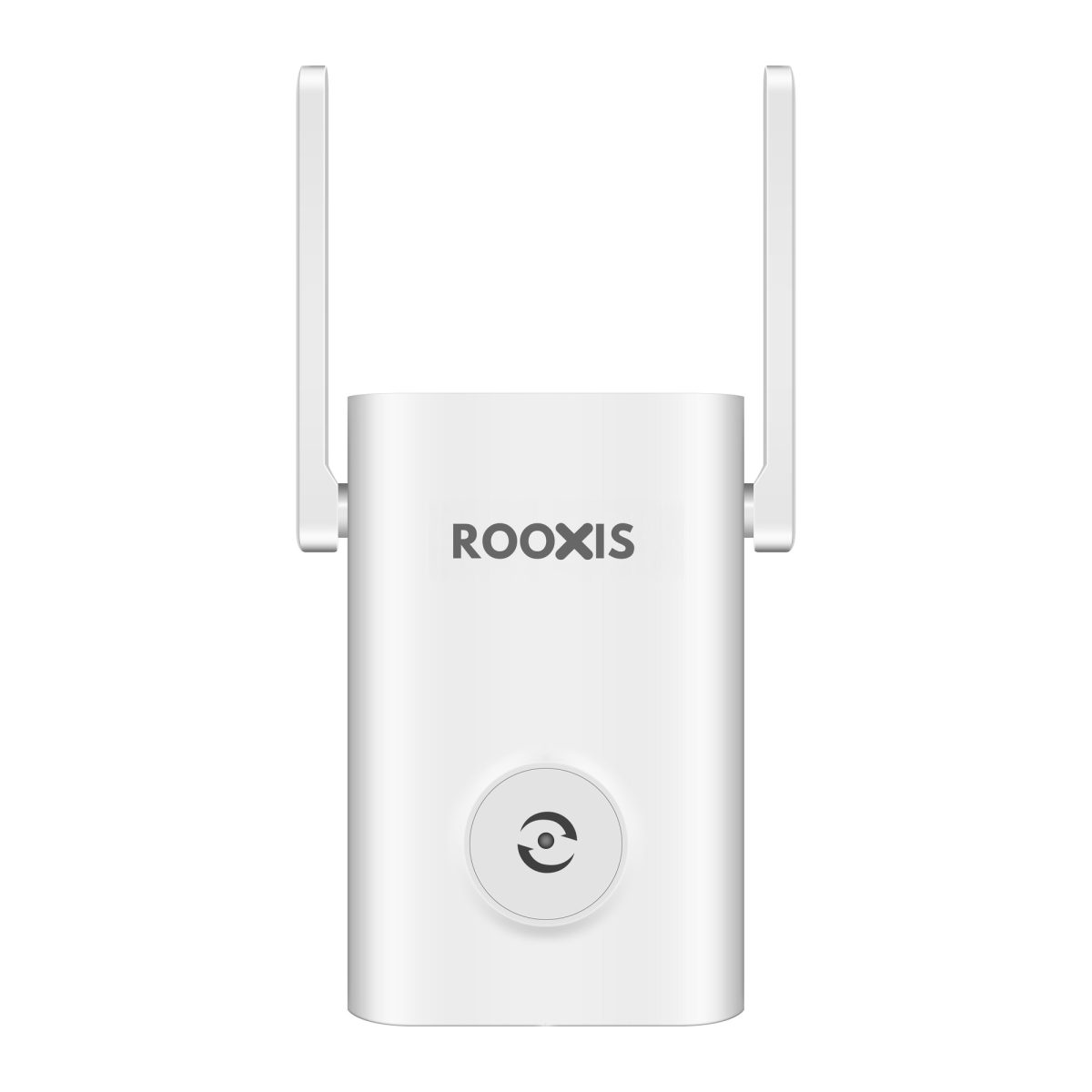
A range extender receives an existing wireless signal and retransmits it into another area.
It is a sensible option when your main router performs well and you only need better coverage in one part of the property.
For example, an extender positioned on an upstairs landing may improve reception in a nearby bedroom without requiring a complete network replacement.
The ROOXIS guide to choosing the best WiFi extender for a large house explains the specifications and coverage requirements worth checking before buying an extender.
Conventional wireless extenders consume airtime when receiving and retransmitting traffic. The effect depends on their design, frequency bands and connection quality.
Avoid connecting several conventional extenders in a long wireless chain. Each additional retransmission can introduce another performance limitation.
Wired Wireless Access Points
A wired access point receives network connectivity through Ethernet and creates wireless coverage nearby.
This makes it particularly useful in houses where concrete floors or thick walls interfere with wireless backhaul.
For example, an Ethernet cable running from the downstairs router to an upstairs access point bypasses the need for those devices to communicate wirelessly through the floor.
Some wireless routers can also operate in access point mode.
Equipment supporting Power over Ethernet, commonly called PoE, can receive both power and network connectivity through a suitable Ethernet cable.
Before purchasing PoE equipment, confirm that the access point, switch or injector supports the required power standard and capacity.
Comparing Hardware for Large Properties
| Equipment | Best application | Main advantage | Main limitation |
|---|---|---|---|
| Single wireless router | Compact properties with central coverage | Simple installation | Limited reach through obstacles |
| WiFi range extender | One weak room or nearby coverage gap | Affordable expansion | Requires usable upstream reception |
| Wireless mesh network | Large houses without Ethernet wiring | Coordinated coverage | Performance depends on wireless backhaul |
| Mesh with Ethernet backhaul | Large houses with network wiring | Reliable connections between nodes | Requires compatible equipment and cables |
| Wired access point | Individual floors and home offices | Dependable wired backhaul | Requires Ethernet access |
| Outdoor range extender | Nearby gardens and outdoor areas | Extends an existing wireless signal | Requires reception and suitable weather protection |
| Outdoor wireless bridge | Detached garages and workshops | Connects buildings without trenching | Requires appropriate alignment and signal path |
| Fiber connection | Permanent connections between buildings | Reliable connectivity with electrical isolation along the fiber link | Requires installation and compatible equipment |
Different parts of the same property can use different equipment. Wired access points may cover the house, while a wireless bridge connects a workshop across the garden.
Using WiFi 6 Routers for High Density Connections
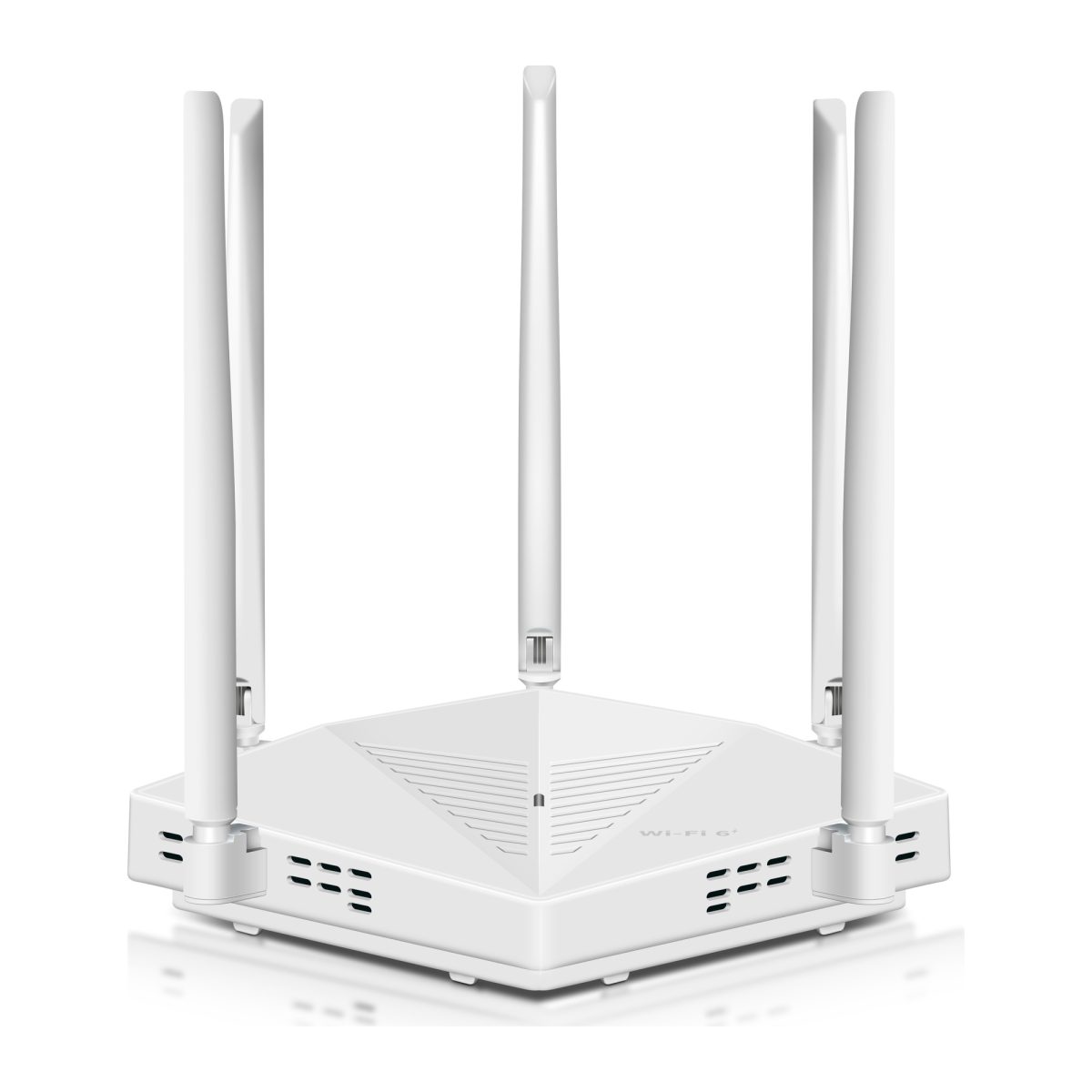
WiFi 6 routers use the 802.11ax wireless standard, which includes improvements for handling multiple compatible devices.
One of these features, OFDMA, allows compatible devices to share wireless channel resources more efficiently.
This can be useful when several household devices are active at the same time. However, WiFi 6 does not remove physical coverage obstacles.
A WiFi 6 router behind reinforced concrete may still provide poor reception upstairs.
When comparing WiFi 6 routers, check:
-
Support for both 2.4 GHz and 5 GHz.
-
Ethernet port speeds.
-
Mesh expansion compatibility.
-
Ethernet backhaul support.
-
WPA2 and WPA3 security options.
-
Firmware support.
-
Compatibility with existing smart devices.
Dual band WiFi routers suit many households because they provide access to both common frequency bands.
The 2.4 GHz band generally offers better reach through obstacles. The 5 GHz band can provide greater throughput when reception is strong.
Tri-band systems may offer additional wireless capacity or a separate backhaul band. Check the equipment specifications to establish how the third band is used.
Portable WiFi routers are useful for temporary connectivity, travel and short-term workspaces. They are not normally the best foundation for permanent coverage throughout a large property.
When shopping for wireless routers for WiFi expansion, check backhaul capabilities and Ethernet port speeds before comparing advertised wireless speed ratings.
Connecting Detached Garages and Outbuildings
Detached buildings are difficult to cover because the signal may need to cross an outdoor space and penetrate several exterior walls.
A metal-sided garage can be particularly challenging, even when it is relatively close to the house.
Consider these four connection methods.
Option 1: Extend an existing wireless signal outdoors
An outdoor range extender may work if a usable signal already reaches the area between your house and garage.
Install it somewhere with reliable upstream reception. Choose equipment rated for outdoor exposure.
An extender placed inside a garage with no usable signal is unlikely to solve the problem.
Option 2: Install a wired outdoor access point
An outdoor access point connected to your main network through suitable cabling can cover a driveway, patio or garden.
It may also reach a nearby outbuilding, depending on its construction.
Test inside the building with doors closed. Metal siding and insulated walls can substantially change reception.
Option 3: Use a point-to-point wireless bridge
A wireless bridge connects two locations using compatible networking equipment.
One unit is installed at the house and another at the detached building. A separate access point inside the garage then provides ordinary WiFi coverage.
This is useful when installing underground cabling is impractical.
Check the signal path for trees, rooflines and other obstructions. Follow the manufacturer's alignment and mounting requirements.
Option 4: Install a fiber connection between buildings
Fiber is a suitable permanent solution for properties requiring dependable connections between separate buildings.
The fiber itself does not create a conductive electrical data path between the structures.
Compatible switches or media converters are needed at each end.
Permanent installation may require conduit, suitable outdoor cable and professional termination.
Copper Ethernet between buildings introduces grounding, electrical potential and surge protection considerations. Consult a qualified installer before choosing an outdoor cabling method.
Step by Step Setup for Reliable Coverage
Install and test the main router first. Then add indoor coverage points, followed by outdoor equipment and connections to detached buildings.
Keep the working parts of your existing network in place until the new equipment has been configured and tested.
Step 1: Establish Your Internet Speed Baseline
What to do
Connect a computer directly to the router through Ethernet and run a speed test.
Repeat the test over WiFi near the router.
Record the results and use the same testing service for later comparisons.
What you should see
A stable wired connection and nearby wireless performance suitable for your internet plan.
What to watch for
If the wired connection is already unreliable, resolve that problem before buying mesh nodes or extenders.
A coverage upgrade cannot repair an unstable internet connection.
Step 2: Position the Main Router Correctly
What to do
Place the main router on an open shelf or another suitable elevated surface.
Avoid positioning it inside metal cabinets, behind televisions, beside large appliances or in enclosed cupboards.
If your internet connection enters at one end of the house, consider running Ethernet to an access point farther inside the property.
These router placement tips explain additional ways to improve router positioning.
What you should see
Reliable connections in nearby rooms and fewer obstacles between the router and connected devices.
What to watch for
Moving the router closer to one weak room may reduce coverage elsewhere.
When several areas remain unreliable, additional coverage points are generally more useful than repeatedly relocating the main router.
Step 3: Configure the Main Router
What to do
Connect the router's WAN or internet port to your modem or incoming network connection.
Open the manufacturer's setup application or administration interface.
Configure:
-
The internet connection.
-
A recognizable wireless network name.
-
A strong WiFi password.
-
A separate administrator password.
-
Appropriate wireless security settings.
-
Available firmware updates.
If your internet provider supplied a combined modem and router, determine whether additional networking equipment should operate in access point mode.
What you should see
An active internet connection and authorized devices appearing in the router's connected device list.
What to watch for
Two devices operating in router mode can introduce double NAT or create separate local networks.
For a typical unified home network, one device should manage routing and DHCP address assignment. Configure additional compatible equipment in access point or bridge mode where appropriate.
Step 4: Install the First Mesh Node or Range Extender
What to do
Pair the mesh node or extender using the manufacturer's instructions.
Initially position it between the main router and the weak coverage area.
Check its connection quality using the management application or available status indicators.
What you should see
A successful upstream connection and improved reception in the affected room.
What to watch for
A node can provide strong local WiFi while maintaining weak backhaul.
If the management interface reports poor upstream reception, move it closer to the main router or another suitable network point.
Test again before installing additional equipment.
Step 5: Establish Ethernet Backhaul Where Possible
What to do
Connect compatible access points or mesh nodes through Ethernet.
A typical arrangement includes:
-
Main router connected to the internet.
-
Ethernet switch connected to a router LAN port if additional ports are required.
-
Ethernet cables running to compatible access points or mesh nodes.
-
Wireless devices connecting through nearby coverage points.
Follow the mesh manufacturer's supported wiring arrangement.
What you should see
Compatible nodes may appear as wired or Ethernet-connected in the management interface.
Their communication with the main network should no longer depend on wireless backhaul.
What to watch for
Inspect the negotiated Ethernet link speed.
A damaged cable or older switch can restrict a connection that would otherwise support greater throughput.
For common copper Ethernet installations, the standard maximum channel length is generally 100 meters, including patch cables. Longer runs may require fiber or another suitable connection method.
Avoid unsupported network loops.
Step 6: Extend Coverage to Additional Floors
What to do
Identify rooms where coverage remains unreliable.
Install an access point or mesh node on the affected floor.
When using wireless backhaul, test locations near open staircases and hallways. These can provide better signal paths than rooms enclosed by thick walls.
Prioritize Ethernet connections between concrete floors.
What you should see
Stable connections in bedrooms, home offices and other important rooms.
What to watch for
Installing one mesh node in every room may create unnecessary overlap and interference.
Add equipment according to measured coverage needs rather than room count alone.
Step 7: Install Outdoor Networking Equipment
What to do
Choose a suitable outdoor access point, range extender or wireless bridge.
Review its requirements for:
-
Weather resistance.
-
Operating temperature.
-
Mounting position.
-
Cable routing.
-
Power supply.
-
Antenna orientation.
Use appropriately rated outdoor cables and protected electrical connections.
Obtain professional assistance for elevated mounting, permanent outdoor electrical work or other installations requiring specialist equipment.
What you should see
Usable reception across the intended patio, garden or driveway.
What to watch for
Outdoor reception can change when vehicles are parked in the signal path or foliage becomes wet.
Test important camera locations under ordinary conditions rather than relying on one successful connection during installation.
Step 8: Connect the Detached Garage or Workshop
What to do
Configure compatible wireless bridge units before permanently mounting them.
Establish the connection between buildings and connect an access point inside the garage.
For a professionally installed fiber connection, confirm that the switches or media converters establish the intended link.
What you should see
Phones, laptops and compatible cameras inside the detached building connect through their local access point.
What to watch for
Dedicated wireless bridge equipment does not necessarily provide ordinary WiFi directly to household devices.
A separate indoor access point may be required.
This is especially useful inside metal-sided buildings where an external signal struggles to penetrate the walls.
Step 9: Connect Security Cameras and Smart Home Devices
What to do
Reconnect cameras, doorbells, smart plugs and other connected equipment.
Check whether each device requires 2.4 GHz WiFi or supports other bands.
Open your camera application and verify:
-
Successful connection.
-
Reliable live viewing.
-
Intended recording operation.
-
Configured motion notifications.
-
Retrieval of recorded footage where supported.
Check performance at the final mounting position.
What you should see
Stable camera connections and usable video without repeated disconnection warnings.
What to watch for
A camera marked online may still have insufficient connectivity for reliable video transmission.
Remote viewing and cloud recording depend on internet upload capacity. Local recording may continue without that same internet demand, depending on the camera.
Test the recording and viewing functions separately.
Step 10: Test Coverage Throughout the Property
What to do
Walk through the property using the same phone or laptop used for your initial tests.
Temporarily disable mobile data on the phone.
At each important location:
-
Check wireless reception.
-
Run a speed test.
-
Open a familiar webpage.
-
Test the activity normally performed there.
-
Record disconnections or noticeable delays.
Try an ordinary video call in the home office. Open live camera footage near the driveway. Check connectivity inside the garage with its door closed.
What you should see
Each location supports its intended activities without frequent interruptions.
What to watch for
Identical speeds across the entire property are unnecessary.
A stable connection that handles video meetings is more useful than a faster connection that disconnects repeatedly.
Restore mobile data when your testing is complete.
Example Network Layouts for Different Large Properties
The following arrangements illustrate how to combine equipment according to property construction and available wiring.
Two-Story House With Existing Ethernet Wiring
A practical layout includes:
-
Main router downstairs.
-
Ethernet-connected access point upstairs.
-
Wired desktop computer in the home office.
-
Outdoor access point facing the driveway.
The upstairs access point bypasses the wireless obstacle created by the floor.
If your existing router already covers the ground floor properly, keep it rather than replacing the entire system.
Large Single-Story House Without Ethernet Wiring
Start with a centrally positioned mesh router.
Add compatible nodes to serve bedrooms and living areas at opposite ends of the house.
Check each node's backhaul quality before selecting its permanent location.
If a distant office still experiences connection problems, consider running Ethernet to that particular room instead of extending the wireless chain repeatedly.
Property With a Detached Garage and Garden
A suitable layout may include:
-
Main router inside the house.
-
Wired outdoor access point covering the garden.
-
Point-to-point wireless bridge connecting the house and garage.
-
Indoor access point inside the garage.
The outdoor access point serves nearby cameras and mobile devices. The bridge handles the separate connection between buildings.
This avoids relying on one indoor router to transmit through exterior walls and metal garage doors.
Large Rental Property
Renters can often use wireless mesh equipment without making permanent alterations.
For an isolated coverage gap, an ordinary range extender may be sufficient.
Use existing Ethernet sockets wherever available.
Obtain permission before drilling holes, installing permanent outdoor mounts or modifying building wiring.
Optimizing Network Settings and Security
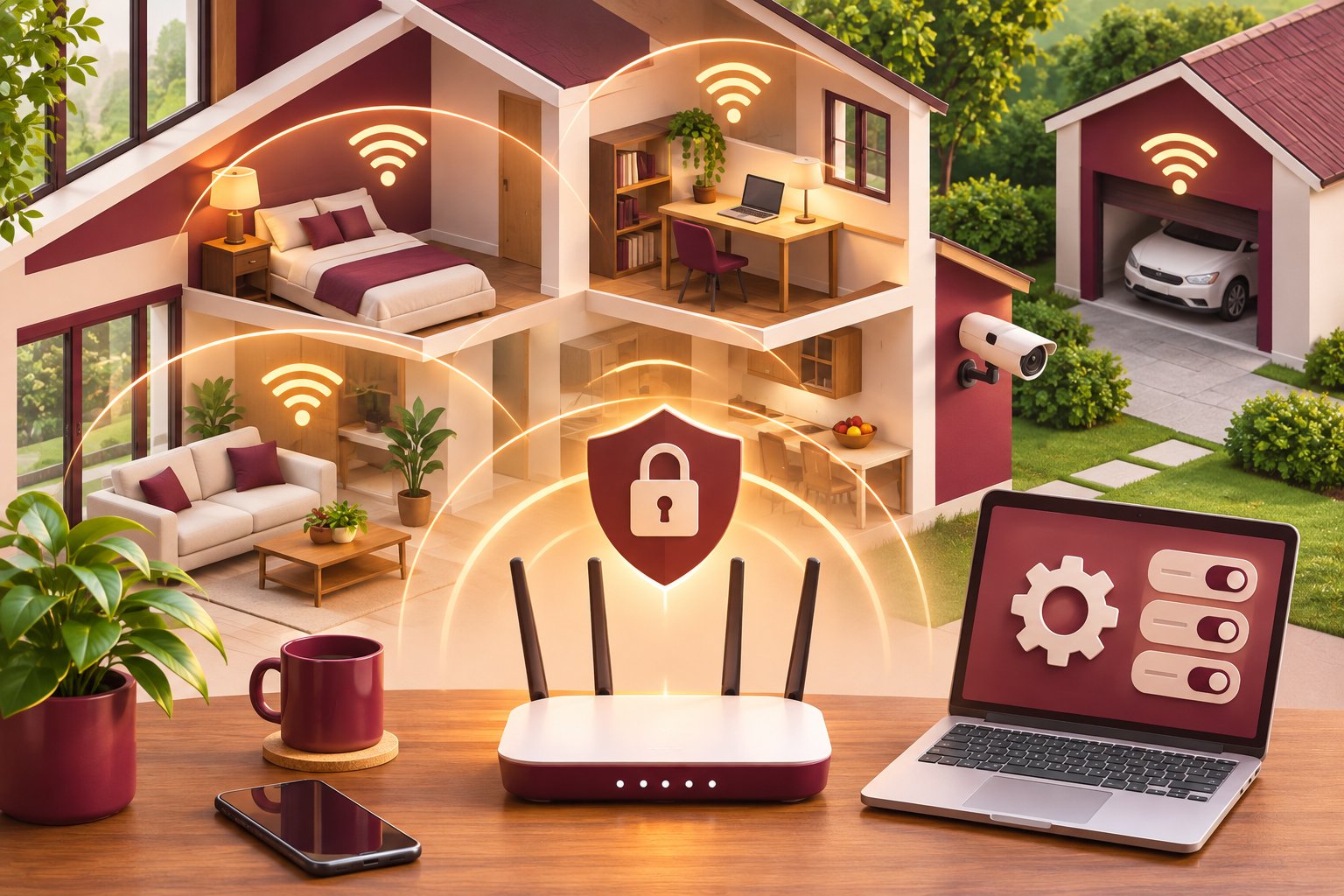
Once the hardware is working, review wireless bands, channel settings and network security.
Record your original configuration before making significant adjustments. Change one setting at a time and test the affected devices.
Choose Appropriate WiFi Frequency Bands
The 2.4 GHz and 5 GHz bands have different coverage and capacity characteristics.
Use 2.4 GHz for:
-
Compatible outdoor cameras.
-
Smart plugs and sensors.
-
Older wireless devices.
-
Locations where walls weaken higher-frequency signals.
-
Devices operating farther from an access point.
Use 5 GHz for:
-
Compatible laptops and smartphones.
-
Nearby televisions.
-
Home office equipment with strong reception.
-
Devices requiring greater wireless throughput.
Many dual band WiFi routers provide automatic band steering.
Leave this enabled initially if devices connect reliably.
If a camera cannot complete its initial setup, check whether your router offers a supported 2.4 GHz pairing option.
Avoid permanently disabling 5 GHz to accommodate a single older device.
Adjust WiFi Channels to Reduce Interference
Nearby access points can compete for the same wireless airtime.
Automatic channel selection is a reasonable starting point for most households.
For manually configured 2.4 GHz networks in the United States, channels 1, 6 and 11 are commonly used with 20 MHz channel width to avoid overlapping channels.
If several access points cover nearby rooms, distributing them across suitable channels may reduce competition.
For 5 GHz, available channels and restrictions depend on equipment and regional regulations.
Use supported settings rather than copying a configuration from an unrelated router model.
Configure Appropriate Channel Width
Wider wireless channels can provide greater potential throughput, but they occupy more available spectrum.
That can become a disadvantage in neighborhoods with many wireless networks.
A 20 MHz channel width is a practical starting point for 2.4 GHz.
For 5 GHz, begin with the router's recommended automatic configuration.
If wireless connections become unstable, try a narrower supported channel width and repeat the same performance tests.
Retain the adjustment only if it produces a noticeable improvement.
Use a Consistent Network Name Where Appropriate
Compatible mesh systems generally use a shared network name across their nodes.
Wired access points can also use matching network names, passwords and security settings to support roaming.
However, giving unrelated routers the same network name does not turn them into a coordinated mesh network.
If your phone remains connected to the downstairs access point after you move upstairs, temporarily disconnect and reconnect WiFi.
If it then selects the closer access point and performs better, roaming behavior may be involved.
Investigate coverage overlap and supported roaming settings if the problem occurs regularly.
Enable Suitable Wireless Security
Open the router's wireless security settings.
Use WPA3 Personal when all necessary devices support it.
For households with older cameras or smart devices, WPA2/WPA3 transitional mode may provide suitable compatibility.
WPA2 Personal with AES encryption remains an appropriate option for compatible equipment that does not support WPA3.
Avoid WEP and original WPA security modes.
Use different passwords for wireless access and router administration. Change default administrative credentials where applicable.
Disable unnecessary remote router administration unless you have a specific, legitimate reason to use it.
Create a Separate Network for Guests and Smart Devices
A guest network can give visitors internet access without exposing household equipment, provided the router supports and enables appropriate isolation.
Some routers also provide dedicated IoT networks for cameras, doorbells, smart plugs and sensors.
Before moving every camera to a separate network, test one device.
Your phone may need to communicate with the camera locally during installation. Some smart home controllers also require local device discovery.
Network isolation can interfere with these functions.
Confirm that live viewing, recording and other required features remain available before moving additional equipment.
Update Router and Networking Device Firmware
Check for firmware updates across the entire network.
Include the main router, mesh nodes, access points, extenders and outdoor wireless bridges.
Use the manufacturer's official management interface or supported update process.
Avoid interrupting power while an update is installing.
If older equipment no longer receives security updates, consider replacing it rather than relying on it indefinitely for internet-facing network functions.
Review Connected Devices Regularly
Open the router's connected devices list.
Common menu names include Clients, Device Management, Connected Devices and Network Map.
Compare the displayed entries with your household equipment.
Some smartphones use private WiFi addresses, so unfamiliar device identifiers are not automatically evidence of unauthorized access.
If you confirm that an unauthorized device has joined the network, change the affected wireless password and reconnect legitimate equipment.
Review guest access and administrator credentials as well.
Common Mistakes When Setting Up WiFi Across Large Properties
Buying a More Powerful Router Without Checking the Layout
Replacing the main router may improve wireless capacity, but it cannot eliminate concrete floors or metal garage walls.
If nearby rooms already receive dependable service, focus on distributing the connection to distant areas.
Installing an Extender Inside a Dead Zone
A wireless extender needs a usable connection to its upstream network.
Place it between the router and the weak area rather than inside the room with the worst reception.
If no suitable intermediate position exists, consider wired backhaul.
Connecting Several Wireless Extenders in a Chain
Multiple conventional extenders can introduce repeated wireless retransmissions.
A weak connection near the beginning of the chain affects devices farther along it.
Use wired access points or compatible mesh networking for extensive coverage requirements.
Ignoring Outdoor Equipment Requirements
Indoor equipment may not tolerate condensation, wind-driven rain, direct sunlight or outdoor temperature changes.
Even a covered porch can expose equipment to unsuitable environmental conditions.
Use networking devices, cables and installation accessories rated for their intended environment.
Confusing Internet Speed With Wireless Coverage
If a wired laptop near the router also experiences slow internet, investigate the main connection.
If the wired connection works properly but distant rooms struggle, examine wireless reception and backhaul.
These are different problems requiring different solutions.
Installing Too Many Access Points
Excessive coverage overlap can increase competition between access points and complicate roaming.
Install the minimum equipment needed to provide reliable coverage.
Add another node only when testing identifies a remaining gap or capacity problem.
Forgetting About Upload Speed
Security cameras, video meetings and file transfers depend on upload capacity.
Several televisions may stream successfully while outdoor cameras struggle to transmit video remotely.
Check upload performance during busy periods.
Where supported, local camera recording can reduce reliance on continuous internet uploads, although remote viewing still requires connectivity.
What to Do If Your Large Scale WiFi Setup Still Does Not Work
Use the following troubleshooting table to narrow down the likely cause.
| Problem | Likely cause | What to check |
|---|---|---|
| Strong WiFi bars but slow internet | Weak backhaul or limited internet capacity | Node connection quality and wired speed |
| Upstairs connection keeps disconnecting | Physical obstacles or unsuitable placement | Upstairs access point and Ethernet availability |
| Outdoor camera frequently goes offline | Weak reception or unstable video transmission | Camera location and nearby coverage point |
| Garage has unreliable WiFi | Distance or exterior construction | Wireless bridge or professionally installed fiber |
| Phone remains connected to a distant node | Roaming behavior | Coverage overlap and roaming settings |
| Smart plug cannot connect | Frequency or security incompatibility | 2.4 GHz support and wireless security |
| Internet slows during busy evenings | Congestion or limited internet capacity | Device activity and wired speed tests |
| Mesh node reports weak reception | Poor wireless backhaul | Node placement or Ethernet connection |
| Devices cannot communicate locally | Network isolation or duplicate routing | Guest network settings and router modes |
Check the Backhaul Connection First
Open your mesh or extender management application and inspect each node's upstream connection.
Temporarily move a poorly connected node closer to the main router.
Repeat the speed and stability tests.
If performance improves, the original location was likely contributing to the problem.
Ethernet backhaul may provide a better permanent solution than installing another wireless repeater.
Test With One Additional Device at a Time
If the network became unreliable after you installed several devices, temporarily disconnect the recently added units individually.
Check whether the remaining network becomes more stable.
This can reveal interference, unsupported network arrangements or configuration conflicts.
Avoid factory resetting everything. You may erase working settings without establishing what caused the problem.
Check Ethernet Cable and Port Performance
A wired access point can still perform poorly if its Ethernet connection is restricted.
Check the negotiated link speed where available.
If equipment expected to support 1 Gbps reports only 100 Mbps, investigate:
-
Damaged cables.
-
Poor cable terminations.
-
Older Ethernet ports.
-
Slower network switches.
Try a known working cable and confirm the supported port speeds.
Replacing an access point will not resolve a limitation caused by its Ethernet connection.
Investigate Persistent Camera Connectivity Problems
Check reception at the camera's actual mounting position.
Testing a phone inside the nearest room does not necessarily reflect the camera's outdoor connection.
Review signal quality information in the camera application where available.
If safe and practical, temporarily test the camera closer to an access point.
Reliable operation nearby suggests the original mounting position needs better coverage.
For equipment supporting Ethernet or PoE, a suitable wired connection may provide a more dependable installation.
Also establish whether the problem affects remote viewing, local recording or both. A remote viewing failure does not necessarily mean local recording has stopped.
Review Your Internet Plan and Network Usage
If every room becomes slow during busy evenings, run a wired speed test during the affected period.
Compare the result with your original baseline.
Check whether several devices are downloading files, uploading camera footage or streaming simultaneously.
Use available router traffic monitoring tools to identify demanding activities.
If wired performance also deteriorates, investigate your internet service, router capacity and overall bandwidth requirements before purchasing additional WiFi equipment.
A Practical Large Property WiFi Setup Checklist
Use this checklist before considering your installation complete.
Network planning
-
Important indoor and outdoor locations have been identified.
-
Existing internet performance has been measured.
-
Physical obstacles have been considered.
-
Equipment matches the actual coverage requirements.
-
Detached buildings have suitable connection plans.
Hardware installation
-
Main router is positioned in an open location.
-
Mesh nodes have dependable backhaul.
-
Ethernet connections operate at expected speeds.
-
Outdoor equipment is appropriately rated.
-
Detached buildings have reliable network connections.
-
Permanent outdoor installations meet applicable requirements.
Network configuration
-
One main router manages ordinary routing and DHCP.
-
Suitable wireless security is enabled.
-
Administrator passwords are secure.
-
Firmware updates have been reviewed.
-
Guest network isolation works as intended.
-
Cameras and smart devices remain compatible.
Performance testing
-
Important rooms have been tested.
-
Video meetings remain stable.
-
Outdoor camera footage loads reliably.
-
Supported recordings can be retrieved.
-
Garage and workshop connectivity works.
-
Download and upload performance have been checked.
-
The network remains usable during busy household periods.
Keep a record of equipment locations, network names and important configuration details. Store administrative passwords securely.
These records are particularly useful when replacing a router or troubleshooting a connection several months after installation.
Final Recommendations for Reliable Large Property WiFi
Begin with a wired speed test at the main router. Identify where wireless reception becomes unreliable and determine whether the problem is distance, construction materials or weak backhaul.
Use a range extender for one isolated coverage gap. Choose compatible mesh equipment or wired access points when several rooms or floors require better coverage.
Take advantage of existing Ethernet wiring wherever possible.
For detached garages and outbuildings, establish a dependable connection between buildings before trying to improve WiFi inside them. Depending on the layout, that may require an outdoor access point, wireless bridge or professionally installed fiber.
Judge the finished network by everyday performance. If upstairs video calls remain stable, driveway cameras stay connected and your garage has usable internet, there is no need to purchase additional equipment merely to achieve identical speeds everywhere.
FAQ
How far can a large scale WiFi network reach?
There is no fixed coverage distance because wireless reception depends on equipment, frequency, building materials, interference and backhaul quality. A properly designed network can serve multiple buildings and extensive outdoor areas using wired access points, wireless bridges and suitable outdoor equipment. Test reception at actual device locations rather than relying exclusively on advertised coverage figures.
How do I get WiFi in an outbuilding or detached garage?
For a nearby garage with usable existing reception, an appropriately rated outdoor range extender or access point may be sufficient. For greater distances or metal-sided buildings, a point-to-point wireless bridge connected to an indoor access point is often more dependable. Professionally installed fiber is another suitable option for permanent connections between separate buildings.
Should I use a mesh network or range extenders for a large house?
A mesh network is generally better for large houses with multiple weak coverage areas, several floors and devices moving between rooms. A range extender is a practical and affordable choice when the existing router works properly and only one area needs improved reception. Where Ethernet wiring is available, wired access points or mesh nodes with Ethernet backhaul generally provide more consistent performance.