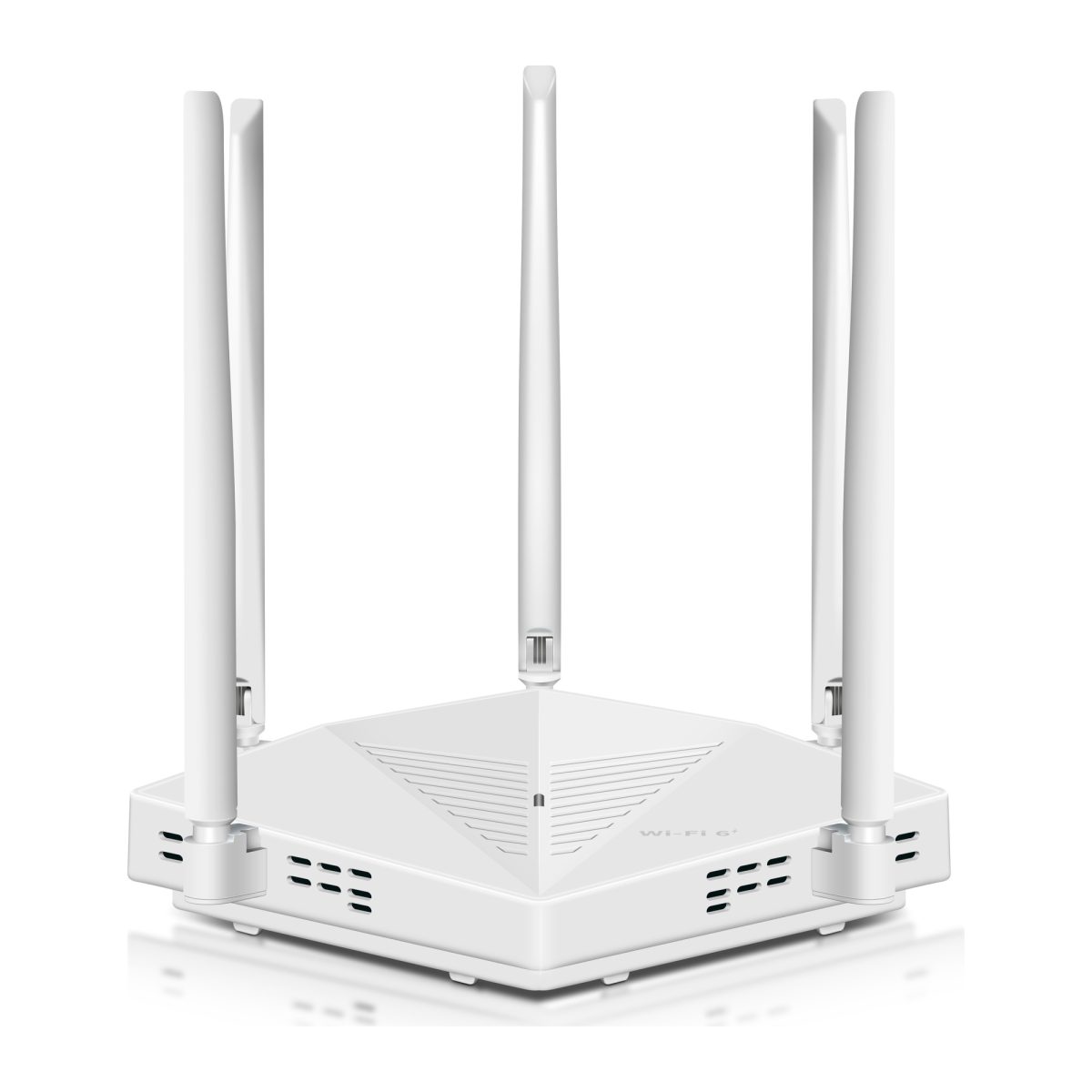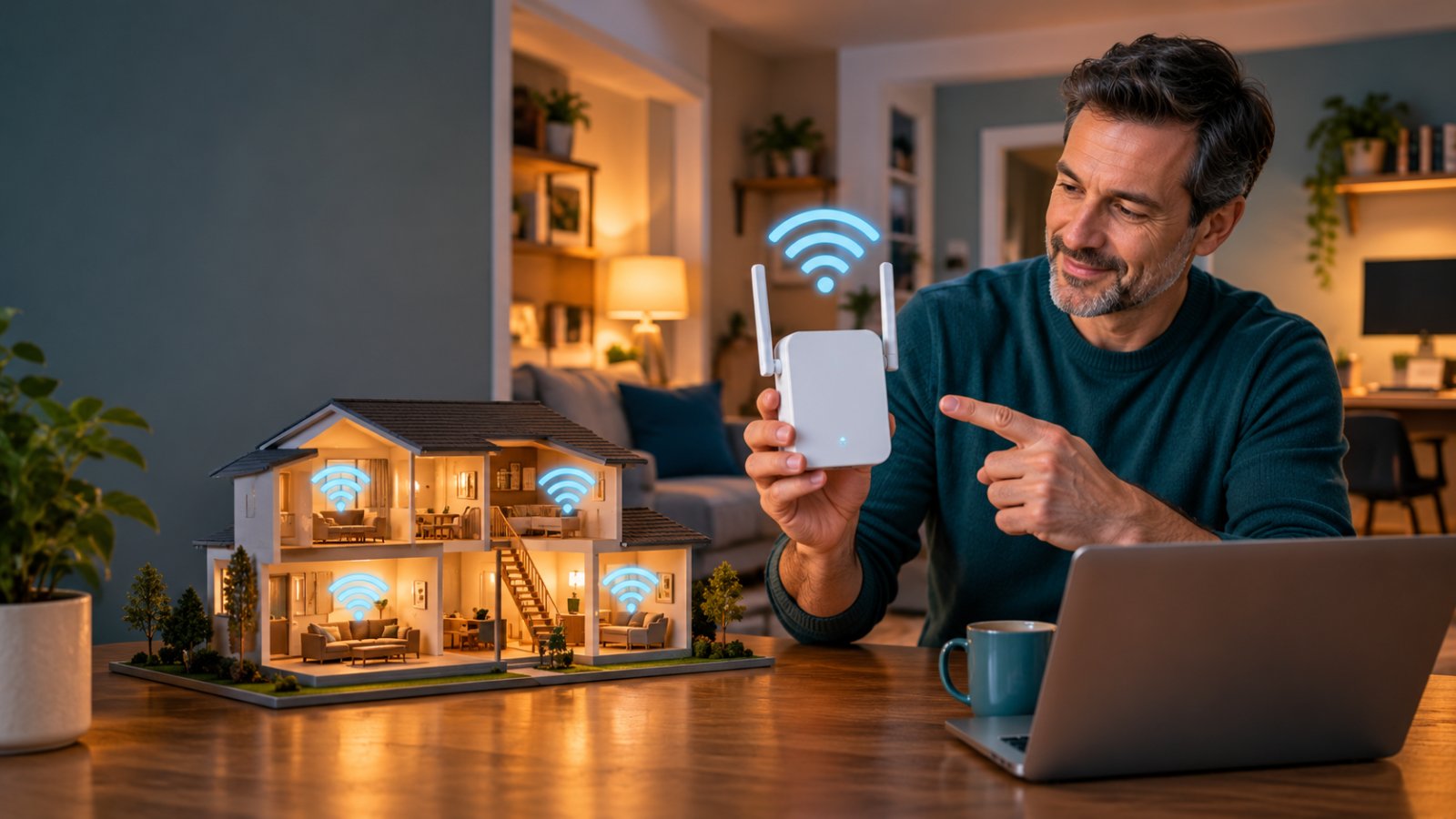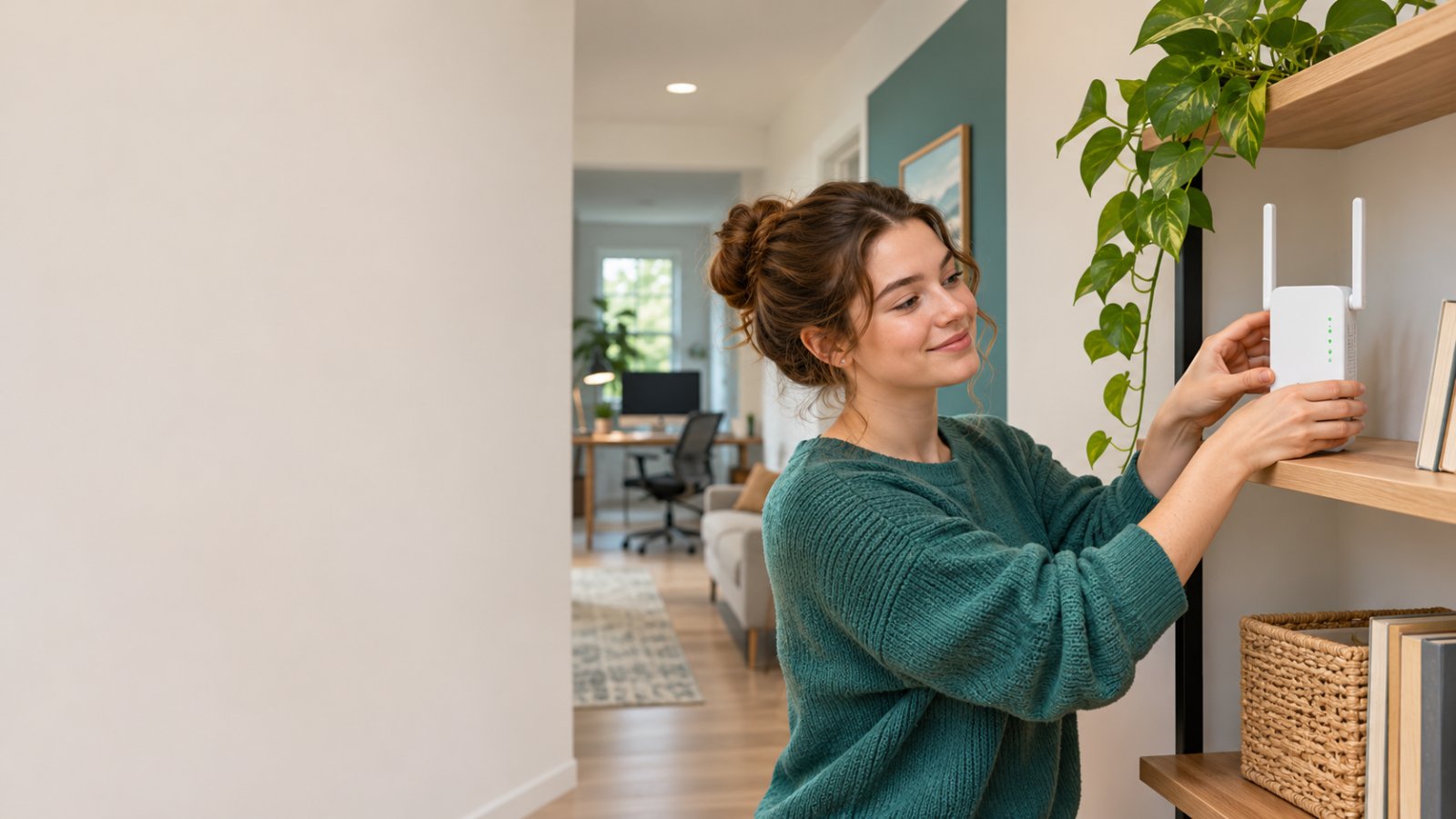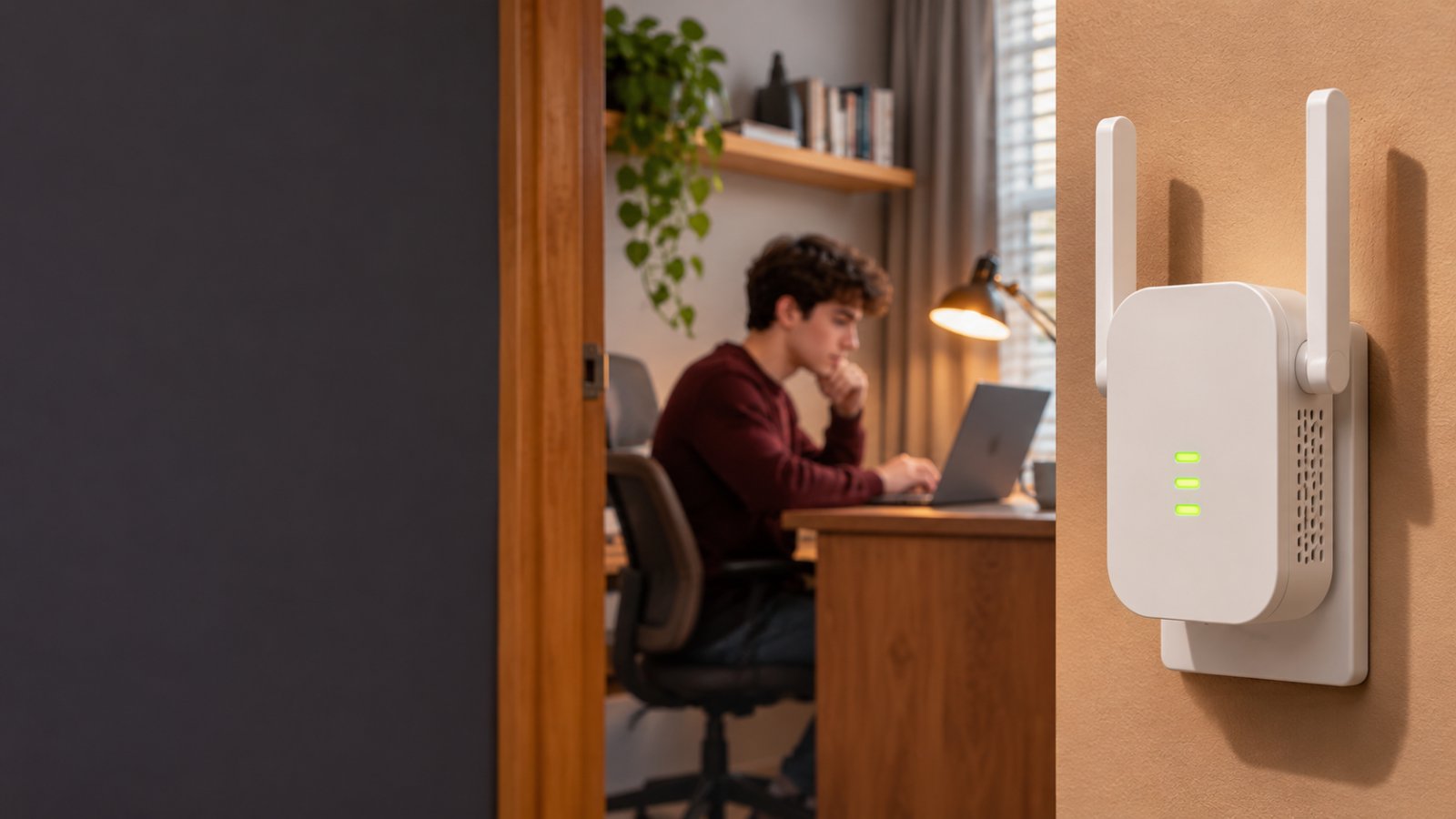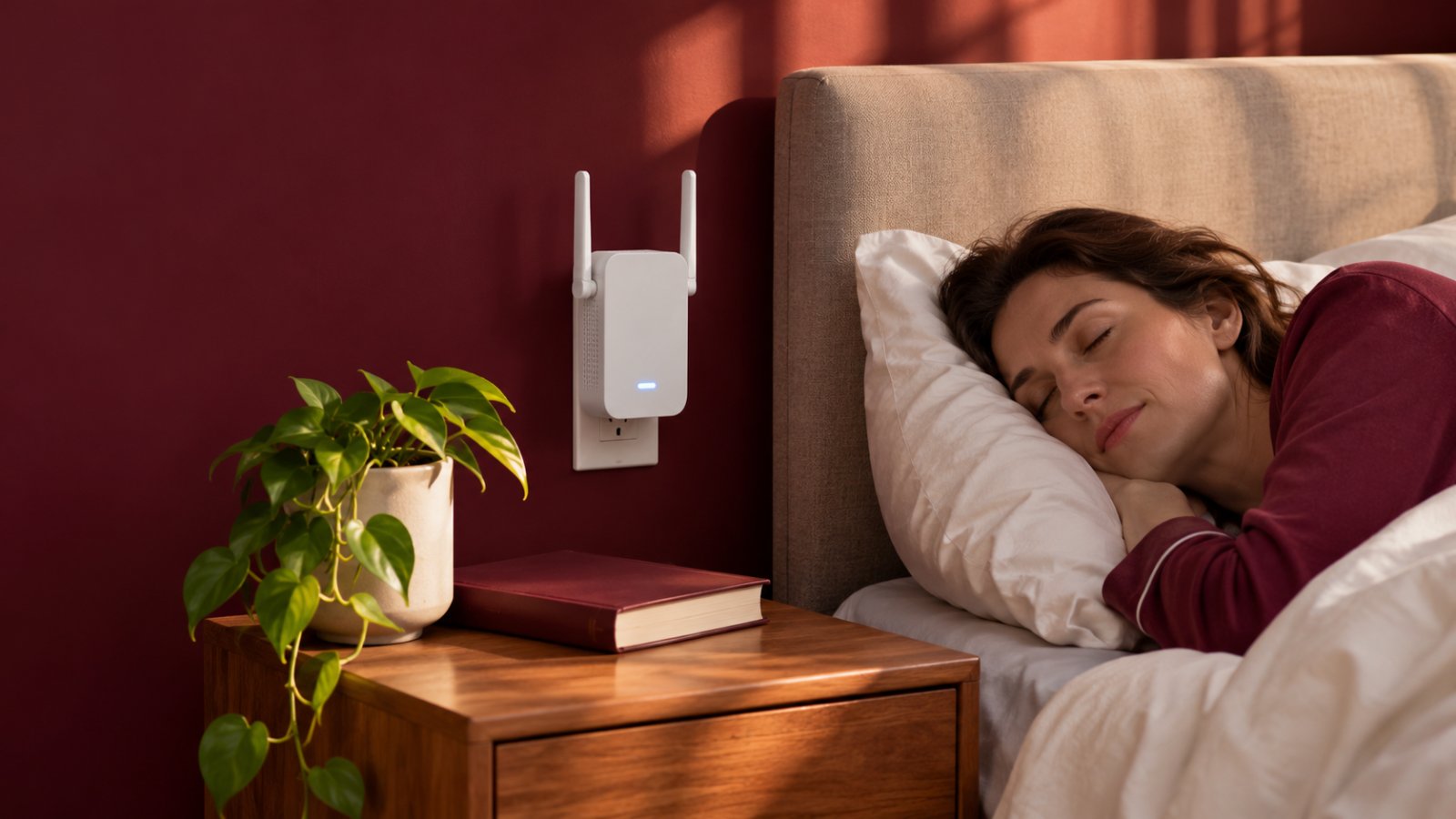
The best wifi extender for heavy sleepers is a fanless, dual-band model with adjustable indicator lights or an LED Night Mode. If you can install it in a nearby hallway and still receive reliable bedroom WiFi, that is usually the better option.
A bright blue indicator can be surprisingly distracting in a dark bedroom. Add a faint electrical hum, a warm device near the bedside table and limited space for phone chargers, and an otherwise useful extender becomes an inconvenience.
When shopping for bedroom networking equipment, check the LED controls, cooling design, router compatibility and available installation positions. You do not need a specialized sleep product. You need a reliable WiFi extender that works without disturbing your bedroom environment.
Why Bedroom Extenders Need Quiet and Low Light Features
An extender installed behind a television may go unnoticed for years. Put the same device in a dark bedroom, and its indicator lights become much harder to ignore.
Blue and white LEDs can reflect off mirrors, glossy furniture and pale walls. Some indicators also flash when the extender loses its connection or restarts after a power interruption.
Electrical noise presents another potential problem. A faint hum that disappears beneath ordinary daytime household sounds may become noticeable when the room is quiet.
According to CDC sleep guidance, keeping your bedroom quiet, relaxing and comfortably cool supports healthy sleep habits.
Choosing networking equipment with fewer visible and audible distractions is a practical part of creating that environment. It does not require blocking ordinary wireless signals or purchasing products marketed as radiation protection.
Why Heavy Sleepers Still Benefit From Low Light Networking Equipment
Heavy sleepers may not wake easily during the night, but that does not mean bright indicators are comfortable while they are trying to fall asleep.
A flashing network light can be annoying when reading before bed. It can also disturb a partner who prefers complete darkness.
Bedroom networking equipment should avoid introducing these problems:
-
Bright status lights facing the pillow.
-
Flashing indicators during connection interruptions.
-
Persistent electrical humming.
-
Heat trapped between furniture and bedding.
-
Crowded electrical outlets beside the bed.
-
Unreliable connectivity when using a phone or television.
If your bedroom already receives adequate WiFi, there is no reason to install another networking device there.
When additional coverage is necessary, start by checking whether the extender can operate from a neighboring room or hallway.
What Side Sleepers Should Consider
If you are searching for the best wifi extender for side sleepers, outlet position matters more than the shape or advertised speed of the extender.
Someone sleeping on their side may face a wall outlet directly. An indicator positioned at mattress height can remain visible whenever they open their eyes.
Even a relatively dim light can become distracting when it faces the pillow.
Before buying an extender, lie down in your usual sleeping position and look toward the proposed outlet. Check whether the device would sit directly within your field of vision.
If it would, choose a model with documented LED controls or find another installation position.
Your sleeping position does not change the technical requirements of your WiFi network. It changes which hardware locations are likely to be comfortable.
Best WiFi Extender for Heavy Sleepers: How We Evaluated the Options
An extender intended for a bedroom needs to meet different practical requirements from one installed in a garage or home office.
The recommendations below are based on documented hardware specifications, available settings, wireless compatibility and installation requirements. They are not based on comparative sleep studies, laboratory noise measurements or independent product testing.
Use these criteria when comparing models:
-
LED control: Can the status lights be switched off, dimmed or scheduled?
-
Cooling design: Does the device operate without an internal cooling fan?
-
Wireless performance: Can it maintain a stable connection to your router?
-
Installation flexibility: Can it serve the bedroom from a hallway or neighboring room?
-
Physical dimensions: Will it block an adjacent electrical outlet?
-
Ventilation: Is there enough open space around the device for heat to dissipate?
-
Scheduling: Can you manage indicator lights without interrupting internet access?
-
Compatibility: Will your phones, televisions, cameras and smart home devices remain connected?
An extender with a modest wireless speed rating and effective LED controls may be a better bedroom purchase than a faster model with several permanently illuminated indicators.
Similarly, paying extra for advanced networking features makes little sense if the device cannot maintain a dependable connection at your intended outlet.
Key Features in Bedroom Friendly Signal Boosters
LED Control and Night Mode Settings
Status lights are useful when setting up a WiFi extender. They can show whether the device has power, whether it has connected to the router and whether its installation position provides adequate signal strength.
Once the extender is working, you may not need those lights illuminated all night.
There are three main types of lighting control worth checking.
Manual LED control
Some models allow you to disable their indicators using a physical button, browser interface or mobile application.
This suits bedrooms where the lights are never needed during normal operation. You can turn them back on when troubleshooting.
Scheduled LED Night Mode
A supported LED Night Mode automatically disables indicators during specified hours.
For example, you might set the lights to switch off at 10 p.m. and return at 7 a.m.
WiFi should remain available throughout that period when the setting controls only the LEDs.
Adjustable LED brightness
Some networking devices allow you to reduce indicator brightness instead of switching the lights off completely.
This suits households where someone wants to retain a visible power indicator without lighting up the surrounding wall.
How to Check Whether an Extender Supports LED Night Mode
A product description mentioning a smart signal indicator does not establish that the indicator can be disabled.
Before ordering, find the user manual for the exact model and hardware version. Search the document for:
-
LED Control.
-
Night Mode.
-
LED Schedule.
-
Indicator Lights.
-
LED On or Off.
-
Light Settings.
Check which indicators the setting controls.
Some models switch off all routine status lights but briefly illuminate them during startup, firmware installation or connection failures.
If you want complete darkness, check whether those exceptions apply.
Also distinguish between a physical LED button and a scheduled lighting feature. A manual button works well if you want the lights permanently off. A schedule is more convenient if you still want visible connection information during the day.
How to Enable Night Mode on a Compatible WiFi Extender
The exact menus depend on the manufacturer, but compatible devices generally follow a similar process.
-
Connect your phone or computer to the home network.
-
Open the extender's official management application or browser interface.
-
Sign in with the administrator credentials.
-
Find System Settings or Advanced Settings.
-
Open LED Control or Night Mode.
-
Enable the lighting schedule.
-
Enter your preferred starting and ending times.
-
Save the configuration.
-
Confirm that WiFi continues working when the indicators switch off.
For the initial test, temporarily schedule the LEDs to turn off within the next few minutes. This lets you confirm the feature works without waiting until bedtime.
After testing, enter your actual sleeping hours.
If the lights switch off at the wrong time, check the extender's clock and time zone.
Be careful not to select a Power Schedule or Wireless Schedule instead. Those controls may disconnect the extender or disable WiFi, including connections used by outdoor security cameras.
Fanless Passive Cooling for Silent Performance
WiFi extenders generate heat while operating. Their cooling design determines how that heat is managed.
Passive cooling releases heat through the device's internal thermal design, housing and ventilation openings. It does not require a mechanical cooling fan.
Active cooling uses a fan to move air around electronic components.
For bedrooms, passive cooling is generally the more appropriate choice. A device without a fan cannot produce fan motor noise or the sound of moving fan blades.
Many compact residential extenders use passive cooling. However, verify the design of the particular model instead of assuming every plug-in networking device is fanless.
Why Fanless Does Not Always Mean Completely Silent
Removing the cooling fan does not eliminate every possible source of sound.
Electronic power components can sometimes produce a faint hum or high-pitched tone. This is occasionally referred to as coil whine.
Its presence and intensity can vary between individual devices.
A manufacturer describing an extender as fanless is not necessarily guaranteeing that it produces no audible electrical noise.
If you are sensitive to these sounds, buy from a seller with a suitable return policy.
Once installed, listen to the extender when the television, air conditioner and other nonessential appliances are quiet.
If you can clearly hear persistent humming from your usual sleeping position, try another suitable outlet outside the bedroom or request an exchange.
Crackling, a burning smell, visible damage or unusual overheating are not ordinary bedroom comfort issues. Disconnect the equipment if it is safe to do so and contact the manufacturer.
Keep Ventilation Open
A passively cooled extender needs adequate airflow around its housing.
Covering it to hide an indicator can interfere with its ability to release heat.
Avoid installing extenders:
-
Under pillows or mattresses.
-
Inside enclosed bedside drawers.
-
Behind curtains that cover ventilation openings.
-
Directly above radiators.
-
Against bedding or upholstered furniture.
-
In crowded cabinets without adequate ventilation.
A slightly warm housing can be normal during operation. Follow the manufacturer's operating temperature and installation clearance requirements.
If the lights are uncomfortable, disable them through supported controls or move the device. Do not solve a lighting problem by obstructing its cooling system.
Dual Band Performance for Stable Connections
Dual Band WiFi supports connections on both the 2.4 GHz and 5 GHz frequency bands.
Having access to both is useful when your extender sits outside the bedroom and needs to serve different devices through walls or doorways.
2.4 GHz WiFi
The 2.4 GHz band generally provides better reach through certain building materials than higher frequencies.
It is commonly supported by smart plugs, sensors and wireless security cameras.
However, it can experience congestion from neighboring routers and other wireless equipment.
5 GHz WiFi
The 5 GHz band can provide higher wireless capacity when the connection is sufficiently strong.
It is useful for streaming, downloading files, gaming and video calls.
Its signal may weaken more quickly through thick walls and floors.
For example, a television near the bedroom entrance may stream reliably over 5 GHz, while a compatible smart plug near the far wall may perform better on 2.4 GHz.
A dual-band extender allows you to accommodate both requirements without adding separate networking devices.
Compatibility With Dual Band WiFi Routers
Find your existing router's model number before purchasing an extender. It is usually printed on the underside or rear of the device.
Check its official specifications for supported WiFi standards, frequency bands and wireless security modes.
You can also inspect the router's management interface.
Some dual band WiFi routers broadcast separate network names for 2.4 GHz and 5 GHz. Others use one shared name and manage connections automatically.
When selecting an extender, confirm compatibility with the router's security configuration, particularly if you use WPA3.
An older extender may work with a newer router but lack some of its advanced features.
Likewise, connecting a WiFi 6 extender to a WiFi 5 router does not turn the router's wireless connection into WiFi 6.
Buy for the network you currently use and any realistic upgrades you plan to make.
Recommended Extender Options for Heavy and Side Sleepers
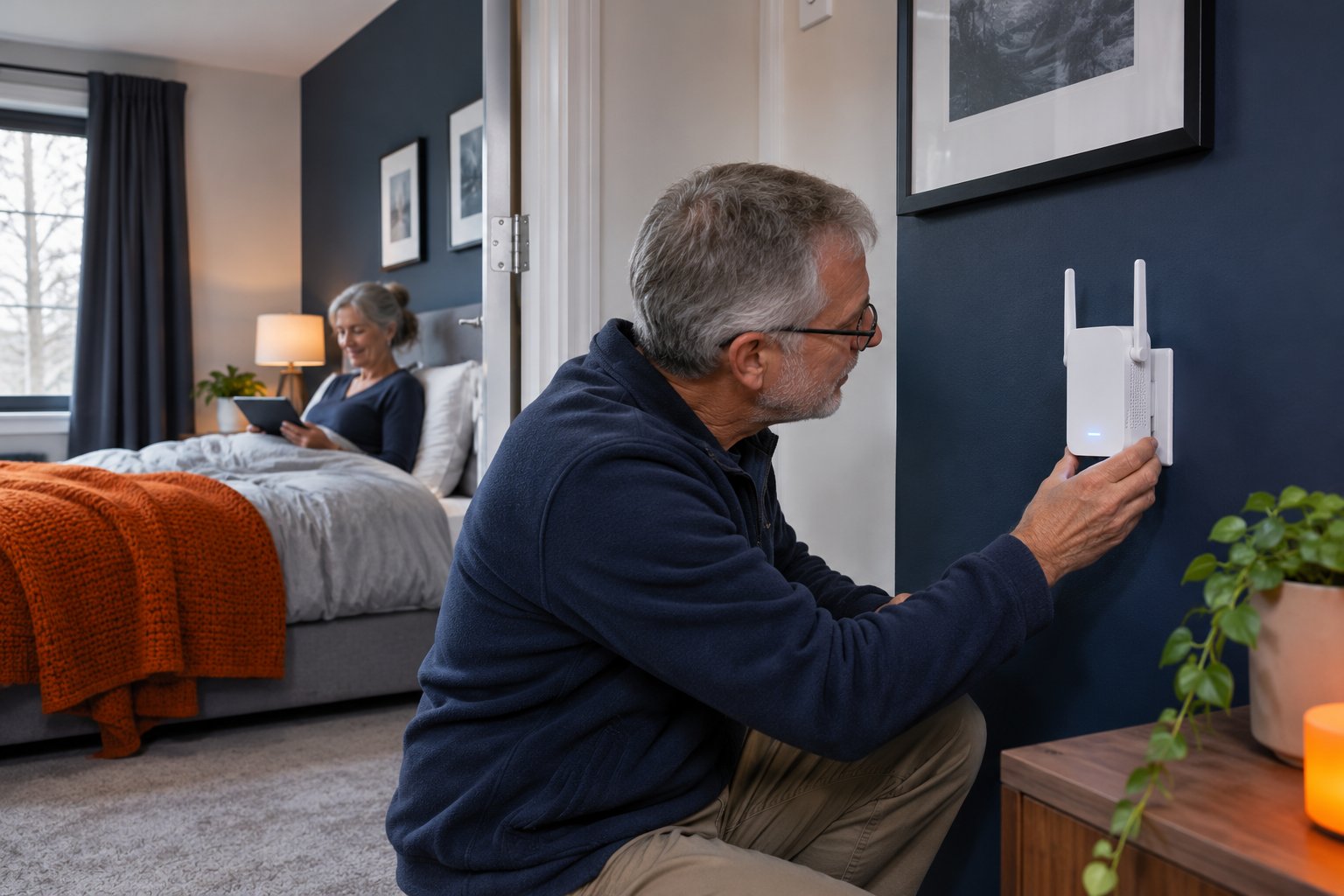
The right extender depends on where you can install it and how much wireless coverage your bedroom needs.
Someone renting a small apartment may only need a compact plug-in device. A family with several upstairs bedrooms may benefit more from one mesh node or wired access point on the landing.
These options address different installation requirements.
ROOXIS WiFi Extender for Quiet Nighttime Coverage
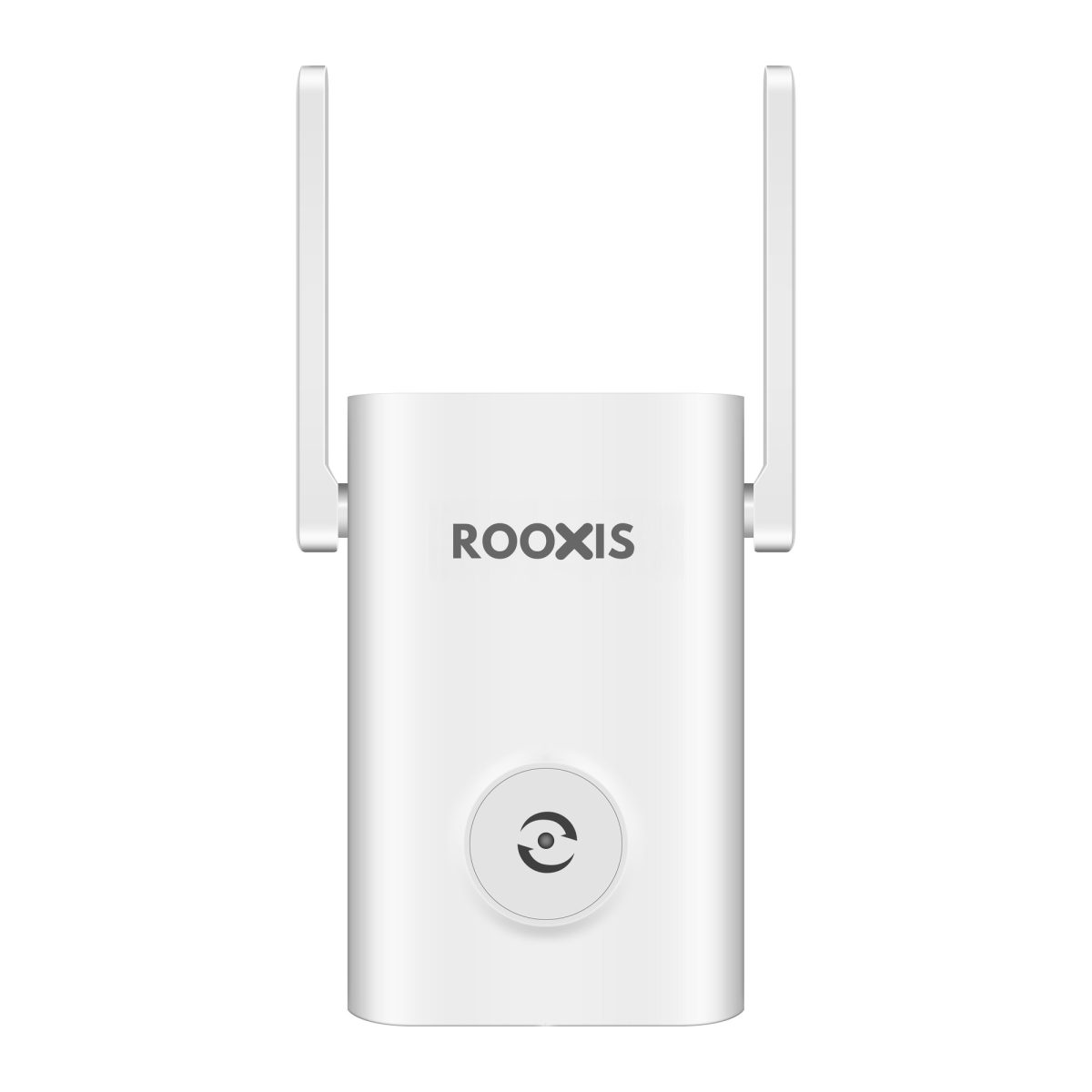
The ROOXIS AX1800 WiFi 6 extender supports dual-band connectivity, a gigabit Ethernet port and a signal-strength indicator that helps with positioning.
It is a practical option to consider when improving bedroom WiFi from an adjacent hallway or another shared area.
Who it is for:
-
Renters who cannot install permanent network wiring.
-
Homeowners with weak upstairs WiFi.
-
Households using compatible WiFi 6 routers.
-
Bedrooms that also function as study or entertainment spaces.
-
People who prefer keeping networking equipment outside the bedroom.
Strengths
The dual-band configuration supports different household connectivity requirements.
The signal-strength indicator helps determine whether the extender receives a suitable connection from the main router.
Its gigabit Ethernet port also provides an option for connecting compatible wired equipment, subject to the selected operating mode and available upstream connection.
Limits
The model includes visible status indicators. Its published specifications do not establish that it supports scheduled LED Night Mode, adjustable brightness or fanless cooling.
If those features are essential to an in-bedroom installation, confirm them before purchasing.
Installing the extender outside the sleeping area avoids relying on undocumented lighting or acoustic features.
Best installation approach
Begin with a hallway outlet between the router and the bedroom.
Check the extender's connection indicator, close the bedroom door and test the devices you regularly use.
If video streaming, browsing and camera access work reliably, leave the extender in the hallway rather than moving it beside the bed.
Dual-Band Extender With Dedicated LED Night Mode
An extender with documented LED scheduling is especially useful when there is no suitable outlet outside the bedroom.
The TP-Link RE315, for example, has documented LED controls, including scheduled nighttime indicator operation on supported versions.
Who it is for:
-
Light-sensitive sleepers.
-
Side sleepers facing an electrical outlet.
-
Couples who prefer a dark bedroom.
-
Shift workers sleeping during daylight hours.
Strengths
LED scheduling allows you to maintain wireless connectivity while disabling routine indicator lights.
There is no need to unplug the extender before sleeping or reconnect it every morning.
Limits
LED controls may not affect every temporary startup or fault indicator.
Check the specific hardware revision and firmware documentation.
Older AC1200 models may also have Ethernet ports limited to 100 Mbps. That can become a restriction if you use the bedroom as a home office and intend to connect a computer through the extender's Ethernet port.
Fanless WiFi 6 Extender
A fanless WiFi 6 extender is worth considering when the bedroom serves several purposes.
A room used for sleeping at night might also contain a gaming computer, work laptop and smart television during the day.
Who it is for:
-
People working from their bedrooms.
-
Students using several wireless devices.
-
Families with modern WiFi 6 equipment.
-
Users replacing older networking hardware.
Strengths
WiFi 6 can improve wireless efficiency when compatible devices share available network resources.
A confirmed fanless cooling design avoids mechanical cooling noise.
Models equipped with gigabit Ethernet ports also provide useful wired connection options.
Limits
WiFi 6 does not overcome every wall or floor obstruction.
The extender still needs a dependable upstream connection to your router.
A fanless design also does not guarantee that the electrical components will produce no audible sound.
Check LED controls separately because passive cooling and adjustable lighting are independent features.
Mesh WiFi Node With Adjustable Indicators
A mesh system can be a better purchase when multiple bedrooms have unreliable WiFi.
Instead of placing a separate extender in every room, you may be able to serve several bedrooms with one correctly positioned mesh node.
Who it is for:
-
Larger households with several bedrooms.
-
Families experiencing widespread WiFi dead zones.
-
People who regularly move between rooms during calls.
-
Homeowners who want centralized network management.
Strengths
Compatible mesh systems coordinate wireless coverage across several networking units.
Some include application-based indicator controls and information about individual node connections.
An upstairs landing installation can provide shared coverage while keeping equipment out of the bedrooms.
Limits
Mesh systems generally cost more than a standalone extender.
Wireless mesh nodes still need dependable connections to the rest of the system.
A node placed behind several thick walls may struggle even if the product advertises extensive coverage.
Check whether the specific mesh model allows its indicator lights to be disabled or scheduled.
Ethernet-Connected Wireless Access Point
A wired access point receives its network connection through Ethernet instead of repeating the router's wireless signal.
It is particularly useful when concrete floors or thick walls prevent an ordinary extender from maintaining reliable reception.
Who it is for:
-
Homes with working Ethernet wall outlets.
-
Properties with reinforced concrete construction.
-
Homeowners planning permanent network improvements.
-
Households that prefer networking equipment outside bedrooms.
Strengths
Ethernet removes the need for the access point to receive a wireless signal from the router.
You can install the device in an upstairs hallway and provide WiFi to nearby bedrooms without relying on a weak downstairs connection.
It also avoids using wireless airtime for the Ethernet backhaul.
Limits
You need a functioning Ethernet connection at the proposed location.
Installing new cables may require professional assistance or landlord permission.
The access point's lighting and cooling features should also be checked if it will operate near a sleeping area.
Bedroom WiFi Extender Comparison Table
| Networking option | Best for | Nighttime advantage | Main limitation |
|---|---|---|---|
| Dual-band AC1200 extender | Basic bedroom connectivity | Compact and straightforward installation | LED controls and Ethernet speeds vary |
| Extender with LED Night Mode | Light-sensitive sleepers | Automatic indicator light scheduling | Availability depends on the model |
| Fanless WiFi 6 extender | Bedrooms used for work and gaming | No mechanical cooling fan noise | Electrical noise remains possible |
| Hallway-mounted extender | Heavy and side sleepers | Keeps hardware outside the sleeping area | Requires adequate router reception |
| Mesh WiFi node | Multiple poorly connected bedrooms | Shared coverage with fewer bedroom devices | Higher initial equipment cost |
| Wired access point | Thick walls and permanent installations | Reliable coverage from a separate location | Requires Ethernet connectivity |
For a single bedroom with weak reception, start by investigating a compact dual-band extender.
If it must remain inside the bedroom, confirmed LED control and passive cooling become more important purchasing requirements.
If several bedrooms have problems, compare a shared mesh node or wired access point before buying individual extenders for every room.
How to Choose the Right Bedroom WiFi Extender
For Heavy Sleepers Who Want Fewer Distractions
Choose a compatible extender with documented passive cooling and straightforward indicator controls.
Check hallway outlets first.
If a hallway installation provides reliable coverage inside the bedroom, there is no benefit in moving the equipment closer to the bed.
You do not need to pay extra for products marketed specifically around sleep or wireless exposure.
For Side Sleepers Facing a Wall Outlet
Inspect the proposed installation location from your normal sleeping position.
If you face the outlet directly, choose an extender with a documented LED off setting or scheduled Night Mode.
A nearby outlet on a different wall may also provide a better arrangement.
Do not place the extender behind a pillow, curtain or upholstered headboard to hide its indicators.
For Couples With Different Sleeping Preferences
One person might use a tablet before bed while the other prefers complete darkness.
An extender with controllable LEDs keeps networking available without adding another visible light source.
If possible, install the extender outside the room and use individual screen brightness and notification settings to manage personal preferences.
There is no need to disconnect the entire household network because one person wants fewer distractions.
For Night Shift Workers
Look for adjustable LED schedules rather than a fixed nighttime feature.
A person working overnight may sleep between 8 a.m. and 4 p.m. Those hours require different settings from a conventional evening schedule.
Check that the extender allows you to enter custom start and end times.
Also confirm that the schedule uses the correct local time zone.
For Renters With Limited Electrical Outlets
Measure the available space around your intended outlet.
A large plug-in extender can obstruct a neighboring socket needed for a lamp or phone charger.
Choose a compact model that fits without requiring unsafe electrical arrangements.
If the only suitable socket is beside the bed, prioritize documented LED controls and keep the device's ventilation openings clear.
For Bedrooms With Smart Home Devices
Check which wireless bands your smart lights, plugs and sensors support.
Some devices operate exclusively on 2.4 GHz.
A dual-band extender allows compatible smartphones, laptops and televisions to use 5 GHz while retaining 2.4 GHz connectivity for other equipment.
Before enabling nighttime network restrictions, identify any connected devices that need to remain online.
A WiFi schedule that disconnects a camera or smart alarm is not an appropriate substitute for an LED schedule.
How to Block WiFi Signal in a Room for Better Sleep
People searching for ways to block WiFi signal in a room often have different objectives.
Some want to stop late-night browsing. Others want fewer notifications, a darker bedroom or less electronic equipment near the bed.
These concerns do not necessarily require wireless signal blocking.
According to Health Canada's guidance on WiFi equipment, exposure to radiofrequency fields from WiFi equipment operating within applicable exposure limits does not present established health risks.
There is no established evidence that blocking ordinary household WiFi exposure improves sleep.
If you want a better sleeping environment, focus first on visible light, screen use, notifications and equipment noise.
Turn Off WiFi on Individual Bedroom Devices
If your objective is to reduce nighttime internet use, disconnecting selected devices is simpler than shutting down the whole network.
On iPhone:
-
Open Settings.
-
Tap WiFi.
-
Switch WiFi off.
Use the main Settings application if you want to disable WiFi rather than temporarily disconnect through Control Center.
On Android:
-
Open Settings.
-
Select Network & internet or Connections.
-
Open WiFi.
-
Switch WiFi off.
Supported Android devices also offer WiFi controls through Quick Settings.
Remember that mobile data may remain available afterward.
Turning off WiFi does not necessarily prevent messages, social media notifications or incoming calls from reaching your phone.
Use Do Not Disturb or bedtime controls if interruptions are the actual problem.
Use a Router Wireless Schedule
Some routers allow wireless networks to operate according to a schedule.
You could configure a supported network to become unavailable during certain sleeping hours.
To check for this feature:
-
Open the router's official management interface.
-
Sign in with your administrator credentials.
-
Locate Wireless Settings or Advanced Settings.
-
Find WiFi Schedule or Wireless Schedule.
-
Select the relevant network.
-
Set the desired operating hours.
-
Confirm the time zone and save.
Before enabling the schedule, identify which devices depend on that network.
Outdoor security cameras, video doorbells, smart sensors and connected household equipment may stop communicating when WiFi is disabled.
Local camera recording may continue on some models, but remote viewing and notifications can become unavailable.
Do not disable a network supporting important monitoring equipment simply to reduce smartphone distractions at bedtime.
Schedule Individual Device Internet Access
When late-night gaming or browsing is the problem, device-specific access controls offer a more targeted solution.
Some routers allow parents to schedule internet availability for selected phones, computers and gaming consoles.
Open the router's management interface and look for:
-
Parental Controls.
-
Access Control.
-
Device Management.
-
Internet Schedule.
Identify the correct device before applying a restriction.
A teenager's phone and a security camera might appear under unfamiliar manufacturer names. Check the device information carefully so you do not restrict the wrong equipment.
Some access controls block internet access while allowing the device to remain connected to the local network.
This is different from physically blocking wireless signals.
Move Networking Equipment Outside the Bedroom
If visible indicators or electrical noise are the main concerns, moving the extender can solve both without changing your internet settings.
Try an outlet in the hallway, adjacent study or upstairs landing.
Check the router connection at the new position, then test WiFi from inside the bedroom.
This arrangement keeps the physical equipment outside the sleeping area while maintaining wireless access.
It does not remove WiFi signals from the bedroom, nor does it need to.
Avoid Improvised Wireless Signal Blocking Methods
Do not wrap networking equipment in aluminum foil, conceal it inside metal containers or cover its ventilation openings.
These methods can weaken wireless coverage and interfere with the equipment's cooling design.
They may also create unexpected connectivity problems elsewhere in the house.
Avoid wireless signal jammers. Such equipment can interfere with surrounding communications and is prohibited for ordinary consumer use in the United States.
If you want to manage internet availability, use supported router schedules or individual device controls.
Those settings are easier to reverse and allow you to target the equipment you actually want to disconnect.
Improve Sleep Hygiene Without Disabling the Network
A quieter bedtime routine does not necessarily require changing your WiFi setup.
Start with the distractions you can identify directly:
-
Enable Sleep Focus or Do Not Disturb.
-
Silence nonessential application notifications.
-
Reduce screen brightness before bed.
-
Switch off unnecessary equipment indicators.
-
Move audible electronics outside the bedroom.
-
Keep chargers and devices away from bedding.
-
Maintain a comfortable, dark and quiet sleeping environment.
On iPhone, open Settings and select Focus to configure Sleep or Do Not Disturb.
On compatible Android devices, search Settings for Bedtime mode or Digital Wellbeing.
Allow exceptions for important calls and alerts where necessary.
These adjustments address common bedtime interruptions while allowing household security cameras and other connected equipment to remain online.
Placement Strategies to Keep Extenders Away from the Bed
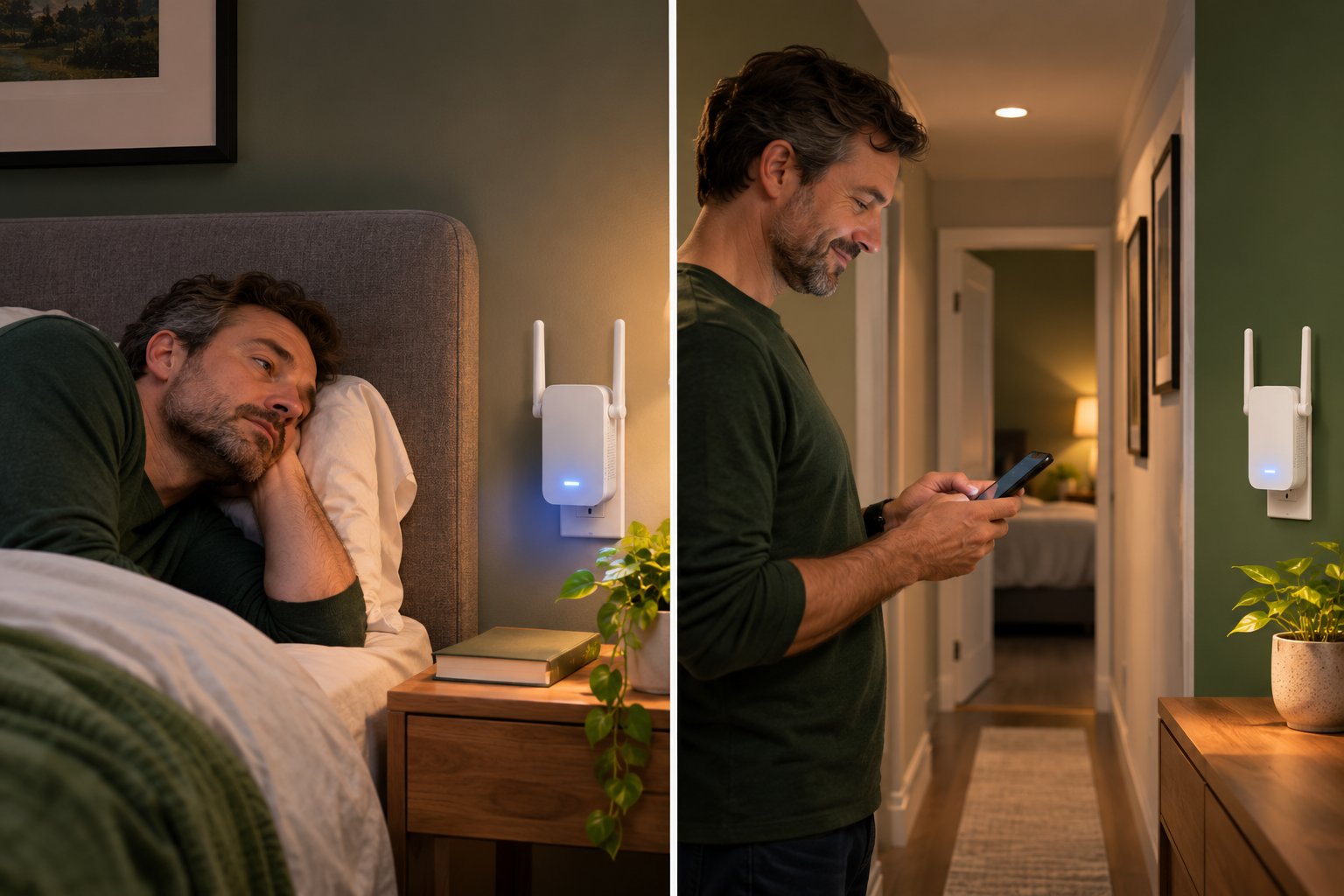
The best bedroom WiFi arrangement often keeps the networking equipment outside the bedroom entirely.
A hallway outlet can serve nearby rooms without introducing another indicator light, power connection or warm electronic device beside the bed.
The challenge is finding an outlet that receives dependable WiFi from the router and still provides adequate coverage inside the bedroom.
Start With the Hallway Outside the Bedroom
Look for an electrical outlet between the main router and the bedroom entrance.
Before purchasing or positioning an extender, check the existing connection at that location.
-
Connect your smartphone to the main router's WiFi network.
-
Temporarily disable mobile data.
-
Stand near the proposed hallway outlet.
-
Open a familiar website.
-
Run an internet speed test.
-
Check whether the connection remains consistent.
If websites repeatedly fail to load or the wireless connection drops at that outlet, the extender may also struggle there.
Try another position closer to the router.
The physical midpoint between the router and bedroom is only a starting point. A wall, staircase or metal cabinet can make one outlet considerably less suitable than another nearby outlet.
Improve Router Placement Before Buying Additional Equipment
Check where your existing router sits.
A router hidden inside a television cabinet or positioned behind large furniture may provide unnecessarily weak bedroom coverage.
Moving it onto an open shelf can improve the connection without introducing additional equipment.
Keep the router away from large metal surfaces and avoid enclosing it in furniture.
These router placement tips explain how to find a more suitable location for your existing hardware.
After moving the router, return to the bedroom and repeat your connectivity checks.
If streaming and browsing now work reliably, you may not need to purchase an extender.
Test WiFi With the Bedroom Door Closed
Testing with the bedroom door open can produce misleading results.
The connection may perform well during installation but become unreliable when you close the door at night.
The difference depends on the door's construction, surrounding walls and the locations of the router and extender.
After positioning the extender:
-
Enter the bedroom and close the door.
-
Open WiFi settings on your phone or laptop.
-
Confirm that you are connected to the intended network.
-
Open several websites or stream a video.
-
Move to your usual sitting or sleeping position.
-
Check whether the connection remains stable.
If performance deteriorates when the door closes, try a different extender location.
An adjacent room or another hallway outlet may provide a more effective wireless route.
If the extender uses a separate network name, make sure your phone has not remained connected to the weaker original router signal.
Otherwise, you could incorrectly conclude that the new extender is not helping.
Avoid Bedside Outlets When Better Positions Exist
The outlet beside your bed may be convenient for charging a phone, but it is not necessarily a good position for networking equipment.
A large extender can obstruct neighboring sockets or place its indicator directly beside your pillow.
The device may also sit against furniture or bedding, restricting ventilation.
Choose an installation position that:
-
Keeps visible indicators outside your direct line of sight.
-
Allows adequate airflow around the housing.
-
Receives a dependable connection from the router.
-
Remains accessible for configuration and troubleshooting.
-
Keeps cables away from walking routes.
-
Avoids direct contact with bedding and upholstered furniture.
There is no universal minimum distance that a WiFi extender must remain from your bed for health reasons.
Choose its location according to the manufacturer's instructions, connection quality and your comfort preferences.
Consider an Upstairs Landing for Multiple Bedrooms
If two or three upstairs bedrooms have unreliable WiFi, test the landing before purchasing separate extenders for each room.
An open staircase can provide a more favorable wireless route from the downstairs router than transmitting directly through a thick floor.
Check whether the landing receives dependable WiFi.
If it does, one correctly positioned extender may improve coverage in several nearby bedrooms.
Test each room separately after installation. Close the doors and check the devices normally used there.
One bedroom may perform well while another remains weak because of an additional wall or greater distance.
If several rooms still struggle, consider whether a mesh system or wired access point would be more appropriate.
For wider household connectivity problems, consult this guide to choosing the best wifi extender to fix dead spots in your house.
Keep the Extender Away From Other Heat Sources
Plug-in extenders need adequate ventilation throughout the day and night.
Avoid outlets directly above radiators or beside equipment that releases substantial heat.
A cramped outlet between a bedside cabinet and a wall can provide less airflow than an exposed hallway outlet.
Also consider whether curtains cover the device when they are closed at night.
Do not place an extender inside a drawer simply because you want to conceal its indicators.
If the housing becomes unusually hot, disconnect the device if it is safe to do so and check the manufacturer's installation requirements.
Persistent overheating warrants further investigation or replacement.
Check Whether One Extender Is Enough
Installing multiple extenders can introduce additional wireless congestion and make household connectivity more difficult to manage.
It also means more electrical outlets, more indicator lights and more networking equipment to maintain.
Start with one suitable extender and test the bedroom devices individually.
Check your phone, television, laptop and compatible smart home equipment.
If everything operates reliably, stop there.
If several separate areas remain poorly connected, reconsider the overall network arrangement rather than automatically purchasing another extender.
A coordinated mesh system or Ethernet-connected access points may provide a more manageable solution than several standalone devices repeating one another's signals.
How to Test Your Bedroom WiFi Extender at Night
Daytime testing only tells you part of the story.
Your extender may perform adequately when few people are home but struggle during the evening when several family members are streaming, gaming or downloading files.
Physical distractions also become more noticeable after dark.
Check both network performance and bedroom comfort before deciding where the extender should remain.
Check Connection Stability
Connect your phone or laptop to the extended network and repeat the activities you normally perform in the bedroom.
For example:
-
Stream a television program.
-
Make a video call.
-
Open several websites.
-
Check an outdoor security camera's live feed.
-
Control compatible smart lights.
-
Download a file.
A good result means these activities continue without repeated buffering, unexpected disconnections or constant network switching.
Do not rely entirely on the WiFi bars displayed on your phone.
Your phone may have a strong connection to the nearby extender while the extender itself receives a weak signal from the router.
If performance remains unreliable, inspect the extender's upstream connection indicator or management interface.
Moving it slightly closer to the router may improve the connection more effectively than purchasing a model with a higher advertised speed.
Check Indicator Lights in a Dark Room
Switch off the bedroom lights and inspect the extender from your usual sleeping position.
Look for both direct illumination and reflected light.
A mirror opposite the outlet can make a small indicator more noticeable. Glossy furniture and pale walls can also reflect the light.
If the extender includes adjustable LEDs, test the available settings.
For a scheduled LED Night Mode, confirm that the indicators switch off at the correct time.
Then open a website or stream a short video to verify that wireless connectivity remains available.
If the internet stops working when the lights turn off, check whether you have mistakenly enabled a power or wireless shutdown schedule.
Listen for Unusual Electrical Noise
Turn off nonessential appliances and listen to the extender during a quiet period.
Check whether you can hear a persistent hum, buzz or high-pitched tone from your normal sleeping position.
A fanless extender should not produce mechanical cooling fan noise, although its electrical components may occasionally produce audible sounds.
If a faint sound becomes distracting, moving the extender outside the bedroom may solve the problem.
If the noise remains excessive, contact the manufacturer or consider an exchange.
Crackling, burning smells, visible damage and unusual overheating require immediate attention. Disconnect the equipment if it is safe to do so rather than continuing to test it.
Verify That Security Cameras Remain Connected
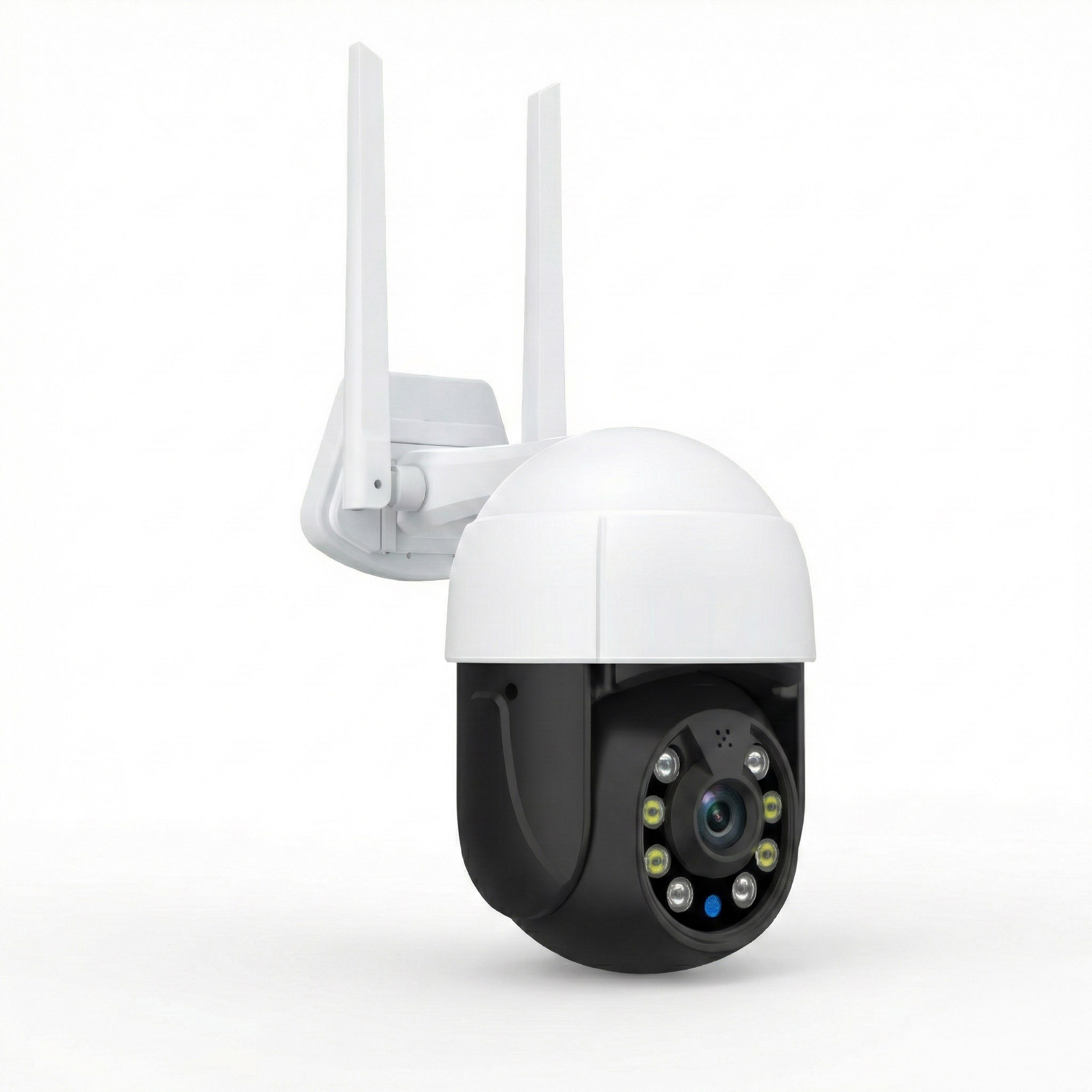
A bedroom extender may also provide coverage to an exterior camera mounted on a nearby wall.
Before changing its nighttime settings, identify which household devices depend on that connection.
After enabling LED Night Mode or another supported lighting setting:
-
Open your security camera application.
-
Check whether the camera appears online.
-
Open its live video feed.
-
Confirm that supported remote access features remain available.
-
Test notifications using the camera's normal functionality.
An LED schedule should not interrupt ordinary networking operations.
A power schedule or wireless shutdown can disconnect the camera from the network.
Depending on the camera's design, local recording might continue even though remote viewing and notifications become unavailable.
If a camera consistently goes offline at the same time each evening, inspect the networking equipment's scheduled settings before assuming the camera is defective.
Common Bedroom WiFi Extender Buying Mistakes
Buying an extender solely because it is advertised as silent
Check whether the device uses passive cooling and whether the manufacturer provides meaningful acoustic information.
A fanless design avoids fan noise, but it does not establish that the equipment produces no audible electrical sound.
Assuming every extender includes LED Night Mode
A product can have a smart signal indicator without offering any lighting controls.
Read the exact model's documentation before purchasing, particularly if complete bedroom darkness is important.
Confusing LED schedules with WiFi schedules
LED controls manage visible indicators. Wireless schedules manage network availability.
Selecting the wrong setting can interrupt phones, smart home devices and security cameras.
Covering the equipment to hide bright lights
Fabric, bedding and enclosed furniture can obstruct ventilation.
Disable the indicators through supported settings or relocate the extender instead.
Installing the extender in the weakest part of the bedroom
A wireless extender cannot reliably repeat a signal it barely receives.
Find an outlet with a dependable upstream connection, then check whether it provides useful bedroom coverage.
Purchasing equipment based on unsupported sleep or health claims
There is no established evidence that specialized WiFi extenders improve sleep by reducing ordinary household radiofrequency exposure.
Evaluate networking products according to documented LED controls, cooling design, wireless performance and installation flexibility.
For most households, a compatible dual-band WiFi extender installed in the hallway is a sensible starting point. If the equipment must remain inside the bedroom, choose a model with confirmed LED controls and passive cooling.
Test the connection with the bedroom door closed, inspect the indicators after dark and verify that your security cameras and other important devices remain online.
If the bedroom receives reliable WiFi without visible lights or distracting equipment noise, you have solved the problem without purchasing unnecessary hardware.
FAQ
What makes a WiFi extender good for a bedroom?
A bedroom-friendly WiFi extender should provide stable connectivity, offer controllable indicator lights and preferably use passive cooling without a mechanical fan. Dual-band support helps accommodate smartphones, televisions and compatible smart home devices. Installing the extender outside the bedroom can further reduce unwanted light and equipment noise.
Can you turn off the status lights on a WiFi extender?
Many WiFi extenders allow users to disable their indicators through a physical button, mobile application or browser-based management interface. Some include an LED Night Mode that automatically switches the lights off during selected hours without interrupting WiFi. Check the exact model's documentation because these controls are not available on every extender.
How do you block WiFi signal in a room while sleeping?
To restrict connectivity, disable WiFi on individual devices or use a supported router wireless schedule, although signals from other nearby networks may remain present. Device-specific internet controls are often more practical if your objective is to reduce nighttime browsing. There is no established evidence that blocking ordinary household WiFi exposure improves sleep, so prioritize managing screen use, visible lights and notifications.
Does a WiFi extender make noise while running?
Many residential WiFi extenders use passive cooling and contain no mechanical cooling fans. However, electrical power components can occasionally produce faint humming or high-pitched sounds. If the noise is distracting, relocate the extender outside the bedroom or contact the manufacturer about a replacement.