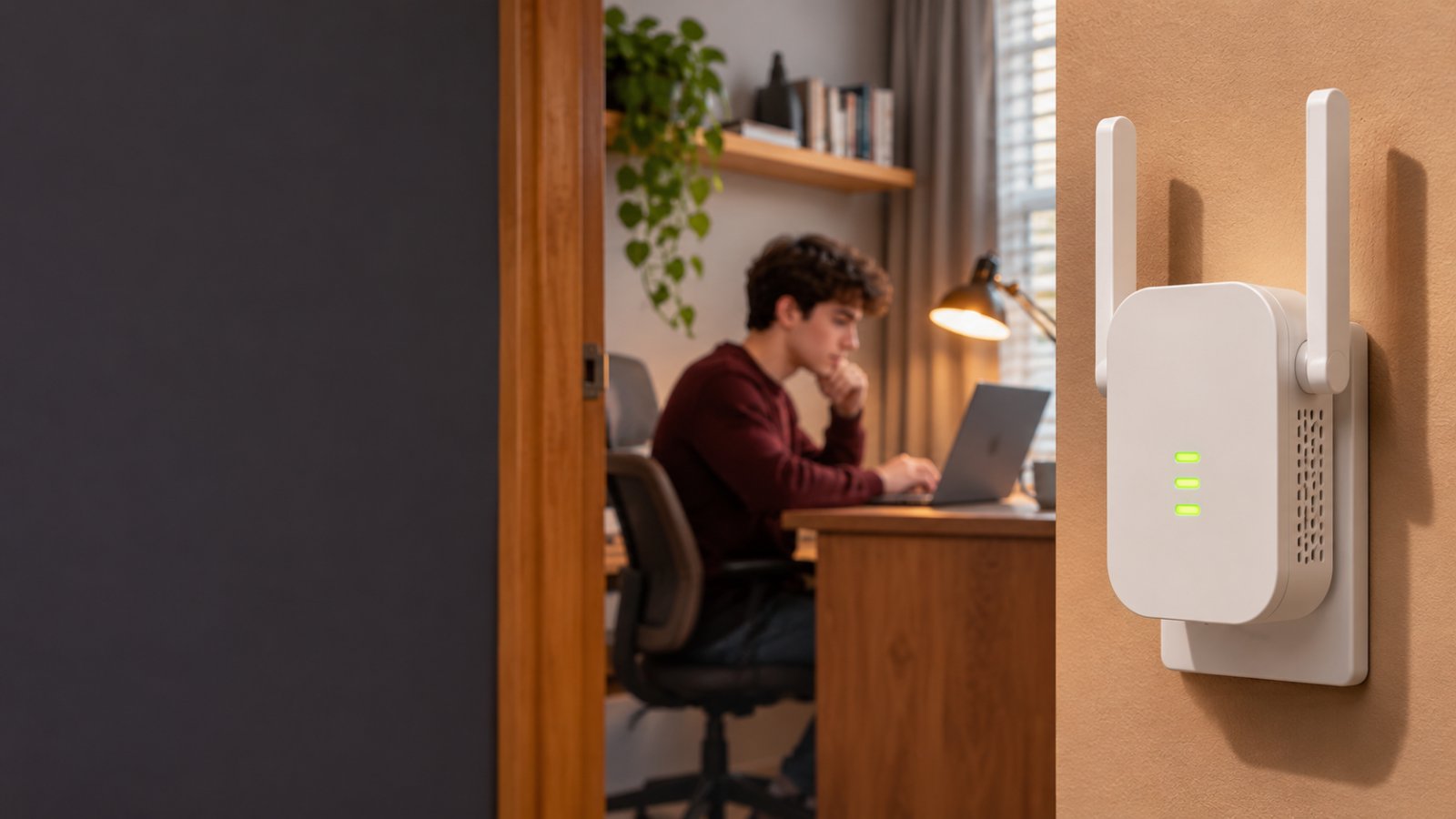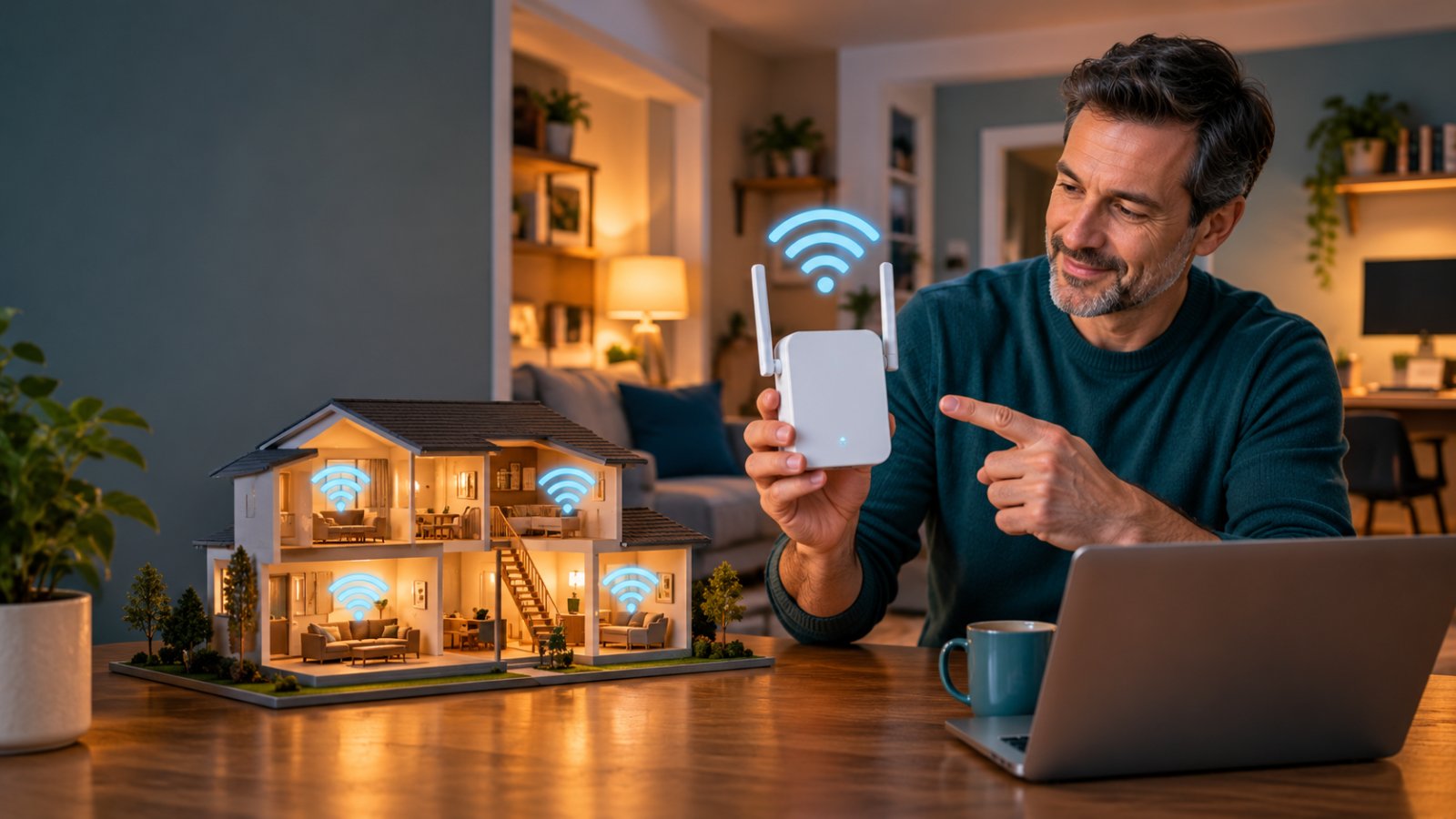
The most common mistake homeowners make when buying a WiFi extender is plugging it into the room where the original WiFi signal barely reaches. Even an expensive extender will struggle if it cannot maintain a reliable connection to the router.
The best wifi extender for large house coverage is typically a dual-band WiFi 6 extender for isolated dead zones, a mesh WiFi system for multiple poorly connected rooms, or an Ethernet-connected access point for areas separated by thick walls and floors.
Before ordering an extender, check how well your existing router performs, where the signal starts weakening and which devices need better connectivity. Fixing a guest bedroom that struggles with streaming requires a different approach from connecting an upstairs home office and several outdoor security cameras.

Best WiFi Extender for Large House: Quick Buying Guide
If your WiFi works perfectly in the living room, kitchen and downstairs bedrooms but becomes unreliable upstairs, you probably do not need to replace your entire network.
One correctly positioned extender could solve the problem.
However, if your basement, upstairs bedrooms and outdoor cameras all struggle with connectivity, a single plug-in extender may not be enough.
Use these recommendations as a starting point:
-
Best for one or two weak rooms: A dual-band AC1200 WiFi extender.
-
Best overall for modern households with isolated dead zones: An AX1800 WiFi 6 extender.
-
Best for demanding wireless connections: A tri-band extender with suitable dedicated backhaul capabilities.
-
Best for widespread dead zones and multiple floors: A coordinated mesh WiFi system.
-
Best for thick walls and permanent installations: Ethernet-connected wireless access points.
-
Best for difficult rooms without Ethernet wiring: Powerline WiFi adapters, subject to electrical wiring conditions.
-
Best for gardens, driveways and outdoor cameras: An outdoor-rated access point or compatible outdoor mesh node.
Pay particular attention to how the additional networking device connects to your router.
A conventional extender receives its network connection wirelessly. A wired access point receives its connection through an Ethernet cable. Mesh units can communicate wirelessly or through Ethernet, depending on the system.
If your home has reinforced concrete floors, choosing a reliable connection method is more useful than paying extra for an extender with a higher advertised wireless speed.
How We Evaluated WiFi Extenders for Large Homes
The recommendations in this guide are based on hardware specifications, wireless networking capabilities, installation requirements and the demands of typical household devices.
These are buying criteria, not results from comparative laboratory testing.
When evaluating equipment for a large house, consider the following:
-
Router compatibility: Check whether the extender supports your router's wireless standards and security settings.
-
Upstream connection quality: Determine whether it can maintain a reliable connection to the main router.
-
Wireless capacity: Consider simultaneous video calls, streaming, gaming and camera traffic.
-
Frequency bands: Check support for 2.4 GHz, 5 GHz and, where relevant, 6 GHz.
-
Ethernet connectivity: Look for suitable port speeds and documented access point functionality.
-
Installation flexibility: Consider available outlets, ventilation, wall construction and possible mounting positions.
-
Network management: Check whether you can identify connected devices and diagnose weak connections.
-
Firmware support: Look for available updates and accessible troubleshooting documentation.
A family with a 500 Mbps internet subscription and several people working or studying from home should pay particular attention to Ethernet port speeds and wireless capacity.
A homeowner trying to connect one garden security camera may care more about 2.4 GHz coverage, connection stability and outdoor installation requirements.
Neither household should make its decision based solely on the coverage figure printed on the packaging.
Understanding Why Large Houses Develop WiFi Dead Zones
An extender addresses a coverage problem. It does not automatically fix an overloaded router, a slow internet subscription or an unreliable internet service.
Identifying which problem you have can prevent an unnecessary purchase.
Distance From the Main Router
Wireless signals become weaker as they travel away from the router.
This commonly affects long, single-story houses where the internet connection enters the property near the front door, but the bedrooms and home office are located at the opposite end.
Before buying an extender, walk through the house with your smartphone connected to WiFi.
Turn off mobile data temporarily. Open a website, play a video or run a speed test in several rooms along the route.
If performance gradually deteriorates as you move farther away, distance is likely contributing to the problem.
An extender installed in an intermediate room may provide a usable connection to the distant area.
For example, an outlet halfway along a hallway could work better than an outlet beside the television in the room where streaming currently fails.
Thick Walls and Multiple Floors
Two houses with identical floor areas can have very different WiFi coverage.
Wooden interior walls generally present fewer obstacles than reinforced concrete, brick or large metal surfaces.
A router downstairs may provide excellent coverage to an upstairs landing through an open staircase but struggle to reach a bedroom directly above it through a concrete floor.
Do not assume that the shortest physical distance is the best wireless route.
Check the signal near doorways, staircases and open connecting spaces. These locations may provide better opportunities for an extender.
If you cannot find a position that receives dependable WiFi and is reasonably close to the problem area, investigate wired access points instead.
A more expensive extender cannot reliably compensate for every physical obstruction.
Too Many Devices Sharing One Connection
Large households often have several people streaming, attending video meetings, gaming and using connected appliances at the same time.
If your internet becomes slow every evening, even when you are sitting near the router, the problem may not be wireless range.
Check whether someone is downloading a large game, backing up photographs to the cloud or uploading video files.
These activities can consume substantial bandwidth, particularly on internet plans with limited upload capacity.
You can often identify active devices through your router's management application or browser interface.
Look for a section called Connected Devices, Clients or Network Map.
Adding an extender will not increase the internet bandwidth available to the household. It may also introduce additional competition for wireless airtime.
Resolve router capacity or internet service problems before buying equipment intended to extend coverage.
Poor Router Placement
Internet installers sometimes place routers wherever the incoming connection and a convenient electrical outlet are available.
That can leave the router inside a television cabinet, behind a sofa or in a utility room surrounded by equipment.
Before purchasing an extender, try moving the router into a more open position if its cables allow it.
Keep it off the floor, away from large metal objects and outside enclosed cabinets.
Test the connection again in the affected rooms.
Moving a router from behind a television to an open shelf may improve the connection sufficiently that you only need one additional networking device instead of several.
Best Types of WiFi Extenders for Large Houses in 2026
The networking equipment that suits your property depends on the location and severity of its coverage problems.
The following options range from inexpensive plug-in extenders to permanent wired installations.
Dual-Band AC1200 WiFi Extender: Best for Individual Dead Zones
AC1200 extenders support wireless connections on both 2.4 GHz and 5 GHz using established WiFi standards.
They remain useful when the existing router works well and only a limited area needs better coverage.
Who it is for:
-
Renters who cannot install permanent network cables.
-
Households using WiFi 5 routers.
-
Guest bedrooms with unreliable internet.
-
Rooms used primarily for browsing and streaming.
-
Compatible smart home devices requiring modest bandwidth.
Strengths
An AC1200 extender allows you to improve coverage without replacing your existing router.
Setup generally involves connecting the extender to the household network through a browser interface, mobile application or WPS pairing.
The two frequency bands provide flexibility.
A distant smart home device may benefit from 2.4 GHz connectivity, while a nearby laptop may perform better on 5 GHz.
Limits
The AC1200 designation describes combined theoretical wireless link rates. It does not mean that one connected device can download at 1,200 Mbps.
Some AC1200 extenders also include Ethernet ports limited to 100 Mbps.
Check the port specification if you intend to connect a desktop computer, gaming console or smart television through Ethernet.
Wireless repeating consumes available airtime, so actual throughput can be considerably lower than the connection speed achieved directly beside the router.
When to buy one
An AC1200 extender is a sensible purchase when your household has a functioning network and the affected room does not require particularly high wireless capacity.
For instance, a guest bedroom used for occasional video streaming and browsing may not justify a complete mesh WiFi installation.
Start with an affordable dual-band extender and test it before purchasing additional equipment.
AX1800 WiFi 6 Extender: Best Overall for Modern Large Households
An AX1800 WiFi 6 extender is a better starting point for families using newer laptops, smartphones and other compatible wireless equipment.
A typical AX1800 configuration provides theoretical link rates of approximately 574 Mbps on 2.4 GHz and 1,201 Mbps on 5 GHz.
These figures describe wireless hardware capabilities, not guaranteed internet throughput.
Who it is for:
-
Families using a WiFi 6 router.
-
Households with several regularly connected devices.
-
Upstairs home offices.
-
Bedrooms used for online gaming and streaming.
-
Homeowners upgrading from older wireless equipment.
Strengths
WiFi 6 includes technologies designed to improve network efficiency when compatible devices share available wireless resources.
One example is OFDMA, which allows supported equipment to distribute wireless resources more efficiently among connected devices.
Many AX1800 extenders also provide gigabit Ethernet connectivity.
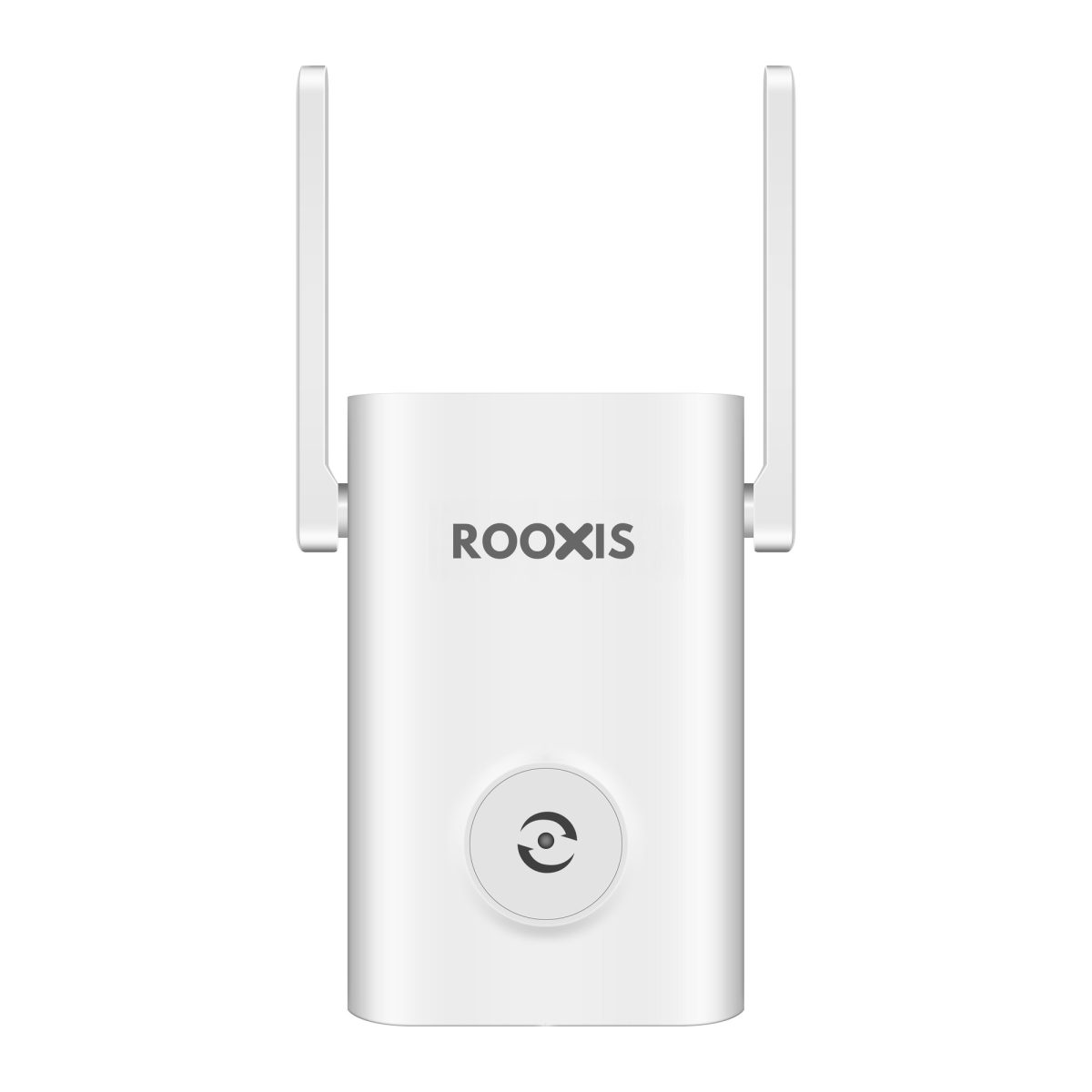
The ROOXIS AX1800 WiFi 6 extender includes dual-band operation, a gigabit Ethernet port, WPA2 and WPA3 security support, and a three-bar signal-strength indicator.
That indicator is particularly useful when choosing between several hallway or landing outlets. It provides information about the extender's connection to the router rather than simply confirming that the device has power.
Limits
WiFi 6 does not make concrete walls transparent to wireless signals.
If your chosen outlet receives a weak router connection, upgrading from AC1200 to AX1800 may not solve the underlying placement problem.
Your router and connected devices must also support the relevant WiFi 6 features to receive their full benefits.
An older router does not become a WiFi 6 router simply because you connect a newer extender to it.
When to buy one
Choose an AX1800 extender when several family members regularly use the area affected by poor coverage.
An upstairs landing serving two bedrooms and a home office is a good example.
If the landing receives a dependable connection from your existing WiFi 6 router, an AX1800 extender may improve coverage without requiring a complete network replacement.
Tri-Band WiFi Extender: Best for Demanding Wireless Connections
Tri-band networking equipment includes three wireless radios or bands, depending on its design.
Some models use 2.4 GHz and two separate 5 GHz radios. Others incorporate the 6 GHz band available through newer wireless standards.
Certain models dedicate a radio to communication with the main router.
This connection is called backhaul. It carries traffic between networking devices rather than directly between the extender and your phone or computer.
Who it is for:
-
Households with several demanding devices in one distant area.
-
Families regularly transferring large files locally.
-
Home offices requiring substantial wireless capacity.
-
Properties where Ethernet installation is impractical.
Strengths
A suitable dedicated wireless backhaul can reduce competition between traffic traveling to the router and traffic traveling to nearby household devices.
This can improve available wireless capacity compared with designs that share more airtime between both tasks.
Limits
Tri-band equipment does not always reserve one radio exclusively for backhaul.
Read the manufacturer's specifications to establish how the radios operate.
Also consider which frequency the backhaul uses. A 6 GHz connection may offer substantial capacity over a suitable short distance but struggle through thick walls.
Buying a tri-band extender does not automatically guarantee better long-distance coverage.
When to buy one
Consider this option when your proposed extender location receives a strong router signal but several nearby devices require higher wireless capacity.
If you are trying to serve multiple isolated floors instead, a coordinated mesh installation or wired access points may be a better use of your budget.
Mesh WiFi System: Best for Multiple Floors and Widespread Dead Zones
A mesh WiFi system distributes coverage through several coordinated networking units.
One unit typically manages the main network connection, while additional units provide coverage in other areas of the house.
Depending on the system, the units communicate through wireless or Ethernet backhaul.
Who it is for:
-
Large two-story or three-story properties.
-
Houses with several distant bedrooms.
-
Families moving between rooms during video calls.
-
Households with multiple independent dead zones.
-
Homeowners seeking centralized network management.
Strengths
Mesh systems typically operate under one network name and provide coordinated management.
Compatible systems can assist devices in switching between coverage points as people move around the house.
They may also offer a management application that shows the status of each mesh unit, connected devices and network settings.
This is useful when diagnosing whether a particular upstairs node has lost its connection.
Limits
Wireless mesh nodes still require reliable connections to other nodes.
Putting one inside a basement that receives almost no signal from the rest of the network can produce disappointing results.
The initial cost is also generally higher than adding one conventional extender.
If your internet provider requires you to keep its existing router, check whether your chosen mesh system supports access point or bridge mode.
You may otherwise end up with two devices performing router functions, which can complicate gaming, remote access and certain network configurations.
When to buy one
Mesh is worth considering when the house has several coverage problems that cannot be addressed conveniently with one extender.
For example, an upstairs bedroom, a basement entertainment room and a distant home office may each need their own coverage point.
A coordinated mesh system is usually easier to maintain than several unrelated extenders with separate network names and administration interfaces.
Wired Wireless Access Point: Best for Thick Walls and Reliable Long-Distance Coverage
A wireless access point creates local WiFi coverage using an Ethernet connection to the network.
Some conventional WiFi extenders also support a dedicated access point mode.
Unlike wireless repeating, this arrangement does not depend on the router's wireless signal reaching the installation location.
Who it is for:
-
Houses with brick or reinforced concrete construction.
-
Properties with existing Ethernet wall outlets.
-
Permanent home offices.
-
Homes undergoing renovation.
-
Families requiring dependable local network performance.
Strengths
Ethernet carries the network connection past walls and floors that would otherwise obstruct wireless signals.
A wired access point can distribute WiFi within its local coverage area without using wireless airtime for the Ethernet backhaul.
This is particularly useful when several people connect to the same upstairs or basement access point.
Limits
You need an Ethernet connection at the destination.
Existing wall outlets must also be connected to your router or network switch. An Ethernet socket in an upstairs bedroom is not useful if its cable is disconnected at the central network cabinet.
Check the access point's Ethernet port speed.
A model with a 100 Mbps port cannot provide a nominal wired connection faster than 100 Mbps to the rest of the network.
When to buy one
If your upstairs home office already has a working Ethernet outlet, use it.
Connect a suitable access point or connect your desktop computer directly through Ethernet.
There is little reason to depend on a weak wireless backhaul when a functioning wired connection is already available.
For homeowners renovating a property, installing Ethernet while walls are open can make future coverage improvements considerably easier.
Powerline WiFi Adapter: Best for Homes Without Accessible Ethernet Wiring
Powerline networking carries data through a property's existing electrical wiring using compatible adapters.
One adapter connects to the router through Ethernet. Another receives the connection elsewhere in the building.
A powerline adapter with integrated WiFi can create wireless coverage in the destination room.
Who it is for:
-
Renters unable to install Ethernet cables.
-
Houses with difficult wireless routes.
-
Rooms separated by thick construction materials.
-
Homeowners willing to test equipment before committing to an installation.
Strengths
Powerline equipment can provide connectivity where wireless signals struggle to reach.
It avoids installing a dedicated Ethernet cable between the router and destination room.
Setup is generally straightforward when the electrical installation supports reliable communication between adapters.
Limits
Powerline performance depends on the property's electrical wiring, circuit arrangements and electrical interference.
Appliances and certain power supplies can introduce noise that affects network communication.
The speed printed on the adapter packaging does not represent guaranteed internet throughput.
Follow the manufacturer's instructions and generally connect the adapters directly to suitable wall outlets rather than surge protectors or extension strips.
When to buy one
Powerline is worth investigating if a basement office or distant bedroom receives poor WiFi and permanent Ethernet is not an option.
Buy from a seller with a suitable return policy so you can test the equipment in your own home.
Check its performance while household appliances are operating normally, not just when the house is quiet.
Outdoor WiFi Access Point: Best for Gardens, Patios and Security Cameras
Indoor networking equipment is not designed for prolonged exposure to outdoor moisture, sunlight, dust and changing temperatures.
Outdoor-rated access points and compatible outdoor mesh nodes address these installation requirements.
Who it is for:
-
Homeowners using exterior security cameras.
-
Properties with large gardens.
-
Driveways and detached outdoor monitoring areas.
-
Patios and outdoor entertainment spaces.
-
Homes where exterior walls obstruct indoor WiFi.
Strengths
An outdoor access point can distribute WiFi without requiring the signal to pass through the exterior wall from an indoor router.
Suitable wired models receive their network connection through Ethernet.
Some support Power over Ethernet, allowing compatible equipment to receive network data and electrical power through one cable.
Limits
Outdoor installations require suitable equipment ratings, weather-resistant cable arrangements and protected connectors.
An indoor extender does not become outdoor-safe simply because you install it beneath a covered patio.
Connecting a separate building may require a professionally installed fiber connection or a dedicated wireless bridge.
When to buy one
If your driveway camera disconnects regularly because the exterior brick wall weakens the indoor router's signal, an outdoor access point may be the more dependable solution.
Check the camera's frequency support and the proposed access point's installation requirements before buying either device.
Large House WiFi Extender Comparison Table
| Networking option | Best application | Connection to router | Installation difficulty | Main limitation |
|---|---|---|---|---|
| AC1200 dual-band extender | One or two weak rooms | Wireless | Easy | Limited capacity during demanding use |
| AX1800 WiFi 6 extender | Modern households with isolated dead zones | Wireless | Easy | Depends on router signal quality |
| Tri-band extender | Demanding wireless connections | Wireless | Easy to moderate | Cost and backhaul compatibility |
| Mesh WiFi system | Multiple floors and widespread dead zones | Wireless or Ethernet | Moderate | Nodes need reliable connections |
| Wired access point | Thick walls and permanent installations | Ethernet | Moderate to advanced | Requires network cabling |
| Powerline WiFi adapter | Difficult rooms without Ethernet | Electrical wiring | Easy to moderate | Performance depends on electrical conditions |
| Outdoor access point | Gardens, driveways and exterior cameras | Usually Ethernet, depending on model | Moderate to advanced | Requires appropriate outdoor installation |
For an otherwise reliable household network, an AX1800 extender is a sensible starting point when one section needs better coverage.
If several unrelated areas have weak connections, compare the cost of a mesh system with the cost of installing multiple extenders.
Where Ethernet is already available, wired access points should be among the first options you consider.
What to Look for When Buying a Long-Distance WiFi Extender
The best wifi extender for long distance coverage is not necessarily the model with the most antennas or the highest speed rating.
What matters is whether it can establish and maintain a reliable connection across the actual route through your house.
Do Not Rely on Advertised Square Footage
A manufacturer may advertise coverage across several thousand square feet. That does not establish that the device can reach every room in your property.
Before comparing coverage claims, examine your house.
Consider the following:
-
Number of floors requiring coverage.
-
Interior and exterior wall materials.
-
Distance between the router and proposed extender location.
-
Available hallway and landing outlets.
-
Existing Ethernet sockets.
-
Location of security cameras and other important devices.
A long, open-plan house may be easier to cover than a smaller property divided by several reinforced walls.
If possible, sketch your home's layout and mark the router, weak rooms and potential extender positions.
This simple exercise can reveal whether you are dealing with one coverage problem or several separate ones.
Check Router Compatibility
Find your router's model number before ordering an extender.
It is usually printed on a label underneath or behind the device.
Check the manufacturer's documentation for:
-
Supported WiFi standards.
-
Available wireless frequency bands.
-
WPA2 and WPA3 security support.
-
Ethernet port speeds.
-
Supported mesh technologies.
-
Available firmware updates.
Most conventional extenders support routers using compatible wireless standards.
However, ordinary wireless repeating and coordinated mesh operation are different capabilities.
An extender may connect successfully to your router but not support its proprietary mesh features.
If you want one coordinated network with roaming assistance, confirm compatibility between the exact router and extender models before purchasing.
Choose the Right Frequency Bands
Different wireless frequencies suit different household activities and installation conditions.
2.4 GHz
The 2.4 GHz band generally provides better reach through certain obstacles than higher frequencies.
It is useful for compatible smart plugs, sensors, outdoor cameras and devices that do not require substantial bandwidth.
However, neighboring routers and other wireless equipment can contribute to congestion.
5 GHz
The 5 GHz band can offer higher wireless capacity under suitable conditions.
It is often useful for laptops, televisions and gaming devices located reasonably close to the router or extender.
Its signal may weaken more quickly through thick walls.
6 GHz
Compatible WiFi 6E and WiFi 7 equipment can use the 6 GHz band.
It provides additional wireless spectrum and can support high-capacity connections over suitable distances.
However, buying 6 GHz equipment specifically to reach a distant bedroom behind thick walls may be the wrong priority.
For most large houses, reliable dual-band 2.4 GHz and 5 GHz operation remains a practical requirement.
Look for a Gigabit Ethernet Port
An Ethernet port on a WiFi extender allows compatible wired devices to connect using a network cable.
This can help with televisions, desktop computers and gaming consoles that have weak wireless reception.
However, Ethernet ports are not all equally fast.
-
Fast Ethernet supports a nominal link rate of up to 100 Mbps.
-
Gigabit Ethernet supports a nominal link rate of up to 1,000 Mbps.
Actual data throughput is lower than the nominal link rate.
If you have a 500 Mbps internet plan, a 100 Mbps extender port could become an obvious limitation when connecting a computer through Ethernet.
Also check whether the port supports the operating mode you need.
Some ports connect wired devices to an existing wireless extender connection. Others also support access point mode, allowing Ethernet to provide the extender's network connection.
Do not assume both features are available.
Check Security Features and Firmware Support
Choose an extender that supports appropriate modern wireless security.
WPA2 using AES encryption remains widely supported, while WPA3 offers newer security protections when compatible devices are available.
Some older cameras and smart home devices may not support WPA3-only networks.
Check their specifications before changing your household security settings.
Avoid switching your entire network to outdated security modes simply to connect one old device.
Also investigate the manufacturer's firmware update process.
Firmware is the software that controls the networking hardware.
Check whether you can obtain updates through a management interface or official support page. Accessible documentation is particularly useful if an operating system or router update later introduces compatibility problems.
Consider Physical Size and Outlet Placement
A plug-in extender may occupy more space than an ordinary electrical plug.
Check whether it will obstruct the neighboring outlet or sit awkwardly behind furniture.
Look for a location that provides ventilation, reasonable access and a dependable router connection.
Do not position an extender directly beside a large metal cabinet or conceal it inside enclosed furniture solely to keep it out of sight.
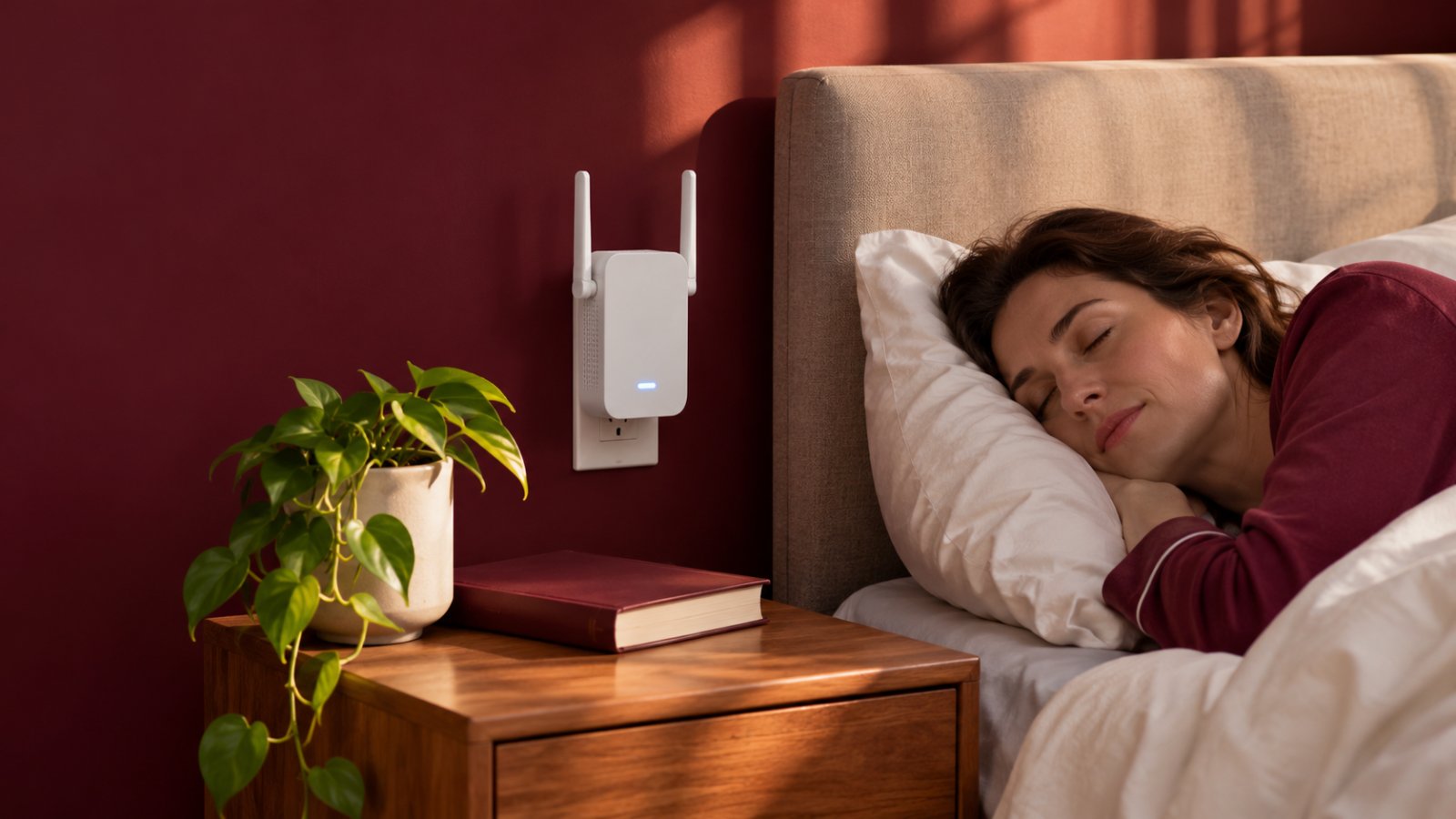
For bedrooms, check whether the indicator lights can be dimmed or disabled if they might disturb sleep.
Keep enough space around the device to operate its buttons and read the status indicators when troubleshooting.
WiFi Extender vs Mesh for Big Home Coverage
The decision between an extender and mesh WiFi becomes easier when you know how many areas need better coverage.
If the router works reliably throughout most of the house, replacing everything may be unnecessary.
If the network has several weak areas and requires constant manual intervention, a coordinated system may be more appropriate.
When a WiFi Extender Is Enough
Choose a standalone extender when:
-
Only one section of the house has weak coverage.
-
Your existing router handles normal household traffic.
-
A suitable intermediate installation location is available.
-
Your household does not require coordinated roaming everywhere.
-
You want to avoid replacing otherwise functioning equipment.
For example, a bedroom above the garage may struggle to receive WiFi even though the rest of the property works well.
If the hallway outside that bedroom has a reliable router connection, one correctly positioned extender may solve the problem.
When Mesh WiFi Makes More Sense
Consider mesh when:
-
Several floors contain poorly connected rooms.
-
Family members regularly move between coverage areas.
-
Existing extenders create confusing network names.
-
Multiple networking units need coordinated management.
-
You want visibility into the connection status of each node.
Mesh can simplify network management, but it still needs suitable communication paths between the units.
Do not place additional wireless nodes in isolated rooms without checking how they will connect to the rest of the system.
If your house already has Ethernet wiring, consider a mesh system that supports wired backhaul.
When Wired Access Points Beat Both Options
Wired access points are often the more dependable choice when Ethernet is already available.
For example, a three-story house with Ethernet outlets on each floor does not need to rely entirely on wireless signals traveling vertically through ceilings.
You can install appropriately positioned access points and connect them to the main network through Ethernet.
Check that your network switch and cabling support the required connection speeds.
If you use several independently managed access points, configure their wireless settings carefully. Coordinated systems may simplify channel management and roaming.
Although installing cables can require additional work, wired backhaul removes one of the most difficult parts of extending WiFi through dense building materials.
How to Choose the Best WiFi Extender for Your Situation
Large Two-Story House With Weak Upstairs WiFi
Start at the upstairs landing.
Connect your phone to the router and test browsing or streaming near the staircase.
If the connection is reliable there but becomes weak inside the bedrooms, a WiFi 6 extender positioned on the landing may help.
If the landing also has poor connectivity, test another location closer to the stairwell or reposition the downstairs router.
For houses with concrete floors, investigate Ethernet-connected access points if no suitable wireless connection path exists.
Do not buy several upstairs extenders until you know how they will receive their network connections.
Large Single-Story House With Long Hallways
Long houses often have good coverage near the router and progressively weaker performance toward distant bedrooms.
Test outlets along the central hallway rather than starting inside the farthest room.
Select an outlet that receives dependable WiFi and can reasonably serve the problem area.
If the property has several wings extending in different directions, one extender may not serve all of them.
A mesh system or separate wired access points may be more appropriate when weak areas are distributed across the house.
Home Office With Unstable Video Calls
A home office needs a dependable connection throughout a working session.
A speed test that briefly reports a high download figure does not establish that video meetings will remain stable.
Test upload performance, latency and connection consistency.
If the office has a working Ethernet outlet, connect the computer directly or install a wired access point.
If Ethernet is unavailable, a WiFi 6 extender can help when it receives a strong upstream connection.
After installation, join a typical video meeting while other family members use the network normally.
Check whether delayed audio, frozen video and unexpected disconnections have actually stopped.
Gaming Room With Weak WiFi
Online gaming depends on more than download speed.
Latency is the time required for information to travel between your device and its destination. Packet loss occurs when some of that information fails to arrive.
A wireless extender can improve a poor connection but may also introduce another stage of wireless communication.
Whenever possible, connect the gaming computer or console directly to the router through Ethernet.
If that is impractical, consider an extender with a gigabit Ethernet port and a reliable wireless connection to the router.
Connecting the console to the extender by cable removes one wireless segment.
Remember that the remaining wireless connection between the extender and router can still affect gaming performance.
Basement With Concrete Walls
Basements frequently have difficult wireless conditions because the signal may need to travel through dense floors and walls.
Check connectivity near the basement staircase.
If the stairwell receives a reliable signal, an extender positioned there could provide useful coverage.
If the entire basement receives weak WiFi, investigate Ethernet wiring instead of buying an extender with a larger advertised coverage figure.
Powerline networking may be another option when running Ethernet is not practical.
Test its performance while normal household appliances are operating before deciding to keep the equipment.
Large House With Several Security Cameras
Security cameras need a dependable network connection for supported live viewing, notifications and remote access.
A camera may continue recording locally during a connection interruption, depending on its design, but remote features can become unavailable.
Before choosing an extender, check each camera's supported frequency and security settings.
Many cameras support 2.4 GHz connectivity, although specifications vary.
Test WiFi at the intended camera mounting location.
Checking your phone while standing inside the house near the closest window does not necessarily reflect conditions at the camera outside.
Metal siding, garage doors and thick exterior walls can significantly change the wireless connection.
For several cameras positioned around a large property, an appropriately installed outdoor access point may be more practical than relying on several indoor extenders.
Rental House Where Permanent Wiring Is Not Allowed
A plug-in extender is often a convenient starting point for renters because it can be installed without modifying the building.
Choose a suitable intermediate outlet and test the connection before moving furniture or purchasing additional equipment.
If several rooms have problems, a wireless mesh system may provide coverage without permanent Ethernet wiring.
Where the landlord permits it, a removable Ethernet cable raceway can provide an alternative for a demanding home office.
Avoid running network cables beneath doors where they can be crushed or across walkways where someone could trip.
Check your rental agreement before drilling holes or mounting outdoor networking equipment.
How Many WiFi Extenders Does a Large House Need?
There is no dependable formula that assigns one extender to a particular number of square feet.
One correctly positioned extender may improve coverage throughout several neighboring rooms. Another property with the same floor area might require several networking units because of its construction.
Start with the specific area where WiFi fails.
Install one suitable extender and check the affected rooms before buying another.
If the upstairs bedrooms work properly afterward but the basement remains unreliable, treat the basement as a separate installation problem.
Do not automatically connect another extender to the first one.
Avoid Connecting Extenders in Long Wireless Chains
Some networking equipment allows one extender to repeat the wireless signal of another.
Although this can increase reach, each additional wireless relay introduces another potential bottleneck.
Consider a bedroom extender connected to a hallway extender, which communicates with the downstairs router.
If the hallway extender loses its connection, devices connected through the bedroom extender may also lose internet access.
Additional repeated wireless connections can also increase latency and reduce available throughput.
Where practical, connect standalone extenders directly to a dependable router signal.
For installations requiring several coordinated wireless connections, mesh equipment is usually easier to manage.
Wired access points provide another option when suitable Ethernet connections are available.
Recognize When Additional Hardware Is Not Helping
Stop adding networking equipment if you notice any of these problems:
-
Devices frequently connect to distant extenders.
-
Phones show full WiFi bars but websites load slowly.
-
Camera feeds disconnect when another networking device restarts.
-
Performance becomes worse during busy evenings.
-
Several extended network names make it difficult to identify the correct connection.
-
Family members repeatedly restart networking equipment.
These symptoms may indicate weak backhaul, wireless congestion or poor network organization.
For example, three extenders showing strong local WiFi signals may all be sharing one weak connection to the main router.
Adding a fourth device will not repair that connection.
Review how the existing equipment communicates before spending more money.
How to Fix Dead Spots in Large House WiFi Networks
Installing the extender is only part of the job.
You also need to establish whether the new equipment improves the activities that originally caused frustration.
Step 1: Establish Your Existing Network Performance
Connect your phone or laptop to the main router.
Run an internet speed test from a nearby room where the connection normally performs well.
Repeat the test in the problem area.
Use the same device, testing service and network wherever practical.
Turn off mobile data temporarily when testing with a smartphone.
Record the following:
-
Download speed.
-
Upload speed.
-
Latency.
-
Any interruptions.
-
Whether ordinary websites and applications work reliably.
If the connection is unexpectedly slow beside the router, check whether the router or internet service is responsible before adding an extender.
Where available, a direct Ethernet connection provides another useful comparison.
Step 2: Identify Potential Extender Locations
Walk from the router toward the affected room.
Check WiFi performance at several intermediate positions with accessible power outlets.
Potential locations include:
-
Upstairs landings.
-
Open hallways.
-
Central rooms.
-
Shelves near open doorways.
-
Areas between distant bedrooms and the router.
The physical midpoint is only a starting point.
An outlet slightly closer to the router may receive a stronger connection because it avoids an obstructive wall.
If your device provides wireless signal strength in dBm, remember that values closer to zero indicate stronger signals. For example, a reading of negative 55 dBm represents a stronger signal than negative 80 dBm.
Use such readings as placement guidance rather than universal guarantees of connection performance.
Step 3: Pair the Extender With Your Router
Follow the instructions for your particular extender.
Conventional models commonly support manual configuration through a browser or application. Some also provide WPS pairing.
For manual wireless extender setup:
-
Plug the extender into an outlet near the router.
-
Wait for the device to finish starting.
-
Open WiFi settings on your phone or computer.
-
Connect to the extender's temporary setup network.
-
Open the manufacturer's setup page or application.
-
Select your existing household WiFi network.
-
Enter its wireless password.
-
Select the supported wireless repeater mode.
-
Save the configuration.
-
Wait for the extender to establish its connection.
If you intend to connect the extender through Ethernet instead, select access point mode only when the equipment supports it.
If WPS is unavailable, use manual configuration rather than changing unrelated router settings.
Homeowners using the AC1200 model can follow the ROOXIS WiFi extender installation guide for its model-specific setup instructions.
Step 4: Move the Extender to the Selected Position
After pairing, unplug the extender and move it to the proposed installation location.
Allow it to restart and reconnect.
Review its signal indicator or management interface.
A power light alone does not confirm that the extender has established a good router connection.
If the signal indicator reports weak reception, move it closer to the router and check again.
Try another outlet if the first location is unsuitable.
You are looking for a position that receives dependable WiFi from the router while still providing useful coverage to the target room.
Step 5: Connect the Devices in the Problem Area
Open WiFi settings on the affected computer, smartphone or other device.
If the extender creates a separate network name, select that network and enter the appropriate password.
Check that the device is actually connected to the extender before testing performance.
A phone may continue using the original router connection even when an extender is nearby.
Temporarily disconnect and reconnect WiFi if necessary.
For dual-band devices, compare 2.4 GHz and 5 GHz connections where practical.
A camera may require 2.4 GHz, while a laptop positioned near the extender may perform better on 5 GHz.
Step 6: Repeat Your Connection Tests
Return to the room where the original problem occurred.
Repeat the speed test using the same device and testing service.
Then perform the activity that previously caused difficulties:
-
Join a video meeting in the home office.
-
Stream a program on the upstairs television.
-
Open a driveway security camera's live feed.
-
Play an online game.
-
Transfer a large file between compatible networked computers.
Do not judge the installation solely by the number of WiFi bars displayed.
A modest improvement in download speed combined with fewer disconnections may be more useful than an impressive speed test followed by unstable performance.
For cameras, check that notifications and live viewing work under normal conditions.
Step 7: Test During Normal Household Usage
An extender may perform differently when several family members use the network simultaneously.
Repeat your checks during a typical busy period.
For instance, test the upstairs home office while someone streams television downstairs and another person uses a gaming console.
If connection performance deteriorates substantially, investigate wireless capacity and overall household bandwidth usage.
Check whether the router or extender management interface identifies a weak upstream connection or heavily active devices.
If one extender cannot handle the normal demands of the area, consider a higher-capacity model or an Ethernet-connected solution.
Common Large House WiFi Extender Problems and Fixes
The Extender Shows a Strong Signal but Internet Is Slow
Your phone may show full WiFi bars because it has a strong connection to the nearby extender.
However, the extender itself may have a weak connection to the router.
Open the extender's management interface and review its upstream signal status.
If that connection is weak, move the extender closer to the router.
If it appears strong, compare performance on 2.4 GHz and 5 GHz.
Also check whether the main router is experiencing congestion or whether household devices are consuming most of the available internet bandwidth.
Testing a device connected directly to the router can help distinguish extender problems from broader internet service issues.
Devices Keep Connecting to the Wrong WiFi Network
Traditional extenders may create separate wireless network names.
Some can use the same name as the router, but that does not guarantee that every device will switch to the nearest coverage point automatically.
Phones and computers generally make their own decisions about when to change access points.
Open the affected device's WiFi settings and reconnect to the intended network.
If you use separate network names, choose recognizable names that identify their locations.
For example, you could distinguish the upstairs network from the downstairs network.
If frequent movement between rooms is a household requirement, consider compatible mesh equipment with roaming assistance.
The Extender Keeps Disconnecting From the Router
Repeated disconnections often indicate weak reception, wireless interference or configuration problems.
Start by moving the extender closer to the router.
If it becomes stable, the original installation position was probably unsuitable.
Check for available firmware updates through the manufacturer's official support resources.
Review whether the router's WiFi password, security settings or network name have recently changed.
A router configuration change may require reconnecting the extender.
Avoid immediately performing a factory reset. First identify whether the issue is related to signal quality, compatibility or power.
Outdoor Cameras Will Not Connect to the Extended Network
Check the camera's wireless specifications before changing network settings.
A camera supporting only 2.4 GHz cannot connect to a network operating exclusively on 5 GHz.
Also verify that the camera supports the selected wireless security mode.
If it connects indoors but fails once mounted outside, the exterior wall or installation location may be responsible.
Test connectivity near the actual mounting position.
A nearby metal garage door can also affect the connection, particularly when its position changes.
If relocating the indoor extender does not produce reliable results, investigate an outdoor-rated access point.
The Internet Is Slow Throughout the Entire House
When every device experiences slow internet, including devices close to the router, adding coverage equipment is unlikely to solve the problem.
Connect a computer directly to the router using Ethernet if possible.
Run a speed test and compare the result with your subscription and previously observed performance.
Check for ongoing downloads, cloud backups and other substantial network traffic.
Restart the router if appropriate and check whether the internet provider reports a service problem.
If the wired connection remains unexpectedly slow, investigate the router or internet service before buying another extender.
Mistakes to Avoid When Buying a WiFi Extender in 2026
Buying based entirely on coverage claims
Advertised coverage figures cannot account for your home's exact floor plan, wall materials and router position.
Use them as general product information, not a guarantee.
Assuming higher WiFi ratings guarantee faster internet
An AX1800 extender does not provide a guaranteed 1,800 Mbps internet connection.
Your internet subscription, wireless conditions, router capabilities and connected devices all affect actual performance.
Installing the extender directly inside a dead zone
An extender cannot reliably repeat a signal it barely receives.
Find a location with a dependable upstream connection before moving the equipment toward the problem room.
Ignoring Ethernet port specifications
A 100 Mbps port can restrict the performance of a wired device even when the extender advertises much higher wireless link rates.
Check this detail before buying equipment for a home office or gaming room.
Buying multiple extenders before testing one
Start with one installation and verify the result.
If several independent coverage problems remain, reconsider your overall network arrangement before adding more standalone equipment.
Assuming every extender supports access point mode
An Ethernet socket does not guarantee that the device can use a wired connection to provide WiFi.
Check its documented operating modes.
Expecting WiFi 7 to solve every range problem
Newer wireless technology can improve capacity and efficiency with compatible equipment.
It does not eliminate thick walls, unsuitable placement or weak wireless backhaul.
Using indoor equipment outside
Use networking equipment, cables and installation accessories rated for the actual outdoor conditions.
Protect exposed connections according to the manufacturer's instructions.
Overlooking camera and smart home compatibility
Check supported frequencies and security modes before changing your network.
Otherwise, an upgrade intended to improve coverage could leave older smart home equipment unable to reconnect.
For a large house with one or two weak rooms, begin with a compatible dual-band WiFi 6 extender and find an installation position with a dependable router connection.
If several floors or separate sections need coverage, compare mesh systems and wired access points before purchasing multiple standalone extenders.
Test the completed installation using the activities that matter to your household: video meetings, streaming, gaming and camera access. When those activities work reliably without constant resets or manual network switching, the coverage problem has been addressed.
FAQ
What is the best WiFi extender for a large two-story house?
A dual-band AX1800 WiFi 6 extender is a practical starting point when only one or two upstairs rooms have weak coverage. If several rooms across both floors experience connection problems, mesh WiFi or Ethernet-connected access points may provide more dependable coverage. Test the signal near the upstairs landing before purchasing equipment.
Can one WiFi extender cover a 5,000-square-foot house?
One extender may improve coverage in a section of a 5,000-square-foot house, but it cannot guarantee reliable WiFi throughout the entire property. Building materials, room arrangements and router placement determine how far its signal can travel. Properties with multiple isolated dead zones often benefit from mesh systems or wired access points.
Is mesh WiFi better than a WiFi extender for a large house?
Mesh WiFi is generally better suited to large houses with several dead zones because it coordinates multiple networking units and can assist compatible devices moving between coverage areas. A conventional extender is usually more economical when only one area needs better connectivity. Both systems require dependable upstream connections.
Which WiFi extender frequency is best for long distances?
The 2.4 GHz band generally provides better reach through certain obstacles than 5 GHz or 6 GHz, although it can experience more congestion. The 5 GHz band may provide higher throughput when signal strength is sufficient. A dual-band extender allows you to choose the connection that works best for each device and location.
Can I use two WiFi extenders in the same house?
Yes, you can install multiple WiFi extenders when your router and networking equipment support the arrangement. Where possible, each extender should connect directly to a reliable router signal rather than forming a long chain of wireless repeaters. If several areas need coordinated coverage, consider a mesh WiFi system.
Will a WiFi extender improve my outdoor security camera connection?
A WiFi extender can improve outdoor camera connectivity if it provides a reliable signal at the camera's mounting location and supports the required wireless frequency and security settings. For cameras separated from the router by thick exterior walls or substantial distances, an outdoor-rated access point may be more dependable. Always test connectivity at the actual installation location before completing the setup.