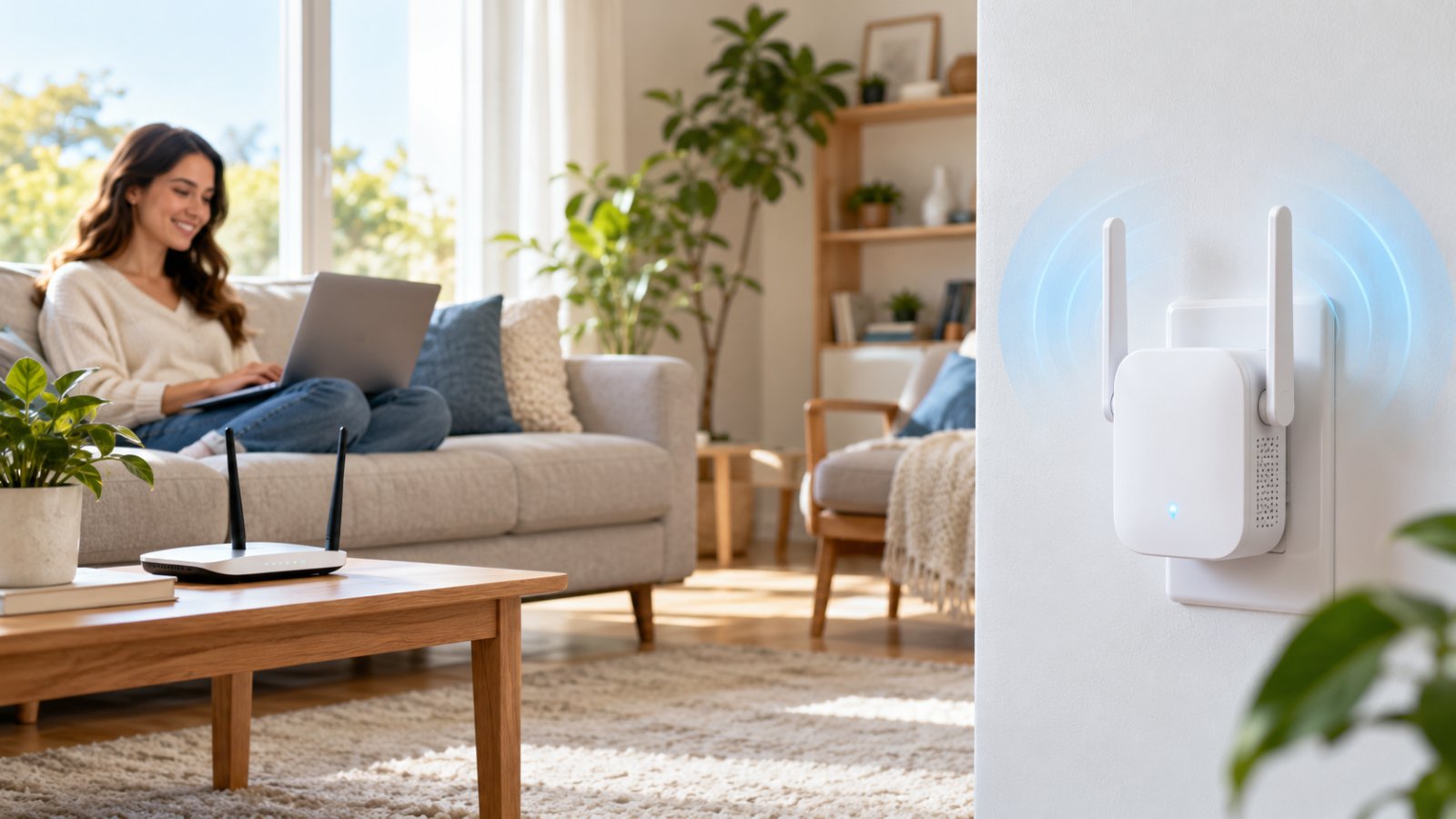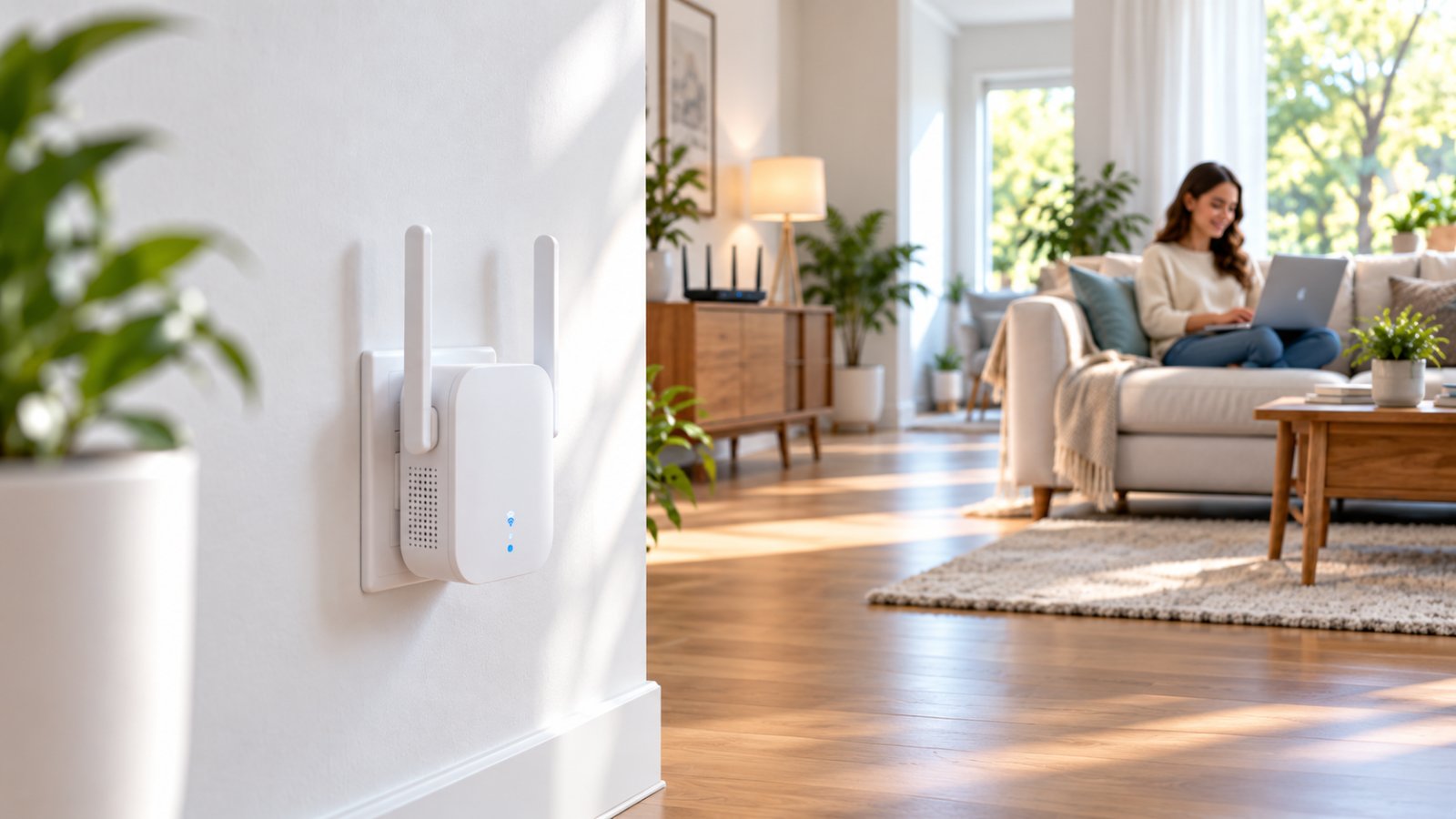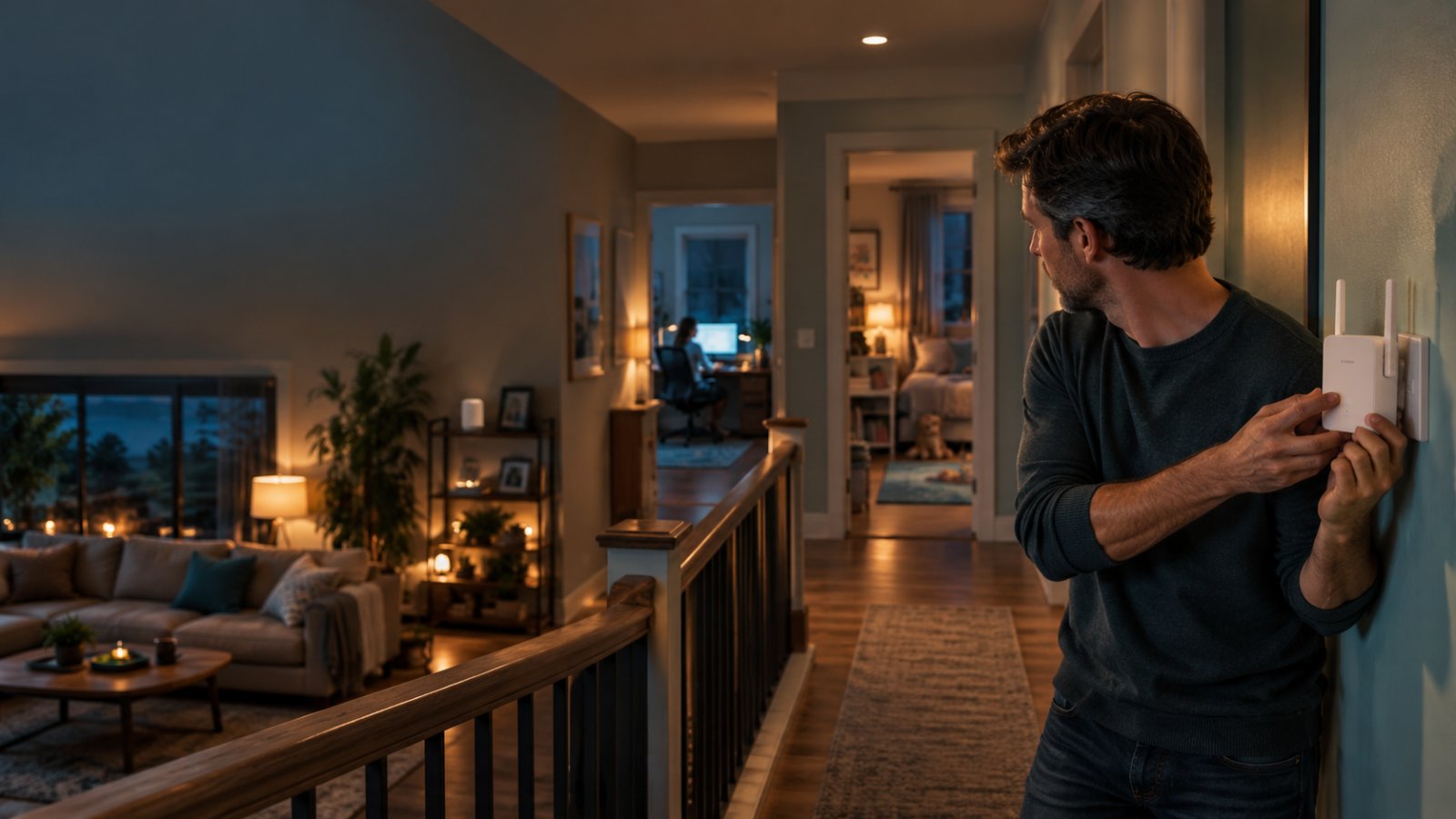
Buying a WiFi extender with the biggest coverage number on the box will not necessarily fix a weak upstairs bedroom. The usual mistake is plugging the extender into the dead zone, where it has almost no usable signal to repeat.
The best wifi extender for large house coverage is a dual-band model that can maintain a stable connection to your router and reach the rooms where you actually need internet. For a single weak bedroom or home office, an AC1200 extender may be sufficient. For several floors separated by thick concrete, an Ethernet-connected access point or mesh system may work better.
Before buying anything, check where your existing WiFi begins to weaken. This guide explains which extender features matter, where to install one in a multi-floor home, and when a different networking setup is worth considering.
Best WiFi Extender for Large House: Quick Buying Guide
Start by counting the rooms with unreliable WiFi.
If your router works well in the living room, kitchen, and downstairs bedrooms but struggles to reach one upstairs office, you probably do not need to replace your entire home network.
A suitable dual-band extender positioned near the staircase may solve the problem.
But if the basement, upstairs bedrooms, and backyard all have weak connections, adding a single extender is unlikely to fix everything.
The deciding factor is not the size of your house. It is how reliably the signal travels between your router and the locations where you need coverage.
Before choosing an extender, check five things:
-
Dual-band support: Look for 2.4 GHz and 5 GHz WiFi so you can choose the connection that works best for each device.
-
Router signal quality: Find a location where the extender can receive a stable connection from your existing router.
-
Ethernet connectivity: An Ethernet port and supported access point mode can be useful when wireless signals struggle through floors or walls.
-
Coverage layout: Consider how many walls, floors, and large obstacles separate the router from the target room.
-
Connected devices: Check whether you need WiFi for laptops, televisions, gaming consoles, printers, or outdoor security cameras.
Do not choose an extender based only on advertised square footage.
A device that performs well along an open hallway may struggle to send WiFi through two reinforced concrete walls.
The better buying question is simple: Can this extender receive a strong enough connection in a location that also serves my dead zone?
How the Extender Types Were Compared
This guide compares extender types according to their suitability for common household layouts. It does not use invented test results or rank products based on claimed maximum range.
The main criteria are:
-
Coverage requirements: Is the equipment suitable for one weak room or several separate areas?
-
Frequency bands: Does it support both 2.4 GHz and 5 GHz?
-
Backhaul quality: How does it connect to the main router?
-
Ethernet capability: Can it work as an access point when a network cable is available?
-
Installation difficulty: Can a homeowner configure and position it without specialist networking knowledge?
-
Practical limitations: Will thick walls, interference, or multiple connected devices affect the result?
For large houses, backhaul quality deserves particular attention.
Backhaul is the connection carrying traffic between the extender and your router.
If that connection is weak, the extender cannot deliver reliable internet to the devices connected through it, regardless of how strong its local WiFi signal appears.
Large-Home WiFi Extender Comparison
| Extender Type | Best For | Main Strength | Main Limitation |
|---|---|---|---|
| Basic single-band extender | Light use in one nearby room | Simple and usually inexpensive | Limited flexibility and no 5 GHz option |
| AC1200 dual-band extender | Bedrooms, offices, and isolated dead zones | Supports 2.4 GHz and 5 GHz connections | Wireless backhaul can reduce throughput |
| Dual-band extender with Ethernet access point mode | Rooms with existing Ethernet wiring | Avoids weak wireless backhaul | Requires a cable and is limited by Ethernet port speed |
| Higher-capacity dual-band extender | Several active devices within one extended area | May offer additional wireless capacity | Cannot compensate for a poor router connection |
| Compatible mesh system | Multiple floors and several dead zones | Coordinated coverage across nodes | Higher initial cost and more equipment |
For one weak upstairs bedroom, start by considering a dual-band extender.
If several rooms are affected, especially on different floors, check whether a coordinated mesh system or wired access points would be more practical.
There is little benefit in buying multiple repeaters if each one must communicate through the same thick concrete floor.
What to Look for in a Large-Home WiFi Extender
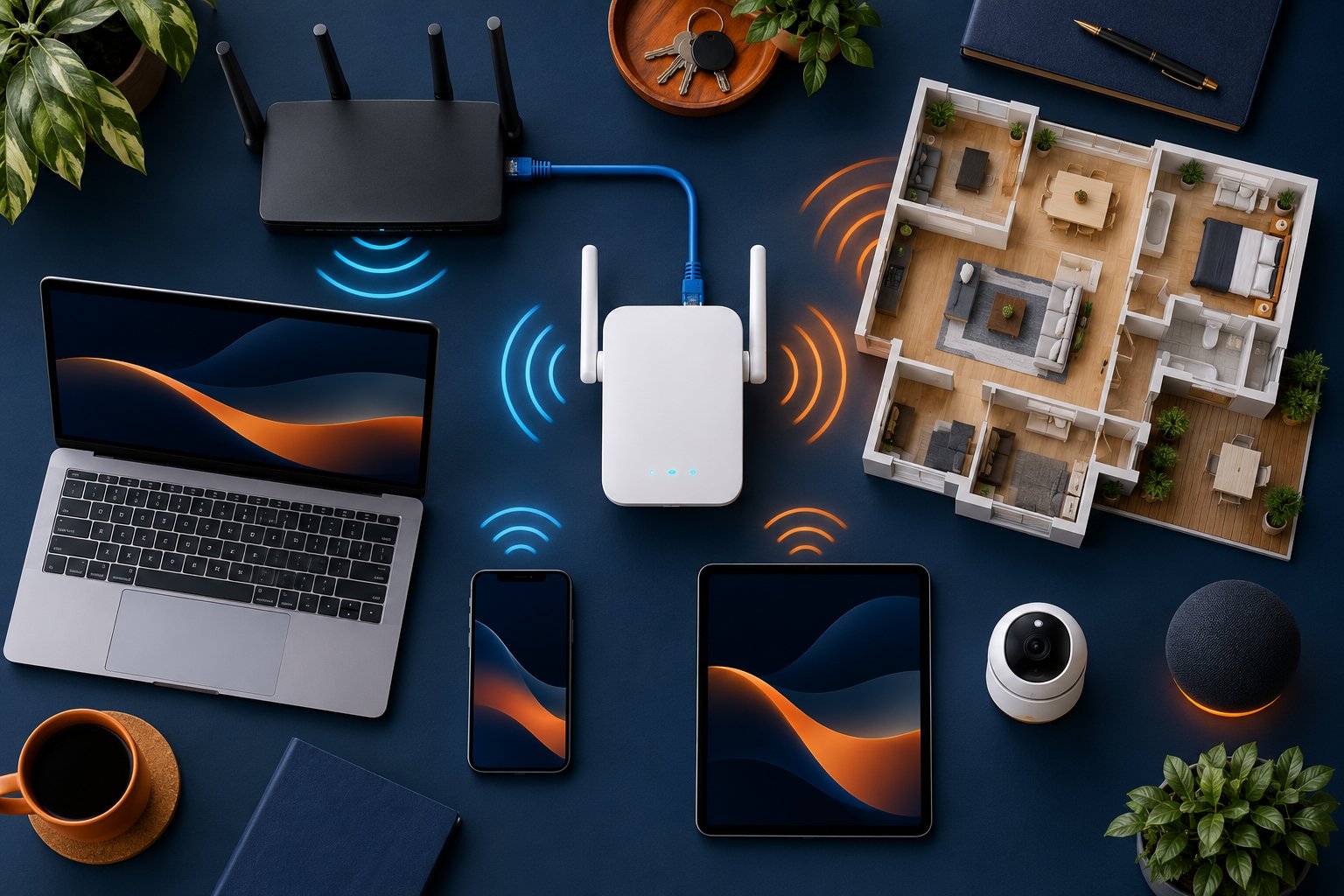
Two houses can have the same floor area and completely different WiFi requirements.
A large open-plan house with lightweight interior walls may have relatively few signal problems.
A smaller house with reinforced concrete floors, metal doors, and thick masonry walls can have several areas where WiFi barely reaches.
That is why advertised range should be treated as a starting point, not a promise.
The specifications that matter most are the supported wireless bands, the available connection back to the router, and the installation options.
Square Footage Coverage and Dual-Band Support
Manufacturers often advertise the area their extenders can cover under suitable conditions.
Those figures can help you understand the intended application, but they cannot account for every home's construction.
WiFi signals weaken as they travel through walls, floors, furniture, and other obstacles.
This reduction is called signal attenuation.
Some materials have a greater effect than others.
Common obstacles include:
-
Reinforced concrete floors and walls.
-
Thick brick or masonry partitions.
-
Metal doors and cabinets.
-
Foil-backed insulation.
-
Large appliances and metal shelving.
-
Plaster walls containing metal lath.
-
Multiple interior walls between the router and the extender.
For example, a router positioned below an upstairs bedroom may look close on a floor plan.
But if the signal must cross a reinforced concrete floor, the connection upstairs could be weaker than one reaching a more distant room through an open staircase.
This is why extender placement matters more than simply finding the physical midpoint of the house.
Why dual-band WiFi matters
A dual-band extender supports 2.4 GHz and 5 GHz connections.
These bands behave differently around household obstacles.
2.4 GHz WiFi
The 2.4 GHz band generally offers better signal penetration through common building materials and can remain usable farther from the router.
It is often suitable for:
-
Bedrooms located farther away.
-
Smart home devices.
-
Outdoor cameras near the house.
-
Printers and other low-bandwidth equipment.
-
Rooms separated by several ordinary walls.
The trade-off is interference.
Neighboring WiFi networks and certain household electronics can compete for the same frequency range.
5 GHz WiFi
The 5 GHz band often provides higher throughput when devices are relatively close and the signal is strong.
It is useful for:
-
Laptops near the extender.
-
Streaming televisions.
-
Video meetings.
-
Gaming devices.
-
Transferring larger files.
However, 5 GHz generally loses more strength through walls and floors.
For a distant bedroom, 2.4 GHz may provide a steadier connection even if 5 GHz offers higher potential speeds.
What AC1200 means
AC1200 is a wireless performance class commonly associated with theoretical link rates of approximately 300 Mbps on 2.4 GHz and 867 Mbps on 5 GHz.
These are not guaranteed internet speeds.
The figures describe wireless capabilities across the supported bands. A single device does not automatically receive their combined total.
Actual performance depends on signal quality, interference, connected-device capabilities, router performance, and the link between the router and extender.
If your main problem is a laptop disconnecting upstairs, a stable connection matters more than achieving the largest possible speed-test result.
Throughput Speeds and Ethernet Backhaul Options
Wireless speed claims can be confusing because the connection between your laptop and the extender is only one part of the network.
The extender must also communicate with the router.
Two terms help explain the difference.
Bandwidth describes the available data-carrying capacity of a connection.
Throughput describes how much useful data is actually transferred.
A laptop can show strong WiFi signal bars while experiencing poor throughput because the extender's connection to the main router is weak.
This is especially common when the extender is installed too far away.
Wireless backhaul
In repeater mode, an extender connects to the router over WiFi.
It receives data from the router and forwards it to connected devices.
When the same radio or channel handles both parts of the transmission, the process consumes additional wireless airtime.
That can reduce usable throughput.
The amount depends on the extender design, frequency bands, interference, and signal conditions.
A dual-band design can provide more flexibility, but it does not remove every wireless limitation.
Ethernet backhaul through access point mode
Some extenders support access point mode.
In this arrangement, an Ethernet cable carries the network connection from the router to the extender.
The extender then broadcasts WiFi from its new location.
This is useful when an upstairs room has an existing Ethernet outlet.
Instead of forcing a wireless signal through a reinforced floor, you can bring the network upstairs through the cable.
The extender provides WiFi locally, closer to the devices that need it.
Check the Ethernet port specification
Not every extender has a Gigabit Ethernet port.
A 10/100 Mbps port supports a maximum nominal link rate of 100 Mbps.
That can be enough for ordinary browsing or some video streaming, but it may limit faster connections.
Also, connecting a computer to an extender's Ethernet port does not automatically create wired backhaul.
If the extender still communicates with the router wirelessly, that wireless connection remains the limiting factor.
Before purchasing, confirm whether the device supports access point mode and how its Ethernet port operates in each mode.
Antenna Design and Connection Indicators
Some extenders use external antennas, while others use internal antennas.
An adjustable external antenna can help with positioning, but antenna count alone does not establish performance.
Two extenders with the same number of antennas can behave differently because of their radio design, receiver sensitivity, and surrounding environment.
For a homeowner installing an extender upstairs, a clear connection indicator may be more useful than an additional antenna.
Many extenders include a light or management screen showing whether the router connection is strong enough.
Use that feedback during installation.
If the indicator shows a weak connection, move the extender closer to the router.
Do not judge the connection only by how strong the extended network appears on your phone.
Your phone may be standing close to the extender while the extender struggles to reach the main router.
Router Compatibility and Wireless Security
Most traditional WiFi extenders connect to existing compatible routers.
Still, check the supported wireless standards and security settings before purchasing.
Useful features include:
-
2.4 GHz and 5 GHz compatibility.
-
Suitable WPA2 or WPA3 security support.
-
WPS setup, where available.
-
Browser-based or app-based configuration.
-
Connection status indicators.
-
Ethernet access point mode.
-
Support for the devices already connected to your network.
Many smart home cameras and older connected devices use 2.4 GHz.
If you change your WiFi security settings or network names during extender setup, make sure those devices remain compatible.
It is also worth checking your router's firmware.
Outdated firmware can cause security, stability, or compatibility problems.
For supported equipment, the router firmware update guide explains how to check the installed software version and apply an official update.
Use instructions intended for your exact router model.
Top Recommendations for Extended Coverage
The right extender depends on the location you need to cover.
A bedroom at the end of a hallway has different requirements from a basement separated by concrete or an outdoor camera mounted near the garage.
These recommendations focus on specific household situations rather than suggesting that one device can cover every property equally well.
Best Overall Balance: Rooxis AC1200 Dual-Band Extender
Best for: Homeowners who need dual-band coverage for an upstairs bedroom, home office, hallway, or another isolated weak area.
The Rooxis AC1200 WiFi extender supports both 2.4 GHz and 5 GHz wireless connections.
It also provides repeater and Ethernet-connected access point modes.
Published features include:
-
AC1200 dual-band WiFi.
-
2.4 GHz and 5 GHz support.
-
MU-MIMO technology.
-
External dual-band antennas.
-
One 10/100 Mbps Ethernet port.
-
Wireless repeater mode.
-
Ethernet access point mode.
-
WPS and browser-based setup options.
The manufacturer advertises coverage of up to 10,000 square feet when used with a router.
That is a stated maximum under favorable conditions, not a realistic expectation for every home.
A house with reinforced concrete floors or several thick walls may require additional access points despite that figure.
Strengths
The dual-band design gives compatible devices two frequency options.
For example, a laptop near the extender may use 5 GHz, while a camera farther away may work more reliably on 2.4 GHz.
The access point mode is useful when an Ethernet connection is available.
Connection indicators can also help identify a suitable installation location.
Limitations
In repeater mode, performance depends on the wireless connection back to the router.
If that connection is weak, the extender cannot provide consistently good throughput.
The 10/100 Mbps Ethernet port also limits wired connection speed.
For a home with a fast broadband plan and large file transfers, that specification deserves attention.
When to choose it
Consider this type of extender when most of your WiFi works well, but one upstairs room or distant office needs better coverage.
Before buying, confirm that a hallway or landing near the problem room still receives a reliable router signal.
If the entire upper floor has almost no WiFi, you may need a different setup.
Best for One Weak Upstairs Room: Dual-Band Repeater
Best for: Two-story homes where one bedroom struggles with WiFi but the upstairs hallway still has a usable connection.
A dual-band repeater is often enough when the coverage gap is isolated.
The key is to place the extender before the signal becomes unreliable.
An upstairs landing may work better than an outlet behind the bedroom door.
Strengths
-
Usually straightforward setup.
-
No Ethernet wiring required.
-
Works with many existing compatible routers.
-
Provides 2.4 GHz and 5 GHz options.
-
Suitable for one weak room.
Limitations
-
Wireless backhaul may reduce throughput.
-
Reinforced floors can weaken the connection.
-
Some extenders create a separate network name.
-
Phones may remain connected to a weaker access point.
For a laptop used at a desk, a separate extended network may not be a problem.
The laptop stays in one room and can connect directly to the extender.
For people moving between floors on video calls, a coordinated mesh network may be more convenient.
Best for Thick Walls: Extender With Access Point Mode
Best for: Homes with reinforced concrete, thick masonry, or existing Ethernet wiring.
An extender cannot reliably repeat a WiFi signal that does not reach it.
This becomes a problem when the router and target room are separated by materials that cause substantial signal loss.
Access point mode provides another option.
Run or use an existing Ethernet connection to the room, then connect a compatible access point.
Strengths
-
Avoids weak wireless backhaul.
-
Useful when walls or floors block WiFi.
-
Provides wireless coverage close to the devices.
-
Suitable for home offices and permanent installations.
Limitations
-
Requires a suitable Ethernet connection.
-
Installation may involve additional work.
-
Ethernet port speeds can limit throughput.
-
The equipment must support access point mode.
For example, a basement office may have almost no reliable WiFi because of a concrete floor.
If Ethernet is available downstairs, connecting an access point is often a better solution than installing a wireless repeater that struggles to reach the router.
Best for a Garage or Patio: Extender Near the Exterior Wall
Best for: Homes where the router works well indoors but coverage weakens near a garage, porch, or patio.
An extender can help when the original WiFi signal reaches a room near the outdoor area.
For example, a rear hallway may have reliable WiFi while the patio just beyond the exterior wall has a weaker connection.
Placing an extender in that hallway may improve coverage outside.
Strengths
-
Targets a specific outdoor-adjacent area.
-
Usually does not require replacing the router.
-
Can help compatible outdoor cameras and devices.
-
Often simple to install indoors.
Limitations
-
Exterior walls may contain metal or dense insulation.
-
Distance can still prevent a reliable connection.
-
Indoor extenders are not designed for rain or outdoor exposure.
-
Detached buildings may require a different solution.
Do not install a normal indoor extender outside unless the manufacturer specifically rates it for that environment.
For a detached garage with very weak WiFi at the nearest indoor outlet, a wired connection or purpose-built outdoor wireless link may be more appropriate.
Best for Several Dead Zones: A Coordinated Mesh System
Best for: Large homes where weak WiFi affects multiple bedrooms, floors, or outdoor areas.
A mesh system uses coordinated nodes to provide coverage across different parts of a property.
It is not the same as a traditional standalone repeater.
Most mesh systems use one shared network name, and many support roaming assistance for connected devices.
Strengths
-
Suitable for several coverage areas.
-
Centralized management of compatible nodes.
-
Often more convenient across multiple floors.
-
Some systems support Ethernet backhaul.
-
Easier coordinated expansion than several independent extenders.
Limitations
-
Usually costs more than one extender.
-
Wireless backhaul can still reduce throughput.
-
Nodes need careful placement.
-
Equipment compatibility matters.
-
Thick construction materials remain a challenge.
If the upstairs bedrooms, basement, and rear garden all need better WiFi, a mesh or wired access point arrangement may be easier to manage than several separate repeaters.
How to Place an Extender in Multi-Floor Homes
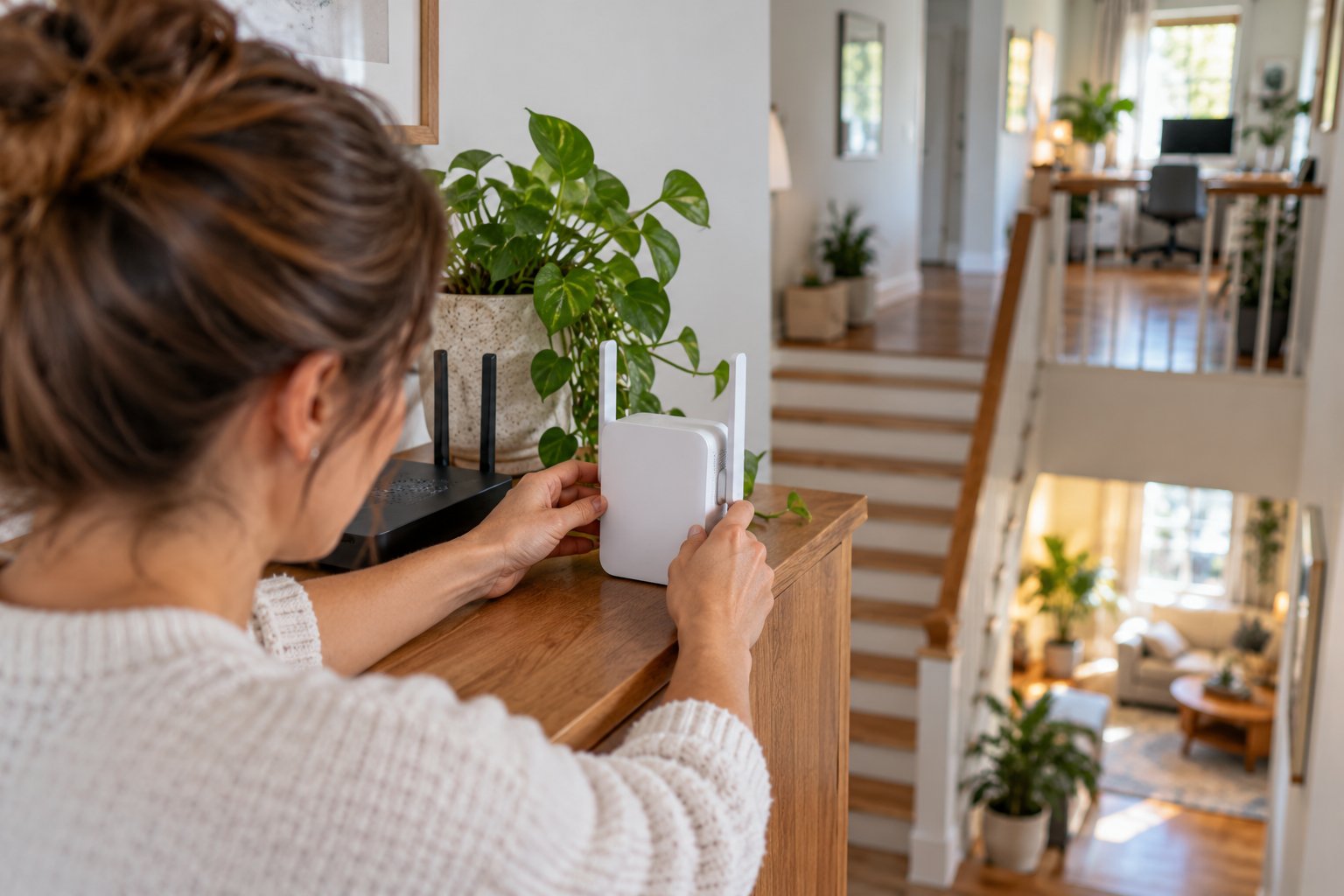
Extender placement is often the difference between a useful connection and another device that needs troubleshooting.
The problem is not always distance.
A router can be physically close to an upstairs room but separated by reinforced concrete.
Meanwhile, the signal may travel more easily along a hallway or open staircase.
For multi-floor homes, test the available paths before deciding where to install the extender.
Fixing Dead Zones Upstairs and in Basements
An upstairs bedroom and a basement office may need different solutions, even in the same house.
Upstairs bedrooms
Start near the staircase.
The opening around the stairs may provide a better signal path than the floor directly above the router.
Check the connection on the upstairs landing.
If it is stable there, that area may be suitable for an extender.
Avoid automatically placing the extender in the farthest bedroom.
Basement rooms
Basements often contain concrete floors and walls that can weaken WiFi.
Test near the basement staircase first.
If the connection remains poor throughout the basement, an extender may not receive enough signal to work reliably.
An Ethernet-connected access point is worth considering in that situation.
Split-level houses
Check the hallways between levels.
The best extender location may be at the transition between floors rather than in the middle of a particular room.
Use the connection quality at each location to guide placement.
Common Obstacles: Walls, Floors, and Interference
Several common materials and devices can affect WiFi.
Reinforced concrete
Concrete containing steel reinforcement can significantly reduce wireless signal strength.
An extender may struggle when its connection must pass through a reinforced floor.
Brick and masonry
Thick walls can weaken the connection, especially when several partitions sit between the router and extender.
Metal doors and cabinets
Metal can reflect or obstruct WiFi.
Avoid placing extenders inside metal cabinets or directly behind large appliances.
Foil-backed insulation
Some insulation materials contain conductive layers that can reduce signal penetration.
This may affect converted lofts and renovated rooms.
Neighboring WiFi networks
Nearby routers can compete for the same wireless channels.
In crowded residential buildings, interference can cause unstable performance even when signal strength appears reasonable.
Poor router placement
If the main router is hidden in a cupboard or behind a television, changing its location may improve coverage before you install anything else.
Step 1: Identify the Weak Areas
Before purchasing or moving equipment, check where the connection actually deteriorates.
You can do this with a phone or laptop.
What to do
-
Connect to your main WiFi network.
-
Stand near the router and confirm the connection works normally.
-
Walk toward the affected room.
-
Check WiFi in the hallway and near the stairs.
-
Repeat the test inside the room where the problem occurs.
-
Check other floors if necessary.
-
Record which locations have reliable connections.
Use the same device throughout the test.
For a more meaningful comparison, run the same speed test and check whether browsing or streaming works.
What you should see
The connection may become weaker after passing through particular walls or floors.
What to watch for
If the internet is slow near the router as well, the problem may not be coverage.
If possible, test a computer over Ethernet before buying an extender.
Also make sure your phone has not switched to mobile data during testing.
Step 2: Choose a Location With Reliable Router Coverage
Find an outlet between the router and the dead zone.
The ideal location is not necessarily halfway between them.
It is the place where the extender can receive a stable router connection while still reaching the affected room.
What to do
-
Identify the route from the router to the weak area.
-
Check WiFi at suitable outlets along that route.
-
Choose an outlet where the main network still works reliably.
-
Position the extender according to the manufacturer's instructions.
-
Check its connection indicator or management page.
-
Move it closer to the router if the link is weak.
What you should see
The extender should establish a reliable connection to the router.
What to watch for
Do not choose the outlet nearest the problem room if the main router's signal is already unreliable there.
A strong signal between your phone and the extender does not mean the extender has a good backhaul connection.
Step 3: Configure the Extender
Most household extenders support WPS or manual configuration through a browser or app.
The exact method depends on the model.
What to do
-
Plug in the extender.
-
Allow it to start.
-
Open the manufacturer's supported setup process.
-
Select your existing WiFi network.
-
Enter the network password if required.
-
Save the configuration.
-
Wait for the extender to connect.
-
Confirm that the extended network is available.
Some devices add a suffix such as EX to the main network name.
Others let you use a custom name.
What you should see
The extender's connection status should indicate that it has joined the main router's network.
A phone connected through the extender should be able to access the internet.
What to watch for
Your phone may switch to another saved WiFi network during setup.
If that happens, reconnect to the extender's setup network and follow its instructions.
Do not reset the extender repeatedly before checking whether the setup was completed.
Step 4: Test Both WiFi Bands
Once the extender is connected, test the available bands.
The fastest-looking option is not necessarily the most reliable in every room.
What to do
-
Connect a compatible device to the extended 5 GHz network.
-
Test browsing or streaming.
-
Repeat on 2.4 GHz if supported.
-
Compare stability at the actual device location.
-
Check the connection again behind any walls that previously caused problems.
What you should see
5 GHz may work better when the device is close to the extender.
2.4 GHz may provide a more usable connection farther away or through additional walls.
What to watch for
Some cameras and smart devices work only on 2.4 GHz.
Check compatibility before changing their settings.
Also remember that good performance on the device-to-extender connection cannot compensate for poor backhaul.
Step 5: Test the Actual Dead Zone
The final test belongs in the room you wanted to fix.
If the problem occurs at your office desk, test at the desk.
If an outdoor camera keeps disconnecting, test near its intended mounting position.
What to do
-
Move to the problem location.
-
Connect through the extender.
-
Run a speed test.
-
Open websites or stream a video.
-
Test a video call if that activity previously failed.
-
Leave the device connected long enough to check stability.
What you should see
The previously weak location should now have a usable connection.
That does not necessarily mean it will match the speed available beside the main router.
What to watch for
Do not rely entirely on signal bars.
A device may show a strong connection to the extender while downloads remain slow because the connection back to the router is weak.
Check the activity that originally caused problems.
Step 6: Adjust Placement if Performance Is Poor
If the connection remains unreliable, change the extender's position before adjusting advanced wireless settings.
Try these checks:
-
Move the extender one outlet closer to the router.
-
Check whether the backhaul indicator improves.
-
Move it away from large appliances or metal furniture.
-
Repeat the test in the target room.
-
Compare the results with the previous location.
Change one thing at a time.
If the extender now has a good router connection but cannot reach the bedroom, you may need a different placement or an additional access point.
If thick concrete prevents a usable wireless route, an Ethernet-connected solution may be more effective than continuing to move the repeater.
Extender vs Mesh Network for Large Spaces

If several rooms have weak WiFi, the question changes.
Instead of asking where to place one extender, you need to decide how the network should cover the entire property.
A standalone extender is useful for a specific coverage gap.
A mesh system is designed to coordinate multiple access points.
Neither arrangement is automatically better in every house.
How an Extender Differs From Mesh
A traditional extender connects to the router and rebroadcasts its wireless signal.
Some models create a separate SSID, which is the network name shown in your device's WiFi settings.
A mesh system uses coordinated nodes, generally sharing one network name.
Mesh systems may also provide roaming assistance to help compatible phones and laptops move between access points.
This can be convenient when walking between floors during a video call.
For a desktop computer that stays in one room, advanced roaming is much less important.
Backhaul is another difference.
Some mesh systems support dedicated wireless backhaul or Ethernet connections between nodes.
Traditional extenders also vary, and certain models support wired access point mode.
The best setup depends on the available connections and household layout.
When an Extender Is the Better Choice
An extender makes sense when most rooms already have reliable WiFi.
Choose one when:
-
Only one or two nearby areas need better coverage.
-
The existing router works well elsewhere.
-
A suitable installation location has a stable router connection.
-
You want to avoid replacing the main router.
-
The affected devices mostly remain in one location.
For example, if one upstairs office struggles but the rest of the house works normally, a dual-band extender near the landing may be enough.
There is no need to rebuild the entire network if a smaller change fixes the problem.
When Mesh Makes More Sense
Mesh is worth considering when several areas need better coverage.
Typical situations include:
-
Multiple weak bedrooms.
-
Several floors.
-
A basement and upstairs office that both need better WiFi.
-
Devices moving between coverage areas.
-
Several indoor and outdoor cameras.
-
A household expecting to expand its network.
Mesh systems can simplify management because compatible nodes operate together.
However, the nodes still need reliable connections.
If the house has reinforced floors, Ethernet backhaul may be particularly helpful.
Do not assume a mesh node can overcome a wall that already blocks nearly all of the router's signal.
Extender vs Mesh Comparison for Large Homes
| Situation | Better Starting Point | Reason |
|---|---|---|
| One weak upstairs bedroom | Dual-band extender | Targets one isolated coverage problem |
| Upstairs office with stable hallway WiFi | Dual-band extender | Can repeat a usable router connection |
| Several weak rooms on two floors | Mesh system | Coordinates coverage across multiple areas |
| Basement separated by concrete | Wired access point | Avoids weak wireless backhaul |
| One outdoor camera near the house | Extender or wired access point | Improves one specific location |
| Several cameras around the property | Mesh or wired access points | Allows broader coverage planning |
| Large house with Ethernet wiring | Wired access points or compatible mesh | Uses dependable wired backhaul |
For large spaces, do not make the decision using square footage alone.
The location of your devices, the walls between them, and the availability of Ethernet are usually more useful planning details.
How to Choose the Right Setup for Your Home
Before buying equipment, decide which rooms need better coverage and how your existing router connects to them.
The following situations are common in larger houses.
For a Two-Story House With One Weak Bedroom
Start by testing the upstairs hallway.
If the router's WiFi is stable there, a dual-band extender may be sufficient.
Position it near the landing, then check the bedroom connection.
If the entire upper floor has poor WiFi, particularly through reinforced concrete, a wired access point or mesh arrangement may be more practical.
For a Large House With Several Dead Zones
Map the weak areas before purchasing multiple extenders.
One repeater may improve an upstairs bedroom without helping the basement or rear patio.
If the dead zones are separated by several walls or floors, consider a coordinated network with multiple access points.
Use Ethernet backhaul where practical.
Avoid chaining several wireless repeaters without understanding the effect on connection quality and available bandwidth.
For a Basement Office
Test near the basement staircase first.
If WiFi is usable there, an extender may improve coverage inside the office.
If the connection is weak throughout the basement, investigate Ethernet.
For a permanent workstation, a direct wired connection may be even more useful than an access point.
This is particularly worth considering if the office is used for video meetings or large file transfers.
For Outdoor Cameras
Test WiFi where the camera will actually be mounted.
Do not assume good reception in the kitchen means good reception beyond an exterior brick wall.
Check whether the camera uses 2.4 GHz or 5 GHz.
Many home security cameras support only 2.4 GHz.
An indoor extender positioned near the exterior wall may help, provided it receives a strong router connection.
If the camera is far from the house, a wired or purpose-built outdoor networking solution may be more appropriate.
Do not place indoor extenders outdoors without the required weather rating.
For a Garage or Detached Building
A garage attached to the house may be reachable with an indoor extender positioned nearby.
A detached garage presents a different problem.
If the WiFi signal is already unreliable at the closest part of the house, an extender may not provide a dependable connection across the outdoor gap.
Consider Ethernet or a suitable outdoor wireless bridge when the distance and installation requirements justify it.
For permanent installations, check electrical safety, cabling requirements, and equipment weather ratings.
Common Mistakes When Buying a Large-Home WiFi Extender
1. Buying based only on advertised square footage
A large coverage figure does not account for the concrete, brick, or metal in your home.
Check the signal path before choosing equipment.
2. Installing the extender in the dead zone
The extender needs a reliable connection from the router.
Place it where the original signal still works.
3. Treating AC1200 as guaranteed internet speed
AC1200 describes theoretical wireless capability across bands.
Actual throughput depends on the devices, backhaul, interference, and router.
4. Ignoring Ethernet port speed
A 10/100 Mbps port can limit wired throughput.
Check the specification before using access point mode on a faster network.
5. Installing several independent repeaters unnecessarily
Multiple repeaters can increase wireless traffic and complicate device switching.
For several dead zones, consider mesh or wired access points.
6. Placing the extender behind metal furniture
Metal cabinets, large appliances, and enclosed spaces can weaken the wireless link.
Use an open location where practical.
7. Assuming all security cameras support 5 GHz
Many cameras require 2.4 GHz.
Check the camera's wireless specifications before setup.
8. Using an extender to fix a broadband problem
If the internet is slow beside the router, investigate the broadband connection or router first.
An extender cannot increase the speed delivered by your provider.
9. Overlooking firmware updates
Outdated firmware can contribute to compatibility, security, or connection problems.
Check the router's official update process before replacing equipment.
10. Testing only next to the extender
The strongest signal may appear directly beside the extender.
That tells you little about performance in the upstairs office or garage.
Always test in the location that originally had the problem.
Frequently Asked Questions
How many square feet does a standard dual-band extender cover?
There is no universal coverage figure because performance depends on the original router, extender placement, building materials, and interference. Some products advertise coverage over several thousand square feet under favorable conditions, but that should not be treated as guaranteed usable coverage inside a large house. A stable connection in the rooms you need matters more than the advertised maximum area.
Where should you place a WiFi extender in a two-story home?
Start near a staircase, hallway, or landing where the main router's signal is still reliable. The extender should be positioned between the router and the upstairs dead zone rather than inside a room with almost no existing WiFi. Check its connection indicator and test the actual upstairs room before keeping it in that location.
Is an extender or a mesh system better for large houses?
A dual-band extender is usually a practical option when one room or nearby area needs better coverage. Mesh is generally more suitable when several rooms or floors have weak connections and you want coordinated network management. For homes with reinforced concrete, Ethernet-connected access points or mesh nodes may provide a more dependable solution.
How do I set up an extender to reach outdoor patios or garages?
Install the extender indoors near the patio or garage, in a location where the main router still provides a stable connection. Complete setup, then test WiFi at the exact outdoor location where the phone, camera, or other device will be used. If thick exterior walls or distance prevent a reliable connection, consider a wired access point or appropriate outdoor-rated networking equipment.
For one weak room, start with a dual-band extender. For several dead zones across different floors, plan the network around multiple access points or mesh.
Before buying, test your router's signal near the stairs, hallways, and rooms closest to the dead zone. If the connection is already weak everywhere along that route, a wireless repeater is unlikely to be the best solution.
For homeowners comparing equipment, Rooxis wireless networking products include router and extender options with different connection modes. Choose according to your home's construction, existing network, and the rooms that need coverage, not just the maximum range advertised on the box.