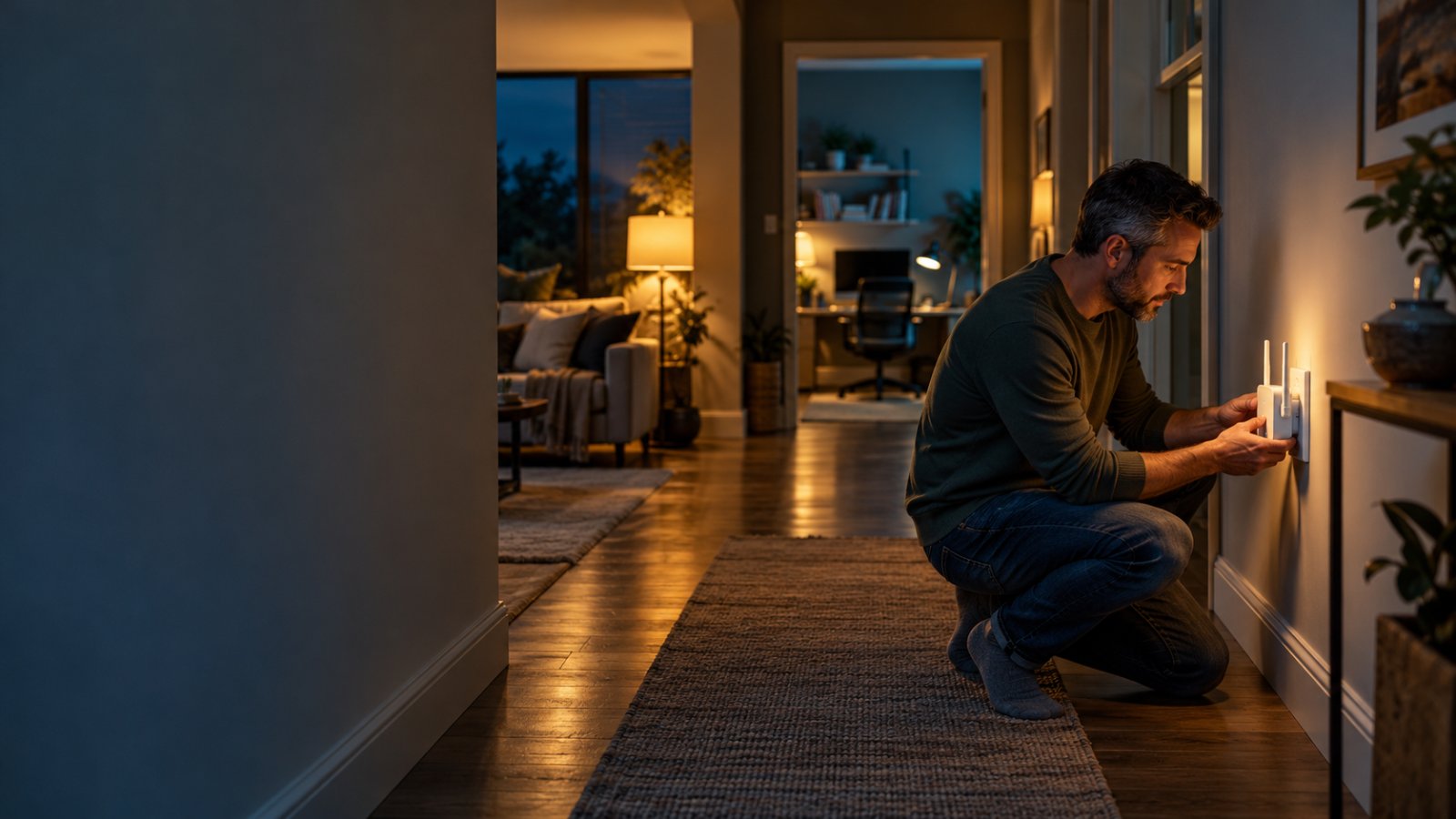
The most common mistake homeowners make when buying a WiFi extender is placing it in the room where the internet already stops working. An extender cannot create a strong connection from a signal it barely receives.
If you're searching for the best wifi extender to fix dead spots in my house, start with a dual-band extender that supports both 2.4 GHz and 5 GHz. For one or two weak rooms, an AC1200 extender with external antennas is a practical starting point. For faster connections, several connected devices, or demanding home offices, consider a WiFi 6 extender with a Gigabit Ethernet port. If thick concrete walls block the signal almost completely, a wired access point may work better than another wireless repeater.
The right purchase depends on where your router sits, what separates it from the problem room, and how much signal reaches the proposed extender location. This guide compares extender types using their specifications, connection methods, compatibility, and practical limitations, not invented speed tests or coverage claims.
Best WiFi Extender to Fix Dead Spots in My House: Quick Buying Guide
Before comparing products on Amazon, identify how many rooms need better coverage.
A single upstairs bedroom with unreliable WiFi is a different problem from an entire second floor that struggles to connect.
For most households, these are the best starting points:
-
One weak bedroom or home office: A dual-band AC1200 WiFi extender may provide enough additional coverage.
-
A large two-story home: Consider a WiFi 6 extender with strong router connectivity, or a wired access point if the floors are difficult to penetrate.
-
A house with thick concrete or brick walls: Prioritize a wired connection to an access point over buying an extender with an exaggerated range claim.
-
A room with several laptops, TVs, and gaming devices: Look for a WiFi 6 extender with a Gigabit Ethernet port.
-
A smart camera or doorbell with a weak connection: Focus on reliable 2.4 GHz coverage and an extender location with a stable connection to the router.
-
Several disconnected areas across the property: A multi-node mesh system or multiple wired access points may be more appropriate than one extender.
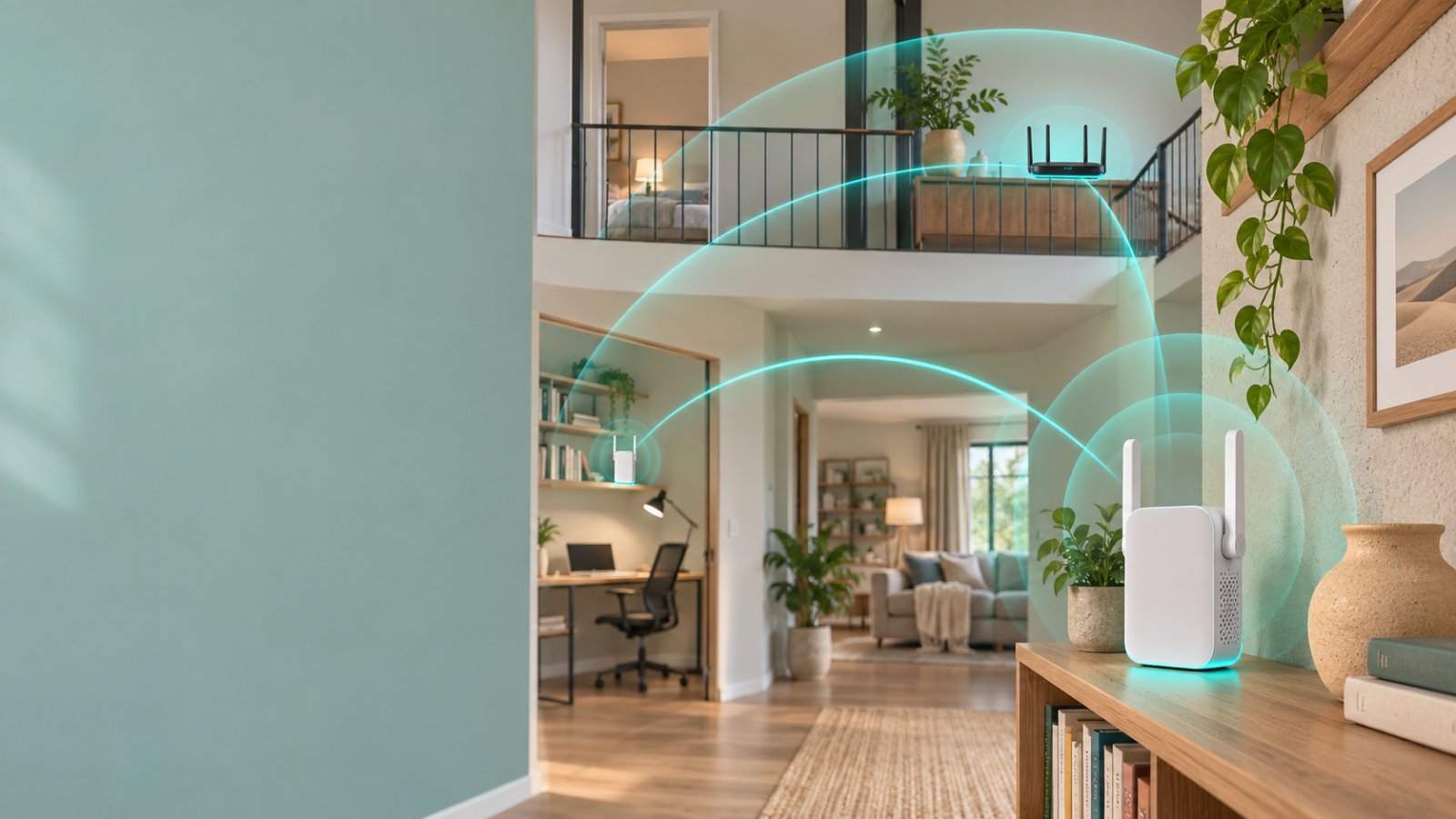
A standard WiFi extender works by receiving a signal from your router and transmitting additional wireless coverage.
That means two connections must work properly: the connection between the router and extender, and the connection between the extender and your phone, laptop, or camera.
If either connection is weak, the experience can remain frustrating.
Before purchasing anything, walk through the house with your phone and identify where the main router's WiFi starts becoming unreliable.
That location is usually more useful than the center of the room with no coverage.
What Causes WiFi Dead Spots in a Home?
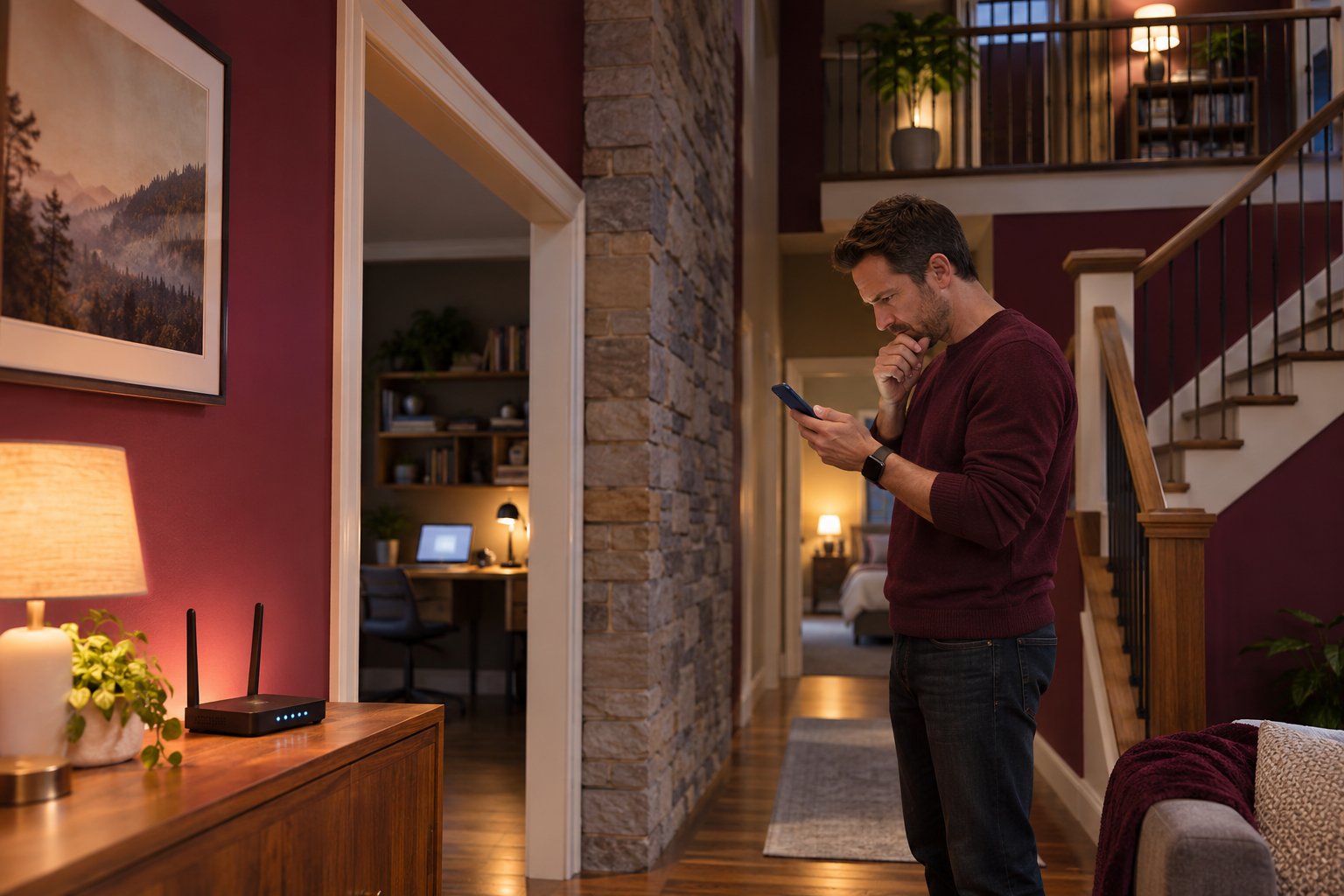
WiFi dead zones are areas where a wireless device cannot maintain a usable connection to the router.
Sometimes the phone shows no WiFi network at all. In other cases, it appears connected but pages take too long to load, video calls freeze, or security cameras repeatedly disconnect.
The difference matters.
If your WiFi signal is strong but the internet is slow everywhere, the problem may involve your internet service, router, or network congestion.
If the problem appears only in one bedroom, hallway, or garage, coverage is more likely to be responsible.
Start by comparing a device's performance near the router with its performance in the problem room.
Use the same phone or laptop for both checks.
If the connection works normally near the router but becomes unreliable farther away, investigate the layout before upgrading equipment.
Thick Walls and Structural Obstacles
WiFi signals weaken as they travel through building materials.
How much they weaken depends on the material, its thickness, moisture content, and whether metal is present.
Common examples include:
Drywall and wooden partitions
Ordinary drywall and wood framing generally allow WiFi signals to pass through more easily than dense masonry.
A single interior drywall partition is unlikely to be as challenging as a reinforced concrete wall.
However, multiple walls between the router and a device can still reduce signal quality.
Brick and concrete walls
Thick masonry can significantly weaken wireless signals.
Concrete containing metal reinforcement can be particularly difficult for WiFi.
A router sitting on one side of several concrete walls may struggle to serve devices on the other side, even when the distance looks short on a floor plan.
Plaster walls with metal lath
Some older homes contain plaster installed over metal mesh.
That metal structure can interfere with wireless signals more than ordinary drywall.
If your home has older plaster construction, don't assume a more powerful wireless extender will solve the problem.
Metal appliances and other reflective surfaces
Refrigerators, filing cabinets, metal shelving, and large appliances can affect WiFi propagation.
A router placed behind a television or inside a metal cabinet may have poor coverage even in nearby rooms.
Foil-backed insulation and certain windows
Metallic insulation layers and some coated glass can also weaken signals.
These materials are easy to overlook because they aren't obvious when you're walking through the house.
For homes with several dense obstacles, extender placement matters more than a manufacturer's advertised coverage area.
An extender positioned before the difficult wall may still struggle to transmit through it.
A wired connection to equipment on the other side can be more effective.
Distance and Floor Layout Challenges
WiFi weakens with distance, but the path between rooms matters just as much.
Consider a two-story house where the router sits in a downstairs office against an exterior wall.
The upstairs bedroom may be separated from it by:
-
A floor or ceiling assembly.
-
Interior walls.
-
Bathroom plumbing.
-
Ductwork.
-
Furniture and appliances.
-
Several rooms of horizontal distance.
The straight-line distance between the router and bedroom might not seem large.
Yet the signal may have to travel through several obstacles before reaching the phone.
This is why multi-story coverage can be difficult.
A centrally located router may reach both floors reasonably well. A router at one far corner can leave the opposite upstairs rooms with weak connectivity.
Before buying an extender, review the router's position.
These router placement tips explain how central positioning, nearby obstacles, and interference affect home coverage.
Sometimes moving the router away from a cabinet or exterior corner improves coverage enough that an additional device is unnecessary.
Essential Features for Eliminating Dead Zones
WiFi extenders can look similar while offering different wireless standards, network ports, and operating modes.
For homeowners, the best specifications are the ones that solve the actual coverage problem.
A larger speed number on the product box is not enough.
Dual-Band Support (2.4 GHz vs 5 GHz)
A dual-band WiFi extender supports two common frequency bands: 2.4 GHz and 5 GHz.
These bands behave differently.
2.4 GHz: Better reach in many difficult layouts
The 2.4 GHz band generally travels farther and passes through common household obstacles more effectively than 5 GHz.
It is often useful for:
-
Smart plugs.
-
Wireless printers.
-
Some indoor and outdoor security cameras.
-
Devices in distant bedrooms.
-
Basic browsing in rooms farther from the extender.
However, 2.4 GHz can be crowded.
Nearby routers, Bluetooth devices, and other equipment may compete for the same spectrum.
It also offers lower maximum throughput than modern 5 GHz connections.
5 GHz: Higher potential performance at shorter distances
The 5 GHz band can provide higher throughput when the signal is strong.
It is often preferable for:
-
Video calls.
-
Streaming.
-
Gaming.
-
Large downloads.
-
Laptops used near the extender.
But its signal typically weakens more quickly through walls and floors.
In a house with dense construction, a weak 5 GHz link between the router and extender may provide disappointing results.
Which band should you choose?
A dual-band extender gives you flexibility.
If a laptop is close to the extender, try 5 GHz.
If an outdoor security camera struggles behind a wall, check whether it works more reliably on 2.4 GHz.
Some devices and routers automatically select the band.
Others broadcast separate network names.
Don't assume that 5 GHz is always the better connection simply because its theoretical maximum speed is higher.
For a device near the edge of coverage, stability may be more important than peak speed.
External Antennas and Physical Ethernet Ports
External antennas can provide flexibility in how an extender is positioned and oriented.
They may also make it easier to adjust the device for a particular layout.
However, antenna count alone doesn't establish coverage quality.
A product with four antennas is not automatically better than one with two.
Radio design, antenna characteristics, interference, and placement all matter.
For most homeowners, an extender's Ethernet port is a more useful feature to examine closely.
Ethernet ports serve two different purposes.
First, some extenders allow you to connect a wired device, such as a desktop computer or television, to the extender.
The extender still connects wirelessly to your router.
This removes the wireless connection between the device and the extender, but it does not remove the wireless connection back to the router.
Second, some extenders support Access Point Mode.
In this configuration, an Ethernet cable connects the extender to your home network.
The device then creates WiFi coverage from that wired connection.
This is often a stronger solution for rooms separated by thick walls.
Check the Ethernet port speed.
A 10/100 Mbps port and a Gigabit Ethernet port are not equivalent.
A 100 Mbps connection can be sufficient for many smart home devices or basic internet activities.
But it may limit performance for a faster internet plan or a demanding home office.
If you want to use Ethernet backhaul for higher-throughput devices, look for a model with a Gigabit Ethernet port and confirmed access point support.
Check the WiFi Standard
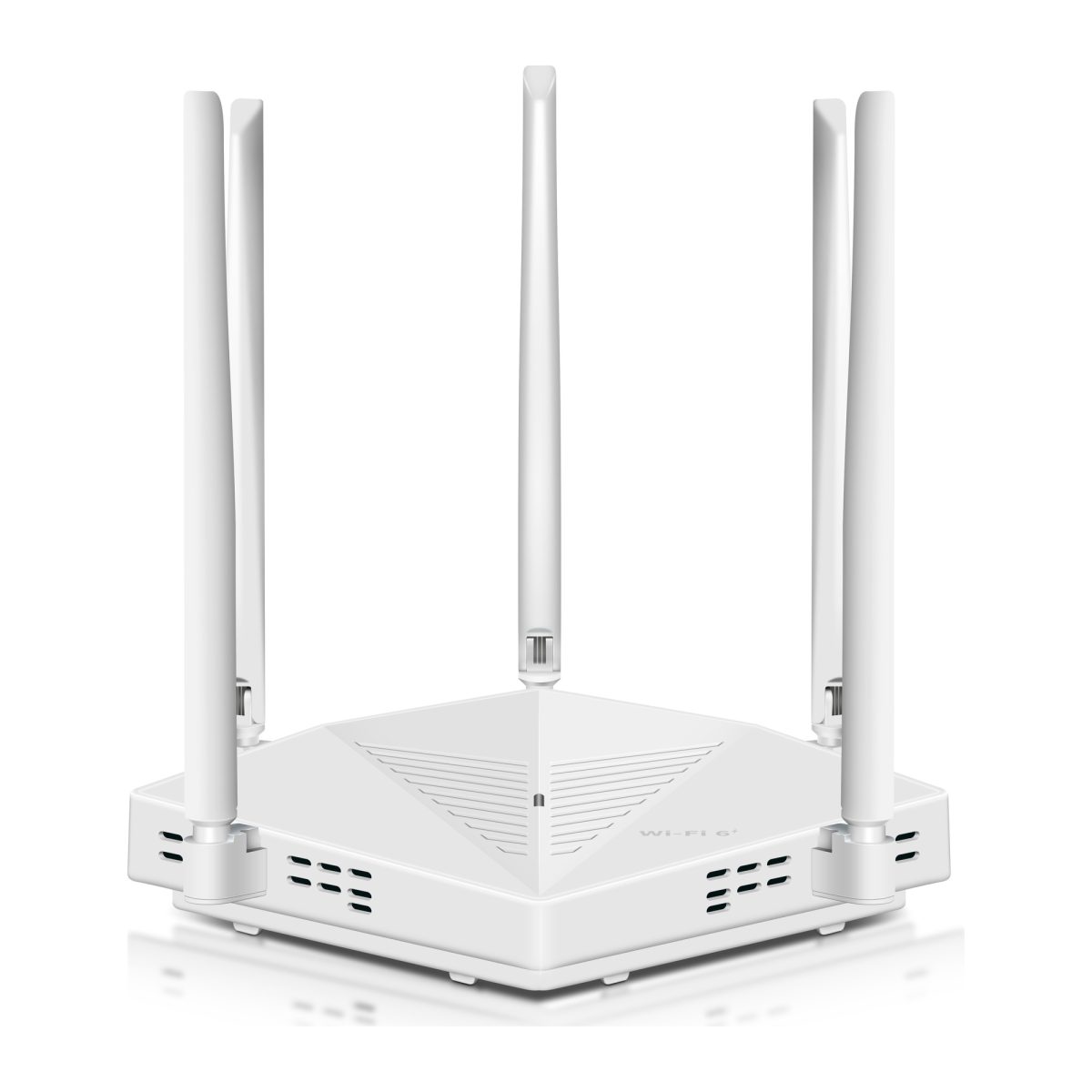
You'll commonly see AC1200, AX1500, AX1800, or AX3000 on product listings.
These labels describe wireless performance classes rather than guaranteed internet speeds.
AC usually refers to WiFi 5 equipment, while AX refers to WiFi 6.
WiFi 6 offers technical improvements that can help compatible devices operate more efficiently, especially when several devices are active.
But buying a WiFi 6 extender doesn't automatically turn an older router into a WiFi 6 router.
The connection between the extender and existing equipment still depends on what both devices support.
Also, an AX3000 label does not mean your phone will receive a 3000 Mbps internet connection.
Advertised wireless rates are theoretical link specifications. Actual throughput is affected by the router, device capabilities, walls, interference, and the extender's connection back to the network.
Look for Access Point Mode and Compatibility
Access Point Mode is particularly valuable if you already have Ethernet cabling.
Check the product's specifications rather than assuming every extender supports it.
Also review security compatibility.
Choose a model supporting the security modes required by your router and devices.
For mesh-related features, look for explicit compatibility with the system you own.
An extender advertised as mesh-capable doesn't necessarily integrate seamlessly with every router.
Brand-specific technologies and standards support can differ.
If seamless roaming matters to you, verify that the exact router and extender models can work together as intended.
Recommended WiFi Extender Types for Different Needs
When homeowners ask, "What are the most recommended Wi-Fi extenders for improving coverage in dead zones?", the useful answer depends on the number of weak rooms, their distance from the router, and the barriers between them.
The following options cover the situations most likely to affect an ordinary home.
1. AC1200 Dual-Band Extender: Best for One or Two Weak Rooms
Best for: Budget-conscious homeowners and renters who need better coverage in a bedroom, hallway, or nearby home office.
An AC1200 dual-band extender is often a sensible starting point when the router still provides usable WiFi in the hallway outside the problem room.
It supports both the 2.4 GHz and 5 GHz bands.
This gives users a choice between longer-reaching connectivity and higher potential throughput over shorter distances.
For example, a router in the living room might serve most of the house but struggle to reach the guest bedroom.
Placing a dual-band extender in the intervening hallway can improve coverage if that hallway still receives a reliable signal.
Strengths
-
Usually simpler than installing a new whole-home network.
-
Supports both common WiFi bands.
-
Suitable for many browsing, streaming, and smart home tasks.
-
Often includes straightforward wireless setup.
-
May include an Ethernet port.
-
A practical option when running cables is not possible.
Limitations
An AC1200 extender does not guarantee a particular coverage area.
Performance may drop when the extender receives a weak signal from the router.
Wireless repeating also uses available wireless capacity to receive and retransmit traffic.
That can reduce throughput compared with a direct connection under otherwise similar conditions.
For a demanding gaming setup or large file transfers, a wired solution may perform better.
Example to consider
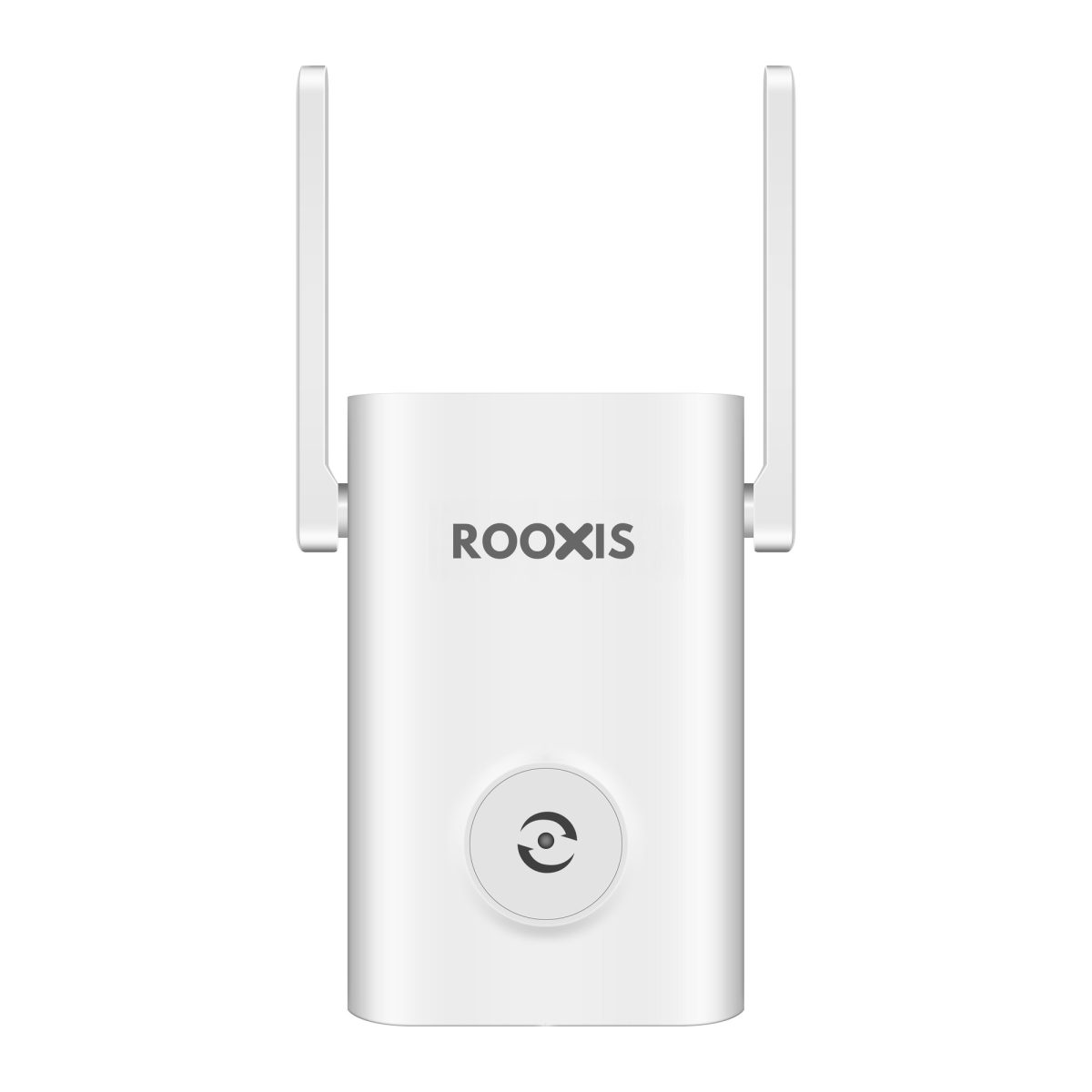
The ROOXIS AC1200 range extender supports dual-band WiFi, external antennas, MU-MIMO, and a 10/100 Mbps Ethernet port.
It can be a practical option for extending an existing network into a nearby dead zone, provided there is a usable router signal where the extender will be installed.
Its 10/100 Mbps port is an important limitation if you're planning a high-speed wired setup.
The product is available through Amazon, but check the exact listing and specifications before purchasing.
Who should choose it?
Homeowners with one troublesome room and a reasonably strong wireless signal between that room and the router.
2. WiFi 6 AX1500 or AX1800 Extender: Best for Busy Home Offices
Best for: Homes with multiple connected devices, frequent video calls, and higher demands on wireless capacity.
WiFi 6 extenders in the AX1500 or AX1800 class can be useful when an older extender struggles to serve several active devices.
Imagine a home office where someone uses a laptop for video calls, another person streams television, and smart devices remain connected throughout the day.
A modern extender may handle that activity more efficiently than older equipment, assuming the router and client devices also support the relevant capabilities.
Strengths
-
Modern WiFi 6 wireless features.
-
Support for the 2.4 GHz and 5 GHz bands.
-
Options with Gigabit Ethernet ports.
-
Suitable for households with several active devices.
-
Some models support access point operation.
-
Some offer mesh-related features with compatible equipment.
Limitations
The extender still needs a stable connection back to the router.
WiFi 6 doesn't make concrete walls transparent to radio signals.
If the extender must connect through several reinforced walls, a newer wireless standard alone may not fix the problem.
The benefits also depend on your existing router and connected devices.
What to check before buying
Look for a model that specifies:
-
WiFi 6 support.
-
Dual-band operation.
-
A Gigabit Ethernet port.
-
Access Point Mode, if you have wiring available.
-
Current security support.
-
Compatibility with your existing router.
Who should choose it?
Homeowners with a reasonably modern router who want to extend coverage to a busier office, family room, or upstairs work area.
3. AX3000-Class WiFi 6 Extender: Best for Higher-Performance Connections
Best for: Households with faster internet connections and several devices that can benefit from higher wireless capacity.
An AX3000-class extender may offer greater theoretical wireless capacity than lower-tier models.
That can be valuable when the surrounding network equipment and wireless conditions allow it.
For example, a family might use one upstairs area for gaming, video conferencing, and large downloads.
If there is a strong connection from the router to the extender, a higher-capacity model may provide more flexibility than an entry-level device.
Strengths
-
Higher wireless performance class.
-
Dual-band connectivity.
-
Models with Gigabit Ethernet connectivity.
-
Suitable for demanding wireless environments.
-
Some models support wired access point operation.
-
Potential compatibility with modern mesh-related features.
Limitations
A higher AX rating doesn't guarantee better range.
An AX3000 extender placed behind two thick concrete walls can perform worse than a lower-cost extender placed where the router signal is strong.
Your internet plan and router may also limit the practical benefit.
If your existing connection is relatively slow, the added wireless capacity may not noticeably improve ordinary browsing.
Who should choose it?
Households with higher throughput requirements, compatible equipment, and a suitable location for the extender.
Don't buy this class solely because the number on the box is larger.
4. Wired Access Point: Best for Thick Walls and Reliable Coverage
Best for: Homes where wireless signals cannot travel reliably between the router and the problem area.
A wired access point is often the better answer when several dense walls separate the room from the router.
Instead of trying to repeat a weak wireless signal, it receives a network connection through an Ethernet cable.
It then provides WiFi locally.
Consider a home with a ground-floor router and a second-floor office separated by a reinforced concrete floor.
An extender on the upstairs landing may receive very little signal.
If an Ethernet cable can reach the office, a wired access point avoids depending on that unreliable wireless path.
Strengths
-
Does not require wireless backhaul to the router.
-
Useful where floors and walls severely weaken WiFi.
-
Can provide a more stable connection for video calls and work devices.
-
Allows wireless coverage to originate inside the problem area.
-
Suitable for rooms with several connected devices.
Limitations
Installation requires an Ethernet connection.
Running cable through walls or between floors may be inconvenient or require professional help.
Some renters cannot modify the property.
Port speed also matters. A wired access point with only a 100 Mbps uplink cannot provide Gigabit throughput through that connection.
Who should choose it?
Homeowners with dense walls, an existing Ethernet run, or the ability to install cabling.
If wireless signals barely reach the destination, this is often more sensible than purchasing a more expensive repeater.
5. Mesh WiFi System: Best for Several Dead Zones
Best for: Homes with weak coverage across multiple rooms or floors rather than one isolated problem area.
A mesh system uses several compatible units to provide coverage throughout the property.
The units work together as part of the same network.
This can make a mesh system more convenient than installing several unrelated extenders.
For example, a house might have poor WiFi in the upstairs bedrooms, basement, and far end of the living room.
Trying to fix each area with another independent repeater can become complicated.
A properly designed mesh system may offer a more consistent network experience.
Strengths
-
Designed for broader multi-room coverage.
-
Centralized management of compatible units.
-
Can simplify moving between coverage areas.
-
Supports multiple wireless nodes.
-
Some systems support Ethernet backhaul.
Limitations
Mesh systems usually involve replacing or supplementing more of the existing network.
They may cost more than one basic extender.
Wireless mesh nodes still need good connections to neighboring nodes.
A mesh unit placed behind several dense concrete walls can experience the same basic signal problems as an ordinary extender.
If the home has extensive wiring or difficult construction, Ethernet backhaul may remain the better solution.
Who should choose it?
Homeowners facing several persistent dead zones who want broader network coverage rather than a fix for one room.
WiFi Extender Comparison Table
| Extender type | Best use case | Main advantage | Main limitation |
|---|---|---|---|
| AC1200 dual-band extender | One or two weak rooms | Affordable, straightforward coverage extension | Wireless backhaul can reduce throughput |
| AX1500 or AX1800 WiFi 6 extender | Busy home office or family room | Modern wireless features and device capacity | Requires good router connectivity |
| AX3000-class WiFi 6 extender | Higher-performance wireless needs | Greater theoretical wireless capacity | Higher specifications do not guarantee better range |
| Wired access point | Thick walls or difficult floor construction | Avoids weak wireless backhaul | Requires Ethernet cabling |
| Mesh WiFi system | Several dead zones across multiple floors | Coordinated multi-node coverage | More equipment and potentially greater cost |
For most homes, start with the least complicated solution that can solve the coverage problem.
One weak bedroom usually doesn't justify replacing the entire network.
An entire second floor with poor connectivity probably needs more planning than plugging a repeater into the farthest outlet.
Matching Extenders to Specific House Layouts
The shape and construction of your home determine which extender type will work best.
Two houses with the same floor area can need completely different networking equipment.
A long single-story ranch home has different coverage challenges from a compact house with thick reinforced floors.
Before buying, identify the router, weak rooms, stairways, and available power outlets.
Large Two-Story Homes with Dense Walls
Homeowners often ask for recommendations for internet extenders for a large two-story house with thick walls.
The first question is whether the router's WiFi can reach a useful location on the second floor.
If the router is downstairs, test the signal near the staircase and upstairs landing.
Then compare it with the signal inside the problem bedroom.
If the landing has a usable connection but the bedroom does not, a strategically placed extender may work.
If the landing already has almost no usable WiFi, a wireless extender will struggle.
Recommended approach
-
Check whether the router can be moved closer to the center of the home.
-
Test WiFi near the staircase or another relatively open route between floors.
-
Choose an extender location where the router connection remains reliable.
-
Select a dual-band extender suited to the household's device requirements.
-
Test coverage in the upstairs rooms after installation.
-
Consider Ethernet backhaul if the floor structure prevents a stable wireless connection.
In homes with reinforced concrete between floors, a wired access point may be the stronger long-term choice.
If several upstairs rooms need coverage, position the access point where its signal can reach them rather than placing it inside the farthest bedroom.
What to avoid
Don't install an extender at the opposite end of the second floor simply because that's where the connection fails.
The device may show a strong WiFi network of its own while having a poor connection to the router.
Also avoid chaining several wireless extenders together unless the equipment explicitly supports that configuration and performance remains acceptable.
Each additional wireless relay can introduce further capacity and reliability limitations.
Single-Level Layouts and Detached Spaces
Single-story homes often have simpler floor construction but can still suffer from long distances and difficult walls.
A long house with the router near one end may have weak coverage in a bedroom at the other end.
In this situation, an AC1200 or WiFi 6 extender positioned along the route may be enough.
For a long single-story house
Place the extender near the last area where the router still provides reliable WiFi.
A hallway outlet may be better than one behind a refrigerator or large television.
Test the bedroom connection after the extender is installed.
If several rooms on the far side remain weak, consider moving the router or using a wired access point.
For a garage attached to the house
Check the signal near the wall or doorway closest to the router.
Garage construction can include metal doors, shelving, and other materials that weaken WiFi.
If the signal is strong near the connecting doorway, an extender inside the home may improve garage coverage.
If the garage is separated by dense walls, a wired access point may work better.
For a detached garage or workshop
A standard indoor extender isn't necessarily suitable for an outbuilding.
Distance, exterior walls, and weather exposure create additional challenges.
Don't place an indoor-only extender outside unless its manufacturer specifically rates it for that environment.
For a detached building, consider a suitable wired connection or purpose-built outdoor networking equipment.
The correct solution depends on the distance, installation conditions, and whether cabling is practical.
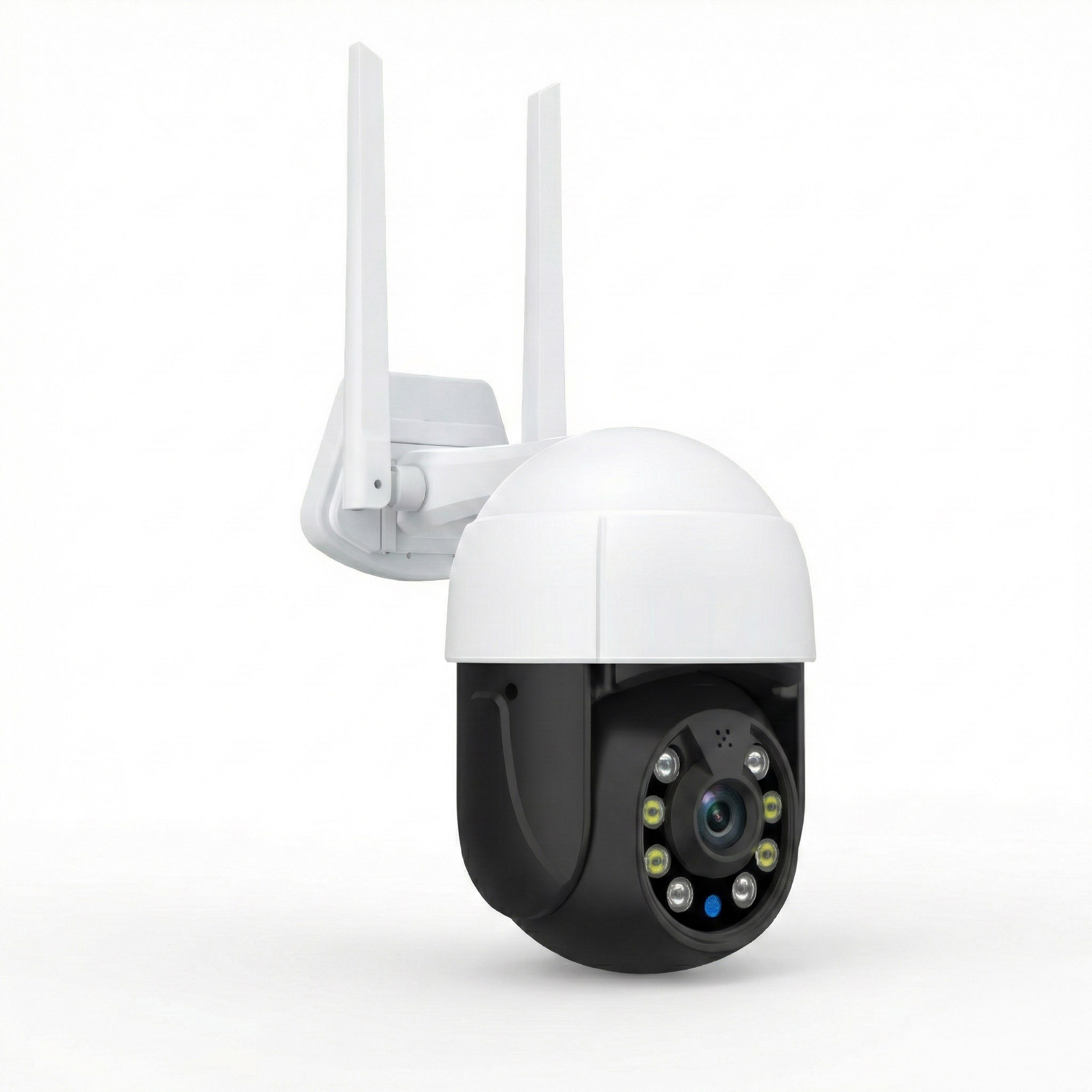
For security cameras
Many WiFi security cameras use 2.4 GHz connections.
Check the camera's supported band before purchasing an extender.
A camera located outside may need a stable connection through an exterior wall.
An extender placed inside the home near that wall may improve coverage if it still receives a strong router signal.
But if the camera is far from the house or behind several barriers, an outdoor-rated access point or another appropriate connection method may be necessary.
Avoid choosing a product solely because its listing claims to cover a very large area.
Where to Position Your Extender for Peak Performance
Extender placement is often more important than upgrading to a higher wireless speed class.
The goal is to find a location where the extender can still communicate reliably with your router while being close enough to improve the problem area.
A useful starting point is approximately halfway between the router and the weak room.
But halfway isn't a fixed rule.
Walls, floors, and nearby appliances can make a closer location perform better.
Step 1: Identify the Last Reliable WiFi Location
Take your phone into the problem room.
Confirm that it is connected to your main home WiFi network.
Open a normal website or run a speed test.
Then walk toward the router.
Notice where pages begin loading normally and the connection becomes stable.
You can also use a WiFi signal information tool if you want more detailed readings.
Don't judge the entire connection from the phone's signal bars alone.
Signal indicators are approximate and vary between devices.
The important point is finding a place where the network actually works reliably.
Step 2: Choose an Outlet With a Good Router Connection
Look for an outlet near the last reliable connection area.
Ideally, it should be in an open position rather than hidden behind furniture.
Avoid placing the extender:
-
Behind a refrigerator.
-
Inside a closed cabinet.
-
Directly behind a large television.
-
Next to large metal objects.
-
Near equipment that creates wireless interference.
-
At the farthest point of the dead zone.
If the extender has a signal-strength indicator, use it to evaluate placement.
A warning indicator suggesting weak router connectivity usually means you should move the extender closer to the router.
A strong extender-to-phone signal is not enough if the extender cannot communicate effectively with the main network.
Step 3: Set Up the Extender Near the Router
Many extenders are easier to configure when they're initially plugged in near the router.
Follow the manufacturer's setup instructions.
Depending on the model, setup may involve a WPS button, mobile app, or web browser.
For manual setup, the usual process is:
-
Connect your phone or laptop to the extender's setup network.
-
Open the manufacturer's configuration page.
-
Select your existing home WiFi network.
-
Enter your home WiFi password.
-
Configure the extended network.
-
Wait for the extender to restart and establish its connection.
Only use the setup address and instructions supplied for your exact device.
Avoid entering your WiFi password into an unfamiliar website reached through an advertisement or search result.
After setup, move the extender to its intended location.
Step 4: Confirm Which Network Your Device Uses
Some extenders create a separate network name.
For example, a home network may appear with an additional suffix that identifies the extended connection.
Other systems can share the router's network name.
If the extender creates a separate name, open your phone's WiFi settings and connect to it.
If it shares the same name, check the extender's management interface or connected-device information when available.
A successful setup doesn't guarantee that every device will immediately switch to the extender.
Some phones and laptops remain connected to the router until their connection becomes weak enough to trigger a change.
If you're testing a separate extended network, make sure you're actually connected to that network.
Step 5: Test the Dead Zone Again
Return to the room that previously had poor coverage.
Test more than whether the WiFi icon appears.
Try the activity that normally fails.
For example:
-
Open several websites.
-
Make a short video call.
-
Stream a video.
-
Check whether a smart TV can maintain playback.
-
Open the live view of a security camera.
-
Download a file or run a speed test.
Compare the experience with the original connection.
If the device now connects but performance remains poor, the extender's connection to the router may still be the limiting factor.
Try moving the extender one outlet closer to the router.
If performance improves after that adjustment, the original position was probably too far away or separated by too many obstacles.
Step 6: Compare 2.4 GHz and 5 GHz Performance
If your extender offers separate band names, test both.
A device close to the extender may perform better on 5 GHz.
A device behind another wall may be more stable on 2.4 GHz.
For example, a home office laptop might handle video calls well over 5 GHz while a distant smart camera works more consistently on 2.4 GHz.
Use real application performance to decide.
Don't assume that a higher displayed connection speed always means better reliability.
Step 7: Use Ethernet Backhaul if Wireless Repeating Fails
If the extender repeatedly loses its connection to the router, placement changes may not be enough.
Check whether the model supports Access Point Mode.
If you have an Ethernet cable reaching the problem room, you may be able to connect the device directly to your network.
This replaces the wireless router-to-extender connection with a wired link.
The result can be more reliable in homes with thick walls or difficult floor construction.
However, the Ethernet port must support the throughput your household needs.
A 100 Mbps port can limit wired performance even when the wireless equipment has a higher advertised speed class.
If your room requires faster wired connectivity, choose an access point or extender with an appropriate Gigabit Ethernet connection.
For further guidance on positioning networking equipment, see this ideal router height guide.
How to Choose the Best Extender for Your Situation
The best wifi extender for homeowners is the one that addresses the weakest connection in their particular network.
Use the following situations to narrow your purchase.
If You Have One Dead Bedroom
Start with a dual-band AC1200 extender.
Check whether the hallway outside the bedroom still receives reliable WiFi.
If it does, that hallway may provide a good installation location.
Choose a model with straightforward setup and usable signal indicators.
A higher-priced WiFi 6 extender isn't automatically necessary for basic browsing and streaming.
If Your Upstairs Home Office Keeps Disconnecting
Look at both wireless coverage and your throughput needs.
If the upstairs landing receives a strong router signal, a WiFi 6 extender may improve the connection.
For frequent video calls, large uploads, or demanding work, prioritize a model with Gigabit Ethernet and Access Point Mode.
If the signal cannot cross the floor reliably, consider wired backhaul instead.
If Your Home Has Thick Concrete Walls
Don't buy an extender solely because its listing advertises exceptional wall penetration.
No conventional indoor WiFi extender can guarantee reliable communication through every dense wall.
If the router signal is barely usable on the other side, a wired access point may be the better purchase.
A strategically positioned mesh system can also help in some layouts, but its wireless nodes still require reliable connections.
If You Have Several Dead Zones
One extender may not provide enough coverage across distant areas.
Consider whether a mesh system or multiple wired access points would be more appropriate.
If you're still planning your purchase, this guide to choosing the best wifi extender for a large house covers additional considerations for bigger floor plans.
Avoid buying multiple independent extenders before understanding how they will connect to the router.
If Your Security Camera Has a Weak Signal
First, confirm the camera's supported WiFi band.
Then check whether the camera's location receives a reliable signal from the main router.
An extender can help when it provides stronger local coverage and maintains a stable connection upstream.
For outdoor cameras, account for the exterior wall and any metal surfaces between the device and the extender.
If the camera is located far from the building, an indoor extender may not be the appropriate solution.
Mistakes to Avoid Before Buying a WiFi Extender
Several common purchasing mistakes lead to disappointing results.
Buying according to advertised square footage alone
Coverage figures are based on conditions that may differ significantly from your house.
Walls, floors, interference, and router placement affect real performance.
Treat coverage claims as general marketing information, not a guarantee that every room will receive strong WiFi.
Assuming an extender increases internet speed
A range extender improves access to an existing wireless network.
It does not increase the internet speed supplied by your provider.
If the router receives a slow connection, the extender cannot create a faster internet service.
Ignoring the connection between router and extender
An extender may broadcast a strong signal to your phone while receiving a weak connection from the router.
This can make the WiFi icon look healthy while websites still load slowly.
Always examine the upstream connection.
Buying a single-band extender for a busy household
Single-band equipment may be sufficient for limited tasks, but it offers less flexibility.
Dual-band models let you choose between the 2.4 GHz and 5 GHz bands according to signal conditions.
For most modern households, dual-band support is a sensible minimum.
Confusing an Ethernet port with wired backhaul support
An extender with an Ethernet socket doesn't necessarily support every connection mode.
Check whether the product explicitly offers Access Point Mode if you plan to connect it to your router through Ethernet.
Ignoring port speed
A 100 Mbps Ethernet connection can limit throughput.
If you need a high-speed wired connection, look for Gigabit Ethernet support.
Installing several repeaters without a network plan
Adding more repeaters can create overlapping signals and additional wireless relays.
More equipment doesn't automatically mean better coverage.
Identify the connection path before purchasing multiple units.
Forgetting the return policy
Real homes contain obstacles that product listings cannot describe accurately.
When buying through Amazon or another retailer, check the return window, seller information, and exact model specifications.
Keep the packaging until you've verified that the extender performs satisfactorily in the intended location.
Frequently Asked Questions About Home WiFi Extenders
Why do certain rooms in my house get no WiFi signal?
WiFi dead zones usually result from distance, dense walls, floors, metal objects, or poor router placement. A room separated by several brick or concrete walls may receive a much weaker signal than a closer room with an open doorway. Check the router's position and test the signal in nearby hallways before buying an extender.
Where should I place a WiFi extender to clear dead zones?
Place the extender where it can still receive a reliable signal from your main router, usually somewhere between the router and the weak room. Avoid installing it inside the dead zone itself. If the extender's signal indicator shows poor router connectivity, move it closer to the router and test again.
Can a WiFi extender penetrate thick concrete or plaster walls?
WiFi signals can pass through some building materials, but dense concrete, reinforced walls, and plaster containing metal lath can severely weaken them. A more expensive extender cannot guarantee reliable coverage through those barriers. If the signal is already extremely weak, a wired access point may provide a more dependable solution.
How many extenders do I need for a two-story home?
A two-story house with one isolated weak area may need only one well-positioned extender. If several rooms on both floors have poor connections, a mesh system or wired access points may be more suitable. Decide based on the actual floor plan and signal quality rather than square footage alone.
What is the difference between a WiFi extender and a mesh unit?
A conventional WiFi extender receives and retransmits an existing wireless connection to improve coverage in a particular area. A mesh system uses compatible nodes designed to work together as one coordinated network. Both depend on adequate connections between devices unless wired backhaul is used, but mesh systems can be more convenient for covering several rooms or floors.
For a typical home with one dead bedroom, start by checking whether a hallway or nearby room still receives a reliable router signal. If it does, a dual-band extender may be all you need.
For homes with thick walls, reinforced floors, or several disconnected areas, examine wired access points and mesh options before spending more on a conventional wireless repeater.
Whichever model you choose, test it in the actual room where the problem occurs. A stable video call, reliable camera connection, or smoothly loading website tells you more about the result than the largest coverage number on the product box.