Your WiFi works well in the living room, but the upstairs bedroom keeps losing connection. You restart the router, move it closer to the wall, and check the internet plan. Nothing changes. The router's position may be part of the problem.
The best height for wifi router placement is usually around 4 to 6 feet above the floor, on an open shelf or suitable wall mount. This is a practical starting point rather than a fixed requirement. The router should also be reasonably central, away from large appliances, metal objects, and furniture that obstructs the wireless signal.
Moving a router higher can improve coverage, but height alone does not determine performance. A router placed 6 feet high behind a television may work worse than one sitting 4 feet high on an open bookshelf. This guide compares common placement options, explains which locations suit different homes, and shows how to test your WiFi before spending money on additional equipment.

Best Height for WiFi Router: The Quick Answer
For most homes, begin with the router approximately 4 to 6 feet above the floor.
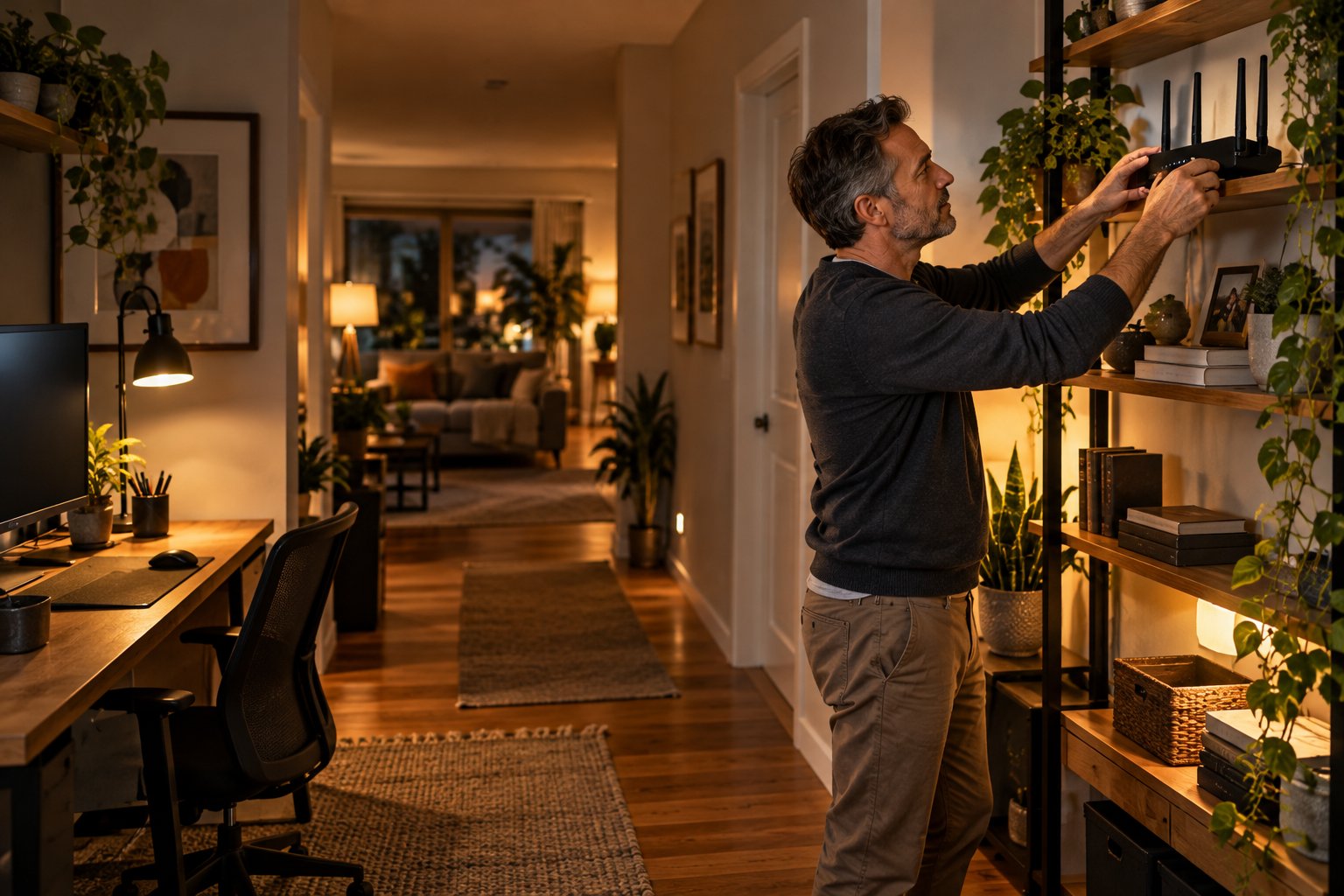
An open bookshelf, sturdy side table, or properly installed wall shelf can work well. Keep the router clear of nearby furniture and leave enough space around it for ventilation.
The location should also be reasonably central.
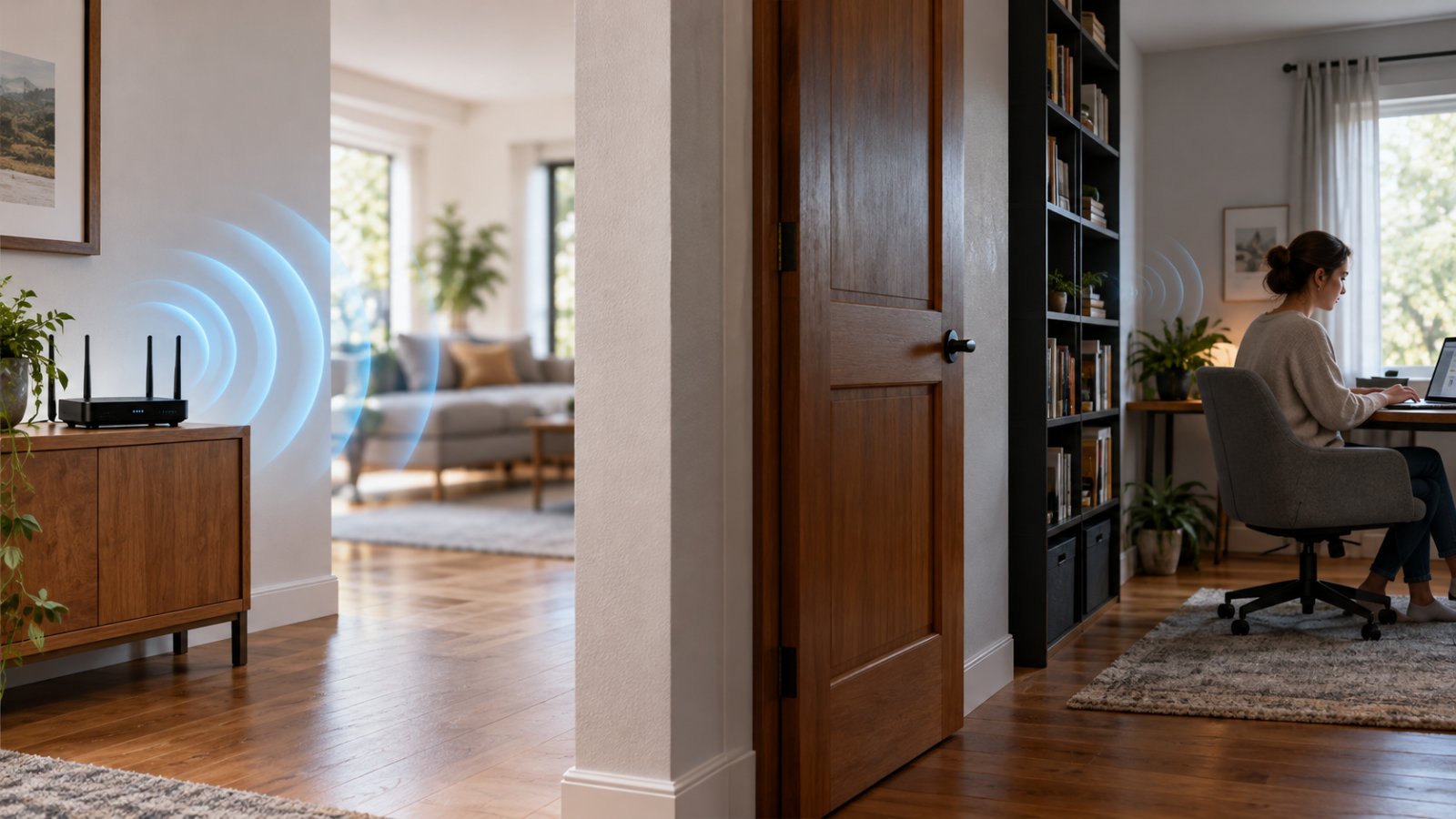
For example, imagine a single-floor house with a living room in the middle, bedrooms on one side, and a home office on the other. A router placed on an open living room shelf may serve those rooms more evenly than one installed at the far end of the house.
The height helps reduce obstructions from furniture. The central location reduces the distance and number of walls between the router and connected devices.
If your router is currently sitting on the floor behind a cabinet, moving it onto an open shelf is worth trying before changing wireless settings or buying another device.
A good starting position is an open, central shelf at chest to head height, with clear space around the router and its antennas.
You do not need to measure the height precisely.
The final decision should depend on how well the WiFi works in the rooms you actually use.
Is 4 to 6 Feet the Perfect Height for Every Router?
No. Different homes have different layouts, wall materials, and wireless coverage needs.
A router on a desk in a small apartment may already provide excellent coverage. Moving it higher might make little difference.
A two-story house presents a different challenge. The router must send signals through walls, ceilings, flooring materials, and furniture.
In that situation, a higher position may improve some connections while making others worse.
The router's antenna design also matters.
Some routers have adjustable external antennas. Others contain internal antennas designed to operate with the router in a particular orientation.
Follow the manufacturer's mounting instructions before changing how the device sits.
For a normal home setup, start with the suggested height, test the connection, and adjust the position based on the results.
Why Router Height Affects WiFi Coverage
WiFi uses radio waves to communicate between the router and connected devices.
Those signals travel through the surrounding space, but they can weaken when passing through or interacting with household materials.
A router placed directly on the floor may have several obstacles nearby.
Common examples include:
-
Sofas and armchairs.
-
Wooden or metal cabinets.
-
Large tables.
-
Bed frames.
-
Appliances.
-
Computer equipment.
-
Storage boxes.
Raising the router can reduce the number of objects immediately surrounding it.
For example, a laptop on the other side of a living room may have a clearer signal path when the router sits on an open shelf instead of beneath a television cabinet.
However, WiFi does not simply travel downward from the router.
Putting the device close to the ceiling does not automatically improve the signal everywhere below it.
Signal strength also depends on distance, antenna orientation, building materials, wireless frequency, and interference from nearby equipment.
The goal is to give the router a useful position with fewer unnecessary obstacles.
How We Compared Router Placement Options
A good router position needs to work for the household, not just look tidy.
The placement options below are compared using practical considerations that homeowners and renters can check themselves.
No particular location is presented as a guaranteed winner, because actual wireless performance depends on the building and equipment.
Coverage Across the Home
The first consideration is where the signal needs to reach.
A router positioned near the middle of a home generally has a better opportunity to serve rooms on different sides than one placed against an exterior wall.
That does not mean the exact physical center is always best.
If the home office, television, and bedrooms are concentrated toward one side of the house, the router may work better closer to that area.
Start by identifying which rooms need reliable WiFi.
Then consider the walls and distance separating those rooms from the router.
Height and Physical Obstructions
An elevated router can avoid some furniture and floor-level obstacles.
However, the surrounding space matters more than the height measurement alone.
An open shelf at 4 feet may be preferable to a 7-foot shelf crowded with books, picture frames, and other objects.
Look at what sits immediately beside and in front of the router.
Large metal objects, water-filled containers, and dense building materials can affect wireless signals.
Choose a position with open space around the equipment.
Power and Cable Access
Your router needs power and a connection to the modem or other internet equipment.
Before deciding on a wall mount or high shelf, check whether the existing cables can reach.
Do not stretch cables across doorways or leave them where someone could trip.
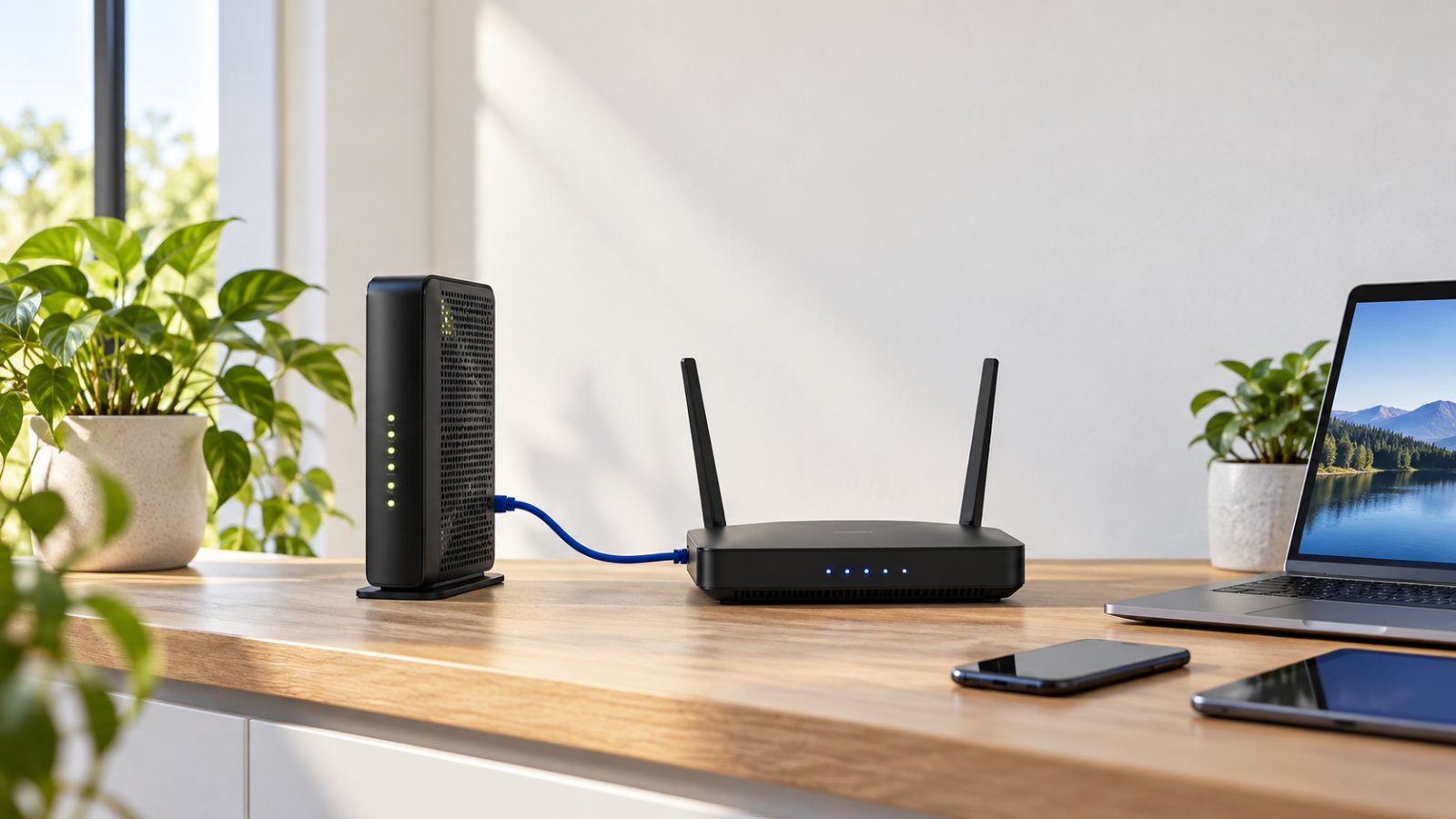
If you use a separate modem and router, an appropriate longer Ethernet cable may allow you to move the router farther from the modem.
A combined modem-router gateway may have fewer placement options because of the incoming service cable.
Never force or sharply bend a fiber connection to reach a new shelf.
Ventilation and Safety
Routers produce heat during normal operation.
A router inside a tightly packed cabinet may have inadequate airflow.
A good location leaves ventilation openings clear and follows the manufacturer's installation requirements.
The surface should also be stable.
If you use a wall mount, choose appropriate hardware and avoid drilling near concealed wiring or plumbing.
For renters, a bookshelf or side table may be more practical than a permanent mounting arrangement.
Coverage for Important Devices
The ideal router location should serve the devices you actually rely on.
These may include:
-
A home office laptop.
-
An upstairs computer.
-
A smart television.
-
A gaming console.
-
A video doorbell.
-
An outdoor security camera.
-
Smart plugs and lighting.
For example, moving the router toward the garage may improve an outdoor camera but weaken the connection in a distant bedroom.
Compare the effect on both locations before keeping the new position.
Ease of Installation
A placement that requires extensive wiring may not be worthwhile if an ordinary shelf provides similar coverage.
Start with locations you can test without making permanent changes.
Move the router temporarily, check the signal, and decide whether the improvement justifies installing a shelf or longer cable.
This approach is especially useful for renters and people who want to avoid unnecessary purchases.
Best Router Placement Options for Different Homes
The best router position depends on the available furniture, house layout, and location of connected devices.
The following options cover common home arrangements, with practical strengths and limitations for each.
Central Open Shelf or Bookcase
Best for: Apartments, single-floor houses, and homes with a central living area.
An open bookshelf is one of the easiest places to test.
Choose a shelf around chest to head height.
Place the router where it has open space around it, rather than squeezing it between books or decorative items.
Strengths
-
Keeps the router above floor-level obstacles.
-
Usually requires no drilling.
-
Makes the equipment accessible.
-
Allows easy testing at different heights.
-
Can provide balanced coverage when centrally located.
Limitations
A bookcase near the outside wall may still be too far from important rooms.
Metal shelving can also affect signal behavior.
A crowded shelf may obstruct antennas or ventilation openings.
How to set it up
Clear a suitable section of the shelf.
Place the router in its normal operating orientation.
Keep cables loose enough that they do not pull on the connectors.
Check that the router has sufficient ventilation.
Then test WiFi in the nearest rooms and the areas that previously had weak coverage.
What to look for: Stable connections across nearby rooms.
What to watch for: A router hidden behind books, decorative boxes, or a metal cabinet frame.
For many households, this is the most practical location to try first.
Wall Mount at Chest or Head Height
Best for: Homes with limited shelf space or a suitable central hallway.
A wall mount can keep the router away from clutter.
It is useful when tables and shelves are already crowded with household items.
Choose a position that is relatively central and allows the router to operate in its approved orientation.
Strengths
-
Keeps the router away from crowded furniture.
-
Frees up desk and shelf space.
-
Provides a consistent position.
-
Can reduce nearby obstructions.
Limitations
Wall mounting may require drilling.
The router must support the mounting arrangement.
Power and Ethernet cables may remain visible.
Mounting behind a television or close to a metal structure can still produce poor results.
How to set it up
Check the manufacturer's mounting instructions.
Confirm that the selected wall can support the equipment and mounting hardware.
Keep the router's ventilation openings unobstructed.
Route cables safely along the wall.
Do not install the router directly beside a heater or other significant heat source.
What to look for: A secure installation with clear space around the device.
What to watch for: A wall location that is convenient for appearance but far from the rooms needing coverage.
High Shelf on the Ground Floor
Best for: Two-story homes where the router must remain downstairs.
A high ground-floor shelf may help the router communicate with devices on both floors.
For example, a router in the downstairs living room may work better from an open shelf near the staircase than from a cabinet against an exterior wall.
The staircase area may offer a more favorable signal path into the upper floor.
However, this depends on the building layout.
Strengths
-
Can reduce nearby furniture obstructions.
-
May improve coverage toward upstairs rooms.
-
Allows the modem to remain downstairs.
-
Can serve important ground-floor devices.
Limitations
Concrete floors and reinforced building materials may still weaken the signal considerably.
A high shelf does not guarantee good upstairs coverage.
Moving the router closer to the ceiling may also make cables and controls harder to access.
How to set it up
Choose an open position near the middle of the ground floor.
If practical, test a shelf near an open stairwell.
Connect a phone or laptop upstairs and check normal browsing, video calls, and connection stability.
Then test the downstairs rooms again.
What to look for: Reliable connections on both levels.
What to watch for: Better upstairs coverage that comes at the expense of important downstairs devices.
Central Position on the Upper Floor
Best for: Homes where most internet use happens upstairs.
Some homes have bedrooms, a home office, and gaming equipment on the upper floor.
In that situation, placing the router upstairs may make more sense than leaving it near the downstairs television.
Strengths
-
Reduces distance to upstairs devices.
-
May improve coverage in bedrooms and offices.
-
Can avoid some walls between the router and frequently used equipment.
Limitations
Downstairs coverage may become weaker.
Outdoor security cameras near the ground floor may struggle to connect.
Moving the router may also require additional cabling.
How to set it up
Find an open location near the middle of the upper floor.
Check coverage in the office and bedrooms.
Then go downstairs and test the television, phones, and any outdoor cameras.
Pay attention to devices near the opposite end of the house.
What to look for: Improved service in the busiest rooms without creating new connection problems elsewhere.
What to watch for: Excellent upstairs WiFi but unreliable downstairs or driveway camera coverage.
Open Side Table or Desk
Best for: Renters, small apartments, and homes where wall mounting is impractical.
A desk or side table can work well if it provides a clear, stable location.
The router may sit slightly below the suggested height range, but that does not automatically make it unsuitable.
A central desk is often preferable to a high shelf at the far end of the house.
Strengths
-
No drilling required.
-
Easy to move.
-
Convenient power access.
-
Simple to inspect and maintain.
Limitations
Desks often contain monitors, speakers, computer cases, and cables.
A router pushed directly behind these objects may receive more obstruction than necessary.
How to set it up
Move the router away from the back of a monitor or computer tower.
Leave clear space around its antennas.
Do not place papers, books, or other equipment on top of it.
Keep the power cable and Ethernet connection secure.
What to look for: Reliable performance in surrounding rooms.
What to watch for: A router trapped between large electronic devices or hidden under a desk.
Utility Closet or Cabinet Placement
Best for: Homes where internet equipment is installed in a fixed networking cabinet.
A utility closet may contain the modem, router, Ethernet connections, and other networking equipment.
This is convenient for cables but may not be ideal for wireless coverage.
Strengths
-
Keeps equipment and connections together.
-
Reduces visible cables.
-
Makes wired network management convenient.
Limitations
-
Closed cabinets can obstruct WiFi signals.
-
Metal enclosures can significantly affect wireless coverage.
-
Ventilation may be inadequate.
-
The closet may be far from rooms that need WiFi.
How to improve it
Check whether the router can be moved outside the cabinet using a suitable Ethernet cable.
If the router must remain inside, determine whether a separate wireless access point could be installed in a more useful location.
Do not modify provider-owned equipment without permission.
What to look for: Acceptable WiFi performance outside the closet and adequate equipment ventilation.
What to watch for: Strong wired internet performance but poor wireless coverage throughout the home.
Router Placement Comparison Table
Use this comparison to narrow down the most practical location before testing.
| Placement option | Best for | Strengths | Limitations |
|---|---|---|---|
| Central open shelf, around 4 to 6 feet high | Single-floor homes and apartments | Elevated, accessible, fewer nearby obstacles | Requires a suitable central shelf |
| Wall mount at chest or head height | Homes with limited furniture space | Clear position, reduced clutter | Needs suitable mounting and cable access |
| High ground-floor shelf | Two-story homes with downstairs internet equipment | May improve coverage between floors | Floors and walls can still block signals |
| Central upper-floor position | Homes with most devices upstairs | Closer to bedrooms and offices | Can weaken downstairs coverage |
| Open desk or side table | Renters and small apartments | Easy to move and test | Nearby electronics may obstruct signals |
| Utility closet or cabinet | Homes with fixed networking equipment | Convenient wiring | Enclosure may reduce WiFi and ventilation |
For most homes, begin with a central open shelf.
If the router must stay near the modem, try the best available open location nearby.
If several rooms remain weak after repositioning, a separate access point or extender may be more useful than continuing to change the height.
How Router Height Affects 2.4 GHz, 5 GHz, and Home Cameras
Router placement affects both major bands used by many dual-band home routers.
However, 2.4 GHz and 5 GHz behave differently when signals pass through walls or travel across the house.
Understanding that difference can help when a laptop works well but an outdoor camera keeps disconnecting.
2.4 GHz WiFi and Longer-Distance Connections
The 2.4 GHz band generally provides better reach through some obstacles than 5 GHz, assuming otherwise comparable conditions.
It is commonly used by:
-
Outdoor WiFi cameras.
-
Video doorbells.
-
Smart plugs.
-
Smart lighting.
-
Older wireless equipment.
-
Other connected household devices.
The drawback is that 2.4 GHz can experience interference from neighboring networks, Bluetooth devices, microwave ovens, and other equipment.
Router height may help if it removes furniture or large objects from the signal path.
For example, an outdoor camera might maintain a more reliable connection when the router is moved from beneath a desk to an open shelf closer to the exterior wall.
But raising the router cannot eliminate every obstruction.
A camera behind a brick wall and metal garage door may still have weak reception.
5 GHz WiFi and Nearby High-Speed Devices
The 5 GHz band can provide higher wireless data rates over shorter distances with compatible devices.
It is often useful for:
-
Home office laptops.
-
Smart televisions.
-
Gaming systems.
-
Video meetings.
-
Large file transfers.
However, 5 GHz signals generally weaken more quickly through walls and over distance.
If your laptop connects reliably in the living room but struggles in a bedroom behind several concrete walls, moving the router slightly higher may not be enough.
Try a more central location.
If the distance remains a problem, a wired access point or another suitable coverage solution may help.
Also remember that a strong WiFi connection does not guarantee a fast internet connection.
Your internet service and other network conditions still matter.
WiFi Router Placement for Home Security Cameras
Outdoor cameras often sit near the edge of a home's WiFi coverage.
Common locations include:
-
Front doors.
-
Driveways.
-
Garages.
-
Backyards.
-
Side entrances.
-
Detached sheds.
The camera may be separated from the router by brick, concrete, insulation, or metal doors.
Many WiFi cameras use the 2.4 GHz band.
If your camera supports only 2.4 GHz, improving the router's 5 GHz connection will not directly solve its coverage problem.
Check the camera's connection status through its app.
Then test whether moving the router improves the camera's live view.
For example, if a driveway camera disconnects while indoor devices remain stable, try moving the router away from the television cabinet and toward a more open position.
Check the camera again after the change.
A successful test means the camera remains connected and can open its live feed reliably.
If it still disconnects, the camera may need better wireless coverage closer to its installation location.
Step-by-Step: Find the Best Height for Your WiFi Router
You can compare router positions without buying special testing equipment.
Use the same phone or laptop for each test.
Keep the network conditions as consistent as practical.
The aim is to determine whether changing the router's location improves the areas that matter.
Step 1: Identify Your Weak WiFi Areas
Walk through the home with a phone or laptop.
Find the locations where connections become unreliable.
Pay attention to:
-
Upstairs bedrooms.
-
The home office.
-
A distant living room.
-
The garage.
-
Outdoor camera locations.
-
Rooms behind thick walls.
Write down the problem areas.
For example, you might identify a bedroom where video calls regularly freeze and a driveway camera that occasionally goes offline.
Those are more useful observations than simply saying the WiFi is slow.
What to look for: Specific rooms or devices with repeatable connection problems.
What to watch for: Assuming a router placement issue when only one device is malfunctioning.
If every other device works well in the same room, troubleshoot the affected device before moving the router.
Step 2: Test the Current Router Position
Before changing anything, test your existing connection.
Use the same phone or laptop in several locations.
For example:
-
Beside the router.
-
In the main living room.
-
In the home office.
-
In the weakest bedroom.
-
Near the outdoor camera.
You can perform an internet speed test, but also check ordinary activities.
Open familiar websites.
Start a video call or stream a video.
Notice whether the connection remains stable.
If your router has separate 2.4 GHz and 5 GHz network names, use the same band during comparisons.
Otherwise, the device may switch bands automatically.
What to look for: Locations that consistently perform worse than the area near the router.
What to watch for: Comparing tests taken under very different network conditions.
For example, a large download running on another computer can affect the results.
Step 3: Raise the Router to an Open Shelf
If the router is on the floor, beneath a desk, or inside a cabinet, move it to an open shelf.
Aim for approximately 4 to 6 feet above the floor when practical.
Keep the router clear of large objects.
Make sure the cables reach without tension.
For a separate modem and router, a suitable longer Ethernet cable may allow you to use a better position.
Do not sharply bend a fiber cable or move installed provider equipment without understanding its requirements.
What to look for: Improved coverage in rooms that were previously separated by furniture or nearby obstacles.
What to watch for: Raising the router but placing it behind another large obstruction.
Step 4: Check the Router's Antennas
If your router has adjustable external antennas, follow the manufacturer's orientation recommendations.
For many routers with omnidirectional antennas, upright antennas are a reasonable starting point for horizontal coverage.
Some manufacturers recommend angled arrangements for multi-floor use.
The best configuration depends on the actual antenna design.
Do not bend fixed antennas or force them into unsupported positions.
If your router has internal antennas, keep the unit in its intended orientation.
What to look for: Stable coverage with antennas positioned according to the product instructions.
What to watch for: Assuming that pointing every antenna toward a particular room will direct all WiFi energy there.
Antenna behavior is more complicated than pointing a flashlight.
Step 5: Test the Same Rooms Again
Return to the exact locations you tested earlier.
Use the same phone or laptop.
Repeat the same activities.
Compare:
-
Connection reliability.
-
Website loading.
-
Video calls.
-
Streaming.
-
Available speed test results.
-
Camera live-view performance.
A faster speed test is useful, but stability matters too.
For example, a slightly slower connection that remains reliable during video calls may be more useful than one that occasionally reports a higher speed but disconnects.
What to look for: Consistent improvement in the rooms that previously had problems.
What to watch for: Improving one room while creating a new dead zone elsewhere.
Step 6: Try a Second Height or Nearby Location
If the first change does not help enough, try another practical position.
You might:
-
Move the router closer to the center of the home.
-
Try a slightly higher shelf.
-
Move it away from a television.
-
Place it nearer an open hallway.
-
Move it away from a metal cabinet.
-
Try a position closer to the staircase.
Change one thing at a time.
If you move the router, change the wireless band, and adjust antennas simultaneously, it becomes difficult to identify what helped.
Make a simple note of the locations that work best.
Step 7: Keep the Best Position and Secure the Cables
Once you find a suitable location, secure the setup.
Check that the router is stable.
Keep ventilation openings clear.
Route cables away from walking areas.
Avoid placing cords where children or pets can easily pull them.
If wall mounting is necessary, use appropriate hardware.
Then reconnect and test all important household devices.
Do not forget the devices you use less often, such as outdoor cameras, wireless printers, and smart plugs.
Where Not to Place Your WiFi Router
Some router locations create problems even when the equipment itself is working properly.
Before replacing your router, check whether it is installed in one of these areas.
Directly on the Floor
Floor placement often puts the router behind furniture and storage.
It can also place the equipment close to dust and other household obstacles.
Move it to a stable shelf or table when practical.
Avoid placing it directly on thick fabric or carpeting if that obstructs ventilation.
Behind a Television
A large television contains metal and electronic components that can interfere with or obstruct nearby wireless signals.
A router placed directly behind the screen may have a poor signal path toward the rest of the room.
Move it to an adjacent open shelf.
Do not stack the router on top of other hot electronic equipment.
Inside a Closed Cabinet
A closed cabinet may hide the router neatly, but it can reduce wireless coverage.
Metal enclosures are particularly problematic.
A tightly enclosed space may also trap heat.
If the router is currently inside a cabinet, test it outside the enclosure before purchasing another device.
Beside a Microwave Oven
Microwave ovens operate near the 2.4 GHz frequency range.
They can interfere with some WiFi connections while operating.
Avoid placing the router directly beside or on top of a microwave.
Choose an open location away from major kitchen appliances.
Next to a Fish Tank or Large Mirror
Water can absorb radio-frequency energy.
Some mirrors and reflective surfaces also contain materials that affect wireless signals.
A large fish tank or mirror positioned directly between the router and connected devices can contribute to poor coverage.
You do not need to remove these items from your home.
Simply avoid placing the router immediately beside them when another suitable location is available.
In an Exterior Corner
A router located at the far corner of a home may provide unnecessary coverage outside the building while distant indoor rooms receive a weak signal.
Move it toward the middle when possible.
If the modem is fixed near an exterior wall, consider whether a longer Ethernet cable can connect it to a separate router in a more central position.
In a Basement Utility Area
Basements often contain concrete, plumbing, metal ductwork, and other obstacles.
These materials can make it difficult for WiFi to reach upper floors.
If the router must remain in the basement, a separate wireless access point may provide better coverage upstairs.
Moving the router slightly higher within the basement may not solve the problem if reinforced floors remain between it and the connected devices.
How to Choose the Best Router Position for Your Home Layout
The best router position depends on where the family spends time and which devices require dependable connections.
Start with the simplest practical arrangement, then test the rooms that matter.
Small Apartments and Studio Homes
Recommended starting point: An open shelf or desk near the middle of the living space.
A small apartment often has fewer internal walls than a large house.
One router may cover most rooms well if it is not hidden behind furniture.
Choose a position around chest height when possible.
Keep it away from the television and large kitchen appliances.
For example, if the router currently sits behind the television, try moving it to an open shelf a short distance away.
Test the bedroom and work area afterward.
You may find that repositioning is enough without adding an extender.
Single-Floor Houses
Recommended starting point: A central open shelf approximately 4 to 6 feet above the floor.
The aim is to serve rooms on both sides of the house.
For example, a long single-floor home may have bedrooms at one end and the living room at the other.
A router positioned near the far living room wall may struggle to reach the bedrooms.
Moving it closer to the middle can reduce the distance and number of obstacles.
Test the home office, bedrooms, and any outdoor cameras after the change.
If the house is unusually long or has thick walls, one router may still be insufficient.
Two-Story Homes
Recommended starting point: A central position that provides a useful path between floors.
A high shelf on the ground floor may be worth trying.
An open position near a staircase can also be useful in some layouts.
However, the material separating floors matters.
Concrete and metal reinforcement can weaken wireless signals substantially.
A router near the ceiling downstairs may still struggle to reach an upstairs room behind several walls.
Test both floors.
If one level remains unreliable, a separate access point or other coverage solution may be more effective than moving the router higher.
Homes With Concrete or Brick Walls
Recommended starting point: An open position near the rooms that require the most reliable connections.
Concrete and brick can reduce WiFi signal strength.
If a router sits behind several thick walls, height alone will not solve the problem.
For example, a home office separated from the living room by multiple concrete walls may receive poor WiFi even when the router is elevated.
Try a location with fewer obstacles.
If that is not practical, consider a wired access point or a suitable network extension.
The objective is to provide a better signal path, not simply increase the mounting height.
Homes With Outdoor WiFi Cameras
Recommended starting point: An open router location that balances indoor coverage with the signal needed by outdoor cameras.
Check where the cameras are installed.
A front-door camera may work well while a driveway camera behind a brick garage wall struggles.
If the camera uses 2.4 GHz WiFi, confirm that this band is enabled.
Test the camera's live view.
Try moving the router away from large obstacles or closer to the side of the home where the camera is installed.
Then check the indoor devices again.
Do not solve the camera problem by creating a major dead zone in the bedrooms.
Renters Who Cannot Drill or Rewire
Recommended starting point: An open bookshelf, desk, or side table.
Renters may not be able to install wall mounts or modify existing network wiring.
A shelf provides a simple way to elevate the router.
If the modem is in an inconvenient corner, check whether a longer Ethernet cable can connect it to a separate router without creating a trip hazard.
Avoid drilling or altering the property's wiring without permission.
Use removable and stable arrangements where appropriate.
The router should still have sufficient ventilation and secure cable connections.
When a Higher Router Is Not Enough
Sometimes moving the router helps only a little.
That does not necessarily mean the router is faulty.
The home may have too many obstacles or too much distance for one wireless access point.
Before buying additional equipment, identify where the coverage breaks down.
Weak WiFi Only in One Distant Room
If WiFi works well throughout most of the house but is weak in one distant bedroom, a suitable WiFi extender may help.
An extender receives the router's existing signal and retransmits it into another area.
The key is placement.
Do not put the extender inside the dead zone where it can barely communicate with the router.
Instead, install it at a location where the original WiFi connection remains reliable.
Then test the weak room.
For homeowners comparing coverage equipment, ROOXIS networking products include dual-band routers and WiFi extenders suitable for different home networking needs.
An extender cannot turn a consistently unusable incoming signal into a reliable connection.
If the link between the router and extender is poor, the extended network may remain slow or unstable.
Weak WiFi Across Several Floors
If several rooms across two floors have weak connections, one router may not provide suitable coverage.
A mesh WiFi system or multiple access points may be worth considering.
Where appropriate cabling is available, a wired connection between access points can provide a dependable network connection between them.
This avoids relying entirely on a wireless link through difficult walls and floors.
Choose equipment based on the building and available wiring.
Do not assume an extender is always the best answer for a large house.
Good WiFi Signal but Slow Internet
A strong WiFi signal does not guarantee fast internet.
If your phone shows a good wireless connection but websites still load slowly, investigate other causes.
These may include:
-
An internet provider outage.
-
A modem problem.
-
Network congestion.
-
Heavy downloads on other devices.
-
A slow remote website.
-
An unsuitable internet plan for the household's usage.
Test the connection close to the router.
If practical, compare it with a wired Ethernet connection.
If wired performance is also poor, raising the router is unlikely to solve the underlying problem.
Check the modem and internet service before buying more WiFi equipment.
WiFi Security Cameras Keep Disconnecting
A camera may lose connection because of weak WiFi, insufficient power, or incorrect settings.
Start by checking the camera's power source.
Then confirm its supported wireless band.
Many home security cameras require 2.4 GHz WiFi.
If that band is disabled or the camera is too far from the router, it may disconnect.
Try moving the router to a more open position.
Test the camera's live view afterward.
If the camera sits in a detached garage or another distant location, an additional access point or extender may be necessary.
Do not assume router height is responsible for every camera connection problem.
Common Misconceptions About WiFi Router Height
A few common placement rules sound convincing but do not apply equally to every home.
The Higher the Router, the Better the WiFi
Not necessarily.
Moving a router above furniture can help.
Mounting it near the ceiling does not guarantee better coverage downstairs, upstairs, or outdoors.
A central open shelf may work better than the highest available position.
Test before choosing a permanent location.
A Router Should Always Be Placed Upstairs
Some homes benefit from an upstairs router.
Others work better with the router on the ground floor.
The correct position depends on room layout, floor materials, and where connected devices are used.
Check both levels instead of relying on a universal rule.
A Router Must Be Exactly Six Feet High
Six feet is a useful example of an elevated placement, not a strict technical requirement.
A router may perform well at four feet on an open shelf.
Another may work better slightly higher or lower.
The goal is dependable coverage, not meeting an exact height measurement.
Router Height Alone Determines Wireless Range
Height is only one factor.
Antenna design, wireless frequency, building materials, interference, and distance also matter.
Moving a router higher cannot eliminate thick concrete walls or severe wireless congestion.
Look at the entire connection path.
Pointing All Antennas Toward the Ceiling Is Always Best
External antennas have different radiation patterns depending on their design.
Many omnidirectional antennas are commonly used upright for horizontal coverage.
Some manufacturers recommend angled positions for particular layouts.
Follow the router's instructions.
Do not assume that pointing antennas toward a room directs the signal like a flashlight.
A More Expensive Router Does Not Need Proper Placement
A router with stronger hardware can still perform poorly when placed behind metal objects or inside a closed cabinet.
Better equipment does not remove building obstacles.
Check placement before replacing a router that otherwise works correctly.
Frequently Asked Questions
What is the best height for a WiFi router?
A good starting point is around 4 to 6 feet above the floor, on an open shelf or suitable wall mount. Keep the router reasonably central and away from large obstructions. The exact best height depends on your home's layout, router design, and where connected devices are used.
Should a WiFi router be placed high or low?
An elevated, open location is generally preferable to placing the router directly on the floor or behind furniture. However, the highest possible position is not automatically the best. Test an open shelf or wall-mounted position and compare coverage in the rooms that matter most.
Where is the best place to position a WiFi router for the best wireless coverage?
Start with a central location that has open space around the router and minimal nearby obstructions. Avoid closed cabinets, exterior corners, large metal objects, and major appliances. Test the bedrooms, home office, and other important areas before keeping the position permanently.
Is it better to put a WiFi router upstairs or downstairs?
It depends on the home's layout, floor materials, and where most devices are used. A high ground-floor shelf may provide useful coverage between floors, while an upstairs position may better serve bedrooms and a home office. Test both levels before deciding whether an extender or additional access point is needed.
Can router placement improve WiFi camera connections?
Yes. Moving a router to an open, less obstructed location may improve the connection to a WiFi camera. Check whether the camera uses 2.4 GHz and test its live feed after repositioning the router. If the camera remains too far away or behind heavy walls, additional network coverage may be necessary.
Will a WiFi extender help if the router is already at the best height?
A WiFi extender may help when the router provides a reliable connection nearby but struggles to reach a distant room. Place the extender where it can still receive a good signal from the router, rather than directly inside the dead zone. For large homes or difficult multi-floor layouts, a mesh system or wired access point may be more appropriate.
Start by placing the router on an open shelf near the center of the home, roughly at chest to head height. Test WiFi in the rooms where people work, stream, and use connected devices. Check outdoor cameras separately because their connection requirements may differ.
Keep the position that provides the most reliable coverage across the house. If several rooms remain weak after testing different locations, address the network's coverage rather than continuing to move the router higher.