The biggest mistake homeowners make when buying a WiFi extender is choosing the model with the largest advertised coverage area. A product claiming to cover thousands of square feet may still struggle to reach an upstairs bedroom behind reinforced concrete or thick brick walls.
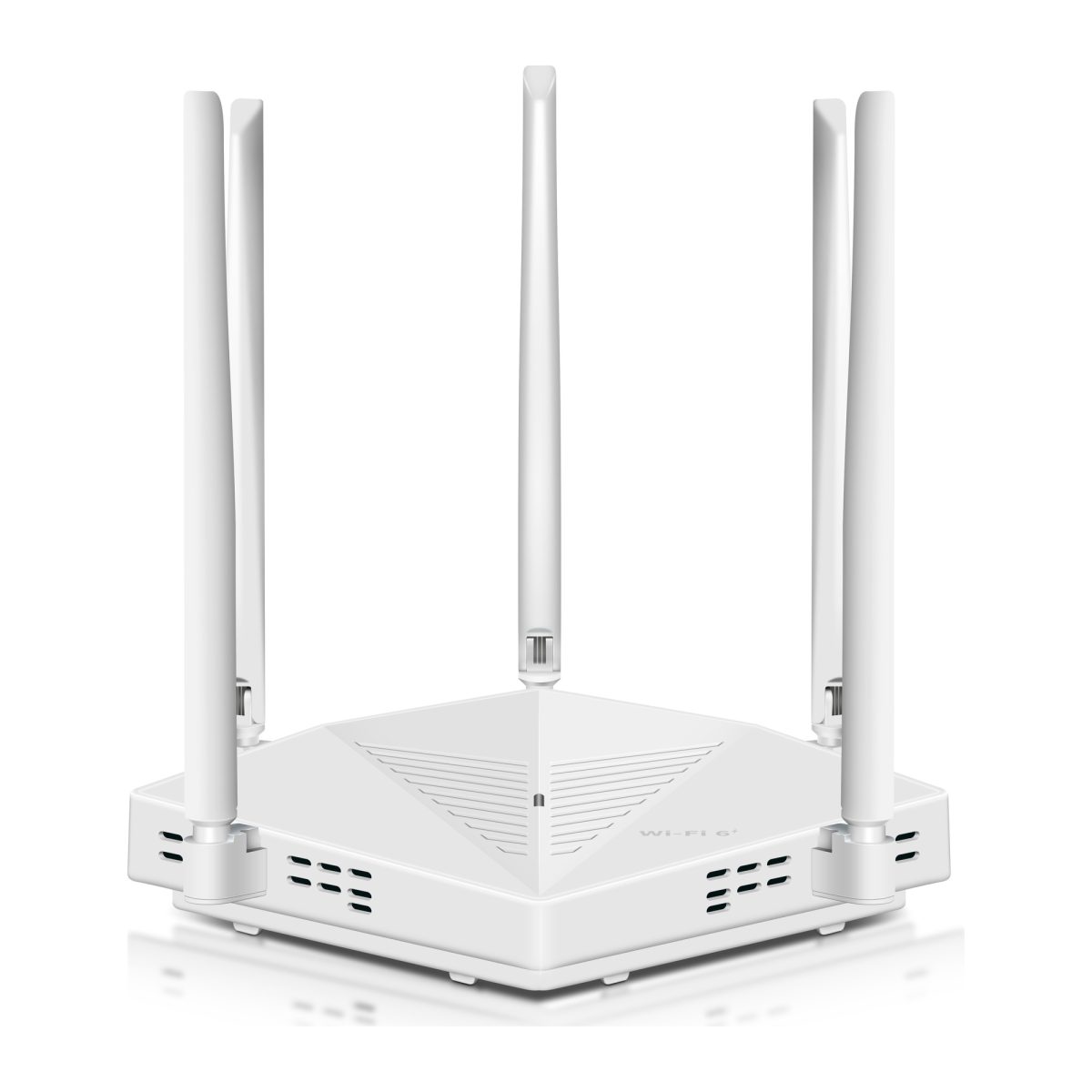
If you want someone to recommend internet extenders for a large two-story house with thick walls, start with an AC1200 dual-band extender for one or two weak rooms, a WiFi 6 extender for heavier device usage, or an Ethernet-connected access point when the floors block most of the signal. The important part is choosing equipment that can maintain a reliable connection to your existing router.
Before buying anything, test the WiFi near your staircase, upstairs hallway, and the rooms where connections fail. Those results will tell you whether a wireless extender can help or whether you need a wired connection between floors. This guide explains which option fits each situation, where to install it, and how to fix common problems without replacing equipment unnecessarily.

Recommend Internet Extenders for a Large Two-Story House with Thick Walls: What Works Best?
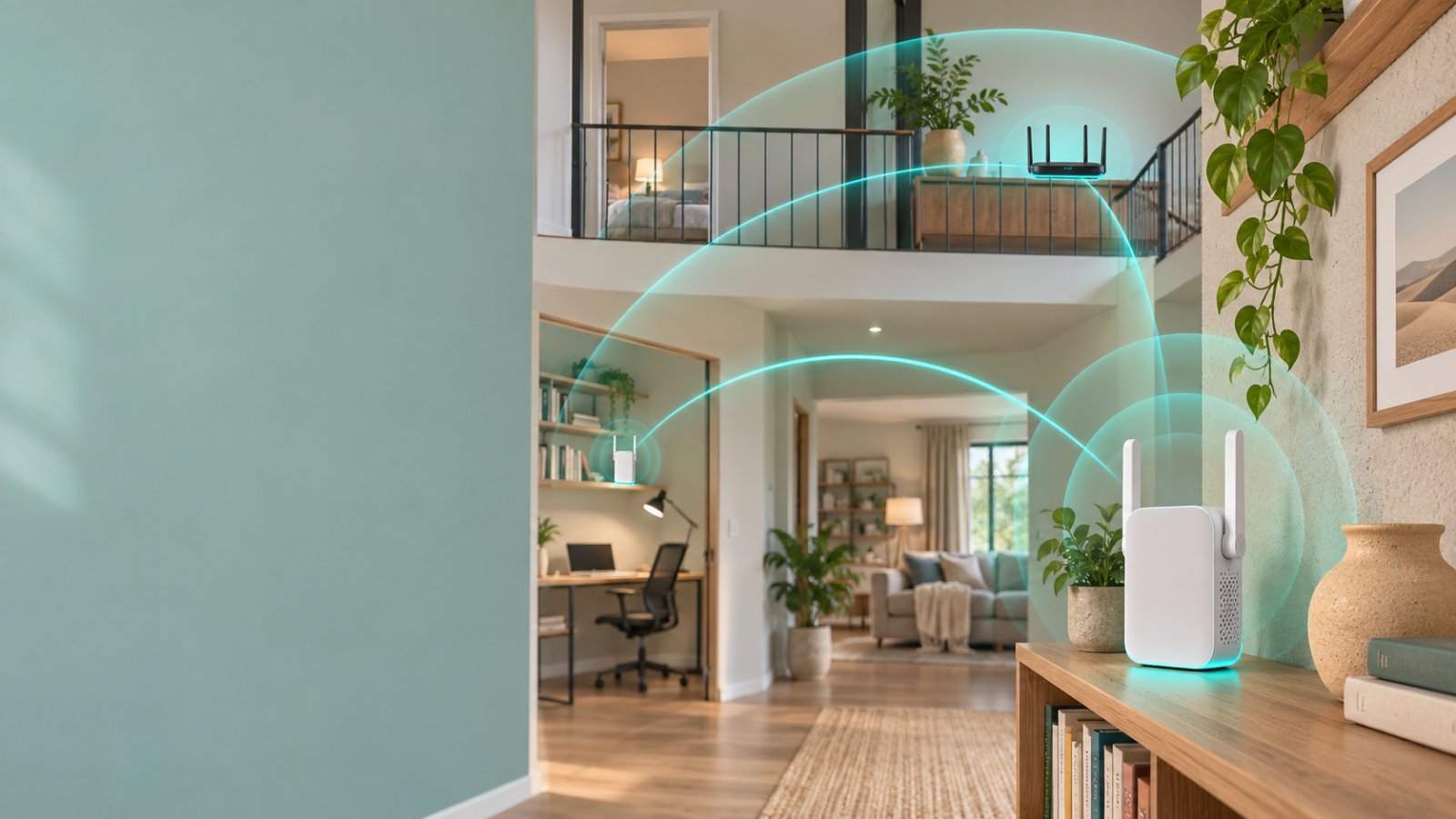
For a two-story house, the right extender depends on how much of the router's signal reaches the upper floor.
If WiFi works in the upstairs hallway but disappears inside a bedroom, a plug-in extender may be enough.
If the entire upper floor has poor coverage because of a thick concrete slab, buying a stronger wireless extender may not solve the problem. In that situation, an Ethernet-connected access point is usually a better choice.
The reason is straightforward. A wireless extender needs to receive data from your router before it can send that data to your phone, television, or laptop.
If the connection between the router and extender is weak, the extended network will also perform poorly.
Here is how to choose between the main options.
-
AC1200 dual-band extender: A reasonable starting point for basic browsing, smart devices, and one or two weak upstairs rooms.
-
WiFi 6 extender: Worth considering when several phones, laptops, and televisions share the extended connection.
-
Ethernet-connected access point: A stronger option when concrete floors or masonry walls make wireless backhaul unreliable.
-
Mesh system with wired backhaul: Useful for a large house with several separated coverage areas and available Ethernet connections.
Do not choose equipment based on maximum advertised range alone.
Look at the house's construction, router location, number of devices, and whether the network connection between floors can be wired.
Best for One or Two Upstairs Dead Zones: AC1200 Dual-Band Extender
An AC1200 extender is a practical choice when the main WiFi network already reaches part of the upper floor.
Imagine a router installed in the downstairs living room. WiFi works near the staircase and in the upstairs hallway, but the back bedroom struggles to load videos.
That is the kind of situation where an extender may help.
AC1200 is a wireless speed classification, not a guarantee of actual internet speed.
Common AC1200 equipment has theoretical wireless link rates of up to 300 Mbps on 2.4GHz and 867 Mbps on 5GHz.
Actual performance is lower and depends on interference, device compatibility, router speed, and signal strength.
An AC1200 extender can be suitable for:
-
Bedrooms used for browsing and streaming.
-
Upstairs smart televisions.
-
Smart plugs and connected lighting.
-
Basic home office use.
-
Areas where the router signal is usable but too weak for comfortable everyday use.
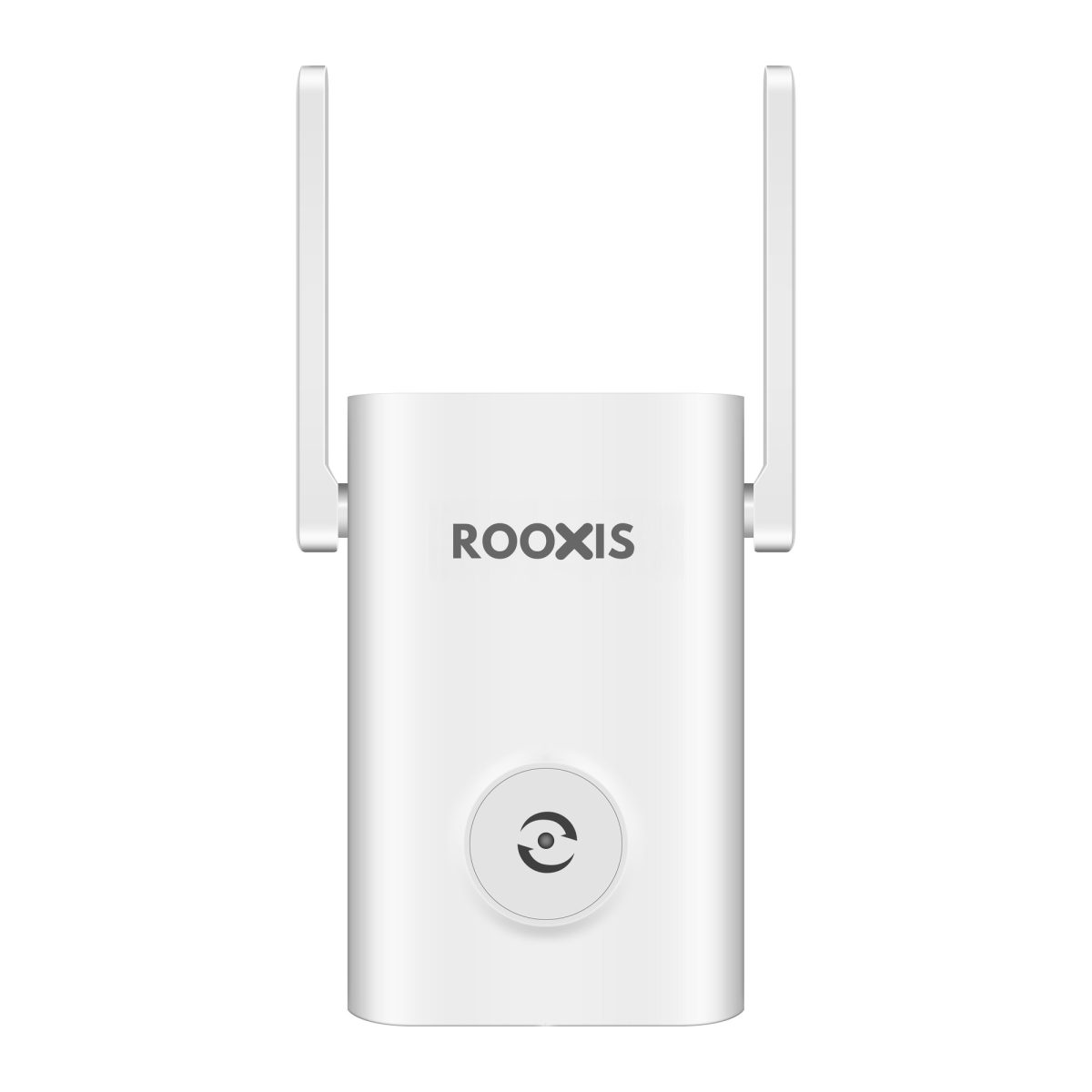
The ROOXIS AC1200 WiFi Extender is one option in this category. It supports 2.4GHz and 5GHz wireless connections and offers repeater and access point operating modes.
The access point option can be useful if you add Ethernet wiring later.
However, the extender's wireless performance still depends on the signal it receives from your router.
If the connection is already unusable at the staircase, moving an AC1200 extender upstairs will not create a strong backhaul connection.
Choose this type when the existing WiFi reaches the upstairs landing reliably, but one or two rooms need better coverage.
Best for Several Connected Devices: WiFi 6 Extender
A WiFi 6 extender makes sense when several people use the upstairs network at the same time.
For example, an upstairs floor might have a home office, two bedrooms, a smart television, and several phones.
These devices may compete for wireless capacity during busy periods.
WiFi 6 includes features designed to improve wireless efficiency, particularly when compatible devices share the network.
Extenders in the AX1800 and AX3000 classes offer higher theoretical wireless link rates than basic AC1200 models.
That can be useful when the router connection is strong enough to support the additional capacity.
But a WiFi 6 label does not guarantee better penetration through concrete.
A WiFi 6 extender placed behind several thick walls may perform worse than an older extender installed in a better location.
Before buying, check for:
-
Dual-band support.
-
Compatibility with your router.
-
An understandable signal quality indicator.
-
Current firmware support.
-
Suitable wireless security options.
-
Ethernet connectivity.
-
Access point mode, if you may use wired backhaul later.
Also check what type of router you already own.
A WiFi 6 extender can work with many older WiFi routers, but the connection between them is limited by the capabilities of both devices.
If your main router is old or unreliable, buying an expensive extender may not be the best use of your budget.
Choose a WiFi 6 extender when the upper floor receives a stable router signal but needs more wireless capacity for several active devices.
Best for Thick Concrete Floors: Ethernet-Connected Access Point
If your house has a reinforced concrete slab between floors, an Ethernet-connected access point is often the most dependable solution.
A wireless extender must communicate through the same concrete that is blocking your phone or laptop.
An access point connected by Ethernet avoids that problem.
Consider a house with the main router downstairs and three bedrooms upstairs.
The router works properly on the ground floor, but the upper floor receives a weak connection because of the concrete slab.
Running an Ethernet cable upstairs allows you to install a second WiFi access point near those bedrooms.
The access point receives its network connection through the cable and broadcasts WiFi locally.
This arrangement is especially useful for:
-
Upstairs home offices with frequent video meetings.
-
Gaming computers and consoles.
-
Smart televisions.
-
Bedrooms separated by masonry walls.
-
Multiple wireless security cameras.
-
Homes where moving the router has not improved coverage.
If your home already has Ethernet wall sockets, find out whether they are connected to the main router or network switch.
Do not assume a network socket is active simply because it is installed in the wall.
Connect a laptop through Ethernet and confirm that the connection works.
If the socket is active, you may already have the wiring needed for a more reliable upstairs network.
Best for Multiple Weak Rooms: Mesh With Wired Backhaul
A mesh WiFi system can be useful when several parts of the house have weak coverage.
Instead of relying on one router to reach every room, the system uses compatible nodes positioned around the property.
These nodes provide coordinated wireless coverage and can help compatible devices move between coverage areas.
But mesh systems are still affected by thick walls.
If the nodes communicate wirelessly through reinforced concrete, their connection may be weak.
That is why wired backhaul is especially valuable in houses with difficult construction.
With Ethernet backhaul, mesh nodes communicate through network cables instead of relying entirely on a wireless connection between floors.
For example, a house might use one mesh node downstairs and another upstairs.
If both connect through Ethernet, the upstairs node does not need to receive the downstairs signal through the concrete floor.
Mesh with wired backhaul is worth considering when:
-
Several upstairs rooms have weak WiFi.
-
The downstairs coverage also has dead zones.
-
You need consistent wireless access across multiple areas.
-
You already have Ethernet wiring or can install it.
-
You want centralized management of compatible WiFi equipment.
A full mesh replacement is unnecessary when only one bedroom has weak coverage.
Test the existing router first.
Why Thick Walls Make WiFi Extenders Less Effective
A WiFi extender receives a wireless signal and retransmits it.
That process depends on two separate connections.
The first is between the main router and the extender.
The second is between the extender and your phone, laptop, television, or camera.
Both connections need to work properly.
A phone may display full WiFi signal bars while connected to an extender, yet websites still load slowly.
That happens when the phone has a strong connection to the extender but the extender has a weak connection to the router.
The additional signal bars do not tell you whether the entire connection is healthy.
How Different Wall Materials Affect WiFi
Wireless signals lose strength as they travel through building materials.
The amount of loss depends on the material, thickness, construction, and wireless frequency.
Common obstacles include:
-
Reinforced concrete walls and floors.
-
Brick masonry.
-
Natural stone.
-
Metal framing.
-
Metal garage doors.
-
Foil-backed insulation.
-
Dense plaster.
-
Large metal appliances.
Drywall usually causes less signal loss than a thick concrete wall.
A house with lightweight internal partitions may receive usable WiFi across several rooms.
A house of similar size with concrete floors and brick partitions may have dead zones much closer to the router.
Metal reinforcement inside concrete can make the problem worse.
This is why square footage alone is a poor way to select an extender.
Two houses with the same floor area may need completely different networking arrangements.
Why 2.4GHz Often Reaches Farther Than 5GHz
Most dual-band routers and extenders operate on 2.4GHz and 5GHz.
These bands have different characteristics.
2.4GHz generally reaches farther and handles obstacles better than 5GHz.
It is commonly used by smart plugs, basic security cameras, and other connected devices.
However, it can become crowded because many nearby networks and household devices use the same band.
5GHz generally supports more bandwidth under good signal conditions.
It is often useful for streaming, gaming, and laptops near the router.
But it normally weakens more quickly through walls and floors.
For a two-story house, the best connection may vary by location.
A phone in an upstairs hallway might receive both bands.
A bedroom behind several brick walls might receive a usable 2.4GHz signal but a very weak 5GHz signal.
That does not mean you should force every device onto 2.4GHz.
Use the band that provides a reliable connection for the device and location.
Also remember that the extender's connection to the router matters just as much as the wireless band used by your phone.
Concrete Floors Can Be a Bigger Problem Than Bedroom Walls
In many two-story houses, the biggest obstacle is the structure between floors.
A reinforced concrete floor can weaken the router's signal before it reaches the upstairs hallway.
The signal then has to travel through additional bedroom walls.
By the time it reaches the far room, the connection may be unreliable.
A staircase sometimes provides a better wireless path because there is less solid material between floors.
That makes the stairwell worth testing.
For example, compare the connection in three places:
-
Near the downstairs router.
-
Halfway up the staircase.
-
At the upstairs landing.
If the connection is usable at the landing but poor inside the bedroom, an extender near the landing may work.
If the signal is already extremely weak halfway up the staircase, investigate wired options.
Do not assume the staircase will always be the best location. The router's position and building layout still matter.
How to Tell Whether You Need an Extender
Before buying equipment, separate a WiFi coverage problem from an internet service problem.
An extender can improve wireless coverage in a weak area.
It cannot increase the speed of your broadband plan or repair a failing internet connection.
Check the Internet Connection Near Your Router
Start beside the main router.
Connect your phone or laptop to its WiFi.
Open several websites and run a speed test.
If possible, also test a computer connected directly to the router through Ethernet.
You want to know whether the internet connection works properly before the signal travels through walls.
If the connection is slow even through Ethernet, investigate the internet service, modem, or router.
Buying an extender will not fix that underlying problem.
If the wired connection works well but upstairs WiFi is poor, coverage becomes a more likely cause.
Record the results so you can compare them after installing an extender.
Test the Upstairs Landing
Take your phone upstairs while staying connected to the main router.
Stand near the staircase and check whether the WiFi remains connected.
Open a website or run another speed test.
Repeat the test in the hallway.
Look for a place where the connection is reasonably stable.
That location may be suitable for an extender.
A phone showing one weak signal bar and repeatedly losing its connection is not a promising starting point.
If your phone automatically switches to cellular data, temporarily disable cellular data during the test so you can see whether WiFi is actually working.
Test the Rooms That Actually Need Coverage
Next, move into the rooms where WiFi causes problems.
Test the devices you normally use there.
A bedroom television provides a better real-world test of streaming reliability than checking signal bars alone.
For a home office, make a video call or test the connection with the laptop normally used there.
For a security camera, open its live feed and check whether it stays connected.
Look for patterns:
-
WiFi works in the hallway but fails inside the bedroom.
-
Video calls freeze only in the upstairs office.
-
A television connects but buffers repeatedly.
-
A camera works indoors but disconnects outside.
-
Devices lose connectivity when certain doors are closed.
These observations help identify where the wireless connection becomes unreliable.
Compare Results at Different Times
Test the weak area more than once.
WiFi conditions can change as household activity increases.
A connection may work during the day but become slow when several people stream video or use gaming systems in the evening.
Nearby wireless networks can also contribute to congestion.
If the problem appears only during busy periods, check the number of active devices and overall network performance.
If the connection remains poor throughout the day, location and physical obstacles become stronger suspects.
A few repeat tests are more useful than one speed measurement.
Best Internet Extender Types Compared
Use this comparison to narrow the options based on your home's actual problem.
| Extender Type | Best Situation | Main Advantage | Main Limitation |
|---|---|---|---|
| AC1200 dual-band extender | One or two weak upstairs rooms | Affordable coverage improvement | Depends on wireless backhaul quality |
| WiFi 6 extender | Several active devices upstairs | Better wireless efficiency with compatible equipment | Thick walls still weaken the connection |
| Extender in access point mode | Ethernet available upstairs | Avoids wireless backhaul through concrete | Requires an active Ethernet connection |
| Mesh with wireless backhaul | Several rooms with suitable wireless paths | Coordinated coverage and management | Mesh nodes can still receive weak signals |
| Mesh with wired backhaul | Large house with thick walls and multiple dead zones | Reliable links between wired nodes | Requires compatible equipment and cabling |
The table is a starting point, not a reason to buy the most expensive category.
For one weak bedroom, try a properly positioned extender.
For an entire upper floor separated by reinforced concrete, investigate Ethernet before purchasing multiple wireless repeaters.
Where Should You Place an Internet Extender in a Two-Story House?
Extender placement determines how well it can communicate with the main router.
A useful installation position should have a reliable router connection while remaining close enough to improve coverage in the problem area.
You may need to test several outlets.
Near the Stairway or Landing
Start near the staircase if the main router is downstairs.
An open stairwell may provide a clearer signal path between floors than the surrounding concrete.
Suppose the router is in the ground-floor living room.
The upstairs landing receives a usable signal, but the bedroom at the end of the hallway does not.
An extender near the landing may improve the connection inside that bedroom.
Install it temporarily and test.
If the extender reports weak backhaul, move it closer to the router.
Do not leave it in place simply because the new network appears on your phone.
In an Open Upstairs Hallway
A hallway can be useful when several bedrooms open into the same area.
Instead of placing the extender inside one bedroom, position it where the signal can reach multiple rooms.
Choose an outlet that is not blocked by furniture.
Test the signal with bedroom doors open and closed.
If closing a door causes a large drop in performance, consider another outlet or a different network layout.
For a house with masonry partitions, moving the extender to the other side of one wall may improve the connection significantly.
Avoid the Far Corner of the Dead Zone
A common mistake is placing the extender beside the device that has the worst WiFi.
For example, a television in the far upstairs bedroom may have almost no connection to the downstairs router.
Installing an extender directly behind the television may create a strong local WiFi signal.
But the extender still needs to communicate downstairs.
If its connection to the router is poor, streaming may remain unreliable.
Move the extender toward the main router until its backhaul improves.
Then test whether the signal still reaches the television.
Keep the Extender Away From Large Obstructions
Avoid installing the extender:
-
Behind a refrigerator.
-
Inside a metal cabinet.
-
Behind a large television.
-
Beneath a crowded desk.
-
Behind thick furniture.
-
In a poorly ventilated enclosed space.
-
Where it is likely to be unplugged accidentally.
An open hallway outlet is often preferable to a hidden socket behind a wardrobe.
Keep the device ventilated and follow the manufacturer's electrical safety instructions.
Do not use an unsuitable extension cord or overloaded power strip to reach a better location.
How to Set Up an Internet Extender for Thick-Walled Homes
Most consumer extenders can be configured without special networking knowledge.
Complete initial pairing near the router, then move the extender to the location selected during your signal tests.
Step 1: Identify Your Main WiFi Network
Open WiFi settings on your phone.
Find your main home network.
Make sure you know its password.
If your router broadcasts separate 2.4GHz and 5GHz names, identify both.
For example, the router may show one network for everyday devices and another for 5GHz connections.
Your extender's setup process may ask you to select one or both bands.
Avoid connecting it to an old guest network or another nearby network by mistake.
Step 2: Plug the Extender in Near the Router
For the initial pairing process, plug the extender into an outlet near your router.
Wait until it finishes starting.
Look for the power indicator.
Some models support setup through a smartphone app.
Others use a browser-based configuration page or a WPS button.
Use the method described in the official product manual.
The first goal is simply to establish a working connection between the extender and router.
Do not worry about final placement yet.
Step 3: Connect the Extender to the Router
Open the extender's setup interface.
Select Repeater Mode or Range Extender Mode if the product offers several operating modes.
Choose your main WiFi network and enter the password.
If prompted, configure the extended network name.
Some extenders add a suffix such as EXT to the existing network name.
Others let you use the same name as the main network.
Wait until the setup finishes.
The extender should indicate that it is connected to the router.
For models using browser-based configuration, follow the manufacturer's documented local setup address rather than guessing an address from another brand.
If setup fails, check the password and wireless compatibility before resetting anything.
Step 4: Move It to the Chosen Location
Once pairing works, unplug the extender and move it toward the weak area.
Start near the upstairs landing or the outlet that performed best during testing.
Wait for the extender to restart and reconnect.
Check the connection indicator.
Some models use different colors to indicate strong or weak backhaul.
Others show signal strength through their management app.
Consult the product manual for the meaning of each indicator.
If the connection is weak, move the extender closer to the router.
Try another outlet before deciding that the equipment is unsuitable.
Step 5: Connect a Device to the Extended Network
Open WiFi settings on your phone or laptop.
Find the extended network.
If the extender uses a separate network name, connect to it.
Then open a website.
Run a speed test if useful.
Compare the result with the connection you had before installing the extender.
If the device shows strong WiFi but websites remain slow, check the extender's router connection.
The extender may be broadcasting a good local signal while receiving poor data from downstairs.
Do not rely only on the number of WiFi bars.
Step 6: Test the Upstairs Rooms
Take your device into each room that previously had poor coverage.
Test the activities that matter.
For a bedroom television, try streaming.
For a home office, test a video call.
For a security camera, open live video and check recording playback.
Also test the hallway and landing.
If one room remains unreliable, adjust the extender's placement.
Try moving it slightly closer to the router or into a more open area.
Test again before buying another extender.
Step 7: Save the Settings and Update Firmware
When you find a suitable position, save the extender's configuration.
Check whether the manufacturer provides a firmware update.
Follow the documented update process.
Keep the extender's administrator password secure.
Use appropriate WiFi encryption.
Do not disable security or expose the extender's management interface directly to the internet to simplify setup.
After any firmware update, confirm that the extended network reconnects and operates normally.
When an Ethernet Cable Is Better Than a Wireless Extender
A wired connection becomes particularly valuable when the floors or walls block most of the router's WiFi signal.
Instead of repeatedly trying to force a signal through reinforced concrete, use Ethernet to carry the network connection upstairs.
You can then provide WiFi from a better location.
How Access Point Mode Works
Some extenders can operate as wireless access points.
In repeater mode, the device receives WiFi from the router and retransmits it.
In access point mode, the device receives its network connection through Ethernet.
The connection path becomes:
Main router to Ethernet cable to upstairs access point to wireless devices.
This arrangement avoids the wireless hop through the floor.
For example, an upstairs office with an active Ethernet outlet may only need a compatible access point to provide local WiFi.
Before purchasing, confirm that the device supports access point mode.
An Ethernet port alone does not guarantee that every extender can use it for wired backhaul.
Check the Ethernet Port Speed
Look at the extender's Ethernet port specifications.
Some models include a 10/100 Mbps port.
Others provide Gigabit Ethernet.
A 10/100 Mbps port has a maximum negotiated wired link rate of 100 Mbps.
That may be sufficient for basic browsing or certain smart devices, but it can limit faster internet connections.
For demanding upstairs devices and higher-speed broadband plans, Gigabit Ethernet is generally preferable.
Also check the cable and network switch.
A Gigabit access point connected through an older 100 Mbps switch port will still be limited by that connection.
When to Use a Dedicated Access Point
A dedicated access point is worth considering when several rooms need reliable upstairs WiFi.
If you can run Ethernet from the router to the upper floor, you no longer have to depend on a weak wireless connection between floors.
Place the access point where its signal can reach the intended rooms.
That might be a hallway ceiling, an open landing, or a suitable wall location.
The exact position depends on the building.
In a house with thick brick partitions, one access point may not reach every bedroom.
You may need separate access points for different areas.
The goal is to provide strong local coverage rather than broadcasting from one distant router through every wall.
How Many Extenders Does a Large Two-Story House Need?
There is no reliable extender count based only on square footage.
A house with an open staircase and lightweight interior walls may need one extender.
A smaller home with reinforced concrete floors and thick masonry partitions may need a more substantial network design.
Start with the areas that actually lose WiFi.
When One Extender Is Enough
One extender may work when:
-
Most downstairs rooms have good WiFi.
-
The upper landing receives a reliable signal.
-
Only one or two bedrooms have weak coverage.
-
The affected rooms are reasonably close together.
-
You do not need unusually high throughput.
For example, if the only problem is a weak connection in the upstairs guest room, a centrally placed extender may solve it.
Install one unit and test it for normal use.
Do not buy additional extenders until you identify a remaining problem.
When Two Extenders May Help
Two extenders can be useful when weak areas are physically separated.
One might serve the bedrooms above the living room.
Another might improve coverage in a distant section above the garage.
But the main router must provide a usable connection to each wireless extender.
Avoid placing the second extender beyond the first merely because you want more range.
A chain of wireless repeaters adds communication hops and can reduce throughput.
If both extenders can connect directly to a strong router signal, that is generally preferable to a long repeater chain.
For difficult layouts, wired access points are often the cleaner solution.
When Multiple Access Points Make More Sense
If almost every upstairs room has weak WiFi, adding one extender after another may become frustrating.
You may end up managing several network names while still dealing with poor backhaul.
A planned access point layout can work better.
For example:
-
One access point covers the downstairs living area.
-
Another serves the upstairs hallway and nearby bedrooms.
-
A separate access point serves a distant garage or home office if needed.
Where practical, connect these access points through Ethernet.
The number of access points should be based on the building layout and measured coverage.
More equipment is not automatically better.
Poorly positioned access points can create unnecessary interference and overlapping coverage.
Common Mistakes When Buying Extenders for Thick Walls
Extenders often disappoint because the purchase decision focuses on specifications rather than the actual wireless conditions inside the house.
Believing the Largest Coverage Number Guarantees Results
Coverage claims do not account for every building material or floor plan.
A product advertised for a large area may perform well in an open space but poorly in a house with reinforced concrete.
The number on the box cannot tell you how much signal will reach your upstairs hallway.
Use coverage claims as general product information.
Base the final decision on signal tests and the type of connection you need.
Choosing WiFi 7 Only Because It Is Newer
WiFi 7 offers newer wireless capabilities, but that does not mean it is necessary for every coverage problem.
If the main router's signal barely reaches upstairs, a newer extender still has to deal with that weak connection.
An expensive WiFi 7 model cannot remove the concrete floor between your devices.
Before upgrading, check whether your router and client devices can benefit from the newer standard.
A well-placed WiFi 6 extender or wired access point may be the more practical choice.
Expecting an Extender to Increase Internet Speed
An extender cannot increase the broadband speed supplied by your internet provider.
If your internet connection is slow near the main router, extending that connection will not make it faster.
Wireless repeating also introduces overhead.
As a result, an extender may provide lower throughput than a direct connection near the router.
That does not necessarily mean the extender is faulty.
Its job is to make weak areas usable.
Judge it by whether the affected room can reliably handle the activities you need.
Installing the Extender Where WiFi Is Already Unusable
A repeater needs a working signal to repeat.
Putting it in the farthest bedroom may seem logical because that room needs better coverage.
But if the router signal cannot reach the extender, the connection will remain poor.
Move the extender toward the router.
Check its backhaul signal.
Then test whether the extended network reaches the bedroom.
If no location provides both a usable router connection and useful coverage, consider wired backhaul.
Buying Multiple Extenders Before Testing One
Adding several extenders can introduce more wireless traffic and make it harder to identify which device is causing a problem.
You may also end up with different network names and devices connecting to unexpected access points.
Start with one extender.
Test it in the actual weak rooms.
If coverage remains poor, determine whether another extender would help or whether the real limitation is the connection between floors.
Ignoring Network Compatibility
Not all extenders support the same standards and features.
Check the router's WiFi standard, security settings, and supported bands.
Also confirm whether the extender supports the operating mode you want.
A model may function as a standalone repeater but require compatible equipment for coordinated mesh features.
Sharing a WiFi name with the main router does not automatically create a mesh network.
Read the compatibility information before purchasing.
What to Do If the Extender Still Does Not Improve WiFi
If the extender connects but the upstairs experience remains poor, troubleshoot the connection in stages.
Start with the extender's link to the router.
Then check the device connected to the extender.
Problem 1: Strong WiFi Signal but Slow Internet
Your phone shows full WiFi signal bars, but websites load slowly.
That usually means you need to investigate beyond the phone's connection to the extender.
Open the extender's management app or web interface.
Look for the signal strength or connection quality between the extender and the router.
If the backhaul is weak, move the extender closer to the router.
Then test again.
If the backhaul looks healthy, check the internet connection near the main router.
Also consider household traffic and wireless interference.
Do not buy another extender until you know which part of the connection is slow.
Problem 2: Upstairs WiFi Works but Video Calls Freeze
Video meetings are sensitive to unstable connections.
A connection may have enough download speed for browsing but still experience packet loss, latency variation, or poor upload performance.
Test the upstairs office using the same laptop and video calling app you normally use.
If possible, compare it with a wired connection.
Check whether freezing occurs only on the extended network.
If the issue disappears through Ethernet, the wireless connection deserves attention.
Try moving the extender.
For a work-from-home office used every day, a wired access point or Ethernet connection may be worth the extra installation effort.
Problem 3: Devices Keep Connecting to the Downstairs Router
Phones and laptops sometimes remain connected to a weak router signal instead of switching to a nearby extender.
The device generally makes its own roaming decisions.
If the extender broadcasts a separate network name, manually connect to that network.
If both networks use the same name, the device may remain attached to the router until it decides to switch.
A compatible mesh system can help coordinate roaming, but the results still depend on the client device.
Do not expect every standalone extender to provide seamless roaming.
Problem 4: The Extender Keeps Disconnecting
First, confirm that the extender has stable power.
Then check its connection to the main router.
If the signal drops repeatedly, the unit may be too far away or separated by too many obstacles.
Move it closer to the router and test again.
Check for firmware updates.
If the extender fails even when installed near the router, consult the manufacturer's troubleshooting instructions.
Do not automatically assume the problem is caused by the thick walls if the device is unreliable in the same room as the router.
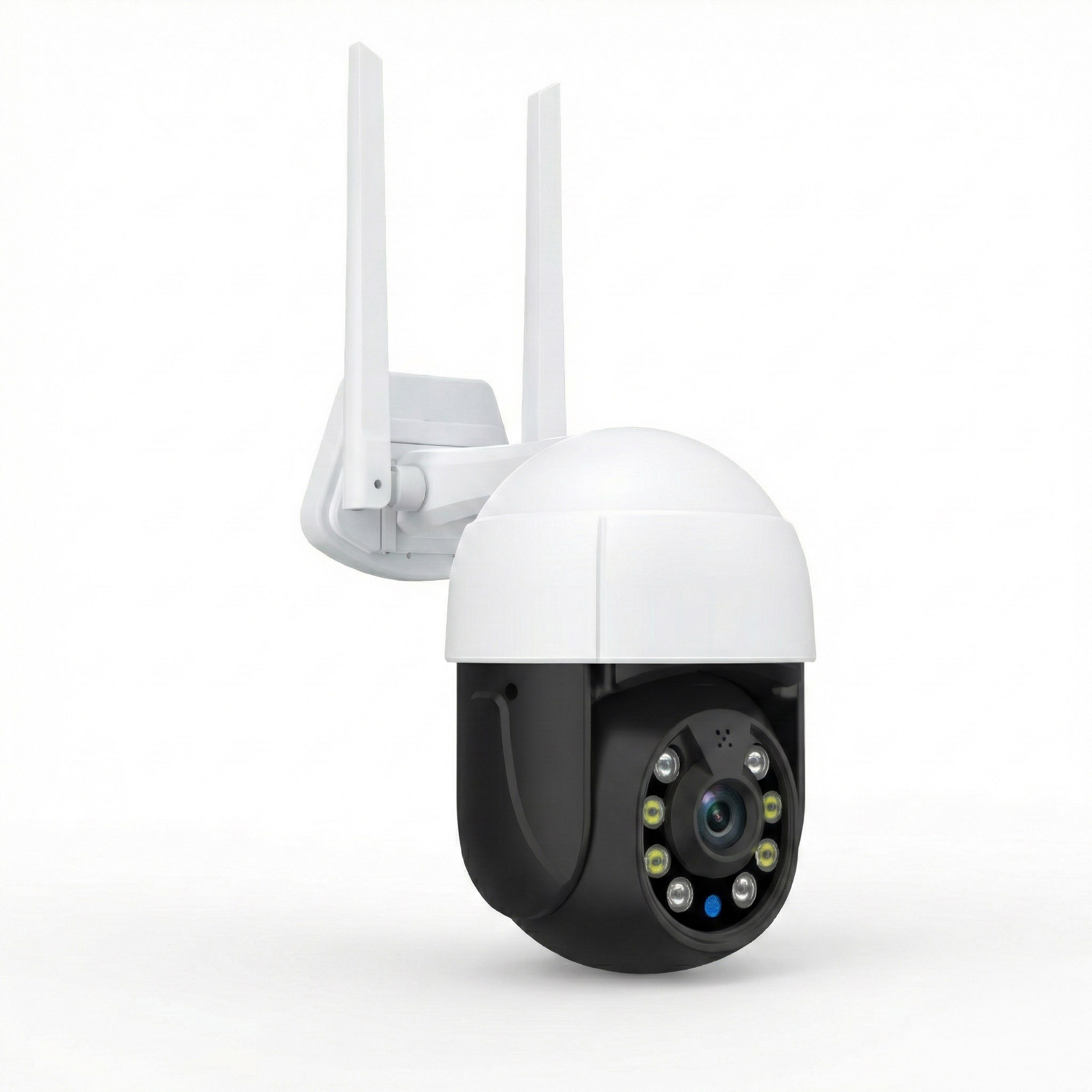
Problem 5: Outdoor Cameras Still Go Offline
Outdoor cameras may have different coverage requirements from upstairs phones and laptops.
A camera near the garage may sit behind an exterior masonry wall and a metal door.
An extender in the upstairs hallway may not improve that location.
Test WiFi near the camera.
If the signal is weak, consider adding an access point closer to the outdoor area.
Check the camera's supported WiFi band.
Many smart cameras use 2.4GHz.
Also confirm that the camera's power supply and recording settings are working.
Do not place an indoor-only extender outside unless it is specifically rated for that installation.
Problem 6: The House Has Almost No WiFi Between Floors
If the upstairs landing barely receives WiFi, a wireless repeater may not be the right solution.
Test the staircase and other possible signal paths.
If no suitable location provides a reliable connection, consider a wired approach.
Possible options include:
-
Ethernet wiring between floors.
-
An upstairs access point.
-
Mesh nodes with Ethernet backhaul.
-
Compatible MoCA networking over suitable existing coaxial wiring.
-
Professionally installed network cabling.
Powerline adapters may work in some homes, but their performance depends heavily on the electrical wiring.
They are not a guaranteed substitute for Ethernet.
For a house with reinforced concrete floors, a wired connection is often worth investigating before purchasing additional repeaters.
How to Choose the Right Extender Without Overspending
Before placing an order, answer four questions.
Where does the WiFi connection fail?
If only one bedroom has poor coverage, start with a single extender.
If the entire upper floor is affected, investigate the connection between floors.
Does the router signal reach the staircase?
Test near the landing.
A stable connection suggests that wireless repeating may be practical.
A connection that drops repeatedly suggests that you should consider wired backhaul.
What devices need better coverage?
A few smart plugs and a bedroom television have different requirements from several gaming systems, laptops, and security cameras.
Choose equipment based on actual use.
Do not pay for higher theoretical speeds if the router connection cannot support them.
Can you connect the upper floor through Ethernet?
If Ethernet is already available, an access point may be a better purchase than a wireless repeater.
Check whether existing wall sockets are active.
If the house is being renovated, consider whether network cabling can be installed while walls or ceilings are accessible.
You can review ROOXIS home networking products when comparing dual-band extenders and related networking equipment.
Check the exact model's wireless bands, Ethernet port speed, operating modes, and compatibility before buying.
For a thick-walled house, good placement and a reliable backhaul matter more than the largest coverage claim.
FAQ
What is the best WiFi extender for a large two-story house with thick walls?
An AC1200 dual-band or WiFi 6 extender can be suitable when the upstairs landing still receives a reliable connection from the main router. If concrete floors or brick walls block most of that connection, an Ethernet-connected access point is usually the better option. Test the signal between floors before choosing equipment.
Can a WiFi extender work through thick concrete walls?
Yes, but performance can be limited because concrete, especially reinforced concrete, weakens wireless signals. The extender must receive a usable connection from the router before it can provide reliable coverage. If no suitable placement location exists, use wired backhaul rather than relying on a more powerful repeater.
Should I place a WiFi extender upstairs or downstairs?
Place it where the main router's signal remains reliable and the extended coverage can reach the weak rooms. In many two-story homes, an upstairs landing or open stairwell area is worth testing first. Try several outlets and check the extender's router connection before choosing the final location.
Is a WiFi 6 extender better than an AC1200 extender for thick walls?
WiFi 6 can provide better wireless efficiency and higher potential performance with compatible equipment. However, both types are affected by concrete floors and thick masonry. A correctly positioned AC1200 extender may perform better than a WiFi 6 model installed where the router signal is poor.
How many WiFi extenders do I need for a large two-story house?
One extender may be enough if only one or two upstairs rooms need better coverage. Several separated dead zones may require additional equipment. If most of the upper floor has weak WiFi because of thick construction, wired access points or mesh with Ethernet backhaul may be more effective than multiple repeaters.
Will a WiFi extender make my internet faster upstairs?
An extender can improve wireless coverage in a weak area, which may make streaming, browsing, and video calls more reliable. It cannot increase the broadband speed delivered to your router. Actual throughput through a wireless extender may also be lower because data travels across an additional wireless connection.
For a large two-story house with thick walls, check the WiFi near the staircase before buying an extender. If the router signal is stable there, install one dual-band extender in a suitable position and test the problem rooms. If the signal barely reaches upstairs, skip the repeated extender purchases and investigate Ethernet or wired-backhaul access points. Solving the connection between floors is usually more valuable than buying equipment with a bigger advertised coverage number.