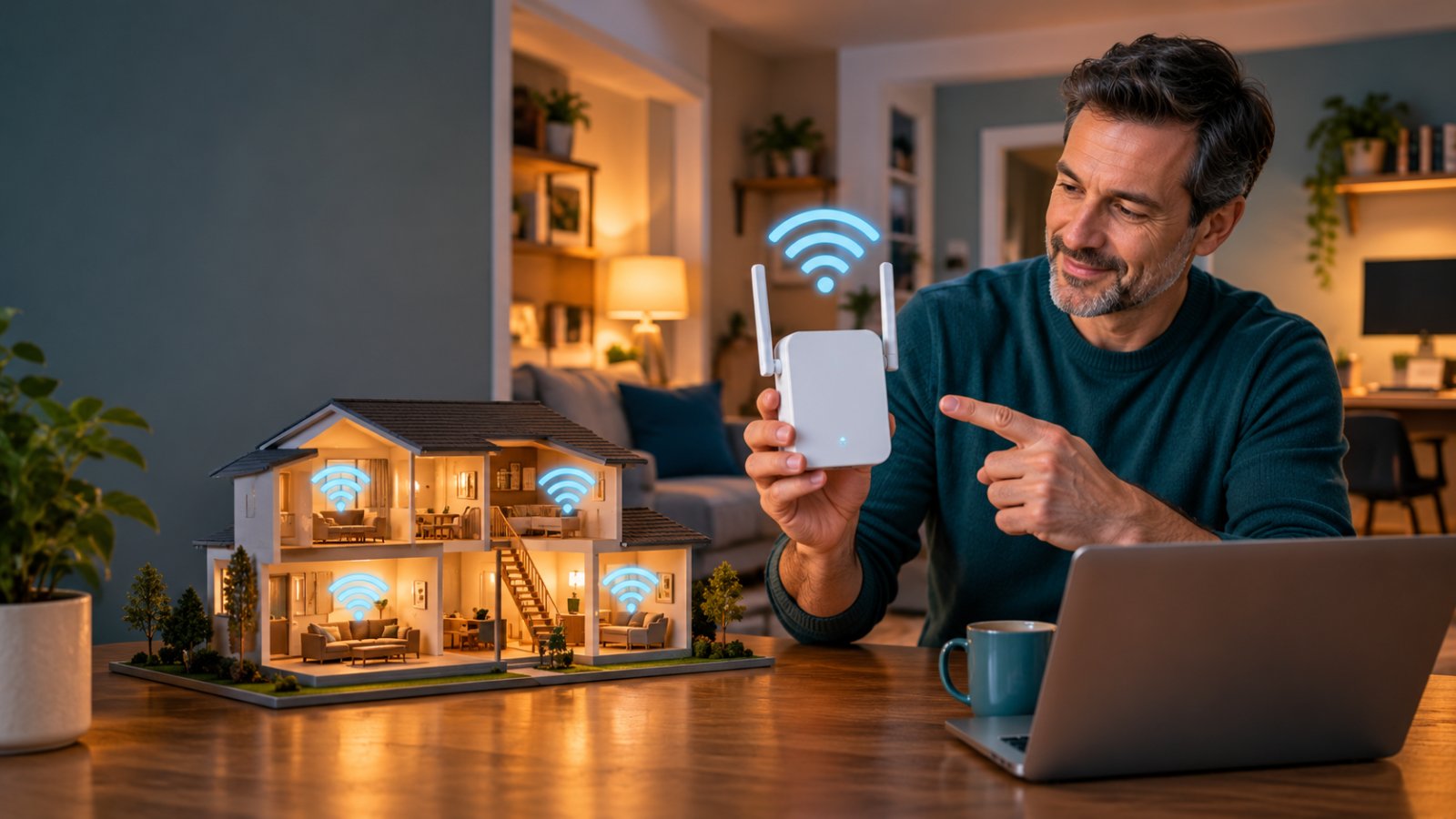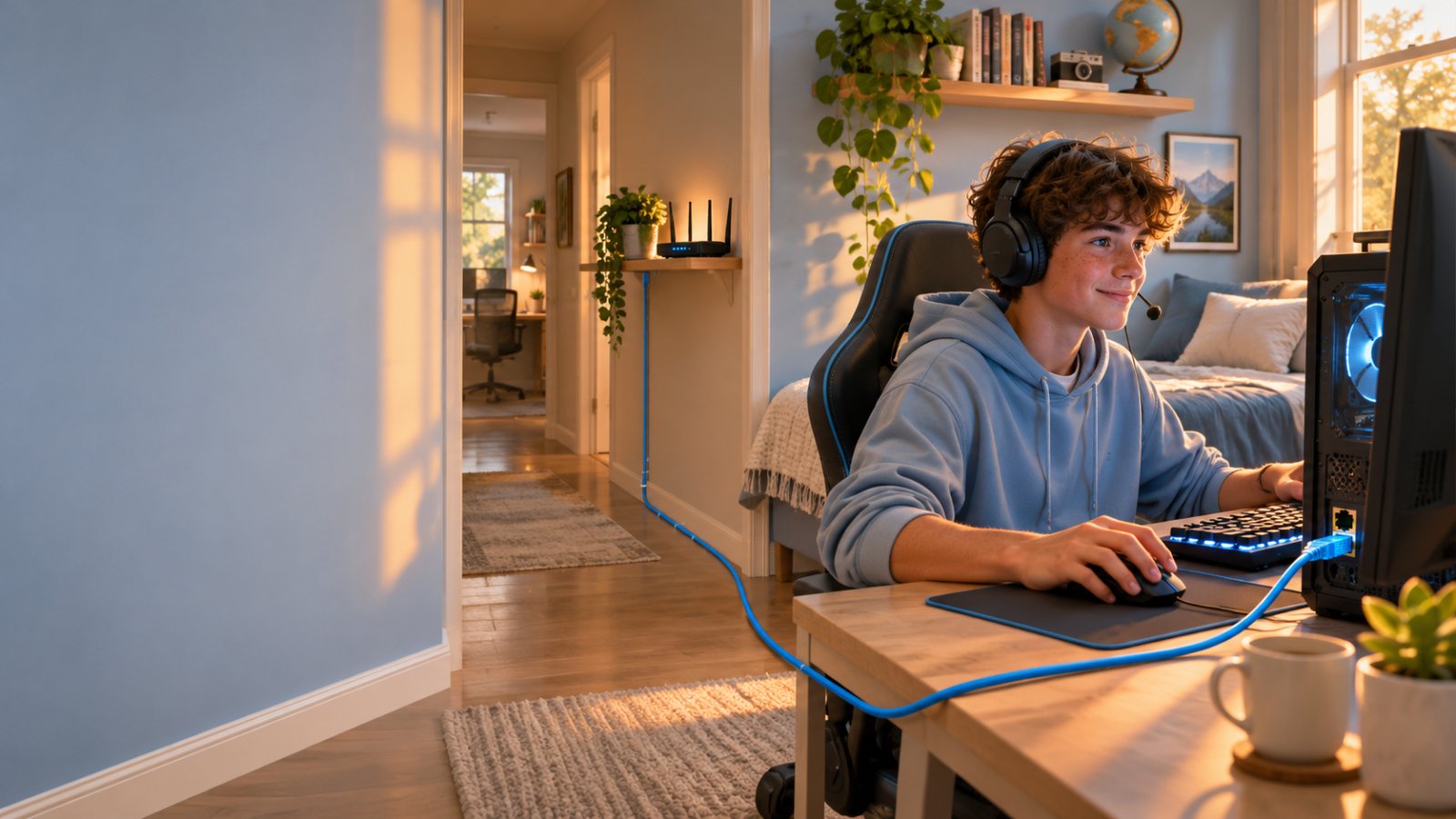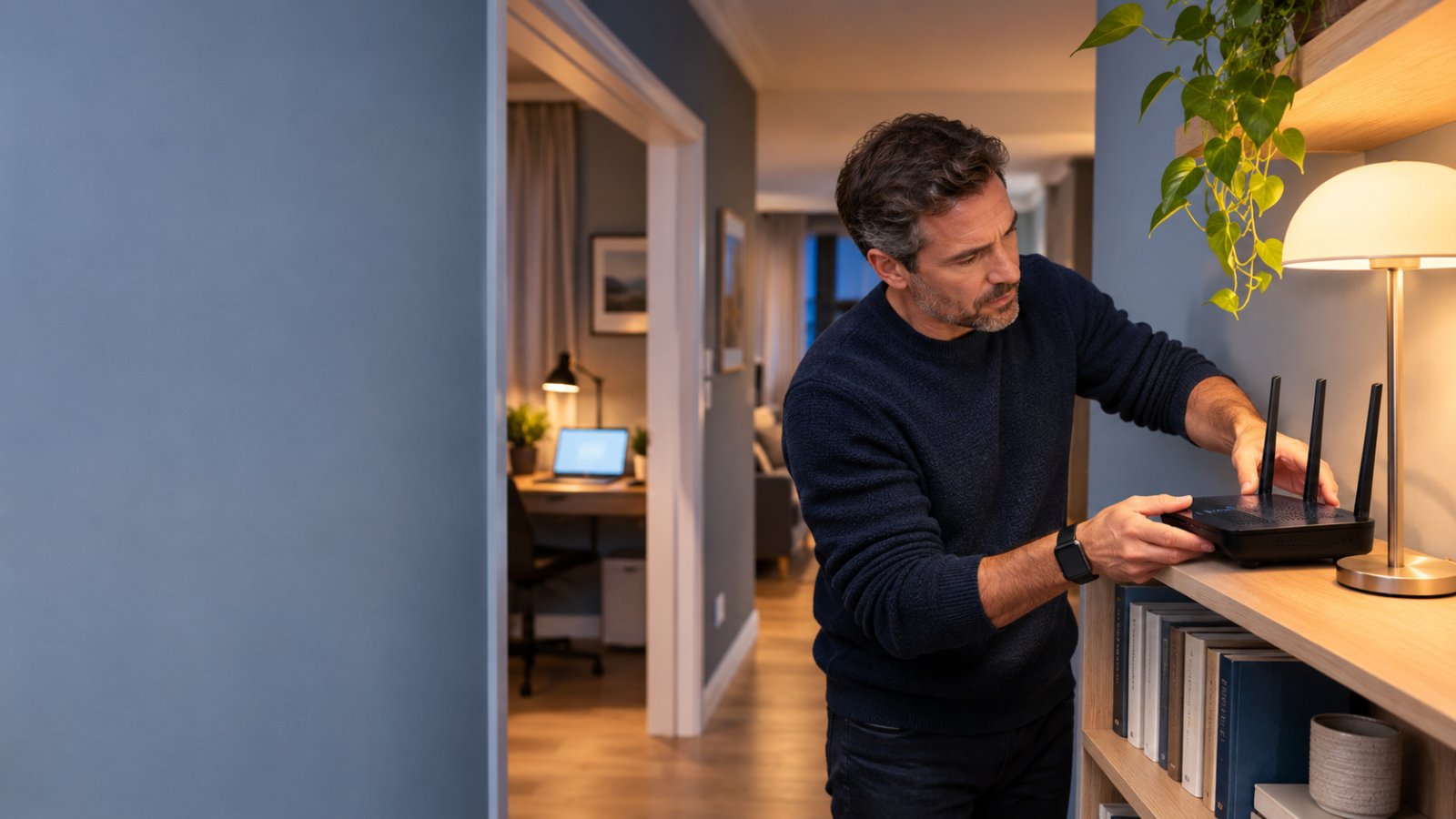
Your phone connects perfectly to WiFi in the living room, but your laptop struggles during meetings in the bedroom. Meanwhile, the driveway camera keeps appearing offline. Before blaming your internet provider or buying a new router, look at where your existing equipment is installed.
The best WiFi position is generally an open, elevated location near the centre of the rooms you use most. Keep the router away from thick walls, metal cabinets, large appliances and furniture that obstructs wireless signals.
Something as simple as moving a router from behind the television to an open hallway shelf can improve coverage. However, every property is different. Finding the right position requires understanding your home's layout and testing the connections that regularly cause problems.
What Is the Best WiFi Position in a House?
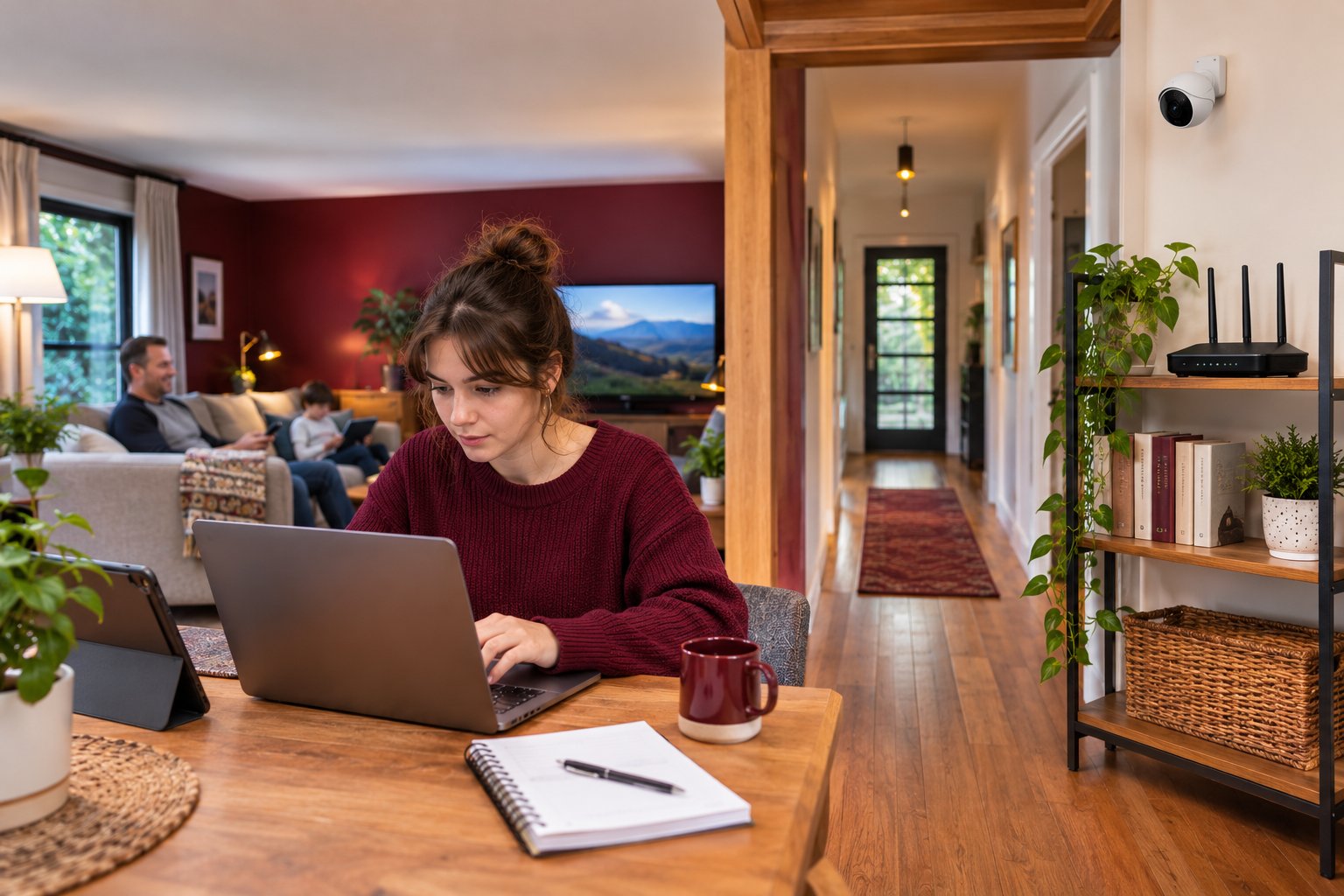
The best WiFi position in a house is somewhere that provides reasonably clear wireless paths to the devices you rely on every day.
For most households, an open shelf near the centre of the living space is a sensible starting point. But do not confuse the geographical centre of your property with the best wireless coverage point.
A bathroom located in the middle of the house may contain plumbing, thick tiled walls and mirrors with metallic backing. A hallway just outside that bathroom could provide better coverage, even if it is slightly farther from certain rooms.
When comparing router locations, look for:
-
An open surface above floor level.
-
Relatively few walls between the router and frequently used rooms.
-
Separation from large metal appliances and cabinets.
-
Adequate ventilation around the router.
-
Convenient access to power and Ethernet connections.
-
A reasonable wireless path toward outdoor cameras.
-
Coverage across bedrooms, living areas and workspaces.
Both Google's WiFi placement guidance and Ofcom's home WiFi recommendations recommend central, open and elevated locations.
Treat these recommendations as starting points rather than strict installation rules. A router belongs where it performs best in your particular home.
How WiFi Signal Positioning Affects Your Internet Connection
Your router communicates with connected devices using radio signals. Those signals must travel through whatever stands between the router and the receiving equipment.
When you move a router, you change those wireless paths. You might remove an obstruction, reduce the distance to an important device or expose the connection to a different source of interference.
Understanding these changes helps you optimise WiFi position without adjusting settings that have nothing to do with the problem.
Distance Between the Router and Connected Devices
Wireless signals generally become weaker as they travel farther from the router.
However, a device located nearby does not automatically receive better coverage than one farther away.
Imagine a router positioned in the living room. The nearest bedroom sits behind a concrete wall, while a more distant bedroom connects through an open hallway.
The farther bedroom may receive a stronger signal because fewer obstacles interfere with the wireless path.
This explains why moving a router a short distance can sometimes produce better results than moving it directly toward the affected room.
When checking coverage, consider the walls, furniture and appliances between the router and your device.
Walls and Building Materials
Not all walls affect wireless signals equally.
Drywall generally creates less obstruction than reinforced concrete or thick masonry. Metal can reflect and obstruct radio signals, while water can absorb wireless energy.
Common household obstacles include:
-
Reinforced concrete floors.
-
Thick brick walls.
-
Metal garage doors.
-
Large refrigerators.
-
Bathroom plumbing.
-
Mirrors with metallic backing.
-
Metal filing cabinets.
-
Large aquariums.
-
Windows with metallic coatings.
A router installed inside a utility cupboard might have difficulty reaching nearby rooms because its signal must travel through several dense materials.
Moving it into the hallway outside that cupboard could provide a clearer path.
Test connections with interior doors closed. If WiFi becomes unreliable whenever someone closes the bedroom door, the current position may not provide enough signal margin.
Wireless Interference
Wireless devices share radio spectrum with other equipment and nearby networks.
The 2.4 GHz band can experience interference from Bluetooth devices, neighboring WiFi networks and certain household appliances.
Microwave ovens can also interfere with nearby 2.4 GHz connections while operating.
If a kitchen tablet or camera disconnects whenever someone uses the microwave, compare its performance while the appliance is running and after it switches off.
Moving the router farther from the appliance may help. Compatible devices could also benefit from using 5 GHz instead.
However, a stronger wireless signal does not necessarily eliminate congestion from neighboring networks. Apartment residents may need to investigate channel selection alongside physical router placement.
Router Height and Signal Distribution
A router placed directly on the floor often has several nearby obstructions, including furniture, cabinets and electronic equipment.
An open shelf around desk height or higher usually provides a better starting position.
For example, moving a router from beneath a television stand to an open shelf above it can remove some of the furniture obstructing its signal.
There is no need to mount the router against the ceiling simply to achieve the greatest possible height.
Choose a position that provides good coverage, keeps the equipment accessible and allows sufficient ventilation.
Where Should You Place Your WiFi Router?
Choose a Central Location
Identify the rooms where unreliable WiFi causes actual inconvenience.
For many households, these include:
-
A home office used for video meetings.
-
Bedrooms where people use phones and tablets.
-
A living room television.
-
A teenager's gaming area.
-
A front door security camera.
-
A driveway or garage camera.
Now compare available router locations against these areas.
In a rectangular house, an open hallway near the middle may provide more balanced coverage than a router beside the front entrance.
In an apartment, a shelf between the living room and bedrooms may work better than a position at either end of the property.
Prioritize essential connections. You do not need maximum coverage inside a storage cupboard if the home office continues to experience interruptions.
Keep the Router in an Open Area
Hiding networking equipment inside furniture is understandable, particularly when several cables are involved.
The problem is that a closed cabinet can restrict both wireless coverage and airflow.
A router squeezed behind a television, next to a gaming console and several power adapters, has unnecessary obstacles around it.
Try moving it onto an open shelf beside the television.
If you prefer keeping it inside furniture, test the wireless connection with the cabinet doors open and closed. Use the same phone or laptop from the same location.
If closing the cabinet consistently weakens the connection, find another position.
Raise the Router Above Floor Level
Suitable router locations include:
-
Open bookshelves.
-
Stable side tables.
-
Home office shelves.
-
Open television units.
-
Manufacturer-approved wall mounts.
Avoid placing the equipment beneath a sofa, behind a floor-level cabinet or directly beside a large metal appliance.
When mounting a router, check its intended operating orientation. Some models are designed to stand vertically, while others sit horizontally.
Secure the power and network cables without pulling tightly on their connectors. Keep the equipment somewhere children and pets cannot easily knock it down.
Maintain Adequate Ventilation
A router installed inside a crowded cabinet may receive insufficient airflow.
This becomes particularly relevant when the cabinet also contains gaming consoles, television equipment or a security camera recorder.
Keep ventilation openings clear and avoid placing the router:
-
Directly on another warm electronic device.
-
Beside a radiator.
-
Beneath decorative fabric.
-
In prolonged direct sunlight.
-
Inside a tightly packed cupboard.
If the router repeatedly restarts after prolonged operation, inspect its ventilation and power supply.
Some routers display uptime in their administration interface. A reset uptime can indicate that the device restarted, although it does not establish the cause.
Keep the Router Away From Major Signal Obstructions
Large televisions, metal cabinets and refrigerators can affect wireless signal paths.
You may not need to move the router into another room. Moving it from directly behind a television to an open shelf beside it can be enough to remove a nearby obstruction.
Avoid following arbitrary distance rules without testing. The effect of an object depends on its size, construction and location relative to the router and connected devices.
Check the connection from the affected room after making each adjustment.
Places Where You Should Avoid Putting Your WiFi Router
| Router location | Potential problem | Better alternative |
|---|---|---|
| Inside a closed cabinet | Signal obstruction and restricted airflow | Open shelf or table |
| Directly on the floor | Furniture blocking wireless paths | Elevated shelf |
| Behind a television | Nearby physical obstructions | Open space beside the television |
| Beside a microwave | Potential 2.4 GHz interference | Location away from the appliance |
| Inside a garage | Exterior walls obstructing indoor coverage | Central indoor room |
| In a distant corner | Uneven coverage throughout the house | Central hallway |
| Inside a metal utility cupboard | Significant wireless obstruction | Open position outside the cupboard |
| Beside a large aquarium | Water absorbing radio energy | Clearer wireless path |
| In an attic | Temperature extremes and uneven coverage | Suitable indoor location |
| Near an exterior window | Potentially unbalanced indoor coverage | Interior position unless outdoor coverage is needed |
These locations are not automatically unsuitable in every property.
A router beside a window might be useful for a garden camera. An appropriately designed attic installation might serve a particular floor plan.
The problem arises when the equipment is positioned for convenience without testing how well it serves the rest of the household.
How to Optimise WiFi Position for Your Home Layout
Small Apartments and Studio Flats
A single router can often cover a small apartment without additional networking equipment.
Start by moving it away from closed television cabinets, refrigerators and large metal furniture.
Test the connection at your desk, sofa and bedroom. If all these locations receive good wireless signals but internet speeds remain inconsistent, congestion may be a bigger problem than coverage.
Apartment buildings often contain numerous overlapping WiFi networks.
Try using 5 GHz on compatible laptops and smartphones when the 2.4 GHz band is congested. Keep 2.4 GHz available for equipment that requires it, such as certain security cameras and smart plugs.
Do not buy an extender merely because your connection is slow. If the existing signal is already strong, another wireless coverage point may not solve the problem.
Long or Narrow Houses
In a long property, internet equipment installed near the front entrance may struggle to reach rooms at the back.
This is common when the provider installs the router in the front living room while the home office or kitchen occupies the opposite end of the house.
Check whether the modem or ONT is separate from the router.
If the two devices connect through Ethernet, a suitable longer cable may allow you to move the router toward the middle without relocating the incoming internet service.
Test a central hallway first.
If the rear rooms improve but the front rooms become poorly covered, consider adding a wired access point rather than choosing between two equally inconvenient router positions.
Two-Story Houses
The materials separating floors can influence WiFi coverage as much as the distance between them.
A wooden floor may create less obstruction than a reinforced concrete floor.
Try positioning the router near an open staircase or landing where the wireless signal may have an alternative path between floors.
Check coverage in:
-
Upstairs bedrooms.
-
The upstairs landing.
-
The downstairs living room.
-
Home office locations.
-
Outdoor camera positions.
Do not judge the new position using only the upstairs bedroom that originally experienced problems.
If moving the router upstairs leaves the downstairs television and cameras struggling, a second coverage point may be necessary.
Where Ethernet cabling is available, a wired upstairs access point avoids relying entirely on a wireless connection through the floor.
Homes With Thick Brick or Concrete Walls
A relatively small house with thick masonry walls can be more difficult to cover than a larger open-plan property.
Try positioning the router near a doorway or hallway rather than at the far end of an enclosed room.
The signal may encounter fewer substantial obstacles when reaching neighboring rooms.
Compare performance with doors open and closed.
If a bedroom receives acceptable WiFi only while its door remains open, the connection may not be reliable enough for everyday use.
Homes with several reinforced interior walls often benefit from distributed wired access points rather than relying on one powerful router.
Large Open-Plan Homes
Open-plan living areas generally offer fewer interior walls, but large furniture and appliances can still affect wireless coverage.
A router installed at the far end of the kitchen might need to transmit past a refrigerator and several other appliances before reaching the living room.
Choose an open position that serves the main living space and adjacent rooms.
Also test the farthest bedroom and any exterior camera locations.
A strong connection beside the sofa tells you very little about coverage at the opposite end of the property.
Rental Properties With Fixed Internet Connections
Renters may have to work with internet equipment installed in an inconvenient location.
Before assuming the router cannot be moved, determine whether it is separate from the modem or ONT.
An Ethernet connection between separate devices may allow temporary relocation without modifying permanent building wiring.
Other practical rental-friendly changes include:
-
Moving the router onto an open shelf.
-
Rearranging obstructive furniture.
-
Using removable cable clips.
-
Connecting an access point through an existing Ethernet outlet.
-
Installing a plug-in extender for a remaining localized coverage problem.
If your equipment is a combined internet gateway connected directly to fiber, coaxial or telephone wiring, contact the provider before attempting relocation.
Avoid drilling holes or altering permanent network infrastructure without permission.
What Is the Best Router Position for Outdoor Security Cameras?
Outdoor security cameras are frequently installed after the household WiFi network is already established.
The original router position may provide excellent indoor coverage but very little signal margin at the driveway or garage.
Identify the Camera's Wireless Requirements
Check the camera's supported wireless frequency before changing anything.
Many residential security cameras use 2.4 GHz because of its generally greater reach through obstacles under comparable conditions.
Other cameras support 5 GHz or both bands.
If your camera supports only 2.4 GHz, improving your router's 5 GHz performance will not fix its connection.
Check the camera's specifications, connected network and available signal information through its mobile application.
Check the Signal at the Camera Location
Take a smartphone near the camera's installation location.
Disable mobile data temporarily so that cellular connectivity does not disguise a weak WiFi connection.
Open a website or perform an ordinary browsing task.
This is only a preliminary check. The camera and smartphone may have different wireless hardware and antenna capabilities.
If the camera application displays its own signal strength, prioritize that information.
Open the live camera feed several times. Check whether playback starts consistently and remains connected.
For battery-powered cameras, remember that waking from sleep may introduce a normal delay. Do not automatically interpret every slow response as a wireless coverage problem.
Consider Exterior Walls and Metal Obstructions
A driveway camera's wireless environment can change during the day.
A garage door that remains open during setup may close every evening. A parked vehicle might obstruct part of the wireless path. Outdoor metal storage equipment can introduce additional obstacles.
Common exterior obstructions include:
-
Thick brick walls.
-
Reinforced concrete.
-
Metal garage doors.
-
Metal siding.
-
Metallic window coatings.
-
Outdoor storage structures.
Test the camera when these obstacles are present.
Also check whether the camera receives consistent electrical power. Improving WiFi coverage will not help a camera that repeatedly loses power.
Avoid Sacrificing the Entire Home for One Camera
Moving the main router toward the garage might stabilize a driveway camera while creating weak coverage in several bedrooms.
If the rest of your home already receives dependable WiFi, solve the outdoor coverage problem separately.
A suitable range extender, wired access point or outdoor wireless device may provide the additional coverage required.
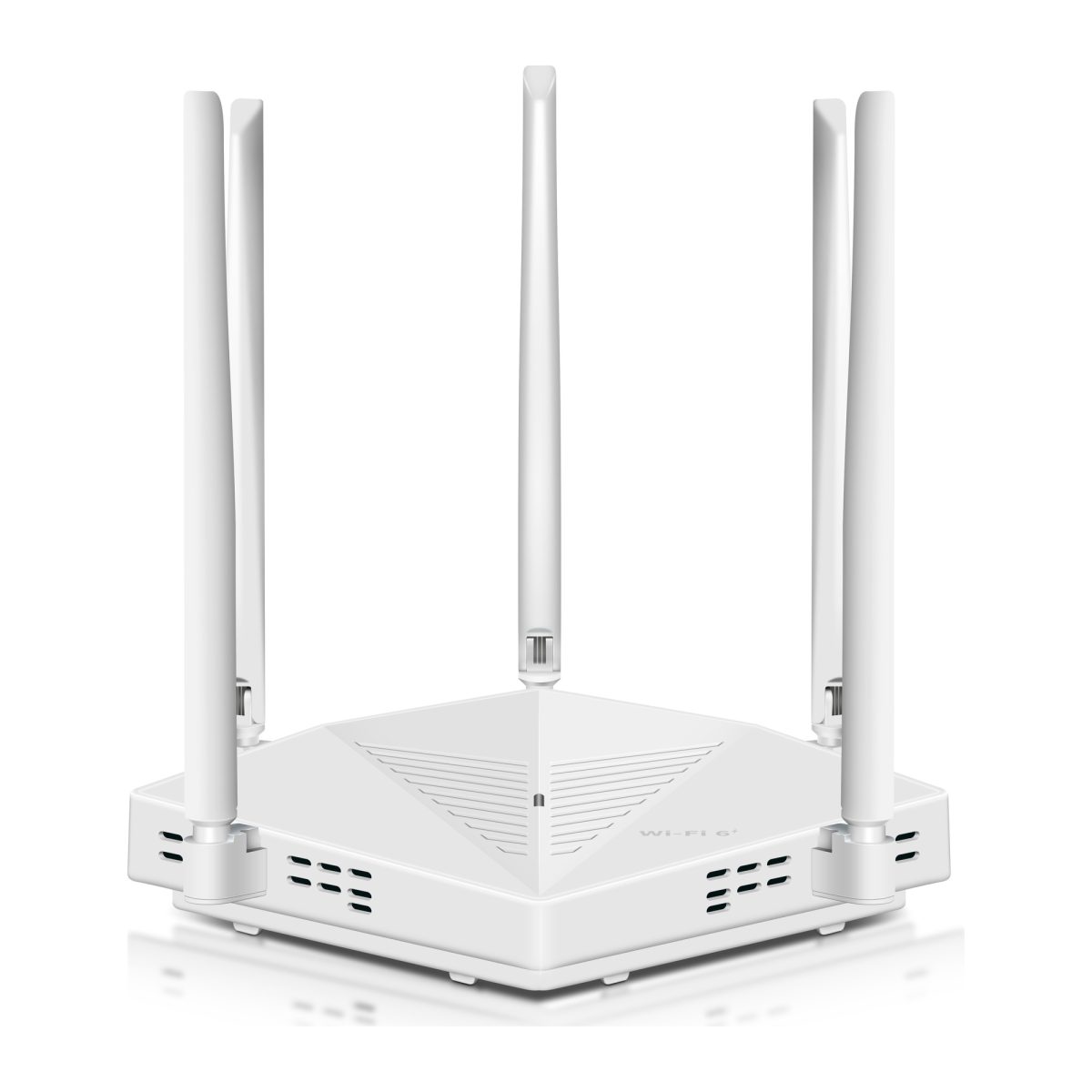
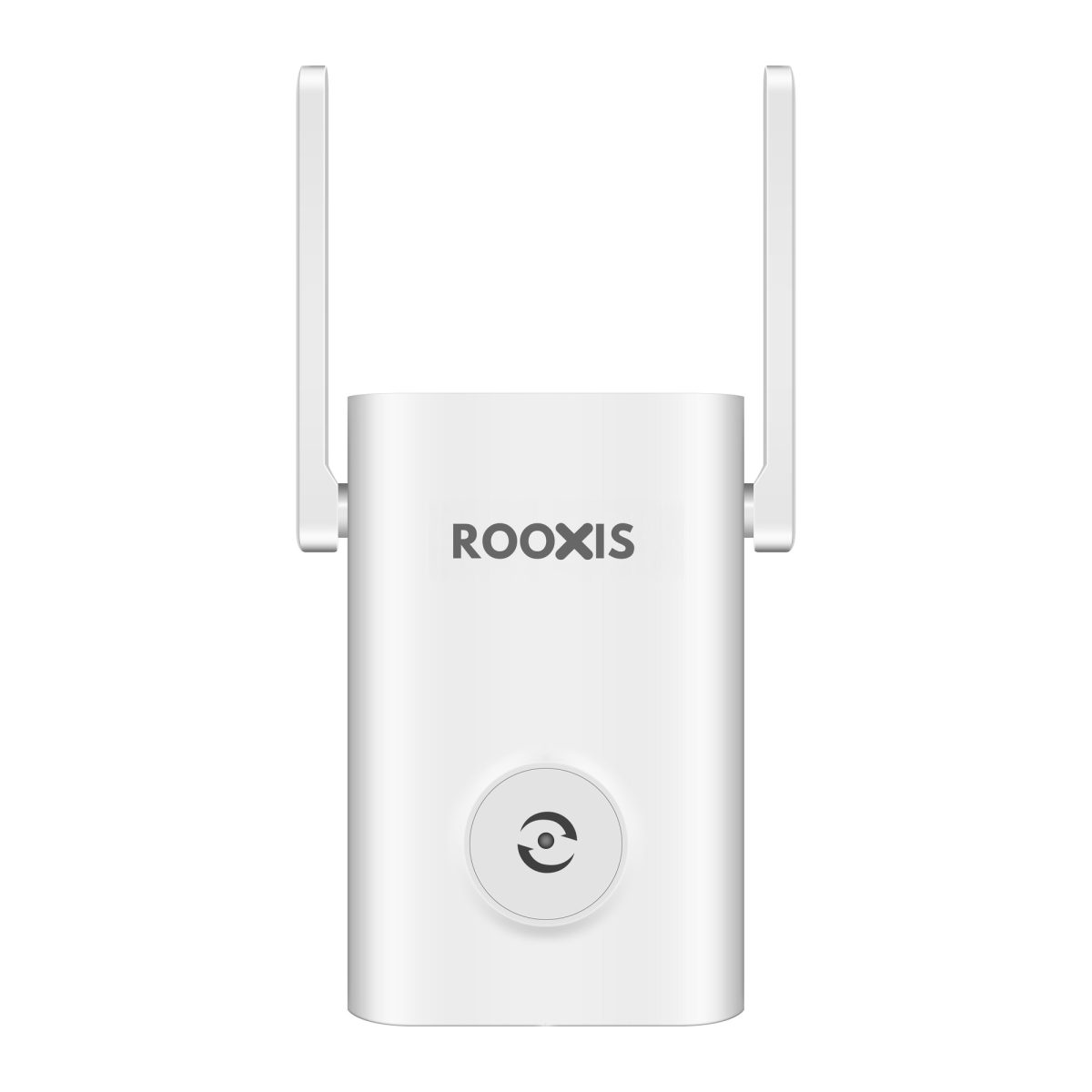
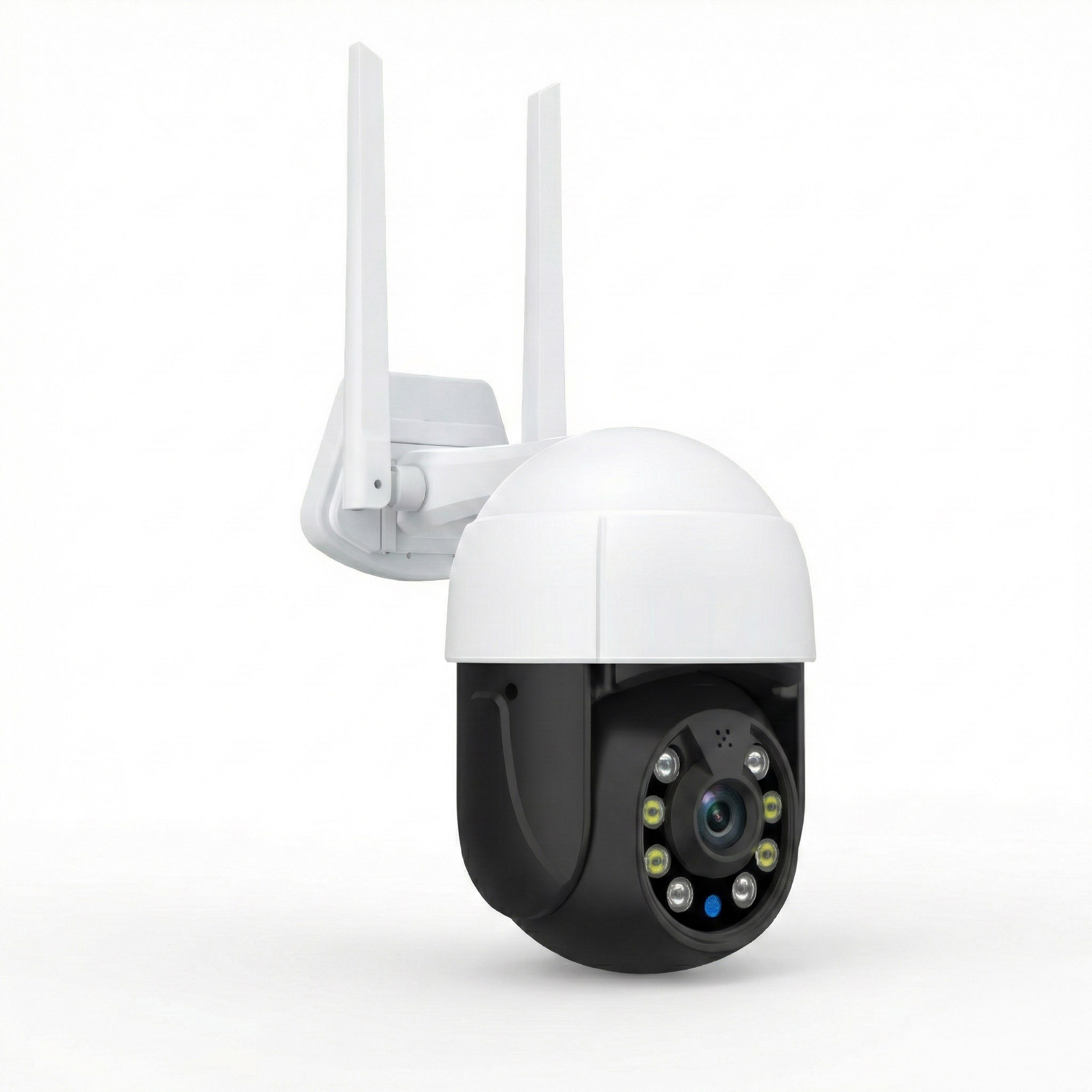
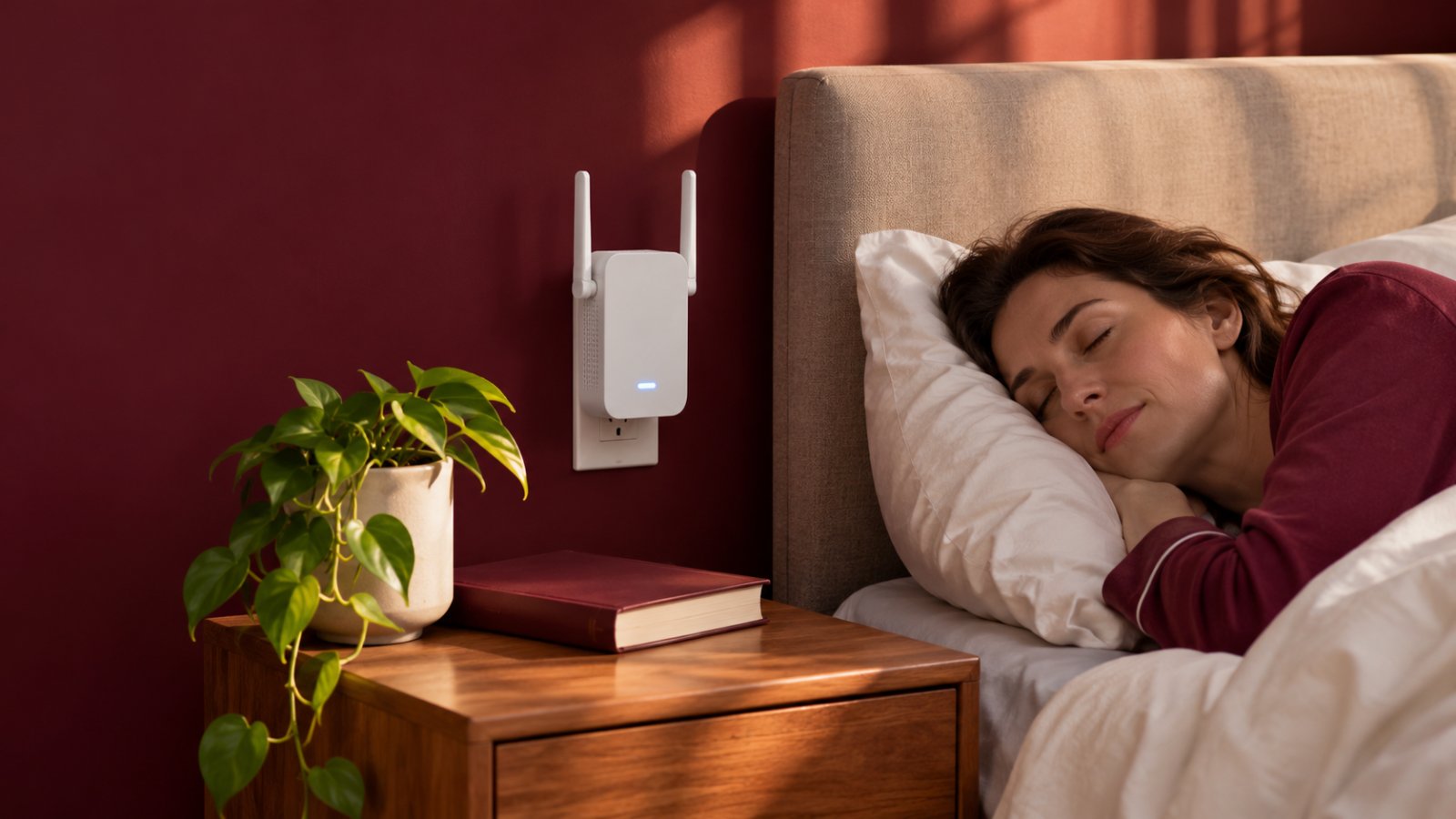
Homeowners can explore ROOXIS routers, WiFi extenders and outdoor security cameras when comparing equipment for indoor coverage and outdoor camera connectivity.
Before installing equipment outdoors, verify its environmental rating. Indoor networking equipment should not be exposed to rain, excessive moisture or unsuitable temperatures.
How to Position WiFi Router Antennas Correctly
Adjustable antennas can influence wireless coverage, but their effect depends on the router's design.
Start with the manufacturer's recommended arrangement before experimenting.
Routers With External Antennas
Many conventional external WiFi antennas distribute radio signals broadly around their length rather than projecting them directly from their tips.
For coverage across a single floor, vertical antenna positioning is often a sensible starting point.
Changing an antenna's orientation may affect coverage between floors, depending on the equipment and building layout.
Make one adjustment at a time.
Test the affected room before changing another antenna. If the connection becomes worse, return the antenna to its original position.
Changing every antenna simultaneously makes it difficult to identify which adjustment helped.
Routers With Internal Antennas
Routers with internal antennas often have a recommended operating position.
A tower-style router may be intended to stand upright, while another device may be designed to sit flat.
Turning equipment sideways can change antenna orientation and restrict airflow.
Follow the manufacturer's positioning instructions instead of experimenting with unsupported mounting arrangements.
Should Router Antennas Point Toward the Connected Device?
Pointing the tip of an ordinary router antenna directly toward your bedroom does not necessarily send a stronger wireless signal into that room.
Conventional residential antennas generally distribute coverage differently from specialized directional antennas.
If an outdoor camera requires connectivity across a long distance, appropriate directional networking equipment may be more useful than repeatedly adjusting the antennas on an ordinary household router.
For most indoor coverage problems, physical router placement should come first.
How WiFi Frequency Affects the Best Router Position
The same router can provide different coverage depending on which wireless frequency a connected device uses.
A phone may receive a strong 2.4 GHz connection inside a bedroom while struggling to maintain 5 GHz from the same location.
2.4 GHz WiFi
The 2.4 GHz band generally provides greater reach through physical obstacles than higher-frequency bands under comparable conditions.
It is particularly useful for:
-
Outdoor security cameras.
-
Smart plugs.
-
Older wireless equipment.
-
Devices in distant rooms.
-
Equipment with modest bandwidth requirements.
However, this band can experience congestion from neighboring networks and other wireless devices.
When investigating a 2.4 GHz camera, do not rely entirely on a smartphone speed test performed over 5 GHz.
The two connections can behave differently.
5 GHz WiFi
The 5 GHz band can provide higher throughput when compatible devices receive sufficient signal quality.
It is useful for video streaming, gaming, remote work and large downloads.
Its coverage can decrease more quickly through walls and floors.
If your laptop receives fast 5 GHz WiFi beside the router but switches to a slower connection upstairs, the problem may be the wireless path rather than your internet subscription.
Moving the router or providing a nearby wired access point can help.
6 GHz WiFi
Compatible WiFi 6E and WiFi 7 equipment can operate using the 6 GHz band where permitted.
The additional spectrum can support demanding wireless connections when compatible devices remain within suitable coverage.
However, 6 GHz is generally less suitable for reaching distant rooms through several dense walls.
It is not necessary for ordinary security cameras, smart plugs and other devices that use lower-frequency connections.
Buying a router with 6 GHz support will not improve a camera's wireless compatibility if the camera supports only 2.4 GHz.
Which WiFi Frequency Should You Use?
| WiFi frequency | Main advantage | Common limitation | Suitable household uses |
|---|---|---|---|
| 2.4 GHz | Greater reach under comparable conditions | Potential congestion | Cameras and distant smart devices |
| 5 GHz | Higher throughput under suitable conditions | Reduced coverage through obstacles | Gaming, streaming and remote work |
| 6 GHz | Additional spectrum for compatible devices | More limited reach and compatibility | Nearby high-capacity connections |
Choose the frequency based on device compatibility and actual connection performance rather than assuming the highest frequency is always preferable.
How to Test and Find the Best WiFi Position
You do not need professional networking equipment to compare router positions.
Use the same smartphone or laptop throughout the process, record the original performance and change one variable at a time.
Step 1: Identify Your Weak WiFi Areas
Check the exact locations where connected devices normally operate.
These might include:
-
Your home office desk.
-
The television cabinet.
-
An upstairs bedside table.
-
The kitchen counter.
-
The garage workbench.
-
The driveway camera's mounting location.
Record the problem at each location.
Does the connection disappear completely? Does video buffer? Do downloads become slow while other household members are online?
Distinguishing these symptoms helps separate coverage problems from network congestion and internet service limitations.
Step 2: Establish Your Current Performance
Test the existing router position before moving anything.
Use the same device for each location and disable mobile data when testing on a smartphone.
Record:
-
Wireless signal strength where available.
-
Download and upload performance.
-
Connection interruptions.
-
The connected frequency band.
-
Whether ordinary applications work reliably.
Also perform a check close to the router.
If the connection is already poor beside the router, investigate the internet service, wireless settings and shared networking equipment before concentrating on placement.
Step 3: Move the Router to an Alternative Position
Select an open, elevated location that removes obvious physical obstacles.
A central hallway shelf or living room side table may be a useful first alternative.
Keep the network name, password and wireless settings unchanged.
If you alter the router's location, channels and network configuration simultaneously, you will not know which adjustment caused any improvement.
Allow the router to reconnect fully before starting the next round of checks.
Step 4: Repeat Your WiFi Tests
Return to the exact locations tested earlier.
Use the same device, similar household conditions and, where possible, the same wireless frequency.
Repeat each check rather than relying on a single speed test.
For a home office, connection stability during an ordinary video meeting matters more than a brief peak download speed.
For a security camera, repeatedly opening its live feed and observing playback stability provides more useful information than testing a smartphone beside the router.
Step 5: Compare Signal Strength
Wireless diagnostic tools may report received signal strength using RSSI, commonly expressed in negative dBm values.
A reading closer to zero generally indicates a stronger received signal.
| Approximate signal strength | General interpretation |
|---|---|
| -50 dBm or stronger | Strong wireless signal |
| Around -60 dBm | Generally good signal |
| Around -67 dBm | Often suitable for reliable general use |
| Around -70 dBm | Reduced signal margin |
| Around -80 dBm or weaker | Weak connection that may become unreliable |
These are approximate engineering reference values rather than guaranteed performance thresholds.
A device receiving a reasonable signal can still experience problems because of interference or network congestion.
On Windows, open Command Prompt and enter netsh wlan show interfaces.
Look for information about the connected wireless network, signal percentage and reported transmission rates.
Microsoft's wireless network troubleshooting guidance provides further information about wireless diagnostics.
Compare measurements from the same device. Different phones and laptops may report signal information differently.
Step 6: Create a Simple Before and After Comparison
Record how each important device behaves with the router in its original and alternative locations.
Note which connections improve, which become weaker and which remain unchanged.
For example, if moving the router stabilizes the home office connection but slightly reduces maximum download performance beside the television, the move may still be worthwhile if television streaming remains reliable.
Do not choose a location based solely on the fastest speed recorded anywhere in the house.
Give priority to the connections that originally caused problems.
Step 7: Test During Normal Household Conditions
An empty house provides different testing conditions from a busy household.
Repeat your checks while people use the network normally.
Consider:
-
Television streaming.
-
Online gaming.
-
Video meetings.
-
Security camera activity.
-
Closed bedroom doors.
-
Operating kitchen appliances.
-
Parked vehicles and closed garage doors.
Test during the times when connectivity problems usually occur.
If performance becomes poor only when several people are online, available bandwidth and network congestion may deserve more attention than the router's physical location.
How to Move Your WiFi Router Without Losing Internet Access
Relocating a router normally causes a temporary interruption while it reconnects.
You should not need to erase its settings or configure your entire household network again simply because the router changes position.
Moving a Router Connected to a Separate Modem or ONT
A separate modem or optical network terminal commonly connects to the router through Ethernet.
This arrangement may allow the router to move while the incoming internet equipment stays in place.
-
Identify the modem or ONT.
-
Locate the Ethernet cable connecting it to the router.
-
Measure the complete cable route to the new position.
-
Obtain a suitable longer Ethernet cable if needed.
-
Disconnect the router's power supply.
-
Move the router.
-
Connect the Ethernet cable to its WAN or Internet port.
-
Reconnect the power supply.
-
Allow the router to restore its connection.
-
Check internet access and wireless coverage.
Compliant Cat5e or Cat6 Ethernet cables are generally sufficient for ordinary Gigabit connections.
Keep the existing WiFi name and password so compatible household devices can reconnect using their saved credentials.
Do not press the recessed factory reset button. A restart and a factory reset are different procedures.
Moving a Combined Modem and Router
A combined internet gateway may connect directly to coaxial, DSL or fiber infrastructure.
Relocating this equipment can require changes to the provider's incoming connection.
Contact the provider before modifying permanent cables or disconnecting unfamiliar optical connectors.
Avoid sharply bending fiber cables.
If the gateway must remain in its original location, consider connecting a compatible wireless access point in a more suitable part of the house.
Moving a Router in a Rental Property
Plan the cable route before moving the equipment.
Use removable cable clips where appropriate and avoid running cables through doorways where they could become damaged.
Keep cables out of walking routes.
Do not trap them beneath heavy furniture or carpets.
If the new location requires permanent wall mounting, drilling or modifications to building wiring, obtain the appropriate permission first.
An open shelf and a longer Ethernet cable may be sufficient without making permanent changes.
When Changing WiFi Position Is Not Enough
Your Internet Connection Is Slow Near the Router
Poor performance beside the router suggests that wireless coverage may not be the main problem.
Possible causes include:
-
Internet provider congestion.
-
Background uploads and downloads.
-
Damaged Ethernet cables.
-
Faulty modem or ONT equipment.
-
Router configuration problems.
-
Insufficient internet capacity.
-
Wireless interference.
If possible, connect a computer directly to a router LAN port through Ethernet.
Compare wired performance with nearby WiFi performance.
If both are consistently poor, investigate the incoming internet service and shared networking equipment.
If Ethernet works correctly but nearby WiFi remains slow, concentrate on wireless settings and interference.
Your Home Has Multiple Wireless Dead Zones
A single router may not provide sufficient coverage across a large property with several floors or thick interior walls.
If reasonable placement adjustments leave several areas disconnected, consider additional coverage equipment.
A wired access point is useful when Ethernet cabling reaches the affected room.
A mesh system may suit a property requiring several coordinated wireless coverage points.
A range extender can help with a localized weak coverage area when an intermediate location receives a dependable signal from the router.
Do not plug an extender into a complete dead zone and expect it to create a reliable connection without usable backhaul.
Your Outdoor Camera Is Too Far From the Router
A camera near a detached garage or distant driveway entrance may be beyond the practical coverage of your household router.
Moving the router slightly closer might help, but there comes a point where another connection method is necessary.
Consider:
-
A suitably positioned wireless access point.
-
Appropriately rated outdoor networking equipment.
-
Ethernet connectivity where the camera supports it.
-
A professionally installed network connection between buildings.
Outdoor network installations can involve moisture exposure, electrical protection and grounding requirements.
Choose suitable equipment instead of extending ordinary indoor devices into unsuitable environments.
Your Neighbors' WiFi Networks Cause Congestion
Apartment buildings can contain several wireless networks operating on overlapping channels.
Moving your router may improve its signal strength without resolving congestion.
Check the wireless settings in your router's management interface.
Automatic channel selection is a reasonable starting point.
Where permitted and appropriate, channels 1, 6 and 11 are commonly used for non-overlapping 20 MHz operation on the 2.4 GHz band.
Available channels depend on regional requirements and equipment capabilities.
Change one setting at a time and compare performance. A different channel is useful only if it produces a more dependable connection.
Practical Router Placement Tips for Better Everyday Performance
Once you find a suitable location, these router placement tips can help maintain reliable coverage.
-
Keep the router exposed: Avoid moving it back behind furniture after completing your tests.
-
Maintain airflow: Keep ventilation openings clear.
-
Check Ethernet connections: Make sure the cable between the router and modem remains secure.
-
Follow antenna instructions: Use the arrangement recommended for your particular model.
-
Test with doors closed: Account for normal household conditions.
-
Prioritize important devices: Give additional attention to work computers and security cameras.
-
Install supported firmware updates: Use the manufacturer's official management interface.
-
Check frequency compatibility: Confirm that cameras and smart devices use supported wireless bands.
-
Avoid unnecessary extenders: Add equipment only when an identified coverage problem remains.
-
Retest after moving furniture: Large televisions, refrigerators and metal cabinets can change wireless paths.
If you convert an upstairs bedroom into a home office, reassess the router's position.
The location that previously served the living room may no longer provide the coverage your household needs.
Common Misconceptions About WiFi Positioning
The Router Must Always Be in the Exact Center of the House
The centre of a property can provide balanced coverage, but only if the surrounding construction allows wireless signals to travel effectively.
A central bathroom surrounded by thick walls may perform worse than an open hallway nearby.
Choose the best measured position rather than the exact midpoint of your floor plan.
Putting the Router Higher Always Improves WiFi
Raising a router above furniture can remove nearby obstacles.
However, mounting it as high as possible does not guarantee better performance.
A router near the ceiling may still struggle to communicate through reinforced concrete or dense interior walls.
Compare practical shelf locations before installing permanent mounting hardware.
More Antennas Mean Better Coverage Everywhere
Visible antenna count does not establish how effectively a router will cover your property.
Antenna design, wireless configuration, building materials and connected device capabilities all influence coverage.
A router with internal antennas installed on an open shelf may perform better than a router with several external antennas hidden inside a metal cabinet.
Full WiFi Bars Mean Your Internet Is Fast
WiFi bars primarily describe the wireless connection between your device and its access point.
They do not measure the capacity supplied by your internet provider.
A laptop can receive full WiFi bars while experiencing slow downloads because of provider congestion or background network activity.
Compare wired and wireless performance when investigating persistent speed problems.
A Faster Internet Plan Will Fix WiFi Dead Zones
Upgrading your internet subscription increases the potential bandwidth available from your provider.
It does not automatically increase the strength or reach of your router's wireless signal.
If reinforced concrete prevents reliable WiFi from reaching an upstairs bedroom, a faster internet subscription may leave that bedroom with the same problem.
Fix the coverage limitation before paying for additional internet capacity.
WiFi Routers Should Always Be Hidden
Concealing a router inside furniture may improve the appearance of a room, but it can also restrict wireless signals and ventilation.
Choose an unobtrusive open shelf and secure the cables neatly.
If you use a cabinet, test performance with its doors closed before making that arrangement permanent.
Moving the Router Will Improve Every Connected Device
Moving the router closer to your upstairs office may increase its distance from the driveway camera.
Improving one connection can therefore weaken another.
Test all important household devices after relocating the router, including equipment that previously worked correctly.
Finding a WiFi Position That Works for Your Household
Start with the equipment already installed in your home.
Identify the rooms and cameras experiencing unreliable connectivity. Record their current performance, then move the router to an open, elevated position with fewer physical obstacles.
Keep the wireless settings unchanged during the initial comparison.
If the new position improves connection stability without creating problems elsewhere, keep it. If one room remains poorly covered, consider a suitable extender or wired access point.
When every device experiences slow internet, including equipment connected directly through Ethernet, investigate the incoming service before purchasing additional WiFi hardware.
The best WiFi position is the one that keeps your video meetings stable, your television streaming and your security cameras connected during normal household use. Test those activities first, and spend money on additional networking equipment only when an identified coverage problem remains.
FAQ
What is the best WiFi position in a house?
The best WiFi position is generally an open, elevated and central location with relatively few physical obstacles between the router and connected devices. A hallway shelf or living room side table can be a useful starting point. Test frequently used rooms before making the installation permanent.
Is it better to place a WiFi router high or low?
An elevated position is generally better than placing a router directly on the floor because it reduces obstruction from nearby furniture. However, placing the router extremely high does not guarantee better coverage. Follow the manufacturer's positioning instructions and compare actual connection performance.
Where should I place my router in a two-story house?
Try a central location near an open staircase or landing, where the wireless signal may have a clearer path between floors. Test upstairs and downstairs rooms with doors closed. If reinforced floors consistently obstruct coverage, a wired access point on the additional floor may be more effective.
Can moving my WiFi router make the internet faster?
Moving a router can improve wireless signal quality, helping connected devices achieve better throughput and connection stability. However, it cannot increase the internet bandwidth supplied by your provider. If wired and wireless connections are both slow, investigate the internet service as well.
Should a WiFi router be placed near a window?
A router near a window may improve coverage toward a garden or outdoor security camera. However, metallic window coatings can obstruct wireless signals, and positioning the router near an exterior wall may reduce coverage elsewhere. An open interior location is generally a better starting point for balanced indoor coverage.
What is the best WiFi router position for outdoor security cameras?
Choose a location with a relatively clear wireless path toward the camera while maintaining dependable indoor coverage. Check the camera's supported frequency, signal strength and live video stability with garage doors and other normal obstructions in place. If distance or exterior walls prevent reliable connectivity, consider a suitable wired access point or range extender.