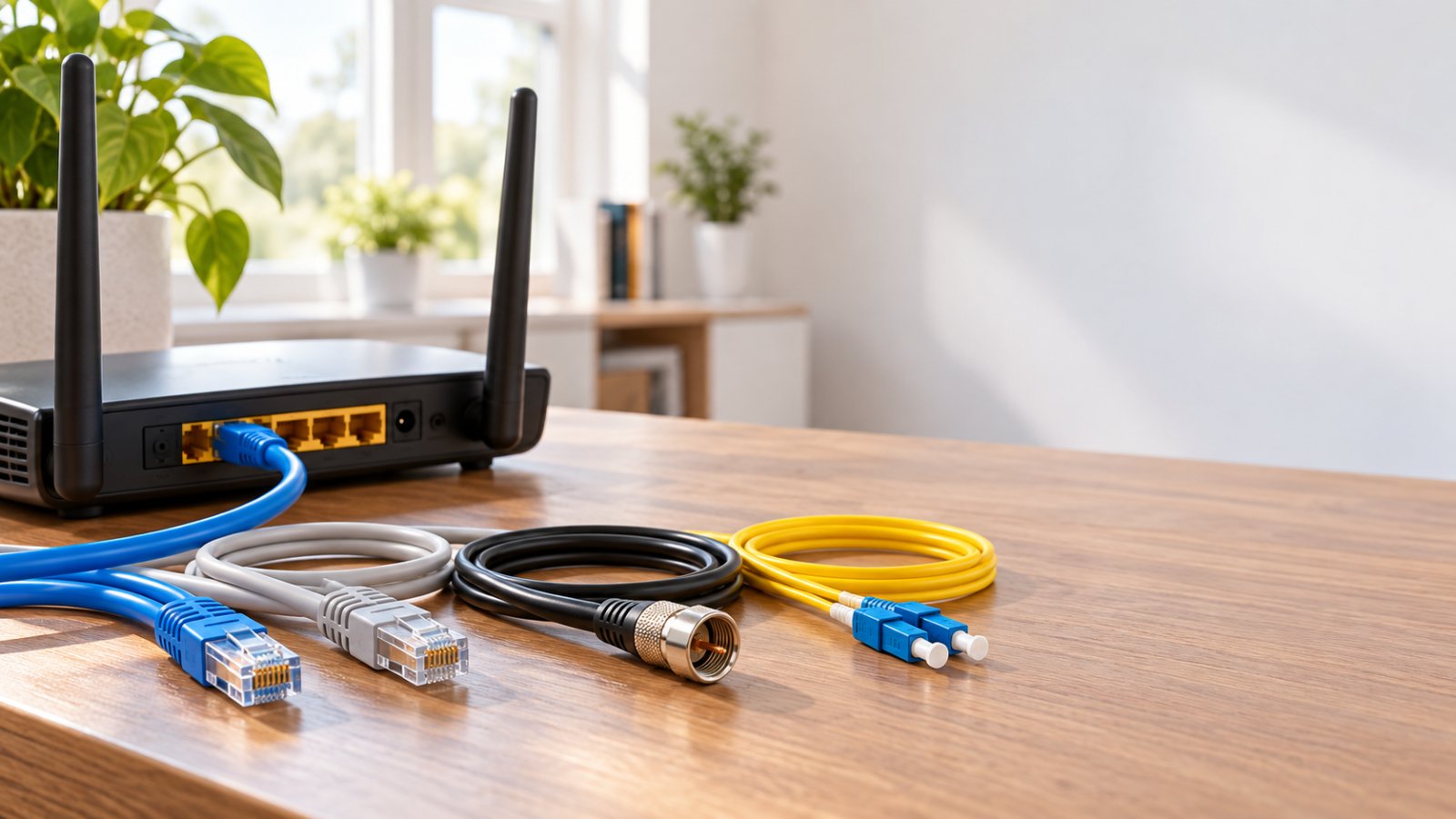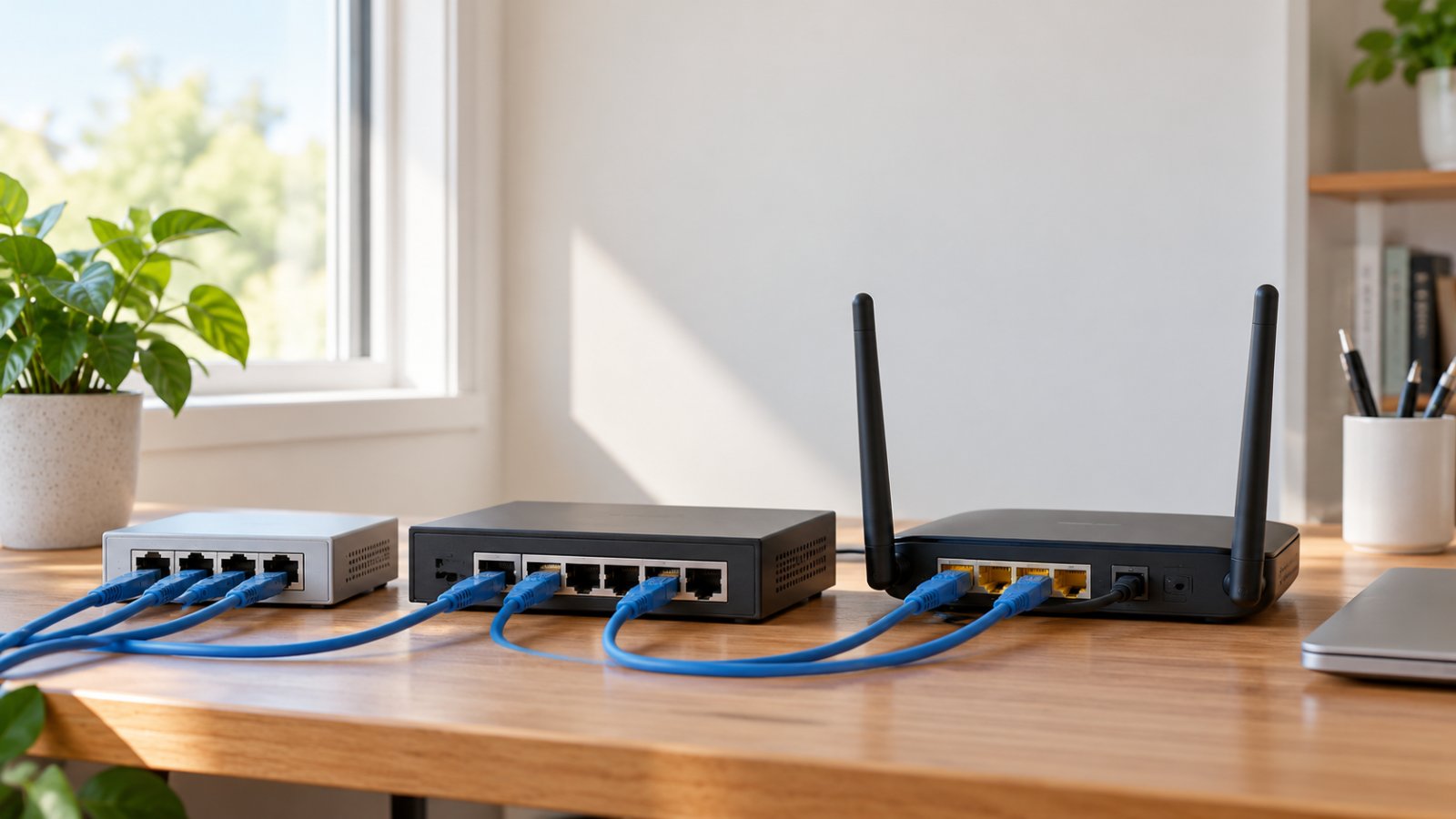
What is a hub in computer networking? A network hub is an older Ethernet device that connects several computers or other wired devices and repeats incoming signals to every other connected port. It does not identify which device should receive the data. That is the main difference between a hub and a network switch, which uses MAC addresses to forward traffic more selectively.
Network hubs were common in early office networks, computer labs, and small businesses. Today, Ethernet switches have largely replaced them because switches manage traffic more efficiently, support modern network speeds, and allow devices to communicate without sharing one collision domain.
If you're setting up a home network, you probably need a router, a switch, or a WiFi extender rather than a traditional hub. These devices serve different purposes, and choosing the wrong one can leave you with the same connectivity problem you were trying to fix.
This guide explains how network hubs work, how they compare with switches and routers, and which hardware makes sense for a modern home network using ROOXIS routers and WiFi extenders.
What Is a Hub in Computer Networking?
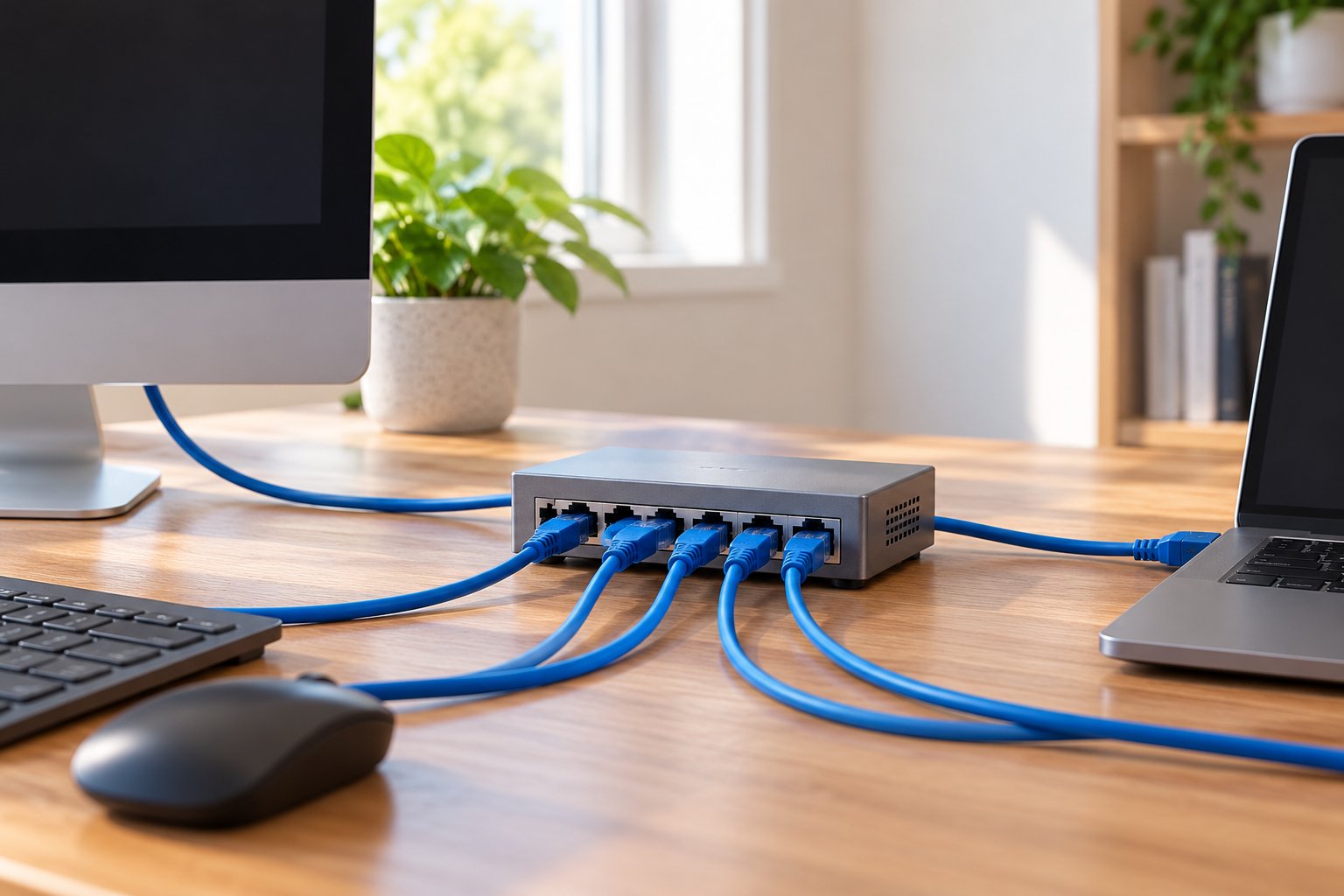
A network hub is a basic device that connects several Ethernet devices to a shared network segment.
Picture a small office with three desktop computers. Each computer connects to the hub using an Ethernet cable.
When the first computer sends data, the hub receives the electrical signal and repeats it through its other ports.
The other computers receive that transmission, even when the data is meant for only one of them.
This is how traditional Ethernet hubs operate.
A hub doesn't examine the destination address, decide which device should receive the information, or keep a record of where connected devices are located.
It simply repeats signals.
That was useful when the main goal was getting several computers connected through an inexpensive central device. But it becomes inefficient when many computers need to communicate at once.
What does a network hub look like?
A typical older Ethernet hub is a small rectangular box with several RJ45 Ethernet ports.
Common features include:
-
Four, eight, or more Ethernet ports.
-
A power connector or external adapter.
-
LED indicators showing power and network activity.
-
A plastic or metal enclosure.
-
Basic labeling for the available connections.
Some older units are labeled Ethernet hub, repeater hub, or multiport repeater.
Installation was generally straightforward. You connected the computers with Ethernet cables, supplied power to the hub, and configured the computers' network settings as needed.
The hub itself usually had few settings.
However, a device with several Ethernet ports is not necessarily a hub. Modern routers and switches can look similar from the outside.
To identify the equipment, check its actual function rather than relying on appearance.
Where does a hub operate in the OSI Model?
A traditional Ethernet hub operates at Layer 1, the Physical Layer, of the OSI Model.
The OSI Model divides network communication into seven layers. Each layer describes a different part of the communication process.
Three are especially useful when comparing hubs, switches, and routers.
-
Physical Layer, Layer 1: Handles the transmission of bits as electrical, optical, or radio signals.
-
Data Link Layer, Layer 2: Handles local network frames and MAC addresses.
-
Network Layer, Layer 3: Handles IP addressing and forwarding packets between networks.
A hub operates at Layer 1 because it repeats incoming physical signals.
It does not examine Ethernet frames to determine their destinations.
A conventional Ethernet switch works primarily at Layer 2. It examines MAC addresses and uses that information to forward frames.
A router works primarily at Layer 3 when deciding how to forward IP packets between networks.
These distinctions explain why the devices are not interchangeable.
What is a Local Area Network?
A Local Area Network (LAN) connects devices within a limited location, such as a home, office, school, or building.
A typical home LAN might include a router, laptops, a desktop computer, a smart TV, a printer, and security cameras.
These devices can communicate over the local network when their configuration and access permissions allow it.
For example, a laptop may send a document to a wireless printer without the document needing to travel across the public internet.
A traditional hub could connect several wired devices to the same shared Ethernet segment.
A modern switch does this more efficiently.
The router usually connects the LAN to other networks, including the internet.
For most homes, the router already includes a small built-in Ethernet switch, allowing several wired devices to connect without buying additional equipment.
How Does a Network Hub Work?
A classic Ethernet hub is a multiport repeater.
When a signal arrives at one port, the hub regenerates and repeats it through the other ports.
It doesn't need to understand what the data means.
Consider three computers connected to an older Ethernet hub.
Step 1: Computer A sends data
Computer A creates an Ethernet frame intended for Computer B.
The frame contains a destination MAC address identifying the intended receiving network interface.
Computer A transmits the frame as electrical signals through its Ethernet connection.
Step 2: The hub receives the signal
The hub receives those signals through the port connected to Computer A.
Rather than inspecting the destination MAC address, it repeats the signal through the other ports.
Step 3: Other connected devices receive the transmission
Computer B and Computer C both receive the repeated transmission.
Computer B's network adapter recognizes the destination address and processes the frame.
Computer C's network adapter normally ignores the frame because it isn't addressed to that device.
The hub doesn't know which computer accepted the data.
Step 4: Computer B responds
When Computer B replies, its response travels back through the hub.
The hub again repeats the signal to the other connected ports.
This process continues whenever devices communicate.
The method works, but every connected device shares the same physical Ethernet segment.
Why is this sometimes called packet broadcasting?
You may see a hub described as a device that broadcasts packets to all ports.
This is a simplified explanation of its behavior.
Technically, the hub repeats physical signals. It doesn't examine packets and decide to broadcast them.
There is also a difference between ordinary traffic repeated by a hub and a true Ethernet broadcast frame.
A broadcast frame is specifically addressed to all devices within the relevant local broadcast domain.
A hub repeats ordinary unicast traffic as well, including frames intended for just one receiving device.
A switch handles these situations differently. It normally sends known unicast traffic toward the appropriate destination port, while forwarding broadcast frames through the relevant ports within the same broadcast domain.
Understanding this difference makes it easier to see why switches are more efficient.
What is a collision domain?
A Collision Domain is a part of a shared Ethernet network where two devices can interfere with one another by transmitting at the same time.
Every device connected through a traditional hub belongs to the same collision domain.
Imagine two office computers trying to send data at the same moment.
Because both use the same shared medium, their transmissions can collide.
The devices then need to retry the affected transmissions.
Legacy shared Ethernet uses a process called Carrier Sense Multiple Access with Collision Detection, or CSMA/CD.
The basic idea is that devices check whether the medium is available before transmitting. If a collision occurs, they stop, wait for a calculated interval, and try again.
This approach allows multiple devices to share the same Ethernet segment.
However, the more active devices you connect, the more competition there can be for transmission opportunities.
A modern full-duplex switched Ethernet connection does not experience these traditional shared-medium collisions.
How does shared bandwidth affect performance?
A hub's connected devices share the available transmission capacity.
Consider an older 100 Mbps Ethernet hub.
That 100 Mbps describes the shared medium, not a separate dedicated 100 Mbps connection for every computer.
If one computer transfers a large file, it occupies transmission time that other connected computers also need.
When several computers send data, they compete for access.
Collisions and retransmissions can further reduce the useful capacity.
This is one reason older hub-based networks could feel slow even when the connected computers were functioning normally.
A switch provides separate links and allows traffic to move between appropriate ports without making every attached device compete on one shared half-duplex segment.
Types of Network Hubs: Active, Passive, and Intelligent
Older networking materials usually describe three types of hubs: active, passive, and intelligent.
The terminology is useful when studying legacy equipment, although these categories are not relevant purchasing choices for most modern home networks.
1. Active hubs
An active hub is a powered device that receives, regenerates, and repeats network signals.
This describes the classic Ethernet repeater hub.
Its circuitry helps maintain signal integrity as transmissions move between connected segments.
However, an active hub still doesn't identify the intended receiving device.
All attached devices share the same collision domain.
Active hubs were useful when small offices needed basic wired connections and network switches were less affordable.
2. Passive hubs
A passive hub provides a physical connection point without actively regenerating incoming signals.
The term appears in older networking descriptions and may refer to basic wiring concentrators.
A passive device doesn't perform the same signal regeneration as a powered Ethernet repeater.
It shouldn't be confused with a modern unmanaged Ethernet switch.
Passive hubs have little practical value in current residential Ethernet installations.
3. Intelligent hubs
Intelligent hubs added monitoring or limited management features to older hub designs.
Depending on the model, these features could include:
-
Monitoring port activity.
-
Reporting connection status.
-
Displaying network errors.
-
Collecting basic traffic statistics.
-
Providing limited administrative controls.
These functions made older networks easier to inspect.
However, additional monitoring didn't necessarily change how traffic was forwarded.
A true repeater hub still repeated incoming signals to the other ports.
Some products marketed as intelligent or switching hubs were actually closer to network switches, which is why checking the device's technical specifications matters.
Comparison of hub types
| Hub type | Signal handling | Management features | Main limitation |
|---|---|---|---|
| Active hub | Regenerates and repeats signals | Usually minimal | Shared collision domain |
| Passive hub | Provides physical connectivity without active regeneration | None | Cannot regenerate signals |
| Intelligent hub | Repeats signals and may provide monitoring | Limited diagnostics | Traditional hub traffic handling |
For a new home network, there is no practical need to choose between these older hub designs.
If you need additional wired Ethernet ports, use a modern switch.
Hub vs Switch vs Router: Key Differences Explained
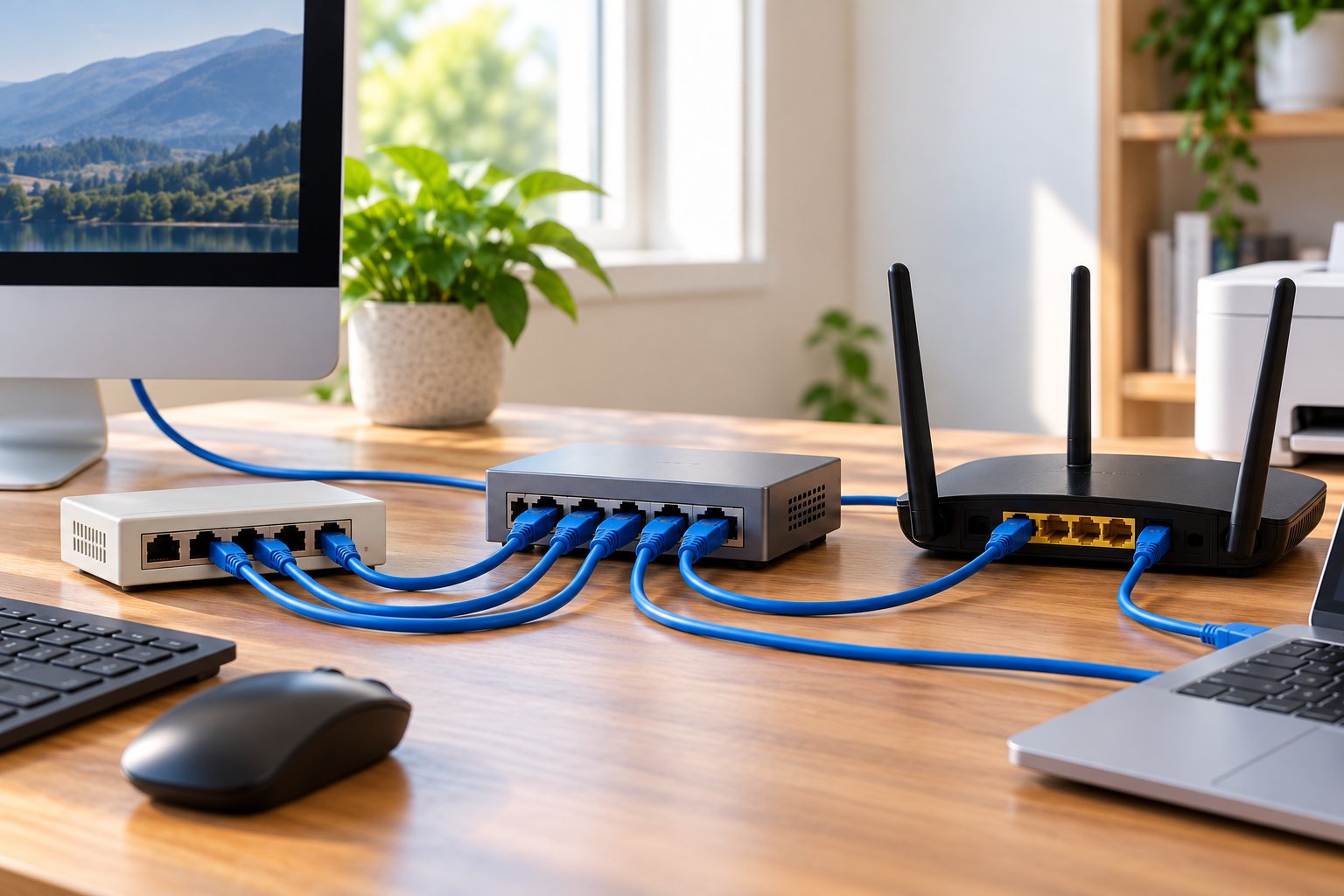
The easiest way to understand a hub, switch, and router is to look at what each device does when it receives network traffic.
A hub repeats signals.
A switch examines Ethernet frames and forwards them using MAC addresses.
A router examines IP packets and decides how to move them between networks.
All three are networking devices, but they solve different problems.
Hub vs switch vs router comparison
| Feature | Network Hub | Network Switch | Router |
|---|---|---|---|
| Main purpose | Repeat signals between connected devices | Connect devices within a LAN | Connect different networks |
| Primary OSI layer | Layer 1, Physical Layer | Layer 2, Data Link Layer | Layer 3, Network Layer |
| Address-based forwarding | None | MAC address | IP address |
| Traffic handling | Repeats signals to other ports | Forwards known unicast frames toward the destination port | Forwards packets according to routing information |
| Collision domain | One shared collision domain | Separate collision domain per port | Separate network interfaces |
| Bandwidth arrangement | Shared medium | Individual switched links | Depends on interfaces and routing capacity |
| Full-duplex Ethernet | Not supported by traditional hubs | Commonly supported | Commonly supported on modern Ethernet interfaces |
| Provides internet routing | No | No, not as a basic Layer 2 switch | Yes, when connected and configured appropriately |
| Modern home application | Generally unnecessary | Additional wired ports | Central network connectivity |
A typical household uses a router and may use one or more switches.
A traditional hub is not needed.
Hub vs Switch: Traffic Management and Collision Domains
A hub and a switch can both connect multiple Ethernet devices, but the similarity largely ends there.
The important difference is traffic management.
How a switch uses MAC Addresses
A MAC Address, or Media Access Control Address, identifies a network interface for local data link communication.
A standard Ethernet switch learns which MAC addresses are reachable through its ports.
Suppose you connect a desktop computer, printer, and NAS to a switch.
When the desktop sends a frame, the switch learns the source MAC address and associates it with the port where the frame arrived.
Over time, the switch builds a table of learned addresses.
When it receives a frame addressed to a known destination, it forwards the frame toward the appropriate port.
For example, if the desktop sends a file to the NAS, the switch normally sends the relevant unicast frames toward the NAS rather than unnecessarily forwarding them to the printer.
This reduces traffic on unrelated ports.
Do switches ever forward traffic to every port?
Yes.
A switch is not a device that sends every frame to just one port.
Ethernet broadcast frames need to reach the relevant devices within the same broadcast domain.
A switch therefore floods broadcast traffic through the appropriate ports.
It can also flood unknown unicast traffic when it has not yet learned where the destination is located.
Multicast handling depends on the switch and its configuration.
The key difference is that a switch can selectively forward known unicast traffic.
A hub cannot.
Collision domains on a hub
All ports on a traditional Ethernet hub share one collision domain.
Classic hubs operate using half-duplex Ethernet, where connected devices cannot transmit and receive simultaneously on the shared segment.
When two devices attempt to transmit at the same time, their signals can collide.
The devices must then retry.
As more computers compete for access, performance can become less predictable.
Collision domains on a switch
A switch provides a separate Ethernet link for each connected port.
Modern links normally use full-duplex communication.
That means a connected device can send and receive data simultaneously.
The shared-medium collisions associated with traditional Ethernet hubs do not occur on correctly operating full-duplex switched links.
This is one of the most useful improvements switching brought to Ethernet networks.
Does every switch port get its own bandwidth?
Each port has its own negotiated connection speed.
For example, a Gigabit switch may connect several computers using separate 1 Gbps Ethernet links.
That doesn't mean every computer receives a dedicated 1 Gbps internet connection.
All devices accessing the same broadband service still share its available internet bandwidth.
Connections can also be limited by the switch's uplinks, forwarding capacity, or the speeds of the devices at either end.
For local file transfers, though, a suitable switch allows separate links to operate much more efficiently than a shared hub.
A practical home office example
Consider a home office containing:
-
A desktop computer.
-
A work laptop with an Ethernet adapter.
-
A network printer.
-
A NAS used for backups.
-
A WiFi router.
If the router has too few available LAN ports, adding a small unmanaged Gigabit Ethernet switch is a sensible solution.
You connect the switch to the router, then plug the wired office devices into the switch.
The desktop can transfer files to the NAS while the laptop accesses the network, within the capabilities of the equipment and connections.
A traditional hub would make the connected devices share the same half-duplex Ethernet medium.
There is no useful reason to introduce that limitation into a modern home office.
Security differences
Because a hub repeats signals through all its other ports, traffic can be observed from multiple positions on the shared segment.
A switch reduces this exposure for ordinary known unicast traffic by forwarding frames more selectively.
That doesn't mean a basic switch provides complete network security.
Compromised devices, misconfigured networks, and certain attack methods can still create risks.
For a home network, use secure router settings, current firmware, strong passwords, and appropriate guest network separation.
Choose a switch for efficient connectivity, not as a replacement for other security measures.
Hub vs Router: Local Connectivity vs Internet Routing
A router performs a different job from a hub.
A hub joins devices on a shared physical Ethernet segment.
A router connects separate IP networks and determines where packets should be forwarded.
How a router uses IP Addresses
An IP Address is used to identify a network interface and support communication through Internet Protocol networks.
When a router receives an IP packet, it examines the destination address.
It then uses its routing table to determine the appropriate outgoing interface or next hop.
Consider a laptop connected to your home WiFi.
When you open a website, the laptop sends traffic toward the website's server.
If that server is outside the local network, the traffic normally passes through your home router.
The router forwards the packets toward the internet service provider, and other routers continue moving them across the network.
A hub cannot perform those routing decisions.
What else does a home router do?
Many consumer WiFi routers combine several networking functions in one device.
Typical functions include:
-
Routing traffic between the LAN and internet connection.
-
Network Address Translation, or NAT.
-
DHCP service for assigning local network settings.
-
Basic firewall features.
-
Built-in Ethernet switching.
-
WiFi access point functionality.
-
Guest WiFi and other network management features.
Not every router contains all these features.
A dedicated router used in a business network may not include built-in WiFi.
Most consumer WiFi routers combine several functions because households usually want one central device handling wired and wireless connections.
Does a hub assign IP Addresses?
No.
A traditional Ethernet hub doesn't assign IP addresses.
It doesn't operate a DHCP server, perform NAT, or manage routes between networks.
A basic Layer 2 switch also doesn't automatically assign IP addresses, although some advanced switches include additional routing or management capabilities.
In a typical home network, the router's DHCP service provides IP configuration to connected devices.
Can a hub provide internet access?
A hub cannot independently route traffic to the internet.
In older networks, computers could connect through a hub to a router or gateway that provided internet access.
The hub repeated local traffic, while the router handled communication between networks.
The same arrangement is more efficiently built using a switch today.
A simple home network example
A typical wired connection arrangement looks like this:
Internet service → Router → Ethernet switch → Computers, printers, and other wired devices
The router connects the home network to the internet.
The switch adds LAN ports and forwards traffic between compatible devices.
The computers and other equipment use those connections according to their network settings.
A hub doesn't add anything useful to this arrangement.
What if you only want devices to communicate locally?
Two computers can communicate through a suitable switch without an active internet connection.
They still need compatible network settings and the necessary access permissions.
For example, two desktop computers connected through the same switch can transfer files locally if their IP configuration and sharing settings allow it.
A router becomes relevant when traffic needs to move between separate networks.
This is why switches and routers complement each other rather than replacing one another.
Why Network Hubs Are Obsolete Today
Traditional Ethernet hubs were useful when small networks needed basic wired connections and switches were less accessible.
They were simple to operate and often required little configuration.
But modern networking requirements have changed.
Homes now connect computers, smart TVs, workstations, network storage devices, and other equipment that may transfer data at the same time.
A hub's shared-medium design makes it unsuitable for these networks.
1. Every device shares the same medium
On a traditional hub, connected devices compete for the same Ethernet transmission capacity.
Adding more active computers increases competition for the shared medium.
A switch provides separate connections, allowing traffic to move between ports more efficiently.
2. Collisions reduce efficiency
Hub-based Ethernet relies on half-duplex communication.
If two devices transmit simultaneously, a collision can occur.
Those transmissions need to be retried.
Switches normally use full-duplex links, removing this shared-media collision problem.
3. Hubs cannot selectively forward frames
A hub repeats incoming signals through every other port.
It doesn't learn MAC addresses or identify which port leads to the intended receiving device.
A switch can forward known unicast frames to the appropriate port.
This becomes especially useful when several devices communicate at once.
4. Traditional hubs do not support modern Gigabit switching
Classic hubs were mainly associated with 10 Mbps and 100 Mbps shared Ethernet.
Modern routers, switches, and computers commonly support Gigabit Ethernet.
Some home networking devices also support 2.5 Gbps or faster Ethernet.
A legacy hub is not the right equipment for connecting these devices at their intended speeds.
5. Hubs offer little traffic management
Basic hubs have almost no awareness of connected devices or traffic destinations.
They do not provide the normal switching features found in modern Ethernet equipment.
Even an unmanaged switch offers more appropriate forwarding behavior for ordinary wired connections.
6. They offer little practical cost advantage
Small unmanaged Ethernet switches are widely available.
A basic five-port or eight-port Gigabit switch is usually straightforward to install.
Connect it to a LAN port on the router, attach the wired devices, and the switch handles normal forwarding automatically.
There is little practical reason to look for a legacy hub instead.
7. Legacy hubs can create compatibility problems
Older Ethernet hubs may use slower connection speeds and half-duplex operation.
Modern network devices usually support full-duplex Ethernet.
If equipment negotiates incompatible duplex settings, poor performance and transmission errors can result.
Replacing the old hub with a suitable switch is usually the more dependable solution.
Are hubs completely gone?
Traditional hubs can still appear in specialized environments.
Examples include networking classrooms, historical demonstrations, legacy systems, and some controlled diagnostic setups.
A networking instructor might use a hub to demonstrate how shared Ethernet behaves when several devices transmit.
That does not make a hub suitable for a normal home installation.
For everyday wired networking, choose a switch.
Do not confuse an Ethernet hub with other hubs
The word hub is still common in technology.
A USB hub expands the number of available USB connections.
A smart-home hub may manage compatible connected-home devices.
Some stores also use the word hub loosely when describing Ethernet switches or network accessories.
These devices are not necessarily traditional Ethernet repeaters.
If you're buying networking equipment, check whether the product is actually a router, switch, access point, or legacy repeater hub.
The function matters more than the name.
What Hardware Should You Use for Modern Home Networks?
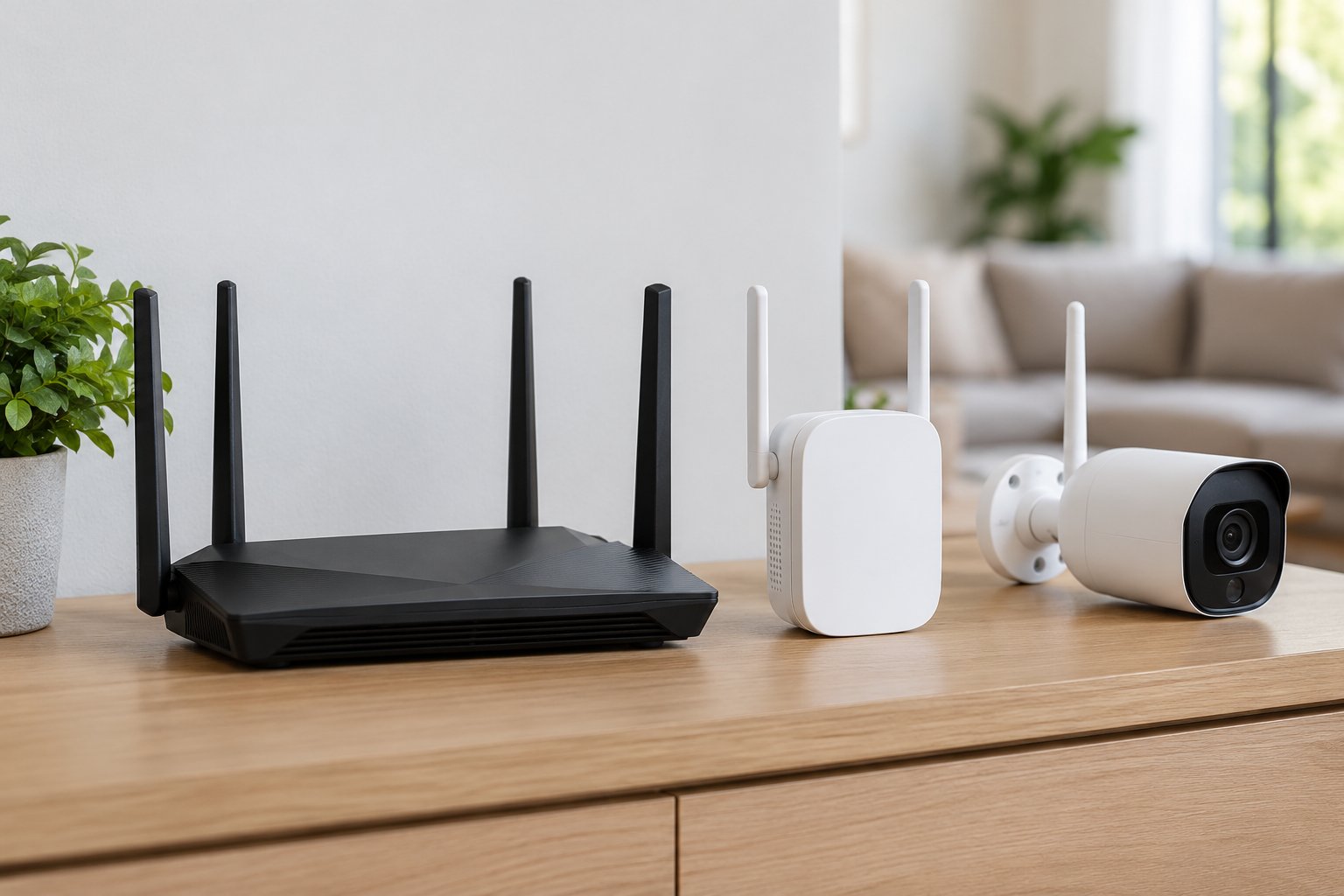
Most home networks work well with a router and, when needed, an Ethernet switch or wireless coverage equipment.
You do not need a traditional network hub.
The right device depends on what isn't working.
If you need internet access for your home devices, start with a router.
If you need more Ethernet ports, add a switch.
If WiFi becomes weak in a distant room, improve router placement or use a suitable WiFi extender or access point.
1. Use a router to connect your home network
A router connects your local network to other networks, normally through a broadband modem or optical network terminal.
Most home WiFi routers also provide wireless coverage and several Ethernet LAN ports.
A ROOXIS WiFi router can serve as the central device for a suitable home network.
When comparing routers, check:
-
The supported WiFi standard.
-
Ethernet port speeds.
-
The number of available LAN ports.
-
Wireless security features.
-
Coverage requirements for your home.
-
Guest network and other management options.
For example, a household with several smartphones, a laptop, and two smart TVs may need reliable wireless coverage more than additional Ethernet ports.
Buying a network switch won't automatically improve weak WiFi in an upstairs bedroom.
Identify the actual problem before purchasing equipment.
2. Use an Ethernet switch when you need more wired ports
Suppose your router has one available LAN port, but you need wired connections for a desktop computer, NAS, television, and printer.
A small unmanaged Ethernet switch can provide those connections.
Connect one switch port to the router's LAN port using a suitable Ethernet cable.
Then connect the other wired devices.
For most homes, an unmanaged Gigabit Ethernet switch is enough.
There is usually no need for advanced management features unless your network has specific requirements.
How many switch ports do you need?
Count the devices you want to connect.
Include the connection back to the router.
If you have four wired devices plus the router uplink, a five-port switch may leave no spare ports.
An eight-port switch would provide room for additional devices.
Also check port speeds.
If your router and computer support 2.5 Gigabit Ethernet and you want to use that faster local connection, a Gigabit-only switch would limit the link to its supported speed.
3. Use a WiFi extender when wireless coverage is weak
A WiFi extender helps bring wireless coverage to an area where the main router's signal is unreliable.
Consider a router in the living room and a study at the far end of the house.
If WiFi works well near the router but drops in the study, an extender may help.
In Repeater Mode, the extender connects wirelessly to the router and provides an extended WiFi network.
Placement matters.
Do not install the extender in the exact corner where WiFi has already disappeared.
Choose an outlet between the router and the weak room, where the extender can still receive a good connection.
Then test the connection from the desk or other location where you use your device.
ROOXIS WiFi range extenders are designed for this type of home coverage problem.
4. Use a wired access point when Ethernet is available
If your home already has Ethernet wiring between rooms, a wired access point can be a useful option.
An access point connects to the main network through Ethernet and provides WiFi near that connection.
For example, an upstairs office might have a wall Ethernet socket but weak wireless coverage from the downstairs router.
A compatible access point can use the wired connection to provide local WiFi.
This avoids repeating a weak router signal through the floor.
The ROOXIS AC1200 WiFi extender supports Access Point Mode.
Its Ethernet port supports 10/100 Mbps, so that port's maximum link speed is lower than Gigabit Ethernet.
A higher-category cable cannot change the hardware limit.
If you need Gigabit Ethernet backhaul, use equipment with appropriate Gigabit-capable ports.
5. Consider a coordinated mesh system for several weak areas
A single extender can be useful when one room has poor WiFi.
A larger home with several weak areas may need a different arrangement.
For example, a three-story house with thick internal walls may have unreliable wireless coverage across more than one floor.
A suitable mesh WiFi system or multiple wired access points may provide a better layout.
However, no wireless system can guarantee strong coverage through every wall and floor.
The placement of network equipment and the quality of the connection between access points still matter.
Where suitable Ethernet wiring is available, wired backhaul can improve consistency.
6. Choose the correct Ethernet cables
For most home networking connections, properly made Cat5e or Cat6 cables are suitable for Gigabit Ethernet.
Cat6 is a practical default for many new patch cable purchases.
If you are installing permanent wiring intended for full-length 10 Gigabit Ethernet channels, Cat6a may be appropriate.
Check the speed of the Ethernet ports before choosing a cable.
A Cat6a cable cannot make a 100 Mbps or 1 Gbps port operate faster than its supported link rate.
Also inspect connectors.
A damaged cable or loose connector can cause intermittent problems that look like router or switch faults.
7. Keep the router in a practical location
Router placement has a direct effect on WiFi coverage.
A router hidden behind a television or inside a closed cupboard may provide weaker coverage than necessary.
Try an open position with fewer large obstacles between the router and connected devices.
If the router is at the far end of a house, moving it toward the center may help.
These router placement tips explain how furniture, wall materials, nearby equipment, and height can affect wireless coverage.
It is worth checking placement before buying additional networking hardware.
Sometimes a better router position solves the original coverage problem.
8. Match equipment to the task
A router, switch, and WiFi extender are not competing solutions to the same problem.
Each handles a different part of the network.
| Networking problem | Appropriate hardware | What it does |
|---|---|---|
| Need to connect a home LAN to internet service | Router | Routes traffic between networks |
| Not enough Ethernet LAN ports | Unmanaged Ethernet switch | Adds wired connections |
| Weak WiFi in one room | WiFi range extender | Extends suitable wireless coverage |
| Weak WiFi in a room with Ethernet wiring | Wired access point | Provides local WiFi using wired backhaul |
| Several weak areas across multiple floors | Mesh system or multiple access points | Provides coverage from multiple locations |
| Need to connect and power compatible IP cameras | PoE switch or suitable PoE equipment | Supplies compatible network data and power |
| Ethernet connection negotiates at the wrong speed | Cable and port troubleshooting | Helps identify damaged cabling or link issues |
A practical home network arrangement
Consider a home with a broadband connection, ROOXIS WiFi router, desktop computer, smart TV, and NAS.
A suitable arrangement would be:
Internet service → ROOXIS router → Ethernet switch → Desktop computer, smart TV, and NAS
The router provides connectivity between the LAN and internet service.
The switch provides additional Ethernet ports.
Phones, tablets, and other wireless devices connect through the router's WiFi.
If a distant room needs better wireless reception, a compatible WiFi extender or access point can be added.
There is no reason to install a traditional hub.
Common home networking mistakes to avoid
Several networking problems come from buying equipment without checking its function.
Common examples include:
-
Buying an Ethernet hub when you actually need a switch.
-
Expecting a switch to extend WiFi coverage.
-
Placing a WiFi extender where the router signal is already unusable.
-
Assuming a higher-category Ethernet cable upgrades a slower port.
-
Forgetting to count the router uplink when choosing switch ports.
-
Connecting PoE equipment without checking device compatibility.
-
Using default administrator passwords where they can be changed.
-
Ignoring firmware updates and connection errors.
A little planning prevents unnecessary purchases.
Start by checking whether the problem involves the internet service, local Ethernet connections, or wireless coverage.
Then choose equipment designed for that specific job.
Frequently Asked Questions About Network Hubs
What is the main function of a hub in computer networking?
A network hub connects multiple Ethernet devices on a shared physical network segment. It receives signals through one port and repeats them to its other ports without examining destination MAC addresses. Because the devices share the same Ethernet medium, a traditional hub places them in one collision domain.
Why are network switches better than hubs?
Switches learn MAC addresses and normally forward known unicast Ethernet frames to the appropriate destination port. They provide separate links and support full-duplex communication, avoiding the shared-medium collisions associated with traditional hubs. This makes switches more efficient and better suited to modern home and office networks.
Is a hub the same thing as a router?
No. A hub operates at the Physical Layer and repeats signals within a shared Ethernet segment. A router uses IP addresses and routing information to forward packets between different networks. Home WiFi routers may also include built-in switching and wireless access point features, but that doesn't make them traditional Ethernet hubs.
Can you still buy or use an Ethernet hub today?
Traditional Ethernet hubs can sometimes be found through secondhand sellers or suppliers of legacy networking equipment. They may still be useful for networking demonstrations, education, or specialized older systems. For modern home or office connectivity, an unmanaged Ethernet switch is the more practical choice.
Conclusion
A network hub is an older Ethernet device that repeats signals across all its connected ports. Its simple design helped connect early local networks, but shared bandwidth, collisions, and limited traffic handling make it unsuitable for most modern installations.
Today, routers and switches perform the main networking tasks. A router connects your home network to other networks, a switch adds efficient wired connections, and a WiFi extender or access point helps improve coverage in areas where the router's wireless signal is weak.
For a home using ROOXIS networking equipment, start with a suitable router, add an Ethernet switch when you need more wired ports, and use a compatible extender when wireless coverage needs attention. Choosing each device for the job it actually performs will give you a network that is easier to set up, troubleshoot, and maintain.