Your phone shows full WiFi bars, but websites will not load. The living room TV works normally, while the security camera upstairs keeps going offline. You check the network settings and find an unfamiliar entry called Default Gateway, followed by an IP address.
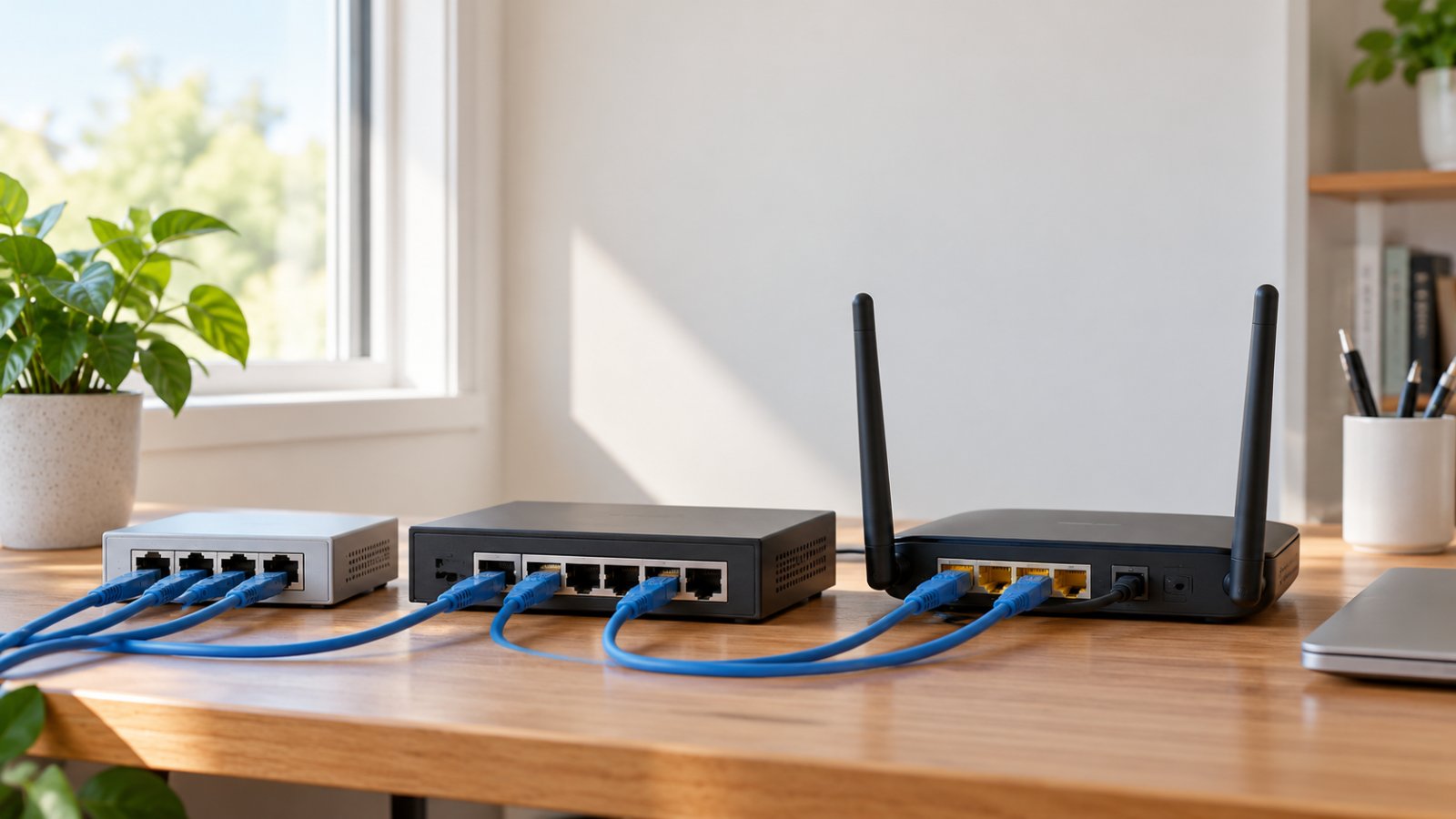
So, what is gateway in computer networking? A gateway is a device or network function that connects one network to another. In most homes, the WiFi router acts as the default gateway. It forwards traffic from your phones, laptops, TVs, and security cameras toward the internet.
The gateway becomes worth checking when WiFi connects but internet access fails, a camera loses remote access, or a newly installed extender behaves differently from the main router. Knowing what the gateway does helps you identify the faulty connection before resetting equipment or changing network settings.

What Is Gateway in Computer Networking? A Clear Definition
A network gateway provides a path for data to move from one network to another.
Your home WiFi is a local network. Your phone, laptop, television, printer, and wireless security cameras may all belong to that network.
These devices can communicate locally when their connections and security settings allow it.
But opening a website requires access to a destination outside your home network.
Your phone needs to know where to send that traffic.
That is where the default gateway comes in.
A default gateway is the next network device your phone, laptop, or camera uses to send traffic toward destinations outside its local network when no more specific route is available.
In most households, the router performs this job.
For example, your laptop might have the IP address 192.168.1.25, while your router uses 192.168.1.1.
When your laptop needs to communicate with a website, it normally sends the traffic toward 192.168.1.1.
The router then forwards that traffic through your internet connection.
What Does a Gateway Actually Do?
The gateway does not create your WiFi signal or determine how far it reaches. Its main purpose is to move traffic toward destinations on other networks.
A typical home router acting as a gateway handles several jobs:
-
Forwarding internet traffic: It sends requests from local devices toward your internet provider.
-
Connecting different networks: It routes traffic between networks when configured to do so.
-
Supporting connected devices: It allows devices such as smart TVs and security cameras to reach the online services they use.
-
Applying network rules: Home routers commonly include firewalls that control certain connections.
-
Supporting shared IPv4 internet access: Many routers use Network Address Translation, or NAT, so several local devices can share an external IPv4 connection.
The gateway does not necessarily perform all these functions by itself.
In a simple home setup, the WiFi router often combines routing, firewall protection, and other networking functions.
In a larger network, separate devices may handle these jobs.
A Real-Life Gateway Example
Suppose your laptop is connected to home WiFi.
Its network settings show:
-
IP address: 192.168.1.25
-
Subnet mask: 255.255.255.0
-
Default gateway: 192.168.1.1
You open a browser and visit a website.
Your laptop first needs the website's IP address, usually obtained through DNS.
It then checks whether that destination is on the local network.
Because the website is outside your local subnet, the laptop sends the traffic to its default gateway.
The router forwards the traffic toward your internet provider, and the request continues through other networks.
The response returns through the network connection to your laptop.
Your laptop does not need to know every router between your home and the website.
It only needs a usable route for the next part of the connection.
That is the practical purpose of a default gateway.
How a Default Gateway Works on Your Home Network
A default gateway explained in everyday terms is the normal exit route from your local network.
Your device checks where it needs to send data.
If the destination is directly reachable on the local network, the device communicates locally.
If the destination belongs to another network and there is no more specific route, the device uses its default gateway.
This distinction explains why local devices sometimes continue working during an internet outage.
Local Traffic Versus Internet Traffic
Imagine your laptop and printer are connected to the same home network.
You print a document.
If both devices are on the same IP subnet, the laptop can send the document directly across the local network without routing it through the default gateway.
Now imagine uploading that document to an online storage service.
The destination is outside your home network.
The laptop sends the traffic through its default gateway.
The difference is particularly useful when troubleshooting.
Suppose your laptop can open the printer's local settings page, but websites fail.
That tells you at least part of the local network is working.
It does not prove that your router has internet access.
Similarly, a security camera that supports local viewing might still work inside your home while its remote viewing service is unavailable.
The exact behavior depends on the camera's design and networking requirements.
How Your Device Learns Its Gateway Address
Most home devices receive their IPv4 network settings automatically.
This usually happens through DHCP, short for Dynamic Host Configuration Protocol.
When your phone joins WiFi, the network commonly supplies:
-
An IP address for the phone
-
A subnet mask
-
A default gateway address
-
One or more DNS server addresses
The home router typically provides these settings, although another device can run the DHCP service.
Your phone might receive the following configuration:
-
IP address: 192.168.1.40
-
Subnet mask: 255.255.255.0
-
Default gateway: 192.168.1.1
-
DNS server: 192.168.1.1
These numbers are examples, not universal settings.
Another router might use 192.168.0.1 or 10.0.0.1.
What matters is that your device receives settings appropriate for the network it has joined.
A gateway address copied from somebody else's router is not necessarily valid for your home.
What Happens When the Gateway Is Unavailable?
A device can connect to a WiFi network even when the gateway is not working correctly.
This happens because connecting to the wireless access point and reaching the internet are separate processes.
You might notice:
-
WiFi shows as connected, but websites fail.
-
A streaming app cannot load new content.
-
A cloud-connected security camera appears offline.
-
A smart speaker cannot reach its online service.
-
A laptop reports limited connectivity.
-
Devices on the same local network still communicate.
These symptoms do not automatically prove that the gateway is faulty.
For example, your router may be working correctly on the local network while your internet provider's connection is down.
DNS problems can also prevent websites from opening even when routing still works.
Check the device's IP settings, test the local gateway, and then investigate the internet connection.
That order helps you avoid changing a working gateway configuration.
Gateway vs Router: What Is the Difference?
The gateway vs router distinction confuses many homeowners because both functions often exist inside the same device.
A router forwards IP traffic between networks.
A default gateway is the next-hop destination used by a device when traffic needs to reach another network.
Your router is usually your default gateway, but the two terms describe different things.
You can also encounter gateways that connect systems using different communication protocols. That broader meaning is common in business and industrial networks.
For an ordinary home, the most useful meaning is the default gateway used by your connected devices.
Gateway vs Router vs Modem vs WiFi Extender
These terms often appear together in router settings, setup instructions, and internet provider documentation.
| Device or function | Main job | What it means at home |
|---|---|---|
| Default gateway | Provides the next route outside the local network | Usually your router's LAN address |
| Router | Forwards traffic between IP networks | Connects your home network to other networks |
| Modem or fiber ONT | Connects to the provider's access network | Provides the service connection |
| WiFi extender | Extends wireless coverage | Helps devices connect in areas with weak WiFi |
| Access point | Provides wireless access to a network | Adds WiFi coverage, often using Ethernet backhaul |
A standalone modem or fiber ONT does not necessarily provide WiFi or act as the gateway for your home devices.
A separate router may handle those functions.
However, some internet providers supply combined equipment.
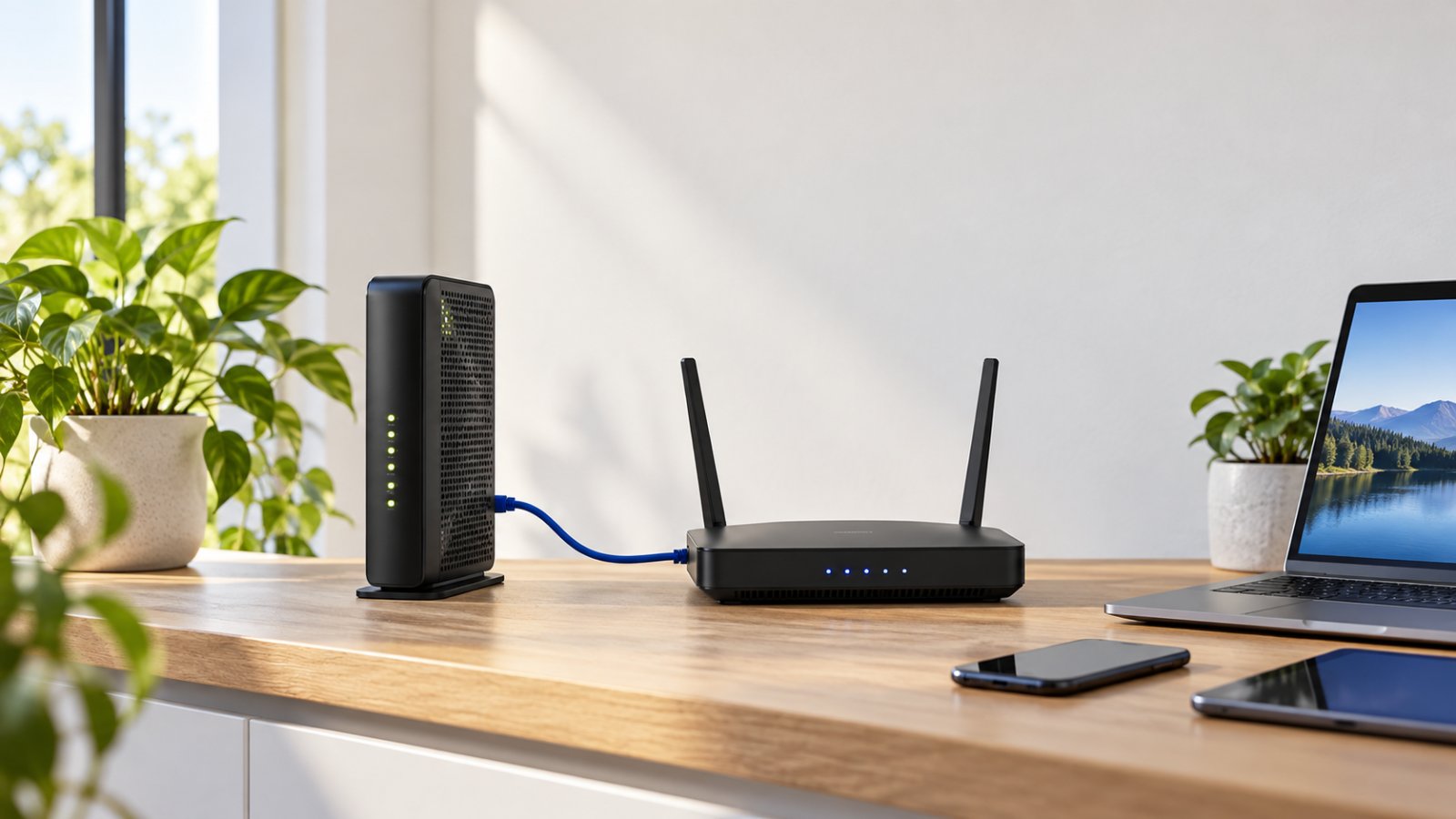
One box may contain the modem or fiber termination, router, firewall, DHCP server, and WiFi access point.
That is why the device your provider calls a gateway might also be your WiFi router.
Why the Names Overlap
Consider a home with one provider-supplied networking box.
It connects to the internet service, broadcasts WiFi, assigns local IP addresses, and routes traffic.
A homeowner may call the box a modem because it came from the internet provider.
The provider may call it a residential gateway.
The manufacturer may describe it as a wireless router.
Depending on the hardware, these descriptions can refer to overlapping functions.
For troubleshooting, identify what the equipment actually does.
For example, the WiFi radio can stop broadcasting while Ethernet routing continues working.
Likewise, the device can continue broadcasting WiFi during an internet service outage.
The equipment is powered on, but the connection beyond it may not be available.
Does a WiFi Extender Become a Gateway?
Usually, it does not.
In a conventional repeater setup, a WiFi extender connects devices to the existing network.
The main router remains the default gateway.
For example:
-
Main router address: 192.168.1.1
-
Phone connected directly to the router: 192.168.1.30
-
Laptop connected through the extender: 192.168.1.45
-
Default gateway for both devices: 192.168.1.1
In this arrangement, the extender provides an additional wireless connection path.
It does not need to create a new network.
Some extenders and secondary routers also support routing modes.
When those modes are enabled, connected devices may receive addresses from a separate subnet and use a different default gateway.
The operating mode matters more than the product's name.
Where the Gateway Fits in Your Home Network
Consider a house with a fiber internet connection, a router downstairs, and a WiFi extender upstairs.
The connection path might look like this:
Internet provider → Fiber ONT → Main router → WiFi extender → Upstairs laptop
The laptop connects to the extender.
The extender communicates with the main router.
The router forwards internet traffic through the provider connection.
In a typical bridged extender configuration, the laptop still uses the main router as its default gateway.
This setup makes it possible to improve wireless coverage without creating a second routed network.
What Changes When You Add a Second Router?
Suppose your upstairs WiFi is weak, and you reuse an older router to provide another wireless connection.
You connect the old router's WAN port to the main router and leave both devices in router mode.
The second router may create a separate network.
For example:
-
Main router network: 192.168.1.0/24
-
Main router address: 192.168.1.1
-
Upstairs router network: 192.168.2.0/24
-
Upstairs router address: 192.168.2.1
A laptop connected to the upstairs router might use 192.168.2.1 as its default gateway.
The upstairs router then forwards traffic to the main router.
Internet access may work normally.
However, the arrangement may create double NAT if both routers perform NAT.
It may also make local device discovery more difficult.
A phone downstairs might not automatically discover a printer or camera behind the upstairs router.
Certain smart home setup processes rely on devices being able to communicate within the same local network.
If your only goal is to improve upstairs WiFi, creating another routed network may add complications without solving a problem you actually have.
Why Access Point Mode Is Different
Access point mode allows a compatible router or access point to provide network connectivity without acting as a second home router.
The main router normally remains responsible for DHCP and the default gateway.
Devices connected through the access point generally receive addresses from the existing network.
This arrangement is useful when you have an Ethernet cable connecting the upstairs access point to the main network.
It can also make local communication between devices simpler.
Your phone, printer, television, and camera can belong to the same subnet, although firewall rules and device isolation settings may still restrict access.
When using a compatible extender, check whether the equipment supports repeater mode, access point mode, or both.
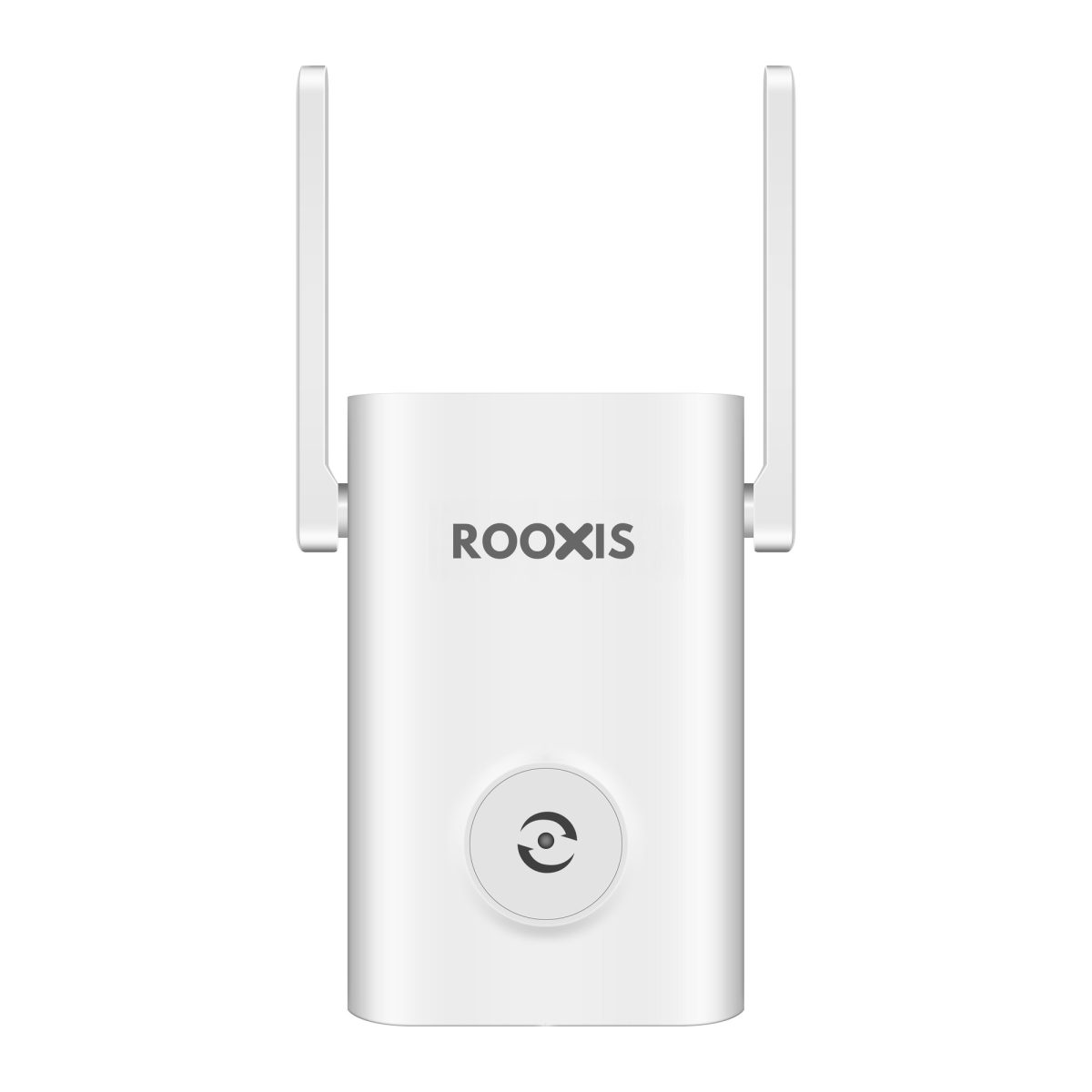
The ROOXIS AC1200 setup guide covers these operating modes for the compatible extender.
Choose the mode based on how the equipment connects to your main network, not on which option sounds faster.
How to Find Your Default Gateway Address
Finding your gateway address usually takes less work than opening the router's administration page.
You can view it directly in your phone or computer's network settings.
Connect to your normal home WiFi first.
If you use a guest network, VPN, or separate upstairs router, make sure you know which connection you are checking.
Find the Default Gateway on Windows 10 or Windows 11
The Command Prompt method works on both Windows 10 and Windows 11.
-
Connect your computer to the home WiFi network.
-
Open the Start menu.
-
Type Command Prompt.
-
Open the application.
-
Enter ipconfig and press Enter.
-
Find the active Wireless LAN adapter WiFi section.
-
Look for Default Gateway.
The result may look like 192.168.1.1.
That is the gateway configured for the selected connection.
You may see several network adapters listed.
Ignore disconnected adapters and check the one carrying your active connection.
For more detailed settings, enter ipconfig /all.
This displays additional information, including DHCP and DNS details for the network adapters.
A normal result: Your WiFi adapter has an IP address, subnet mask, and appropriate gateway address.
A result worth investigating: The gateway field is empty, or your device has an unexpected 169.254.x.x IPv4 address.
That address range is often used when Windows cannot obtain an IPv4 address through DHCP.
It does not identify the exact failure, but it tells you to investigate address assignment before changing internet settings.
Find the Gateway on an iPhone or iPad
On an iPhone or iPad:
-
Open Settings.
-
Tap WiFi.
-
Find the connected network.
-
Tap the information icon beside the network name.
-
Scroll to the IPv4 Address section.
-
Look for Router.
The Router field normally shows your IPv4 default gateway.
You can also review the phone's IP address, subnet mask, and DNS configuration.
If Configure IP shows Automatic, your device is normally obtaining its IPv4 settings through DHCP.
There is usually no reason to switch to Manual.
If you recently replaced your router and the phone cannot connect properly, try disconnecting and reconnecting to the WiFi network before editing these settings.
Find the Gateway on Android
Android settings vary between manufacturers.
On many phones, you can find the gateway using these steps:
-
Open Settings.
-
Select Network & Internet or Connections.
-
Open WiFi or Internet.
-
Tap the connected WiFi network.
-
Open Network details, Advanced, or IP settings.
-
Look for Gateway or Router.
Some phones show the gateway immediately.
Others place it inside an expanded network details section.
You may also see an IP settings option labeled DHCP.
That is normal for home networking.
Avoid switching to Static unless you know the IP address, subnet, gateway, and DNS settings required for your network.
An incorrect static configuration can leave the phone connected to WiFi without working internet access.
Find the Gateway on a Mac
On a Mac running a recent macOS version:
-
Open the Apple menu.
-
Select System Settings.
-
Click Network.
-
Select the active WiFi or Ethernet connection.
-
Click Details.
-
Select TCP/IP.
-
Find the Router field.
The Router address normally identifies the IPv4 gateway used by that connection.
Also check Configure IPv4.
For most home networks, Using DHCP is the appropriate selection.
If the Mac has an unfamiliar manual gateway, confirm whether somebody deliberately configured it before making changes.
Can You Open the Router Settings Using the Gateway Address?
Many home routers provide a local administration interface through their LAN address.
If the gateway address is 192.168.1.1, open a browser and enter that address directly into the address bar.
You may see a router login page.
Use the administrator credentials assigned to the router.
The administrator password is not necessarily the same as your WiFi password.
Some routers use a dedicated management app instead of a traditional browser interface.
Others use a different address for management.
If the gateway address does not open a login page, that alone does not mean the router is faulty.
Check the manufacturer's setup instructions.
Also remember that opening the router settings locally does not prove your internet service is working.
You can often access the router administration page during a provider outage.
What Your Gateway Address Tells You About the Network
The gateway address is one part of your device's network configuration.
To understand whether the address is valid, check it alongside the device's IP address and subnet information.
IP Address and Default Gateway
Your IP address identifies your device on its network.
Your default gateway provides a path to destinations outside the directly connected network.
Consider this configuration:
-
Device IP address: 192.168.1.50
-
Subnet mask: 255.255.255.0
-
Default gateway: 192.168.1.1
With that subnet mask, the device and gateway belong to the same IPv4 subnet.
This is typical for a home network.
Now consider a device using the same address and mask, but with a gateway of 192.168.2.1.
In an ordinary home configuration, that gateway address would not be directly reachable from the device's local subnet.
Internet traffic may fail as a result.
The correct gateway depends on the subnet and routing configuration.
Do not judge an address by its first few numbers alone.
Default Gateway vs DNS Server
DNS and the default gateway perform different jobs.
DNS translates domain names into IP addresses.
The default gateway forwards traffic toward destinations outside the local network.
Your router may handle both functions.
That is why some phones show 192.168.1.1 for both the gateway and DNS server.
Other devices may use a separate DNS resolver.
For example:
-
Default gateway: 192.168.1.1
-
DNS server: 1.1.1.1
That can be a valid setup.
If DNS fails, websites might not open by name even when basic routing works.
This creates a common misunderstanding.
A homeowner sees that the browser cannot load a website and assumes the gateway must be wrong.
Before changing the gateway, check whether DNS is working.
On Windows, the command nslookup example.com can help test whether the configured DNS service can resolve a domain name.
A successful lookup does not prove that every website will work, but a failed lookup provides a useful clue.
What Is NAT, and Does the Gateway Perform It?
NAT stands for Network Address Translation.
Most home IPv4 networks use private addresses such as 192.168.1.20 or 192.168.1.30.
These addresses are not normally routed directly across the public internet.
A home router commonly uses NAT to translate outgoing IPv4 traffic so several devices can share an external connection.
For example, a phone, laptop, and smart TV can all access the internet through the router.
They keep their own local addresses.
The router manages the translations needed for their outgoing IPv4 connections.
NAT and routing are related, but they are not identical.
A router can forward traffic between networks without using NAT.
This becomes relevant when configuring secondary routers or understanding double NAT.
What About IPv6 Gateways?
Modern home networks may use IPv4 and IPv6 at the same time.
IPv6 addresses look different from IPv4 addresses.
Instead of four decimal number groups, IPv6 uses hexadecimal groups separated by colons.
Some IPv6 gateway addresses begin with fe80.
These are link-local addresses, and they are commonly used as next-hop router addresses in IPv6.
Seeing this type of gateway is not automatically an error.
IPv6 devices commonly learn default router information through Router Advertisements.
The configuration process differs from ordinary IPv4 DHCP addressing.
If both IPv4 and IPv6 are working, you may see different gateway information for each protocol.
Do not change IPv6 settings merely because the address looks unfamiliar.
What Is Topology in Computer Networking, and Why Does It Matter?
The question what is topology in computer networking becomes relevant when you add routers, extenders, or access points to your home.
Network topology describes how devices and network connections are arranged.
Physical topology refers to the actual connections, such as Ethernet cables and wireless links.
Logical topology describes how data flows through the network.
Knowing the layout helps you identify where the gateway is and which connection might be causing a problem.
Star Topology in a Typical Home
Many small home networks resemble a star.
Devices connect through a central router, access point, or network switch.
For example:
-
A desktop computer connects through Ethernet.
-
A phone connects over WiFi.
-
A television joins the same wireless network.
-
A printer connects locally.
-
A security camera uses WiFi.
The router commonly serves as the default gateway.
If the router loses its internet connection, all these devices may lose access to online services.
But if only the television has a problem, the router is less likely to be the sole cause.
You should investigate the television's connection and network settings first.
Extended and Mesh Network Layouts
A larger house may have several wireless connection points.
These could be WiFi extenders, wired access points, or mesh nodes.
Mesh nodes can connect to one another through wireless or Ethernet backhaul.
The physical network becomes more complicated, but it may still use one main router as the default gateway.
For example, your phone upstairs and laptop downstairs may share the same default gateway even though they connect through different access points.
An extender losing its upstream connection can affect upstairs devices without disrupting internet access downstairs.
That is a useful clue.
Several wireless access points do not necessarily mean several gateways.
How Topology Relates to Computer Networking Architecture
Computer networking architecture describes how the network is designed and how its components work together.
It includes routing, addressing, device connectivity, and security boundaries.
For an ordinary home, a simple design often includes:
-
One primary internet connection
-
One main router
-
DHCP for automatic IPv4 address assignment
-
A main home network
-
Additional access points or extenders where needed
-
An optional guest or smart device network
The guest network may use a different subnet and prevent devices from communicating with the main network.
That separation can be useful for visitors.
However, it can also explain why a phone cannot discover a security camera, printer, or smart speaker connected to another network.
Before changing a device's gateway, check whether the network architecture deliberately restricts local communication.
Three Everyday Problems That a Gateway Check Can Help Diagnose
Gateway troubleshooting is most useful when you compare what works with what fails.
Three situations commonly lead homeowners to the default gateway setting.
Problem 1: WiFi Is Connected, but the Internet Does Not Work
Your phone shows a strong WiFi signal.
You open a browser, but websites do not load.
First, connect another device to the same WiFi network.
If the second device works, the problem may be specific to your phone.
Check the phone's IP address, gateway, DNS settings, and any active VPN.
If both devices fail, inspect the router's internet status.
The router might still be providing WiFi while its connection to the internet provider is unavailable.
If the gateway address is missing on one device, reconnecting to WiFi may restore the automatic network settings.
If the address looks normal, do not immediately replace it.
A working wireless connection does not guarantee a working internet connection.
Problem 2: A Security Camera Is Connected but Cannot Be Viewed
Suppose a WiFi camera near your garage appears offline in its mobile app.
Other devices have internet access.
Start by checking whether the camera is actually connected to WiFi.
If its setup or management interface shows network details, look for a valid IP address and gateway.
Also confirm that the camera supports the WiFi network it is trying to join.
Many home cameras use 2.4 GHz WiFi and cannot connect to a 5 GHz-only network.
That is a wireless compatibility issue, not a gateway problem.
Next, check whether the camera and phone are on networks that permit local communication.
Guest isolation or a separate routed network can prevent device discovery.
If the camera supports local viewing, try that feature while connected to the appropriate home network.
A camera that works locally but not remotely may have an internet connectivity, cloud service, or account-related problem.
Avoid opening router ports or disabling firewall protection as a quick fix.
Problem 3: An Upstairs WiFi Extender Connects but Has No Internet
Your downstairs internet works.
An upstairs extender is broadcasting WiFi, and your laptop connects to it.
However, websites fail to open.
Check the connection in this order:
-
Connect the laptop directly to the main router.
-
Confirm that websites load.
-
Reconnect to the extended WiFi network.
-
Check the laptop's assigned IP address.
-
Compare its default gateway with the one used on the main network.
-
Verify that the extender has an active upstream connection to the router.
-
Confirm that the extender is using the intended operating mode.
A conventional repeater may continue broadcasting a wireless network even after losing its connection to the main router.
Devices can connect to that WiFi signal without gaining internet access.
If the laptop receives a different gateway when connected through the extender, check whether the device is operating in router mode or another configuration that creates a separate network.
Do not factory-reset the extender before checking these basic details.
How to Troubleshoot Default Gateway Problems Step by Step
When the internet stops working, changing random router settings usually makes diagnosis harder.
Use a consistent sequence.
Step 1: Test More Than One Device
Connect a phone and laptop to the same network.
Try opening the same website on both.
If one device works and the other fails, focus on the affected device.
If both fail, investigate shared equipment.
Also test a device connected directly to the main router if you normally use an extender or secondary access point.
This helps identify whether the problem begins at the router or farther along the local network.
Step 2: Check the IP Address and Gateway
Open the affected device's network details.
Look for:
-
A valid IP address
-
An appropriate subnet mask or prefix
-
A default gateway
-
DNS server information
On Windows, use ipconfig.
An unexpected 169.254.x.x IPv4 address may indicate that DHCP did not provide a usable IPv4 configuration.
A missing IPv4 gateway can prevent normal IPv4 internet access.
However, some networks also support IPv6 connectivity, so consider the complete configuration before diagnosing a total connection failure.
If the gateway differs between the main WiFi and an extender, check whether that difference matches the intended network design.
Step 3: Check Whether the Gateway Responds
On Windows, use the ping command.
-
Open Command Prompt.
-
Find the gateway address using ipconfig.
-
Type ping followed by the gateway address.
-
Press Enter.
For example:
ping 192.168.1.1
If you receive replies, the computer can reach that address over the tested connection.
If every request times out, investigate the connection and network settings.
However, some routers ignore ping requests.
A timeout does not always mean the gateway is unreachable.
If the router's management page opens but ping fails, the router may simply be blocking those requests.
Step 4: Check the Router's Internet Status
Open the router's administration interface or management app.
Look for a section called Internet, WAN, Connection Status, or similar.
Check whether the router reports an active internet connection.
If the status shows disconnected, check the cable between the router and upstream equipment.
If you use a separate fiber ONT or modem, inspect its normal connection indicators using the provider's documentation.
Do not assume that a working WiFi light confirms internet access.
If the router reports no upstream connection after the physical connections have been checked, contact your internet provider.
Step 5: Renew the Device's Network Configuration
After a router replacement or DHCP problem, a device may retain outdated IPv4 settings.
On Windows, open Command Prompt and enter:
ipconfig /release
Then enter:
ipconfig /renew
These commands release and request IPv4 DHCP configuration for applicable adapters.
They can temporarily disconnect your network connection.
Avoid using them during a remote support session unless you have another way to reconnect.
On a phone, disconnecting and reconnecting to the WiFi network may obtain fresh settings.
On a Mac, use Renew DHCP Lease in the TCP/IP settings when the connection is configured through DHCP.
Check the address and gateway again after reconnecting.
Step 6: Restart Equipment in a Controlled Order
If multiple devices are affected, a router restart may resolve a temporary problem.
Start with the affected device.
If the issue continues:
-
Save work that requires internet access.
-
Restart the main router using its normal restart option.
-
Allow it to finish starting.
-
Reconnect a device.
-
Check the gateway address and internet access.
-
If necessary, follow your provider's instructions for restarting separate modem or ONT equipment.
Avoid repeatedly unplugging every device at once.
You need to know which change, if any, restores the connection.
If the same failure returns regularly, investigate firmware, provider service, equipment stability, and configuration instead of treating restarts as a permanent fix.
Step 7: Check for a Second Router or Guest Network
If problems began after adding networking equipment, check the network layout.
A secondary router may be running DHCP and NAT when you intended to use it as an access point.
A guest network may block connections to cameras or printers on the main network.
An extender may be disconnected from its upstream WiFi.
Compare the IP addresses and gateway settings of a working device and an affected device.
For example, if your main network uses 192.168.1.x and an upstairs device uses 192.168.2.x, the devices may be on different subnets.
That is not automatically a fault.
But if you expected one shared home network, it is worth checking the secondary device's operating mode.
Change one setting at a time and retest.
Common Gateway Misconceptions That Lead to Wrong Fixes
A few incorrect assumptions cause many unnecessary network changes.
Misconception 1: The Default Gateway Is the Same as the IP Address
Your phone's IP address identifies the phone on its network.
The default gateway identifies the next-hop router used for traffic leaving the local network.
In a typical home IPv4 setup, these are different addresses.
If your router uses 192.168.1.1, assigning that same address to your laptop can create an IP address conflict.
Misconception 2: Every Device Must Use 192.168.1.1
There is no universal default gateway address.
Depending on the router configuration, you may see:
-
192.168.0.1
-
192.168.1.1
-
192.168.10.1
-
10.0.0.1
These are all possible local router addresses.
Use the address assigned by your network rather than copying one from an online tutorial.
Misconception 3: Changing the Gateway Improves WiFi Speed
The gateway setting tells your device where to send traffic outside its local network.
It does not change WiFi signal strength, interference, or wireless coverage.
If upstairs WiFi is weak, investigate signal quality and the connection between the extender and router.
Changing the gateway address will not remove a physical coverage problem.
Misconception 4: The Gateway and DNS Must Match
The gateway and DNS server can use the same address, but they do not have to.
A home router may provide both services.
Alternatively, a device may use the router for routing and a separate DNS resolver.
The correct values depend on the network configuration.
Misconception 5: A Working Gateway Means the Internet Must Work
Your laptop may communicate successfully with the local router even when the provider connection is unavailable.
You might still open the router's settings page or print over the local network.
If the gateway responds but websites fail, check the upstream internet connection and DNS.
Do not treat local gateway access as proof that the entire connection is working.
Misconception 6: Adding More Extenders Creates More Gateways
A standard WiFi extender does not normally need to create another routed network.
It can extend connectivity while devices continue using the main router as their gateway.
If devices start receiving addresses from separate subnets after adding equipment, check whether a second router or extender is running in routing mode.
Should You Change Your Default Gateway Address?
For most home networks, leave the default gateway on automatic configuration.
DHCP normally supplies the correct IPv4 gateway and other settings.
Changing the value manually is useful only when the network has a specific configuration requirement.
When a Manual Gateway Is Appropriate
A manual gateway setting may be needed when:
-
A device uses a deliberately configured static IPv4 address.
-
The network has multiple subnets with documented routing requirements.
-
Your internet provider supplies specific manual network settings.
-
Specialist equipment needs a fixed configuration.
For example, a security camera using a static IPv4 address may need a manually configured gateway to communicate with online services.
That gateway must be appropriate for the camera's network.
If the address is wrong, the camera may work for some local connections but fail to reach external networks.
Before assigning a static address, make sure it does not conflict with another device or the router's DHCP address pool.
A DHCP reservation on the router can be a simpler way to give a device a consistent local address without manually configuring all its network settings.
When You Should Avoid Changing It
Do not change the default gateway simply because:
-
WiFi bars are low.
-
A video buffers in one room.
-
A security camera has a weak wireless connection.
-
An extender is too far from the router.
-
Your internet provider has an outage.
-
Someone else's router uses a different address.
These symptoms often have causes unrelated to the gateway.
If you recently changed a router or installed an extender, write down the original network settings before making further adjustments.
For ordinary phones and laptops, automatic addressing is generally the safest option.
If your actual problem is poor wireless coverage rather than incorrect routing, review the router and extender options at ROOXIS.
First establish whether the device is losing WiFi, failing to reach the local gateway, or losing access beyond the router. Those are different problems, and they require different fixes.
FAQ
What Is the Main Purpose of a Gateway in Computer Networking?
A gateway provides a path between different networks. In most homes, the router acts as the default gateway and forwards traffic from local devices toward the internet. Devices use it when they need to reach destinations outside their directly connected network.
Is a Default Gateway the Same as a Router?
Not exactly. A router forwards traffic between IP networks, while the default gateway is the next-hop destination a device uses when no more specific route applies. In an ordinary home network, the router usually performs the default gateway role.
What Happens if the Default Gateway Is Wrong?
An incorrect gateway can prevent a device from reaching other networks, including the internet. The device may still connect to WiFi and communicate locally. Check its IP address, subnet mask, and DHCP settings before replacing the gateway address manually.
Can Two Devices Have the Same Default Gateway?
Yes. It is normal for several devices on the same home network to use the same default gateway. For example, your phone, laptop, and security camera may all use 192.168.1.1 while having different local IP addresses.
Does a WiFi Extender Need a Different Default Gateway?
Usually not. In standard repeater or access point mode, connected devices generally continue using the main router as their default gateway. A different gateway may appear when a secondary device is operating as a router and creating another subnet.
How Can I Tell Whether My Gateway Is Causing an Internet Problem?
Check the gateway address on the affected device and compare it with the settings on a working device connected to the same network. Test whether the gateway responds, then check the router's internet connection. If local access works but websites fail, investigate the provider connection and DNS before changing routing settings.
The next time WiFi shows connected but nothing loads, start with three checks: confirm the device has valid network settings, test its connection to the gateway, and check whether the router can reach the internet. If only an upstairs extender or one security camera is affected, inspect that device's connection and operating mode first. This approach narrows down the fault without unnecessary resets, replacement equipment, or risky network changes.