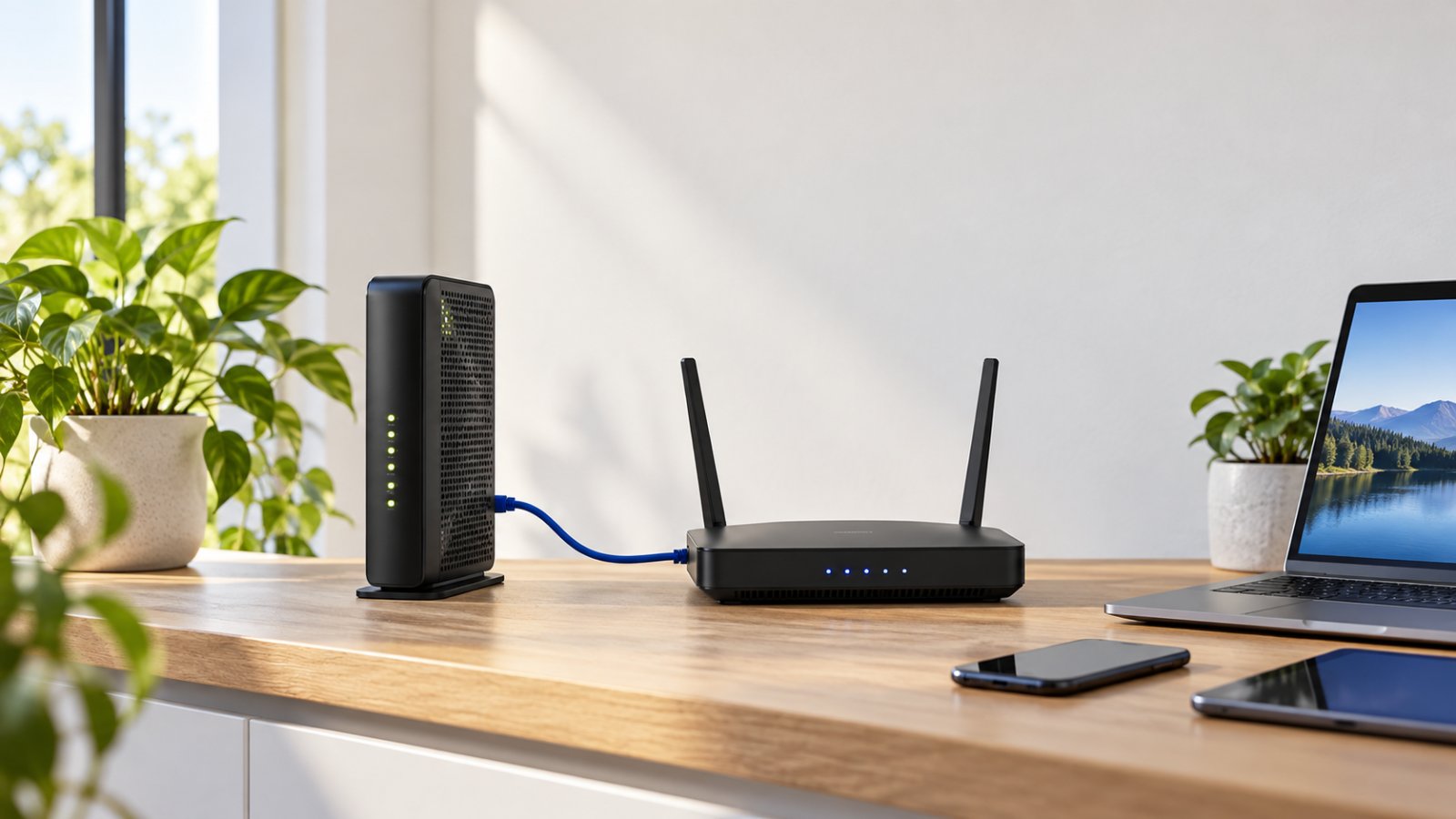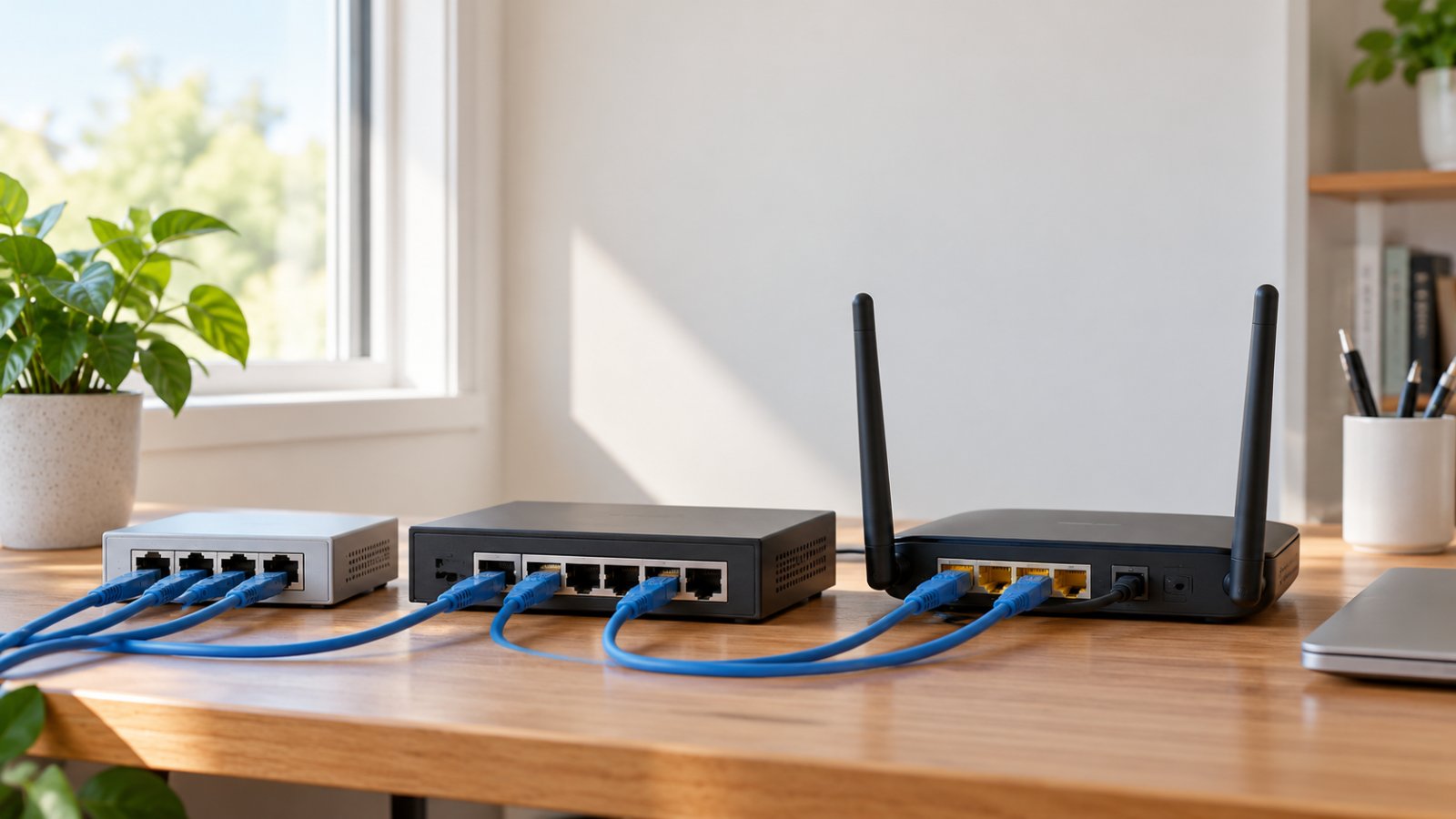
"My WiFi says connected, but nothing loads. Is my laptop broken, is the router acting up, or is my internet provider having problems?"
Before restarting everything or buying a new router, try a few computer networking commands. Built-in tools such as ipconfig, ping, tracert, and nslookup can help you work out whether the problem involves your computer, WiFi connection, router, DNS server, or internet provider.
You do not need technical training to run these checks. Most are already available in Windows Command Prompt, with similar options in Mac and Linux Terminal. This guide shows exactly what to enter, how to recognize useful results, and what to check next when a laptop keeps disconnecting, websites refuse to load, or a home security camera goes offline.
Why Learn Basic Networking Commands for Home Troubleshooting

When your internet stops working, the error message rarely identifies the real cause.
Your laptop may display Connected, no internet even though it has a perfectly good WiFi connection to the router. A browser may fail to open websites because DNS is unavailable. A security camera may appear offline because it has lost power rather than internet access.
These problems need different fixes.
Computer networking commands help you narrow down the cause before changing equipment or settings.
For example, if your laptop can communicate with the router but cannot reach outside internet services, the local WiFi connection may be working. The next check should focus on the router's internet connection, DNS, or the provider.
If the laptop cannot communicate reliably with the router, investigate the local connection first.
That distinction can save you from replacing a router when the real problem is a damaged Ethernet cable or poor WiFi coverage in one room.
What are networking commands?
Networking commands are instructions you enter into Windows Command Prompt or a Mac or Linux Terminal to inspect and test network connections.
Some display configuration information. Others send diagnostic requests to network devices.
The most useful basic networking commands are:
-
ipconfig: Shows your computer's IP address, subnet mask, and default gateway on Windows.
-
ping: Tests whether a destination responds and measures round-trip time.
-
tracert: Displays the route diagnostic packets take toward a destination on Windows.
-
nslookup: Checks whether DNS can translate a website name into an IP address.
-
netstat: Shows active network connections and listening ports.
-
ifconfig: Displays network interface information on macOS and systems where the utility is available.
-
ip: Displays addresses, interfaces, and routes on modern Linux systems.
-
traceroute: Shows network hops on macOS and Linux systems with the utility installed.
You do not need to learn all of them at once.
Start with ipconfig and ping. Together, they help answer two basic questions: Does your computer have a usable network configuration, and can it communicate with the router?
Only move to tracert, nslookup, or netstat when the symptoms point toward something those tools can investigate.
Five computer networking terms worth understanding
IP address
An IP address identifies a network interface for communication using Internet Protocol.
Your laptop might receive a private IPv4 address such as 192.168.1.25.
The exact number depends on your home network.
Your router usually assigns local addresses automatically. The address helps devices communicate across the local area network.
Default gateway
The default gateway is where your computer normally sends traffic intended for destinations outside its local network.
In most homes, the default gateway is the Wi-Fi router or internet gateway.
A common example is 192.168.1.1, although other addresses are equally normal.
You can test communication with that address using ping.
Subnet mask
The subnet mask helps determine which IPv4 addresses belong to the same local network.
For example, many home networks use 255.255.255.0.
You rarely need to change this setting yourself.
It becomes useful when a computer receives an unexpected configuration or cannot communicate with other local devices.
DNS server
DNS stands for Domain Name System.
A DNS server helps translate readable website names into IP addresses.
When you enter a website name in your browser, DNS is usually involved in finding the address needed to connect.
If DNS fails, websites may not open by name even when your computer can still communicate with devices using their IP addresses.
Latency and packet loss
Latency measures how long a request takes to reach a destination and return.
It is commonly displayed in milliseconds.
Packet loss means some packets do not receive the expected response.
Repeated loss between a laptop and a router that normally answers ping may indicate an unstable local connection.
However, some network equipment deliberately ignores or limits ping requests. A timeout is not always proof that ordinary traffic is failing.
How to open Command Prompt or Terminal
On Windows 10 or Windows 11:
-
Click Start.
-
Type Command Prompt.
-
Open the matching application.
-
Type the command you want to run.
-
Press Enter.
You can also press Windows + R, type cmd, and press Enter.
A window opens with a text prompt.
You can type the commands described below directly into that window.
On a Mac:
-
Open Spotlight Search.
-
Type Terminal.
-
Open Terminal.
-
Enter the command.
-
Press Return.
On Linux, open the Terminal application from your desktop's application menu.
Some distributions also support Ctrl + Alt + T.
These diagnostic commands do not require installing enterprise software or running administrator scripts.
Most simply display information or send ordinary network test requests.
Essential Command Prompt Network Commands for Windows
Windows includes the tools needed for most basic home network checks.
Use them in a sensible order.
Start by confirming your computer's address and gateway. Then test the local connection. After that, check internet connectivity and DNS if necessary.
This approach produces information you can act on instead of a collection of unfamiliar results.
Ipconfig: Checking Local IP Address and Gateway
Ipconfig displays the IP configuration associated with your Windows network adapters.
It is a useful first check when Windows says your computer is connected but websites will not open.
Open Command Prompt.
Enter:
ipconfig
Press Enter.
Look for Wireless LAN adapter Wi-Fi if you are using a wireless connection.
If you have connected the computer through an Ethernet cable, look for the active Ethernet adapter instead.
Find these fields:
-
IPv4 Address.
-
Subnet Mask.
-
Default Gateway.
For example, your computer might display:
IPv4 Address: 192.168.1.25
Subnet Mask: 255.255.255.0
Default Gateway: 192.168.1.1
These are example values. Use the numbers actually shown by your computer for the following tests.
What a normal result looks like
On a typical home network, the active adapter has a private IP address and a default gateway corresponding to the router.
You should also see that the adapter is connected.
What to watch for
If the result says Media disconnected, Windows is not currently using that adapter for an active network connection.
That may be normal for an unused Ethernet adapter.
If the disconnected adapter is the one you intended to use, check the cable or wireless connection.
If the IPv4 address begins with 169.254, Windows may have assigned itself a link-local address because it could not obtain an address through DHCP.
DHCP is the service that commonly assigns local IP settings automatically.
A 169.254 address is not automatically a sign of damaged equipment.
Your computer may be connected to the wrong WiFi network, the router's DHCP service may not be responding, or the wireless connection may have failed during address assignment.
Start by reconnecting to the correct network.
Check whether another device can connect successfully.
Getting more detail
Enter:
ipconfig /all
This displays additional adapter information, including configured DNS servers, DHCP details, and physical adapter addresses.
Look at the active adapter rather than trying to interpret every entry on the screen.
Windows may list adapters belonging to VPN software, virtualization tools, or disconnected connections.
Those entries do not necessarily indicate a problem.
When ipconfig is most useful
Run it when:
-
Windows reports no internet access.
-
Your laptop cannot connect after replacing the router.
-
You need the default gateway for a ping test.
-
You want to identify the DNS server being used.
-
An Ethernet connection stopped working.
-
Your computer cannot reach devices on the local network.
Write down the default gateway. You will use it in the next command.
Ping: Testing Connection and Network Latency
Ping checks whether another device responds to a small network test request.
It can also measure the time needed for a response.
Start with the router.
If ipconfig shows your default gateway as 192.168.1.1, enter:
ping 192.168.1.1
Replace the example address with your own gateway.
Windows normally sends four requests.
If the router responds, the output may contain lines beginning with Reply from.
You will also see response times and a packet summary.
A successful result indicates that your computer received the expected diagnostic responses.
On a local network, response times are often short.
However, WiFi interference, router behavior, and device power management can affect the readings.
Do not assume one unusually slow response means the router is defective.
Testing packet loss
To run a longer test, enter:
ping -n 10 192.168.1.1
Windows sends ten requests.
Look at the final packet statistics.
If all ten requests receive replies, the test reports no packet loss.
If some requests fail, Windows may show Request timed out.
Repeated timeouts while testing a router known to answer ping can point toward an unstable connection.
Possible causes include weak WiFi, interference, damaged Ethernet wiring, or router instability.
However, a router may be configured not to respond to ping.
That is why the result should be compared with normal network behavior.
Testing the wider internet
Next, enter:
ping 1.1.1.1
This sends requests to a public IP address without requiring DNS to resolve a website name.
If your router responds but the public address does not, investigate beyond the immediate local connection.
Check the router's internet status and whether other websites work.
A single failed public ping does not prove the internet provider is down because some destinations or networks limit diagnostic responses.
Testing a domain name
Enter:
ping example.com
If Windows resolves the name and receives responses, you have evidence that DNS resolution and connectivity are working for that test.
If Windows cannot resolve the hostname, a DNS issue becomes worth investigating.
If the hostname resolves but the destination does not respond, that does not necessarily mean DNS is broken.
The destination may simply block ping.
Using ping for a home security camera
Suppose a camera near the garage stops appearing in its app.
Open your router's connected device list and identify the camera's local IP address if it is shown.
From a computer on the same network, ping that address.
If you receive replies, the camera is reachable using that diagnostic method.
If you receive timeouts, check the camera's power, local connectivity, and status in the manufacturer's app.
Some cameras do not answer ping requests.
Do not replace a camera based solely on an unsuccessful ping test.
Tracert: Identifying Network Bottlenecks
Tracert shows the route diagnostic packets attempt to follow toward a destination.
Internet traffic normally passes through several routers before reaching a remote service.
Tracert helps display those intermediate hops.
Open Command Prompt and enter:
tracert example.com
Windows begins tracing the route.
You may see numbered rows, each representing a hop.
The first hop is often your home router.
Later hops may belong to your internet provider or other networks.
What the results tell you
If the first hop responds, the computer can communicate with that part of the local path.
If later hops respond, the diagnostic traffic has progressed beyond your home network.
However, tracert is not a speed test.
It does not measure your internet download speed.
A high response time at one intermediate hop does not automatically identify a bottleneck.
Some routers give low priority to diagnostic responses while continuing to forward ordinary traffic normally.
Understanding asterisks
You may see asterisks instead of response times.
This means a response was not received within the allowed time.
It does not necessarily mean traffic stopped at that hop.
For example, an intermediate router may ignore the diagnostic request while a later router still responds.
If the trace continues beyond the timeout, the earlier hop is not automatically the source of the problem.
When tracert is useful
Use it when:
-
One website or online service is consistently unreachable.
-
Your router responds normally but several internet services fail.
-
You want to collect route information for provider support.
-
You suspect an issue somewhere beyond your home network.
For example, if local tests remain stable while several external connections fail, tracert can provide additional information for an internet provider.
Save the output.
Do not change router hardware based on one slow-looking intermediate hop.
Nslookup: Diagnosing DNS Resolution Issues
Nslookup checks DNS responses.
It is especially useful when your computer appears to have internet connectivity but websites fail to open by name.
Open Command Prompt and enter:
nslookup example.com
Press Enter.
Windows queries the configured DNS service and displays the result.
A successful lookup typically identifies the DNS server and returns one or more addresses associated with the domain.
What a successful result means
Your computer received a DNS answer.
That does not prove the website is working.
The browser may still encounter a connection failure, certificate problem, or unavailable service.
Nslookup only helps establish whether name resolution is functioning.
What a failed result means
If the request times out, your configured DNS server may not be responding.
Other possible causes include network connectivity problems or DNS filtering.
If the result indicates that the domain does not exist, check the spelling.
An incorrect name is not evidence that the router is faulty.
Comparing another DNS resolver
You can test a specified public resolver by entering:
nslookup example.com 1.1.1.1
This asks that resolver for the domain information.
If the default DNS lookup fails while the alternate one succeeds, investigate the DNS configuration used by your computer or network.
However, some networks restrict external DNS requests.
Do not assume a failed alternate query always means there is a problem with the service.
When nslookup is useful
Use it when:
-
Websites fail by name but some IP connections work.
-
A browser reports a DNS-related error.
-
You recently changed DNS providers.
-
One computer has name resolution problems while others work.
-
A security or filtering service appears to be blocking an expected domain.
Clearing cached DNS information
Windows also provides:
ipconfig /flushdns
This clears the local DNS resolver cache.
It can help when stale cached information is causing a problem.
It does not repair packet loss, poor WiFi coverage, or a damaged cable.
Run it only when your findings point toward a DNS-related issue.
Netstat: Viewing Active Network Connections
Netstat displays network connections and related information on your computer.
It can help you identify which local ports are in use and which processes have established network connections.
Open Command Prompt and enter:
netstat
Windows displays active TCP connections.
The output includes local addresses, foreign addresses, and connection states.
For more detail, enter:
netstat -ano
This displays numerical addresses and process IDs.
The process ID, or PID, helps identify the Windows process associated with a connection.
Common connection states include:
-
ESTABLISHED, meaning an active TCP connection exists.
-
LISTENING, meaning software is waiting for connections.
-
TIME_WAIT, a normal state associated with a recently closed TCP connection.
A long list does not automatically indicate malware.
Browsers, cloud storage applications, messaging tools, and Windows services can maintain many connections simultaneously.
Identifying a process
Open Task Manager.
Select the Details tab.
Look for the PID column.
Compare a process ID with the value shown in the netstat results.
For example, several network connections may belong to a browser with multiple tabs open.
An unfamiliar remote address is not automatically dangerous.
Legitimate applications frequently communicate with cloud services and content delivery networks.
When netstat is useful
Run it when:
-
You want to identify a process maintaining a connection.
-
An application appears to communicate unexpectedly.
-
You are collecting information for technical support.
-
You want to see which local ports are listening.
Netstat does not directly measure how much bandwidth each application is using.
If the issue is heavy data usage, Windows Task Manager or Resource Monitor is usually a better starting point.
Do not terminate unfamiliar system processes based only on a netstat entry.
Terminal Networking Commands for Mac and Linux Users

Mac and Linux computers provide many of the same diagnostic capabilities as Windows.
The main difference is command syntax.
Windows uses ipconfig for common network configuration details.
On macOS, ifconfig and route can display interface and gateway information.
Modern Linux distributions commonly use the ip command.
Ping and traceroute are also available, although command options and installed utilities vary.
Ifconfig and IP Commands for Interface Status
On a Mac, open Terminal and enter:
ifconfig
Press Return.
The command displays network interface information.
Interfaces may have names such as en0 or en1.
Look for the interface associated with your active connection.
The output may show an inet address, network mask, and interface status details.
Do not assume en0 is always your WiFi interface.
The correct interface depends on the Mac and its network configuration.
Finding the default gateway on Mac
Enter:
route -n get default
Look for the gateway field.
That address identifies the gateway associated with the default route.
You can use it for a local ping test.
Finding IP addresses on Linux
On a modern Linux system, enter:
ip addr
This displays addresses and interface details.
For a shorter view, supported systems commonly provide:
ip -br addr
To see the routing information, enter:
ip route
Look for the route beginning with default via.
The address following via identifies the gateway for that route.
If the computer uses a VPN or several network interfaces, multiple entries may appear.
Identify the active connection before interpreting the results.
What if ifconfig does not work on Linux?
Some current Linux distributions do not include ifconfig by default.
The utility belongs to an older networking toolset.
Use ip addr instead.
There is no need to install additional packages just to check the address of a typical home network interface.
Traceroute and Ping Variations
Mac and Linux systems support ping, but their options differ from Windows.
For a test using ten requests, enter:
ping -c 10 192.168.1.1
Replace the address with your gateway.
The -c option specifies the number of requests.
Windows uses -n for that purpose.
You can also test a domain:
ping -c 10 example.com
Interpret the results in the same way as a Windows ping.
Replies indicate that the destination answered the diagnostic requests.
Timeouts require context.
Some devices block or limit ICMP responses even when normal network services work.
Tracing the network path
On macOS, enter:
traceroute example.com
This displays the intermediate hops toward the destination.
On Linux, traceroute may not be installed by default.
If the command is unavailable, you can still complete the basic local and external connectivity checks using ping and the installed IP tools.
Checking DNS
Mac systems commonly provide:
nslookup example.com
Many Linux installations also include nslookup through their DNS utility packages.
If the command is unavailable, the system may provide another DNS lookup tool.
For home troubleshooting, the goal remains the same: determine whether the configured DNS service can resolve the domain.
Avoid installing unfamiliar networking utilities simply because a guide mentions a command your computer does not have.
Step by Step Home Network Diagnostic Workflow
A repeatable testing order makes troubleshooting easier.
Start with the device that has the problem.
Then check its connection to the router, communication with the wider internet, and DNS resolution.
Only move to hardware changes when the results justify them.
Step 1: Identify which devices have the problem
Before entering commands, check the scope of the failure.
Ask:
-
Does the problem affect one laptop or every device?
-
Can a phone browse normally on the same WiFi?
-
Does the connection fail only in a particular room?
-
Is a security camera the only device offline?
-
Do wired devices work while wireless devices struggle?
-
Does the problem happen at certain times?
These details matter.
If one computer cannot load websites while the rest of the household works normally, investigate that computer first.
If every device loses internet access simultaneously, the router or provider deserves attention.
If a camera disconnects only in a distant part of the property, local coverage or power may be involved.
Write down the affected devices before making changes.
Step 2: Check the IP configuration
On Windows, enter:
ipconfig
Find the active network adapter.
Note its IPv4 address, subnet mask, and default gateway.
If no expected gateway appears, check whether the computer has joined the correct network.
If the adapter shows Media disconnected, inspect that connection.
If an unexpected 169.254 address appears, investigate DHCP and local connectivity.
Reconnect to the WiFi network if appropriate.
Check whether another device can receive an address.
Do not immediately assign a manual address or change the subnet mask.
Those changes can hide the original problem or create a new one.
Step 3: Test the connection to your router
Use the gateway address displayed by ipconfig.
For example:
ping -n 10 192.168.1.1
Replace the example with your actual gateway.
If the router normally responds to ping, consistent replies suggest that the basic local connection is functioning.
If the test shows repeated timeouts, check the WiFi signal, cabling, and router status.
For a laptop, move closer to the router and repeat the same test.
If the result improves near the router, weak coverage or interference becomes a stronger possibility.
If Ethernet is available, test through a known-good cable as another comparison.
Step 4: Test internet connectivity without DNS
Enter:
ping 1.1.1.1
This checks whether the computer receives responses from a public IP address without requiring a domain lookup.
If the gateway responds but the public destination does not, look beyond the immediate WiFi connection.
Check whether ordinary websites work.
Test another suitable destination.
Review the router's internet status.
Remember that public services may limit ping responses.
Do not diagnose an ISP outage based on one timeout.
If several household devices cannot reach external services, contact your internet provider after checking the modem and router.
Step 5: Test DNS resolution
Enter:
nslookup example.com
If the lookup succeeds, the configured DNS service provided an answer.
If it fails, compare the result with the earlier IP connectivity checks.
A laptop that can reach outside IP addresses but cannot resolve website names may have a DNS issue.
Use ipconfig /all to identify the configured DNS server.
If you recently changed DNS settings, temporarily restoring the previous configuration may help determine whether the change caused the problem.
Avoid changing the router, computer, and DNS provider simultaneously.
Make one change, test it, and record the outcome.
Step 6: Investigate a specific slow or unreachable service
Suppose ordinary browsing works but one website consistently fails.
Enter:
tracert example.com
Replace the example with the domain you are investigating.
Review how far the trace progresses.
Do not assume asterisks at an intermediate hop mean the connection is broken there.
Some routers do not respond to diagnostic probes.
Compare the result with another destination.
If local tests work but multiple external services fail, save the trace for your provider.
The provider may be able to investigate routing beyond your home network.
Step 7: Compare wired and wireless performance
Connect the laptop to a LAN port on the router using a known-good Ethernet cable.
If the laptop has no Ethernet port, use a compatible USB Ethernet adapter.
Repeat the gateway and external connectivity tests.
Compare the results with WiFi.
If Ethernet works reliably while the wireless connection repeatedly loses contact with the gateway, focus on wireless coverage, interference, or the router's WiFi configuration.
If both connections show similar failures reaching the internet, investigate the router's upstream connection or provider.
This comparison can prevent unnecessary equipment purchases.
There is little value in replacing your wireless router because of an issue that also affects a direct wired connection through the same gateway.
Step 8: Test the area where the problem occurs
Location is often the missing detail in home WiFi troubleshooting.
Run a gateway ping test near the router.
Then repeat the test in the room where the connection fails.
Use the same computer when possible.
Suppose the laptop stays connected in the living room but repeatedly loses its gateway connection in an upstairs bedroom.
That pattern points toward a local wireless problem.
Check the distance, walls, and nearby interference sources.
Review these router placement tips before buying another device.
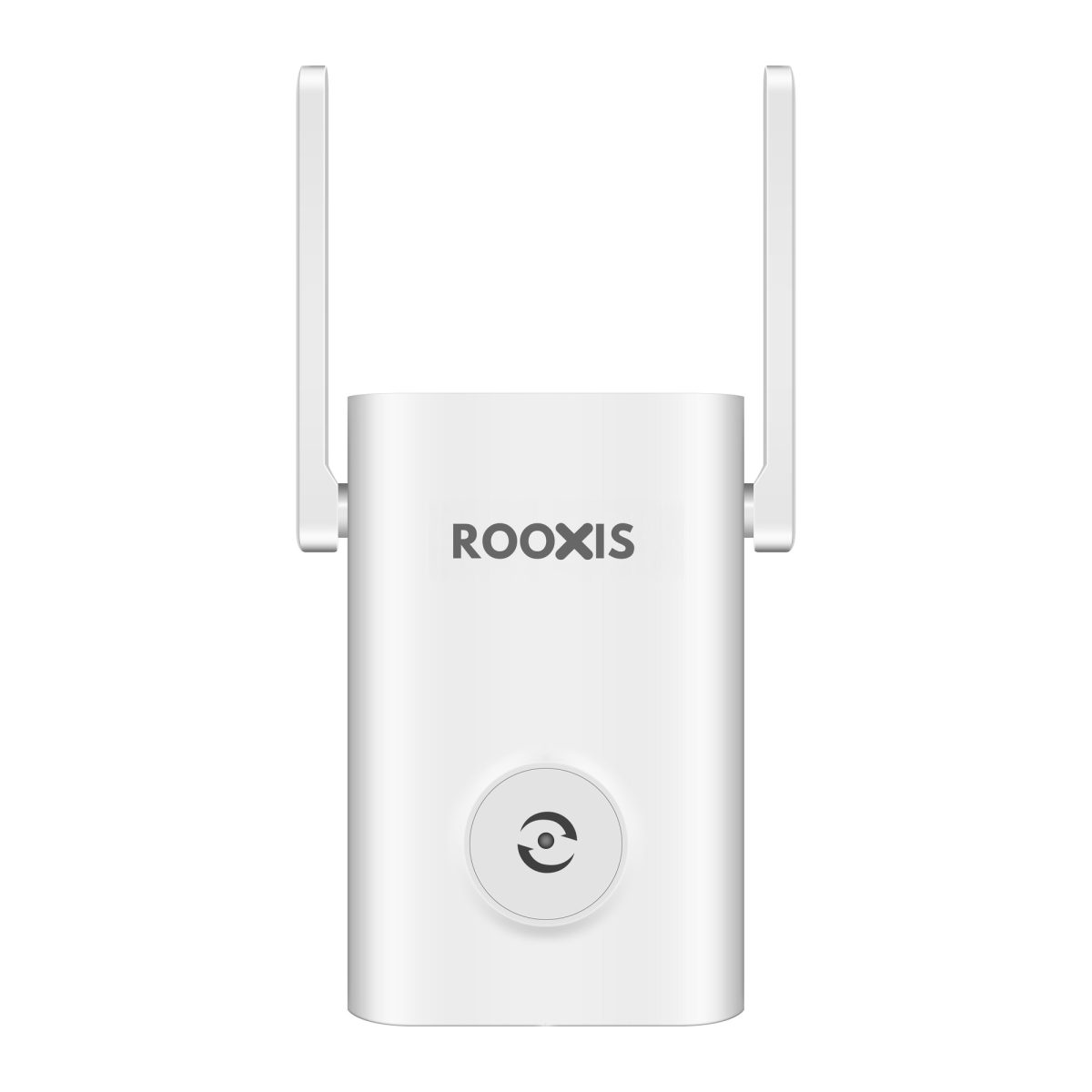
If an extender is already installed, verify that it receives a dependable signal from the main network.
Placing an extender in the middle of a dead zone does not create a strong source connection.
A better position is often somewhere between the router and the problem area, where the original WiFi signal remains usable.
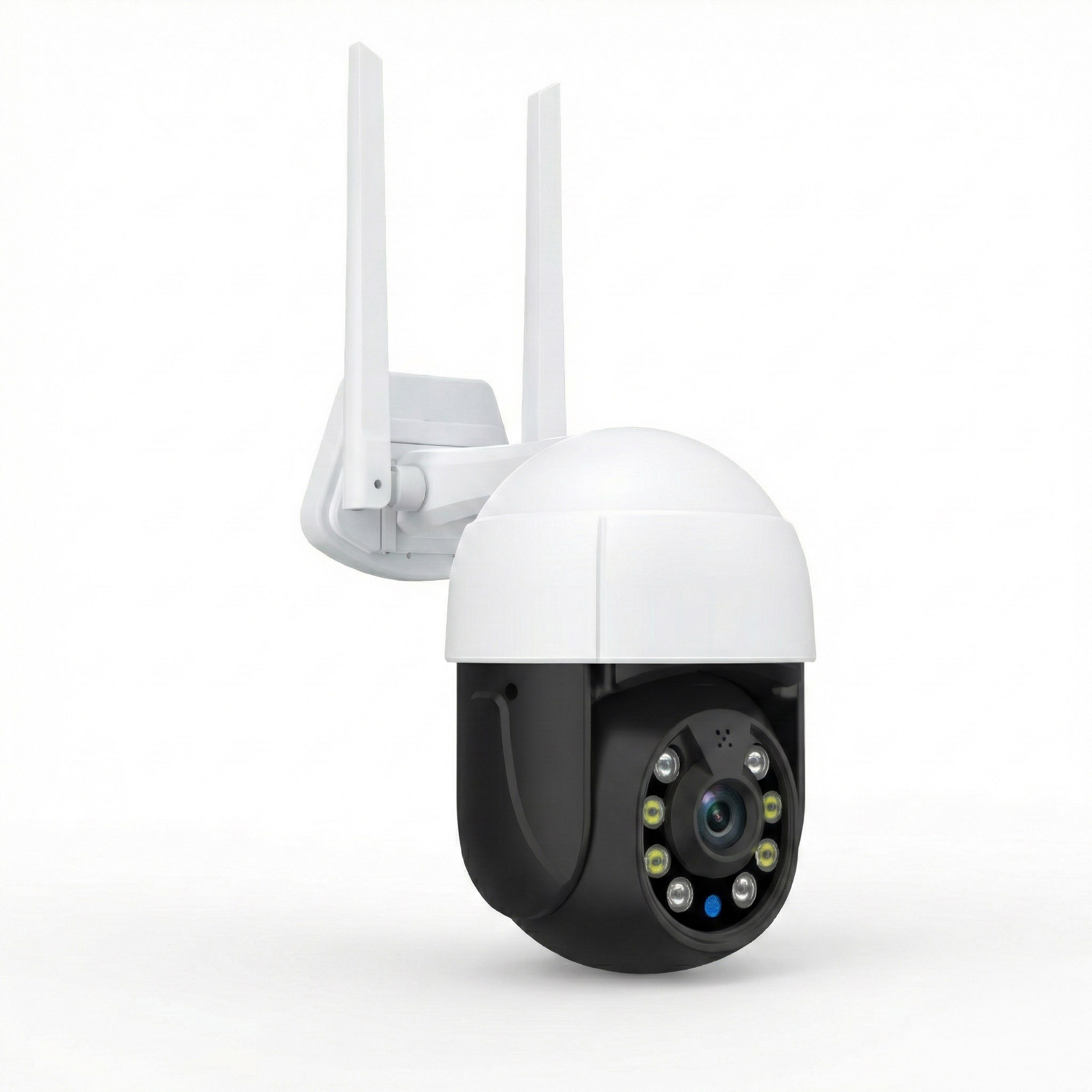
Step 9: Check an offline home security camera
If an outdoor security camera repeatedly disconnects, first determine how it connects and receives power.
For WiFi cameras, check whether other devices work reliably near the installation area.
For wired cameras, inspect accessible Ethernet and power connections.
For PoE cameras, verify the compatible power source and cable condition.
If the camera appears in your router's device list, note its IP address.
You can try pinging it from a computer on the same network.
If it responds, the network path is reachable using that diagnostic method.
If it does not, check the camera manufacturer's app and troubleshooting guidance.
Not every camera responds to ICMP requests.
A failed ping does not automatically mean the camera is broken.
Also consider whether the problem started after moving the router, replacing a network switch, or changing WiFi credentials.
Those changes can affect camera connectivity without any hardware failure.
Step 10: Record what you discovered
Keep a short record of your tests.
Include:
-
Device experiencing the problem.
-
Room or location.
-
Active IP address and default gateway.
-
Whether the gateway responds.
-
Whether outside IP connectivity works.
-
Whether DNS resolution succeeds.
-
Whether Ethernet behaves differently from WiFi.
-
Whether the problem is continuous or intermittent.
This information is useful when contacting your provider or a device manufacturer.
Instead of reporting that the internet is slow, you can explain that Ethernet works normally but the upstairs laptop repeatedly loses communication with the gateway.
That gives support staff a more specific starting point.
It also helps you decide whether a router, extender, cable, or another component deserves attention.
When Command Diagnostics Point to Hardware Issues

Networking commands can identify where communication appears to fail.
They cannot repair damaged cables, reposition a router, or replace an unreliable power adapter.
Once the results point toward a physical or wireless problem, investigate the relevant equipment.
Do not assume every failed command means the router must be replaced.
When the problem is likely weak WiFi coverage
Suppose a laptop communicates reliably with the router in the living room but experiences repeated local connection problems in a distant bedroom.
The difference in location is useful evidence.
Possible causes include:
-
Long distance from the router.
-
Concrete or brick walls.
-
Dense floors between levels.
-
Interference from nearby wireless networks.
-
Poorly placed extenders.
-
Device-specific wireless limitations.
Start by checking router placement.
Avoid placing it inside a closed cabinet or behind large metal objects.
Where possible, position it to provide a clearer signal path to the rooms that need coverage.
If only one nearby area remains weak, a compatible range extender may help.
For several floors, mesh WiFi or wired access points may be more appropriate.
The choice should follow the test results.
A high-speed internet plan cannot compensate for a weak local WiFi connection.
When the Ethernet cable may be faulty
A wired connection that repeatedly drops deserves a cable check.
Inspect the accessible connectors.
Look for loose plugs, broken clips, crushed cable sections, or sharp bends.
If the connection passes through an Ethernet wall outlet, check the patch cables at both ends.
Try a known-good replacement cable.
Then repeat the relevant ping tests.
If the connection becomes reliable, the old cable or its connector may have been involved.
For permanent wiring, a basic cable tester can help identify certain wiring faults.
It cannot certify every performance characteristic of an installed network cable.
If the wiring is inside walls or requires unfamiliar termination work, professional assistance may be worthwhile.
When the router may need attention
A router becomes a stronger suspect when several devices show similar problems.
For example, wired and wireless devices may lose local connectivity at the same time.
Check whether the router appears to restart unexpectedly.
Look at its power indicator and management interface.
Review any available firmware update information.
If the router becomes unresponsive, a normal restart may restore service temporarily.
However, repeated failures deserve investigation.
Check the power supply, ventilation, firmware support, and connected equipment.
Do not replace the router merely because a public internet destination fails to answer ping.
First establish whether the problem affects communication with the local router itself.
When you may need a different router
Replacing a router can make sense when the existing hardware no longer meets the household's requirements.
Possible reasons include:
-
The router no longer receives appropriate security updates.
-
Its wireless capabilities are inadequate for supported household devices.
-
Its Ethernet ports do not support the speeds required by the network.
-
It repeatedly fails despite relevant troubleshooting.
-
The property needs a more suitable coverage arrangement.
A newer WiFi standard does not automatically eliminate dead zones.
Wall materials, router placement, and the availability of additional access points still matter.
Before purchasing, use this practical router buyer guide to compare the features that fit your household.
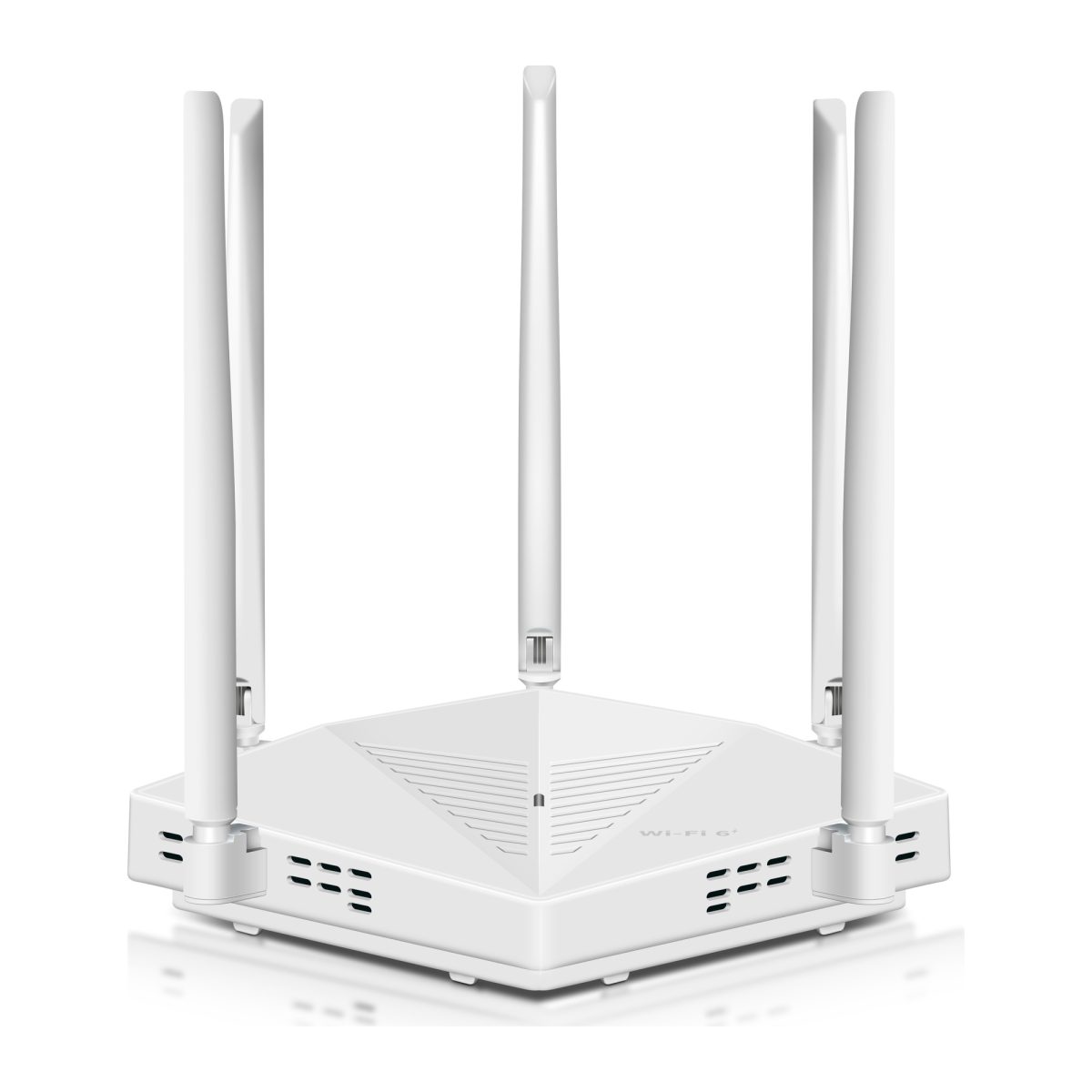
ROOXIS offers home networking equipment, including routers and range extenders, but the right purchase depends on the cause of the problem.
If a short Ethernet cable is damaged, replacing the entire router is unlikely to be the most useful fix.
When the problem is likely with the internet provider
If the computer communicates with the router but multiple external services fail, investigate the connection beyond your local area network.
Check the modem or internet gateway status.
Look for a provider outage notification.
Compare more than one device.
If Ethernet and WiFi users are both affected while local gateway communication remains reliable, the provider connection becomes a more likely area to investigate.
Contact support with the results.
Explain:
-
Whether the default gateway responds.
-
Whether other household devices have the same problem.
-
Whether external IP addresses respond.
-
Whether DNS queries succeed.
-
Whether Ethernet and WiFi are affected equally.
-
When the problem began.
That information helps distinguish an upstream issue from a weak signal in one room.
When a security camera needs hardware troubleshooting
A camera can be offline for reasons unrelated to general internet speed.
For a WiFi camera, investigate coverage at the installed location.
For a wired camera, check the network connection and power.
For a PoE model, confirm that the switch or injector supports the camera's required standard and provides sufficient power.
Also inspect accessible cabling for damage.
A powered camera may lose network communication.
A camera with a working Ethernet cable may still fail because its power source is unreliable.
Use ping and the router's connected device list alongside the camera manufacturer's diagnostics.
Do not open electrical equipment or modify unfamiliar wiring.
Outdoor installations may need suitable weather protection and professional attention.
When to stop troubleshooting and seek help
Some network problems are not worth solving through repeated guesswork.
Consider specialist help when:
-
Multiple devices keep disconnecting after basic checks.
-
Permanent Ethernet wiring may be damaged.
-
The router repeatedly restarts without an obvious cause.
-
Outdoor cabling presents electrical or weatherproofing concerns.
-
PoE equipment requires unfamiliar installation work.
-
The network contains settings you cannot safely interpret.
-
Your internet provider requests more advanced diagnostics.
Avoid factory resetting the router as your first response.
A reset may erase the WiFi name, password, network reservations, and settings used by connected cameras.
It can leave several devices needing to be configured again.
Gather basic diagnostic information before taking that step.
FAQ
What are the most common cmd network commands for home troubleshooting?
The most useful Windows commands are ipconfig, ping, tracert, nslookup, and netstat. Ipconfig shows network configuration, ping tests connectivity, tracert examines network paths, nslookup checks DNS responses, and netstat displays network connections. Start with ipconfig and ping when diagnosing ordinary home WiFi problems.
How do I find my router default gateway using ipconfig?
Open Command Prompt, type ipconfig, and press Enter. Find the active WiFi or Ethernet adapter and look for Default Gateway. Use the displayed address when testing communication with your router through ping.
What does ping packet loss mean for my internet connection?
Packet loss means some diagnostic requests did not receive the expected replies. Repeated loss to a local router known to answer ping may indicate WiFi instability, cable problems, or another network issue. Some devices deliberately ignore ping requests, so a timeout alone does not establish that normal internet traffic is being lost.
How can netstat help identify unexpected network traffic?
Netstat displays active connections and listening ports. On Windows, netstat -ano also shows process IDs that you can compare with the Details tab in Task Manager. An unfamiliar connection is not automatically malicious, so identify the associated application before taking action.
When should I troubleshoot via command line versus restarting my router?
Use command-line diagnostics when one device, room, or website has a problem and you want to identify the cause before changing settings. Restarting the router may be reasonable when the entire network is unresponsive. If the problem returns repeatedly, use diagnostic results to investigate instead of relying on frequent restarts.
Start with ipconfig, test the default gateway using ping, and then check outside connectivity and DNS. Those steps can help determine whether your computer, local WiFi, router, or provider connection deserves attention.
If wired tests work but wireless tests fail in a distant room, investigate coverage. If a replacement Ethernet cable fixes the issue, there is no reason to buy a router. If local tests succeed while several internet services remain unreachable, collect the results before contacting your provider.
The purpose of computer networking commands is not to produce a long technical report. It is to identify the next useful action before spending money or changing equipment that may already be working correctly.