A common mistake when setting up home file sharing is assuming that every computer needs the same workgroup name before it can connect to WiFi, use the internet, or find a printer. Changing that name usually fixes none of those problems.
So, what is workgroup in computer networking? A workgroup is a traditional Windows networking arrangement in which computers can share files and printers while managing their own user accounts and permissions. It does not control your WiFi signal, internet speed, or router connection.
If your upstairs laptop cannot open a folder on the family desktop, workgroup-related sharing settings may be worth checking. But if your WiFi drops in the upstairs bedroom or your security camera keeps going offline, changing the Windows workgroup name will not solve the underlying connection problem. Knowing the difference can save you from changing settings that were already working.
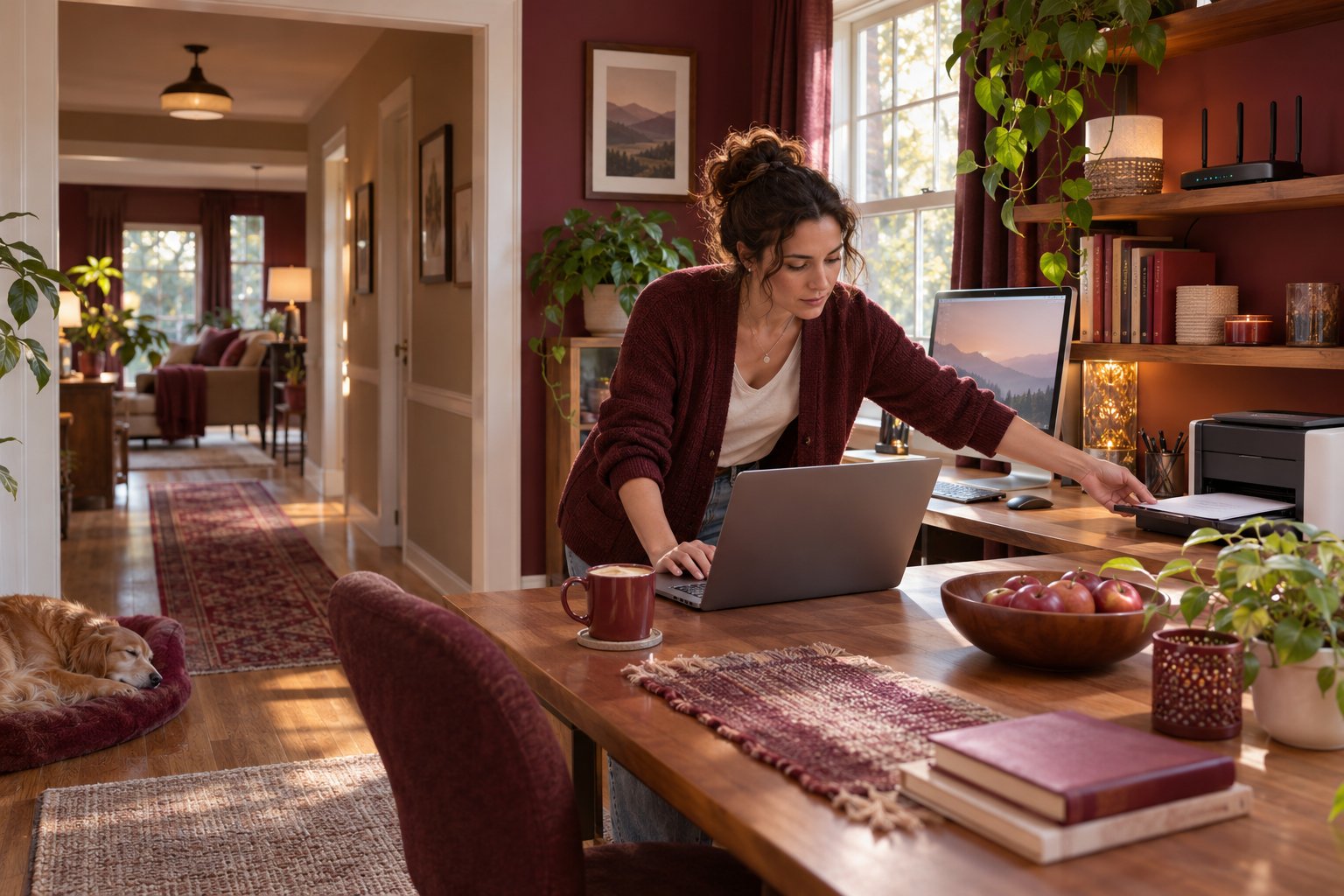
What Is Workgroup in Computer Networking?
A workgroup is a group of independently managed computers that can communicate and share resources over a local network.
The concept is closely associated with Windows networking, where computers have traditionally been assigned a workgroup name. On many personal Windows computers, that name is WORKGROUP.
Imagine you have three computers at home:
-
A desktop in the living room containing family photographs.
-
A laptop upstairs that you use for work.
-
A computer in a spare bedroom connected to a USB printer.
All three connect to the same router, either through WiFi or Ethernet.
You want to open photographs from the upstairs laptop without carrying files around on a USB drive. You also want to print documents without moving the printer.
Windows file and printer sharing can provide those functions.
The workgroup is part of the traditional Windows arrangement for organizing computers that share local resources.
However, modern Windows file sharing does not require every computer to have an identical workgroup name.
The essential requirements are network connectivity, enabled sharing features, and permission to access the resource.
This distinction matters when troubleshooting. If a laptop cannot open a shared folder, changing WORKGROUP to HOMEGROUP is unlikely to help when the real issue is an incorrect password or a disabled sharing setting.
What does a workgroup actually do?
A workgroup allows independently managed computers to participate in a peer-to-peer sharing environment.
Each computer controls its own accounts, passwords, folders, and security settings.
For example, the desktop downstairs might have a Windows account belonging to one parent.
The upstairs laptop might use a different account belonging to another family member.
Both computers can be assigned to the same workgroup, but that does not give either person unrestricted access to the other's files.
The desktop owner must choose which folders to share.
They must also configure the necessary permissions.
Depending on the setup, the laptop user may need credentials for an account authorized on the desktop.
That means workgroup membership is not the same as account access.
A matching workgroup name does not bypass passwords or permissions.
The practical purpose is to support local resource sharing while allowing each computer to remain independently managed.
For a home with two or three Windows computers, that is usually sufficient.
Why workgroups are associated with home networks
Workgroups became common in home networking because families could share basic resources without setting up a dedicated server.
A parent could store photographs on a desktop.
Another family member could open those photographs from a laptop.
A printer attached to one computer could serve other computers on the same local network.
There was no need for a separate machine to manage every user's account.
Typical workgroup-style sharing tasks include:
-
Opening documents stored on another Windows computer.
-
Accessing photographs saved on a family desktop.
-
Printing through a USB printer connected to another PC.
-
Sharing scanned paperwork between household computers.
-
Accessing a folder used for a home project.
-
Moving large files between computers without uploading them to cloud storage.
Workgroups are less visible today because many households use cloud storage, wireless printers, and network storage devices.
Still, the underlying Windows sharing features remain useful.
For example, transferring a large collection of family videos directly between two computers can be convenient when both are connected to the same local network.
You do not need to upload the videos to an online storage account first.
However, the computer storing the videos must be available, and the receiving computer must have permission to access them.
Does a workgroup need a server?
No. A traditional workgroup does not require a dedicated central server.
Each computer can provide resources to other computers.
For example, the living room desktop can share a folder while the office computer shares a printer.
The upstairs laptop can access both resources if the network and permissions allow it.
However, the computer providing a resource still acts as the host for that particular service.
If your photographs are stored on the living room PC, that computer normally needs to be switched on and connected before another device can access the shared folder.
If the PC is shut down, the folder becomes unavailable over the network.
The same limitation applies to a USB printer shared through a Windows computer.
If the host computer is turned off or asleep, other devices may not be able to print.
A standalone network printer or network-attached storage device can avoid some of these limitations because it does not depend on a person's desktop computer remaining powered on.
How a Workgroup Works on a Home Network
To understand how workgroups operate, separate four things that are often confused:
-
The router connects devices.
-
The local network allows those devices to communicate.
-
Windows sharing settings determine which resources are available.
-
Permissions control who can access those resources.
The workgroup name is an additional Windows setting. It does not replace any of those requirements.
This is especially relevant in homes with WiFi extenders, several routers, or computers connected through different methods.
The router connects devices, not workgroup accounts
Suppose your desktop connects to the router with an Ethernet cable.
Your laptop connects to the same router over WiFi.
Both computers can communicate over the local network if the router configuration allows it.
The fact that one device uses a cable and the other uses wireless does not prevent file sharing.
The router handles network communication.
Windows handles the file-sharing service.
For example, your desktop may be named FAMILY-PC.
Your laptop may be named OFFICE-LAPTOP.
Both may use the default workgroup name WORKGROUP.
When you access a shared folder, Windows connects to the computer hosting the files and checks the relevant sharing permissions.
The workgroup name does not determine how fast the wireless signal travels upstairs.
It does not increase the router's range.
It also does not change the WiFi password.
If the laptop struggles to maintain a connection, investigate signal strength, interference, router placement, and the local network configuration.
Do not start by renaming the workgroup.
Workgroup names do not create security permissions
Two computers can belong to WORKGROUP and still be unable to open each other's files.
That is normal when sharing has not been configured.
Consider a desktop containing tax documents and family photographs.
You want another computer to access the photographs, but not the tax records.
Sharing the photographs folder does not require sharing the entire desktop drive.
Windows can restrict access to the specific folder and authorized users.
Even with identical workgroup names, another computer cannot automatically bypass those restrictions.
The reverse is also true.
Computers with different workgroup names can sometimes access each other's shared folders when network connectivity and authentication are configured correctly.
This is why changing the workgroup name should not be the first troubleshooting step.
If Windows reports Access denied, examine account credentials and folder permissions.
If the other computer cannot be found, investigate network discovery and connectivity.
Those messages point toward different problems.
Workgroup sharing usually stays inside your local network
Workgroup-style file sharing is primarily intended for computers connected to the same local network or another appropriately routed network.
For example, your upstairs laptop might open a shared folder on the downstairs desktop while both computers are connected to the home router.
If you take the laptop to a hotel, that local connection is no longer available in the same way.
The hotel network cannot normally reach the private Windows share inside your home.
Remote file access requires a separate, properly secured solution.
Do not expose Windows file-sharing services directly to the internet simply because you want to open documents while traveling.
If you frequently need access away from home, a reputable cloud storage service or properly configured secure remote-access system may be more appropriate.
For ordinary household use, keep Windows file sharing limited to trusted devices and networks.
Workgroup vs Domain vs HomeGroup: What Is the Difference?
Windows networking instructions sometimes mention workgroups, domains, and HomeGroup as though they are interchangeable.
They are not.
Two describe different ways of managing computers. The third is an older Windows feature that Microsoft discontinued.
Understanding the distinction helps you avoid following outdated tutorials.
Workgroup vs domain
A workgroup uses independent computer management.
Each computer maintains its own user accounts and permissions.
A domain allows centralized administration of computers and user identities through infrastructure such as Active Directory.
For example, a home with three Windows laptops usually does not need centralized account management.
Each family member can manage their own computer.
A company with many employee computers may need administrators to control account access, security policies, and shared resources across the organization.
That is where domain-based management becomes useful.
| Feature | Workgroup | Domain |
|---|---|---|
| Main purpose | Local sharing between independently managed computers | Centralized management of users and computers |
| User accounts | Managed on individual computers | Can be managed centrally |
| Dedicated management infrastructure | Not required | Typically required |
| Typical environment | Homes and small peer-to-peer networks | Businesses and organizations |
| File access | Local sharing and account permissions | May use centrally managed identities and permissions |
| Administration | Handled separately on each computer | Central administration is available |
A homeowner sharing a printer between two laptops does not need to create a Windows domain.
That would introduce unnecessary administration.
Use the existing local sharing features unless the household has a specific requirement that calls for something more advanced.
Workgroup vs HomeGroup
HomeGroup was an older Windows feature that made it easier to share certain resources between home computers.
Microsoft removed HomeGroup beginning with Windows 10 version 1803.
You cannot create a new HomeGroup through the standard settings in current Windows 11 versions.
If an online tutorial tells you to open HomeGroup settings and create a HomeGroup password, the instructions are outdated.
Workgroups and standard Windows file-sharing features are different.
You can still configure shared folders and printers.
The current process focuses on network discovery, file and printer sharing, and access permissions.
When searching for troubleshooting instructions, prioritize guidance for your installed Windows version.
A tutorial written for Windows 7 may describe menus that no longer exist.
Workgroup vs WiFi network name
Your WiFi network name is also called the SSID.
It is the name you select when connecting a phone or laptop to wireless internet.
Your workgroup name is a separate Windows setting.
For example:
-
WiFi network name: FamilyWiFi
-
Desktop computer name: LIVINGROOM-PC
-
Windows workgroup name: WORKGROUP
Each value serves a different purpose.
The WiFi name identifies the wireless network.
The computer name identifies a particular machine.
The workgroup name identifies the traditional Windows workgroup configuration.
Changing the workgroup name does not rename your WiFi network.
Changing the WiFi password does not change the Windows workgroup.
If your computer cannot join WiFi, troubleshoot wireless settings and credentials rather than workgroup membership.
How to Find Your Workgroup Name in Windows 11
Most homeowners do not need to change their workgroup name.
However, checking it can be useful when comparing computers or following instructions for an existing local network.
Windows 11 still provides a way to view the setting through System Properties.
Step 1: Open System Properties
On the Windows computer:
-
Press the Windows key and R together.
-
Wait for the Run window to open.
-
Type sysdm.cpl.
-
Select OK.
-
Open the Computer Name tab.
You should see information about the computer's name and its workgroup or domain membership.
For example, the computer might be called OFFICE-PC and belong to WORKGROUP.
The computer name and workgroup name are separate.
You can also use Windows Search to find advanced system settings and open the relevant System Properties window.
The Run method is useful because it opens the correct settings directly.
Step 2: Check the workgroup name
Look for the workgroup information in the Computer Name tab.
On an ordinary personal computer, you may see WORKGROUP.
If you are comparing two Windows computers, repeat the process on the second machine.
Write down both computer names.
Those names can be useful when connecting directly to a shared folder.
Do not assume different workgroup names explain every sharing problem.
Modern Windows computers can access supported network shares without matching workgroup names when the network and permissions are configured correctly.
If you only want to share a folder, leave the default name in place unless there is a specific reason to change it.
Step 3: Change the workgroup name only when necessary
If you have a reason to assign a particular workgroup name, use the following process:
-
Open System Properties.
-
Select the Computer Name tab.
-
Choose Change.
-
Under Member of, select Workgroup.
-
Enter the new workgroup name.
-
Confirm the change.
-
Restart the computer if Windows requests it.
Choose a short, recognizable name.
Avoid personal information or passwords.
Changing the name is not a security upgrade, and it does not automatically improve file-sharing performance.
Do not change domain membership on a work or school computer without authorization.
A managed computer may depend on its organizational domain for account access, policies, and software.
Removing it from the domain can interfere with normal operation.
If your employer manages the computer, ask its support team before making membership changes.
How to Share Files Between Computers in a Workgroup
Sharing a specific folder is the most useful way to understand Windows workgroup-style networking.
Suppose a desktop downstairs stores family photographs.
You want to view those photographs from a laptop upstairs.
Both computers run Windows 11.
The goal is to share one folder without exposing unrelated documents.
Step 1: Check that both computers use the same trusted local network
Start with the connection.
On each computer, open Settings and select Network & internet.
Check whether the computer is connected through WiFi or Ethernet.
For a typical home setup, both devices should be connected to the same trusted local network.
They do not need identical connection types.
A desktop can use Ethernet while a laptop uses WiFi.
However, a guest WiFi network may prevent devices from communicating with the main household network.
Some routers deliberately isolate guest devices for privacy and security.
A second router may also create a separate local network.
If your laptop uses a WiFi extender, check how that extender connects devices to the main network.
Do not assume that having internet access proves both computers can reach each other locally.
If both computers are on the intended network, continue with Windows sharing settings.
Step 2: Set the trusted home network to Private
Windows uses network profiles to apply different sharing and discovery behavior.
Public is intended for less-trusted networks.
Private is suitable for networks where you trust the people and connected devices.
On Windows 11:
-
Open Settings.
-
Select Network & internet.
-
Choose WiFi or Ethernet.
-
Open the active connection's properties.
-
Find Network profile type.
-
Select Private network if the network is trusted.
Only make this change on your own home network or another network you trust.
Do not set an airport, café, hotel, or shared public network to Private merely to make file sharing easier.
Choosing Private does not automatically share all your files.
You still control which resources are available and who can open them.
Step 3: Enable network discovery and file sharing
On the computer that will host the shared folder:
-
Open Settings.
-
Select Network & internet.
-
Open Advanced network settings.
-
Select Advanced sharing settings.
-
Expand Private networks.
-
Turn on Network discovery.
-
Turn on File and printer sharing.
Repeat the relevant settings on the second computer if you want it to participate in discovery and sharing.
Network discovery helps Windows find compatible devices on the local network.
File and printer sharing allows configured resources to be accessed over the network.
Under All networks, review password-protected sharing.
For a normal household, keeping password-protected access enabled is generally safer than opening folders broadly without authentication.
You may need to configure valid accounts and permissions for access.
Do not turn off Windows Defender Firewall just to make another computer appear.
If the connection fails later, troubleshoot the relevant sharing rules rather than disabling the computer's firewall protection.
Step 4: Share one specific folder
Start with a folder that contains non-sensitive files.
For example, create a folder named SharedPhotos and place a few photographs inside it.
Avoid sharing your complete Documents folder or the entire system drive.
Then:
-
Open File Explorer.
-
Find SharedPhotos.
-
Right-click the folder.
-
Select Show more options if needed.
-
Choose Give access to.
-
Select Specific people.
-
Choose the account or supported sharing option.
-
Set the intended permission level.
-
Confirm the sharing operation.
The available accounts and options depend on your Windows configuration.
If the other person only needs to view photographs, use read-only access where possible.
If they need to edit documents, grant the appropriate change permission to the authorized account.
Avoid choosing Everyone solely because it appears convenient.
That option can permit access more broadly than intended, depending on the sharing configuration.
When Windows confirms the folder is shared, note the network path shown.
You can use it from the second computer.
Step 5: Open the shared folder from another computer
Move to the upstairs laptop.
Open File Explorer and select Network.
If network discovery is working, you may see the downstairs computer listed.
Open it and look for the shared folder.
Windows may request a username and password.
Use credentials for an account that is authorized to access the computer hosting the folder.
The password is not your WiFi password.
It may also differ from the Windows Hello PIN used to unlock the laptop.
If the host computer does not appear under Network, try entering the folder's network path directly in the File Explorer address bar.
For example, if the host computer is named LIVINGROOM-PC and the folder share is named SharedPhotos, the network path would be \\LIVINGROOM-PC\SharedPhotos.
Press Enter after entering the path.
If the computer name cannot be found, the problem may involve local name resolution, network isolation, or connectivity.
If Windows finds the computer but reports Access denied, check the account permissions instead.
A successful connection should display the shared photographs.
Step 6: Confirm the correct permissions
Opening a folder is not the same as having permission to edit it.
Check that the shared folder behaves as intended.
If another family member only needs to view photographs, confirm they can open the files without being able to delete them.
If the folder is intended for shared editing, test with a harmless temporary document.
Do not test editing permissions using important family photographs or tax records.
If opening works but saving fails, review the permissions on the host computer.
Windows sharing permissions and file-system permissions can both affect access.
A user may be permitted through one layer but restricted by another.
Grant only the access required.
Once testing is complete, remove temporary files and verify that the final permissions match your intention.
How Workgroups Relate to Shared Printers
Printer sharing is another situation where homeowners encounter workgroup terminology.
The correct setup depends on whether the printer is connected to a computer or directly to the home network.
Sharing a printer connected to a Windows computer
Suppose your printer connects to an office desktop through USB.
You want to print from a laptop upstairs.
Windows can share the USB printer through the desktop.
On the computer connected to the printer:
-
Open Settings.
-
Select Bluetooth & devices.
-
Open Printers & scanners.
-
Select the printer.
-
Open Printer properties.
-
Select the Sharing tab.
-
Enable Share this printer.
-
Confirm the share name.
Make sure file and printer sharing is enabled on the trusted Private network.
On the second computer, open Printers & scanners and choose Add device.
If Windows cannot discover the printer automatically, use the available manual shared-printer option.
You may need the host computer name and printer share name.
Keep in mind that the desktop normally needs to remain switched on and connected.
If it goes to sleep or shuts down, the shared printer may become unavailable.
This arrangement works, but it is not always the most convenient option for a household where several people print regularly.
Sharing a printer connected directly to WiFi
A modern WiFi printer can often connect directly to the router.
In that case, it does not need a Windows computer to remain powered on.
Connect the printer using its manufacturer's instructions.
Then add it from compatible computers or mobile devices.
On Windows 11, open Settings, Bluetooth & devices, then Printers & scanners.
Select Add device.
If the printer is supported and discoverable, Windows may identify it automatically.
Phones and tablets may use supported mobile printing features.
The printer does not need to join a traditional Windows workgroup to provide these functions.
If the printer is missing, check whether it is connected to the correct network.
Guest network isolation, separate router networks, or incorrect printer WiFi settings can prevent discovery.
For most families, a printer connected directly to the home network is easier to manage than one shared through a desktop PC.
Do WiFi Routers, Extenders, and Security Cameras Use Workgroups?
Home networking equipment and Windows workgroups are frequently confused because they all involve devices communicating over a network.
However, routers, extenders, and cameras do not normally need Windows workgroup membership to perform their primary functions.
Does a WiFi router need a workgroup name?
No. A typical home router does not need a Windows workgroup name to connect devices to the internet.
The router provides network connectivity and manages settings such as WiFi names, passwords, and local network addressing.
Your Windows computers may each have workgroup settings, but those settings are separate.
If you replace your router, you do not normally need to recreate the workgroup before connecting phones and laptops.
You need to configure the new router and reconnect devices as appropriate.
Some routers provide USB storage sharing features.
Those features may use SMB or another protocol to make files available to network users.
If your router supports network storage, configure the storage service and its permissions according to the manufacturer's instructions.
Do not assume a folder shared through the router has the same permissions as a folder shared from a Windows desktop.
Does a WiFi extender affect workgroup sharing?
A WiFi extender can affect local network communication, but it does not manage Windows workgroup membership.
Imagine your router is downstairs and your laptop connects through an extender near the upstairs landing.
If the extender bridges devices onto the main local network and permits communication, the laptop may be able to open a shared folder on the downstairs desktop.
However, some equipment configurations create separate networks or restrict communication between connected devices.
That can prevent local file sharing even when internet browsing works.
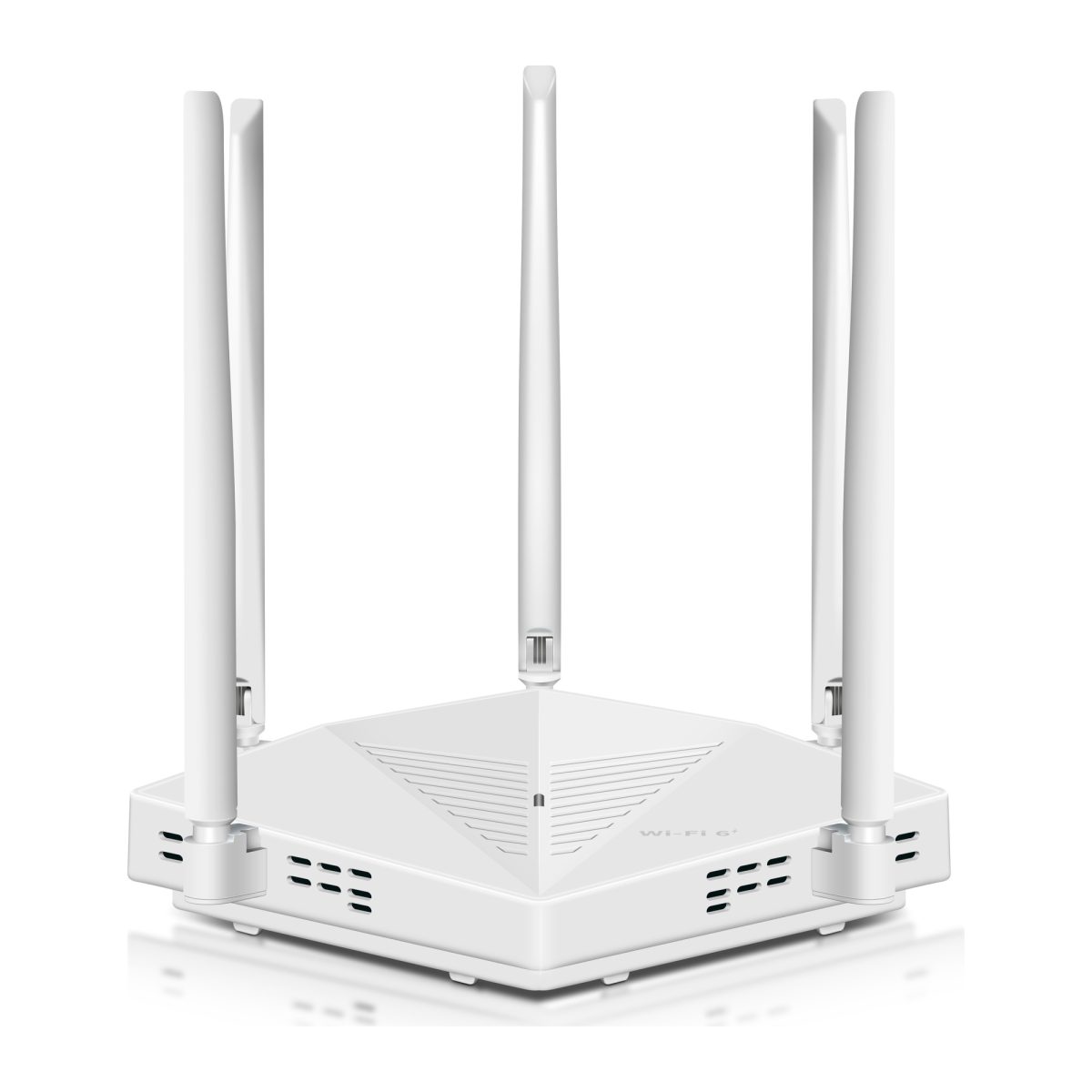
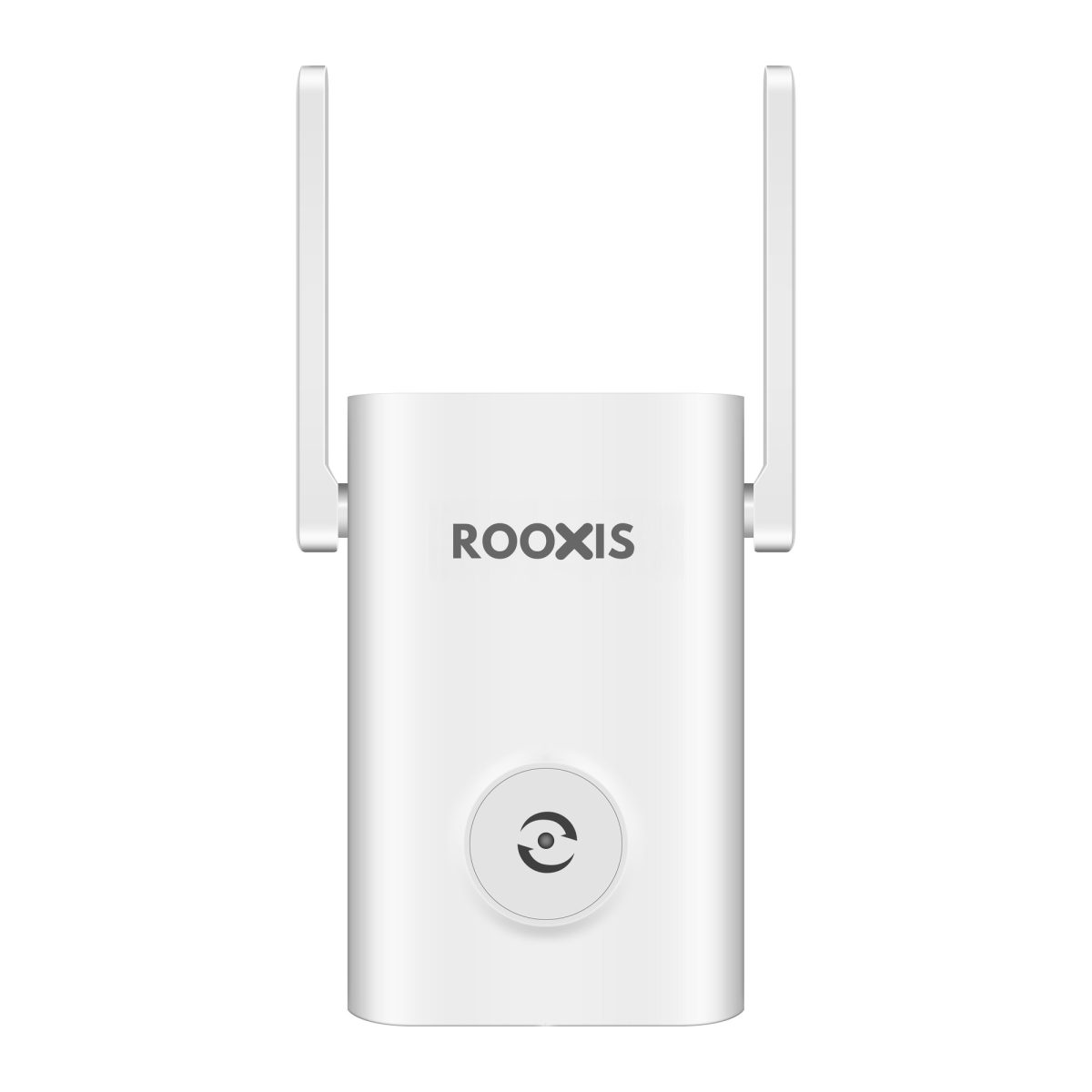
When reviewing home networking equipment, ROOXIS routers and WiFi extenders are examples of devices used to provide home wireless connectivity. For Windows file sharing, check whether the equipment keeps devices on a reachable local network rather than looking for a workgroup setting in the extender.
If sharing works when the laptop connects directly to the main router but fails through another network device, compare the connection arrangements.
Check for guest isolation, access point isolation, or separate routing.
Do not change the workgroup name until you have ruled out the network configuration.
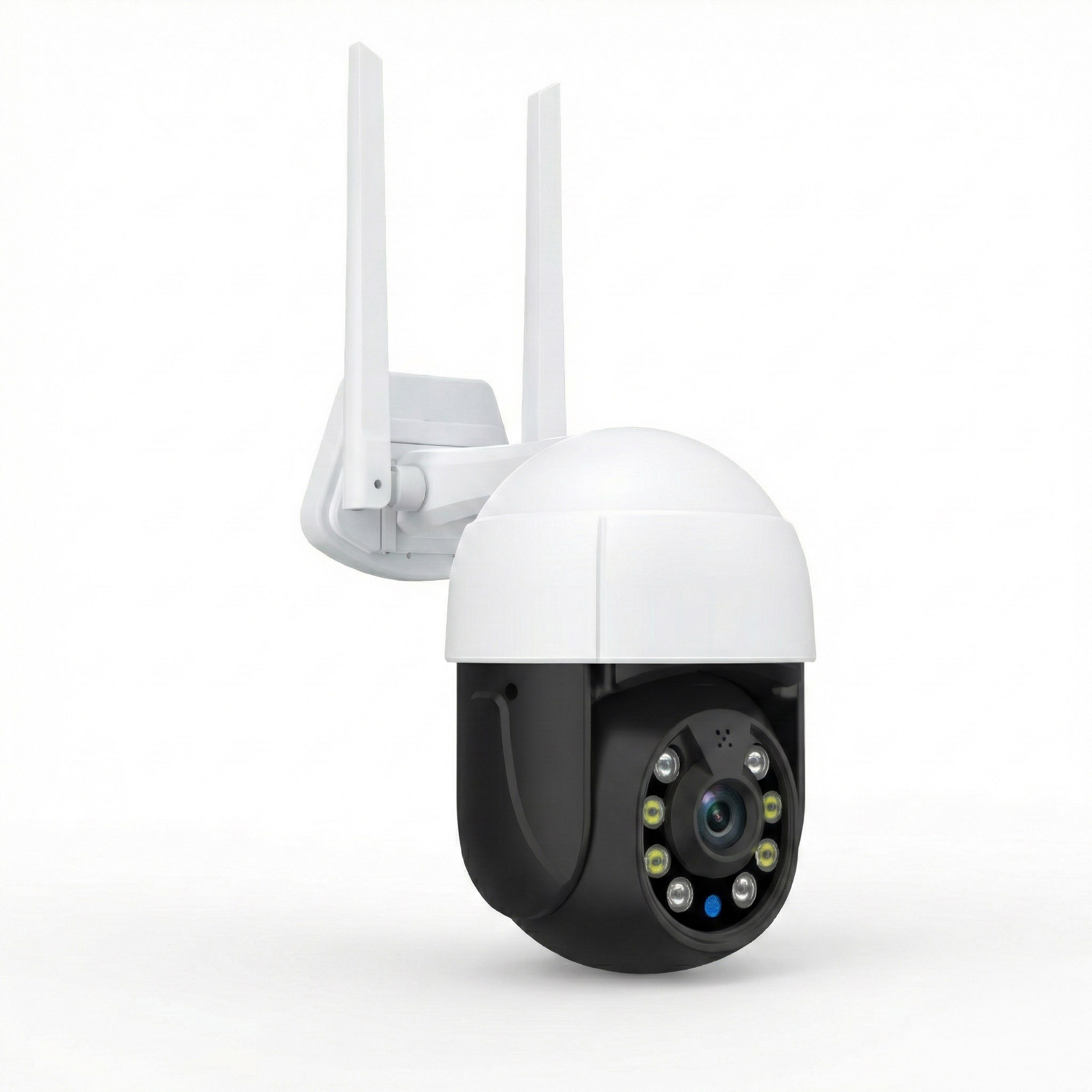
Do home security cameras belong to workgroups?
Most home security cameras do not need to belong to a Windows workgroup.
They connect through WiFi or Ethernet and use the services provided by the manufacturer.
For example, a camera may display live video through a phone application.
Another may store footage on a local memory card or network video recorder.
Some models support local streaming or storage protocols.
Others rely more heavily on the manufacturer's application and account system.
A camera not appearing under Network in Windows File Explorer does not automatically indicate a fault.
It may not offer Windows file sharing at all.
If your camera is unavailable, start with the basics.
Check its power, WiFi connection, and status in the official application.
Confirm that your phone can reach the camera through the supported method.
If the camera supports local access, review the manufacturer's network instructions.
Do not enable outdated Windows sharing protocols just to make a camera appear in the network list.
Can workgroups include Mac computers and other devices?
Windows workgroup names are not the main requirement for sharing files with a Mac.
macOS supports connecting to compatible SMB network shares.
For example, a Mac user can open Finder and select Go, then Connect to Server.
They can enter the appropriate SMB address for a shared resource.
Access depends on network connectivity and valid credentials.
Network-attached storage devices can also provide SMB shares to Windows and Mac computers.
Some phones and tablets support network file access through their built-in file applications or compatible third-party tools.
Capabilities differ by platform.
A Mac, phone, or tablet does not need to become a traditional Windows workgroup PC to use supported network services.
For mixed-device homes, focus on sharing protocol compatibility and permissions.
Common Workgroup Problems and How to Fix Them
When a shared folder or printer stops working, the quickest approach is to identify which part of the connection has failed.
Check the network first.
Then check discovery, sharing, authentication, and permissions.
Avoid changing several settings at once because that makes it harder to identify the real cause.
Problem 1: The second computer does not appear under Network
Open File Explorer and select Network.
If the other PC is missing, confirm that it is switched on.
Check that both computers are connected to the intended local network.
Review the Windows network profile.
For a trusted household network, use Private where appropriate.
Open Advanced sharing settings and confirm Network discovery is enabled.
Check File and printer sharing as well.
If the computer still does not appear, try opening the shared folder directly using its network path.
A computer can sometimes be reachable even when it is not displayed automatically in the Network list.
If direct access works, the problem may involve device discovery rather than the folder permissions.
Do not rename the workgroup merely because the computer is absent from the list.
Problem 2: Windows asks for a network username and password
This usually means the host computer requires authentication.
The requested credentials are not necessarily your WiFi credentials.
They may belong to a Windows account authorized to access the shared resource.
A Windows Hello PIN used to unlock a computer locally is not necessarily the password required for network file sharing.
Check which account has permission to the folder.
Make sure the username and credentials are correct.
If Windows keeps using outdated saved credentials, review the stored network credentials through the appropriate Windows account tools.
Avoid disabling password-protected sharing simply to remove the prompt.
That can weaken the protection around your files.
If authentication succeeds but access is denied, examine folder permissions next.
Problem 3: Both computers have internet but cannot share files
Two computers can reach the internet without being able to communicate directly.
For example, one computer may be connected to the main household WiFi.
The other may use a guest network.
Many routers isolate guest devices to prevent access to the main network.
A second router may also place devices on a separate subnet.
Check the active network connections on both computers.
Confirm whether the devices are intended to communicate locally.
If an extender or access point is involved, review its operating mode and isolation settings.
Then check Windows discovery and sharing.
Do not disable the firewall as a general troubleshooting step.
If the devices are on separate networks, changing the Windows workgroup name will not bring them together.
Problem 4: File sharing works downstairs but not upstairs
First, determine whether the problem involves wireless coverage or local network access.
Take the laptop downstairs and connect near the main router.
Try opening the shared folder.
Then repeat the test upstairs.
If the upstairs WiFi repeatedly disconnects or becomes unstable, investigate signal quality and extender placement.
If internet access remains stable upstairs but the shared folder cannot be reached, examine the network arrangement.
A secondary router or isolated wireless network may be involved.
An access denied message is another clue.
That normally points toward permissions or authentication, not weak WiFi.
Do not buy another extender until you know which problem you are solving.
Better wireless coverage cannot correct an incorrect username.
Problem 5: A shared folder opens but files cannot be edited
The account may have read permission without change permission.
That can be intentional.
For example, a shared folder containing family photographs may be configured so other users can view files without deleting them.
If editing should be allowed, review the folder permissions on the host computer.
Check both sharing permissions and file-system permissions.
Do not grant full control to everyone simply because saving a document fails.
Choose the account that needs access.
Give it the appropriate level of permission.
Test with a harmless file.
If the test succeeds, confirm that unrelated folders remain protected.
Problem 6: A shared printer disappears after a computer restarts
If the printer connects through USB to another Windows computer, check whether that host computer is running.
The printer may be unavailable while the computer is shut down, asleep, or disconnected.
Confirm that printer sharing remains enabled.
Review the printer's status in Printers & scanners.
If the host computer name has changed, an older saved printer connection may no longer point to the correct location.
Remove the obsolete connection if necessary and add the shared printer again through the supported Windows process.
If this problem happens frequently, consider connecting the printer directly to the home network if the model supports it.
A network-connected printer is generally less dependent on one household computer being available.
Workgroup Security: What Homeowners Should Know
Windows file sharing is convenient, but it deserves careful configuration.
A shared folder may contain private photographs, financial paperwork, or personal documents.
The goal is to make the intended files accessible without exposing unrelated information.
Keep password-protected sharing enabled
Password-protected sharing helps restrict access to authorized users.
For most households, it is better to configure the correct credentials than to allow broad unauthenticated access.
If another computer asks for a username and password, check which account should have permission.
Do not immediately turn off password protection.
Remember that guests may occasionally connect to your WiFi.
That should not automatically grant access to shared family folders.
A properly configured guest network can help separate visitor devices from the main household network.
Keep the main network protected with strong WiFi security settings and an appropriate password.
Share specific folders instead of entire drives
Share only the files another person needs.
For example, create a dedicated folder for family photographs rather than sharing the entire desktop drive.
If two household members need to work on a document, use a separate project folder.
Keep tax records, identity documents, and other sensitive files outside broadly accessible shares.
Review permission levels.
Read-only access may be enough for photographs.
Editing permission may be necessary for a shared household budget or project.
Avoid granting full control unless the person genuinely needs it.
Check existing shares from time to time.
If you no longer need a shared folder, remove its sharing permissions.
A share created for a temporary task should not remain open indefinitely.
Do not enable obsolete protocols to solve discovery problems
Some older networking tutorials recommend enabling SMB1 when a computer or device fails to appear in Windows.
SMB1 is an outdated file-sharing protocol with known security weaknesses.
Modern Windows file sharing should use supported current protocols.
If an old storage device or printer depends on SMB1, check whether the manufacturer offers an update or replacement option.
Do not enable obsolete network services merely to bypass a discovery problem.
Similarly, do not disable Windows Defender Firewall completely because a folder cannot be opened.
Investigate network profiles, sharing settings, permitted accounts, and the relevant firewall rules instead.
A functioning file share should not require removing the computer's basic security protections.
Keep Windows and network devices updated
Local file sharing depends on more than the workgroup name.
Windows needs working network services and appropriate security settings.
Routers, access points, and storage devices also affect connectivity.
Keep supported Windows computers updated.
Check router and network device firmware using the manufacturer's official instructions.
If you use network-attached storage, review its user accounts and software updates.
Avoid reusing the router's administrator password for other services.
A router login and a Windows shared-folder account perform different jobs and should be protected separately.
If a household device is no longer receiving security updates, consider the risks before allowing it to host sensitive files.
When Should You Use a Workgroup Instead of Another Sharing Method?
Traditional Windows file sharing is useful, but it is not always the simplest solution.
Choose the method according to where your files are stored, which devices need access, and whether the files must be available outside the home.
Choose Windows file sharing for local PC-to-PC access
Use Windows file sharing when two or more computers regularly exchange files over the home network.
For example, a family desktop may store photographs that another Windows laptop needs to access occasionally.
Built-in sharing avoids uploading those files to a separate cloud service.
It can also be useful for transferring large files over a reliable local connection.
However, the host computer must be available.
The sharing permissions must be maintained.
If the desktop is regularly shut down, the laptop will lose access whenever the host is offline.
For occasional local sharing, that limitation may be acceptable.
Choose a network printer for easier household printing
If several household members print from phones and laptops, a printer connected directly to the network may be easier to manage.
A WiFi printer can communicate through the router using supported printing services.
It does not normally need a particular Windows desktop to remain powered on.
That is helpful when different people use different computers.
Before buying another printer, check whether your existing model supports Ethernet or WiFi connectivity.
Some printers initially installed through USB also have network features that were never configured.
Follow the manufacturer's instructions for connecting it to the router.
Choose network storage for files needed by several devices
A network-attached storage device can provide a central location for files used by different household computers.
Unlike a shared folder hosted on a laptop, a dedicated NAS can remain available independently of a family member's computer.
Some NAS devices support SMB file sharing, user accounts, and access permissions.
They may also provide backup features.
However, network storage requires maintenance.
Keep the device updated.
Use strong administrator credentials.
Configure individual access permissions.
Do not assume that network storage automatically protects files against accidental deletion, hardware failure, or ransomware.
A proper backup remains important.
For a small household with only a few shared documents, a dedicated NAS may be more equipment than necessary.
Choose cloud sharing for access outside the home
If you need documents while traveling or working from another location, cloud storage may be more convenient.
A supported cloud service can synchronize files or provide controlled access through the internet.
This avoids exposing ordinary Windows file-sharing services directly to public networks.
Check who can access shared folders.
Avoid creating public links for sensitive documents.
Use strong authentication on the cloud account.
If several family members need access, provide individual permissions rather than sharing one password.
For files that are only needed inside the home, local Windows sharing may remain simpler.
The best method is the one that provides the required access without creating unnecessary administrative or security problems.
FAQ
Is a workgroup the same as a WiFi network?
No. WiFi connects devices wirelessly through a router or access point, while a Windows workgroup is a traditional setting associated with local computer sharing. Changing the workgroup name does not affect your WiFi password, signal strength, or internet speed.
Do all home computers need the same workgroup name?
Not necessarily. Modern Windows computers can access compatible shared resources across reachable networks when sharing settings and permissions allow it, even if their workgroup names differ. Matching names does not automatically solve network discovery, authentication, or access problems.
What is the default workgroup name in Windows?
The traditional default workgroup name on personal Windows computers is WORKGROUP. You can check it through System Properties under the Computer Name tab. Most homeowners can leave this setting unchanged when configuring local file or printer sharing.
Can a workgroup include wireless and wired computers?
Yes. A Windows desktop connected through Ethernet and a laptop connected through WiFi can share resources over the same reachable local network. Both devices need appropriate network connectivity and Windows sharing permissions.
Does a security camera need to join a Windows workgroup?
Usually not. Most home security cameras connect through WiFi or Ethernet and use their manufacturer's application or supported video and storage protocols. If a camera is unavailable, check its network connection and official application before troubleshooting Windows workgroup settings.
Is a workgroup secure for home use?
Workgroup-style file sharing can be secure when computers are updated and access is restricted to authorized users. Keep password-protected sharing enabled, share specific folders, and avoid enabling outdated protocols. The workgroup name itself is not a security control.
Start with the problem you actually have. If your upstairs laptop cannot open a shared folder, check the local network connection, Windows discovery settings, credentials, and folder permissions. If WiFi keeps dropping or a home camera is offline, investigate wireless coverage and device connectivity instead. In most homes, the default WORKGROUP setting can stay exactly as it is.