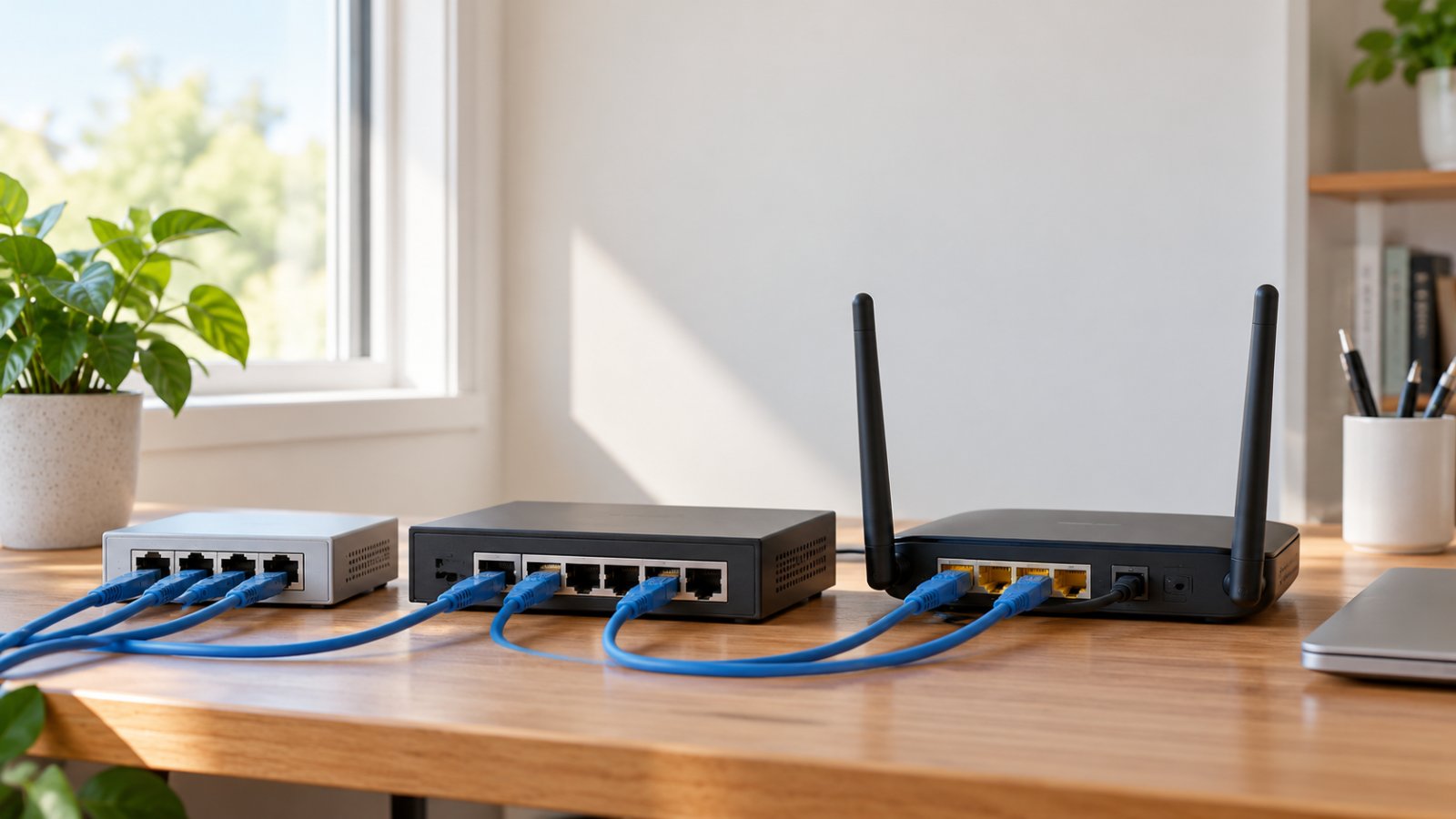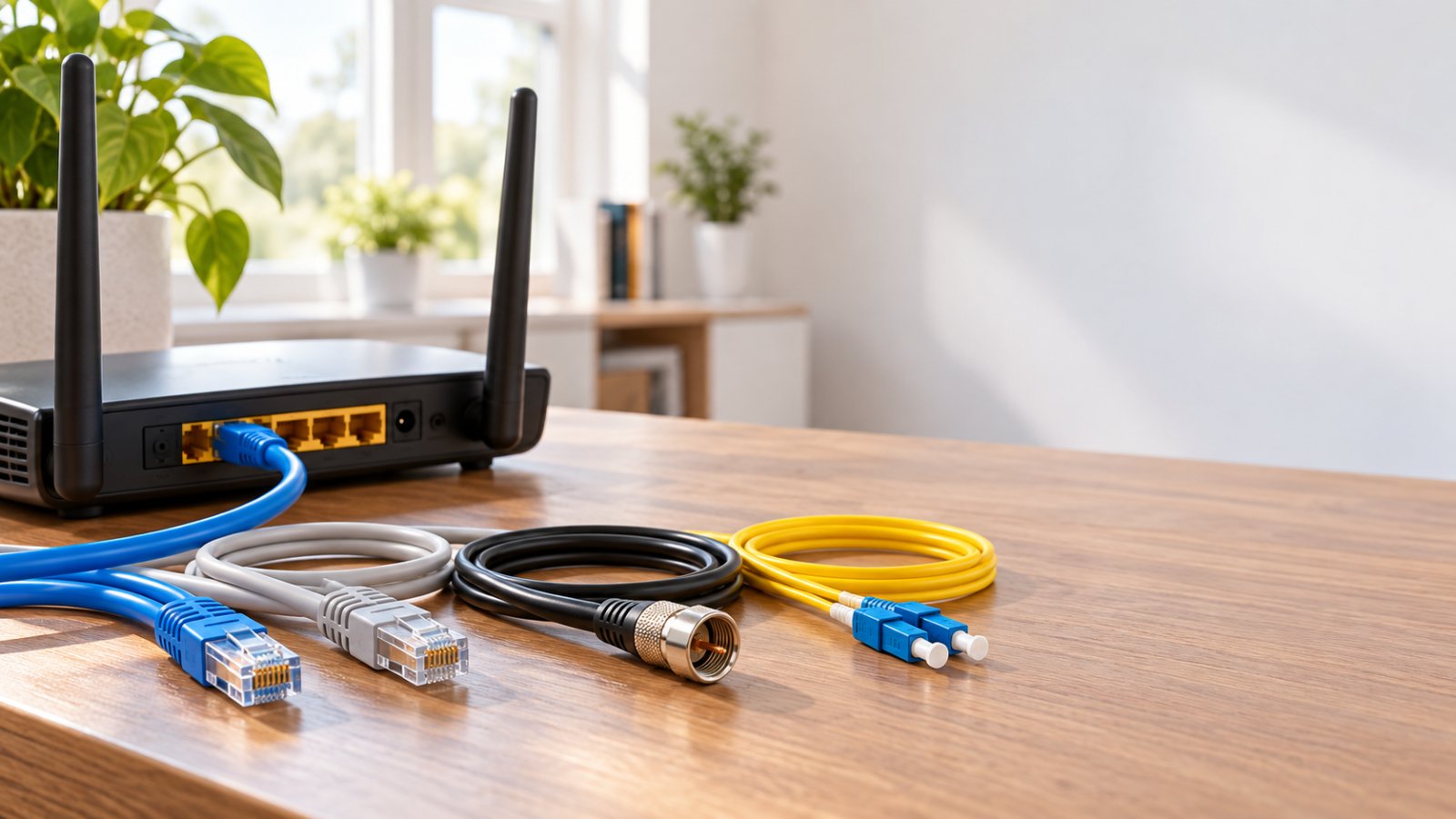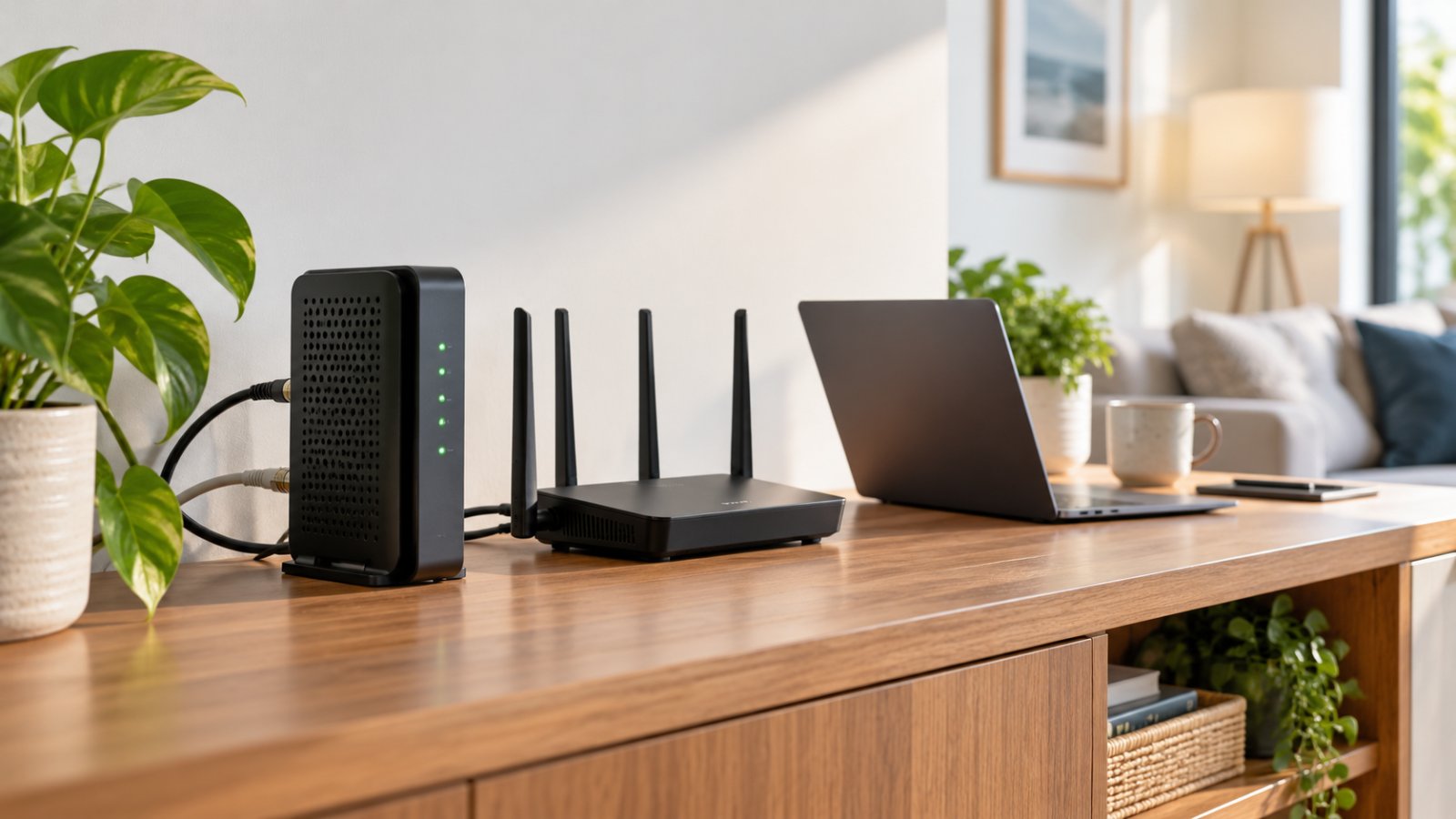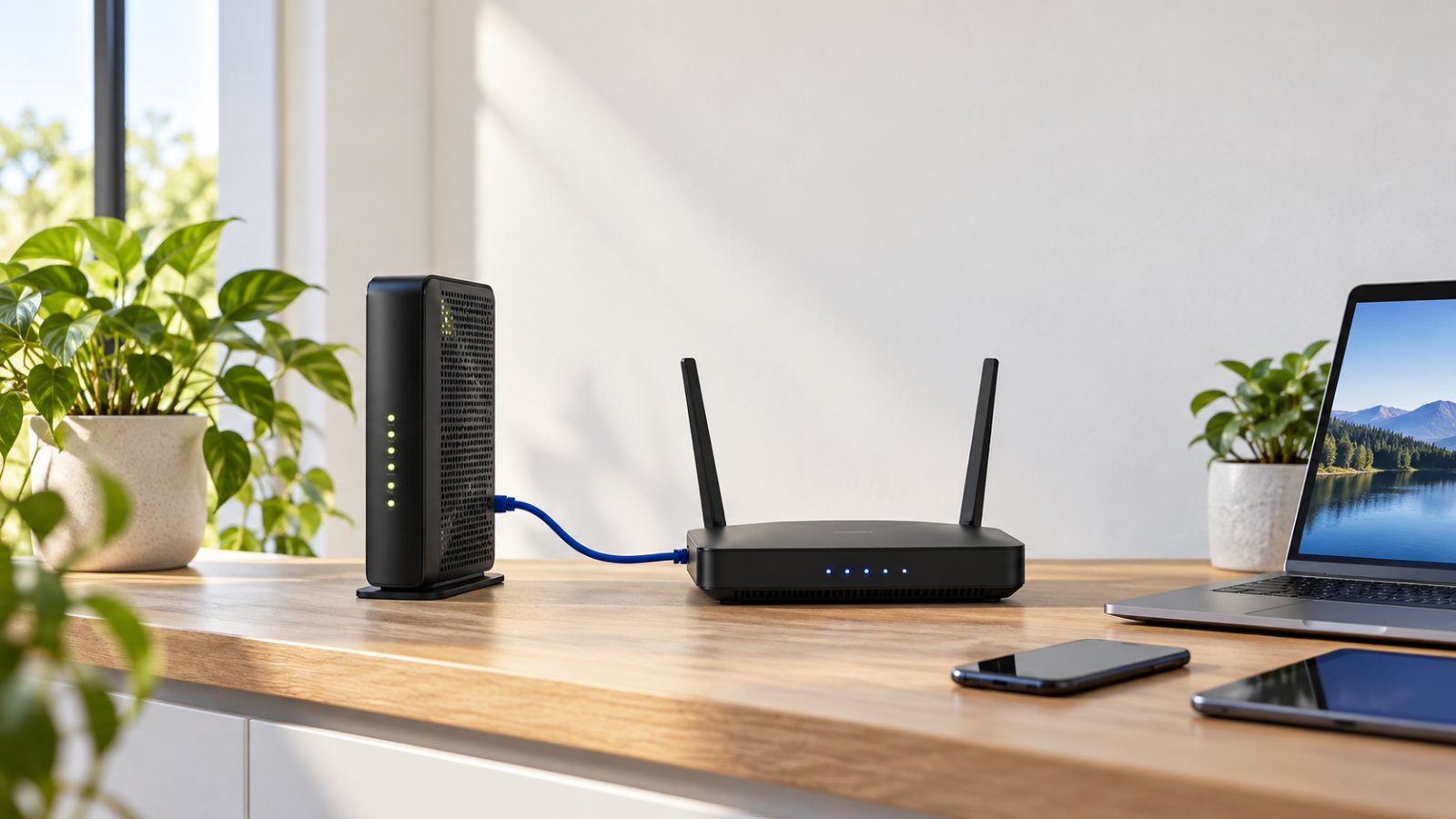
If you're searching for what is bridge in computer networking, the answer is straightforward. A network bridge connects two or more local network segments and forwards Ethernet frames between them using MAC addresses. It works at Layer 2 of the OSI Model, allowing devices on connected segments to communicate without requiring a router to move traffic between separate IP networks.
Bridge mode on a home router is related, but it has a different purpose. It changes how the device handles network traffic, often allowing a separate router to take over routing, NAT, and DHCP responsibilities.
This becomes useful when your internet provider supplies a combined modem and router, but you want to use your own router for the home network.
For example, connecting a second router behind an ISP gateway can create Double NAT. Both devices translate network addresses, which can complicate gaming connections, port forwarding, and certain remote-access applications.
Bridge mode can simplify that arrangement when the equipment supports it.
This guide explains how network bridges work, how they differ from switches and routers, when bridge mode is useful, and how to configure home networking equipment without accidentally disabling the services your devices need.
What Is a Network Bridge in Computer Networking?
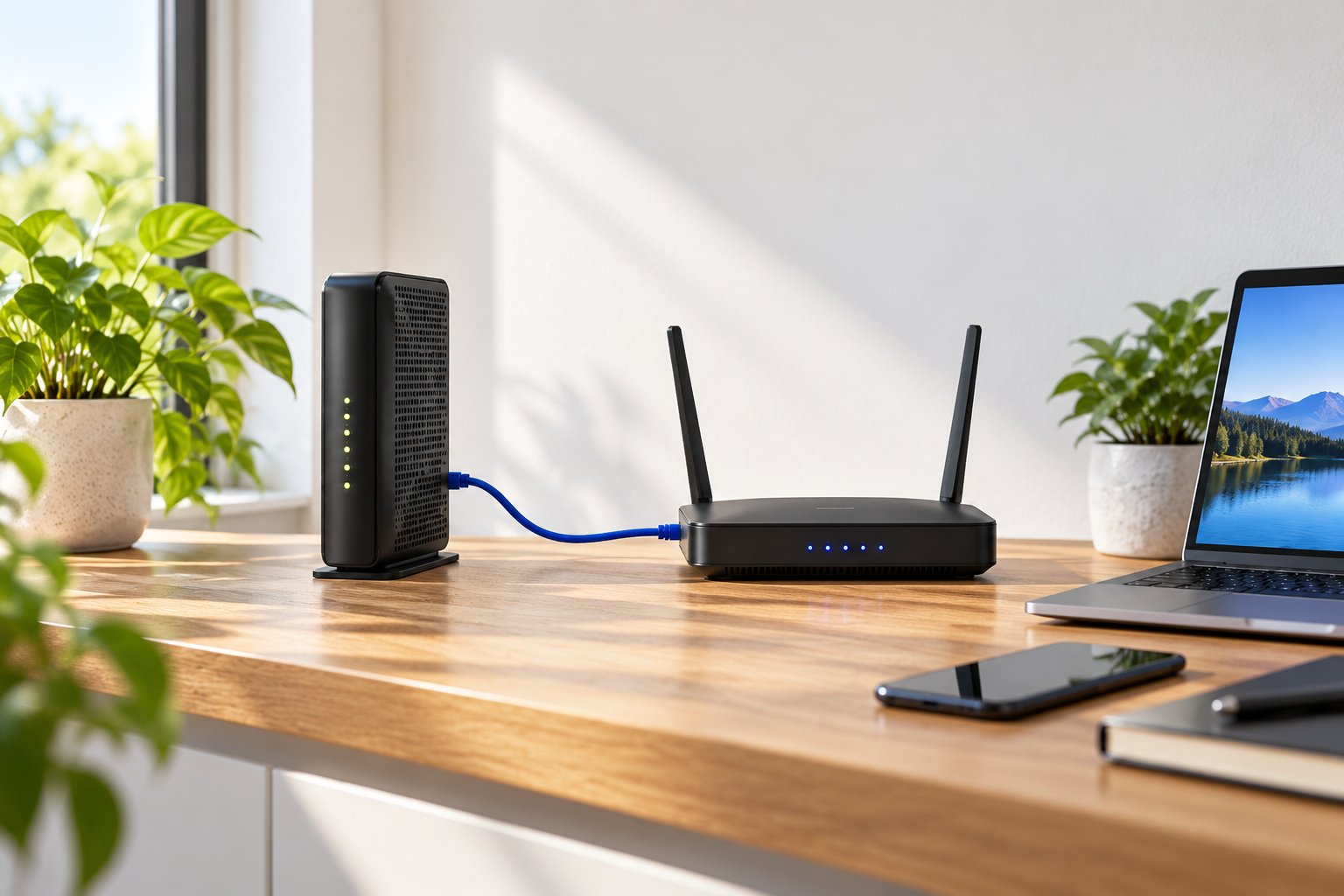
A network bridge connects separate network segments so devices can communicate across them as part of the same Layer 2 network.
Think about a small office with computers in two rooms.
Each room has its own Ethernet connections, but the computers need to share files, printers, and other local resources.
A bridge can connect those segments and forward Ethernet traffic between them.
The devices can remain on the same IP subnet, provided the network is configured correctly.
A router works differently. It is normally used when traffic needs to move between separate IP networks.
What does a network bridge do?
A traditional transparent Ethernet bridge performs several tasks:
-
Connects compatible Ethernet network segments.
-
Learns the MAC addresses of devices reachable through its ports.
-
Forwards frames toward the segment containing the destination device.
-
Filters frames that do not need to cross between segments.
-
Forwards broadcast and certain other traffic within the same broadcast domain.
-
Helps separate collision domains on traditional shared Ethernet segments.
The important detail is that a bridge does not simply repeat every incoming electrical signal.
That is what an older Ethernet hub does.
A bridge examines information in Ethernet frames and uses it to decide whether forwarding is necessary.
Is a network bridge still used today?
Yes, although you may not see many devices sold specifically as two-port Ethernet bridges.
Modern network switches perform bridging functions across multiple ports.
Wireless access points also commonly bridge traffic between WiFi devices and wired Ethernet networks.
Operating systems can create software bridges to connect virtual machines, physical Ethernet adapters, and other network interfaces.
The technology remains relevant. It is simply built into equipment that most people know by other names.
Does a bridge connect devices to the internet?
Not by itself.
A basic network bridge connects local network segments. It does not ordinarily perform IP routing between the home LAN and the internet.
For internet access, the connected network still needs an appropriate router or gateway.
For example, a wireless bridge between a house and detached office may let devices in the office reach the home network. The main home router still handles internet routing.
The bridge provides the connection between locations. It does not replace the router.
How a Bridge Operates at Layer 2 (Data Link Layer)
A network bridge operates at Layer 2, the Data Link Layer, of the OSI Model.
The OSI Model describes how network communication is organized into seven layers.
You do not need to memorize all seven to understand bridging.
Three layers explain the main differences between common networking devices.
| OSI layer | Main responsibility | Common equipment |
|---|---|---|
| Layer 1, Physical Layer | Transfers physical signals and bits | Cables, physical repeaters |
| Layer 2, Data Link Layer | Handles local frames and MAC addresses | Network bridges, Ethernet switches |
| Layer 3, Network Layer | Handles IP addressing and routing between networks | Routers, Layer 3 switches |
A bridge works with Ethernet frames.
An Ethernet frame contains several pieces of information, including source and destination MAC addresses.
The bridge uses those addresses to decide where local traffic should go.
What is a MAC address?
A MAC address, or Media Access Control address, is an address used to identify a network interface for local network communication.
For example, a desktop computer and a network printer each have network interfaces with MAC addresses.
When the computer sends an Ethernet frame toward the printer, the destination MAC address identifies the intended receiving interface.
A bridge can use this information to determine which connected segment should receive the frame.
How is a MAC address different from an IP address?
A MAC address is mainly used for local data link communication.
An IP address is used for communication through IP networks and helps routers determine where packets should travel.
A router examines IP addresses when forwarding packets between networks.
A conventional Layer 2 bridge uses MAC addresses when forwarding Ethernet frames.
This distinction matters because bridging does not automatically create a new IP subnet.
Does bridging change the IP addresses of connected devices?
Normally, transparent bridging does not require devices to move into a separate IP network.
For example, two rooms connected through a bridge may use addresses within the same 192.168.1.x subnet.
The devices still need valid IP configuration.
That configuration may come from the home's DHCP server or from manually assigned addresses.
A bridge does not automatically assign those addresses simply because it connects the two segments.
Bridging Tables and MAC Address Forwarding
A transparent bridge learns which devices can be reached through each connected port.
It stores this information in a forwarding table, often called a MAC address table or bridging table.
You can think of the table as a record of where network devices have been seen.
Step 1: A frame arrives
Suppose Computer A sends a frame through one of the bridge's ports.
The bridge examines the source MAC address.
It records that Computer A is reachable through the port where the frame arrived.
Step 2: The bridge checks the destination
The frame also contains a destination MAC address.
The bridge looks for that address in its forwarding table.
If it already knows the destination is reachable through another port, it can forward the frame in that direction.
Step 3: The bridge forwards or filters the traffic
If the destination is reachable through another segment, the bridge forwards the frame.
If the destination is known to be on the same segment from which the frame arrived, the bridge can filter it rather than sending it back across the connection.
This avoids unnecessary traffic.
Step 4: The bridge handles unknown destinations
Sometimes the destination MAC address is not yet in the forwarding table.
In that situation, a typical transparent bridge floods the frame through its relevant other ports.
As devices communicate, the bridge learns where their MAC addresses are located.
Future frames can then be forwarded more selectively.
What happens when a device moves?
MAC address table entries are not normally permanent.
Dynamic entries expire after a period of inactivity.
This allows the bridge to relearn a device's location when its connection changes.
For example, a laptop may be disconnected from one network port and connected through another.
The bridge can eventually update its forwarding information.
Why are network loops a problem?
Consider two network switches connected with multiple cables that create a loop.
Without suitable loop prevention, broadcast and unknown unicast frames may circulate repeatedly.
This can generate excessive network traffic and cause MAC address tables to change constantly.
The result may be an unstable or unusable network.
Bridged Ethernet networks commonly use mechanisms such as Spanning Tree Protocol to prevent these problems.
For an ordinary home network, avoid connecting switches together through multiple paths unless the equipment and configuration explicitly support the intended arrangement.
Types of Network Bridges
Network bridges are commonly divided into transparent bridges, source-route bridges, and wireless bridges.
These categories describe different forwarding methods and connection arrangements.
Transparent bridging is still fundamental to Ethernet switching.
Source-route bridging is mostly associated with older Token Ring networks.
Wireless bridging remains useful when two network locations need to communicate without an Ethernet cable running between them.
Transparent Bridge
A transparent bridge forwards Ethernet frames using MAC addresses learned from network traffic.
It is called transparent because connected computers normally do not need special settings to account for the bridge.
The bridge handles forwarding automatically.
How transparent bridging works
Imagine two office rooms connected through a transparent bridge.
A computer in the first room sends data to a printer in the second room.
The bridge learns the source addresses of devices connected through its ports.
Once it knows where the printer is located, it forwards relevant frames toward that segment.
Traffic between devices already on the same segment does not necessarily need to cross the bridge.
Where is transparent bridging used?
Transparent bridging principles appear in:
-
Modern Ethernet switches.
-
Wired and wireless access points.
-
Software network bridges.
-
Certain virtualization platforms.
-
Compatible wireless bridge systems.
For example, a wired access point connected to a router may bridge wireless client traffic onto the wired LAN.
A laptop connected through the access point can then communicate with wired devices when they are on compatible network segments and the security settings permit it.
Advantages of transparent bridging
-
MAC addresses are learned automatically.
-
Connected devices usually need no bridge-specific configuration.
-
Known unicast frames can be forwarded selectively.
-
Network segments can share the same Layer 2 network.
-
The forwarding process works well with ordinary Ethernet devices.
What are its limitations?
Transparent bridging does not replace IP routing.
It also does not automatically isolate broadcast traffic between the connected segments.
If you want two groups of devices on separate IP networks with controlled communication between them, a router or appropriately configured Layer 3 device is usually required.
Source-Route Bridge
Source-route bridging was used primarily in older IBM Token Ring networking environments.
It differs from transparent bridging because the sending device helps determine the route through the bridged network.
With transparent bridging, the bridge learns device locations and makes forwarding decisions.
With source-route bridging, routing information can be included in the frame itself.
How source-route bridging works
In a source-route network, a device can discover a path to the intended destination.
The sender then includes information describing that path in the transmitted frame.
Bridges use the included routing information to forward the frame along the selected route.
The method places more responsibility on the sending equipment.
Where was source-route bridging used?
It was associated mainly with legacy Token Ring networks.
These networks were more common in older enterprise computing environments.
Source-route bridging is still useful as a networking concept because it demonstrates a different approach to Layer 2 forwarding.
However, it is not something homeowners normally encounter while setting up Ethernet or WiFi.
Should you use source-route bridging at home?
No.
It is not a practical solution for weak WiFi, adding Ethernet ports, or connecting your own router to an ISP gateway.
For those tasks, use equipment that supports modern Ethernet switching, wireless bridging, access point operation, or IP routing.
Wireless Bridge
A Wireless Bridge connects network segments through a wireless connection instead of an Ethernet cable running between them.
This can be useful when two locations need to communicate but installing a cable is difficult.
For example, consider a detached home office at the back of a property.
The main house has a router and an existing Ethernet network.
The detached office needs network access, but there is no cable connecting the buildings.
A suitable wireless bridge system may connect the office network to the main house.
How does a wireless bridge work?
A typical point-to-point wireless bridge uses compatible wireless equipment at both ends.
One unit connects to the main network.
The other connects to the remote network location.
The devices establish a wireless link and forward compatible network traffic between the locations.
Depending on the equipment and configuration, the connected devices can operate within the same Layer 2 network.
Where wireless bridges are useful
Common applications include:
-
Connecting a detached office.
-
Providing network access to a workshop.
-
Linking two nearby buildings.
-
Connecting compatible wired equipment in a remote room.
-
Carrying network traffic to an access point in another location.
Is a wireless bridge the same as a WiFi extender?
Not necessarily.
A WiFi extender usually connects to an existing wireless network and provides additional wireless coverage.
A wireless bridge primarily connects network segments or devices across a wireless link.
Some equipment supports both functions, but the modes may behave differently.
For example, a wireless client bridge might connect a wired desktop computer to an existing WiFi network.
A repeater would normally provide another WiFi signal for nearby wireless devices.
The exact behavior depends on the hardware.
Can any two wireless routers form a bridge?
No.
Both devices need compatible features and security settings.
Some support Wireless Distribution System, or WDS. Others offer a dedicated bridge or wireless client mode.
Certain devices provide a proprietary wireless linking feature that works only with compatible models.
Even when both routers have a setting called bridge mode, that does not guarantee they can form a transparent wireless link with each other.
What affects wireless bridge performance?
The main factors include:
-
Distance between the devices.
-
Walls, trees, and other obstacles.
-
Antenna alignment.
-
Available wireless frequencies.
-
Interference from nearby networks.
-
Radio and hardware capabilities.
-
Weather exposure for outdoor equipment.
A connection between two buildings may require a clear radio path.
Do not assume an ordinary indoor WiFi extender can reliably communicate through several heavy concrete walls.
When suitable cabling is available, a wired Ethernet connection or professionally designed fiber link may offer more predictable performance.
Network Bridge vs. Router vs. Switch: Key Differences
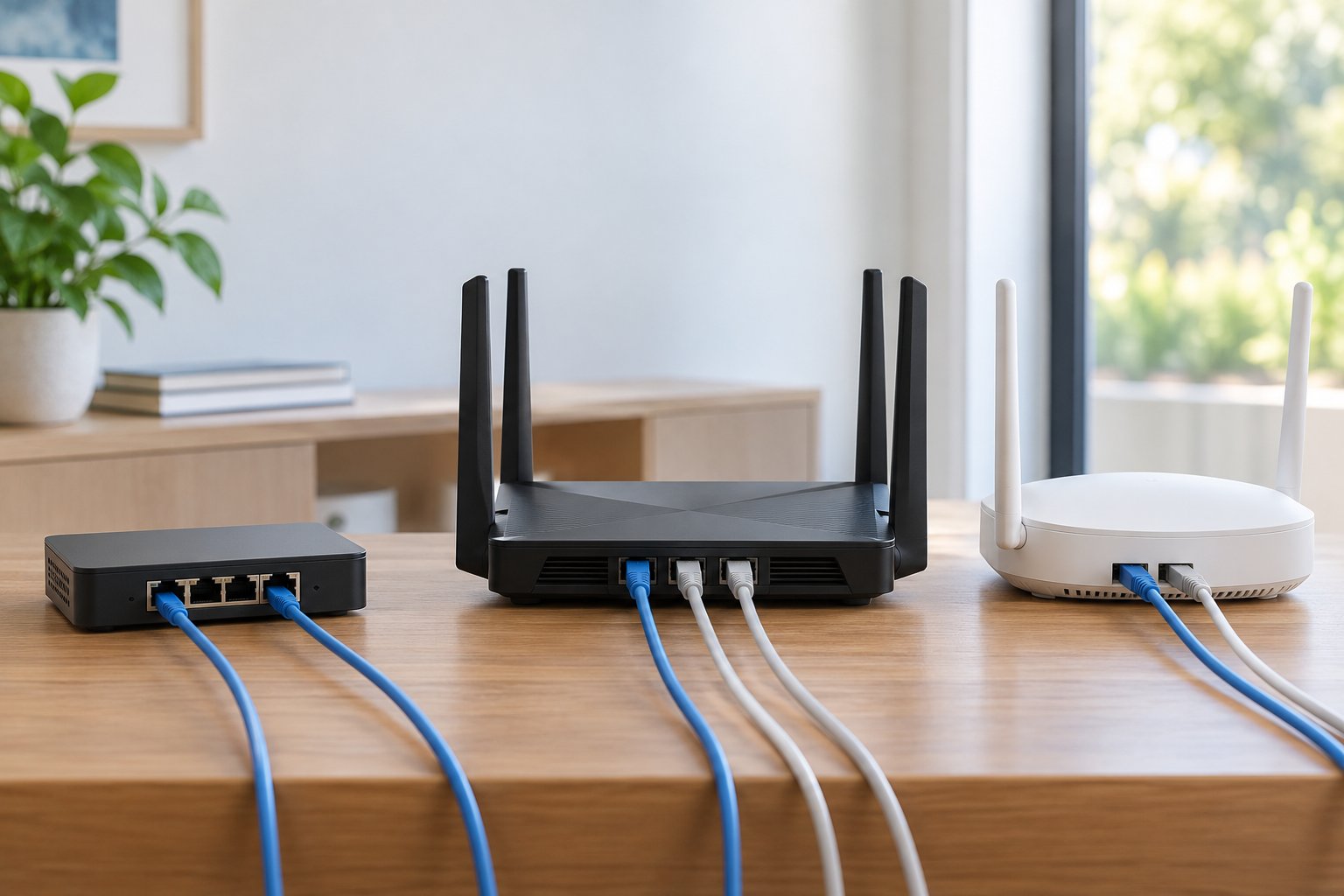
A network bridge, router, and Ethernet switch all move traffic, but they do not perform the same job.
A bridge connects Layer 2 network segments.
A switch provides similar Layer 2 forwarding across multiple ports.
A router moves IP packets between separate networks.
For most home networking decisions, understanding these three roles is enough to choose the correct equipment.
Network bridge vs. router vs. switch comparison
| Feature | Network Bridge | Ethernet Switch | Router |
|---|---|---|---|
| Main function | Connects network segments | Connects wired LAN devices | Connects different networks |
| Primary OSI layer | Layer 2 | Layer 2 | Layer 3 |
| Main forwarding information | MAC address | MAC address | IP address |
| Typical ports | Traditionally two or a few | Multiple Ethernet ports | LAN and WAN interfaces |
| Learns MAC addresses | Yes, on transparent bridges | Yes | Not the main basis of IP routing |
| Performs IP routing | No, not as a basic bridge | No, not as a basic Layer 2 switch | Yes |
| Performs NAT | Not normally | Not normally | Commonly on home routers |
| Provides DHCP | Not as a basic bridging function | Not as a basic switching function | Commonly on home routers |
| Typical home use | Linking compatible network segments | Adding wired connections | Internet access and LAN management |
Bridge vs. switch
A modern Ethernet switch is effectively a multiport bridge.
Both use MAC addresses to forward Ethernet frames.
Older bridges commonly connected two network segments.
Modern switches provide multiple ports and are built to handle several simultaneous Ethernet connections efficiently.
If your home router has only one free LAN port and you need to connect three computers, an Ethernet switch is the appropriate choice.
There is no reason to look for a separate legacy bridge.
Bridge vs. router
A bridge connects segments within a Layer 2 network.
A router connects separate IP networks.
Suppose your home LAN uses addresses in the 192.168.1.x subnet.
A transparent bridge can connect another compatible network segment while allowing devices to remain on that subnet.
A router can connect your home subnet to another IP network.
The router uses IP Routing to decide where packets should travel.
What happens to broadcast traffic?
A transparent bridge generally forwards broadcasts within its broadcast domain.
An ordinary Layer 2 switch does the same across the relevant ports of the same VLAN.
A router normally separates broadcast domains.
This distinction matters in larger networks because broadcast traffic can reach all devices within a connected Layer 2 domain.
Separating networks through routing can help control how traffic moves between different groups of devices.
Which one belongs in a home network?
Most homes need a router.
Some need an additional Ethernet switch.
A network bridge is useful for specific tasks, particularly connecting network segments or creating a compatible wireless link.
A WiFi extender or access point is more relevant when the main problem is wireless coverage.
The right choice depends on the connection you need, not which device has the highest advertised speed.
What Is Bridge Mode on a Router?
Bridge mode on a router changes the device's networking role.
On a typical combined modem and router supplied by an internet provider, enabling full bridge mode disables the gateway's normal routing and NAT functions for the bridged internet connection.
A separate router then takes responsibility for managing the home network.
This is useful when you want to replace the ISP gateway's routing functions without necessarily replacing the modem or broadband termination equipment.
What is an ISP Gateway?
An ISP Gateway is equipment supplied by an internet service provider that combines several network functions.
Depending on the service, it may include:
-
Cable or DSL modem functionality.
-
Routing between the home LAN and internet connection.
-
Network Address Translation.
-
DHCP service.
-
A firewall.
-
Ethernet LAN ports.
-
WiFi connectivity.
Some households use the ISP gateway as their only networking device.
Others connect a separate router because they want different WiFi features, more configuration options, or better placement flexibility.
Problems can arise when both devices operate as routers unnecessarily.
What changes when bridge mode is enabled?
On many ISP gateways, full bridge mode changes the arrangement in several ways:
-
The gateway stops performing ordinary NAT for the bridged WAN connection.
-
The separate router handles the main household routing functions.
-
The separate router normally provides DHCP to home devices.
-
The separate router becomes responsible for the main LAN firewall.
-
The gateway's WiFi may be disabled.
-
Certain gateway management features may no longer be available.
-
Only a designated Ethernet port may remain available for the bridged connection.
The behavior varies by device and internet provider.
Do not assume every gateway uses exactly the same settings.
Bridge mode and access point mode are different.
This is one of the most common sources of confusion.
In ISP gateway bridge mode, the separate router generally takes responsibility for routing, NAT, and LAN DHCP.
In Access Point Mode, the upstream router remains responsible for routing, NAT, and DHCP.
The secondary device provides wireless access and may also provide switched Ethernet connections.
For example:
Gateway bridge mode
ISP gateway in bridge mode → Separate router in router mode → Home devices
Access point mode
ISP gateway in router mode → Secondary device in Access Point Mode → Home devices
Both can avoid unnecessary Double NAT in suitable configurations.
However, they achieve that result differently.
What happens to DHCP?
DHCP automatically provides IP configuration to devices on a network.
In a typical home, the main router runs the DHCP server.
When a gateway enters full bridge mode, its normal LAN DHCP service is generally no longer responsible for configuring the household network.
The separate router should provide DHCP for the devices connected to its LAN.
In Access Point Mode, the secondary device normally disables its own DHCP server and leaves the upstream router in control.
The access point itself may still receive a management IP address from the upstream network.
This is why you should not simply turn off DHCP on random devices without first deciding which router will manage the LAN.
Why Bridge Mode Matters: Eliminating Double NAT
Network Address Translation (NAT) allows a router to translate traffic between private addresses used on the home network and addresses used on an upstream network.
Most home routers use NAT so multiple devices can share an internet connection.
For example, a laptop, smart TV, and phone may each have private IP addresses.
The router translates their outbound traffic as it passes through the WAN connection.
What is Double NAT?
Double NAT occurs when traffic passes through two routers that both perform NAT.
Consider this arrangement:
Internet → ISP gateway in router mode → Second router in router mode → Laptop
The laptop belongs to the second router's private LAN.
Its traffic passes through NAT on the second router.
It then passes through NAT again on the ISP gateway.
That creates two layers of address translation.
Is Double NAT always a problem?
No.
Web browsing, streaming, email, and many everyday applications may work without noticeable issues.
Problems are more likely when an application needs inbound connections or depends on particular network discovery behavior.
Examples include:
-
Certain online games.
-
Port forwarding.
-
Peer-to-peer applications.
-
Remote access to home devices.
-
Some VPN configurations.
-
Device discovery across separate private networks.
Why can Double NAT affect gaming?
Some multiplayer games and consoles rely on peer-to-peer communication or particular inbound connections.
With two NAT devices, traffic may need to pass through two separate sets of translation rules.
A port forwarding rule configured on the second router may not be enough if the upstream gateway blocks the same incoming traffic.
This can contribute to restricted NAT status messages or difficulty establishing certain sessions.
Not every game is affected.
Many modern games use relay services or connection methods that work through typical NAT arrangements.
How can bridge mode help?
When supported, placing the ISP gateway into genuine bridge mode removes its normal routing and NAT function from the connection.
The separate router then becomes the main router.
That simplifies the network.
Port forwarding and other routing rules can be managed in one place instead of across two local routers.
What bridge mode cannot fix
Bridge mode does not:
-
Increase your broadband plan's speed.
-
Improve weak WiFi signals automatically.
-
Repair damaged Ethernet cables.
-
Eliminate interference from nearby wireless devices.
-
Guarantee that every game will report an unrestricted NAT status.
-
Remove NAT performed by your internet provider farther upstream.
That final point matters.
Some internet providers use Carrier-Grade NAT, where address translation occurs inside the provider's network.
Even after placing your gateway into bridge mode, incoming connections may still be restricted by that upstream arrangement.
If remote access or port forwarding remains unavailable, check whether the ISP uses Carrier-Grade NAT before making further changes.
When to Turn On Bridge Mode
Bridge mode is useful when your ISP gateway and separate router are both performing routing functions that you do not need.
It should be a deliberate network configuration choice, not a routine setting to enable whenever WiFi seems slow.
Consider bridge mode when:
-
Your ISP provides a combined modem and router.
-
You want your own router to manage the LAN.
-
Two local routers are creating Double NAT.
-
Port forwarding is difficult because traffic passes through both routers.
-
You want one device responsible for NAT, firewall rules, and DHCP.
-
Your provider officially supports the configuration.
Consider Access Point Mode when:
-
You want to keep the ISP gateway as the main router.
-
Your main goal is improving WiFi coverage.
-
You do not need a second routed network.
-
Your secondary router supports a proper access point configuration.
-
You want the ISP gateway to continue providing DHCP.
When should you leave bridge mode disabled?
If your current network works correctly, changing operating modes may provide no practical benefit.
Bridge mode can disable features that you currently use.
Depending on the gateway, these may include its built-in WiFi, guest network controls, parental controls, or certain provider-managed functions.
Some broadband services also use specialized settings for television or telephone connections.
Check the provider's instructions before changing the configuration.
What about IP Passthrough?
Some ISP gateways offer IP Passthrough rather than full bridge mode.
This can allow a downstream router to receive a suitable upstream IP configuration while the gateway retains some functions.
The internal behavior varies by manufacturer.
Do not assume IP Passthrough and full bridge mode are technically identical.
Use the option supported and documented for your service.
How to Enable Bridge Mode on Home Equipment
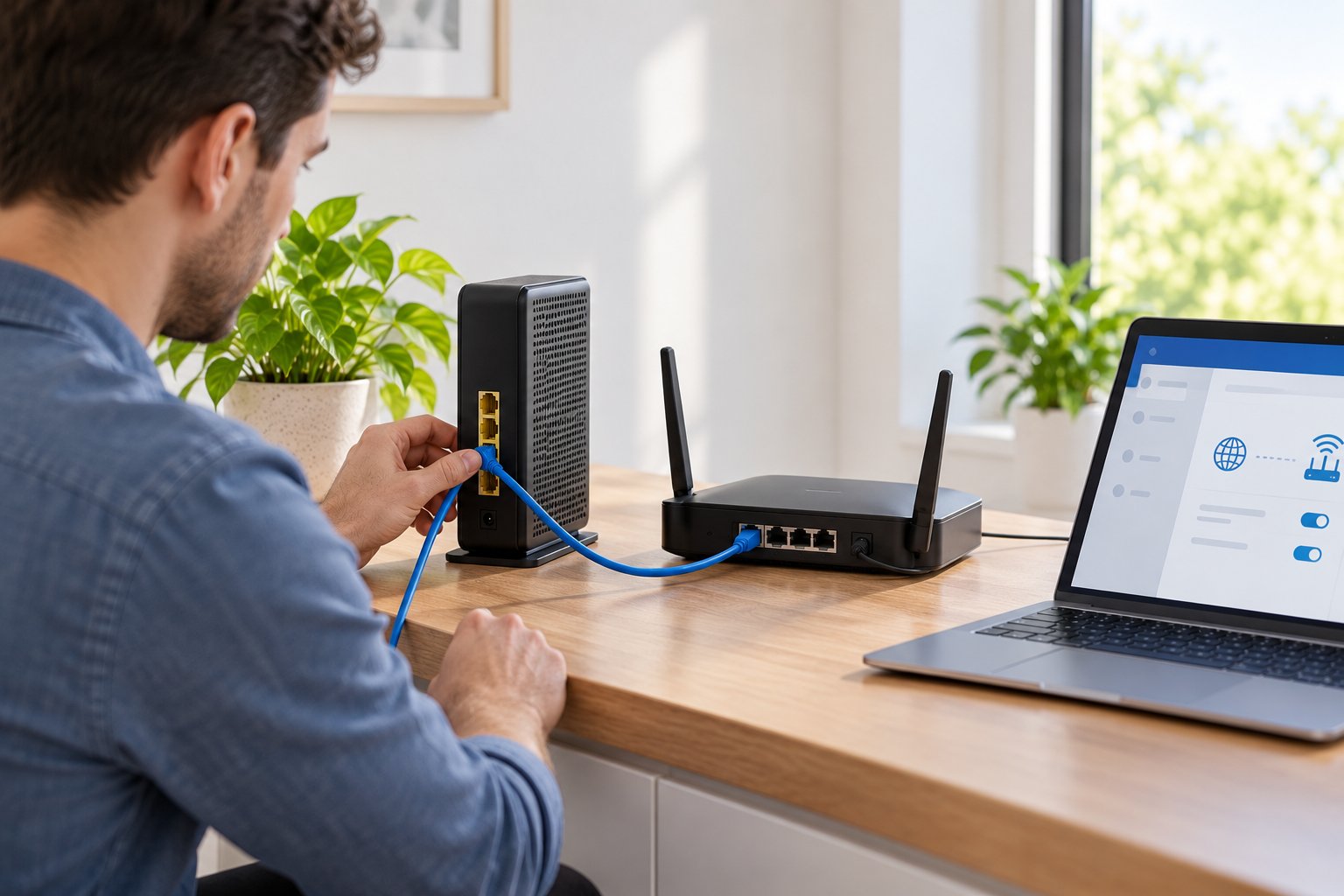
The process depends on your gateway model and internet provider.
Some devices have a clearly labeled Bridge Mode setting. Others offer modem-only operation, passthrough, or a provider-managed configuration.
There is no universal login address or sequence that applies to every router.
Use the official instructions for your equipment.
The steps below explain what to check and how to avoid the most common setup problems.
Step 1: Identify which device currently handles routing
Start by looking at your existing network.
You might have a separate modem and router, a combined ISP gateway, or an optical network terminal connected to a router.
If your internet service already uses a standalone modem connected to your own router, full gateway bridge mode may not be needed.
If an ISP gateway and a separate router both create private LANs, there may be a reason to change the arrangement.
Step 2: Check whether Double NAT exists
Open the WAN status information on your separate router.
Check the address assigned to its WAN interface.
If it receives a private IPv4 address from the ISP gateway, and the gateway also performs NAT, the connection may have Double NAT.
Common private address ranges include:
-
10.0.0.0 to 10.255.255.255.
-
172.16.0.0 to 172.31.255.255.
-
192.168.0.0 to 192.168.255.255.
A private WAN address is an indication worth investigating, not proof of every possible network problem.
Carrier-Grade NAT and other provider configurations can produce different arrangements.
Step 3: Confirm ISP support
Check the gateway's official support instructions.
Look for the terms Bridge Mode, Modem Mode, or IP Passthrough.
Confirm which option applies to your equipment.
Some providers let you make the change through a browser or app.
Others require support staff to enable it.
Also check whether the change affects telephone, television, or additional Ethernet services.
Step 4: Record the existing settings
Before changing anything, save the information needed to restore the connection.
Useful details include:
-
Current WiFi network names.
-
LAN IP address and subnet.
-
DHCP configuration.
-
WAN connection type.
-
Port forwarding rules.
-
Any ISP-specific settings.
-
Which Ethernet ports are currently in use.
If the gateway provides a configuration backup feature, use it.
Do not perform a factory reset unless the manufacturer or ISP specifically instructs you to do so.
A factory reset may remove settings required for the broadband connection.
Step 5: Prepare the separate router
Make sure the router you want to use can support the ISP connection.
Depending on the service, its WAN configuration may require:
-
Automatic IP assignment.
-
PPPoE authentication.
-
VLAN configuration.
-
Other provider-specific connection settings.
Obtain these details from the ISP.
Do not guess at authentication information.
If you're using a ROOXIS router, check the model's supported WAN settings before changing the gateway configuration.
Step 6: Open the ISP gateway's administration interface
Use the official management address or provider app.
Sign in with the credentials assigned to your gateway.
Do not assume that another manufacturer's default password applies.
Once signed in, look for internet connection settings, WAN configuration, or operating mode controls.
Step 7: Enable the supported bridge setting
Select the gateway's documented bridge or modem-only mode.
Read the warning message carefully.
The device may restart after the change.
Its WiFi network may disappear, and certain management functions may become temporarily unavailable.
That can be normal, depending on the model.
Step 8: Connect the main router
Connect an Ethernet cable from the gateway's designated bridged Ethernet port to the WAN port of your main router.
Some gateways activate only one Ethernet port in bridge mode.
Use the port identified in the provider's instructions.
If the gateway or router needs to restart, follow the recommended startup sequence.
Step 9: Configure the main router's WAN connection
Open the main router's management interface.
Check that it receives the appropriate WAN configuration.
Depending on the provider, that may be an automatically assigned address or a connection requiring specific authentication settings.
Confirm that the main router can reach the internet.
Then check the LAN configuration.
In a typical bridged gateway arrangement, the main router should provide DHCP to household devices.
You generally do not want the old gateway continuing to operate as a second ordinary LAN router for that same connection.
Step 10: Test local and internet connectivity
Connect a laptop or phone to the main router.
Check several ordinary tasks:
-
Open websites.
-
Stream a video.
-
Connect to a local network printer.
-
Access shared files where configured.
-
Confirm smart-home devices remain online.
-
Check that connected devices receive valid IP settings.
If Double NAT caused a particular issue before the change, test that application again.
For example, check the game or remote-access service that previously reported connection restrictions.
Step 11: Check WiFi coverage
Bridge mode changes network responsibilities. It does not improve wireless coverage by itself.
If the ISP gateway's WiFi is disabled, your main router now needs to provide the household's wireless service.
Place it somewhere suitable for the rooms where WiFi is used most often.
These router placement tips explain how walls, furniture, interference, and router position affect coverage.
If a distant room still receives a weak signal, consider a suitable WiFi extender or wired access point.
Step 12: Restore the previous arrangement if necessary
If the main router cannot establish an internet connection, check the ISP's required WAN settings.
Avoid changing several unrelated options at once.
If the gateway's bridge mode is unsuitable for your service, restore the supported previous configuration or contact the provider.
You may be able to keep the ISP gateway in router mode and configure your secondary router as an access point instead.
That can remove unnecessary local Double NAT while leaving the upstream gateway responsible for routing and DHCP.
Bridge mode vs. access point mode comparison
| Setup | ISP gateway function | Secondary device function | LAN DHCP handled by | NAT handled by |
|---|---|---|---|---|
| Full gateway bridge mode | Passes the WAN connection through | Main router | Secondary router | Secondary router |
| Gateway router with secondary access point | Main router | WiFi access point | ISP gateway | ISP gateway |
| Both devices operating as routers | Upstream router | Additional router | Each typically serves its own LAN | Both may perform NAT |
| Wireless bridge between LAN segments | Existing router remains active | Connects compatible Layer 2 segments | Usually the existing router | Usually the existing router |
Common bridge mode mistakes to avoid
Mistake 1: Confusing bridge mode with access point mode
Full gateway bridge mode usually transfers routing responsibility to a separate router.
Access Point Mode normally leaves routing, NAT, and DHCP with the upstream router.
Check which function you actually need before changing settings.
Mistake 2: Disabling the only active router
If you turn your only router into a bridge without preparing another router, devices may lose their normal IP routing and DHCP services.
Have the intended main router ready first.
Mistake 3: Connecting to the wrong Ethernet port
Some gateways use only one designated port in bridge mode.
A cable connected to another port may not establish the intended WAN connection.
Follow the gateway's documentation.
Mistake 4: Forgetting ISP connection requirements
Some internet services need PPPoE credentials, VLAN settings, or other specific WAN configuration.
Your main router must support the required connection type.
Mistake 5: Expecting stronger WiFi
Bridge mode does not increase wireless range.
If your router is poorly positioned, fix the placement or coverage problem separately.
Mistake 6: Assuming Double NAT is always local
Your ISP may use Carrier-Grade NAT.
Removing NAT from your gateway does not automatically remove address translation farther upstream.
Mistake 7: Changing settings without saving the original configuration
Record the existing setup before making changes.
That makes it easier to restore service if the new arrangement does not work.
Frequently Asked Questions About Network Bridges
What is the main purpose of a network bridge?
A network bridge connects two or more network segments and forwards Ethernet frames using MAC addresses. It operates primarily at Layer 2 of the OSI Model, allowing compatible segments to communicate within the same local network. A basic bridge does not perform IP routing between separate networks.
Does bridge mode turn off WiFi on my modem?
On many combined modem-router gateways, full bridge mode disables the built-in WiFi and normal routing functions. However, the exact behavior depends on the gateway model and internet provider. Check the official instructions before enabling it, especially if the gateway currently provides your home's only WiFi connection.
What is the difference between a bridge and a switch?
A transparent bridge and a conventional Ethernet switch both use MAC addresses to forward local network frames. Traditional bridges commonly connected a small number of segments, while modern switches provide similar forwarding across multiple ports. For adding wired connections to a home network, an Ethernet switch is normally the practical choice.
Why does Double NAT cause connection issues for gaming and smart devices?
Double NAT places two address-translation devices in the communication path, which can complicate inbound connections and certain peer-to-peer applications. Some games may report restricted NAT status, and devices on separate private networks may have difficulty discovering one another. Many everyday internet activities still work normally, so Double NAT is not automatically a problem.
Can two wireless routers be bridged together?
Yes, provided both routers support compatible wireless bridging features and security settings. Some devices support WDS or a dedicated wireless bridge mode, while others offer only repeater or access point operation. Check the manufacturer's compatibility requirements because a setting called bridge mode does not guarantee transparent wireless bridging between different router models.
Conclusion
A network bridge connects local network segments through Layer 2 forwarding. Bridge mode on an ISP gateway serves a more specific purpose by allowing another router to handle the household's routing and NAT functions.
For most homes, bridge mode is worth considering when an ISP gateway and separate router create unnecessary Double NAT. If your goal is simply better WiFi coverage, Access Point Mode or a properly positioned range extender may be the more suitable solution.
ROOXIS routers and WiFi extenders can fit into either arrangement when their supported operating modes match the network design. Decide which device should manage routing and DHCP first, then choose the wired or wireless equipment needed to provide coverage throughout the home.