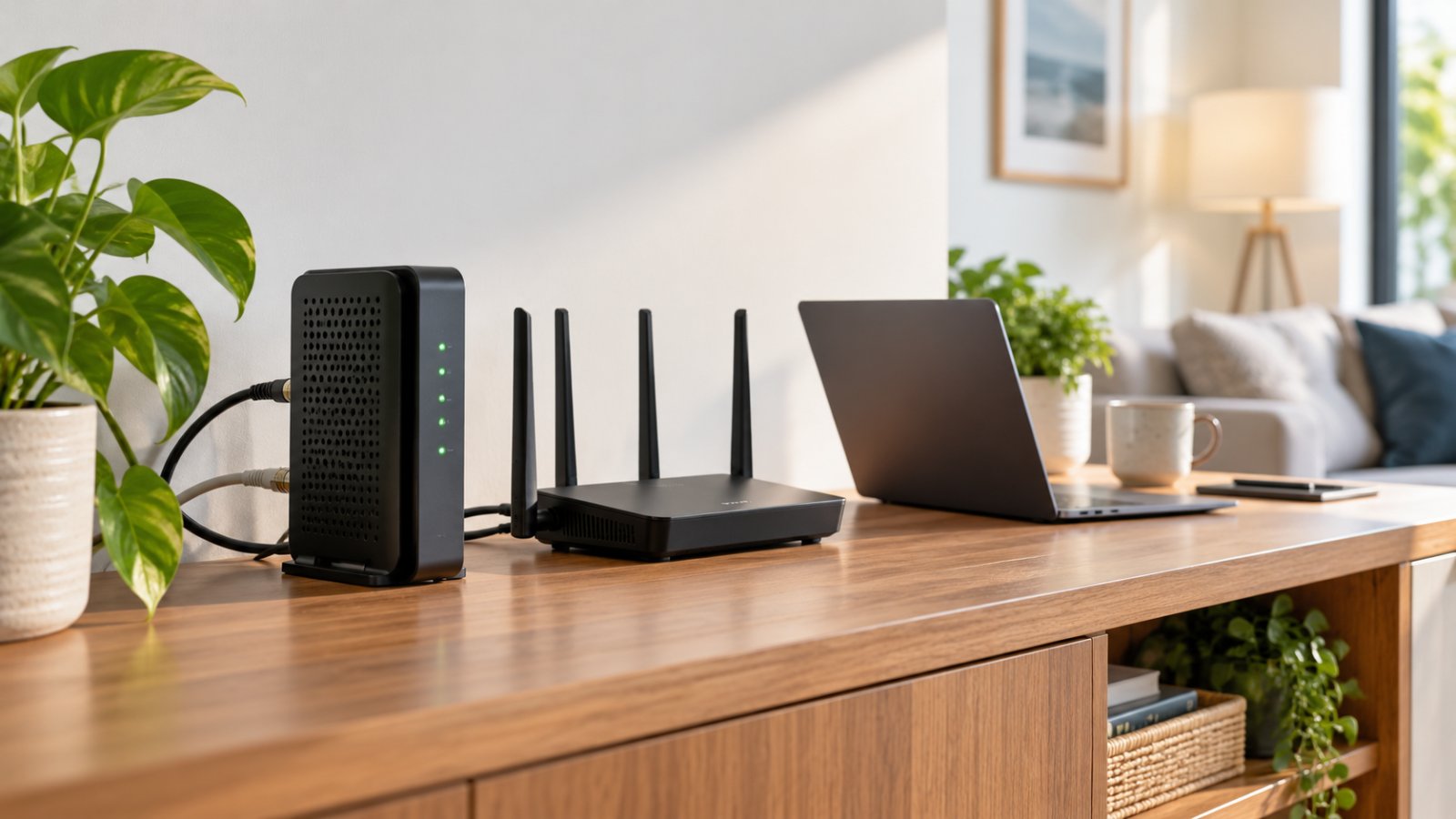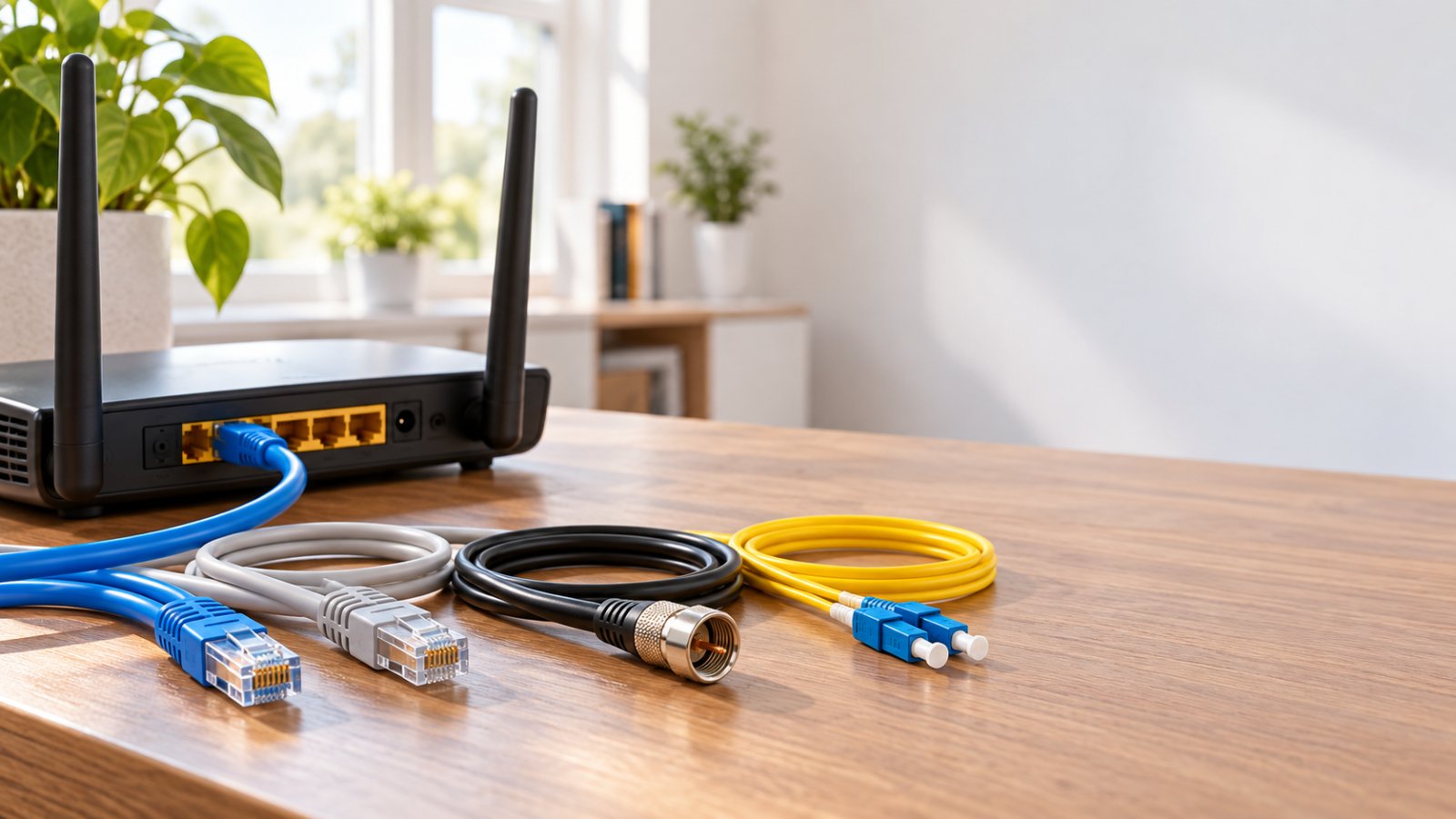
The main types of computer networking cables are twisted pair Ethernet, fiber optic, and coaxial cables. For most home networks, Cat5e, Cat6, and Cat6a Ethernet cables are the practical choices for connecting routers, computers, switches, and compatible WiFi extenders. Cat6 is a sensible option for most new home connections, while Cat6a is worth considering when planning longer 10 Gigabit Ethernet runs.
You don't need the most expensive cable to get a reliable connection. A properly installed Cat5e cable can handle Gigabit Ethernet, and switching to Cat8 won't make a standard home router faster.
The right choice depends on your equipment's Ethernet ports, the length of the cable, and where you plan to install it.
This guide explains networking cable types, compares Ethernet categories, and helps you choose suitable cables for ROOXIS routers, WiFi extenders, computers, and other connected devices.
What Are Computer Networking Cables?
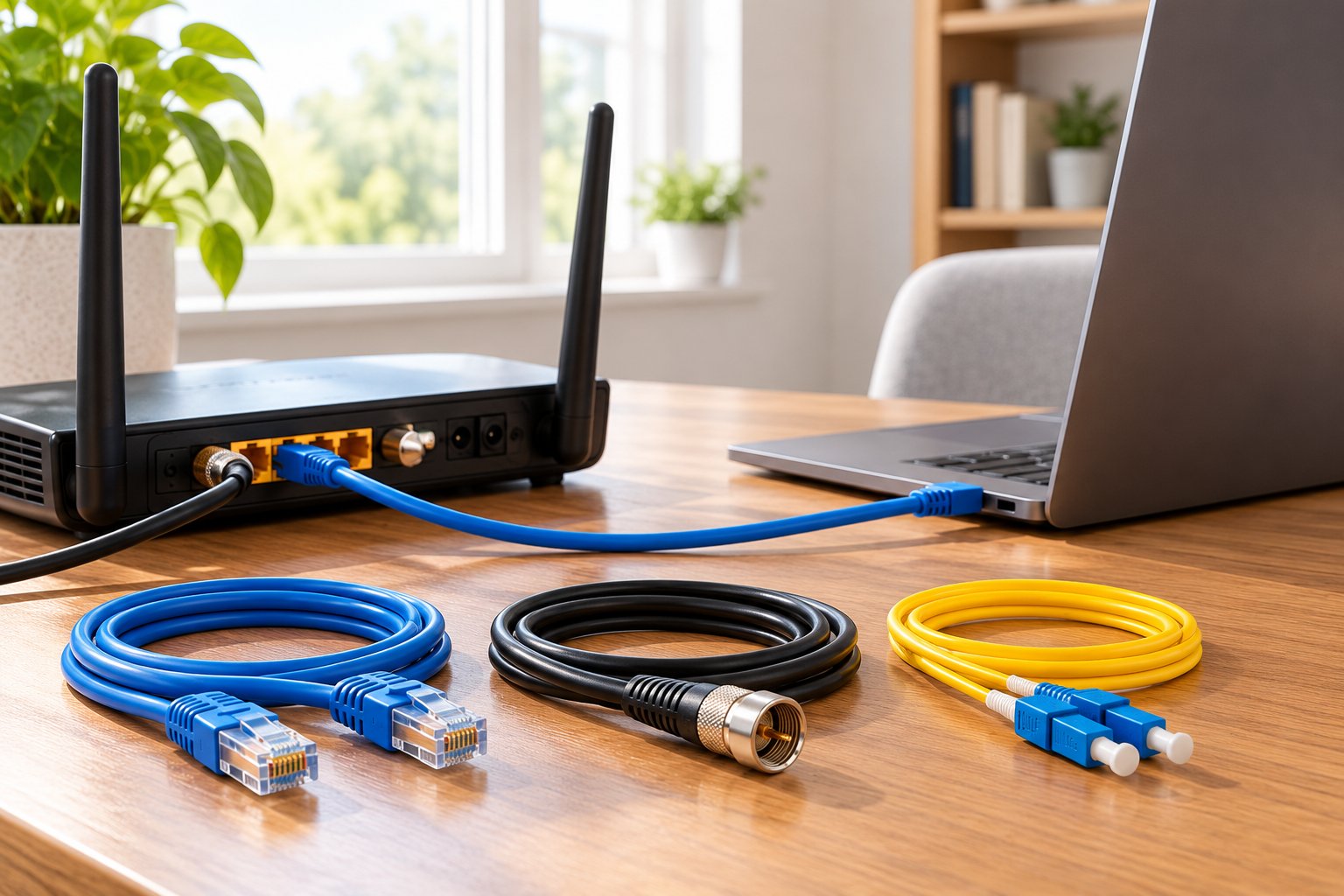
Computer networking cables carry data between devices connected to the same network.
They are used to connect equipment such as routers, computers, network switches, servers, and compatible security cameras. Unlike WiFi, which transmits data through radio signals, wired networking uses a physical connection.
You probably already have several network cables at home.
The cable connecting your broadband modem or fiber terminal to your router is one example. Another might run from your router to a desktop computer or smart TV.
A larger home network may use additional cables to connect switches, access points, or devices in different rooms.
Where are networking cables used?
Common examples include:
-
Desktop computers: A direct Ethernet connection can avoid wireless interference and provide consistent network access.
-
Smart TVs: A wired connection can help when the television has weak WiFi reception.
-
Gaming consoles: Ethernet removes the wireless connection from the path between the console and router.
-
Network switches: Ethernet links switches to routers and other network equipment.
-
WiFi access points: A wired connection can carry data between an access point and the main network.
-
Network Attached Storage (NAS): Ethernet supports file transfers between computers and storage devices.
-
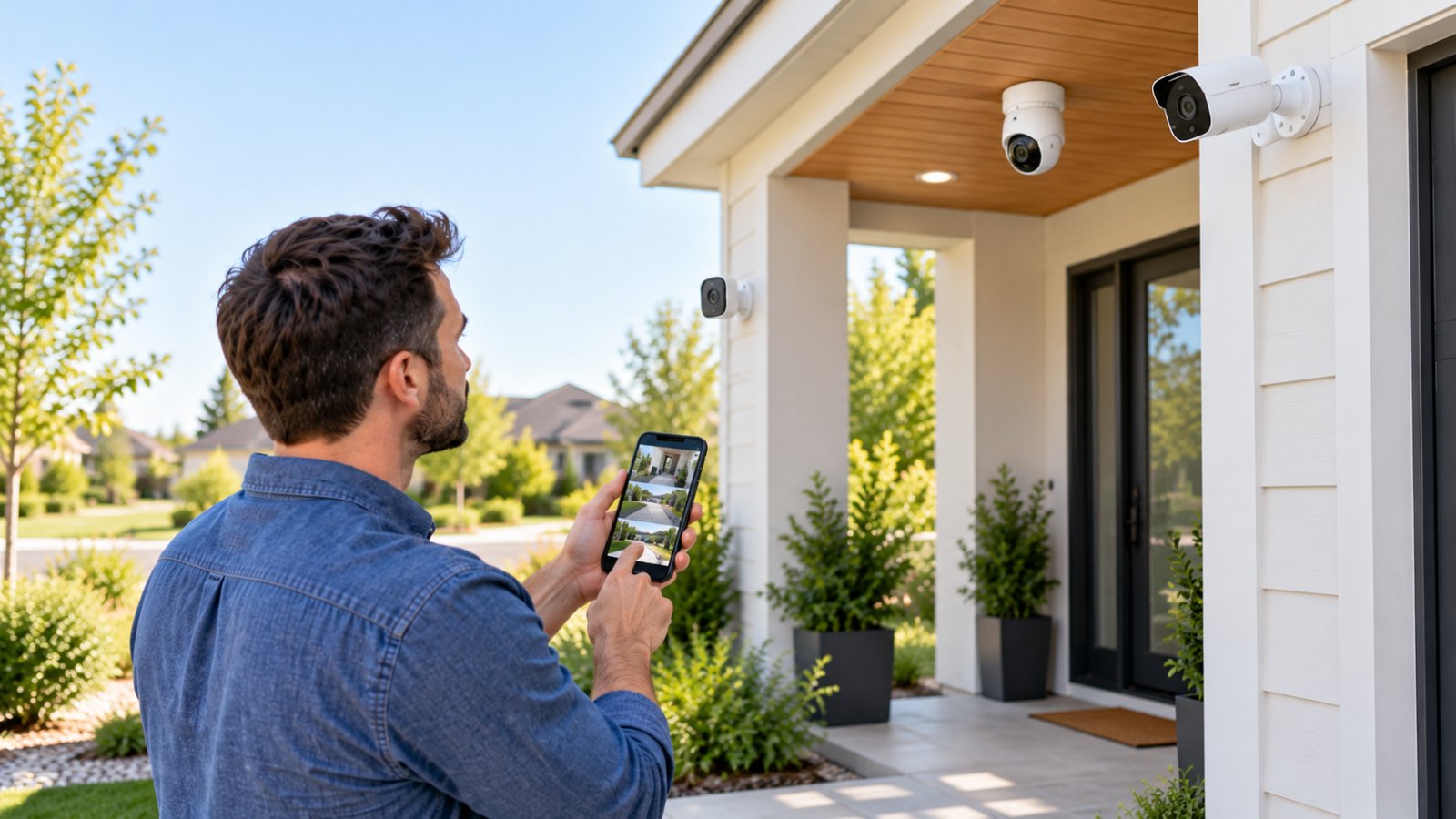
Security cameras: Compatible wired IP cameras can use Ethernet for network communication, with some models also supporting Power over Ethernet.
Not every device needs a cable. Phones, tablets, and many smart-home accessories work perfectly well over WiFi.
However, equipment that stays in one location can benefit from a wired connection, particularly when the wireless signal is weak or inconsistent.
How does an Ethernet cable work?
Most copper Ethernet cables used in homes contain eight insulated wires arranged into four twisted pairs.
These pairs carry electrical signals between compatible network devices.
The twisting helps reduce interference between neighboring wires.
At each end, a typical Ethernet patch cable has an eight-contact modular plug commonly called an RJ45 connector.
You insert one connector into the router's Ethernet port and the other into the connected device.
Modern Ethernet equipment usually detects the connection and negotiates a suitable link speed automatically.
For example, a router with Gigabit Ethernet ports can establish a 1 Gbps connection with a compatible computer over suitable cabling.
The actual data transfer rate will be somewhat lower because network communication includes overhead.
Ethernet speed and internet speed are different.
Suppose your computer connects to a router at 1 Gbps, but your broadband package provides 300 Mbps downloads.
The Ethernet connection can support more data than the internet service delivers.
Buying a Cat6a or Cat8 cable will not increase that broadband speed.
On the other hand, a damaged cable may cause a connection to negotiate at 100 Mbps instead of 1 Gbps.
Replacing the faulty cable with a correctly made Cat5e or Cat6 cable can restore the intended Gigabit connection.
The goal is to use a cable that properly supports your network, not simply to buy the highest category available.
The 3 Main Types of Computer Networking Cables
Most computer networking cables fall into three groups: twisted pair, fiber optic, and coaxial.
They carry information differently and are suited to different applications.
For ordinary home router connections, twisted pair Ethernet is usually the first choice. Fiber optic and coaxial cables are more common in broadband infrastructure and certain specialized connections.
Twisted Pair (Ethernet Cables)
Twisted pair cables are the familiar Ethernet cables used in homes and offices.
Inside the cable, insulated copper wires are arranged in pairs and twisted together.
The twisting is deliberate. It helps control crosstalk, which occurs when electrical signals in one pair interfere with signals in another.
It also improves resistance to certain external electrical interference.
Different Ethernet categories have different transmission performance requirements.
Common categories include:
-
Cat5e.
-
Cat6.
-
Cat6a.
-
Cat7.
-
Cat8.
Where twisted pair cables are used
These cables connect devices such as:
-
Routers and network switches.
-
Desktop computers and laptops with Ethernet ports.
-
Wired printers and smart TVs.
-
Compatible WiFi extenders and access points.
-
NAS systems.
-
Wired IP security cameras.
For example, if your router sits beside your television, a short Cat6 patch cable can connect the TV directly to a LAN port.
There is usually no need for special equipment beyond the cable and compatible Ethernet ports.
Patch cables and permanent installation cables
An Ethernet patch cable is a finished cable with connectors already installed.
It is meant for connecting equipment to nearby ports, wall sockets, or switches.
Most home users buy these ready-made cables in suitable lengths.
Permanent installation cable serves a different purpose.
It is normally routed through walls, ceilings, or dedicated cable pathways and terminated at wall outlets or patch panels.
Solid copper conductors are commonly used for permanent cabling, while flexible patch cords often use stranded copper.
If you are running Ethernet between rooms, use cable and connecting hardware designed for fixed installation. The cable jacket must also meet applicable building requirements.
Fiber Optic Cables
Fiber optic cables transmit data through optical fibers using light.
Unlike twisted pair Ethernet, which carries electrical signals through copper, fiber uses optical signals.
This makes fiber useful for high-capacity connections, longer distances, and installations where electrical interference is a concern.
Fiber is widely used by internet service providers and in commercial network infrastructure.
How fiber differs from copper Ethernet
Fiber generally uses optical connectors such as LC or SC and requires compatible network interfaces or transceivers.
You cannot connect a fiber optic cable directly to an ordinary RJ45 Ethernet port.
The equipment at both ends must support the optical connection, or suitable conversion equipment must be used.
Single-mode and multimode fiber
There are two broad types.
Single-mode fiber is commonly used for longer-distance communication, including telecommunications networks and certain building-to-building connections.
Multimode fiber is often used for shorter optical links within buildings, equipment rooms, and similar environments.
The supported distance depends on the fiber type, transceivers, and data rate.
Do you need fiber inside your home?
Usually not for ordinary room-to-room connections.
A desktop computer a few feet from a router is simpler to connect with a copper Ethernet cable.
Fiber becomes more relevant for specialized connections, such as networking two separate buildings.
Consider a detached home office some distance from the main house. A properly designed fiber connection can provide electrical isolation between buildings and support long-distance communication.
That type of installation requires suitable outdoor or underground cable, compatible equipment, and careful routing.
For everyday home networking, Cat6 remains the simpler option.
Coaxial Cables
Coaxial cables use a central conductor surrounded by insulation, a conductive shield, and an outer protective jacket.
They are commonly used for cable television, broadband internet service, and certain video systems.
If your home receives broadband through a cable television network, a coaxial cable may connect the service outlet to your modem.
The modem then provides an Ethernet connection to your router.
How coaxial differs from Ethernet
Coaxial cables generally use different connectors, such as F-type connectors for cable television and broadband installations.
They cannot be plugged directly into an RJ45 Ethernet socket.
The devices also use different communication technologies.
Can existing coaxial wiring carry network data?
Yes, with compatible equipment.
MoCA technology allows supported adapters to carry network traffic over suitable existing coaxial cabling.
This can be useful in older homes where coaxial sockets are already installed in several rooms.
For example, an upstairs office might have a coaxial outlet but no Ethernet wall socket.
Compatible MoCA adapters may provide a wired network path without installing a new Ethernet cable through the house.
However, the existing coaxial layout and connected equipment must be suitable.
For a short router-to-computer connection, ordinary Ethernet is easier.
Comparison of the three main cable types
| Cable type | How it carries data | Common connectors | Typical use |
|---|---|---|---|
| Twisted pair | Electrical signals through copper pairs | RJ45-style Ethernet connectors | Routers, computers, switches, access points |
| Fiber optic | Light through optical fibers | LC, SC, and other optical connectors | Telecom networks, long-distance and high-capacity links |
| Coaxial | Electrical signals through a shielded conductor | F-type, BNC, and other coaxial connectors | Cable broadband, television, some video systems |
For most homeowners buying networking cables, the main decision is which twisted pair Ethernet category to choose.
Ethernet Cable Categories Explained (Cat5e to Cat8)
Ethernet cable categories describe cabling performance requirements.
The categories differ in areas such as supported frequency, interference control, and suitability for particular Ethernet applications.
One specification you'll often see is Bandwidth (MHz).
MHz stands for megahertz.
For cabling, the frequency rating describes the signal frequency range over which the cable must meet defined performance requirements.
It does not tell you the cable's internet download speed.
For example, Cat6 has a 250 MHz rating, but that does not mean it provides a 250 Mbps connection.
Data rates are expressed in Mbps or Gbps. Cable frequency ratings and Ethernet data rates measure different things.
Ethernet cable category comparison
| Category | Specified bandwidth | Common Ethernet application | Channel distance | Best use |
|---|---|---|---|---|
| Cat5e | 100 MHz | 1 Gbps | Up to 100 meters | Existing Gigabit networks |
| Cat6 | 250 MHz | 1 Gbps, with shorter 10 Gbps links | Up to 100 meters at 1 Gbps | General home networking |
| Cat6a | 500 MHz | 10 Gbps | Up to 100 meters | Long-term wiring and 10 Gigabit networks |
| Cat7 | 600 MHz | 10 Gbps with suitable Class F systems | Up to 100 meters | Specialized shielded installations |
| Cat8 | 2000 MHz | 25 or 40 Gbps | Up to 30 meters at those speeds | Short data center connections |
The 100-meter channel limit commonly includes up to 90 meters of permanent cable and an allowance for patch cords and connecting hardware.
For Cat6 running 10 Gigabit Ethernet, the supported distance depends on the installed channel and interference conditions. Suitable installations may reach approximately 55 meters, but that should not be assumed for every environment.
Cat5e: The Budget Standard
Cat5e stands for Category 5 enhanced.
It remains common in homes and offices because it supports standard Gigabit Ethernet over channels up to 100 meters.
Its specified frequency is 100 MHz.
For ordinary household connections, Cat5e can be perfectly adequate.
Where Cat5e works well
Typical uses include:
-
Connecting a computer to a Gigabit router.
-
Connecting a smart TV to the network.
-
Running Ethernet to a network printer.
-
Connecting a Gigabit network switch.
-
Supporting everyday office work and video streaming.
If your home already has Cat5e cabling inside the walls and the connections operate reliably at 1 Gbps, you probably don't need to replace it.
Can Cat5e handle faster connections?
Some suitable Cat5e installations can support 2.5 Gigabit Ethernet and 5 Gigabit Ethernet when used with compatible equipment.
Those faster connections depend on the cable's actual condition, installation quality, and the complete channel.
An old Cat5e cable with damaged connectors or poor termination may not perform reliably at higher rates.
When should you buy Cat5e?
Cat5e can make sense when replacing a basic Gigabit patch cable or maintaining an existing network.
For most new home purchases, however, Cat6 is worth considering because it provides greater performance headroom without requiring specialized enterprise equipment.
Cat6: Best for Most Modern Homes
Cat6 is a practical default for many modern home networks.
It supports Gigabit Ethernet over standard channel distances and offers improved electrical performance compared with Cat5e.
Cat6 is specified to 250 MHz.
It can also support 10 Gigabit Ethernet on suitable shorter connections.
Where Cat6 makes sense
Cat6 works well for:
-
Desktop computers.
-
Gaming consoles.
-
Smart TVs.
-
Network switches.
-
WiFi access points.
-
Compatible Ethernet backhaul connections.
-
NAS devices.
-
General home office equipment.
Consider a router installed on a desk and a desktop computer positioned on the opposite wall.
A good-quality Cat6 patch cable can provide the wired connection without introducing unnecessary complexity.
Measure the cable route first. If a 5-meter cable reaches comfortably, there is no reason to buy a 30-meter cable and leave most of it coiled behind the furniture.
Does Cat6 improve gaming latency?
A wired connection may provide more consistent network performance than WiFi when the wireless environment is congested.
However, replacing a properly functioning Cat5e cable with Cat6 does not automatically reduce latency.
If both cables establish the same stable Gigabit Ethernet connection without errors, the difference is unlikely to be noticeable during ordinary gaming.
What about 10 Gigabit Ethernet?
Cat6 can support 10 Gbps over suitable shorter links.
The distance depends on the installation and interference conditions.
If you are planning a full-length 100-meter channel that must support 10 Gbps, Cat6a is the more appropriate standard choice.
For ordinary home router connections, Cat6 is often sufficient.
Cat6a: High-Speed Future-Proofing
Cat6a stands for Category 6 augmented.
It is designed to support 10 Gigabit Ethernet over channels up to 100 meters when properly installed.
Cat6a is specified to 500 MHz.
It also has more demanding requirements for controlling interference from nearby cables.
When Cat6a is worth considering
Cat6a is useful for:
-
New permanent wiring intended for 10 Gigabit equipment.
-
Longer connections between compatible network switches.
-
Home offices with high-speed local storage requirements.
-
Network cabinets serving several rooms.
-
Renovations where replacing the cable later would be difficult.
Suppose you're renovating a house and running new Ethernet cables from a central network cabinet to several rooms.
If you expect to install 10 Gigabit switches and computers, Cat6a may be worth the additional installation effort.
The benefit is that the cabling system can support the intended higher-speed application across the standard channel distance.
What are the drawbacks?
Cat6a cable can be thicker and less flexible than Cat6.
It may need larger cable pathways, more generous bend space, and compatible termination hardware.
Those differences matter when routing cables through crowded conduits or tight wall openings.
For a short connection between a standard Gigabit router and a desktop computer, Cat6a offers little immediate advantage.
Choose it when your network requirements justify it.
Cat7 and Cat8: Enterprise and Data Centers
Cat7 and Cat8 are often marketed as premium networking cables.
Their higher category numbers can make them appear automatically better for home internet.
That is misleading.
These cables were developed for specific higher-performance applications and are generally unnecessary for standard household networking.
Cat7 explained
Cat7 is associated with ISO/IEC Class F cabling and a specified frequency of 600 MHz.
It uses shielded construction and supports suitable 10 Gigabit cabling applications.
However, Cat7 is not a recognized standalone category within the common ANSI/TIA structured copper cabling category system.
Formal Class F cabling also has connector requirements that differ from many ordinary retail cables.
Some products sold as Cat7 use conventional RJ45-style plugs, making the label alone insufficient to establish compliance with the relevant Class F system.
For home networking, properly specified Cat6 or Cat6a is generally easier to select and install correctly.
Cat8 explained
Cat8 is specified to 2000 MHz.
It was developed for short, high-speed copper connections, including 25 Gbps and 40 Gbps applications in data center environments.
At those speeds, the specified maximum channel length is 30 meters.
Cat8 also uses shielded construction and appropriate connecting hardware.
Certain Cat8 systems support RJ45-compatible connections, while others use different connector arrangements.
Should you buy Cat8 for a home router?
Usually not.
If your router has a 1 Gbps Ethernet port, connecting a Cat8 cable will not turn that port into a 10 Gbps connection.
It also won't increase the speed supplied by your internet provider.
For a typical home, Cat6 provides the necessary performance. Cat6a is the more relevant choice when planning a genuine 10 Gigabit network.
Spend money on a cable that matches your equipment instead of paying for a category your devices cannot use.
Cat6 vs Cat5e: Which Should You Buy?
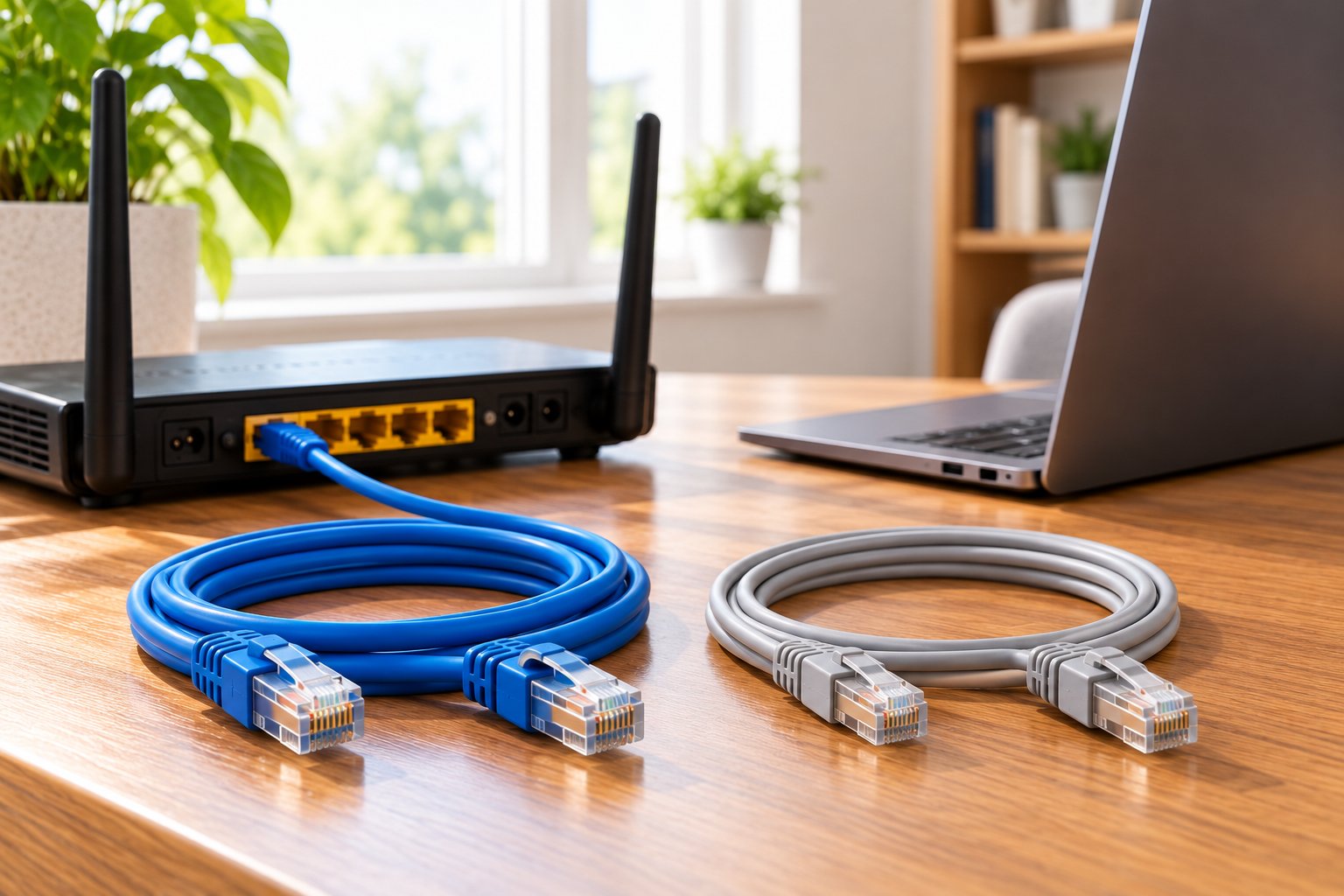
The cat6 vs cat5e ethernet decision is one of the most common questions when buying a network cable.
For ordinary Gigabit Ethernet, both categories work.
Cat6 has higher specified frequency performance and more demanding crosstalk requirements, making it a sensible choice for new cabling.
That doesn't mean existing Cat5e should be replaced automatically.
Cat5e vs Cat6 comparison
| Feature | Cat5e | Cat6 |
|---|---|---|
| Specified bandwidth | 100 MHz | 250 MHz |
| Gigabit Ethernet | Supported | Supported |
| Standard 1 Gbps channel distance | Up to 100 meters | Up to 100 meters |
| 10 Gbps applications | Not the standard choice | Supported on suitable shorter links |
| Crosstalk requirements | Category 5 enhanced performance | More demanding Category 6 performance |
| Typical handling | Often flexible and easy to route | May be slightly thicker |
| Best use | Existing Gigabit wiring and basic replacements | Most new home cable purchases |
Choose Cat5e when:
-
Your existing installation already works reliably at Gigabit speed.
-
You need a simple replacement for an ordinary network cable.
-
The connected equipment supports only 100 Mbps or 1 Gbps.
-
You are not planning permanent high-speed cabling upgrades.
Choose Cat6 when:
-
You're buying a new cable for a router or computer.
-
You want additional cabling performance headroom.
-
You're connecting a switch, access point, or home office device.
-
You're installing new short or medium-length Ethernet runs.
-
The additional cost compared with Cat5e is reasonable.
Choose Cat6a when:
-
You are designing a 10 Gigabit network.
-
Longer 10 Gbps channels are required.
-
Permanent cabling will be difficult to replace later.
-
You have equipment that can use the additional capability.
Will Cat6 make your internet faster than Cat5e?
Consider a computer connected through Cat5e at a stable 1 Gbps link rate.
If your broadband service provides 500 Mbps, replacing that working cable with Cat6 will not increase the service speed.
Likewise, if the computer's Ethernet port only supports 1 Gbps, a higher-category cable cannot change the port's hardware capability.
A replacement can help when the old cable is faulty.
For example, a cable with a damaged connector might negotiate at 100 Mbps instead of 1 Gbps. Replacing it with a properly made Cat6 cable can restore the expected connection.
The improvement comes from removing the fault.
How to check your current connection
Before buying new cables, inspect your network setup.
Check the Ethernet port specifications on the router and computer.
Then look at the negotiated link speed in your operating system or network equipment interface.
If a Gigabit-capable connection is unexpectedly operating at 100 Mbps, try a known-good cable and another suitable router port.
This simple test may identify a cable or connector problem without requiring expensive upgrades.
Choosing the Best Ethernet Cable for Your Router and Extenders
The best ethernet cable for router connections is usually a properly made Cat6 patch cable of a suitable length.
Before purchasing, check the Ethernet port speeds on both devices.
A high-category cable cannot overcome a slower network port.
You should also consider whether the cable will remain in one room, run between rooms, or be installed permanently inside a wall.
1. Connecting a router to a desktop computer
A desktop computer near the router is one of the simplest wired connections.
Measure the distance along the route the cable will follow.
Include enough slack to move the computer or router slightly without pulling on the connectors.
Use a ready-made Cat6 patch cable with suitable RJ45-style connectors.
Plug it into a LAN port on the router and the Ethernet port on the computer.
Once connected, check that the operating system reports the expected link speed.
If both ports support Gigabit Ethernet, a correctly functioning cable should normally allow them to establish a Gigabit connection.
2. Connecting a smart TV or gaming console
A smart TV may receive weak WiFi because it is behind a cabinet or located far from the router.
If there is an Ethernet port on the TV, connecting it directly may provide a more consistent network path.
A Cat5e or Cat6 cable is usually sufficient.
The same applies to a gaming console with an Ethernet port.
Check whether the device has switched to its wired connection after plugging in the cable.
Some devices require you to select the wired network in their settings.
3. Connecting a router to a network switch
A switch lets you connect more wired devices to the same local network.
For example, a router with limited free LAN ports may need to serve a desktop computer, television, and NAS.
You can connect a suitable Ethernet switch to the router and attach those devices to the switch.
Use a Cat6 patch cable between the router and switch.
The connection speed depends on the capabilities of the ports at both ends.
If both ports support Gigabit Ethernet, the link normally operates at 1 Gbps with suitable cabling.
If you need faster local transfers between a NAS and computer, check the switch and device port speeds before upgrading cables.
4. Router backhaul for a WiFi extender
WiFi extenders usually connect to a router wirelessly in Repeater Mode.
Some models also support Access Point Mode, which uses an Ethernet cable to connect to the existing network.
This wired connection is often called router backhaul or Ethernet backhaul.
A wired backhaul can be useful because it avoids relying on a weak wireless signal between the router and access point.
For example, imagine your router is downstairs and the upstairs office has poor WiFi.
If an Ethernet cable already runs to the office, a compatible access point can use that cable to provide wireless coverage upstairs.
This may be more dependable than repeating a signal through a concrete floor.
ROOXIS WiFi extender considerations
The ROOXIS AC1200 WiFi extender supports Access Point Mode through an Ethernet connection.
Its Ethernet port is rated at 10/100 Mbps.
That matters when choosing a cable.
A Cat6 cable is suitable for the connection, but installing Cat6a or Cat8 will not increase the extender's Ethernet port beyond its supported speed.
If you need Gigabit wired backhaul, choose equipment with Gigabit Ethernet ports.
Always check the port specification rather than relying only on the extender's advertised wireless speed class.
5. Connecting a wired device through a WiFi extender
Some range extenders let you connect a nearby device through Ethernet while the extender communicates wirelessly with the main router.
For example, you might connect a desktop computer to the extender using a short Cat6 patch cable.
That removes the wireless connection between the computer and extender.
The extender still uses WiFi to communicate with the router.
As a result, performance continues to depend on the quality of that wireless link.
A faster cable cannot correct a weak connection between the extender and router.
6. Connecting wired security cameras
Some security cameras use Ethernet for network communication.
Certain wired cameras also support Power over Ethernet, or PoE.
PoE allows compatible network equipment to carry data and electrical power over suitable Ethernet cabling.
A PoE camera needs a compatible power source, typically a PoE switch or injector.
Do not assume every security camera supports PoE.
Many wireless security cameras use a separate DC power adapter and cannot receive power through Ethernet.
Check the camera specifications before connecting equipment.
For permanent PoE installations, use compliant solid-copper cabling with the appropriate installation rating.
Avoid copper-clad aluminum cables.
7. Connecting rooms through permanent Ethernet wiring
Permanent cabling requires more planning than connecting two devices with a patch cable.
Use cable designed for fixed installation and ensure the jacket meets local building requirements.
Terminate it at appropriate wall jacks or patch panels.
For many new home installations, Cat6 is a sensible choice.
If you are specifically planning a full-length 10 Gigabit channel, Cat6a is more appropriate.
Do not route ordinary indoor patch cables outdoors or through building spaces where their jacket rating is unsuitable.
Recommended Ethernet cables by application
| Connection | Recommended cable | What matters most |
|---|---|---|
| Router to desktop computer | Cat6 patch cable | Device port speed and cable length |
| Router to smart TV | Cat5e or Cat6 | Television Ethernet port capability |
| Router to gaming console | Cat6 | Stable connection and correct port speed |
| Router to Gigabit switch | Cat6 | Switch and router port speeds |
| Router to WiFi extender in AP mode | Cat5e or Cat6 | Extender Ethernet port speed |
| Permanent room-to-room wiring | Cat6 | Correct jacket rating and termination |
| Long planned 10 Gbps channel | Cat6a | Complete channel design |
| Compatible PoE security camera | Suitable solid-copper Cat5e or Cat6 | Power requirements and cable rating |
Cable length and routing tips
A cable should be long enough to reach without tension, but buying far more length than needed creates unnecessary clutter.
Measure the planned route rather than estimating the straight-line distance.
Leave some slack near the connectors.
Avoid bending cables sharply around furniture or pulling them tightly through narrow openings.
Don't crush Ethernet cables under heavy furniture or tightly fasten them with staples.
For permanent installation, use suitable cable supports and observe the manufacturer's minimum bend radius.
Keep low-voltage data cabling appropriately separated from mains electrical wiring. Do not place Ethernet cables in electrical conduits that are not approved for that use.
For guidance on organizing home networking equipment, see these router placement and cable management tips.
Good cable management makes it easier to identify, maintain, and replace connections later.
Shielded (STP) vs Unshielded (UTP) Ethernet Cables
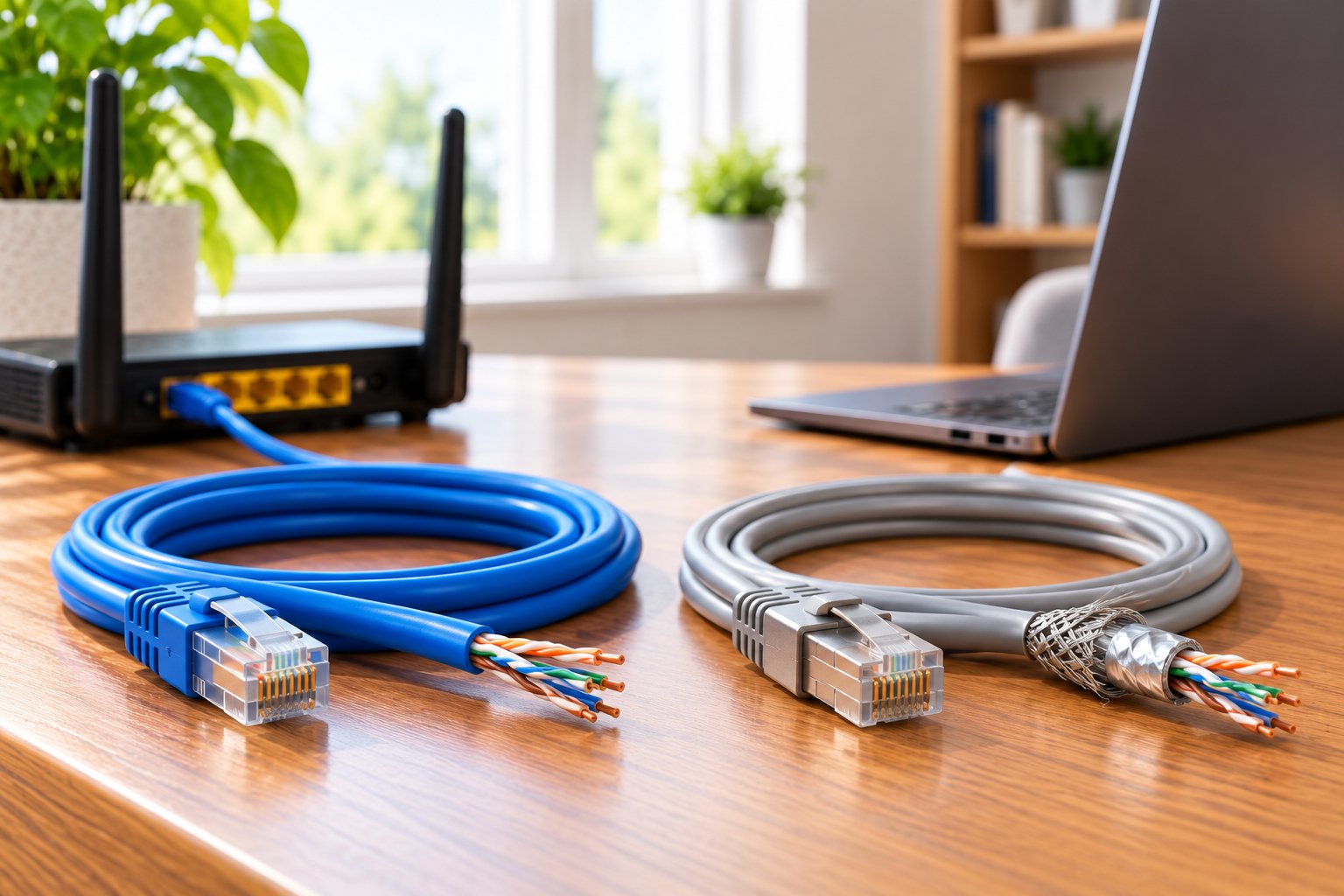
When shopping for Ethernet cables, you'll often see the terms UTP and STP.
They refer to the cable's shielding construction.
UTP means Unshielded Twisted Pair.
STP is commonly used as a general term for Shielded Twisted Pair, although specific shielding designs have more precise names.
For most home networks, UTP is sufficient.
Shielded cable is useful when the installation environment creates particular electrical interference concerns.
What is UTP?
UTP cables do not have an additional metallic shield around the wire pairs.
Instead, they rely on the twisted-pair design and cable construction to meet their transmission requirements.
UTP is common in home networking because it is relatively flexible, straightforward to terminate, and suitable for ordinary residential environments.
A Cat6 UTP patch cable between a router and desktop computer is a standard example.
What is STP?
Shielded Ethernet cables contain conductive material around the entire cable bundle, individual pairs, or both.
The shielding helps manage electromagnetic interference when properly installed.
This can matter in environments with significant electrical noise or dense groups of cables.
However, shielding must be part of a correctly designed system.
Buying a shielded cable does not automatically improve your connection.
Common shielding labels
| Label | Meaning | Construction |
|---|---|---|
| U/UTP | Unshielded cable, unshielded pairs | No additional metallic shielding |
| F/UTP | Overall foil shield, unshielded pairs | Foil around the cable's four pairs |
| S/FTP | Overall braided shield, individually foil-shielded pairs | Braided outer shield plus foil around each pair |
These labels describe the shielding more accurately than a generic STP marking.
Does shielding make Ethernet faster?
No, not by itself.
Consider two correctly made Cat6 cables, one shielded and one unshielded.
If both provide a stable Gigabit Ethernet connection between the same devices, the shielded cable will not automatically produce higher internet speeds.
Its benefit is protection against interference under conditions where shielding is useful.
When should you choose shielded Ethernet?
Shielded cable may be appropriate when:
-
The installation has substantial electromagnetic interference.
-
Network cables run through demanding industrial environments.
-
The cabling design specifically calls for shielding.
-
The complete network installation supports proper shield termination and bonding.
For ordinary household cabling between routers, computers, and switches, Cat6 UTP is normally a practical choice.
Shielding requires proper installation.
Shielded cabling works best when the complete system is compatible.
This includes connectors, termination hardware, and suitable grounding or bonding arrangements.
Improperly installed shielding may not provide the intended protection.
For permanent shielded wiring, use appropriate hardware and installation practices rather than assuming any shielded patch cable will solve interference problems.
Avoid copper-clad aluminum cables.
Another label worth checking is CCA, which stands for copper-clad aluminum.
CCA conductors have an aluminum core with a copper coating.
They are not equivalent to compliant solid-copper category cabling.
Aluminum has different electrical resistance and mechanical characteristics, making CCA particularly undesirable for Power over Ethernet installations.
For reliable home networking, choose properly specified copper Ethernet cables from a reputable supplier.
The construction and quality of the cable matter more than an unnecessarily high category printed on the packaging.
Frequently Asked Questions
What are the main types of computer networking cables?
The three main types are twisted pair, fiber optic, and coaxial cables. Twisted pair Ethernet cables are most commonly used to connect home routers, computers, switches, and compatible WiFi extenders. Fiber is widely used for longer-distance and high-capacity connections, while coaxial is common in cable broadband and television systems.
What is the difference between Cat5e and Cat6?
Cat5e is specified to 100 MHz and supports Gigabit Ethernet over standard channels up to 100 meters. Cat6 is specified to 250 MHz and has more demanding transmission requirements, with support for 10 Gigabit Ethernet on suitable shorter links. Both work for ordinary Gigabit home connections, although Cat6 is a practical default for many new purchases.
Which Ethernet cable is best for connecting a home WiFi router?
A good-quality Cat6 patch cable is suitable for most home router connections. It supports Gigabit Ethernet and offers useful cabling performance headroom without the expense of higher enterprise-oriented categories. Choose the appropriate length and check the Ethernet port speeds on both connected devices.
Do I need Cat7 or Cat8 for home internet?
Most homes do not need Cat7 or Cat8. Cat6 is suitable for common Gigabit connections, while Cat6a makes sense when planning longer 10 Gigabit Ethernet channels. A Cat8 cable will not improve broadband speed when the connected router and computer are limited to slower Ethernet ports.
Does Ethernet cable length affect internet speed?
Ethernet cables have defined distance limits for their supported applications. Properly installed Cat5e, Cat6, and Cat6a channels can support standard Gigabit Ethernet up to 100 meters, while some faster applications have shorter limits. A cable does not normally become gradually slower simply because it is longer within specification, but excessive length, interference, damaged connectors, or poor installation can cause errors and connection problems.
Conclusion
Understanding the types of computer networking cables makes it easier to choose the right connection for your home.
Cat5e remains suitable for many existing Gigabit networks. Cat6 is a practical option for most new home cables, while Cat6a is worth considering when planning longer 10 Gigabit connections. Cat7 and Cat8 are generally unnecessary for standard routers and everyday household equipment.
ROOXIS routers and compatible WiFi extenders can benefit from appropriately chosen Ethernet connections, particularly when using wired access point configurations. Check your equipment's port speeds, choose a suitable cable category, and plan the cable route carefully. A correctly installed cable that matches your network requirements is usually the best investment.