Your WiFi works in the living room, but the laptop in your home office keeps disconnecting. An Ethernet cable runs to the upstairs bedroom, yet the computer cannot connect. Meanwhile, the security camera near your garage occasionally goes offline. You could replace the router, but that might not fix any of these problems.
The right hardware and networking tools help you identify what is failing before you spend money. For most homes, the essentials are a reliable router, suitable Ethernet cables, a basic cable tester, and the right equipment for extending network coverage. More complicated setups may benefit from a network switch, wireless access point, Power over Ethernet equipment, or cable tracing tools.
This buyer's guide compares the equipment by practical usefulness, compatibility, ease of setup, and limitations. It focuses on what each tool actually solves, which features are worth paying for, and when you can avoid buying anything at all.
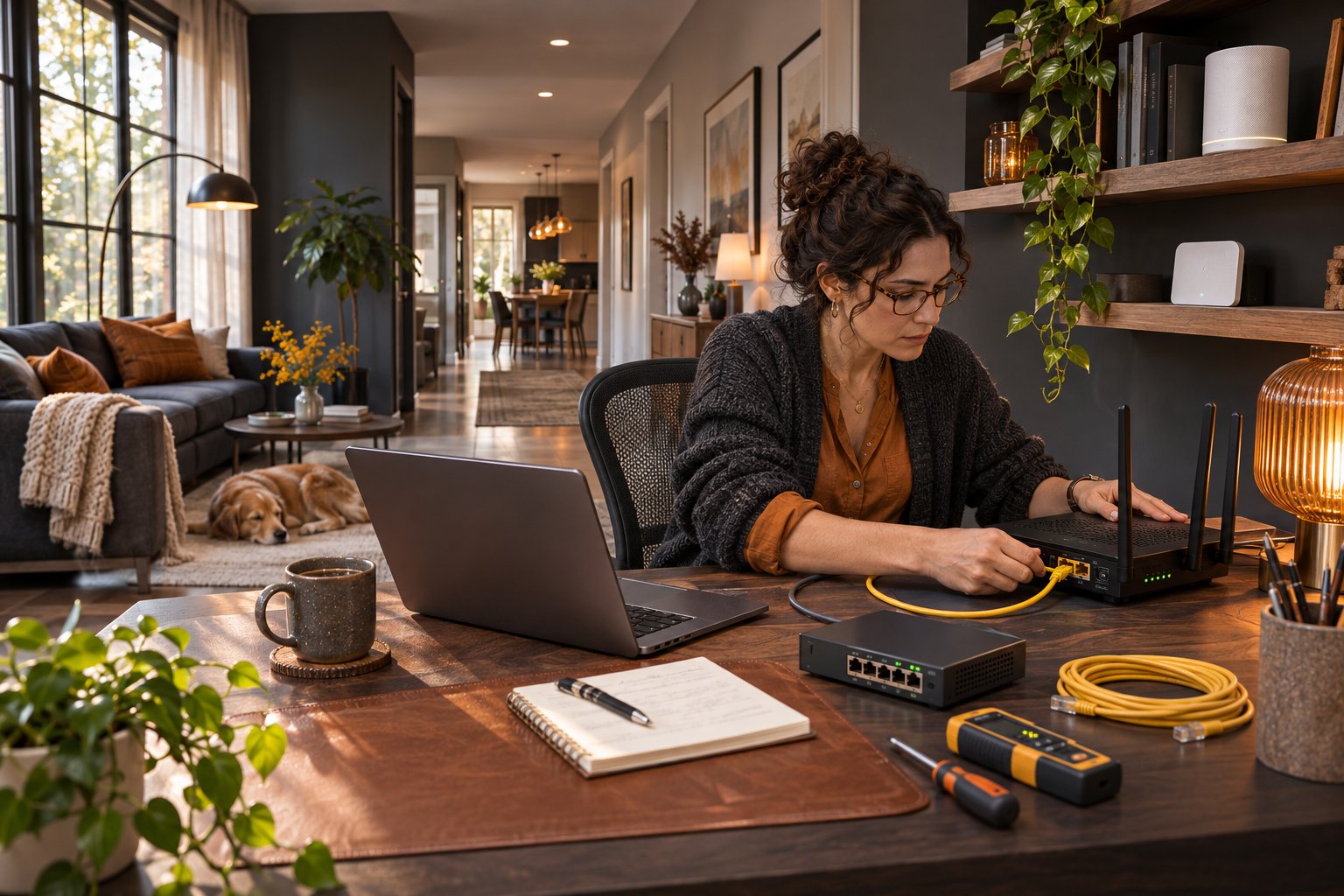
What Hardware and Networking Tools Do You Actually Need?
Hardware and networking tools fall into two main groups.
Networking hardware creates, distributes, and maintains connections between devices. Routers, switches, access points, extenders, and Ethernet cables belong to this group.
Networking tools help you install, inspect, measure, or troubleshoot those connections. Cable testers, crimping tools, cable tracers, and WiFi analysis software are examples.
A homeowner troubleshooting weak WiFi does not need every tool a professional network installer carries.
Start with the symptom.
If a laptop has a strong WiFi signal but no internet access, the problem may involve the router or internet service.
If only the upstairs bedroom has weak signal, additional wireless coverage may be needed.
If a newly installed Ethernet cable does not work, a cable tester is more relevant than a new router.
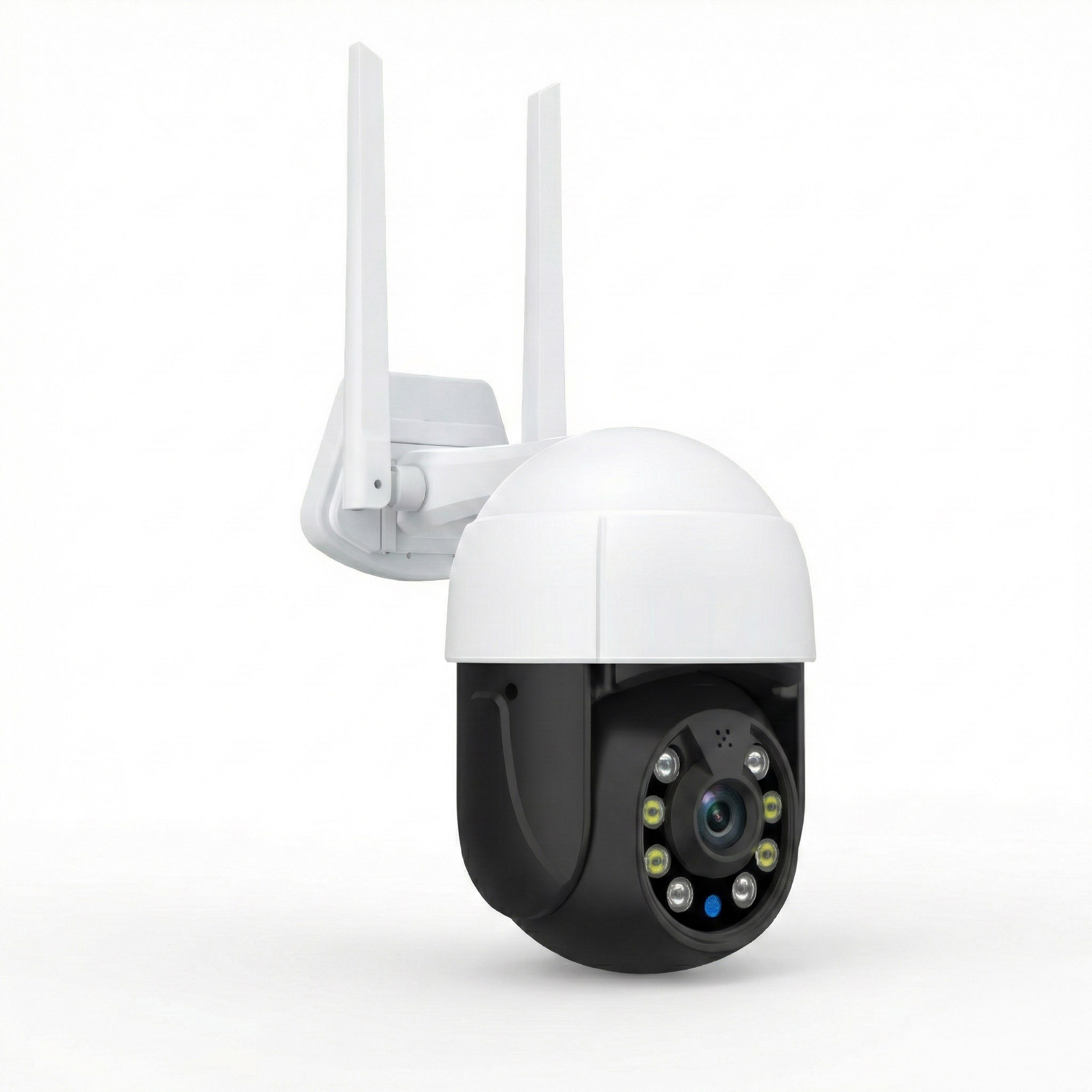
If a security camera repeatedly disconnects, determine whether the issue involves WiFi coverage, power, or the camera itself.
The essential tools for common home networking problems
| Hardware or tool | Main purpose | Best for | Main limitation |
|---|---|---|---|
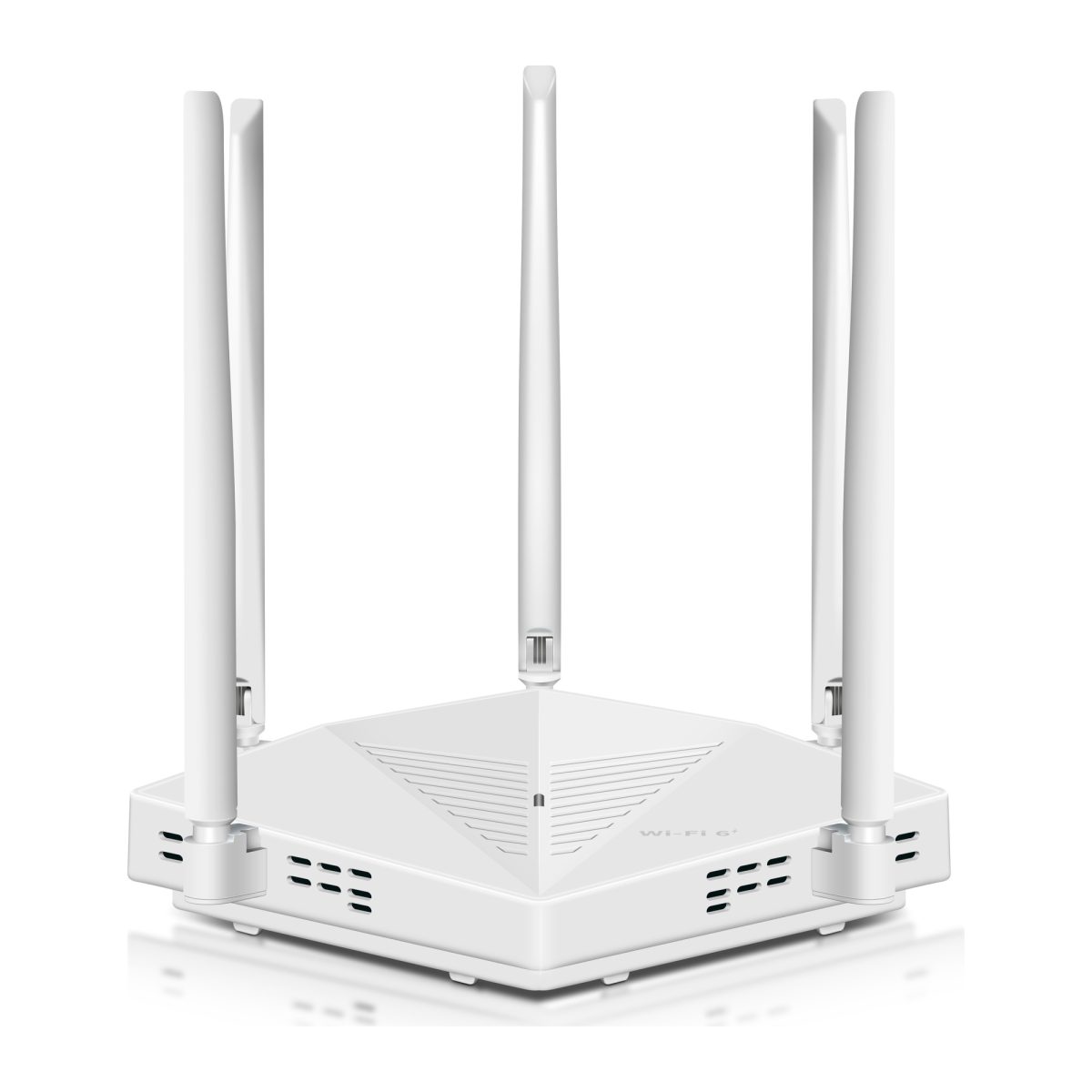
| WiFi router | Connects household devices and manages the local network | New or outdated router setups | One router may not cover a large property |
| Ethernet cables | Provide wired network connections | PCs, TVs, access points, network troubleshooting | Require a physical cable route |
| Basic Ethernet cable tester | Checks wiring continuity and pin connections | Diagnosing faulty cables | Does not certify network speed |
| WiFi range extender | Extends coverage from an existing wireless network | One or two nearby dead zones | Needs a reliable incoming signal |
| Mesh WiFi system | Distributes coverage across compatible nodes | Multiple rooms and floors | Wireless node placement affects performance |
| Wireless access point | Adds WiFi coverage through a network connection | Offices, upstairs rooms, large homes | Usually needs Ethernet or another suitable backhaul |
| Ethernet switch | Adds wired network ports | Several wired devices in one room | Does not provide WiFi by itself |
| PoE switch or injector | Supplies compatible network devices with power over Ethernet | Suitable IP cameras and access points | Power standards and budgets must match |
| Cable crimping and termination tools | Prepare and terminate network cables | Custom cable installations | Require correct technique and compatible connectors |
| Cable tracer and toner | Helps identify cable runs | Unlabeled wall ports and network cabinets | Does not fully test cable performance |
| WiFi analyzer | Helps assess wireless coverage and interference | Slow or inconsistent WiFi | Results depend on device and available measurements |
| UPS battery backup | Supplies temporary power to network equipment | Short power interruptions | Does not prevent an ISP outage |
For most households, a few well-chosen items are more useful than a large networking toolkit.
A homeowner with one faulty Ethernet cable may only need a replacement cable.
Someone maintaining multiple wired cameras may benefit from a cable tester, PoE switch, and clearly labeled network connections.
The right purchase depends on the work you plan to perform.
How We Evaluated These Hardware and Networking Tools
This guide compares equipment types using practical buying criteria, rather than claiming laboratory tests or performance measurements.
Problem-solving usefulness
The first question is whether the tool addresses a specific problem.
A cable tester is useful for investigating a damaged Ethernet cable.
It does not improve WiFi range.
A mesh system may improve coverage throughout a large house.
It does not repair a broken internet connection entering the property.
Choose tools that address the likely cause, not simply the most noticeable symptom.
Compatibility with existing equipment
Check whether the device works with your router, internet gateway, cables, and connected hardware.
For example, a PoE injector must provide the power standard required by the connected camera.
A mesh system must support the intended connection to your existing gateway.
An Ethernet switch should provide the port speeds your devices need.
A device may be technically capable but unsuitable for your particular network.
Ease of installation and troubleshooting
Homeowners generally benefit from equipment that can be configured through clear instructions without specialist knowledge.
An unmanaged Ethernet switch is usually straightforward.
A managed switch with advanced network features may be unnecessary for a household that only needs additional wired connections.
The same principle applies to cable testers.
A basic tester can help identify common wiring faults, while a professional certification tester serves a different purpose.
Reliability and upgrade potential
Consider how equipment will fit into the network over time.
An Ethernet cable installed inside a wall is more difficult to replace than a short cable behind a television.
A router may need to support more devices as the household adds cameras, laptops, and smart home equipment.
Look for useful specifications rather than buying the highest advertised speed automatically.
Cost relative to the problem
The cheapest product is not always the best value.
However, more expensive hardware is not automatically necessary.
Replacing one damaged cable is usually more economical than replacing an entire router.
A homeowner troubleshooting a single network port may not need a professional cable certification instrument.
Match the purchase to the frequency and complexity of the work.
Essential Networking Hardware for Home Use
These are the primary devices used to build or expand a home network.
Each solves a different problem.
1. WiFi Routers: Best for Managing the Home Network
A router connects your household devices to the internet connection supplied by your provider.
It also manages communication between devices on the local network.
Many home routers include WiFi, Ethernet ports, basic firewall functions, and network management controls.
Who it is for
Homeowners replacing an outdated router, setting up a new internet connection, or managing several connected devices.
Strengths
-
Provides central network management.
-
Connects wired and wireless devices.
-
Supports network security features.
-
May provide guest WiFi and device management.
-
Modern models can support WiFi 6, WiFi 6E, or WiFi 7.
Limitations
-
Coverage depends on building layout and placement.
-
Faster WiFi specifications do not guarantee stronger signal in every room.
-
Features vary between models.
-
Compatibility with the provider's modem or gateway must be checked.
When comparing routers, examine the Ethernet port speeds, supported WiFi standards, security update support, and coverage requirements.
WiFi 6 remains useful for many households.
WiFi 6E adds access to the 6 GHz band for compatible devices, while WiFi 7 provides additional capabilities on supported hardware.
However, devices must support the relevant technologies to benefit from them.
Do not buy a new router solely because its packaging advertises a very large combined wireless speed.
Those figures do not represent the speed one device will necessarily receive in a distant bedroom.
2. Ethernet Cables: Best for Stable Wired Connections
Ethernet cables connect devices such as computers, switches, routers, access points, and compatible cameras.
They are among the most useful and affordable networking accessories.
A wired connection can help distinguish an internet service problem from a WiFi coverage problem.
For example, connect a laptop directly to the router and run a speed test.
If the wired connection works well while WiFi struggles in another room, the wireless network deserves attention.
Who it is for
Almost every household with a router, desktop computer, gaming console, smart television, or wired networking device.
Strengths
-
Provides a direct network connection.
-
Avoids many wireless interference problems.
-
Useful for troubleshooting.
-
Available in convenient pre-terminated lengths.
-
Can connect access points and mesh nodes through Ethernet backhaul.
Limitations
-
Requires a physical route between devices.
-
Poor-quality or damaged cables can reduce performance.
-
Long permanent runs require proper installation.
-
Not every cable is suitable for outdoor or in-wall use.
For ordinary home connections, a reputable Cat5e or Cat6 cable is usually a sensible choice.
Cat6 is a practical option for many new installations.
Cat6A may be worth considering when designing runs intended to support higher-speed networks over longer distances.
Do not assume that a cable marked Cat7 or Cat8 automatically improves an ordinary gigabit home network.
Also pay attention to cable construction.
For permanent installations and appropriate PoE applications, solid-copper cable is generally preferable to copper-clad aluminum.
Buying tip: Start with a known-good, factory-terminated Ethernet cable before purchasing a tester. It is often the quickest way to rule out a damaged patch lead.
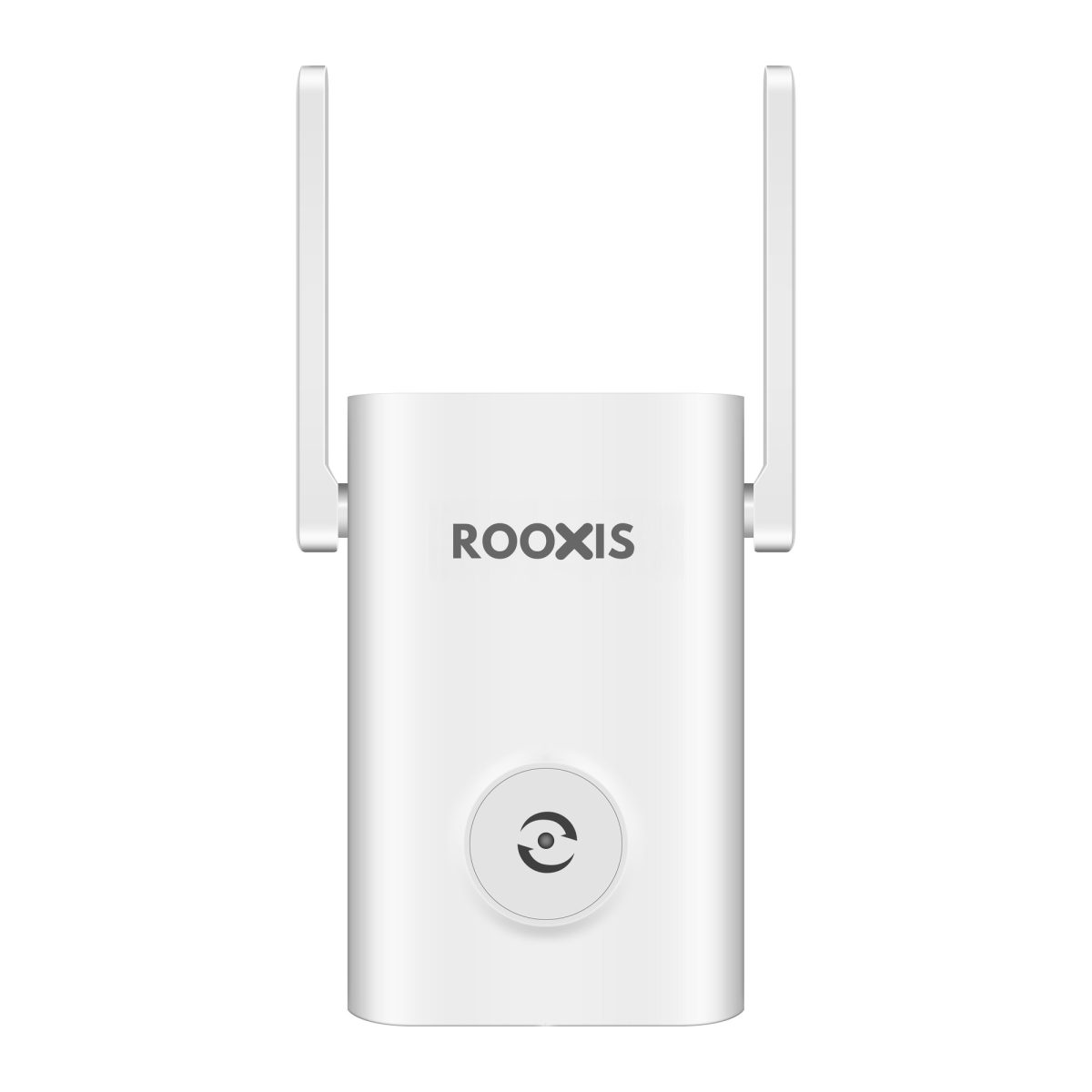
3. WiFi Range Extenders: Best for One Specific Dead Zone
A WiFi range extender receives an existing wireless connection and extends coverage to another area.
It can be useful when a bedroom, hallway, or home office is just beyond reliable router coverage.
Who it is for
Homeowners with a limited number of dead zones where the original WiFi signal remains usable nearby.
Strengths
-
Often simple to install.
-
Does not necessarily require new Ethernet cabling.
-
Can improve coverage in a specific area.
-
May be less complicated than replacing the entire WiFi setup.
Limitations
-
Requires a good connection to the main router.
-
Wireless repeating can reduce usable throughput.
-
Performance depends heavily on placement.
-
May not provide seamless movement between wireless networks.
-
Less suitable for extensive multi-floor coverage problems.
Suppose WiFi becomes unreliable in an upstairs bedroom, but the landing outside has a strong connection.
The landing may be a suitable place to test an extender.
Installing it inside the bedroom where the original signal barely works may produce poor results.
ROOXIS offers WiFi routers and range extenders for homeowners comparing coverage equipment.
Check compatibility with your router and the supported connection modes before choosing an extender.
The most important specification is not the maximum advertised range. It is whether the extender can maintain a reliable connection from its actual installation location.
4. Mesh WiFi Systems: Best for Several Rooms or Floors
A mesh WiFi system uses compatible nodes to distribute coverage around a property.
One node connects to the main network, while other nodes extend coverage through supported connections.
Who it is for
Large homes, multi-floor properties, and households with several areas that need improved coverage.
Strengths
-
Can distribute WiFi across multiple locations.
-
Often provides centralized management.
-
May support coordinated roaming between nodes.
-
Some systems support Ethernet backhaul.
-
Can be expanded with compatible nodes.
Limitations
-
Higher overall equipment cost than a single basic extender.
-
Wireless nodes need strong connections to the network.
-
Compatibility between different mesh products is not guaranteed.
-
Too many poorly positioned nodes can create performance problems.
Before buying, check whether the system supports Ethernet backhaul.
This allows compatible nodes to communicate through Ethernet cables instead of depending entirely on wireless links.
For a house with thick concrete walls, wired backhaul can be particularly useful.
Do not place every mesh node in the farthest possible room.
A node connected wirelessly must receive a dependable signal to provide useful coverage beyond it.
5. Wireless Access Points: Best for Reliable Coverage Expansion
A wireless access point provides WiFi using a connection to an existing network.
Many access points use Ethernet for their network connection.
This makes them useful when a suitable cable already reaches a distant room or another floor.
Who it is for
Homeowners with Ethernet wiring, dedicated home offices, large properties, and networks requiring dependable coverage in specific locations.
Strengths
-
Provides WiFi closer to connected devices.
-
Can use wired backhaul.
-
Avoids relying on weak wireless repeating.
-
Suitable for planned multi-room installations.
-
Some models support PoE for convenient power delivery.
Limitations
-
Often requires cabling.
-
Configuration may be more involved than a plug-in extender.
-
Multiple access points need sensible wireless settings.
-
Some products require a controller or management platform.
Consider a home office upstairs with an Ethernet wall port.
A compatible access point connected to that port can provide local WiFi without depending on the signal from a downstairs router.
This may be more predictable than installing a wireless repeater behind several thick walls.
Check whether the access point includes a power adapter or requires PoE.
6. Ethernet Switches: Best for Adding Wired Ports
An Ethernet switch allows several wired devices to connect through a shared network connection.
For example, a router may have limited LAN ports, while your home office needs wired connections for a desktop, network printer, and storage device.
A switch adds connection points.
Who it is for
Home offices, entertainment centers, and rooms with multiple wired devices.
Strengths
-
Expands the number of wired ports.
-
Simple unmanaged models usually require little configuration.
-
Useful for connecting multiple devices through one Ethernet run.
-
Available in different port counts and speeds.
Limitations
-
Does not create WiFi coverage.
-
Cannot increase the internet bandwidth supplied by your provider.
-
Network performance depends on the connected port speeds and uplinks.
-
Some switches require additional configuration.
For ordinary home networking, an unmanaged gigabit switch with enough ports may be sufficient.
If you use multi-gigabit network adapters or high-speed local storage, review whether a faster switch is justified.
A 2.5 Gbps switch will not make a gigabit-only computer communicate at 2.5 Gbps.
The entire connection path must support the intended speed.
7. PoE Switches and Injectors: Best for Compatible Cameras and Access Points
Power over Ethernet, or PoE, carries electrical power and network data through suitable Ethernet cabling.
It is commonly used for compatible IP cameras, wireless access points, and other network devices.
Instead of installing a separate power adapter beside every device, a PoE-capable switch or injector can supply power through the network cable.
Who it is for
Homeowners installing compatible wired security cameras or PoE-powered wireless access points.
Strengths
-
Reduces the need for separate power connections near devices.
-
Useful for suitable camera installations.
-
Can simplify access point placement.
-
Standardized PoE equipment supports defined power negotiation.
-
PoE switches can power several compatible devices.
Limitations
-
Not all network devices support PoE.
-
Power standards must match device requirements.
-
Switches have total power budgets.
-
Improperly selected injectors can create compatibility or safety problems.
Common standardized PoE technologies include:
-
IEEE 802.3af, commonly called PoE.
-
IEEE 802.3at, commonly called PoE+.
-
IEEE 802.3bt, often called PoE++.
PoE+ can provide more power than basic PoE. IEEE 802.3bt supports higher-power devices.
When buying, compare the camera or access point's required PoE standard with the power source.
For a switch, check both per-port output and total available PoE power.
For example, a switch with several PoE ports may not be able to supply the maximum power to every port simultaneously.
Avoid generic passive PoE adapters unless the connected equipment specifically requires and supports that arrangement.
Standard active PoE and passive power arrangements are not automatically interchangeable.
Essential Hardware Tools for Networking Installation and Repair
Network tools are different from network hardware.
They do not normally improve WiFi coverage directly.
Instead, they help identify damaged wiring, prepare cables, locate connections, or measure network conditions.
For occasional home troubleshooting, start with inexpensive verification methods.
Specialized installation tools make more sense when you frequently work with cables and network equipment.
8. Ethernet Cable Testers: Best for Finding Wiring Faults
An Ethernet cable tester checks whether the conductors in a network cable are connected correctly.
Basic testers commonly use a main unit and remote unit, allowing you to test both ends of a cable.
Who it is for
Homeowners installing Ethernet runs, troubleshooting wall ports, or maintaining wired cameras.
Strengths
-
Can reveal open connections.
-
Can identify certain short circuits.
-
Helps detect incorrect wiring order.
-
Useful after cable termination.
-
Often easier to interpret than guessing which cable is faulty.
Limitations
-
Basic testers do not certify Cat6 performance.
-
A continuity pass does not guarantee gigabit or multi-gigabit operation.
-
Some inexpensive testers cannot identify every wiring defect.
-
Advanced diagnostic features cost more.
To test a disconnected Ethernet cable, connect its ends to the tester and remote unit.
Run the test according to the manufacturer's instructions.
A good result should indicate that the expected conductors are connected correctly.
A missing conductor or incorrect pin order indicates a problem that needs attention.
However, a basic tester cannot necessarily establish whether a cable meets the performance requirements of a particular Ethernet standard.
Professional qualification and certification testers perform more advanced checks.
For most homeowners, a basic wiremap tester is useful for diagnosing installation mistakes. A professional certification instrument is usually unnecessary.
9. Crimping Tools and Cable Termination Kits: Best for Custom Cabling
Ethernet crimping tools help attach compatible modular plugs to suitable cable.
Other termination tools are used with keystone jacks and patch panels.
A basic installation kit may include a cable stripper, compatible crimper, punch-down tool, connectors, and tester.
Who it is for
People installing custom Ethernet runs or repairing network cable terminations.
Strengths
-
Allows custom cable lengths.
-
Useful when cables pass through walls or conduits.
-
Can support permanent cabling projects.
-
Helps repair some damaged terminations.
Limitations
-
Requires correct cable and connector compatibility.
-
Poor termination can cause intermittent failures.
-
Incorrect wiring can prevent higher-speed operation.
-
Permanent installations need appropriate cable ratings and workmanship.
For a simple connection between a computer and router, buy a factory-terminated cable.
There is usually no reason to cut and terminate a new one yourself.
Termination tools become useful when installing longer runs through walls or preparing a structured wiring cabinet.
For solid-conductor building cable, keystone jacks and properly designed termination hardware are often more appropriate than attaching ordinary patch-cord plugs.
Use one recognized wiring scheme consistently, such as T568A or T568B, unless an existing installation requires a specific approach.
Test every newly terminated cable before relying on it.
10. Cable Tracers and Tone Generators: Best for Finding Unknown Cables
A cable tracer helps identify where a cable runs or which cable corresponds to a particular wall outlet.
A typical toner and probe set sends a traceable signal through suitable wiring.
Who it is for
Homeowners with multiple unlabeled Ethernet cables, wall ports, or a central network cabinet.
Strengths
-
Helps identify cable runs.
-
Useful for labeling existing connections.
-
Can reduce trial and error in wiring cabinets.
-
Helpful during renovations and network repairs.
Limitations
-
Does not necessarily confirm network performance.
-
Different tools support different cable types.
-
Some tools are intended only for disconnected circuits.
-
Signal tracing can be affected by wiring conditions.
Imagine opening a network cabinet and finding several identical cables without labels.
A toner and probe can help determine which cable goes to the upstairs office.
Once identified, label both ends.
Then use a suitable cable tester to check the connection.
Do not connect a basic toner to unknown energized wiring or equipment unless the tool is explicitly designed for that use.
Follow the manufacturer's operating instructions.
11. WiFi Analyzer Tools: Best for Understanding Wireless Problems
WiFi analysis tools help homeowners investigate signal strength, nearby networks, and available wireless information.
Some tools run on computers or phones. Others are included in router management interfaces.
Who it is for
People troubleshooting weak coverage, interference, or inconsistent wireless performance.
Strengths
-
Helps compare signal conditions between rooms.
-
May identify nearby competing networks.
-
Can assist with router or access point placement.
-
Useful for documenting changes after equipment moves.
Limitations
-
Device operating systems restrict available measurements.
-
Smartphone tools vary in capability.
-
Signal strength does not directly equal internet speed.
-
Interpreting channel information requires care.
Start with the router's built-in diagnostics where available.
For Windows users, system WiFi information and suitable analysis software can help identify connection characteristics.
On Android, supported apps may provide information about nearby wireless networks, subject to permissions and device limitations.
iPhone applications generally have more restricted access to detailed WiFi scanning data.
Do not expect every phone app to show identical information.
For practical troubleshooting, combine signal observations with speed tests and real device behavior.
A strong WiFi signal with slow internet is a different problem from a weak signal in a distant bedroom.
12. Network Adapters and USB Ethernet Dongles: Best for Devices Without Ports
Some modern laptops do not include Ethernet ports.
A compatible USB Ethernet adapter allows the computer to connect to a wired network.
Who it is for
Laptop users who want to troubleshoot WiFi or use a dependable wired connection in a home office.
Strengths
-
Enables Ethernet on devices without a built-in port.
-
Useful for comparing wired and wireless performance.
-
Can provide a stable connection for compatible computers.
-
Usually simple to connect.
Limitations
-
Requires a suitable USB connection.
-
Adapter speed depends on the device and port.
-
Some products require drivers or additional compatibility checks.
-
A cable is still needed.
Check whether the laptop uses USB-A or USB-C.
Also confirm the adapter's Ethernet speed.
A gigabit Ethernet adapter is sufficient for many ordinary home connections.
A multi-gigabit adapter may be appropriate when the laptop, switch, and network infrastructure all support higher speeds.
Do not pay for a faster adapter simply because the internet plan advertises a higher number.
Verify the entire connection path.
13. UPS Battery Backups: Best for Short Power Interruptions
An uninterruptible power supply, or UPS, provides temporary battery power to connected equipment during an electrical interruption.
For networking, it can keep a modem, router, or suitable switch operating during a brief outage.
Who it is for
Home offices and households where short power interruptions regularly disrupt network equipment.
Strengths
-
Can prevent unnecessary router shutdowns during brief interruptions.
-
Gives equipment time to shut down safely.
-
May help maintain connectivity when the upstream network remains available.
-
Useful for selected home office equipment.
Limitations
-
Battery runtime is limited.
-
Battery capacity must match equipment power consumption.
-
Batteries require maintenance or eventual replacement.
-
Does not guarantee internet access during an ISP outage.
A UPS cannot keep your internet working if the provider's network has also lost service.
Before buying, calculate the power consumption of the devices you intend to connect.
Check the UPS's capacity and supported runtime information.
Avoid connecting high-power household equipment to a UPS intended for networking electronics.
For a simple home setup, protecting the modem and router may be more useful than trying to place every connected device on battery backup.
How to Choose Hardware and Networking Tools for Your Situation
A useful shopping decision starts with the problem, not the product category.
The examples below show which tools deserve attention first.
If your WiFi is weak in one bedroom
Test the connection near the router and then inside the bedroom.
If the internet works well near the router but the signal weakens with distance, focus on wireless coverage.
Start by checking router placement.
If a nearby hallway has a reliable signal, a compatible range extender may be enough.
You probably do not need a new internet plan, cable crimping kit, or managed switch.
If WiFi struggles across several floors
A single extender may not be the best solution.
Look at mesh WiFi or additional access points.
If Ethernet wiring is available between floors, prioritize equipment supporting wired backhaul.
This reduces reliance on wireless signals passing through dense floor structures.
Measure coverage after installation instead of assuming every room is fixed simply because additional nodes are connected.
If your gaming PC or desktop keeps disconnecting
Try a known-good Ethernet cable.
If the PC lacks a wired port, use a compatible Ethernet adapter.
Test the wired connection.
If the problem disappears over Ethernet, investigate wireless coverage or interference.
If the wired connection also fails, check the router, network cable, adapter, and internet service.
Do not replace the router before ruling out a damaged cable.
If an Ethernet wall port does not work
First, check the short patch cable connecting the wall outlet to the computer.
Then inspect the corresponding connection at the router or network switch.
If the port remains inactive, use a suitable cable tester to check the wiring.
A cable tracer may help identify the correct run in a cabinet.
If the installation requires repair, use compatible termination hardware or ask a qualified installer.
Avoid repeatedly changing router settings when the physical cable is the likely problem.
If you are installing several wired security cameras
Start with the camera specifications.
Confirm whether each camera supports standard PoE, requires a separate power supply, or uses another power arrangement.
If standard PoE is supported, a suitable PoE switch may simplify installation.
Check the per-port power requirement and total switch power budget.
Use appropriate cabling for the installation environment.
For outdoor runs, weather protection, grounding, and electrical safety may require professional planning.
A WiFi camera does not automatically support PoE simply because it has a network-related feature.
Verify the exact model requirements.
If you need more Ethernet ports
Buy a suitable unmanaged switch when all you need is additional wired connections.
Connect the switch to a LAN port on the router.
Then connect the additional devices to the switch.
Choose enough ports for your current devices and reasonable future expansion.
Check whether gigabit speed is sufficient.
Most homes do not need advanced VLAN configuration or enterprise switch management merely to connect a television, desktop, and game console.
If your home has unlabeled network cables
A toner and probe may help identify cable runs.
A basic cable tester can then check the wiring.
Label both ends of each connection.
This is especially useful when a previous owner installed Ethernet outlets but left no documentation.
Before purchasing specialized tools, check whether the installer or property documents already identify the cable routes.
For a one-time complicated wiring job, professional assistance may be more economical than buying advanced test equipment.
If you are renting
Prioritize equipment that does not require permanent alterations.
Factory-terminated Ethernet cables, unmanaged switches, compatible extenders, and certain mesh systems can often be installed without drilling.
Avoid cutting walls, running permanent cables, or modifying electrical systems without permission.
A temporary cable route may be suitable for testing, but it should not create a trip hazard or interfere with doors.
If your rental already includes Ethernet wall outlets, investigate whether they are connected before investing in wireless repeaters.
What to Check Before Buying Networking Equipment
Product names can be confusing because similar devices may have very different capabilities.
Review the following details before purchasing.
Ethernet port speeds
Check whether the ports support 100 Mbps, 1 Gbps, 2.5 Gbps, or another speed.
A device with a 2.5 Gbps port will communicate at a lower negotiated speed when connected to equipment that only supports a slower standard.
Your network speed is limited by the relevant connection path.
Do not assume one faster switch makes every connected device faster.
Supported WiFi standards and bands
Check whether the router or extender supports the bands used by your devices.
Many smart home devices and cameras rely on 2.4 GHz WiFi.
Some laptops and phones can also use 5 GHz or 6 GHz networks when supported.
Higher-frequency bands can provide advantages under suitable conditions, but their coverage characteristics differ.
A 6 GHz connection is not automatically the best option for a distant camera behind thick walls.
Compatibility matters more than the newest label.
Power requirements
For network cameras and access points, check whether a separate adapter or PoE is required.
For PoE equipment, verify the standard and power requirement.
For a PoE switch, review the total available power budget.
A switch may have enough physical ports but insufficient power capacity for all intended devices.
Cable rating and construction
For permanent cable runs, check the category, conductor material, environmental rating, and installation requirements.
Do not assume an inexpensive cable advertised for outdoor use is suitable for every type of exterior installation.
Indoor, outdoor, riser, plenum, and direct-burial applications can require different cable constructions.
For long permanent runs, follow applicable building and electrical requirements.
When uncertain, consult a qualified installer.
Software support and security
Routers, access points, and other managed networking devices may need firmware updates.
Check whether the manufacturer provides clear update instructions and ongoing support.
Avoid buying a router solely because it has an impressive hardware specification while ignoring its management and security features.
A device that cannot be maintained properly may become a poor long-term choice.
Return policy and documentation
Check that the product includes instructions appropriate to its features.
A basic cable tester should explain how to interpret its indicators.
A PoE switch should disclose its power specifications.
A wireless extender should clearly describe supported modes and setup requirements.
A reasonable return policy is useful when compatibility cannot be confirmed before installation.
Common Buying Mistakes to Avoid
The wrong networking purchase often results from misunderstanding the original problem.
Buying a faster router to fix a bad Ethernet cable
If one computer loses connection through Ethernet, test or replace the cable before purchasing a router.
A damaged connector or incorrect termination may be the entire problem.
Buying a cable tester that cannot perform the test you need
A basic continuity tester can detect certain wiring faults.
It cannot prove that a cable supports a particular high-speed Ethernet standard under all operating conditions.
If you need formal performance testing for installed cabling, use an appropriate qualification or certification instrument.
For an occasional home repair, that may mean hiring an installer rather than purchasing one.
Buying an extender and placing it too far away
An extender needs a dependable incoming WiFi signal.
Placing it inside the weakest room may repeat an already poor connection.
Test a location between the router and the dead zone.
Buying PoE equipment based only on port count
A PoE switch with enough ports may still have an insufficient power budget.
Check each device's power requirement and the total available switch power.
Also confirm that the power standard is compatible.
Buying expensive Ethernet cable without checking the network
A Cat8 cable will not make a gigabit router or computer operate at 10 Gbps.
Choose cable appropriate to the network and installation environment.
For ordinary home connections, good-quality Cat5e or Cat6 is often sufficient.
Buying professional installation tools for a one-time patch cable
A crimper, punch-down tool, toner, and certification tester are unnecessary when all you need is a replacement cable between a router and television.
Factory-terminated cables are usually easier for simple connections.
Buy specialist tools when you actually plan to install or maintain cabling.
Ignoring outdoor installation requirements
Indoor equipment should not be mounted outdoors without a suitable rating.
Outdoor cabling needs appropriate environmental protection.
Long runs between buildings can introduce additional electrical and grounding considerations.
Do not treat a detached garage connection as simply a longer indoor cable.
A Simple Home Networking Toolkit Checklist
You do not need to purchase everything below at once.
Use this checklist to decide what belongs in your toolkit.
For most households
-
One or two spare factory-terminated Ethernet cables.
-
Access to the router's administration interface.
-
A laptop or computer capable of wired testing.
-
A basic speed-testing service.
-
Saved copies of the router's documentation.
-
A simple method of labeling cables.
For homes with Ethernet wall ports
-
Basic Ethernet cable tester.
-
Spare patch cables.
-
Cable labels.
-
Suitable termination tools only when installing or repairing connections.
-
A cable tracer if multiple unidentified runs need investigation.
For homes with several wired devices
-
Unmanaged Ethernet switch with enough ports.
-
Appropriate Ethernet patch cables.
-
Compatible power supply.
-
Clear labels identifying connected devices.
For homes with wired security cameras
-
Appropriate PoE switch or injector when supported.
-
Network cabling suitable for the installation.
-
Cable testing equipment.
-
Documentation of camera power requirements.
-
Weather-rated equipment and suitable installation methods where necessary.
For larger homes with WiFi dead zones
-
Router with suitable specifications.
-
Extender, mesh system, or access point chosen for the actual layout.
-
Ethernet backhaul where practical.
-
WiFi diagnostic tools.
-
A room-by-room record of connection performance.
The best toolkit is the one that matches the systems you maintain.
If your home has no permanent Ethernet wiring and all devices connect over WiFi, cable termination tools may never be necessary.
If you manage several wired cameras and access points, physical cable testing becomes much more valuable.
FAQ
What are the most essential hardware and networking tools for beginners?
For most beginners, the essentials are a suitable WiFi router, good-quality Ethernet cables, and access to basic network diagnostics. A simple Ethernet cable tester becomes useful when troubleshooting wired connections or wall outlets. Range extenders, switches, and other equipment should be added only when they solve a specific problem.
What is the difference between networking hardware and networking tools?
Networking hardware includes routers, switches, access points, and cables that create or distribute connections. Networking tools include testers, tracers, crimpers, and diagnostic software used to install or troubleshoot those connections. Some equipment, such as a laptop with a USB Ethernet adapter, can help with both everyday networking and diagnostics.
Do I need an Ethernet cable tester for my home network?
Not necessarily. If you only use short factory-terminated cables, trying a known-good replacement may be sufficient. A cable tester is more useful when installing custom Ethernet cables, checking wall ports, or finding wiring faults in permanent network runs.
Is a WiFi extender or mesh system better for a large house?
A range extender may be sufficient for one specific dead zone near an area with good existing signal. Mesh WiFi can be more suitable when several rooms or floors need coverage, especially when nodes support Ethernet backhaul. The better choice depends on building layout, wall materials, and available wiring rather than floor area alone.
What networking tools do I need for outdoor security cameras?
Start by checking whether the cameras use WiFi, wired Ethernet, PoE, or a separate power supply. Wired installations may benefit from suitable Ethernet cable, a cable tester, and compatible PoE equipment. Outdoor equipment and cabling must also be suitable for environmental exposure, and some installations are best handled professionally.
Are expensive networking tools worth buying for home use?
Only when their additional capabilities solve a problem you regularly face. A professional cable certification tester is valuable for specialized installation work but usually excessive for checking one home Ethernet cable. Most homeowners get better value from reliable basic tools and properly matched networking hardware.
The best hardware and networking tools are not necessarily the most expensive or newest products. Start by identifying the failure. Test the existing connection, replace obvious weak points, and add equipment only when the results justify it.
For a slow upstairs connection, that may mean better WiFi coverage. For a dead Ethernet wall port, it may mean a cable tester. For several wired security cameras, it may mean a compatible PoE switch and correctly installed cabling. Match the tool to the job, and you can improve your home network without buying a collection of equipment you rarely use.