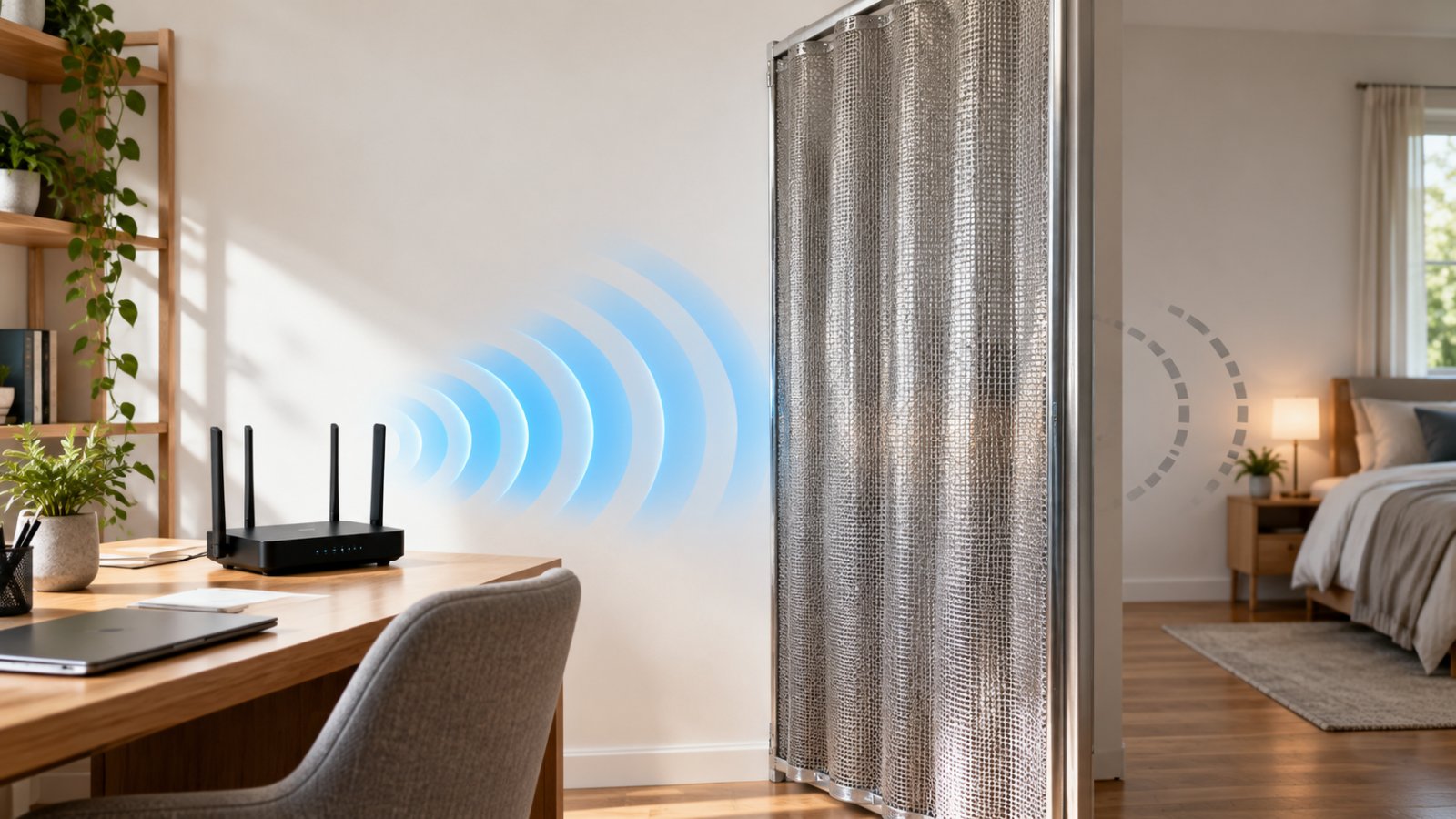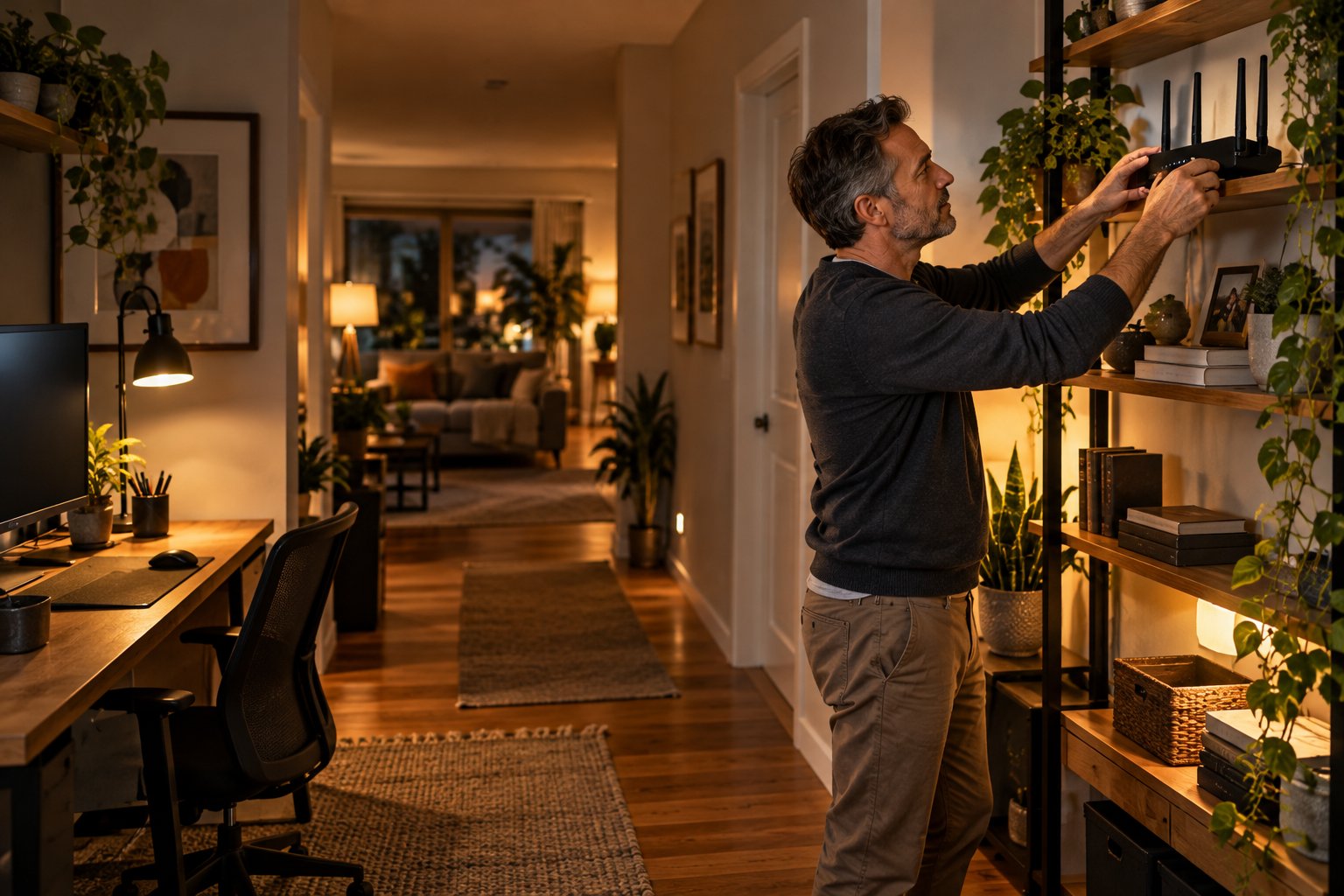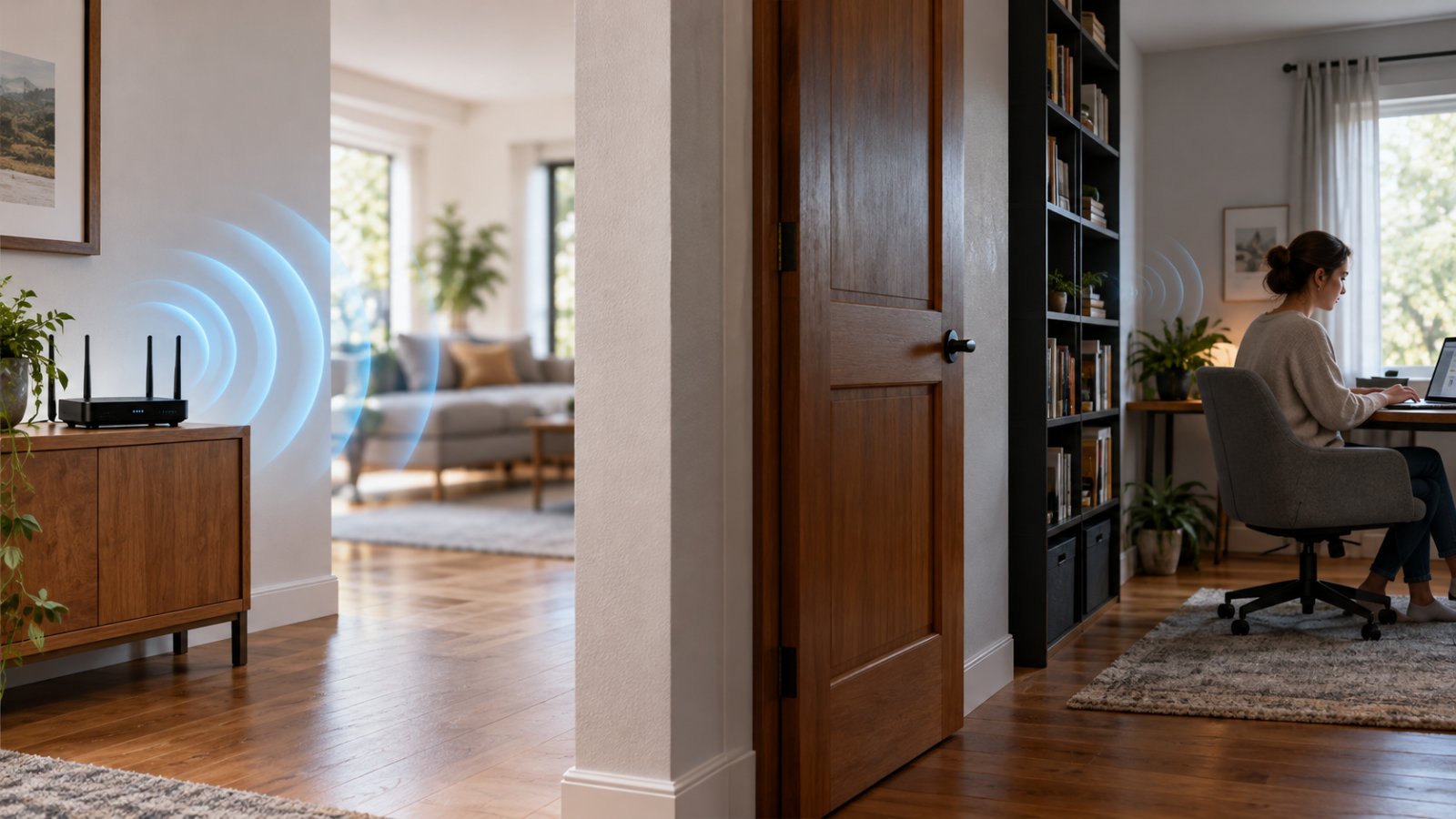
To block wifi signal in a room, start by moving your router away from that area or lowering its wireless transmit power, if your router supports the setting. Metal surfaces and specialized RF-shielding materials can weaken Wi-Fi too, but completely blocking signals inside an ordinary room is difficult.
You may be trying to reduce Wi-Fi coverage in a bedroom, stop a child's tablet from connecting at night, or fix a home office where the connection keeps dropping behind thick walls. Each situation needs a different approach.
The good news is that most homeowners can make useful changes without buying expensive equipment or modifying their walls.
This guide explains which materials interfere with Wi-Fi, how to adjust router settings, and when an extender or wired connection is the better solution.
Block WiFi Signal in a Room: What Actually Works?
Wi-Fi signals travel through walls, doors, furniture and other objects. Some materials weaken those signals considerably, while others allow them to pass through with relatively little loss.
The important distinction is between blocking a wireless signal and restricting access to a wireless network.
If you want less Wi-Fi coverage in a bedroom, moving the router or reducing its transmit power may help. If you want to prevent a particular device from using your internet connection, router access controls are usually more effective.
Here are the main options:
-
Reduce Wi-Fi coverage: Move the router away from the room or lower its wireless transmit power.
-
Restrict a device's internet access: Use parental controls, device schedules or access restrictions.
-
Separate visitors from personal devices: Enable an isolated guest network.
-
Weaken signals passing through a wall: Consider suitable passive RF-shielding materials.
-
Improve coverage in a dead zone: Adjust router placement, add a Wi-Fi extender or use a wired access point.
Do not expect any of these methods to create an exact wireless boundary at a doorway.
Wi-Fi can enter a room through several paths, including windows and open doors. Even when a wall blocks much of the direct signal, the connection may remain usable.
For a typical home, router settings and placement are the sensible starting points. Physical shielding is more complicated and can interfere with other wireless equipment.
What You Need Before Starting
Before changing anything, gather a few basic items:
-
A smartphone or laptop connected to your home Wi-Fi.
-
Your router's administrator password.
-
Access to the router's management app or settings page.
-
A rough floor plan showing the router and problem room.
-
A notebook or phone for recording changes.
-
Access to nearby rooms where Wi-Fi coverage might also be affected.
You should also identify devices that rely on your current connection.
An outdoor security camera, video doorbell or smart thermostat may use 2.4 GHz Wi-Fi even if your phone normally connects on 5 GHz.
Changing the wrong setting could disconnect those devices.
Before making adjustments, test the existing connection. Use the same phone in the same locations so you can compare the results afterward.
If you rent your home, avoid permanent shielding materials, drilling or relocating fixed network equipment without permission.
Why Wi-Fi Signals Get Blocked in Specific Rooms
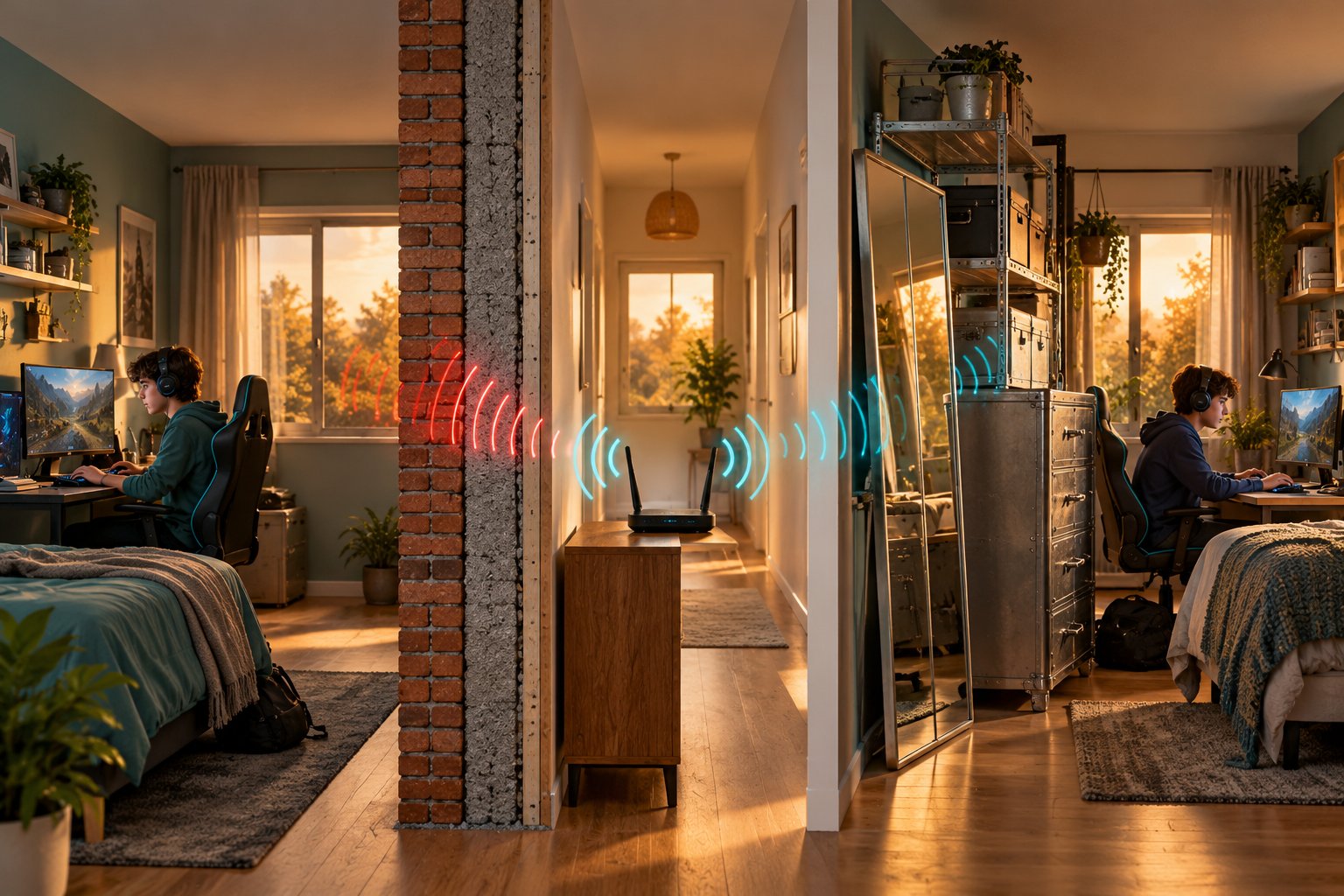
A router can deliver a reliable connection in the living room but struggle in a bedroom just a few steps away.
The distance between the router and the device is only part of the explanation.
Walls, flooring, insulation, furniture and large appliances all influence how wireless signals travel.
Imagine your router is on a shelf in the living room. The kitchen has reliable Wi-Fi, but the home office behind two brick walls struggles during video calls.
The problem may not be the router itself. The signal could be losing strength as it passes through the building.
This reduction in wireless signal strength is called signal attenuation.
Wi-Fi can also reflect off metal surfaces and reach a room through indirect paths.
That explains why moving a router from behind a television onto an open shelf sometimes improves reception without changing any settings.
Everyday Building Materials That Weaken or Stop Wi-Fi
Some building materials are much harder for wireless signals to penetrate than others.
The most common materials that block wifi signal include reinforced concrete, metal, brick and foil-backed insulation.
However, thickness and construction matter just as much as the material itself.
A single brick wall may allow a perfectly usable connection. Several thick masonry walls between the router and a laptop can cause a noticeable reduction.
| Material | Effect on Wi-Fi | Practical consideration |
|---|---|---|
| Drywall | Usually low to moderate weakening | Most ordinary interior walls allow a usable signal |
| Brick | Moderate to substantial weakening | Multiple brick walls can reduce coverage significantly |
| Reinforced concrete | Often substantial weakening | Steel reinforcement creates an additional obstacle |
| Metal doors and panels | Strong reflection and shielding | May produce weak reception behind large surfaces |
| Foil-backed insulation | Can substantially reduce signal penetration | Hidden insulation can explain unexpected dead zones |
| Low-emissivity coated glass | Can weaken signals | Metallic window coatings may affect reception |
| Wood and dense furniture | Usually limited to moderate weakening | Several obstacles along the same path can add up |
| Large bodies of water | Can absorb wireless energy | Aquariums may affect nearby wireless connections |
These are general comparisons. Actual results depend on the building, frequency band, signal path and surrounding objects.
Reinforced concrete
Concrete is a common cause of poor wireless coverage in basements, converted garages and multistory homes.
The issue can become more noticeable when steel reinforcement is present.
For example, a router downstairs may provide excellent coverage across that floor while struggling to reach a room above a reinforced concrete ceiling.
In that situation, moving a wireless extender around upstairs may not solve the problem unless the extender can receive a usable signal through another route.
Metal surfaces
Large metal objects can reflect radio waves and block parts of the signal path.
Metal cabinets, garage doors, wall panels and appliances can all influence wireless coverage.
Avoid placing a router inside a metal cabinet or directly behind a refrigerator.
If a security camera works while held near the house but disconnects after being installed behind metal siding, its mounting position may be contributing to the problem.
Foil-backed insulation
Some building insulation contains reflective foil.
That foil can weaken wireless signals even when the visible wall looks like ordinary drywall.
This is worth considering in insulated garages, extensions and attic rooms where the connection is unexpectedly poor.
Household Obstacles: Mirrors, Metal Appliances, and Dense Furniture
You do not need concrete walls to experience poor Wi-Fi reception.
Several ordinary household objects can affect the connection.
Large mirrors
Most household mirrors contain a metallic reflective coating.
A large mirrored wardrobe positioned between a router and a laptop may weaken the direct signal path.
That does not mean every bathroom mirror causes Wi-Fi problems.
Look at the size and position of the mirror before treating it as the main obstacle.
Refrigerators and kitchen appliances
A refrigerator contains large metal surfaces that can reflect wireless signals.
Placing a router behind one is rarely a good idea.
Microwave ovens can also cause interference affecting nearby 2.4 GHz connections while operating.
If a kitchen tablet becomes unreliable mainly when certain appliances are running, test the connection during those periods.
Dense furniture
Large wardrobes, bookshelves and storage units can obstruct signal paths.
Wood generally affects Wi-Fi less than metal or reinforced concrete. However, several packed pieces of furniture between the router and receiving device may contribute to signal loss.
Before moving heavy furniture, try repositioning the router onto a more open shelf.
Aquariums
Water absorbs wireless energy.
A large aquarium sitting directly between the router and a connected device can weaken the signal.
Moving the router slightly to the side may provide a better path without disturbing the aquarium.
How 2.4 GHz and 5 GHz Wi-Fi Behave Differently
Most dual-band home routers support 2.4 GHz and 5 GHz Wi-Fi.
Understanding the difference can save you from changing settings that make coverage worse.
2.4 GHz Wi-Fi generally offers longer coverage.
It usually penetrates walls and furniture better than 5 GHz.
Many smart plugs, video doorbells and wireless security cameras depend on 2.4 GHz.
However, this band is widely used. Nearby networks, Bluetooth accessories and some household appliances can contribute to congestion or interference.
5 GHz Wi-Fi generally provides faster connections over shorter distances.
It is useful for laptops, televisions and phones relatively close to the router.
The disadvantage is that 5 GHz signals usually weaken more quickly through walls.
Consider a house where the living room router serves a laptop in the same room and a camera outside the garage.
The laptop may perform better on 5 GHz, while the camera may maintain a more reliable connection on 2.4 GHz.
If your goal is to reduce reception in a distant bedroom, 5 GHz may already be weaker there.
If your problem is poor coverage behind a thick wall, testing 2.4 GHz may help, provided the receiving device supports it.
Neither frequency creates a reliable barrier at the edge of a room.
How to Intentionally Block or Isolate Wi-Fi in One Room
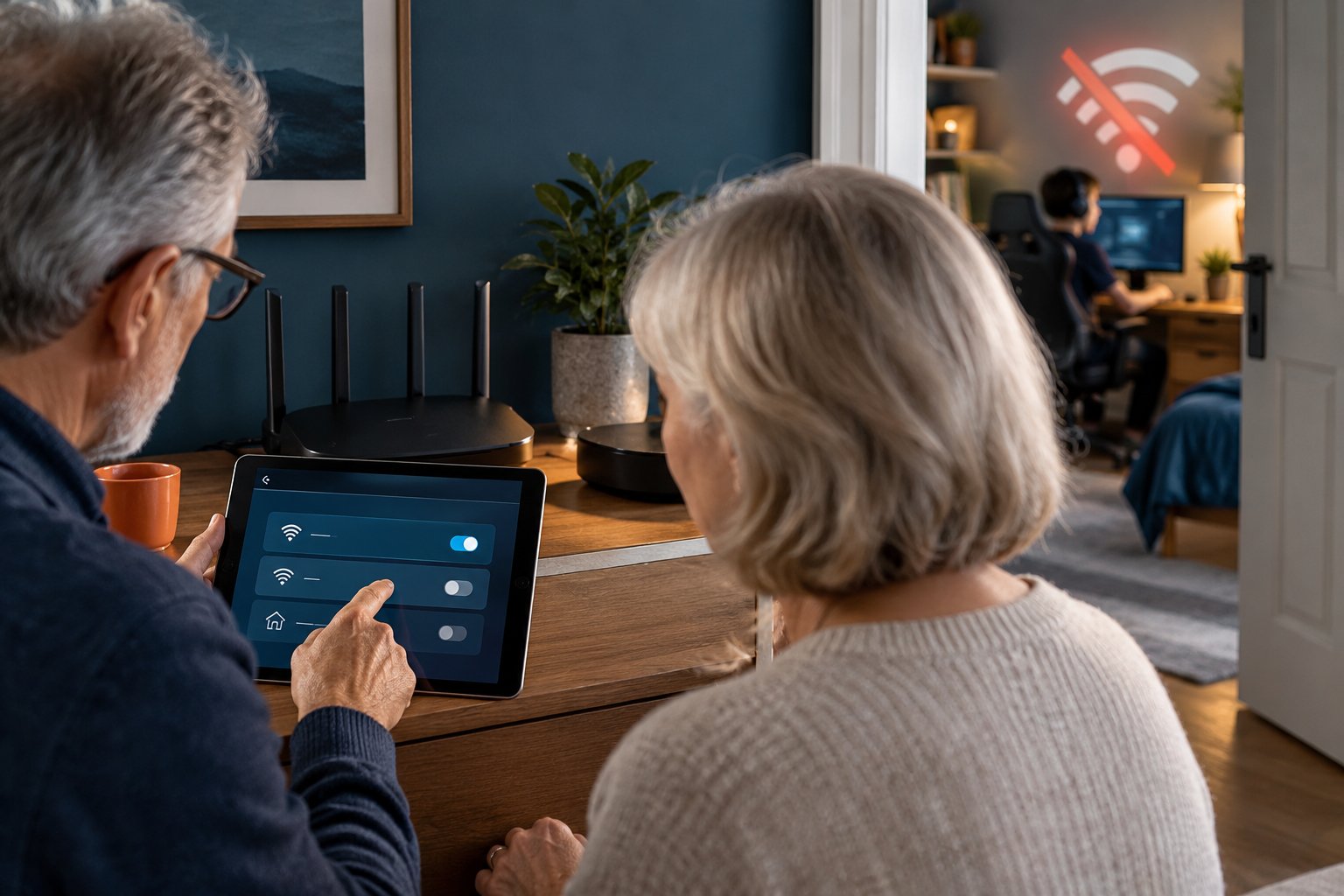
There is no standard router setting that allows you to draw a boundary around a room and prevent wireless signals from crossing it.
Router controls change how your network operates. Physical shielding changes how radio waves travel through part of the building.
For most households, router controls are easier to use and reverse.
If the objective is to stop a child from using the internet overnight, a device schedule is usually preferable to reducing signal coverage across the house.
If you genuinely want less wireless signal in a specific area, begin with router placement and transmit power.
Step 1: Identify the Type of Wi-Fi Blocking You Need
What to do
Start by defining the result you want.
Common examples include:
-
Reducing coverage from your router in a particular bedroom.
-
Preventing a tablet from connecting after bedtime.
-
Keeping guest devices away from personal computers.
-
Reducing wireless coverage near an adjoining room.
-
Preventing unwanted devices from joining your network.
Next, decide whether your concern is the physical signal or access to your internet connection.
What you should see
You should have one clear goal before opening your router settings.
For example, stopping a tablet from accessing the internet is an access-control problem.
Reducing wireless reception near a wall is a coverage problem.
What to watch for
Your router controls only its own network.
It cannot stop signals from neighboring routers entering your home.
A router restriction also cannot prevent a phone from using mobile data.
Step 2: Measure the Current Signal Before Making Changes
What to do
Take your phone into the room where you want to change coverage.
Check the connection in several places:
-
Beside the doorway.
-
Near the wall closest to the router.
-
In the middle of the room.
-
Near the window.
Confirm that the phone is connected to your home Wi-Fi and is not quietly switching to mobile data.
Open an ordinary website and observe whether the connection remains stable.
Some Android Wi-Fi analyzer apps can show signal strength in dBm.
A reading of -50 dBm represents a stronger received signal than -80 dBm. These are examples of how to interpret the measurement, not target readings guaranteed to work in every home.
On iPhone, you can begin with the connection indicator and normal browsing behavior.
Record the results before making changes.
What you should see
The connection may be stronger near the doorway and weaker behind a concrete wall.
That suggests the signal is finding an easier path into the room.
What to watch for
Wi-Fi bars are approximate.
A strong wireless connection does not guarantee fast internet service.
Keep your test device and locations consistent so you do not mistake differences between phones for a genuine improvement.
Using Physical Shielding and RF Blocking Materials
RF shielding uses materials that reduce electromagnetic energy passing through a surface or enclosure.
Conductive materials, including aluminum, copper and certain metal meshes, can weaken radio-frequency signals.
A Faraday cage is a conductive enclosure designed to shield its interior from electromagnetic fields.
However, making an entire room behave like a Faraday cage is much more complicated than attaching foil to one wall.
Wi-Fi can still enter through gaps, doorways, windows and other openings.
Professional RF-shielded spaces may require continuous conductive surfaces and special treatment around openings.
That is rarely practical for an ordinary bedroom.
If you are considering shielding materials, first establish whether you need to reduce the signal from your own router or isolate the room from multiple wireless sources.
The second goal is substantially more difficult.
Physical shielding can also affect cellular reception, wireless alarms, medical devices and other equipment that needs radio communication.
For a normal home network, targeted router adjustments should come first.
Step 3: Test Removable Barriers Before Installing Permanent Materials
What to do
If you want to investigate passive shielding, test its effect before making permanent changes.
For example, an existing large metal cabinet may already be influencing the connection.
If it is safe to reposition, compare the Wi-Fi signal before and after moving it.
For a purpose-built passive shielding panel, assess whether the material is suitable for the location and test its actual effect before installation.
Keep the receiving device in the same position throughout the comparison.
What you should see
A useful change should produce a repeatable reduction in signal strength at the intended location.
Do not expect the signal to disappear completely.
What to watch for
Radio signals can reflect around objects.
A metal barrier that weakens Wi-Fi in one corner may alter reception elsewhere.
Do not wrap your router in aluminum foil or place it inside an unsuitable sealed metal enclosure.
Blocking ventilation and disrupting the router's normal operation creates more problems than it solves.
Managing Coverage via Router Settings and Guest Networks
Most home routers provide at least a few controls that are easier to manage than physical shielding.
Depending on the model, these may include:
-
Wireless transmit power.
-
Guest networks.
-
Separate 2.4 GHz and 5 GHz settings.
-
Device access restrictions.
-
Internet access schedules.
-
Wireless channel selection.
Some routers provide these options through a mobile app.
Others require you to open a browser and sign in to the router's administration page.
Before changing a setting, take a screenshot of the current configuration.
This gives you a straightforward way to restore the earlier setup if cameras or other devices stop working.
Step 4: Adjust Your Router's Wireless Transmit Power
What to do
Open your router's management interface.
If you do not know how to access it, check the router label or manual.
Sign in using your administrator credentials.
Look for menu names such as:
-
Wireless Settings.
-
Advanced Wireless.
-
Radio Settings.
-
Transmit Power.
Some routers offer Low, Medium and High power levels. Others use different controls or do not provide an adjustment at all.
If the option is available, lower the power by one level.
Save the setting and test the target room again.
What you should see
The signal may become weaker in distant rooms.
Devices near the router should continue working normally if the power reduction is modest.
What to watch for
Transmit power affects the router's broader coverage area, not just one room.
You may unintentionally weaken the connection to an upstairs laptop or outdoor security camera.
Wireless communication also works in both directions.
Reducing the router's transmit power does not necessarily address a weak signal traveling from a distant phone or camera back to the router.
If important devices become unreliable, restore the previous setting.
Step 5: Use Wi-Fi Schedules or Disable Unneeded Bands
What to do
Check whether your router supports internet schedules or device restrictions.
For example, you might want a child's tablet to stop accessing the internet during sleeping hours.
Apply a schedule to that device if the router supports it.
Some routers also allow wireless broadcasting to be turned off at selected times.
If you want to disable either the 2.4 GHz or 5 GHz band, first identify which connected devices need it.
What you should see
A properly configured device schedule should restrict that device's internet access during the chosen period.
A Wi-Fi broadcasting schedule may temporarily remove the selected wireless network.
Those functions are not necessarily interchangeable.
What to watch for
Many outdoor security cameras and smart-home devices require 2.4 GHz.
Turning off that band may disconnect them immediately.
Also remember that phones can use private or randomized MAC addresses.
If your router identifies devices using MAC addresses, make sure the restriction applies to the intended device.
Step 6: Create an Isolated Guest Network
If your concern is keeping visitors away from household devices, a guest network is usually more appropriate than signal blocking.
Imagine friends visiting your home.
They need internet access, but there is no reason for their phones to communicate with your personal computer or network storage.
What to do
Open your router's Guest Network settings.
Enable a separate network name and create a strong password.
Where supported, disable guest access to the main local network and enable suitable isolation settings.
Connect a phone to the guest network and verify that internet access works.
What you should see
Guest devices should be able to browse the internet without accessing protected devices on your main network, provided the router supports and correctly applies isolation.
What to watch for
A guest network does not physically block Wi-Fi signals.
The guest network still broadcasts wirelessly.
Also, some smart-home devices need local network access to communicate with a phone, hub or recorder.
Do not move them to an isolated network without checking how they operate.
Step 7: Verify That the Changes Work Throughout the Home
What to do
Return to the target room and repeat your earlier measurements.
Check the same locations using the same phone.
Then test the rooms where Wi-Fi still needs to work reliably.
Pay special attention to:
-
Home office computers.
-
Streaming televisions.
-
Outdoor security cameras.
-
Video doorbells.
-
Smart thermostats.
-
Printers.
-
Smart-home hubs.
What you should see
The intended room should have weaker coverage or the desired access restriction without creating serious connection problems elsewhere.
What to watch for
A setting that weakens the bedroom signal but repeatedly disconnects your front-door camera is not a satisfactory fix.
Restore the original setting and try a more targeted method.
How to Fix Unwanted Wi-Fi Blocking and Dead Zones
Sometimes the issue is the opposite of intentional signal blocking.
You need Wi-Fi in a room, but the building is getting in the way.
This is common in converted garages, upstairs bedrooms, basements and rooms behind thick structural walls.
A home security camera may connect while you are testing it near the router but lose connection after being mounted outside.
The first step is to find where the signal becomes unreliable.
Replacing the router before identifying the obstacle can leave you with the same dead zone and a different piece of equipment.
Optimal Router Placement Guidelines
A router installed in an open location usually has an easier path to connected devices than one hidden behind furniture.
Try these placement guidelines:
-
Keep the router off the floor.
-
Place it on a stable, open shelf.
-
Avoid enclosing it inside a cupboard.
-
Keep it away from large metal appliances.
-
Leave enough space around the router for ventilation.
-
Avoid positioning it directly behind a television.
-
Follow the manufacturer's antenna-positioning recommendations.
A router at one end of a long house may provide excellent coverage nearby and much weaker coverage at the opposite end.
Moving it closer to the center may improve the overall connection.
However, the best location also depends on where important devices are used.
For example, a home office and outdoor camera might matter more than a rarely used spare room.
Step 1: Find the Weakest Part of the Signal Path
What to do
Start beside the router.
Walk toward the problem room and check the connection at several points.
Pause in the hallway, beside the doorway and inside the room.
If possible, repeat the test with the door open and closed.
What you should see
You may discover that the signal becomes noticeably weaker after crossing one particular wall.
Suppose Wi-Fi works normally in the hallway but struggles inside a converted garage.
A thick masonry wall between the two locations may be contributing to the problem.
What to watch for
If every room has poor internet performance, the issue may not be signal blocking.
Check the connection near the router first.
A problem with the modem, router or internet service can affect the whole home.
Step 2: Move the Router and Compare Coverage
What to do
Move the router to a more open position if the existing cables allow it.
Try placing it higher or moving it away from a large appliance.
Keep the wireless settings unchanged during this test.
That way, you can judge the effect of placement alone.
What you should see
The weak room may receive a better signal.
A successful change should improve reception without causing major problems in other areas.
What to watch for
Moving the router closer to one room can make it farther away from another.
Check the rooms used most often before settling on a new location.
Avoid stretching cables across walkways or placing equipment where ventilation is restricted.
Bypassing Obstacles with Dedicated Wi-Fi Extenders
A Wi-Fi extender receives an existing wireless signal and provides additional coverage.
It does not make concrete or metal easier for radio waves to pass through.
Instead, it can be placed where the connection is still usable and extend coverage from that position.
Imagine your bedroom receives weak Wi-Fi, but the hallway outside has a reliable connection.
An extender installed in the hallway may provide a better connection inside the bedroom.
Placing the same extender deep inside the dead zone may be ineffective because it cannot receive a reliable signal from the main router.
Placement matters more than simply choosing the outlet nearest the problem device.
Step 3: Position a Wi-Fi Extender Before the Dead Zone
What to do
Find an outlet between the router and the room with weak reception.
Choose a location where your phone can still maintain a reliable Wi-Fi connection.
Install the extender according to the manufacturer's instructions.
If your router supports both common frequency bands, a compatible dual-band extender may provide more flexibility.
The ROOXIS AC1200 dual band Wi-Fi extender is one option to consider when you need to extend an existing wireless connection into a weaker coverage area.
What you should see
A laptop or phone should connect more reliably in the target room.
Test normal browsing, video calling or the device that originally had trouble.
What to watch for
A phone may show a strong connection to the extender while internet performance remains poor.
That can happen when the extender itself has a weak connection to the main router.
Move it closer to the router and test again.
Wireless repeating may also reduce available throughput compared with a direct connection, particularly when wireless capacity is shared between the router and connected devices.
Step 4: Use Ethernet When Walls Block Wireless Backhaul
Some walls weaken Wi-Fi too much for reliable wireless repeating.
Reinforced concrete is a common example.
In these cases, an Ethernet cable can carry the network connection past the obstacle.
A suitable wired access point can then provide Wi-Fi inside the problem room.
What to do
Check whether an existing Ethernet outlet or suitable cable route reaches the room.
If a wired connection is available, connect a compatible wireless access point.
Follow the device's setup instructions to configure local Wi-Fi.
What you should see
Devices should connect to the local access point without relying on a weak wireless signal traveling through the concrete wall.
What to watch for
Not every extender supports access point mode.
An Ethernet port does not automatically mean a device can use wired backhaul.
Check its supported operating modes before buying equipment.
For permanent cable installations through walls or ceilings, use appropriate installation methods and qualified assistance when needed.
Step 5: Reduce Wi-Fi Interference in the House
A weak signal is not the only reason wireless devices disconnect.
Sometimes the connection is unstable because nearby networks or electronics are using overlapping wireless frequencies.
Wifi interference in house environments is particularly common on 2.4 GHz.
What to do
Open your router's wireless settings.
Find the channel selection controls.
Many modern routers select channels automatically.
If automatic selection works well, leave it enabled.
If problems persist, consider testing a less-congested channel.
For 2.4 GHz Wi-Fi using 20 MHz channel width, channels 1, 6 and 11 are commonly used as non-overlapping choices.
Make one change at a time, then check connection stability.
What you should see
If congestion was contributing to the problem, the connection may become more consistent.
Video calls may experience fewer interruptions, or smart devices may stay connected more reliably.
What to watch for
Changing channels cannot solve severe attenuation caused by concrete or metal.
If the room receives almost no signal, concentrate on router placement or another connection path.
Step 6: Check Wi-Fi Security Cameras After Every Network Change
Security cameras often reveal coverage problems that are less obvious on phones.
A phone moves around the house. An outdoor camera remains fixed behind whatever walls and obstacles surround its mounting location.
Many consumer Wi-Fi cameras also require 2.4 GHz.
What to do
Check the camera in its final installed position.
Open its live view and confirm that the connection stays reliable.
Make sure the required Wi-Fi band is still enabled.
If you changed the network name or password, reconnect the camera according to its setup instructions.
What you should see
The camera should remain connected and respond normally when you open the live view.
What to watch for
If the camera works near the router but disconnects after being installed outside, investigate the wireless signal path.
If it disconnects even close to the router, check its power supply, firmware and network compatibility.
Do not assume every camera problem is caused by router range.
For households dealing with weak indoor coverage and unreliable camera connections, available Rooxis networking products can be compared according to router compatibility, placement and connection requirements.
Common Mistakes When Trying to Block Wi-Fi Signals
Many unsuccessful Wi-Fi fixes begin with a misunderstanding of what a particular setting or material can do.
1. Assuming a password change blocks Wi-Fi signals
Changing the password prevents devices without valid credentials from joining your network.
It does not prevent wireless transmissions from entering a room.
A phone can still detect your network even when it cannot connect.
2. Hiding the network name
Disabling SSID broadcasting does not make wireless transmissions disappear.
It also should not be treated as a meaningful security measure.
Use strong encryption and a secure password to protect network access.
3. Placing random metal objects around the router
Metal can reflect Wi-Fi, but an improvised barrier is not a reliable room-level shielding system.
You may weaken reception in the wrong area while leaving the target room connected.
4. Lowering transmit power too much
Reducing router power can weaken connections throughout the house.
Always check distant devices, particularly outdoor cameras and doorbells, after making the adjustment.
5. Installing an extender where Wi-Fi barely works
An extender needs a usable signal from the router.
An outlet in the hallway may work better than one deep inside the dead zone.
6. Assuming 5 GHz cannot pass through walls
5 GHz generally weakens more quickly through obstacles than 2.4 GHz.
It can still pass through many walls.
Changing frequency bands does not create guaranteed room isolation.
7. Ignoring wired connections
If reinforced concrete makes wireless backhaul unreliable, moving extenders repeatedly may not help.
A wired access point can provide a more predictable connection.
8. Forgetting about neighboring networks
Your router controls only its own transmissions.
Nearby Wi-Fi networks may still be detectable inside the room even after you disable your own wireless network.
What to Do If Wi-Fi Blocking or Isolation Still Does Not Work
If your changes have not produced the expected result, identify exactly what is still happening.
A room receiving a strong signal, a blocked device accessing the internet and an extender producing slow speeds are different problems.
The Room Still Receives a Strong Wi-Fi Signal
First, check which network your phone is connected to.
It may be using a nearby access point, extender or neighboring network.
If you are testing your own router, temporarily disable the relevant wireless network through its settings.
Check whether that network disappears from the phone's available connections.
Then restore the setting.
If the signal remains strong after moving the router or reducing transmit power, the room may be receiving Wi-Fi through several paths.
A single passive barrier may not be enough to reduce coverage consistently.
A Device Still Has Internet Access After Being Blocked
Check whether the device is using mobile data or another saved Wi-Fi network.
Review the access-control rule and confirm that it applies to the correct device.
If your router identifies equipment using MAC addresses, check whether private address settings are affecting the rule.
For family internet schedules, device-level parental controls may provide additional restrictions.
Router access controls are not a substitute for managing other available connections.
The Wi-Fi Extender Has a Strong Signal but Internet Is Slow
Your phone can show a strong Wi-Fi connection to the extender even when the extender has a poor connection to the main router.
Move the extender closer to the router and test again.
Check whether the device is using the intended network.
Try ordinary browsing, a video call or another activity that previously caused problems.
If performance remains poor despite good backhaul reception, a wired access point may be a better option.
One Security Camera Keeps Disconnecting
Test the camera closer to the router using an appropriate power connection and the manufacturer's setup instructions.
If it becomes reliable, the installed location may have insufficient coverage.
Look for metal siding, concrete walls, distance and other obstacles.
If it still disconnects near the router, investigate power, firmware or network compatibility.
Do not buy a new extender until you have established that coverage is the likely cause.
Only One Room Has Poor Coverage
Compare the construction of that room with the rest of the house.
It may be separated by reinforced concrete, foil-backed insulation or large reflective surfaces.
Check reception beside the doorway and then farther inside.
If the doorway has noticeably better Wi-Fi, the building materials may be weakening the connection.
Try relocating the router or placing an extender where it can receive a reliable signal.
For severe signal loss, a wired access point is often the more dependable solution.
Final Checklist Before Changing Your Wi-Fi Setup
Before making a permanent change, confirm the following:
-
You know whether the goal is signal reduction, access restriction or better coverage.
-
You have tested the original connection in the affected room.
-
You know which devices depend on 2.4 GHz and 5 GHz.
-
You have recorded your original router settings.
-
You have considered the effect on security cameras and other smart-home devices.
-
You are using legitimate router controls or suitable passive materials, not radio jamming devices.
-
You have tested important devices after making changes.
-
You have considered a wired access point if thick walls prevent reliable wireless backhaul.
For ordinary homes, router placement and configuration should come before permanent shielding materials.
If you want weaker coverage in a bedroom, make one router adjustment and check the surrounding rooms.
If you want stronger coverage behind concrete or masonry, identify the obstruction first.
A carefully positioned extender may help, but when the signal cannot reliably cross the wall, Ethernet is often the more practical answer.
Frequently Asked Questions About Wi-Fi Signal Blocking
What materials block Wi-Fi signals the most?
Continuous metal surfaces, foil-backed insulation, reinforced concrete and specialized RF-shielding materials can significantly weaken Wi-Fi. Their effectiveness depends on thickness, construction, frequency and gaps around the barrier. Ordinary drywall generally causes less signal loss than metal or reinforced masonry.
Can mirrors and metal doors stop Wi-Fi from reaching a room?
Large mirrors and metal doors can reflect or weaken Wi-Fi, especially when positioned directly between the router and receiving device. However, signals may still reach the room through windows, doorways or other paths. A single mirror or metal door rarely provides complete isolation.
How do I prevent Wi-Fi signals from entering a specific room?
Start by moving your own router farther away or reducing transmit power if the router supports that setting. Passive RF-shielding materials can weaken signals, but complete room isolation requires careful treatment of walls, doors, windows and gaps. If your objective is to stop a device from accessing the internet, router schedules or access restrictions are usually easier to manage.
What is the best way to route signal around thick concrete walls?
A wired Ethernet connection to an access point on the other side of the wall is often the most reliable solution. If installing cable is impractical, a Wi-Fi extender positioned where the original signal remains strong may improve coverage. Avoid installing an extender deep inside a dead zone where it cannot maintain a stable connection to the router.