You can block WiFi signal in a room by using radio frequency shielding materials, lowering your router's transmission power, changing wireless bands, or moving the router farther from the area you want to isolate. Completely blocking WiFi is harder. Radio signals can pass through ordinary walls, travel around obstacles, and enter through doors and windows.
For most homes, adjusting the router is a better starting point than installing shielding materials. You can often reduce unwanted coverage without spending money or making permanent changes to the building.
The right solution depends on what you want to achieve. Reducing WiFi coverage in an adjacent room is different from preventing outside networks from entering a room.
This guide explains how WiFi signals travel, which materials reduce them, how router settings affect coverage, and what to avoid when trying to contain wireless signals.
Why Contain or Block WiFi Signals in a Specific Room?
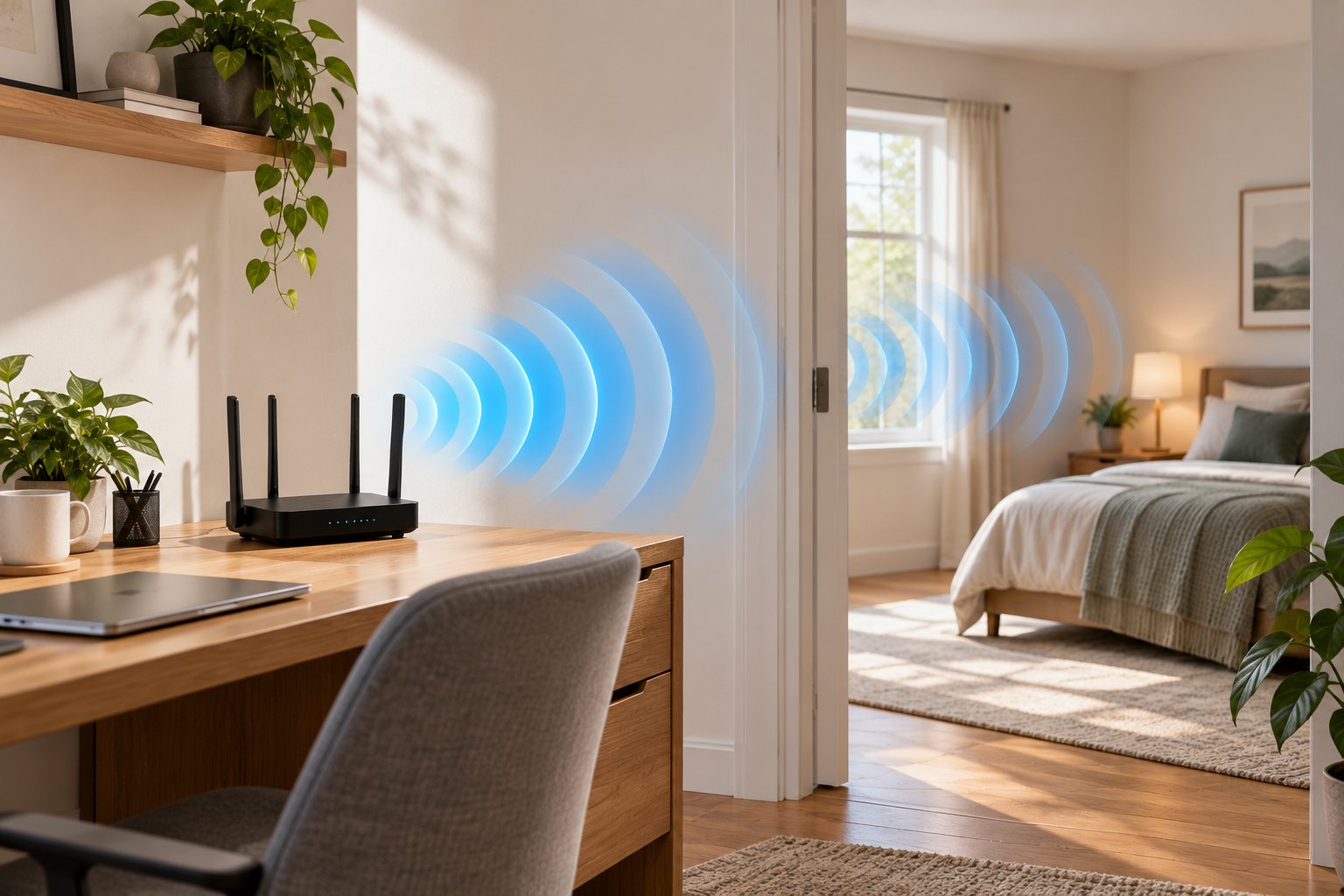
WiFi travels through radio waves, not through physical network cables. Those waves spread outward from transmitting equipment and can pass through many materials used in homes.
That is why a router in the living room may also provide coverage in the kitchen, bedrooms, garage, or nearby outdoor areas.
The signal does not stop when it reaches a wall.
Some of it passes through the material. Some is reflected, and some is absorbed. The remaining signal may still be strong enough for a phone or laptop to maintain a connection.
This makes WiFi convenient, but it also makes precise signal containment difficult.
A homeowner might want strong WiFi in a home office without extending unnecessary coverage into an adjacent room. Someone else might be trying to reduce interference between two nearby access points.
The appropriate solution depends on the purpose.
Before buying shielding products, decide whether you want to reduce coverage, prevent devices from connecting, or achieve more complete radio frequency isolation.
Those are three different problems.
Common Reasons for Limiting WiFi Coverage
1. Reducing interference between nearby wireless networks
Imagine a house with one router downstairs and another access point upstairs.
Both provide good coverage, but their signals overlap heavily.
If the equipment uses overlapping channels or poorly coordinated settings, devices may experience unnecessary wireless contention.
Lowering transmit power or changing channel assignments may improve performance.
Installing metal shielding around the rooms would usually be an excessive response.
2. Keeping a particular room less connected
Some households prefer not to use wireless devices in certain rooms.
If the objective is to prevent household devices from connecting, disabling WiFi on those devices or using the router's supported access controls may be more straightforward than physically blocking radio signals.
However, these measures do not prevent radio waves from entering the room.
If actual RF attenuation is required, physical shielding becomes a separate consideration.
3. Reducing WiFi coverage outside the house
A router placed directly beside an exterior wall may provide strong coverage outside while leaving distant indoor rooms with weak signals.
Moving it toward the center of the house can improve the balance.
You are not creating a physical signal boundary, but you are placing the strongest coverage where it is more useful.
4. Managing several access points
Homes with multiple access points can develop coverage problems when each unit operates at unnecessarily high power.
A phone may stay connected to a distant access point even when another is closer.
Careful placement and suitable power settings can improve roaming behavior.
5. Creating a specialized shielded room
Some technical facilities need controlled electromagnetic environments for equipment testing or other specialized work.
Those projects use engineered shielding systems, not ordinary home networking adjustments.
A residential room with one foil-covered wall is not equivalent to a professionally designed RF enclosure.
Understanding Radio Frequency Signals
WiFi uses Radio Frequency (RF) electromagnetic waves to carry information.
Most home networks operate on 2.4 GHz and 5 GHz frequencies. Some newer wireless equipment also supports 6 GHz.
These bands behave differently when signals travel through buildings.
The 2.4 GHz band generally provides better reach through some obstacles, although it is often crowded.
The 5 GHz band usually supports higher throughput under good conditions, but its effective range through walls is often shorter.
Neither band stops automatically at a room boundary.
The materials between your router and device affect how much signal gets through.
Drywall, timber, brick, reinforced concrete, and metal all interact with wireless signals differently.
The thickness and construction of a wall also matter.
For example, a thin interior partition may allow a usable connection between two rooms. A substantial reinforced concrete wall may weaken the same connection considerably.
Metal objects can also reflect signals, changing which parts of the room receive the strongest coverage.
This is why moving a router or laptop a short distance sometimes changes connection quality.
What Is WiFi Signal Attenuation?
Attenuation means a reduction in signal strength.
WiFi signals naturally weaken over distance. Walls, floors, furniture, and other obstacles can cause additional attenuation.
Suppose your phone receives a strong WiFi signal beside the router.
Walk into another room, and the signal may become weaker.
Move behind a substantial concrete wall, and it may weaken further.
Shielding materials are designed to increase this attenuation.
However, reduced signal strength does not necessarily mean the connection is blocked.
A wireless device may still connect even when the signal is weak.
The connection might become slower or less reliable before disappearing entirely.
For that reason, it is useful to separate two goals:
-
Signal reduction: Making a wireless signal weaker in a particular area.
-
Signal isolation: Preventing meaningful RF communication into or out of a controlled space.
Most residential changes aim for signal reduction.
Complete isolation requires much more careful design.
How to Block WiFi Signal in a Room: Choosing the Right Method
The simplest approach depends on whether you control the router creating the unwanted signal.
If you control the router, start with its settings and physical location.
If the signal comes from another network, changing your own router's transmission power will not prevent that outside signal from entering.
In that situation, passive shielding may be relevant if signal attenuation is genuinely necessary.
For example, suppose your home office router provides stronger coverage than you need.
You could lower its transmission power, move it farther from the shared wall, or use 5 GHz for compatible nearby devices.
Now consider a different situation. You want to reduce wireless signals entering the office from neighboring networks.
Changing your router's settings will not stop those external signals.
The problem may require physical attenuation, although blocking all outside WiFi remains difficult.
Start by identifying the source and desired outcome.
Comparing WiFi Signal Blocking Methods
| Method | How it works | Main limitation |
|---|---|---|
| Lower router transmit power | Reduces the router's transmitted signal strength | Does not create a defined coverage boundary |
| Use 5 GHz instead of 2.4 GHz | Can provide shorter effective range through obstacles | 5 GHz still passes through ordinary walls |
| Move the router | Changes where the strongest signal is located | Reflected signals can still reach other rooms |
| Disable a WiFi band | Stops the selected radio from transmitting | Devices relying on that band lose connectivity |
| RF shielding paint | Uses a specialized conductive coating to attenuate RF | Results depend on coverage and installation |
| Conductive curtains | Reduce RF transmission through covered openings | Signals may travel around the edges |
| Copper mesh or metal barriers | Reflect or attenuate radio waves | Gaps and uncovered surfaces affect performance |
| Dense construction materials | Naturally weaken some wireless signals | Effects vary by material and building design |
| Professionally shielded enclosure | Uses coordinated materials and controlled openings | Requires specialized design and verification |
A configuration change is usually easier to reverse than a physical installation.
That makes router adjustments a sensible first step when you control the network.
Physical Shielding Methods to Block Wireless Signals
Physical shielding uses materials that reflect, absorb, or attenuate electromagnetic energy.
This is called electromagnetic shielding.
The materials may include conductive paint, metal mesh, specialized fabrics, and other engineered products.
A common mistake is assuming that covering one wall will isolate an entire room.
WiFi does not travel only in a straight line.
Signals can reflect from furniture, walls, floors, and other surfaces. They may reach a room through an opening even when the direct path is blocked.
Physical shielding can be useful, but the installation needs to match the problem.
Using RF Shielding Paint and Carbon-Based Wall Coatings
RF shielding paint is a specialized coating designed to attenuate certain radio frequency signals.
Some products use conductive carbon-based materials. Others rely on different conductive ingredients.
These are not ordinary decorative paints.
They are designed for particular electrical and electromagnetic properties.
How RF Shielding Paint Works
Conductive coatings interact with incident electromagnetic waves.
Depending on the material and construction, they can reflect or absorb some of the energy that would otherwise pass through the wall.
For example, applying a suitable RF shielding coating to a shared wall may reduce the amount of WiFi signal traveling directly through that wall.
The result depends on several factors:
-
The formulation of the coating.
-
The wireless frequencies involved.
-
Surface preparation.
-
Application thickness.
-
Continuity between coated areas.
-
Openings and untreated sections.
-
The surrounding room construction.
A coating's advertised shielding performance may come from controlled laboratory testing.
That does not guarantee the same result throughout a finished room.
A residential wall has corners, doors, outlets, fixtures, and adjoining surfaces. Each can affect the overall result.
Where Shielding Paint May Be Useful
Shielding paint may be worth considering when the main objective is to reduce RF transmission through a particular wall.
For example, a dedicated technical workspace may share a wall with an equipment room.
If measurements indicate that the shared wall is a significant transmission path, a suitable coating could be part of a shielding solution.
But paint cannot compensate for every other opening.
Signals may still enter through an untreated ceiling, window, or doorway.
Before applying a permanent coating, determine whether the wall is actually responsible for the unwanted signal.
Otherwise, you could alter the room without meaningfully changing its wireless environment.
Important Installation Considerations
Some conductive shielding systems have specific electrical installation requirements.
Those requirements must be handled according to the manufacturer's instructions and applicable safety rules.
Do not improvise electrical grounding, connect shielding materials to household outlets, or alter wiring to make a coating work.
Where electrical work is required, use qualified professionals.
Also check whether the coating is appropriate for the intended wall surface and indoor environment.
For ordinary homes, router placement and configuration should generally be investigated before permanent wall treatments.
Faraday Curtains, Copper Mesh, and Foil Barriers
Conductive fabrics, metal mesh, and foil barriers can reduce RF transmission.
They rely on principles related to a Faraday cage, which is a conductive enclosure designed to reduce electromagnetic fields entering or leaving a protected space.
A complete Faraday cage is not the same as placing a piece of metal beside a router.
Shielding performance depends on the enclosure's construction, openings, and continuity.
Can Faraday Curtains Block WiFi?
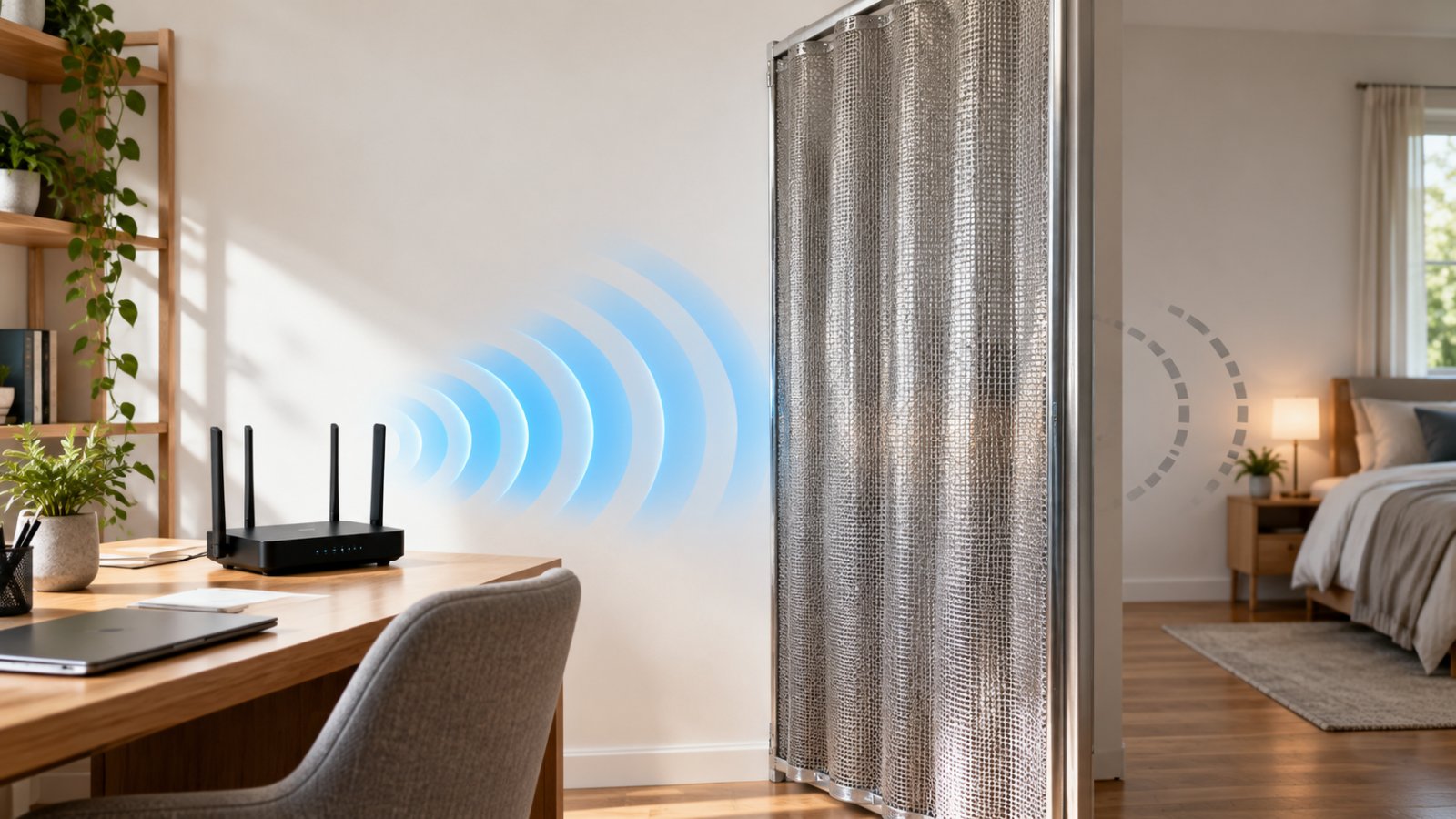
Some curtains contain conductive fibers designed to attenuate radio frequency signals.
They may reduce signal transmission through a window or other opening when installed properly.
Consider a room with a large window facing an outdoor access point.
A conductive curtain may reduce part of the signal arriving through the covered opening.
However, signals may still pass around the curtain.
The surrounding walls, gaps along the edges, and other openings remain relevant.
Curtains are also movable.
Opening the curtain or leaving a gap can change the shielding effect.
Treat conductive curtains as one possible way to attenuate signals through a particular opening, not as a guarantee of complete room isolation.
Copper Mesh for WiFi Shielding
Copper is electrically conductive and is used in specialized electromagnetic shielding systems.
Fine copper mesh can attenuate RF energy when appropriately designed and installed.
However, not every piece of mesh performs equally.
Important factors include:
-
The size and arrangement of openings.
-
Conductivity and material construction.
-
Continuity between mesh sections.
-
Installation around edges and corners.
-
The frequencies involved.
-
Openings in the overall enclosure.
For example, placing copper mesh over one window may change transmission through that window.
It does not mean WiFi cannot enter through the adjoining wall or doorway.
Do not modify electrical systems, ventilation, or building safety features to install conductive barriers.
Specialized shielding work should be designed and installed with those requirements in mind.
Does Aluminum Foil Block WiFi?
Aluminum foil is conductive and can reflect or attenuate radio waves.
Under suitable conditions, a metallic barrier can reduce WiFi transmission through the area it covers.
But a sheet of foil does not completely block every signal.
Radio waves may reach the receiving device by another path.
For example, placing foil against one wall may weaken the direct signal through that wall while leaving an open doorway through which signals can still travel.
Wrapping a router in aluminum foil is particularly unhelpful.
It interferes with normal wireless operation and may obstruct ventilation.
If you want less coverage from your own router, use appropriate settings or reposition the equipment.
Do not surround networking hardware with improvised metallic coverings.
Why Complete Shielding Is Difficult
A typical room contains multiple transmission paths.
Even if walls are covered with conductive materials, signals may still travel through:
-
Door gaps.
-
Windows.
-
Ceiling structures.
-
Floor structures.
-
Ventilation openings.
-
Untreated sections.
-
Gaps between shielding materials.
-
Cable and service penetrations.
This is why a professionally shielded enclosure is more complicated than a metal-lined room.
It requires the entire structure to be considered.
Materials, openings, continuity, and testing all affect the result.
For a homeowner trying to stop wifi signal passing through walls, partial attenuation may be achievable.
Complete isolation should not be assumed without specialized design and verification.
Dense Building Materials and Interior Layout Tweaks
You do not always need specialized shielding products to notice the effect of building materials.
Many homes already contain structures that weaken WiFi.
Concrete walls, brickwork, metal framing, and certain window coatings can affect wireless transmission.
This helps explain why the same router performs differently in two houses of similar size.
Which Materials Reduce WiFi Signals?
Reinforced concrete
Concrete reinforced with steel can substantially weaken wireless signals.
Actual attenuation depends on the thickness, reinforcement, moisture, and frequency.
Brick and masonry
Brick walls often reduce WiFi strength more than lightweight partitions.
However, different masonry constructions produce different results.
Metal panels
Large metal surfaces can reflect or attenuate radio waves.
They may also create uneven coverage by changing the paths signals follow.
Conductive window coatings
Some energy-efficient windows contain coatings that affect radio frequency transmission.
The result depends on the glazing construction.
Drywall and timber
These materials often allow more WiFi transmission than substantial metal or reinforced concrete structures.
Thickness, moisture, and surrounding construction still matter.
A material that weakens one band may affect another band differently.
Avoid assuming a fixed amount of signal reduction without measurements.
Can Furniture Help Reduce WiFi Reach?
Furniture can change wireless coverage, but it is not a reliable shielding system.
A large metal cabinet may obstruct the direct signal path.
A wooden bookcase usually behaves differently.
Moving furniture can also change reflected signals.
For example, placing a metal storage cabinet beside a shared wall might weaken coverage in one location but alter the signal pattern elsewhere.
That makes furniture an unpredictable way to block wireless signal transmission.
If you control the router, moving it is generally easier to test than rearranging heavy furniture to obstruct its signal.
Be Careful With Permanent Building Changes
Shielding materials can affect more than WiFi.
Depending on their design and coverage, they may also reduce cellular or other radio communications.
This matters if people rely on mobile phones inside the room.
Before installing extensive shielding, consider ordinary communication needs and emergency access.
Do not interfere with electrical installations, ventilation, fire safety systems, or other building services.
For a specialized RF-shielded room, consult qualified professionals rather than improvising structural or electrical modifications.
Network Configuration Tweaks to Reduce Signal Reach
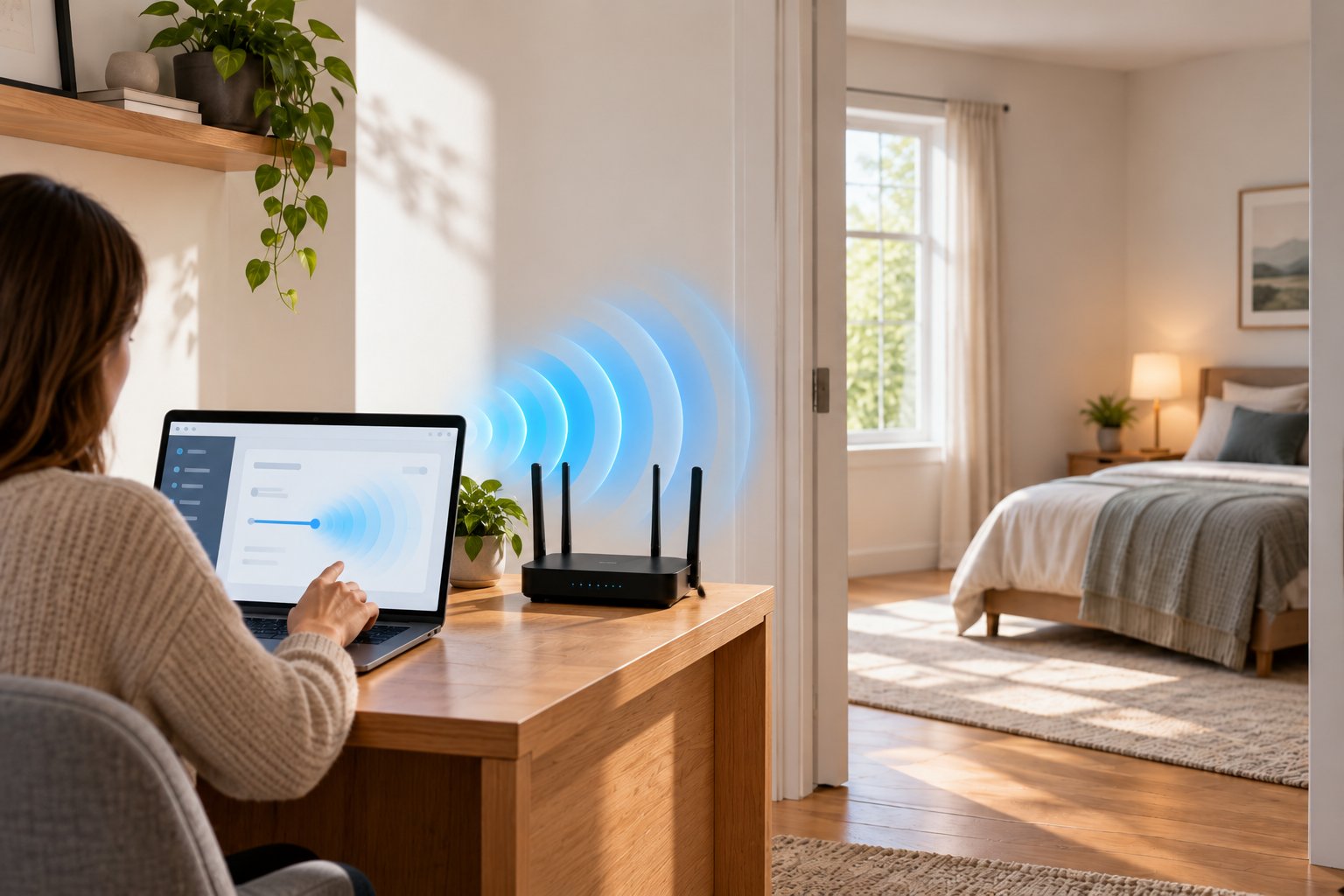
Router settings provide several ways to manage wireless coverage without changing the room itself.
Some routers allow transmission power adjustments.
Others let you disable individual frequency bands, configure wireless schedules, or change access point settings.
These controls depend on the model and firmware.
Not every router exposes the same options.
Before buying shielding materials, check what your existing networking equipment supports.
Lowering Router Transmit (Tx) Power Settings
Transmit Power (Tx Power) determines the transmission strength used by a router's wireless radio, within the limits of its hardware and applicable regulations.
Higher power may help extend usable coverage.
Lower power can reduce how far the signal remains strong enough for reliable communication.
This makes transmit power a practical setting when you want to contain home WiFi coverage more closely to the areas where devices are used.
However, it does not create a sharp signal boundary.
How to Reduce Router Transmission Power
If your router supports adjustable transmit power, the general process is:
-
Connect a phone or computer to the router.
-
Open the router's administration interface.
-
Sign in using the administrator credentials.
-
Find the wireless settings.
-
Look for Tx Power, Transmit Power, Radio Power, or a similar setting.
-
Check whether 2.4 GHz and 5 GHz can be adjusted separately.
-
Lower the power by one available level.
-
Save the settings.
-
Test connections in the rooms where WiFi is still needed.
-
Test the area where you want weaker coverage.
Some routers provide Low, Medium, and High options.
Others use numerical settings.
Some consumer routers do not provide adjustable transmit power at all.
Do not assume your ROOXIS router or another model has a particular menu until you check its actual interface.
If the setting is unavailable, router placement and band configuration may offer more practical control.
Why Lowering Power Can Help
Consider a router placed near the wall between a living room and a neighboring room.
The signal is strong in both spaces.
If most connected devices are close to the router, operating at maximum transmit power may be unnecessary.
Reducing the setting could weaken coverage beyond the intended area while maintaining adequate connectivity nearby.
Another example involves a router positioned beside an exterior wall.
It may provide usable WiFi well outside the house while struggling to cover more distant indoor rooms.
Moving the router inward and adjusting power can help place the strongest coverage where it is needed.
The key is testing.
Lowering power too far can create disconnections, slower data rates, or unstable smart home devices.
Why Tx Power Does Not Completely Block WiFi
Wireless communication happens in both directions.
The router transmits data to connected devices.
Phones, laptops, and cameras also transmit data back.
Reducing the router's transmit power does not automatically reduce the power used by every connected device.
Receiver sensitivity also matters.
A capable device may detect or maintain a connection at relatively low signal levels.
Therefore, reducing Tx Power can shrink practical coverage without making signals disappear entirely.
It also does not block WiFi transmissions coming from other routers outside your control.
Use transmit power adjustment as a network management tool, not as a substitute for specialized shielding.
Selecting 5 GHz Over 2.4 GHz for Shorter Range
The 2.4 GHz and 5 GHz bands behave differently through common building materials.
Under comparable conditions, 5 GHz generally has a shorter effective range and experiences more attenuation through some obstacles.
This can make it useful for a network intended mainly for nearby devices.
For example, a small office with a router on the desk may not need the greater reach of 2.4 GHz for its primary laptop connection.
A suitable 5 GHz connection could provide good performance near the router while becoming less usable through multiple surrounding walls.
However, 5 GHz still travels beyond room boundaries.
It should not be treated as a complete signal blocking method.
2.4 GHz vs 5 GHz Comparison
| Feature | 2.4 GHz WiFi | 5 GHz WiFi |
|---|---|---|
| Typical effective range | Generally longer | Generally shorter |
| Performance through obstacles | Often better under similar conditions | Often experiences greater attenuation |
| Maximum throughput | Typically lower | Typically higher with suitable hardware |
| Wireless congestion | Frequently crowded | Often more channel options |
| Smart home compatibility | Common among connected devices | Not supported by every smart home product |
| Best suited for | Greater reach and compatibility | Nearby compatible devices needing more throughput |
The actual difference depends on the router, antennas, transmit power, and building materials.
Frequency alone does not determine the final coverage boundary.
How to Use 5 GHz for More Localized Coverage
If your router supports separate frequency band controls, you can:
-
Connect nearby compatible devices to 5 GHz.
-
Check which devices still require 2.4 GHz.
-
Disable the 2.4 GHz radio if it is genuinely unused and the router supports that option.
-
Adjust transmit power where available.
-
Test connectivity after making changes.
Do not disable 2.4 GHz without checking your smart home devices.
Many sensors, smart plugs, and security cameras depend on that band.
Turning it off could disconnect essential equipment.
If both frequency bands are required, keeping 2.4 GHz enabled at a suitable power level may be the better compromise.
Does Changing WiFi Channels Reduce Signal Range?
Changing WiFi channels can help reduce interference between nearby wireless networks.
It is not a dependable signal containment method.
For example, two access points using overlapping channels may compete for airtime.
Choosing suitable channels can improve performance.
But the radio waves do not stop traveling through walls simply because you changed the channel.
Use channel selection to manage wireless interference.
Use placement, supported power settings, or suitable shielding when the goal is to reduce signal reach.
Strategic Router Placement vs. Signal Blocking
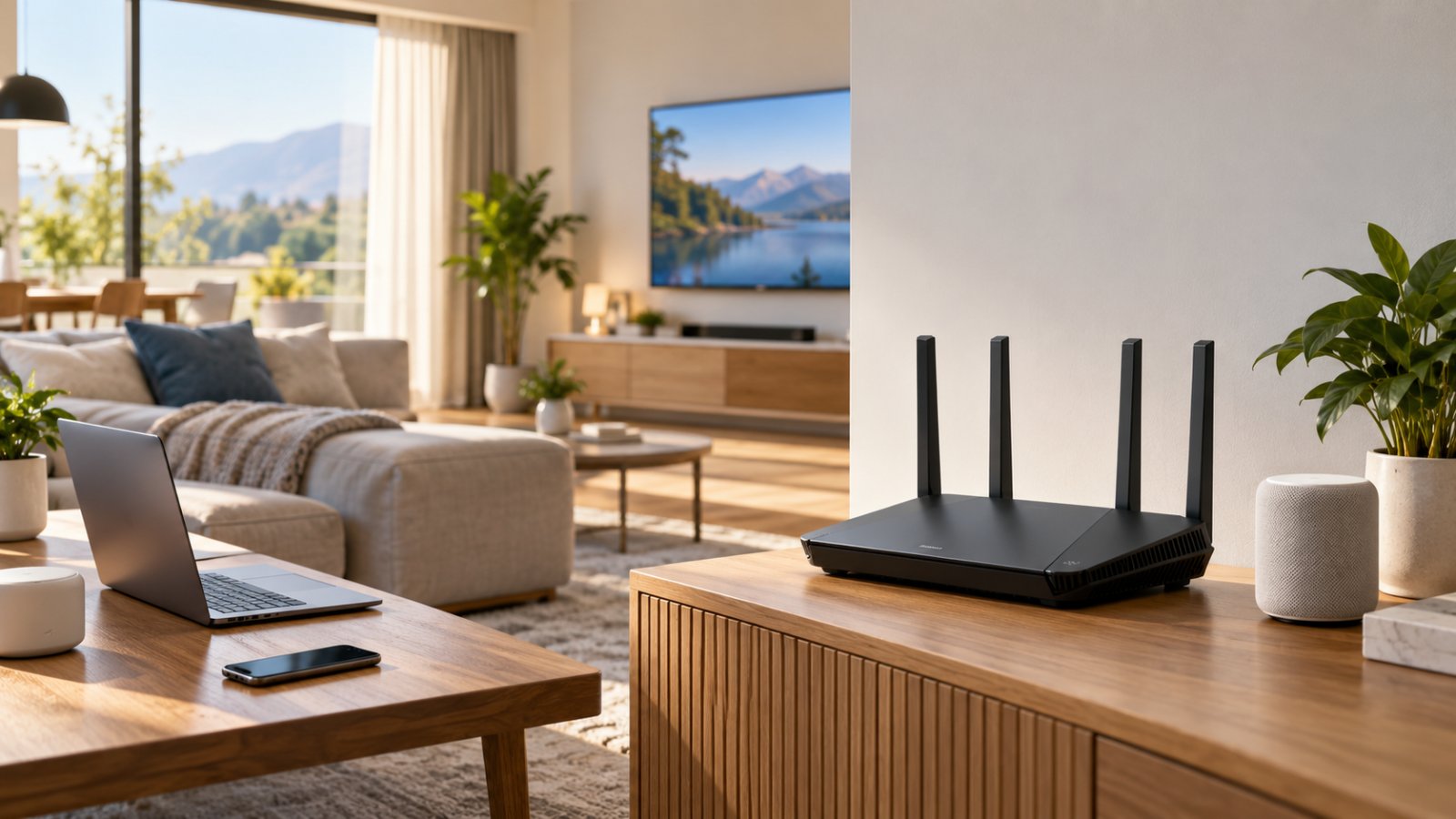
Router placement is often the simplest change homeowners can make.
A router's location affects signal strength throughout the property.
Moving it away from a shared wall may reduce the signal reaching the next room.
Placing it closer to the devices you actually use can improve their connection without requiring maximum transmit power.
This makes placement worth testing before any permanent shielding work.
Keep the Router Away From Unnecessary Exterior Coverage
A router installed beside an exterior wall may send a substantial amount of its signal toward areas outside the home.
That does not automatically create a security problem.
Proper WiFi encryption and access controls are still the primary protections against unauthorized network use.
However, there may be no practical reason to prioritize outdoor coverage when most devices are indoors.
Try moving the router toward a more central location.
For example, a router near the front window may provide strong signal on the driveway but weak coverage in a rear bedroom.
A more central position may serve the household better.
The signal will not stop at the property boundary, but its useful coverage can become better aligned with where people use it.
Use Access Points for Better Coverage Control
A large home may need multiple access points.
Trying to cover every room with one high-power router can lead to uneven signal strength.
The router may be strong near its location while distant rooms remain unreliable.
Well-placed access points can distribute coverage more effectively.
For example, a house with separate living and working areas may benefit from an access point closer to each area.
With suitable placement, power settings, and channel assignments, the network can provide useful coverage without excessive overlap.
Where Ethernet is available, wired access points can avoid some of the limitations associated with wireless repeating.
However, adding access points does not automatically contain the signal.
Their settings still need to be adjusted to suit the building.
Keep Devices Close to the Access Point
A router usually does not need to operate at maximum power when the devices it serves are nearby.
Consider a dedicated home office containing a laptop, printer, and desktop computer.
If those devices are close to the access point, a moderate power setting may provide adequate wireless performance.
This can be more practical than transmitting from the far side of the house at high power.
The idea is to place networking equipment near the devices that use it.
Then adjust coverage based on actual connection quality.
Do not reduce power until the network becomes unreliable simply to achieve a lower signal reading outside the room.
Test Placement Before Making Permanent Changes
You can learn a great deal about WiFi coverage with a phone or laptop.
Some WiFi analysis tools display received signal strength in dBm.
For these measurements, values closer to zero generally indicate stronger received signals.
For example, a reading of negative 50 dBm represents a stronger signal than negative 75 dBm.
These numbers are useful for comparing locations, not for guaranteeing a particular internet speed.
Choose several test locations:
-
Beside the router.
-
In the adjacent room.
-
On the opposite side of the shared wall.
-
In the hallway.
-
In rooms that still need WiFi.
-
Outside the home, where relevant.
Record the readings before moving the router.
Then make one change and repeat the measurements.
Also test actual usability.
If the signal becomes weaker in the unwanted room but your laptop starts disconnecting in the office, the adjustment may be too aggressive.
Follow Practical Router Placement Guidance
Begin with a location that serves your important devices.
Avoid large metal obstacles and unnecessary enclosed spaces.
Where practical, position the router:
-
Away from thick walls that block desired coverage.
-
Clear of major appliances.
-
Out of closed cabinets.
-
Near the devices that need dependable wireless access.
-
Away from unnecessary interference sources.
-
Where Ethernet connections remain practical.
For more guidance, read ROOXIS's router placement tips.
You may find that changing the router's location solves enough of the problem that shielding materials are unnecessary.
Common Mistakes When Trying to Shield WiFi Signals

There are plenty of suggestions online for blocking wireless signals.
Some work under limited conditions. Others confuse network security with physical signal attenuation.
The biggest mistake is expecting a simple material or router setting to provide complete control over where radio waves travel.
Understanding the limitations can prevent wasted money and unnecessary disruption.
Mistake 1: Assuming One Shielded Wall Blocks the Entire Room
A conductive barrier may reduce signals passing directly through a wall.
But that is not the same as isolating the room.
Wireless signals can enter through the ceiling, floor, windows, or doorway.
They can also arrive after reflecting from other surfaces.
For example, shielding the wall behind a desk may reduce one transmission path while leaving the open hallway unaffected.
If genuine RF isolation is required, the entire enclosure must be considered.
Mistake 2: Wrapping the Router in Aluminum Foil
Aluminum foil can attenuate radio waves, but wrapping a router is not an appropriate way to control home WiFi.
It can disrupt wireless communication and may obstruct ventilation.
A router needs proper airflow and placement to operate reliably.
If you want less signal reach, reduce transmit power where supported or move the router.
Avoid improvised metallic enclosures around powered networking equipment.
Mistake 3: Buying a WiFi Signal Jammer
A jammer actively transmits interference to disrupt radio communications.
That is different from passive shielding.
Jamming equipment can interfere with other networks and communications beyond the intended area.
Unauthorized signal jamming is prohibited in the United States and can affect important communication services.
Do not use a WiFi jammer to control residential wireless coverage.
Use legitimate router configuration options or properly designed passive shielding instead.
Mistake 4: Assuming Hiding the SSID Blocks the Signal
Some routers allow you to hide the network name.
That does not disable the WiFi radio.
The router continues transmitting wireless traffic.
A hidden SSID does not prevent radio waves from entering another room.
It also does not provide meaningful protection against someone capable of analyzing wireless traffic.
Use strong encryption and passwords for network access control.
Use router settings or physical shielding to manage coverage.
Mistake 5: Confusing WiFi Security With Signal Blocking
A password protects access to your wireless network.
It does not stop the radio signal.
Your router can broadcast beyond the house while remaining properly protected by WPA2 or WPA3 encryption.
That is not automatically a problem.
If your goal is preventing unauthorized connections, focus on:
-
Strong wireless credentials.
-
Appropriate encryption.
-
Updated router firmware.
-
Secure administration settings.
-
Reviewing connected devices.
Trying to eliminate every detectable WiFi signal is not necessary for ordinary network security.
If your goal is physical attenuation, treat it as a separate issue.
Mistake 6: Ignoring Smart Home Devices
Changing WiFi settings can disconnect equipment you do not use directly every day.
Before reducing coverage, check devices such as:
-
Outdoor security cameras.
-
Video doorbells.
-
Smart plugs.
-
Thermostats.
-
Smart speakers.
-
Wireless printers.
-
Home automation sensors.
Many of these products use 2.4 GHz.
For example, an outdoor security camera may already be near the edge of usable coverage.
Reducing router transmit power could cause intermittent disconnections.
Check important devices after every adjustment.
If a change reduces unwanted coverage but makes your security camera unreliable, reconsider the configuration.
Mistake 7: Expecting Complete RF Shielding From Household Materials
Metal foil, conductive curtains, and shielding paint can attenuate radio frequency signals.
They do not automatically create a Faraday cage.
An effective shielded enclosure requires attention to the entire structure.
Gaps, openings, and untreated surfaces can undermine the intended result.
For specialized applications, professional design and testing are needed.
For ordinary home use, full RF isolation is rarely the simplest solution.
Mistake 8: Blocking Signals Without Testing
Wireless conditions can change.
Nearby networks become active at different times, devices move, and the router's environment may change.
That is why a single signal reading is not enough.
Measure before making changes.
Then test after each adjustment.
Record:
-
Received signal strength.
-
Connection reliability.
-
Internet usability.
-
Coverage in rooms that still need WiFi.
-
Changes in unwanted coverage.
-
The behavior of connected smart home equipment.
Make one change at a time.
If you move the router, reduce power, and disable a band simultaneously, it becomes difficult to know which adjustment helped.
A controlled process makes troubleshooting easier.
Mistake 9: Ignoring Other Wireless Services
Extensive shielding can affect more than WiFi.
Depending on the materials and construction, it may reduce cellular, Bluetooth, or other radio communications.
Before installing shielding across a room, consider whether occupants rely on mobile service inside that space.
Emergency communication requirements should not be overlooked.
Do not obstruct building safety equipment or modify electrical systems.
Where extensive RF shielding is necessary, use qualified specialists who understand the broader implications.
Choosing the Most Practical Approach
| Your goal | Best starting point | What to avoid |
|---|---|---|
| Reduce WiFi in an adjacent room | Adjust router placement and transmit power | Expecting a sharp signal boundary |
| Stop your devices using WiFi in a room | Disable their WiFi connections or use supported access controls | Assuming this blocks incoming radio waves |
| Reduce interference between access points | Adjust channels, power, and placement | Using active signal jammers |
| Reduce RF transmission through one wall | Evaluate appropriate passive shielding | Assuming one wall treatment isolates the room |
| Keep most useful WiFi coverage indoors | Move the router and adjust supported settings | Expecting signals to stop at property boundaries |
| Create a specialized RF-shielded space | Professional shielding design and testing | Improvised electrical modifications |
| Prevent unauthorized WiFi access | WPA2 or WPA3, strong passwords, updated firmware | Relying on signal blocking as the main security measure |
Most homeowners will get better results by starting with network configuration.
If that is insufficient and physical attenuation is genuinely required, investigate shielding materials with realistic expectations.
FAQ
Can you block WiFi signal from entering a specific room?
Yes, you can reduce WiFi signals entering a room using suitable RF shielding materials and by changing the placement or transmission power of routers you control. Complete isolation is more difficult because radio waves can travel through openings and surrounding surfaces. Specialized electromagnetic shielding is generally required when a room must be isolated more completely.
What building materials block WiFi signals most effectively?
Metallic materials and certain reinforced construction materials can substantially attenuate WiFi signals. Reinforced concrete, metal panels, and suitable conductive shielding systems often cause more signal loss than ordinary drywall or timber partitions. The result depends on material thickness, construction, openings, and wireless frequency.
Does aluminum foil completely stop WiFi signals?
Aluminum foil can reflect and attenuate WiFi signals, but it does not guarantee complete blocking. Radio waves may travel around the foil or enter through uncovered areas. Wrapping a router in foil is not recommended because it interferes with connectivity and may obstruct ventilation.
How can I reduce router transmission power so signal stays within bounds?
If your router supports adjustable Tx Power, open its wireless settings and reduce the power one level at a time. Test both the room where you want weaker coverage and the areas where WiFi must remain reliable. Lowering transmit power can reduce effective range, but it cannot guarantee that signals stop at a particular wall or property boundary.
Reducing WiFi coverage in one room is usually achievable. Completely isolating a room from wireless signals is a different and more demanding project.
For most homeowners, the practical starting point is to move the router, adjust its transmit power, or review which frequency bands are needed.
Conductive paint, mesh, and specialized curtains may reduce RF transmission, but they work best when the overall installation is designed around the intended result.
ROOXIS provides WiFi routers, range extenders, and connected home equipment for everyday networking needs. If you are adjusting a ROOXIS network, begin with the settings supported by your particular device and test the effects before making permanent changes.
Aim for reliable WiFi where you need it and reduced coverage where you do not, without disrupting essential devices or compromising network security.