You can block wifi signal in a room by reducing your router's transmit power, moving the router farther away, or using materials that weaken wireless signals. Metal, reinforced concrete, and certain coated glass surfaces can reduce WiFi coverage, but completely blocking a signal inside an ordinary room is difficult.
The most practical solution depends on your goal. You might want less WiFi coverage in a bedroom, stop your network from extending too far outside your property, or reduce interference in a home office.
You do not necessarily need to buy shielding materials or change your home's construction. Router placement, wireless settings, and a few careful signal tests are often enough to make a noticeable difference.
This guide explains which building materials affect WiFi, how to reduce coverage in one area, and how to keep the connection reliable everywhere else.
Why You Might Want to Block WiFi Signals in a Specific Room
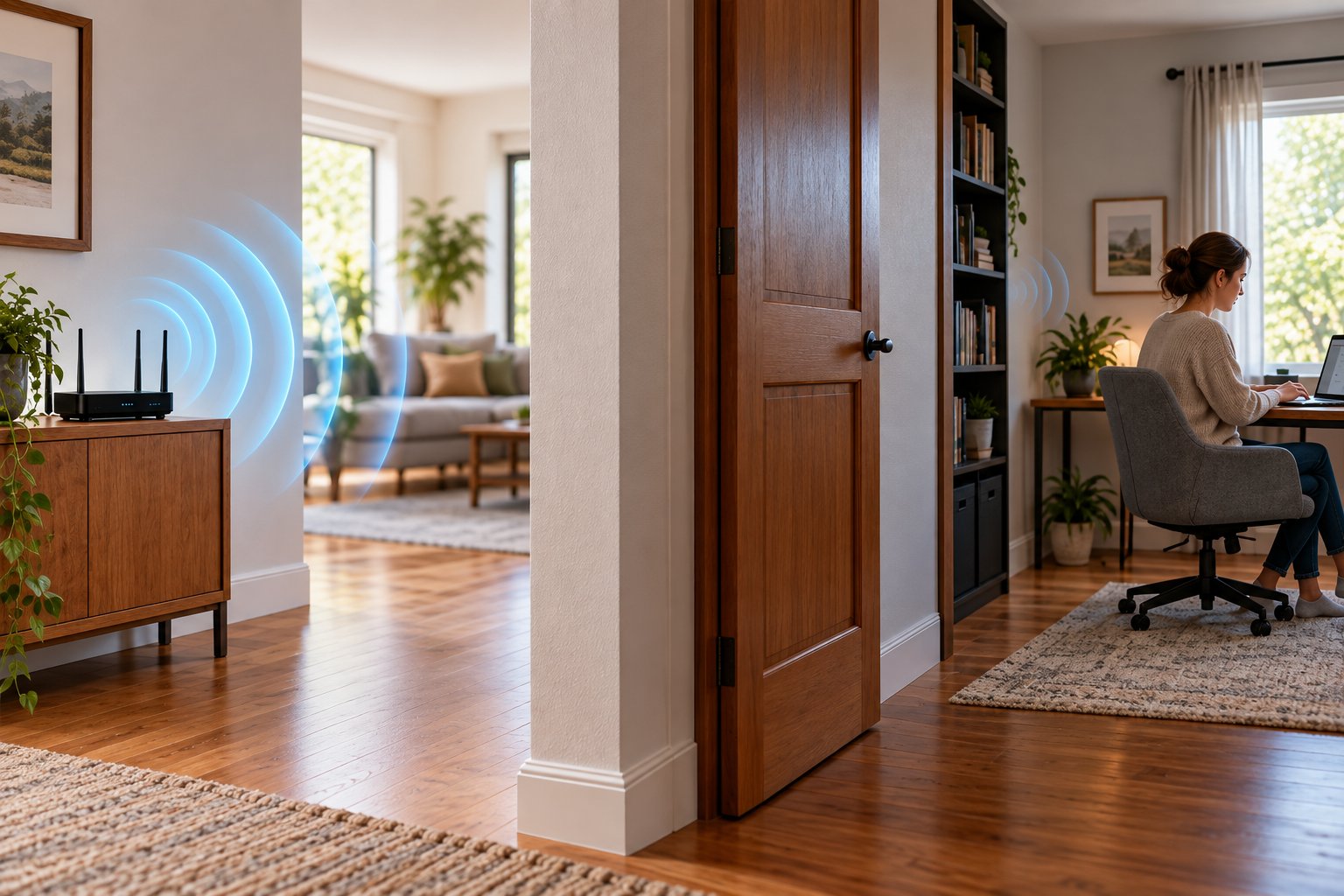
Most people want stronger WiFi throughout their homes. But there are situations where reducing the signal in a particular room makes more sense.
Consider a home office next to a shared apartment wall. If the router sits against that wall, wireless coverage may extend farther into the neighboring apartment than necessary.
Moving the router toward the center of your home could reduce that unwanted coverage while improving reception in the rooms you actually use.
Another example is a room with several wireless devices operating close together. Nearby routers, smart home devices, and other equipment may compete for the same wireless channels.
Changing access point placement or wireless settings can sometimes improve performance without adding more equipment.
There are several reasons homeowners might want to limit wireless coverage.
-
Reducing coverage outside the property: You may want the strongest WiFi signal concentrated inside your home rather than extending into a neighboring building.
-
Managing wireless interference: Multiple nearby networks can compete for airtime, particularly on crowded 2.4 GHz channels.
-
Creating a wired workspace: A home office may use Ethernet connections instead of WiFi for stationary computers and other equipment.
-
Controlling smart home connections: You may want certain cameras or sensors to connect through a particular access point.
-
Managing device access: Some households want specific devices to have limited network access during certain hours.
The last point needs a different approach.
Weakening a WiFi signal is not the same as controlling network access.
If you want to prevent a device from connecting, use your router's supported access controls, a strong WiFi password, or the device's own network settings.
A weak signal can still be detected and used by compatible equipment. Moving a router farther away does not replace proper wireless security.
Also, disconnecting a smartphone from WiFi does not necessarily disconnect it from the internet. It may automatically switch to mobile data.
Identify the problem you want to solve before changing your home network.
How WiFi Signals Travel Through a House
WiFi communicates using radio frequencies. Your router transmits wireless signals, and compatible devices send information back.
Most home networking equipment uses the 2.4 GHz and 5 GHz bands. Some newer equipment supports additional frequency bands.
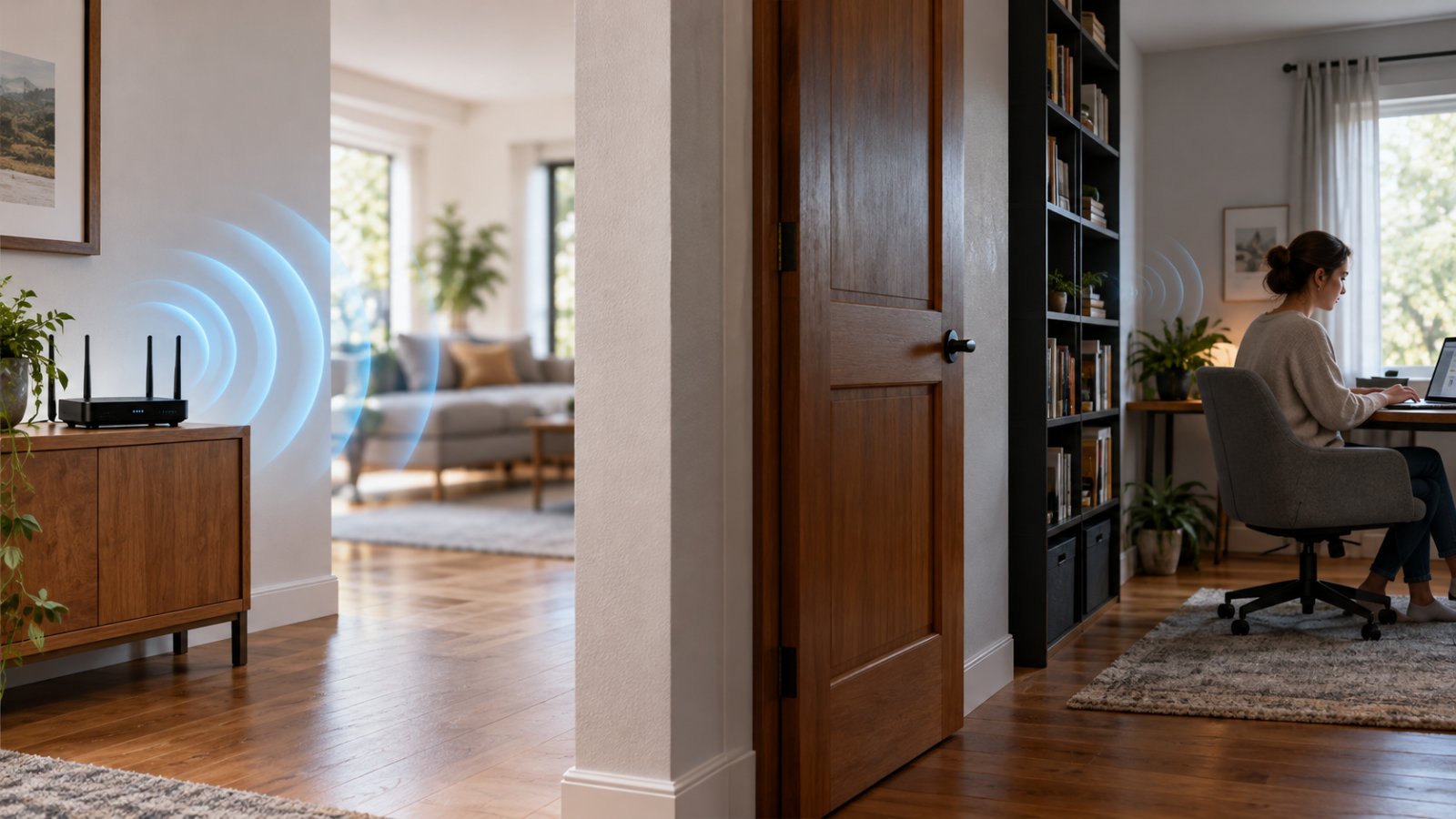
These radio signals spread outward from the transmitting antenna. As they travel, they lose strength and interact with walls, furniture, windows, and other objects.
Some materials allow much of the signal to pass through. Others absorb or reflect more of its energy.
This reduction in signal strength is known as signal attenuation.
Imagine a router installed in a living room.
A laptop in the same room may have a strong connection because there are few obstacles between the devices.
A second laptop behind a thick concrete wall may receive a weaker signal.
A third device in an upstairs bedroom might still connect because some radio waves travel through other parts of the building or reflect around obstacles.
That is why WiFi coverage rarely follows the exact shape of a room.
Several factors influence signal strength:
-
Distance between the router and receiving device.
-
Wall thickness and construction materials.
-
Metal surfaces and reflective objects.
-
Doorways, windows, and other openings.
-
Wireless frequency and channel conditions.
-
Router and antenna placement.
-
Interference from nearby networks.
The 2.4 GHz band generally provides greater usable range than 5 GHz under comparable conditions.
The 5 GHz band can offer more capacity, but its signal often weakens more quickly through obstacles.
Neither band stops neatly at a wall.
Understanding these differences makes it easier to reduce WiFi coverage without accidentally creating dead zones elsewhere.
How to Block WiFi Signal in a Room Without Affecting the Whole House
Before making changes, decide whether you want to reduce WiFi entering a room or prevent a signal from spreading outward.
These are different situations.
If the router is outside the room, you are trying to reduce the wireless energy reaching it.
If the router is inside the room, you are trying to contain the signal.
Containing wireless transmissions is considerably harder because radio waves can escape through windows, doors, ceilings, and other openings.
For ordinary home networking, adjusting router placement and wireless settings is usually easier than trying to shield every surface.
Start by measuring the existing coverage.
Use the same phone or laptop to check reception at several points:
-
Near the room's doorway.
-
Beside the window.
-
At the center of the room.
-
Against the wall nearest the router.
-
In a nearby room where you still need good WiFi.
If your device or wireless diagnostic application displays signal strength in dBm, record the readings.
WiFi signal strength is usually represented using negative dBm values. A reading closer to zero generally indicates a stronger signal.
The exact reading can change depending on the device, its orientation, and nearby objects.
For useful comparisons, keep the device in approximately the same position each time.
Then make one adjustment.
You might move the router to another shelf, lower its supported transmit power setting, or change the location of an additional access point.
Test again before making another change.
This is much more useful than covering random surfaces with metal and hoping the signal disappears.
Do not aim for complete isolation unless your application genuinely requires it.
A room with weak WiFi may still receive radio signals. It may also receive signals from neighboring networks.
If you need a space designed for radio-frequency isolation, that requires specialized shielding rather than normal home networking adjustments.
Materials That Naturally Block WiFi Signals
Some construction materials weaken WiFi far more than others.
Knowing what materials block wifi signals can help you understand why a particular room already has poor reception or why a router's signal extends farther than expected.
It also helps you choose sensible locations for wireless equipment.
However, there is no universal list of materials that completely stop WiFi.
The actual result depends on thickness, composition, frequency, and the paths available around the obstruction.
Metal, Concrete, and Brick
Metal
Metal is one of the most effective common materials for reflecting or attenuating WiFi signals.
A large, continuous metal surface can significantly weaken radio waves trying to pass through it.
Examples include:
-
Metal doors.
-
Steel partitions.
-
Metal cabinets.
-
Sheet metal wall panels.
-
Metal-backed insulation.
-
Certain reinforced building structures.
Suppose your router sits inside a metal storage cabinet.
Devices outside the cabinet may receive a much weaker signal because the metal interferes with transmission.
The effect can be substantial, but it is not necessarily complete. Openings around the cabinet may still allow wireless signals to escape.
That does not make a metal cabinet a good place for a router.
Routers need suitable ventilation, and enclosing one can cause overheating or unreliable operation.
Reinforced concrete
Concrete walls are another common reason WiFi struggles to reach certain rooms.
Thick concrete can cause considerable attenuation. Reinforcing steel can further affect how radio waves travel through the structure.
This is particularly noticeable in buildings with reinforced concrete floors and structural walls.
For example, a router on the ground floor may provide excellent coverage downstairs but struggle to connect to an upstairs device separated by a reinforced concrete slab.
Moving the router closer to the staircase or using another access point may work better than increasing its transmit power.
The exact impact depends on the wall's thickness, reinforcement, moisture, and construction.
Brick
Brick walls also reduce WiFi signal strength, although their effects vary.
A thin internal brick partition is different from a thick exterior masonry wall.
A signal passing through several brick walls will generally weaken more than one passing through a single lightweight partition.
Moisture, mortar, and other construction materials also affect propagation.
If your router is on one side of a thick masonry wall and a room on the other side has weak WiFi, the wall may already provide much of the signal reduction you want.
Aluminum foil
Aluminum foil can reflect radio waves because it is electrically conductive.
That means it can attenuate WiFi along some signal paths.
However, a small piece of foil is not a reliable way to shield an entire room.
Signals can travel around uncovered areas, pass through gaps, or reflect from other surfaces.
Do not wrap your router or its antennas in aluminum foil.
Doing so can interfere with ventilation and create unreliable coverage without giving you meaningful control over where the signal travels.
Mirrors, Low-E Glass, and Dense Wood
Mirrors
Mirrors may affect wireless coverage because many use a reflective metallic coating behind the glass.
A large wall mirror between a router and a device can weaken or redirect part of the signal.
This does not mean a small mirror will block WiFi throughout a room.
Its impact depends on the mirror's construction, dimensions, and position.
If you notice that wireless reception changes near a large mirrored wardrobe, the reflective backing may be contributing to the problem.
Low-E glass
Low-emissivity glass, commonly called Low-E glass, is used in some energy-efficient windows.
Certain products contain thin metallic coatings designed to control heat transfer.
These coatings can also attenuate radio-frequency signals.
For example, an outdoor camera positioned beyond a coated window may receive weaker WiFi than expected, even when the router is relatively close.
Not every Low-E window behaves the same way.
The coating composition and window construction matter, so do not assume all energy-efficient glazing blocks WiFi equally.
Dense wood
Wood generally has less effect on WiFi than continuous metal barriers.
Still, thick wooden doors, heavy furniture, and dense panels can contribute to signal loss.
Moisture can increase attenuation.
A large wooden bookcase filled with books may weaken the direct wireless path between a router and laptop.
The effect is usually more modest than that of a thick reinforced concrete wall.
Common materials and their effects on WiFi
| Material | Typical Effect on WiFi | Practical Consideration |
|---|---|---|
| Continuous metal sheet | Strong attenuation or reflection | Openings and uncovered paths reduce shielding |
| Reinforced concrete | Often substantial attenuation | Thickness and steel reinforcement matter |
| Thick brick walls | Moderate to substantial attenuation | Construction and moisture affect results |
| Aluminum foil | Can reflect and weaken signals | Small pieces provide unpredictable coverage |
| Metal-coated Low-E glass | Can significantly attenuate signals | Performance depends on the coating |
| Large mirrors | Can reflect or weaken WiFi | Size and metallic backing matter |
| Dense wood | Usually limited to moderate attenuation | Thickness and moisture affect results |
| Standard drywall | Usually relatively low attenuation | Several layers can still reduce reception |
| Ordinary clear glass | Usually relatively low attenuation | Coatings and framing may change the effect |
These comparisons describe typical behavior, not guaranteed performance.
A wall made from several different materials can behave differently from any one material tested separately.
Why a Faraday Cage Works Differently
A Faraday cage is a conductive enclosure designed to reduce electromagnetic fields passing through its boundary.
It is a familiar concept in radio-frequency shielding.
However, a properly designed shielded enclosure is not simply a room with some foil attached to the walls.
Effective radio-frequency shielding requires attention to the conductive surfaces, seams, doors, windows, ventilation openings, and cable penetrations.
The size and arrangement of openings matter because radio waves may pass through gaps.
Professional shielded rooms use specialized materials and construction methods to manage these details.
Ordinary bedrooms and home offices are different.
Even if you cover one wall with a conductive material, a WiFi signal may still enter through a doorway, window, ceiling, or another path.
Creating a genuinely shielded room is specialized work and is unnecessary for most home networking needs.
If your objective is simply to limit wireless coverage in one room, begin with network configuration instead.
Do not attempt improvised shielding that could obstruct ventilation, interfere with electrical systems, or create building safety problems.
Practical Ways to Reduce or Contain WiFi in One Room
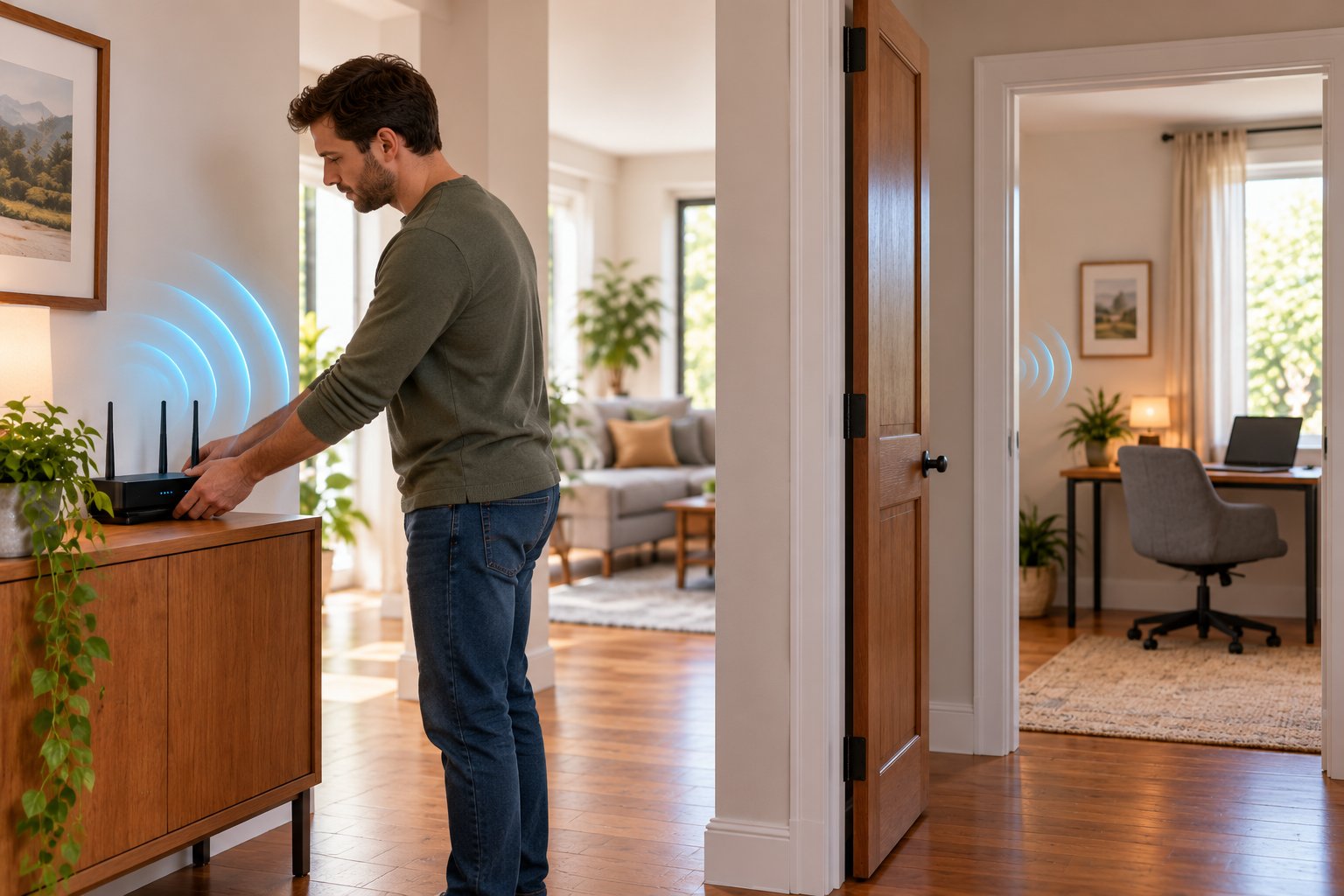
The safest approach is usually to adjust the wireless network itself.
Before buying conductive fabric or modifying a wall, check what your router can already do.
Some routers allow transmit power adjustments. Others offer separate wireless controls for different frequency bands.
Even moving the router away from a shared wall can change where the strongest coverage reaches.
Adjusting Router Transmit Power Settings
Transmit power determines how strongly a wireless router or access point transmits its radio signal.
Some consumer routers allow you to adjust this through their administration settings.
Lowering transmit power can reduce the area where the network provides a usable connection.
But it affects the router's overall coverage, not just one room.
How to change transmit power safely
-
Connect your phone or computer to the router.
-
Open the manufacturer's supported router management page or application.
-
Sign in using the administrator credentials.
-
Look for Wireless Settings or Advanced WiFi Settings.
-
Find a control named Transmit Power, TX Power, or Radio Power, if available.
-
Record the current setting.
-
Reduce the power by one available level.
-
Save the change.
-
Test WiFi coverage in the target room and other important areas.
Some routers offer Low, Medium, and High settings.
Others provide more detailed controls. Many consumer routers do not allow transmit power adjustment at all.
If your router does not provide this feature, do not try to enable it through unsupported firmware or hardware modifications.
What happens when you reduce transmit power?
Imagine a router in a hallway serving a bedroom, living room, and study.
You want less WiFi in the bedroom but still need a stable connection in the study.
Reducing transmit power may weaken reception in the bedroom.
It may also weaken the study connection, particularly if that room is farther away or separated by thick walls.
You cannot assume the bedroom will be affected more simply because it is the room you want to isolate.
Measure the signal after each change.
Adjusting 2.4 GHz and 5 GHz separately
If your router supports separate controls, you may be able to adjust each wireless band independently.
The 2.4 GHz band often reaches farther through a home.
Reducing its transmit power may limit coverage in distant rooms, but it can also affect smart home equipment.
Many outdoor security cameras, sensors, smart plugs, and older devices use 2.4 GHz WiFi.
Before changing this setting, identify which devices depend on it.
A reduced transmit power setting may leave the network visible while making connections unstable.
Keep the router within its manufacturer-supported configuration and regulatory settings.
Never modify antennas, internal amplifiers, or other radio hardware to increase or reduce output.
Using Physical Shielding and Strategic Router Placement
If your router does not offer transmit power controls, placement is the next option to investigate.
You may be able to reduce coverage in one direction without adding any shielding material.
Move the router away from the room
Suppose the router sits on a shelf directly against the bedroom wall.
Moving it to the opposite side of the living room may reduce the signal reaching the bedroom.
The same change might improve reception elsewhere.
Test the result before permanently moving cables or furniture.
Keep the router on an open shelf or another suitable ventilated surface.
Avoid hiding it behind televisions, inside metal cupboards, or among large electrical appliances.
Use existing building barriers
A thick concrete wall can already provide considerable signal attenuation.
If your home has several possible router locations, compare positions on different sides of those walls.
For example, moving a router from a study next to a bedroom into a more central living area may change the coverage pattern.
The result depends on the building, so testing is necessary.
Consider purpose-made shielding materials
Some products are manufactured specifically for radio-frequency shielding.
Examples include conductive fabrics, specialized window films, and shielding panels.
Before purchasing, check whether the manufacturer provides test information for the WiFi frequencies you want to attenuate.
Pay attention to installation requirements.
A material that performs well in a controlled test may provide less shielding when installed with gaps or uncovered openings.
Permanent shielding treatments should comply with appropriate building, electrical, and fire-safety requirements.
If the application requires substantial shielding, seek qualified installation advice.
Understand the limits of aluminum foil
Aluminum foil may reduce signal strength along a particular path, but it is a poor substitute for a designed shielding system.
It can redirect signals unpredictably.
Do not attach foil to electrical outlets, exposed connections, routers, or ventilation openings.
For most homes, moving the router or changing supported wireless settings is easier to reverse and more useful.
A Step-by-Step Method for Reducing WiFi Coverage
A controlled test will tell you more than trying several adjustments at once.
Use this process when your goal is how to block wifi in one room while keeping the rest of the home connected.
Step 1: Check the current signal
Measure or observe WiFi reception at several fixed locations in the target room.
Use the same device and note the results.
Step 2: Identify the source
Check whether the signal comes from the main router, a range extender, or a mesh access point.
If you have several access points, the closest one may not always be the one your device is using.
Step 3: Choose one adjustment
Move the router farther from the room or reduce transmit power if the setting is available.
Do not move several access points simultaneously.
Step 4: Test again
Check the same locations as before.
Compare signal strength and practical connection quality.
A weaker signal does not automatically mean wireless access is unavailable.
Step 5: Check the rest of the house
Test the rooms where you still need a stable connection.
Include any smart cameras, printers, televisions, or sensors that use WiFi.
Step 6: Restore settings if necessary
If your change creates poor reception elsewhere, return to the previous configuration.
Try a different router location or consider using a separate access point to serve the rooms that need coverage.
Step 7: Use network controls when access is the real issue
If you are trying to prevent a particular device from using your network, check the router's supported access restrictions or parental controls.
Physical signal reduction is not a reliable replacement for device-level access management.
How to Improve Signal Everywhere Else in Your Home
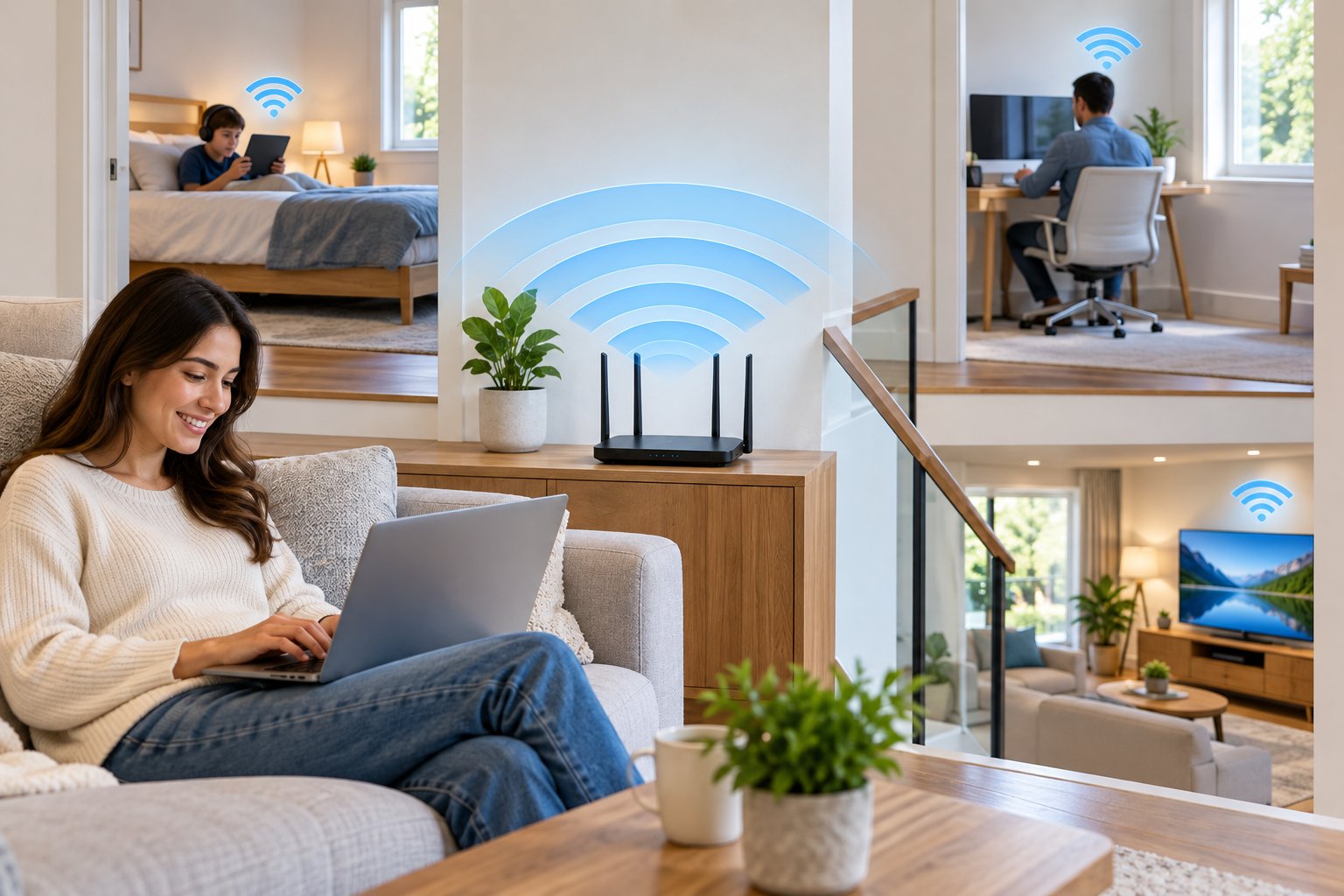
Reducing WiFi coverage in one room often changes coverage elsewhere.
For example, lowering the main router's transmit power might weaken the signal in an upstairs bedroom or an outdoor camera near the garage.
The solution is not necessarily to turn the power back up.
Sometimes a better router location, a wired access point, or a carefully positioned range extender provides more useful coverage.
Start With a Better Router Location
Router placement influences how wireless signals travel throughout your house.
An open, reasonably central position usually provides better general coverage than a router hidden in a cupboard.
Avoid locations that force the signal through unnecessary obstacles.
Common problem spots include:
-
Closed metal cabinets.
-
Corners behind large appliances.
-
Shelves crowded with electronics.
-
Locations directly against thick masonry walls.
-
Areas with poor ventilation.
Suppose your router is installed at one end of a long house.
Devices near the router may work well, while those at the opposite end struggle.
Moving the router closer to the areas where connectivity matters may help without increasing power.
If your current equipment no longer meets your network requirements, explore the Rooxis router lineup to compare available options.
Choose a router based on your home's size, connected devices, internet service, and coverage needs.
Use a WiFi Range Extender for Weak Rooms
A range extender can help when the main router provides good reception in one part of the house but not another.
It receives the existing wireless connection and provides additional coverage.
For example, moving your router away from a bedroom might also weaken WiFi in an upstairs office.
You could use a range extender closer to the office to improve connectivity there without moving the main router back to its original position.
The extender must still receive a reliable connection from the router.
Placing it deep inside a dead zone usually produces disappointing results.
A hallway or intermediate room is often a better starting point.
ROOXIS offers an AC1200 WiFi extender with dual-band capabilities and supported repeater and access point operating modes.
Before installing an extender:
-
Identify the area where coverage becomes weak.
-
Find a location between that area and the router.
-
Check that the router signal is still reliable there.
-
Install the extender according to its instructions.
-
Test the connection where the additional coverage is needed.
An extender also expands WiFi coverage.
Do not install one next to a room where you are deliberately trying to reduce wireless reception.
Consider a Mesh Network for Larger Homes
A mesh network uses multiple compatible units to provide wireless coverage across a home.
Instead of depending entirely on one router, the network distributes access through several locations.
This can help in multi-floor buildings or homes with long corridors and thick internal walls.
However, mesh systems are primarily intended to improve coverage.
They do not automatically provide a way to block WiFi in a particular room.
A mesh node installed near the room you want to isolate may strengthen the signal there.
If you are planning a mesh network, think carefully about node placement.
Position units where they serve the rooms that need connectivity.
Some systems offer radio controls or adjustable settings, but available features vary.
Check the manufacturer's documentation rather than assuming every mesh system supports detailed transmit power management.
Use Ethernet Where Wireless Coverage Is Not Needed
A wired Ethernet connection is often useful for stationary equipment.
Desktop computers, some smart televisions, and other compatible devices can communicate through a network cable instead of WiFi.
For a home office where wireless access is unnecessary, this may be a practical arrangement.
-
Run a suitable Ethernet connection to the room.
-
Connect the computer directly or through a compatible Ethernet adapter.
-
Confirm that the wired connection works.
-
Disable WiFi on the computer if it is not needed.
-
Keep the router or access point outside the room.
This does not stop wireless signals from entering the room.
It does remove the computer's dependence on those signals.
For someone who wants a room with fewer actively connected wireless devices, that may solve the practical problem without any shielding.
Ethernet can also provide consistent connectivity for demanding tasks such as large file transfers or video meetings.
Protect Smart Home Devices When Changing Coverage
Before changing transmit power or moving your router, make a quick list of connected smart home devices.
Pay particular attention to equipment near the edges of your current WiFi coverage.
This can include:
-
Outdoor security cameras.
-
Smart doorbells.
-
WiFi-connected thermostats.
-
Smart plugs.
-
Wireless printers.
-
Lighting controllers.
-
Other connected sensors.
Some of these devices use only the 2.4 GHz band.
A setting that barely affects your laptop might disconnect a camera mounted outside the garage.
After making a change, open the supported camera application and check whether live viewing works.
Review whether recordings remain accessible and whether the connection stays stable.
Do the same for other devices that depend on your wireless network.
If you need stronger coverage in a different area, a suitable access point or extender may help.
ROOXIS provides WiFi routers, range extenders, and outdoor security cameras for connected homes. Matching network equipment to your home's layout is more useful than simply increasing or decreasing signal strength everywhere.
Check Your Results Before Making Permanent Changes
Do not decide whether a new setup works based only on the WiFi icon.
A device can display a wireless connection while experiencing poor throughput, delays, or repeated interruptions.
Test the network through ordinary use.
In a home office, open websites and make a video call if that reflects your normal activity.
For an outdoor security camera, check the live view and recording access.
For smart home devices, confirm they respond reliably to their supported controls.
Then return to the room where you want less WiFi coverage.
Check whether the signal has weakened at the original test locations.
If the result is satisfactory and the rest of the home still works well, keep the settings.
If important devices have become unreliable, change the configuration again.
Wireless conditions can vary as doors open, people move, and neighboring networks become busy.
A useful network layout should work reliably during everyday activity, not just during a single test.
FAQ
What materials block WiFi signals most effectively?
Continuous metal surfaces and certain reinforced building materials can strongly weaken WiFi signals. Thick concrete walls, metal-backed insulation, and some metal-coated windows can also cause substantial attenuation. Actual performance depends on thickness, construction, frequency, and whether signals can reach the room through other openings.
Can aluminum foil block WiFi signals?
Yes, aluminum foil can reflect and attenuate WiFi radio frequencies because it is conductive. However, a small sheet cannot reliably block all signals entering or leaving a room. WiFi may travel around uncovered areas, and foil should never be used to cover router ventilation or create electrical hazards.
How do I prevent my WiFi signal from leaving a room?
Start by moving the wireless access point away from nearby walls or reducing transmit power if your router supports that setting. These changes may limit usable coverage but cannot guarantee complete containment. A properly designed radio-frequency shielded enclosure is needed for more demanding isolation requirements, while ordinary home network security is better handled through router access controls and encryption.
Does turning down transmit power stop signal bleed?
Lowering transmit power can reduce how far your WiFi remains usable, but it does not create a sharp boundary at a doorway or wall. Devices outside the intended area may still detect the network, while some devices inside may experience weaker connections. Reduce power gradually and test important connections before keeping the change.
Conclusion
If you want to block wifi signal in a room, start with router placement and supported transmit power settings. Metal, reinforced concrete, and certain coated materials can reduce wireless signals, but complete containment is difficult in an ordinary home.
Make one adjustment at a time, measure the results, and check that you have not weakened connections elsewhere.
If your changes create dead zones, ROOXIS WiFi routers and range extenders can help provide coverage where it is still needed. Explore ROOXIS products at rooxis.com or on Amazon to find networking equipment suited to your home's layout.