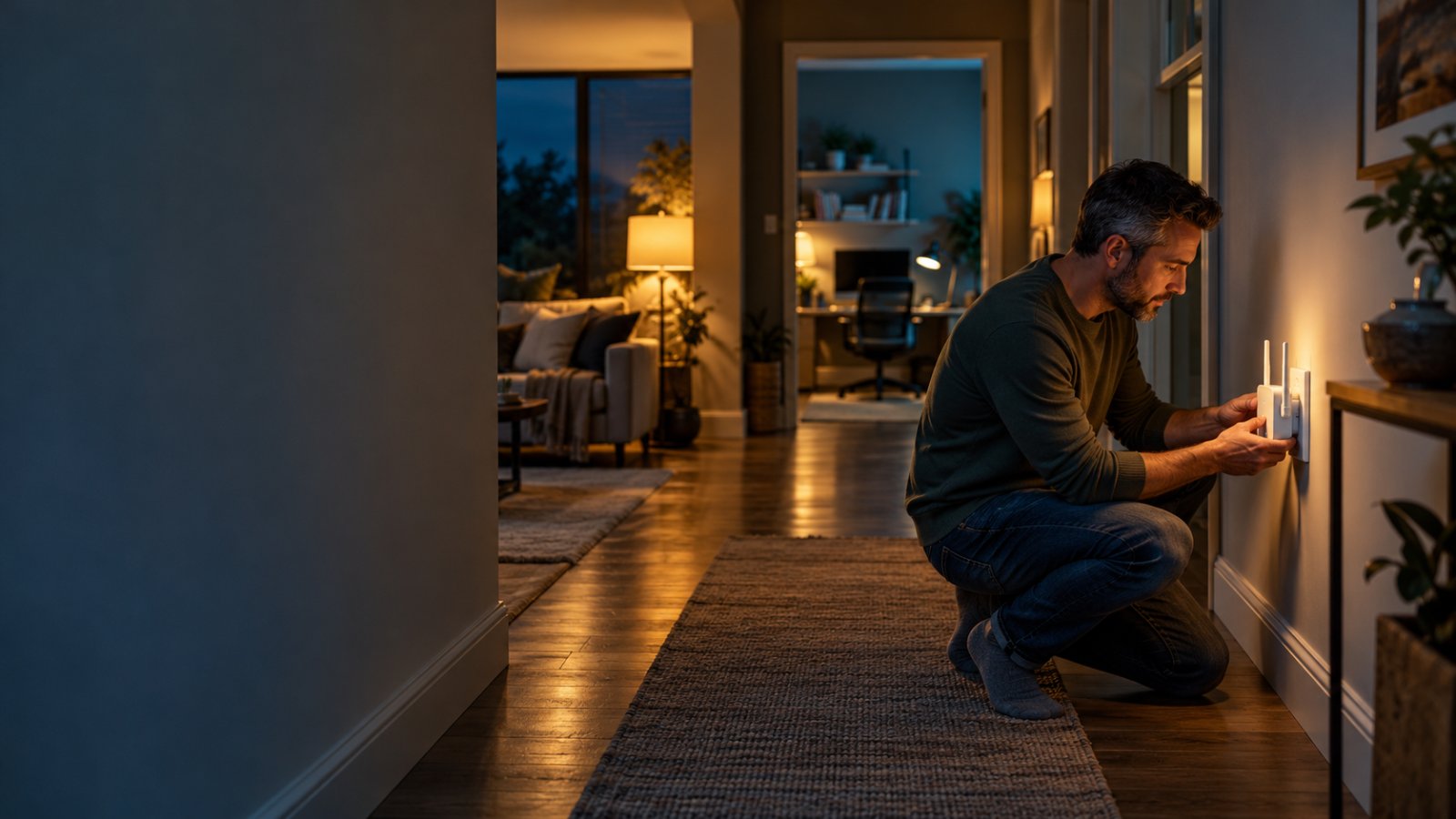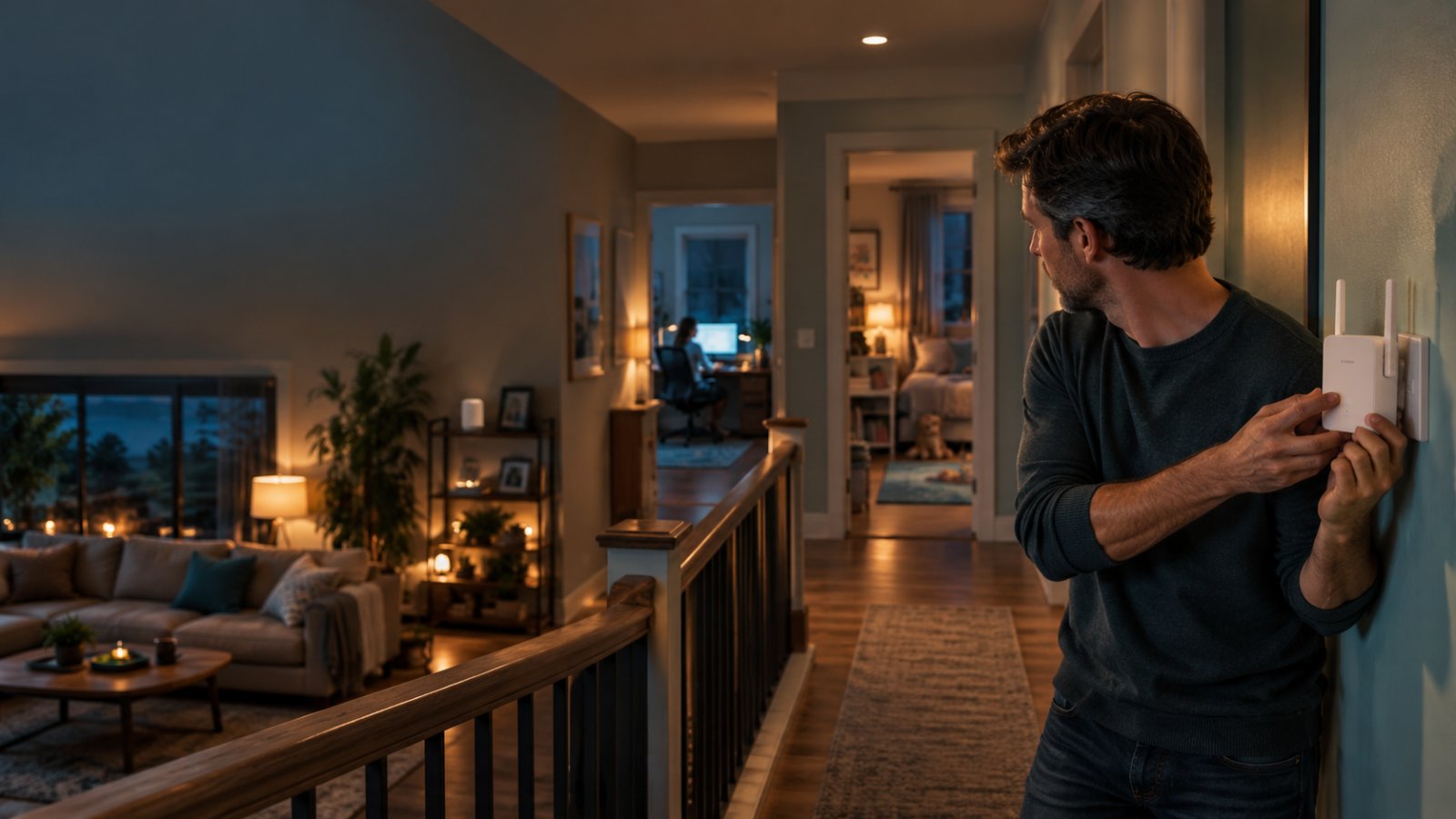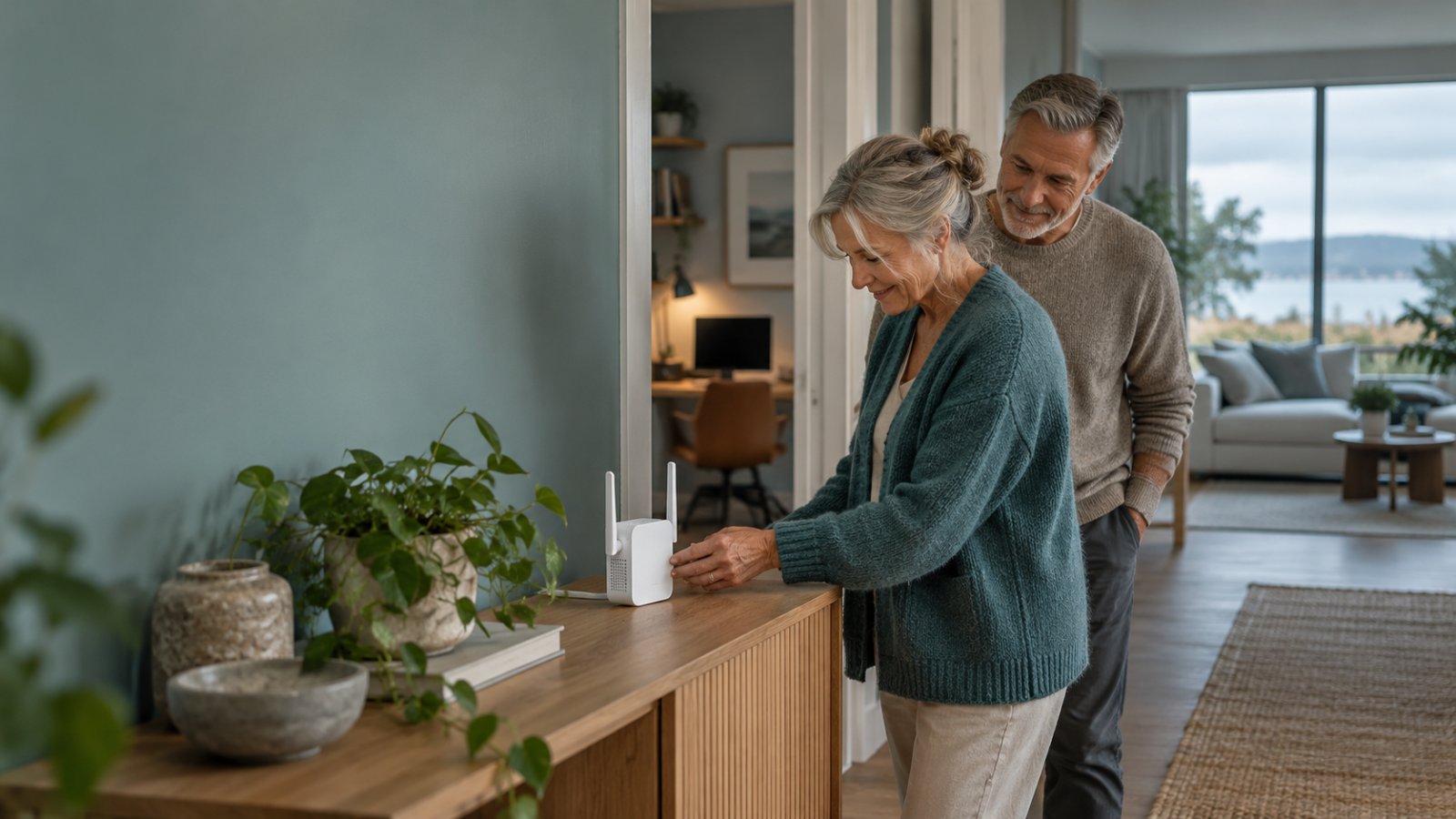
The biggest mistake people make with a WiFi extender is plugging it into the room where their internet barely works. If the extender cannot receive a reliable signal from the router, moving it closer to your laptop or television will not solve the problem.
A ROOXIS WiFi extender helps improve wireless coverage by connecting to your existing router and providing WiFi access farther away. The best approach is to set it up near the router first, move it to an outlet where the original WiFi signal remains dependable, and then test the room with weak coverage.
You do not need networking experience to get useful results. You need to understand where the signal is failing, which wireless band your devices support, and how to tell the difference between a placement problem and an internet connection problem.
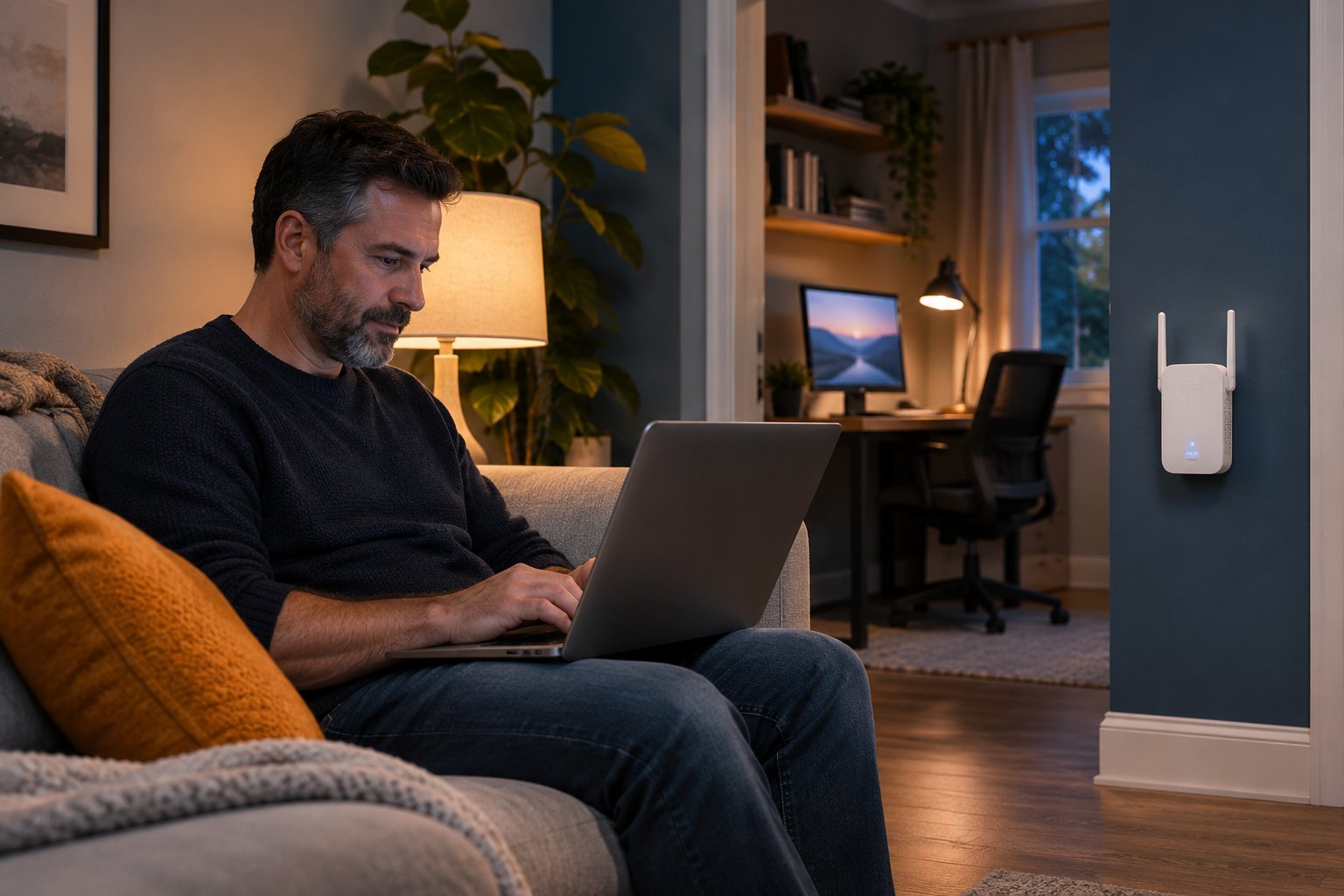
What Is a ROOXIS WiFi Extender?
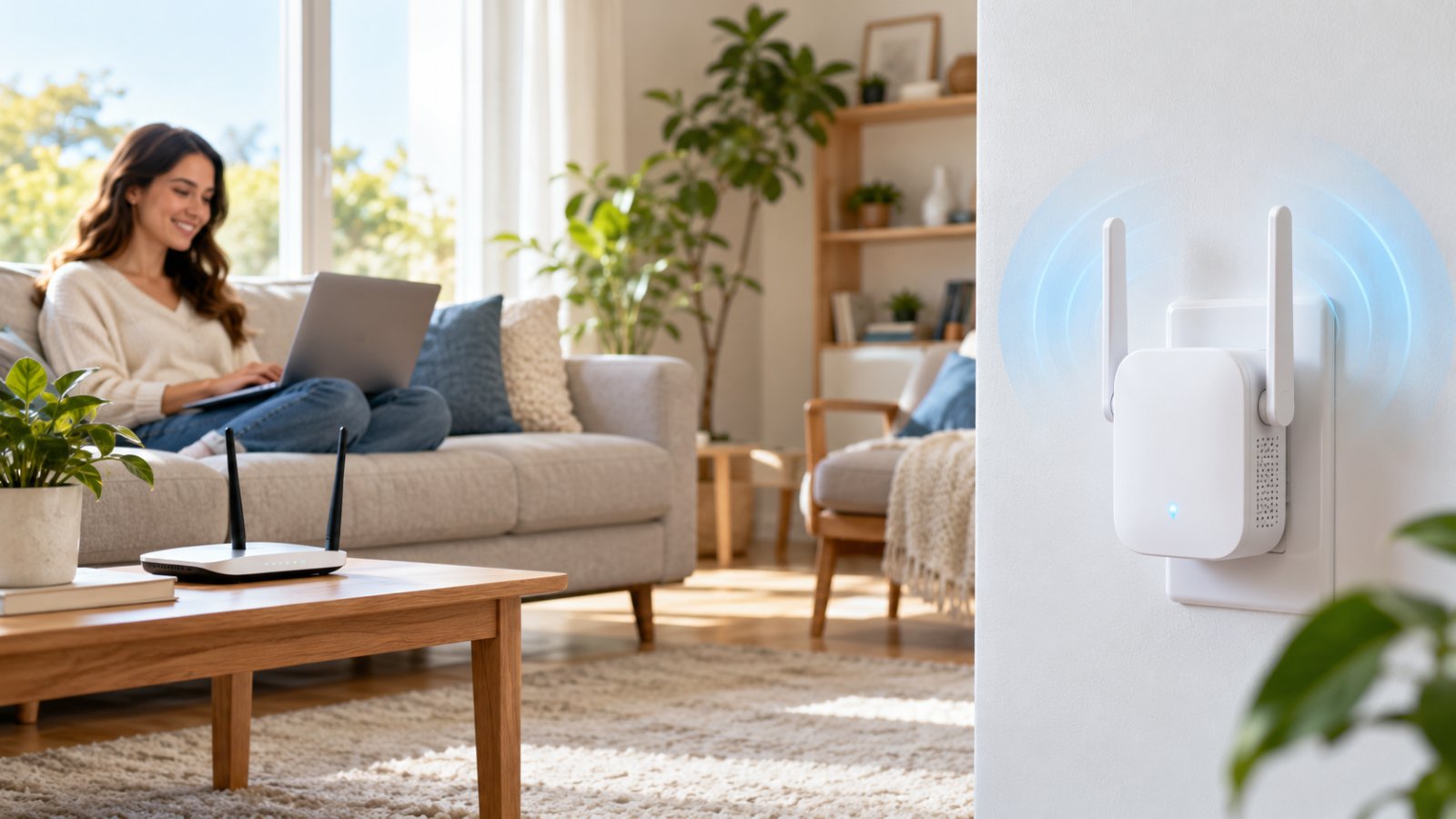
A WiFi extender is a device that helps your existing wireless network reach areas where the router's signal is weak.
Your router provides the original WiFi connection. The extender receives that connection and broadcasts a wireless network that nearby devices can use.
Consider a typical two-story home.
The router sits on a shelf in the downstairs living room. Phones and laptops work normally in that room, but an upstairs bedroom receives an unreliable signal.
The laptop connects, then loses its connection during video calls. Moving closer to the stairs helps.
That tells you something useful: the internet connection itself may be working properly, but wireless coverage is poor in part of the house.
An extender can help when it is positioned somewhere between the router and the bedroom.
It does not need to sit directly beside the laptop. It needs a reliable connection back to the router.
What Does an AC1200 WiFi Extender Mean?
AC1200 describes a class of dual-band WiFi equipment using WiFi 5 technology.
The designation refers to combined theoretical wireless link rates across supported bands. It is not a promise that every connected device will receive 1,200 Mbps.
The two wireless bands serve different purposes.
-
2.4GHz: Usually provides better coverage through walls and across longer distances, but offers lower potential throughput.
-
5GHz: Often supports higher throughput when the connected device is relatively close and the wireless signal is strong.
For example, a laptop used for video meetings in a nearby office may perform well on 5GHz.
A smart camera near the back door may maintain a better connection on 2.4GHz, particularly if the signal needs to pass through a wall.
Neither band is automatically better for every device.
The useful choice depends on distance, obstacles, interference, and device compatibility.
What Problems Can a WiFi Extender Help Solve?
An extender is worth considering when the main router works properly but certain rooms have weak reception.
Typical examples include:
-
A bedroom where video calls disconnect.
-
An upstairs office where websites load slowly.
-
A smart television that frequently buffers.
-
A hallway where phones lose WiFi reception.
-
A compatible camera near the rear entrance that struggles to stay connected.
-
A home workspace separated from the router by several rooms.
-
A nearby garage that receives a weak wireless signal.
The common factor is location.
If internet access works well beside the router but becomes unreliable farther away, coverage may be the problem.
If the internet is slow even when your phone is next to the router, investigate the original connection before adding another device.
How Does a ROOXIS WiFi Extender Work?
The extender acts as another wireless connection point for your devices.
In Repeater Mode, it communicates wirelessly with your router.
The connection follows this path:
-
Your router broadcasts its WiFi network.
-
The extender receives that wireless signal.
-
The extender broadcasts an extended network.
-
Your laptop, phone, or camera connects to the extended network.
-
Internet traffic travels through the extender to the router.
The router remains the main connection to your home network and internet service.
The extender does not replace it.
The Router-to-Extender Connection Matters Most
Imagine the router is downstairs and a bedroom at the far end of the upstairs hallway has poor reception.
You plug the extender into the bedroom.
Your phone immediately shows strong WiFi reception from the extender. However, videos still buffer.
Why?
The phone is communicating well with the nearby extender, but the extender is receiving a weak signal from the downstairs router.
The connection is only as useful as the signal feeding it.
Move the extender toward the staircase, where your phone can still connect reliably to the original router.
Then reconnect the phone to the extender and test the bedroom again.
You may see fewer signal bars than before but get a more dependable internet connection.
That is an improvement.
Why an Extender Cannot Fix a Slow Internet Service
An extender cannot increase the internet bandwidth provided by your service plan.
Suppose websites take a long time to open in every room.
You restart your laptop and test another phone. The problem remains.
You then stand beside the router and connect directly to its WiFi network.
The connection is still slow.
That points away from a coverage problem.
Possible causes include an issue with the internet service, router, modem, or network congestion.
Adding an extender would not address those causes.
Before buying or configuring an extender, compare the connection near the router with the connection in the problem room.
If performance deteriorates mainly with distance, extending coverage may help.
Why Wireless Extending Can Reduce Speed
Wireless repeating requires the extender to exchange data with both the router and connected devices.
That communication consumes wireless airtime.
Depending on the equipment and connection conditions, effective throughput can be lower than what you would get by connecting directly to the router at close range.
This does not necessarily make the extender ineffective.
Consider a home office where the original connection frequently drops during meetings.
After installing an extender, the speed test result might remain lower than the result downstairs.
But if calls stop disconnecting and work applications remain usable, the extender has solved the more important problem.
Judge the result by connection stability and the activities you actually use.
ROOXIS WiFi Extender Features and What They Mean at Home
The ROOXIS AC1200 extender provides wireless extension options for an existing home network.
Its features are easier to understand when connected to common household situations.
Dual-Band WiFi
Dual-band support allows compatible devices to use 2.4GHz or 5GHz.
This is useful when a home contains a mixture of older smart devices, newer laptops, televisions, and cameras.
For example, a 2.4GHz-only camera cannot connect to a 5GHz network.
A newer laptop may support both bands.
Having both available lets you choose the connection that works for each device.
Do not assume that switching everything to 5GHz will improve performance.
A weak 5GHz connection can be less reliable than a good 2.4GHz connection.
WPS Pairing
WPS stands for WiFi Protected Setup.
It allows compatible networking devices to pair without manually typing the wireless password during the connection process.
On the ROOXIS AC1200 extender, WPS provides a straightforward setup option when the main router supports it.
You activate WPS on the router and then on the extender within the pairing period.
Some routers have WPS disabled or do not support it.
If the connection fails, browser-based configuration is available.
Do not keep pressing the WPS buttons repeatedly without allowing the current pairing attempt to finish.
Repeater Mode
Repeater Mode extends an existing WiFi connection wirelessly.
Use it when you need better coverage in a room but do not have an Ethernet cable running between that room and the router.
For example, a renter may want better reception in a bedroom without installing cables.
Repeater Mode is a practical option if an outlet between the router and bedroom receives a dependable signal.
Its main limitation is the wireless connection back to the router.
If that link is poor, the extended network will also struggle.
Access Point Mode
Access Point Mode uses a wired network connection to provide WiFi.
Instead of relying on a wireless connection to the main router, the extender receives network access through Ethernet.
Imagine a home office with an Ethernet connection linked to the router downstairs.
Using Access Point Mode can provide a more dependable connection than wireless repeating through several walls.
This is especially useful in homes where construction materials make wireless coverage difficult.
The Ethernet connection must lead to an appropriate network connection. Simply plugging an Ethernet cable into an unrelated wall socket will not provide internet access.
Ethernet Connectivity
The AC1200 extender includes an Ethernet port for supported wired configurations.
In Access Point Mode, the port can provide the upstream connection.
In appropriate Repeater Mode configurations, a wired device may also be able to use the extender's connection.
Remember that an Ethernet cable between a computer and a wireless repeater does not automatically remove every wireless limitation.
If the extender still connects to the router over WiFi, that upstream link remains important.
Where Should You Place a ROOXIS WiFi Extender?
Placement determines whether the extender receives a useful signal.
Start by identifying where the original router network becomes unreliable.
You can do this with a phone.
Connect directly to the router's WiFi, then walk toward the problem room.
Open a website at several points along the way.
Notice where pages stop loading consistently.
The extender should generally be positioned before the connection becomes unreliable.
Start Between the Router and the Weak Room
Suppose your router is in the downstairs living room and the upstairs bedroom has poor reception.
Try an outlet near the staircase or upstairs landing.
Check the original router WiFi at that outlet.
If your phone cannot reliably load a website there, the extender is unlikely to receive a good upstream connection in the same location.
Move closer to the router.
If the connection works well, install the extender and test the bedroom.
You may need to adjust its position by one or two outlets.
A small change can make a difference, particularly near staircases, thick walls, or large appliances.
Use the Extender's Indicator Light
The ROOXIS AC1200 uses an LED indicator to help assess its connection to the router.
The published device guidance describes these states:
-
Solid blue: A good connection to the router.
-
Solid yellow: A less favorable connection, commonly caused by excessive distance.
-
Solid red: The extender is not connected to the router.
Use this information while choosing an outlet.
For example, the extender may show blue near the staircase but yellow inside the bedroom.
That suggests the staircase location offers a more dependable upstream connection.
However, a blue light does not tell you everything about internet speed or application performance.
Always test the connection in the room you want to improve.
Avoid Common Signal Obstacles
WiFi signals are affected by their surroundings.
Some materials and household objects weaken or interfere with wireless communication.
Avoid installing the extender:
-
Behind a large television.
-
Inside a closed cabinet.
-
Directly beside a microwave oven.
-
Behind a refrigerator.
-
Next to large metal shelving.
-
Among crowded electrical equipment.
-
Behind several thick concrete walls when another route is available.
-
Where heavy furniture blocks the device.
Use an open outlet with reasonable airflow.
If the extender has adjustable antennas, begin with the position recommended by its instructions.
Then test.
A location that works well in one house may perform differently in another because walls, floors, and neighboring networks affect reception.
What About Multi-Floor Homes?
Wireless signals can lose strength when traveling between floors.
Concrete, metal reinforcement, insulation, and plumbing can interfere with reception.
An outlet near an open stairwell often provides a better starting point than an outlet deep inside a room.
For example, an upstairs landing may have a clearer wireless path to a downstairs router than a bedroom behind two walls.
Test both locations.
If the signal cannot reach the upstairs area reliably, an extender may not be enough.
A wired access point or another suitable network arrangement could provide a more dependable connection.
How to Connect a ROOXIS WiFi Extender
The ROOXIS AC1200 supports WPS and browser-based setup.
Before starting, make sure the main router is working.
Connect a phone directly to the router and open a website.
If the internet connection is unavailable, resolve that issue first.
Method 1: Connect Using WPS
WPS is useful when your router supports the feature.
Follow these steps:
-
Plug the extender into an outlet near the router.
-
Allow it to finish starting.
-
Press the router's WPS button according to its instructions.
-
Within the pairing period, press the WPS button on the extender.
-
Allow the devices to complete pairing.
-
Check the extender's connection indicator.
-
Open WiFi settings on your phone or laptop.
-
Find the extended network.
-
Connect and test internet access.
The AC1200 instructions describe extended network names based on the router's original SSID.
For example, if your router broadcasts HomeWiFi, the extended names may appear as:
-
HomeWiFi_EX for 2.4GHz.
-
HomeWiFi_5G_EX for 5GHz.
The extended networks generally use the original router's WiFi password.
If the pairing attempt fails, leave the extender near the router and try manual setup.
Method 2: Connect Through a Web Browser
Manual setup is useful when WPS is unavailable or the pairing process does not complete.
Follow these steps:
-
Plug in the extender and wait for it to start.
-
Open WiFi settings on your phone or laptop.
-
Find the default ROOXIS setup network shown on the device label.
-
Connect to that network.
-
Open a browser.
-
Enter 192.168.8.1 in the address bar.
-
If necessary, try home.to.
-
Choose Repeater Mode.
-
Select your router's WiFi network.
-
Enter the router's current wireless password.
-
Save the configuration.
-
Allow the extender to restart.
-
Connect to the new extended network.
-
Test internet access.
The factory setup network names for the AC1200 begin with @ROOXIS- or @ROOXIS-5G_.
Check the device label for the exact name.
Your phone may display a warning that the setup network has no internet.
That is normal during initial configuration.
Remain connected to the extender's setup network so the local configuration page can open.
If the phone automatically switches to mobile data or another WiFi network, temporarily disable that behavior.
How to Confirm Setup Worked
First, check the connection indicator.
Then connect your phone to the extended SSID.
Open a website.
If it loads normally, move to the room where the original WiFi was weak.
Try the same activity again.
For example, if video meetings were the problem, test a video call.
If a smart television frequently buffered, stream the type of content you normally watch.
Do not judge the setup only by whether the new WiFi name appears.
A device can connect successfully to an extender without having a usable connection to the internet.
Choosing Between 2.4GHz and 5GHz
The best band depends on the connected device and its location.
Here is a practical starting point.
| Device or Situation | Band to Try First | Reason |
|---|---|---|
| Laptop near the extender | 5GHz | Often provides higher throughput when reception is strong |
| Camera farther away | 2.4GHz | Usually offers better reach through obstacles |
| Older smart home device | 2.4GHz | Many older smart devices support only this band |
| Television in the next room | 5GHz | Useful when the connection remains stable |
| Device behind thick walls | 2.4GHz | Often maintains reception over a longer distance |
| Home office video calls | 5GHz | Worth testing when the device is close enough |
These are starting points, not strict rules.
If a device performs better on the other band, use the connection that works reliably.
When 2.4GHz Makes More Sense
Choose 2.4GHz for devices that need better range or do not support 5GHz.
For example, a WiFi camera near an exterior wall may support only 2.4GHz.
Connecting it to the extender's 5GHz SSID will not work.
Select the compatible 2.4GHz network.
Then test the camera's live view.
A strong enough 2.4GHz connection is often more useful than a faster but unreliable 5GHz connection.
When 5GHz Makes More Sense
Choose 5GHz for devices close enough to maintain strong reception.
A laptop in a nearby bedroom may perform well on the extended 5GHz network.
That can be useful for video calls, downloads, or streaming.
However, moving into another room may weaken the connection.
If performance becomes inconsistent, try 2.4GHz before assuming the extender is faulty.
Why Automatic Network Switching May Not Work as Expected
Your phone decides when to disconnect from one WiFi network and connect to another.
It does not necessarily switch to the extender as soon as you enter the upstairs bedroom.
Some phones remain attached to the original router even when that signal is weak.
If the extender broadcasts a separate SSID, connect to it manually when testing.
Otherwise, you may be troubleshooting the router's weak signal while assuming the phone is using the extender.
Check the network name displayed in your device's WiFi settings.
Using a WiFi Extender for Home Security Cameras
Security cameras are particularly sensitive to unreliable WiFi.
A camera may connect during installation but disconnect later.
The live view can freeze, notifications may be delayed, or remote access may become inconsistent.
Before replacing the camera, check the wireless connection at the installation location.
Start With the Camera's Supported WiFi Band
Many home security cameras support only 2.4GHz WiFi.
Check the camera's specifications before connecting it.
If the camera requires 2.4GHz, choose the extender's 2.4GHz network.
Do not attempt to connect it to a 5GHz-only network.
Also confirm that the camera supports the wireless security settings used by the extender.
Test the Connection Near the Camera
Take your phone to the camera's installation location.
Connect it to the same extended network the camera will use.
Open a website or stream a video.
If the phone cannot maintain a reliable connection, the camera may also struggle.
Then test the camera itself.
Open its app and check the live view.
Leave it running long enough to see whether the connection remains stable.
A successful phone test is useful, but the camera's actual performance is the deciding factor.
Avoid Placing the Extender Outdoors Without Suitable Protection
An indoor extender should remain indoors unless it is specifically rated for outdoor use.
Rain, condensation, direct sunlight, and temperature changes can damage equipment that is not designed for outdoor installation.
For a camera mounted near the back door, try placing the extender at an indoor outlet close to that side of the house.
Make sure the extender still receives a dependable signal from the router.
If the camera is too far away for an indoor extender to help, consider a network solution designed for the distance and environment.
Why a Camera Can Still Disconnect After Installing an Extender
An extender does not eliminate every possible camera connection problem.
Common causes include:
-
Weak communication between the router and extender.
-
The camera connecting to the wrong SSID.
-
An incorrect WiFi password.
-
A camera that supports only 2.4GHz.
-
Interference from nearby equipment.
-
An unstable main internet connection.
-
Insufficient available upload bandwidth.
-
A camera positioned beyond usable WiFi coverage.
Start by checking the camera's network settings.
Then inspect the extender's connection indicator.
If the extender itself has poor reception from the router, correct that before changing the camera's settings.
Common ROOXIS WiFi Extender Problems and Practical Fixes
A WiFi extender problem usually occurs at one of three points.
The extender cannot connect to the router.
A phone or laptop cannot connect to the extender.
Or the device connects to the extender but cannot reach the internet.
Identify which situation applies before changing settings.
The Extender Is Not Connecting to the Router
Move the extender near the router.
Check that the router's WiFi works on another device.
If you used WPS, repeat the pairing procedure and allow it to finish.
If WPS fails again, use the browser setup method.
During manual configuration, carefully select the correct router network.
Enter its current WiFi password.
An incorrect password can prevent the extender from establishing its upstream connection even though the setup page appears to complete normally.
The ROOXIS Setup Network Does Not Appear
First, confirm that the extender has power.
Allow it to finish starting.
If the device has already been configured, its factory setup SSID may no longer appear.
Look for the extended network names instead.
If you are setting up the extender for a different router, you may need to reset its previous configuration.
Check the device label for the original setup network name.
Do not assume every ROOXIS extender uses the same complete SSID.
The Setup Page Will Not Load
Connect your phone or laptop directly to the extender's setup network.
Open a browser.
Enter 192.168.8.1 in the address bar.
If that does not work, try home.to.
Make sure you are entering the address directly rather than using a search engine.
If your phone automatically leaves the extender's network because it detects no internet access, temporarily prevent that switch.
If you use a VPN, disconnect it while accessing the local setup page.
Reconnect the VPN after configuration if needed.
Connected to the Extender but No Internet
This usually indicates a problem with the connection beyond the device-to-extender link.
First, test the original router WiFi.
If the router has internet access, check the extender's LED.
A red connection indicator suggests that the extender is not connected to the router.
Move the extender closer and review its saved settings.
If you recently changed the router's WiFi password, the extender may still be trying to use the old password.
Reconnect it using the current credentials.
The Extended WiFi Is Slow
Check placement first.
A weak router-to-extender connection can cause slow performance even when your laptop is beside the extender.
Move the extender closer to the router and observe the indicator.
Then test 2.4GHz and 5GHz on a compatible device.
If several household devices are downloading or streaming at once, temporarily pause that activity and test again.
Also compare results with the original router network.
If the router is slow even at close range, focus on the router or internet service rather than the extender.
Devices Keep Disconnecting
Find out whether the disconnects happen on the main router network too.
If they do, the extender may not be the cause.
If the issue occurs only on the extended network, check:
-
The extender's connection indicator.
-
Its distance from the router.
-
Nearby sources of wireless interference.
-
The device's supported WiFi band.
-
Recent router password changes.
-
Recent router security setting changes.
-
Whether the extender has stable power.
Try one adjustment at a time.
For example, move the extender closer to the router and test before changing any wireless settings.
That makes it easier to identify which change actually helped.
How to Reset the ROOXIS AC1200 Extender
A reset removes saved configuration and allows setup to begin again.
For the AC1200:
-
Leave the extender powered on.
-
Locate the RST or Reset control.
-
Press and hold it until the LED flashes red.
-
Release the control.
-
Allow the extender to restart.
-
Reconnect using WPS or browser setup.
A factory reset is useful when old configuration details are preventing a new connection.
It is not the first thing to try when the problem is simply a weak signal.
If the extender is too far from the router, resetting it will not improve the wireless path.
Common Misconceptions About WiFi Extenders
Many people buy an extender expecting it to behave like a second internet connection.
Understanding its limitations prevents unnecessary equipment changes.
An Extender Makes Your Internet Plan Faster
An extender does not increase the speed supplied by your internet provider.
It helps make the existing connection available farther from the router.
If every room receives slow internet, test the original connection before changing coverage equipment.
The Farther You Place It, the More Coverage You Get
Moving an extender farther away can weaken its connection to the router.
You may create a wireless network with strong local reception but poor internet access.
The extender needs to stay within dependable range of the router.
More Signal Bars Always Mean Better Internet
Your phone measures its wireless connection to the extender.
It does not necessarily show how well the extender communicates with the router.
Strong local reception and poor internet performance can happen at the same time.
Check the LED and test actual internet use.
Every Device Should Use the 5GHz Network
Not every device supports 5GHz.
Even when it does, the band may perform poorly through several walls.
Use 2.4GHz when range or compatibility makes it the better choice.
You Need an Extender in Every Room
Adding more extenders does not automatically produce better WiFi.
Multiple wireless repeaters can introduce additional complexity and compete for available wireless airtime.
Start with the room that actually has a coverage problem.
If several areas remain difficult to serve, review the overall network setup instead of adding extenders without a plan.
An Extender Replaces a Router
In Repeater Mode, the extender relies on an existing router.
It does not replace the router's connection to your internet service.
Your main network must be functioning for normal online access through the extender.
When Is a ROOXIS WiFi Extender the Right Choice?
An extender is most useful when you can identify a specific weak-coverage area and find an outlet with a dependable connection to the main router.
For example, a renter may have good WiFi in the living room but unreliable reception in a bedroom.
Running Ethernet through the property may not be practical.
A wireless extender can be a reasonable solution if the router's signal remains usable somewhere between the two rooms.
The decision changes when weak coverage affects most of the house.
Signs an Extender Could Help
Consider an extender when:
-
The router works normally at close range.
-
Only one or two areas have weak reception.
-
An outlet between the router and problem room receives usable WiFi.
-
You want to keep your existing router.
-
Running an Ethernet cable is impractical.
-
Your devices need dependable coverage more than maximum throughput.
For example, improving a bedroom's connection for ordinary browsing and video calls may not require replacing an otherwise reliable router.
Signs You May Need Another Solution
An extender may not address the problem when:
-
Internet access is unreliable beside the router.
-
The router frequently restarts or disconnects.
-
Thick walls block wireless communication between rooms.
-
Several floors need consistently high throughput.
-
Multiple distant areas have separate coverage problems.
-
The building already has suitable Ethernet wiring.
If Ethernet is available in the target area, Access Point Mode may provide a more dependable upstream connection.
If the router itself is struggling to serve the household, investigate that first.
For product details and support information, visit the ROOXIS official website.
How to Tell Whether Your Extender Is Actually Helping
You do not need professional network testing equipment.
Use the same phone or laptop and compare the connection in the same room.
The important measurement is whether the problem has improved.
Test the Original Router Connection
Stand in the room where WiFi is unreliable.
Connect directly to the original router network.
Try an activity that normally causes trouble.
For example:
-
Open several websites.
-
Join a video call.
-
Stream a video.
-
Open a work application.
-
View a connected security camera.
Notice whether the connection drops or becomes unresponsive.
If you use a speed test, record the result along with the location and network name.
Test the Extended Connection
Stay in the same room.
Connect manually to the extender's network.
Repeat the same activities.
For example, if a video call previously froze whenever you sat at the bedroom desk, test from that desk again.
Do not compare the upstairs extended connection with the router's performance downstairs.
The purpose is to see whether the extender improved the weak location.
Compare Stability, Not Just Maximum Speed
Speed matters, but so does consistency.
A home office connection that remains usable throughout a meeting is often more valuable than one that briefly reports a high download speed before disconnecting.
For a camera, the meaningful result may be reliable live viewing.
For a television, it may be uninterrupted streaming.
Use the activities that originally exposed the problem.
A better connection should be noticeable in normal use.
Adjust One Thing at a Time
If the connection is still unreliable, start by moving the extender closer to the router.
Test again.
Then compare 2.4GHz and 5GHz.
If the problem continues, check for nearby interference or recent router configuration changes.
Avoid resetting the extender, changing the router password, moving outlets, and reconnecting every device in the same attempt.
You will have difficulty identifying which change affected the result.
FAQ
Does a ROOXIS WiFi extender work with any router?
The ROOXIS AC1200 is designed to extend compatible existing WiFi networks and does not require a router from the same brand. Compatibility depends on the router's wireless standards and security configuration. If WPS is unavailable or unsuccessful, use the browser-based setup method.
How do I connect my ROOXIS WiFi extender to my router?
Plug the extender into an outlet near the router and use WPS or the browser setup method. For manual setup, connect to the extender's default network, open 192.168.8.1 or home.to, select Repeater Mode, and enter your router's WiFi password. After the extender reconnects, join the extended network and test internet access.
Where should I plug in my ROOXIS WiFi extender?
Choose an outlet between the router and the weak-coverage room where the original router WiFi still works reliably. On the AC1200, a solid blue indicator suggests a good router connection, while yellow indicates a less favorable connection. Confirm the placement by testing the internet in the room you want to improve.
Why is my ROOXIS extender connected but not providing internet?
Your phone may have joined the extender successfully even though the extender cannot communicate properly with the router. Test the main router's internet access, then inspect the extender's LED and placement. If the router's WiFi password changed recently, reconnect the extender using the new password.
Can a ROOXIS WiFi extender connect to a security camera?
Yes, if the camera supports the extended network's wireless band and security settings. Many home cameras require 2.4GHz, so connect them to the compatible extended network rather than a 5GHz-only SSID. Test the camera's live view after installation to confirm that the connection remains dependable.
What is the difference between a WiFi extender and a WiFi booster?
The terms are often used interchangeably in home networking product descriptions. A typical WiFi extender receives an existing wireless connection and makes network access available in another area. Its usefulness depends on the quality of the router-to-extender connection and where the device is installed.
Get Better Coverage Without Complicating Your Home Network
If your router works well in the living room but WiFi becomes unreliable in a bedroom, home office, or camera location, start by finding where the original signal begins to weaken.
Set up the extender near the router, then move it to an outlet with a dependable connection toward the problem area.
Check the LED, connect your devices to the appropriate extended network, and test the activities that matter.
If the connection remains poor, move the extender closer to the router before changing settings.
The right placement and a reliable upstream connection matter more than having the extender physically close to the device you want to use.