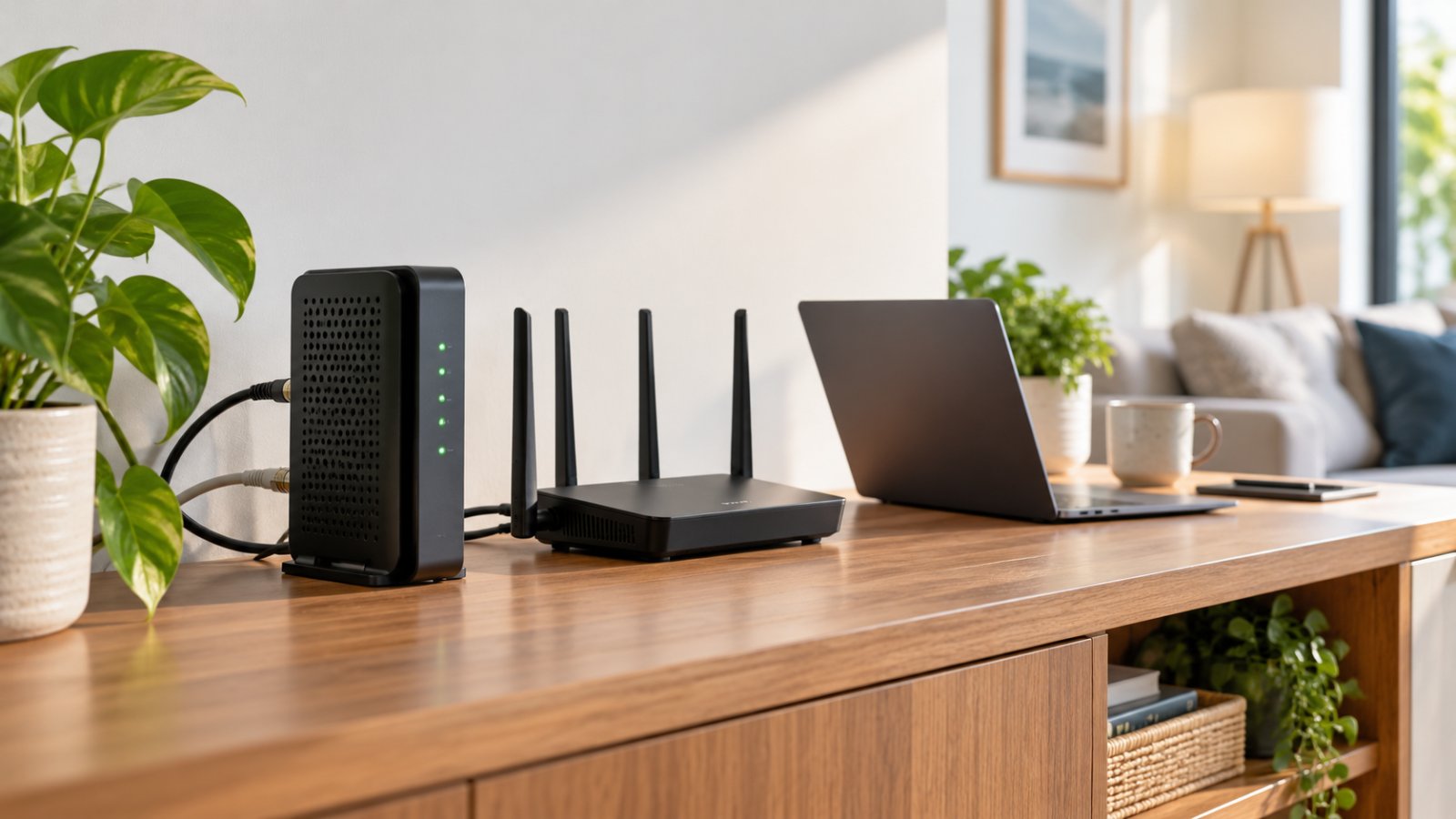
A modem connects your home to your internet service provider, while a router distributes that connection to your phones, laptops, televisions, and other devices. A WiFi modem combo, also called a gateway, handles both jobs in one device.
If you're comparing routers wifi modem options, the first question is whether you need separate equipment or a single combination device. Both can work well, but the better choice depends on your internet connection, home layout, and how much control you want over your network.
You may not need to replace anything. If your current equipment provides a stable connection and reaches every room you use, upgrading could make little difference.
This guide explains what each device does, how modem-router combinations work, when dual-band WiFi is useful, and how to build a reliable home network without buying unnecessary equipment.
The Difference Between a Modem and a Router
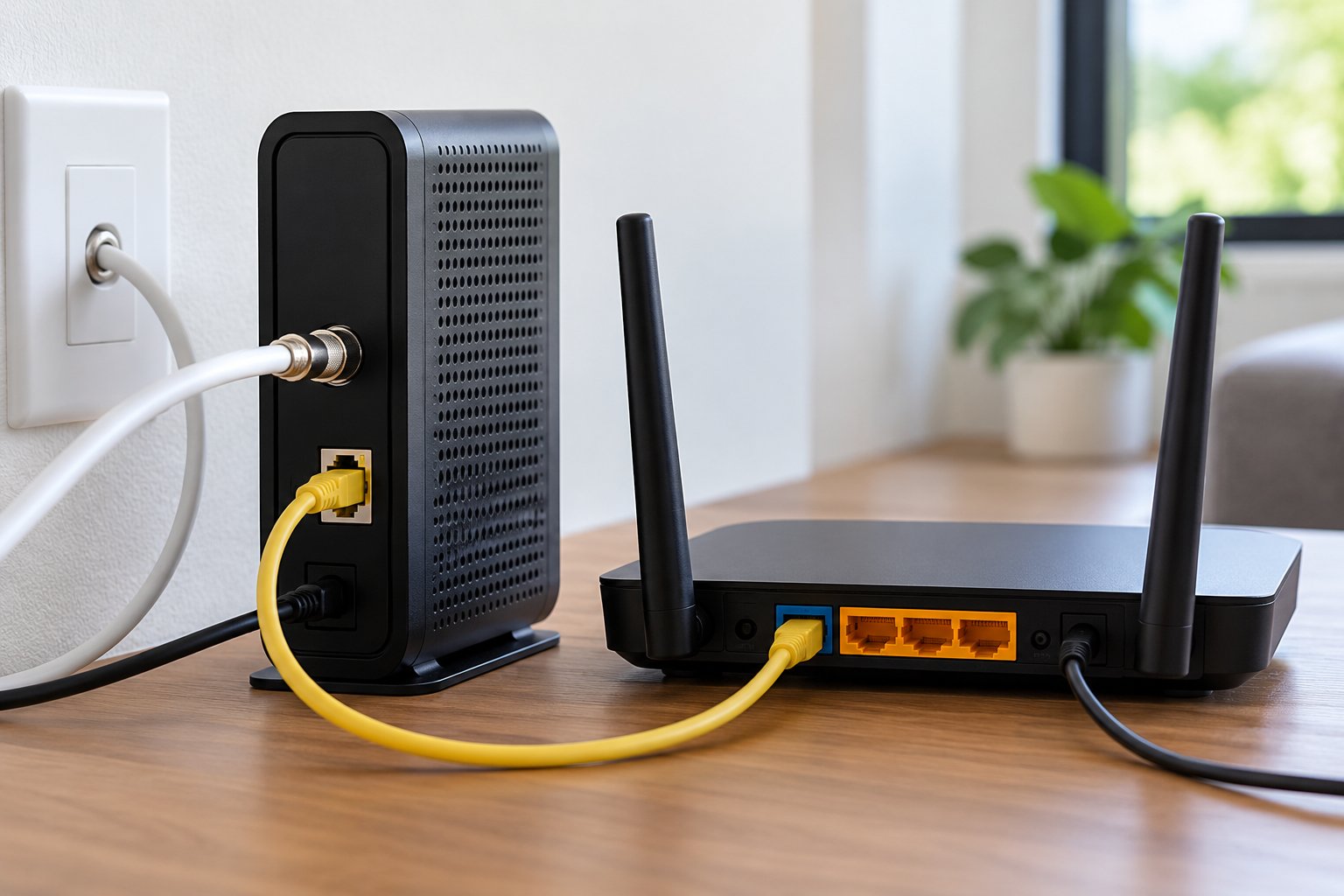
Modems and routers work together, but they solve different problems.
A modem, or equivalent connection equipment, provides access to your internet service provider's network.
A router manages the network inside your home and allows multiple devices to share that internet connection.
Imagine your home has cable internet.
The cable coming from your internet provider connects to a modem. An Ethernet cable then connects the modem to a router. The router provides WiFi to your phones and laptops and wired connectivity to other equipment.
That's a typical separate-device setup.
If you have a modem-router combo, both functions are inside one box.
Understanding which device does what makes troubleshooting much easier.
For example, when every device loses internet access, the problem may be with your ISP or the equipment connected to it. When the internet works on a wired computer but WiFi keeps dropping upstairs, the problem is more likely related to wireless coverage or router configuration.
Those situations require different fixes.
What a Modem Does
A modem connects compatible customer equipment to an internet service provider, commonly called an ISP.
The type of modem depends on the technology used to deliver the internet connection.
Cable internet typically uses a cable modem.
DSL internet uses equipment designed for broadband connections over telephone lines.
Fiber internet commonly uses an Optical Network Terminal, or ONT, instead of a traditional cable or DSL modem.
An ONT converts optical signals from the fiber network into a connection that compatible home networking equipment can use.
Although people sometimes call an ONT a fiber modem, it is technically a different type of device.
Some providers install a separate ONT and router. Others supply equipment that combines multiple networking functions.
The key point is simple: Your internet connection needs equipment compatible with the service your ISP provides.
A cable modem cannot be used directly with a fiber connection.
Similarly, buying a new wireless router does not automatically eliminate the need for a modem or ONT.
How a Modem Connects to the Internet
Consider a typical cable internet connection.
The setup usually follows these steps:
-
A coaxial cable carries the service into the home.
-
The cable connects to a compatible modem.
-
The modem establishes communication with the ISP network.
-
An Ethernet cable connects the modem to the router's WAN or Internet port.
-
The router distributes internet access through WiFi and Ethernet.
The modem handles communication with the provider's network.
The router handles the devices inside your home.
The exact process varies by ISP.
Some providers require the modem to be registered or activated. Others support only equipment from an approved list.
If you plan to purchase your own cable modem, confirm compatibility before ordering it.
Do not rely only on advertised speed ratings.
A modem might support the performance you want but still be unsuitable for your provider's network.
Fiber services have their own requirements. The ONT may need to remain installed even when you replace the router connected to it.
Can a Modem Provide WiFi by Itself?
A standalone modem usually does not provide WiFi.
Its primary function is connecting to the provider's network.
To connect several wireless devices, you generally need a router with wireless access point functionality.
However, many ISP-supplied devices already combine a modem and router.
If your internet equipment has a WiFi network name, wireless password, and settings for connected devices, it probably includes routing and wireless functionality.
That means you may already have a gateway.
Before buying a separate router, identify what your existing equipment does.
Check the model label, connection ports, and device specifications.
This simple check can prevent unnecessary purchases.
What a Router Does
A router connects your local network to another network, usually the internet.
In a typical home, it receives an upstream connection from a modem, ONT, or ISP gateway.
It then manages communication between that connection and devices inside your home.
Most consumer wireless routers include several functions:
-
WiFi connectivity for wireless devices.
-
Ethernet Ports for wired connections.
-
A local DHCP server for assigning network addresses.
-
Routing between your home network and the internet.
-
Network Address Translation for many IPv4 connections.
-
Firewall functions.
-
Wireless security settings.
-
Guest network features on supported models.
-
Basic device management controls.
These functions work together.
For example, when you connect a new laptop to your home WiFi, the router can assign it a local IP address and provide access to the internet through the upstream connection.
Your smartphone, television, and laptop can all use the same broadband service.
Without suitable networking equipment, connecting and managing several devices would be much less convenient.
What Is an SSID?
An SSID, or Service Set Identifier, is the name of a wireless network.
It's the name that appears when you open the WiFi settings on your phone.
You might see a network called HomeNetwork or LivingRoomWiFi.
Those are SSIDs.
Your router broadcasts the network name so compatible devices can discover it.
A wireless password protects access when the network uses appropriate security settings.
Some routers broadcast separate network names for 2.4 GHz and 5 GHz.
Others use a single SSID and manage connections across the supported bands.
Neither arrangement is automatically better for every household.
Separate names can make it easier to choose a specific band. A single name can make everyday connections simpler when the router and devices handle band selection effectively.
What Are Ethernet Ports Used For?
Ethernet ports provide wired network connections.
You can use them to connect equipment such as:
-
Desktop computers.
-
Smart televisions.
-
Gaming consoles.
-
Network storage devices.
-
Compatible security camera recorders.
-
Additional access points.
-
Network switches.
Ethernet can provide more predictable performance than WiFi because it does not rely on wireless signal strength.
For example, if your television is beside the router, connecting it through Ethernet may be more practical than using WiFi.
That connection also leaves more wireless airtime available for phones and other devices.
Check the speed supported by the Ethernet ports.
A device with a slower port can limit throughput even if your broadband service is faster.
Do not assume every port on every router supports the same speed.
Does a Router Create Internet Access?
A router creates and manages a local network, but it does not create an internet service.
If your modem loses its connection to the ISP, your phone may still connect to the router's WiFi.
The wireless signal can remain strong.
You might even be able to communicate with another device inside your home.
But websites, streaming services, and online applications will not work without a functioning upstream connection.
This explains a common problem: your phone shows a strong WiFi signal but says there is no internet.
The WiFi connection is working. The path from your router to the internet is not.
Before resetting your router, check whether the modem or gateway still has an active connection to the provider.
What Is a WiFi Modem Combo?
A WiFi modem combo combines modem and router functions into one physical device.
It is commonly called a gateway.
A typical cable gateway includes a compatible cable modem, a router, wireless networking hardware, and Ethernet ports.
Instead of installing separate devices, you connect the ISP cable to the gateway and use the network it provides.
Consider a household with cable broadband.
The provider installs a gateway near the coaxial outlet. The gateway supplies WiFi throughout the home and wired connections for nearby equipment.
For a household with straightforward networking needs, this arrangement may be enough.
There is no need to add another router simply because standalone models are available.
Why ISPs Commonly Provide Gateways
Gateways are convenient for installation and support.
The ISP can supply equipment that works with its network and includes the basic functions most households need.
For the homeowner, there are fewer cables and power adapters to manage.
Initial setup may also be simpler.
A provider-supplied gateway may arrive with the internet connection already configured. You may only need to confirm the WiFi network name and password.
When something goes wrong, the ISP's support team may be familiar with that particular device.
However, a gateway has limitations.
Its modem and router functions share the same hardware.
If you want newer WiFi features, you may need to replace the gateway or connect additional networking equipment.
Some gateways also provide fewer configuration options than a dedicated router.
That matters when you want more control over routing, firewall settings, guest networks, or connected devices.
Is a Gateway the Same as a Router?
Not exactly.
A standalone router usually connects to an existing upstream internet connection.
A gateway combines the equipment needed for a particular provider connection with routing and networking functions.
The confusion comes from everyday language.
Many people call any device that broadcasts WiFi a router.
That is understandable, but it can make buying replacement equipment difficult.
Look at the physical connections.
A cable modem gateway usually has a coaxial cable connection along with Ethernet ports.
A standalone router commonly has an Ethernet WAN or Internet port for connecting to a modem, ONT, or another upstream device.
Fiber gateways may use different connections depending on the ISP's equipment.
The model number and specifications will tell you more than the general product name.
What Happens When You Connect Another Router to a Gateway?
You can often connect your own router to an ISP gateway.
But simply plugging it in may not produce the network arrangement you intended.
If both devices perform routing and Network Address Translation, you can end up with double NAT.
NAT allows multiple local devices to share an upstream IPv4 connection.
With double NAT, traffic passes through two devices performing address translation.
Ordinary browsing and streaming may continue working.
Other activities can become more complicated.
Problems may involve online gaming, port forwarding, certain remote access applications, or device communication across separate local networks.
Two common configurations can help.
Bridge Mode
Where supported, the ISP gateway passes the internet connection to the standalone router instead of performing its normal routing function.
The separate router manages the home network.
Access Point Mode
The ISP gateway remains the main router.
Your additional compatible router operates as a wireless access point, providing WiFi without creating another full routing layer.
The better choice depends on what you need.
If you want the new router to handle network management, bridge mode may be appropriate when supported by the ISP.
If you mainly want better WiFi coverage, Access Point Mode may be simpler.
Check the documentation before changing either device. Some providers require particular gateway functions to remain enabled.
Routers WiFi Modem Setups: What Connects to What
Different internet services use different connection arrangements.
Before buying equipment, identify which setup you currently have.
The following examples cover common residential installations.
Setup 1: Separate Modem and Router
This arrangement is common with cable internet.
The connection follows this path:
ISP connection → Modem → WiFi router → Home devices
The modem handles communication with the provider.
An Ethernet cable connects the modem to the router's WAN port.
The router then provides WiFi and wired connectivity.
This arrangement allows you to replace the router independently of the modem, provided the equipment remains compatible.
For example, you could keep a working cable modem and replace an older router that no longer provides adequate wireless coverage.
That may be more sensible than replacing both devices.
Setup 2: All-in-One WiFi Gateway
A gateway handles the main functions inside one device.
ISP connection → Gateway → Home devices
There is no separate router required for ordinary network access.
This is convenient for smaller homes and households with straightforward requirements.
If the gateway provides reliable internet, suitable wireless coverage, and the controls you need, keeping it may be the most practical option.
Setup 3: Fiber ONT and Standalone Router
Many fiber installations use a separate ONT.
The arrangement often looks like this:
Fiber service → ONT → WiFi router → Home devices
The ONT terminates the fiber connection.
The router manages local networking.
Some providers require particular authentication or network settings on the connected router.
Before replacing the ISP router, check whether your service uses DHCP, PPPoE, VLAN settings, or other provider-specific requirements.
Do not change those settings unless you understand what your service needs.
Setup 4: ISP Gateway With an Additional Access Point
Sometimes the gateway works properly, but its WiFi does not reach every room.
In that situation, an additional access point may be useful.
ISP connection → Gateway → Wired access point → Wireless devices
The gateway remains responsible for routing.
The access point provides WiFi from another location.
For example, a gateway may sit near the front entrance while the home office is at the back of the house.
If Ethernet is available between those locations, a wired access point can provide a strong wireless connection closer to the office.
This can be more effective than installing a more powerful router in the same unsuitable corner.
Standalone Router vs Modem Combo: Pros and Cons
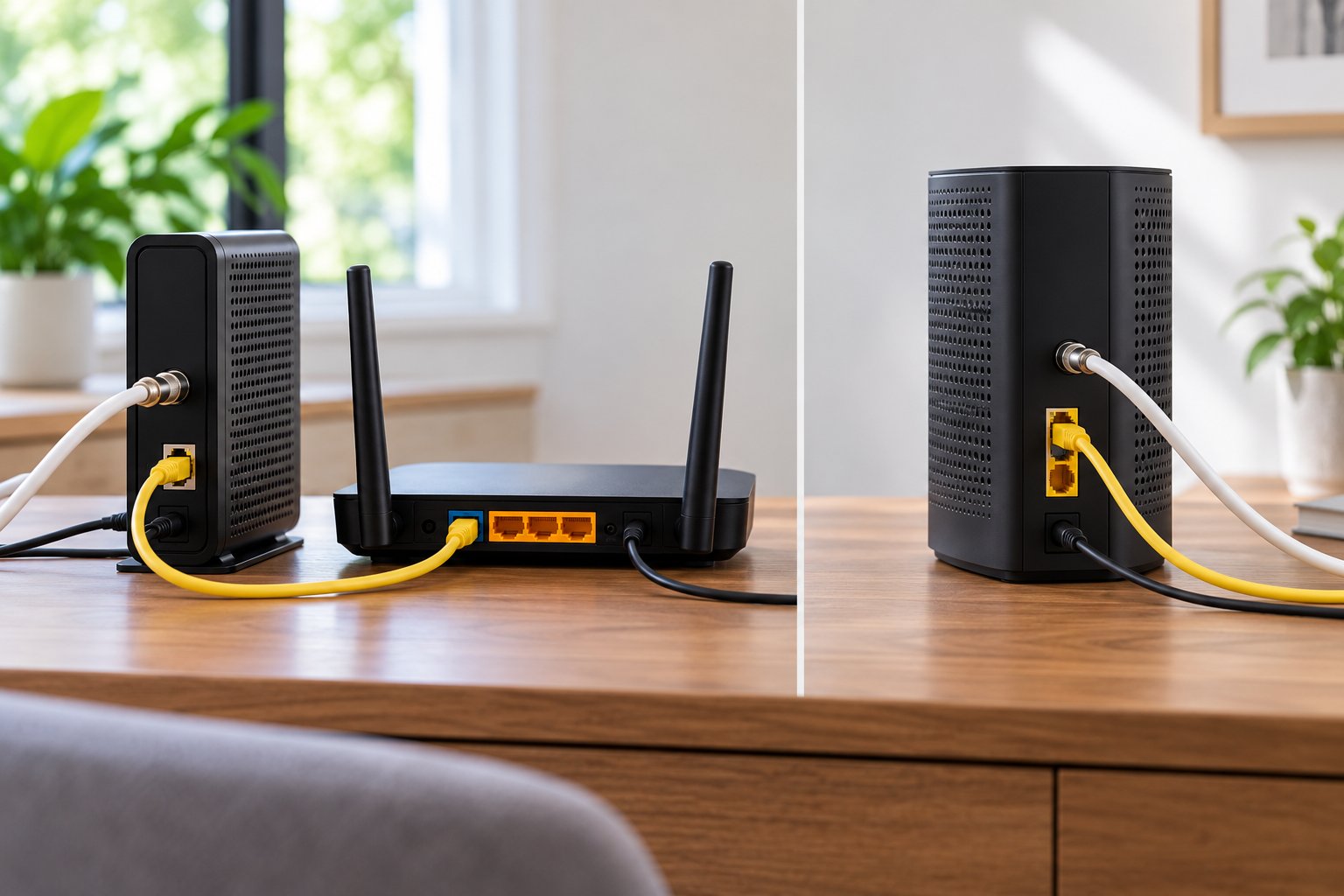
A modem-router combo is convenient.
Separate equipment gives you more flexibility.
Neither is automatically the best choice for every home.
The decision should be based on your internet service, current coverage, connected devices, and the features you actually need.
Advantages of a 2-in-1 Gateway
A gateway combines the main networking functions into one unit.
For many homeowners, simplicity is its biggest advantage.
1. Fewer devices and cables
A gateway reduces the number of separate boxes and power adapters.
That makes it easier to keep a small networking area organized.
2. Straightforward installation
Provider-supplied gateways may arrive with internet settings already configured.
You can often connect the required cable, power on the unit, and follow the ISP's activation instructions.
3. Familiar equipment for ISP support
When the provider supplies the gateway, its support team may be better equipped to diagnose its connection settings and service status.
4. Suitable for everyday household use
A gateway can be enough for browsing, streaming, video calls, and ordinary smart home devices.
If it already handles those activities reliably, replacing it may offer little benefit.
Limitations of a Gateway
The modem and router functions share the same hardware.
That limits how independently you can upgrade them.
For example, your cable modem portion may still meet your internet needs while the built-in WiFi has become outdated.
A separate router could improve the wireless side, but you may need to configure bridge mode or Access Point Mode to avoid unnecessary complications.
Placement is another concern.
The gateway usually sits near the provider's connection point.
If that point is inside a utility cupboard or at the far end of the house, WiFi coverage may suffer.
Some gateways also restrict access to advanced networking settings.
If you need specific routing features, the supplied equipment may not provide them.
Advantages of a Standalone Router Setup
Using separate networking equipment gives you more control over the wireless network.
1. Upgrade WiFi without replacing the modem
If the modem works correctly, you can often keep it and replace only the router.
This can be useful when you add modern laptops, smart TVs, or other devices that benefit from newer wireless capabilities.
2. Choose features that match your needs
Standalone routers offer different wireless standards, frequency bands, Ethernet capabilities, and management features.
You can choose equipment based on your actual requirements.
3. Improve router placement
A separate router can sometimes be positioned farther from the modem using Ethernet.
This may help improve coverage in the rooms where WiFi is used most.
4. Replace components independently
If one device fails or becomes outdated, you may be able to replace it without changing the rest of the network.
That can make long-term maintenance more manageable.
Limitations of Separate Equipment
Separate devices need more space, power outlets, and cables.
They can also require additional configuration.
For example, a standalone router must connect correctly to the modem or ONT and use the internet settings required by the provider.
An incorrect WAN configuration may prevent internet access.
If the upstream device is already a gateway, you may also need to choose between bridge mode and Access Point Mode.
Separate equipment provides flexibility, but that flexibility is only useful when everything is configured properly.
Standalone Router vs Gateway Comparison
| Factor | WiFi modem combo | Separate modem and router |
|---|---|---|
| Primary hardware | Usually one unit | Usually two devices |
| Initial setup | Often simpler | May require more configuration |
| Upgrade flexibility | Combined functions | Components can often be replaced independently |
| WiFi placement | Often near ISP connection | May allow more flexibility |
| Router features | Depend on gateway and ISP controls | Depend on the selected router |
| ISP compatibility | Must support the internet service | Modem or ONT and router must be appropriately configured |
| Troubleshooting | One integrated device | Components can be tested separately |
| Best fit | Straightforward household networking | Homes needing more flexibility or control |
Which Setup Is Better for a Typical Home?
Start by looking at your current network.
If your gateway provides a dependable connection throughout the home, there may be no reason to replace it.
If the internet works well but WiFi becomes weak in certain rooms, you have a coverage problem.
That might be solved by moving the router, adding an access point, or using a suitable extender.
If the gateway lacks the network management features you need, a separate router may make sense.
For example, a household with several computers, security cameras, and other connected devices may want more control over local network settings.
Another household may only need stable WiFi for a few phones and a television.
Those homes do not necessarily need the same equipment.
Choose the arrangement that solves a real problem, not the one with the most devices.
When to Choose Dual Band WiFi Routers
Dual Band WiFi Routers support both 2.4 GHz and 5 GHz wireless connections.
These bands serve different purposes.
The 2.4 GHz band usually provides better reach through some obstacles, but it is more prone to congestion.
The 5 GHz band generally offers higher wireless throughput over shorter distances when signal conditions are good.
A dual-band router lets compatible devices use a connection that suits their location and capabilities.
Why Dual-Band WiFi Matters at Home
Consider a home with an outdoor security camera, smart television, several phones, and two laptops.
The camera may only support 2.4 GHz.
The television and laptops may support 5 GHz.
A dual-band router can serve these different devices without requiring them to use one frequency band.
That flexibility can improve everyday usability.
But dual-band does not mean your internet connection becomes twice as fast.
Both bands still share the available upstream internet service.
The benefit comes from using wireless resources more effectively.
When 2.4 GHz Is the Better Choice
The 2.4 GHz band is often useful for devices that need greater reach or do not require high throughput.
Common examples include:
-
Smart plugs.
-
Connected sensors.
-
Some outdoor security cameras.
-
Older wireless devices.
-
Equipment located farther from the router.
However, 2.4 GHz is often crowded.
Nearby WiFi networks and other wireless equipment may compete for available spectrum.
A connection that reaches farther is not necessarily faster.
If a device only needs to send occasional status updates, that may not matter.
If you are transferring large files, it can matter a great deal.
When 5 GHz Is the Better Choice
Use 5 GHz when the device is close enough to receive a strong signal and can benefit from higher throughput.
It can be suitable for:
-
Laptops used for large downloads.
-
Streaming televisions.
-
Gaming devices.
-
Smartphones used near the router.
-
Computers transferring files across the local network.
The main limitation is coverage.
Dense walls, floors, and distance can weaken 5 GHz signals.
For example, a laptop may work well on 5 GHz in the living room but struggle upstairs.
If that happens, try the 2.4 GHz connection and compare stability.
A slightly slower connection that works consistently is often preferable to one that drops repeatedly.
Dual Band vs WiFi 6: Are They the Same?
No.
Dual-band describes the frequency bands supported by a router.
WiFi 6 describes a wireless technology generation based on IEEE 802.11ax.
A WiFi 6 router can be dual-band.
Many older WiFi 5 routers are also dual-band.
WiFi 6 introduces improved wireless efficiency, including technologies that help compatible devices share network resources more effectively.
However, WiFi 6 does not automatically solve poor signal coverage.
A newer router placed behind thick walls may still struggle to reach distant rooms.
The router's technology and its physical placement both matter.
WiFi 5 vs WiFi 6 for Everyday Use
| Feature | WiFi 5 | WiFi 6 |
|---|---|---|
| Wireless standard | 802.11ac | 802.11ax |
| Main focus | Higher wireless throughput | Throughput and improved multi-device efficiency |
| Dual-band products | Common | Common |
| Older device compatibility | Supports applicable older wireless standards | Supports applicable older wireless standards |
| Suitable use | Many ordinary home networks | Homes with compatible devices and greater wireless demand |
A WiFi 5 router may still be enough for browsing, streaming, and ordinary smart home use.
WiFi 6 can be useful when several compatible devices are active and the wireless network is becoming a limiting factor.
Before replacing a functioning router, identify whether your current problems come from wireless capacity, weak coverage, or the internet connection itself.
When a ROOXIS Dual-Band Router Makes Sense
ROOXIS provides networking equipment focused on straightforward setup and dependable everyday connectivity.
Its home networking range includes dual-band WiFi routers and range extenders.
For a household moving from older single-band equipment, a suitable dual-band router can provide more flexibility for different devices.
For example, some smart home products may continue using 2.4 GHz while compatible laptops and televisions use 5 GHz.
However, a standalone ROOXIS WiFi router is not a replacement for every type of modem or fiber ONT.
It requires a suitable upstream network connection.
Before choosing any router, confirm the internet connection type, WAN compatibility, supported wireless features, and coverage requirements.
If the main problem is a weak signal in a distant room, a properly positioned extender or additional access point may be more useful than replacing an otherwise capable router.
How to Optimize Your Network Setup
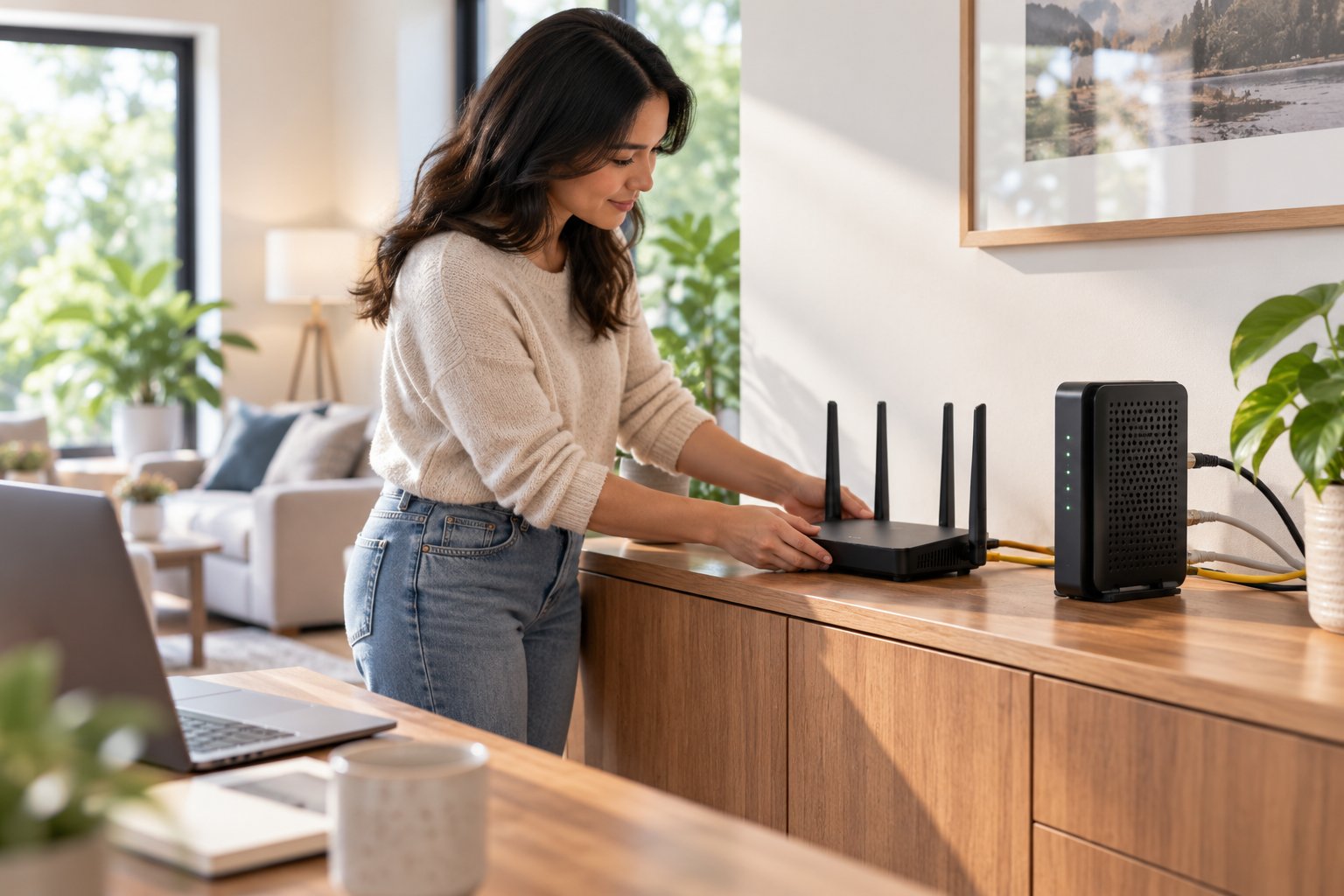
A new router is only one part of a reliable home network.
Placement, cabling, configuration, and device compatibility can affect performance just as much as the router's wireless standard.
Before buying anything, identify which part of your network is causing trouble.
A modem problem, a weak WiFi signal, and an incorrect router configuration may produce similar symptoms.
The fixes are different.
Step 1: Identify Your Internet Connection Type
Start by checking how internet service enters your home.
Look for:
-
A coaxial cable used for cable broadband.
-
A telephone-line connection used for DSL.
-
Fiber equipment or an ONT.
-
An ISP gateway that combines several functions.
If you are unsure, check the model number on your equipment.
You can also ask the ISP which devices are required for the service.
This helps avoid a common purchasing mistake: buying a router and expecting it to replace a modem or ONT.
A router manages local networking. It does not automatically provide the equipment needed to terminate every type of broadband connection.
Step 2: Connect the Equipment Correctly
For a typical separate modem and router arrangement:
-
Confirm that the modem or ONT is connected to the ISP network.
-
Connect an Ethernet cable from the appropriate upstream port to the router's WAN or Internet port.
-
Turn on the equipment according to the provider's instructions.
-
Allow the upstream connection to establish.
-
Open the router's setup interface.
-
Configure the internet connection using the settings required by the ISP.
-
Set the wireless network name and password.
-
Connect a device and test internet access.
Some internet services use DHCP.
Others require authentication such as PPPoE or additional provider-specific configuration.
If the router does not establish internet access, check these requirements before performing a factory reset.
Also confirm that the Ethernet cable is connected to the correct port.
Accidentally connecting the modem to a LAN port instead of the intended WAN port can cause setup problems.
Step 3: Avoid Accidental Double NAT
Double NAT can occur when two devices both operate as routers and perform NAT.
For example, your ISP gateway may already manage one local network.
If you connect another router behind it in full router mode, you may create a second routed network.
Ordinary internet use can still work.
But certain applications become harder to manage.
Possible symptoms include:
-
Online games reporting restrictive NAT behavior.
-
Port forwarding rules not working as expected.
-
Remote access services failing.
-
Devices on different local networks being unable to discover one another.
-
Complicated VPN configurations.
If you want the standalone router to manage the home network, check whether the gateway supports bridge mode.
If you only want additional WiFi coverage, Access Point Mode may be more suitable.
Do not change the gateway configuration without checking the ISP's requirements.
Some services depend on provider-managed features that may be affected by bridge mode.
Step 4: Position the Router Carefully
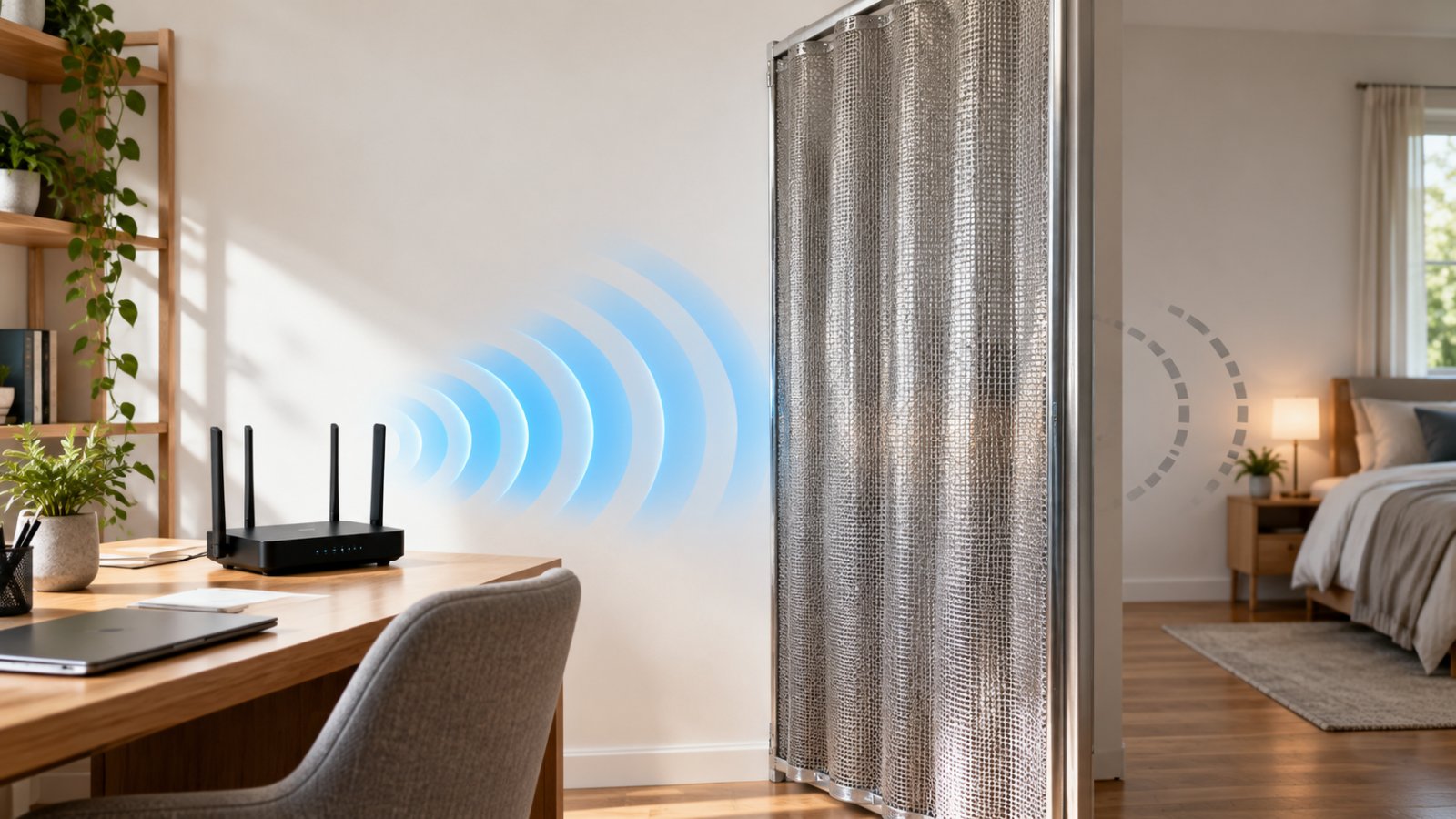
Router placement can make a noticeable difference.
A powerful router installed inside a closed cupboard may provide worse coverage than a less powerful model placed in a suitable open location.
For most homes, start with a reasonably central and elevated position.
Avoid placing networking equipment:
-
Behind large metal appliances.
-
Inside closed cabinets.
-
Directly behind televisions.
-
Near significant sources of wireless interference.
-
Behind unnecessary concrete or masonry barriers.
For example, if the ISP connection enters the house in a utility room, that may not be the ideal location for WiFi coverage.
Where practical, an Ethernet cable may allow you to position a standalone router or access point closer to the areas where devices are used.
For additional guidance, see ROOXIS's optimizing router placement.
Step 5: Use Ethernet Where Practical
Ethernet is often the better choice for devices that stay in one place.
A desktop computer, television, or gaming console located near the router may not need to use WiFi at all.
A wired connection avoids wireless interference on that particular link.
It can also leave more wireless capacity available for phones, tablets, and smart home devices.
For example, connecting a television through Ethernet can reduce WiFi traffic during streaming.
Check the speed supported by your router ports, connected device, and Ethernet cabling.
The slowest part of the connection can limit throughput.
Step 6: Configure Your WiFi Bands
If your router provides separate SSIDs for 2.4 GHz and 5 GHz, choose the appropriate network for each device.
Use 2.4 GHz where greater reach or older device compatibility matters.
Use 5 GHz when devices are nearby and benefit from higher throughput.
Some routers offer automatic band steering.
This can simplify everyday use, but device behavior varies.
If a smart plug or camera refuses to connect, check whether it only supports 2.4 GHz.
Do not change security settings blindly to make an incompatible device join the network.
First confirm the frequency band and supported wireless standard.
Step 7: Secure the Router
A reliable network also needs secure configuration.
Use WPA3 when supported by the router and your devices.
WPA2 with AES remains relevant for many older compatible products.
Avoid outdated security modes.
Other useful precautions include:
-
Set a strong, unique WiFi password.
-
Change default router administration credentials where applicable.
-
Install firmware updates.
-
Disable remote administration if it is not needed.
-
Use a guest network when appropriate.
-
Review connected devices periodically.
-
Investigate unfamiliar devices before allowing continued access.
Router security should be maintained even when the internet connection appears to work normally.
Outdated firmware can create problems that have nothing to do with wireless speed.
Step 8: Test Before Buying More Equipment
When the network feels slow, run a few simple comparisons.
First, test internet access close to the router.
If possible, connect a laptop directly using Ethernet.
Compare the wired and wireless results.
Then test in the room where the connection is unreliable.
Look for patterns.
Wired and wireless connections are both slow
Check the ISP connection, modem or ONT, gateway, and upstream service.
Ethernet works well but WiFi is slow near the router
Check wireless configuration, interference, device capability, and router hardware.
WiFi is strong downstairs but weak upstairs
Focus on coverage, obstacles, and placement.
Performance falls when several devices are active
Check whether internet bandwidth or wireless airtime is becoming saturated.
A new router cannot connect to the internet
Verify the WAN cable, connection type, ISP authentication, and gateway configuration.
These tests are more useful than repeatedly restarting equipment without identifying the cause.
Step 9: Use Extenders or Additional Access Points for Coverage
If your main problem is weak WiFi in distant rooms, a range extender or additional access point may help.
A WiFi extender receives the router's wireless signal and rebroadcasts it into another area.
Placement matters.
The extender must receive a reliable signal from the main router.
Installing it inside a complete dead zone is unlikely to produce good results.
Start with a location between the router and the weak-coverage area, then test performance.
For larger homes, a wired access point may provide a stronger arrangement when Ethernet is available.
A suitable mesh system may also be worth considering, depending on the building layout.
Neither an extender nor an access point can increase the internet speed supplied by your ISP.
The purpose is to distribute available connectivity more effectively.
Common Home Network Problems and Their Causes
| Problem | Possible cause | First check |
|---|---|---|
| WiFi connects but internet does not work | Upstream ISP, modem, or gateway problem | Test the internet connection at the source |
| Ethernet works but WiFi fails | Router wireless configuration or radio problem | Check SSID and wireless settings |
| WiFi is weak in distant rooms | Coverage limitations or obstacles | Check placement and signal strength |
| New router has no internet | Wrong WAN port or ISP configuration | Verify cables and connection requirements |
| Gaming or remote access fails after adding a router | Possible double NAT | Review gateway and router modes |
| Smart devices cannot connect | Unsupported frequency band or security setting | Check device compatibility |
| Every device downloads slowly | ISP limitation or upstream congestion | Test the wired connection |
| Wireless devices disconnect frequently | Interference or weak signal | Check placement and wireless conditions |
| Router no longer receives firmware updates | Manufacturer support has ended | Consider suitable replacement hardware |
Frequently Asked Questions
Can I use my own router with an ISP modem combo?
Yes, many ISP gateways allow you to connect a separate router through Ethernet. Depending on the equipment, you may use bridge mode so your own router manages the network, or Access Point Mode so the gateway continues handling routing. Check your ISP's requirements before changing the gateway configuration.
Is a modem router combo better than separate devices?
A modem-router combo is convenient because it combines internet connection and home networking functions in one device. Separate equipment gives you more flexibility to upgrade WiFi, choose router features, and position your networking hardware. The better option depends on your existing connection, home layout, and the level of control you need.
What does a dual band WiFi router do?
A dual-band router supports both 2.4 GHz and 5 GHz wireless networks. The 2.4 GHz band usually provides better reach through some obstacles, while 5 GHz generally offers higher throughput at shorter distances. Using both bands allows compatible devices to connect according to their location and capabilities.
Do I need a modem if I only want WiFi?
You do not need an active internet modem simply to create a local WiFi network. A wireless router can connect nearby devices to one another without internet access, although online services will not work. To reach the internet, you need an appropriate upstream connection, such as a cable modem, fiber ONT, ISP gateway, or another supported service device.
A dependable home network does not require complicated equipment.
The modem or equivalent connection device handles access to your ISP. The router manages the network inside your home. A gateway combines those jobs in one unit.
If your current gateway provides good coverage and stable performance, there may be no reason to replace it.
If the problem is weak WiFi, limited router features, or an inconvenient equipment location, separate networking hardware may offer more flexibility.
ROOXIS provides WiFi routers, range extenders, and connected home security products designed for straightforward setup and practical everyday use.
Choose networking equipment based on your internet service, home layout, and connected devices. Correct configuration and reliable coverage matter more than having the newest or most complicated setup.