You open Smart Home Manager and see an old phone, a disconnected tablet, or a device named Unknown still listed on your WiFi network. The device shows as offline, but there is no obvious Delete button. If you are searching for how to remove devices from Smart Home Manager, the first thing to understand is that removing an old entry and blocking a device from connecting are two different actions.
To manage a device, open Smart Home Manager, select Profiles & devices, find the device, and review the available controls. You may be able to pause or block its internet access, but the app does not provide a universal option to delete every previously connected device. An offline entry may remain visible even when the device no longer has network access.
This guide explains how to identify unwanted devices, manage connected devices on your router, prevent automatic reconnections, and troubleshoot old entries that refuse to disappear. It also covers the settings you should avoid changing if you have security cameras, WiFi extenders, or other smart home equipment that needs a reliable connection.
Why Remove Inactive Devices from Smart Home Manager?
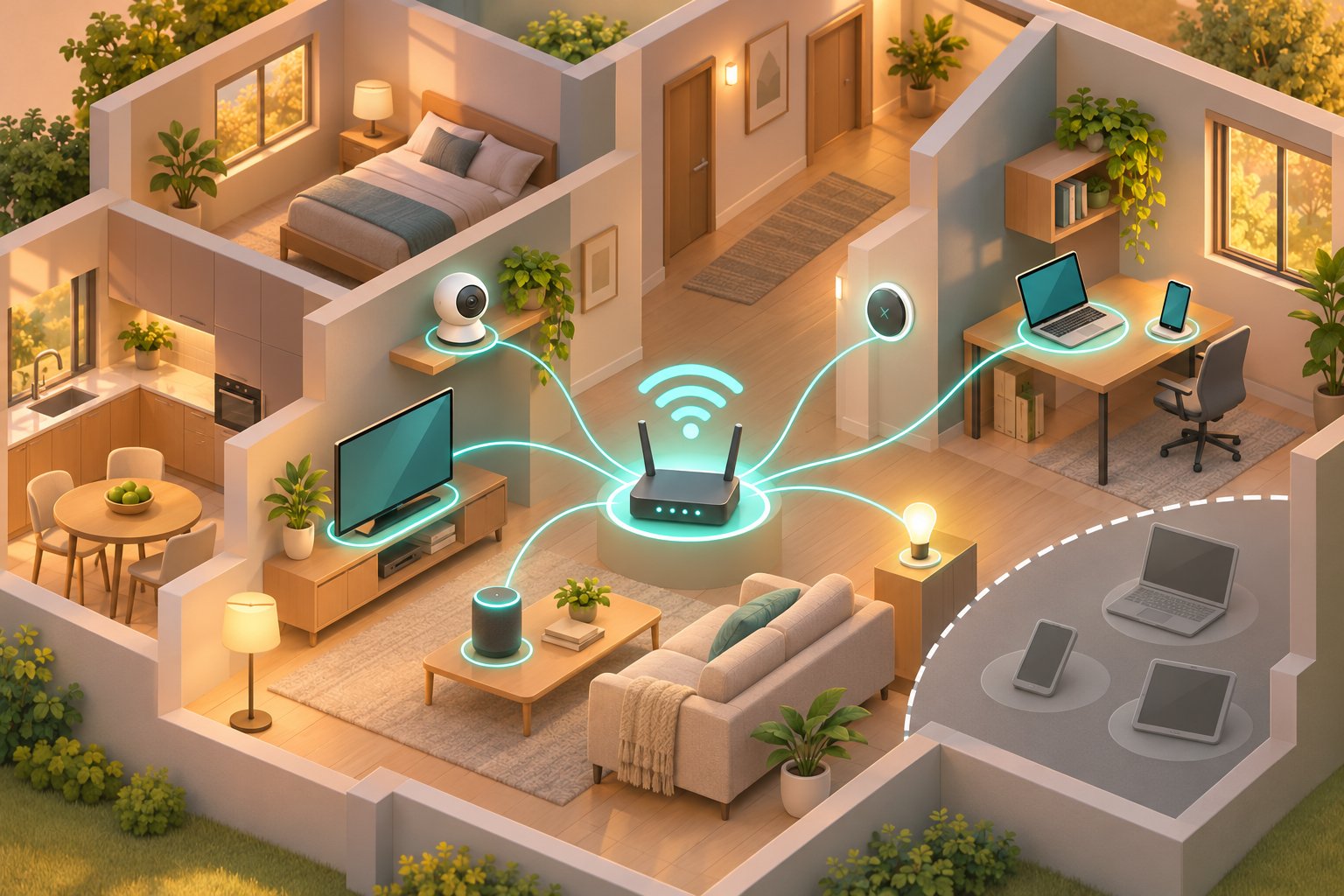
A typical home WiFi network connects more equipment than most people realize.
Along with phones and laptops, your network may support smart TVs, streaming devices, wireless printers, security cameras, gaming consoles, doorbells, smart plugs, and WiFi extenders.
Every time a new device connects, the router may record information about it.
Over time, Smart Home Manager can display a mixture of currently connected equipment and devices that used the network previously.
For example, you might find:
-
A phone you replaced several months ago.
-
A laptop that a visiting relative used once.
-
A tablet that no longer works.
-
An unplugged smart TV.
-
A security camera that was moved to another network.
-
Several entries labeled Unknown.
-
Two entries that appear to represent the same phone.
Seeing these entries does not necessarily mean something is wrong with your network.
Smart Home Manager may retain historical connection information even after the device disconnects.
The real question is whether the device still has access to your WiFi network.
Why Old Devices Remain Visible
Smart Home Manager uses information reported by compatible home gateways to identify and manage devices.
When a phone connects to your network, the gateway can recognize its network interface and assign connection information.
After the phone disconnects, some of that information may remain available in the app.
This historical record can help you recognize equipment that connected previously.
However, it also means the device list may contain entries for hardware you no longer use.
Consider a guest who connected a laptop during a weekend visit.
After leaving, the laptop is no longer connected to your home network. Smart Home Manager may still show it under previously connected devices.
That is different from the laptop actively using your internet connection.
A similar situation occurs when you replace a phone but keep the same home WiFi network.
The old phone may remain in the device history even though your replacement phone is the only one currently connected.
An offline entry is not proof of an active connection.
Before trying to remove offline devices from network records, check whether the entry is actually online.
If the device is offline and you recognize it, there may be no immediate action required.
Why a Clean Device List Is Useful
A shorter, better-organized device list makes troubleshooting easier.
Suppose your wireless printer stops connecting.
If you can immediately identify the printer in Smart Home Manager, you can check whether the gateway recognizes it and whether it has an active connection.
If the list contains several unnamed entries, identifying the printer becomes harder.
Clear device information is especially useful for households with multiple smart home products.
You may need to distinguish:
-
An indoor camera from an outdoor camera.
-
A living room television from a bedroom television.
-
A family laptop from a guest laptop.
-
A WiFi extender from a directly connected phone.
-
An old smart plug from one still being used.
Reviewing connected devices also helps you notice unfamiliar equipment.
However, an unfamiliar name does not automatically mean an unauthorized person is using your WiFi.
Routers sometimes fail to identify device manufacturers or product types correctly.
A legitimate device may appear as Unknown or Other.
Do not block unknown entries until you have made a reasonable attempt to identify them.
You could accidentally disconnect a security camera, smart thermostat, or another device that works in the background.
Before You Start: What You Need
Make sure you can access the network management account associated with your home gateway.
You should have:
-
The Smart Home Manager app or access to its supported web interface.
-
The account credentials associated with your internet service.
-
A compatible home gateway.
-
Permission to manage the household network.
-
Access to your important phones, laptops, and smart home devices.
If possible, perform the cleanup while other household members are home.
That makes it easier to identify unfamiliar phones or tablets.
It also reduces the chance of blocking a device someone needs for work, school, or communication.
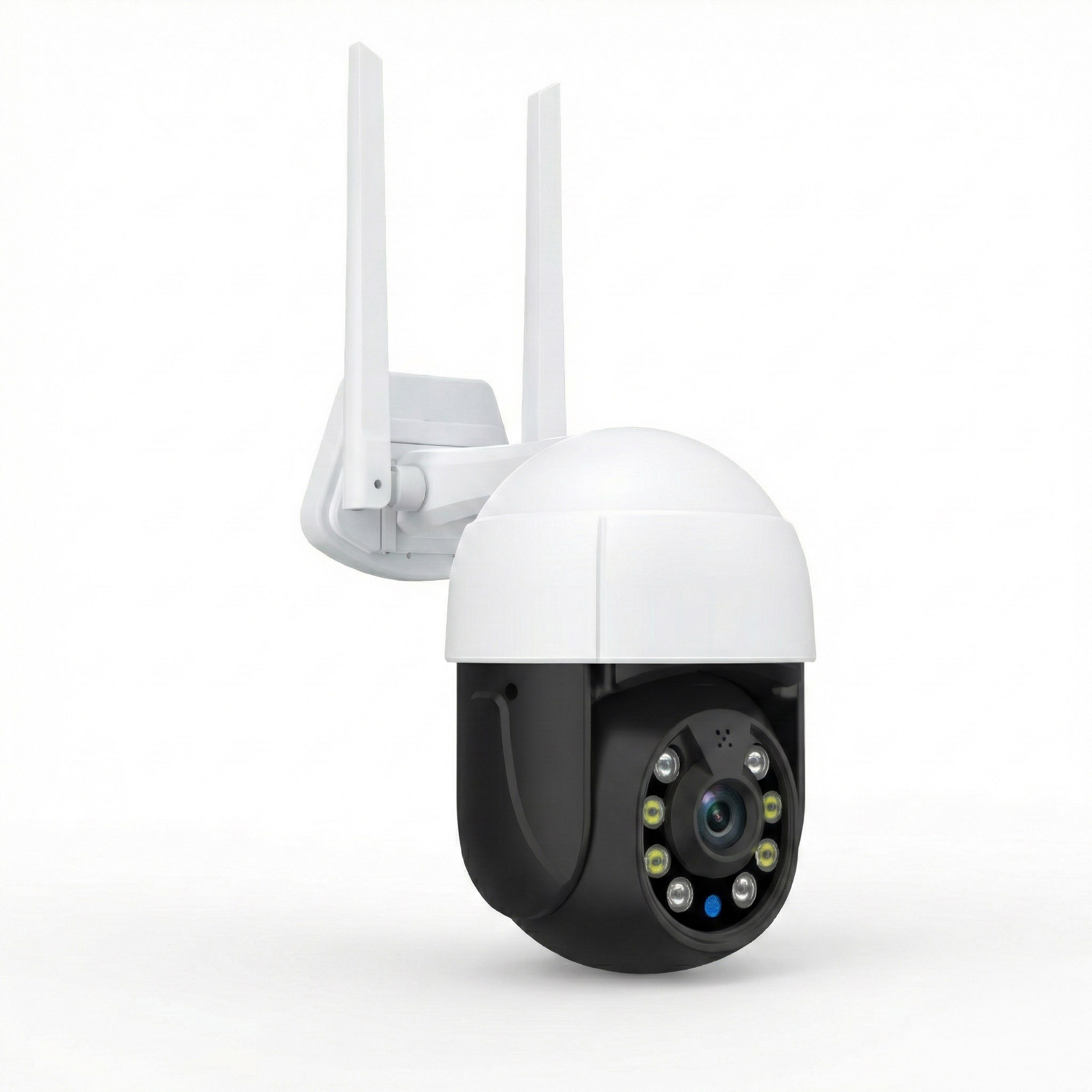
For households with WiFi security cameras, check whether the cameras are recording or sending notifications before changing network access.
If you disconnect a camera, it may lose access to internet-dependent features.
There is no need to reset your router or change your WiFi password just to investigate an old device entry.
Start by identifying the device.
How to Remove Devices in Smart Home Manager
Smart Home Manager allows users with supported gateways to view connected equipment and manage certain network access settings.
The available controls can vary by gateway model, software version, and device status.
Some options affect a device's internet access. Others only change how the device is organized or displayed.
The following steps explain what to check and how to avoid making unnecessary changes.
Step 1: Access the Connected Devices List
Open Smart Home Manager on your phone.
Sign in with the account associated with your home internet service.
From the main screen, look for Profiles & devices.
Select it to open the device management area.
If the interface displays separate tabs, select Wi-Fi & Ethernet.
You should see devices associated with your home gateway.
To examine older connections, look for View all previously connected.
This section can include devices that connected to the network in the past but are not currently online.
If you use the supported web interface, the navigation may differ.
Look for Network and Connected Devices.
The web interface may show a different selection of device information from the mobile app.
What you should see
The device list may include recognizable names such as a laptop model, television, phone, or printer.
Other devices may appear under generic labels.
Select a device to review any additional information available.
What to watch for
Do not assume every entry represents a separate physical device.
A phone can appear more than once if its network identifier changes.
Also, avoid confusing the network name with an individual device name.
Your home WiFi network has its own name, commonly called the SSID. The device list contains equipment associated with that network.
If the app displays outdated information, close and reopen it before making changes.
Step 2: Locate and Select the Offline Device
Scroll through the device list and find the entry you want to manage.
Start with devices whose names you recognize.
An old tablet named after its manufacturer may be easy to identify.
A device labeled Unknown requires more investigation.
Tap the entry and review its details.
Depending on your equipment, Smart Home Manager may display:
-
Device name.
-
Device type.
-
Online or offline status.
-
Connection method.
-
MAC address.
-
Local IP address.
-
Available network access controls.
Not every gateway provides all this information.
Understanding the MAC address
A MAC address is an identifier associated with a network interface.
Routers use MAC addresses to distinguish devices communicating on the local network.
A WiFi device may use a hardware address or a private address for a particular network.
This matters because modern phones often use randomized or private MAC addresses.
The same phone may appear under different identifiers after certain settings change.
Understanding the IP address
An IP address identifies a device's network connection for communication.
On most home networks, the router assigns local IP addresses automatically.
For example, a laptop may receive one local address today and another after reconnecting.
This means an IP address alone should not be treated as a permanent device identifier.
Use it alongside the device name, MAC address, and other available information.
How to identify a phone
On an iPhone:
-
Open Settings.
-
Select Wi-Fi.
-
Tap the information icon beside your connected network.
-
Review the WiFi Address and Private Wi-Fi Address settings.
-
Compare the active address with the information shown in Smart Home Manager.
On many Android phones:
-
Open Settings.
-
Select Network & internet or Connections.
-
Open WiFi settings.
-
Tap the connected network.
-
Review the MAC address under network details or privacy settings.
Android menus vary by manufacturer.
Some phones show both a hardware MAC address and a randomized address.
Compare the address currently used for your home network.
What you should see
A reasonable match between the Smart Home Manager entry and equipment you recognize.
For example, a matching active WiFi address can help confirm that an Unknown entry belongs to a family member's phone.
What to watch for
Do not rely only on a device's displayed name.
A manufacturer name may be missing or incorrect.
If you cannot identify an entry, check with other household members before blocking it.
Step 3: Disconnect or Remove the Device
After identifying the device, choose the action that matches your goal.
There are four common situations.
Option 1: Block a device you do not want using the network
Open the device entry in Smart Home Manager.
Look for the available Block device control.
If it appears, select it and follow the confirmation steps.
Blocking restricts the selected device's network access according to your gateway's supported settings.
It does not necessarily remove the device's historical record.
If the app offers an option to unblock the device later, you can reverse the restriction when appropriate.
Option 2: Temporarily pause internet access
Some devices can be paused through the available management controls.
This is useful when a household member's access needs to be restricted temporarily.
For example, parents may choose to pause a gaming console during an agreed homework period.
Pausing access is not permanent removal.
The device may regain access when the pause ends or the setting is changed.
Option 3: Change the device's profile assignment
Smart Home Manager may let you organize devices into household profiles.
A profile can group equipment associated with a family member or another category.
Changing the profile assignment can make device management easier.
However, removing a device from a profile does not necessarily disconnect it from WiFi.
It also does not guarantee that its entry disappears from the main list.
Option 4: Delete an old device record if your interface supports it
Some router management systems allow users to forget or delete saved device records.
Smart Home Manager does not offer a universal manual deletion control for every previously connected device.
If you cannot find a Delete or Remove option, your interface may not support that action.
Do not repeatedly reset the gateway looking for a feature that may not exist.
What you should see
After applying a supported block, Smart Home Manager should reflect the restriction.
If you pause a device, its internet access status should show the applicable change.
An offline historical entry may remain visible.
What to watch for
Deleting a record, blocking a device, and changing its profile are different operations.
Before selecting a control, read what it actually does.
If your goal is to prevent an unwanted device from reconnecting, focus on access restrictions rather than the appearance of the device list.
Troubleshooting Devices That Will Not Stay Removed
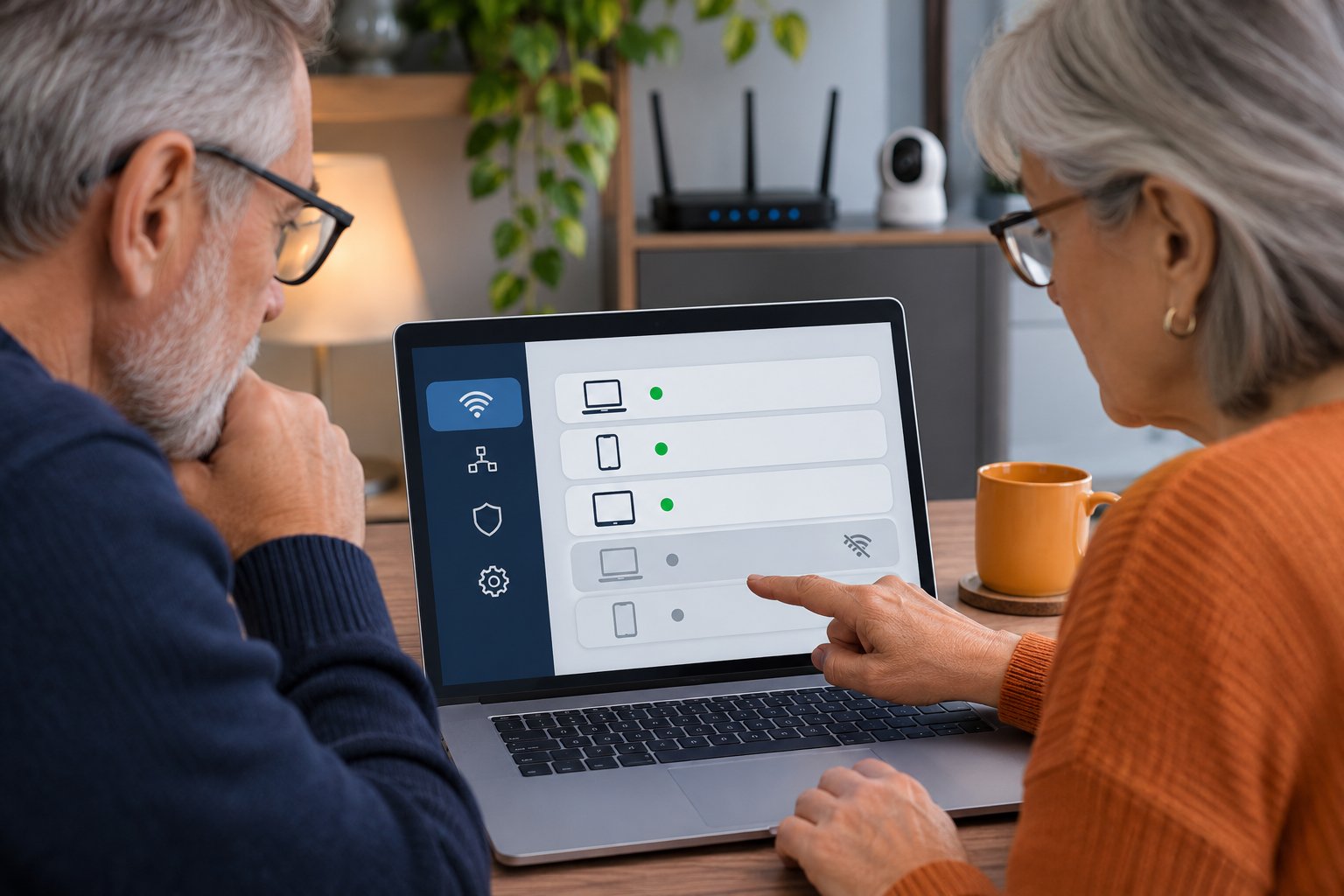
You identify an old device, make changes, and return to Smart Home Manager later.
The entry is still there.
Or a similar device appears under a new name.
This does not always mean the original device has reconnected.
The gateway might still be displaying historical information. A phone might be using a new private MAC address. Another device might have the same generic name.
Start by checking the connection status.
If the entry remains offline, it may simply be a stored record.
If the device is actively connecting when it should not, investigate its saved network credentials and access permissions.
Forget Network Settings on the Specific Hardware
If you still own the device, removing its saved home WiFi network can stop it from reconnecting automatically.
This is particularly useful for an old tablet, spare laptop, or phone that you no longer use regularly.
For example, an unused tablet might sit in a drawer for weeks.
When someone charges it, the tablet may automatically connect because it still remembers the network password.
Forgetting the network prevents that automatic connection using the saved credentials.
On iPhone or iPad
-
Open Settings.
-
Select Wi-Fi.
-
Tap the information icon beside the saved network.
-
Select Forget This Network, if available.
-
Confirm the action.
On Android
-
Open Settings.
-
Select Network & internet or Connections.
-
Open WiFi settings.
-
Select the saved home network.
-
Tap Forget.
On Windows
-
Open Settings.
-
Select Network & internet.
-
Open Wi-Fi.
-
Select Manage known networks.
-
Find your home network.
-
Select Forget.
On Mac
-
Open System Settings.
-
Select Wi-Fi.
-
Open the relevant network details or known network settings.
-
Find your home network.
-
Choose the available option to forget it.
The exact wording may vary by software version.
What you should see
The device should no longer automatically reconnect using the removed WiFi credentials.
If you want to reconnect it later, you may need to select the network and enter its password again.
What to watch for
Forgetting a network on the physical device does not necessarily delete its historical entry from Smart Home Manager.
Also, do not forget the network on equipment that needs continuous connectivity.
A wireless security camera may lose access to remote viewing or cloud-dependent notifications.
A smart plug may stop responding to remote commands.
Only remove saved credentials from hardware you intentionally want disconnected.
Check for Randomised MAC Address Settings
Private MAC addresses are one of the most common reasons a phone appears more than once in a router's device history.
Modern phones may use a private address when joining a WiFi network.
This helps reduce tracking based on a device's permanent hardware identifier.
However, when the address changes, the gateway may treat the phone as a new device.
Imagine that Smart Home Manager shows two entries for a phone.
One is offline.
The other is online but has a generic name.
Both may represent the same physical phone at different times.
Before assuming someone has connected an unauthorized device, compare the active WiFi address.
How to check on iPhone
Open Settings > Wi-Fi.
Tap the information icon beside your home network.
Review the Private Wi-Fi Address setting and the WiFi address currently in use.
The available private address settings can vary by iOS version.
Compare the active address with your gateway's information.
How to check on Android
Open Settings and find the connected WiFi network.
Select its details.
Look for Privacy, MAC address type, or a similar setting.
Depending on the device, you may see options involving randomized or device MAC addresses.
Should you turn off MAC randomization?
Usually, there is no need to change it simply to clean up a router list.
Private addressing provides a privacy benefit.
A duplicate historical entry is generally a minor inconvenience.
If you change the address setting, the gateway may create another entry when the phone reconnects.
A better approach is to identify the current device and give it a recognizable name in your management interface, if supported.
What you should see
A clearer explanation for duplicate entries and unfamiliar identifiers.
What to watch for
A changed MAC address does not automatically indicate hacking.
Check device settings and recent connection activity before drawing conclusions.
Block Access Using Network Security Features
If a device is actively connected and nobody in your household recognizes it, investigate carefully.
Start with the equipment you already own.
Smart plugs, televisions, printers, cameras, and streaming devices may appear under unfamiliar manufacturers or generic names.
Check whether anyone recently installed new equipment.
If the device remains unknown, review its available MAC address, IP address, and connection status.
Block the device if appropriate
In Smart Home Manager:
-
Open Profiles & devices.
-
Select the device.
-
Review the available connection details.
-
Choose Block device if the control is available.
-
Confirm the restriction.
-
Check whether the device still has network access.
Blocking may prevent that identifier from using the network.
However, MAC-based restrictions have limitations.
A device that changes its MAC address may appear under a different identifier.
Do not treat MAC filtering as complete protection against someone who knows your network password.
Change your WiFi password if access may be compromised
If you believe an unauthorized person knows your WiFi password, changing it is more useful than repeatedly deleting device names.
Choose a strong password that you do not use for other accounts.
After changing it, reconnect your trusted equipment.
This can include:
-
Phones and tablets.
-
Laptops.
-
Smart televisions.
-
Streaming devices.
-
WiFi printers.
-
Security cameras.
-
Smart plugs.
-
Gaming consoles.
Changing the password can temporarily disconnect your household.
Make sure you have the setup instructions for devices that are difficult to reconnect.
Security cameras and older smart home accessories deserve particular attention because some require a specific setup process.
Review the gateway's security settings
Use WPA3-Personal where supported by the gateway and participating devices.
WPA2-AES remains an appropriate option for compatible equipment when WPA3 is unavailable.
Disable WPS if you do not use it and the router provides that option.
Keep gateway firmware updated through supported update procedures.
Use a separate guest network when appropriate.
A guest network can help separate visitors from your main household devices, depending on the router's configuration.
What you should see
Trusted devices should reconnect after receiving the new credentials.
Devices that only know the previous password should not be able to authenticate using it.
What to watch for
Changing a WiFi password does not necessarily erase historical entries.
Its purpose is to control future access.
If an unfamiliar device appears online again, investigate its actual identity rather than relying on the name alone.
What if the Device Still Appears After Being Blocked?
Look at the connection status first.
If the entry is offline, the block may be working even though the saved record remains visible.
If the entry appears online, compare its MAC address with the blocked identifier.
You may be looking at a different device or a phone using another private address.
Check the app after refreshing its information.
If the status remains inconsistent, consult the official support information for your gateway.
Avoid repeated factory resets.
A factory reset can remove custom network settings, disconnect household equipment, and create more work than the original problem.
How Managing Connected Devices Improves WiFi Performance
Homeowners sometimes remove old devices because they believe every name in Smart Home Manager uses part of their internet speed.
That is not how the device list works.
A phone that disconnected months ago is not consuming wireless bandwidth simply because its name remains visible.
WiFi performance depends more on active network traffic, wireless signal quality, interference, and the capabilities of your router and internet connection.
Cleaning up old entries can help you identify the equipment that matters.
It should not be confused with a speed upgrade.
Identify Devices Using Network Resources
Open the connected-device section and focus on equipment currently online.
Look for activities that may be using significant network capacity.
Common examples include:
-
Streaming high-resolution video.
-
Downloading large game updates.
-
Uploading cloud backups.
-
Transferring large files.
-
Joining video meetings.
-
Streaming footage from security cameras.
-
Downloading operating system updates.
Consider a household where someone is on a work video call while another computer uploads a large collection of files.
Both devices are legitimate.
However, the combined traffic may affect responsiveness if the available internet connection is limited.
Temporarily pausing an unnecessary transfer could help.
Deleting an old tablet's saved device record would not.
Separate Old Entries from Active Network Problems
Suppose the gateway lists many previously connected devices.
Only a smaller group is currently online.
The offline entries are unlikely to explain current congestion.
Start troubleshooting with active equipment.
Check whether a device is transferring large amounts of data.
Then examine the wireless signal.
A laptop at the far end of the house may experience poor performance even when few other devices are connected.
Weak reception can lead to lower connection rates and repeated wireless transmissions.
The issue may be distance, interference, or obstacles rather than device count.
Review Router Placement
Router placement affects how well wireless signals reach different rooms.
A gateway installed inside a closed cabinet may have difficulty covering the far side of a house.
Large appliances, thick walls, and some building materials can weaken signals.
If possible, position the router in a more open location.
Keep it away from large metal objects and unnecessary obstructions.
Avoid placing it directly behind a television or inside furniture.
For practical setup guidance, review these router placement tips.
If WiFi works well near the router but becomes unreliable upstairs, clearing offline devices will not fix the underlying coverage problem.
You may need to improve placement, review wireless settings, or consider additional networking equipment.
Check Whether Your Network Equipment Fits Your Household
A household with several phones, laptops, smart TVs, and security cameras may require different networking capabilities from a small apartment with only a few devices.
However, the number of connected products is only one consideration.
Think about how those devices are used.
Several idle smart plugs generally create less continuous network traffic than a computer transferring large files.
A security camera that continuously uploads video can place demands on the internet connection that an idle printer does not.
Before replacing your router, determine whether the actual problem is:
-
Poor wireless coverage.
-
Limited internet bandwidth.
-
Congestion from active devices.
-
An older router with limited capabilities.
-
Interference from nearby networks.
-
Incorrect device or network settings.
If your existing router no longer meets the household's needs, use a router buyer guide to compare wireless standards, coverage requirements, and device compatibility.
Do not buy new equipment simply because Smart Home Manager displays a long list of old connections.
What if you use a separate router or WiFi extender?
Some households use an internet provider's gateway together with additional networking equipment.
This can affect how connected devices appear.
A device connected behind a separate router may not be displayed the same way as a device connected directly to the provider gateway.
A WiFi extender may also affect how certain connections appear, depending on its operating mode and design.
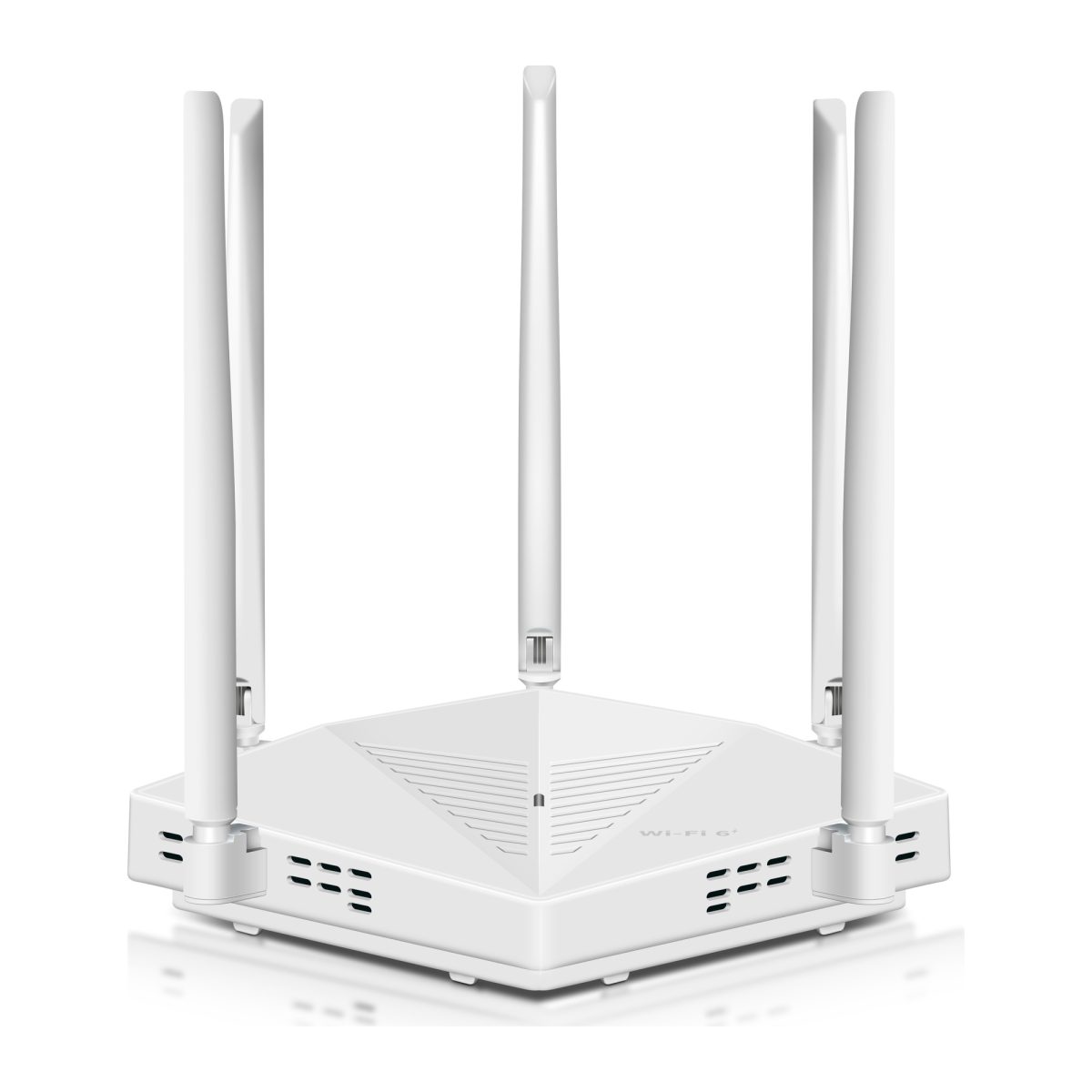
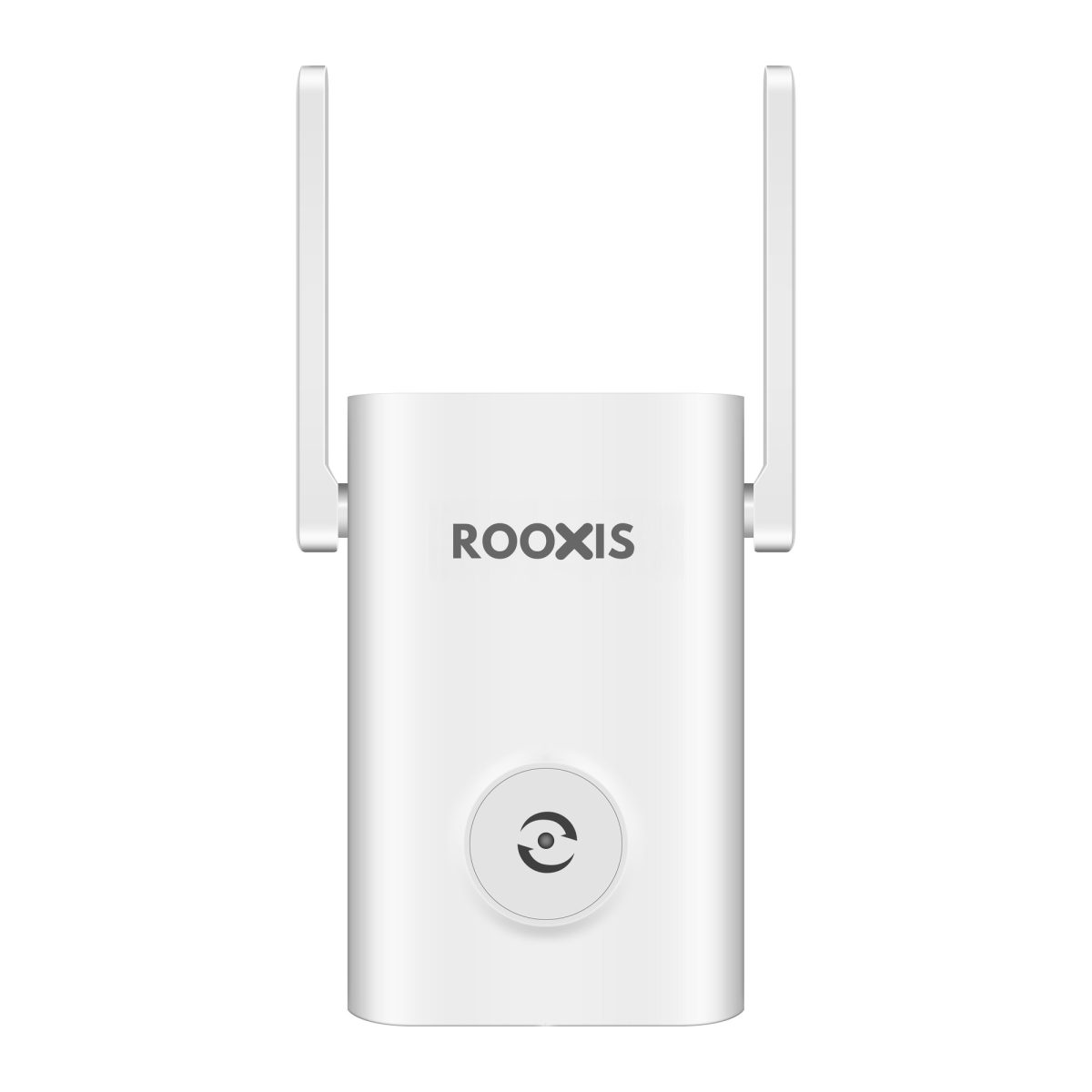
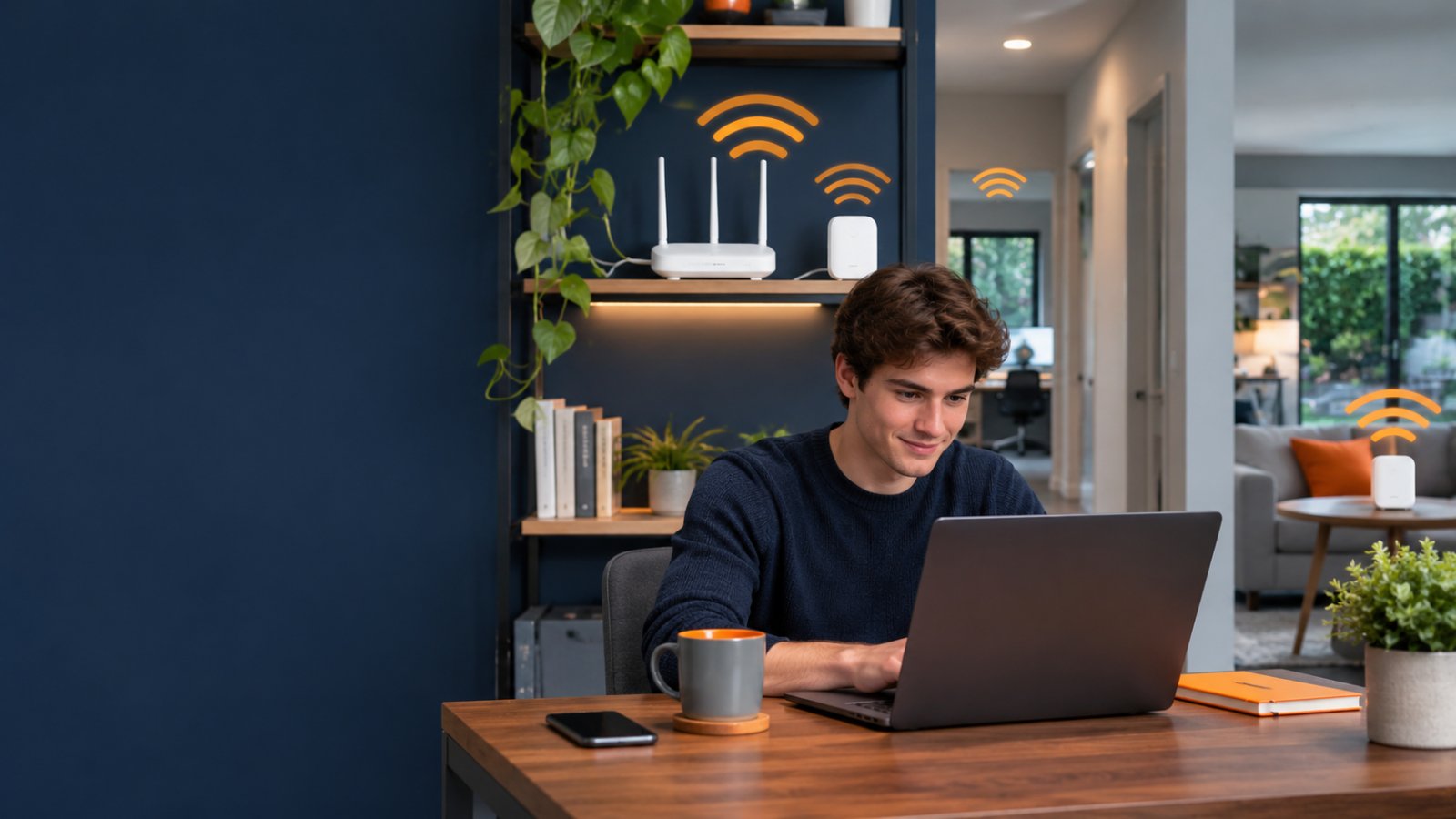
ROOXIS routers and range extenders have their own supported setup and management methods. If you use one alongside a provider gateway, check which device actually controls the relevant network connection before applying access restrictions.
This avoids changing settings in the wrong interface.
How to Tell Whether Device Management Helped
After making network changes, test the original problem.
If your complaint was slow WiFi in a bedroom, check performance in that room.
If the problem was an unknown connected device, confirm that the device no longer has unauthorized access.
If a camera repeatedly disconnected, verify that its connection remains stable.
For performance troubleshooting:
-
Test internet speed near the main router.
-
Test again in the room where problems occur.
-
Check whether important devices remain connected.
-
Review active downloads or uploads.
-
Confirm that video calls and streaming work normally.
-
Compare the results before making additional changes.
Do not judge success by the number of entries displayed in Smart Home Manager.
A network can work perfectly well while retaining historical device records.
Common Mistakes When Removing Devices from Smart Home Manager
Several mistakes can turn a simple device-list cleanup into a larger networking problem.
Mistake 1: Assuming Offline Means Suspicious
An offline entry often belongs to legitimate equipment that disconnected earlier.
It may be an old phone, visiting laptop, or unplugged smart device.
Check the available identification details.
If the device is offline and recognized, there may be nothing else to do.
Mistake 2: Blocking Every Unknown Entry
Routers do not always identify connected equipment accurately.
An Unknown entry might belong to a smart plug, printer, or security camera.
Blocking it could interrupt something important.
Check the MAC address and confirm which household devices are online before restricting access.
Mistake 3: Confusing Pause with Permanent Removal
Pausing temporarily restricts internet access.
It does not necessarily remove the device from the list.
It also does not mean the device has forgotten your network password.
If you want to prevent an old device from reconnecting, remove the saved network from that hardware or use the appropriate access controls.
Mistake 4: Removing a Device from a Profile Instead of the Network
Profiles help organize devices and apply supported household rules.
Changing a profile assignment does not necessarily disconnect the device.
Read the action description before confirming it.
If your concern is unauthorized access, use network access controls rather than organizational settings.
Mistake 5: Disabling MAC Randomization Without Understanding It
Private MAC addresses can cause duplicate entries.
However, they also provide a privacy benefit.
Do not disable them automatically.
Identify the active address and use that information to manage the device.
Mistake 6: Resetting the Router to Clear a Device List
A factory reset should not be your first response to an unwanted historical entry.
It can erase custom settings, WiFi credentials, and other configurations.
You may need to reconnect every phone, camera, television, and smart home accessory afterward.
Use a factory reset only when it is appropriate for an actual network problem and you understand how to restore your setup.
Mistake 7: Assuming Removing Devices Will Increase Internet Speed
Offline entries do not consume active wireless bandwidth.
If your connection is slow, investigate the devices currently using it.
Also check signal strength, router placement, interference, and internet service performance.
Removing an old phone name may make the list easier to read, but it is not a substitute for diagnosing the actual connection problem.
What to Do If Smart Home Manager Still Does Not Remove the Device
If you have followed the available steps and the entry remains visible, determine what you still need to accomplish.
A saved historical record and an active unauthorized connection require different responses.
If You Only Want to Clean Up the List
Look for an option to rename the device.
If the app allows it, give recognizable equipment clear names.
For example, distinguish a bedroom television from a living room television.
Use descriptive names for important cameras and network accessories.
If the historical entry cannot be deleted, leave it offline.
There is no practical benefit in resetting the whole network just to remove a harmless saved record.
If You Want to Stop a Device From Connecting
Use the supported blocking controls.
If you still own the hardware, open its settings and forget the saved WiFi network.
If someone unauthorized may know the password, change the WiFi credentials.
Then reconnect only equipment that should have access.
This is more effective than focusing on whether a name disappears from the app.
If an Unknown Device Keeps Reappearing
Check whether the new entry uses the same MAC address.
Ask whether anyone recently connected a phone, tablet, or smart home accessory.
Review private MAC address settings on recognized phones.
If the entry remains unexplained and appears actively connected, strengthen WiFi security and contact your internet provider for assistance.
Keep a record of the unfamiliar identifier and any actions you have taken.
If the App Is Not Showing Updated Information
Close Smart Home Manager and reopen it.
Check your phone's internet connection.
Look for available application updates through the official app store.
Confirm that you are signed in to the account associated with the correct gateway.
If device information remains inconsistent, use official support resources for the specific gateway model.
Avoid installing unofficial router management applications that request your network credentials.
If You Use More Than One Router
Check your network arrangement.
A second router may operate as a separate router, an access point, or part of another supported configuration.
Those modes can affect how devices appear in management applications.
Determine which device assigns local IP addresses and controls network access.
If a device connects through a separate router, its access rules may need to be managed there.
Do not assume Smart Home Manager controls every device behind additional networking equipment.
Frequently Asked Questions (FAQ)
Why does an offline device still show in Smart Home Manager?
Smart Home Manager can retain records of devices that previously connected to your home gateway. An offline entry usually means the device is not currently connected, although its historical information remains visible. Some gateway and app combinations do not provide a manual option to delete every old record.
Does removing a device from Smart Home Manager disconnect it permanently?
Not necessarily. Pausing internet access is temporary, while blocking a device restricts access according to the gateway's supported controls. Removing a device from a household profile or viewing an offline entry does not permanently stop it from reconnecting.
How do I block an unknown device from rejoining my network?
Open Smart Home Manager, go to Profiles & devices, select the device, and choose Block device if available. If you believe an unauthorized person knows your WiFi password, change it and reconnect your trusted devices. MAC-based blocking alone may not be enough because devices can use different MAC addresses.
Can I remove multiple offline devices at once?
Smart Home Manager does not consistently provide a bulk-delete option for historical offline entries. Available controls depend on the gateway model and application version. If manual deletion is unavailable, focus on identifying currently connected equipment and restricting unwanted access rather than resetting your network.
Keep Your Home Network Organized Without Unnecessary Changes
If an old phone or tablet remains visible in Smart Home Manager, check its status before doing anything else.
An offline historical entry usually does not require immediate action. If you recognize it, you can leave it alone.
If a device is actively connected and should not have access, identify it, use the available block controls, and review your WiFi credentials.
For a network that feels slow or unreliable, investigate active traffic, signal quality, and router placement instead of deleting old names.
A well-managed home network is not necessarily one with the shortest device list. It is one where you recognize the equipment that matters, understand which devices are connected, and can prevent unwanted access without disrupting the rest of your home.