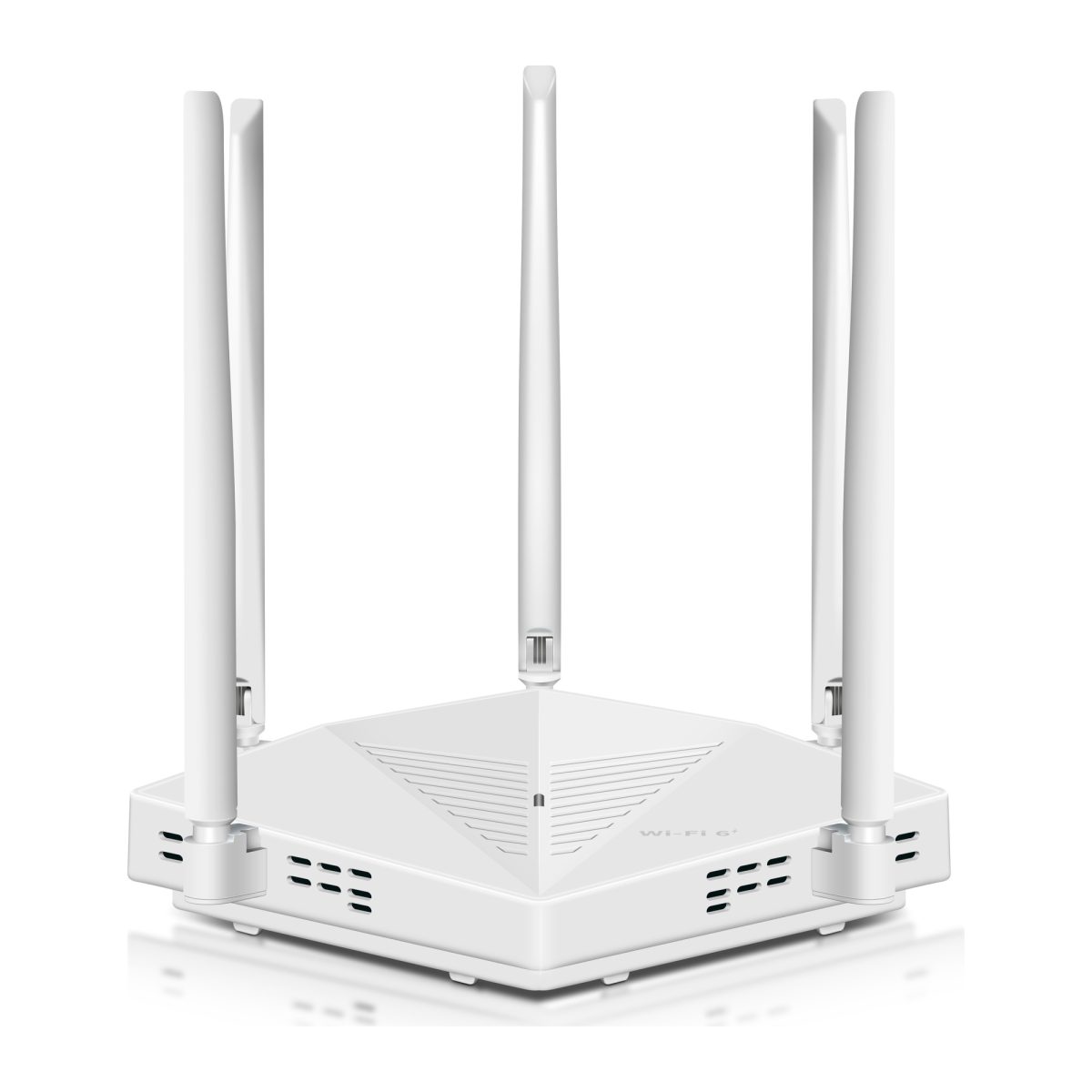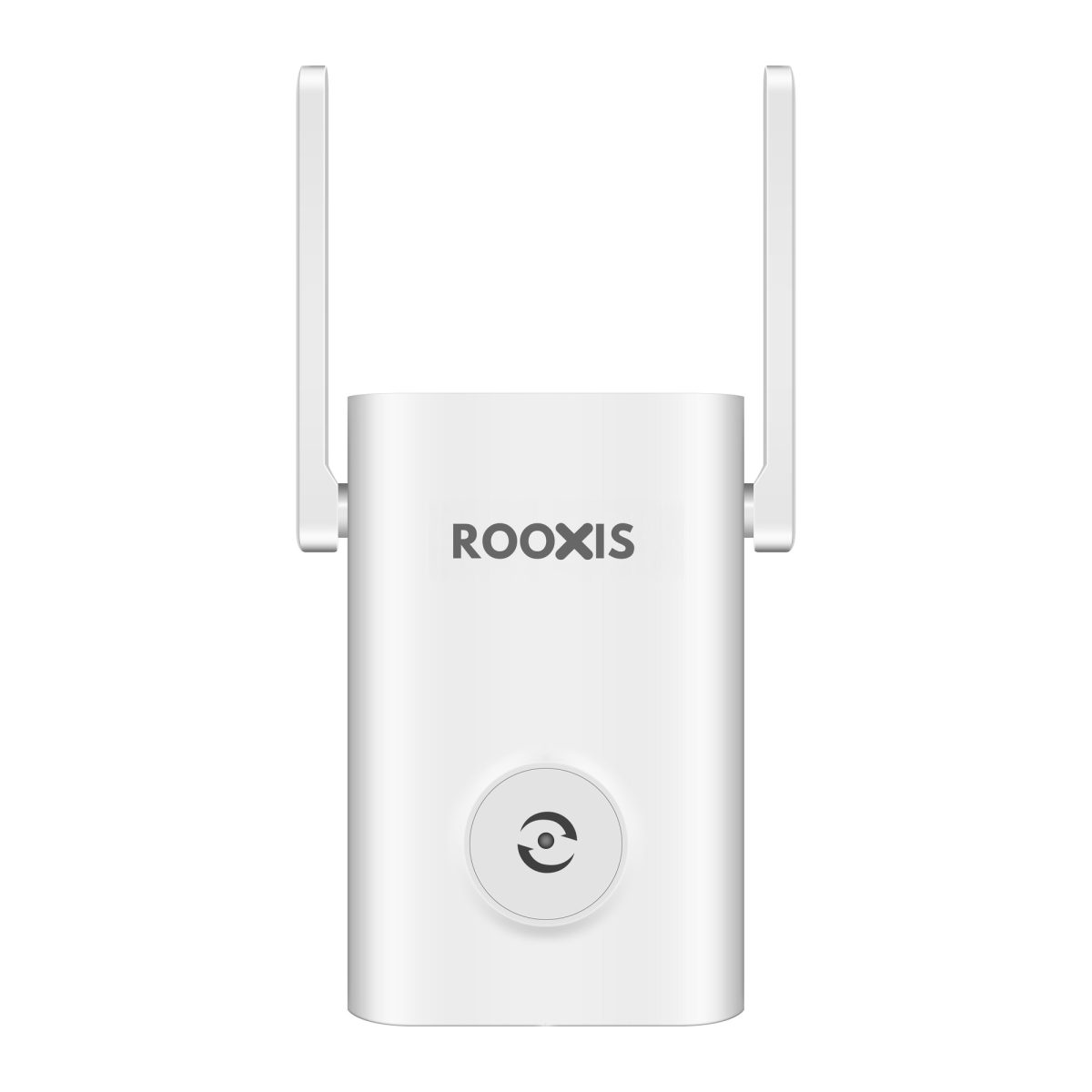
Your video calls freeze in the home office, file uploads stall, and the WiFi works perfectly in the living room but barely reaches your desk. If you are wondering what are the best wi-fi systems for fixing dead zones in a home office setup?, the main options are mesh WiFi systems, range extenders, wired access points, and direct Ethernet connections.
For one room with weak coverage, a WiFi range extender is often the most affordable fix. For several dead zones across a larger home, mesh WiFi usually makes more sense. If you spend your working day on video meetings or transferring large files, a wired access point or Ethernet connection can provide greater consistency.
Before buying equipment, find out whether the problem is weak WiFi, network congestion, or your internet service. A new extender cannot repair a slow connection coming into the house. This guide helps you identify the actual problem, compare the available systems, and choose a setup that works at your desk.
What Are the Best Wi-Fi Systems for Fixing Dead Zones in a Home Office Setup?
The best WiFi system for a home office is one that keeps your connection stable throughout a normal working day.
That means video meetings should stay connected, cloud documents should open without repeated delays, and large uploads should finish without the network dropping halfway through.
A high advertised router speed means little if your office is separated from the router by concrete walls or another floor.
The five options below solve different problems. Compare them based on how many rooms need coverage, whether you can run Ethernet cables, and how much equipment you want to install.
1. Mesh WiFi Systems: Best for Multiple Dead Zones
A mesh WiFi system uses several connected units to provide wireless coverage across a home.
One unit connects to your modem or existing network. Additional units communicate with the main unit or other compatible nodes to extend coverage.
Most consumer mesh systems use a shared WiFi network name and coordinate how connected devices move between access points.
Best for: Larger houses, two-story homes, and households with weak WiFi in several rooms.
Strengths
-
Extends coverage across multiple parts of a property.
-
Usually provides one WiFi network name.
-
Supports coordinated roaming between compatible mesh units.
-
Allows additional nodes when the system supports expansion.
-
Some systems support Ethernet backhaul.
-
Centralized management makes troubleshooting easier.
Limitations
-
Costs more than a basic range extender.
-
Wireless connections between nodes can reduce available throughput.
-
Poor node placement can leave the original dead zone unresolved.
-
Compatibility between different mesh product families is limited.
-
Router replacement or configuration changes may be necessary.
Mesh WiFi is particularly useful when the upstairs office, back bedroom, and living room all have inconsistent coverage.
Instead of installing separate extenders in each location, a mesh system provides coordinated wireless coverage.
However, each satellite still needs a reliable connection to the rest of the network.
If the router is downstairs and the office is behind a thick concrete wall upstairs, installing a mesh node directly inside the dead zone may not work.
The node could receive the same weak signal your laptop already struggles with.
A better starting point is an upstairs landing or another location with a stronger connection to the main unit.
Check the mesh system's signal or placement guidance during installation.
If the house has Ethernet cabling between floors, choose a system that supports wired backhaul. That removes the need for those nodes to communicate over an unreliable wireless path.
2. WiFi Range Extenders: Best for One Home Office Dead Zone
A WiFi range extender connects to your existing wireless network and rebroadcasts the signal into an area with weaker coverage.
It is often the easiest way to improve a single home office without replacing the router.
Best for: Apartments, rented homes, and houses where one room has noticeably worse WiFi than the rest.
Strengths
-
Usually costs less than replacing the entire WiFi system.
-
Works with many existing routers.
-
Can be installed without permanent wiring.
-
Compact models plug into ordinary electrical outlets.
-
Some extenders include Ethernet ports.
-
Suitable for extending coverage into a spare bedroom or small office.
Limitations
-
Needs a reliable signal from the original router.
-
Wireless repeating can reduce available throughput.
-
Some models create a separate network name.
-
Devices may not switch automatically to the strongest access point.
-
Poor placement can make performance worse.
Imagine your router is in the living room and your office is at the end of a hallway.
Your phone receives a strong signal halfway down the hallway, but the connection becomes unreliable when you reach the office.
That is a reasonable situation for a range extender.
Install it in the hallway where the signal is still dependable, not behind your desk where WiFi barely works.
The extender can then rebroadcast the connection toward the office.
After setup, test your connection from the actual desk. A successful setup message does not prove the office connection is good enough for video calls.
If the extender has a signal indicator, use it to check its connection to the main router.
For someone searching for a WiFi booster for remote work, this is often the most practical first purchase when only one room needs attention.
3. Wired Wireless Access Points: Best for Consistent Office WiFi
A wireless access point creates WiFi coverage using a wired connection to your router or network.
Unlike a conventional wireless extender, it does not rely on receiving and rebroadcasting an existing WiFi signal.
Network traffic travels over Ethernet between the access point and the router.
Best for: Dedicated home offices where Ethernet is available or can be installed.
Strengths
-
Provides WiFi without depending on wireless backhaul.
-
Avoids interference affecting the link between the router and access point.
-
Can support laptops, phones, printers, and other wireless devices.
-
Allows the existing router to remain in place.
-
Works well for offices separated by thick walls or floors.
-
Can provide a reliable connection for several office devices.
Limitations
-
Requires network cabling.
-
Installation may involve routing cables through walls or hallways.
-
Some access points need separate power or Power over Ethernet equipment.
-
Configuration may take longer than setting up a plug-in extender.
-
Incorrect network settings can cause connection problems.
Consider a home office on the second floor, with the router downstairs near the internet connection.
If the floor structure blocks WiFi, adding another wireless device upstairs may not help much.
Running Ethernet to an access point upstairs provides a dependable connection back to the router.
The access point then creates a local wireless network for devices in that area.
You do not always need a dedicated access point.
Some routers and range extenders offer an Access Point mode. If you already own compatible equipment, check its settings before buying something else.
4. Direct Ethernet Connection: Best for Fixed Desks and Critical Meetings
If your work computer stays on the same desk, connecting it directly to the router with Ethernet is worth considering before purchasing more wireless equipment.
Ethernet uses a physical cable rather than radio signals.
That means the computer's connection is not affected by the same WiFi coverage problems as a wireless laptop.
Best for: Desktop computers, docking stations, fixed workstations, and people who depend on stable video calls.
Strengths
-
Avoids wireless interference on the computer's connection.
-
Provides consistent local network connectivity.
-
Does not require another wireless access point.
-
Suitable for large file transfers.
-
Can help isolate WiFi problems during troubleshooting.
-
Works alongside an existing wireless network.
Limitations
-
Requires a cable between the router and desk.
-
Some laptops need an Ethernet adapter.
-
Does not improve WiFi coverage for phones or tablets.
-
Cable routing may be inconvenient in rented properties.
If the home office is near the router, try Ethernet before making a major networking purchase.
Connect one end of a suitable Ethernet cable to a LAN port on the router and the other to your computer or compatible adapter.
Then check the network connection in Windows or macOS.
If video calls become stable on Ethernet but remain unreliable over WiFi, you have useful evidence that the wireless connection needs attention.
If calls still freeze over Ethernet, investigate the internet connection, network congestion, or the computer itself.
Ethernet removes one possible cause. It does not fix every internet problem.
5. Powerline and MoCA Networking: Best When Ethernet Cables Are Difficult to Run
Some homes have thick walls, awkward layouts, or rental restrictions that make new Ethernet cabling difficult.
Powerline and MoCA networking use existing wiring to carry network traffic.
Powerline adapters communicate through electrical wiring.
MoCA adapters use compatible coaxial cables, commonly installed for television connections.
Best for: Homes where traditional Ethernet installation is impractical but suitable existing wiring is available.
Strengths
-
Can provide network connectivity without installing a new full-length Ethernet cable.
-
May support a wired connection to an access point.
-
Offers an alternative when WiFi struggles through thick walls.
-
Useful for rooms far from the main router.
Limitations
-
Powerline performance varies with the home's electrical wiring.
-
Electrical interference can affect powerline connections.
-
MoCA requires compatible coaxial cabling and equipment.
-
Additional adapters may be needed to create WiFi coverage.
-
Setup requirements vary between homes.
Powerline may help when a router is downstairs and the office is too far away for convenient Ethernet cabling.
However, an electrical outlet does not guarantee a reliable powerline connection.
Performance can depend on wiring quality, electrical circuits, and connected appliances.
MoCA is worth considering if suitable coaxial outlets are already installed near the router and office.
Check compatibility with your internet and television equipment before buying adapters.
Neither option should be purchased solely because the packaging advertises high connection speeds.
Comparing the Best Home Office WiFi Solutions
The right equipment depends on whether you need to improve one room, cover several floors, or provide a stable connection for a fixed computer.
| WiFi solution | Best situation | Main advantage | Main limitation | Installation effort |
|---|---|---|---|---|
| Mesh WiFi system | Several dead zones | Coordinated whole-home coverage | Higher cost and node placement requirements | Moderate |
| WiFi range extender | One weak room | Affordable extension of existing WiFi | Depends on router signal quality | Low |
| Wired access point | Office with Ethernet access | Reliable local WiFi without wireless backhaul | Requires cabling | Moderate |
| Direct Ethernet | Fixed workstation | Stable wired connection | Does not extend wireless coverage | Low to moderate |
| Powerline networking | Difficult Ethernet routes | Uses existing electrical wiring | Performance varies by wiring | Low to moderate |
| MoCA networking | Compatible coaxial outlets | Uses existing coaxial cables | Requires suitable wiring and adapters | Moderate |
If the living room and bedrooms have strong WiFi but your office does not, start by investigating an extender.
If several rooms have poor coverage, mesh WiFi is generally the more suitable category.
If you need consistent connectivity for work and can install cabling, direct Ethernet or a wired access point should be high on your list.
Why Home Office WiFi Dead Spots Happen
A dead zone is an area where WiFi becomes too weak or inconsistent for dependable use.
Your laptop may still display a connected WiFi symbol, but the connection might struggle when you turn on your camera or upload a document.
Understanding the cause matters because weak signal and slow internet service require different fixes.
Distance From the Router
WiFi signals weaken as they travel farther from the router.
The effect depends on the frequency band, building layout, obstacles, and surrounding wireless activity.
An office at the opposite end of the house may receive less reliable coverage than a room near the router.
Distance becomes more troublesome when the signal must travel through several walls or floors.
Before buying equipment, walk toward the router with your laptop or phone and see where the connection becomes stable again.
This helps identify a useful location for an extender or mesh node.
Thick Walls and Building Materials
Concrete, brick, metal, and certain wall structures can significantly weaken WiFi.
A converted garage or enclosed balcony may have much worse reception than an ordinary bedroom.
The problem may become noticeable when the office door is closed.
If the signal improves near the doorway but deteriorates at the desk, the room's structure could be contributing to the problem.
A wireless extender outside the room may help.
For difficult walls, a wired access point is often a more dependable solution because it avoids relying on a wireless connection through the obstruction.
Interference From Nearby Devices
WiFi uses radio frequencies shared with other wireless networks and equipment.
In apartment buildings, neighboring routers may contribute to congestion.
Bluetooth devices and some household electronics can also affect wireless conditions, depending on the frequency band and environment.
This can create a frustrating situation where the WiFi signal looks strong but performance remains inconsistent.
If the connection performs poorly only at certain times, check whether surrounding network activity could be involved.
Modern routers often manage channel selection automatically, but the result is not always ideal in every home.
Router Placement and Obstructions
A router hidden inside a television cabinet or positioned behind large furniture may struggle to distribute its signal.
Metal objects and enclosed spaces can reduce coverage.
Before investing in a new system, check whether the existing router can be moved into a more open location.
Do not place it on the floor behind a desk if a clearer position is available.
If the internet connection enters the house in an inconvenient corner, an Ethernet-connected access point may be more useful than trying to move the entire router.
Too Many Devices Sharing Available Capacity
A weak WiFi signal is not the only reason a video meeting freezes.
Several household devices may be sharing the internet connection at the same time.
A gaming console could be downloading a large update while someone streams video and another person uploads files.
That can affect available bandwidth, especially upload capacity.
If your laptop displays a strong WiFi connection but video meetings still freeze, check what else is using the network.
Adding an extender will not increase the internet bandwidth supplied by your provider.
How to Diagnose Home Office WiFi Dead Spots Before Buying Equipment
Before buying a mesh kit or range extender, spend a few minutes comparing the connection near the router with the connection at your desk.
The results can save you from purchasing equipment that does not address the cause.
Step 1: Test the Connection Near Your Router
Take your laptop to the room containing the main router.
Connect to the usual WiFi network.
Open a reputable internet speed testing service in your browser.
Record the download speed, upload speed, and latency.
Also check whether ordinary websites load consistently.
If the connection is already slow near the router, an office extender is unlikely to solve the underlying problem.
Check whether other devices are downloading or uploading large files.
If practical, compare the result using Ethernet.
Poor performance over both WiFi and Ethernet may indicate a problem with the router, modem, network congestion, or internet service.
Step 2: Repeat the Test at Your Home Office Desk
Return to your normal workstation.
Use the same laptop and testing service.
Compare the results with the first test.
A large performance drop at the office suggests that WiFi coverage or local wireless conditions may be affecting the connection.
If performance is similarly poor in both locations, focus on the router, internet service, and network traffic before buying coverage equipment.
On Windows 11, open Settings > Network & internet > Wi-Fi to review your connection.
The taskbar WiFi indicator also provides a quick signal estimate.
Signal bars are useful, but they cannot tell you everything about interference, network congestion, or available bandwidth.
Step 3: Test During a Real Work Activity
A speed test measures performance during a short period.
It may not reveal problems that occur during a longer meeting.
Try the tasks you normally perform.
For example:
-
Join a Zoom or Microsoft Teams call.
-
Upload a document to cloud storage.
-
Open and edit a shared spreadsheet.
-
Connect to your company's VPN.
-
Use a remote desktop application.
-
Download a work file while other household devices are active.
Observe whether the connection drops or becomes inconsistent.
If the problem happens only during video meetings, pay particular attention to upload speed, latency, and simultaneous household internet use.
Step 4: Check Whether the Problem Affects One Device
Test another device in the same office.
If your laptop struggles but your phone works reliably, the laptop may need attention.
Check the wireless adapter, operating system updates, and relevant drivers.
Power management settings can also affect some wireless adapters.
If several devices experience the same connection problems in the same location, poor coverage becomes a stronger possibility.
Do not replace your router because one aging laptop has an unreliable wireless adapter.
Step 5: Map the Weak Areas
Walk from the router toward your office with a connected phone or laptop.
Pause in the hallway, adjacent rooms, and doorway.
Check where the connection begins to deteriorate.
If WiFi works reliably in the hallway but drops near the desk, the hallway may be a suitable extender location.
If WiFi is poor throughout that side of the house, one extender may not be enough.
A mesh system with carefully positioned nodes or a wired access point may provide a better result.
Key Features to Look for in a Reliable Home Office Internet Setup
Networking product descriptions often emphasize maximum wireless speeds.
Those figures do not tell you how well the equipment will perform through your walls, across floors, or during a busy working day.
Pay closer attention to the features that support stable coverage and practical management.
Dual-Band and Tri-Band WiFi
Dual-band equipment commonly supports 2.4 GHz and 5 GHz WiFi.
The 2.4 GHz band generally offers better reach through obstacles, although it may experience more congestion.
The 5 GHz band can provide higher throughput under suitable conditions but usually has less reach through difficult building materials.
Tri-band equipment offers an additional radio band.
Some mesh systems can use this capacity for communication between nodes.
That may help when several devices are active, but it does not guarantee better coverage.
A carefully positioned dual-band system can outperform a poorly installed tri-band system.
WiFi 6 and Newer Standards
WiFi 6 improves network efficiency and supports modern wireless capabilities.
These benefits can be useful when several compatible devices share the same network.
WiFi 6E and WiFi 7 provide additional capabilities, but the advantages depend on compatible client devices, frequency availability, and local regulations.
For many home offices, a properly installed WiFi 6 router, extender, or mesh system is a reasonable choice.
Do not replace working equipment solely because a newer WiFi standard appears on the packaging.
First determine whether your problem is coverage, congestion, or an aging device.
Ethernet Backhaul Support
Backhaul is the connection carrying traffic between a mesh node or access point and the main network.
Wireless mesh nodes communicate over WiFi unless a wired backhaul connection is used.
Ethernet backhaul avoids depending on a potentially weak wireless link between those network units.
If your home already has Ethernet cabling between floors, look for equipment that supports it.
This is particularly valuable when concrete walls or floors make wireless connections unreliable.
Ethernet Ports for Office Equipment
An Ethernet port on an extender or mesh node can be convenient.
You may be able to connect a desktop computer, printer, or docking station to it.
However, check how the extender itself connects to the router.
If it uses wireless backhaul, the computer still depends on that wireless connection.
Plugging Ethernet into a wireless extender does not create a fully wired path to the main router.
For the most reliable connection, use Ethernet back to the router or a properly connected network switch.
Simple Management and Security
Your home office network should not require frequent troubleshooting just to remain usable.
Look for equipment offering:
-
Clear setup instructions.
-
Supported firmware updates.
-
WPA2 or WPA3 security as appropriate.
-
Connected device information.
-
Guest network options.
-
Signal quality indicators.
-
Basic troubleshooting controls.
-
Access point mode where needed.
Check the manufacturer's support information before purchasing.
A router or extender that no longer receives security updates may not be a sensible long-term choice, even if its wireless coverage remains adequate.
How to Choose the Best WiFi System for Your Home Office
Home layout, working habits, and installation restrictions should guide the decision.
A renter working from a spare bedroom has different options from a homeowner with Ethernet wiring between floors.
For a Small Apartment With One Weak Office Room
Start with the existing router.
Check whether it is hidden behind furniture or installed in an enclosed cabinet.
If moving it slightly improves coverage, you may not need new equipment.
If one room remains weak, consider a dual-band WiFi extender.
Choose a location where it receives a reliable router signal.
Avoid placing it inside the dead zone simply because that outlet is closest to the desk.
For renters, an extender can be appealing because it generally requires no permanent installation.
For a Two-Story Home With Several Weak Rooms
A mesh WiFi system is worth considering when weak coverage affects several rooms or an entire floor.
Position the main unit near the internet connection.
Place additional nodes where they maintain dependable communication with the rest of the network.
Do not assume that putting a node in every weak room will produce better results.
Start with sensible spacing and test coverage.
If Ethernet connections are available between floors, use compatible wired backhaul.
It can make the network more consistent by reducing dependence on wireless signals through the floor structure.
For a Dedicated Office With a Desktop Computer
Direct Ethernet is often the simplest long-term solution.
If your desktop stays at the same desk, there is little benefit in forcing it to use weak WiFi when a cable is practical.
Connect the desktop through Ethernet and check performance during normal work.
If the office also needs WiFi for phones, tablets, or printers, install a wired access point.
This allows the fixed computer to use Ethernet while nearby mobile devices connect wirelessly.
For a Rented House Where You Cannot Run Cables
A range extender or wireless mesh system is usually easier to install than new cabling.
Check available outlets and the path between the router and office.
Avoid placing wireless units behind large furniture or near substantial metal obstructions.
If walls severely limit WiFi, investigate whether powerline or existing coaxial wiring can provide another connection path.
Powerline performance is unpredictable across different electrical installations, so check the product's return policy and compatibility before relying on it for work.
For Homes With Cameras, Smart Devices, and Remote Workers
Households with security cameras, smart televisions, laptops, and gaming consoles need to consider more than signal range.
Several devices may be active at once.
Some security cameras use local network capacity, while cloud-connected cameras may also consume internet upload bandwidth.
If your video meetings become unstable while other devices are uploading data, adding WiFi coverage may not solve the issue.
Check upload activity and router traffic management options.
For a home with several poorly covered areas, mesh WiFi or multiple wired access points may provide a more manageable network than unrelated extenders.
How to Set Up a WiFi Extender for Remote Work
If your home office is the only room with unreliable WiFi, an extender is a practical starting point.
ROOXIS offers routers and wireless range extenders for home networking. You can review available equipment at ROOXIS when comparing options for your existing router.
Before selecting a model, confirm its supported WiFi bands, setup method, security options, and whether it includes an Ethernet port or Access Point mode.
Step 1: Find a Suitable Power Outlet
Choose an outlet between the router and home office.
The extender must receive a stable connection from the router before it can improve coverage farther away.
An open hallway is often a useful starting location.
Avoid outlets behind metal furniture, inside cabinets, or immediately beside equipment that may create interference.
If the extender provides signal strength indicators, use them to guide placement.
Step 2: Connect the Extender to Your Router
Follow the instructions for your specific extender.
Many models support setup through a web browser, mobile application, or WPS pairing.
If using WPS, press the appropriate pairing controls in the order described by the manufacturer.
Wait for the extender to confirm its connection.
Do not assume setup is complete just because its power light is on.
If the pairing process fails, move the extender closer to the router and try again using the official instructions.
Step 3: Check the Router Connection
Open the extender's management interface or review its signal indicator.
Confirm that it is connected to the correct wireless network.
Check the signal quality between the extender and router.
A weak incoming signal often means unstable performance in the office.
Move the extender closer to the router if necessary.
You are looking for a position that balances a reliable router connection with useful coverage toward your desk.
Step 4: Connect Your Work Devices
Connect your laptop to the extended network.
Some extenders use a separate WiFi network name. Others may use the same name as the router.
If separate network names are available, confirm that your computer is connected to the intended one.
On Windows 11, open Settings > Network & internet > Wi-Fi to check the current connection.
A laptop may remain connected to the original router even when the extender is closer.
That can make it appear that the extender is not helping.
Step 5: Test From Your Actual Desk
Return to the place where you normally work.
Run a speed test.
Then try the applications that previously caused problems.
Check whether:
-
Video calls stay connected.
-
Audio remains clear.
-
Cloud documents open consistently.
-
File uploads complete.
-
The connection stays usable when the office door closes.
-
Performance remains stable during normal household internet activity.
If the connection is still unreliable, adjust the extender position and retest.
Do not make several changes at once. Move the extender, test, and compare the results before changing anything else.
Step 6: Secure the Extended Network
Check the extender's security settings.
Use a strong WiFi password and an appropriate supported security mode.
If the device has a separate administrator password, change it from the default when required.
Install supported firmware updates through the manufacturer's official interface.
Review remote management settings and disable access you do not need.
Once the network works reliably, keep a secure record of how to access the extender's management interface.
That will make future troubleshooting easier.
Common Mistakes That Keep Home Office WiFi Unreliable
A new router or extender can still perform poorly when the installation does not address the actual weak point.
These mistakes are worth checking before spending more money.
Placing an Extender Inside the Dead Zone
A range extender cannot create a dependable connection from an unusable incoming WiFi signal.
If the router barely reaches the office, placing the extender beside the desk may simply repeat that weak connection.
Move it toward the router until its incoming signal becomes reliable.
Then test the connection in the office again.
Buying a Faster Router Without Checking Coverage
A router advertised with higher maximum speeds will not necessarily provide better reception through a thick concrete wall.
If the existing router works well in nearby rooms, the issue may be the physical path to the office.
An access point placed closer to the workspace may solve that problem more effectively.
Check coverage before replacing the router.
Confusing Internet Speed With WiFi Signal Strength
Your internet plan determines the service capacity available to your household.
WiFi affects how your devices connect to the local network.
You can have a fast internet subscription and a weak office WiFi connection.
You can also have strong WiFi while the internet service itself is slow.
Compare wired and wireless results whenever practical.
If Ethernet performs well but office WiFi does not, investigate wireless coverage.
If both perform poorly, look beyond the WiFi signal.
Putting Mesh Nodes Too Far Apart
A mesh satellite needs a good connection to the main router or another mesh node.
Placing it at the far end of the house may produce poor backhaul performance.
Use the mesh system's setup guidance to find a suitable location.
Test video calls and file transfers after installation.
Do not add more nodes until you have checked whether the existing ones are positioned correctly.
Using Too Many Independent Extenders
Several unrelated extenders can create a confusing network.
Some devices may remain attached to a weak access point rather than switching to a stronger one.
Separate network names can also make everyday use inconvenient.
If multiple rooms need coverage, consider a coordinated mesh system or wired access points instead of continuing to add independent extenders.
Ignoring Upload Speed
Video meetings and cloud file transfers depend on upload capacity.
If your connection becomes unstable whenever someone else uploads large files, check upload performance.
A new extender cannot increase the bandwidth supplied by your internet provider.
Review household network activity and any traffic management features supported by the router.
How to Keep Your Home Office WiFi Stable Long Term
After fixing the dead zone, a few maintenance checks can prevent the same problem from returning.
You do not need to adjust networking settings every week, but ignoring updates and connection changes can make troubleshooting harder later.
Keep Router and Extender Firmware Updated
Router and extender manufacturers release firmware updates to correct security, compatibility, and stability issues.
Check for updates through the official management interface.
Install supported updates when appropriate.
Do not unplug network equipment while a firmware update is being applied.
After updating, confirm that the extender or mesh node reconnects properly.
Review Connected Devices
Open your router's connected device list.
Check which computers, phones, televisions, and other devices are using the network.
Identify unfamiliar devices and investigate before making changes.
Remove access for devices that should no longer be connected.
Use a strong WiFi password and a guest network for visitors if your router supports one.
Keep the Office Access Point Clear
Do not hide networking equipment behind metal cabinets or surround it with storage boxes.
If you rearrange the office, check whether new furniture blocks the signal path.
A large cabinet placed between the router and workspace can change reception.
If the connection becomes unreliable after moving furniture, review the equipment's position before replacing anything.
Test After Changes to Your Internet Service
Internet providers sometimes replace modems or routers during service upgrades.
That can change network names, passwords, or wireless settings.
Check that your extenders and mesh nodes reconnect correctly after the change.
If your equipment uses Access Point mode, confirm that the network configuration still works as intended.
Test the connection at the office desk, not just beside the new router.
Prioritize Important Work Traffic When Supported
Some routers include Quality of Service or traffic prioritization settings.
These can help manage competing traffic when the internet connection becomes congested.
For example, you may be able to prioritize video conferencing over large background downloads.
The exact controls vary by router.
Traffic prioritization cannot repair weak WiFi reception or increase your internet plan's available bandwidth.
Use it only after confirming that congestion is contributing to the problem.
FAQ
What is the best WiFi system for a home office with dead zones?
Mesh WiFi is usually a good choice when several rooms or floors have weak wireless coverage. A range extender can be more economical when only one office has a dead zone and the router signal remains usable nearby. For a fixed workstation, Ethernet or a wired access point often provides the most consistent connection.
Is mesh WiFi better than a WiFi extender for working from home?
Mesh WiFi is generally better suited to homes with multiple coverage problems because compatible nodes operate as a coordinated system. A range extender is often sufficient when one room needs additional coverage. Both require good placement when using wireless backhaul, and neither can correct an unstable internet service.
Where should I place a WiFi extender for my home office?
Place the extender between the router and office, where it still receives a reliable WiFi signal. An open hallway is often better than an outlet directly inside the dead zone. Test the connection from your desk after installation and move the extender if its router connection is weak.
Will a WiFi booster improve Zoom or Teams calls?
A WiFi booster can improve call stability when weak wireless coverage is causing the interruptions. It may not help if the problem comes from limited upload bandwidth, network congestion, or an unstable internet service. Compare performance near the router and at the office desk before purchasing equipment.
Is WiFi 6 necessary for a reliable home office?
WiFi 6 can improve efficiency when multiple compatible devices share the network, but it is not required for reliable remote work. A well-positioned older WiFi system may perform better than a newer router struggling through several walls. Coverage, backhaul quality, and network congestion are often more important than the WiFi generation.
Can I fix home office WiFi dead spots without replacing my router?
Yes. Try improving router placement, installing a range extender, adding a wired access point, or connecting your work computer through Ethernet. The right option depends on where the existing signal becomes unreliable. Replace the router when its capabilities, condition, or compatibility are contributing to the problem.
The Best Fix Starts With Your Office, Not the Router Box
If your office is the only room with weak WiFi, a properly positioned extender may solve the problem without replacing your router.
For several dead zones, mesh WiFi provides a more coordinated way to extend coverage. If you work from a fixed desk and can use Ethernet, a wired connection or access point is often the better long-term investment.
Before buying, test the connection near the router and at your desk. Check upload speed, wireless signal quality, and whether other household devices are competing for bandwidth.
Once you make a change, test it during an actual video meeting or file upload. A connection that stays stable throughout your working day matters more than the maximum speed printed on a WiFi product's packaging.