Many homeowners buy a new WiFi router after seeing a bigger speed number on the box. The router arrives, they connect it in the same corner as the old one, and the upstairs bedroom still has weak WiFi. The outdoor camera keeps disconnecting, too.
To choose router at home, start with the problem you want to solve. Check your internet speed, map the rooms with poor coverage, count the devices that use the network heavily, and compare router specifications against those needs. For many households, a dual-band WiFi 6 router with Gigabit Ethernet and current security support is a sensible choice. A larger home with thick walls or multiple floors may need additional WiFi equipment.
This guide walks through the buying process without assuming you understand networking terminology. Each step explains what to check, what a useful result looks like, and when buying a more expensive router probably will not help.
How to Choose Router at Home: What to Check Before Shopping
Before comparing router models, collect a few details about your current internet connection.
You will need:
-
Your internet plan's download and upload speeds
-
The model of your existing router or internet gateway
-
A phone or laptop that can connect to WiFi
-
An Ethernet cable, if you have a laptop or computer with a compatible port
-
An approximate floor plan of your home
-
A list of rooms with weak or unreliable WiFi
-
The number and types of devices connected to your network
You do not need professional testing equipment.
A few connection tests in different rooms will tell you more about your problem than a manufacturer's advertised coverage figure.
The first decision is whether your current router is actually responsible for the poor connection.
Step 1: Check Your Internet Plan and Existing Equipment
What to do
Open your internet provider's account page or look at your latest bill.
Find the advertised download and upload speeds.
Then look at your existing networking equipment.
Check the label underneath or behind the router for the model number.
Determine whether you have a separate modem and router or a combined device supplied by your internet provider.
This matters because a replacement router does not always replace the modem.
A cable internet connection may still require the original modem. Fiber connections often use an optical network terminal supplied by the provider.
The new router usually connects to that equipment through an Ethernet cable.
Next, test the connection.
If possible, connect a computer directly to the router or gateway using Ethernet.
Close large downloads and cloud backup tasks, then run a speed test.
Repeat the test over WiFi while sitting close to the router.
What you should see
The wired test should provide a useful indication of the internet service's performance.
The WiFi test near the router should be reasonably stable, although wireless throughput may be lower.
What to watch for
Suppose your internet plan advertises 300 Mbps, but the wired connection consistently performs far below that level.
That does not automatically mean you need a new wireless router.
The problem could involve the provider's connection, the modem, an Ethernet cable, or other network equipment.
Investigate those possibilities first.
If wired performance is good but WiFi is poor even beside the router, the router's wireless capabilities or configuration deserve closer attention.
Also check the speed of your existing ports. A 100 Mbps Ethernet connection can limit a faster internet service regardless of the router's advertised WiFi speed.
Step 2: Identify the Problem You Actually Want to Fix
What to do
Write down where and when the connection fails.
Be specific.
For example:
-
The upstairs office loses WiFi during video meetings.
-
The bedroom television buffers every evening.
-
The outdoor camera disconnects when the garage door is closed.
-
Phones work well near the router but become slow in the kitchen.
-
Every device experiences slow internet, including those close to the router.
These symptoms point toward different causes.
If the connection is poor throughout the house, the router or internet service may need attention.
If only one distant room has trouble, the main problem may be wireless coverage.
If one camera disconnects while nearby phones work normally, check the camera's supported WiFi band, power supply, and installation position.
What you should see
Test the same phone or laptop in three locations:
-
Beside the existing router
-
In a frequently used room
-
In the room with the worst connection
Use the same speed-testing service each time.
Where possible, check that the device is using the same WiFi band during the comparison.
Note whether websites load promptly, video calls remain stable, and the connection stays active.
You should begin to see a pattern.
What to watch for
Do not make a buying decision using WiFi bars alone.
A phone can show a strong connection to the router while the broadband service is slow.
It can also show full bars when connected to an extender that has a poor connection back to the main router.
What matters is whether the network performs reliably where you use it.
Assess Your Home Size and Physical Layout

Router advertisements often mention coverage in square feet.
That figure can help distinguish products intended for different types of homes, but it cannot predict coverage in your particular building.
The signal must travel through whatever stands between the router and your devices.
A small apartment with reinforced concrete walls may be more difficult to cover than a larger house with an open floor plan.
That is why physical layout should influence home WiFi router selection before advertised coverage.
Square Footage and Multi-Floor Signal Challenges
WiFi coverage depends on distance, building materials, interference, and router placement.
Common obstacles include:
-
Brick and concrete walls
-
Reinforced concrete floors
-
Large metal appliances
-
Metal cabinets and shelving
-
Utility equipment
-
Thick interior partitions
-
Certain reflective or metallic surfaces
A router positioned at one end of a long house must reach through several rooms to serve the opposite end.
In a two-story home, the signal may also need to pass through a thick floor.
Adding more antennas does not guarantee that these obstacles disappear.
A router installed in a downstairs utility cupboard may struggle to reach a bedroom directly above it.
Moving the router into an open hallway could improve the connection without changing the equipment.
Likewise, a central location near the staircase may work better than placing the router behind the television.
For multi-floor homes, consider where the signal starts and where it needs to finish.
If the router cannot be moved because of the internet connection, an additional access point or another appropriate coverage device may be more useful than a higher wireless speed rating.
Step 3: Make a Simple WiFi Coverage Map
What to do
Walk through the home with your phone connected to the current network.
Check every room where a reliable connection matters.
Include places that are easy to overlook:
-
Upstairs bedrooms
-
Home offices
-
Hallways and staircases
-
Garage
-
Kitchen
-
Garden seating area
-
Indoor and outdoor camera locations
In each location, open a familiar website and run a connection test.
If video calls are your main concern, test an actual call when practical.
If a camera is the problem, check its connection at the intended mounting position.
Record whether each location is good, inconsistent, or unusable.
A simple comparison might look like this:
| Location | Connection condition | What needs to work |
|---|---|---|
| Living room | Strong and stable | Smart TV and phones |
| Upstairs bedroom | Weak | Video calls |
| Kitchen | Mostly reliable | Tablets and browsing |
| Garage | Frequent disconnections | Security camera |
| Garden | Unreliable | Occasional phone use |
What you should see
The results should show whether you have a general network problem or a few specific coverage gaps.
If every room performs poorly, the router or internet service deserves investigation.
If only the garage and upstairs bedroom struggle, adding WiFi closer to those areas may be the more sensible approach.
What to watch for
Test unusual results again.
A phone may temporarily connect to a different WiFi band, or a large background download may affect the speed test.
Also remember that outdoor camera placement introduces extra obstacles.
A camera mounted behind a thick exterior wall may have a very different connection from a phone held beside an open window.
Step 4: Decide Where the New Router Could Go
What to do
Look at the location of your current router.
Is it inside a cupboard?
Is it placed on the floor behind a metal filing cabinet?
Does it sit at the far end of the house because that is where the modem was installed?
Before buying another model, consider whether the equipment could be moved.
A suitable location is generally:
-
Open rather than enclosed
-
Reasonably central to important rooms
-
Away from large metal objects
-
Clear of tightly packed electronics
-
Close to power
-
Well ventilated
If your modem stays near the internet entry point, a longer Ethernet cable may allow the router to move to a better position.
For renters, this can be a practical alternative to installing permanent cabling.
What you should see
The proposed router location should have a clearer path toward the rooms that need wireless coverage.
What to watch for
Do not move the router somewhere that blocks ventilation or creates unsafe cable routing.
Avoid stretching cables across walkways where people may trip.
If walls and floors remain the main barriers, repositioning one router may not be enough.
That is a useful buying conclusion. It means you should consider additional wireless equipment rather than automatically paying more for a single router.
Understand Wi-Fi Standards and Speed Ratings
Router model names can make a basic purchase unnecessarily confusing.
You may see AC1200, AX1800, AX3000, WiFi 6, dual-band, and tri-band listed beside each other.
These terms describe different characteristics.
AC generally identifies WiFi 5 equipment.
AX generally identifies WiFi 6 equipment.
The numbers describe combined theoretical wireless link rates under specified conditions.
They are not a promise that every phone or laptop will receive that speed.
Your internet service, connected device, signal strength, interference, and Ethernet ports can all limit actual performance.
Dual Band vs Tri-Band Wi-Fi 6 Options
A dual-band router normally provides two WiFi frequency bands.
2.4 GHz
This band generally travels farther through common household obstacles.
Many smart plugs, older printers, and security cameras use 2.4 GHz.
However, the band can become crowded because neighboring networks and other devices also use it.
5 GHz
This band can provide higher throughput when the signal is strong.
It is commonly used by newer phones, laptops, televisions, and gaming equipment.
Its usable range through walls is often shorter than 2.4 GHz.
What WiFi 6 changes
WiFi 6 is a wireless standard, not a frequency band.
It includes improvements that can help compatible devices communicate more efficiently, particularly when several devices are active.
A WiFi 6 router can be dual-band.
In fact, many models are.
What tri-band means
A tri-band router has three wireless radio bands.
Some WiFi 6 tri-band routers use one 2.4 GHz radio and two 5 GHz radios.
WiFi 6E and certain newer wireless systems can use 6 GHz.
An additional band can provide more wireless capacity or help supported mesh systems communicate between nodes.
It does not guarantee better reach through concrete floors.
What to watch for
WiFi 6 does not automatically mean 6 GHz.
WiFi 6E supports the 6 GHz band, but both the router and connected device need compatible hardware to use it.
For a small apartment, a dual-band router may be sufficient.
For a busy household or a multi-node wireless system, additional radio capacity may be worth considering.
The building layout and connected devices should guide that decision.
Step 5: Read AC1200 and AX3000 Specifications Correctly
What to do
When comparing two routers, inspect more than the speed label.
Look for:
-
Wireless standard
-
Supported frequency bands
-
Wireless performance class
-
WAN port speed
-
LAN port speed and number of ports
-
Security protocols
-
Firmware support
-
Available operating modes
-
Mesh compatibility, if needed
An AC1200 router may advertise theoretical wireless rates up to 300 Mbps on 2.4 GHz and 867 Mbps on 5 GHz.
An AX3000 WiFi 6 router may advertise rates around 574 Mbps on 2.4 GHz and 2,402 Mbps on 5 GHz.
Those figures describe theoretical wireless capabilities.
They do not mean one device receives the combined total.
A laptop using older WiFi hardware also cannot take full advantage of capabilities it does not support.
What you should see
The router's wireless standard and features should match your devices and expected household activity.
If several important devices support WiFi 6, a WiFi 6 router may be a reasonable upgrade.
If nearly every device is older and your internet plan is modest, a much higher wireless class may produce little noticeable improvement.
What to watch for
A router with a larger AX rating does not automatically provide better coverage.
Wireless speed and signal reach are related to different limitations.
A faster radio cannot eliminate a thick concrete wall.
Also check that the router provides a 2.4 GHz network if your smart home devices need it.
Step 6: Check Gigabit Ethernet and Wired Connections
What to do
Examine the router's WAN and LAN port specifications.
The WAN port connects the router to your modem or internet gateway.
LAN ports connect local wired equipment.
A Gigabit Ethernet connection has a nominal link rate of 1,000 Mbps.
Actual usable throughput is lower because of protocol overhead and other factors.
If your internet plan exceeds the practical capacity of Gigabit Ethernet, check whether the router offers a faster WAN port, such as 2.5 Gigabit Ethernet.
Then count the devices that could benefit from wired connections.
Examples include:
-
Desktop computer
-
Smart television
-
Gaming console
-
Network storage device
-
Additional wired access point
What you should see
The router should have enough appropriate ports for your setup, or support expansion through a suitable Ethernet switch.
Where possible, connect stationary high-traffic devices with Ethernet.
That removes those devices from the wireless link and can make their connections more consistent.
What to watch for
A router with fast WiFi but a slower WAN port may limit your internet service.
An extender or network accessory with a 100 Mbps Ethernet port may also restrict throughput along that wired path.
Check the entire connection, not just the router.
If a new router is being purchased mainly for faster internet, port speeds deserve as much attention as wireless marketing numbers.
Calculate Connected Devices and Bandwidth Needs

A home with many connected devices does not necessarily need the most expensive router.
The important question is what those devices are doing at the same time.
A smart light bulb sends relatively little information.
A laptop on a video call, a television streaming video, and a camera uploading footage place different demands on the network.
Bandwidth describes how much data a connection can transfer over time.
The broadband plan supplies your internet bandwidth.
The router manages communication between local devices and the internet connection.
Buying a faster router cannot increase the speed provided by your internet company, although better wireless hardware can remove a local bottleneck.
Step 7: Count Devices by How They Are Used
What to do
List the devices that normally connect to your home network.
Group them according to activity.
High-traffic devices
-
Televisions streaming high-resolution video
-
Computers downloading large files
-
Gaming consoles downloading updates
-
Laptops in video meetings
-
Devices uploading large backups
Moderate-traffic devices
-
Phones used for browsing
-
Tablets
-
Music streaming devices
-
General-purpose laptops
Usually low-traffic devices
-
Smart bulbs
-
Smart plugs
-
Thermostats
-
Basic sensors
Security cameras need special attention.
Some cameras transmit video only when viewed or when an event occurs.
Others continuously upload video to remote storage, depending on their configuration.
A group of cameras can therefore place a noticeable load on the network, especially on the upload connection.
What you should see
Identify the number of devices that are active during the busiest part of the day.
For example, a household might have many connected devices, but its busiest period involves two laptops on calls, a television streaming, and security cameras uploading footage.
That pattern is more useful than the total number of devices that have ever connected to the router.
What to watch for
Do not assume that a router advertised as supporting many devices can run that many demanding connections at full speed simultaneously.
Capacity depends on the type of traffic, wireless conditions, device capabilities, and router hardware.
Step 8: Match Router Capacity to Your Household Routine
What to do
Pay attention to when the network becomes slow.
If video calls fail whenever someone uploads large files, check upload bandwidth.
If the television buffers only in a distant room, investigate wireless coverage.
If several devices lose performance during busy periods despite strong signals, wireless congestion or router capacity may be involved.
Run a simple comparison.
-
Test the connection near the router when the network is quiet.
-
Repeat during normal evening use.
-
Compare download and upload results.
-
Check a wired connection if possible.
-
Note which devices experience the slowdown.
What you should see
A capable home network should support your normal activities without frequent disconnections or major changes in responsiveness.
What to watch for
A new router cannot compensate for insufficient internet bandwidth.
For example, if several devices are uploading video and your broadband plan has limited upload capacity, all of them still share that connection.
Some routers include Quality of Service, or QoS, controls.
These settings can help manage traffic priority during congestion.
They cannot create additional bandwidth.
WiFi 6 may improve efficiency with compatible devices, but it should be considered alongside your internet plan and real usage patterns.
Essential Features for Long-Term Performance
The router must remain practical after the initial setup.
Security updates, clear administration controls, and compatibility with existing devices affect how easy it will be to maintain.
A model with impressive wireless specifications but poor software support may not be a good long-term purchase.
Security Support and Regular Firmware Updates
What to do
Look for modern wireless security options, including WPA2-AES and WPA3.
WPA3 provides newer security protections, but some older equipment may require WPA2 compatibility.
Avoid routers that rely on obsolete wireless security methods.
During setup, use separate strong passwords for the WiFi network and the router's administration interface.
These passwords serve different purposes.
The WiFi password controls which devices can join your wireless network.
The administrator password protects access to network settings.
If someone gains administrative access, they may be able to change DNS settings, wireless passwords, and other configurations.
Do not leave known default administrator credentials in place.
Firmware support
Router firmware controls the device's operation.
Updates may correct software defects, address security vulnerabilities, or improve compatibility.
Before buying a router, check whether official update instructions are available.
For an existing supported AC1200 model, the router firmware update guide explains how to check the installed version and follow the documented update process.
Use firmware for the exact hardware model.
Do not install files downloaded from unfamiliar sources.
Do not interrupt power during an update.
Guest network options
A guest network provides separate WiFi access for visitors.
Some routers also support client isolation or other separation controls.
These features can reduce unnecessary access to devices on the main home network.
However, some cameras, printers, and smart home products need local communication with phones or hubs.
Moving those devices to an isolated network may stop them from working as expected.
What you should see
The router should have manageable security settings, official firmware support, and a clear way to review its configuration.
What to watch for
Do not turn off security features just to make an older device connect without first checking the device's requirements and available safer compatibility settings.
A router that no longer receives security updates deserves closer consideration even if its WiFi still works.
Step 9: Check Management Features and Internet Compatibility
What to do
Compare the features you will actually use.
Useful options may include:
-
Connected device list
-
Guest WiFi
-
Parental controls
-
WPA3
-
Firmware management
-
Quality of Service
-
Access Point mode
-
Mesh support with compatible devices
-
Wired LAN management
You do not need every feature on this list.
A household with children may value parental controls.
Someone working from home may prioritize Gigabit Ethernet, stable WiFi, and accessible QoS settings.
A large home may need a router that can work with compatible access points or mesh nodes.
Check how the router connects to your provider
If your internet company supplies a combined modem-router gateway, adding another router can create two routing layers.
This arrangement is often called double NAT.
It may interfere with certain gaming, remote access, or port-forwarding configurations.
Depending on the equipment and provider, you may need bridge mode on the existing gateway or Access Point mode on the additional router.
Do not change provider gateway settings without checking the supported configuration.
What you should see
The router should connect to your internet service using supported settings and offer the management features you need.
What to watch for
Not every retail router can directly replace every provider-supplied device.
Some fiber and cable services require specific equipment or authentication settings.
Confirm those requirements before buying.
How to Compare Router Options Without Overpaying
Once you know your internet speed, home layout, and device requirements, make a shortlist.
Use the actual specifications rather than comparing products only by their advertised speed class.
| Home situation | Useful priorities | What to avoid |
|---|---|---|
| Small apartment | Dual-band WiFi, modern security, Gigabit Ethernet | Buying extra mesh nodes without a coverage problem |
| Single-story family home | WiFi 6, useful router placement, adequate ports | Choosing solely by advertised square footage |
| Two-story home | Coverage planning, compatible expansion options | Expecting one router to overcome thick floors |
| Home with smart devices | Reliable 2.4 GHz support and straightforward settings | Disabling a band needed by existing devices |
| Busy home office | Stable WiFi, suitable broadband, Gigabit Ethernet | Ignoring upload speed and wired performance |
| Home with outdoor cameras | 2.4 GHz compatibility and signal testing at camera locations | Assuming a higher AX rating guarantees outdoor coverage |
For a concrete product comparison, the ROOXIS home routers range includes AC1200 dual-band and WiFi 6 options.
Check each model's wireless standard, Ethernet ports, supported operating modes, and security features.
Then compare those features with the requirements you identified earlier.
A household that mainly streams video and browses in a small apartment may not need the same equipment as a home with several floors, multiple video calls, and outdoor cameras.
When to Pair Your Router with an Extender
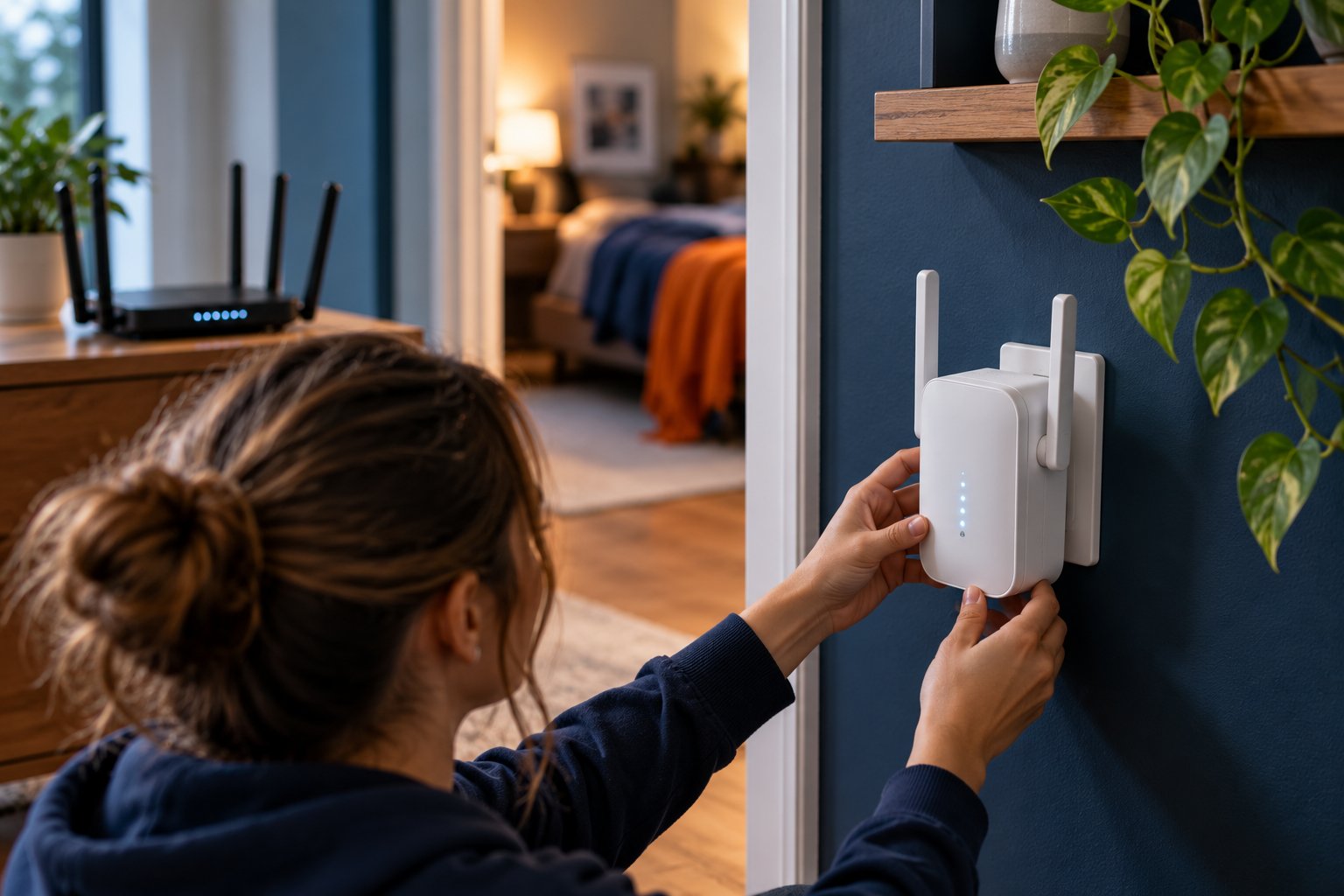
An extender can improve WiFi coverage in a specific area when the main router's signal is still usable nearby.
It receives the router's wireless connection and rebroadcasts WiFi into another location.
It does not create a faster internet service.
It also does not automatically provide the same performance as an Ethernet-connected access point.
An extender is most useful when the router works well in most of the house but one room or nearby area needs additional coverage.
Step 10: Test Whether an Extender Is the Right Fix
What to do
Begin near the router.
Confirm that the connection is stable.
Then walk toward the room where WiFi becomes unreliable.
Look for a location between the router and the problem area where the original WiFi signal is still reasonably strong.
That is a sensible place to test an extender.
For example, if the upstairs bedroom has weak WiFi, try an outlet near the staircase or upper landing.
Do not place the extender immediately behind the farthest bedroom wall just because that is where the connection fails.
It still needs a dependable connection to the router.
Follow these steps:
-
Test WiFi near the main router.
-
Identify the room with poor coverage.
-
Choose a suitable outlet closer to the router.
-
Connect the extender using its supported setup process.
-
Check its connection or signal indicator.
-
Test internet performance in the problem room.
-
Move the extender if necessary.
An AC1200 Wi-Fi extender is one example of dual-band equipment designed to extend an existing wireless connection.
What you should see
The extender maintains a good connection to the router.
Devices in the previously weak room can stay connected and complete normal activities more reliably.
What to watch for
A phone showing full WiFi bars does not prove the extender has a good connection to the main router.
Test internet speed and stability.
Wireless repeating can also reduce usable throughput because the extender must communicate with both the router and connected devices.
The exact impact depends on the hardware, radio configuration, and wireless conditions.
Step 11: Know When an Extender Is Not Enough
An extender may work well for one difficult bedroom or a nearby office.
It is not always suitable for a house with several large coverage gaps.
Consider another arrangement when:
-
WiFi is unreliable across multiple floors.
-
The extender cannot receive a stable router signal.
-
Several rooms need independent coverage.
-
The house has thick concrete floors.
-
Multiple cameras operate far from the router.
-
Ethernet cabling is available between rooms.
A wired access point can provide WiFi from another location using an Ethernet connection back to the network.
This avoids relying on a weak wireless backhaul through several walls.
A compatible mesh system provides multiple coordinated WiFi nodes.
Depending on the design, nodes may communicate through wireless or wired backhaul.
Some mesh systems also provide roaming features that help compatible devices move between access points.
What to watch for
A conventional extender is not necessarily a mesh node.
Two products supporting WiFi 6 do not automatically support the same mesh system.
Before buying additional units, check whether the devices are designed to work together.
For a renter who cannot install permanent cabling, a well-positioned extender or compatible wireless mesh system may be practical.
For a homeowner with existing Ethernet outlets between floors, wired access points may provide a more dependable result.
Choose based on the available connections and the rooms that need service.
Common Mistakes When Buying a Home WiFi Router
Buying the highest advertised speed
An AX3000 label does not mean every connected device gets 3,000 Mbps.
Check your broadband plan, device capabilities, and Ethernet ports.
Assuming a newer router eliminates dead zones
Newer hardware may improve wireless performance, but thick walls and long distances still weaken signals.
Map the problem areas first.
Ignoring the internet service
If wired performance is poor, investigate the modem, provider, and connection before replacing wireless equipment.
Forgetting older smart home devices
Many cameras, smart plugs, and printers require 2.4 GHz WiFi.
Make sure the new router can provide compatible settings.
Buying tri-band equipment without a clear need
An additional radio may help in particular busy or multi-node networks.
It may offer little practical benefit in a small apartment.
Overlooking Gigabit Ethernet
A router's WAN or LAN port can limit throughput.
Check wired specifications when using a faster broadband plan.
Choosing a router without checking firmware support
Security and compatibility updates matter after the purchase.
Look for official support and a documented update process.
Installing an extender where WiFi has already disappeared
The extender needs a usable connection back to the router.
Move it closer until that connection is reliable.
Using every advanced setting immediately
Changing DNS, channels, band steering, QoS, and security options all at once can make troubleshooting difficult.
Start with appropriate default settings.
Change one item at a time when solving a specific problem.
What to Do If Your New Router Still Does Not Improve WiFi
A new router should be tested before you decide that the purchase solved the problem.
Use the same device and locations you tested earlier.
This makes it easier to see what changed.
Check 1: Confirm the Internet Connection
Connect a computer through Ethernet if possible.
Run a speed test.
If the connection is far below the expected service level, inspect the modem or gateway, cables, and provider connection.
For a new router, also check whether the internet connection type was configured correctly.
Some providers use automatic IP assignment.
Others require PPPoE credentials or additional settings.
Do not repeatedly change wireless channels when the router itself has no working internet connection.
Check 2: Test Near the Router
Connect your phone or laptop to the new WiFi network.
Stand in the same room as the router.
Run a test and try a normal activity, such as a video call.
If performance is poor at this short distance, check the wireless configuration.
Confirm the device is connected to the intended network.
Review its supported WiFi standard and band.
Also check whether other connected devices experience the same problem.
If only one laptop is slow, that device may require its own troubleshooting.
Check 3: Move to the Problem Room
Repeat the test upstairs, in the garage, or wherever the connection originally failed.
If the new router performs well nearby but poorly in that room, the limiting factor may still be coverage.
Try a more open, central router position if practical.
If thick walls or floors remain in the signal path, consider an extender, mesh node, or additional access point.
Do not assume another router with a larger advertised speed number will solve the same physical problem.
Check 4: Review Connected Devices
Open the router's administration interface.
Look for a section such as Connected Devices, Client List, or Device Management.
Check which devices are connected.
If an unfamiliar device appears, identify it before taking action.
Remember that some phones use private or randomized WiFi addresses, so a familiar device may not always appear under an obvious name.
Check whether a particular device is using the expected wireless band.
An older printer or camera may require 2.4 GHz.
A newer laptop may perform better on 5 GHz when the signal is strong.
Do not disable a required band merely to simplify the network.
Check 5: Examine Camera Connections
If an indoor or outdoor camera continues disconnecting, confirm its wireless requirements.
Many home WiFi cameras use 2.4 GHz.
Check that the router has a compatible 2.4 GHz network available.
Verify the network name and password.
During setup, the phone may need to connect to the same compatible network required by the camera.
Test the camera close to the router.
If it connects successfully nearby but repeatedly fails at the mounting location, the issue is likely related to signal reach or interference.
Check for thick exterior walls, metal structures, or other obstacles.
A properly positioned access point or extender may be more useful than another router replacement.
Also check the camera's power supply. A device that loses power or has an unstable electrical connection can appear to have a WiFi problem.
Check 6: Review Firmware and Router Settings
Open the router's official administration interface and check the installed firmware version.
Follow the manufacturer's update instructions if a suitable update is available.
Use only firmware intended for the exact model.
Next, review settings related to the problem.
For example:
-
If older smart devices cannot connect, check compatible wireless security settings.
-
If the connection is unstable in one room, review band selection and placement.
-
If calls slow during large uploads, examine broadband upload capacity and available QoS settings.
-
If a second router creates connection problems, check the gateway and operating mode configuration.
Change one setting at a time.
Test after each change so you know what actually helped.
Avoid a factory reset unless the configuration cannot be recovered through ordinary troubleshooting.
A reset removes customized settings and may require the internet connection to be configured again.
FAQ
How do I know what size router I need for my home?
Start with your floor plan, building materials, number of floors, and the rooms that require reliable WiFi. A single well-positioned dual-band router may serve a smaller or open-plan home, while thick walls and multiple floors may require additional access points or mesh nodes. Treat advertised square-foot coverage as an estimate rather than a guaranteed result.
What is the difference between dual band and Wi-Fi 6 routers?
Dual band means a router uses two wireless frequency bands, usually 2.4 GHz and 5 GHz. WiFi 6 is a wireless standard with efficiency improvements for compatible devices. A router can support both features, so a dual-band WiFi 6 model is a common option for home use.
Will a new router improve Wi-Fi signal on upstairs floors?
It may help if the old router has poor wireless performance or outdated hardware, but the result depends on the building. Concrete floors, thick walls, and poor router placement can still weaken the connection. When WiFi works well downstairs but fails upstairs, better placement or an additional access point, extender, or mesh node may provide a more reliable improvement.
How many devices can a standard home Wi-Fi router handle?
There is no universal device limit that accurately describes everyday performance across all routers. Capacity depends on the hardware, wireless conditions, supported standards, and how much traffic devices generate at the same time. Several smart plugs may use very little bandwidth, while multiple video streams, calls, and camera uploads can create substantial demand.
Before ordering a router, complete three checks: test the internet connection near the existing equipment, identify the rooms where WiFi actually fails, and count the devices that place the most demand on the network. Then compare wireless standards, Ethernet ports, security support, and expansion options. If the problem is a thick wall or an entire upstairs floor, plan to bring WiFi closer to that area rather than relying on a larger speed number on the router box.