The most common mistake when installing a wifi extender for upstairs is plugging it into the bedroom where WiFi barely works. That seems logical because the bedroom needs better coverage. Unfortunately, an extender cannot repeat a signal it can hardly receive. If your phone already loses its connection in that room, the extender is likely to struggle there too.
The better approach is to place the extender where the downstairs router still provides a dependable signal, often near a staircase, landing, or upstairs hallway. The extender can then provide coverage farther into the second floor without relying on an unstable connection.
You may not need to replace your router or invest in a whole-home mesh system. If downstairs WiFi works properly and only one or two upstairs rooms have problems, a well-placed extender may be enough. The important part is testing both connections: the one between the router and extender, and the one between the extender and your upstairs devices.

Do You Need a WiFi Extender for Upstairs?
A WiFi extender for upstairs connects to your existing wireless network and provides another access point in an area where the main router's coverage is weaker.
Consider a typical two-story house. The router sits on a shelf in the downstairs living room. Phones, laptops, and the television work normally on that floor, but the upstairs office has an unreliable connection.
You could move closer to the stairs whenever a video call starts breaking up, but that is not a practical long-term solution.
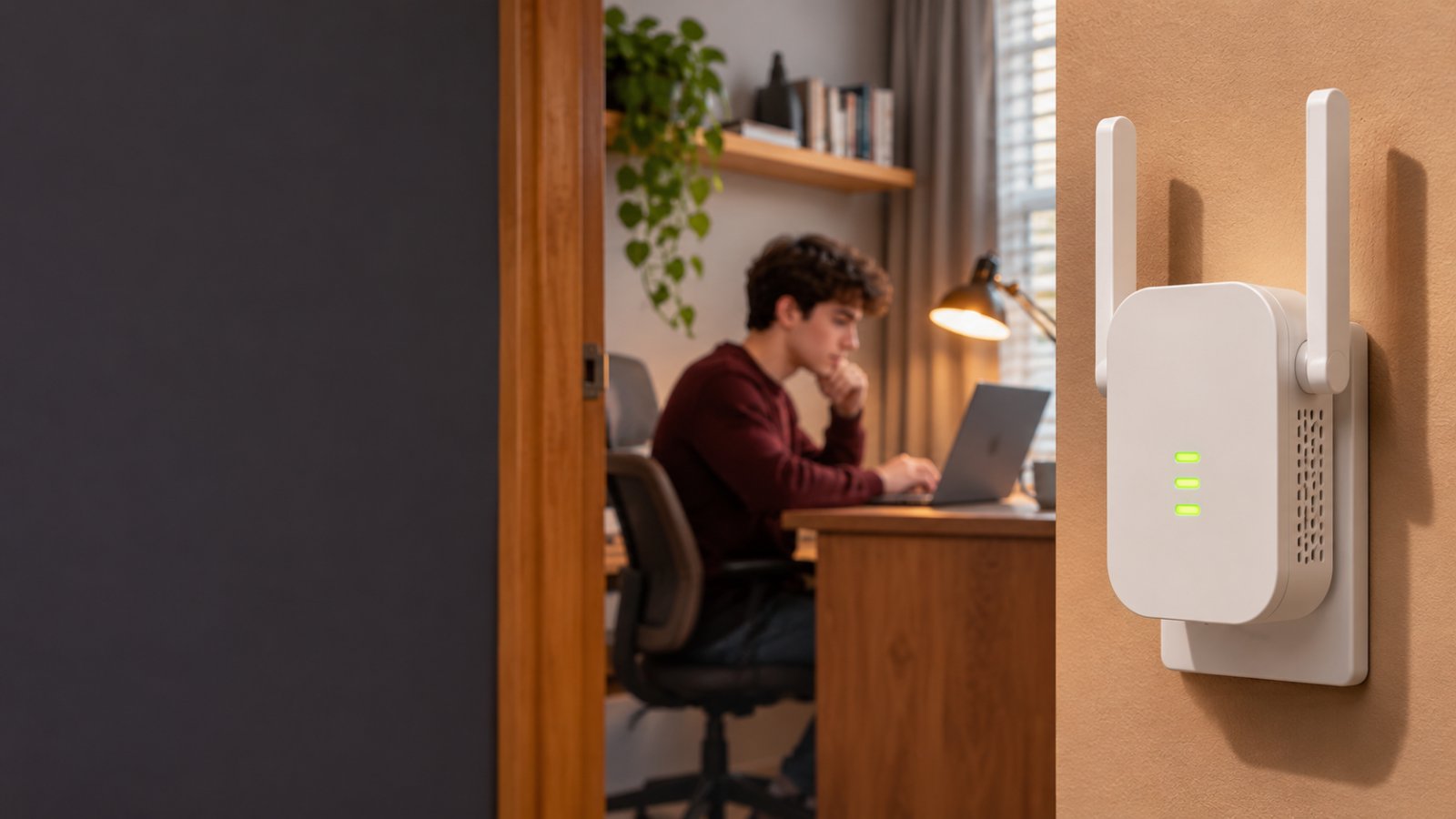
An extender placed near the stairs may provide a more reliable connection to the upstairs office.
The important distinction is that the extender needs a good connection of its own. It does not generate additional internet bandwidth, and it cannot repair a broadband service that keeps disconnecting.
Before buying one, check whether the problem is limited to wireless coverage.
Signs You Have an Upstairs WiFi Coverage Problem
Walk through your home with the phone or laptop you normally use upstairs.
Look for these patterns:
-
WiFi works beside the downstairs router but becomes unreliable in an upstairs bedroom.
-
A video call freezes when you move into the upstairs office.
-
The television upstairs buffers while the downstairs television streams normally.
-
Your laptop reconnects repeatedly when you work behind a thick interior wall.
-
A WiFi security camera near an upstairs window goes offline intermittently.
-
Moving toward the staircase makes the connection noticeably better.
These symptoms suggest that the upstairs devices are receiving a weaker or less reliable wireless signal.
For a quick check, open a website or start a normal video stream near the router. Then repeat the same activity upstairs.
If the problem occurs only upstairs, investigate local wireless coverage.
If devices throughout the house lose internet access at the same time, check the modem, router, and broadband connection first.
An extender is unlikely to help when the entire network is unstable.
When an Extender Is Worth Trying
A conventional WiFi extender is a reasonable option when the problem is limited to part of the second floor.
It is particularly useful when:
-
One bedroom or home office has weak reception.
-
Your router works normally in the rest of the house.
-
The upstairs landing still receives a usable WiFi signal.
-
You cannot easily run Ethernet cables through the walls.
-
You rent the property and want equipment you can remove without construction work.
Suppose the router reaches the upstairs hallway reliably, but the back bedroom loses its connection behind two interior walls.
An extender near the hallway may solve that problem.
Now consider a different house where the entire second floor has almost no signal, including the staircase.
There may be no suitable location for a wireless extender to establish a reliable connection.
That is when a wired access point, a better router location, or an appropriately designed mesh network deserves consideration.
Why WiFi Signals Become Weak Upstairs
WiFi uses radio signals to communicate between the router and your devices.
Those signals lose strength as they travel farther from the router. Walls, floors, furniture, and other obstacles can weaken them further.
In a two-story house, the route between the router and an upstairs device may be more difficult than the physical distance suggests.
Floors and Building Materials Block Signals
A router downstairs may need to send its signal through ceiling materials, insulation, flooring, pipes, and structural supports.
Different materials affect WiFi differently.
Wooden floors and lightweight interior walls may allow adequate coverage.
Reinforced concrete, metal structures, foil-backed insulation, and thick masonry can cause much greater signal loss.
For example, a router positioned directly beneath an upstairs office may still provide poor coverage if a reinforced concrete floor separates the devices.
Moving the router and upstairs access point closer to an open staircase can sometimes provide a better signal path.
The radio signal may travel through the stairwell rather than having to pass directly through the floor.
Do not assume that a room directly above the router will always have better WiFi than one farther away.
The construction of the house matters.
Router Placement Creates Upstairs Dead Zones
Many routers are installed wherever the broadband cable enters the property.
That location is convenient for the internet provider, but it may be poor for wireless coverage.
A router tucked into a downstairs corner has to reach across the ground floor and through the ceiling before its signal reaches an upstairs bedroom.
Check whether your router is:
-
Inside a closed cabinet.
-
Behind a television.
-
On the floor beneath a desk.
-
Next to large metal furniture.
-
At the far end of the ground floor.
-
Surrounded by other electronic equipment.
Try moving the router into a more open position if the cables allow it.
Even repositioning it on a shelf may improve the wireless path.
If you need more detailed placement guidance, see these router placement tips.
Test the upstairs connection again before adding another device.
The 2.4 GHz and 5 GHz Bands Behave Differently
Many home routers broadcast WiFi on both 2.4 GHz and 5 GHz.
Both bands can provide internet access, but their behavior differs.
2.4 GHz generally provides better range and can remain usable through some obstacles where 5 GHz becomes weak. However, it offers less available wireless capacity and is commonly affected by interference from neighboring networks and household devices.
5 GHz can provide faster connections under suitable conditions. Its usable range may be shorter, particularly through concrete floors and dense walls.
For upstairs coverage, the faster band is not always the better connection.
Suppose an extender near the staircase receives a dependable 2.4 GHz signal but only an intermittent 5 GHz signal.
Using the unstable 5 GHz connection may result in worse performance despite its higher potential speed.
Choose the band that provides a reliable connection in your home.
How a WiFi Extender Improves Upstairs Coverage
A WiFi extender connects to the main router through a supported wireless connection and creates another coverage area.
When your upstairs laptop connects through the extender, its traffic travels from the laptop to the extender, then back to the router.
This makes the location of the extender important.
If the extender receives a reliable signal, it can provide useful coverage farther from the main router.
If its connection to the router is weak, the upstairs devices inherit that weakness.
An Extender Does Not Increase Your Internet Plan Speed
An extender cannot make your broadband plan faster.
Its purpose is to improve access to the existing connection.
For instance, you might have a fast internet connection downstairs but struggle to load webpages upstairs because the router's signal is weak.
A correctly positioned extender can improve the usable connection upstairs.
However, an extender also introduces another wireless link.
Some models use the same radio or channel to communicate with the router and connected devices. That shared wireless airtime can reduce available throughput.
Dual-band extenders may offer more flexibility, but actual performance still depends on the hardware and wireless conditions.
Do not expect upstairs speeds to match a computer connected directly to the router through Ethernet.
For normal browsing, streaming, or video calls, a stable connection matters more than matching the highest possible speed test result.
Why the Backhaul Connection Matters
The connection between an extender and the main router is called backhaul.
It is one of the most important parts of an upstairs extender installation.
Imagine placing an extender beside your upstairs television.
The television may display a strong WiFi signal because the extender is nearby.
However, the extender itself might be struggling to communicate with the router downstairs.
The television then has a strong connection to a device with a weak internet connection.
This is why WiFi bars alone can be misleading.
When checking the installation, look for two things:
-
A reliable connection between the router and extender.
-
A reliable connection between the extender and upstairs devices.
Both must work well for the setup to be useful.
Where to Place a WiFi Extender for Upstairs
The best location is not necessarily the center of your house or the room with the weakest WiFi.
It is the location where the extender can maintain a dependable connection to the router while improving coverage in the room that needs it.
In many two-story homes, that location is near the staircase.
But every building is different, so test before settling on an outlet.
Start Near the Staircase or Landing
A staircase often provides a more open wireless path between floors.
If your router is downstairs near the living room, try checking the signal from the bottom of the stairs, halfway up, and on the landing.
Use your phone to see where websites and other online activities still work normally.
The landing may be a good starting point for the extender.
Suppose your upstairs office is down the hallway from the stairs.
An extender on the landing may receive the downstairs router's signal and provide better coverage toward the office.
However, if the staircase is separated from the router by several thick walls, another location may work better.
Use the staircase as a starting point, not a guaranteed answer.
Place the Extender Where the Router Signal Is Still Reliable
A common rule is to place the extender halfway between the router and the weak area.
That is only a rough starting point.
The real goal is signal quality.
A hallway outlet may be physically halfway between the router and bedroom but sit behind a reinforced wall.
Another outlet closer to the staircase may be farther from the bedroom but receive a much better signal.
That second location may perform better.
Start with the extender closer to the router.
After confirming that it connects reliably, move it toward the weak room one practical outlet at a time.
At each position, check whether the extender stays connected and whether the upstairs device works properly.
Stop moving it farther away when the backhaul starts becoming unreliable.
Avoid These Extender Locations
Some locations make an extender less effective.
Inside a closed cabinet
Cabinet walls and nearby objects can obstruct wireless signals. Open placement is preferable.
Behind a television
Large electronic equipment can affect the signal path and make the extender difficult to access.
Beside metal shelving
Metal can reflect or obstruct wireless signals. Avoid placing the extender immediately beside large metal surfaces.
Inside the dead zone
If the router's signal is already unusable, the extender has little reliable information to repeat.
Behind thick structural walls
An outlet can be close to the router but still have poor reception if dense building materials separate them.
In a difficult-to-reach outlet
You may need to restart, reset, or reposition the extender. Choose a safe, accessible location.
Also follow the device's ventilation and power requirements.
Do not cover it with fabric or place it where heat cannot escape.
Test Several Outlets Before Choosing One
Do not decide on the final location after a single test.
Try a few sensible outlets along the staircase or upstairs hallway.
For each location:
-
Plug in the extender and allow it to reconnect.
-
Check the connection indicator or status screen.
-
Connect your phone or laptop through the extender.
-
Walk to the upstairs room that needs better coverage.
-
Open a few websites and try an activity that normally causes trouble.
-
Check whether the connection drops or becomes slow.
If your extender has a status page showing its connection quality, use it.
A strong phone-to-extender connection is not enough if the router-to-extender connection is weak.
Once you find a location that works consistently, leave the extender there.
WiFi Range Extender Upstairs Setup: Step-by-Step Instructions
Most home WiFi extenders can be configured through a manufacturer app, browser-based setup page, or supported WPS connection.
The exact instructions depend on your model.
For beginners, using the official setup app or web interface is often helpful because it shows which router network the extender is joining.
Step 1: Check Your Router Before Installation
Connect your phone or laptop directly to the main router's WiFi.
Confirm that the internet works normally.
Then gather the information needed for setup:
-
Your main WiFi network name.
-
The WiFi password.
-
Whether the router uses 2.4 GHz, 5 GHz, or both.
-
The extender's supported wireless bands.
-
Any setup instructions provided by the manufacturer.
Check the router's network name carefully.
Some homes have separate network names for each wireless band. Others use one name for both.
If you recently changed the WiFi password, make sure you use the current one.
There is usually no need to change your router's security settings just to install an extender.
Step 2: Plug the Extender Into an Outlet Near the Router
For initial configuration, plug the extender into an outlet near the main router.
This gives it a strong signal while you complete setup.
Wait for the device to start.
Different extenders use different LED patterns to indicate startup, connection, or an error.
Check the instructions for your model rather than assuming a particular light color has a universal meaning.
Once the device is ready, begin setup.
You can move it upstairs after it connects successfully.
Step 3: Connect Through the Setup App or Browser
Many extenders create a temporary WiFi network during setup.
On an iPhone, open Settings, then Wi-Fi.
On Android, open Settings, then Network & Internet or Connections, depending on your device.
Find the extender's temporary setup network using the name provided in its documentation.
Connect to it.
Your phone may display a warning that the network has no internet connection.
This can be normal before setup is complete.
Stay connected and open the manufacturer's official app or setup address.
Use the instructions supplied with the extender.
Do not enter your WiFi password into an unfamiliar website or an unverified setup page.
Step 4: Select Your Main WiFi Network
The extender should scan for nearby wireless networks.
Find your router's WiFi name and select it.
Enter the correct password.
If the extender supports dual-band connections, it may ask you to select or configure the available bands.
Follow the manufacturer's instructions.
You may also be asked to name the extended WiFi network.
Some extenders create a separate name automatically.
Others allow the extended network to use the same name as the main router.
A separate name makes it easier to confirm manually that your phone is connected through the extender.
Using the same name can be convenient, but it does not guarantee seamless roaming between access points.
Save the configuration and wait for the extender to connect.
Step 5: Use WPS Only If Supported
WPS stands for WiFi Protected Setup.
Some routers and extenders support push-button WPS, which allows compatible devices to establish a connection without manually entering the wireless password.
If both devices support it, follow the manufacturer's instructions.
The process generally involves activating WPS on the router, then activating the corresponding function on the extender within the specified time window.
Wait for the connection indicator.
WPS is optional.
Some routers disable it, and certain wireless security configurations do not support it.
Avoid older PIN-based WPS methods because of known security weaknesses.
If push-button WPS is unavailable or unsuccessful, use the official app or browser setup method instead.
Step 6: Move the Extender Toward Upstairs
Once setup is complete, unplug the extender and move it to your selected location near the staircase or upstairs landing.
Plug it into the new outlet.
Wait for it to reconnect to the router.
Check the extender's connection indicator.
Some devices show whether the router signal is strong enough. Others provide this information through their app or management page.
Follow the instructions for your model.
If the connection is weak, move the extender closer to the main router.
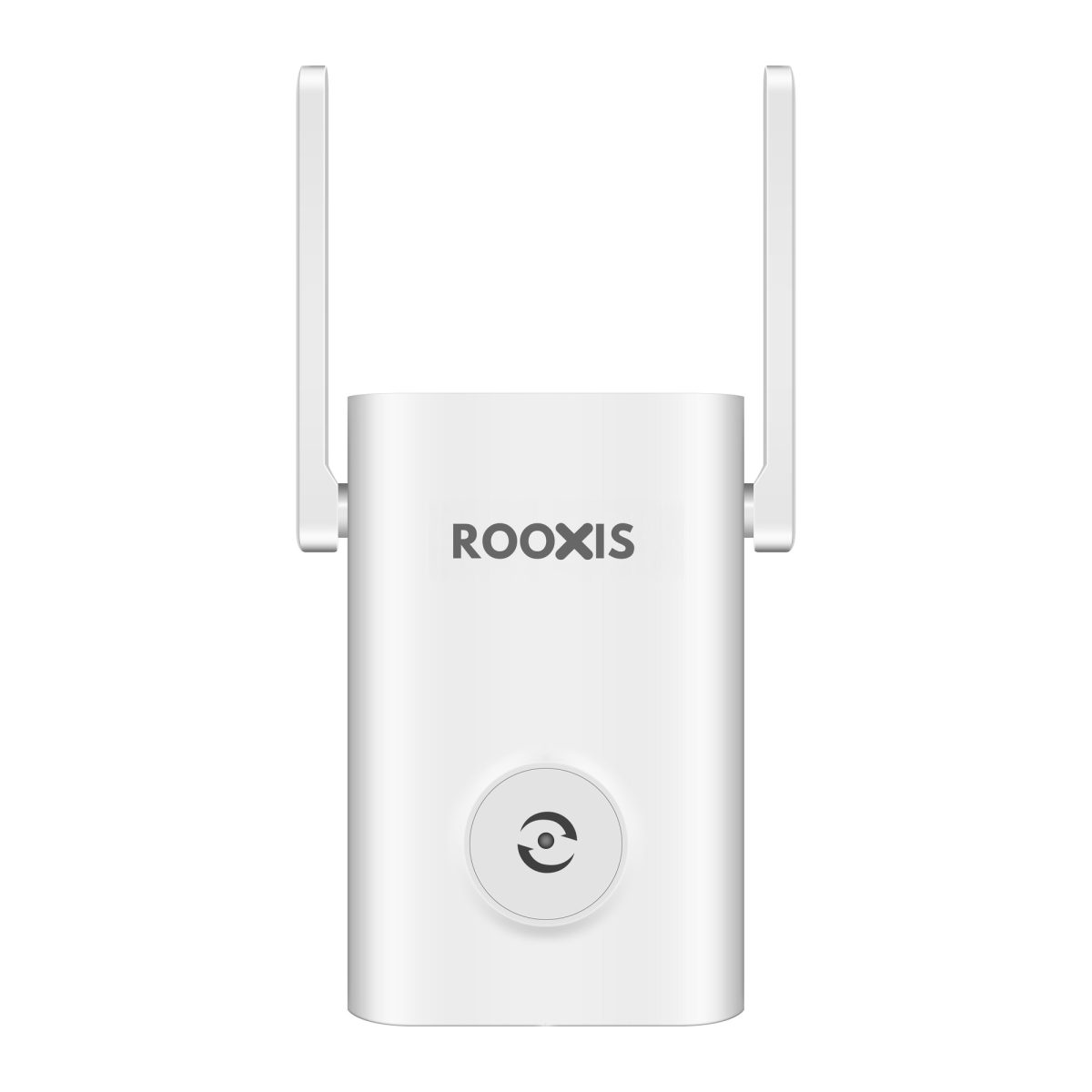
ROOXIS WiFi extenders, like other range extenders, need a dependable connection to the main network to provide useful upstairs coverage.
Do not choose the final outlet based only on how close it is to the bedroom.
Step 7: Connect Your Upstairs Devices
Now connect the devices that need better WiFi.
If the extender has a separate network name, open the WiFi settings on your phone or laptop and select it.
Enter the password if requested.
If the extender shares the router's network name, the device may automatically connect to either access point.
Some phones and laptops hold onto an existing wireless connection even when a stronger access point is nearby.
If that happens, disconnect and reconnect WiFi while standing in the upstairs room.
Some router and extender management interfaces show which access point serves each connected device.
Use that information if available.
Do not assume a device has moved to the extender simply because you installed one.
Step 8: Test the Upstairs Connection
Test the same activities that were failing before.
If your upstairs office had problems during video calls, make a call from that room.
If the television kept buffering, play a normal video stream.
If a security camera disconnected, check its live view from the intended mounting position.
You can also run an internet speed test before and after installation.
Use the same device and similar conditions to make the comparison meaningful.
A single speed test is not enough to judge reliability.
Watch for repeated buffering, delayed page loading, or dropped connections during ordinary use.
If the connection remains stable and the problem activity works properly, the installation is doing its job.
How to Extend WiFi to the Second Floor Without Losing Too Much Speed
When you extend wifi to second floor rooms, some performance loss is possible because the data travels through another wireless connection.
How much performance changes depends on the extender, wireless bands, interference, and backhaul quality.
You cannot eliminate every limitation of wireless repeating, but you can avoid the most common causes of poor performance.
Use 5 GHz Where the Connection Is Reliable
If your router and extender support 5 GHz, that band may provide better throughput when the signal is strong.
It can be useful near an open staircase or in a home with relatively lightweight internal walls.
However, 5 GHz may struggle through thick concrete floors or multiple masonry walls.
If the extender repeatedly loses its 5 GHz connection, a more stable 2.4 GHz connection may work better.
Check which connection the extender uses when that information is available.
Avoid forcing a faster band if it makes the network unreliable.
The fastest theoretical connection is not useful when it repeatedly disconnects.
Reduce Unnecessary Wireless Congestion
WiFi devices share available wireless airtime.
Several active devices using the same channel can compete for capacity.
This matters when the household has phones, laptops, televisions, and security cameras operating at the same time.
Where practical, connect stationary devices directly through Ethernet.
For example, a desktop computer beside the router can use a wired connection rather than occupying wireless airtime.
Some extenders have Ethernet ports that allow a nearby device to connect by cable.
That may improve the connection between the device and extender.
However, if the extender still uses wireless backhaul, the traffic must travel over that wireless link to reach the router.
A cable connected to the extender does not automatically provide a fully wired connection to the main network.
Avoid Chaining Multiple Wireless Extenders
It may seem useful to place one extender on the landing and another at the far end of the upstairs hallway.
However, connecting an extender through another extender can introduce additional wireless hops.
Each hop depends on another connection with its own capacity and signal conditions.
The result may be increased latency and lower usable throughput.
Not all extenders support this arrangement reliably.
If one extender cannot reach the upstairs rooms while maintaining a stable connection to the router, consider a different network layout.
A properly planned mesh system or wired access point may be more effective than adding more repeaters.
How to Fix an Upstairs WiFi Dead Zone That Still Exists
If the extender is installed but the upstairs connection remains poor, do not immediately replace it.
First, identify where the connection fails.
A phone with strong WiFi bars can still have slow internet access if the extender has a weak backhaul.
Likewise, a camera may have a reliable signal but fail to connect because of incompatible settings.
Check the specific symptom before changing equipment.
Problem 1: The Extender Has a Strong Signal but Internet Is Slow
This often happens when the connection between the extender and router is weak.
Your phone may connect strongly to the nearby extender, but the extender struggles to receive data from downstairs.
Move the extender one outlet closer to the router.
Wait for it to reconnect.
Test the upstairs connection again.
If performance improves, the original placement likely had a poor backhaul connection.
If performance remains slow even close to the router, check the broadband connection, router settings, and extender's operating status.
Problem 2: Your Phone Keeps Connecting to the Downstairs Router
Some phones remain attached to a familiar wireless access point even when a stronger connection becomes available.
This is often called sticky client behavior.
If the extender uses a separate network name, manually select it in your phone's WiFi settings while upstairs.
If the router and extender use the same network name, briefly turn WiFi off and back on while standing in the upstairs room.
The phone may then select a more suitable access point.
You can also check whether your router or extender supports roaming assistance.
Not all equipment handles roaming in the same way.
Avoid repeatedly forgetting and recreating your home network unless the saved configuration is actually causing a problem.
Problem 3: The Extender Frequently Disconnects
Repeated disconnections may be caused by weak signal reception, interference, power problems, or incompatible settings.
Start by moving the extender closer to the router.
Then check whether the router itself stays connected.
If the router works normally, inspect the extender's connection status and restart it.
Make sure the power outlet is reliable.
Check for a firmware update using the manufacturer's official instructions.
If you recently changed your router's WiFi name, password, or security mode, confirm that the extender has the updated configuration.
A factory reset should be a later step, not the first response to every connection problem.
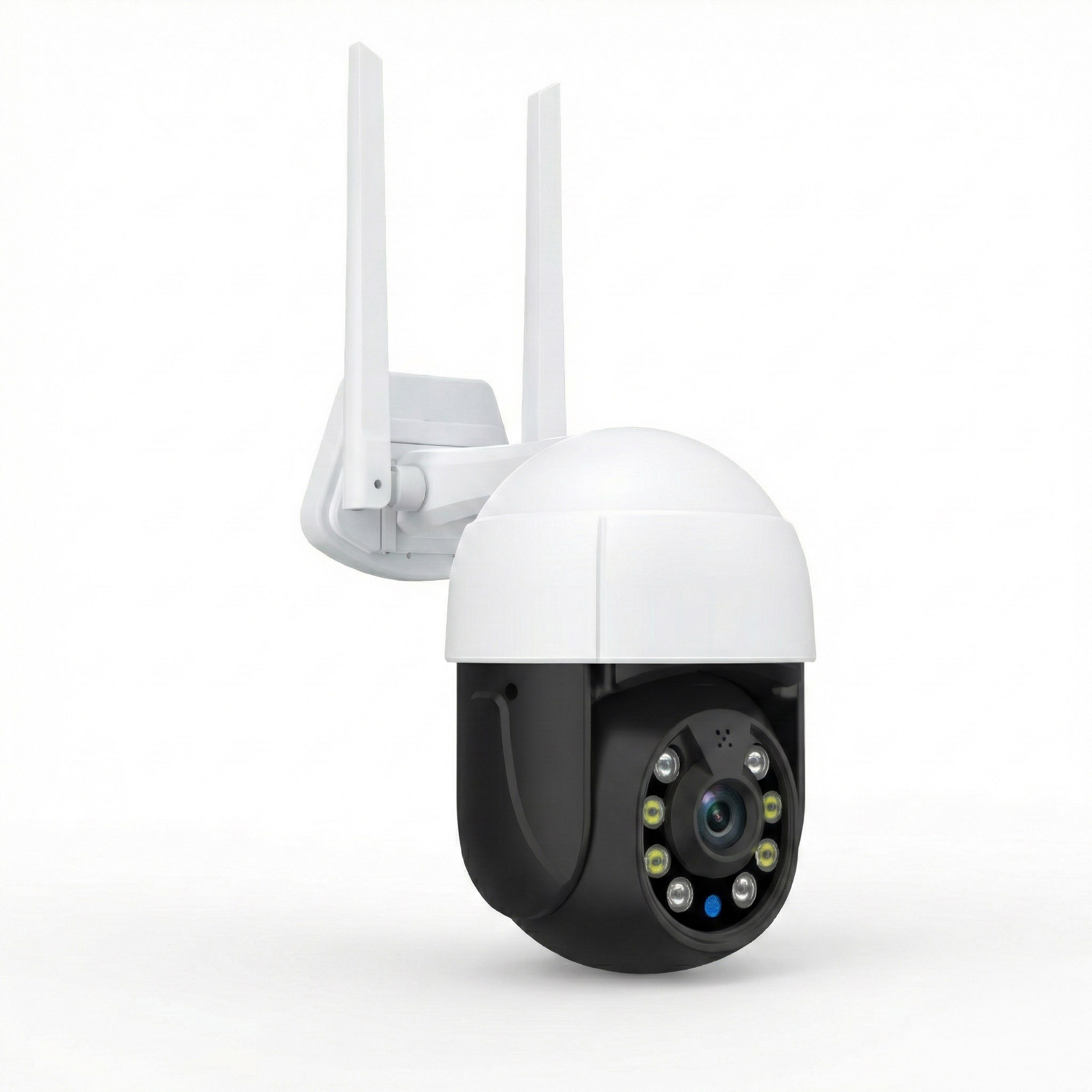
Problem 4: Upstairs WiFi Works but a Security Camera Still Disconnects
Security cameras may react differently to brief wireless interruptions.
A phone may reconnect quickly without you noticing, while a camera may go offline and take longer to recover.
Check the camera's wireless requirements.
Many home cameras use 2.4 GHz WiFi, although supported bands vary by model.
Make sure the extender provides a compatible connection.
Next, test the camera at its final mounting position.
A camera near an upstairs window may work indoors but struggle once mounted outside behind brick or metal.
If possible, temporarily test the camera before drilling or permanently attaching brackets.
Open its live view and confirm that it remains connected during ordinary operation.
If the problem continues, improve the access point's position or consider a supported wired connection.
Problem 5: The Extender Connects but Devices Cannot Reach Local Equipment
Sometimes an upstairs laptop can access the internet but cannot find a printer, camera, or smart home device.
This may involve the logical network configuration rather than wireless strength.
Check whether the laptop and the other device use the intended home network.
If your router provides a guest WiFi network, make sure the device has not joined it unintentionally.
Guest isolation may prevent communication with equipment on the main network.
Also review the extender's operating mode.
Some devices support different network modes that change how traffic is handled.
Use the configuration recommended by the manufacturer for extending the existing home network.
Do not disable firewall or isolation settings without understanding what communication they are preventing.
Problem 6: The WiFi Name Appears but There Is No Internet
An extender can sometimes continue broadcasting its WiFi network after losing its connection to the router.
Your phone sees the network name and connects to it, but webpages do not load.
First, check whether the main router has internet access.
If it does, inspect the extender's connection indicator or status page.
Move the extender closer to the router and restart it.
If you recently changed the main WiFi password, reconnect the extender using the new password.
When the setup is successful, the extender should establish its connection to the router before you test the upstairs devices.
WiFi Extender vs Mesh WiFi vs Wired Access Point for Upstairs
A conventional WiFi extender is useful for a limited coverage gap, but it is not the right solution for every two-story house.
If several rooms have poor reception or the wireless connection between floors is consistently weak, another approach may perform better.
| Solution | Best situation | Main limitation |
|---|---|---|
| WiFi extender | One or two upstairs rooms with weak reception | Requires reliable wireless backhaul |
| Mesh WiFi | Multiple coverage gaps across floors | Nodes still need dependable wired or wireless connections |
| Wired access point | Ethernet is available upstairs | Requires suitable cabling |
| Router repositioning | Poor coverage caused by the router's current location | May not overcome dense floors and walls |
| Direct Ethernet | Stationary computers, televisions, and compatible cameras | Requires a physical cable route |
When a WiFi Extender Is Enough
A WiFi extender may be enough when most of the house already has good coverage.
For example, suppose the upstairs hallway and main bedroom work normally, but the back office has poor reception.
A suitable extender placed near the hallway may provide the additional coverage that office needs.
This approach is particularly convenient for renters who cannot install new cable runs.
Before buying, compare wireless band support, operating modes, and the connection options available on the model.
For properties with more demanding coverage requirements, the ROOXIS guide to the best wifi extender for a large house explains when an extender is appropriate and when another type of equipment may be more useful.
When Mesh WiFi Makes More Sense
A mesh system may be worth considering when several upstairs rooms have weak coverage.
Compatible mesh nodes provide coordinated wireless access across different parts of the home.
However, mesh equipment still depends on good placement.
A node separated from the rest of the network by thick concrete may have poor backhaul, just like a conventional extender.
Before choosing a system, check its supported backhaul options.
Some mesh systems can use Ethernet between nodes, which may be valuable in homes with existing network wiring.
The advantage comes from a suitable network design, not simply the number of nodes included in the package.
When a Wired Access Point Is Better
If your house already has an Ethernet outlet upstairs, consider a wired access point.
It connects to the router through Ethernet and provides WiFi coverage closer to the upstairs devices.
This avoids using wireless backhaul through the floor.
For an upstairs office that handles video calls, large downloads, and regular work, that can provide a more predictable connection.
Some routers and WiFi extenders support Access Point mode when connected through Ethernet.
Check the equipment specifications before planning this setup.
Make sure the device operates as part of the existing home network rather than creating an unnecessary second routed network.
Best Practices for Keeping Upstairs WiFi Reliable
Once your upstairs WiFi works properly, the next goal is keeping it that way.
Most extender setups do not need frequent adjustments.
A few checks can help when you move equipment, change router settings, or install new devices.
Keep the Extender in a Stable Location
Avoid moving the extender to another outlet simply to free up space.
The new location may have a weaker signal from the router.
If you need to move it, check the connection status after repositioning.
Then test the upstairs room again.
Keep the extender uncovered and allow adequate ventilation.
Do not place furniture directly in front of it if that creates another obstacle between the extender and router.
Check Connections After Router Changes
Changing the main router's WiFi name or password can prevent the extender from reconnecting.
The extender may continue broadcasting its network even though its connection to the router has failed.
After changing router settings, check whether the extender is online.
If it is disconnected, update the saved wireless details through its setup interface.
You should also check the extender after replacing the main router.
A new router may use different security settings or wireless network names.
Update Firmware When Appropriate
Manufacturers may release firmware updates to fix bugs, address security issues, or improve compatibility.
Check the official support instructions for your router and extender.
If an update is available, follow the manufacturer's process.
Do not interrupt power while firmware is being installed.
Avoid downloading firmware from unfamiliar websites.
There is no benefit in repeatedly resetting a working extender.
Use a reset when troubleshooting calls for it or when you need to reconfigure the device from the beginning.
Keep Important Devices on Reliable Connections
Not every device needs the same connection method.
A phone or tablet benefits from wireless mobility.
A desktop computer or smart TV may work better through Ethernet when a cable is available.
An outdoor camera needs stable coverage at its exact mounting location, not just a strong signal in the nearest indoor room.
Check important devices individually.
If an upstairs computer still struggles through an extender and you have an available Ethernet cable route, a wired connection may be a better long-term solution.
For wireless devices, make sure they connect to the intended access point when possible.
A reliable setup is one where your video calls, streaming, and security cameras work consistently, not one that produces the highest speed test result for a few seconds.
FAQ
Where should I put a WiFi extender for upstairs?
Place it where the downstairs router still provides a reliable signal, often near the staircase or upstairs landing. The extender should also be close enough to improve coverage in the weak room. Test several outlets rather than installing it directly inside the dead zone.
Should a WiFi extender be upstairs or downstairs?
Either location can work. An upstairs landing may provide useful coverage if it receives a dependable signal from the downstairs router, while an outlet near the bottom of an open staircase may work better in another house. Choose the location based on signal quality and actual connection tests.
Can a WiFi extender boost the signal through concrete floors?
An extender may help when it can connect to the router through a less obstructed route, such as a staircase or hallway. Thick concrete and reinforced floors can significantly weaken wireless signals. If the extender cannot maintain reliable backhaul between floors, consider a wired access point or another suitable network connection.
Why is my WiFi extender slow upstairs?
The extender may have a weak connection to the router, experience wireless interference, or share limited wireless capacity between connected devices and backhaul. Your phone can show a strong signal to the extender while the extender itself struggles to reach downstairs. Try moving it closer to the router and test again before changing equipment.
Can I use two WiFi extenders in a two-story house?
Yes, provided the equipment supports the arrangement and each extender has a dependable connection to the main network. However, additional extenders can increase wireless contention, especially if one repeats another extender's signal. For multiple upstairs dead zones, a mesh system or wired access points may provide a simpler and more reliable layout.
Will a WiFi extender help an upstairs security camera?
It can help if the extender provides reliable coverage at the camera's actual mounting location. Check the camera's supported WiFi bands, confirm the extender has a stable connection to the router, and test the live view before permanent installation. If the camera is outside behind thick masonry or metal, changing the access point location or using a supported wired connection may be necessary.
The practical takeaway: Start by checking where your downstairs router's signal is still reliable. Place the extender there, then test the upstairs bedroom, office, or camera that originally had connection problems. If no suitable wireless location exists, look at wired access points or a properly planned mesh system instead of adding more extenders to an already weak connection.