Your WiFi works well in the living room, but the upstairs bedroom struggles to load a video. The security camera near the back gate keeps disconnecting, and video calls freeze in the home office. You move closer to the router, and everything works again.
If you are wondering how can i extend my home wi-fi coverage to reach every room in a large villa?, start by finding where the signal becomes weak. Then use a WiFi extender for an isolated dead spot, a mesh system for several connected rooms, or wired access points for floors separated by thick concrete. The most reliable solution brings a strong network connection closer to the rooms that need it.
A large villa needs more planning than a typical apartment. Concrete floors, long corridors, separate wings, and outdoor cameras all affect coverage. This guide explains how to test each room, choose equipment that suits your layout, and build a reliable network without covering the house in unnecessary extenders.

How Can I Extend My Home Wi-Fi Coverage to Reach Every Room in a Large Villa?
To extend wifi to every room, you need more than a powerful router. You need a reliable connection between your main network and the areas where people use their devices.
A router positioned near the front entrance might cover the living room and kitchen comfortably. But a bedroom behind several concrete walls could receive almost no usable signal.
Moving the router may help. If the problem is more widespread, you need additional wireless coverage closer to those rooms.
The important distinction is between WiFi coverage and internet performance.
Coverage means a device can establish a wireless connection.
Performance means that connection can reliably handle activities such as streaming, video calls, gaming, and camera feeds.
A phone showing full WiFi bars can still have a slow connection if the extender serving it has a poor link to the main router.
The Four Main Ways to Extend WiFi Coverage
There are four practical ways to improve coverage in a large villa.
1. Reposition the main router
If most rooms already have reasonable coverage, changing the router's location can help distribute the signal more evenly.
Place it in an open area, away from large metal objects and enclosed cabinets.
2. Install a WiFi range extender
An extender receives the existing wireless signal and rebroadcasts it into another area.
It works best when a particular bedroom, hallway, or nearby section has weak coverage, but the extender can still receive a strong signal from the main router.
3. Install a mesh WiFi system
Mesh systems use several coordinated units to cover different parts of the house.
They are useful when multiple rooms or floors need better coverage and family members regularly move between them.
4. Install wired wireless access points
An access point connects to the network through Ethernet and provides WiFi in its surrounding area.
For large villas with reinforced concrete floors, this is often the most reliable approach because the connection between the access point and router does not depend on WiFi passing through thick walls.
Choose based on the actual coverage problem. A single weak bedroom rarely justifies replacing an otherwise reliable network.
Why One Router Struggles to Cover a Large Villa
WiFi uses radio signals that weaken with distance and obstacles.
A router in an open living room may provide a strong connection nearby. That same signal has to travel through doors, walls, furniture, and possibly concrete floors to reach distant bedrooms.
Consider a villa with three floors.
The router sits beside the television on the ground floor. The upstairs study is directly above it, but the signal must pass through a reinforced concrete slab.
The distance may seem short, yet the connection can still be poor.
Now consider a rear bedroom separated from the router by a kitchen, hallway, and two interior walls. The signal faces several obstacles before reaching the room.
This is why buying a router advertised as covering a large area does not guarantee good performance throughout a villa.
A better approach is to place additional network equipment where it can provide a strong local signal without relying on unreliable connections through the building.
Why Large Villas Develop WiFi Dead Spots
WiFi dead spots have identifiable causes. Finding those causes helps you avoid buying hardware that cannot solve the problem.
Thick Concrete Walls and Reinforced Floors
Concrete, brick, stone, and metal can weaken WiFi signals.
Reinforced concrete is particularly troublesome because steel reinforcement can further affect wireless propagation.
This explains why a ground-floor router may work well throughout its own floor but struggle to reach bedrooms upstairs.
An extender placed in the upstairs bedroom may display a wireless network while receiving a very weak connection from downstairs.
That arrangement rarely produces stable performance.
A wired access point upstairs is usually more dependable.
If installing Ethernet is not practical, test a mesh node or extender near the stairwell. An open stairwell may provide a better signal path than a location behind several solid walls.
Long Corridors and Separated Rooms
Some villas have bedrooms arranged along long corridors. Others have separate living and sleeping wings.
A router placed at one end may struggle to reach the opposite side.
If the hallway has a usable signal, an extender positioned along it could serve the distant rooms.
But placing the extender at the far end of an already weak corridor simply repeats a poor connection.
Test the signal along the corridor before deciding where equipment should go.
For a separate wing with several occupied rooms, a dedicated access point may provide better coverage than trying to stretch the main router's signal across the house.
Routers Hidden Inside Cabinets
Many routers end up inside television cabinets, electrical cupboards, or storage spaces.
These locations keep cables hidden but often restrict WiFi coverage.
A metal cabinet can cause significant signal loss. A router behind a television may also have a less favorable wireless environment than one placed openly.
Before purchasing an extender, try moving the router onto a ventilated shelf.
Keep it away from large metal surfaces and avoid surrounding it with electronic equipment.
You do not need to put the router at ceiling height. A stable, open position above floor level is usually a more sensible starting point.
If the router cannot be moved because of modem or fiber cabling, consider using Ethernet to connect an access point in a better location.
Too Many Devices Using the Same Network
Large households often connect several televisions, laptops, phones, cameras, gaming consoles, and smart home devices.
The total number of connected devices is not necessarily the problem. What matters is how actively they use the wireless network and whether they share a congested connection.
For example, a home office video call may become unstable while several other devices are transferring large amounts of data.
If the affected laptop already has a strong WiFi signal, adding an extender may accomplish little.
Instead, check whether the internet connection is overloaded or the WiFi channel is congested.
Moving fixed devices onto Ethernet or distributing devices across additional access points can help reduce competition for wireless capacity.
Start With a Room-by-Room WiFi Coverage Test
Before buying equipment, walk through the villa and record where the connection becomes unreliable.
This does not require expensive testing tools.
A phone, a laptop, and an internet speed-testing service are enough to identify the main problem areas.
Step 1: Check the Internet Speed Near Your Router
Start in the room containing the main router.
Connect your phone or laptop to WiFi and run a speed test.
Record the download speed, upload speed, and latency.
Run the test again to see whether the results are reasonably consistent.
If possible, connect a laptop to the router through Ethernet and repeat the test.
This helps separate an internet service problem from a wireless coverage problem.
If both wired and wireless performance are poor near the router, check the internet service, modem, and router before installing more WiFi equipment.
An extender cannot repair an unstable connection from your internet provider.
Step 2: Test Every Important Room
Visit the places where people use their devices.
Include:
-
Living room and dining area.
-
Kitchen.
-
Bedrooms on every floor.
-
Home office or study.
-
Upstairs corridors.
-
Stair landings.
-
Basement.
-
Garage.
-
Rooms near outdoor security cameras.
Run the same speed test in each location.
Test from the places where devices normally operate, such as a study desk or bedroom seating area.
Record whether the connection works normally, slows noticeably, or disconnects.
Do not rely only on the signal bars displayed by your phone.
A room may show a reasonable signal yet experience unstable video calls because of interference or a weak connection between wireless nodes.
Step 3: Identify Where the Signal Starts Getting Weak
Walk from the router toward the problem room.
Check the connection at several points along the way.
For example, the living room may work normally, the hallway may remain stable, and the stair landing may show a noticeable drop in performance.
By the time you reach the upstairs bedroom, the connection may be unreliable.
That tells you where the signal starts struggling.
The best extender position is usually before the connection becomes weak, not inside the room where it has already failed.
If the signal remains poor throughout the stairs and upper floor, consider a wired connection to an upstairs access point.
Step 4: Compare Results at Different Times
Test during normal household activity.
A room that works well early in the morning may perform poorly when televisions, phones, and gaming consoles are active in the evening.
If the entire house slows down at the same time, the internet connection or router capacity may be the limiting factor.
If only the rear bedroom slows down while nearby rooms continue working normally, coverage or local interference becomes a more likely explanation.
Also test important devices individually.
A laptop with an older wireless adapter may perform worse than a newer phone in the same location.
Check more than one device before assuming the entire room has a coverage problem.
Choosing the Best WiFi Solution for a Large Villa
The right solution depends on how many rooms need coverage, the construction of the building, and whether Ethernet wiring is available.
Use your room-by-room test results to guide the decision.
| Solution | Best Situation | Main Advantage | Main Limitation |
|---|---|---|---|
| Router repositioning | Most rooms work, but coverage is uneven | Improves distribution without new hardware | Limited by walls and router location |
| WiFi range extender | One or two nearby rooms have weak WiFi | Straightforward installation | Needs a strong connection to the router |
| Wireless mesh system | Several rooms or floors need coverage | Coordinated WiFi and convenient management | Wireless backhaul can struggle through concrete |
| Wired mesh system | Multiple floors with Ethernet available | Reliable connections between mesh units | Requires compatible equipment and cabling |
| Wired access points | Large villas with thick walls or demanding devices | Stable local coverage with wired backhaul | Installation may require additional wiring |
| Powerline networking | No Ethernet available and suitable electrical wiring | Uses existing electrical circuits | Performance depends heavily on the wiring |
When a WiFi Extender Is Enough
A range extender is a reasonable choice when the router already covers most of the house.
Suppose the living room, dining room, and main hallway work properly, but a bedroom at the end of the corridor has weak WiFi.
An extender placed in a nearby hallway may provide the extra coverage needed.
The extender must receive a reliable connection from the main router.
If that connection is weak, the extender may broadcast a strong local signal without delivering useful internet performance.
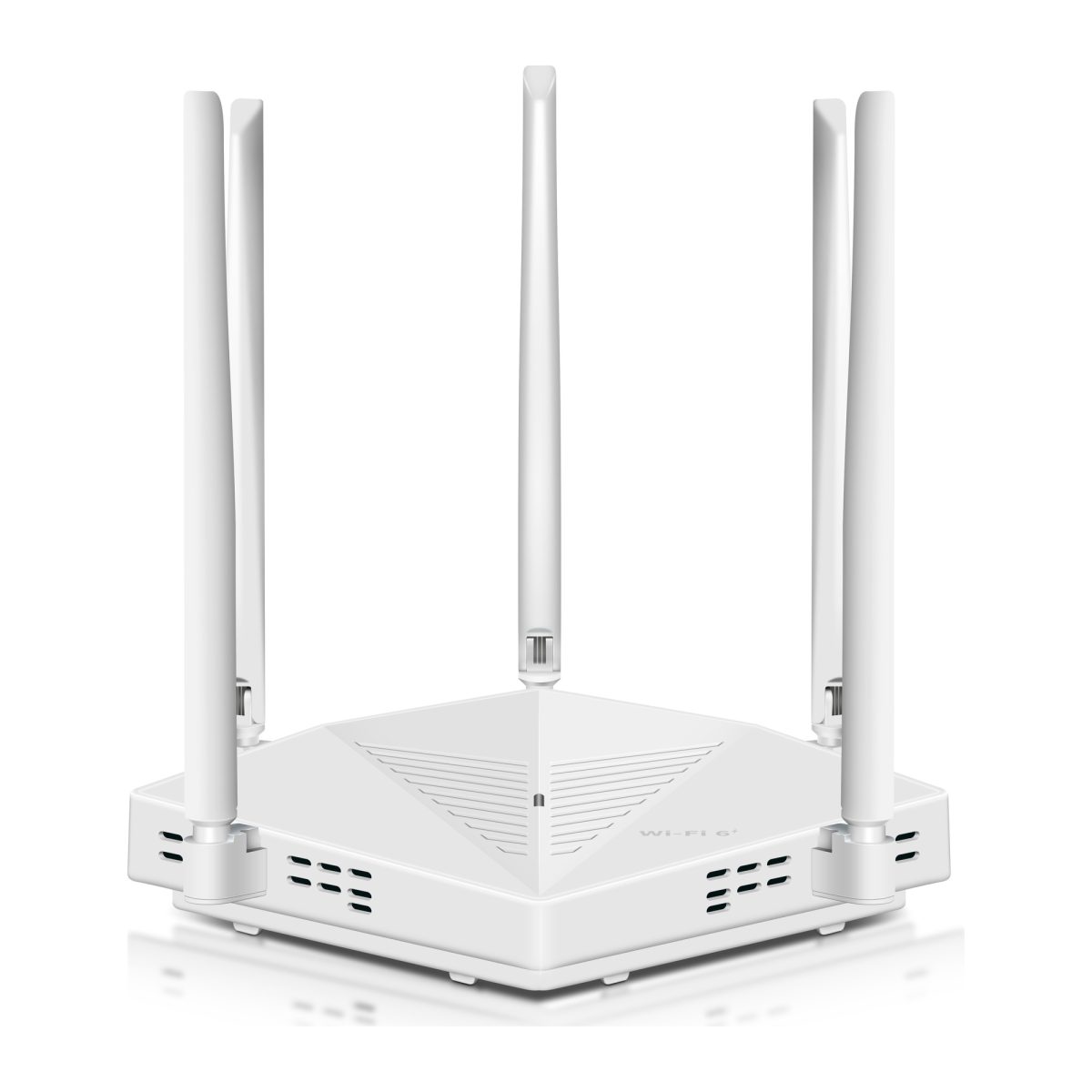
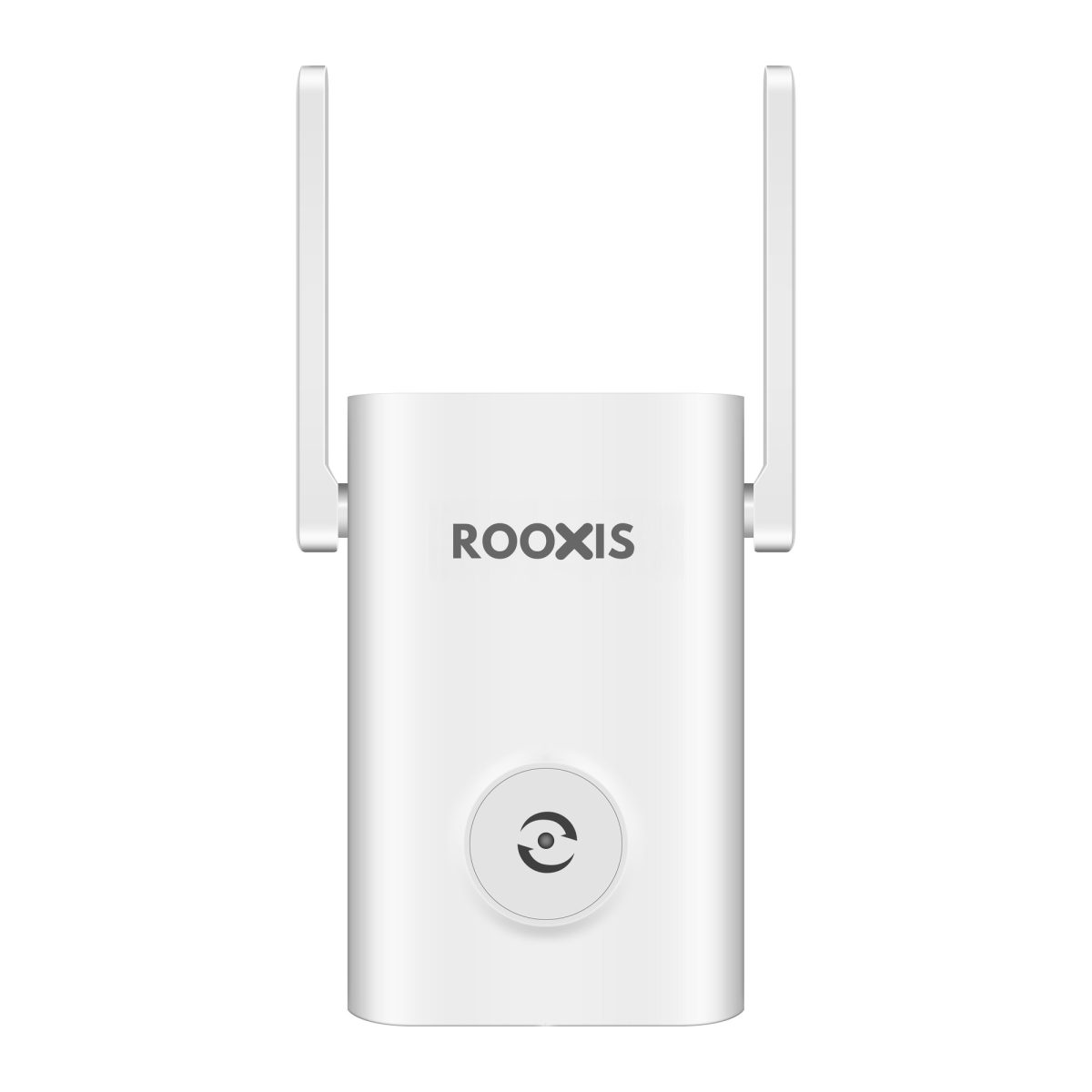
When comparing equipment, the ROOXIS WiFi router and extender range offers options for improving coverage where an existing router does not reach reliably.
Look at supported WiFi bands, setup options, Ethernet connectivity, and operating modes.
Avoid choosing solely by advertised coverage area. Actual range depends on the walls, floor plan, and placement.
When a Mesh WiFi System Makes More Sense
A mesh system is useful when several parts of the villa need improved WiFi.
For example, the living areas may need one coverage point while the bedrooms and home office need others.
Compatible mesh nodes coordinate their network settings and can help devices move between areas without manually selecting different networks.
However, mesh is not automatically better through concrete.
If two wireless mesh nodes are separated by a reinforced floor, the connection between them may be poor.
A node with weak backhaul cannot deliver consistently fast internet, even when your phone connects to it with a strong signal.
Where Ethernet is available, wired backhaul can make a mesh system much more dependable.
Before purchasing, confirm that the specific system supports the connection method you intend to use.
When Wired Access Points Are the Better Investment
Wired access points are particularly useful in villas with several concrete floors, long corridors, or separate wings.
Each access point connects to the main network through Ethernet and broadcasts WiFi near the rooms it serves.
This reduces reliance on wireless signals traveling across the entire building.
A practical arrangement might include a wired access point for the ground-floor living area, another for upstairs bedrooms, and another near a distant home office.
The exact number depends on the floor plan and construction.
If you are renovating, consider installing Ethernet cables while walls and ceilings are accessible.
Cabling is usually easier to plan during renovation than after the interior has been finished.
Planning WiFi Coverage Across Multiple Floors
Treat each floor as a separate coverage area during planning.
A router that performs well downstairs should not be expected to cover every upper-floor room through reinforced concrete.
Ground Floor: Start With the Main Living Areas
The ground floor often contains the modem, router, television, and several frequently used devices.
Begin by checking whether the router is reasonably central to those areas.
If it sits inside a cupboard near an outside wall, its placement may be contributing to uneven coverage.
Move it into an open position if the cabling allows.
If the internet connection enters the building in a utility room, you can leave the modem there and use Ethernet to connect suitable network equipment in the main living area.
Avoid moving or altering fiber termination equipment without following your provider's instructions.
If the ground floor includes separate wings, test them individually.
One access point may be adequate for an open living area but insufficient for a distant guest suite behind several walls.
First Floor: Avoid Relying on Signal Through Concrete
For the first floor, begin by testing the stair landing and nearby rooms.
An open staircase sometimes provides a useful path for wireless signals.
If the landing receives a strong connection, a correctly positioned mesh node or extender may help serve nearby bedrooms.
If the connection is weak before you even reach the landing, extending it wirelessly will be difficult.
An Ethernet-connected access point provides a more reliable alternative.
Position it where it can cover the rooms that need WiFi, rather than hiding it inside a closed cupboard.
Test the bedrooms after installation, particularly rooms with several walls between them and the access point.
Second Floor: Create a Local Coverage Area
A second upper floor presents another obstacle.
If the first floor already depends on a weak wireless link from downstairs, adding another wireless repeater upstairs can make matters worse.
Each wireless relay uses airtime and may reduce the bandwidth available to connected devices.
For a second-floor office, gaming room, or frequently used bedroom, prioritize a direct Ethernet connection to an access point where possible.
If wireless mesh is necessary, place the nodes where they have reliable connections to one another.
Do not assume that a node directly above another node will communicate well through concrete.
Check the actual backhaul quality using the system's management interface and performance tests.
Basement: Watch for Reinforced Walls and Utility Equipment
Basements often contain concrete walls, metal shelving, electrical equipment, and enclosed utility rooms.
These obstacles can make coverage from the ground-floor router unreliable.
If the basement contains a television room, home office, gym, or guest accommodation, consider providing dedicated WiFi coverage.
A wired access point is often the simplest dependable solution.
If you must use a wireless extender, test its connection before installing it permanently.
An extender beside the basement television will not help much if it cannot receive a reliable signal from upstairs.
How to Set Up WiFi Extenders Correctly in a Large Villa
A successful large property wifi extender setup depends more on placement than homeowners often expect.
The extender needs a strong connection to the existing network before it can improve coverage elsewhere.
Choose a Location Between the Router and the Dead Spot
Start with a location between the main router and the room with weak WiFi.
A hallway or stair landing may be suitable.
Do not treat halfway as a strict rule.
Walls and floor materials can affect the signal more than physical distance.
If the extender has a signal indicator, use it to check the connection back to the router.
Look for a strong or acceptable connection according to the manufacturer's instructions.
If the connection is weak, move the extender closer to the main router.
Avoid installing it behind a television, inside a cabinet, or directly beside large metal objects.
Complete the Initial Setup Near the Router
Many extenders are easier to configure near the main router.
Follow the instructions supplied with your model.
The usual process involves:
-
Plugging the extender into a power outlet.
-
Waiting for it to finish starting.
-
Connecting to its setup network or opening the manufacturer's application.
-
Selecting your existing WiFi network.
-
Entering the correct WiFi password.
-
Waiting for the extender to establish a connection.
-
Checking the connection status.
Some models support WPS setup.
If you use WPS, follow the manufacturer's procedure and disable it afterward when practical and supported.
Do not assume every extender uses the same setup address or menu names.
Use the instructions for your exact model.
Move the Extender to Its Intended Position
After configuration, unplug the extender and move it to the selected location.
Wait for it to reconnect.
Check the connection indicator or management interface.
The incoming signal should be stable.
If the extender reports a weak connection, move it closer to the router.
Do not keep moving it farther toward the dead spot just because your phone shows a stronger local signal.
The connection back to the main network determines how much useful performance the extender can deliver.
Test the Extended Network
Connect your phone or laptop to the extended WiFi network.
Visit the room that previously had poor coverage.
Check whether websites load normally.
Run a speed test and compare the result with your original room test.
Then try an activity that previously caused problems, such as a video call or streaming session.
If the connection remains unreliable, check the extender's incoming signal.
Move it slightly closer to the router and test again.
Small placement changes can help when they reduce the number of walls between the devices.
Do Not Add Multiple Extenders Without Testing
Installing several extenders throughout a villa can introduce additional wireless interference and reduce available performance.
This is especially true when one extender repeats the signal from another.
Each wireless hop can consume airtime that would otherwise serve connected devices.
Start with one extender and verify its performance.
If several distant rooms remain weak, consider whether mesh or wired access points offer a better design.
A large house does not automatically need a separate extender in every room.
Understanding 2.4 GHz, 5 GHz, and 6 GHz WiFi in Large Homes
The frequency band affects how WiFi performs across walls and distance.
Most modern routers support at least 2.4 GHz and 5 GHz.
Some newer equipment also supports 6 GHz.
2.4 GHz: Useful for Longer Reach
The 2.4 GHz band generally travels farther and penetrates common obstacles better than higher-frequency WiFi bands.
This makes it useful for smart plugs, security cameras, and other devices that do not require high bandwidth.
However, the band is often crowded.
Nearby WiFi networks, Bluetooth devices, and some household appliances can contribute to interference.
If a camera near the garage works only intermittently, check whether it has a stable 2.4 GHz connection.
Do not assume that switching everything to 2.4 GHz will improve the entire network.
For devices close to an access point, 5 GHz may provide better performance.
5 GHz: Better for Faster Local Connections
The 5 GHz band can provide higher throughput and more channel choices than 2.4 GHz.
It is well suited to laptops, televisions, and phones near the router or an access point.
Its practical range through walls is usually shorter.
A laptop may perform well over 5 GHz in an upstairs office if there is an access point nearby.
The same laptop may struggle when connecting through a concrete floor to a ground-floor router.
For reliable 5 GHz coverage, place access points close enough to the rooms that need faster connections.
6 GHz: High Capacity With Shorter Practical Reach
Compatible WiFi 6E and WiFi 7 equipment can use the 6 GHz band where local regulations permit.
It offers additional wireless capacity and can support wide channels.
However, higher-frequency WiFi generally performs less favorably through obstacles.
A 6 GHz connection may be excellent within the same room but unreliable across several thick walls.
If your villa has concrete floors, upgrading to a newer WiFi generation alone will not eliminate dead spots.
Coverage planning and dependable backhaul remain essential.
Should You Use One WiFi Name or Separate Names?
A single WiFi network name can make everyday use more convenient.
Many mesh systems allow compatible nodes to broadcast the same network name while coordinating device connections.
This helps users move around the house without manually changing networks.
Standalone extenders may create a separate network name.
That can be useful during setup because it makes identifying the extender connection easier.
However, using the same network name does not guarantee seamless roaming.
Phones and laptops make many of their own connection decisions and may remain attached to a distant access point.
For managed mesh systems, use the manufacturer's recommended configuration.
For basic extenders, choose a setup you can test and troubleshoot easily.
How to Eliminate Dead Spots in Large Houses Without Replacing Everything
Before investing in a new network, check whether a few targeted changes could fix the weak areas.
Move the Router Out of an Enclosed Space
Start with the router's physical location.
Avoid placing it:
-
Inside metal cabinets.
-
Behind large televisions.
-
Inside enclosed storage cupboards.
-
Directly beside large appliances.
-
Under desks surrounded by equipment.
-
On the floor behind bulky furniture.
Choose a stable, open location with good ventilation.
If the router has external antennas, follow the manufacturer's positioning guidance.
Do not expect antenna adjustments to overcome reinforced concrete floors.
If relocating the router is impractical, keep it in place and connect an access point somewhere more useful.
Update Router Firmware
Outdated firmware can cause compatibility, stability, and security problems.
Open the router's management application or web interface.
Look for a section such as Firmware Update, System, or Administration.
Check whether an official update is available.
Install only firmware intended for the exact model and hardware version.
Avoid interrupting power while the update is being installed.
After the router restarts, reconnect your important devices and check whether the original problem continues.
A firmware update will not eliminate the physical effects of thick walls, but it may resolve software-related connection issues.
Reduce Wireless Interference
WiFi performance can suffer when several nearby networks compete for the same channels.
Start by keeping the router away from large appliances and unnecessary electronic clutter.
Check whether its wireless settings offer automatic channel selection.
For many households, automatic channel selection is a reasonable starting point.
If 2.4 GHz is congested, a 20 MHz channel width is often preferable to forcing a wider channel.
Changing channels randomly can make performance worse.
Use the router's diagnostics or a suitable WiFi analysis application when available.
If a particular room becomes slow only during certain activities, investigate congestion before adding an extender.
Use Ethernet for Fixed High-Demand Devices
Stationary equipment is often better connected through Ethernet when network ports are available.
Examples include:
-
Desktop computers.
-
Gaming consoles.
-
Smart televisions.
-
Network storage devices.
-
Fixed workstations.
A wired connection can provide stable performance while reducing demand on the wireless network.
For example, if a home office desktop is beside an Ethernet outlet, using that connection frees the nearby WiFi access point to serve phones and tablets.
Ethernet also avoids the signal fluctuations caused by movement and wireless interference.
Check Existing Network Cabling
Many villas already contain unused Ethernet cabling.
Look for network outlets in bedrooms, offices, and television areas.
Find out whether they connect to a central wiring cabinet.
Do not assume an outlet is active simply because it has an Ethernet-style socket.
The cabling may need to be terminated, tested, or connected to a network switch.
If suitable Ethernet wiring exists, it may be the easiest way to connect upstairs access points.
Some homes also have coaxial cabling that can support compatible MoCA networking equipment.
Powerline adapters are another option, but their performance depends on the electrical installation and interference.
Test alternative connection methods before relying on them for demanding applications.
How to Keep Security Cameras and Smart Devices Connected
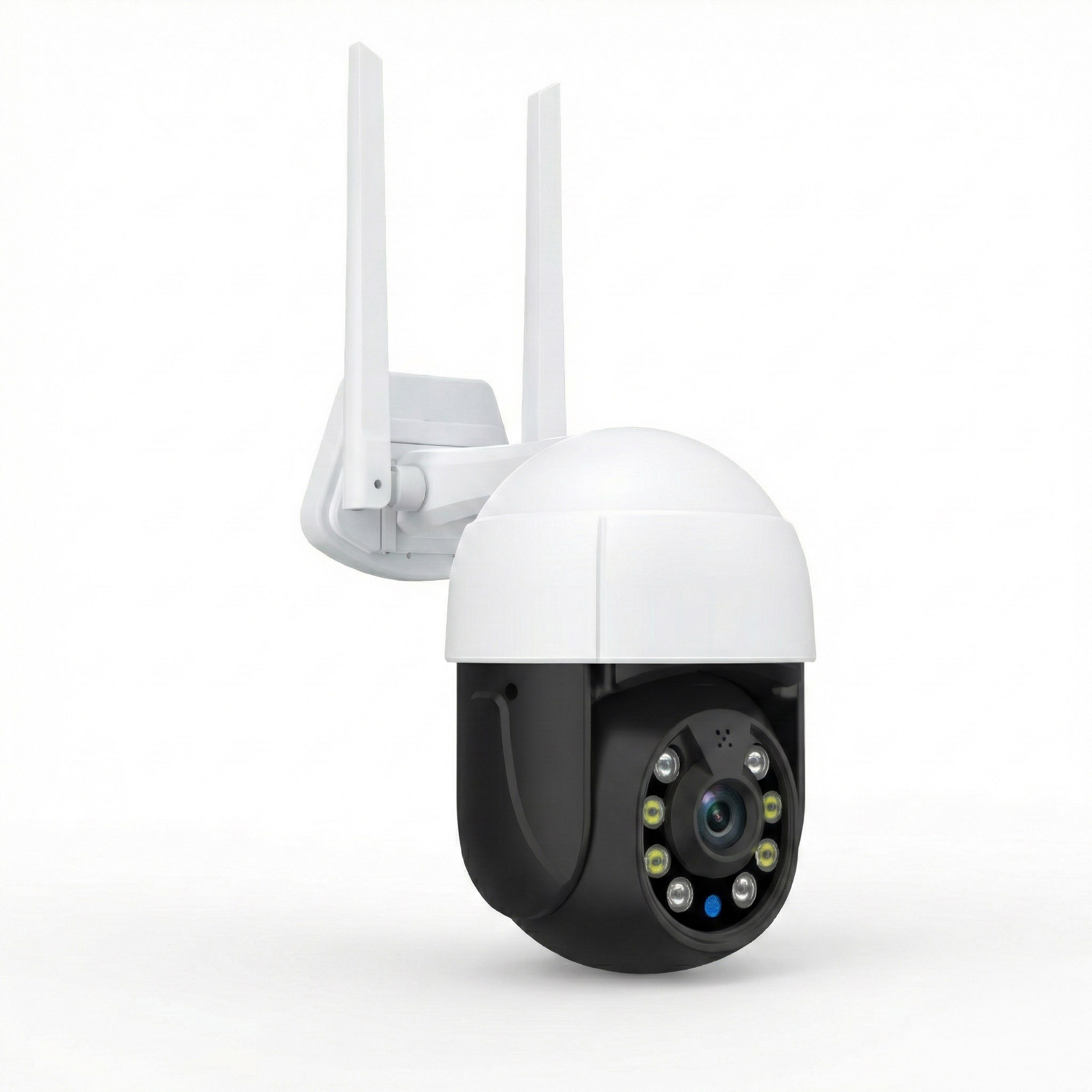
Outdoor cameras are often among the first devices to expose weak WiFi coverage.
A camera beside a gate or garage may connect through an exterior wall, several rooms, or an outdoor structure.
Even when a phone works nearby, the camera may have different wireless capabilities.
Test WiFi at the Exact Camera Position
Check the connection where the camera will actually be installed.
Do not test only inside the nearest room.
Exterior walls, metal gates, and structural supports can weaken the signal.
Test with nearby doors and gates in their normal positions.
If the camera will be installed high on an outside wall, remember that a phone test at ground level may not represent the exact mounting location.
Use the camera's own connection diagnostics when available.
After installation, check the live feed repeatedly and watch for disconnections.
Check the Camera's Supported WiFi Band
Many home security cameras support only 2.4 GHz WiFi.
Check the technical specifications before connecting the device.
Make sure the appropriate band reaches its location.
If the router combines 2.4 GHz and 5 GHz under one network name, follow the camera manufacturer's pairing instructions.
Some cameras have specific setup requirements.
Avoid changing the security settings of the entire home network simply to connect one older device.
Check whether the router provides a suitable separate network or compatibility option.
Avoid Depending on a Weak Extender Connection
An extender close to an outdoor camera may improve the signal between the camera and extender.
That does not guarantee a reliable connection to the internet.
The extender still needs a strong link to the main router.
If that link is poor, the camera may continue disconnecting.
For several outdoor cameras, consider whether a dedicated outdoor access point would be more appropriate.
Use equipment designed for outdoor installation and follow the manufacturer's requirements for weather protection and power.
Give Critical Devices a Stable Connection
A door camera or security system should not rely on a connection that works only occasionally.
Test important devices during normal household activity.
Check whether they reconnect after the router restarts.
If a camera supports Ethernet and suitable cabling is available, a wired connection may be preferable.
For battery-powered or WiFi-only cameras, focus on stable wireless coverage at the installation point.
Also distinguish local network problems from internet outages.
A camera may remain connected to the local WiFi network while cloud viewing or notifications stop working because the internet service is unavailable.
Common WiFi Coverage Mistakes in Large Villas
Most unsuccessful installations have one thing in common: equipment was added before the original connection problem was identified.
Buying Equipment Based Only on Advertised Coverage
Advertised coverage figures cannot account for every villa's layout.
Open rooms, concrete walls, metal structures, and floor separation all affect actual range.
A router advertised for a large area may still struggle to cover bedrooms behind reinforced concrete.
Use coverage figures as general product information, not a guarantee.
Your room-by-room test provides more useful evidence.
Putting an Extender in the Dead Zone
A WiFi extender cannot repair a signal it barely receives.
Installing it inside the room with no usable WiFi often produces a strong-looking network with poor performance.
Move it toward the router until its incoming connection becomes reliable.
Then check whether the extended signal still reaches the problem room.
If no suitable location exists, a different connection method may be needed.
Expecting More Antennas to Solve Concrete Walls
A router with several external antennas is not automatically capable of covering an entire concrete villa.
Antenna design can affect coverage, but dense walls and reinforced floors remain significant obstacles.
A second access point placed beyond those barriers may provide a more dependable connection.
Focus on getting the network closer to the devices instead of relying exclusively on transmitter specifications.
Confusing Strong Signal Bars With Fast Internet
Signal bars usually indicate the quality of the connection between your device and the nearby WiFi equipment.
They do not show the quality of the entire path back to the internet.
A phone might display full bars while connected to an extender with weak backhaul.
Run a speed test and check real activities.
If the connection remains slow despite strong bars, investigate the extender's upstream link, network congestion, and internet service.
Mixing Incompatible Mesh Equipment
Not every router or extender supports the same mesh system.
Two devices may communicate using ordinary WiFi without sharing centralized management or roaming features.
Before purchasing additional nodes, check the manufacturer's compatibility list.
Confirm whether the equipment supports the required operating mode and backhaul connection.
Do not assume devices are fully mesh-compatible simply because they use the same WiFi generation.
Creating Two Unnecessary Router Networks
Adding a second router without configuring it correctly can create separate networks and double NAT.
This can complicate gaming, device discovery, remote access, and certain smart home functions.
If the main router already manages the household network, a secondary device may be better configured in access point mode.
Some mesh systems also support access point or bridge modes.
Follow the specific equipment instructions and avoid changing settings you do not understand.
Ignoring Network Security
Every additional extender, router, or access point becomes part of your network.
Change default administrator passwords where applicable.
Keep firmware updated and use strong WiFi passwords.
Use WPA3 when your devices support it, or a suitable WPA2-AES configuration for compatible older equipment.
Avoid obsolete security methods such as WEP.
If you create a guest network, confirm whether the router actually isolates guests from your main devices.
Guest network features vary by manufacturer.
How to Check Whether Every Room Has Reliable WiFi
After installing the equipment, repeat the original coverage tests.
A successful setup should solve the problems you observed before installation.
Do not judge performance only from the router's connection dashboard.
Test Normal Activities, Not Just Speed
Return to the rooms where WiFi previously struggled.
In the home office, make a video call.
In the bedroom, stream a video.
Near the security camera, check the live feed.
Walk between rooms while using your phone.
Look for:
-
Stable video calls.
-
Fewer unexpected disconnections.
-
Smooth streaming.
-
Security cameras remaining connected.
-
Acceptable performance during busy evening hours.
-
Devices reconnecting properly after router restarts.
Not every room needs identical speeds.
A smart plug requires much less bandwidth than a workstation used for large file transfers.
The goal is reliable performance for the devices that actually operate in each area.
Check Which Access Point Your Device Uses
Many mesh systems and managed access points include a connected-devices section.
This may show which node serves each phone, laptop, or television.
Check the devices in previously weak rooms.
For example, an upstairs laptop should generally benefit from a nearby upstairs access point.
If it remains connected to the distant ground-floor router, the device may be holding onto an older connection.
Check the system's roaming settings and confirm the nearby access point is functioning properly.
Remember that phones and laptops often control their own roaming decisions.
A mesh network can help, but it cannot always force every device to switch immediately.
Retest After Moving Furniture or Equipment
WiFi conditions can change after renovations or major furniture changes.
A new metal cabinet, large appliance, or partition can alter the signal path.
If a room starts experiencing problems again, repeat the test before changing the entire network.
Check whether an extender has been unplugged, moved behind furniture, or connected to a different outlet.
A small placement correction may restore reliable coverage.
Keep a Simple Coverage Record
Record where your main router, extenders, mesh nodes, and access points are installed.
Include which rooms each device serves.
If possible, note the network connections between them.
For example, identify which upstairs access point connects through Ethernet and which extender uses wireless backhaul.
This makes troubleshooting easier when a particular area stops working.
It also helps you avoid purchasing duplicate equipment during future upgrades.
FAQ
Can One WiFi Extender Cover an Entire Large Villa?
Usually not. One extender can improve coverage in a nearby weak room or section of the house, but thick walls and multiple floors often require additional coverage points. If several areas are disconnected, consider mesh or wired access points rather than relying on a single extender.
What Is the Best Way to Extend WiFi to Every Room in a Three-Floor Villa?
Wired access points on each floor are often the most reliable approach, especially with reinforced concrete floors. A compatible mesh system using Ethernet backhaul is another good option. Wireless mesh may work where cabling is unavailable, but you must check the connection quality between nodes.
Is Mesh WiFi Better Than a WiFi Extender for Large Homes?
Mesh is generally more convenient when several rooms or floors need coverage and devices move between them. A range extender is often sufficient for one isolated dead spot. Both depend on reliable backhaul, so thick concrete can still cause problems with wireless connections.
How Far Should a WiFi Extender Be From the Main Router?
There is no fixed distance that works in every villa. Start between the router and the weak room, then check the extender's incoming signal indicator. Move it closer to the router if the connection is weak, even if that places it farther from the problem room.
Will a WiFi Extender Increase My Internet Speed?
An extender cannot increase the speed supplied by your internet provider. It can improve usable speeds in a room where the existing WiFi signal is weak. However, its performance depends on the connection back to the router, and some wireless repeating arrangements reduce available throughput.
How Can I Get WiFi Through Thick Concrete Walls?
The most dependable approach is usually to install an access point on the other side of the wall or floor and connect it through Ethernet. If wiring is unavailable, test a mesh node or extender near a stairwell or another location with a better signal path. Do not assume a higher-powered router will overcome reinforced concrete.
To extend WiFi across a large villa, start with the rooms where the connection actually fails. Test the signal, identify the obstacles, and choose equipment based on those findings.
One weak bedroom may need a well-placed extender. Several disconnected rooms may benefit from mesh. A villa with reinforced floors, distant home offices, and outdoor cameras will often work better with wired access points.
The final test is simple: can someone take a video call upstairs, stream a film downstairs, and check the back-gate camera without repeated disconnections? If those everyday tasks work reliably, the network is doing its job.