Your WiFi works well in the living room, but the upstairs bedroom barely gets a signal. Video calls freeze in your home office, your outdoor security camera keeps disconnecting, or your phone switches to mobile data whenever you walk into the garage.
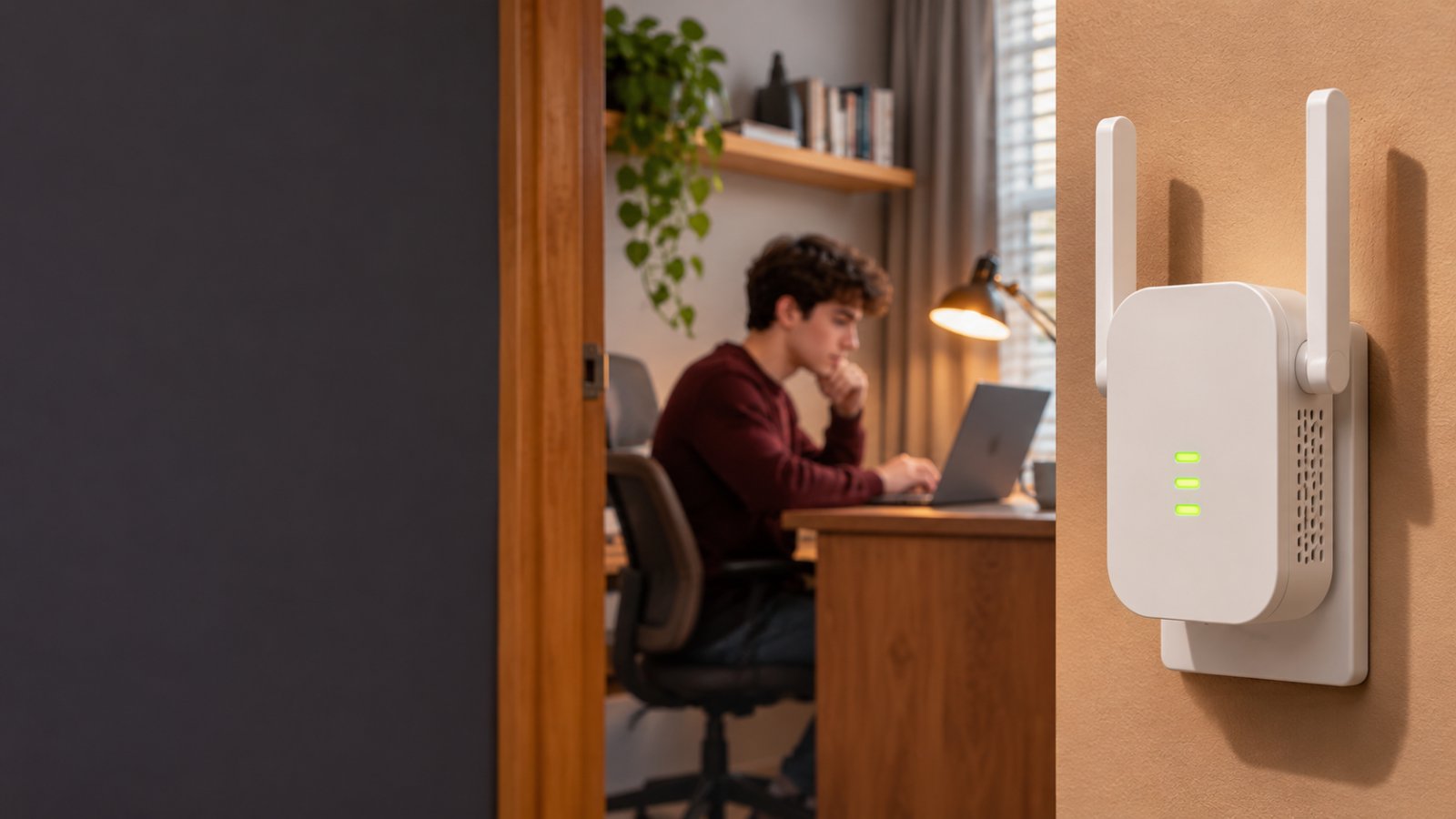
The best wifi extender for homeowners is usually a dual-band extender that works with the existing router and can receive a strong signal from a nearby outlet. A WiFi 5 or WiFi 6 extender can fix one or two weak rooms. For several dead zones, a mesh system or wired access point may provide better coverage.
Before buying, check where your signal becomes weak, which devices need coverage, and whether you have a suitable place to install an extender. Those details matter more than the maximum coverage printed on the box.

This guide compares the main types of WiFi extenders, explains which specifications matter, and walks through the setup process. The goal is to help you fix the rooms that actually have connection problems without spending money on equipment you do not need.
Best WiFi Extender for Homeowners: What Should You Choose?
For a typical house with one or two weak rooms, start by looking at a dual-band WiFi extender with a clear signal-strength indicator.
Dual-band models support both 2.4 GHz and 5 GHz connections. The 2.4 GHz band generally offers better range, while 5 GHz can provide higher speeds when the signal is strong.
This combination works for common household activities such as video streaming, browsing, working from home, and connecting compatible smart-home devices.
However, the type of extender matters less than the problem you need to solve.
Consider three common situations.
Situation 1: One bedroom has weak WiFi.
Your router covers the living room, kitchen, and hallway, but the bedroom at the far end of the house struggles.
A basic dual-band extender may be enough. You need a device that can receive a reliable router signal from a hallway outlet and extend coverage into the bedroom.
Situation 2: Several people use WiFi throughout the house.
Your household has phones, laptops, televisions, gaming devices, and cameras. The connection becomes unreliable when several people are online.
A WiFi 6 extender may offer better wireless efficiency, especially when paired with compatible devices. If several areas need improved coverage, a mesh network could be a better fit.
Situation 3: Your home office or security camera needs a stable connection.
A connection that drops during meetings or leaves a camera offline is more frustrating than one that simply loads websites slowly.
If an Ethernet connection is available, a wired access point may be more reliable than a wireless repeater.
When comparing products, focus on these criteria:
-
Router compatibility: The extender must support the wireless standards and security settings used by your router.
-
Wireless bands: Dual-band support gives you more flexibility with household devices.
-
Signal quality: The extender needs a dependable connection back to the main router.
-
Ethernet support: A wired port can help connect televisions, desktops, or gaming consoles.
-
Installation options: Look for WPS pairing or browser-based setup.
-
Device requirements: Consider how many devices will use the extended network and what they do online.
-
Firmware support: Choose equipment with accessible setup instructions and security updates.
-
Network expansion: Decide whether you need one extender or a system designed to cover several areas.
Do not judge an extender solely by its advertised speed or coverage.
An extender claiming high theoretical speeds can still perform poorly if it sits behind thick walls or too far from the router.
Quick Comparison of WiFi Extender Types
| Type | Best for | Main strength | Main limitation |
|---|---|---|---|
| Dual-band WiFi 5 extender | One or two weak rooms | Affordable and straightforward | Lower wireless capacity than newer models |
| Dual-band WiFi 6 extender | Busy households with newer devices | Better efficiency with compatible equipment | Cannot compensate for a weak router connection |
| Mesh-compatible extender | Moving between several rooms | Coordinated network management and roaming | Requires compatible equipment |
| Tri-band extender | Demanding wireless connections | Additional wireless capacity, sometimes with dedicated backhaul | Higher cost and variable benefits |
| Wired access point | Home offices and distant rooms | Reliable wired connection to the router | Requires Ethernet wiring |
| Outdoor-rated access point | Garages, gardens, and detached buildings | Designed for suitable outdoor installations | Requires appropriate mounting, power, and weather protection |
For most homeowners with one isolated dead spot, a dual-band extender is the first option worth investigating.
Types of WiFi Extenders and Who They Are Best For
The term WiFi booster is used for several types of networking equipment.
Some devices simply repeat the router's signal. Others are part of a mesh network, while access points use Ethernet to provide coverage in another location.
Knowing how each type works helps you avoid purchasing something that cannot solve your particular problem.
1. Dual-Band WiFi 5 Extenders for Everyday Home Coverage
Best for: Homeowners who need WiFi in a bedroom, kitchen, hallway, or small home office where the existing signal is weak.
WiFi 5 extenders use the 802.11ac wireless standard. They are commonly sold with classifications such as AC750, AC1200, and AC1750.
These figures describe theoretical wireless capabilities. They are not guaranteed internet speeds.
For example, an AC1200 model combines the theoretical rates supported across its wireless bands. A laptop connected to one band will not receive the full combined figure.
For everyday use, a well-positioned WiFi 5 extender can still be useful.
Strengths:
-
Usually more affordable than newer high-end models.
-
Compatible with many existing wireless routers.
-
Suitable for browsing, email, streaming, and ordinary household activity.
-
Often includes WPS pairing for quick installation.
-
Many models provide an Ethernet port.
Limitations:
-
Wireless backhaul can reduce available throughput.
-
Older models may have limited Ethernet port speeds.
-
Basic extenders may create separate network names.
-
They do not offer every efficiency feature available in WiFi 6.
Wireless backhaul simply means the extender connects to the router over WiFi rather than through a cable.
That wireless connection must carry traffic between the router and devices connected to the extender.
If the backhaul connection is weak, the extended network will also struggle.
Practical example:
Your router is in the living room, and your bedroom is at the end of a hallway. Your phone works normally in the hallway but loses signal inside the bedroom.
Installing a dual-band extender in the hallway may provide a better connection inside the bedroom.
Placing the same extender inside the bedroom, where the router signal is already almost unusable, is less likely to help.
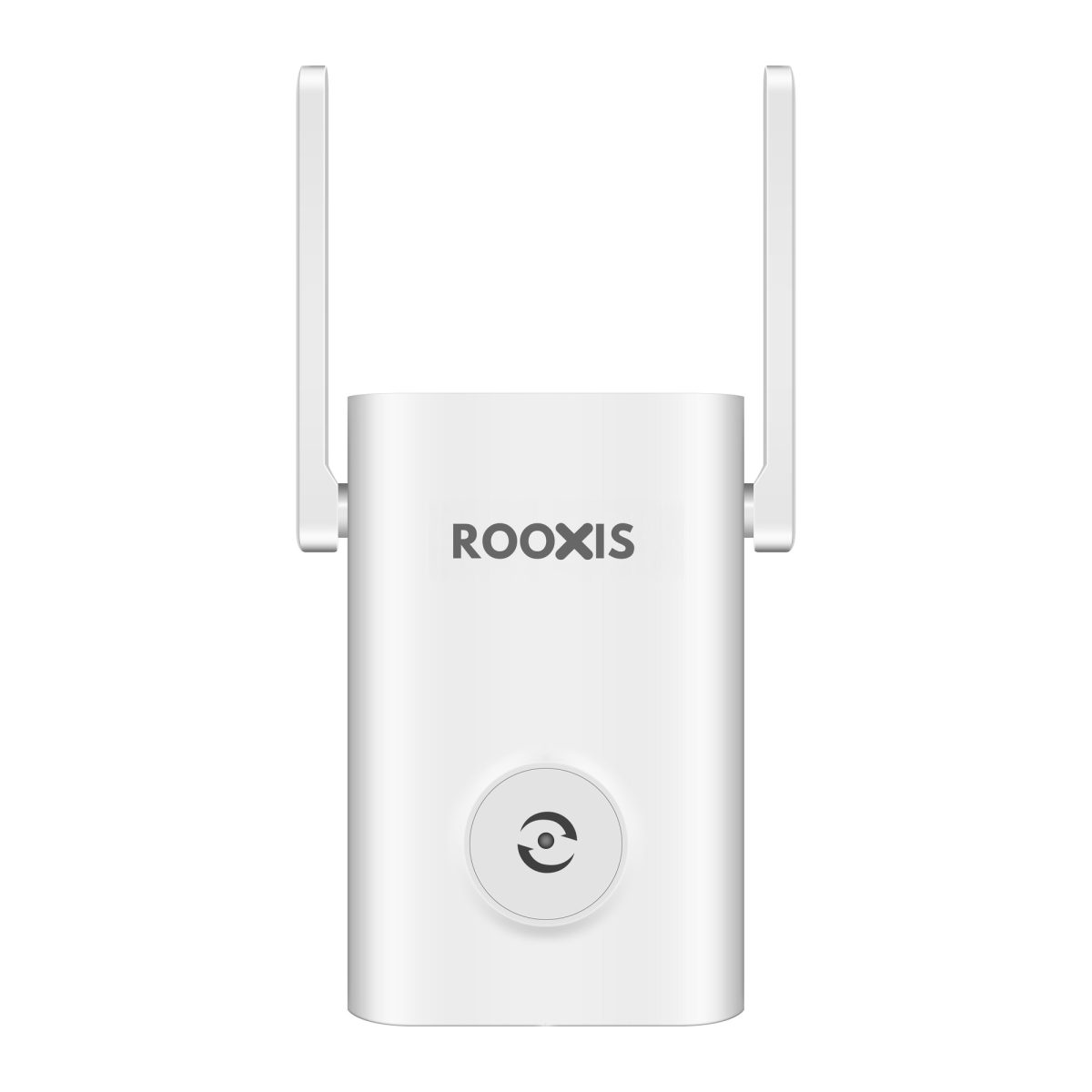
The ROOXIS AC1200 WiFi extender is one example of this category. It supports 2.4 GHz and 5 GHz connections, includes a 10/100 Mbps Ethernet port, and offers repeater and access point modes.
That makes it a practical option to compare when the main requirement is improving coverage rather than replacing the entire network.
2. Dual-Band WiFi 6 Extenders for Homes With Multiple Devices
Best for: Households with newer laptops, smartphones, televisions, and several active wireless devices.
WiFi 6 uses the 802.11ax standard.
Its advantages are not limited to higher theoretical speeds. It also improves how compatible network equipment manages communication with multiple devices.
One important feature is OFDMA. It allows a wireless access point to divide channel resources more efficiently when communicating with compatible devices.
You do not need to configure OFDMA manually on most consumer equipment.
What matters is whether the newer standard is useful for your household.
Imagine an evening when someone is streaming television, another person is attending an online class, and a third person is gaming.
A WiFi 6 extender may handle compatible wireless connections more efficiently than an older model.
Strengths:
-
Better wireless efficiency with compatible devices.
-
Higher potential wireless capacity.
-
Useful for households with several active connections.
-
Many models provide Gigabit Ethernet.
-
Can be a sensible choice when upgrading other home networking equipment.
Limitations:
-
The router and connecting devices affect which WiFi 6 benefits are available.
-
It cannot repair poor broadband performance.
-
Thick walls can still weaken the connection.
-
Higher theoretical speeds do not guarantee better coverage.
If your router already supports WiFi 6, a WiFi 6 extender is worth comparing.
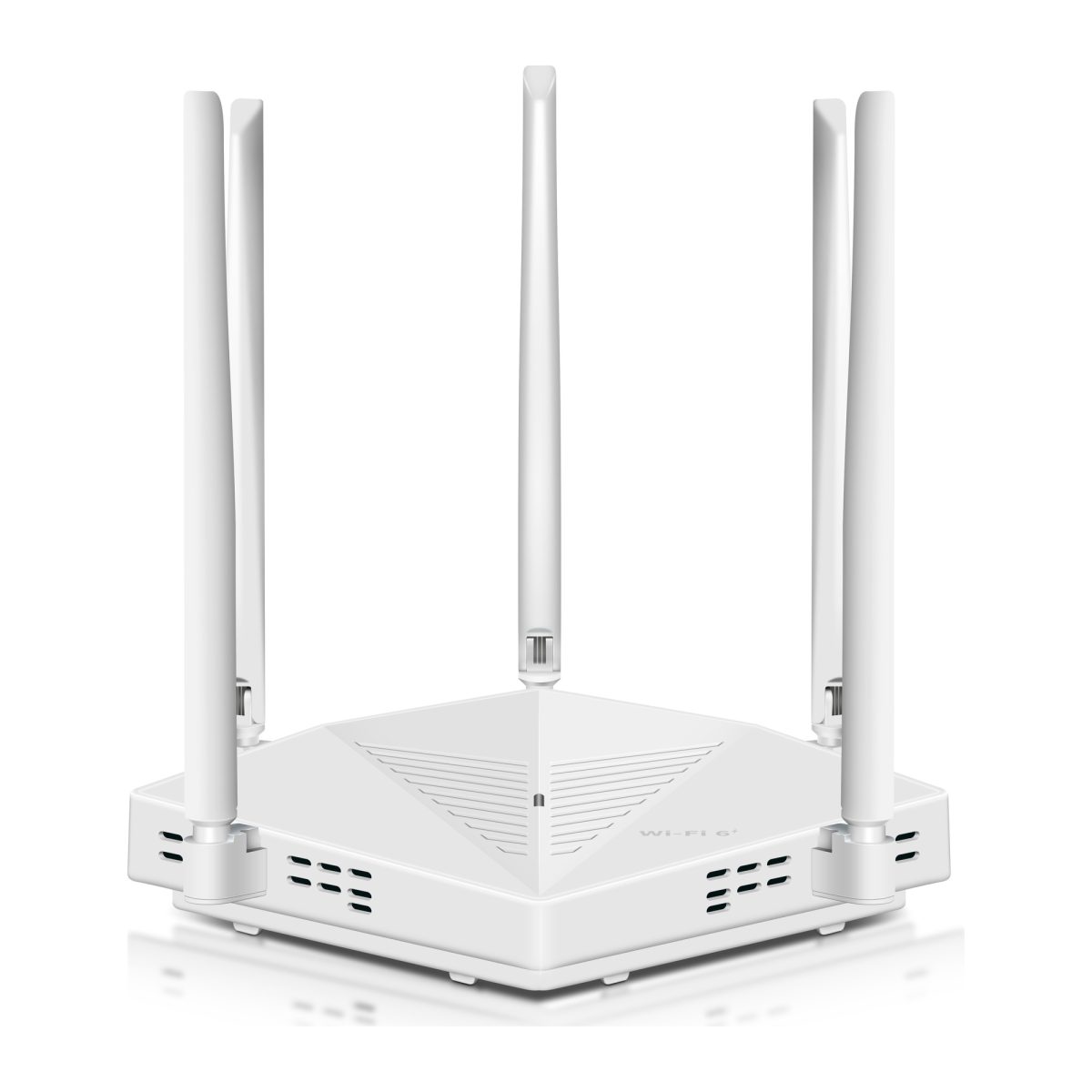
The ROOXIS AX1800 WiFi 6 extender supports both 2.4 GHz and 5 GHz, includes a Gigabit Ethernet port, and offers WPS or browser-based setup.
Its Gigabit port is useful if you want to connect a nearby desktop or television through Ethernet.
However, the extender still needs a reliable connection to the main router. Its Ethernet port cannot overcome a weak wireless backhaul.
For a house with mostly older devices and one small dead spot, a WiFi 5 extender may remain the more economical choice.
3. Mesh-Compatible Extenders for Whole-Home Movement
Best for: Homes where people regularly move between rooms while using phones, tablets, or laptops.
A conventional range extender may create a separate WiFi network.
Your main network could be named HomeWiFi, while the extender creates HomeWiFi_EXT.
Your phone might remain connected to the weaker main router signal even when you are standing near the extender.
You may need to reconnect manually or wait for the phone to switch.
A compatible mesh system is designed to coordinate multiple wireless points more closely.
This can make movement around the house easier.
Strengths:
-
Coordinated coverage across compatible devices.
-
Simpler management of multiple wireless points.
-
Potentially smoother movement between coverage areas.
-
Suitable for homes with several weak rooms.
Limitations:
-
Not every mesh-compatible extender works with every mesh router.
-
Wireless mesh nodes still need good connections.
-
Equipment compatibility requirements vary.
-
A poorly positioned node can still deliver unreliable WiFi.
Check the manufacturer's compatibility information before buying.
An extender that uses the same WiFi name as your router is not automatically part of a coordinated mesh network.
That distinction matters if your goal is to walk from the kitchen to an upstairs bedroom during a video call without interruptions.
For one stationary device, a conventional extender may be enough.
For several rooms and people moving between them, mesh coverage may be more convenient.
4. Tri-Band WiFi Extenders for More Demanding Wireless Traffic
Best for: Homes where the extender must handle significant wireless activity while maintaining a dependable connection to the router.
A dual-band extender typically uses its available wireless resources to communicate with both the router and connected devices.
Some tri-band models provide an additional band that can be used for communication between network units.
This connection is known as backhaul.
When a device has dedicated wireless backhaul, it can reduce competition between ordinary device traffic and communication with the router.
Strengths:
-
Additional wireless capacity in suitable configurations.
-
Some designs provide dedicated wireless backhaul.
-
Can help demanding households with several active devices.
-
Useful when installing Ethernet is impractical.
Limitations:
-
Generally more expensive than basic dual-band extenders.
-
Not every tri-band product reserves a band for backhaul.
-
Additional bands do not remove physical obstacles.
-
Benefits depend on the actual network design.
Before purchasing, read how the third band is used.
Do not assume that every tri-band device automatically provides a dedicated connection to the router.
For a small bedroom coverage gap, this type of equipment may add cost without delivering a meaningful improvement.
5. Ethernet-Connected Access Points for Reliable Fixed Coverage
Best for: Home offices, distant rooms, and houses with existing Ethernet wiring.
An access point connects to the home network through Ethernet and provides WiFi in another location.
Unlike a conventional wireless repeater, it does not need to receive the router's signal through several walls.
That makes it particularly useful for fixed locations where connection stability matters.
Suppose your upstairs office has an Ethernet wall socket connected to your router.
Connecting an access point to that socket can provide wireless coverage upstairs without depending on the downstairs WiFi signal.
Strengths:
-
Reliable connection to the network when the cabling is sound.
-
Avoids wireless backhaul limitations.
-
Suitable for work computers, video calls, and fixed devices.
-
Useful for extending coverage across difficult areas.
Limitations:
-
Requires a suitable Ethernet connection.
-
Running cables may not be convenient for renters.
-
Setup varies by equipment.
-
Not every wireless extender supports access point mode.
Before buying a normal range extender for this purpose, check its specifications for Access Point Mode.
An Ethernet port alone does not prove that the device supports wired backhaul.
Some extenders provide Ethernet only for connecting a computer or television while maintaining a wireless link to the router.
The ROOXIS AC1200 extender supports Access Point Mode, so it can use a suitable Ethernet connection to provide WiFi in another area.
For homeowners who already have network cabling, this mode is worth considering.
6. Outdoor-Rated Access Points for Garages, Gardens, and Detached Buildings
Best for: Homeowners who need WiFi beyond the main living space.
Outdoor coverage is different from indoor coverage.
Exterior walls, metal garage doors, insulated windows, and distance can weaken wireless signals.
An indoor extender placed near a suitable window may help reach a nearby patio.
However, that does not mean it will reliably cover a detached garage or a camera at the far end of a driveway.
Outdoor-rated equipment is designed for installation under specified environmental conditions.
Strengths:
-
Suitable for specified outdoor environments.
-
Offers installation options beyond indoor wall outlets.
-
Can support cameras and other wireless devices outside the main house.
-
May provide better coverage when connected through suitable cabling.
Limitations:
-
Installation requires appropriate power and cable protection.
-
Weather resistance varies by model.
-
Long distances may need a more carefully planned network.
-
Outdoor equipment still needs a reliable connection to the main network.
Do not install an ordinary indoor extender where it may be exposed to rain or moisture.
For a detached building, first determine whether Ethernet, a suitable outdoor access point, or another dedicated wireless link would provide the most reliable connection.
Features That Matter When Buying a WiFi Extender
Most extender listings promote speed, coverage, and antenna count.
Those specifications have some value, but they should not make the buying decision for you.
A useful extender needs to connect properly to your router, provide adequate coverage, and work with the devices you already own.
Dual-Band Support and the Right Frequency for Your Devices
A dual-band extender supports 2.4 GHz and 5 GHz.
Each band has practical advantages.
2.4 GHz is often suitable for:
-
Smart plugs.
-
Many security cameras.
-
Some wireless printers.
-
Older connected devices.
-
Devices farther from the extender.
5 GHz is often suitable for:
-
Modern laptops.
-
Streaming televisions.
-
Video calls.
-
Gaming devices.
-
Phones and tablets near the extender.
The 2.4 GHz band generally reaches farther, although it can be crowded by neighboring networks and other household electronics.
The 5 GHz band can provide faster connections at suitable distances, but walls and floors may weaken it more quickly.
Check the supported band before connecting a smart-home device.
A camera that supports only 2.4 GHz cannot connect to a 5 GHz-only network.
If your device supports both bands, test which provides a better connection in its actual location.
Signal-Strength Indicators
A signal-strength indicator is especially useful for people who do not want to investigate technical router settings.
It shows whether the extender receives an adequate signal from the main router.
This is different from checking the WiFi bars on your phone.
Your phone may report a strong connection to the extender while the extender has a poor connection to the router.
That can produce full WiFi bars and slow internet at the same time.
Look for a model with clear LEDs or a setup page that shows the quality of its router connection.
For example, the ROOXIS AC1200 uses a blue light for a good signal, yellow when the extender is too far from the router, and red when it is not connected.
When positioning that model, aim for a stable blue indicator rather than simply placing it as close as possible to the problem room.
Ethernet Port Speed
An Ethernet port lets you connect certain devices through a cable.
This can be useful for a desktop computer, television, or gaming console near the extender.
However, Ethernet ports have different speed limits.
A 10/100 Mbps port supports a wired link of up to 100 Mbps.
A Gigabit Ethernet port supports up to 1,000 Mbps at the wired link level.
Neither figure guarantees the same speed to the internet.
If the extender connects to the router wirelessly, the wireless link can still limit performance.
A 100 Mbps port may be sufficient for ordinary browsing and streaming.
A Gigabit port offers more flexibility for faster internet plans and demanding local network traffic.
Router Compatibility and Wireless Security
Most conventional extenders work with many compatible routers, including routers from other manufacturers.
However, compatibility still depends on supported wireless bands, standards, and security settings.
Check whether the extender supports the security method your router uses.
WPA2 and WPA3 are common modern wireless security options, although support varies by device.
Also check whether the manufacturer provides firmware updates.
Firmware updates can address security problems and improve device compatibility.
If your router uses settings that an older extender cannot support, review the available options carefully rather than disabling important security protections without understanding the consequences.
Realistic Coverage Claims
Some extenders advertise coverage measured in thousands of square feet.
These figures do not guarantee that the extender will cover a particular house.
A large open-plan room is much easier to cover than several rooms separated by brick or concrete walls.
Coverage also depends on:
-
Router signal strength.
-
Wall and floor materials.
-
Nearby wireless networks.
-
Metal appliances and cabinets.
-
Distance from the extender.
-
Connected device capabilities.
-
Wireless interference.
-
The extender's backhaul connection.
A device may perform well in a lightweight timber-framed house but struggle across a reinforced concrete floor.
Before paying extra for a larger advertised coverage figure, check whether the product has the features and installation options your home requires.
How to Choose the Best WiFi Booster for Your House
The quickest way to narrow your options is to identify where the connection becomes unreliable.
You can do this with your phone and a few minutes of testing.
If WiFi Is Slow Everywhere
Do not buy an extender immediately.
Stand near the router and open a website or run a speed test.
If the connection is slow even beside the router, the problem may involve the broadband service, router, or another part of the network.
If possible, compare WiFi performance with a computer connected directly to the router using Ethernet.
If the wired connection is also slow, contact your internet provider or investigate the router and modem.
An extender cannot increase the internet speed your provider delivers.
It can only improve access to that connection in areas where wireless coverage is poor.
If Only One Bedroom Has Weak WiFi
A dual-band plug-in extender is a good starting point.
Walk from the bedroom toward the router while checking your phone's connection.
Find a hallway or nearby outlet where websites load normally and the router signal remains stable.
That is a more promising installation point than the far corner of the bedroom.
For basic browsing and streaming, a WiFi 5 extender may be sufficient.
For newer devices and heavier household traffic, consider WiFi 6.
If Your Home Office Connection Drops
Prioritize stability over maximum advertised speed.
A video call that works continuously is more useful than a brief high speed-test result followed by disconnections.
If the office has Ethernet wiring, consider an access point.
If you must use a wireless extender, position it where the router signal remains reliable.
Test it during your normal working hours.
If disconnections occur only when the household is busy, network congestion may be part of the problem.
A better-capacity extender can help in some situations, but it will not repair a poor router connection.
If Several Rooms Have Dead Zones
A single extender may not be enough.
For example, you may have weak WiFi in an upstairs bedroom, the garage, and a rear office.
Installing several unrelated repeaters could create a collection of separate networks and additional wireless hops.
If you need coverage across multiple areas, compare compatible mesh equipment and wired access points.
These approaches can provide a more manageable arrangement than adding a repeater wherever the signal disappears.
If Your Security Camera Keeps Disconnecting
Start by checking the camera's wireless requirements.
Many household cameras use 2.4 GHz WiFi.
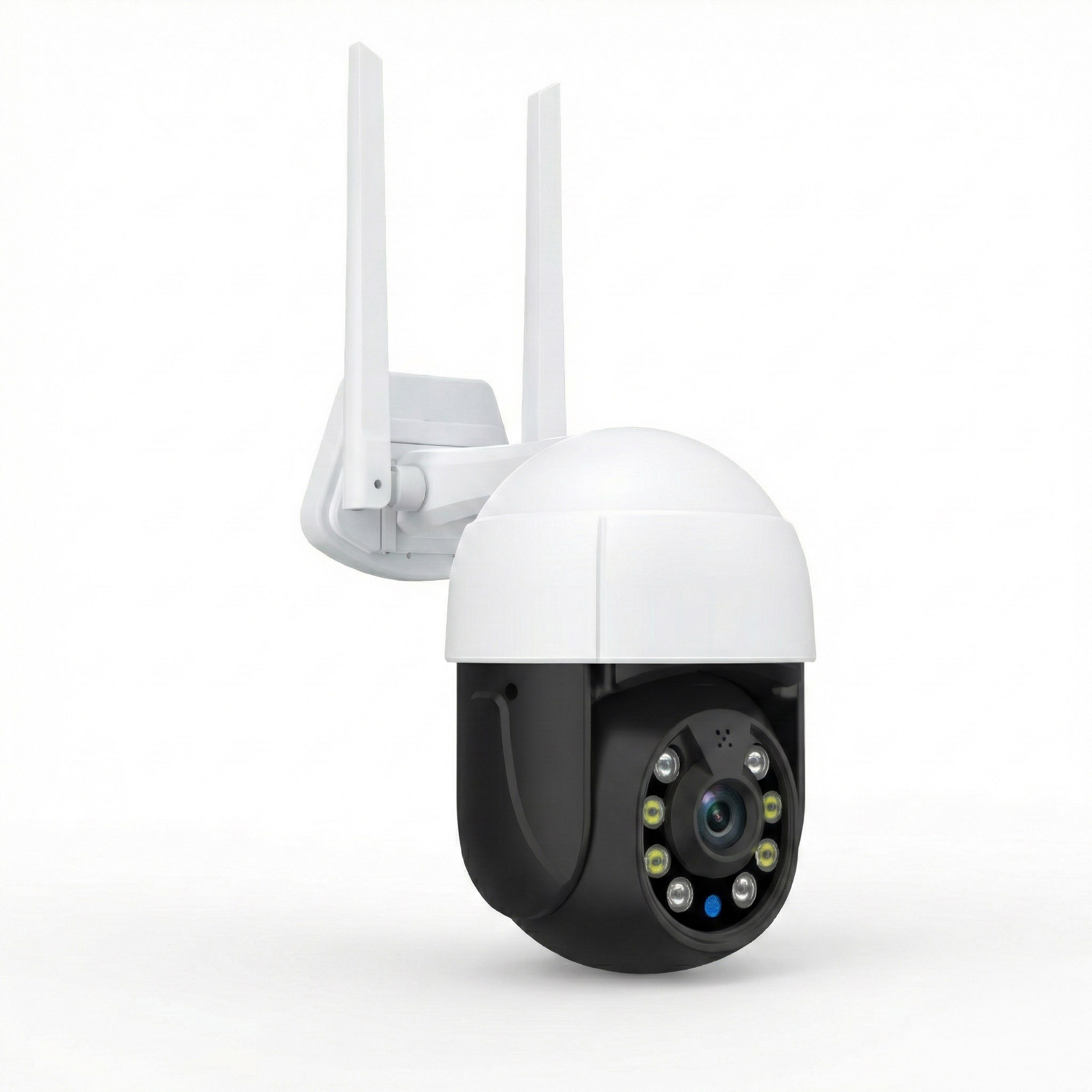
ROOXIS security camera setup guidance specifies a 2.4 GHz connection, so the extended network must provide that band for compatible ROOXIS cameras.
Next, check the signal near the camera.
If the camera is mounted outside, thick exterior walls or a metal garage door may weaken its connection.
Place the extender somewhere that receives a reliable router signal while providing usable coverage near the camera.
Test the camera's live view before permanently mounting or repositioning equipment.
Check whether the video loads consistently and whether the camera remains available in its app.
A stronger WiFi icon is useful, but a reliable camera connection is the actual goal.
Home WiFi Extender Setup: A Practical Step-by-Step Guide
Most plug-in extenders can be installed without advanced networking knowledge.
The exact screens and button labels vary, but the following process works as a general guide.
Step 1: Identify the Weak Area Before Installation
Connect your phone or laptop to the main home WiFi network.
Go to the room where the connection is unreliable.
Try the activity that normally fails.
For example:
-
Start a video call in the office.
-
Open a streaming app in the bedroom.
-
Load the security camera's live feed.
-
Browse several websites from the far end of the house.
Then move toward the router.
Notice where the connection becomes stable.
What a good result looks like:
You find an outlet outside the dead zone where your phone can still maintain a reliable connection to the main router.
This gives you a sensible starting location for the extender.
What to watch for:
Do not rely only on the number of WiFi bars.
A connection may show several bars while experiencing interference or poor performance.
Use actual browsing, video, or speed-test results to judge it.
Step 2: Connect the Extender to Your Router
For initial configuration, plug the extender into an outlet near the router unless its instructions recommend a different starting location.
Most home extenders offer WPS or manual browser setup.
Method 1: WPS pairing
WPS is a button-based connection method supported by some routers and extenders.
-
Plug in the extender and allow it to power on.
-
Locate the WPS button on the router.
-
Follow the extender's instructions for starting pairing.
-
Press the buttons in the required order.
-
Check the extender's status indicator for successful connection.
The exact order and timing depend on the equipment.
If WPS does not work, do not repeatedly press buttons without checking the instructions.
Your router may have WPS disabled or may not support it.
Method 2: Browser setup
Manual setup is often a useful alternative.
-
Open WiFi settings on your phone or laptop.
-
Connect to the extender's temporary setup network.
-
Open a web browser.
-
Enter the local setup address provided by the manufacturer.
-
Select Repeater Mode if you are extending an existing wireless connection.
-
Choose your home WiFi network.
-
Enter your home WiFi password.
-
Save the settings and allow the extender to restart.
For the ROOXIS AC1200 extender, the documented setup addresses are 192.168.8.1 and home.to.
The setup network name is printed on the device label.
If your phone warns that the temporary setup network has no internet connection, remain connected while completing the configuration. Otherwise, the phone may switch networks and interrupt setup.
What a good result looks like:
The extender confirms that it has connected to your router.
You can then see or connect to its extended network.
What to watch for:
Use the password for your existing home WiFi when the setup process requests it.
Do not confuse that password with a router administration password or the credentials used to manage the extender.
Step 3: Move the Extender to Its Working Location
After setup, move the extender to the outlet you identified earlier.
Choose a location that balances two requirements:
-
The extender must receive a strong enough signal from the router.
-
It must provide usable coverage in the problem area.
The best location is not always the physical midpoint.
A hallway outlet closer to the router may work better than an outlet behind a thick wall near the bedroom.
Once the extender powers on, check its signal indicator.
If it reports a weak router connection, move it closer to the router.
What a good result looks like:
The extender shows a healthy connection to the main router, and the problem room is within its extended coverage area.
What to watch for:
Avoid putting the extender behind large metal appliances, inside enclosed cabinets, or close to equipment that produces significant wireless interference.
Step 4: Connect Devices to the Extended Network
Open your phone's WiFi settings.
Look for the network provided by the extender.
Some models create a separate network name. Others may use the same name as the main router.
For the ROOXIS AC1200, the default extended network names use the original name with _EX for 2.4 GHz and _5G_EX for 5 GHz.
Select the appropriate network and enter the password if required.
If a laptop or television continues connecting to the weak main network, check its saved WiFi networks and connection preferences.
For a security camera, use the band supported by the camera.
What a good result looks like:
Your device connects to the intended network and can access the internet from the previously weak room.
What to watch for:
Connecting to the extender does not automatically mean the internet connection is healthy.
A device can connect to a local wireless network even when that network has no working internet access.
Confirm that websites or the required application actually work.
Step 5: Test the Result in the Problem Room
Return to the room where WiFi previously failed.
Use the same device you tested before installation.
Try loading websites, streaming video, joining a call, or checking a camera feed.
If you use speed tests, compare results under similar conditions.
Run a test near the router, near the extender, and in the weak room.
Look for consistency rather than one unusually high result.
What a good result looks like:
The connection is more reliable in the area where it previously failed.
A video call remains stable, a television streams without repeated buffering, or a camera stays connected.
What to watch for:
If performance remains poor, check the extender's router signal first.
Moving it closer to the router may help more than moving it farther into the weak room.
If the router connection is already strong, experiment with a different nearby outlet and test again.
How to Boost WiFi Signal at Home Without Common Mistakes
Many disappointing extender installations come down to placement or expectations rather than faulty equipment.
These mistakes are worth checking before returning a device.
Mistake 1: Placing the Extender Inside the Dead Zone
An extender needs an existing signal to repeat.
If the router barely reaches the installation point, the extender will have little useful bandwidth to distribute.
Move it toward the router until its signal indicator shows a reliable connection.
Then test whether coverage reaches the problem room.
Mistake 2: Choosing Only by Advertised Speed
AC1200 and AX1800 are wireless speed classifications, not guaranteed internet performance.
Actual speeds depend on the router, wireless connection, device capabilities, interference, and broadband service.
A properly positioned lower-cost extender can outperform a more expensive model installed in a poor location.
Choose the standard and features your devices need rather than buying solely based on the largest number.
Mistake 3: Ignoring the Router's Original Performance
If every connected device loses internet access at the same time, the problem may not be wireless coverage.
Check whether the router is working normally and whether the broadband connection is stable.
An extender cannot repair a failing modem, an unstable internet service, or a router that repeatedly restarts.
Resolve the original problem before adding network equipment.
Mistake 4: Using the Wrong WiFi Band
A 2.4 GHz-only camera cannot connect to a 5 GHz-only network.
A laptop near the extender may perform better on 5 GHz, while a distant smart device may need 2.4 GHz for better reach.
Check which bands each device supports.
Then test the band that provides the most reliable connection in its actual location.
Mistake 5: Adding Too Many Wireless Repeaters
Adding several extenders may seem like an inexpensive way to cover an entire house.
However, multiple wireless hops can reduce available throughput and complicate network management.
If you need coverage across several distant rooms, consider a coordinated mesh system or wired access points.
These solutions may be easier to maintain than a chain of basic repeaters.
Mistake 6: Forgetting Firmware and Security Settings
Extenders require occasional maintenance.
Check the manufacturer's official support resources for firmware updates.
Keep appropriate wireless security enabled, and change default management credentials where the device allows or requires it.
If you replace your router or change the WiFi name and password, the extender may need to be configured again.
Also, avoid using unfamiliar setup websites found through search advertisements. Use the address provided by the manufacturer.
How to Tell Whether Your WiFi Extender Is Actually Working
An extender is doing its job when devices work more reliably in the area that previously had poor coverage.
A high signal reading alone is not enough.
Use this simple testing sequence.
1. Check the main router.
Stand close to the router and confirm that your internet connection works normally.
2. Check the extender's router connection.
Look at its signal indicator or status page.
If the connection is weak, adjust its location before testing anything else.
3. Connect to the extended network.
Use the phone, laptop, television, or camera that previously struggled.
Make sure it is using the intended network.
4. Repeat the original problem.
If video calls were freezing, try a call.
If the bedroom television was buffering, stream a video.
If the garage camera was disconnecting, check its live feed and connection status.
5. Test during normal household use.
Try the connection when other people are using WiFi.
A result from an empty house does not always reflect evening conditions when several devices are active.
Record whether the original problem improves.
If the room is now usable and connections remain stable, the extender is providing practical value.
If performance remains inconsistent, revisit placement and the router connection rather than immediately purchasing another extender.
When a WiFi Extender Is Not the Right Solution
A WiFi extender is useful when the main router works properly but cannot provide a strong enough signal in one part of the home.
Other problems require different solutions.
Replace or troubleshoot the router when:
-
WiFi is unreliable even nearby.
-
Devices regularly disconnect throughout the house.
-
The router cannot support the features your devices need.
-
Performance problems affect the entire network rather than one location.
Consider a wired access point when:
-
Your home office needs a dependable connection.
-
Ethernet wiring is already available.
-
Thick walls make wireless backhaul unreliable.
-
You want strong coverage in a distant fixed location.
Consider mesh networking when:
-
Several rooms need improved coverage.
-
People regularly move between floors while connected.
-
You want coordinated management of multiple wireless points.
-
One ordinary extender cannot reach all required areas.
Consider outdoor-rated equipment when:
-
A detached garage needs WiFi.
-
Cameras are located beyond the main house.
-
Exterior walls significantly weaken the signal.
-
Equipment must be installed in an exposed location.
Renters should also consider installation restrictions.
A plug-in extender is usually easier to install and remove than equipment requiring permanent cable runs or outdoor mounting.
Homeowners with Ethernet wiring may have more options for building reliable coverage across separate rooms and floors.
The best approach is to fix the actual cause of weak connectivity instead of adding equipment that creates another connection problem.
A Simple Buying Checklist Before You Order
Before purchasing, answer the following questions:
-
Does my router provide reliable WiFi near its location?
-
Is the problem limited to one room or spread across several areas?
-
Can I identify an outlet where the router signal remains strong?
-
Does the extender support both 2.4 GHz and 5 GHz?
-
Is it compatible with my router's security settings?
-
Do I need WiFi 6 for my current devices and household traffic?
-
Will I connect a television, desktop, or gaming console through Ethernet?
-
Does the extender have a useful signal-strength indicator?
-
Do I need repeater mode, access point mode, or compatible mesh support?
-
Are setup instructions and firmware updates available?
If you have one weak bedroom, a dual-band extender with straightforward setup is a practical starting point.
If the home office needs reliable performance and Ethernet is available, an access point deserves consideration.
If several floors or rooms have connection problems, compare mesh networking before buying multiple repeaters.
For security cameras, check the supported wireless band and test the connection at the actual installation point.
You can compare current router and extender options through the ROOXIS product range and review setup documentation on the ROOXIS website.
Start by testing your existing WiFi in the problem room. Find where the router signal becomes reliable again, then decide whether one extender can bridge that gap. A good installation location is often more valuable than paying for specifications your home cannot use.
FAQ
What is the best wifi extender for homeowners with a two-story house?
A dual-band WiFi 6 extender is worth considering if your existing router works well and only one part of the second floor has weak reception. If several upstairs rooms need coverage, a compatible mesh system or wired access point may be more effective. The best choice depends on floor materials, router location, and the quality of the extender's connection to the router.
Do WiFi extenders really increase internet speed?
A WiFi extender cannot increase the broadband speed delivered by your internet provider. It can improve usable internet performance in a weak-signal room by providing a stronger local wireless connection. Actual speeds may still be lower than those available beside the router because the extender must communicate with it.
What is the difference between a WiFi booster and a WiFi extender?
WiFi booster is a general marketing term for equipment intended to improve wireless coverage. A WiFi range extender specifically connects to an existing router network and repeats its signal into another area. When comparing products, check how the device connects to the router rather than relying on the name printed on the packaging.
Can a WiFi extender help my outdoor security camera?
Yes, a WiFi extender may help if the camera is close enough to receive its signal and the extender has a reliable connection to the main router. Check whether your camera requires 2.4 GHz WiFi and confirm that the extended network supports it. A distant camera or one behind several exterior obstacles may need an outdoor-rated access point or suitable wired connection.
Is WiFi 6 better than WiFi 5 for home extenders?
WiFi 6 provides improvements in wireless efficiency and potential capacity, particularly with compatible routers and devices. However, it does not automatically overcome weak signals, thick walls, or poor placement. For basic browsing and streaming in one weak room, a properly positioned WiFi 5 extender may still be sufficient.
Where should I place a WiFi extender to get the best signal?
Choose an outlet between the router and the weak room where the extender can still receive a reliable router signal. Use its signal-strength indicator rather than relying on distance alone. After installation, test the connection in the room you want to improve and adjust placement if performance remains inconsistent.