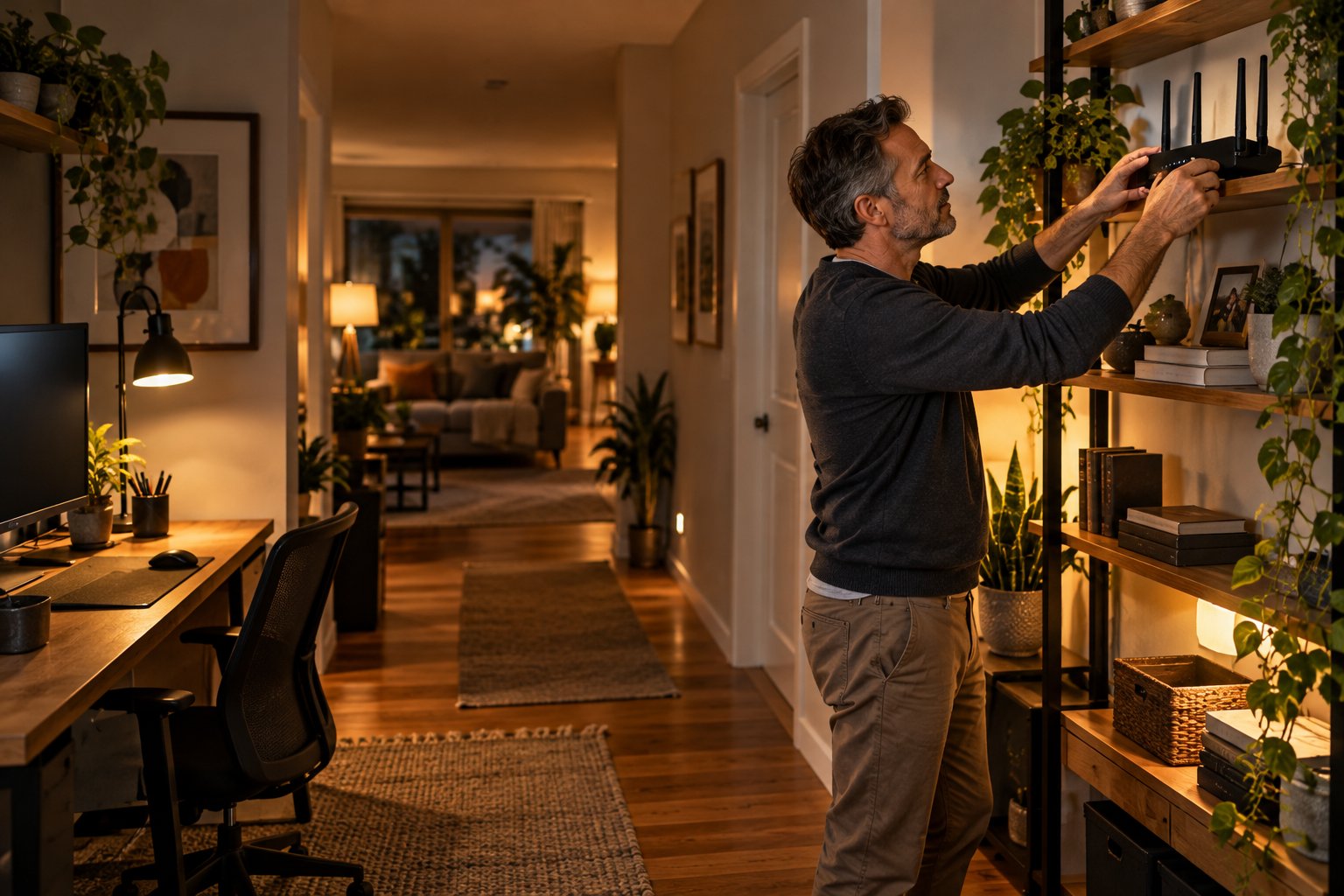
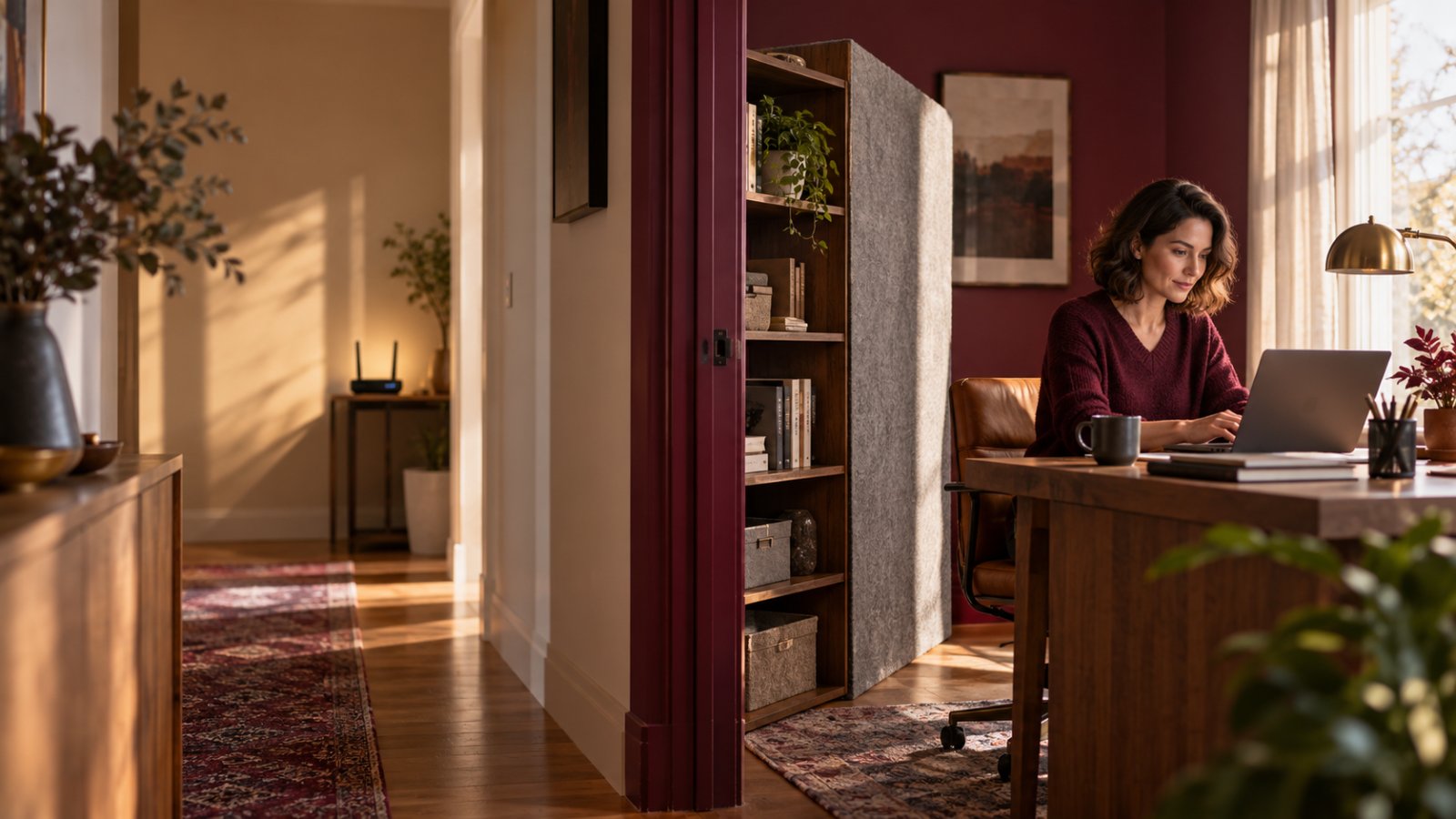
You can block wifi signal in a room by restricting individual devices through your router, turning off wireless access on a schedule, or adjusting where your router broadcasts its signal. However, a typical home router cannot stop WiFi at one bedroom wall while providing uninterrupted coverage everywhere else.
The right fix depends on what you want to stop. If your teenager's tablet needs to lose internet access at bedtime, use parental controls. If you want an indoor security camera disconnected during family time, use its privacy or power settings. If your goal is to reduce wireless signal strength in a particular room, changing router placement or transmit power may help, although the results will not be perfectly confined to that room.
Before changing anything, identify the devices that must stay connected. A setting that disconnects a gaming console could also affect your video doorbell, outdoor camera, or smart home equipment if applied to the wrong network.
Can You Block WiFi Signal in One Room Without Affecting the Whole House?
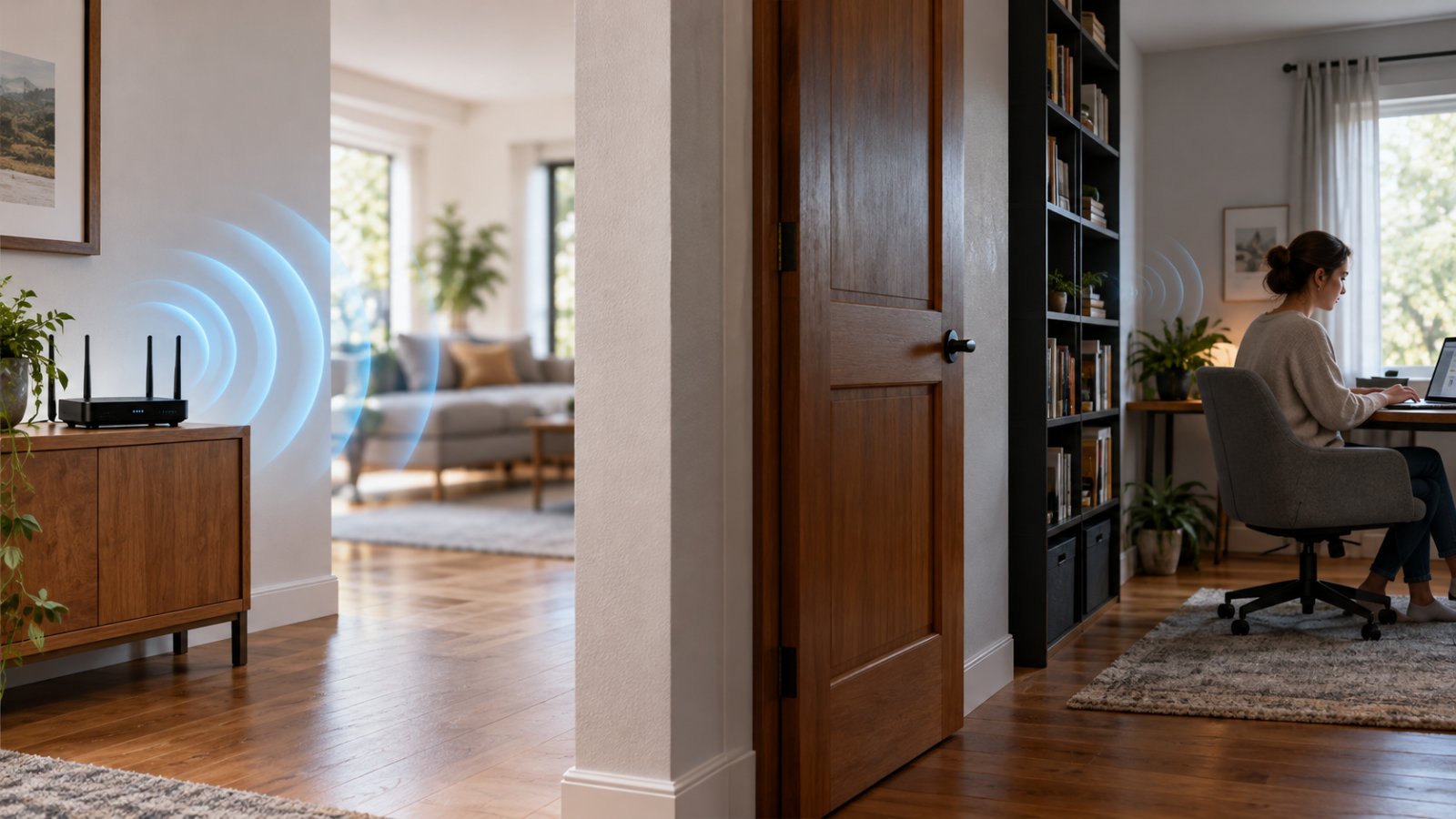
WiFi signals do not stop at walls, doors, or room boundaries.
Your router transmits radio waves that spread through the surrounding space. Those signals can pass through drywall, wooden doors, and some floors. Their strength changes with distance, building materials, nearby electronics, and the wireless frequency being used.
A router positioned in your living room may provide coverage in the kitchen, bedrooms, hallway, and even part of the garden.
Closing a bedroom door will not normally prevent devices inside from connecting.
That is why you need to distinguish between two different goals.
Blocking WiFi signals means reducing or preventing radio waves from reaching an area.
Blocking internet access means preventing selected devices from using your network or reaching online services.
For most households, controlling device access is the better approach.
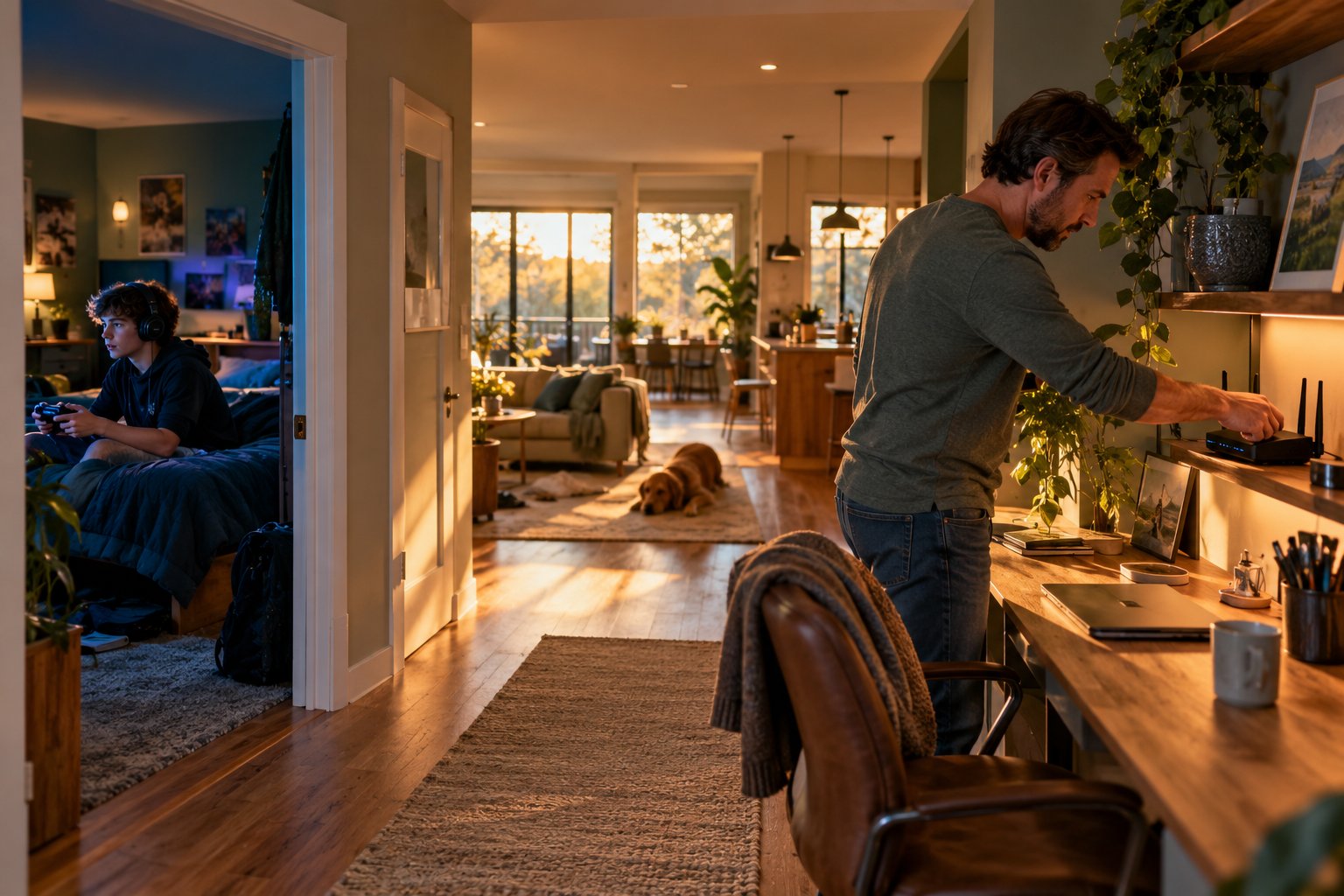
Suppose you want your child's bedroom to have no internet after 10 PM.
You could disable your router's wireless connection completely, but that would also disconnect the television, smart speakers, and security cameras using the same network.
A device schedule is more precise. It restricts the chosen device without requiring you to weaken WiFi coverage throughout the house.
Choose the Method Based on Your Goal
Use this table before making changes.
| Your goal | Recommended method | What to understand |
|---|---|---|
| Stop a child's internet access at bedtime | Router parental controls or device schedules | WiFi signals will still reach the room |
| Disconnect one phone or laptop | Router access control or device pause | The device may switch to mobile data or another network |
| Reduce WiFi coverage near a bedroom | Adjust router location or supported transmit-power settings | Other rooms may also lose coverage |
| Stop an indoor camera from monitoring | Camera privacy mode or power controls | Disconnecting WiFi may not stop local recording |
| Turn off home WiFi overnight | Router wireless scheduling | Wireless cameras and smart devices may disconnect |
| Prevent unauthorized devices from joining WiFi | WPA2-AES or WPA3 security with a strong password | Nearby networks will still be detectable |
| Prevent neighboring WiFi from entering a room | No precise room-only setting exists on your router | You cannot control a neighbor's wireless transmission |
If your goal concerns one phone, laptop, gaming console, or tablet, begin with router access controls.
If it concerns an entire room, first determine whether you actually need weaker radio coverage or simply want the devices in that room disconnected.
What You Need Before Changing WiFi Settings
You do not need a special WiFi blocking device or technical equipment.
You need access to your home router and a clear idea of which devices should remain connected.
Prepare the following:
-
A smartphone or laptop connected to your home WiFi.
-
Your router's management application or administration address.
-
The router administrator password.
-
The name of the device you want to restrict.
-
The current WiFi network name, also called the SSID.
-
A list of cameras and smart home devices that must remain online.
-
A way to record the settings you change.
Make changes only to a network you own or have permission to manage.
If you rent a property where the landlord or building manager controls the router, you may need authorization before changing shared network settings.
Find Your Router's Settings Page
Most home routers provide an administration page or mobile management application.
The administration page lets you change wireless settings, connected-device permissions, passwords, and supported schedules.
On Windows 11:
-
Connect your computer to the home network.
-
Open Settings.
-
Select Network & internet.
-
Open the properties of your active WiFi or Ethernet connection.
-
Find the IPv4 default gateway address.
-
Enter that address into your browser.
On an iPhone:
-
Open Settings.
-
Select Wi-Fi.
-
Tap the information icon beside your connected network.
-
Find the Router address.
-
Enter that address into Safari.
The address may resemble 192.168.1.1 or another private network address.
Router manufacturers use different defaults.
For example, the ROOXIS router setup reference identifies 192.168.10.1 as the management address for its AC1200 router.
Use the address assigned to your actual router rather than assuming every device uses the same one.
If your internet provider supplied the router, its official application may be the easiest way to access available controls.
Check the Administrator Password
Your router usually has two different types of credentials.
The WiFi password allows phones, laptops, and other devices to join the wireless network.
The administrator password allows someone to change router settings.
These passwords should not be confused.
If you cannot sign in, check the router manufacturer's official instructions or your internet provider's account management options.
Do not perform a factory reset as your first troubleshooting step.
Resetting a router may remove its internet configuration, wireless passwords, schedules, and connected-device settings.
You could end up disconnecting equipment that was working correctly.
Record Your Existing Settings
Before changing anything, save the important details.
Record:
-
Current SSID.
-
Wireless security mode.
-
Whether 2.4 GHz and 5 GHz are enabled.
-
Guest network settings.
-
Existing parental control profiles.
-
Devices using access restrictions.
-
Any current WiFi schedules.
Screenshots are useful when the management interface contains several settings on one page.
Make one change at a time.
That way, if your front-door camera stops connecting, you can identify the setting responsible and restore it without undoing unrelated changes.
How to Block WiFi Signal in a Room: Step-by-Step Walkthrough
The following steps cover the most useful methods available on ordinary home routers.
Not every model includes every feature. Menu names may differ, and some internet provider routers provide fewer controls than independently purchased models.
Start with device restrictions if you want to manage internet access.
Only adjust signal coverage when reducing the physical WiFi signal is your actual goal.
Step 1: Identify Whether You Need Signal Blocking or Device Restrictions
What to do
Write down exactly what should stop working.
For example:
-
A teenager's laptop should lose internet access after bedtime.
-
A gaming console should be unavailable during homework hours.
-
An indoor camera should stop monitoring during family gatherings.
-
A guest tablet should have internet access only during certain hours.
-
WiFi signal strength should be reduced in one part of the house.
Next, identify what must continue working.
A household may need its outdoor camera, video doorbell, smart thermostat, and living room television to stay connected.
Do not put these devices into a restriction profile intended for a child's tablet.
What you should see
You should have a specific target and a clear list of devices that must remain online.
For example, your goal might be to disconnect one tablet from 9 PM to 7 AM while maintaining normal internet access for the rest of the house.
What to watch for
Blocking internet access does not necessarily remove the WiFi network from the device's screen.
A phone may still display a connected WiFi symbol even when the router prevents it from reaching websites.
The device may also use cellular data.
If your goal is reducing screen time, consider the operating system's parental controls alongside router restrictions.
Step 2: Test the Existing WiFi Signal in the Room
What to do
Before adjusting wireless coverage, measure what is currently reaching the room.
Use the same phone or laptop for each test.
-
Connect the device to your home WiFi.
-
Stand near the router.
-
Check the WiFi signal indicator.
-
Run a speed test.
-
Move to the room you want to restrict.
-
Repeat the test.
-
Test another room that must keep reliable coverage.
Record the results in a note.
If your device supports a WiFi analyzer, you may also be able to examine the received signal strength in dBm.
For example, a reading of negative 50 dBm represents a stronger received signal than negative 80 dBm.
These values describe signal strength, not guaranteed internet speed.
What you should see
You should be able to identify whether the target room receives a strong or weak signal compared with the room containing the router.
This gives you a reference for later adjustments.
What to watch for
Do not treat WiFi bars as precise measurements.
Two devices may show different signal levels in the same room.
For a meaningful comparison, use the same device, wireless band, and test location.
Avoid large downloads on other household devices while taking measurements.
Step 3: Open Router Parental Controls or Access Control
What to do
Sign in to your router's administration page.
Look for one of these menus:
-
Parental Controls.
-
Family Controls.
-
Connected Devices.
-
Access Control.
-
Device Management.
-
Internet Pause.
The available settings vary by router.
Some models allow you to create a profile for a family member. Others let you apply restrictions directly to individual devices.
For a bedtime restriction:
-
Open the parental control section.
-
Create a family profile if the router supports one.
-
Select the correct device.
-
Set the permitted internet hours.
-
Save the schedule.
-
Test the restriction before relying on it.
You may need to identify the device using its network name, hardware address, or information shown in the connected-device list.
What you should see
The router should show the device or profile with an active restriction.
When the scheduled period begins, the device should lose internet access according to the router's rules.
Other devices should remain connected.
What to watch for
Some routers restrict internet access but still allow communication with devices on the local network.
Also, smartphones may use randomized WiFi addresses.
If the phone presents a different address from the one used when the rule was created, the restriction may not apply as expected.
Check the router's device list when troubleshooting.
Avoid changing settings for an unidentified device.
Step 4: Create a Separate WiFi Network for Devices You Want to Control
What to do
A guest network can make it easier to separate certain devices from the main household network.
For example, you may want visiting relatives to use a guest network rather than the network shared by your computers and security cameras.
Some routers also allow guest access schedules.
To create a guest network:
-
Open Wireless or Guest Network settings.
-
Enable the guest network.
-
Choose a recognizable SSID.
-
Set a strong WiFi password.
-
Select WPA2-AES or WPA3 security where supported.
-
Enable guest isolation if available and appropriate.
-
Save the settings.
-
Connect a test device.
If the router offers guest network scheduling, configure the hours during which that network should be available.
What you should see
A second WiFi network name should appear on nearby devices.
Connected guest devices should follow the access rules configured for that network.
What to watch for
A guest network is not restricted to one physical room.
It is another wireless network transmitted from the router.
It may reach the hallway, living room, or neighboring rooms.
Turning off the guest SSID also does not necessarily turn off the main wireless radio.
If your router lacks guest network scheduling, use its device restriction features instead.
Step 5: Use a Wireless Schedule When the Whole Network Can Be Turned Off
What to do
If every wireless device can safely disconnect during certain hours, check whether your router supports WiFi scheduling.
Look under Wireless Settings, WiFi Schedule, or Advanced Wireless Settings.
Some routers allow separate schedules for 2.4 GHz and 5 GHz.
Others switch off the entire wireless network.
A typical setup involves:
-
Opening the wireless scheduling menu.
-
Enabling the schedule.
-
Selecting the days.
-
Entering the start and end times.
-
Checking the router's time zone.
-
Saving the configuration.
-
Testing the schedule while you can restore access.
For example, a household with no overnight wireless devices might schedule WiFi to switch off after everyone has finished using it.
What you should see
The wireless network should become unavailable or stop accepting connections when the schedule becomes active, depending on the router.
Devices using the affected network will disconnect.
What to watch for
This usually affects the whole wireless network, not just one bedroom.
Before enabling it, check whether you have:
-
Wireless security cameras.
-
Video doorbells.
-
Smart thermostats.
-
Wireless alarms or sensors.
-
Connected medical or accessibility equipment.
-
Other devices requiring continuous internet access.
Some routers continue providing Ethernet connections when WiFi is switched off.
Others have broader scheduling controls.
Understand your specific model before relying on a schedule.
Step 6: Adjust Router Placement to Reduce Coverage in the Target Room
What to do
If your goal is to weaken the wireless signal entering a room, start with router placement.
Suppose the router sits against a wall shared with the bedroom.
The bedroom may receive a strong signal because it is physically close to the router.
Moving the router farther from that shared wall could reduce the signal reaching the bedroom.
Try these adjustments:
-
Identify where the router sits relative to the target room.
-
Choose another safe, open location.
-
Keep the router away from large metal objects.
-
Maintain ventilation around the equipment.
-
Follow the manufacturer's antenna guidance.
-
Test the signal in the target room.
-
Check important devices elsewhere in the house.
Do not move the router so far from the internet connection that cables become stretched or damaged.
What you should see
The signal in the target room may become weaker after the router is moved.
You may also notice changes elsewhere.
A bedroom could receive less coverage while a hallway or office receives more.
What to watch for
Router placement cannot create a precise signal boundary.
WiFi may still enter the room through doorways, floors, and reflected paths.
Do not place an operating router inside a sealed metal container or wrap it in shielding material.
That can interfere with normal operation and ventilation.
If the new position disconnects important devices, restore the previous location.
Step 7: Check Wireless Band and Transmit-Power Settings
What to do
Some routers allow you to reduce wireless transmit power.
Look for settings named:
-
Transmit Power.
-
TX Power.
-
Wireless Power.
-
Radio Power.
Not all routers provide this control.
If yours offers High, Medium, and Low settings, try a small adjustment.
For example, change the selected radio from High to Medium, save the setting, and retest coverage.
Avoid changing several radio settings at once.
Also check which wireless band your devices use.
2.4 GHz WiFi generally travels farther through household obstacles.
5 GHz WiFi often provides higher throughput over shorter distances.
Some newer routers also support 6 GHz.
These bands do not provide identical coverage.
What you should see
Lowering transmit power may reduce the received signal strength in distant rooms.
Changing the band used by a compatible device may also affect its connection quality.
What to watch for
Transmit-power changes affect more than the target room.
Reducing router power may weaken connections throughout the house.
Also, lowering the router's broadcast power does not necessarily reduce a connected device's transmit power in the same way.
Do not disable 2.4 GHz without checking device requirements.
Many security cameras, smart plugs, and other household devices rely on that band.
If the change causes problems elsewhere, restore the original settings.
Step 8: Disconnect a Specific Camera or Smart Home Device
What to do
If the concern is privacy from an indoor security camera, control the camera directly.
Trying to weaken the WiFi signal is usually unnecessary.
Open the manufacturer's camera application.
Look for options such as:
-
Privacy Mode.
-
Sleep Mode.
-
Camera Off.
-
Recording Schedule.
-
Device Power.
-
Network Settings.
Some cameras support a privacy mode that stops video monitoring.
Others allow you to disable recording during selected periods.
If appropriate, you can also switch the camera off using its normal power controls.
What you should see
The camera application should confirm the selected privacy or power status.
If you disable its network connection, remote viewing may become unavailable.
If you activate a supported privacy mode, the application should indicate how monitoring is affected.
What to watch for
Disconnecting a camera from WiFi does not always stop recording.
Some models continue recording to local storage while offline.
Turning off motion notifications may also leave video recording active.
Check what the camera's privacy setting actually does.
If the camera is used for home security, make sure disconnecting it will not remove coverage you rely on.
Step 9: Test the Restrictions and Restore Anything That Stops Working
What to do
After making a change, check the result.
For device restrictions:
-
Connect the restricted device.
-
Open a website.
-
Test during the restricted period.
-
Check the router's status page.
-
Confirm other devices still work.
For wireless coverage changes:
-
Use the same test phone or laptop.
-
Stand in the original test location.
-
Check the signal strength.
-
Repeat the speed test.
-
Compare the results with your earlier measurements.
-
Check nearby rooms.
What you should see
The selected restriction should work without disconnecting devices that need internet access.
For example, a tablet may lose internet access during its bedtime schedule while the front-door camera continues operating normally.
What to watch for
A failed website load does not automatically prove the restriction is working.
Try more than one trusted website or service.
If the test device is a phone, check whether mobile data took over.
If your router change causes unexpected connection failures, restore the last setting before making another adjustment.
Which Materials Can Weaken WiFi Signals?
Different materials affect WiFi differently.
That does not mean you can reliably block a bedroom by placing one object near the router.
The amount of signal reduction depends on the material, thickness, frequency, and surrounding layout.
Common Materials and Their Effects
| Material or obstacle | Typical effect on WiFi | What to consider |
|---|---|---|
| Drywall | Usually allows signal penetration | Several walls can gradually weaken coverage |
| Wooden furniture | Can reduce signal strength | Thickness and construction affect the result |
| Brick walls | Often weaken signals | Wall thickness and moisture can matter |
| Concrete | Can substantially reduce WiFi strength | Reinforcement and construction affect performance |
| Metal cabinets | Can reflect or obstruct radio signals | Avoid enclosing an operating router |
| Mirrors and coated glass | May reflect or weaken certain signals | Coatings and backing materials vary |
| Closed interior doors | May slightly affect signal strength | Usually do not provide complete blocking |
| Large water-filled objects | Can absorb radio energy | Aquariums may affect nearby wireless coverage |
A router separated from a bedroom by reinforced concrete may provide a weaker signal than one separated by drywall.
However, even a thick wall does not guarantee that WiFi cannot reach the room.
Signals may travel through nearby openings or alternate paths.
Should You Use Aluminum Foil or Metal Sheets?
Aluminum foil and metal surfaces can reflect or obstruct radio signals.
However, attaching foil behind a router or placing metal sheets around furniture is not a reliable way to isolate one room.
The signal may still travel around the obstruction.
You may also weaken coverage in areas where you want WiFi to remain available.
Do not wrap a powered router or extender in foil.
That can interfere with airflow and normal operation.
If your goal is to disconnect a tablet at bedtime, access controls are a more dependable solution than rearranging metal objects around the house.
What About Special RF-Blocking Materials?
Specialized radio-frequency shielding materials are designed to reduce electromagnetic signal transmission.
Their effectiveness depends on the frequency, construction, installation quality, and gaps in the shielded area.
A room with ordinary doors, windows, ventilation openings, and electrical connections is not automatically isolated because one wall has shielding material.
For everyday home internet management, such installations are usually unnecessary.
A parental control schedule, properly configured guest network, or device privacy setting will often address the actual problem more directly.
Why WiFi Signal Jammers Are Not a Safe Solution
Some online products claim they can stop wireless signals throughout a room.
These devices may be advertised as WiFi blockers, signal jammers, or wireless interference devices.
Do not use radio signal jammers to control household WiFi.
Unauthorized signal jamming is prohibited in the United States, including on private property.
Jammers can interfere with communications beyond the room where they are operated.
They may affect nearby authorized wireless services and other equipment.
The Federal Communications Commission explains the restrictions in its official advisory about signal jamming devices.
A jammer is not required to restrict a child's laptop, disconnect a camera, or manage WiFi access hours.
Use your router's supported controls and ordinary device settings.
These methods let you make targeted, reversible changes without intentionally interfering with radio communications.
Common Mistakes When Trying to Block WiFi in One Room
Most problems occur when a household changes the wrong setting.
The device remains connected, the wrong room loses coverage, or a security camera goes offline.
Check these mistakes before making further adjustments.
Mistake 1: Assuming a Closed Door Will Block WiFi
An interior door normally does not provide reliable wireless isolation.
WiFi signals can pass through many common door materials.
They can also enter from adjoining spaces.
Closing the bedroom door may slightly change signal strength, but it will not reliably disconnect a tablet.
Use device access controls if disconnection is the actual goal.
Mistake 2: Hiding the WiFi Network Name
Some routers offer an option to hide the SSID.
This prevents the network name from appearing in some ordinary WiFi lists.
It does not stop radio transmissions.
It also does not provide strong protection against unauthorized access.
Use WPA2-AES or WPA3 security and a unique password instead.
If you want to control when a device connects, configure an access schedule.
Mistake 3: Changing the WiFi Password to Control One Device
Changing your WiFi password can disconnect devices that no longer have valid credentials.
But it may also affect every other device using the same network.
You could end up reconnecting televisions, printers, cameras, laptops, and smart home equipment.
For one device, a router pause or access control rule is usually more practical.
Change the network password when there is a genuine credential security reason, not simply to enforce a bedtime schedule.
Mistake 4: Turning Off the Entire Router at Night
Turning off the router disconnects more than the bedroom laptop.
It may also interrupt:
-
Outdoor security cameras.
-
Video doorbells.
-
Smart thermostats.
-
Home monitoring equipment.
-
Connected alarms.
-
Other devices requiring continuous access.
If the goal is to restrict one family member's internet use, keep the main network running and configure device-specific controls.
Mistake 5: Assuming a WiFi Extender Can Block Signals
A conventional WiFi extender increases usable coverage.
It receives a wireless connection and rebroadcasts it into another area.
It is not designed to create a signal-free room.
Switching off an extender can reduce the coverage that particular device provides.
However, the original router may still reach the same area.
If you want less coverage, identify which access point is providing the signal before changing equipment.
Mistake 6: Blocking an Unknown Device Without Identifying It
A router's connected-device list may contain names that are difficult to recognize.
Your smart television might appear under a model identifier.
A camera may appear under its manufacturer's technical name.
A phone may use a randomized network address.
Before blocking a device, compare its details with the devices you own.
Disconnect one known device temporarily if needed and observe which entry disappears from the list.
Do not block every unfamiliar entry without checking what it represents.
Mistake 7: Assuming Internet Restrictions Stop Every Connection
Router restrictions only control traffic according to the rules supported by that router.
A device may still communicate with other local devices.
A smartphone may use mobile data.
A laptop may connect to another available wireless network.
If your goal is screen time management, use appropriate parental controls on the device itself alongside home router restrictions.
What to Do If WiFi Still Reaches the Room
If your first change does not work, identify the specific failure.
Do not repeatedly change wireless settings without checking the result.
The Device Still Has Internet After Being Blocked
First, confirm that the correct device was selected.
Open the router's connected-device list.
Check the device name and hardware address if available.
If the device uses a randomized WiFi address, make sure the access rule matches the address currently used on that network.
Next, confirm the restriction is enabled and assigned to the correct schedule.
Disconnect and reconnect the device.
Test several websites.
If the device is a phone, temporarily disable mobile data during testing.
Also confirm whether your router's access control blocks internet access or only particular services.
The Room Still Has Strong WiFi After Moving the Router
A router may continue reaching the target room even after being moved.
WiFi signals can pass through walls and travel along different paths.
Try another suitable position if the available cables permit it.
If the router supports transmit-power adjustments, test a lower supported setting carefully.
Measure the result in the same location using the same device.
Check the rest of the home after every adjustment.
If the signal remains strong but your actual goal is to restrict a particular device, stop trying to weaken the radio coverage.
Use a device access rule.
Your Security Camera Goes Offline Unexpectedly
Check which network the camera uses.
Many home cameras require 2.4 GHz WiFi.
If you disabled that band, restore it.
Also check whether:
-
The camera was included in a restricted device profile.
-
The guest network was switched off.
-
The WiFi password was changed.
-
The SSID was renamed.
-
Router placement changes weakened the camera's connection.
Restore the previous setting and follow the camera manufacturer's reconnection instructions if necessary.
If the camera uses local storage, verify whether any recordings were affected during the outage.
The Router Settings Page Will Not Open
First, confirm that your device is connected to the correct local network.
Check the default gateway address.
Enter the address directly into the browser rather than searching for it.
If your VPN interferes with local network access, temporarily disconnect it if appropriate.
You can also try another browser or the manufacturer's management application.
Some internet provider routers restrict settings to their official application or customer account.
Avoid a factory reset unless you know how to restore the internet connection.
The WiFi Schedule Runs at the Wrong Time
Check the router's clock and time zone.
A schedule configured with the wrong time can disconnect devices unexpectedly.
Verify the selected days.
Pay particular attention to schedules that start before midnight and end the following morning.
For example, a bedtime restriction beginning at 10 PM and ending at 7 AM crosses into the next calendar day.
Make sure the router interprets that schedule correctly.
Test the restriction while you are available to restore access.
The Restricted Device Connects Through Another Network
Your router can only control the network it manages.
It cannot prevent a device from using a neighbor's authorized WiFi network, another hotspot, or cellular data.
A smartphone may automatically switch to mobile data when home internet becomes unavailable.
A laptop may connect to another saved network.
If the goal is managing a child's device use, review the device's parental controls and permitted connections.
Do not attempt to interfere with neighboring networks.
When to Improve WiFi Coverage Instead of Blocking It
Sometimes the problem is not excessive WiFi coverage.
The problem is unstable or weak coverage.
For example, an outdoor camera may disconnect whenever someone closes a nearby door.
Or a laptop may switch between the main router and an extender, creating interruptions during video calls.
Reducing router transmit power could make those problems worse.
Start by testing the connection near the router and at the affected device.
If the signal is reliable near the router but weak elsewhere, review placement and obstacles.
A properly positioned WiFi extender or wired access point may help.
The extender should sit where it receives a reliable signal from the main router, not directly inside the weakest part of the dead zone.
If your camera uses 2.4 GHz, confirm that the additional access point or extender supports that band.
Also check whether the camera's power supply or firmware is contributing to its disconnections.
Do not purchase a signal booster when the actual goal is to restrict a child's device.
Likewise, do not lower your router's transmit power when a camera needs better coverage.
Use coverage equipment to improve dead zones. Use access controls to restrict selected devices.
Making that distinction before changing settings can prevent unnecessary equipment purchases and avoid disrupting devices that already work.
FAQ
Can You Completely Block WiFi Signal in One Room?
A typical home router cannot create a precise wireless boundary around one room. Certain building materials and specialized shielding can weaken signals, but complete isolation requires more than changing ordinary router settings. For most households, restricting individual devices is easier and more reliable.
Does Aluminum Foil Block WiFi Signals?
Aluminum foil can reflect or obstruct radio signals, but it does not provide a dependable method for isolating one bedroom. Signals may still travel around the material, and placement can affect other parts of the network. Never wrap a powered router or extender in foil because it can interfere with normal operation and ventilation.
Can I Turn Off WiFi in My Child's Bedroom at Night?
You can restrict your child's devices through router parental controls, access schedules, or device-level settings. These controls do not physically stop the WiFi signal from entering the bedroom. If the device has cellular data or access to another network, additional device-level restrictions may be necessary.
Can I Block WiFi Without Disconnecting My Security Cameras?
Yes, if your router supports device-specific restrictions. You can pause a tablet or laptop while leaving the cameras connected. Avoid switching off the entire wireless network or disabling the 2.4 GHz band if your cameras depend on it.
Are WiFi Signal Jammers Legal for Home Use?
Unauthorized radio signal jammers are prohibited in the United States, including on private property. They can interfere with authorized wireless communications beyond the area where they are operated. Use router access controls, device restrictions, or supported WiFi schedules instead.
Will Changing My WiFi Password Block One Device?
Changing your WiFi password can prevent a device using the old credentials from reconnecting, but it may also disconnect every other device on that network. You could need to update televisions, cameras, printers, and smart home accessories. Use a device-specific access restriction when you only need to control one connection.
For most homes, the reliable way to block WiFi access in one room is to manage the devices using the connection. Create a bedtime schedule for a tablet, use access controls for a gaming console, or activate a camera's privacy settings when monitoring should stop.
If you genuinely need to reduce wireless signal strength, change router placement or supported transmit-power settings one at a time. Test the target room, check the devices that must remain online, and restore any setting that creates problems elsewhere.
You do not need a signal jammer, improvised metal shielding, or a new router to manage most household WiFi restrictions.