The best place to put wifi router in 2 story house is usually on an open, elevated shelf near the central staircase or hallway. This gives the signal a better chance of reaching both floors without passing through too many walls.
But that advice changes if your home has reinforced concrete floors, a closed staircase, or an upstairs office at the far end of the building. In those cases, moving the router a few feet may not solve the problem.
Before buying a WiFi extender or replacing your router, compare a few sensible locations. This guide explains which positions work best for different two-story layouts, what each one gets right and wrong, and how to test coverage using the devices you already own.
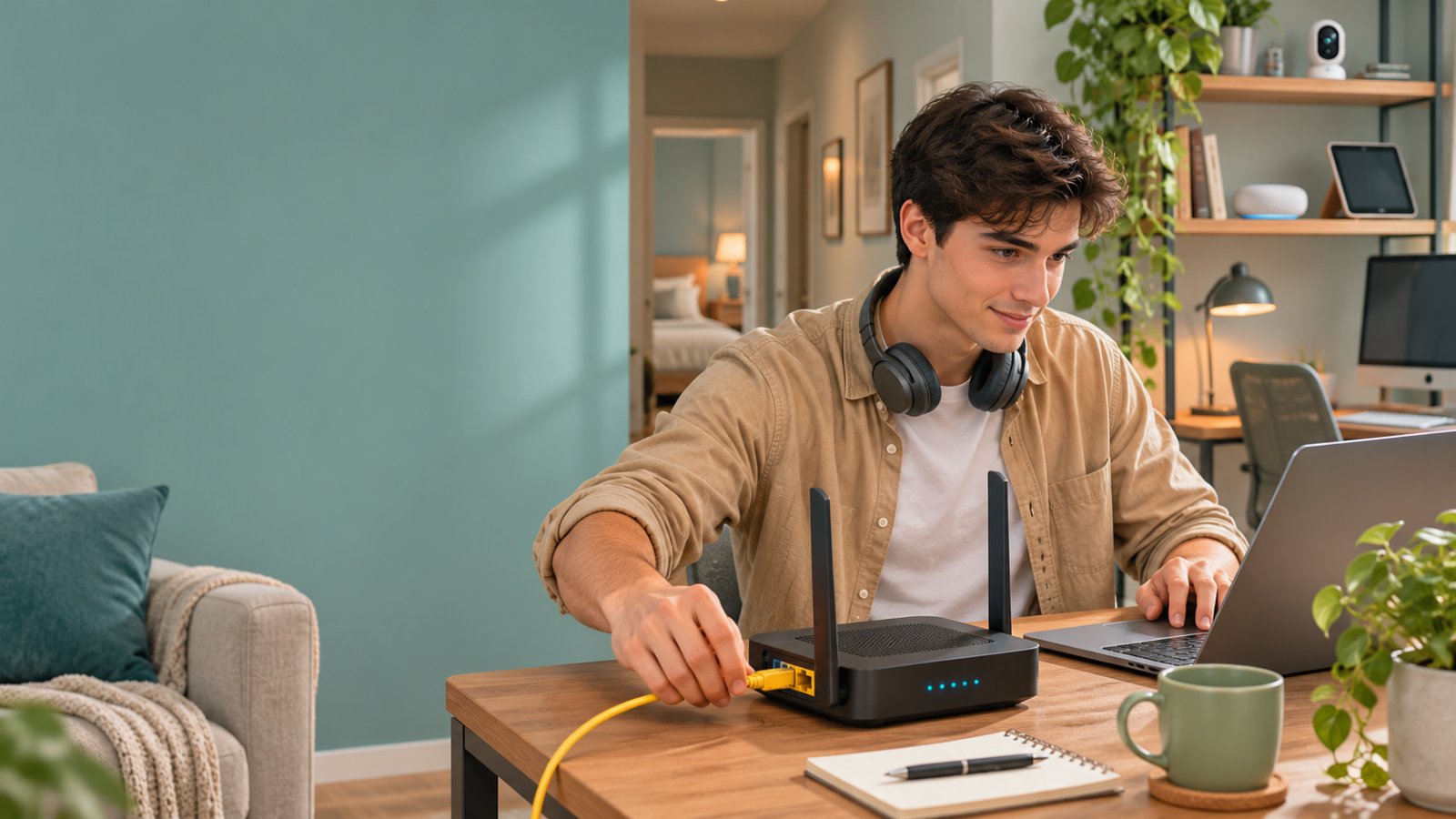
[Image: best-place-put-wifi-router-1.webp | alt: best place to put wifi router in 2 story house in a real-life setting]
Best Place to Put WiFi Router in 2 Story House: The Short Answer
Start with a shelf near the middle of the ground floor, ideally close to an open staircase.
Keep the router off the floor, away from large appliances, and out of enclosed cabinets.
Then check the connection in the upstairs bedrooms, downstairs living areas, and any places where you regularly use WiFi.
This arrangement works well as a starting point because it avoids putting the router at one extreme end of the building.
Consider a two-story house with a living room and kitchen downstairs and three bedrooms upstairs.
If the router sits near the front entrance, the farthest upstairs bedroom may be separated from it by several walls and a floor.
Moving the router closer to the central staircase could shorten that path.
Now imagine the same house with a concrete floor between levels.
The upstairs connection may remain weak even after you move the router downstairs.
In that case, an upstairs access point could be more useful than further adjustments to the router's position.
The right location is the one that reliably serves your important rooms, not necessarily the exact center of the floor plan.
What to Look for in a Good Router Location
Before choosing a shelf or mounting position, check five things.
-
Distance: Keep the router reasonably close to the bedrooms, offices, and living spaces where internet access matters most.
-
Obstacles: Avoid locations where the signal must pass through several thick walls, large metal objects, or major appliances.
-
Height: Use an open shelf or suitable mount rather than placing the router directly on the floor.
-
Ventilation: Leave the router's air vents clear and avoid tightly enclosed furniture.
-
Connections: Make sure the router can reach the modem or internet gateway using a suitable cable and has access to power.
The router should also be easy to reach.
If you need to restart it, connect a device using Ethernet, or check its indicator lights, you shouldn't have to move heavy furniture.
A location behind a television may look tidy, but it can create unnecessary obstacles.
A location beside the staircase may be more visible, but it could provide more useful coverage.
You need to balance convenience with wireless performance.
How the Locations in This Guide Are Compared
The placement options below are assessed using practical criteria, not claimed speed tests.
Each location is considered for:
-
Likely coverage across both floors.
-
Distance to frequently used rooms.
-
Number and type of obstacles.
-
Ease of connecting to the existing internet equipment.
-
Suitability for security cameras and smart-home devices.
-
Practicality for homeowners and renters.
A central staircase shelf is often the strongest starting option.
An upstairs landing may be better when most devices are upstairs.
A central living room shelf may make more sense when streaming, gaming, and smart-home equipment are concentrated downstairs.
Use the comparison to narrow your choices, then test them in your own house.
What Makes a Router Location Good in a Two-Story Home?
WiFi signals don't travel through every building in the same way.
A lightweight timber-framed floor and a reinforced concrete floor can produce very different coverage.
The same applies to open staircases, long corridors, metal furniture, and exterior walls.
Distance matters, but so does everything between the router and your device.
Distance Between the Router and Your Devices
The farther a device is from the router, the weaker its received WiFi signal will generally become.
Walls and other obstacles can make that reduction worse.
Suppose the router is in a downstairs room at the front of the house.
A bedroom directly above it may receive a usable connection.
An upstairs office at the back of the building could struggle because the signal must travel farther and cross additional walls.
Moving the router toward the middle may reduce the distance to both locations.
But don't ignore where the busiest devices are.
If two people work from upstairs bedrooms while the downstairs guest room is rarely used, slightly favoring the upper floor may make sense.
The goal isn't identical signal strength in every corner.
It's reliable coverage where you need it.
How Floors Affect WiFi Signals
The floor between levels is often the biggest obstacle in a two-story house.
Lightweight construction may allow enough signal through for normal browsing and streaming.
Thick concrete, steel reinforcement, metal flooring materials, and other dense structures can weaken the signal considerably.
This explains why a phone may show a strong connection downstairs but struggle in a bedroom directly above the router.
If the floor is the problem, shifting the router sideways may only produce a small improvement.
A position near an open staircase may provide another path between levels.
If that still doesn't work, a wired upstairs access point may be the more dependable solution.
Walls, Furniture, and Household Appliances
An open room usually gives WiFi a clearer path than a hallway filled with obstacles.
Drywall typically causes less signal loss than thick masonry or reinforced concrete.
Large metal cabinets, structural materials, and some appliances can also interfere with wireless coverage.
Pay attention to what surrounds the router.
A router placed inside a metal cabinet may struggle even when the cabinet is near the center of the house.
A router hidden behind a large television can face similar problems.
Microwave ovens can also interfere with nearby 2.4 GHz wireless connections while operating.
You don't need to move every electronic device out of the room.
Just avoid placing the router directly against large appliances or behind obvious physical obstructions.
Why Router Height Matters
A router on the floor may be blocked by sofas, cabinets, desks, and other furniture.
Moving it onto an open shelf often gives the signal a clearer route through the room.
A shelf at ordinary furniture height or somewhat higher is a reasonable starting point.
You don't need to mount the router near the ceiling automatically.
An extremely high position may make cable routing, maintenance, and ventilation more difficult.
Follow the manufacturer's guidance if your router is designed for a particular mounting orientation.
Whatever height you choose, keep the device stable and its ventilation openings unobstructed.
The Best Router Locations, Compared
There are several sensible places to install a router in a two-story home.
The right choice depends on the layout and where your devices are located.
Here are the main options, including their advantages and the problems to watch for.
Central Shelf Near the Stairway: Best Overall
Best for: Homes with bedrooms upstairs, shared living areas downstairs, and a staircase near the center.
This is the first location I would test in a typical two-story home.
A centrally located stairwell may provide a relatively open path between levels.
Placing the router nearby can also reduce the distance to several rooms.
For example, a router on a hallway shelf near the stairs might serve the downstairs living room, upstairs landing, and adjacent bedrooms without being trapped inside one room.
Strengths
-
Offers a reasonable starting point for both floors.
-
May reduce the number of walls in the signal path.
-
Avoids concentrating coverage at one end of the house.
-
Can serve several nearby rooms without additional equipment.
Limitations
-
A fully enclosed staircase may offer little advantage.
-
Long houses may still have weak coverage at either end.
-
A hallway may not have convenient power or Ethernet access.
-
Exposed cables can create a trip hazard.
How to position it
Choose a sturdy, open shelf near the staircase.
Keep it away from metal cabinets and large appliances.
If the staircase is enclosed by masonry walls, also test the upstairs landing.
Don't balance the router on a handrail or leave cables across the steps.
Upstairs Landing: Best When Bedrooms and Offices Need Coverage
Best for: Homes where most connected devices are in upstairs bedrooms, study areas, or offices.
An upstairs landing can provide good coverage to several rooms opening onto the same hallway.
For example, if two bedrooms are used for online classes and another room is a home office, placing the router near the middle of that floor can reduce the distance to all three.
Strengths
-
Keeps the router close to upper-floor devices.
-
May provide a clearer path along the upstairs hallway.
-
Can improve coverage for workspaces and bedrooms.
-
Avoids crowding the downstairs entertainment area.
Limitations
-
Downstairs connections may become weaker.
-
Concrete flooring can limit signal transmission between levels.
-
Ground-floor smart devices or cameras may struggle.
-
Running a network cable upstairs may be inconvenient.
How to position it
Use a shelf near the landing, preferably where the signal can travel down the hallway.
Avoid enclosed closets.
Once you've moved the router, test the downstairs television, smart devices, and outdoor cameras.
Don't approve the new position based only on improved bedroom WiFi.
Central Living Room Shelf: Best for Downstairs Streaming and Smart Devices
Best for: Homes where the main television, gaming console, and several smart devices are downstairs.
A living room is often a practical router location because it already contains power outlets and networking equipment.
The problem is that many routers end up behind televisions or inside entertainment cabinets.
That isn't the same as placing the router well.
Strengths
-
Convenient for streaming devices and gaming equipment.
-
Often close to the internet provider's gateway.
-
Easy to access for maintenance.
-
Can provide good downstairs coverage if the room is central.
Limitations
-
Entertainment cabinets may obstruct the signal.
-
Large TVs and metal brackets can sit directly in the signal path.
-
Upstairs bedrooms may remain far away.
-
A low router position may be surrounded by furniture.
How to position it
Place the router on an open shelf beside the entertainment area.
Avoid putting it directly behind the television.
If possible, connect the television or console using Ethernet.
That gives those devices a wired network connection while leaving the wireless network available for phones, tablets, and cameras.
Upstairs Office: Best for Work-Heavy Homes
Best for: Households where video calls, remote work, and large file transfers happen mainly upstairs.
An upstairs office may deserve priority if several people depend on it throughout the day.
Suppose the office sits near the center of the upper floor.
Placing the router there could provide dependable WiFi for nearby bedrooms and work devices.
Strengths
-
Keeps the router near important work equipment.
-
Makes wired connections to office computers convenient.
-
May improve upstairs network reliability.
-
Provides easy access to network settings and equipment.
Limitations
-
A corner office may leave other rooms poorly covered.
-
Downstairs smart-home devices may receive weaker signals.
-
Large monitors and metal furniture can create local obstacles.
-
Router placement becomes tied to one person's workspace.
How to position it
Use an open shelf away from large metal equipment.
If the office is at one extreme end of the house, consider keeping the router centrally located and connecting the office computer using Ethernet instead.
That may provide a reliable workstation connection without sacrificing coverage elsewhere.
Near the Modem or Fiber Entry: Best When Cabling Cannot Move
Best for: Renters and households with fixed network equipment locations.
Internet providers often install a modem or fiber terminal near an exterior wall, utility cupboard, or garage.
That location may be convenient for bringing the service into the house.
It isn't necessarily good for WiFi.
Strengths
-
Requires little or no additional cabling.
-
Keeps equipment close to the service entry.
-
Can be convenient in compact homes.
-
Avoids permanent alterations in rental properties.
Limitations
-
The service entry may be far from bedrooms and offices.
-
Exterior walls can leave the opposite side poorly covered.
-
Utility cupboards and garages may obstruct wireless signals.
-
The internet gateway may be combined with the router.
How to position it
If the modem and router are separate devices, consider leaving the modem where it is and running a suitable Ethernet cable to a better router location.
You usually don't need to relocate the incoming internet service line.
If the provider supplied a combined gateway, check whether it supports a separate access point or compatible mesh system.
Avoid changing router or bridge modes without understanding how your existing network is configured.
Inside a Cabinet, Garage, or Basement: Usually Poor Choices
Best for: Wired networking equipment, provided WiFi is delivered by appropriately placed access points elsewhere.
A cabinet, basement, or garage may be convenient for hiding cables.
Unfortunately, these locations are often poor places to distribute WiFi across two floors.
A basement forces the signal to travel upward through additional building materials.
A garage may be separated from living areas by thick walls.
A closed cabinet can restrict both wireless signals and ventilation.
Why these locations often struggle
-
Greater distance to occupied rooms.
-
Dense walls or floors between the router and devices.
-
Metal cabinets that obstruct wireless signals.
-
Poor ventilation inside enclosed furniture.
-
Coverage extending toward areas where it isn't needed.
When they can work
These locations can hold a modem, network switch, or other suitable wired equipment.
A separate wireless access point can then be installed closer to the rooms that need coverage.
If your network cables already terminate in a basement or utility closet, an Ethernet-connected access point may be a cleaner solution than moving every piece of equipment.
Router Location Comparison for Two-Story Houses
Use this table to choose which position to test first.
| Router location | Best for | Main advantage | Main drawback |
|---|---|---|---|
| Central shelf near staircase | Balanced coverage on both floors | Can reduce obstacles and distance to several rooms | Less useful with enclosed staircases |
| Upstairs landing | Bedrooms and upper-floor offices | Keeps WiFi near upstairs devices | May weaken downstairs coverage |
| Central living room shelf | Streaming, gaming, and downstairs devices | Convenient and accessible | Far upstairs rooms may remain weak |
| Upstairs office | Remote work and study | Prioritizes work devices | Can leave distant rooms underserved |
| Near modem or fiber entry | Fixed wiring and rentals | Minimal installation work | Service entry may be poorly positioned |
| Garage, basement, or enclosed cabinet | Wired equipment storage | Keeps equipment out of sight | Often poor for whole-home WiFi |
Best starting choice: An open shelf near the central staircase.
If that position doesn't solve the problem, compare it with an upstairs landing or central living room shelf before buying more equipment.
How to Test Router Placement Before Moving Cables
You can make a useful placement comparison with a phone and the devices already connected to your network.
You don't need a professional WiFi survey.
The key is to test the same rooms before and after moving the router.
Step 1: Map the Weak Rooms
Walk around your house with your phone connected to WiFi.
Identify the places where you notice problems.
Pay attention to:
-
Bedrooms where videos buffer.
-
Home offices where video calls freeze.
-
Rooms where websites load slowly.
-
Places where phones switch to mobile data.
-
Security cameras that frequently disconnect.
-
Smart devices that respond inconsistently.
Include both floors.
If you have a camera near the front door or driveway, include that location too.
Don't rely only on the room where you normally sit.
The farthest bedroom may have problems you rarely notice because you don't use it often.
Write down the problem rooms so you can check them again after moving the router.
Step 2: Test the Current Position
Before moving anything, test the existing setup.
Connect one phone or laptop to your home WiFi.
Start beside the router and check that the internet connection works normally.
Then visit each problem room.
You can use a reputable speed test to compare download speed, upload speed, and latency.
You should also test ordinary activities.
Open a webpage.
Play a video.
Join a test video call if that is the activity giving you trouble.
For a more consistent comparison:
-
Use the same device.
-
Stand in approximately the same place in each room.
-
Use the same testing service.
-
Avoid simultaneous large downloads.
-
Repeat results that seem unusual.
-
Note whether the connection drops or becomes unstable.
A speed test alone doesn't diagnose every WiFi problem.
Internet congestion and the selected test server can affect results.
You're comparing how the connection behaves in different places, not trying to produce a perfect measurement of radio performance.
Step 3: Try the Central Stair Area
Move the router temporarily to an open position near the staircase.
Use a stable surface.
If the modem remains in another room, connect the router with a suitable Ethernet cable.
Make sure the cable doesn't cross a walkway unsafely.
Confirm that the router has power and an active connection to the modem or gateway.
Reconnect your testing device if necessary.
Now repeat the checks from Step 2.
Compare the upstairs bedroom, home office, and downstairs living room.
You may discover that the central position improves upstairs coverage but slightly reduces signal strength in a far downstairs corner.
That's normal.
You are looking for the most useful balance.
If an important room becomes unreliable, try another position rather than assuming the central location must be correct.
Step 4: Test Upstairs, Downstairs, and Outdoors
A router placement test isn't complete until you've checked the places that usually get overlooked.
Include:
-
The farthest upstairs bedroom.
-
The main upstairs hallway.
-
Your home office.
-
The living room.
-
The kitchen.
-
A downstairs room far from the router.
-
Outdoor camera locations where relevant.
For an outdoor camera, check whether its live view loads reliably in the manufacturer's app.
A camera can appear connected but still struggle to transmit a stable video stream.
Also test important smart-home devices.
If you move the router upstairs and your garage camera begins disconnecting, the new position may not be suitable for the whole household.
The best router location has to support more than phones and laptops.
Step 5: Check 2.4 GHz and 5 GHz Connections
Most modern home routers support both 2.4 GHz and 5 GHz WiFi.
These bands behave differently.
2.4 GHz WiFi
This frequency generally provides longer reach and better penetration through some obstacles.
It is commonly used by smart-home devices and security cameras.
However, it can also experience congestion from nearby networks and other devices.
5 GHz WiFi
This frequency can provide higher speeds under suitable conditions.
It generally loses signal strength more quickly through distance and obstacles.
It can work well for laptops, phones, and televisions closer to the router.
Some routers use one network name for both bands and manage band selection automatically.
Others allow separate names.
If your router provides separate controls, follow its instructions for testing each band.
Don't assume 5 GHz is always the better connection.
For a distant security camera, a stable 2.4 GHz connection may be more useful than a weak 5 GHz signal.
Step 6: Recheck Camera Stability
If you use WiFi security cameras, test them after every major router move.
Open the camera app and check the live feed.
If available, review the device's connection status.
Confirm that the camera can reconnect normally after a temporary network interruption.
Also check any expected motion alerts.
Some cameras support only 2.4 GHz WiFi.
Moving the router doesn't change that limitation.
A phone connected successfully on 5 GHz doesn't prove that a 2.4 GHz camera will have reliable coverage.
Outdoor cameras may also sit behind brick, concrete, or other exterior construction.
If the camera remains unreliable while indoor devices work well, it may need a closer access point or a properly positioned extender.
Step 7: Make the Best Position Permanent
After comparing the locations, choose the one that provides the most reliable coverage for your important devices.
Then tidy the installation.
Keep the router on a stable shelf or approved mount.
Leave ventilation openings clear.
Avoid placing it in direct sunlight, near excessive heat, or inside an enclosed cabinet.
Use appropriate cables and route them safely.
If you're renting, choose a position that doesn't require drilling or modifying fixed wiring unless you have permission.
After installation, repeat your room checks one last time.
Small changes in position or orientation can affect WiFi coverage, particularly near thick walls or large metal objects.
What Changes the Best Router Position?
The same router can perform well in one two-story house and poorly in another.
Much of the difference comes from construction and layout.
Floor Construction and Building Materials
A timber-framed floor may allow sufficient signal through for everyday browsing.
A reinforced concrete slab may produce substantially greater signal loss.
Metal reinforcement, pipework, and other materials can also affect the path between floors.
If the upstairs signal is weak directly above the router, the floor itself may be a major obstacle.
Try positioning the router near an open stairwell.
If that doesn't help, an upstairs access point may be more effective than repeatedly moving the router around downstairs.
Open Staircases vs Enclosed Staircases
An open staircase can provide a relatively clear route between floors.
An enclosed staircase may have thick walls on several sides.
That difference matters.
For an open-plan staircase, a nearby shelf may provide good coverage toward the upper landing.
For an enclosed masonry stairwell, placing the router nearby may not offer much advantage.
Test the upstairs landing and a central room as alternatives.
Choose based on actual connection reliability.
Long, Narrow, or L-Shaped Homes
A long townhouse can have significant distance between rooms at opposite ends.
An L-shaped house may have several walls between the router and one wing.
In these layouts, the center of the building isn't always the center of useful coverage.
For example, if bedrooms occupy one wing and the main living room occupies another, a single router may struggle to serve both.
Try a central location that minimizes the obstacles to the busiest rooms.
If distant areas still have poor coverage, a separate access point or mesh system may be necessary.
The Location of Your Internet Gateway
The location where your internet service enters the house may limit your options.
Some homes have a separate modem and router.
Others use a combined gateway provided by the internet company.
With separate equipment, a longer Ethernet cable may let you move the router while keeping the modem in place.
With a combined gateway, you may need to connect another access point to improve coverage.
Check whether the equipment supports the arrangement you want.
Avoid connecting an additional router in ordinary routing mode without understanding the possible network complications.
If you're unsure, use the equipment manufacturer's documentation or your internet provider's instructions.
Router Antenna Position
Routers with external antennas may allow you to adjust their orientation.
Internal antenna designs may depend on the router being placed in its normal operating position.
Follow the manufacturer's guidance first.
If external antennas are adjustable, make small changes and test the problem rooms.
Don't assume every antenna must point straight up or that spreading antennas in random directions will guarantee better coverage.
Antenna orientation can matter, but it won't overcome severe distance or building obstacles by itself.
When Placement Alone Won't Fix the Problem
If you've tested the sensible router locations and still have weak rooms, you may need additional coverage.
The right solution depends on whether the problem affects one room, several rooms, or the entire network.
One Dead Room: Extender or Access Point
If most of the house has reliable WiFi but one bedroom remains weak, a range extender or access point may help.
A wireless extender connects to the existing WiFi network and rebroadcasts coverage.
It needs a usable signal from the router to work well.
Placing it inside the dead zone is a common mistake.
Instead, position it somewhere between the router and the weak room, where the existing signal is still reliable.
If you have an Ethernet connection available, a wired access point may provide a more dependable option.
It doesn't rely on a wireless backhaul connection to the main router.
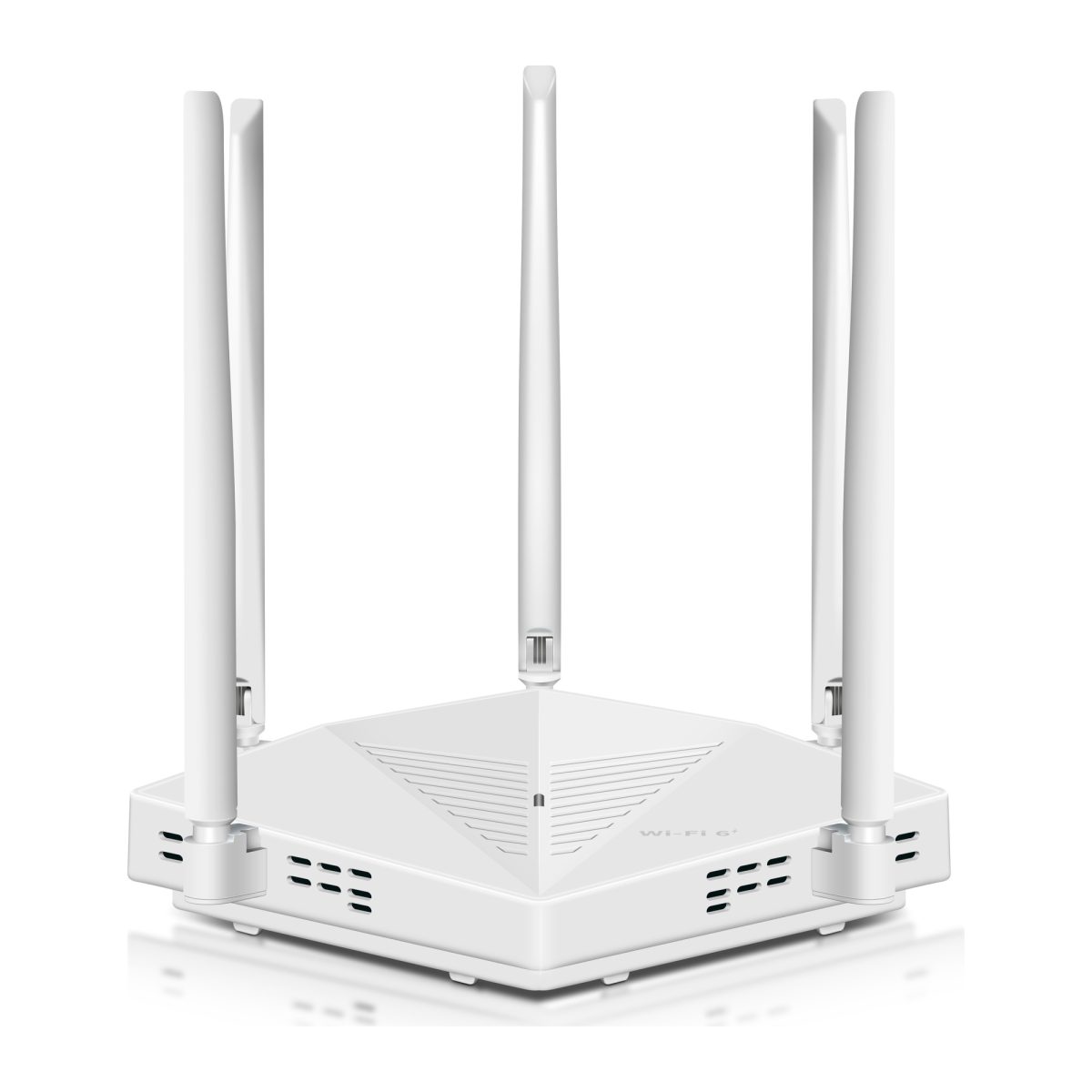
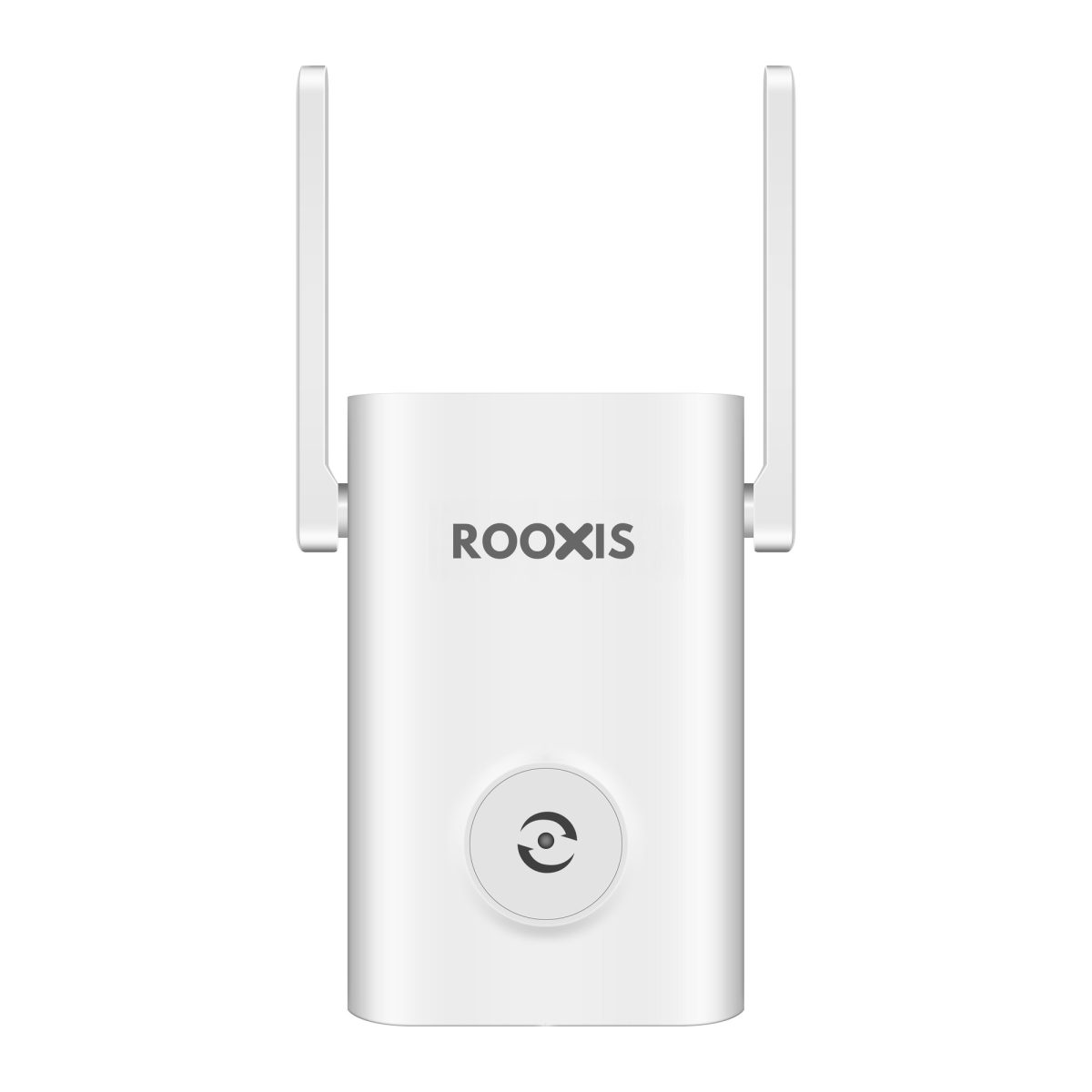
ROOXIS offers WiFi routers and range extenders for home networking. You can review the equipment options on the ROOXIS website after confirming whether the problem is limited coverage rather than poor router placement.
Start with the equipment that solves the actual problem, not the most expensive option.
Several Weak Rooms: Consider Mesh WiFi
A large two-story house may have multiple areas that one router cannot reach reliably.
For example, an upstairs office at the back of the house and a downstairs living room at the opposite end may both struggle.
A mesh system can distribute wireless coverage using multiple compatible nodes.
But node placement still matters.
If a wireless mesh node has a weak connection to the main unit, devices connected through that node may also experience poor performance.
Place nodes where they can maintain a dependable connection.
Where Ethernet wiring is available, wired backhaul can improve reliability by connecting nodes without relying on the wireless link between them.
Don't assume adding more nodes always improves performance.
Poorly positioned nodes can create unnecessary complexity.
Whole-House Slow WiFi: Check the Internet Connection First
If every room is slow, including the room beside the router, placement may not be the cause.
Check your internet connection before moving the router again.
If possible, connect a computer to the router using Ethernet.
Run a speed test and check whether ordinary internet activity works.
If the wired connection is also unusually slow, investigate the modem, internet service, equipment, and relevant network settings.
Moving the router won't fix a weak incoming internet connection.
If Ethernet works well but wireless devices are slow throughout the house, check the router's wireless settings and possible interference.
Distinguishing an internet problem from a WiFi coverage problem can save you from buying equipment you don't need.
Upstairs WiFi Is Weak but Downstairs Works
This pattern often points to signal loss through the floor, excessive distance, or both.
Start by moving the router toward the central staircase.
Test the upper hallway and the farthest bedrooms.
If upstairs coverage remains unreliable, look at the building materials.
A reinforced concrete slab may make it difficult for one downstairs router to serve the entire upper floor.
A wired upstairs access point may be a better long-term solution.
If you cannot run Ethernet, a compatible mesh arrangement may help, provided its nodes can maintain a useful connection.
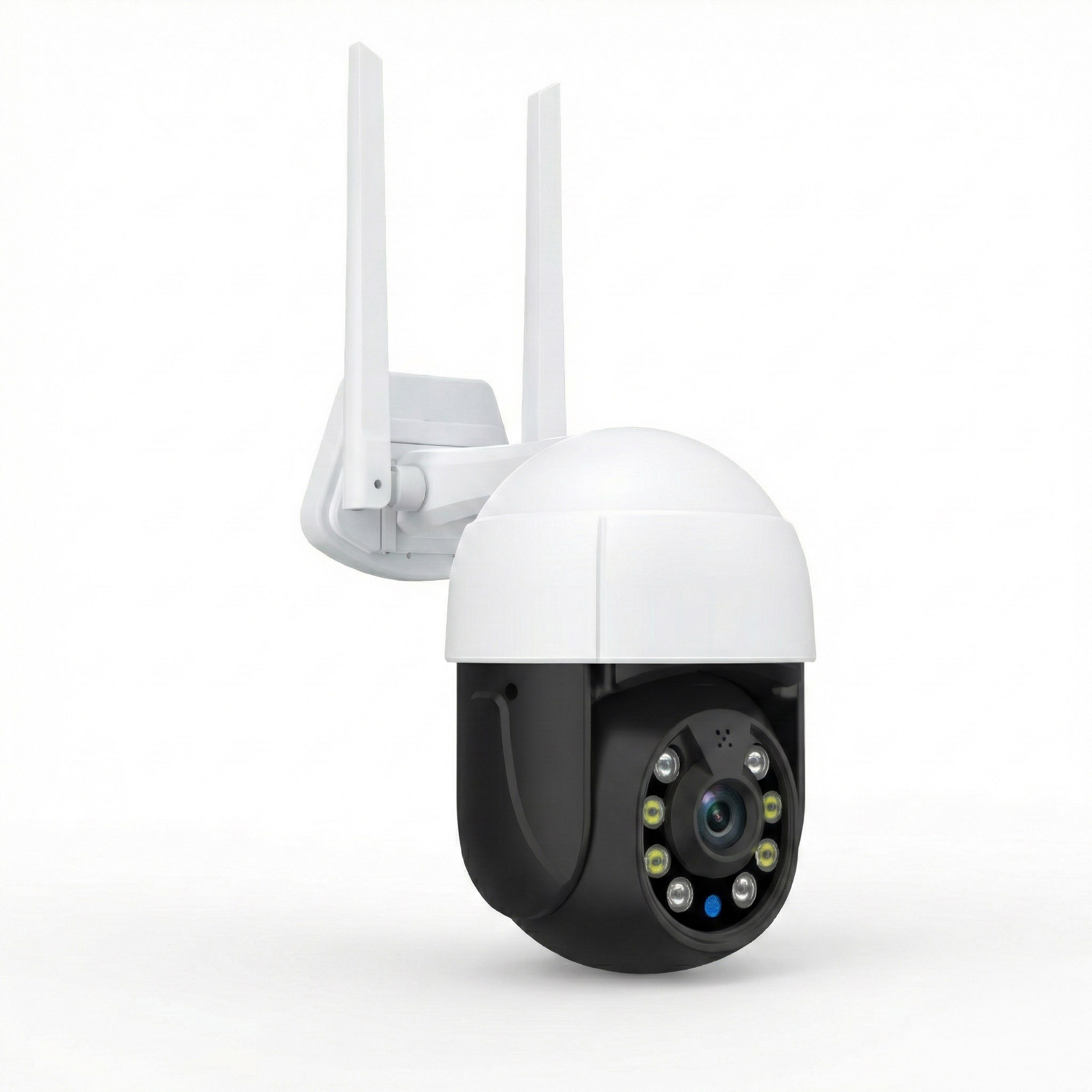
Outdoor Camera Keeps Disconnecting
Outdoor WiFi cameras introduce another challenge.
The signal may need to pass through an exterior wall before reaching the device.
A camera above the garage or near the garden may also be far from the main router.
First, confirm the camera's supported WiFi frequency.
Then test whether moving the router slightly improves its connection.
If the central indoor router cannot serve the camera reliably, consider additional network coverage closer to the outdoor area.
Use equipment rated for its installation environment.
An ordinary indoor extender should not be exposed to rain, moisture, or outdoor temperatures unless the manufacturer explicitly supports outdoor use.
Common Router Placement Mistakes to Avoid
A poorly positioned router can make an otherwise capable network feel unreliable.
Check these mistakes before replacing the hardware.
Hiding the Router Behind the Television
Televisions, metal brackets, and crowded entertainment units can obstruct WiFi.
Move the router to an open shelf beside the television.
Keep its ventilation openings clear.
Then test the upstairs bedroom or other room that previously had a weak connection.
Leaving the Router on the Floor
A router sitting beneath a desk or beside a sofa may be blocked by furniture.
Raise it onto an open shelf.
You don't need an elaborate wall mount.
The important change is giving the signal a clearer path through the surrounding rooms.
Putting the Router at the Far End of the House
An exterior corner may be convenient for the modem but poor for wireless coverage.
The router may spend part of its coverage area serving outside the house while distant rooms struggle.
Move it closer to the middle of the occupied space where practical.
If necessary, use Ethernet between the modem and router.
Placing the Router Inside a Closed Cabinet
Closed furniture can obstruct wireless signals and reduce airflow.
Metal cabinets are particularly unsuitable for equipment expected to provide WiFi throughout a house.
If networking equipment must remain inside a cabinet, consider a separate access point in a better location.
Keep ventilation requirements in mind.
Assuming More Antennas Guarantee Better Coverage
A router with several antennas isn't guaranteed to reach every room.
Wireless standard, antenna design, transmit power, device capabilities, and building construction all affect coverage.
A correctly positioned router may provide a better connection than more expensive equipment hidden behind a metal cabinet.
Test placement before deciding the hardware is inadequate.
Installing an Extender Inside the Dead Zone
A wireless extender needs a reliable connection to the main router.
If you place it where WiFi barely reaches, the extender cannot reliably relay the connection.
Move it toward the router until its connection is dependable.
Then check whether it provides useful coverage to the problem room.
Ignoring Outdoor and Smart-Home Devices
A router position that works for laptops may still fail to serve outdoor cameras, smart plugs, or doorbells.
Many smart-home devices use 2.4 GHz WiFi.
Check their actual connections when moving the router.
Don't approve a location based only on the speed shown by a nearby phone.
How to Choose by Your House Layout
If you're still deciding between two positions, start with your building shape and where important devices are located.
For a Narrow Two-Story Townhouse
Try a central hallway or stair area.
Avoid placing the router against the front or rear exterior wall unless the important devices are concentrated there.
Test bedrooms at both ends.
If the staircase is enclosed, compare a downstairs central shelf with the upstairs landing.
A long property may still need additional coverage at one end.
For a Wide Two-Story Detached House
Start with a central ground-floor position.
Then check upper bedrooms and rooms at both ends of the house.
A wide layout can create significant distances even when the total floor area isn't unusually large.
If several distant rooms remain weak, additional access points or a mesh system may make more sense than repeatedly shifting one router.
For a House With Concrete Floors
Try a central position near an open staircase.
If the upper floor still receives weak WiFi, the concrete slab may be the main obstacle.
A separate upstairs access point connected by Ethernet can avoid relying on a signal that must pass through the floor.
Where Ethernet isn't available, carefully evaluate the wireless connection available to a mesh node or extender before installing it.
For a Home With an Upstairs Office
Decide whether the office needs the strongest wireless connection or whether a wired connection would be more useful.
If the office is centrally located upstairs, positioning the router nearby may work well.
If the office is at the far end, connecting the work computer through Ethernet may allow the router to remain in a better position for the rest of the house.
Test video calls and actual work applications, not just the number of WiFi bars.
For a Home With Outdoor Security Cameras
Include the camera locations in your initial test.
Check the live view and connection stability.
A central router may provide good indoor coverage but struggle through exterior walls.
If moving the router closer to the camera weakens other important rooms, don't sacrifice the whole-house connection to serve one device.
A suitably located access point or extender may be more practical.
For a Rental With a Fixed Internet Connection
Start with changes that don't require building modifications.
Move the router onto an open shelf.
If the modem and router are separate, consider a safe, suitable Ethernet cable run.
If you're using a combined internet gateway, check compatible access point options.
Avoid drilling, relocating fixed service cables, or changing electrical installations without authorization.
A better shelf position may solve the problem without permanent work.
FAQ
Where Is the Best Place to Position a WiFi Router for the Best Wireless Coverage?
A central, elevated, open location is usually the best starting point. In a two-story house, a shelf near the main staircase can help provide coverage between floors, particularly when the stairwell is open. Test the farthest bedrooms and important smart devices before choosing the final position.
Should I Put My WiFi Router Upstairs or Downstairs?
Either floor can work. A central downstairs location often provides balanced coverage, while an upstairs landing may be better when most important devices are on the upper floor. Thick floors and long distances may require an additional access point regardless of which floor you choose.
Can a WiFi Router Cover a Whole Two-Story House?
A single router can cover some two-story homes, especially compact houses with relatively light interior construction. Larger layouts, thick concrete floors, and numerous walls can create dead zones. Test both floors before assuming the router's advertised coverage area applies to your building.
Is It Better to Put a WiFi Router Near the Ceiling?
Not necessarily. An open shelf or suitable wall mount often gives the router enough clearance without placing it near the ceiling. The best height depends on the router's design, ventilation requirements, and surrounding obstacles.
Does Putting a Router Near the Stairs Improve WiFi?
It can help when the staircase provides a relatively open path between floors. The benefit may be limited if the stairs are enclosed by thick walls. Compare the stair area with a central hallway or upstairs landing to see which provides better coverage.
Do I Need a WiFi Extender for a Two-Story House?
Not always. First, try a central router position and test the rooms where coverage is weak. If one distant room remains unreliable, a properly placed extender may help, while multiple dead zones may be better served by a wired access point or mesh system.
Start with a central shelf near the staircase and test before buying anything. Check the upstairs bedrooms, downstairs living spaces, home office, and security cameras.
If the position works for those devices, keep it. If concrete floors, thick walls, or distance still create dead zones, use what you learned from testing to choose an extender, wired access point, or mesh system.
A good router position isn't the one that looks neatest on a floor plan. It's the one that keeps your actual devices connected where you need them.