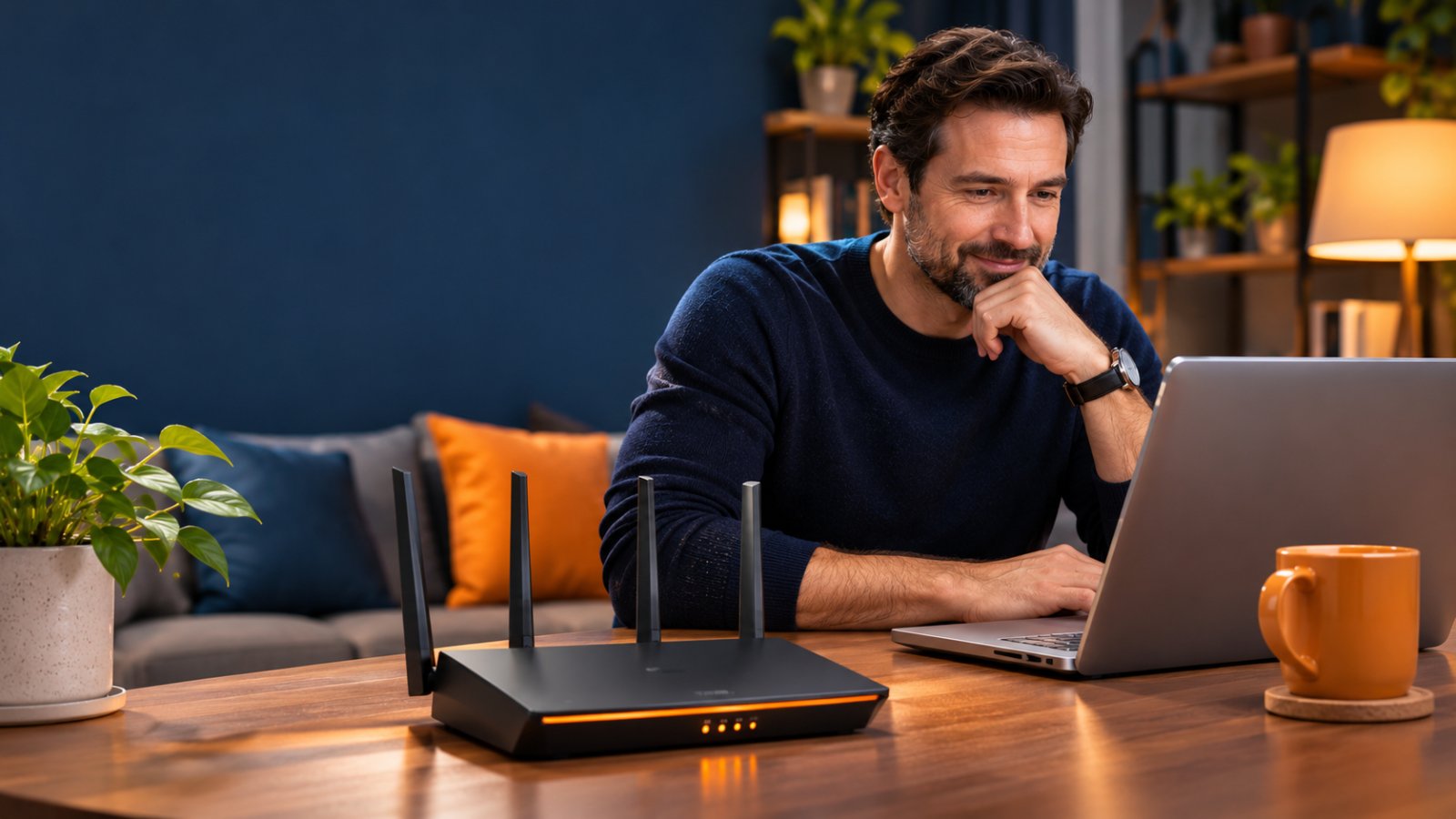
The best budget wifi router for most households is a dual-band WiFi 6 model with Gigabit Ethernet ports, WPA3 security, and dependable firmware support. An AX1800 router is a good starting point for apartments and smaller homes. If you mainly browse, watch videos, and connect a few devices, an AC1200 router may be all you need.
Spending more does not automatically fix slow WiFi. A router with impressive speed specifications can still struggle to reach an upstairs bedroom, a garage camera, or a home office behind thick walls. Before buying, check your internet plan, count your connected devices, and identify where your current connection fails.
This guide compares affordable WiFi router categories based on practical buying criteria: wireless standards, Ethernet speeds, security, device handling, coverage, and future upgrades. The recommendations reflect product specifications and typical home networking requirements, not laboratory testing or guaranteed performance.

What Is the Best Budget WiFi Router for Your Home?
For a typical household with several phones, laptops, a smart TV, and a few connected devices, an AX1800 WiFi 6 router offers a useful balance of features and affordability.
It supports modern wireless technology without requiring the price or complexity of a premium gaming router.
But AX1800 is not automatically the right answer for everyone.
A renter in a small apartment with a basic broadband connection may be perfectly satisfied with an AC1200 router. A family using several laptops for video calls, streaming 4K television, and transferring files between computers may benefit from AX3000.
The best purchase depends on what your household actually needs.
Start with these six questions:
-
How fast is your internet plan? Check the speed you pay for before comparing router speed ratings.
-
How many devices connect regularly? Include phones, laptops, televisions, security cameras, smart speakers, and gaming consoles.
-
Where does WiFi become unreliable? A weak signal in one bedroom is a different problem from slow internet throughout the house.
-
Do you need Ethernet connections? Desktop computers, televisions, and other stationary devices can benefit from wired connections.
-
How important are security and updates? Look for WPA3 support and an active manufacturer support program.
-
Will you expand coverage later? If you expect to add access points or mesh equipment, check compatibility before buying.
Do not use the number of antennas as your main deciding factor.
A router with four external antennas is not guaranteed to outperform a well-designed model with internal antennas.
Likewise, a router advertising 3000 Mbps does not mean your phone will receive a 3000 Mbps internet connection.
That number usually represents the combined theoretical wireless link rates across multiple bands.
How We Compare Budget WiFi Routers
A meaningful budget comparison should explain what a router can do and where its limitations begin.
This guide evaluates router categories using seven practical criteria.
1. Wireless standard
WiFi 5 remains useful for basic connections. WiFi 6 adds features that can improve communication efficiency with compatible devices. WiFi 7 introduces newer capabilities, although many households do not yet need them.
2. Wireless bands
A dual-band router provides 2.4 GHz and 5 GHz connectivity. Both are useful because some smart home devices require 2.4 GHz, while nearby laptops and phones may benefit from 5 GHz.
3. Ethernet connections
A router can have fast wireless specifications but slow wired ports. We give particular attention to WAN and LAN port speeds because a 100 Mbps port can restrict a faster broadband connection.
4. Device handling
Several devices connected to WiFi do not necessarily create heavy traffic. The bigger concern is how many are active simultaneously and what they are doing.
5. Security
WPA3 support, firmware updates, administrator password controls, and reliable management options matter more than decorative features.
6. Coverage
We consider whether a router is suitable for a compact home or whether a larger property is more likely to need additional access points.
7. Overall value
The strongest value comes from useful specifications at a reasonable price, not from paying for a high speed class that your devices cannot use.
Actual router performance varies with hardware, client devices, internet service, placement, and interference. A specification sheet helps narrow your choices, but it cannot predict every home's results.
Best Budget WiFi Router Types Compared
Different budget router categories solve different problems.
An AC1200 router can be a sensible purchase for basic browsing. An AX1800 model is usually a stronger starting point for modern households. AX3000 becomes more interesting when several compatible devices regularly use the network.
| Router Type | Best For | Main Strength | Main Limitation |
|---|---|---|---|
| AC1200 dual-band WiFi 5 | Basic browsing and smaller households | Simple, inexpensive wireless connectivity | Older wireless standard |
| AX1800 WiFi 6 | Most apartments and small homes | Good balance of features and cost | Performance varies between models |
| AX3000 WiFi 6 | Busy homes and faster broadband | Higher wireless capacity with compatible devices | Not always necessary for basic plans |
| Budget WiFi 7 | Buyers planning for newer devices | Newer wireless technology | Entry-level models may lack 6 GHz |
| Mesh-compatible router | Homes expecting coverage expansion | More flexible future upgrades | Compatibility varies by manufacturer |
| Gigabit router with QoS | Home offices and mixed traffic | Wired connectivity and traffic management | QoS cannot fix weak wireless coverage |
1. AC1200 Dual-Band Router: Best for Basic Home Internet
Best for: Small apartments, modest internet plans, and households that mainly browse, stream, and use a few smart devices.
AC1200 routers use WiFi 5 technology and generally provide both 2.4 GHz and 5 GHz connectivity.
The two bands serve different purposes.
A smart plug or older security camera may connect only through 2.4 GHz. A nearby laptop may perform better on 5 GHz, where higher speeds are often available under suitable conditions.
Many AC1200 routers advertise theoretical wireless link rates of up to 300 Mbps on 2.4 GHz and 867 Mbps on 5 GHz.
Those figures are not speeds that one device can combine into a single 1200 Mbps connection.
They also do not represent guaranteed internet throughput.
Consider a household with a basic broadband plan, two phones, a laptop, and a television.
If most activity involves browsing, email, video calls, and ordinary streaming, a properly configured AC1200 router may handle those needs without difficulty.
There is little reason to pay for advanced gaming features that no one will use.
Strengths
-
Usually costs less than newer WiFi categories.
-
Provides both commonly used wireless bands.
-
Works with a wide range of existing devices.
-
Suitable for basic streaming and everyday browsing.
-
Often straightforward to install and manage.
Limitations
-
Uses an older wireless standard.
-
May be less efficient than WiFi 6 when several compatible devices are active.
-
Some inexpensive models include only 100 Mbps Ethernet ports.
-
Firmware and security features vary considerably.
ROOXIS offers an AC1200 dual-band router with four external antennas and Gigabit Ethernet connectivity. It is one option to compare when shopping for a basic home router.
Review the specifications on the ROOXIS networking products page before deciding whether it fits your connection.
Pay particular attention to Ethernet ports.
Suppose your broadband plan is faster than 100 Mbps, but the router has only a 100 Mbps WAN port.
The connection between your modem and router can become a bottleneck. Your wireless network may still advertise a much higher link rate, but that cannot remove the WAN limitation.
Choose an AC1200 router when: Your household needs dependable basic connectivity, your internet requirements are modest, and the model still has suitable security support.
2. AX1800 WiFi 6 Router: Best Overall Budget Choice
Best for: Apartments, small homes, and families with several regularly connected devices.
AX1800 is one of the most useful categories for buyers looking for an affordable wifi router.
It supports WiFi 6, which includes improvements to wireless communication efficiency.
One WiFi 6 feature is OFDMA, or Orthogonal Frequency Division Multiple Access.
The technical name is less important than what it does. It allows compatible equipment to use portions of a wireless channel more efficiently under supported conditions.
That can help when several devices need network access at the same time.
Imagine someone attending a video meeting while another person watches television and a teenager completes an online assignment.
The router must manage traffic from all three activities.
A capable AX1800 router is designed for this kind of ordinary multi-device use.
You should still check its hardware specifications. Not every AX1800 router offers the same processor, memory, Ethernet ports, or management features.
Strengths
-
Supports modern WiFi 6 technology.
-
Generally suitable for several household devices.
-
Often available with Gigabit Ethernet.
-
Provides a useful balance between cost and features.
-
Can be a worthwhile upgrade from older entry-level routers.
Limitations
-
The AX1800 rating is theoretical, not a guaranteed speed.
-
Performance depends on client device capabilities.
-
Coverage is still affected by walls and interference.
-
Some inexpensive models offer limited management tools.
Before buying, confirm that the model supports WPA3, has suitable firmware support, and provides the Ethernet connections you need.
For a renter upgrading from an older router, AX1800 is often a reasonable starting point.
It offers a modern standard without making you pay for features aimed at unusually demanding networks.
Choose an AX1800 router when: You want current wireless capabilities for everyday family use and do not have a specific requirement for higher speed classes.
3. AX3000 WiFi 6 Router: Best for Busy Households
Best for: Households with faster broadband, several active users, and compatible modern devices.
AX3000 routers provide a higher combined theoretical wireless speed classification than AX1800 models.
Many AX3000 models support wider channels on the 5 GHz band, which can increase wireless link rates when compatible devices and suitable channel conditions are available.
That sounds attractive, but there is a practical catch.
If your laptop cannot use the wider channel configuration, it will not benefit from that particular capability.
If your internet plan is relatively slow, a higher wireless link rate may not noticeably improve ordinary web browsing.
An AX3000 router becomes more useful when several devices regularly transfer substantial amounts of data or access a faster connection.
For example, a home office may use cloud backups while other household members stream television and attend video calls.
The extra wireless capacity can be worthwhile, provided the router is properly configured and the internet connection can support those activities.
Strengths
-
Higher potential wireless link rates.
-
Useful for compatible WiFi 6 devices.
-
Suitable for households with heavier network usage.
-
Often includes modern security features.
-
Can provide room for future device upgrades.
Limitations
-
Wider wireless channels are not always practical in crowded environments.
-
Higher speeds require compatible client devices.
-
More wireless capacity does not guarantee greater range.
-
Some households will notice little difference from AX1800.
Avoid choosing AX3000 solely because the speed rating is larger.
Check how the additional capacity is delivered and whether your devices can use it.
In an apartment surrounded by neighboring WiFi networks, a narrower and less congested channel may sometimes provide a more dependable connection than the widest available setting.
Choose an AX3000 router when: Your household uses faster broadband, regularly transfers large files, or has several compatible devices with demanding workloads.
4. Entry-Level WiFi 7 Router: Best for Future-Focused Buyers
Best for: People replacing a router they expect to use for several years and who want support for newer wireless devices.
WiFi 7 introduces additional wireless capabilities intended to improve throughput, efficiency, and latency under suitable conditions.
One feature is Multi-Link Operation, or MLO.
With compatible hardware, MLO can allow devices to use multiple wireless links.
However, buying a WiFi 7 router does not automatically enable every WiFi 7 feature on your existing devices.
Your phone or laptop must support the relevant capabilities.
The router's implementation also matters.
Some entry-level WiFi 7 routers operate only on 2.4 GHz and 5 GHz.
They do not necessarily include a 6 GHz radio.
A buyer who assumes every WiFi 7 router is tri-band could easily purchase the wrong model.
Strengths
-
Supports a newer wireless standard.
-
Offers potential benefits for compatible devices.
-
Can provide useful future flexibility.
-
Some models include faster wired connections.
Limitations
-
Existing devices may not support its newest features.
-
Budget models may omit 6 GHz.
-
Advanced capabilities vary by hardware.
-
Newer technology does not automatically improve coverage.
If a WiFi 7 router is priced similarly to a well-equipped WiFi 6 model, compare their actual specifications.
Pay attention to Ethernet ports, wireless bands, security, and manufacturer support.
Do not sacrifice useful features simply to obtain the newest WiFi label.
Choose entry-level WiFi 7 when: Its specific features justify the cost and you expect to own compatible devices.
5. Mesh-Compatible Budget Router: Best for Future Coverage Upgrades
Best for: Homes that may need wireless coverage expansion later.
Some homes work perfectly well with one router.
Others have long hallways, thick walls, multiple floors, or rooms too far from the router to receive a dependable signal.
A mesh-compatible router may provide a route to future expansion.
With supported equipment, additional nodes can extend wireless coverage and provide coordinated network management.
But mesh compatibility is not universal.
A router designed for one manufacturer's mesh system may not work seamlessly with another manufacturer's equipment.
Even devices from the same manufacturer may belong to different compatibility families.
Check the exact models supported before making the purchase.
Strengths
-
Offers potential coverage expansion.
-
May allow the original router to remain in use.
-
Can simplify management within a compatible system.
-
Useful for homes with changing coverage requirements.
Limitations
-
Additional nodes increase total cost.
-
Compatibility is model-specific.
-
Wireless backhaul can reduce available capacity.
-
Poor placement can still cause unreliable connections.
A mesh node should not be placed in a room where the original signal is already unusable unless it has another reliable connection, such as wired backhaul.
It needs an adequate link to the rest of the network.
For someone planning to extend coverage upstairs later, a mesh-compatible router may be worth considering from the beginning.
Choose this category when: Your home currently works with one router, but you want a verified expansion option.
6. Gigabit Router with QoS: Best for Home Offices and Mixed Traffic
Best for: Families combining video meetings, streaming, gaming, and large downloads.
A router with Gigabit Ethernet ports provides useful wired connectivity for desktop computers, televisions, network switches, and other stationary devices.
Wired connections remove several problems associated with WiFi interference.
For instance, a desktop computer next to the router does not need to compete for wireless airtime if you can connect it directly using Ethernet.
Quality of Service, usually called QoS, is another feature worth examining.
QoS can help manage traffic when the internet connection is congested.
Some routers let users prioritize particular devices or applications.
This can be helpful when someone is uploading a large file while another person needs a stable video call.
However, QoS does not create additional internet bandwidth.
If your connection is consistently too slow for the household's activities, traffic prioritization cannot solve the underlying shortage.
Strengths
-
Gigabit ports support suitable high-speed wired connections.
-
Ethernet can reduce wireless congestion.
-
QoS may help manage competing traffic.
-
Useful for workstations and home entertainment equipment.
Limitations
-
QoS cannot fix weak wireless coverage.
-
Incorrect bandwidth settings may reduce performance.
-
Budget router implementations vary.
-
Wired connectivity requires suitable cabling.
If your office laptop struggles because the room has a weak WiFi signal, fix the coverage problem first.
If the signal is strong but video calls suffer whenever another household member starts a large download, QoS becomes more relevant.
Choose this category when: You need reliable wired connections and regularly manage competing internet activities.
What Features Matter Most in an Affordable WiFi Router?
Router packaging can make ordinary features sound more impressive than they are.
Combined wireless speeds, antenna counts, and large coverage estimates all need context.
When comparing inexpensive routers, concentrate on the features that affect your actual connection.
Dual-Band WiFi: Why 2.4 GHz and 5 GHz Both Matter
A cheap dual band router should support both 2.4 GHz and 5 GHz.
The two frequency bands have different characteristics.
2.4 GHz
-
Generally reaches farther under similar conditions.
-
Often performs better through obstacles.
-
Supports many older smart home devices.
-
Can experience substantial interference.
5 GHz
-
Can support faster wireless connections.
-
Often offers more available channels.
-
Usually has shorter practical range.
-
Works well for nearby laptops, phones, and televisions.
Consider an outdoor security camera mounted near the front entrance.
If it supports only 2.4 GHz, you need reliable 2.4 GHz coverage at that location.
Meanwhile, a laptop in the same room as the router may perform better on 5 GHz.
Some routers combine the two bands under one network name and automatically guide devices between them.
This can make ordinary use easier.
However, certain smart home devices have limited setup procedures and may work more smoothly when you can clearly identify the 2.4 GHz network.
Check the requirements of your cameras and smart devices before changing band settings.
Ethernet Port Speed Can Matter More Than Advertised WiFi Speed
One of the easiest budget router mistakes is overlooking the WAN port.
The WAN port connects your router to the modem or internet equipment.
Suppose your internet plan exceeds 100 Mbps, but the router's WAN connection is limited to 100 Mbps.
The wired connection restricts internet throughput regardless of the router's much larger advertised wireless speed class.
Look for these details in the specifications:
-
WAN port speed.
-
LAN port speed.
-
Number of LAN ports.
-
Gigabit Ethernet support.
-
Multi-gigabit ports when relevant to your plan.
For a modern home router, Gigabit WAN and LAN connectivity is usually worth prioritizing.
It is particularly useful when connecting a desktop computer, television, or additional access point.
Remember that all components in a wired connection must support the intended speed.
A suitable router cannot overcome a slower modem port, network switch, or damaged cable.
WPA3 Security and Firmware Updates
Your router handles connections from personal computers, phones, smart speakers, televisions, and potentially home security cameras.
That makes its security settings important.
WPA3 provides stronger wireless security capabilities than older protocols.
Look for WPA3-Personal support where possible.
Older devices may require WPA2 compatibility, depending on their hardware and the router's supported modes.
Avoid obsolete security methods such as WEP.
Also review the router's firmware support.
Manufacturers release updates to address software bugs, compatibility issues, and security vulnerabilities.
Before purchasing, visit the manufacturer's support page and check whether firmware information and update instructions are available for the model.
A router with outdated security support is not necessarily a bargain.
It may save money initially while leaving you with equipment that is difficult to maintain safely.
Antennas and Coverage Claims
A router with several external antennas may appear more powerful than one with a compact design.
That appearance does not tell you how it will perform in your home.
Coverage depends on several factors:
-
Router radio design.
-
Antenna configuration.
-
Building materials.
-
Distance from connected devices.
-
Nearby wireless interference.
-
Client device capabilities.
-
Router placement.
A single router may cover a relatively open apartment well while struggling in a smaller house with reinforced walls.
This is why advertised coverage figures should be treated as estimates rather than promises.
If your current router performs well in the living room but poorly in a distant bedroom, identify the obstruction before purchasing a model with more antennas.
App Management and Setup Controls
A budget router should not require advanced networking knowledge for routine maintenance.
Look for clear controls that allow you to:
-
Change the WiFi name.
-
Set a secure wireless password.
-
Select supported security modes.
-
Update the firmware.
-
View connected devices.
-
Configure guest networking if supported.
-
Manage parental controls if available.
-
Restart the router safely.
Some routers offer smartphone applications.
Others provide a browser-based management interface.
Either can work well.
The important distinction is whether the interface makes essential settings accessible and whether the manufacturer maintains the software.
Before buying, check whether setup instructions are available for your model.
That is especially helpful when replacing a router supplied by your internet provider.
How to Choose the Best Router Under 100 Dollars
A budget below $100 can include several useful router categories, although prices vary by seller, location, and promotions.
The smartest purchase is not necessarily the model closest to your spending limit.
Choose according to the rooms, devices, and activities that matter in your home.
For a Small Apartment
Start with a dual-band AX1800 WiFi 6 router.
For many apartments, that provides a suitable combination of modern wireless features and reasonable cost.
If you have a modest internet plan and only a few active devices, an AC1200 model can still be practical.
Placement matters.
Avoid putting the router behind a television, inside a closed cabinet, or on the floor beside large metal furniture.
If your apartment has several neighboring WiFi networks, interference may affect performance more than the router's advertised speed class.
For a Two-Story Home
A higher wireless speed rating does not guarantee a strong signal upstairs.
Floors, reinforced concrete, plumbing, and distance can all weaken WiFi.
Before buying, test the connection on both floors.
If wireless performance is strong downstairs and weak upstairs, the problem may be coverage rather than router capacity.
A modern AX1800 or AX3000 router might improve performance if your existing equipment is old or poorly placed.
However, some homes need an additional access point or a suitable mesh arrangement.
Do not spend your full budget on a single router if you already know that the layout requires multiple coverage points.
For a Home with Security Cameras
Start by checking what wireless technology your cameras support.
Many home cameras connect through 2.4 GHz WiFi, although specific requirements vary.
A dual-band router is usually a sensible choice because it supports common smart home equipment alongside newer phones and laptops.
Then examine camera placement.
An indoor camera beside the living room may have a strong connection.
An outdoor camera mounted beyond a thick exterior wall may receive a much weaker signal.
Both might connect to the same router, but their performance can differ considerably.
Also consider internet upload speed.
If cameras send video to a remote service, the available upload bandwidth can become important.
A faster router cannot compensate for an internet connection that lacks sufficient upload capacity.
For a Home Office
Prioritize Gigabit Ethernet ports, current firmware support, and stable connectivity.
If your computer remains on a desk close to the router, consider a wired connection.
Ethernet often provides a more consistent link than WiFi in areas with interference.
For a laptop used across several rooms, check wireless coverage at the desk where you work.
A router that achieves high speeds in the living room is not especially useful if video meetings regularly freeze in your home office.
QoS can be worthwhile when the internet connection becomes congested.
But if the office has a weak signal, improve wireless coverage before experimenting with traffic prioritization.
For Renters
Renters often need equipment that is easy to install, move, and reuse.
An affordable AX1800 router is a reasonable starting point for many apartments.
Avoid paying for extensive mesh equipment unless the property genuinely requires it.
First try a central router location and check whether interference from neighboring apartments is affecting performance.
Also confirm whether your internet provider permits customers to use their own router and whether any special connection settings are required.
If you expect to move, choose a router with flexible setup options rather than equipment tied to one unusual arrangement.
How to Check Whether You Actually Need a New Router
A slow connection does not always mean your router needs replacing.
The problem could involve your internet provider, a damaged cable, wireless interference, or a device with its own connectivity issue.
Spend a little time identifying the cause before ordering new hardware.
Step 1: Test Internet Speed Near the Router
Bring a laptop or phone close to your router.
Connect to the usual WiFi network and run a speed test using a trusted service.
Repeat the test at different times, particularly when you normally experience problems.
If possible, connect a computer directly to the router using Ethernet and compare the results.
What to look for
If wired speed is close to what your internet plan should provide but WiFi is consistently much slower nearby, investigate wireless settings, interference, and router capability.
If both wired and wireless speeds are unexpectedly low, check the modem, internet connection, cables, and service status.
Do not replace the router until you understand which part of the connection is underperforming.
Step 2: Compare Speeds in Different Rooms
Use the same phone or laptop to test several locations.
Start near the router.
Then check the bedroom, kitchen, home office, upstairs landing, and any area where a security camera disconnects.
Keep the testing method consistent.
If performance is strong near the router but deteriorates sharply in one area, investigate coverage.
Check whether thick walls, floors, or large obstacles sit between that location and the router.
If one device performs poorly while others work normally in the same room, the device itself may require attention.
Step 3: Check Connected Devices
Open your router's management page or application.
Look for a section called Connected Devices, Clients, Device List, or a similar name.
Review the equipment using your network.
You may see:
-
Smartphones.
-
Laptops.
-
Smart televisions.
-
Gaming consoles.
-
Security cameras.
-
Smart speakers.
-
Printers.
-
Other connected household accessories.
Make sure you recognize the connected devices as far as practical.
If an unfamiliar connection appears, investigate it and review your network password and security settings.
Also note when slowdowns occur.
A network that performs well with one active device but struggles during simultaneous streaming and large downloads may need better traffic management or additional internet bandwidth.
A network that struggles in one location regardless of activity is more likely to have a coverage problem.
Step 4: Check Firmware and Hardware Age
Sign in to your router's management interface.
Find the firmware update section.
Look for updates and follow the manufacturer's instructions.
Do not interrupt a firmware installation unless the manufacturer explicitly directs you to do so.
Next, examine the router's specifications.
Check the wireless standard and Ethernet port speeds.
If the model no longer receives security updates, replacement becomes more important.
A router with only 100 Mbps WAN connectivity may also be unsuitable for a faster internet plan.
Step 5: Try Simple Fixes Before Replacing It
Move the router out of an enclosed cabinet.
Place it in a reasonably central location where practical.
Keep it away from large metal objects and equipment that may interfere with wireless signals.
Check whether the router is using an unnecessarily congested channel.
Install supported firmware updates and restart the device through its normal controls.
Test the same problem locations again.
If the connection becomes reliable enough for your household, there may be no immediate reason to purchase another router.
How to Set Up a Budget WiFi Router Correctly
A good router can still disappoint when the installation is wrong.
Fortunately, most household setups follow a manageable sequence.
Before beginning, keep your internet provider's connection details and the router's official setup instructions nearby.
Step 1: Connect the Router to Your Internet Equipment
Identify your modem or optical network terminal.
Connect its Ethernet output to the new router's WAN port using a suitable cable.
Follow the manufacturer's recommended power sequence.
If your internet provider supplied a combination modem and router, check whether the new device should operate as the main router or as an access point.
Using two routers without the correct configuration can introduce double NAT, which may complicate gaming, remote access, and certain other services.
Avoid changing bridge mode or provider-specific settings until you understand how your connection is configured.
Step 2: Open the Router Setup Page
Connect a phone or computer to the new router using its initial WiFi network or Ethernet.
Open the manufacturer's setup application or the local management address listed in the router instructions.
Follow the setup process.
Create a strong administrator password when prompted.
This password protects router settings and should not be the same as your everyday WiFi password.
Do not continue using default administrator credentials when the router allows them to be changed.
Step 3: Configure the Internet Connection
Many residential connections use automatic IP configuration, commonly called DHCP.
Some providers require PPPoE login credentials, VLAN settings, or other configuration details.
Use the information supplied by your internet provider.
If the router reports that its WAN connection is disconnected, inspect the cable and confirm the modem or network terminal is operating.
If the physical connection appears correct but internet access still fails, contact your provider or check its official setup instructions.
Avoid changing advanced network settings randomly.
Step 4: Configure Wireless Names and Passwords
Choose a network name that household members can recognize.
Set a strong, unique WiFi password.
Select WPA3-Personal when your router and devices support it.
If older devices require WPA2, use an appropriate secure compatibility configuration supported by the router.
Decide whether you want one combined network name or separate names for 2.4 GHz and 5 GHz.
A combined name is often convenient for phones and laptops.
Separate names can sometimes simplify troubleshooting when a camera or smart device needs a specific band.
Check the device manufacturer's instructions before changing wireless band settings.
Step 5: Update Firmware and Test Connections
Once the router has internet access, check for firmware updates.
Install any appropriate updates according to the manufacturer's instructions.
Then connect your devices.
Start with a phone or laptop and confirm that ordinary browsing works.
Next, connect the television, cameras, printers, and other household equipment.
Walk to the places where you normally use those devices.
Test the activities that previously caused trouble.
For a security camera, confirm that its intended video and notification functions work as expected.
A successful WiFi connection does not automatically guarantee every camera feature is operating correctly.
Common Mistakes When Buying a Cheap Dual Band Router
An inexpensive router can provide excellent value, but certain compromises are worth avoiding.
Choosing the Highest Speed Number
A router labeled AX3000 is not guaranteed to provide better everyday performance than every AX1800 model.
Combined wireless speed ratings are theoretical classifications.
They do not account for your internet plan, walls, interference, or client capabilities.
Check the features you will use before choosing the largest number.
Ignoring Ethernet Specifications
A router may advertise AC1200 wireless speed while offering slower wired ports.
Always inspect the WAN and LAN specifications.
This becomes especially important when your internet plan exceeds 100 Mbps.
A suitable Gigabit connection is often more valuable than a slightly higher theoretical WiFi speed.
Assuming More Antennas Mean Better Coverage
Four visible antennas do not guarantee that a router will reach farther than a compact model.
The radio design, client device, building materials, and placement all influence results.
A router placed behind a concrete wall may struggle regardless of antenna appearance.
Buying an Extender Before Identifying the Problem
An extender can help with weak coverage in suitable conditions.
It cannot repair an unreliable broadband connection entering the home.
Before purchasing, compare performance near the router and in the problem room.
If both locations are slow, investigate the internet connection or router itself.
If only the distant room is affected, a coverage solution may make more sense.
Ignoring Security Support
A router with outdated firmware and no current support may not be a good deal.
Before buying an older model, check whether the manufacturer still publishes relevant updates.
Review its supported security modes and management features.
A low purchase price does not compensate for avoidable security weaknesses.
Assuming a New Router Will Fix Slow Internet Service
A better router can improve the local network when the existing equipment is the limitation.
It cannot increase the speed delivered by your internet provider beyond the capabilities of your plan and connection.
If wired testing shows the service is consistently underperforming, contact the provider before spending money on replacement hardware.
When a Budget Router Is Not Enough
A single router may not cover every part of a larger home.
Concrete floors, thick exterior walls, long corridors, and distant outbuildings can create areas with weak WiFi.
A more expensive router may help in some situations, but it cannot remove physical obstacles.
Consider the alternatives.
Ethernet: Use a wired connection for stationary devices when practical. Desktop computers and televisions near the router are good candidates.
Wired access point: If you can run Ethernet to a distant room, a properly configured access point can provide reliable local wireless coverage.
WiFi extender: An extender can help reach a specific area when it is placed where the original WiFi signal remains usable.
Mesh equipment: A compatible mesh system can provide coordinated coverage across several areas, particularly when suitable backhaul connections are available.
For outdoor security cameras, pay attention to where the camera is mounted.
A camera positioned on the other side of a thick exterior wall may need a closer access point or another appropriate networking solution.
Do not assume that buying a higher-speed router will fix every camera disconnect.
Budget WiFi Router Buying Checklist
Before completing your purchase, confirm the details that matter for your household.
Internet connection
-
Check your broadband plan speed.
-
Verify WAN port specifications.
-
Look for Gigabit Ethernet connectivity.
-
Confirm compatibility with your internet provider.
-
Check whether you need additional LAN ports.
Wireless features
-
Confirm support for 2.4 GHz and 5 GHz.
-
Consider WiFi 6 for a modern budget purchase.
-
Compare AX1800 and AX3000 based on device requirements.
-
Check compatibility with existing cameras and smart home equipment.
-
Avoid relying only on combined wireless speed ratings.
Security and management
-
Look for WPA3 support.
-
Check firmware update availability.
-
Confirm that administrator credentials can be secured.
-
Review management and setup instructions.
-
Consider guest networking and parental control features if needed.
Home coverage
-
Identify rooms with unreliable WiFi.
-
Consider walls, floors, and router placement.
-
Check whether extra access points may be necessary.
-
Verify compatibility before planning mesh expansion.
-
Treat advertised coverage estimates cautiously.
Overall value
-
Compare actual hardware features.
-
Avoid paying for unused advanced capabilities.
-
Check manufacturer support and warranty terms.
-
Review the seller's return policy.
-
Include the possible cost of additional coverage equipment in your budget.
FAQ
What is the best budget WiFi router for home use?
An AX1800 dual-band WiFi 6 router with Gigabit Ethernet ports and WPA3 support is a sensible starting point for many homes. It offers modern wireless capabilities without requiring premium equipment. For smaller households with modest broadband needs, a suitable AC1200 router may still be enough.
Is a router under $100 good enough for gaming and streaming?
Yes, many routers in this price range can support gaming and streaming when the broadband connection, wireless signal, and device capabilities are adequate. Look for Gigabit Ethernet, dependable firmware support, and suitable dual-band connectivity. If a gaming console or computer remains near the router, Ethernet can help provide a more consistent connection.
Is an AC1200 router still worth buying?
An AC1200 router can still make sense for basic household networking, particularly with a modest internet plan. It supports 2.4 GHz and 5 GHz WiFi, although it uses the older WiFi 5 standard. Before buying, check its Ethernet speeds, available security features, and ongoing firmware support.
Should I buy WiFi 5, WiFi 6, or WiFi 7 on a budget?
WiFi 6 generally provides a useful balance of affordability and modern capabilities. WiFi 5 remains suitable for some basic households, while WiFi 7 may be worth considering when you have compatible devices and a clear reason to use its newer features. Compare actual specifications rather than purchasing solely according to the wireless generation.
Will a better router improve WiFi upstairs?
A newer router may help if your existing equipment is outdated or poorly suited to the household's needs. However, floors, walls, and distance can still weaken the signal. When upstairs coverage is consistently poor, an additional access point or suitable mesh arrangement may provide a more dependable solution.
Do security cameras need a special WiFi router?
Most WiFi security cameras do not require a specialized router, but they do need a stable connection on a supported frequency band. Many home cameras use 2.4 GHz WiFi, so compatibility should be checked before purchase. Outdoor cameras may also require additional coverage planning because walls and distance can weaken their connection.
Choosing a Budget Router That Actually Solves Your Problem
For most apartments and smaller homes, start by comparing AX1800 WiFi 6 routers with Gigabit Ethernet ports, WPA3 support, and current firmware updates.
An AC1200 model can still be a sensible purchase when internet usage is modest and the price difference matters. AX3000 is worth considering when several modern devices regularly use faster broadband or transfer substantial amounts of data.
Before buying, test your existing connection near the router and in the rooms where problems occur.
If the entire household experiences slow internet, investigate the broadband connection and router hardware. If only an upstairs bedroom or outdoor camera has trouble, concentrate on coverage.
A good budget router should match your internet plan, connect your everyday devices reliably, and leave room for sensible upgrades. Paying for useful features beats paying for specifications that will never improve the way your household uses WiFi.