Most people leave their WiFi router wherever the internet technician installed it. That often means a corner of the downstairs living room, behind a television, or inside a cabinet. The connection works nearby, but upstairs bedrooms struggle with video calls and streaming.
If you're wondering, should i put my wifi router upstairs or downstairs?, start with a central, elevated downstairs position in most two-story homes. Choose upstairs if your main office, gaming setup, and other heavily used devices are on that floor. Neither location is automatically better. Walls, floor construction, and router position make the difference.
Before moving equipment, test the connection in the rooms that matter. A better downstairs position may solve the problem without extra hardware. In other homes, moving the router upstairs or adding a separate wireless access point makes more sense.

Should I Put My WiFi Router Upstairs or Downstairs?
For most two-story houses, start with the router downstairs, near the center of the home and close to an open staircase. Keep it on a shelf or other open surface, away from large electronics and metal objects.
That position can provide useful coverage across the ground floor while allowing the signal to reach upstairs rooms.
But consider how your household uses WiFi.
If everyone watches television downstairs and only uses phones occasionally upstairs, keeping the router on the ground floor is usually reasonable.
If two people work upstairs, attend video meetings, and use computers throughout the day, an upstairs location may deserve priority.
The important question is not which floor is higher. It is how many obstacles sit between the router and the devices you depend on.
A router installed upstairs behind a concrete wall may perform worse than one downstairs beside an open stairwell.
Likewise, a router placed in a downstairs corner may struggle to reach a bedroom located directly across the upper floor.
Choose the location that gives your most important rooms reliable connections without creating new dead zones elsewhere.
Upstairs vs Downstairs: Quick Comparison
| What matters | Router upstairs | Router downstairs |
|---|---|---|
| Upstairs bedrooms | Often provides a shorter wireless path | Depends on floor construction and location |
| Downstairs living room | Signal may need to pass through the floor | Usually easier to serve directly |
| Home office upstairs | Often a strong choice | May require an additional coverage point |
| Downstairs smart TV | Could have weaker reception | Usually benefits from nearby placement |
| Ground-level outdoor cameras | Depends on exterior walls and distance | May offer a more direct signal path |
| Reinforced concrete floors | May struggle to reach downstairs | May struggle to reach upstairs |
| Central staircase location | Worth testing near the upstairs landing | Worth testing near the bottom of the stairs |
| Homes with most activity upstairs | Often worth prioritizing | May create unnecessary distance |
| Homes with most activity downstairs | May offer limited benefit | Often the simpler option |
There is no guaranteed winner for every property.
A central upstairs location may cover both levels better than a router downstairs behind a television. A centrally positioned downstairs router may perform better than one installed in a corner bedroom upstairs.
Start by checking where the current signal fails.
If only one room has poor reception, you may not need to relocate the entire network.
WiFi Router Downstairs: Advantages and Limitations
Downstairs is the most common router location because the broadband connection frequently enters the house on the ground floor.
It is also where many households keep their main television, smart speakers, game consoles, and other connected equipment.
Keeping the router downstairs is convenient, but convenience alone does not guarantee good coverage.
Why Downstairs Placement Often Works Well
Consider a house with an open kitchen, dining area, and living room downstairs.
The main television is in the living room. Several smart devices are spread across the kitchen and hallway.
If the router sits near the center of this area, it can communicate with many devices without sending the signal through the floor above.
Upstairs bedrooms may still receive a usable connection, particularly if the staircase provides a relatively open path between floors.
This setup can work well when most high-bandwidth activities happen downstairs.
Another benefit is easier access to wired connections.
If the television, game console, or desktop computer sits near the router, an Ethernet cable can remove some devices from the wireless network.
That does not automatically make every other connection faster, but it can reduce wireless airtime usage and provide a more consistent connection for the wired equipment.
The limitation appears when upstairs rooms are far from the router or separated by dense building materials.
Best Downstairs Locations
Start with a location near the center of the ground floor.
Good places to test include:
-
An open shelf in a central hallway.
-
A living room shelf away from the television.
-
A position near the bottom of an open staircase.
-
A centrally located study.
-
A wall-mounted position with adequate ventilation and few nearby obstructions.
Avoid putting the router directly on the floor.
Furniture, cabinets, and other objects can obstruct the wireless signal.
An open shelf above surrounding furniture is usually a more practical starting point.
You do not need to mount the router against the ceiling.
A stable, open position at a convenient height is often sufficient.
If the broadband cable enters the house beside an exterior wall, consider whether a longer Ethernet connection would let you position the router more centrally.
Check the equipment arrangement first. Some households use a separate modem or fiber terminal, while others have a combined modem-router unit.
The available relocation options depend on the hardware.
Who Should Keep the Router Downstairs?
Keep the router downstairs if the current arrangement provides reliable coverage where your household needs it.
It is particularly sensible when:
-
Most internet activity happens downstairs.
-
The living room contains the main streaming devices.
-
Your home office is on the ground floor.
-
Outdoor security cameras are installed near downstairs entrances.
-
The router is already close to the center of the house.
-
Upstairs devices can stream and browse without frequent interruptions.
Do not move a working router simply because an online guide recommends a different floor.
If upstairs video calls are stable and phones remain connected, relocation may offer little practical benefit.
You could end up improving a room that was already working while weakening the living room or garage connection.
When Downstairs Placement Causes Problems
Downstairs placement becomes less effective when the router is far from the rooms that need reliable WiFi.
Imagine a house where the router sits near the front entrance.
The home office is upstairs at the rear.
Between them are a staircase, several interior walls, and the floor structure.
A laptop in that office might connect successfully but experience freezing during video meetings.
That is a sign to investigate the wireless path, not immediately replace the internet service.
Start by checking whether the router can move closer to the center of the home.
Try an open shelf near the stairs.
If the upper-floor connection remains weak, consider testing an upstairs position or adding a separate access point.
A downstairs router may also struggle when installed in a basement or utility room surrounded by concrete.
In those situations, improving the location of the wireless access point can matter more than changing router settings.
WiFi Router Upstairs: Advantages and Limitations
An upstairs router can be the right choice when the upper floor contains the devices that use WiFi most heavily.
For example, you may have three bedrooms upstairs, including a home office and gaming room.
The downstairs area might contain only a television and a few smart home devices.
In that house, the upstairs connection may deserve priority.
Why Upstairs Placement Can Be Better
A central upstairs router creates shorter wireless paths to nearby bedrooms and workspaces.
That can reduce the number of walls the signal must cross.
Consider a laptop used for daily video meetings in an upstairs office.
With the router downstairs, the connection must pass through the floor and possibly several walls.
Moving the router to an upstairs hallway may remove some of those obstacles.
The office may then receive a stronger connection without needing a separate repeater.
Upstairs placement can also help when the upper floor has an open landing with clear paths into several rooms.
But the downstairs connection still needs attention.
If the ground floor contains a smart TV, video doorbell, or security camera, verify that those devices remain connected after moving the router.
Best Upstairs Locations
The best upstairs location is usually central, open, and away from unnecessary obstructions.
Try:
-
A shelf in the upstairs hallway.
-
An open landing near the staircase.
-
A central room with fewer surrounding walls.
-
A wall-mounted position in an appropriate indoor location.
-
An upstairs study close to the center of the floor plan.
Avoid installing the router in a far corner bedroom if you expect it to cover the entire house.
The bedroom may have excellent WiFi while the downstairs living room struggles.
Do not assume the attic is the best location because it is above everything else.
Attics can be far from the occupied rooms and may experience temperatures outside the router's recommended operating conditions.
A central hallway is usually a more useful place to test.
Who Should Put the Router Upstairs?
Upstairs placement is worth considering if:
-
Your main home office is upstairs.
-
Several family members use computers in upper-floor bedrooms.
-
Online gaming happens upstairs.
-
Most daytime internet activity occurs on the upper floor.
-
The upstairs hallway provides a relatively open central position.
-
Downstairs devices remain reliable during testing.
For example, a family might use two upstairs laptops for video meetings while the downstairs television is used mainly in the evening.
In that arrangement, improving the office connections may be more valuable than maximizing wireless speed beside the television.
Still, a wired connection to the office may be preferable if video calls or other work activities require particularly consistent performance.
Moving the router is one option, not the only one.
When Upstairs Placement Is a Bad Idea
An upstairs router may perform poorly when the lower floor contains most of the connected equipment.
Suppose the router moves into an upstairs bedroom.
The bedroom connection improves, but the downstairs television begins buffering.
An outdoor camera near the garage also loses its signal more frequently.
The move has solved one problem while creating two more.
Dense floors can make this worse.
A reinforced concrete floor may weaken the connection between upstairs and downstairs considerably.
If the router cannot provide stable coverage through that structure, moving it between floors may never produce a satisfactory result.
You may need a separate access point on the other level.
Also consider the installation work.
If your fiber terminal is downstairs, moving the router upstairs may require running Ethernet through the house.
Avoid pulling or bending fiber cables or moving provider equipment without following the provider's instructions.
How WiFi Signals Travel Between Floors
WiFi signals do not travel only horizontally.
A router sends radio signals into the surrounding space. Those signals can reach rooms above, below, and beside it.
The challenge is that signal strength decreases with distance and obstacles.
This is why two rooms directly above one another can have weaker connectivity than rooms separated by a longer but more open path.
Do WiFi Signals Travel Better Up or Down?
There is no general rule that WiFi travels better upward or downward.
The coverage pattern depends on the router's antennas, their orientation, the wireless frequency, and the surrounding building materials.
For example, some routers with external antennas provide guidance on how to orient them for coverage across different floors.
Follow the instructions for your particular router.
Do not assume that pointing every antenna upward sends all the WiFi upstairs.
Router antennas have radiation patterns that are not equivalent to a flashlight beam.
A change in antenna orientation may help one location while weakening another.
For most homeowners, testing the router's position provides more useful information than repeatedly adjusting the antennas.
How Floors and Ceilings Affect WiFi
The floor between levels may be one of the biggest obstacles in your home.
A timber-framed floor with ordinary interior materials may allow a workable wireless connection.
A thick concrete slab containing metal reinforcement can cause substantially more signal loss.
Other building features also matter.
Metal ductwork, plumbing, insulation, and large objects can affect how signals travel.
For example, a downstairs router might provide a stronger connection to an upstairs room near the staircase than to a bedroom directly above it.
The staircase may offer a less obstructed path.
That is why router placement should be tested in the actual building.
Do not rely on a router's advertised coverage area to predict performance through reinforced floors.
Why the Staircase Often Matters
A staircase can provide a useful connection between floors because part of the space is open.
Consider a router installed downstairs near the stairwell.
The signal may reach the upper landing without passing through the full thickness of the floor structure along that route.
That does not guarantee coverage in every upstairs bedroom.
Walls surrounding the landing can still weaken reception.
But it makes the stairwell a sensible location to test.
The same idea applies when the router is upstairs.
A central upstairs landing may provide a better path toward downstairs rooms than a bedroom separated from the staircase by several walls.
Test the connection on both levels before deciding.
Does 2.4 GHz or 5 GHz Work Better Between Floors?
Most modern dual-band routers support 2.4 GHz and 5 GHz WiFi.
The bands behave differently.
2.4 GHz generally provides better reach through distance and some obstacles. It can be useful for distant bedrooms and compatible smart home devices.
5 GHz often provides higher wireless throughput over shorter, clearer paths. Its signal typically weakens more quickly through walls and floors.
Suppose your laptop connects to 5 GHz in the downstairs living room.
Upstairs, the connection becomes unreliable.
If the router allows separate band selection, try connecting the laptop to 2.4 GHz and compare the results.
The 2.4 GHz connection may be slower but more stable.
Do not assume it will always perform better.
The 2.4 GHz band can also become congested, especially in apartment buildings where many neighboring networks operate nearby.
Some newer routers support 6 GHz, which has additional range and compatibility considerations.
Use the bands supported by your equipment and test the connection under normal household conditions.
How to Test Router Placement Before Moving It Permanently
Before paying for cable installation or buying another router, compare the current location with a realistic alternative.
You need a smartphone or laptop, a speed testing service, and a way to record what happens in each room.
The test should answer a practical question: Does moving the router improve the rooms that matter without making other important connections worse?
Step 1: Check Your Internet Connection First
Start beside the router.
Connect a laptop or phone to your normal WiFi network.
Run an internet speed test and look at:
-
Download speed.
-
Upload speed.
-
Latency.
-
Whether the results are consistent across repeated tests.
Check whether other devices are using substantial bandwidth.
A large download or several simultaneous streams can affect the result.
If the connection is poor even beside the router, changing floors may not solve the problem.
Where possible, connect a computer directly to the router with Ethernet and compare performance.
If the wired connection works well but WiFi is slow, investigate wireless coverage or router configuration.
If both are unusually slow, check the internet service, modem, or router before relocating equipment.
Step 2: Identify Your Most Important Rooms
List the rooms where a reliable connection matters most.
For a two-story home, these might include:
-
Downstairs living room.
-
Upstairs home office.
-
Main bedroom.
-
Children's study area.
-
Gaming room.
-
Garage.
-
Outdoor camera location.
Then identify which rooms actually have problems.
Do not treat a storage closet with weak WiFi as equal to a home office where calls disconnect.
Your goal is not to achieve identical speeds in every part of the house.
It is to provide enough reliable coverage for the activities taking place there.
Step 3: Test WiFi Downstairs
Begin with the router in its current location.
Use the same phone or laptop to test different rooms.
On an iPhone, open Settings, then Wi-Fi, to confirm the connected network.
On Android, open Settings and look for the WiFi or network connection section. The exact menu names vary by device.
In each room, perform the activities normally used there.
For example:
-
Open several webpages in the bedroom.
-
Run a speed test near the smart television.
-
Join a video call from the home office.
-
Check the camera connection near the garage.
Record where the connection is dependable and where it struggles.
Do not judge the result entirely by the number of signal bars.
A device can show a usable signal while experiencing congestion, packet loss, or an unstable internet connection.
Step 4: Test an Upstairs Location
If the equipment can be moved safely, test a central upstairs location.
You may need an Ethernet cable or help from your internet provider.
Do not disconnect or move fiber equipment unless the provider's instructions permit it.
Choose a location such as an upstairs landing or central study.
Avoid testing only in the room with the worst connection.
After moving the router, repeat the same checks in every important room.
Pay particular attention to the downstairs television, garage, and outdoor cameras.
The upstairs office may improve, but you need to know what happens elsewhere.
Try to compare results under similar conditions.
A test performed while everyone is streaming in the evening may not be directly comparable with one performed when the house is empty.
Step 5: Compare the Results
Use the test results to compare the two positions by room.
| What you observe | What it suggests | What to do |
|---|---|---|
| Upstairs improves and downstairs stays reliable | Upstairs may be the better location | Consider making the move permanent |
| Downstairs is strong and upstairs has one weak bedroom | A single local coverage gap | Try repositioning the router or adding an extender |
| Both locations leave one floor with poor coverage | Floors or walls may be blocking the signal | Consider a wired access point or mesh with suitable backhaul |
| WiFi is poor beside the router on either floor | Placement may not be the main issue | Check router, wireless settings, and internet service |
| Speed tests look acceptable but video calls freeze | Connection quality may be unstable | Check latency, packet loss, interference, and congestion |
Do not choose a location simply because it produces the highest download speed in one room.
The better location should offer usable coverage across the home.
For example, a small improvement in the upstairs office is not necessarily worthwhile if moving the router causes the downstairs security camera to disconnect.
Step 6: Test During Normal Household Use
Once you find a promising location, use the network normally.
Check it while someone streams television, another person joins a video meeting, and phones or tablets are connected.
Watch for:
-
Video buffering.
-
Freezing during calls.
-
Unexpected WiFi disconnections.
-
Slow webpage loading.
-
Camera connection failures.
-
Gaming latency spikes.
-
Devices struggling to reconnect after sleep.
You do not need to run every test repeatedly.
Focus on the problems that originally made you consider moving the router.
If the new location solves those problems without causing significant issues elsewhere, it is probably the better choice.
Which Should You Choose? Best Router Placement by Home Layout
The most useful router placement advice depends on the building.
A compact two-story house with an open staircase is very different from a three-story home with reinforced concrete floors.
Use these scenarios to decide where to start testing.
Two-Story Home With Bedrooms Upstairs
Start downstairs near the center of the home, preferably close to the staircase.
This often gives the ground floor good coverage while providing a reasonable path toward the upstairs hallway.
Test the farthest bedroom first.
If the connection works for streaming, browsing, and normal use, there is no reason to move the router.
If one bedroom struggles, try moving the router slightly closer to the staircase.
You may be able to improve that room without changing floors.
If the problem remains limited to one upstairs area, an extender may be sufficient.
Two-Story Home With the Main Office Upstairs
Test a central upstairs location, especially if the office is used heavily.
Video meetings, remote desktop connections, and file transfers can reveal problems that casual browsing does not.
An upstairs router may improve the office connection by reducing the number of walls and floors between the laptop and router.
But test downstairs afterward.
If the television and other important devices lose reliable coverage, consider a separate access point for the office instead.
For a permanent workspace, Ethernet may provide greater consistency than either router location.
Home With a Router Installed in the Basement
Try to place the main WiFi coverage point on an occupied floor rather than deep inside the basement.
Basement routers may have to transmit through concrete ceilings and multiple levels.
That can limit coverage.
If the modem or fiber terminal must stay downstairs, check whether an Ethernet connection can run to a router or access point on the main floor.
Do not automatically connect a second router in a way that creates unnecessary routing conflicts.
If the existing equipment already handles routing, a properly configured access point may be the better option.
Three-Story Home
Start with a central position on the middle floor, then test the top and bottom floors separately.
The middle floor may provide shorter paths to both levels.
However, a three-story property can be difficult to cover with one router.
If the top floor receives a weak connection and the basement is also unreliable, changing the router's position may only shift the dead zones.
Consider whether the home needs multiple access points.
If Ethernet is available between floors, wired access points can avoid depending on a long wireless path.
Home With Thick Concrete Walls
Prioritize reliable connections between floors rather than choosing the highest router position.
Concrete walls and reinforced floors can reduce wireless coverage substantially.
You may find that the router works well on whichever floor it occupies but struggles to reach the other level.
In that situation, a wired access point on the weak floor is often more practical than another attempt to move the router.
A mesh system with wired backhaul can also be useful when supported.
If the house already has Ethernet wall outlets, check whether they connect to a working network cabinet or central location.
Existing cabling may make the solution much simpler.
Home With Outdoor Security Cameras
Test the router near the floor closest to the camera locations.
A camera mounted beside the front door or garage may receive a more dependable connection from a downstairs router.
But the exterior wall can still weaken reception.
Check signal quality at the actual installation point, not just inside the nearest room.
Also confirm the camera's supported wireless bands.
Some cameras operate only on 2.4 GHz.
If moving the router upstairs improves household devices but disconnects a ground-level camera, consider a separate coverage point near the camera side of the house.
Avoid placing indoor-rated networking equipment outside where it is exposed to weather.
Apartment or Rental Home
Choose a central position that does not require permanent changes.
Renters may not be able to drill walls or relocate an internet provider's equipment.
Try moving the router from a closed cabinet to an open shelf.
If the broadband outlet is in a corner, a suitable longer Ethernet cable may allow more flexible placement when the equipment arrangement supports it.
In a two-level rental, test an outlet near the staircase before buying additional networking devices.
A plug-in extender may solve one weak room without requiring permanent cabling.
When Moving the Router Is Not Enough
Some homes cannot be covered reliably from a single wireless location.
A long floor plan, concrete structure, or several separated rooms may create multiple weak areas.
If relocating the router improves one floor but weakens another, stop moving it back and forth.
Consider adding a separate coverage point instead.
Use a WiFi Extender for One Weak Area
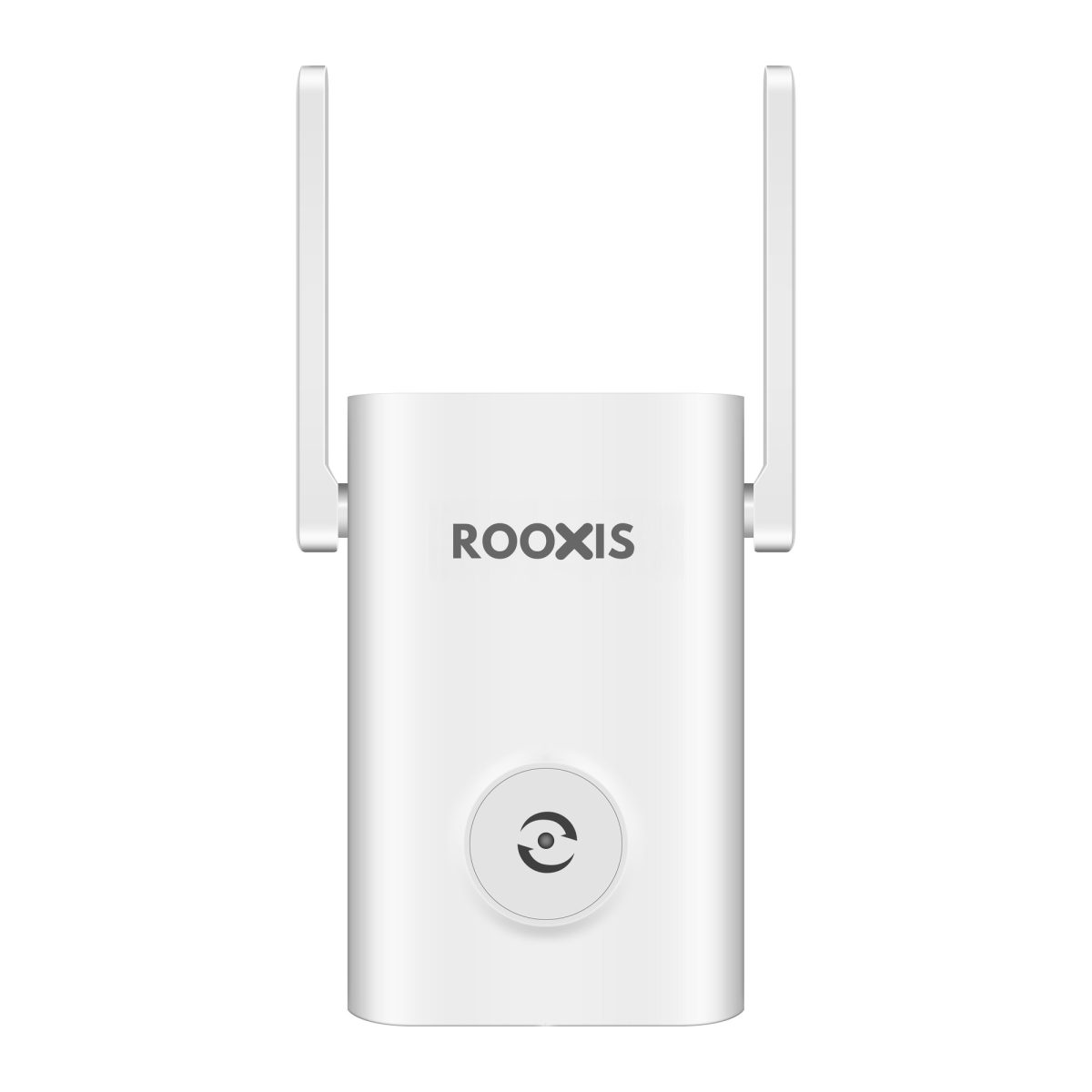
A WiFi extender receives the existing wireless signal and retransmits it toward a nearby weak area.
It is useful when most of the home already has dependable WiFi.
For example, the downstairs living room and upstairs hallway may work well, while one bedroom at the far end of the house struggles.
A repeater placed in a suitable hallway outlet may improve that bedroom.
The extender must receive a good signal from the main router.
Installing it directly inside the dead zone can produce disappointing results because it has little usable signal to repeat.
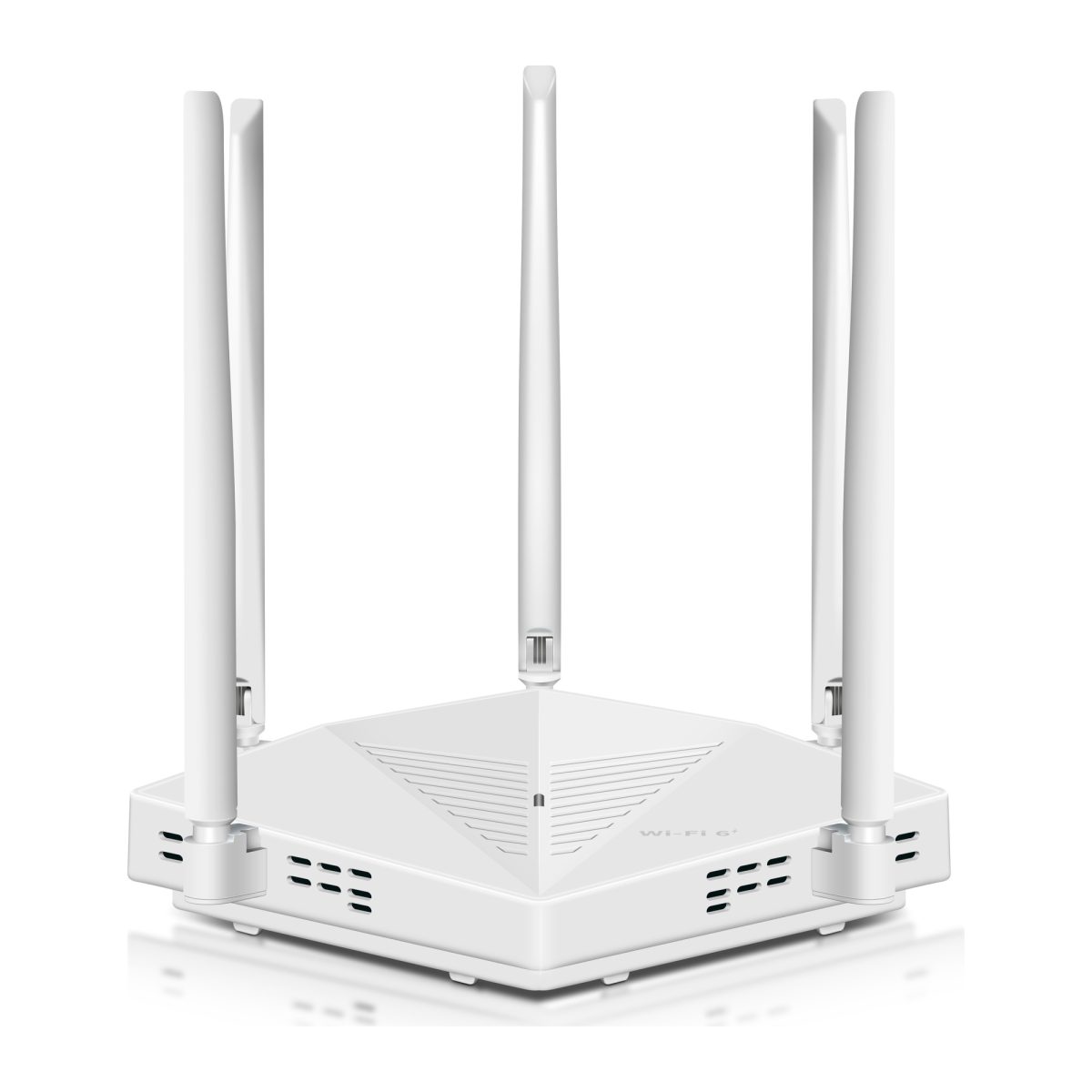
ROOXIS offers dual-band routers and range extenders for home networking. You can review the available options on the ROOXIS networking products page.
An extender is a targeted coverage solution, not a way to increase the speed of your broadband subscription.
Use Mesh for Several Coverage Gaps
A mesh WiFi system uses several coordinated nodes to provide wireless coverage.
It may be useful when different floors or distant rooms have poor reception.
Compatible mesh systems can help devices move between coverage points and may provide a more unified network experience than unrelated extenders.
But mesh is not immune to walls and distance.
A wireless mesh node still needs a dependable connection to another node or the main router.
If a concrete floor blocks that connection, performance can remain poor.
Where the equipment supports it, Ethernet backhaul can provide a more reliable connection between nodes.
Use a Wired Access Point for Reliable Multi-Floor Coverage
A wired access point connects to the network using Ethernet and provides WiFi in another part of the house.
For example, your router can remain downstairs while an access point serves the upstairs bedrooms.
The access point receives data through the Ethernet cable rather than repeating a weak signal through the floor.
This is especially useful for:
-
Homes with reinforced concrete floors.
-
Permanent upstairs offices.
-
Distant gaming rooms.
-
Long homes with separate wings.
-
Locations where wireless repeaters struggle to connect.
If the house already has Ethernet sockets, find out whether they are connected and usable.
A wired access point may solve the coverage problem without replacing the main router.
Router Placement Mistakes That Hurt Both Floors
A router can perform poorly upstairs or downstairs if it is installed in the wrong part of the room.
These mistakes are worth correcting before buying additional equipment.
Hiding the Router Behind a Television
A large television and the equipment around it can obstruct wireless signals.
If the router sits behind the TV, try moving it to an open shelf beside or above the entertainment unit.
Keep enough space for ventilation.
Then test the room that previously had weak coverage.
A simple change in position may help without any new hardware.
Placing the Router Inside a Cabinet
A router enclosed in a cabinet may have weaker signal coverage and inadequate airflow.
Metal cabinets are particularly unsuitable for wireless equipment.
Move the router to an open location.
If appearance is a concern, organize the cables rather than hiding the entire router behind thick panels.
Installing the Router at One End of the House
A router installed against an exterior wall may struggle to reach rooms at the opposite end.
This is common when the internet service enters near the front of the property.
If possible, move the router toward the center.
For long homes, even moving it into the hallway can change which rooms receive a usable connection.
Test the result before purchasing an extender.
Assuming the Highest Position Is Always Best
Putting a router above furniture level can help reduce obstructions.
But the highest possible location is not necessarily the best.
An attic may be too far from the living areas.
A high shelf in a distant corner may perform worse than a lower shelf near the center of the house.
Choose a position based on the wireless path to connected devices.
Putting the Router Beside Large Appliances
Large metal appliances can obstruct signals.
Some nearby equipment can also contribute to wireless interference.
Avoid placing the router directly beside refrigerators, microwave ovens, or large metal cabinets.
An open shelf away from these objects is generally a better starting point.
Moving the Router Without Testing the Other Floor
Relocating the router can change coverage throughout the house.
An upstairs move may improve the office but weaken the downstairs television.
A downstairs move may improve the garage camera but cause problems in an upper bedroom.
Always check the rooms on both floors before deciding that the new position is better.
How to Improve WiFi on Both Floors Without Buying a New Router
Before replacing your existing router, check whether the problem can be solved through placement, configuration, or a small network change.
Move the Router Toward the Center
A router positioned near the center of the floor plan usually has shorter paths to more rooms.
If the router is hidden in a corner, move it to a more open location where cabling allows.
Start with the rooms that currently have weak coverage.
You may find that a central downstairs position improves the upper floor enough that no additional hardware is needed.
Use the Appropriate Wireless Band
Test both 2.4 GHz and 5 GHz if your router and devices support them.
Use 5 GHz where the signal is strong and its performance is beneficial.
Use 2.4 GHz where longer reach provides a more dependable connection.
Do not assume every device needs to use the same band.
Some routers automatically manage band selection, while others allow separate network names.
Use the configuration available on your equipment and verify that devices remain connected reliably.
Check for Channel Congestion
Nearby WiFi networks can compete for wireless airtime.
This is especially common in apartments and densely populated neighborhoods.
Many routers select wireless channels automatically.
If your router provides channel settings, review the available options.
A congested channel can contribute to poor performance even when the router is close.
However, changing channels at random may not improve anything.
First determine whether interference or congestion is likely to be part of the problem.
Update the Router's Firmware
Router firmware updates may address security vulnerabilities, stability problems, and other device-specific issues.
Check the manufacturer's official support information for your exact model.
Follow the documented update procedure.
Do not install firmware intended for a different router simply because the products share a similar speed rating.
Firmware updates cannot remove the physical signal loss caused by concrete floors.
If the router works correctly but cannot reach upstairs, placement or an additional access point remains the more relevant fix.
Restart and Retest Before Buying Equipment
If the WiFi problem appeared suddenly, restart the router according to the manufacturer's instructions.
Then check the connection near the router and in the affected rooms.
If every device is slow, investigate the internet service or router.
If the connection is strong near the router but weak only upstairs, focus on wireless coverage.
If one device struggles while others in the same room work normally, check that device's network settings and capabilities.
Do not buy an extender to solve a problem that affects only one incorrectly configured device.
FAQ
Is it better to put a WiFi router upstairs or downstairs?
For many two-story homes, a central, elevated downstairs location is a good starting point. Upstairs may work better when most important devices are on the upper floor. Test both locations because walls, floor materials, and the distance to connected devices affect the result.
Does WiFi travel better upstairs or downstairs?
WiFi does not consistently travel better in one vertical direction. Coverage depends on antenna design, router position, wireless frequency, and building materials. An open staircase may provide a better signal path than a shorter route through reinforced concrete.
Where should I place my router in a two-story house?
Start with an open, central location downstairs, preferably near the staircase and above floor level. Check the connection in upstairs bedrooms, the living room, and any home office. If the upstairs rooms remain weak, compare an upstairs location or consider a separate access point.
Can one WiFi router cover two floors?
Yes, one router can cover two floors when the building layout and materials allow the signal to reach the required rooms. A router may struggle in houses with reinforced concrete floors or long distances between devices. If one router cannot provide dependable coverage, a wired access point, mesh system, or suitable extender may help.
Should I put my WiFi router near the ceiling?
An elevated location can reduce some obstructions, but mounting the router near the ceiling is not always necessary. A central, open shelf with adequate ventilation may work just as well. Follow the manufacturer's placement instructions and compare actual coverage before choosing the final position.
Will moving my router upstairs make my internet faster?
Moving the router upstairs can improve WiFi performance for devices that previously received a weak signal. It will not increase the speed supplied by your internet provider. The move can also weaken reception downstairs, so test both floors before relocating the router permanently.
For most two-story homes, start downstairs with the router near the center of the house, on an open shelf and away from large obstacles. If your office and most heavily used devices are upstairs, test a central upstairs location before deciding.
Compare actual performance in the rooms that matter. If moving the router fixes one floor but weakens the other, a wired access point or suitable extender may be the better solution.
The right placement is the one that keeps your video calls stable, televisions streaming, and connected cameras online without forcing you to troubleshoot another dead zone every week.