
A common mistake when trying to fix weak WiFi is buying an extender and plugging it into the room where the internet already struggles. The device may show a strong connection, but videos still buffer because the extender itself cannot communicate reliably with the main router.
When comparing wifi extender vs mesh, start with the size of the coverage problem. A WiFi extender is usually the better choice for one weak room. Mesh WiFi is generally more practical when several rooms, multiple floors, or moving devices need reliable coverage.
Neither option can repair a slow internet connection coming into your house. Before spending money, identify where the wireless signal becomes weak and whether the problem affects one device or several.
This guide explains how both systems work, the differences that matter in daily use, and which setup makes sense for bedrooms, home offices, security cameras, and larger houses.
Quick Answer: WiFi Extender vs Mesh at a Glance
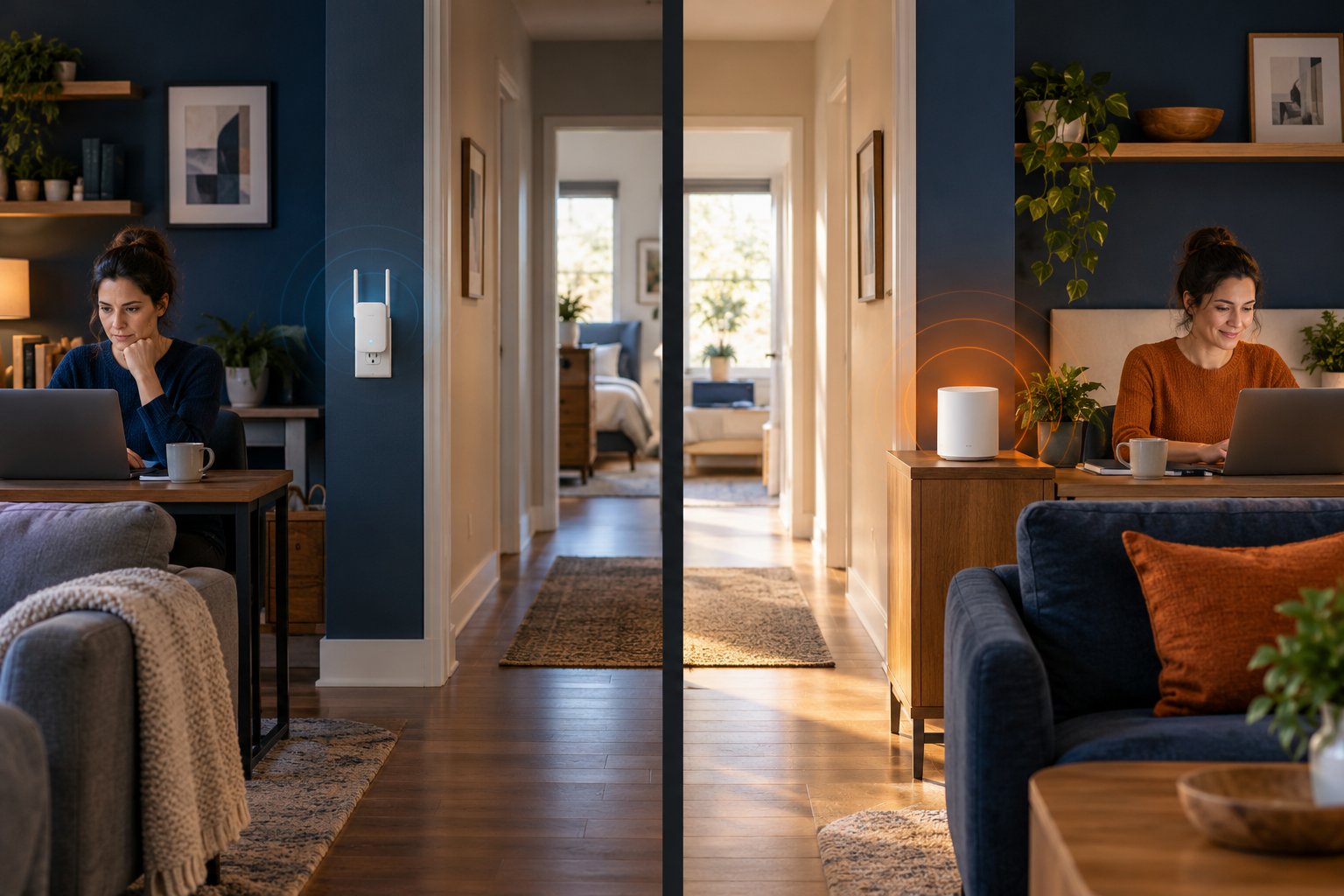
A WiFi extender and a mesh system both help eliminate dead zones, but they approach the problem differently.
A WiFi extender connects to your existing router and rebroadcasts its signal into an area with weak coverage. It is generally the simpler and less expensive option when you only need to improve one room.
A mesh WiFi system uses multiple coordinated units, called nodes, to distribute coverage throughout the house. These devices typically share one network name and work together to help phones, laptops, and other devices stay connected as you move around.
For a home office at the end of a hallway, an extender may be enough. For a two-story house where several bedrooms and an outdoor camera lose their connections, mesh is worth considering.
The important difference is not simply the number of devices. It is how they communicate with the router, manage wireless traffic, and handle connected devices.
WiFi Extender vs Mesh Comparison Table
| Feature | WiFi Extender | Mesh WiFi System |
|---|---|---|
| Best use | Fixing one or two weak areas | Improving coverage across several rooms or floors |
| How it works | Receives and repeats the router's signal | Uses coordinated nodes to distribute coverage |
| Existing router | Usually works with a compatible existing router | May replace the router or operate in a supported access point mode |
| Network name (SSID) | May create a separate extended network | Usually uses one shared network name |
| Device roaming | Depends on extender features and the connected device | Usually offers coordinated roaming assistance |
| Backhaul | Usually a wireless link, with wired options on some models | Wireless, dedicated wireless, or Ethernet depending on the system |
| Speed | Wireless repeating can reduce usable throughput | Depends on node placement and backhaul capacity |
| Installation | Usually straightforward for one device | Requires initial setup and placement of multiple nodes |
| Expansion | Several independent extenders may be harder to manage | Compatible nodes are designed to work together |
| Upfront cost | Usually lower | Usually higher |
| Security cameras | Useful for one camera near a weak coverage area | Useful for several cameras around the property |
| Multi-floor homes | Suitable for isolated weak spots | Often better for broader coverage |
These differences describe common designs. Some modern extenders support mesh-style features, while basic mesh kits can share many of the same wireless limitations as traditional extenders.
Do not assume a product is faster simply because it has "mesh" printed on the packaging.
Start With a Simple Coverage Check
You can identify the likely problem before buying anything.
Use a phone or laptop and test the connection in three locations.
1. Beside the main router
Connect to your home WiFi and run an internet speed test. Open a video, browse a few websites, and check whether the connection behaves normally.
If the internet is slow here, investigate the router or broadband service first.
2. Halfway to the problem room
Walk into the hallway or the room between the router and the weak area.
Run another test using the same device.
If the connection is still stable, this might be a suitable location for an extender or mesh node.
3. Inside the problem room
Test the actual location where you use your laptop, smart TV, or camera.
Note whether the connection becomes slower, disconnects, or stops working entirely.
If only one room is affected, an extender may solve the problem.
If several rooms have poor connections, particularly on different floors, a mesh network or wired access points will often be more useful.
Also check whether the issue happens on multiple devices. If one laptop struggles while phones work normally beside it, the laptop's wireless adapter or settings may be the problem.
How a WiFi Extender Works
A WiFi extender acts as an additional wireless connection point between your router and the area you want to reach.
It receives data from the router, then transmits that data to devices connected through the extender.
Imagine your router is in the living room.
Your laptop works normally in the kitchen and hallway, but the connection drops when you enter a bedroom at the opposite end of the house.
Installing an extender in the hallway may improve the connection in that bedroom.
The extender does not create a new internet connection. It uses the connection supplied by your existing router.
That distinction matters.
If the extender receives a poor signal, the devices connected to it will also struggle.
The best extender location is usually somewhere between the router and the dead zone, where the original WiFi signal remains reliable.
Placing the extender directly behind several concrete walls may provide little benefit, even if the device powers on and broadcasts a network.
What Happens to Your Network Name?
Your WiFi network has a name called an SSID, which stands for Service Set Identifier.
It is the name that appears when you open the WiFi settings on your phone.
Suppose your main network is called HomeWiFi.
A traditional extender might create another network named HomeWiFi_EXT.
You would connect devices in the weak room to the extended network.
Some extenders allow you to use the same network name as the router, while others support more coordinated networking features.
However, using the same SSID does not automatically mean devices will switch smoothly between the router and extender.
For example, your phone may remain connected to the router while you walk toward the bedroom, even when the extender has a stronger signal.
You might need to reconnect manually or wait for the phone to decide when to switch.
This is less of a problem for stationary devices.
A desktop computer or smart TV usually stays in the same room, so it does not need to switch between access points throughout the day.
Where a WiFi Extender Works Best
An extender is useful when the rest of your home already has dependable wireless coverage.
Consider these situations:
-
A home office at the end of a hallway: The router works well in nearby rooms, but video meetings become unstable at your desk.
-
A bedroom with weak coverage: Phones connect normally in the hallway but struggle after passing through additional walls.
-
A garage near the house: The signal reaches the garage entrance but becomes unreliable inside.
-
A smart TV in one room: Streaming works elsewhere, but the television frequently buffers.
-
A security camera near an exterior wall: The camera connects intermittently because its mounting location is near the edge of coverage.
In each case, an extender can be placed where the original signal is still usable.
An extender is less suitable when the router cannot reach any practical installation location near the affected area.
For example, a detached workshop separated from the house by a long distance or heavy construction may need a different networking arrangement.
Pros and Cons of Range Extenders
Advantages
-
Usually costs less than replacing the entire network with mesh.
-
Can work with an existing compatible router.
-
Often installs through WPS or a browser-based setup process.
-
Suitable for improving one specific dead zone.
-
Available in dual-band configurations.
-
Some models support Ethernet-connected access point mode.
Limitations
-
Wireless repeating can reduce available bandwidth.
-
Some models create a separate network name.
-
Phones may stay connected to the weaker access point.
-
Placement has a major effect on performance.
-
Several independent extenders can become difficult to manage.
-
An extender cannot improve the speed of the incoming internet service.
For one bedroom or home office, these limitations may not matter much.
You may simply need a stable connection for browsing, messaging, and video calls.
If you are trying to cover three floors and several outdoor devices, the disadvantages become more noticeable.
Choosing a Dual-Band Extender
A dual band extender supports the 2.4 GHz and 5 GHz WiFi bands.
These bands behave differently inside a home.
2.4 GHz WiFi generally reaches farther and travels through common household obstacles more effectively. However, it can experience congestion from neighboring networks and other devices using the same spectrum.
5 GHz WiFi often provides higher throughput over shorter distances, especially when the signal does not need to pass through several walls.
For a distant bedroom, 2.4 GHz may provide a more stable connection.
For a laptop close to the extender, 5 GHz may perform better if the extender's connection to the router is strong enough.
A dual-band extender does not automatically deliver its advertised combined speed to one device.
Performance depends on its radio design, signal strength, network traffic, and backhaul connection.
The ROOXIS dual-band WiFi extender is an AC1200 option with repeater and access point modes.
Repeater mode uses an existing wireless connection.
Access point mode uses a wired Ethernet connection to provide WiFi at another location.
If your house already has an Ethernet outlet in the weak room, the wired option is worth considering. It avoids relying on the extender to receive and retransmit a wireless signal through the same obstacles.
How a Mesh WiFi System Works

A mesh WiFi system uses several coordinated devices to provide wireless coverage across a home.
Instead of depending on one router to reach every room, you place additional mesh nodes in locations where coverage needs to improve.
The system manages these units as part of the same network.
For example, a two-story home might have the main mesh router near the broadband connection, a second node near the stairs, and another node toward the rear bedrooms.
Each node helps nearby devices connect to the network.
Most consumer mesh systems use one network name and password across their coverage area.
You do not normally need to choose a separate network manually every time you move between rooms.
This makes mesh useful for households where people move around with phones, tablets, and laptops.
But mesh has a limitation that is easy to overlook.
Every mesh node still needs a reliable connection to the rest of the network.
A node placed behind thick concrete with a very weak wireless link may deliver disappointing performance, regardless of the system's advertised coverage.
What Is a Mesh Node?
A mesh node is one of the devices that provides wireless coverage within a mesh system.
Depending on the product, a node may connect directly to the main router, communicate through another node, or use an Ethernet connection.
Suppose you have three floors.
The main router is on the ground floor, where the broadband line enters the property.
You might position a second node near the first-floor landing and another near the upper floor.
The aim is to maintain a reliable connection between the nodes while placing WiFi coverage close to the rooms that need it.
A common mistake is installing the upstairs node in the farthest bedroom because that is where WiFi is weakest.
The bedroom may receive a strong signal from the node, but the node itself might struggle to communicate with the rest of the network.
A better position may be near the stairwell, where fewer walls separate it from the main unit.
From there, it can serve several nearby rooms.
What Is Backhaul?
Backhaul is the connection carrying network traffic between the main router and the additional nodes.
It is one of the biggest factors affecting mesh performance.
There are three common arrangements.
Shared wireless backhaul
Many dual-band mesh systems use the same available wireless bands for connected devices and communication between nodes.
This makes installation convenient because no network cables are needed.
However, wireless traffic between nodes consumes airtime that could otherwise serve phones, laptops, and cameras.
If several devices use the network heavily, the backhaul may become a limiting factor.
Dedicated wireless backhaul
Some mesh systems include an additional radio or band that can be used for communication between nodes.
This can reduce competition between connected devices and backhaul traffic.
It does not eliminate interference or wall-related signal loss.
A dedicated backhaul connection still needs suitable placement and reasonable signal quality.
Ethernet backhaul
Ethernet backhaul connects mesh nodes using network cables.
Instead of sending data between nodes over WiFi, the system uses the wired connection.
This can be particularly useful in homes with thick walls or reinforced concrete floors.
It also leaves more wireless capacity available for connected devices.
Not every mesh system supports Ethernet backhaul, and some products have specific port or configuration requirements.
Check the specifications before purchasing.
Does Mesh Automatically Switch Devices Between Nodes?
Mesh systems are designed to help devices move between access points while remaining on the same home network.
This is commonly called seamless roaming.
For example, you might start a video call in the living room and walk upstairs to the office.
As the connection to the downstairs node becomes weaker, the mesh system may help your phone discover and connect to a better node.
This can make movement around the house more convenient.
However, the word "seamless" should not be interpreted as a guarantee that every connection will switch instantly.
The phone, laptop, or other device still participates in deciding when to change access points.
Some older devices remain attached to a distant node longer than expected.
A mesh network can encourage better roaming behavior, but it cannot force every client device to behave perfectly.
For stationary devices, roaming is less important.
A smart TV, printer, or security camera usually benefits more from a stable connection to one suitable access point.
Pros and Cons of Mesh Systems
Advantages
-
Designed to serve multiple rooms and floors.
-
Usually provides one shared WiFi network name.
-
Supports coordinated network management.
-
Can help devices roam between coverage areas.
-
Compatible nodes are generally easier to manage together.
-
Some systems support Ethernet or dedicated wireless backhaul.
-
Useful for homes with devices spread across several locations.
Limitations
-
Usually requires a higher upfront investment.
-
May involve replacing or reconfiguring the existing router.
-
Wireless backhaul can still limit throughput.
-
Nodes must be positioned carefully.
-
Expansion may be limited to compatible devices.
-
Some systems depend on a mobile app or online account for management.
Mesh is often the better whole-home solution, but it is not the only way to build a strong network.
A capable router and properly placed wired access points can also provide excellent coverage.
Key Differences Compared
The difference between wifi extender and mesh becomes most noticeable when you look beyond signal bars.
A phone showing full WiFi strength may still have a poor connection to the internet.
What matters is the complete path between the connected device, access point, router, and internet service.
Speed and Bandwidth
Bandwidth is the amount of data a connection can carry over time.
When several people stream video, attend meetings, or download files, the available capacity must be shared.
A traditional wireless extender may need to receive data from the router and retransmit it to another device using the same radio or channel.
That consumes wireless airtime.
As a result, the usable throughput through the extender may be lower than a direct connection to the main router.
The reduction is not always the same.
It depends on the extender, frequency bands, signal quality, interference, and connected devices.
A mesh network can experience similar limitations when its nodes use shared wireless backhaul.
Mesh systems with dedicated backhaul radios may reduce competition for airtime.
Ethernet backhaul can improve the situation further by moving node-to-node traffic onto a cable.
Which is faster?
There is no universal winner.
A well-positioned extender can outperform a poorly positioned mesh node.
A mesh network with strong backhaul may handle several busy rooms more effectively than a single wireless extender.
For ordinary browsing in one bedroom, the extender may provide everything you need.
For several simultaneous video meetings across different floors, a properly configured mesh network may be more suitable.
Remember that neither setup increases the broadband speed supplied by your internet provider.
Roaming and Network Switching
Roaming matters when you carry a connected device between coverage areas.
Consider a phone moving from the kitchen to an upstairs bedroom.
With a traditional extender, the phone may see two networks.
Even if both networks use the same password, switching between them may not happen as smoothly as expected.
Some extenders support more advanced roaming features, but compatibility depends on the router and connected device.
A mesh system typically presents one coordinated network.
It may use roaming assistance to help devices identify a better node.
That usually makes moving around the house easier.
When roaming matters:
-
Walking between rooms during a video call.
-
Using a tablet throughout a multi-floor home.
-
Moving between indoor and outdoor coverage areas.
-
Carrying a phone between a basement office and upstairs bedrooms.
When roaming matters less:
-
A desktop computer that stays in one office.
-
A smart TV mounted in the living room.
-
A printer that rarely moves.
-
A fixed security camera.
If your main concern is one stationary device, do not pay extra for advanced roaming features you are unlikely to use.
Setup and Placement
Both systems can be installed without advanced networking knowledge, but the setup process differs.
Setting up a WiFi extender
-
Find a location where your router's WiFi is still reliable.
-
Plug the extender into a suitable outlet.
-
Connect it using the manufacturer's setup process.
-
Enter your WiFi password if required.
-
Wait for the connection to establish.
-
Connect a phone or laptop to the extended network.
-
Test the problem room.
-
Move the extender if the connection remains unreliable.
A hallway outlet often works better than one behind furniture inside the dead zone.
Avoid placing the extender next to large metal appliances or inside enclosed cabinets.
Setting up a mesh system
-
Connect the main mesh unit according to the manufacturer's instructions.
-
Configure the network using the supported app or interface.
-
Add the next mesh node.
-
Place it where the connection to the main router or upstream node remains strong.
-
Test coverage in nearby rooms.
-
Add another compatible node only if needed.
-
Review connection quality in the mesh management interface.
For a multi-floor house, the best node position may be near an open stairwell rather than directly above the main router behind a reinforced floor.
The connection between nodes is just as important as the connection between a phone and its nearest node.
Cost and Scalability
One WiFi extender is generally less expensive than purchasing a multi-unit mesh system.
That makes an extender attractive when your existing router already handles most of the home.
You can add coverage without replacing equipment that still works.
Mesh usually costs more initially because you are purchasing a coordinated system.
Its advantage becomes clearer when coverage needs to expand.
Suppose you currently need WiFi upstairs but later convert another room into an office.
A compatible mesh system may allow you to add a node and manage everything through the same interface.
With separate extenders, adding more devices can create additional network names, repeated wireless links, and more settings to maintain.
Scalability does not mean adding unlimited nodes.
Each additional node still needs a suitable backhaul connection.
Too many wireless access points installed too close together can increase competition for airtime.
Plan the network around the rooms that need coverage rather than adding devices simply because additional units are available.
Compatibility With Your Existing Router
Most conventional extenders are intended to connect to an existing compatible WiFi router.
That makes them convenient when you want to keep the equipment supplied by your internet provider.
Mesh compatibility requires more attention.
Some mesh systems are designed to replace the existing router.
Others support access point mode or certain combinations with compatible routers.
A mesh node from one system will not necessarily work as part of another manufacturer's mesh network.
Before purchasing, check:
-
Whether the main mesh unit needs to replace your router.
-
Whether access point mode is supported.
-
Whether Ethernet backhaul is available.
-
Which additional nodes are compatible.
-
Whether setup requires an app or online account.
-
Whether your internet provider's gateway needs configuration changes.
If you install a mesh router behind an existing router, you may create a double NAT configuration.
That means two devices are performing network address translation.
It does not necessarily stop ordinary browsing, but it can complicate some gaming, remote access, and networking functions.
Follow the recommended router or access point configuration for your equipment.
When to Choose an Extender vs Mesh

The best option depends on your home's construction, the number of weak areas, and the devices you use.
Floor area is only part of the picture.
A smaller house with reinforced concrete walls can be harder to cover than a larger open-plan home.
Choose a WiFi Extender if One Room Has Weak Coverage
An extender is usually worth trying when the main router works well in most of the home.
Imagine a single-story house where the living room, kitchen, and bedrooms have good WiFi, except for one office at the far end.
Your laptop connects reliably in the hallway but struggles at the desk.
An extender in the hallway may provide enough coverage for browsing and video meetings.
Choose an extender when:
-
One specific room has poor coverage.
-
Your router works well elsewhere.
-
You want to keep your existing router.
-
Your budget is limited.
-
The affected devices mostly stay in one place.
-
There is a suitable outlet where the router's signal remains reliable.
Before buying, check whether moving the router into a more open position would help.
A router hidden behind a television or inside a cabinet may perform better after a simple placement change.
Choose Mesh if Several Rooms Have Dead Zones
Mesh makes more sense when the coverage problem is spread across the home.
For example, a two-story property might have good WiFi near the downstairs router but weak connections in the upstairs bedrooms and rear family room.
A single extender could improve one area while leaving another unchanged.
A mesh system allows you to place compatible nodes where several coverage gaps need attention.
Choose mesh when:
-
Multiple rooms have unreliable connections.
-
Your home has two or more floors.
-
People regularly move between coverage areas.
-
Many devices connect in different parts of the house.
-
You want centralized network management.
-
You expect your coverage needs to expand.
Do not choose the number of nodes solely from the advertised floor coverage.
Consider walls, floor construction, and the available connection between nodes.
Choose Carefully for a Large House
The question "wifi extender or mesh for large house" depends heavily on the layout.
An open-plan house may need fewer access points than a smaller home divided by thick concrete walls.
For a larger property, consider:
-
How many floors need coverage.
-
Where the broadband connection enters the house.
-
Whether interior walls contain concrete or metal.
-
Whether stairwells provide a relatively open signal path.
-
Where laptops, televisions, and cameras are installed.
-
Whether outdoor WiFi is necessary.
-
Whether Ethernet cables are already available.
If several areas need reliable WiFi, mesh or multiple wired access points will usually be more practical than a chain of standalone extenders.
Ethernet backhaul is particularly valuable when floors or walls severely weaken the wireless connection.
Choose Based on Your Security Camera Setup
Security cameras need a stable connection, especially when they send video to a phone, cloud service, or network recorder.
One weak outdoor camera does not necessarily justify replacing your home network.
Suppose your front door camera works normally, but a camera near the garage disconnects occasionally.
If WiFi is still reliable in the hallway or room nearest the garage, an extender might help.
Place it where the connection to the router remains stable and where it can also serve the camera.
For several cameras covering different parts of the house, a mesh system may provide better overall coverage.
However, camera compatibility still matters.
Many home cameras support only 2.4 GHz WiFi, and some remain connected to one access point rather than switching frequently.
For stationary cameras, a dependable connection matters more than seamless roaming.
If a camera requires continuous video transmission to an NVR, a wired network connection may be more reliable where installation is practical.
Choose an Extender for a Rental With One Dead Zone
Renters often cannot drill walls or install network cables.
A plug-in extender is a convenient option when one room needs better coverage.
You can use it without permanent changes and take it with you when moving.
For example, if a bedroom in a rental apartment has weak WiFi but the hallway connection is stable, an extender may be sufficient.
Make sure the outlet is not blocked by furniture and the device has suitable ventilation.
If several rooms are affected, a wireless mesh kit may still be useful.
Check whether it can work with the existing internet gateway and whether you have permission to change its settings.
Choose Mesh for Frequent Movement Between Floors
If you work from different parts of the house, roaming can affect your daily experience.
You might begin a video call in the downstairs study, move into the kitchen, and later take the laptop upstairs.
A coordinated mesh network is generally better suited to that pattern than separate extended networks.
The system can help devices move between nodes as signal conditions change.
Still, placement matters.
If the upstairs node has a poor backhaul connection, switching to it may not improve the call.
Test roaming in the areas where you actually move rather than judging the system only by its signal indicators.
Choose Wired Backhaul for Thick Concrete Walls
Reinforced concrete, metal-backed insulation, and dense building materials can weaken wireless connections significantly.
If a wall or floor blocks the signal, adding more wireless devices on the far side may not solve the problem.
The devices still need a reliable connection to the router.
Ethernet provides a way to carry network traffic around those obstacles.
For example, an Ethernet cable can connect the downstairs router to an access point or compatible mesh node upstairs.
That device can then broadcast WiFi close to the rooms that need it.
This may require additional installation work, but it avoids depending on a weak wireless connection through the reinforced floor.
If your house already has Ethernet wall outlets, check whether they are connected and usable before buying wireless extension equipment.
What if Your Internet Is Slow Everywhere?
If the connection is slow even beside the router, adding an extender or mesh system is unlikely to fix the underlying issue.
Start with a simple test.
Connect a computer directly to the router using a suitable Ethernet cable, if possible.
Compare the wired connection with WiFi near the router.
If both are slow, investigate:
-
Problems with the internet service.
-
Modem or gateway issues.
-
Router configuration.
-
Network congestion.
-
Faulty cables or ports.
-
Limitations of the subscribed internet plan.
If Ethernet works normally but WiFi is poor even near the router, the issue may involve wireless settings, interference, or the router itself.
Try resolving that problem before purchasing additional coverage equipment.
Common Mistakes When Choosing Between Mesh and Extenders
Several common buying and setup mistakes can leave homeowners with more equipment but little improvement.
1. Putting an extender in the dead zone
An extender cannot reliably repeat a connection it barely receives.
Move it closer to the router, where the original signal is still usable.
2. Assuming mesh always provides faster WiFi
Mesh improves coverage and network coordination, but speed still depends on backhaul capacity, interference, hardware, and placement.
A mesh node with a weak connection can perform poorly.
3. Buying more mesh nodes than necessary
Additional nodes do not automatically improve coverage.
Too many units in a small area can introduce wireless competition.
Add nodes to address actual coverage gaps.
4. Ignoring 2.4 GHz and 5 GHz differences
The two bands have different coverage and performance characteristics.
A 5 GHz connection may work well near an access point but weaken through thick walls.
A 2.4 GHz connection may reach farther but experience more interference.
Choose settings based on the device and location.
5. Assuming all mesh devices are compatible
Mesh systems are not universally interchangeable.
Check exact model compatibility before buying additional nodes.
6. Expecting an extender to improve broadband speed
An extender does not increase the internet speed delivered by your provider.
It helps make an existing connection available in another area.
7. Treating advertised wireless speed as actual download speed
A label such as AC1200 describes theoretical wireless capabilities across bands.
It does not guarantee that one device will receive that internet speed.
8. Forgetting older smart home devices
Some security cameras, printers, and smart plugs support only 2.4 GHz.
Check compatibility before changing your network configuration.
9. Ignoring wired networking options
If Ethernet is already available near a weak room, a wired access point or mesh node may provide a more reliable connection than wireless repeating.
10. Testing only beside the new equipment
A good connection beside the extender does not prove that the bedroom, garage, or upstairs office is fixed.
Test where the problem originally occurred.
How to Test Your Setup After Installation
After installing an extender or mesh system, do not judge success by signal bars alone.
A phone can display a strong WiFi connection while the internet remains slow because the backhaul is weak.
Use the same test device and repeat the checks at the locations that previously caused trouble.
Step 1: Test near the main router
Run an internet speed test and open a video or website.
Confirm that your main internet connection is operating normally.
Step 2: Test the previously weak room
Move to the exact location where you experienced problems.
If it is your home office, sit at the desk rather than testing only at the doorway.
Check whether browsing, video calls, or downloads work more consistently.
Step 3: Inspect the connection back to the router
For mesh systems, open the management app and review node connection quality if available.
For an extender, check its connection indicator or administration interface.
If the backhaul appears weak, move the device closer to a stronger coverage area.
Step 4: Test movement between rooms
Walk from the main router's coverage area toward the extender or mesh node.
Check whether the phone remains connected.
With mesh, pay attention to whether a video call remains usable as you move.
With a traditional extender, confirm that your device is using the intended network.
Step 5: Test important devices
Check the equipment that actually needs the improved coverage.
That may include:
-
A home office laptop.
-
An upstairs smart TV.
-
A gaming console.
-
An outdoor security camera.
-
A video doorbell.
-
A printer in a distant room.
For a camera, verify that its live feed loads and remains stable at the mounting location.
A successful WiFi setup is not necessarily the one with the highest speed test result. It is the one that provides a dependable connection for the devices and activities your household uses.
Frequently Asked Questions
Does a WiFi extender slow down internet speed?
A WiFi extender can reduce usable throughput because it receives data from the router and retransmits it to connected devices. The effect depends on signal strength, available bands, interference, and the extender's design. Even with some throughput loss, a correctly positioned extender can make a previously unreliable bedroom or office connection much more usable.
Can you use both a mesh system and a WiFi extender together?
Yes, some traditional WiFi extenders can connect to a mesh network, but they may not participate in its coordinated roaming and management features. The result depends on equipment compatibility and network configuration. If you already have mesh, adding a compatible mesh node is often the more straightforward option.
Is mesh WiFi worth the extra cost over an extender?
Mesh is often worth the additional cost when several rooms or floors need coverage and people frequently move between access points. If only one bedroom or office has weak WiFi, an extender may solve the problem for less money. Compare backhaul options, node placement, and existing router compatibility before deciding.
Which setup is best for multi-floor homes?
Mesh WiFi is generally better suited to homes with several floors because nodes can provide coverage on different levels under one coordinated network. Ethernet backhaul is particularly useful when concrete floors make wireless connections unreliable. If only one upstairs room has weak coverage, a properly positioned extender may still be enough.
Choose the smallest setup that solves the actual coverage problem. One weak bedroom usually calls for an extender. Several dead zones, multiple floors, and frequent movement between rooms make mesh a stronger option.
Before purchasing, test your existing router in the rooms that matter and identify where the connection begins to fail.
When comparing home networking products, pay attention to supported WiFi bands, operating modes, Ethernet options, and compatibility with your current router. Those details will have a greater effect on everyday performance than an advertised maximum coverage figure.