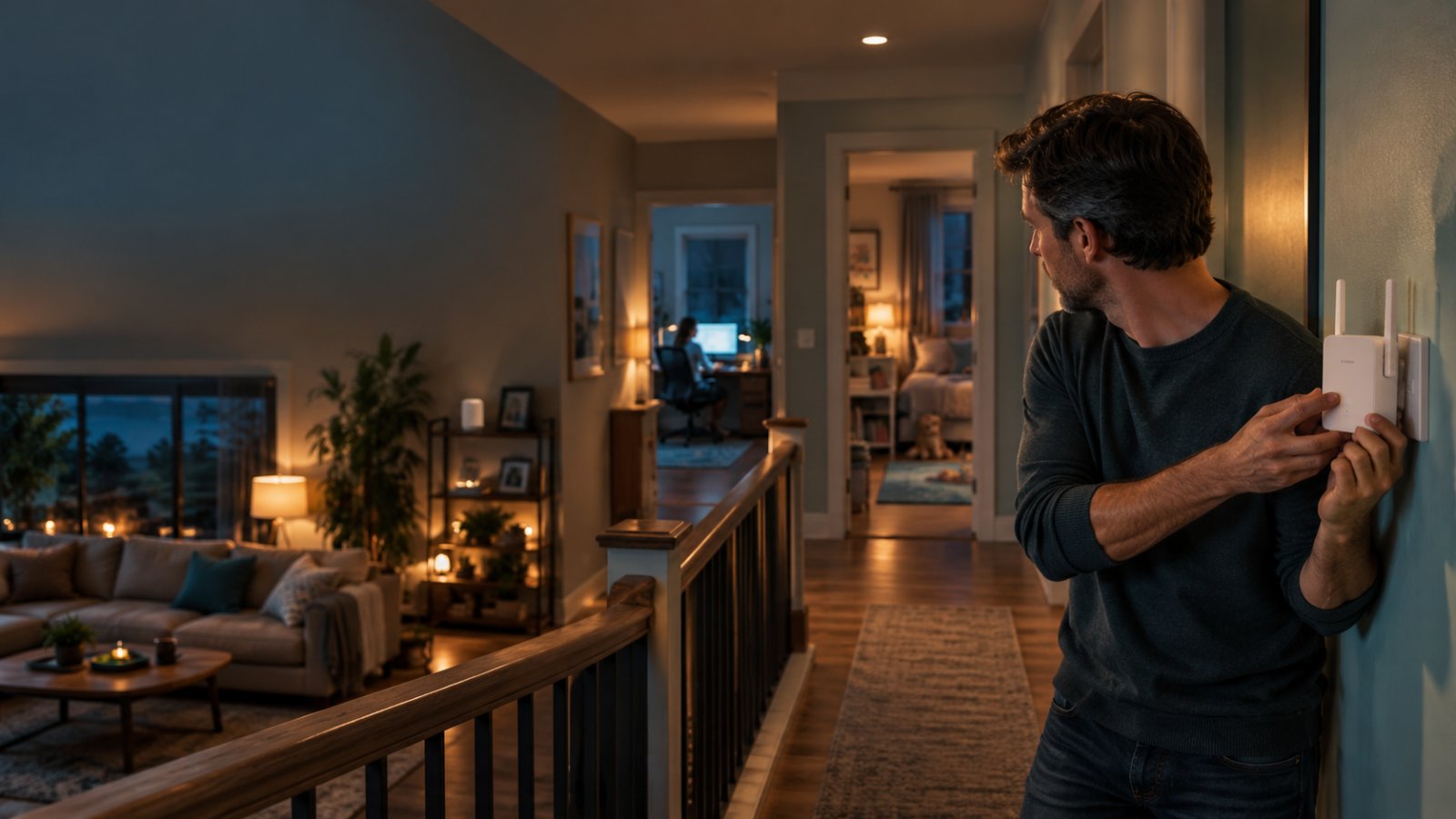
The mistake many homeowners make is replacing a perfectly good router with a more expensive model when the real problem is getting WiFi through walls and floors. A faster router downstairs will not necessarily fix a bedroom that loses its connection whenever someone closes the door.
Which wifi router setup works best for a multi-floor home? For most two-story houses, a mesh system with units on both floors is a sensible starting point. If Ethernet cables are available, connecting those units by cable is usually more reliable. Homes with thick concrete floors often benefit from wired access points, while a WiFi extender can be enough for one weak room.
Before buying anything, check where the signal drops, how your floors are built, and which devices need dependable coverage. A laptop used for video calls, a television upstairs, and an outdoor security camera have different needs. This guide compares six practical setups, explains what each does well, and shows how to choose without spending money on equipment your home does not need.

Which WiFi Router Setup Works Best for a Multi-Floor Home?
The best arrangement puts a WiFi connection close enough to the rooms where people actually use it.
In a single-story apartment, one centrally placed router may cover everything. A two-story house adds another obstacle: the signal must travel through a floor, often at an angle, before reaching upstairs devices.
That floor might contain wooden joists and drywall. It might also contain reinforced concrete, metal ductwork, plumbing, and insulation. The difference can be substantial.
A router placed in a downstairs corner may serve the living room well but struggle to reach an upstairs bedroom at the opposite end of the building.
There are three approaches worth considering first.
A single router works when the house is compact, the floor construction is favorable, and the signal reaches important rooms without repeated dropouts.
A mesh WiFi system works well when several rooms across two or more floors need coverage. Its nodes provide WiFi from different locations and are usually managed together through one app.
Wired access points are especially useful when floors block wireless signals or when a homeowner wants stable connections for an office, gaming equipment, and several cameras.
A WiFi extender is another option, particularly when the existing router works everywhere except one upstairs bedroom.
The decision becomes easier when you stop asking which router has the longest advertised range and start asking where a second WiFi signal should come from.
For example, a small two-story home with an open staircase might work with two wireless mesh nodes. A similarly sized house with a concrete slab between floors may need a cable-connected device upstairs.
Adding equipment does not automatically improve coverage. It must be positioned where it can communicate properly with the rest of the network.
How We Compared the Different Router Setups
This comparison is based on how the networking approaches work, their installation requirements, and the problems they are suited to solving. It does not present laboratory results or claim that one system was tested against another.
For a homeowner, five buying criteria matter more than a large speed number on the product box.
1. Coverage Across Floors
Start with the rooms that have problems.
A router that covers the living room, kitchen, and hallway but cannot maintain a connection in the upstairs office is not providing the coverage that household needs.
Think about where the WiFi signal must travel.
Does it pass through a wooden floor or reinforced concrete? Is there an open stairwell? Are the upstairs bedrooms directly above the router or at the other end of the house?
Also consider outdoor devices.
A camera mounted outside an upstairs garage may need its signal to pass through an exterior wall, insulation, and other materials.
What to look for: Equipment that can place reliable WiFi near the rooms and devices that need it.
Do not assume a manufacturer's coverage estimate will match your property's layout.
2. Connection Between Network Devices
When a home uses more than one WiFi device, those devices must communicate with the main network.
That connection is called backhaul.
In a wireless mesh system, the additional nodes often communicate over WiFi.
In a wired mesh or access point setup, an Ethernet cable carries the connection between devices.
Wireless backhaul avoids installing cables. That is convenient for renters and finished homes.
However, a wireless node upstairs still needs a sufficiently strong connection to the main router downstairs.
If a thick floor blocks that connection, placing another node upstairs may not solve the problem.
Ethernet backhaul avoids relying on the wireless signal between floors.
What to look for: Ethernet backhaul support if you already have cables or might install them later.
3. Reliability for Everyday Devices
Speed is only part of the problem.
A connection may show a respectable download speed during one test but still suffer interruptions during a video meeting.
Security cameras have a similar issue. A camera may connect successfully during installation and then lose its connection when operating from its permanent outdoor location.
For a multi-floor WiFi setup, consider:
-
Whether video calls remain connected upstairs
-
Whether televisions stream without repeated buffering
-
Whether cameras maintain their connections
-
Whether phones reconnect smoothly when moving between floors
-
Whether several household members can use WiFi at the same time
For fixed devices such as gaming consoles and desktop computers, Ethernet is worth considering whenever a cable is practical.
4. Setup and Maintenance
Some homeowners are comfortable changing router settings and running cables.
Others want to plug in a device, follow an app, and finish the installation without altering the house.
A mesh system is often convenient because compatible nodes are managed through one interface.
Separate access points may require more planning, especially when using equipment from different manufacturers.
Check whether the product offers:
-
Clear setup instructions
-
A management app or browser interface
-
Firmware updates
-
Guest network options
-
Current WiFi security features
-
Connection status information
-
Suitable operating modes
A connection-quality indicator is particularly useful when positioning a wireless node upstairs.
5. Total Equipment Cost
A single router is generally the simplest purchase.
An extender can be economical if only one area needs improvement.
Mesh systems involve additional hardware, while wired access points may require cable installation or network switches.
Do not compare hardware prices alone.
A low-cost extender placed where the router signal is already unusable is not a bargain.
Likewise, an expensive three-node mesh kit may be unnecessary for a compact two-story house that only needs one additional WiFi point.
Buy for the problem you have measured, not the maximum number of devices or rooms a product claims to support.
Best WiFi Router Setup Options for Multi-Floor Homes
These six approaches cover most common home layouts. Each has situations where it works well and conditions that make it less suitable.
Option 1: One Centrally Located Dual-Band Router
Best for: Small two-story houses with open layouts and relatively few obstacles.
A dual-band router broadcasts WiFi using the 2.4 GHz and 5 GHz frequency bands.
The 2.4 GHz band generally travels farther through obstacles, while 5 GHz can provide higher speeds when the signal is strong.
For a compact house, a good dual-band router placed near the middle of the occupied space may be enough.
Imagine a house with a downstairs living room, an open staircase, and two bedrooms upstairs.
If the router is positioned near the staircase rather than hidden inside a cabinet beside an exterior wall, its signal may reach both floors more effectively.
The difficulty comes when the layout is divided into long hallways, thick walls, or rooms at opposite ends.
Strengths
-
One device to install and manage
-
No extra mesh nodes or extenders
-
Simple WiFi network configuration
-
Suitable for homes with favorable layouts
-
No separate wireless backhaul to manage
Limitations
-
Every device depends on the same WiFi location.
-
Concrete and metal can significantly weaken the signal.
-
Distant bedrooms may receive poor 5 GHz coverage.
-
Router positioning becomes especially important.
-
Replacing one router with another may not fix a floor-related dead zone.
A single router is worth upgrading when the existing equipment is outdated, unreliable even nearby, or missing features your devices require.
It is less convincing when WiFi works well beside the router and fails only upstairs.
In that situation, the issue is probably where coverage comes from.
The ROOXIS networking products include dual-band home networking options. If considering a router replacement, compare Ethernet port speeds, supported wireless standards, security settings, and operating modes rather than relying on advertised coverage alone.
What to watch for: If the upstairs bedroom regularly loses 5 GHz WiFi while the downstairs television works normally, moving coverage closer to that bedroom may help more than buying another single router.
Option 2: Two or Three-Node Mesh WiFi System
Best for: Two-story or three-story homes where installing Ethernet cables is difficult.
A mesh system uses a main router and additional units called nodes.
The main unit connects to the modem or internet gateway. The other nodes extend WiFi coverage into different parts of the house.
Compatible mesh units usually share one WiFi network name and are managed through the same app.
That makes them convenient for households where people move between floors with phones and laptops.
For a typical two-story house, start by considering two nodes.
Place the main unit where the internet service enters the home. Position the second unit upstairs where it can still maintain a good connection to the main unit.
Do not automatically place it in the farthest bedroom.
If the node receives a poor signal from downstairs, it may create a strong-looking upstairs WiFi network without a dependable connection to the internet.
Strengths
-
WiFi coverage from multiple locations
-
Centralized network management
-
Convenient setup on many consumer systems
-
A common WiFi network name
-
No new cable installation required for wireless operation
Limitations
-
Wireless nodes depend on a good connection to one another.
-
Thick floors can interrupt wireless backhaul.
-
Additional nodes may compete for wireless capacity.
-
Too many closely positioned nodes can create unnecessary interference.
-
Roaming behavior depends partly on connected devices.
Dual-band and tri-band mesh systems also differ.
Many dual-band systems use their existing radios for communication with client devices and other nodes.
Some tri-band systems can use an additional radio for backhaul, which may improve wireless performance in suitable conditions.
That feature is useful, but it cannot overcome every construction obstacle.
For a house with reinforced concrete floors, a tri-band system still needs a workable path between nodes.
What to watch for: Check the mesh app after moving a node upstairs. If it reports poor connection quality, reposition the node before deciding the system needs another unit.
Option 3: Mesh WiFi With Ethernet Backhaul
Best for: Homeowners with Ethernet wiring between floors or plans to install it.
This setup combines convenient mesh management with cable connections between nodes.
The main mesh unit connects to the internet connection. Additional nodes use Ethernet cables to communicate with the network instead of relying entirely on wireless signals.
Suppose the internet connection enters the house downstairs, but the main home office is upstairs.
An Ethernet cable running from the network equipment downstairs to an upstairs mesh node provides a dependable communication path.
The upstairs node then broadcasts WiFi for the nearby bedrooms and office.
Devices still connect wirelessly, but the connection between floors no longer depends on a signal passing through the floor structure.
Strengths
-
More predictable connections between nodes
-
Less wireless capacity used for backhaul
-
Useful for video calls and streaming upstairs
-
Suitable for homes with multiple connected devices
-
Keeps the convenience of coordinated mesh management
Limitations
-
Requires usable network cables
-
Some homes need additional installation work
-
Not every mesh product supports Ethernet backhaul
-
Network switches and port arrangements must be compatible
-
Cable faults can cause confusing connection problems
Before purchasing, check the manufacturer's supported Ethernet topology.
Some systems require the secondary nodes to connect behind the main mesh router. Others allow different supported arrangements.
Also inspect Ethernet port speeds.
If your broadband connection is faster than a device's wired port, that port may limit the traffic passing through it.
What to watch for: A cable plugged into an inactive wall socket does nothing. Confirm that the socket connects to the intended network equipment and that the mesh app recognizes wired backhaul.
Option 4: One Router With a Wired Access Point on Each Floor
Best for: Larger homes, houses with thick concrete floors, and permanent home networks.
A wireless access point creates WiFi coverage while connecting to the main network through Ethernet.
The main router continues handling routing functions. Additional access points provide wireless coverage in other rooms or floors.
This approach is often attractive for homes where wireless signals cannot travel reliably between levels.
For example, a three-story house with reinforced concrete slabs could have its router on the ground floor and access points on the upper floors.
Each floor receives WiFi from a device located nearby.
The cable carries network traffic back to the main router.
Strengths
-
Reliable backhaul over suitable Ethernet cables
-
Coverage can be planned floor by floor
-
Useful for home offices and fixed devices
-
Expandable as network needs change
-
Less dependence on wireless signals passing through concrete
Limitations
-
Cable installation may be difficult in finished homes.
-
Access point placement requires planning.
-
Separate devices may need individual configuration.
-
Poor channel selection can create interference.
-
Roaming between unrelated access points may be less coordinated.
An access point should not be confused with a second router running a separate home network.
If you repurpose an existing router, look for an Access Point mode in its settings.
That mode normally disables functions that would otherwise create another routed network.
Use the manufacturer's instructions because port selection and setup details vary.
For a permanent installation, consider power requirements as well.
Some access points use Power over Ethernet, which supplies data and compatible electrical power over an Ethernet cable.
Others require a separate power adapter.
What to watch for: If a second router creates its own network and devices upstairs cannot communicate properly with downstairs devices, inspect its operating mode before changing WiFi passwords or buying new equipment.
Option 5: Existing Router Plus a Dual-Band WiFi Extender
Best for: A renter or homeowner dealing with one weak room rather than poor coverage throughout the house.
A WiFi extender receives an existing wireless signal and retransmits it.
This approach is useful when most of the house already has dependable WiFi.
Consider a home where the router serves the ground floor and upstairs landing, but a bedroom at the end of the hallway struggles.
An extender placed near the landing may improve the connection in that bedroom.
The important detail is where the extender receives its signal.
It needs to be installed in a location that still has a usable connection to the router.
Putting the extender in the bedroom where the original signal disappears may produce little improvement.
Strengths
-
Keeps the existing router
-
Often inexpensive compared with a complete network replacement
-
Suitable for renters
-
Simple WPS or manual setup on compatible devices
-
Useful for a specific coverage gap
Limitations
-
Wireless repeating can reduce available throughput.
-
Some models broadcast a separate SSID.
-
Devices may stay connected to a weaker WiFi point.
-
Placement depends on the original router signal.
-
Multiple repeaters in a chain can create bottlenecks.
The ROOXIS AC1200 WiFi extender setup guide explains how to connect the extender using WPS or manual configuration.
WPS means WiFi Protected Setup. On compatible devices, it allows pairing through the WPS buttons instead of manually entering the password during the initial connection.
The setup guidance identifies blue as a good connection, yellow as indicating the extender is too far from the router, and red as not connected.
Use the indicator together with actual testing from the weak room.
What to watch for: If your phone displays a strong connection to the extender but websites still load slowly, check the extender's connection back to the main router.
Option 6: Existing Coaxial Wiring With MoCA and Access Points
Best for: Homes with coaxial cable outlets on different floors but no convenient Ethernet wiring.
Some houses have coaxial outlets originally installed for cable television.
MoCA technology can use compatible coaxial wiring to carry network data between rooms.
With suitable adapters, a coaxial connection may provide the network link needed for an upstairs access point.
This can be useful in a finished home where running Ethernet through the walls would involve significant work.
A typical arrangement uses a compatible MoCA adapter near the main router and another adapter near the upstairs coaxial outlet.
The upstairs adapter can then connect to an access point using Ethernet.
Strengths
-
Can reuse existing in-home wiring
-
Provides an alternative to wireless backhaul
-
May avoid opening finished walls
-
Useful for upstairs offices and access points
-
Can support a more stable connection than weak wireless repeating
Limitations
-
Requires compatible MoCA equipment
-
Existing coaxial outlets must connect through a suitable wiring path
-
Some splitters and amplifiers may not support the required frequencies
-
Current television or broadband services may affect compatibility
-
Installation can be more involved than plugging in an extender
Do not assume two coaxial wall outlets are connected correctly simply because they look identical.
Check where the cables meet, what other equipment is installed, and whether the network is compatible with MoCA.
The MoCA Alliance provides background on the technology and supported applications.
What to watch for: If the home's coaxial network includes incompatible components or disconnected cables, adapters may not establish a connection. Inspect the wiring arrangement before buying several adapters.
Multi-Floor WiFi Setup Comparison Table
Use this table to narrow the choices before comparing individual products.
| Setup type | Best for | Main strength | Main limitation |
|---|---|---|---|
| Single dual-band router | Compact homes with open layouts | Simple setup and maintenance | Only one WiFi coverage location |
| Wireless mesh | Homes with several weak rooms | Coverage from coordinated nodes | Depends on wireless backhaul |
| Wired mesh | Homes with Ethernet wiring | More consistent node connections | Requires cable infrastructure |
| Wired access points | Larger homes and concrete floors | Coverage placed where needed | More installation planning |
| Dual-band WiFi extender | One upstairs dead zone | Keeps existing router | Wireless repeating may reduce speed |
| MoCA with access points | Homes with suitable coaxial outlets | Uses existing cables for backhaul | Wiring compatibility matters |
For many two-story homes without network cables, two-node wireless mesh is a practical first choice.
When Ethernet wiring exists, wired mesh or wired access points are generally stronger options for dependable connections between floors.
If the existing router works well and only one bedroom has poor reception, an extender may solve the issue without replacing the network.
Avoid buying equipment solely because its packaging claims coverage for a particular house size. Two homes with identical floor areas can have very different wireless performance.
Plan Your WiFi Layout Before Buying Equipment
A short inspection of your existing network helps distinguish a coverage problem from an internet service problem.
You do not need special networking equipment to begin.
A phone, your current WiFi connection, and a few minutes in the rooms you use most are enough to identify where to focus.
Step 1: Check Whether the Internet Connection Is Actually Slow
Start near the existing router.
Connect a phone or laptop to WiFi and run a speed test using a reputable service.
Then repeat the test in the upstairs bedroom, office, and any other location where WiFi behaves poorly.
Use the same device when possible.
For a fair comparison, avoid running large downloads on other devices during the tests.
Record which rooms perform normally and which become noticeably slower.
Good result: The connection stays responsive across the rooms you normally use.
Poor result: Speed is reasonable beside the router but drops sharply upstairs, or the device repeatedly disconnects.
A difference between the router location and upstairs rooms suggests a wireless coverage or interference problem.
If the connection is unreliable even beside the router, check the broadband service, modem, gateway, and router before buying mesh equipment.
A second WiFi node cannot fix an internet service that is already failing at the source.
Step 2: Identify the Difficult Floors and Rooms
Walk through the home with a connected phone.
On an iPhone, open Settings, then Wi-Fi, and confirm which network is connected.
On Android, open Settings and locate Wi-Fi or Internet. The menu name depends on the device.
Test the actual places where you use wireless devices.
Check:
-
Upstairs office desk
-
Bedrooms with televisions or computers
-
Staircase and landing
-
Basement or ground-floor recreation room
-
Garage
-
Doorbell or security camera location
-
Outdoor seating area, if coverage is needed there
Do not rely entirely on WiFi signal bars.
A phone may remain connected while the network is too unstable for a video meeting.
Open a normal website, play a short video, or run a speed test.
If problems occur only in one room, start with that room.
If nearly the entire upper floor struggles, consider adding a WiFi source upstairs.
Step 3: Consider the Floor Construction
Wireless signals pass through some materials more easily than others.
Wood, drywall, brick, concrete, metal, and insulated building materials affect signal strength differently.
For example, a router positioned below an upstairs bedroom may still deliver poor performance if a reinforced concrete slab separates the two floors.
By comparison, an open staircase can sometimes provide a more favorable signal path.
Look at the actual route between your router and the weak room.
Does the signal need to pass through several walls as well as the floor?
Is the router inside a cabinet?
Is the bedroom on the opposite side of the house?
These details help determine whether a wireless mesh node can connect reliably or whether wired backhaul would be more suitable.
Step 4: Check for Existing Network Cables
Look for Ethernet wall outlets near office desks, televisions, and upstairs rooms.
Ethernet sockets are wider than ordinary telephone sockets and accept compatible network cables.
If you find them, determine where the cables terminate.
They may connect to a central wiring panel, a switch, or an unused collection of cables.
A wall socket is useful only when its connection is correctly terminated and connected to the network.
If you rent, ask the property owner or manager before opening wiring panels or making changes.
Existing Ethernet wiring can make a major difference to your buying decision.
Instead of paying for extra wireless mesh capacity, you may be able to install a wired access point in the exact area where WiFi is weak.
Step 5: Identify the Devices That Need the Most Reliable Connection
List the devices that are difficult to use when WiFi becomes unstable.
An upstairs laptop used for work may need a consistent connection throughout video meetings.
A gaming console may be sensitive to delay and packet loss.
An outdoor camera needs dependable connectivity at its mounted position.
A smart thermostat may use very little data but still needs to remain connected.
Group the devices by location and purpose.
For instance:
-
Upstairs office: Laptop, desktop computer, printer
-
Living room: Smart television, streaming device
-
Bedrooms: Phones, tablets, smart speakers
-
Exterior: Video doorbell, WiFi security cameras
-
Garage: Camera, smart door controller
This list shows where a second WiFi access point would provide the most value.
It may also reveal devices that could use Ethernet instead of WiFi.
How to Set Up WiFi Across Two or More Floors
After selecting the equipment, install it in stages.
Do not permanently mount nodes or access points before confirming they work from the intended locations.
Complete the initial setup, test coverage, and adjust positioning while the equipment is still easy to move.
Setting Up a Two-Node Mesh Network
Begin with the main mesh router near your internet connection.
-
Connect the main mesh unit to the modem or internet gateway using Ethernet according to the manufacturer's instructions.
-
Install the manufacturer's management app if required.
-
Create the WiFi network name and password.
-
Add the second mesh node while it is close enough to connect reliably.
-
Confirm the app recognizes both units.
-
Move the second node to the upper floor.
-
Check the connection status shown in the app.
-
Test the upstairs bedroom, landing, and office.
If the second node reports weak backhaul, move it closer to the main unit.
An upper landing or room beside an open staircase may work better than a distant bedroom.
Do not hide the mesh node behind a television or inside a cupboard simply because the outlet is convenient.
After finding a workable location, test the rooms that originally had weak WiFi.
Add another node only if the remaining coverage problem justifies it.
Setting Up Ethernet Backhaul
First, confirm that the mesh system supports Ethernet backhaul.
Then identify the correct Ethernet ports and supported connection arrangement.
A common setup connects the main mesh router to the internet gateway, with secondary nodes connected through Ethernet to the main network.
Depending on the product, a compatible network switch may also be used.
Follow the manufacturer's supported topology.
Once connected:
-
Open the mesh app.
-
Find the network map or node status section.
-
Check whether the upstairs node reports a wired connection.
-
Test an upstairs device connected to that node.
-
Confirm that other network devices remain reachable.
-
Recheck the connection after the system restarts.
If wired backhaul is not detected, inspect the cable, wall outlets, switch ports, and Ethernet connections.
Do not assume the cable is working simply because both ends are plugged in.
If a wired connection is recognized but internet performance remains poor, check the speed capability of the ports and any intermediate switches.
Setting Up a Wired Access Point
An access point should extend the existing local network rather than unintentionally creating a separate routed network.
If using a compatible router as an access point, the process generally involves the following steps:
-
Connect to the device's administration interface.
-
Find Operating Mode, Network Mode, or a similar setting.
-
Select Access Point mode, if supported.
-
Save the configuration.
-
Allow the device to restart.
-
Connect it to the existing network using the specified Ethernet port.
-
Configure the WiFi network name, password, and security mode.
-
Test a connected phone or laptop.
The exact menu labels depend on the manufacturer.
When using multiple independent access points, plan their wireless settings carefully.
Access points can share a network name and password, but that alone does not guarantee smooth roaming.
Client devices decide when to change connections, and centrally managed equipment may provide additional roaming assistance.
Also avoid running multiple DHCP servers unintentionally.
DHCP is the function that assigns local network addresses to devices.
For a conventional home setup, the main router normally handles that job.
Setting Up an Extender Upstairs
Start the initial setup close enough to the router for the extender to connect properly.
For WPS setup, follow the device instructions to press the appropriate pairing buttons.
For manual setup, use the extender's browser interface or app as described by the manufacturer.
After pairing:
-
Unplug the extender from its initial location.
-
Move it toward the upstairs area that needs coverage.
-
Choose an outlet where the router signal is still usable.
-
Check the extender's connection indicator.
-
Connect a phone to the extended WiFi network.
-
Test the weak bedroom.
-
Reposition the extender if performance is still poor.
A landing is often worth trying before a far bedroom, provided an electrical outlet is available.
Avoid placing the extender behind a large appliance or inside furniture.
If your extender creates a separate SSID, confirm that your phone is connected to that extended network during testing.
SSID is simply the WiFi network name.
If the extended connection is stable enough for normal use, you may not need additional hardware.
How to Choose the Right Setup for Your Home
The most practical choice depends on the shape of the house, whether cables are available, and which devices are causing problems.
Use these situations to narrow the options.
For a Small Two-Story House
Start with the existing router.
If the home has an open staircase and the router can be positioned near the middle of the occupied rooms, one good dual-band router may be enough.
Check the upstairs office and bedrooms before buying anything.
If several upstairs rooms remain weak, a two-node mesh kit is a sensible next option.
Place the second node on the upper floor where it can maintain a dependable connection to the main unit.
If only one upstairs room struggles, a dual-band extender may be more economical.
Avoid assuming that a small home automatically needs multiple mesh nodes.
For a Large Three-Story House
Look for existing Ethernet wiring before selecting wireless equipment.
When cables are available, wired mesh nodes or access points can provide WiFi on different floors without relying on signals passing through multiple slabs.
For a house with the internet connection in the basement and bedrooms on the top floor, a wired access point near the upper rooms may be more useful than a router upgrade downstairs.
If wiring is not available, plan a wireless mesh layout that allows reliable communication between nodes.
Do not assume every node can connect directly to the basement router.
Check the manufacturer's supported connection arrangements and confirm the actual link quality after installation.
For a Rented House or Apartment
Prioritize equipment that does not require permanent changes.
A WiFi extender is suitable when one bedroom has poor reception.
A wireless mesh kit makes more sense when the entire upper floor or several distant rooms need better coverage.
Before replacing or reconfiguring an internet gateway, check whether it belongs to the landlord or internet service provider.
Some gateways provide both modem and router functions.
If you add a new mesh system, use the supported configuration so you do not accidentally create competing networks.
Avoid drilling or making wiring changes without permission.
For Homes With WiFi Security Cameras
Security cameras need dependable connectivity at their installed locations.
Many consumer WiFi cameras use the 2.4 GHz band, so check the camera's specifications before configuring the router.
An outdoor camera may be close to the house in physical distance but separated from the router by a thick exterior wall.
That can weaken the connection significantly.
For a camera that repeatedly goes offline:
-
Check which WiFi band it supports.
-
Confirm that the camera is connected to the intended network.
-
Test the signal near its mounting position.
-
Check for obstructions between the camera and access point.
-
Consider relocating a nearby node or access point.
-
Use wired connectivity where the camera supports it and installation is practical.
Do not assume a phone showing full WiFi bars beside the camera proves the camera itself will have a stable connection.
Different devices have different wireless capabilities.
For cameras installed near a garage or exterior entrance, an access point located closer to that side of the building may help.
However, only use outdoor-rated equipment in exposed locations.
For Households Working and Gaming Upstairs
Prioritize a consistent connection rather than the highest advertised wireless speed.
If the upstairs office has an Ethernet outlet, connect a desktop computer or compatible docking station directly when practical.
A gaming console may also benefit from Ethernet.
For laptops, use a nearby mesh node or access point.
When choosing mesh equipment, give serious consideration to wired backhaul if it is available.
Wireless backhaul can still perform well when the link between nodes is strong, but it is more sensitive to obstructions and interference.
If video calls freeze only when someone else starts streaming downstairs, investigate both wireless capacity and the broadband connection.
Adding WiFi nodes does not increase the total internet bandwidth supplied by your provider.
For Homeowners on a Limited Budget
Keep equipment that is already working.
If the existing router provides good speeds downstairs and the only problem is one upstairs bedroom, try repositioning the router and then consider an extender.
If WiFi is weak everywhere, inspect the existing router's age, condition, and capabilities.
If multiple floors need dependable coverage, a basic but properly placed mesh system may be more worthwhile than purchasing several separate extenders.
Where Ethernet wiring already exists, compare the cost of a suitable access point with the cost of a mesh kit.
Spend on the connection path and coverage location first.
A higher WiFi speed class is not a substitute for solving a dead zone.
WiFi Router Placement for Multi-Level Homes
Placement can make a noticeable difference even with new equipment.
The goal is not to place every router or node as high as possible. It is to provide useful coverage while keeping the connection between network devices reliable.
Avoid Putting Every Device on the Same Floor
Two mesh nodes positioned near one another downstairs may provide strong coverage in the same area while doing little for upstairs bedrooms.
Spread the WiFi sources across the parts of the home that need them.
If the units communicate wirelessly, however, avoid placing them too far apart.
For wired access points, placement is more flexible because the backhaul connection does not depend on nearby wireless coverage.
Use Staircases and Open Areas Carefully
An open stairwell may provide a better wireless path between floors than a route through several walls and a concrete slab.
Try placing a wireless node near the landing before moving it into a closed bedroom.
Check its connection quality through the management app.
If the node remains poorly connected, test another location.
A staircase is a useful starting point, not a guaranteed solution.
Keep Networking Equipment Away From Major Obstructions
Avoid placing networking equipment:
-
Inside metal cabinets
-
Behind large televisions
-
Under dense stacks of objects
-
Beside large electrical equipment
-
Deep inside enclosed cupboards
-
Against exterior walls when a central position is available
A shelf or open table is usually preferable to a floor-level position behind furniture.
Also keep equipment ventilated.
Routers and mesh nodes generate heat and should not be enclosed in spaces that prevent normal airflow.
Do not install indoor networking equipment where it may be exposed to rain or moisture.
Do Not Assume Higher Is Always Better
A router placed on a shelf may perform better than one sitting beneath a desk.
That does not mean putting the router in the attic will improve coverage throughout the house.
An attic can be far from the devices on the lower floors.
It may also expose equipment to unsuitable temperatures.
Choose the location based on the rooms needing coverage.
For a house with important devices on both floors, one centrally located router or multiple WiFi points is usually more useful than moving a single router to the highest possible location.
Understanding WiFi Bands and Router Specifications
Product descriptions often emphasize wireless standards and combined speed ratings.
Those features matter, but they do not tell you whether a router can serve a bedroom through a concrete floor.
Understand the basic terms before comparing models.
2.4 GHz vs 5 GHz vs 6 GHz
2.4 GHz WiFi
The 2.4 GHz band generally provides greater reach through common obstacles than higher-frequency WiFi bands.
It is widely supported by smart home devices, including many cameras, plugs, and sensors.
Its limitations include congestion and lower typical throughput.
In a multi-floor house, 2.4 GHz may remain usable where 5 GHz becomes weak.
5 GHz WiFi
The 5 GHz band commonly supports higher throughput when the signal is strong.
It is useful for laptops, televisions, and phones.
However, walls and floors can weaken it more than 2.4 GHz.
A device upstairs may perform very well on 5 GHz when connected to a nearby access point but poorly when relying on a downstairs router.
6 GHz WiFi
The 6 GHz band is supported by compatible WiFi 6E and WiFi 7 equipment.
It can provide additional wireless capacity for supported devices, particularly at suitable distances.
Its signal generally has more difficulty passing through building materials than lower-frequency bands.
For a multi-floor house, 6 GHz is most useful when compatible devices have a good connection to a nearby router or access point.
Buying 6 GHz equipment will not automatically extend WiFi farther through floors.
Is WiFi 6 Necessary for a Two-Story Home?
WiFi 6 is worth considering when replacing older networking equipment.
It can improve wireless efficiency and communication with compatible devices, especially when several devices are active.
However, it does not remove the physical barriers that weaken WiFi.
A correctly placed access point using an older standard may provide a better upstairs connection than a newer router positioned too far away.
If your existing router works well everywhere except one room, investigate coverage before replacing it purely to obtain WiFi 6.
WiFi 7 may provide additional capabilities for compatible equipment, but most ordinary coverage problems should be addressed through placement and backhaul first.
What Do AC1200, AX1800, and AX3000 Mean?
These are wireless performance class labels.
AC refers to equipment using the WiFi 5 generation, while AX refers to WiFi 6 equipment.
The numbers generally represent combined theoretical maximum wireless rates across supported bands.
They are not guaranteed internet speeds.
An AX3000 router does not mean one laptop will receive 3,000 Mbps.
Actual performance depends on the connected device, wireless band, signal strength, network conditions, and internet connection.
A modest router connected to a well-positioned access point may serve a difficult upstairs room better than a much faster router downstairs.
Why Ethernet Ports Matter
Ethernet ports allow compatible devices to connect using network cables.
They are useful for:
-
Desktop computers
-
Gaming consoles
-
Smart televisions
-
Network switches
-
Wired access points
-
Mesh nodes with Ethernet backhaul
Check both the number of ports and their speed.
For example, a device with a 100 Mbps Ethernet port can limit traffic passing through that port even if its wireless performance class suggests higher speeds.
Gigabit Ethernet ports are generally preferable for modern wired home networking.
If you have a faster-than-gigabit broadband connection or demanding local networking needs, consider whether higher-speed ports are necessary.
Do not pay for additional port speed unless the rest of your equipment and network can use it.
Common Multi-Floor WiFi Setup Mistakes to Avoid
Many unsuccessful upgrades involve suitable equipment installed in the wrong way.
Check these problems before deciding that the router or extender is defective.
Adding Too Many Extenders
A wireless extender must communicate with the main router or another supported network device.
Adding several repeaters in sequence may consume wireless capacity and introduce additional delay.
A house with weak coverage across multiple floors is often better served by a coordinated mesh system or wired access points.
Use an extender for a specific gap rather than building a chain of repeaters through the entire house.
Placing a Mesh Node Inside a Dead Zone
A mesh node cannot provide a good internet connection if it barely communicates with the rest of the network.
A node installed in the farthest upstairs bedroom may display a strong local WiFi signal while suffering from poor backhaul.
Move it closer to the main router or another properly connected node.
Use the connection-quality information in the mesh app whenever available.
Test actual performance in the target room after each adjustment.
Creating Two Separate Router Networks Accidentally
Connecting a second router in ordinary router mode can create another local network behind the first.
This may cause double NAT and make device discovery, gaming, and certain remote connections harder to manage.
If the second router is intended only to provide WiFi upstairs, use Access Point mode when supported.
If you are installing mesh behind an existing ISP gateway, follow the manufacturer's supported setup and determine which device should handle routing.
Avoid changing gateway settings without understanding how to restore the original configuration.
Using the Wrong WiFi Band for a Camera
Many home cameras support 2.4 GHz WiFi only.
If the router is configured to broadcast only on 5 GHz, those cameras cannot connect.
Some camera setup processes also require the phone to use the appropriate network during pairing.
Check the camera's documentation before changing settings.
Do not weaken the security of the entire network just to accommodate an outdated device.
Where appropriate, use a separate compatible network or replace equipment that cannot support acceptable security settings.
Assuming More Antennas Guarantee Better Coverage
External antennas can be part of a router's wireless design, but antenna count alone does not establish multi-floor performance.
The signal still has to travel through building materials and reach the receiving device.
A powerful router cannot guarantee that a small camera or phone can send a strong signal back.
If the problem is several walls and a concrete slab, placing a WiFi point closer to the device is often the more practical solution.
Ignoring Firmware and Security Settings
After installing networking equipment, check the manufacturer's official app or administration page for firmware updates.
Use a strong WiFi password.
Choose WPA3 where supported, or an appropriate WPA2-AES configuration for compatible devices.
Avoid WEP and outdated security modes.
Change the device's administrative password when required.
If automatic firmware updates are available and suitable for your system, consider enabling them.
Also review the security settings of smart cameras and other connected devices.
A reliable home network needs both dependable coverage and appropriate protection.
How to Check Whether Your New Setup Is Working
Do not judge a new WiFi system by how quickly its setup app reports success.
Check the locations that caused trouble before the upgrade.
The results should show whether you solved the actual problem.
Test the Same Locations Again
Use the same phone or laptop you used before installation.
Repeat tests near the router, in the upstairs bedroom, at the office desk, and wherever the connection was previously weak.
Try ordinary activities, not only speed tests.
Join a video call, stream a video, or load several websites.
Look for:
-
Fewer disconnections
-
Consistent responsiveness
-
Reliable video streaming
-
Stable video calls
-
Acceptable speeds in the previously weak rooms
Do not expect identical speeds on every floor.
A connection farther from a WiFi point may be slower and still work perfectly well for the activity taking place.
The goal is dependable performance where it matters.
Check Which Node or Access Point Is Serving Your Device
Many mesh apps show which node a phone, laptop, or camera is connected to.
Open the device list and inspect the connection.
If a laptop remains connected to a distant downstairs node while an upstairs node is nearby, test how it behaves after reconnecting to WiFi.
Client devices make their own roaming decisions.
Changing node locations or using coordinated system settings may help, but forcing additional nodes into every room can create more problems.
Independent access points may provide less detailed device information, depending on the manufacturer.
Use whatever connection information your equipment makes available.
Test Cameras Separately
A camera should be tested from its permanent mounting location.
Open the camera app and check the live view.
Allow enough time to observe whether the connection remains dependable during ordinary operation.
If you previously experienced offline notifications or delayed loading, check whether those issues continue.
Confirm the camera is using a supported band and the intended WiFi network.
If problems remain, investigate the signal path to the camera rather than assuming the entire mesh system is faulty.
An exterior wall, metal mounting surface, or unfavorable node location may still affect the connection.
For an important camera, consider a closer access point or a supported wired connection if wireless performance remains unreliable.
FAQ
Is One WiFi Router Enough for a Two-Story House?
One router can cover a compact two-story house when the layout is open and the floors do not heavily block wireless signals. If WiFi works downstairs but repeatedly fails in several upstairs rooms, a second coverage point may help more than replacing the existing router. Test both floors before purchasing additional equipment.
Should I Put My WiFi Router Upstairs or Downstairs?
Place the router where it can provide useful coverage to important rooms while remaining properly connected to the internet equipment. An open, central location near a staircase may work better than a corner downstairs, but thick concrete floors can still cause problems. For homes with demanding devices on both levels, separate WiFi points may provide a more dependable arrangement.
Is Mesh WiFi Better Than a WiFi Extender for Multiple Floors?
Mesh is generally more convenient when several rooms across multiple floors need improved coverage because compatible nodes work together as one managed network. A WiFi extender is often sufficient when the existing router performs well and only one area has weak reception. Both require a reliable connection back to the main network.
How Many Mesh Nodes Do I Need for a Three-Story House?
A three-story house may benefit from WiFi coverage on each floor, but the number of nodes depends on the building layout, floor materials, and device locations. A main unit and additional nodes can be a reasonable starting arrangement, especially when Ethernet backhaul is available. Check connection quality and room coverage before adding more units.
Does 5 GHz WiFi Work Through Floors?
Yes, 5 GHz WiFi can pass through some floors, but its strength depends heavily on the construction materials. Wood-framed floors may allow a more usable connection than thick reinforced concrete. If the upstairs 5 GHz signal is weak, a nearby mesh node or access point is often more effective than relying on the downstairs router.
What Is the Best WiFi Setup for a Multi-Floor Home With Security Cameras?
Choose a setup that provides stable WiFi at each camera's actual mounting location, including outdoor areas. Wired access points or mesh nodes with Ethernet backhaul are useful when cabling is available, while properly positioned wireless mesh can work in homes without wiring. Check each camera's supported WiFi band, then test its live view and connection reliability after installation.
For most homeowners, the decision comes down to three things: where WiFi fails, what separates the floors, and whether network cables are available. Try a single router for a compact open home, mesh for several weak rooms, or wired access points when floors block wireless communication. If only one bedroom has a problem, start with a properly positioned extender before replacing equipment that already works.