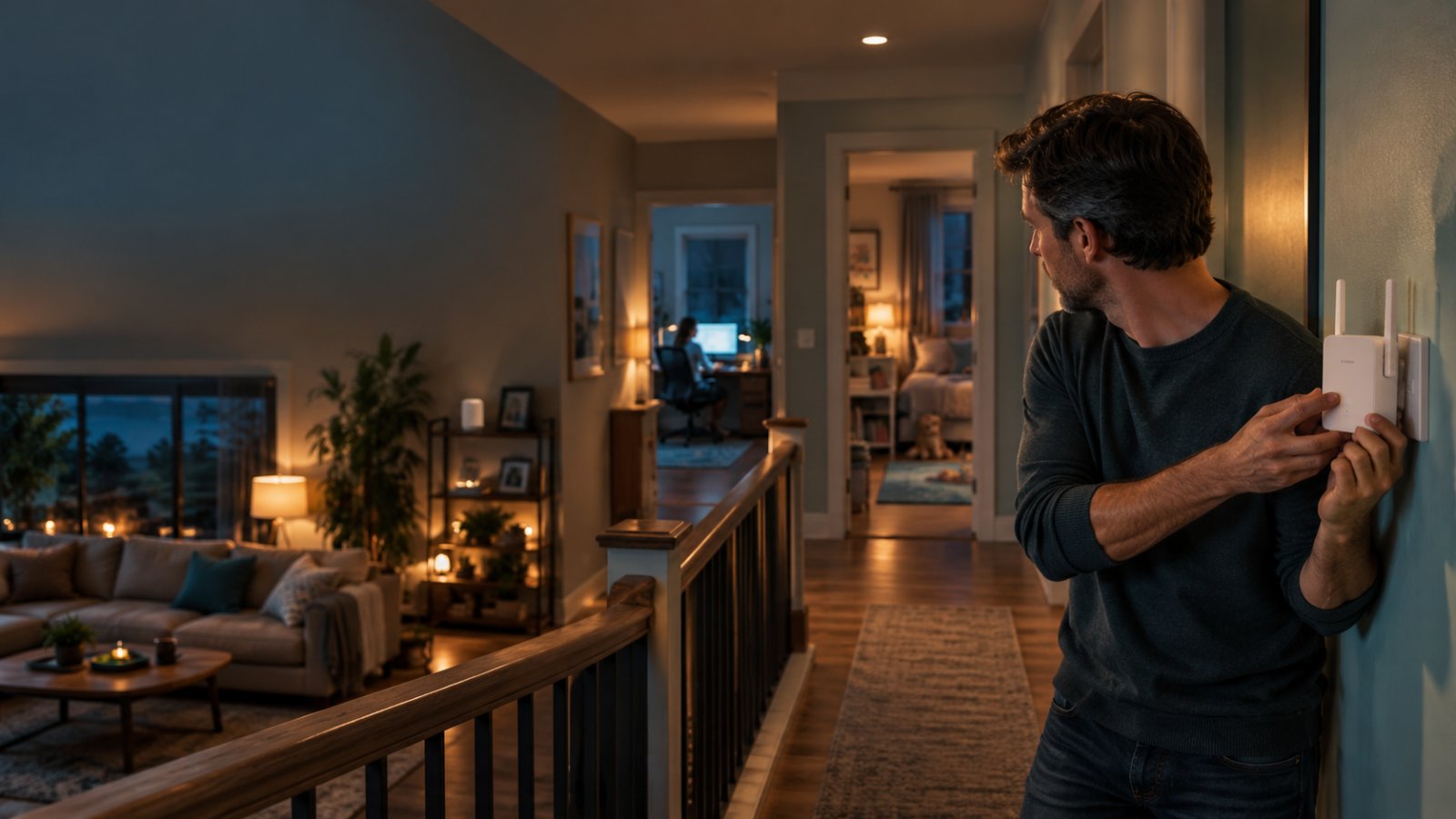
Buying a mesh system to fix one weak bedroom can be an expensive mistake. Plugging a WiFi extender into a room that barely receives a signal is another. Both happen because people choose equipment before finding out where their existing connection starts to fail.
In the wifi extender vs mesh comparison, the answer comes down to your home's layout and how many areas need better coverage. Choose a WiFi extender when your router works well and one nearby room needs help. Choose mesh WiFi when several rooms or floors have unreliable connections, or when you want devices to move between access points more smoothly. Neither option will repair a slow internet service or guarantee faster speeds than your plan provides.
Before replacing anything, check the connection near your router, walk through the rooms where WiFi struggles, and note which devices are affected. Those observations will tell you more than an advertised coverage figure on a product box.
Understanding the Basics of WiFi Extenders and Mesh Networks
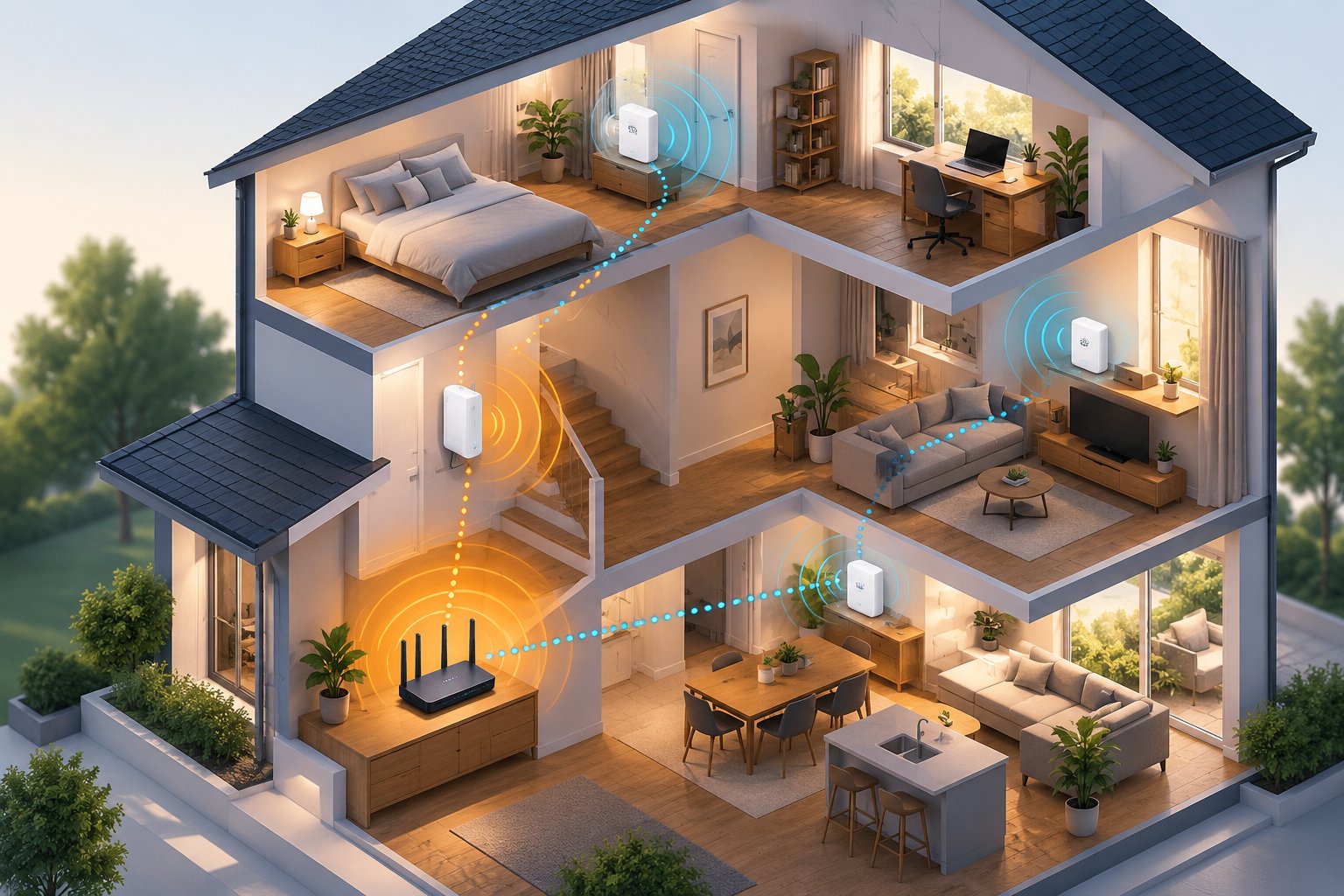
A WiFi extender and a mesh system solve similar problems in different ways.
An extender adds coverage to an existing wireless network. A mesh system uses several coordinated devices to provide wireless access across the home.
Both need a reliable connection back to the main router or internet gateway. The difference is how they manage that connection and how your phones, laptops, and cameras use the resulting coverage.
What Is a WiFi Extender?
A WiFi extender receives the signal from your existing router and retransmits it into another area.
It is also called a WiFi repeater or, less precisely, a WiFi booster.
Suppose your router sits in the living room. WiFi works well at the kitchen table, but your laptop loses its connection in the bedroom at the end of the hallway.
An extender can help if there is a suitable outlet between the router and bedroom where the original signal remains reliable.
The basic process is straightforward:
-
Your router broadcasts the home WiFi network.
-
The extender connects to that wireless network.
-
The extender rebroadcasts coverage toward the weak area.
-
Your laptop or phone connects through the extender.
-
Data travels through the extender to reach the router and internet connection.
Most household extenders work with an existing router, so you usually do not need to replace your current equipment.
Many plug directly into a wall outlet. Some offer WPS pairing, while others use a browser-based setup page or mobile application.
A dual-band extender supports 2.4 GHz and 5 GHz WiFi.
The 2.4 GHz band generally travels farther through walls, while 5 GHz often provides higher speeds over shorter distances.
One limitation matters more than any other: an extender can only work with the connection it receives.
If you install it inside a bedroom where the router signal is already extremely weak, the extended connection will probably remain unreliable.
What Is a Mesh WiFi System?
Mesh WiFi uses multiple coordinated wireless devices, commonly called nodes.
A typical home mesh kit includes a main router and one or more additional nodes.
The main unit connects to your modem or internet gateway. Additional nodes provide wireless coverage in other parts of the property.
Consider a two-story home.
The internet connection enters through the downstairs living room. Upstairs bedrooms have weak WiFi, and a home office at the back of the house regularly loses connection during video meetings.
A mesh system could use:
-
A main router near the internet connection.
-
A second node in the upstairs hallway.
-
Another compatible node near the distant office.
The exact placement depends on how well the nodes communicate with one another.
Most consumer mesh systems use one shared WiFi network name, known as an SSID.
An SSID is the name that appears in your phone's list of available WiFi networks.
Instead of selecting a different network when moving upstairs, you normally remain connected to the same network name.
Compatible mesh systems also help devices switch between nodes.
This process is called roaming.
Roaming assistance is useful, but not perfect. Your phone or laptop still makes important connection decisions, and an older device may remain connected to a distant node longer than expected.
WiFi Extender vs Mesh: Quick Comparison
If you are comparing mesh wifi vs wifi extender for your home, focus on the features that affect your actual connection.
| Feature | WiFi Extender | Mesh WiFi System |
|---|---|---|
| Main purpose | Improve coverage in a particular weak area | Provide coordinated coverage across multiple areas |
| Existing router | Usually keeps your current router | Often replaces the router or works in access point mode |
| Network name | May create a separate SSID | Usually uses one shared SSID |
| Roaming | Depends on extender and device capabilities | Usually includes coordinated roaming assistance |
| Speed | Wireless repeating may reduce available throughput | Depends on backhaul quality and wireless capacity |
| Latency | May increase because traffic passes through another wireless connection | Depends on node placement, backhaul, and congestion |
| Coverage area | Best for one or two nearby weak areas | Better suited to several rooms or floors |
| Setup | Commonly uses WPS, browser setup, or an app | Usually uses a guided app or web interface |
| Management | May need separate configuration | Generally managed as one network |
| Expansion | Multiple extenders can be harder to coordinate | Compatible nodes can usually be added |
| Initial cost | Generally lower | Generally higher |
| Best use | One weak bedroom, office, or nearby room | Multi-floor homes and several coverage gaps |
The table gives you a starting point, not a guarantee.
A properly placed extender can outperform a poorly positioned mesh node. Likewise, a mesh system with a weak connection between nodes may deliver disappointing speeds despite showing strong WiFi bars on your phone.
Key Differences Between WiFi Extender and Mesh WiFi
[Image: key-differences-between-wifi-extender.webp | alt: Key Differences Between WiFi Extender and Mesh WiFi]
Coverage and Network Architecture
A conventional WiFi extender adds another wireless coverage area connected to your original router.
For a small apartment, that may be enough.
If the router covers the kitchen, living room, and most of the hallway, you might only need help reaching one bedroom.
There is little benefit in replacing the entire wireless network if the existing router already performs reliably in most rooms.
Mesh makes more sense when weak areas are spread across the house.
For example, a downstairs router may struggle to reach an upstairs bedroom, a rear office, and the opposite end of a long hallway.
Several coordinated nodes can provide wireless access closer to those locations.
However, adding more nodes is not always better.
Nodes placed too close together can create unnecessary wireless overlap. Nodes placed too far apart can have weak connections to the rest of the network.
Look at where coverage fails, not just how large your home is.
Two homes with the same floor area can behave very differently. Thick concrete walls, metal framing, appliances, and floor construction all affect wireless signals.
Speed and Bandwidth Loss
Bandwidth describes how much data a network connection can carry.
Your internet plan may advertise download speeds in megabits per second, written as Mbps.
That number is not automatically the speed every wireless device receives.
With a conventional repeater, data must travel from your router to the extender and then to your device.
If those connections use the same radio channel, they compete for available wireless airtime.
The result can be lower throughput.
For example, a laptop connected through an extender may show a stronger WiFi signal than before while still downloading files more slowly than a laptop beside the main router.
That does not necessarily mean the extender is faulty. It may be a consequence of wireless repeating.
The size of the performance loss depends on several factors:
-
How strong the extender's connection to the router is.
-
Which wireless bands are used.
-
How many devices are transmitting.
-
Whether neighboring networks cause interference.
-
How the extender handles traffic between its connections.
It is misleading to say every extender always cuts internet speed in half.
Some dual-band designs can use different bands for different connections, while wired access point mode can avoid wireless repeating.
Mesh WiFi has similar limitations when its nodes communicate wirelessly.
The difference is that some mesh systems offer more flexible backhaul arrangements.
Backhaul is the connection that carries data between mesh nodes and the main router.
A mesh network may use shared wireless backhaul, dedicated wireless backhaul, or Ethernet backhaul.
With shared wireless backhaul, connected devices and mesh nodes compete for some of the same wireless capacity.
Dedicated wireless backhaul uses a separate radio or band in compatible systems.
Ethernet backhaul uses physical network cables between compatible nodes, removing the wireless relay from that part of the connection.
If your home already has Ethernet ports upstairs, a mesh system with wired backhaul deserves serious consideration.
Seamless Roaming vs Separate Network Names
Roaming is easy to overlook when shopping for WiFi equipment.
It becomes noticeable when you carry a phone or laptop around the house.
A conventional extender may create a second SSID.
For example:
-
HomeWiFi
-
HomeWiFi_EXT
Your laptop might connect to HomeWiFi_EXT while you work in the bedroom.
Later, you move into the living room, but the laptop remains connected to the extender instead of switching to the nearby router.
The connection may still work, but performance can be worse than necessary.
Some extenders support the same SSID as the main router.
That removes the need to select a differently named network, but it does not guarantee coordinated roaming.
A mesh system is generally better equipped to assist roaming because its nodes are managed together.
The system may use supported roaming features to help compatible devices find a more suitable access point.
Seamless roaming does not mean every device switches instantly.
Some phones and laptops hold onto weak connections longer than others.
For a fixed desktop computer, this may not matter.
For someone taking video calls while moving between a kitchen, living room, and upstairs office, it can matter a great deal.
Setup and Management
A standalone extender is usually simpler to add because the original router stays in place.
A typical installation looks like this:
-
Plug the extender into an outlet near the router for initial pairing.
-
Follow the manufacturer's WPS or browser setup instructions.
-
Connect the extender to the existing WiFi network.
-
Move it to an outlet where the router signal remains reliable.
-
Wait for the connection indicator to stabilize.
-
Test the internet connection in the problem room.
If the extender broadcasts a separate network name, connect your test device to that network before checking performance.
Mesh setup involves more equipment.
You normally connect the main unit to the internet gateway, complete the network configuration, and then add the other nodes.
Most consumer mesh kits provide a guided setup application.
That application may also display the connection quality between nodes.
If a node reports weak backhaul, move it closer to the main router or another connected node.
There is one detail worth checking before buying.
Some internet providers supply a combined modem and router.
Adding a mesh router behind that existing router can create double NAT if both operate in router mode.
Double NAT may affect some games, remote access applications, and other connections.
Check whether the mesh supports access point mode or whether your existing gateway supports an appropriate bridge configuration.
Do not change gateway settings without confirming how your internet service is connected.
Price and Value
A WiFi extender generally costs less than a complete mesh kit.
It also makes use of equipment you already own.
That makes it a sensible first purchase when a single bedroom or office is the only weak area.
Mesh costs more because it uses several coordinated devices.
The extra expense may be justified when one additional access point cannot serve the whole home.
Before choosing, consider what the purchase actually solves.
If you only need a reliable connection for a laptop in one bedroom, a basic extender may provide sufficient performance.
If three floors need coverage and several family members move between rooms, a coordinated mesh system may be worth the additional cost.
Do not compare products only by antenna count, theoretical speed, or advertised square footage.
Check the supported wireless standard, backhaul options, Ethernet ports, device compatibility, and coverage requirements.
When a WiFi Extender Makes Sense
An extender is most useful when the main router already provides reliable service through most of the home.
It addresses a local coverage problem without changing the entire network.
Who Should Choose a WiFi Extender?
Consider a WiFi extender when:
-
One bedroom receives a weak signal.
-
Your living room and kitchen already have reliable WiFi.
-
A nearby home office needs slightly better coverage.
-
You rent and cannot run Ethernet cables through walls.
-
Your existing router is working well.
-
A smart TV or indoor camera needs connectivity in a nearby room.
A common example is a rental apartment where the internet cable enters beside the living room television.
The router cannot easily move.
WiFi works in most of the apartment, but the bedroom at the far end of the hallway has frequent dropouts.
Placing an extender in the hallway may be enough.
The extender should receive a reliable signal from the living room router while reaching toward the bedroom.
Avoid putting it directly inside the weakest part of the bedroom simply because that is where you want better WiFi.
What Does AC1200 Mean?
AC1200 is a speed classification commonly used for dual-band WiFi 5 equipment.
A typical AC1200 device advertises theoretical wireless link rates of up to 300 Mbps on the 2.4 GHz band and 867 Mbps on the 5 GHz band.
Those figures are not guaranteed internet speeds.
They describe maximum theoretical wireless link capabilities across two bands.
A laptop does not automatically receive the combined total, and actual throughput is usually lower.
For everyday use, focus on the connection the extender can establish with your router.
An AC1200 extender placed where the original WiFi signal is strong enough can be more useful than a higher-rated model placed behind several thick walls.
For a localized coverage problem, the AC1200 WiFi extender is one option to consider. It supports dual-band WiFi, WPS setup, and repeater and access point operation.
The distinction between those operating modes matters.
Repeater mode uses a wireless connection back to your router.
Access point mode uses an Ethernet connection to the network and broadcasts WiFi from that wired connection.
If you already have an Ethernet cable reaching the distant room, access point mode can avoid the wireless relay limitation.
Real Limitations of WiFi Extenders
An extender is not a complete replacement for a well-planned home network.
Its main limitations are practical.
It cannot repair a poor internet connection.
If your laptop is slow beside the router, adding an extender will not increase the speed delivered by your provider.
Its performance depends on placement.
An extender hidden behind a refrigerator or positioned beyond the router's reliable range may perform badly.
Wireless repeating can reduce throughput.
A stronger signal indicator does not necessarily mean faster file downloads.
Roaming may require attention.
With a separate SSID, some devices may need to be connected to the extended network manually.
Several extenders can complicate the network.
Multiple independently configured repeaters may create overlapping signals and make troubleshooting harder.
If you need more than one or two extenders to reach normal living areas, reassess whether a coordinated mesh system or wired access points would be more suitable.
When a Mesh WiFi System Makes Sense
Mesh WiFi becomes attractive when coverage problems are spread across several areas.
Instead of extending one weak spot, you install coordinated access points in locations chosen for both device coverage and reliable communication between nodes.
Who Should Choose Mesh WiFi?
Mesh is worth considering when:
-
Several bedrooms have weak WiFi.
-
Your home has two or more floors.
-
People regularly work or study in different rooms.
-
You want a shared network name throughout the house.
-
A single extender cannot serve multiple distant locations.
-
You need centralized management of several wireless access points.
Consider a family home with an office downstairs, bedrooms upstairs, and a smart TV at the far end of the building.
Everyone connects through one router near the internet service entrance.
The downstairs office works well, but upstairs calls freeze and the distant television buffers.
A mesh system can place additional wireless access points closer to those rooms.
That arrangement may improve reliability without making every device connect directly to the router on the ground floor.
The Importance of Backhaul
Mesh performance depends heavily on the connection between nodes.
This is the backhaul.
Suppose your upstairs phone shows a strong connection to the mesh node outside the bedroom.
That is only part of the picture.
The upstairs node still needs to communicate with the rest of the network.
If that connection is weak, the phone may show full WiFi bars while websites load slowly.
Many mesh applications provide a signal quality or node connection indicator.
Use it during setup.
If the upstairs node reports a poor connection, move it closer to the main router or another node with a reliable link.
Do not automatically place it in the farthest bedroom.
You want the node positioned where it can both receive and deliver a useful connection.
If your home has Ethernet cabling, look for mesh equipment that supports Ethernet backhaul.
A cable between floors can bypass wireless interference and reduce the capacity consumed by inter-node traffic.
This is particularly useful in houses with thick concrete floors or walls that weaken wireless signals.
Real Limitations of Mesh WiFi
Mesh has advantages, but it also introduces costs and setup requirements.
The initial purchase is more expensive.
A multi-node mesh system usually costs more than one standalone extender.
Wireless backhaul still consumes capacity.
Budget dual-band mesh systems may share wireless airtime between connected devices and node communication.
Not every mesh system is compatible with every other system.
Products using the same WiFi standard do not necessarily support coordinated operation together.
Adding nodes does not guarantee better performance.
Too many nodes or poor placement can introduce unnecessary interference and weak links.
Mesh cannot increase your internet subscription speed.
If your provider delivers a slow connection to the main router, mesh will distribute that same limited connection around the house.
A mesh system is valuable when it solves actual coverage and roaming problems. It should not be treated as an automatic upgrade for every home.
Which Option Suits Your House Layout Best?
Your home's floor plan matters more than a product's maximum advertised coverage area.
Walls, floors, furniture, and the position of the internet connection determine where useful WiFi coverage is possible.
Consider the rooms where your devices actually operate, especially workspaces and security camera locations.
Small Apartment With One Weak Bedroom
Better starting choice: WiFi extender.
A small apartment usually does not need several coordinated access points if the existing router covers most of the space.
Start by testing WiFi in the hallway outside the weak bedroom.
If the connection is reliable there, try placing an extender at a suitable outlet.
After setup, connect your phone or laptop to the extended network and repeat the test in the bedroom.
Do not judge the result only by the number of WiFi bars.
Open websites, make a short video call, or test the activity that previously failed.
If performance improves enough for normal use, there is no clear reason to purchase a full mesh system.
Two-Story Home With Several Weak Rooms
Better starting choice: Mesh WiFi.
Multi-floor homes often have signal problems caused by floors and walls between the router and devices.
A router beside the television downstairs may struggle to reach bedrooms directly above or at the far end of the upper floor.
A mesh node placed in a suitable upstairs location can give nearby devices a closer access point.
The critical detail is its backhaul connection.
If the mesh application reports a weak connection to the main router, move the node toward the stairs or another less obstructed location.
If Ethernet is already installed between floors, use a mesh system supporting wired backhaul when practical.
Home Office at the End of a Hallway
The best choice depends on how you use the office.
If you mainly send emails, browse websites, and occasionally attend online meetings, a properly positioned extender may be sufficient.
If you spend hours in video calls, transfer large files, or use remote desktop applications, connection stability becomes more important.
Pay attention to latency as well as download speed.
Latency is the time it takes for data to travel between devices or across a network.
High or inconsistent latency can cause delays, frozen video, and interruptions during live conversations.
For a fixed office, an Ethernet connection is often worth considering first.
A wired access point can also provide wireless coverage without relying on repeated wireless transmissions back to the router.
If several nearby rooms share the same problem and cabling is unavailable, mesh may be the more practical solution.
Home With Outdoor Security Cameras
Choose based on signal quality at the camera location.
Security cameras are different from a laptop used inside the house.
A camera mounted beside a garage or above a rear entrance may need to communicate through exterior walls.
Some building materials significantly weaken WiFi signals.
Many home cameras use 2.4 GHz WiFi, so confirm the supported band before changing your network.
Start by checking the connection near the actual camera mounting location.
If a nearby indoor outlet still receives reliable WiFi, an extender placed inside the house may help reach the camera.
Keep ordinary indoor extenders indoors unless the equipment is specifically rated for outdoor use.
If cameras are installed on several sides of the property, a single extender may not be sufficient.
Mesh or another properly planned wireless access point arrangement may provide better coverage.
For a detached garage or distant outdoor location, the problem may require an Ethernet connection, outdoor-rated equipment, or another dedicated networking solution.
Also check the camera's own diagnostic information when available.
A camera showing a strong signal but frequently disconnecting may have a power, firmware, or service issue rather than a coverage problem.
Large Home With Many Connected Devices
Better starting choice: Mesh WiFi with suitable backhaul.
A large household may have laptops, phones, televisions, smart speakers, tablets, and cameras operating at the same time.
Several wireless access points can make it easier for those devices to connect from different parts of the home.
But mesh equipment still needs enough capacity to handle the traffic.
A budget mesh kit with weak wireless backhaul may struggle when multiple people stream video or transfer large files.
Check the system's supported WiFi standard, Ethernet ports, backhaul options, and node compatibility.
Avoid choosing a mesh kit solely because it advertises a large coverage area.
The goal is to position an appropriate number of nodes where they can maintain reliable connections.
How to Decide Before Spending Money
Before ordering anything, test your current network.
A phone or laptop and a few measurements around your home can reveal whether you need a targeted extender, a coordinated mesh system, or no new wireless equipment at all.
Step 1: Test the Connection Beside Your Router
Connect a phone or laptop to your normal WiFi network.
Stand approximately 3 to 6 feet from the router.
Run a speed test and record the download speed, upload speed, and latency.
Keep the device in the same location for a second test if the first result looks unusual.
If possible, avoid large downloads and streaming on other devices during these measurements.
This gives you a reference point.
What to look for:
If performance is already poor beside the router, do not assume weak coverage is the main problem.
Check your internet service, modem, router settings, and device connection.
If available, a wired Ethernet test can help determine whether the problem is the internet connection or the wireless network.
Step 2: Test Every Problem Room
Use the same device for the next tests.
Walk to the bedroom, home office, upstairs hallway, and any other place where WiFi regularly fails.
Run the same test in each location.
For a security camera, also check the nearest safe indoor location to its mounting position.
Record where the connection changes noticeably.
What to look for:
If only one bedroom performs poorly while the surrounding rooms work reliably, an extender may be enough.
If several rooms on different floors have weak or unstable connections, mesh becomes more attractive.
If performance is poor throughout the house, investigate the router and internet service first.
Avoid drawing conclusions from one unusual speed test.
Repeat the measurement if the results vary significantly.
Step 3: Check Whether Better Router Placement Helps
Router placement can change coverage without requiring new equipment.
If possible, move the router away from a crowded entertainment cabinet and onto an open shelf.
Keep it away from large metal appliances and other major obstructions.
Try a more central location when the internet connection and available cabling allow it.
Then repeat the tests in your problem rooms.
What to look for:
If moving the router improves coverage enough for normal use, you may not need an extender or mesh system.
If only one area remains weak, consider an extender.
If several distant areas still struggle, a distributed network may be more suitable.
Step 4: Decide How Much Roaming Matters
Think about how you use your devices.
Do you normally work at one desk, or do you move between floors while using your phone?
A separate extender network may be perfectly acceptable for a stationary desktop computer or television.
It can become inconvenient when a phone remains connected to the extender after you move back beside the main router.
Mesh is generally better for households where phones, tablets, and laptops move regularly between rooms.
What to look for:
If your main problem is one fixed connection, prioritize reliable coverage at that location.
If devices frequently switch locations, coordinated roaming becomes more valuable.
Step 5: Check Your Existing Router and Equipment
Look at your current equipment before ordering a replacement.
Check:
-
The router's supported WiFi bands.
-
Whether it supports compatible mesh expansion.
-
Whether it has available Ethernet ports.
-
Whether Ethernet cabling already reaches the weak area.
-
Whether your cameras require 2.4 GHz WiFi.
-
Whether your internet provider requires you to keep its gateway.
-
Whether you need a complete new network or one additional access point.
Some routers support compatible mesh nodes.
Others can work with ordinary WiFi extenders but do not provide coordinated mesh management.
Products sharing the same wireless speed classification are not necessarily mesh-compatible.
For a home that only needs better coverage in one room, compare suitable extenders rather than replacing equipment that already works.
You can review the relevant specifications of ROOXIS routers and extenders when deciding whether your existing router needs an additional coverage device or a replacement.
Common Mistakes That Reduce WiFi Performance
Buying suitable equipment is only part of the job.
Incorrect placement and configuration can produce weak connections even when the extender or mesh system is functioning normally.
Putting an Extender Too Far From the Router
The most common placement mistake is plugging the extender into the exact room where the signal disappears.
That location may be convenient for your laptop, but it leaves the extender with a poor connection to the router.
Move it toward the main router until its connection indicator shows a reliable link.
Then check whether the extended coverage still reaches the bedroom or office.
A nearby hallway outlet often works better than one behind furniture at the far end of the problem room.
Placing Mesh Nodes Inside the Worst Dead Zones
A mesh node also needs a usable connection to the rest of the network.
Putting it at the farthest point in the house may provide a strong local signal while creating a weak backhaul connection.
Check the mesh application's node connection status.
If it reports poor signal quality, move the node closer to the main router or another connected node.
Test again before adding more equipment.
Assuming More WiFi Bars Means Faster Internet
WiFi bars indicate approximate signal strength between your device and the connected access point.
They do not measure the full connection back to your internet provider.
A phone can show a strong signal to an extender while the extender has a poor connection to the router.
The result may be slow downloads despite full WiFi bars.
Use speed tests and normal activities to evaluate performance.
For video calls and online gaming, also pay attention to latency and connection stability.
Ignoring the Difference Between 2.4 GHz and 5 GHz
Dual-band routers and extenders commonly support both 2.4 GHz and 5 GHz.
The 2.4 GHz band often reaches farther but can experience interference from nearby networks and household equipment.
The 5 GHz band can support higher speeds over shorter distances.
For a security camera that only supports 2.4 GHz, make sure the selected router, extender, or mesh setup provides a compatible network.
For a laptop close to an access point, 5 GHz may offer better throughput.
Do not assume one band is always better throughout the house.
Buying Equipment Based Only on Advertised Coverage
Coverage claims are often based on favorable test conditions.
Your home may have thick walls, metal ductwork, concrete floors, or neighboring WiFi networks.
Those conditions can reduce the effective range.
The number of connected devices and the quality of the router connection also affect performance.
Instead of choosing equipment because its packaging advertises a certain square footage, identify where coverage fails and how you can position the new device.
A well-positioned extender or mesh node is more useful than an expensive device installed where it cannot maintain a reliable connection.
FAQ
Is a mesh WiFi system better than a WiFi extender?
Mesh WiFi is generally better when several rooms or floors need coverage and you want coordinated roaming between wireless access points. A WiFi extender is often the better value when your router works well and only one nearby area has a weak connection. Actual performance depends on placement, interference, equipment capabilities, and backhaul quality.
Does a WiFi extender slow down internet speed?
A wireless extender can reduce available throughput because it receives and retransmits traffic using wireless capacity. The effect depends on the extender's design, available bands, signal strength, and network congestion. Even with some throughput loss, an extender may provide a more usable connection in a room where the original router signal was unreliable.
Can I use a WiFi extender with a mesh router?
Many ordinary WiFi extenders can connect to the wireless network created by a mesh router. However, they may operate as separate repeaters rather than managed mesh nodes, so roaming and centralized controls can be limited. For coordinated operation, check whether the mesh system supports compatible expansion nodes or extenders.
When should I buy a WiFi extender instead of mesh?
Buy a WiFi extender when your current router already performs well in most rooms and you only need coverage in one nearby bedroom, office, or similar area. It is a practical option for renters and smaller homes where replacing the whole network would add cost without solving an additional problem. Consider mesh when weak coverage affects multiple rooms or floors, particularly when devices regularly move around the house.
Start with the problem room, not the product box. If your router provides reliable service and one bedroom needs better coverage, try a properly positioned extender. If several floors or distant rooms struggle, look at a mesh system with suitable backhaul.
Test the connection after installation in the places where you actually use your devices. A stable video call upstairs, a reliable work laptop, and a camera that stays connected tell you far more than an advertised coverage number.