The best budget wifi router for most homes is a dual-band model with Gigabit Ethernet ports, reliable security features, and enough capacity for your everyday devices. A reasonably priced WiFi 6 router is worth considering if several people use the internet at once, while a well-supported WiFi 5 router can still work perfectly well in a smaller household.
The mistake many buyers make is choosing a router based on the biggest speed number printed on the box.
A router advertised as AC1200 or AX3000 does not guarantee those speeds in your bedroom, upstairs office, or garage. Your internet plan, wall construction, router placement, and connected devices all affect the result.
This guide compares affordable router types, explains which specifications are worth paying for, and shows how to get dependable WiFi without spending more than your home needs.
Best Budget WiFi Router: Quick Buying Guide
Before comparing routers, look at your existing internet setup.
You need to know three things: your internet speed, how many devices connect regularly, and where the router needs to provide coverage.
Start with your broadband plan.
If you pay for a connection faster than 100 Mbps, avoid buying a router with a 100 Mbps WAN port. That port can limit the speed reaching your home network, even if the router advertises much higher wireless speeds.
A Gigabit WAN port is a more suitable choice for faster broadband plans.
Next, think about your connected devices.
A household with two phones, one television, and a laptop does not have the same networking requirements as a family with multiple computers, smart televisions, outdoor cameras, and gaming consoles.
It is not simply the number of devices that matters.
Ten smart plugs sitting idle usually create less traffic than two computers downloading large files.
Finally, consider your home's layout.
An affordable router positioned in an open living room may provide reliable coverage across a small apartment. The same router might struggle through reinforced concrete walls or across several floors.
For most budget-conscious buyers, prioritize these features:
-
Dual-band WiFi with 2.4 GHz and 5 GHz support.
-
Gigabit Ethernet WAN and LAN ports.
-
WPA2 or WPA3 wireless security.
-
A straightforward administration interface.
-
Reliable firmware updates.
-
Suitable coverage for your home's layout.
-
Guest network and parental control options if needed.
Do not pay extra for specifications that your devices cannot use.
If your laptop supports WiFi 5 and your internet plan is relatively modest, a premium router designed for much faster connections may provide little practical benefit.
Budget WiFi Router Comparison Table
| Router Type | Best For | Main Strength | Main Limitation |
|---|---|---|---|
| Basic single-band router | Very light internet use | Simple and inexpensive | Limited wireless capacity and no 5 GHz band |
| Dual-band WiFi 5 router | Apartments and small homes | Reliable everyday performance on two bands | Less efficient than WiFi 6 in busy networks |
| Entry-level WiFi 6 router | Families with several active devices | Improved wireless efficiency | Features and processing power vary by model |
| Router with Gigabit Ethernet | Home offices, gaming, and faster internet plans | Avoids a 100 Mbps Ethernet bottleneck | Wired port speed does not guarantee wireless performance |
| Mesh-ready budget router | Homes that may need wider coverage | Supports compatible network expansion | Compatibility and additional equipment costs |
These categories overlap. A budget WiFi 6 router may also include Gigabit Ethernet, dual-band networking, and mesh compatibility.
When searching for the best router for home under 100 dollars, look for a balanced set of features rather than the longest specification list.
What to Look for in a Budget WiFi Router
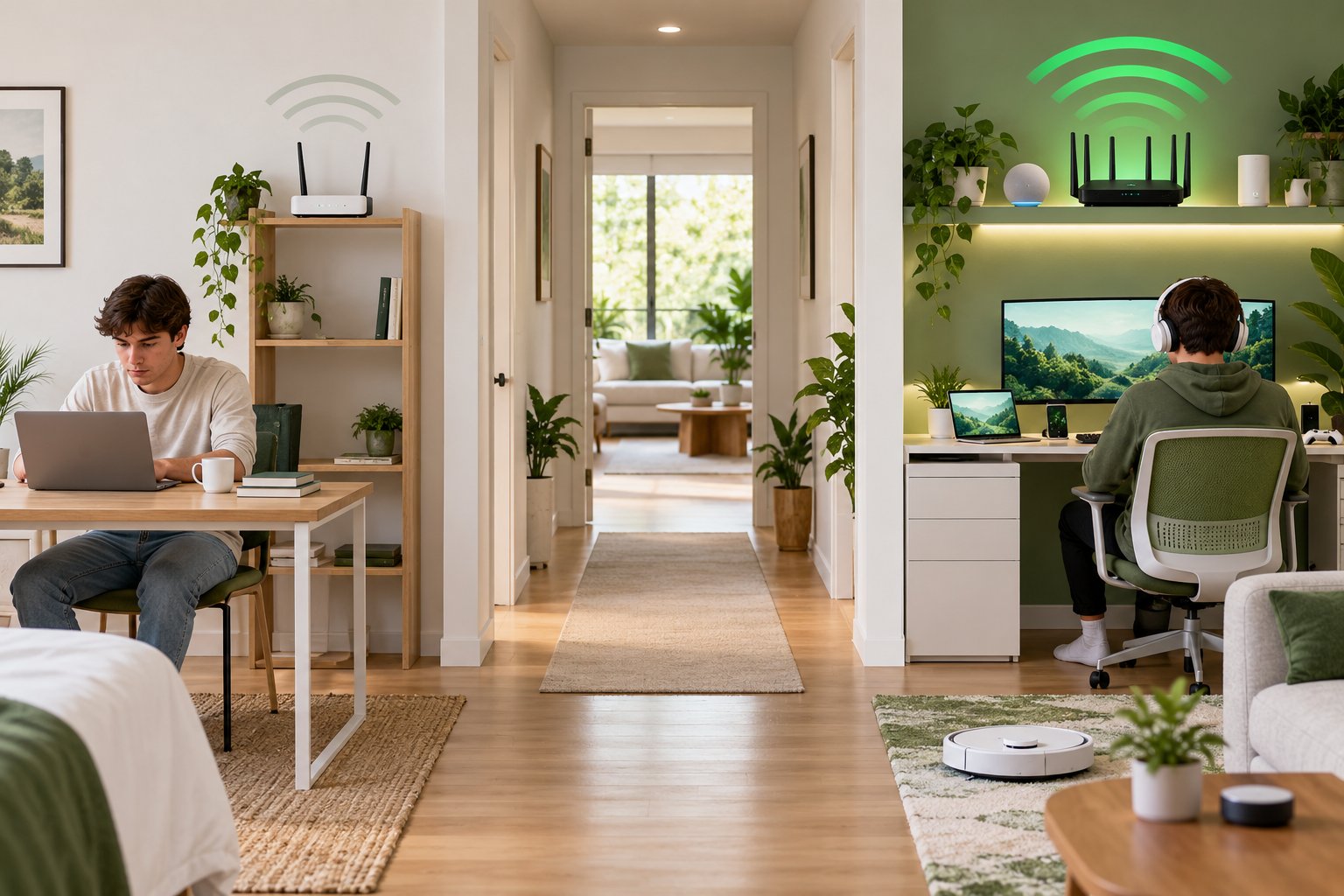
A router's specifications are easier to understand when you connect them to what happens inside your home.
If a video call freezes in the back bedroom, wireless coverage may be the problem.
If every device becomes slow when someone downloads a large file, available bandwidth or network congestion may be involved.
If an outdoor security camera disconnects repeatedly, the signal reaching its mounting location may be too weak.
Different problems call for different features.
Dual Band vs Single Band Performance
Single-band routers typically operate on 2.4 GHz.
Dual-band routers operate on both 2.4 GHz and 5 GHz.
For most homes, dual band is worth having because the two frequencies behave differently.
2.4 GHz WiFi
The 2.4 GHz band generally provides better coverage through common household obstacles.
It is useful for devices located farther from the router, including some smart plugs, printers, and security cameras.
Many home security cameras support only 2.4 GHz.
The drawback is congestion.
Nearby routers, some household electronics, and other wireless devices can share this frequency range.
In an apartment building with many neighboring networks, that competition can affect performance.
5 GHz WiFi
The 5 GHz band generally supports higher throughput under suitable conditions.
It also offers more channel choices than 2.4 GHz.
This makes it useful for laptops, televisions, gaming consoles, and other devices that transfer larger amounts of data.
The trade-off is range.
A 5 GHz connection may work very well in the living room but become weaker after passing through several walls.
Which band should you use?
Try 5 GHz for compatible devices located near the router.
Use 2.4 GHz when a device is farther away or requires that band.
For example, a laptop on the same desk as your router may work best on 5 GHz. An outdoor camera mounted beyond a brick wall may need 2.4 GHz for a more stable connection.
Some routers automatically select the band for connected devices. Others let you create separate network names.
Either arrangement can work.
The important point is that a dual-band router gives you more options when different rooms and devices have different requirements.
WiFi 5 vs WiFi 6 on a Budget
WiFi 5 and WiFi 6 are wireless networking generations.
WiFi 5 uses the 802.11ac standard, while WiFi 6 uses 802.11ax.
You do not need the latest standard for every household.
A good WiFi 5 router can handle web browsing, streaming, and video calls when the network is not heavily congested.
WiFi 6 becomes more attractive when multiple devices are active at the same time.
What WiFi 6 improves
WiFi 6 includes technologies designed to use wireless capacity more efficiently.
These include:
-
OFDMA: Helps compatible devices share wireless transmission opportunities efficiently.
-
MU-MIMO: Supports communication with multiple compatible devices under suitable conditions.
-
Target Wake Time: Allows supported devices to coordinate periods of wireless activity.
-
Improved network efficiency: Helps manage traffic in busy wireless environments.
You do not need to find a router with the longest list of technical features.
Instead, consider how your household uses the internet.
Choose WiFi 5 when:
-
You live in a small apartment or house.
-
Only a few devices are active simultaneously.
-
Your current devices mainly support WiFi 5 or older standards.
-
Your internet usage involves browsing, streaming, and ordinary office tasks.
-
You find a well-supported model with the ports and security features you need.
Consider WiFi 6 when:
-
Several people work or study from home.
-
Multiple televisions and computers are regularly active.
-
You have newer phones and laptops that support WiFi 6.
-
Your household includes many connected devices.
-
You want more capacity for future equipment.
WiFi 6 does not automatically solve poor coverage.
If a reinforced concrete wall weakens your existing network, a newer wireless standard cannot make that wall disappear.
Better router placement or an additional access point may be more useful.
Budget WiFi Router Types Compared for Real Homes
Different router categories suit different household needs.
A renter connecting a laptop and television may be satisfied with a modest dual-band model.
A household with several computers, cameras, and streaming devices may benefit from WiFi 6 and stronger network management features.
These comparisons focus on practical strengths and limitations rather than individual product rankings.
Basic Single-Band Router for Light Internet Use
Best for: Very small networks with limited internet requirements.
A single-band router typically uses 2.4 GHz for wireless connections.
It may handle basic browsing, emails, and a small number of connected devices.
Strengths
-
Usually inexpensive.
-
Simple wireless configuration.
-
Supports many older WiFi devices.
-
May provide adequate coverage for light usage.
Limitations
-
No separate 5 GHz band.
-
Greater exposure to congestion on 2.4 GHz.
-
Some models have only 100 Mbps Ethernet ports.
-
Older equipment may no longer receive firmware updates.
A single-band router may seem attractive when price is the main concern.
However, it leaves little flexibility if you later add a smart television, gaming console, or another computer.
For most households buying a new router, a dual-band model is the more practical starting point.
Dual-Band WiFi 5 Router for Apartments and Small Homes
Best for: Renters, small households, and homeowners who need reliable everyday WiFi without advanced networking features.
A dual-band WiFi 5 router supports both 2.4 GHz and 5 GHz.
It gives nearby laptops and televisions access to 5 GHz while allowing compatible smart devices to use 2.4 GHz.
Strengths
-
Suitable for ordinary streaming and browsing.
-
Supports two wireless frequency bands.
-
Compatible with many existing household devices.
-
Often simpler and less expensive than higher-end models.
-
Can provide dependable performance when properly positioned.
Limitations
-
Less efficient than WiFi 6 in some busy network conditions.
-
Performance varies between models.
-
Not every WiFi 5 router includes Gigabit Ethernet.
-
Firmware support needs to be checked.
Consider a small apartment with two phones, a laptop, a television, and a WiFi camera.
A suitable dual-band WiFi 5 router may meet those requirements without difficulty.
The bigger concern may be wireless interference from neighboring apartments rather than the absence of WiFi 6.
Check Ethernet ports, available security options, and firmware support before purchasing.
Entry-Level Dual-Band WiFi 6 Router for Busy Homes
Best for: Families and households where several devices use the internet simultaneously.
An entry-level WiFi 6 router can provide better wireless efficiency than older equipment, particularly when the connected devices also support WiFi 6.
Strengths
-
Improved handling of supported simultaneous wireless connections.
-
Suitable for newer phones and laptops.
-
Useful for households with multiple active devices.
-
Often includes updated wireless security features.
-
Provides room for future device upgrades.
Limitations
-
Entry-level hardware may have limited processing resources.
-
Features vary between models.
-
Older devices cannot use every WiFi 6 improvement.
-
Coverage still depends on placement and building materials.
Suppose one person is attending a video meeting, another is watching television, and someone else is downloading a large file.
A suitable WiFi 6 router may help manage that mixed wireless traffic efficiently.
It will not create additional broadband capacity.
If the internet plan itself is heavily loaded, you may still need to manage traffic or upgrade the service.
For a household with several regular users, WiFi 6 is often worth comparing with similarly priced WiFi 5 options.
Gigabit Ethernet Router for Home Offices and Gaming
Best for: Homes with faster broadband connections or equipment that benefits from wired networking.
Gigabit Ethernet supports nominal link speeds of up to 1,000 Mbps.
This is different from the 100 Mbps limit of Fast Ethernet.
When comparing budget routers, check both WAN and LAN ports.
WAN port
The WAN port connects the router to your modem or other internet equipment.
A 100 Mbps WAN port can restrict an internet plan that delivers higher speeds.
LAN ports
LAN ports connect wired devices inside your home.
These may include desktop computers, gaming consoles, smart televisions, and compatible network recorders.
Strengths
-
Suitable for faster broadband connections.
-
Provides stable wired connections.
-
Useful for local file transfers.
-
Can reduce wireless traffic when stationary devices use Ethernet.
Limitations
-
Requires cables.
-
The router's processor and configuration can still affect performance.
-
Gigabit ports do not guarantee Gigabit internet service.
-
WiFi coverage remains affected by obstacles and interference.
If your desk is close to the router, connecting the computer through Ethernet may be more useful than replacing the router with a model that advertises higher wireless speeds.
For gaming, a wired connection can also reduce the variability introduced by wireless interference.
Mesh-Ready Budget Router for Future Expansion
Best for: Homeowners who may need to extend coverage into more rooms later.
Some routers support compatible mesh networking equipment.
This allows additional nodes to provide coverage while working within the supported system.
Strengths
-
Can provide a path for expanding coverage.
-
Compatible equipment may share network management.
-
Useful when adding more rooms to the network.
-
May simplify movement between different coverage areas.
Limitations
-
Mesh compatibility is not universal.
-
Additional nodes increase total cost.
-
Wireless connections between nodes can reduce usable bandwidth.
-
Placement remains important.
For example, you might currently have good WiFi downstairs but plan to convert an upstairs room into an office.
A compatible mesh system may provide an easier expansion path than replacing the entire network later.
However, confirm exactly which additional units work with the router.
Do not assume that all products advertised as mesh-compatible will work together.
Key Features That Matter Most
After selecting a router category, inspect the details that will affect daily use.
A router with impressive specifications can still be frustrating if the administration interface is difficult to use or the manufacturer no longer provides software updates.
Coverage Area and Antenna Strength
Router coverage depends on more than antenna count.
The result is influenced by:
-
Antenna design.
-
Transmit power.
-
Receiver sensitivity.
-
Wireless frequency.
-
Wall construction.
-
Router location.
-
Nearby interference.
-
Connected-device capabilities.
Four external antennas do not automatically mean twice the coverage of a router with two antennas.
Similarly, advertised coverage areas are not guarantees.
A router tested under favorable conditions may perform differently in a house with reinforced concrete walls, metal doors, or foil-backed insulation.
What should you look for?
Start with the location where the router will be installed.
If the broadband connection enters through a small utility cabinet, consider whether you can position the router outside that enclosure.
Metal cabinets and crowded equipment spaces can weaken wireless coverage.
A centrally positioned router on an open shelf may outperform a more expensive device hidden behind furniture.
Also consider where your most important devices are located.
If your family works and watches television mainly in two adjoining rooms, prioritize coverage there rather than attempting to reach every corner of the property with one router.
Security Protocols and Parental Controls
Your router manages access to the home network.
Its security settings deserve attention, particularly when you connect computers, cameras, and other smart devices.
WPA3 security
WPA3 is a newer WiFi security standard that provides stronger protections than older methods.
Look for WPA3-Personal where available.
A suitable WPA2-Personal option remains useful for devices that do not support WPA3.
Avoid outdated WEP or original WPA security.
Some older smart home equipment may have compatibility problems with certain security modes, so check the device requirements before changing settings.
Administrator password
The router's administrator password controls its settings.
Use a unique password that is different from the WiFi network password.
Change factory default credentials during initial setup.
Guest network
A guest network allows visitors to connect without necessarily using the main home network.
Some routers include settings that prevent guest devices from accessing computers or storage on the private network.
Check whether guest isolation is supported and enabled.
Parental controls
Depending on the router, parental controls may include:
-
Internet access schedules.
-
Device-specific restrictions.
-
Website filtering.
-
Temporary internet pauses.
-
Grouping devices by household member.
Not every budget router offers the same options.
Some manufacturers also charge for advanced filtering services.
If parental controls matter, confirm which features work without an additional subscription.
A parent who only wants to pause a tablet's internet access at bedtime may not need a complicated filtering system.
MU-MIMO and Multiple Connected Devices
MU-MIMO stands for Multi-User, Multiple Input, Multiple Output.
It helps supported wireless equipment communicate with multiple compatible devices more efficiently.
It can be useful in a household where several devices are active simultaneously.
However, MU-MIMO does not mean every device receives maximum wireless speed at the same time.
Wireless airtime is still shared.
Router processing power, interference, signal quality, and the connected devices all affect performance.
For example, a household may have several phones, a smart television, and security cameras connected.
The router needs to manage their traffic, but each device has different requirements.
A camera sending video regularly may use more bandwidth than a smart plug that communicates occasionally.
When comparing routers, treat MU-MIMO as a useful capability rather than proof of unlimited device capacity.
Throughput vs Bandwidth: What the Speed Numbers Mean
Router packaging often displays labels such as AC1200, AX1800, or AX3000.
These labels describe classes of theoretical wireless capability.
They do not represent guaranteed internet speed for one device.
Bandwidth describes the amount of data a connection can carry.
Throughput describes the useful data successfully transferred over that connection.
Real-world throughput is affected by:
-
Signal strength.
-
Wireless interference.
-
Router hardware.
-
Connected-device capabilities.
-
Network overhead.
-
Number of active devices.
-
Internet service speed.
Suppose your router advertises a combined wireless rate across 2.4 GHz and 5 GHz.
A laptop connected to 5 GHz cannot automatically use both bands' advertised maximum rates as one combined internet connection.
The device is also limited by its own wireless capabilities.
A newer router may improve local network performance, but it cannot make a 100 Mbps internet plan deliver 500 Mbps from the provider.
When comparing affordable wireless routers, use advertised speeds as specifications to interpret, not guaranteed results.
Gigabit Ethernet and Wired Connections
Even in a WiFi-focused household, wired networking can be useful.
Connect stationary devices through Ethernet where practical.
Good candidates include:
-
Desktop computers.
-
Gaming consoles.
-
Smart televisions.
-
NAS devices.
-
Compatible security camera recorders.
A wired connection can reduce competition for wireless airtime.
It also avoids many of the signal problems caused by walls and neighboring networks.
Check the number of available LAN ports before buying.
If you need additional wired connections, a suitable Ethernet switch can expand the network.
For faster broadband plans, make sure the router has a Gigabit WAN port as well as suitable LAN ports.
A Gigabit LAN connection is less useful for internet speed if the incoming connection is restricted by a 100 Mbps WAN port.
How to Get the Best Speeds from an Affordable Router
Buying a new router is only part of improving home WiFi.
Where you install it and how you configure it can make a noticeable difference.
You do not need advanced networking knowledge to complete the basic checks.
Start with the physical setup, then review the settings.
Step 1: Place the Router in an Open Location
Avoid hiding the router inside furniture.
The wireless signal needs to travel from the router to the devices around your home.
Large metal objects, reinforced walls, and some building materials can weaken that signal.
What to do
-
Identify the rooms where reliable WiFi matters most.
-
Choose an open location near those areas when possible.
-
Place the router above floor level on a stable surface.
-
Keep it away from large metal appliances.
-
Follow the manufacturer's antenna positioning instructions.
-
Make sure ventilation openings remain unobstructed.
-
Test coverage before making the placement permanent.
What you should see
Devices in nearby rooms should connect reliably.
What to watch for
Moving the router toward one bedroom may weaken coverage on the opposite side of the house.
Check the whole property after changing its position.
Step 2: Test the Internet Connection Before Changing WiFi Settings
Before adjusting advanced router settings, establish whether the internet service itself is working normally.
What to do
-
Connect a computer to the router through Ethernet if possible.
-
Run an internet speed test.
-
Repeat the test over WiFi near the router.
-
Compare the results.
-
Test again in the room where you experience problems.
Try to avoid large downloads on other devices during the comparison.
What the results mean
If the wired connection is also slow, investigate the broadband service, modem, or router's internet connection.
If Ethernet works normally but WiFi is slow near the router, the issue may involve wireless configuration, interference, or hardware.
If WiFi works well near the router but poorly in one distant room, focus on coverage.
Do not buy an extender until you know which situation applies.
Step 3: Connect Devices to the Appropriate WiFi Band
Some routers use separate network names for 2.4 GHz and 5 GHz.
Others automatically manage connections between bands.
If your router allows manual selection, test which band provides the more reliable connection for each important device.
What to do
-
Open your router's wireless settings.
-
Check which bands are enabled.
-
Identify whether separate SSIDs are available.
-
Connect nearby compatible devices to 5 GHz where appropriate.
-
Use 2.4 GHz for compatible devices that need better coverage through obstacles.
-
Test the connection at each device's normal location.
For example, a smart TV in the same room as the router may perform well on 5 GHz.
An outdoor camera might require 2.4 GHz.
Do not switch off 2.4 GHz without checking your smart home devices.
Many printers, cameras, and smart plugs depend on that band.
Step 4: Review WiFi Channel Settings
Wireless networks operate on channels.
Nearby routers can compete for the same channels, especially in apartments.
Most modern routers include automatic channel selection.
Start with automatic settings unless you have a reason to change them.
What to do
-
Open the router administration interface.
-
Find the wireless channel settings.
-
Check whether automatic selection is enabled.
-
Test the network during periods when performance is usually poor.
-
If interference is suspected, review available channel options.
-
Change one setting at a time.
-
Test again in the affected room.
On 2.4 GHz, 20 MHz channel width is often appropriate in congested environments.
Wider settings can increase interference and overlap.
On 5 GHz, wider channels may offer greater potential throughput, but they are not always the best choice in busy areas.
What to watch for
Changing several settings at once makes troubleshooting difficult.
If you change channel width, channel selection, and router position together, you will not know which change improved the connection.
Step 5: Update the Router Firmware
Firmware is the software that runs your router.
Updates may address security vulnerabilities, compatibility issues, and connection problems.
A router should not be treated as maintenance-free equipment.
What to do
-
Open the router's administration page or supported app.
-
Find Firmware, Software Update, or System Update.
-
Check the installed version.
-
Look for an official update.
-
Follow the manufacturer's instructions.
-
Keep the router powered during the update.
-
Confirm that the router reconnects afterward.
The router firmware update guide provides instructions for supported ROOXIS equipment.
Only install firmware intended for the exact router model.
Avoid downloading firmware files from unofficial sources.
Also check whether the manufacturer still provides updates for the router you intend to buy.
A heavily discounted older model may not be a good purchase if software support has ended.
Step 6: Secure the Network Without Breaking Device Compatibility
Open the wireless security settings and review the available encryption modes.
Use WPA3-Personal where supported.
If some devices require WPA2, choose an appropriate compatible configuration supported by the router.
What to do
-
Open the Wireless Security section.
-
Review the current security mode.
-
Enable a suitable WPA3 or WPA2 configuration.
-
Set a strong WiFi password.
-
Save the changes.
-
Reconnect household devices.
-
Confirm that cameras, printers, and smart devices still work.
Some older devices have trouble with certain WPA3 configurations.
If a camera stops connecting, check its supported security modes before making broader changes.
Also review the administrator password.
Your WiFi password and router administrator password should not be the same.
Step 7: Move Stationary Devices to Ethernet When Practical
A desktop computer beside the router does not necessarily need WiFi.
Neither does a smart television connected to a nearby network outlet.
What to do
-
Identify devices that remain in one location.
-
Check whether they have Ethernet ports.
-
Connect them to suitable router LAN ports.
-
Confirm that the wired connection works.
-
Compare performance with the previous wireless connection.
This can be particularly useful for gaming consoles and home office computers.
Ethernet avoids wireless interference and can provide more consistent local network performance.
It does not fix every problem.
If the broadband service itself is unstable, a wired connection may still experience those interruptions.
Step 8: Check Which Devices Are Using the Network
Many routers include a list of connected devices.
You can usually find it under Connected Devices, Device List, Client List, or a similar menu.
What to do
-
Sign in to the router administration interface.
-
Open the connected-device list.
-
Review the devices currently using the network.
-
Identify unfamiliar entries where possible.
-
Check for heavy network usage if the router provides traffic information.
-
Remove or restrict devices only when you understand what they are.
Some legitimate devices appear under generic names.
Do not assume every unfamiliar name represents unauthorized access.
A smart bulb or camera may appear under its hardware manufacturer's name rather than the product name you recognize.
If you have good reason to suspect unauthorized access, change the WiFi password and reconnect your trusted devices.
Also check whether cloud backups, large downloads, or streaming activity coincide with slow internet.
If the router supports traffic management, those features may help prioritize certain activities.
They cannot create extra broadband bandwidth.
When to Pair Your Router with an Extender
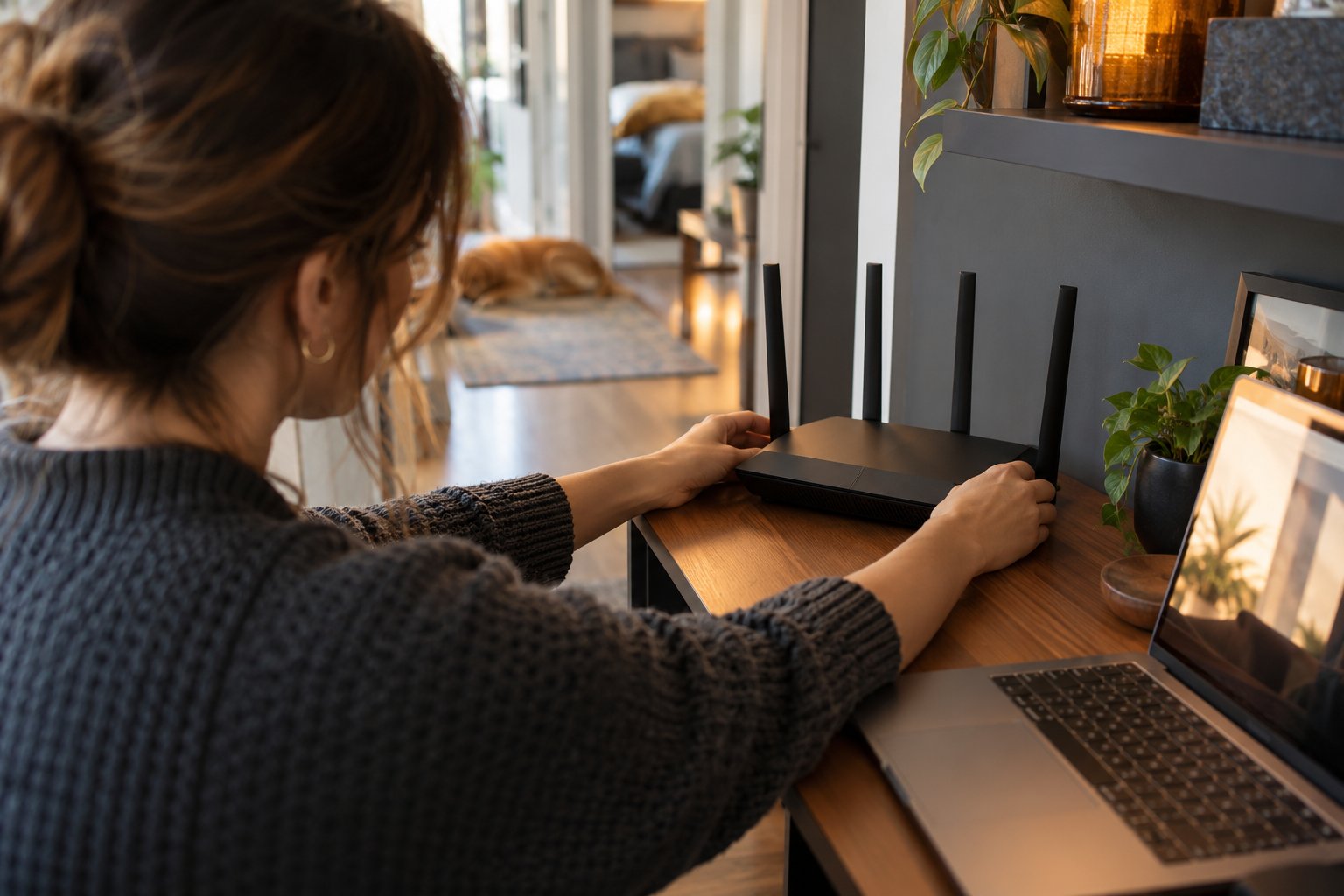
A budget router may work well in most rooms but struggle to reach one bedroom, garage, or outdoor camera.
That does not automatically mean the router is unsuitable.
Walls, floors, distance, and interference all reduce wireless signal quality.
When the problem affects only one area, adding an extender may be more economical than replacing the whole network.
When an Extender Makes Sense
Consider an extender when:
-
The router works reliably in most rooms.
-
One bedroom has weak WiFi.
-
Your home office sits near the edge of coverage.
-
A garage receives a usable signal nearby but has poor coverage inside.
-
An outdoor camera occasionally disconnects.
-
Moving the main router is not practical.
For example, suppose your router is in the living room.
The connection is stable in the kitchen and hallway but unreliable in a bedroom at the end of the house.
A properly positioned extender in the hallway may improve the bedroom connection.
An extender is not a second internet service.
It repeats the existing network connection, so the signal it receives from the router must be reliable.
Where to Put the Extender
The most common extender placement mistake is installing it directly inside the dead zone.
That location may be convenient for the device you want to connect, but the extender itself still needs a strong enough signal from the router.
What to do
-
Stand near the router with your phone.
-
Walk toward the weak room.
-
Check where the wireless connection begins to deteriorate.
-
Find an outlet before that point.
-
Install the extender there.
-
Connect a test device to the extended network.
-
Test performance in the weak room.
-
Move the extender closer to the router if the connection remains unstable.
What you should see
The previously weak room should have a more reliable connection.
What to watch for
Strong signal bars from the extender do not guarantee fast internet.
The extender may provide a strong local wireless signal while receiving a poor connection from the main router.
Check the actual browsing, streaming, or camera performance.
Wireless Repeater vs Wired Access Point
Some extenders support different operating modes.
Repeater mode
The extender connects to the router through WiFi and rebroadcasts the signal.
This is useful when running Ethernet is not practical.
However, repeating wireless transmissions can consume additional airtime and reduce available throughput.
Access point mode
The extender receives network access through Ethernet and provides WiFi at its location.
This can be useful when your home already has Ethernet wiring.
For example, if an upstairs office has a working Ethernet outlet, a compatible access point can provide WiFi without depending on a weak wireless connection through the floor.
An AC1200 WiFi extender with suitable operating modes can help address an isolated coverage problem.
Check the available Ethernet connection and installation requirements before choosing how to use it.
When an Extender Is Not the Right Solution
An extender is less suitable when several rooms or floors have weak connections.
It may improve one area while leaving other dead zones unchanged.
If you need reliable WiFi throughout a large house, a coordinated mesh system or wired access points may be easier to manage.
Extenders also cannot repair an internet service problem.
If every device is slow, including one connected through Ethernet, investigate the broadband connection first.
For homes with reinforced concrete walls, using Ethernet to reach another access point may be more dependable than repeating a weak wireless signal.
How to Choose the Best Budget Router for Your Home
The right router depends on the household, not just the advertised speed.
Start with the devices and activities that need reliable connections.
Then check whether the router provides the necessary bands, ports, security features, and coverage.
For a Small Apartment
A dual-band WiFi 5 or entry-level WiFi 6 router is often sufficient.
Look for:
-
Reliable 2.4 GHz and 5 GHz support.
-
Gigabit Ethernet where appropriate.
-
Current firmware support.
-
WPA2 or WPA3 security.
-
Simple network management.
You may not need a mesh system.
In a small apartment, wireless congestion from neighboring networks may be a bigger problem than router range.
Try an open router location and suitable channel settings before adding more equipment.
For a Family With Several Connected Devices
Consider an affordable WiFi 6 router.
A family may regularly use phones, laptops, televisions, smart speakers, cameras, and gaming consoles.
Several of those devices may become active at once.
Look for:
-
Dual-band WiFi 6.
-
Gigabit WAN and LAN ports.
-
Supported MU-MIMO and other WiFi 6 efficiency features.
-
Guest networking.
-
Parental controls if needed.
-
Reliable firmware updates.
Do not judge device capacity by a single advertised number.
A household with numerous idle smart devices may place less demand on the router than a smaller number of computers transferring large files.
For Working From Home
Prioritize a dependable connection.
Video meetings can be affected by packet loss, interference, or weak wireless coverage.
A router with Gigabit Ethernet is useful if your computer can connect through a cable.
If you must use WiFi, test the connection at your actual desk.
Do not judge coverage from the hallway or doorway.
A suitable dual-band router may work well if the office is close to the router.
For an office farther away, consider whether a wired access point would be more effective than buying a router with a higher advertised speed.
For Gaming and 4K Streaming
Budget routers can support gaming and 4K streaming when the broadband connection and local network have sufficient capacity.
For gaming, stable latency and low packet loss are particularly important.
For streaming, the connection needs enough sustained throughput.
A wired connection is worth using for stationary gaming consoles or televisions when practical.
If wireless is necessary, test signal quality at the device location.
A router advertising very high speeds will not compensate for a weak connection through several walls.
Also consider other household traffic.
If someone starts a large download while another person is gaming, network congestion may affect performance.
Supported traffic management features can sometimes help distribute capacity.
For Homes With Security Cameras
Many security cameras use 2.4 GHz WiFi.
Check the supported wireless bands before choosing a router.
Also consider where the cameras will be installed.
An indoor camera near the router may work normally, while an outdoor camera behind a brick wall may struggle.
Look at:
-
WiFi coverage near camera mounting locations.
-
2.4 GHz compatibility.
-
Suitable security settings.
-
Stable network connections.
-
Recording arrangements.
-
Simultaneous camera traffic.
If cameras stream to a local network recorder, the local network must support that traffic reliably.
Where wiring is practical, Ethernet can help reduce wireless dependence.
For a Large or Multi-Floor House
A router with a high advertised coverage figure may still struggle through reinforced floors and thick walls.
For a larger property, plan the network around the layout.
Consider:
-
The number of floors.
-
The router's location.
-
Interior wall materials.
-
Existing Ethernet outlets.
-
Outdoor coverage requirements.
-
Where important devices are used.
One powerful router is not always the best solution.
Several properly placed access points or a compatible mesh system may provide more consistent coverage.
When comparing ROOXIS home networking products, review the available router and extender options against your home's layout rather than relying only on advertised maximum coverage.
Choose the network arrangement that makes sense first, then select equipment that supports it.
Common Budget Router Buying Mistakes
Choosing a router only because of its advertised speed
AC1200, AX1800, and similar labels describe theoretical wireless capabilities.
They do not guarantee the speed reaching your laptop or television.
Check port speeds, wireless standards, and supported features.
Ignoring the WAN port
A 100 Mbps WAN port can limit a faster internet plan.
For broadband above 100 Mbps, a suitable Gigabit WAN port is important.
Assuming more antennas guarantee better coverage
Antenna count alone does not determine wireless range.
Building materials, router placement, and radio design also affect performance.
Buying an old model without checking firmware support
A router that no longer receives security updates can be a poor long-term choice.
Verify software support before purchasing older discounted equipment.
Expecting WiFi 6 to eliminate dead zones
WiFi 6 can improve efficiency, but it cannot overcome every physical obstruction.
A better router location or another access point may be needed.
Overlooking smart home compatibility
Some cameras, printers, and smart plugs support only 2.4 GHz or particular security settings.
Check compatibility before changing the network.
Ignoring router administration features
You may eventually need to change a password, configure a guest network, update firmware, or troubleshoot a device.
A clear management interface makes those tasks easier.
Buying an extender before testing the main connection
An extender cannot fix a broadband outage or an unstable router.
Test the connection near the router and through Ethernet where possible.
Confusing wireless speed with internet speed
A router may support wireless link rates above the speed of your broadband plan.
That does not make the internet service faster.
Paying for features the household does not use
A small apartment with a few devices may not need advanced mesh functions, numerous Ethernet ports, or expensive multi-gigabit networking.
Buy for your actual setup, with reasonable room for future needs.
Frequently Asked Questions About Budget Routers
How much should you spend on a budget WiFi router?
Many households can find a suitable dual-band router for under $100, depending on current prices and availability. Prioritize Gigabit Ethernet, WPA2 or WPA3 security, firmware support, and the wireless standard your devices can use. A smaller home with light internet use may not need the same hardware as a busy household with several active computers and cameras.
Is a budget router sufficient for 4K streaming and working from home?
Yes, a suitable budget router can support 4K streaming and remote work when the internet connection and network conditions provide enough capacity. Good router placement, stable WiFi, and Ethernet connections for stationary devices often matter more than expensive features. For households with several simultaneous users, an affordable WiFi 6 router may be worth considering.
How many devices can a cheap WiFi router handle at once?
There is no universal number because performance depends on the router's hardware, signal conditions, and what connected devices are doing. Several idle smart devices may generate little traffic, while a few computers downloading files and streaming video can use substantial bandwidth. Check the manufacturer's supported device guidance, but evaluate the router according to your household's actual workload.
For most homes, a good budget router needs five things: dual-band WiFi, suitable Gigabit Ethernet ports, current security features, reliable firmware support, and enough coverage for the rooms you use.
WiFi 6 is worth considering when several devices are active simultaneously. A well-supported WiFi 5 router can still be a practical choice for lighter use.
Before replacing your router, test the current internet connection, identify the rooms where WiFi struggles, and check whether better placement could solve the problem. That will help you spend your budget on the equipment your home actually needs.