Your WiFi works in the living room, but the connection drops when you step into the garden. The garage camera goes offline without warning, your upstairs office struggles with video calls, and the signal barely reaches the patio. Moving the router might improve one room while making another worse.
Full property WiFi means providing reliable internet access across the indoor and outdoor areas where your devices actually need it. Depending on your property, that might require a better router location, a WiFi extender, a mesh network, an outdoor access point, or a dedicated connection to a detached building.
The mistake is trying to make one router cover every room, wall, garden corner, and outbuilding. A more reliable approach is to identify the weak areas, understand what blocks the signal, and choose equipment for each location. This guide explains how to do that without buying unnecessary networking hardware.

What Is Full Property WiFi?
Full property WiFi is a wireless network designed to cover the areas of a property where people and connected devices need internet access.
That includes more than the rooms inside your house.
You might need WiFi for a laptop in the garden office, a video doorbell at the front gate, security cameras overlooking the driveway, or a phone used on the patio.
The aim is not to broadcast the strongest possible signal across every square foot of land.
It is to give each important device a stable connection.
For example, an outdoor temperature sensor may only need to send small amounts of information occasionally. A security camera transmitting video needs a more consistent connection.
A laptop used for video meetings requires sufficient bandwidth and low enough latency to keep conversations running smoothly.
Those differences should influence how you plan your network.
Full Property WiFi vs Whole-Home WiFi
Whole-home WiFi usually refers to coverage inside a house.
The main concerns are bedrooms, kitchens, living rooms, basements, and home offices.
Full property WiFi includes those areas but also considers:
-
Patios and outdoor seating areas
-
Gardens and yards
-
Driveways
-
Garages
-
Outdoor security cameras
-
Garden offices
-
Workshops
-
Detached sheds
-
Guest buildings
A network that performs well in every bedroom may still have poor coverage outside.
Exterior walls can weaken the signal considerably. A router placed near the middle of the house may also be too far from the driveway or garden.
That does not necessarily mean the router needs replacing.
It may mean the property needs another wireless access point closer to the outdoor devices.
WiFi Coverage Is Not the Same as Internet Speed
Your internet service provider supplies the connection to your home.
Your router distributes that connection through Ethernet and WiFi.
A WiFi coverage problem happens when a device cannot communicate reliably with the wireless network.
An internet speed problem happens when the connection itself cannot provide the performance you need.
Consider a laptop that downloads files quickly beside the router but struggles in the upstairs bedroom.
The problem is likely related to wireless coverage, interference, or the connection between the laptop and router.
Now consider a different situation.
The laptop performs poorly even when connected directly to the router by Ethernet.
That suggests you should investigate the internet service, router, or another network issue before buying an extender.
A WiFi extender cannot repair a slow connection coming into your home.
It can only help distribute the connection that already exists.
What Good Property Coverage Actually Looks Like
Good coverage means devices perform their intended tasks consistently.
For a typical property, that could mean:
-
Video calls work in the home office.
-
Phones stay connected on the patio.
-
Outdoor cameras provide reliable live views.
-
Smart garage controls respond when needed.
-
A garden office has enough bandwidth for ordinary work.
-
Smart irrigation devices remain connected.
-
Devices reconnect without repeated manual intervention.
A phone showing full WiFi bars is not enough evidence.
It may have a strong connection to an extender that has a poor connection back to the router.
Test actual activities.
If the garden office is intended for video meetings, make a video call there.
If your main concern is a driveway camera, test its live view from the camera's installed position.
The results will tell you more than a signal icon.
Why WiFi Does Not Reach Every Part of Your Property
WiFi signals weaken with distance and can be obstructed by building materials.
The same router may work well in an open-plan room and struggle to reach a nearby garage through a brick exterior wall.
Outdoor coverage is especially dependent on the path between the access point and the receiving device.
Distance Reduces Signal Strength
As wireless signals travel farther from a router or access point, the received signal becomes weaker.
That affects connection reliability and the speeds a device can achieve.
A phone close to your router may maintain a fast connection.
The same phone at the end of a long garden may struggle to load a webpage.
There is no single outdoor wifi range that applies to every home.
Coverage depends on:
-
Router and access point design
-
Antenna placement
-
Frequency band
-
Obstacles
-
Interference
-
Receiver capabilities
-
Permitted transmit power
-
Weather and environmental conditions
Do not treat an advertised range as a guaranteed distance.
A clear outdoor path and a route through several concrete walls can produce very different results.
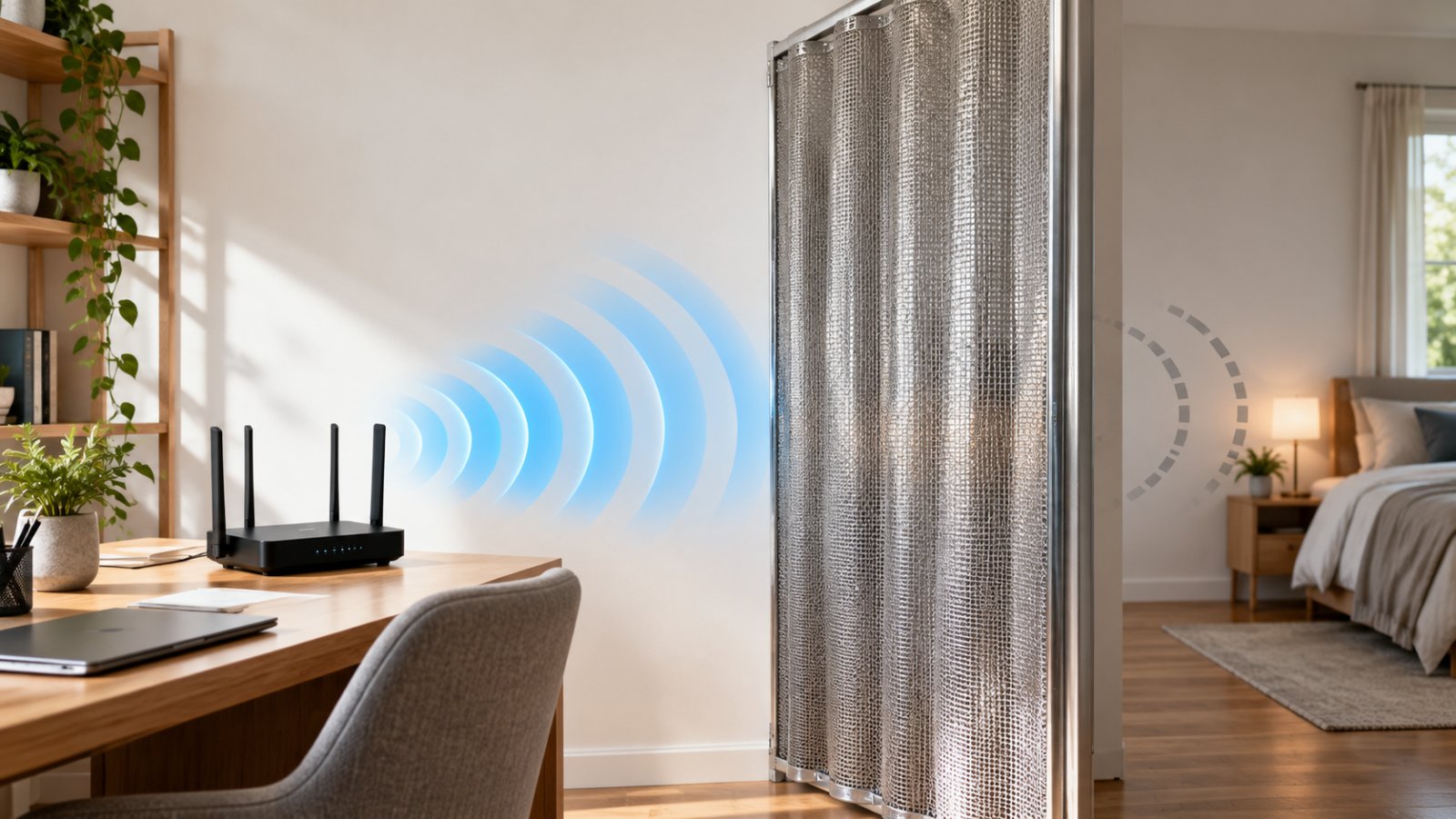
Exterior Walls Can Be the Main Obstacle
Many homeowners blame distance when the bigger problem is the exterior wall.
Common sources of signal loss include:
-
Brick
-
Stone
-
Reinforced concrete
-
Metal cladding
-
Foil-backed insulation
-
Certain coated windows
For example, the router may be only a short distance from a security camera mounted outside the kitchen.
But the signal must pass through an insulated exterior wall.
Moving the router closer to the wall may help.
In other cases, an outdoor access point positioned on the camera's side of the wall is a more dependable solution.
The important question is where the obstruction occurs.
Upper Floors and Basements Create Additional Barriers
WiFi signals must pass through floors and ceilings to reach devices on different levels.
Concrete floors, metal reinforcement, and building layouts can weaken those connections.
A router on the ground floor may serve the living room and kitchen well while providing inconsistent coverage in an upstairs bedroom.
Basements present another challenge because they may be surrounded by concrete or other dense materials.
Instead of treating the property as one large coverage area, identify separate indoor zones.
For example:
-
Ground-floor living areas
-
Upstairs bedrooms
-
Home office
-
Basement
-
Outdoor patio
You can then decide whether each zone needs a better wireless connection or a separate access point.
Trees, Moisture, and Outdoor Structures Affect Connections
Outdoor WiFi has obstacles that do not exist in the same way inside a house.
Trees can block part of the signal path.
Dense or wet foliage can increase signal loss.
Metal sheds, fences, parked vehicles, and garden structures may also interfere.
Suppose a garden office sits behind a row of mature trees.
A wireless connection that works when the trees are bare may become less reliable when the foliage is dense.
For a permanent building-to-building connection, consider the likely conditions throughout the year.
A clear wireless path is preferable where practical.
Interference Can Make a Strong Signal Perform Poorly
Sometimes the signal is strong, but the connection remains slow.
Nearby networks may use the same or overlapping wireless channels.
The 2.4 GHz band is particularly susceptible to congestion because many household devices use it.
A phone might show a strong WiFi signal while websites load slowly during busy periods.
That could indicate interference, network congestion, or an overloaded connection.
Before replacing equipment, compare performance at different times and check whether other devices are using substantial bandwidth.
A strong signal does not guarantee a fast or stable connection.
How to Check Your Current WiFi Coverage
Start with a simple property survey.
You do not need specialist equipment for an initial assessment.
Use your phone, your normal WiFi network, and the applications you already rely on.
Step 1: Test the Internet Beside Your Router
Stand near the router and connect your phone to the main WiFi network.
Open a familiar website.
Run a speed test using a reputable service.
Check whether ordinary browsing works consistently.
If possible, repeat the test with a computer connected directly to the router by Ethernet.
A wired test helps separate wireless problems from internet service problems.
Good result: Websites load normally, video plays without unexpected buffering, and the connection behaves consistently.
Concerning result: The connection is unreliable even beside the router or through Ethernet.
If performance is already poor at the router, investigate that before extending coverage.
Step 2: Identify the Areas That Need Coverage
Draw a rough sketch of the property.
Mark the router and the locations where internet access matters.
Include:
-
Bedrooms
-
Home office
-
Patio
-
Garden seating area
-
Garage
-
Driveway
-
Outdoor cameras
-
Workshop
-
Detached buildings
Mark existing extenders and mesh units too.
Do not include every unused corner simply because it is part of the property.
Focus on the places where people and devices actually need connectivity.
Step 3: Test Each Location
Walk through the property with your phone connected to WiFi.
At each important location:
-
Confirm the phone is using your home network.
-
Open a familiar website.
-
Check whether pages load normally.
-
Run a speed test where appropriate.
-
Test the actual device or activity you need there.
-
Record any delays or disconnections.
Use simple notes such as:
-
Reliable
-
Usable but slow
-
Frequently disconnects
-
Network visible but unreliable
-
No usable connection
For cameras, test live viewing and motion notifications.
For a garden office, check video calls and file uploads.
These practical tests show whether the connection meets the location's needs.
Step 4: Check Whether the Device Uses the Right Network
A home may have several wireless networks.
You might have a router network, a guest network, and an extender network.
A phone can remain connected to a distant access point even when another is closer.
Open the device's WiFi settings and check the network name.
If each extender has a separate name, verify which one the device uses.
If all access points share one network name, check the management application where available.
Do not assume the phone always selects the best connection automatically.
Step 5: Identify the First Weak Point
Walk from a reliable indoor area toward the dead zone.
Notice where the connection begins to deteriorate.
Suppose WiFi works in the kitchen, becomes inconsistent at the back door, and disappears near the garden shed.
This tells you the existing network cannot reliably serve the shed.
It does not mean the extender belongs inside the shed.
An extender needs a dependable connection back to the router.
The first weak point helps you identify where additional network coverage should begin.
Choosing the Right Equipment for Full Property WiFi
Different coverage problems need different equipment.
A nearby patio may benefit from an extender.
A detached workshop may need a dedicated connection.
The most important factor is how reliably the new access point connects back to your main router.
A Better-Positioned Router
Best for: Smaller homes where the signal is almost strong enough.
Check whether your router is hidden behind furniture, inside a cabinet, or next to large metal objects.
Moving it into a more open location may improve coverage.
Keep it away from:
-
Metal cabinets
-
Large appliances
-
Enclosed furniture
-
Thick structural barriers
-
Cluttered utility spaces
Do not move the router toward the garden without considering the rest of the house.
Improving the patio at the expense of every upstairs bedroom is not a good trade.
A router relocation is useful when the coverage gap is modest.
It is less likely to solve a distant detached building.
A WiFi Range Extender
Best for: A nearby weak area that is still within reliable wireless reach of the main router.
An extender receives a wireless signal and retransmits it.
This can help with a bedroom, hallway, or patio that sits just beyond the router's comfortable coverage area.
For example, an extender in a back hallway may help serve a nearby patio.
The extender must receive a good connection where it is installed.
If you place it in a location with almost no usable WiFi, it has very little reliable signal to repeat.
Strengths
-
Usually straightforward to install
-
Does not normally require Ethernet cabling
-
Suitable for modest coverage gaps
-
Can help phones and smart devices in nearby areas
Limitations
-
Depends on wireless backhaul
-
Repeating can reduce available throughput
-
Thick walls still affect performance
-
May use a separate network name
An extender is not automatically suitable for a long driveway or detached workshop.
Choose it when the weak area is reasonably close to a location with reliable WiFi.
A Mesh WiFi System
Best for: Homes with several indoor dead zones.
Mesh systems use multiple compatible nodes to distribute wireless coverage.
Depending on the system, nodes may connect wirelessly or through Ethernet.
Many mesh systems provide centralized management and use one network name.
This can simplify everyday use across several rooms.
For example, a two-story home with a basement office and distant upstairs bedrooms may benefit from strategically placed mesh nodes.
Strengths
-
Designed for multiple coverage points
-
Usually provides centralized controls
-
Can simplify network naming
-
Supports coordinated roaming features on compatible systems
Limitations
-
Wireless nodes still need reliable backhaul
-
Thick walls can weaken links between nodes
-
Outdoor coverage is not guaranteed
-
Roaming behavior also depends on client devices
Mesh is not a substitute for planning.
A mesh node placed too far from the main network may provide a strong local signal but poor internet performance.
A Wired Access Point
Best for: Areas where dependable coverage matters and Ethernet cabling is practical.
A wired access point connects to the router or network switch through Ethernet.
It creates WiFi coverage near the location where it is installed.
Unlike a wireless extender, it does not depend on a weak radio link back to the router.
This makes it useful for home offices, garages, and busy areas.
For example, an Ethernet cable leading to a garage access point can provide a stable network connection for a camera, laptop, and smart garage controller.
Strengths
-
Reliable wired backhaul
-
Suitable for several nearby devices
-
Avoids wireless repeating overhead
-
Useful for permanent network upgrades
Limitations
-
Requires cabling
-
Installation may be difficult in finished buildings
-
Outdoor cable routes need appropriate materials
-
Renters may not be permitted to make permanent changes
Some access points support Power over Ethernet, or PoE.
PoE allows compatible equipment to receive data and electrical power through Ethernet cabling.
Check the required power standard before purchasing a switch or injector.
An Outdoor WiFi Access Point
Best for: Patios, gardens, driveways, and outdoor cameras.
Outdoor access points are designed to tolerate environmental conditions that ordinary indoor routers may not.
Suitable devices use weather-resistant enclosures and appropriate mounting systems.
An outdoor access point can place wireless coverage on the exterior side of a wall that previously weakened the signal.
For example, mounting an approved outdoor access point near the rear of the house may provide better coverage for a patio and nearby garden cameras.
Strengths
-
Designed for outdoor installation
-
Can serve several nearby outdoor devices
-
Allows more suitable antenna placement
-
Often supports wired backhaul
Limitations
-
Requires appropriate mounting
-
May require outdoor network cabling
-
Still affected by trees and structures
-
Electrical and weatherproofing requirements matter
Do not install an ordinary indoor extender outside unless the manufacturer specifically approves that environment.
An outlet under an overhang does not automatically protect indoor equipment from moisture or condensation.
A Point-to-Point Wireless Bridge
Best for: Detached garages, garden offices, and workshops.
A wireless bridge connects two locations through a dedicated wireless link.
One bridge unit is installed at the house.
A second unit is installed at the detached building.
They communicate with each other.
A local access point can then provide WiFi inside the second building.
This is different from expecting every device in the workshop to connect directly to the house router.
Strengths
-
Useful for separate buildings
-
Can avoid long copper cable runs
-
Provides backhaul for a local access point
-
Suitable when several devices need connectivity
Limitations
-
Requires compatible equipment
-
Installation and alignment matter
-
Obstacles can weaken the link
-
Outdoor electrical protection is important
A clear path between bridge units is preferable.
If trees or buildings obstruct the connection, performance may become unreliable.
For permanent installations, plan the mounting, power, and weatherproofing carefully.
Full Property WiFi Equipment Comparison
| Solution | Best situation | Main advantage | Main limitation |
|---|---|---|---|
| Router relocation | Small coverage gap | Uses existing equipment | Limited improvement across large distances |
| WiFi extender | Nearby weak room or patio | Simple installation | Requires reliable wireless backhaul |
| Mesh WiFi | Several indoor dead zones | Coordinated multi-node coverage | Nodes still depend on good connections |
| Wired access point | Office, garage, busy area | Stable Ethernet backhaul | Requires cabling |
| Outdoor access point | Patio, garden, driveway | Suitable for exterior coverage | Outdoor installation requirements |
| Wireless bridge | Detached building | Dedicated building-to-building connection | Requires planning and a suitable signal path |
The choice should follow the property layout.
A router with a large advertised coverage area may still struggle to reach a camera behind a concrete wall.
A modest access point installed on the correct side of that wall may provide a more dependable connection.
Extending WiFi to the Garden and Outdoor Areas
Extending wifi to garden areas requires more than pushing an indoor signal farther.
Think about where the devices are located and what stands between them and the router.
A patio beside the kitchen and a garden office behind several trees need different solutions.
WiFi for a Patio or Outdoor Seating Area
Start by testing the patio with your phone.
Open a website and make a short video call.
If the connection is nearly reliable, moving the router or adding an extender in a nearby indoor location may help.
For example, a hallway adjacent to the patio may provide a suitable extender location if it still receives a strong signal.
Avoid installing the extender directly in the weakest area.
If the exterior wall creates substantial signal loss, an outdoor-rated access point may be more effective.
WiFi for a Large Garden
A large garden rarely needs equal coverage everywhere.
Identify the locations that matter:
-
Seating area
-
Outdoor dining space
-
Garden office
-
Shed
-
Security cameras
-
Irrigation controls
An outdoor access point positioned near the house may cover the patio but struggle to reach devices behind a metal shed.
For gardens with several separated areas, you may need more than one coverage point.
Do not assume a second wireless repeater will solve the problem.
Check whether each additional device can receive reliable backhaul.
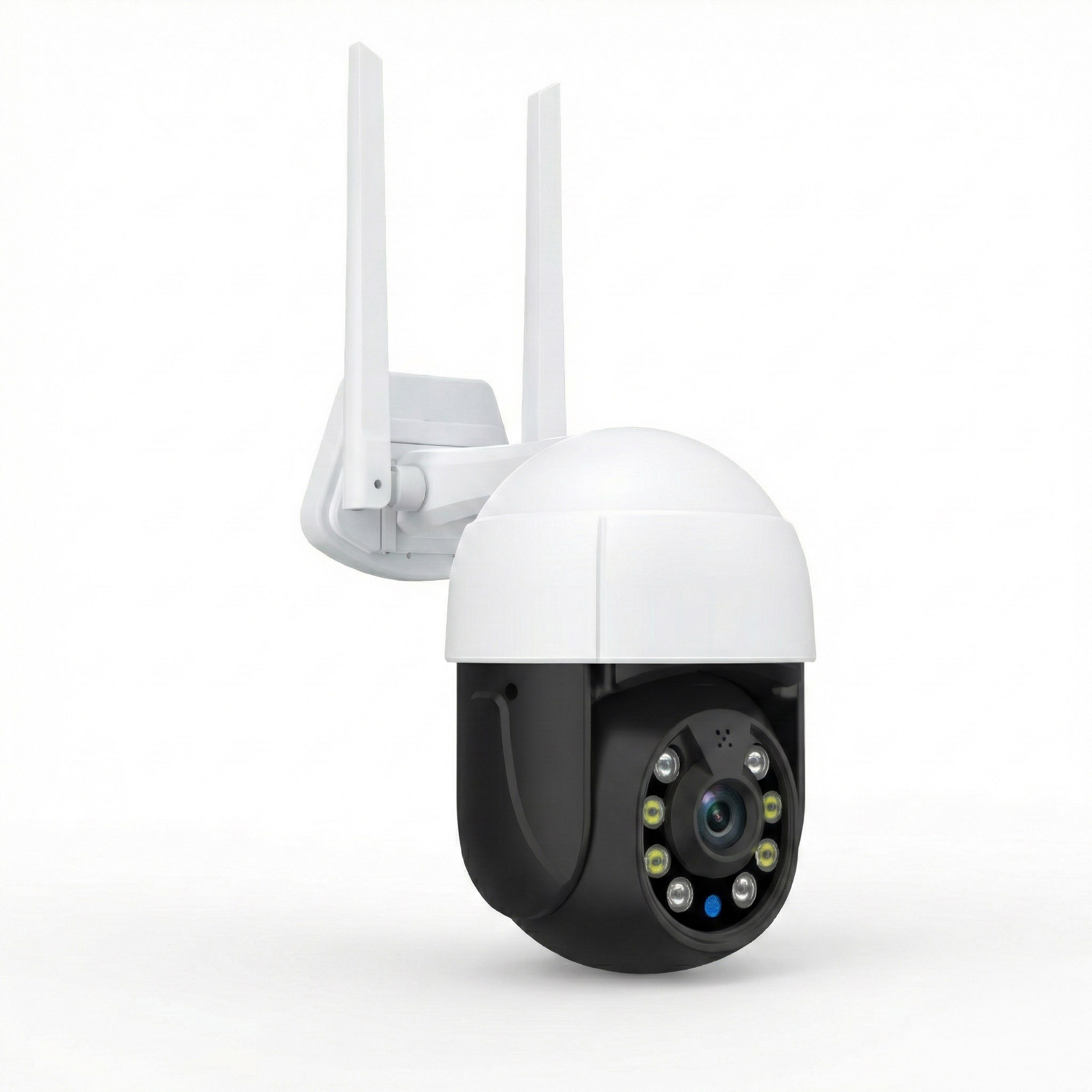
WiFi for an Outdoor Security Camera
Test the camera at its intended mounting location before fixing it permanently.
A camera may work perfectly during setup beside the router and disconnect when moved above the garage.
Use this process:
-
Connect the camera to the intended network.
-
Place it near the planned mounting position.
-
Open the live view.
-
Close and reopen the app.
-
Check whether video starts consistently.
-
Test motion notifications.
-
Repeat the test during ordinary household network use.
If video repeatedly freezes, check both WiFi and power.
A camera can disconnect because of an unstable adapter or low battery.
Do not replace the router until you know which problem is occurring.
WiFi for a Detached Garage
Detached garages introduce additional barriers.
The connection may have to cross a driveway and penetrate an exterior wall.
Metal siding or a metal garage door can make reception especially difficult.
Possible solutions include:
-
Ethernet to a garage access point
-
A dedicated wireless bridge
-
An outdoor access point where the signal path is suitable
-
A mesh connection with reliable backhaul
For a garage with several devices, a dedicated connection to the building is often preferable to expecting each device to communicate directly with the house router.
WiFi for a Garden Office or Workshop
A garden office needs a dependable connection throughout the working day.
Video meetings, cloud storage, and remote access applications can be sensitive to interruptions.
If the building is separate from the house, consider a wired connection or a properly installed wireless bridge.
Then provide local WiFi inside the office.
This separates two jobs:
-
Getting the network connection to the building
-
Providing WiFi to devices inside it
That distinction makes troubleshooting easier.
If every device in the garden office disconnects simultaneously, investigate the building's backhaul before adjusting individual laptops.
Understanding Outdoor WiFi Range
Advertised outdoor range can be misleading.
The access point and the receiving device both affect the connection.
A powerful outdoor access point cannot overcome every limitation of a small phone or camera antenna.
Why 2.4 GHz Often Reaches Farther
The 2.4 GHz band generally provides better range and obstacle penetration than 5 GHz under comparable conditions.
It is commonly used by outdoor cameras, sensors, and other smart devices.
However, 2.4 GHz can experience substantial interference.
Neighboring WiFi networks and other wireless equipment may compete for the same radio resources.
For a camera sending occasional clips or a sensor transmitting small updates, 2.4 GHz may be suitable.
For a busy garden office, the available performance may be less satisfactory.
Test actual device behavior rather than assuming the longer-range band is always preferable.
When 5 GHz Is Better
The 5 GHz band can provide higher throughput when the connection is strong.
It can work well in an outdoor seating area close to an access point or inside a garden office with suitable local WiFi coverage.
However, 5 GHz signals generally experience greater loss through distance and obstacles.
A strong 5 GHz connection beside an access point may become unreliable behind an exterior wall.
Choose the band based on the final device location.
A faster advertised wireless standard does not guarantee better performance through difficult construction materials.
What About 6 GHz WiFi?
Some newer routers and client devices support 6 GHz WiFi.
The band offers additional capacity for compatible equipment.
However, it is generally less suitable for long-range coverage through walls than lower-frequency bands.
Outdoor use is also subject to equipment capabilities and applicable regional regulations.
Do not assume a 6 GHz router will solve a weak driveway camera connection.
Many outdoor smart devices still rely on 2.4 GHz.
Check compatibility before paying for features your devices cannot use.
Why a Strong Signal Can Still Be Slow
An extender can provide a strong signal to your phone while having a weak connection to the router.
This creates a misleading result.
The phone sees full WiFi bars, but the backhaul limits performance.
For example, a garage extender may be easy for your phone to reach.
Yet the extender must communicate through a brick wall to reach the main router.
If that connection is unreliable, internet access remains poor.
Always check the connection between the extender or access point and the main network.
The signal strength between your phone and the nearest wireless device is only part of the picture.
How to Plan Full Property WiFi by Area
Breaking the property into coverage zones helps you avoid unnecessary equipment.
Each zone should have a clear purpose.
Zone 1: Main Living Areas
Start with the rooms closest to the main router.
These areas should have reliable connectivity before you expand coverage elsewhere.
Check browsing, streaming, and ordinary household use.
If performance is poor near the router, investigate the router and internet service first.
Adding extenders will not correct a failing connection.
Zone 2: Distant Bedrooms and Home Office
Identify whether the problem involves distance, walls, or floors.
A mesh node, extender, or wired access point may be appropriate.
For a home office used daily, wired backhaul is worth considering.
A stable connection matters more than an impressive maximum speed figure.
Test video calls and uploads, not just downloads.
Zone 3: Patio and Garden
Test near the back door first.
Then move toward the areas where WiFi is needed.
If the connection deteriorates immediately after crossing the exterior wall, an outdoor access point may be more useful than another indoor extender.
If the patio works but a distant garden corner does not, consider a separate outdoor coverage zone.
Zone 4: Driveway and Outdoor Cameras
List each camera and its location.
Test live viewing and motion alerts.
Check whether cameras connect to the intended access point.
For cameras with unreliable WiFi, investigate signal quality, power, and network congestion.
A camera that stays connected but struggles to upload video may need a different solution from one that repeatedly drops off the network.
Zone 5: Detached Buildings
Treat detached buildings as separate destinations.
Provide a dependable connection from the house to the building.
Then distribute WiFi inside using an appropriate access point.
A wireless bridge or professionally installed cable may be more reliable than attempting to reach the building with several ordinary extenders.
Common Mistakes That Prevent Full Property Coverage
Most coverage problems are made worse by poor placement or unsuitable equipment.
Before buying another device, check for these common errors.
Installing an Extender Inside the Dead Zone
An extender needs usable WiFi from the router.
If you install it where the original signal is already unreliable, it has very little to repeat.
Move it closer to the main router.
Find a location with a dependable connection, then test whether the extended signal reaches the problem area.
If no suitable location works, consider another networking method.
Adding Too Many Wireless Repeaters
More extenders can create additional network complexity.
Wireless repeating also consumes radio resources.
When several repeaters depend on weak links, performance may become inconsistent.
For a larger property, strategically positioned wired access points may provide better results.
Before adding another repeater, identify which connection is actually failing.
Expecting One Router to Cover a Large Yard
An indoor router is usually installed to serve the house.
Exterior walls and outdoor distances may limit its reach.
Buying a faster router does not automatically solve that problem.
For an important outdoor coverage area, moving the wireless access point closer to the devices may be more effective.
Installing Indoor Equipment Outdoors
Indoor extenders are not necessarily protected against rain, moisture, condensation, or temperature extremes.
Do not leave one exposed on a patio and assume it will remain reliable.
Use outdoor-rated equipment where required.
Follow the manufacturer's mounting and electrical instructions.
Ignoring the Backhaul Connection
Backhaul is the connection between an access point and the main network.
For an extender, it is often wireless.
For a wired access point, it is Ethernet.
For a detached building, it might be a wireless bridge or fiber connection.
If backhaul fails, the local WiFi signal may remain visible while internet access stops working.
Always test both connections.
Choosing Equipment Based Only on Claimed Range
Coverage claims depend on testing conditions.
Thick walls, metal structures, vegetation, and nearby networks can change the result considerably.
Look beyond the advertised distance.
Check whether the device supports appropriate mounting, backhaul, power, and wireless bands.
Forgetting Device Compatibility
Many smart home devices only support 2.4 GHz WiFi.
A 2.4 GHz-only camera cannot connect to a 5 GHz-only network.
Some devices also have specific security or setup requirements.
Before changing network settings, check the device manual.
A new router with advanced features is not useful if the camera cannot connect to the selected configuration.
Ignoring Security Settings
An extended network should be protected as carefully as the main router.
Use WPA3 where supported, or WPA2-AES where compatibility requires it.
Choose strong passwords.
Change default administrator credentials.
Keep firmware updated.
Guest networks can be useful for visitors.
Some smart home devices may need local communication with a phone or hub, so test their operation if you enable network isolation.
How to Improve Reliability for Outdoor Cameras and Smart Devices
Outdoor cameras are often less forgiving of an unstable connection than phones.
A phone can reconnect automatically while you move around.
A camera mounted above the driveway may remain offline until someone notices missing notifications.
Check the Camera's Actual Connection
Open the camera's official application.
Look for signal or network information if available.
Then test the live view.
Close the app and reconnect.
If video repeatedly freezes, investigate the connection.
Do not assume that an online status means performance is adequate.
A camera can remain connected while having insufficient bandwidth for consistent video.
Place the Access Point Where the Camera Can Reach It
The best access point location is not always next to the router.
For a camera outside a thick wall, putting the access point on the exterior side may improve the wireless path.
Avoid mounting it behind metal structures.
Test before drilling or fixing equipment permanently.
The camera should work reliably from its actual installation position.
Check Upload Bandwidth
Cameras that support remote viewing or cloud uploads may use your internet connection's upload capacity.
Several cameras transmitting simultaneously can increase that demand.
If local viewing works but remote access is unreliable, check the internet connection and camera service as well as WiFi.
Extending wireless coverage does not increase the upload speed supplied by your internet provider.
Keep Network Names and Passwords Consistent Where Appropriate
Some networks use one WiFi name across multiple access points.
This can simplify device connections.
However, identical names do not guarantee seamless roaming.
A stationary camera may remain connected to a distant access point rather than selecting a closer one.
Check the device's connection information where available.
For fixed equipment, maintaining a stable connection is usually more important than roaming frequently.
Do Not Overlook Power Problems
An outdoor camera can disconnect because of an unstable power supply.
Check the adapter, battery condition, and cable connections.
For PoE equipment, confirm that the switch or injector supplies the required power.
Outdoor cables and connections must be suitable for the environment.
If the installation involves electrical work or cabling between buildings, use appropriate professional assistance.
When to Upgrade Your Router and When to Add Access Points
A newer router is not automatically the right answer to a coverage problem.
Decide whether the main network is struggling or whether the signal simply needs to reach another area.
Keep the Router When Internet Performance Is Good
If the internet works reliably beside your router, the router may be doing its job.
The problem may be how far its wireless signal must travel.
Adding a suitable access point near the weak area may solve the problem more effectively than replacing the main router.
For a garage or garden office, concentrate on getting a dependable network connection to that location.
Consider a Router Upgrade When the Main Network Is Struggling
A router replacement may make sense when:
-
Connections are unreliable near the router.
-
The router no longer receives security updates.
-
It lacks networking features you need.
-
It struggles with ordinary household usage.
-
It cannot support the planned access point arrangement.
First rule out internet service problems.
If a wired computer also experiences poor performance, investigate the provider connection and router before purchasing additional wireless devices.
Prefer Wired Backhaul for Important Areas
Ethernet provides a stable connection between network devices.
For busy areas such as home offices and workshops, wired backhaul can be particularly useful.
It avoids relying on a wireless repeating link between the main router and additional access point.
Wiring is not always practical.
Renters may have restrictions, and detached buildings can require specialist installation.
Where cabling is difficult, a properly planned wireless bridge may be a suitable alternative.
Plan for Future Devices
Consider likely additions to the network.
You may eventually install:
-
Another outdoor camera
-
A video doorbell
-
A garden office computer
-
Smart irrigation equipment
-
Workshop devices
-
Outdoor lighting controls
You do not need to buy equipment for every possible future device.
But choose a network arrangement that can be expanded without creating a chain of unreliable repeaters.
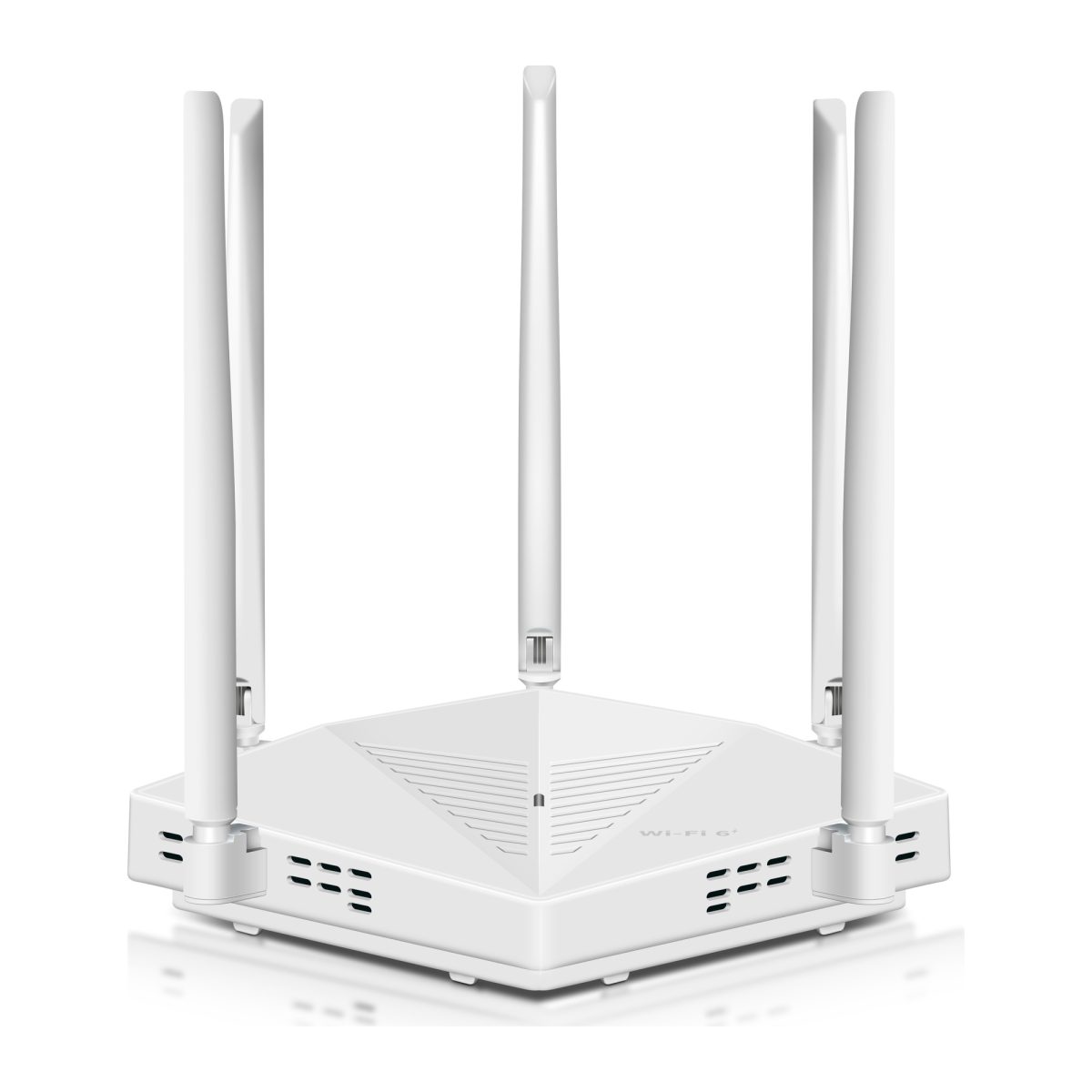
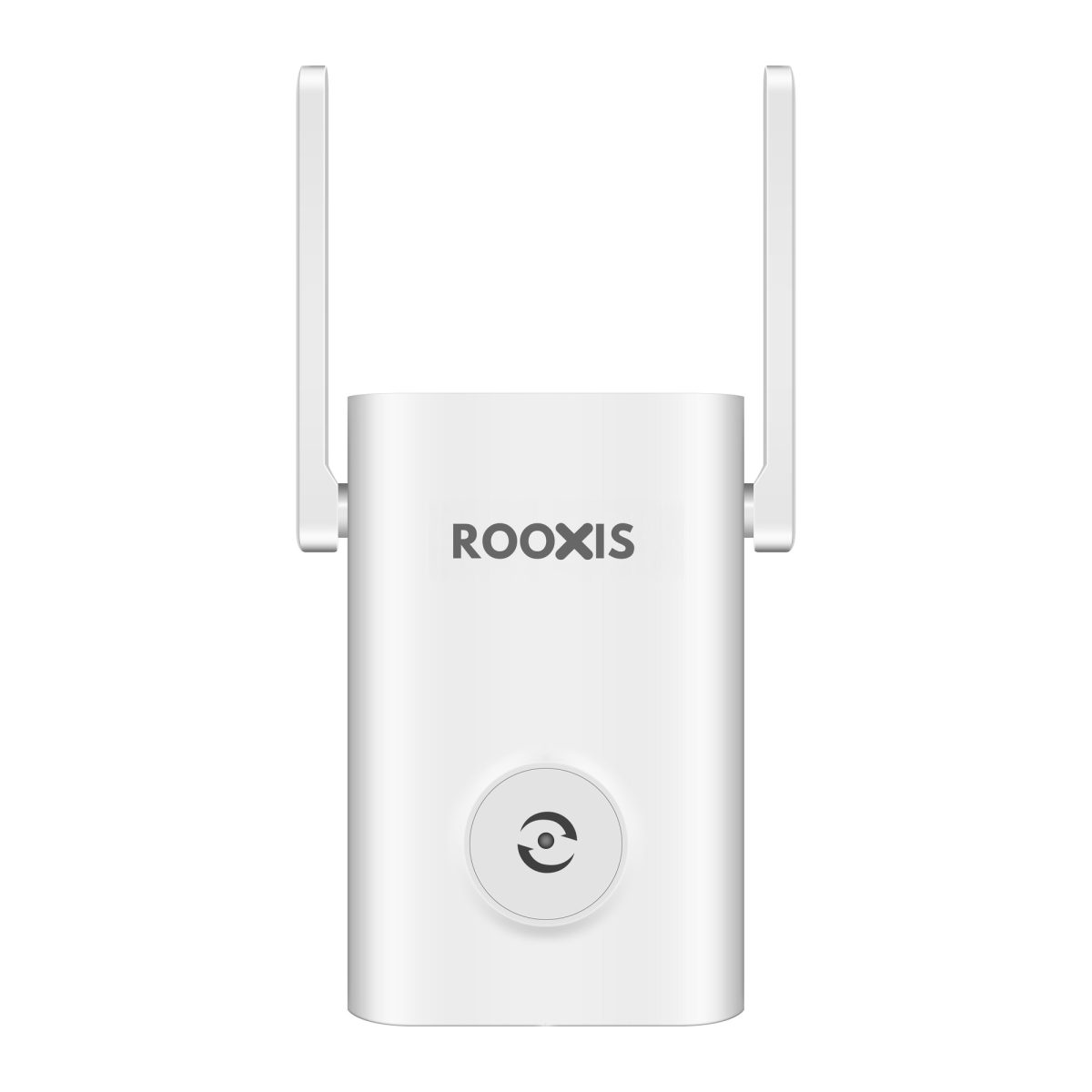
If you're comparing options for indoor coverage gaps, the ROOXIS range of home WiFi and networking products provides a starting point for reviewing routers and extenders before deciding whether your property also needs an outdoor access point or dedicated building connection.
A Practical Full Property WiFi Setup Plan
Use this process to turn your initial coverage tests into a working network.
Step 1: Draw a Simple Property Map
Sketch the house and important outdoor areas.
Mark:
-
Main router
-
Existing extenders
-
Bedrooms
-
Home office
-
Garden
-
Garage
-
Outdoor cameras
-
Detached buildings
Show thick walls and major obstacles where possible.
The map does not need to be professionally drawn.
Its purpose is to reveal where the signal must travel and where additional coverage is needed.
Step 2: Prioritize Important Devices
Put the most important devices first.
A work laptop may need a dependable connection throughout the day.
A driveway camera may need continuous connectivity.
A garden speaker used occasionally has less demanding requirements.
Decide which locations must work reliably before choosing equipment.
This helps prevent spending money on areas that rarely need WiFi.
Step 3: Measure Existing Performance
Test close to the router.
Then test the priority areas.
Record whether the connection is:
-
Reliable
-
Slow
-
Intermittent
-
Unavailable
For cameras, test live video and alerts.
For offices, test calls and uploads.
Do not rely exclusively on WiFi bars or one speed test.
Step 4: Select a Solution for Each Zone
Match the equipment to the problem.
A nearby bedroom may need an extender.
Several indoor weak areas may justify mesh.
A patio behind a thick exterior wall may benefit from an outdoor access point.
A detached workshop may need wired backhaul or a wireless bridge.
Do not force the entire property into one equipment category.
Step 5: Verify Backhaul Before Final Placement
Check how every new access point connects to the main network.
For wireless equipment, test the connection at its intended location.
For wired equipment, confirm the Ethernet link.
For a wireless bridge, check stability between the two endpoints.
If backhaul is weak, a strong signal from the new access point will not provide reliable internet access.
Step 6: Install Equipment Safely
Follow the manufacturer's installation instructions.
Keep indoor networking equipment in suitable environments.
Use outdoor-rated devices and cabling for exterior locations.
Pay attention to mounting, moisture protection, power requirements, and surge protection.
Cabling between buildings can introduce electrical and grounding concerns.
Use a qualified installer when the work requires specialist knowledge.
Step 7: Test the Actual Devices
After installation, repeat the tests that originally identified the problem.
Check:
-
Home office video calls
-
Garden browsing
-
Patio WiFi
-
Garage connectivity
-
Camera live viewing
-
Motion alerts
-
Smart home controls
-
Internet access in detached buildings
The network should improve the activities that previously failed.
If a camera still disconnects, investigate its specific connection instead of assuming the entire network upgrade was unsuccessful.
Step 8: Review the Network After Normal Use
A brief installation test may not reveal every problem.
Use the network under ordinary household conditions.
Watch for cameras disconnecting.
Check whether video calls remain stable.
Observe whether phones connect to appropriate access points.
If performance deteriorates only when several devices are active, investigate congestion and bandwidth.
If one outdoor location fails repeatedly, focus on that zone.
Adjust the specific problem rather than replacing the entire setup.
Full Property WiFi Checklist
Before treating the project as complete, confirm these points:
-
The internet connection works reliably near the main router.
-
Important indoor areas have usable coverage.
-
Outdoor devices have been tested from their actual locations.
-
Every extender or access point has reliable backhaul.
-
The garden has coverage where people and devices need it.
-
Garage and workshop connections are stable.
-
Outdoor equipment is suitable for the installation environment.
-
Security cameras provide dependable live views and alerts.
-
WiFi bands are compatible with connected devices.
-
Network names and passwords are configured appropriately.
-
Router and access point firmware is current.
-
Important applications continue working normally.
-
The network can be maintained without unnecessary complexity.
A well-designed property network does not need the greatest number of access points.
It needs dependable connections in the right places.
For many homes, improving the router's location and adding one carefully positioned access point may be sufficient. Larger properties may benefit from separate indoor, outdoor, and detached-building connections.
FAQ
How can I get full property WiFi coverage?
Test your internet connection near the router, then identify the indoor and outdoor locations where WiFi becomes unreliable. Use an extender or mesh system for suitable nearby coverage gaps, an outdoor-rated access point for garden areas, or a dedicated network connection for detached buildings. Reliable backhaul is essential because a strong local WiFi signal cannot compensate for a poor connection to the main router.
What is the best way to extend WiFi to a large garden?
An outdoor-rated access point with a dependable connection to the main network is often a suitable solution for a large garden. Install it where it can serve the areas that need coverage, taking account of walls, vegetation, and other obstacles. Test the connection at actual device locations before finalizing the installation.
Can a WiFi extender reach a detached garage?
It may work when the garage is close enough and the extender receives a reliable signal from the house. Thick walls, metal siding, and distance can make this difficult. For a garage with several connected devices, a wired access point or wireless bridge may provide a more dependable arrangement.
Is 2.4 GHz or 5 GHz better for outdoor WiFi range?
The 2.4 GHz band generally provides better range and obstacle penetration, which can help outdoor cameras and smart devices. The 5 GHz band can provide higher throughput when the signal is strong and the path is relatively unobstructed. Check device compatibility and test performance at the intended location before choosing.
How many access points do I need for my property?
The number depends on your property layout, construction materials, distances, and connected devices. A small home with a nearby patio may need only one additional coverage point, while a larger property with detached buildings may need several separately connected access points. Survey the important locations first rather than buying equipment based only on property size.
Why does my outdoor security camera keep losing WiFi?
The camera may have weak wireless reception, interference, unstable power, or insufficient network performance at its mounting location. Test the live view from that position, verify the intended WiFi connection, and inspect the power supply. If the signal is weak through an exterior wall, a correctly positioned outdoor access point or another suitable connection may improve reliability.