WiFi 6 routers use the 802.11ax wireless standard to provide faster, more efficient connections, particularly when several devices are using the network at once. They improve how wireless traffic is managed, helping compatible phones, laptops, smart TVs, and other connected devices share available bandwidth more effectively.
But a newer router is not always the answer to slow WiFi. If your internet plan, router placement, or home layout is causing the problem, upgrading to WiFi 6 may not make much difference.
Before replacing your router, it helps to understand what WiFi 6 actually improves, which devices benefit, and when a dependable WiFi 5 router is still good enough.
What Is a WiFi 6 Router?
A WiFi 6 router supports the IEEE 802.11ax wireless networking standard. It is designed to improve wireless speed and efficiency, particularly in homes where many devices compete for the same connection.
The easiest way to understand WiFi 6 is to think about what happens on your network during a normal evening.
Someone is watching a film on the living room TV. Another person is on a video call. A laptop is downloading a software update, two smartphones are connected, and several smart home devices are exchanging information in the background.
All those devices share the router's available wireless capacity.
An older router may handle this perfectly well when the network is lightly loaded. Problems become more noticeable when several devices need airtime simultaneously.
WiFi 6 introduces technologies that help compatible devices share that airtime more efficiently.
It does not create additional internet bandwidth from your provider. Instead, it can make better use of the wireless connection already available inside your home.
That distinction matters when deciding whether an upgrade is worth the cost.
How WiFi 6 (802.11ax) Compares to WiFi 5
WiFi 5 uses the IEEE 802.11ac standard, while WiFi 6 uses 802.11ax.
Both can provide fast wireless connections, but WiFi 6 introduces several improvements in how data is transmitted.
One difference involves supported frequency bands.
WiFi 5, as defined by 802.11ac, operates on the 5 GHz band. Many WiFi 5 routers also provide 2.4 GHz connections using an older wireless standard.
WiFi 6 supports operation on both 2.4 GHz and 5 GHz.
Another difference is efficiency.
WiFi 5 performs well with compatible devices, but WiFi 6 introduces improved scheduling and multi-user technologies that can be particularly useful on busy networks.
WiFi 5 vs. WiFi 6 Comparison
| Feature | WiFi 5 | WiFi 6 |
|---|---|---|
| Wireless standard | 802.11ac | 802.11ax |
| Bands supported by the standard | 5 GHz | 2.4 GHz and 5 GHz |
| Multiple-device communication | Less advanced scheduling | Improved scheduling through OFDMA and other features |
| MU-MIMO | Downlink support on compatible devices | Expanded multi-user capabilities |
| Target Wake Time | Not a core WiFi 5 feature | Supported by the standard |
| Busy network performance | Can become less efficient under heavy contention | Designed to improve airtime efficiency |
| Older device compatibility | Supports applicable older clients | Supports applicable older clients |
The practical advantage depends on how the network is used.
Someone browsing websites on one laptop may notice little difference between a good WiFi 5 router and a good WiFi 6 router.
A household with several active devices may benefit more.
What Is OFDMA?
OFDMA stands for Orthogonal Frequency Division Multiple Access.
Despite the technical name, the idea is simple.
Instead of allocating an entire channel resource to one device for every transmission opportunity, OFDMA allows compatible equipment to divide channel resources into smaller units.
The router can use those units to communicate with multiple supported devices more efficiently.
Imagine a delivery truck making several small deliveries.
Sending one truck for every package would waste time and capacity. Combining deliveries into organized routes is more efficient.
OFDMA follows a similar principle when allocating wireless resources.
It is particularly useful when several devices exchange relatively small amounts of data.
Smart sensors, connected appliances, and other low-traffic devices often communicate in short bursts.
When supported by the router and clients, OFDMA can reduce some of the inefficiency associated with these transmissions.
That does not mean every device becomes noticeably faster.
The main benefit is making better use of the available wireless airtime.
What Is MU-MIMO?
MU-MIMO stands for Multi-User Multiple Input Multiple Output.
It allows compatible networking equipment to communicate with multiple devices using supported spatial streams.
WiFi 5 introduced downlink MU-MIMO capabilities, while WiFi 6 expands multi-user functionality, including uplink capabilities in supported implementations.
MU-MIMO and OFDMA are not the same technology.
OFDMA divides channel resources so multiple devices can share transmission opportunities.
MU-MIMO uses multiple spatial streams to support communication with compatible devices.
Both can contribute to more efficient wireless networking.
However, the benefits depend on the router's hardware, the connected devices, and the conditions inside the home.
A device that does not support a particular feature cannot take full advantage of it.
WiFi 6 Still Works With Older Devices
Upgrading your router does not mean replacing every phone, television, and laptop in the house.
WiFi 6 routers are generally backward compatible with devices using supported older WiFi standards.
For example, a laptop with WiFi 5 can normally connect to a WiFi 6 router.
The laptop will continue using its supported wireless capabilities rather than gaining new features it does not have.
The same principle applies to many older smartphones, smart TVs, and connected home products.
This makes WiFi 6 practical for households with a mixture of old and new devices.
You can upgrade the router first and continue using existing equipment.
Just remember that the full benefits of WiFi 6 require compatible client devices.
Key Benefits of WiFi 6 Routers for Modern Homes
WiFi 6 offers three main improvements for home users: higher potential wireless throughput, better handling of multiple compatible devices, and more efficient power management for certain connected products.
The improvements are useful, but they should be considered in the context of your home.
A powerful router cannot compensate for every weak signal, slow internet plan, or poorly positioned device.
Higher Throughput and Faster Speeds
WiFi 6 can deliver higher wireless throughput than WiFi 5 under suitable conditions.
Throughput is the amount of useful data that successfully travels across a connection.
It is not the same as the maximum theoretical speed shown on a router's packaging.
Those advertised figures describe ideal technical capabilities.
Actual home performance depends on:
-
Distance between the router and device.
-
Walls, ceilings, and building materials.
-
Interference from nearby wireless networks.
-
The device's wireless hardware.
-
Router processing capabilities.
-
Channel width.
-
Number of supported spatial streams.
-
Network traffic.
-
Internet plan limitations.
Consider transferring a large video file from a laptop to a network storage device.
If both devices have capable connections and the router is the limiting factor, WiFi 6 may improve the transfer speed.
But downloading the same file from the internet introduces another limitation: the speed of your broadband connection.
A fast wireless link cannot make a slow internet connection deliver data faster than its available capacity.
Does WiFi 6 Help With Gigabit Internet?
A gigabit internet plan can provide substantial bandwidth to your home.
Whether you can use most of that bandwidth over WiFi depends on the router and connected devices.
An older router may become the limiting factor, particularly when several devices are active.
A capable WiFi 6 router can help compatible devices take better advantage of a fast internet connection.
However, WiFi performance close to gigabit speeds is not guaranteed.
Signal quality, hardware, channel configuration, and interference all matter.
Before buying a router for gigabit internet, check:
-
The speed supported by its WAN port.
-
The speed of its LAN ports.
-
Whether your laptop or phone supports WiFi 6.
-
The wireless channel widths available.
-
The router's hardware capabilities.
-
Whether your home has significant wireless interference.
Also pay attention to advertised router speed classifications.
Some ratings combine theoretical capacities across multiple frequency bands.
A single connected phone cannot necessarily use all that combined capacity.
For home use, reliable everyday throughput matters more than the largest speed figure on the product box.
Efficient Handling of Multiple Smart Home Devices
A modern home can have a surprisingly large number of connected devices.
Besides laptops and smartphones, there may be:
-
Smart TVs.
-
Video doorbells.
-
Outdoor security cameras.
-
Smart speakers.
-
Wireless printers.
-
Smart plugs.
-
Thermostats.
-
Gaming consoles.
-
Streaming devices.
-
Connected appliances.
These devices do not all place the same demand on a network.
A smart plug may exchange small amounts of information periodically.
A security camera streaming video can generate sustained traffic.
A laptop downloading a large update may use substantial bandwidth for several minutes.
WiFi 6 is designed to coordinate supported devices more efficiently when multiple connections are active.
That can make a difference in busy households.
Why Network Congestion Matters
Network congestion occurs when demand exceeds the available network capacity.
With WiFi, congestion involves more than internet bandwidth.
Wireless devices must also share airtime.
A device with a weak signal may need more airtime to transfer the same amount of data.
Nearby networks can compete for overlapping channels.
Interference may force devices to retransmit information.
These conditions can affect performance even when the internet plan is reasonably fast.
Common symptoms include:
-
Video calls becoming unstable.
-
Streaming services buffering.
-
Websites taking longer to load.
-
File transfers slowing down.
-
Increased gaming latency.
-
Smart devices responding inconsistently.
WiFi 6 can improve airtime efficiency, particularly when supported clients are active together.
But it cannot eliminate interference or provide unlimited capacity.
If your router sits behind several concrete walls, its wireless signal will still face those obstacles.
How WiFi 6 Helps Security Camera Networks
Home security cameras are a good example of why reliable WiFi matters.
An outdoor camera may continuously communicate with a recorder or send video when a user opens a live view.
Several cameras can place additional demands on the network.
A capable router helps manage that traffic alongside other household devices.
However, camera performance depends heavily on signal strength.
Many security cameras and other smart home products use 2.4 GHz WiFi because it can provide useful coverage at longer distances.
A WiFi 6 router does not automatically convert an older camera into a WiFi 6 device.
It also cannot guarantee reliable coverage at the far end of a large property.
For example, if an outdoor camera frequently disconnects because it is installed beyond the router's reliable coverage area, replacing the router may not be the most effective solution.
Moving the router, installing an appropriately positioned extender, or using a wired connection where supported may provide a more dependable result.
For security equipment, a stable connection is usually more valuable than high theoretical wireless speed.
Reduced Battery Drain with Target Wake Time
Target Wake Time (TWT) is a WiFi 6 feature that helps compatible devices coordinate when they communicate with the network.
Instead of remaining active unnecessarily, supported devices can arrange communication periods and spend more time in lower-power states when appropriate.
This can be useful for devices that transmit information occasionally.
Consider a battery-powered sensor that sends small updates throughout the day.
If both the router and sensor support the necessary TWT features, scheduled communication may reduce some unnecessary radio activity.
That can contribute to better energy efficiency.
However, TWT does not work identically across every product.
Actual power savings depend on client support, device configuration, traffic patterns, and implementation.
Does TWT Improve Smartphone Battery Life?
It can under suitable conditions, but the difference is not guaranteed.
Both the router and smartphone need to support the relevant feature.
The phone's applications and activity also matter.
A smartphone streaming video continuously has different power requirements from a sensor that sends occasional updates.
Even with WiFi 6, the screen, processor, cellular radio, and background applications may account for substantial battery consumption.
TWT is a useful efficiency improvement, not a reason to expect dramatic battery savings from every connected device.
WiFi 6 vs. WiFi 6E: Understanding the Difference
[Image: wifi-6-vs-wifi-6e.webp | alt: WiFi 6 vs. WiFi 6E]
WiFi 6 and WiFi 6E use the same underlying 802.11ax generation of wireless technology.
The major difference is the available frequency spectrum.
Standard WiFi 6 operates on the 2.4 GHz and 5 GHz bands.
WiFi 6E adds access to the 6 GHz frequency band, where permitted by local regulations.
The additional band provides more spectrum for compatible devices.
That can be useful in homes where traditional WiFi bands are crowded.
However, WiFi 6E is not automatically faster in every room.
The additional band has its own coverage limitations, and devices must support 6 GHz to use it.
Why the 6 GHz Frequency Band Matters
The 2.4 GHz and 5 GHz bands are widely used.
In an apartment building, several neighboring routers may compete for available channels.
Even if those networks use different names, they can interfere with one another when their channels overlap.
WiFi 6E provides access to additional spectrum in the 6 GHz band.
Compatible devices may benefit from a less crowded wireless environment.
The band can also support wide channels where equipment and local regulations permit.
That can improve throughput under favorable conditions.
But there is a tradeoff.
Higher-frequency signals generally face greater challenges when passing through obstacles.
A 6 GHz connection can perform well in the same room as the router but become less useful after passing through multiple walls.
For a large house, 6 GHz coverage may require more careful access point placement.
That makes WiFi 6E attractive for certain home offices and high-performance local networks, but not necessarily the best solution for reaching distant rooms.
WiFi 6 vs. WiFi 6E Comparison
| Feature | WiFi 6 | WiFi 6E |
|---|---|---|
| IEEE standard | 802.11ax | 802.11ax |
| Supported bands | 2.4 GHz and 5 GHz | Adds 6 GHz support |
| 6 GHz access | No | Yes |
| Device requirement | WiFi 6 client for full WiFi 6 features | WiFi 6E client for 6 GHz |
| Wireless congestion | Improved efficiency on existing bands | Additional spectrum can reduce contention |
| Coverage | Depends on the selected band | 6 GHz may have more limited reach through obstacles |
| Older device compatibility | Supported older devices can connect | Supported older devices connect through compatible bands |
| Best use | General home networking | Homes with suitable 6 GHz devices and coverage |
Are WiFi 6E Routers Worth the Upgrade?
WiFi 6E can be worthwhile when you own several compatible devices and regularly use them in areas with strong 6 GHz coverage.
For example, a home office with a WiFi 6E laptop and a capable local storage system may benefit from additional wireless capacity.
A household in a crowded apartment building may also find the extra spectrum useful.
But if your main devices only support WiFi 5 or standard WiFi 6, they cannot access the 6 GHz band.
In that situation, buying a WiFi 6E router may provide limited immediate benefit over a capable WiFi 6 model.
Also consider the home layout.
If the main problem is weak WiFi through several walls, the additional frequency band may not solve it.
Before paying more for WiFi 6E, check which devices will actually use 6 GHz and where those devices are located.
Do All WiFi 6E Routers Use Three Bands?
Most consumer WiFi 6E routers are tri-band models that provide 2.4 GHz, 5 GHz, and 6 GHz connections.
However, specifications vary by product.
A standard dual-band router typically uses 2.4 GHz and 5 GHz.
A tri-band router may use different combinations of radios depending on its wireless generation and design.
The number of bands does not automatically identify the WiFi standard.
For example, dual band wifi routers can support WiFi 5 or WiFi 6.
Similarly, a tri-band router is not necessarily a WiFi 6E model.
Check the actual supported frequency bands and wireless standard before purchasing.
Do You Need to Upgrade to a WiFi 6 Router?
A router upgrade is worthwhile when it solves a problem that your current equipment cannot handle.
That might be poor performance with several active devices, outdated security support, or a wireless bottleneck on a fast internet connection.
But not every slow connection is caused by old router hardware.
Before buying anything, determine whether the problem comes from your internet service, wireless coverage, interference, or the router itself.
Signs It Is Time to Upgrade Your Wireless Router
1. WiFi performance drops when several devices are active
If video calls become unstable whenever someone starts streaming or downloading files, the network may be struggling with simultaneous traffic.
First check whether the internet connection itself is saturated.
If wired performance remains strong while WiFi performance deteriorates, the router or wireless environment may be limiting performance.
A capable WiFi 6 router can help when wireless efficiency is part of the problem.
2. Your router uses an older wireless standard
An aging WiFi 4 router or early WiFi 5 model may lack features and hardware capabilities available in newer equipment.
If you already own modern laptops and phones, replacing an older router may let those devices use more of their wireless capabilities.
The improvement depends on the existing hardware and network conditions.
3. Your household has added more connected devices
A home with one laptop and a phone has different requirements from a home with several televisions, cameras, computers, and smart home products.
The number of active devices matters more than the total number saved in the router's device list.
If performance declines when multiple devices communicate simultaneously, WiFi 6 may be worth considering.
4. Your newer devices already support WiFi 6
A compatible laptop or smartphone can take advantage of newer wireless capabilities when connected to an appropriate router.
It will still work with older equipment, but it cannot use all WiFi 6 features through a WiFi 5 connection.
Upgrading can make sense when several frequently used devices already support the standard.
5. Wireless performance remains poor close to the router
If a modern laptop has a strong signal but consistently poor wireless throughput near the router, investigate the router's capabilities and configuration.
Try a wired connection to compare performance.
If wired speeds are normal but wireless speeds remain poor, the WiFi equipment, interference, or channel settings may be responsible.
6. Your router no longer receives security updates
Router firmware updates can fix vulnerabilities, improve compatibility, and correct operating problems.
If an older router is no longer supported by its manufacturer, replacement deserves consideration.
A stable internet connection does not mean outdated equipment is free from security risks.
7. You need features your existing router lacks
Some newer routers provide better traffic controls, guest network settings, security options, or device management features.
These capabilities vary by model.
Check the actual feature list instead of assuming every WiFi 6 router includes the same controls.
When Your Existing Dual Band Router Is Still Sufficient
A dependable dual-band router can remain useful for years when it meets the household's requirements and continues receiving appropriate security support.
You may not need an upgrade if:
-
Streaming works reliably.
-
Video calls remain stable.
-
Your current internet plan is adequately served.
-
Most devices use WiFi 5 or older standards.
-
Network congestion is not a regular problem.
-
Coverage is satisfactory throughout the home.
-
The router continues receiving relevant firmware updates.
For example, a household with two smartphones, a smart television, and a few connected appliances may get perfectly adequate performance from a good WiFi 5 router.
Replacing it with WiFi 6 will not necessarily produce a noticeable improvement.
The better investment might be improving coverage in a distant bedroom or connecting the television through Ethernet.
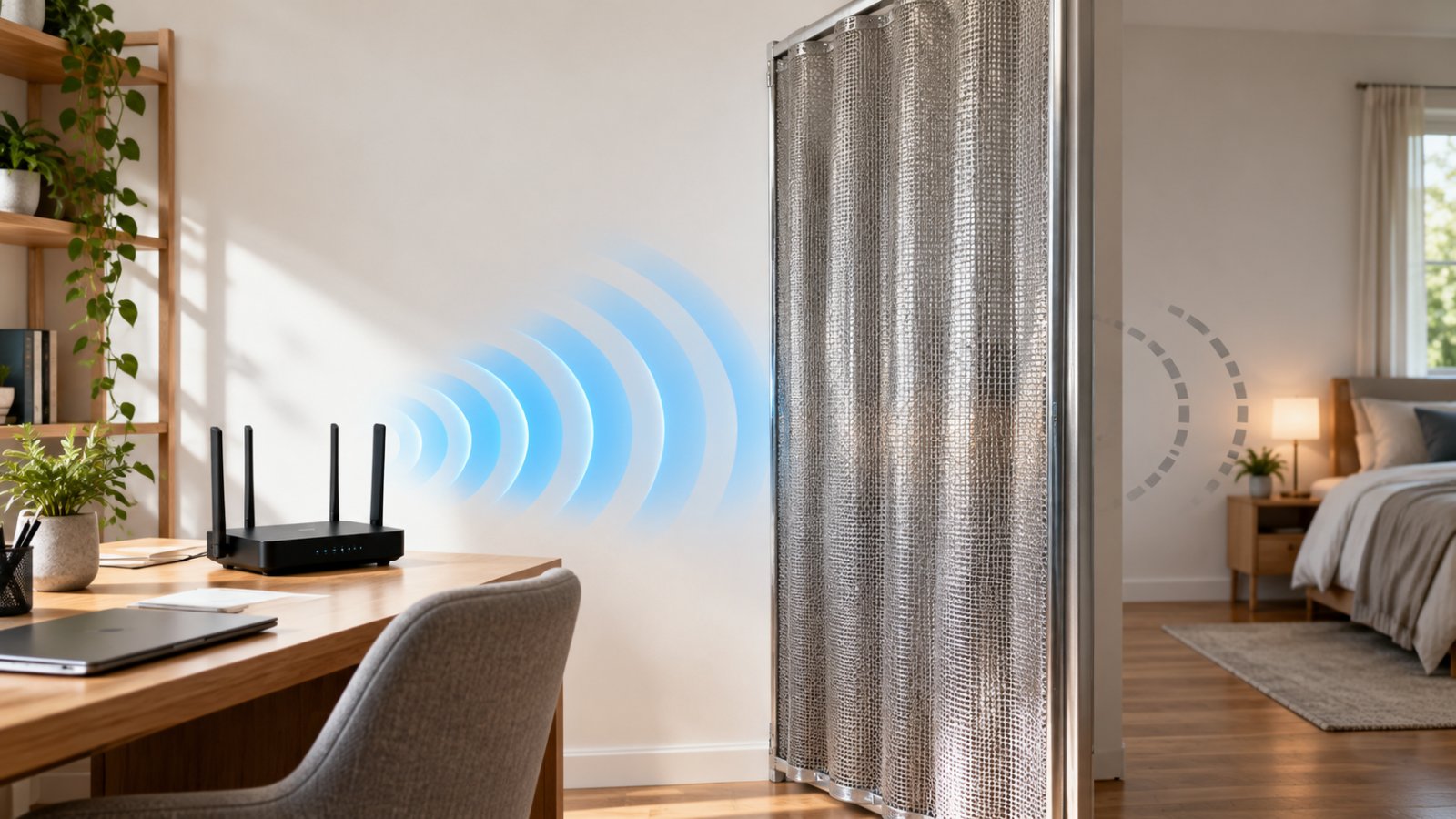
WiFi 6 Cannot Fix Poor Router Placement
Poor router placement is one of the most common causes of weak WiFi.
A router placed inside a cupboard, behind a television, or in a basement corner has to work around unnecessary obstacles.
Walls and floors reduce signal strength.
Dense materials such as concrete and masonry can make the problem worse.
If the router sits at one end of a long home, rooms at the opposite end may have weak coverage.
Buying a newer router does not remove those physical obstacles.
Before upgrading, compare performance in two locations.
Test the connection close to the router, then repeat the test in the room where problems occur.
If the connection performs well near the router but poorly in the distant room, coverage is likely an important factor.
In that case, moving the router or adding a suitable access point may help more than changing WiFi generations.
WiFi 6 Upgrade Decision Table
| Your situation | Recommended approach |
|---|---|
| Current router works reliably | Keep it while security support remains adequate |
| Several compatible devices slow down during busy periods | Consider WiFi 6 |
| Weak signal in distant rooms | Improve placement or add suitable coverage |
| Gigabit internet with older wireless hardware | Evaluate WiFi 6 and wired port capabilities |
| Compatible 6 GHz devices in a congested environment | Consider WiFi 6E |
| Router no longer receives security updates | Consider replacement |
| Internet is slow over both Ethernet and WiFi | Investigate the ISP connection and wired equipment |
| Most smart home devices use 2.4 GHz | A reliable dual-band router may be sufficient |
Getting the Most Out of Your Home WiFi Network
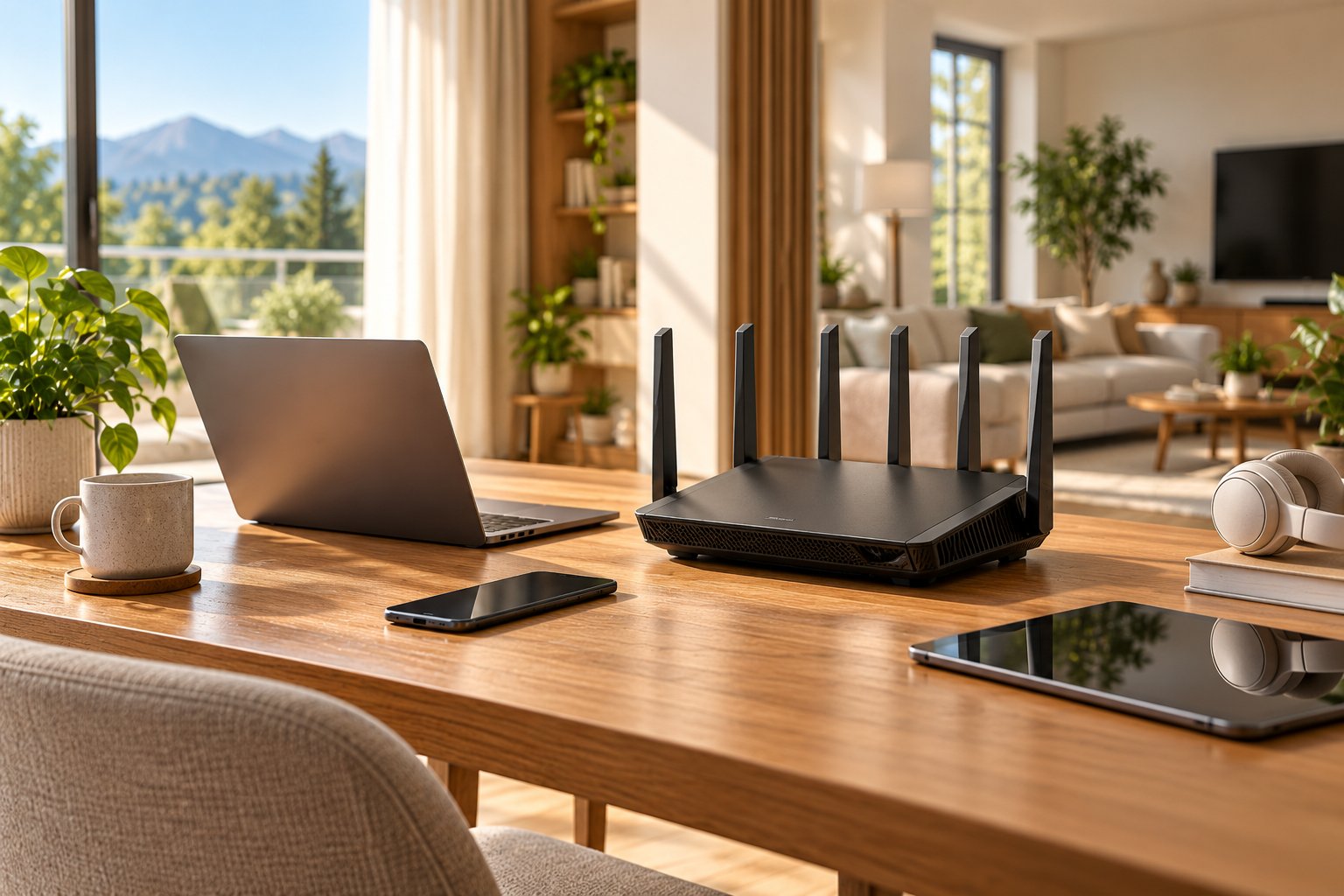
A good router still needs proper placement and configuration.
Home layouts, device locations, interference, and network settings all affect wireless performance.
Before replacing your equipment, make sure the current setup is working as effectively as possible.
Place the Router Where It Can Reach Your Devices
For most homes, a central and reasonably elevated position provides a useful starting point.
Avoid placing the router on the floor or inside a closed cabinet.
Large metal objects, thick walls, and nearby electronic equipment can affect wireless signals.
If you work from a home office while the router sits in a distant room, the connection may be weaker than necessary.
Moving the router to a more suitable location can improve coverage without increasing your internet plan speed.
Try to keep the router clear of major obstructions.
If possible, position it where the most frequently used devices have a reasonably direct signal path.
For more practical guidance, see ROOXIS's router placement tips.
Choose the Right Frequency Band
Different wireless bands work better for different situations.
The 2.4 GHz band is often suitable for:
-
Smart home devices that only support 2.4 GHz.
-
Devices located farther from the router.
-
Low-bandwidth connections where coverage matters more than speed.
-
Areas where 5 GHz signals are too weak to remain reliable.
The 5 GHz band is often suitable for:
-
Laptops and phones located closer to the router.
-
High-resolution video streaming.
-
Larger file transfers.
-
Gaming and other activities needing a responsive connection.
-
Devices that benefit from greater wireless throughput.
The 5 GHz band generally provides higher throughput under good signal conditions.
The 2.4 GHz band often reaches farther, but it can be more crowded.
Some routers automatically steer compatible devices between bands.
That can work well, although certain smart home products require a specific band during setup.
If a device repeatedly disconnects, confirm that it is using a supported frequency and has adequate signal strength.
Keep Router Firmware Updated
Firmware is the software that controls the router's operation.
Manufacturers release updates to address security vulnerabilities, compatibility issues, and operating bugs.
Check whether your router receives firmware updates and how they are installed.
If the router supports reliable automatic updates, that may simplify maintenance.
Otherwise, review the manufacturer's update process periodically.
Do not disconnect power during a firmware installation.
After updating, confirm that your main devices reconnect and that important settings remain correct.
Firmware maintenance matters whether the router uses WiFi 5, WiFi 6, or another standard.
Use Appropriate WiFi Security Settings
A fast network still needs secure configuration.
Use modern wireless encryption supported by the router and connected devices.
WPA3 provides newer security protections.
WPA2 with AES remains relevant for compatibility with many older devices.
Some households may need a supported mixed mode because older devices cannot connect using WPA3 alone.
Avoid outdated options such as WEP.
Other useful precautions include:
-
Set a strong, unique WiFi password.
-
Change default router administration credentials where applicable.
-
Keep firmware updated.
-
Disable remote administration if you do not need it.
-
Use a guest network for visitors where supported.
-
Review connected devices periodically.
-
Remove unknown or unauthorized devices after investigating them.
These steps help protect the home network without relying on paid security subscriptions.
Use Ethernet for Fixed, High-Demand Devices
WiFi is convenient, but Ethernet remains useful for equipment that stays in one place.
A desktop computer, gaming console, or television located close to the router may benefit from a wired connection.
Ethernet avoids wireless interference along that link and generally provides more predictable performance.
It can also reduce the amount of airtime used by stationary devices.
That leaves more wireless capacity available for phones, tablets, cameras, and other equipment that needs WiFi.
For example, if your television sits beside the router and supports Ethernet, connecting it directly can be a practical way to reduce wireless traffic during streaming.
Before buying a faster router, consider which devices could use a wired connection.
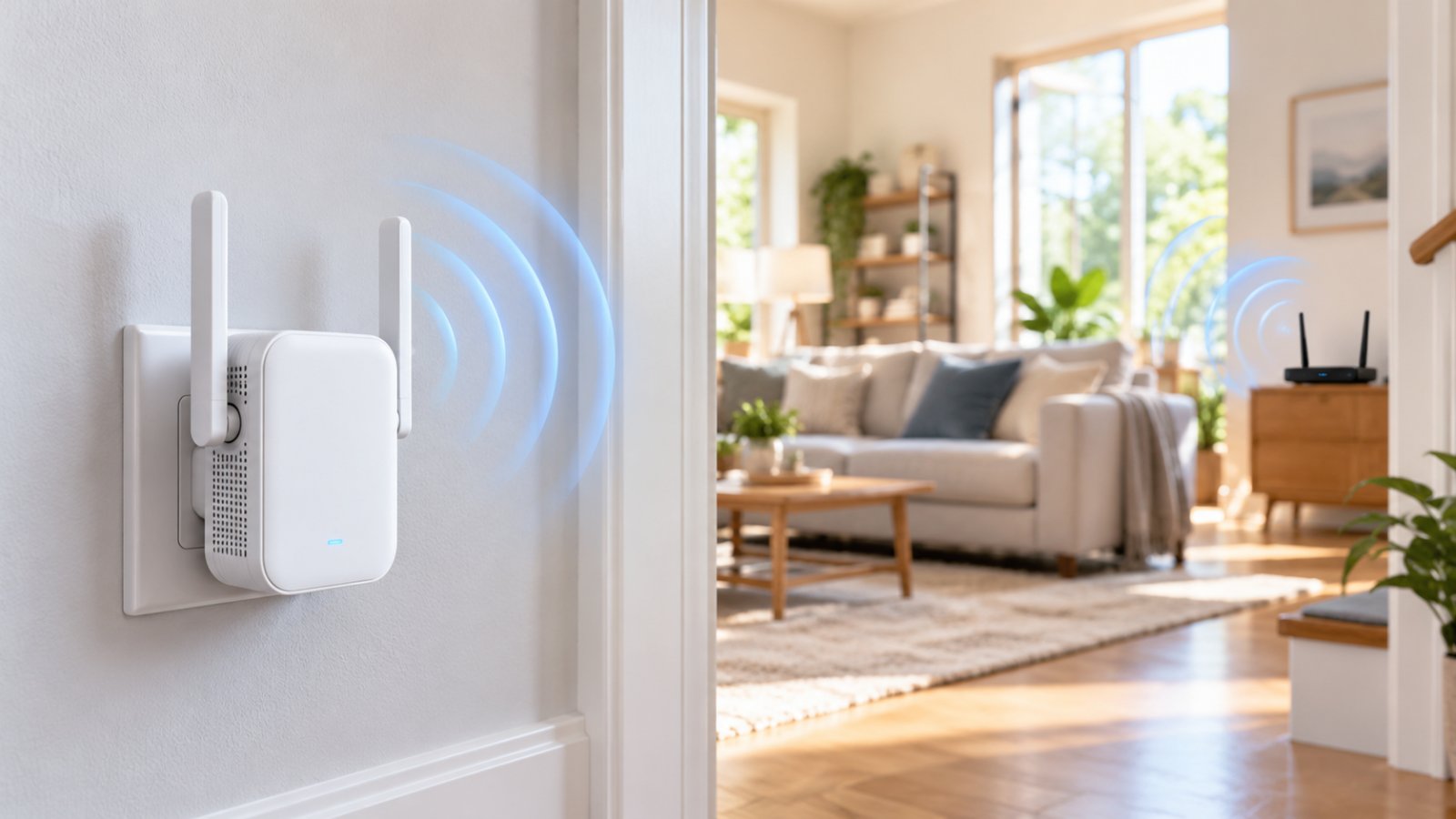
Consider a WiFi Extender for Coverage Problems
A WiFi extender can help when the main router provides adequate performance nearby but struggles to reach another part of the home.
An extender receives the existing wireless signal and rebroadcasts it into an additional area.
Placement is critical.
If the extender is installed in a location where the original signal is already extremely weak, the repeated connection may remain unreliable.
Place it where the extender can receive a stable signal while providing useful coverage toward the problem area.
For example, if a bedroom at the far end of a hallway has weak WiFi, placing the extender partway along the hallway may work better than putting it inside the bedroom itself.
Keep in mind that repeating wireless traffic can reduce effective throughput, especially when the same radio resources handle communication in both directions.
For larger or more demanding homes, wired access points or a suitable mesh system may offer a better long-term solution.
Check Your Internet Speed Before Upgrading
When WiFi feels slow, start with a basic comparison.
Test your internet connection close to the router.
If possible, connect a computer directly through Ethernet and run the same type of test.
Then test the wireless connection in the room where problems occur.
Look for patterns.
If wired and wireless performance are both poor:
Investigate the ISP connection, modem or gateway, plan limitations, and wired equipment.
If wired performance is good but WiFi is consistently slow:
Check wireless interference, channel configuration, router capabilities, and connected device limitations.
If WiFi is good near the router but poor in distant rooms:
Focus on signal coverage, obstacles, and placement.
If performance drops mainly when several people are online:
Check whether the internet connection is saturated or whether the wireless network is struggling with simultaneous traffic.
These comparisons help identify the actual limitation.
A router upgrade is much easier to justify when you know what problem it needs to solve.
Choose Router Hardware Based on Real Needs
When comparing routers with wifi features, start with the number and type of devices in your home.
Then consider the coverage area, internet connection, and applications you use regularly.
Useful specifications include:
-
Supported WiFi standard.
-
2.4 GHz, 5 GHz, and applicable 6 GHz support.
-
WAN and LAN port speeds.
-
Firmware and security support.
-
Router hardware capabilities.
-
Guest network options.
-
Device management controls.
-
Compatibility with existing equipment.
-
Coverage requirements.
-
Options for adding access points or extenders.
Do not assume the most expensive router will provide the best experience.
A high-performance router cannot eliminate thick concrete walls or poor placement.
Likewise, a basic router may be entirely adequate for a small household with modest network demands.
Choose equipment that addresses an identifiable requirement.
Where ROOXIS Fits Into a Home Network Upgrade
ROOXIS provides home networking equipment designed around straightforward setup and dependable everyday connectivity.
Its range includes WiFi routers, range extenders, and security cameras.
The ROOXIS AC1200 dual-band router uses WiFi 5 technology rather than WiFi 6.
That distinction matters when comparing specifications.
For households that primarily need reliable 2.4 GHz and 5 GHz connections, a suitable WiFi 5 router may still meet their requirements.
If weak coverage is the main concern, a ROOXIS WiFi extender may be worth considering.
However, if you specifically want the efficiency features of 802.11ax, choose a router that explicitly supports WiFi 6.
Do not confuse AC1200 with WiFi 6.
AC1200 is a wireless speed class commonly associated with WiFi 5 equipment, not a WiFi generation.
The right upgrade depends on your existing devices, internet plan, and home layout.
A well-positioned dual-band router with adequate coverage may serve a household better than a newer model that is poorly located.
Frequently Asked Questions About WiFi 6 Routers
What does a WiFi 6 router actually do?
A WiFi 6 router uses the 802.11ax standard to provide wireless connectivity with improved efficiency, particularly when several compatible devices are active. Technologies such as OFDMA and MU-MIMO help manage wireless traffic, while Target Wake Time can improve power efficiency for certain supported devices. Actual results depend on the router, client hardware, network traffic, and signal conditions.
Is WiFi 6 backwards compatible with older smartphones and laptops?
Yes. WiFi 6 routers generally support older compatible WiFi devices, including many smartphones and laptops using WiFi 5 or earlier standards. Those devices connect using the wireless capabilities they already support, so they do not automatically gain WiFi 6 features. You normally do not need to replace your existing devices when upgrading the router.
Do I need a new modem or ISP plan to use a WiFi 6 router?
Not necessarily. A WiFi 6 router can often work with an existing modem or internet gateway when the equipment and ISP configuration are compatible. You can keep your current internet plan, although its bandwidth still determines the maximum internet speed available. Check the modem connection, router WAN port, and any gateway configuration requirements before upgrading.
What is the difference between WiFi 6 and dual band wifi routers?
WiFi 6 refers to the 802.11ax wireless standard, while dual-band describes a router that operates on two frequency bands, typically 2.4 GHz and 5 GHz. A WiFi 6 router can be dual-band, just as many older WiFi 5 routers are dual-band. The terms describe different characteristics, so check both the wireless standard and supported bands when comparing products.
Will a WiFi 6 router increase my internet speed?
A WiFi 6 router may improve wireless throughput if your existing router is limiting performance and your devices support the newer standard. It cannot increase the maximum speed provided by your internet service plan. If slow performance comes from weak coverage, interference, or an overloaded internet connection, those issues may need to be addressed separately.
Conclusion: Upgrade Your WiFi Only When It Solves a Real Problem
WiFi 6 routers can improve wireless efficiency, throughput, and the way compatible devices share a busy network.
For homes with several modern laptops, smartphones, televisions, and other connected products, those improvements may be worth the upgrade.
But newer is not automatically better for every household.
If your existing dual-band router provides reliable performance, there may be no immediate reason to replace it.
And if the real problem is weak coverage in a distant room, placement changes or a suitable extender may help more than a faster router.
ROOXIS offers practical home networking equipment, including dual-band routers and WiFi extenders, for households that want dependable connectivity without unnecessary complexity.
Choose your next upgrade based on your devices, home layout, internet connection, and the problems you actually need to fix.