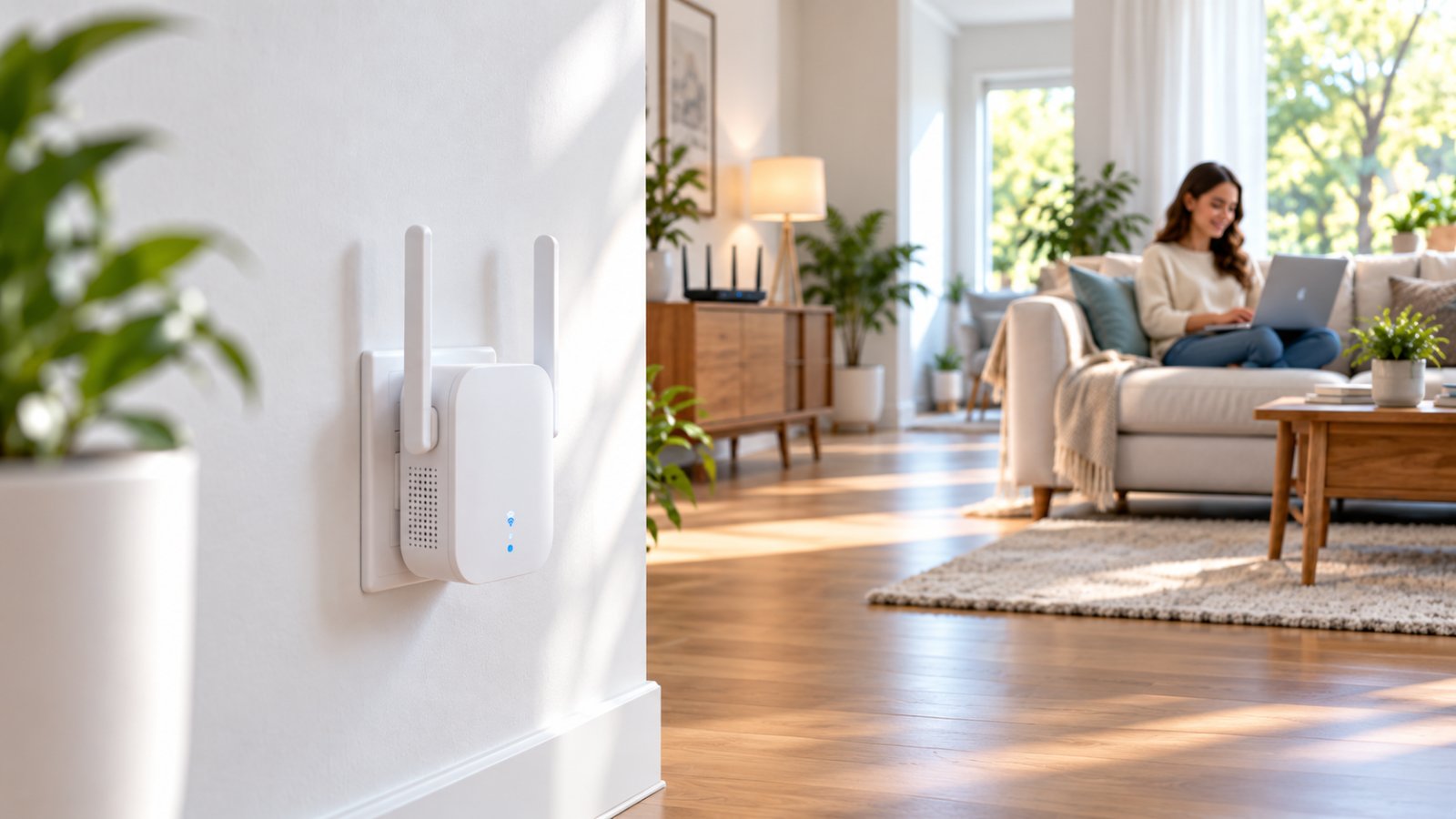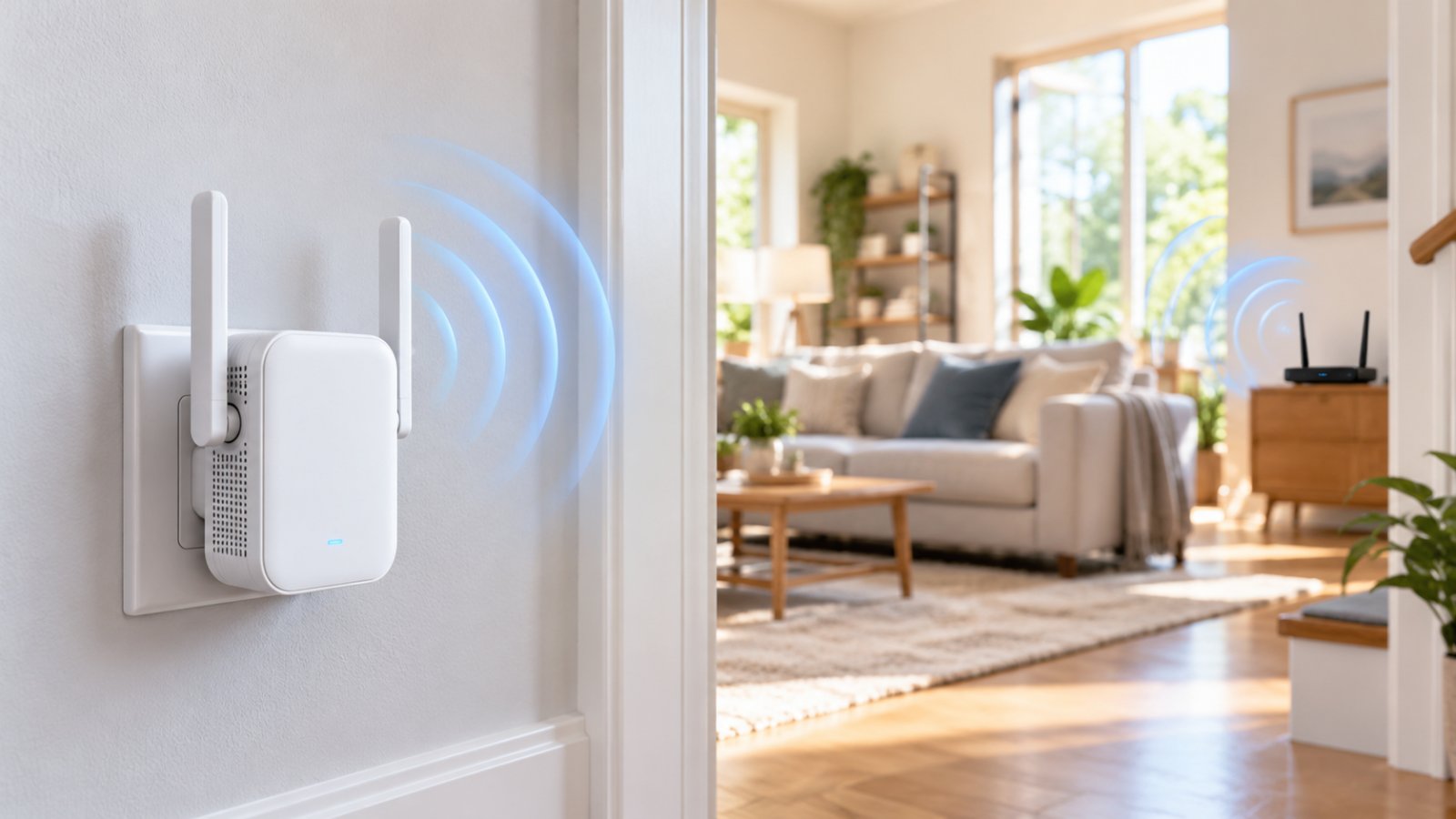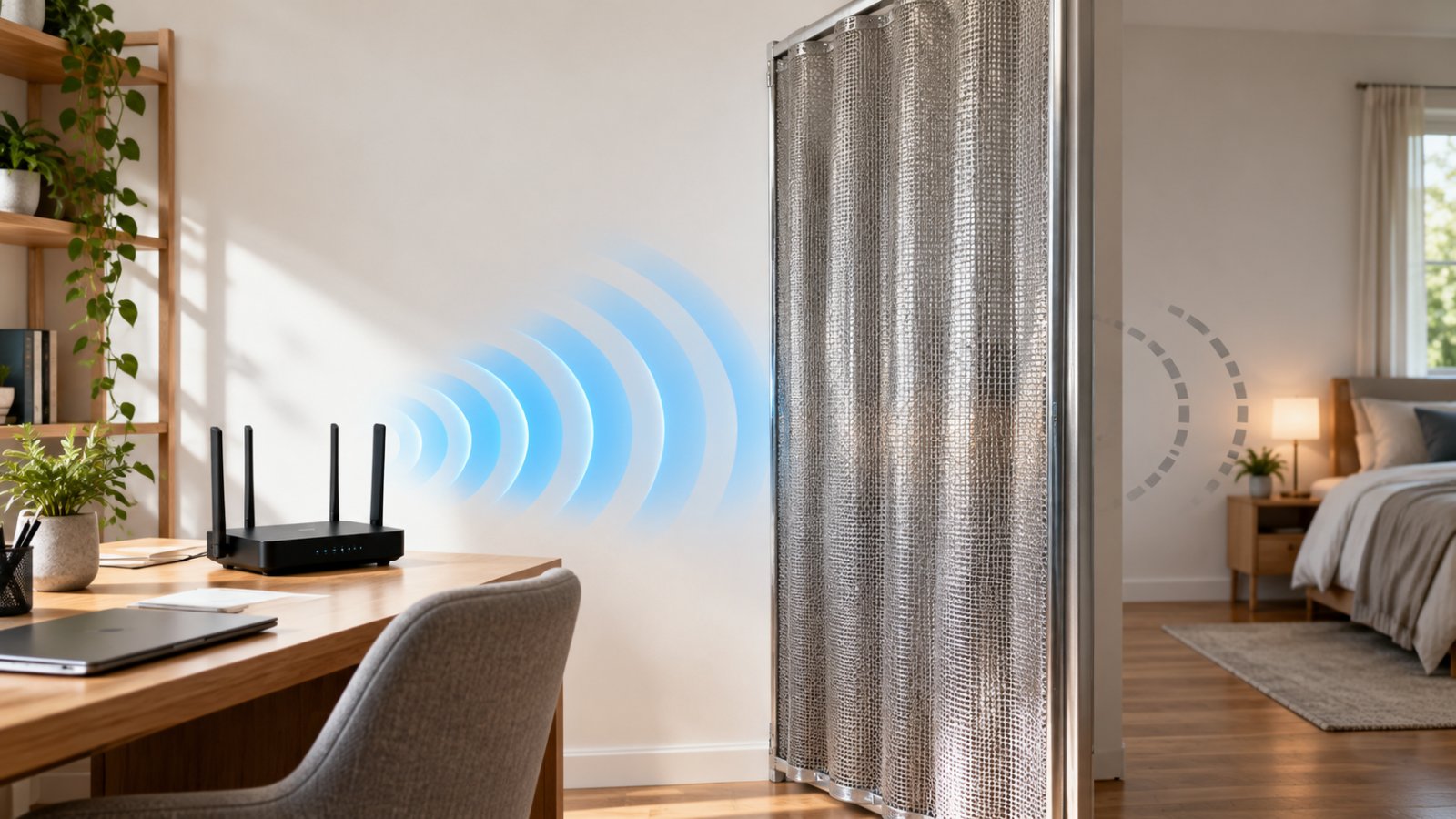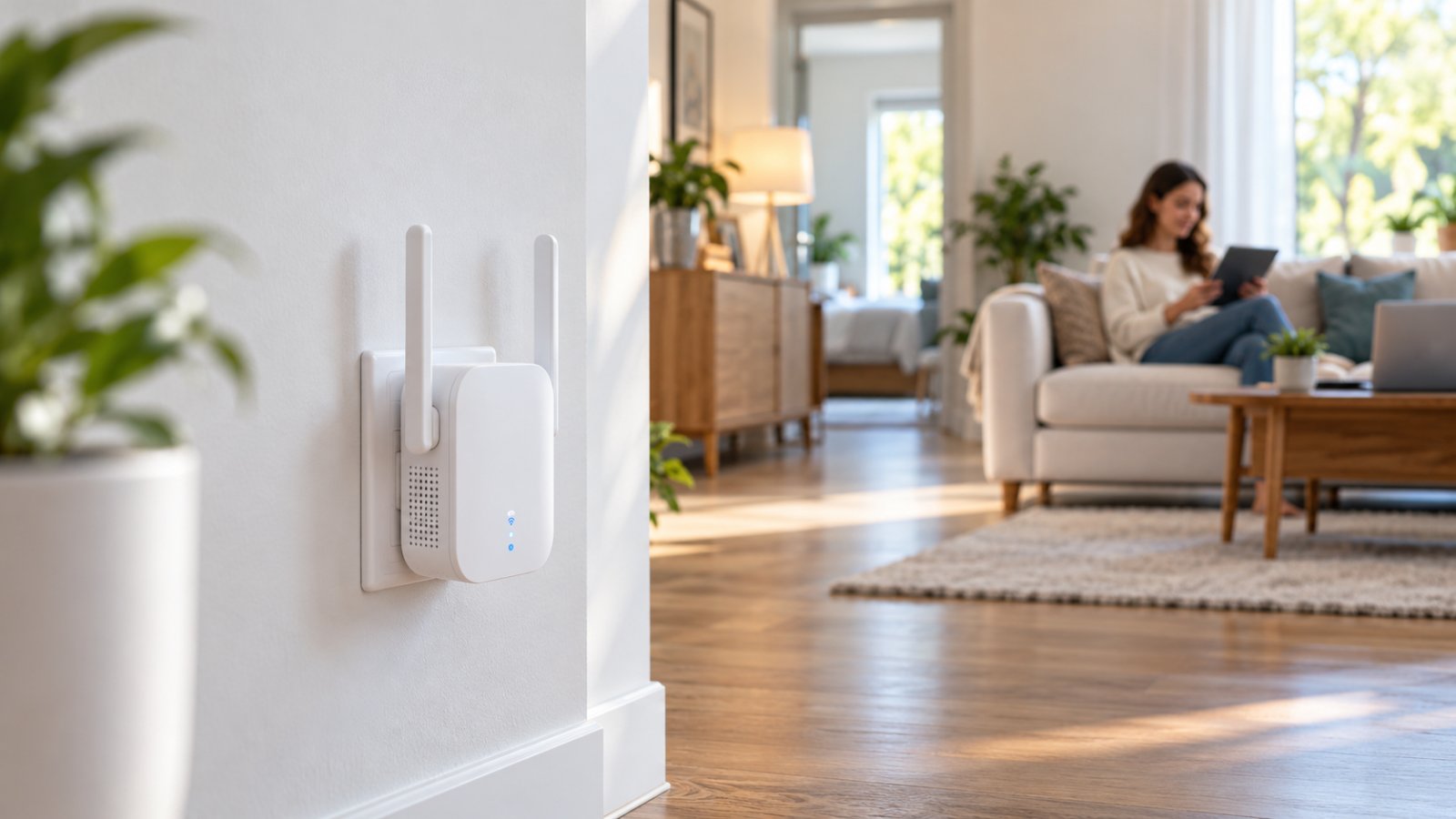
A rooxis wifi extender can bring usable WiFi to a room that barely receives your main router's signal. The ROOXIS AC1200 does this in two ways: it can repeat an existing wireless network, or it can work as an access point when you have an Ethernet cable available. For most homes, setup is straightforward. Choosing the right outlet takes a little more thought.
If your video calls stall in the spare bedroom or the upstairs TV keeps buffering, start by finding out where the signal weakens. This guide explains the ROOXIS AC1200 WiFi extender's specifications, both setup methods, its practical limits, and the placement checks that make the biggest difference. It also helps you decide when a single range extender is enough and when a larger house needs another approach.
Key Features of the ROOXIS WiFi Extender
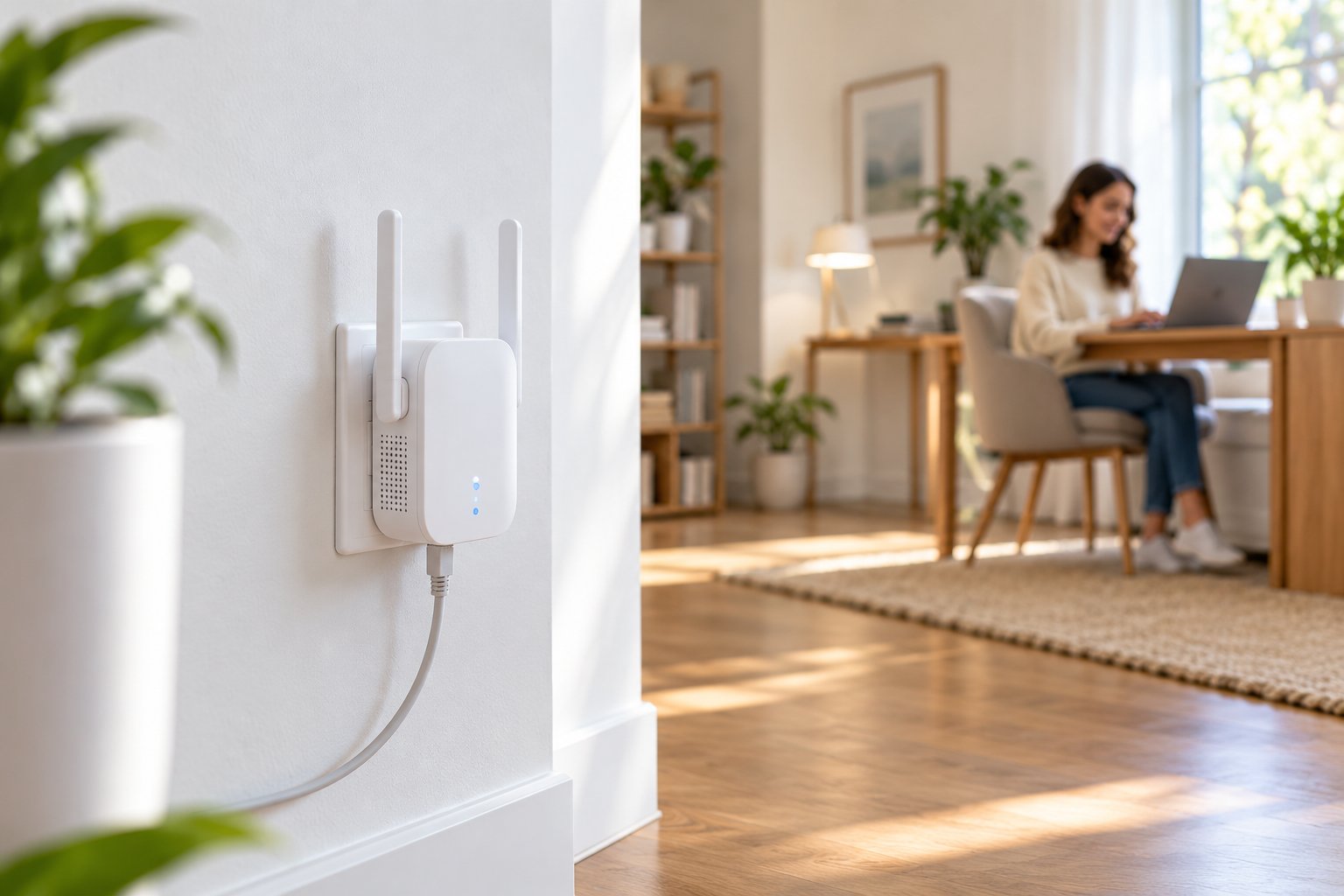
The ROOXIS AC1200 is a dual-band range extender that works with an existing home network. In Repeater Mode, it picks up WiFi from your router and broadcasts an extended signal. In Access Point Mode, it takes its network connection through an Ethernet cable and supplies WiFi in the room where the cable ends. Both can address dead zones, but the path back to the router is different.
Think about an office at the end of a long corridor. If the hallway still has a reasonable router signal, an extender placed there may help the office connect. If the office is behind thick masonry and already has a network cable, Access Point Mode is the more sensible starting point. Neither mode can increase the speed provided by your internet service; it helps you reach that service more reliably.
Dual-Band Speed and Coverage Range
AC1200 is a WiFi speed class, not a promise of 1,200 Mbps downloads. Its nominal wireless rates are up to 300 Mbps on 2.4 GHz and 867 Mbps on 5 GHz, measured as theoretical link rates. They are not speeds that one device can combine into a single download. Real performance depends on signal strength, interference, your router and client device, and how much traffic is moving through the network.
The two bands have different strengths. Choose based on what the room and device need, rather than assuming the faster-sounding band always wins.
-
2.4 GHz: Usually travels farther and holds up better across walls. It is often useful for smart plugs, printers, and everyday browsing at the edge of coverage. It can also be crowded, particularly in apartment buildings.
-
5 GHz: Often delivers higher throughput when the device is close enough and the path is reasonably clear. Try it for video meetings, streaming, and bigger downloads, but expect its signal to weaken sooner through dense walls or floors.
Repeater Mode has a built-in trade-off. The extender receives traffic from the router and then sends it to your phone, laptop, or TV over WiFi. That additional wireless step uses airtime and can reduce throughput or add delay. A laptop might show a full WiFi icon because it has a strong link to the extender, while the extender itself has a poor link to the router. The result can still be slow internet.
This is also why advertised maximum coverage areas should be treated as rough marketing specifications rather than room-by-room guarantees. A timber-framed home with open hallways is different from an older house with concrete floors, metal ducts, and closed doors. Judge coverage by the connection in the rooms you use, not by a square-foot figure in isolation.
Here is what the main specifications mean when you are deciding whether the unit suits your home.
| Feature | Why it matters at home |
|---|---|
| AC1200 dual-band WiFi | Theoretical 2.4 GHz and 5 GHz link-rate class, not a guaranteed internet speed |
| Repeater Mode | Extends coverage by connecting to the main router over WiFi |
| WPS pairing | Provides a button-based setup option when the router supports WPS |
| Browser setup | Allows manual network selection and operating-mode configuration |
| Ethernet port | Connects a nearby wired device or supplies the uplink in AP mode |
| Status light | Helps you tell whether the link back to the router is good or weak |
Ethernet Port and AP Mode Compatibility
The Ethernet Port adds flexibility for devices that stay put. For example, you can connect a nearby desktop PC or smart TV to the extender with a cable instead of asking that device to connect over WiFi. In Repeater Mode, though, the extender is still talking wirelessly to the main router. A cable from the TV to the extender does not turn the whole route into a wired connection.
That wired final connection may be more consistent for the attached device, particularly if its own WiFi reception is poor. It does not remove limitations farther upstream. Port capability, the router link, other connected devices, and your broadband service still affect speed. For demanding tasks, assess the whole connection rather than just the Ethernet label.
Access Point Mode is the better option when a working Ethernet cable already reaches the weak area. Connect the extender to your router or network switch, select the appropriate mode, and let it broadcast WiFi locally. The cable handles the link back to your network, so the unit is not trying to repeat a faint signal through several walls. A converted bedroom used as a home office is a good example of where this can help.
No Ethernet in the room? Repeater Mode is the practical choice, provided an outlet between the router and dead zone still receives a decent signal. With Ethernet in place, use Access Point Mode. Make that decision before worrying about the advertised speed class. It will have more influence on day-to-day results.
Quick Setup and Installation Steps
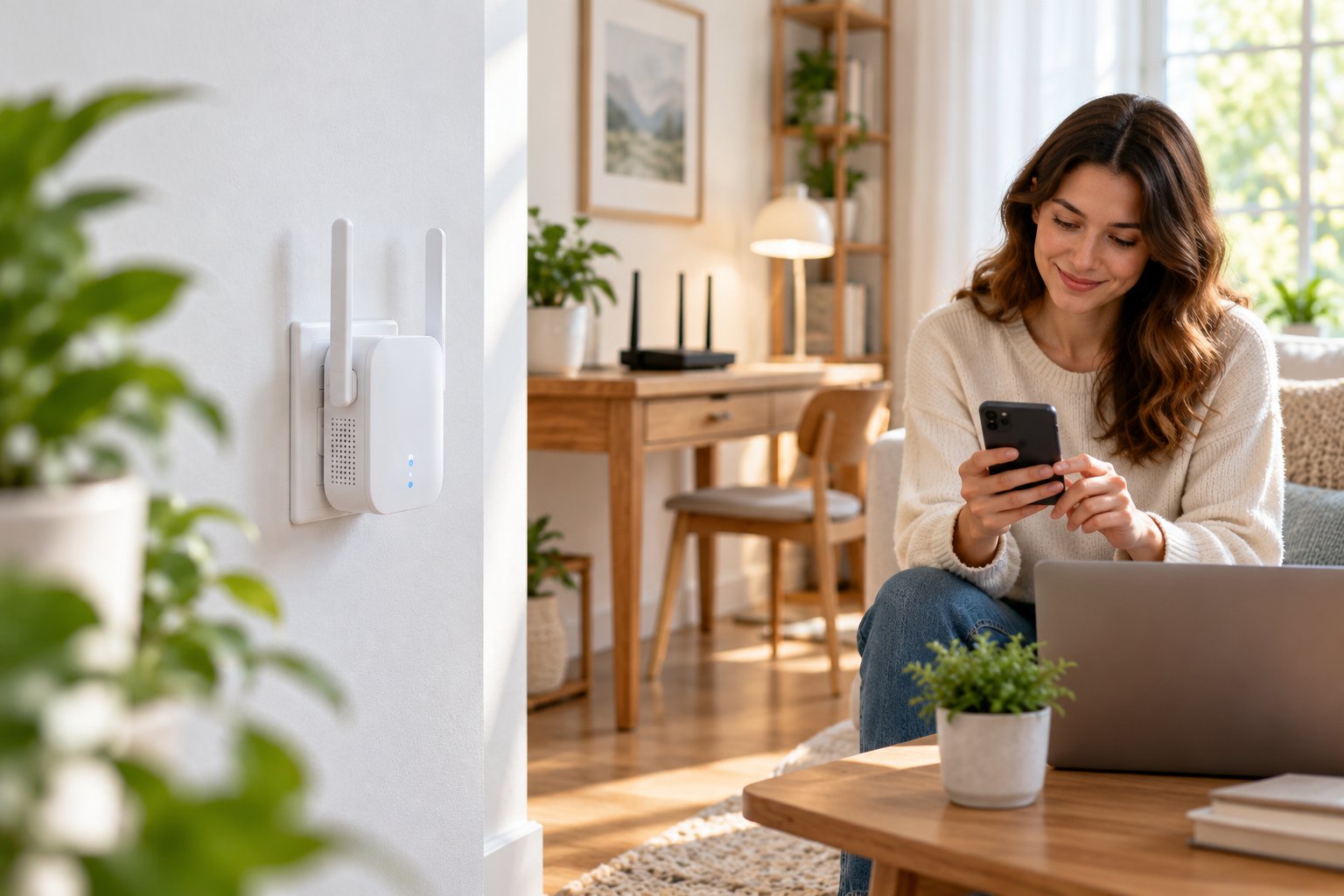
For a rooxis extender setup, start with the extender in a wall outlet near the main router. It is easier to pair the devices there than in a room where the network barely reaches. Once setup works, unplug the extender and move it toward the coverage gap. If the unit has separate antennas, attach and position them as directed before powering it on.
Check three things first: your router has internet access, you know the current WiFi password, and the extender has finished starting up. A password saved on an old phone may be out of date if you recently changed the router settings. Keep your phone or laptop nearby so you can test the extended network immediately after pairing.
WPS One-Touch Connection
WPS Setup is the shortest route when your router has a working WPS button. WPS stands for Wi-Fi Protected Setup. Instead of entering the WiFi password in a browser, you start pairing on the router and the extender. WPS is optional; a router without it can still be used through the manual setup method below.
-
Plug the ROOXIS extender into a nearby wall outlet. Let it complete its startup before pressing any buttons.
-
Press your router's WPS button for about two seconds and release it. Use the WPS button, not the router's power or reset button.
-
Within two minutes, press the ROOXIS extender's WPS button for about two seconds, then release it.
-
Give the devices time to connect. The ROOXIS setup instructions describe a solid blue light as a good, successful router connection.
-
Open the available WiFi list on your phone or laptop. Extended names can use the original 2.4 GHz name with _EX added and the 5 GHz name with _5G_EX added.
Join the extended network using your regular router WiFi password. For example, a home network named HomeWiFi may appear as HomeWiFi_EX. If you have separate 2.4 GHz and 5 GHz router names, look carefully at which extended network matches each band. Then open a few websites or use the app that normally struggles in the weak room.
If nothing pairs, move the extender back beside the router and try once more. Check whether WPS is enabled in the router settings; some routers ship with it disabled or do not offer it. If the buttons still do not complete the connection, switch to browser setup. Repeated button presses are unlikely to fix an unsupported WPS configuration.
Browser Setup via Mobile or Laptop
Use browser setup when WPS is unavailable, you prefer entering the password yourself, or you want Access Point Mode. The ROOXIS AC1200 guide provides a local setup page that you can reach from a phone or laptop connected directly to the extender.
-
Open WiFi settings on your phone or computer and connect to the extender's default setup network. The ROOXIS guide shows a network name beginning with @ROOXIS. Check the label on your unit if several similarly named networks are nearby.
-
While still connected to that network, open a browser and type 192.168.8.1 into the address bar. The guide also gives home.to as an alternative local setup address.
-
Choose Repeater Mode if the extender will connect to your router over WiFi. Choose Access Point Mode if you have a wired network connection to use as the uplink.
-
For Repeater Mode, let the device search for nearby networks. Choose the correct home WiFi name and enter its current password carefully, including any capital letters.
-
Save or apply the configuration. Leave the extender plugged in while it restarts and finishes creating the extended wireless network.
-
Reconnect your phone or laptop to the new extended WiFi name. Check that it can reach the internet before moving the extender away from the router.
During initial setup, your phone may display a 'no internet' message because the extender has not joined the main router yet. Stay on the setup network until the configuration is complete. If 192.168.8.1 does not open, check that you connected to @ROOXIS rather than your normal home WiFi. On a phone that keeps switching away, temporarily disabling mobile data can help you remain on the local setup connection.
For Access Point Mode, the Ethernet connection must lead to your working router or network switch. Plugging the cable into an unused wall socket without a live network behind it will not help. Once the wired connection is in place and the mode is configured, test WiFi in the actual room where you intend to use the extender.
Before calling the setup complete, try something ordinary: open a website, start a short video call, or stream from the device that used to disconnect. Signal bars alone are not enough. You want the application to work without stalls, and you want that improvement to remain after the extender is moved to its intended outlet.
If configuration fails, return the unit to an outlet close to the router and check the selected network and password. Make sure you have not selected a guest network that blocks local devices if those devices need to communicate. If you are switching from one operating mode to another or inherited a unit with unknown settings, resetting it before setup can remove old configuration conflicts.
Optimal Placement and Performance Tips
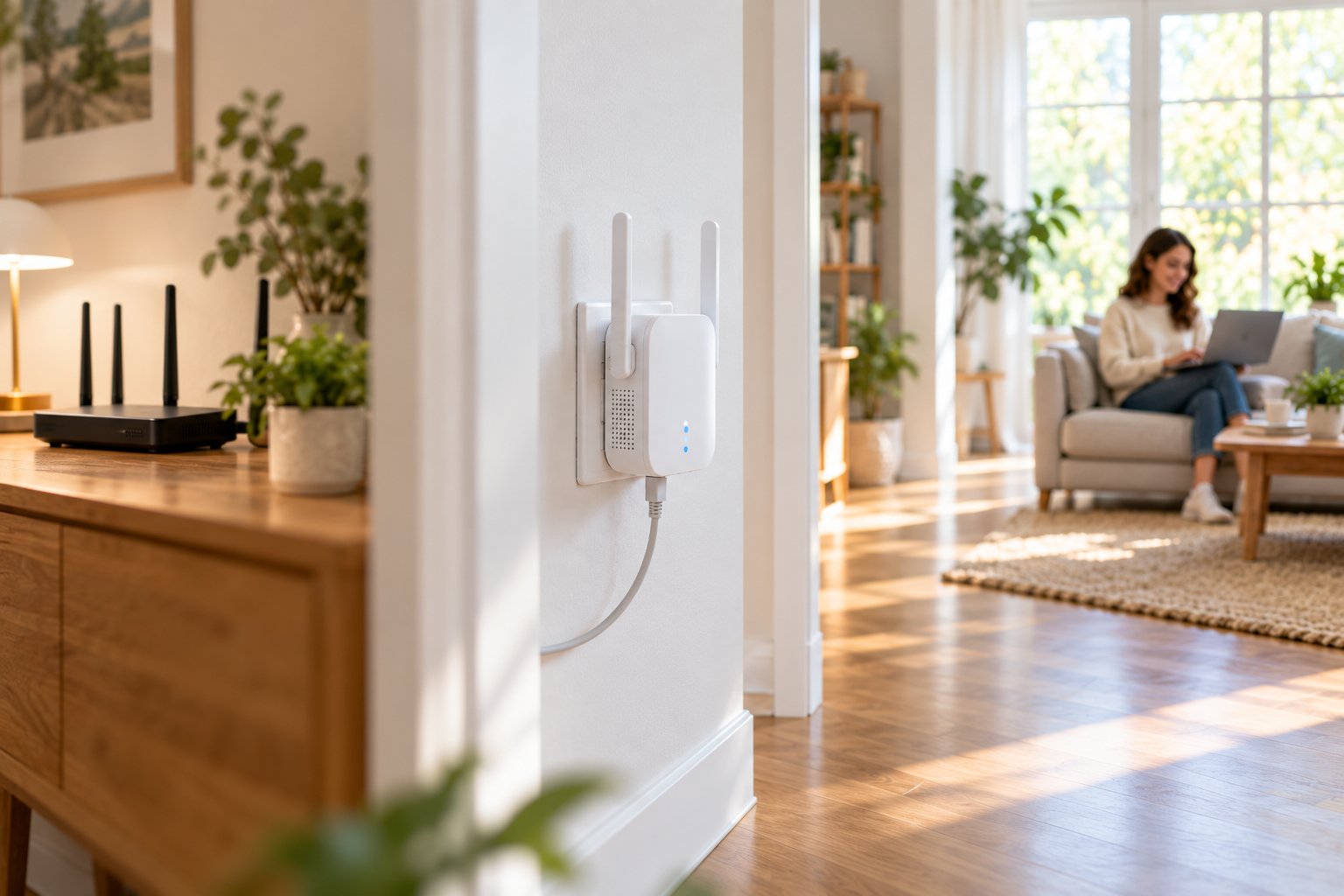
An extender needs a decent incoming signal to provide a decent outgoing one. Putting it in the exact corner where your phone already loses WiFi is a common mistake. The extender might make a new network visible in that corner, but it cannot reliably forward traffic if it barely hears the router.
Start with an outlet partway between the router and the trouble spot, preferably before the thickest wall or floor in the signal path. Then read the ROOXIS indicator. According to its setup guide, solid blue means a good link, yellow suggests a fair connection, and red indicates a failed or disconnected link. Move one outlet at a time and give it a chance to reconnect before judging the result.
In a two-story home, an open landing near the stairs may work better than an upstairs bedroom at the far end of the hall. For a home office beyond a concrete wall, the best repeater outlet might be just before that wall, not directly behind the desk. You're looking for a useful balance: enough incoming signal from the router and enough reach into the room that needs help.
Use these checks while choosing an outlet:
-
Leave the extender in the open. Avoid the space behind a television, a metal cabinet, or a crowded shelf that blocks the antennas.
-
Keep the antennas clear of nearby objects and follow the positioning guidance supplied with the unit. Do not wedge it behind furniture simply to hide it.
-
Avoid mounting it directly beside appliances and electronics that can interfere with wireless signals, including microwave ovens and some baby monitors.
-
Look at the actual path to the router. Thick masonry, metal framing, large mirrors, and reinforced floors can matter more than a few extra feet of distance.
-
Try both extended bands in the room. The 5 GHz network may feel quicker near the extender, while 2.4 GHz may hold a more dependable connection farther away.
-
Check which network your phone or laptop has joined during testing. Some devices hold on to the original router network even after you move into the extender's coverage.
Before buying more equipment, improve the main router's position if you can. These router placement tips explain why a more open, central location often helps. Moving the router out of a cabinet or away from a thick wall may strengthen the connection that feeds your extender. A range extender can work only with the signal it receives.
How to Test Whether Coverage Really Improved
Make a quick baseline check in the problem room before changing anything. Can you load websites consistently? Do video calls freeze when you sit at the desk? Does a TV buffer while the same service works fine near the router? If you run a speed test, use the same device and roughly comparable conditions each time. The useful measure is whether normal activities improve, not just whether a single speed-test number rises.
Repeat those checks after installation, standing or sitting in the same spot. Try the 2.4 GHz extended network, then 5 GHz if your device supports it. An extender can be worthwhile even if the speed is lower than beside the main router, provided calls stop dropping and pages load when they previously failed. Stable coverage is the goal.
If your device shows a strong connection to the extender but performance is still poor, look upstream. Is the extender's router link only fair? Is someone uploading a large file or using much of the household bandwidth? Does the problem also happen right next to the router? Those observations separate a placement problem from a busy network or a broadband issue.
Is It the Best WiFi Extender for a Large House?
Searching for the best wifi extender for large house often means you have several dead zones, not just one. A single ROOXIS extender is most useful for a clear, limited gap such as one upstairs bedroom or a study behind the living room. A house with several wings, heavy internal walls, or multiple concrete floors is harder to solve with one wireless repeater. More extenders do not automatically mean better coverage if each one receives a weak signal.
Map the problem before choosing hardware. Is there one room that struggles, or does the signal fail across the whole upper floor? Is there an Ethernet socket or cable run near the trouble spot? Do you mainly need reliable browsing and calls, or is the room used for large downloads and other high-bandwidth work? Your answers point toward a repeater, a wired access point, or a broader network layout.
This comparison is a useful starting point for choosing the simplest workable setup.
| Your home setup | A practical approach |
|---|---|
| One weak bedroom or study, no available cable | Try a ROOXIS extender in Repeater Mode |
| A distant room with working Ethernet | Use Access Point Mode with the wired connection |
| Several weak rooms over multiple floors | Plan wired access points or evaluate a mesh layout |
| Slow internet even next to the main router | Investigate the router and broadband service first |
| Frequent movement between floors | Consider a coordinated system designed for easier roaming |
Roaming is another consideration in bigger homes. A laptop or phone decides when to leave the router and connect elsewhere, and some devices hang on to a weak signal longer than you'd like. Separate extended network names make it easier to choose the extender deliberately. If your main need is moving between several floors without thinking about networks, consider whether a coordinated mesh system or carefully placed access points better match that use.
Common Issues and Practical Fixes
WiFi connects, but websites do not load: Check internet access beside the router first. If the router is fine, confirm the extender is paired to the right network with the correct password. A weak incoming signal can also leave the extended network visible but unusable.
The extended network is missing: Wait for the unit to complete its restart, then check the WiFi list again. Look for both bands if you configured them. If the extender has been used before and its settings are unknown, a factory reset can provide a clean starting point.
WPS does not complete: Pair with the extender near the router and follow the button sequence within the pairing window. If the router has WPS switched off, use the local browser page instead of spending time on repeated attempts.
Signal looks strong, but the connection is slow: Strong reception between your device and the extender does not prove the link back to the router is good. Check the status indicator, try a nearer outlet, and compare 2.4 GHz with 5 GHz. If the whole home is slow, troubleshoot the router or broadband connection first.
Coverage reaches one room but not the next: Try an outlet with a clearer path, such as a hallway or open doorway. If heavy walls separate several rooms, a wired access point may be a better use of equipment than moving one repeater farther and farther away.
A smart device will not join: Check the device's supported WiFi band. Many simple smart-home accessories use 2.4 GHz only. Also check the exact password and any pairing instructions that require your phone and the accessory to be on the same network.
A TV connected by Ethernet is still slow: The Ethernet cable only covers the short link from the TV to the extender. In Repeater Mode, the main connection still travels over WiFi. Improve the extender's placement or use a wired uplink in Access Point Mode if one is available.
What to Consider Before Buying
Before ordering the rooxis ac1200 wifi extender, think about the specific failure you want to fix. It makes sense when your router works well in most rooms, you have one troublesome area, and there is an outlet where the extender can still receive a useful signal. You can choose WPS for quick pairing or configure it through a browser if you prefer more control.
Check where the extender would actually plug in. An outlet behind a large TV cabinet may be convenient but poor for reception. If you need to connect a stationary device by Ethernet, measure the cable route and make sure the port arrangement works for that location. If you want Access Point Mode, confirm that an active Ethernet connection can reach the room. Buying a repeater does not create a wired network path where none exists.
For a large or unusually built home, plan the coverage before adding devices one at a time. A better router position, a single well-placed repeater, or wired access points may solve different problems. Browse ROOXIS networking products to compare the available router and extender options with your home's layout, rather than buying solely on an AC1200 speed label.
Conclusion
The ROOXIS AC1200 WiFi Extender is worth considering when a reliable router still leaves one part of your home with weak WiFi. Pair it beside the router, place it where the incoming signal remains healthy, and test it in the room you actually use. Choose Repeater Mode when you cannot run a cable and Access Point Mode when you can. ROOXIS offers networking hardware for both simple coverage gaps and more deliberate home network setups.
FAQ
How do I set up the ROOXIS WiFi extender?
Use WPS if your router supports it: press the router's WPS button, then the extender's button within two minutes. Otherwise, join the ROOXIS setup WiFi and open 192.168.8.1 in a browser. Choose Repeater or Access Point Mode, follow the prompts, and reconnect to the configured WiFi network.
Where should I place my ROOXIS range extender for best coverage?
Start with an outlet between the router and the weak room, close enough to the router for a solid incoming signal. The ROOXIS guide identifies a solid blue status light as a good connection. Avoid enclosed furniture, large metal barriers, and locations right beside interfering appliances.
Does the ROOXIS AC1200 work with any standard WiFi router?
The ROOXIS AC1200 is designed for use with compatible standard 2.4 GHz and 5 GHz WiFi routers, so a ROOXIS-branded router is not required. WPS requires a router that supports and enables the feature, while browser configuration provides another setup route. Router security and wireless settings can still affect compatibility.
How do I reset my ROOXIS WiFi extender to factory defaults?
With the extender powered on, hold its RST or Reset button until the indicator flashes red, following the ROOXIS setup instructions. Allow it to restart, connect to the default setup network, and configure it again. This clears the saved wireless settings, so you will need to pair it with your router again.