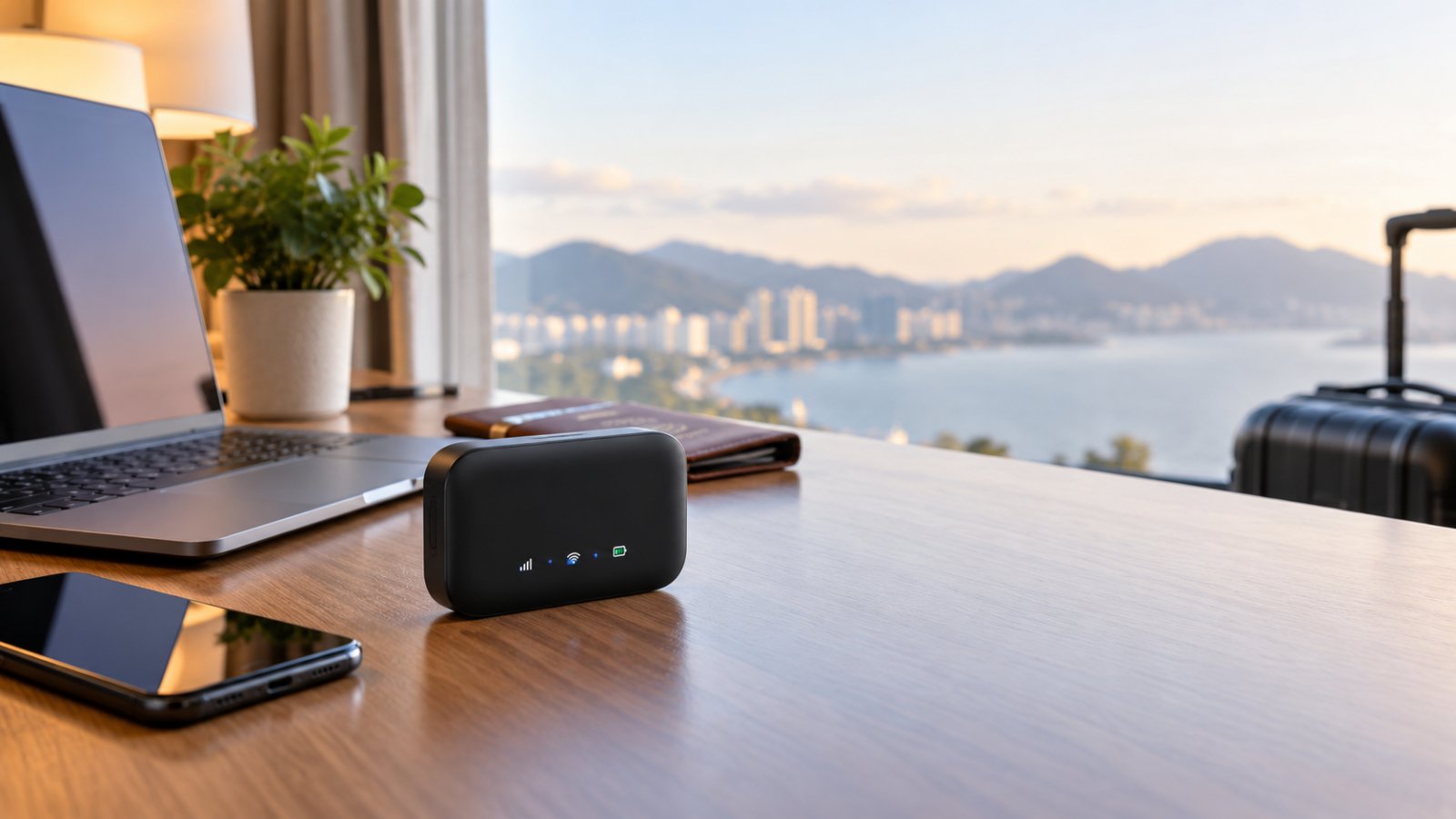
Portable WiFi routers let you connect several devices through one personal wireless network while traveling. Depending on the model, they can share hotel WiFi, use an Ethernet connection, or access mobile data through a built-in cellular modem.
Their biggest advantage is convenience. Instead of entering a new hotel password on your laptop, tablet, and other devices, you can configure the travel router once and keep using your familiar network.
But not every portable router works the same way. Some need an existing internet connection. Others have SIM card slots and can access mobile networks directly. Choosing the wrong type can leave you with a perfectly functional router that cannot connect where you need it.
This guide explains how portable routers work, which features matter, how to use one in a hotel, and what to check before buying.
What Is a Portable WiFi Router?
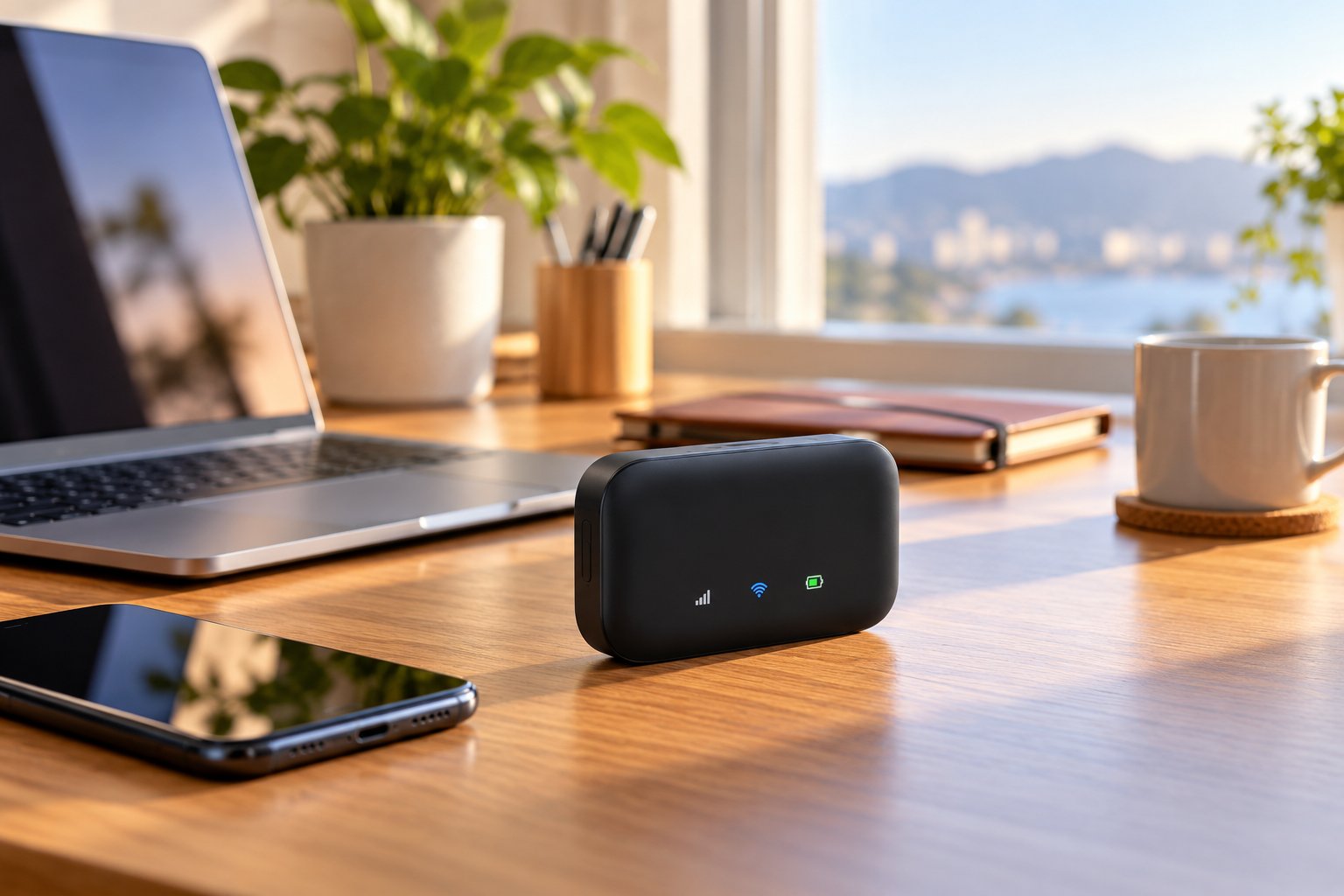
A portable WiFi router is a compact device that creates a local wireless network for nearby phones, laptops, tablets, and other compatible equipment.
It performs many of the same basic networking functions as a home router. The difference is that portable models are designed to travel and often support several ways of connecting to the internet.
A home router usually stays connected to the same modem or internet gateway for years.
A travel router needs more flexibility.
You might connect through hotel WiFi during a business trip, use an Ethernet outlet in a temporary office, or rely on cellular data while staying somewhere without reliable broadband.
Depending on the hardware, portable routers can use:
-
An existing wireless network.
-
A wired Ethernet connection.
-
A cellular network through a SIM card.
-
A compatible phone using USB tethering.
The router shares that connection with devices on its own network.
Consider a traveler carrying a laptop, smartphone, tablet, and streaming device.
Without a travel router, each device may need to join the hotel's network individually. Some may struggle with the login page, and others may need their wireless settings changed at every destination.
With a compatible portable router, those devices can keep using a familiar network name and password.
You only need to configure the router's connection to the new internet source.
That convenience is the main reason many frequent travelers carry one.
Portable Routers vs. Mobile Hotspots
Portable routers and mobile hotspots both provide WiFi, but they usually get their internet connections in different ways.
A mobile hotspot typically uses a cellular network.
A travel router usually shares an existing WiFi or Ethernet connection.
Some products combine both functions, so the categories can overlap.
A device marketed as portable does not necessarily have a cellular modem.
Likewise, a mobile hotspot may not support connecting to an existing hotel WiFi network.
Portable Router vs. Mobile Hotspot Comparison
| Feature | Portable travel router | Mobile hotspot |
|---|---|---|
| Main internet source | Existing WiFi or Ethernet | Cellular mobile data |
| SIM card required | Only for cellular-capable models using mobile data | Usually required for standalone cellular hotspots |
| Hotel WiFi sharing | Supported on models with WISP or WiFi client functionality | Depends on the device |
| Ethernet ports | Available on many models | Available on some models |
| Power source | USB, power adapter, or internal battery | Commonly rechargeable battery |
| Multiple connected devices | Yes, within hardware and network limits | Yes, within hardware and plan limits |
| Works without hotel WiFi | Only with another suitable internet source | Yes, where cellular service is available |
| Typical use | Hotels, apartments, temporary offices | Travel without dependable existing internet |
When a Travel Router Makes More Sense
Choose a travel router when your destinations already provide internet access.
Hotels, rented apartments, conference facilities, and temporary offices are common examples.
Suppose your hotel offers WiFi, but each device needs to complete a browser login.
A compatible travel router may let you authenticate the router's upstream connection and then connect your personal devices to its local network.
This can reduce repetitive setup.
It is also useful for devices that cannot easily display captive portal login pages.
However, the hotel must permit your setup, and the travel router must support its network requirements.
When a Mobile Hotspot Makes More Sense
A mobile hotspot is more useful when you cannot depend on hotel WiFi or a wired connection.
For example, someone working from a parked vehicle may need internet access without a nearby router.
A cellular hotspot can share a mobile data connection wherever its supported network has adequate coverage.
The tradeoff is dependence on mobile service.
Weak reception, network congestion, roaming restrictions, or an exhausted data allowance can all affect connectivity.
If you regularly travel to remote locations, check cellular coverage before choosing your equipment.
Key Modes of Portable WiFi Routers
The operating modes determine what a portable router can actually do.
Two devices may look almost identical but support different connection methods.
One might connect to hotel WiFi and create a separate local network.
Another might operate as an access point when connected to Ethernet.
A third might use a SIM card to provide cellular internet.
Before buying, check the supported modes in the manufacturer's specifications.
Do not assume every portable router supports all of them.
Travel Router Mode (WISP)
WISP mode stands for Wireless Internet Service Provider mode.
It allows a router to receive internet access through an existing WiFi network while creating a separate local network for your devices.
This is particularly useful in hotels.
How WISP Mode Works
Imagine arriving at a hotel with a laptop, tablet, and phone.
The hotel provides WiFi.
You connect your portable router to the hotel's wireless network, then connect your devices to the router.
The traffic follows this path:
Hotel WiFi to portable router to your devices.
In a typical WISP setup, the portable router creates its own local subnet.
It uses routing and often Network Address Translation, or NAT, to share the upstream connection.
NAT lets devices on your personal network communicate through the router's network connection.
The main convenience is that your devices can continue using the same saved SSID and password at every hotel.
WISP mode can also provide separation from the hotel's public network when the router's firewall is configured appropriately.
It does not automatically encrypt all traffic between the travel router and the internet.
Use secure websites, updated devices, and appropriate privacy protections.
Basic WISP Setup
The exact menu names vary, but the general process is similar across many travel routers.
-
Connect the router to a suitable power source.
-
Wait until it finishes starting.
-
Connect your phone or laptop to the router's default WiFi network.
-
Open its local administration page.
-
Choose WISP, Wireless WAN, or the equivalent supported mode.
-
Scan for available wireless networks.
-
Select the correct hotel or other permitted SSID.
-
Enter the wireless password if required.
-
Complete the network's login process.
-
Confirm internet access before connecting your other devices.
Some models save previously used networks.
Others require you to select the upstream connection each time you change locations.
Try this process at home before traveling. Knowing where the settings are located can prevent a frustrating setup session when you need internet access immediately.
What Is a Captive Portal?
A captive portal is the login page that appears before a public network allows internet access.
Hotels often use them.
You might be asked to enter a room number, provide a booking reference, or accept the property's internet terms.
A portable router does not remove those requirements.
Some travel routers provide a dedicated captive portal login function.
Others allow you to complete the login through a browser on a device connected to the travel router.
Not every hotel network supports the same approach.
Some require individual device registration or restrict connection sharing.
If the login page does not appear, use the router's documented procedure or contact the hotel for assistance.
Access Point and Repeater Modes
Access Point Mode and Repeater Mode both provide wireless connectivity, but the upstream connections differ.
Access Point Mode
An access point uses a wired network connection to create WiFi.
For example, a temporary office may have an active Ethernet outlet but no convenient wireless network.
A portable router with Access Point Mode can connect to that outlet and provide WiFi for nearby devices, provided the network administrator allows it.
The connection to the existing network is wired, so the router does not need to relay that upstream traffic over WiFi.
Repeater Mode
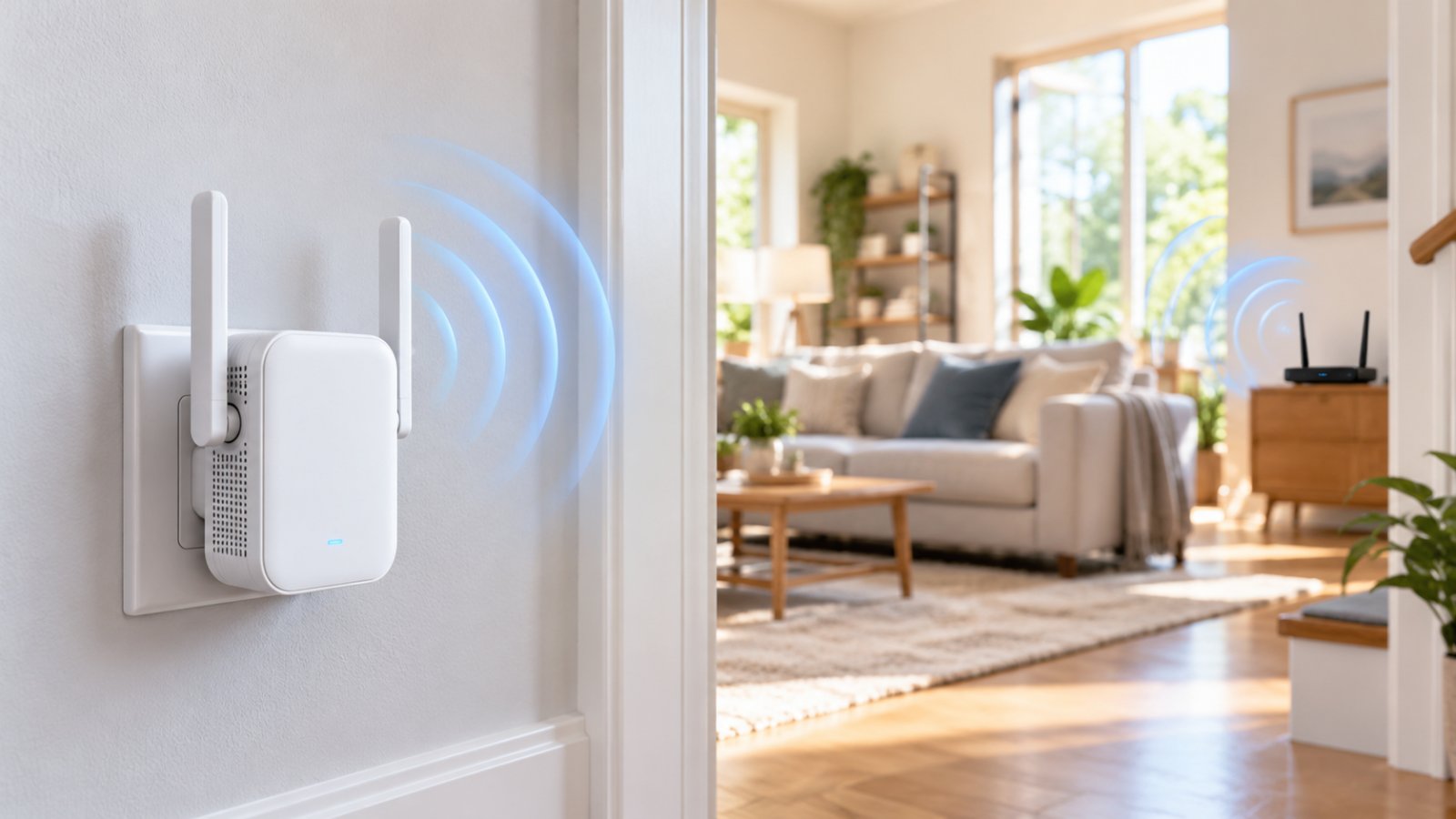
A repeater receives an existing wireless signal and extends its coverage.
For example, a rented apartment may have usable WiFi in the living room but a weak connection in the bedroom.
A portable router with repeater functionality may help.
The device needs to be placed somewhere it can still receive a reliable signal from the main router.
Putting a repeater directly inside a complete dead zone rarely works well.
A location between the router and the problem room is usually a better starting point.
Repeater Mode vs. WISP Mode
These modes sometimes appear under similar names, but they can create different network arrangements.
A traditional repeater or bridge may extend the existing network without creating a separately routed subnet.
WISP mode typically creates a separate network behind the travel router.
This affects how connected devices communicate.
For example, a routed WISP network may help isolate your laptop from other guests' devices.
However, it can also complicate services that depend on automatic device discovery.
Streaming to a television, connecting to local printers, or using certain multiplayer applications may require extra configuration.
Check how the specific router implements each mode.
Cellular SIM Card Mode
Some portable routers include a built-in cellular modem and a SIM card slot.
These routers can use a mobile network as their internet source.
That makes them suitable for locations without reliable WiFi or Ethernet.
For example, a temporary field office may have good mobile reception but no fixed broadband connection.
A cellular router can share that mobile data connection with laptops and other nearby devices.
Not every travel router supports cellular access.
A USB-powered router without a cellular modem cannot use a SIM card simply because you have one available.
What to Check Before Using a SIM Router
Cellular compatibility is particularly important for international travel.
Before purchasing, confirm:
-
Whether the device supports 4G LTE, 5G, or both.
-
Which cellular frequency bands are supported.
-
Whether those bands match the intended mobile operator.
-
Whether the router is unlocked.
-
Whether it uses a physical SIM, eSIM, or both.
-
Whether your mobile plan permits router or hotspot use.
-
Whether roaming is available in your destination country.
-
What happens when your data allowance runs out.
Also consider your normal workload.
Email and messaging may use relatively little data.
Video meetings, cloud backups, and large file transfers can consume much more.
A cellular router is only as useful as the mobile service available where you need it.
Does a Cellular Portable Router Need a Data Plan?
Yes, if you plan to use it for cellular internet access.
The SIM or eSIM needs a compatible, active data service.
That does not mean every portable router requires a subscription.
A non-cellular travel router can share existing hotel WiFi or an Ethernet connection without a separate mobile plan.
The upstream internet provider may still charge for access.
The hardware's basic routing functions do not generally require a monthly subscription.
Why Use a Portable Router on the Move?
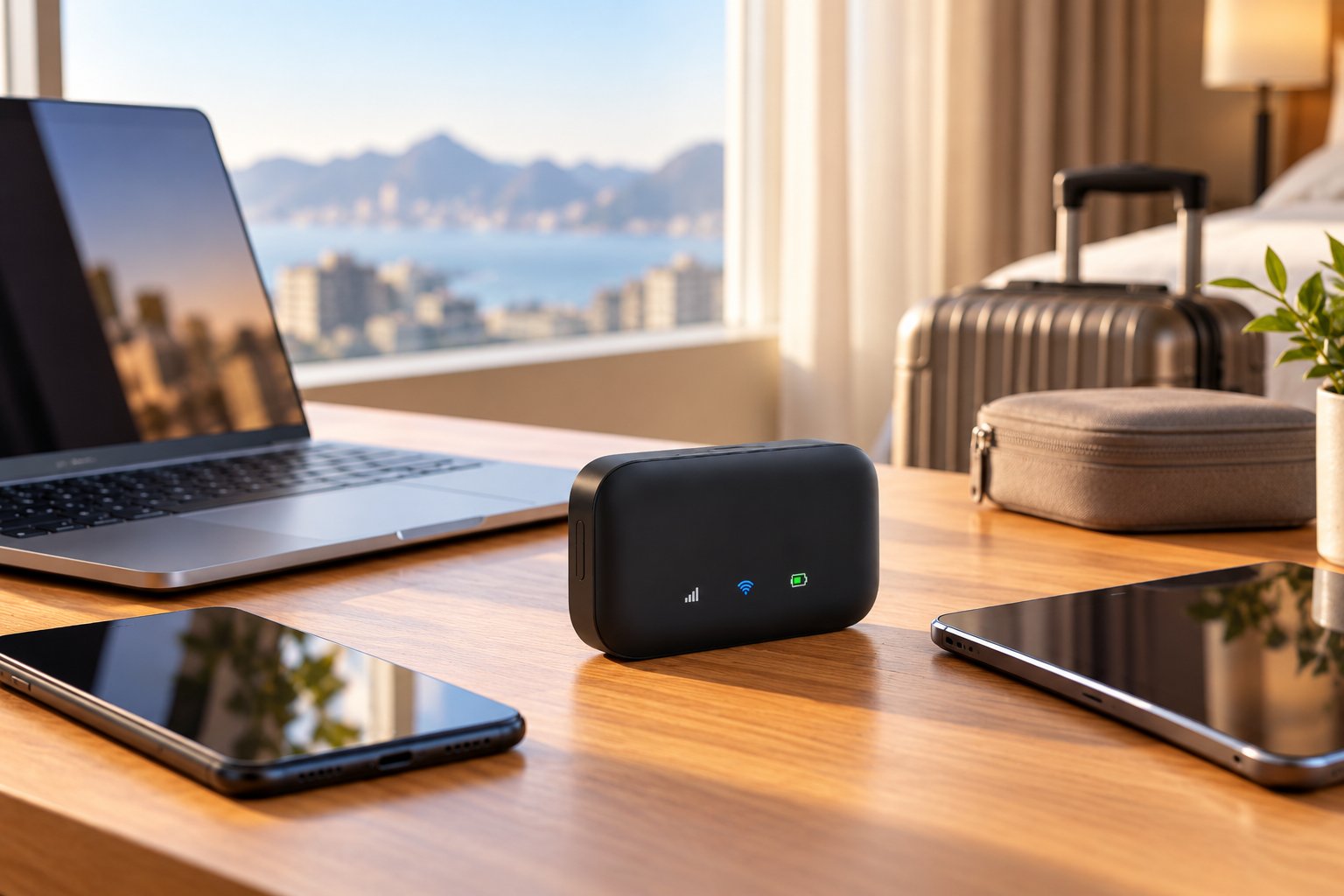
A portable router is useful when you travel frequently, carry several connected devices, or want more control over your temporary wireless network.
It can simplify repeated hotel logins and reduce the need to change network settings on every device.
It can also provide useful separation between your personal devices and a shared public network.
These benefits depend on choosing the right operating mode and configuring the router properly.
Enhanced Security on Public and Hotel Networks
Public WiFi is convenient, but you have little control over how the network is managed.
A hotel may have hundreds of devices connected.
You may not know whether the network uses client isolation or how access points are configured.
Most modern websites use HTTPS encryption, which protects information exchanged with those sites against many forms of interception.
Still, public networks can introduce risks involving malicious access points, unsafe local services, and poorly configured devices.
A travel router can help reduce certain risks when used correctly.
Creating Your Own Local Network
In WISP mode, the portable router can create a private local network behind the public connection.
Your laptop, phone, and tablet connect to that network.
With suitable firewall settings, unsolicited connections from the upstream network can be restricted.
For example, your laptop may have file-sharing features enabled for use at home.
A properly configured routed travel network can help reduce its direct exposure to unfamiliar devices on hotel WiFi.
However, this depends on the router's actual configuration.
A bridge or basic repeater may not provide the same separation.
Do not assume that connecting through any portable router automatically makes public WiFi secure.
Use WPA2 or WPA3 Encryption
Protect your travel router's local WiFi with modern wireless encryption.
WPA3 offers newer security protections.
WPA2 with AES remains useful for older compatible equipment.
Choose a secure configuration that your devices support.
Avoid leaving the network open.
Use a strong, unique WiFi password.
Also change the router's default administration password.
These are separate credentials.
The wireless password controls who can join your WiFi network.
The administration password controls who can change the router's settings.
Both should be protected.
Why VPN Support Matters
Some portable routers support VPN client connections.
A VPN, or Virtual Private Network, creates an encrypted connection between the router and a VPN endpoint.
When configured to route supported traffic through the VPN, the travel router can provide VPN connectivity for devices connected to it.
That may be useful if you travel with several devices and want to avoid configuring a VPN individually on each one.
However, VPN support varies considerably.
Check:
-
Whether the router supports VPN client mode.
-
Which protocols are supported.
-
Whether all connected devices can use the VPN.
-
Whether the router offers controls for VPN disconnections.
-
Whether its processor can handle the expected traffic.
-
Whether the manufacturer provides security updates.
VPN encryption can reduce throughput on hardware with limited processing power.
A VPN also does not protect against every online threat.
It cannot make a phishing website safe or prevent you from downloading malicious files.
Hotel captive portal authentication may need to be completed before the VPN connection works.
Connecting Multiple Devices Under One Login
One of the simplest benefits of a travel router is keeping the same personal WiFi network wherever you go.
Imagine carrying a work laptop, personal phone, tablet, and streaming device.
You can configure those devices once to connect to your travel router.
At a hotel, you connect the router to the available internet service.
Your devices continue using the network they already recognize.
This avoids repeatedly typing hotel WiFi passwords or changing settings on devices with awkward setup menus.
For frequent travelers, that convenience can be worthwhile.
One Router Connection, Multiple Local Devices
In some permitted network configurations, a travel router uses one upstream connection while serving multiple local devices.
For example, the router may appear as the connecting device on the hotel network while your laptop and tablet communicate through its local network.
This does not automatically give you permission to exceed hotel device limits.
Some properties require individual registration or prohibit personal routers.
Others allow connection sharing.
Check the network terms or ask hotel staff.
If additional devices require separate authorization, follow the property's approved process.
Useful for Devices With Limited Login Options
Some devices do not handle captive portals well.
A streaming device may have trouble displaying the hotel's login page.
A printer or connected accessory may not support browser authentication at all.
A compatible travel router may help by maintaining an authorized upstream connection and providing an ordinary WiFi network to those devices.
For example, a streaming device can connect to your router's saved SSID rather than attempting to complete a hotel login itself.
This still depends on the hotel's policies and network design.
Casting, local discovery, and some gaming services may not work identically on every routed network.
Check the requirements of the devices you intend to use.
What to Look for When Choosing a Portable Router
Start with your travel routine.
Someone who mainly stays in hotels needs different features from someone working at outdoor locations.
The first person may prioritize WISP and captive portal support.
The second may need cellular connectivity and a built-in battery.
Someone regularly using conference rooms might care more about Ethernet ports.
The best specifications are the ones that solve your actual connection problems.
Power Source: Battery-Powered vs. USB Plug-in
Portable routers commonly use an internal rechargeable battery, USB power, or an external adapter.
Each has advantages.
Battery-powered routers
These can operate without a continuous wall connection.
They are useful for temporary workspaces, vehicle travel, and places where power is not always available.
However, battery life varies with usage.
Power consumption may increase when:
-
Several devices are active.
-
The cellular modem is operating.
-
Mobile signal strength is weak.
-
A VPN is processing traffic.
-
Large files are being transferred.
-
The router is used continuously.
Do not assume the manufacturer's maximum battery duration applies to every situation.
Check how the runtime was measured and consider your normal workload.
USB-powered routers
These are often compact and convenient for hotel rooms.
Depending on their requirements, they may run from a suitable USB adapter or power bank.
They do not necessarily have internal batteries.
The main limitation is that they need continuous power.
Check the required voltage and current.
An older television's USB port may not supply enough power, even if the plug fits.
Insufficient power can cause unexpected restarts and connection drops.
Which Power Option Is Better?
Choose battery power when you expect to work away from outlets.
Choose USB-powered hardware when most of your travel involves hotels or offices with reliable electricity.
If you intend to use a power bank, confirm that its output meets the router's requirements.
Also check whether the device can operate normally while charging.
That can make a difference during long work sessions.
Band Support and Wireless Standards
Portable routers support different wireless standards and frequency bands.
The most common bands are 2.4 GHz and 5 GHz.
2.4 GHz generally provides better reach through some obstacles, but it is often more crowded.
5 GHz generally provides higher throughput at shorter distances when signal conditions are good.
A dual band router supports both.
This is useful when traveling with a mixture of modern and older devices.
For example, a laptop may support 5 GHz while a connected accessory only supports 2.4 GHz.
Check the supported bands and operating modes before purchasing.
WiFi 5 vs. WiFi 6 for Travel
WiFi 5 is capable of handling many ordinary travel activities, including email, browsing, video calls, and streaming.
WiFi 6 improves wireless efficiency, especially when several compatible devices are active.
However, the upstream internet connection still matters.
A WiFi 6 router cannot make a congested hotel network deliver more bandwidth than it has available.
If the hotel provides a slow connection, your local wireless network may be much faster than the internet service feeding it.
Choose WiFi 6 when you have compatible devices and a practical reason to use its additional capabilities.
For simple travel needs, a dependable WiFi 5 model may be sufficient.
Why Dual-Band Design Matters
Not all dual-band travel routers use their radios in the same way.
Some can use one radio for the upstream connection and another for local devices.
Others share wireless resources between upstream and local communication.
That affects performance.
For example, a router receiving hotel WiFi and retransmitting traffic over the same radio must share airtime between those tasks.
Effective throughput can be lower than a direct connection.
A more capable design may handle simultaneous connections more efficiently.
Check the manufacturer's operating mode specifications.
Dual-band does not automatically mean the router has a dedicated backhaul radio.
Ethernet Ports and Wired Versatility
An Ethernet port adds flexibility to a travel router.
Depending on the device, it can connect to an upstream wired network or provide a wired connection for a local device.
Some routers have separate WAN and LAN ports.
Others use configurable ports.
A WAN port typically connects to the upstream internet source.
A LAN port typically connects local equipment.
Using Hotel Ethernet
Some hotels provide Ethernet outlets in guest rooms.
If the outlet is active and the property allows personal networking equipment, you may be able to connect a portable router.
A wired upstream connection can avoid some of the wireless interference present on crowded hotel networks.
However, not every wall outlet is active.
Some networks also require authentication or registration.
Connect the cable to the appropriate port and select the router's wired internet mode.
If the router cannot reach the internet, check whether the hotel requires additional authorization.
Ask staff rather than attempting to work around network controls.
Connecting Wired Devices
A portable router may also provide Ethernet access to local devices.
For example, a laptop used for an important work session may benefit from a wired connection when the router supports it.
Wired Ethernet avoids wireless interference on that particular link.
Check the port speed.
A 100Mbps Ethernet port cannot deliver gigabit throughput through that connection.
If you regularly transfer large files or expect a fast upstream connection, gigabit Ethernet capability may be worth prioritizing.
Also check whether a single port changes function between WAN and LAN depending on the operating mode.
Practical Portable Router Comparison
| Feature | Why it matters | What to check |
|---|---|---|
| WISP mode | Shares an existing WiFi connection | Routed WiFi client functionality |
| Captive portal support | Helps with hotel authentication | Documented login procedure |
| SIM card slot | Enables cellular internet on supported models | Modem bands and carrier compatibility |
| Battery life | Supports use away from outlets | Runtime and charging requirements |
| USB power | Useful for compact travel setups | Voltage, current, and power bank compatibility |
| Dual-band WiFi | Provides range and speed options | Available bands and simultaneous operation |
| Ethernet ports | Supports wired connections | Port functions and speeds |
| VPN support | Enables supported encrypted VPN connections | Protocols and performance |
| Firmware updates | Supports ongoing security maintenance | Manufacturer update availability |
| Size and weight | Affects packing convenience | Router and required accessories |
Best Practices for Portable WiFi Routers: Setup and Signal Optimization
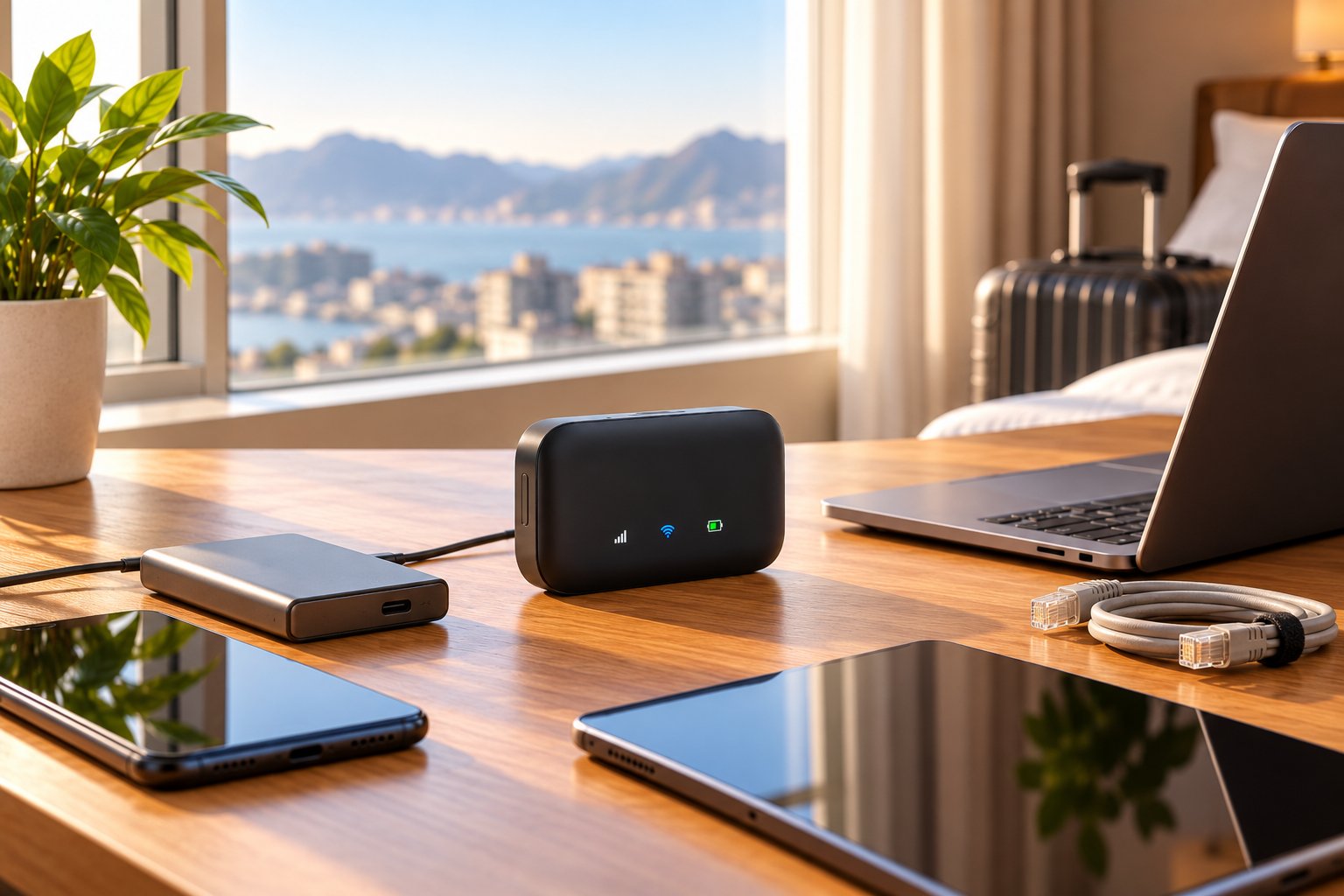
Configure your travel router before leaving home.
That gives you time to understand its interface, change default passwords, test the connection modes, and confirm that your devices reconnect properly.
It is much easier to solve a setup problem at home than during a late hotel check-in or just before an online meeting.
Set Up the Router Before Traveling
Begin with a trusted internet connection.
Then complete the basic setup:
-
Change the default administration password.
-
Create a recognizable personal WiFi SSID.
-
Set a strong WPA2 or WPA3 wireless password.
-
Install available firmware updates.
-
Test WISP mode if supported.
-
Check Ethernet operation if you expect to use it.
-
Configure any VPN settings you need.
-
Connect your usual travel devices.
-
Save a configuration backup if the router supports it.
Choose a network name that is easy to recognize without including sensitive personal information.
Make sure you know how to access the router's local administration interface when the internet is unavailable.
Keep the setup instructions somewhere accessible offline.
Connecting to Hotel WiFi Step by Step
Once you have configured the router at home, connecting at a hotel should be simpler.
Step 1: Power on the router
Use a suitable power adapter, battery, or power bank.
Allow it to finish starting.
Step 2: Connect your phone or laptop
Join your travel router's personal SSID.
Use the password you configured earlier.
Step 3: Open the router settings
Access the documented local administration page or management application.
Step 4: Select the hotel network
Choose WISP, Wireless WAN, or the equivalent supported mode.
Scan for networks and select the hotel's official SSID.
Step 5: Complete authentication
Enter the WiFi password if required.
If the hotel uses a captive portal, complete the permitted login process.
Step 6: Confirm internet access
Open a website before connecting all your other devices.
Step 7: Enable VPN settings if needed
If you use a router-level VPN, connect it after completing the hotel's required login procedure.
Step 8: Connect your remaining devices
Join your laptop, tablet, phone, and other compatible equipment to the travel router.
Follow the hotel's rules for personal networking equipment and connection sharing.
Position the Router for a Strong Signal
Portable routers are small, but placement still matters.
Avoid operating the router inside a closed suitcase.
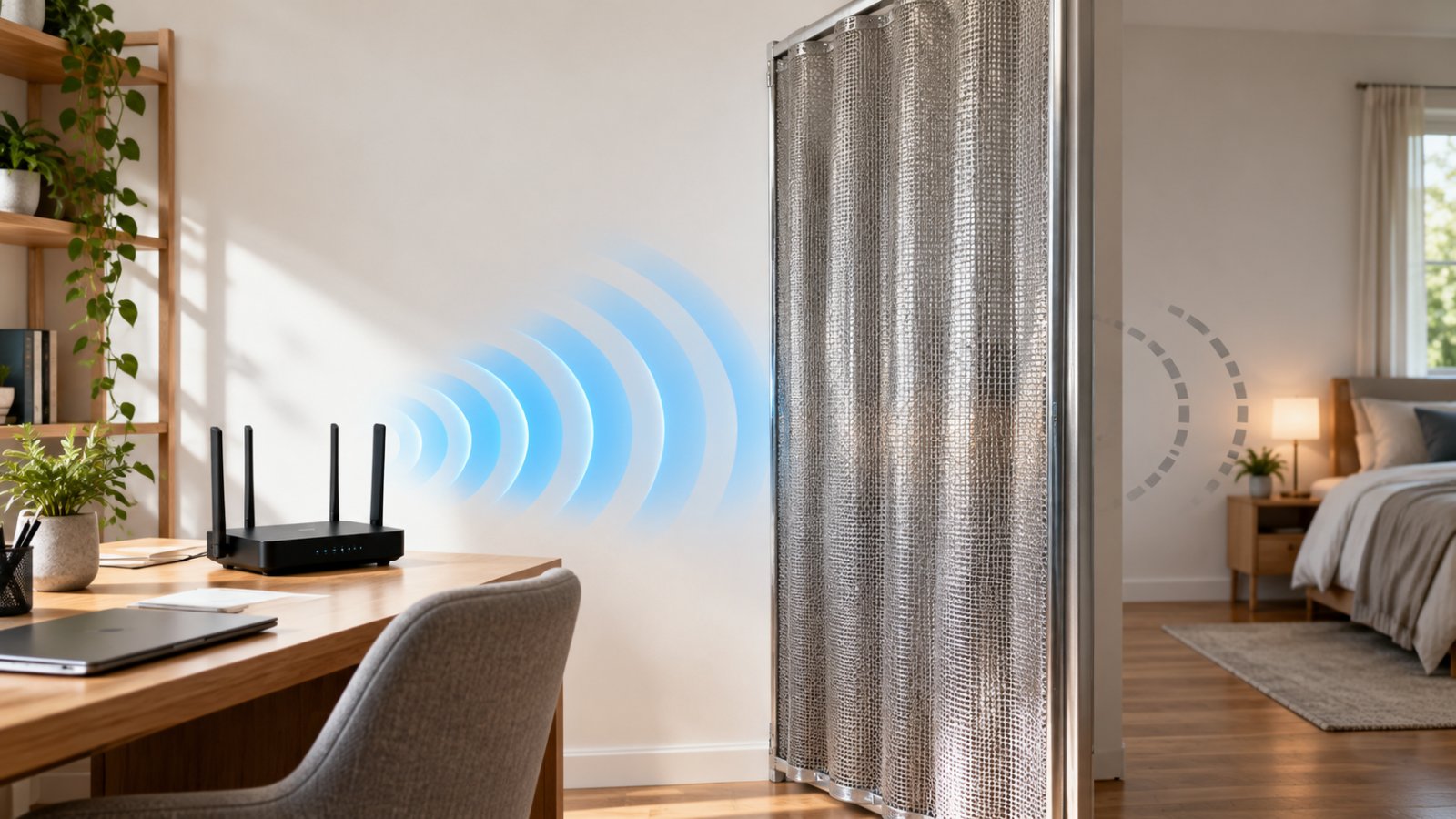
Do not hide it behind large metal objects or directly beside significant interference sources.
When using hotel WiFi, position it where the upstream signal is strong.
For example, an open desk may provide better reception than a low shelf behind a television.
If the connection drops, try another location.
Moving the router a short distance can sometimes improve reception because walls, furniture, and nearby networks affect signal quality.
For more practical guidance, see ROOXIS's router placement tips.
What to Do When the Captive Portal Will Not Open
One common problem is connecting to hotel WiFi successfully but still having no internet access.
Often, the router has joined the wireless network without completing the hotel's authentication process.
Try the following:
-
Confirm that the router selected the correct hotel SSID.
-
Check whether the hotel requires a captive portal login.
-
Use the router's documented portal login function, if available.
-
Connect a phone or laptop to the travel router and open a browser.
-
Temporarily pause a VPN if it prevents the authorized login page from appearing.
-
Reconnect and try the required login again.
-
Ask hotel staff whether personal travel routers are supported.
Some networks require staff assistance or device registration.
Others prohibit connection sharing.
Do not assume every captive portal can be handled automatically.
If the hotel does not permit travel routers, use its approved connection method.
Improve Performance Without Chasing Maximum Speeds
Hotel internet is often shared among many guests.
Connection speed can change throughout the day.
Even a fast portable router cannot remove congestion from the hotel's upstream connection.
However, you can improve your local setup.
-
Use 5 GHz when the signal is strong and the device is nearby.
-
Use 2.4 GHz when greater coverage is needed.
-
Keep the router in an open location.
-
Disconnect unused devices.
-
Pause large background downloads during important calls.
-
Use Ethernet when available and permitted.
-
Keep firmware updated.
-
Check the power source if the router restarts unexpectedly.
Suppose your laptop has a strong connection to the travel router, but video calls keep freezing.
Check whether the same slowdown affects your phone.
If every device is slow, the upstream internet service may be responsible.
If only one device struggles, investigate its wireless connection or configuration.
Keep Your Travel Network Secure
A travel router regularly connects to networks you do not control.
Basic maintenance is worthwhile.
Before a trip:
-
Check for firmware updates.
-
Confirm the administration password is unique.
-
Review saved public WiFi connections.
-
Remove networks you no longer use.
-
Confirm wireless encryption is enabled.
-
Disable unnecessary remote administration.
-
Review VPN settings.
-
Check which devices are connected.
After returning home, remove temporary network profiles you no longer need.
Do not leave unused services enabled simply because they were useful during one trip.
A well-maintained router is easier to troubleshoot and less likely to expose unnecessary services.
Common Portable Router Problems
| Problem | Possible cause | What to try |
|---|---|---|
| Connected to hotel WiFi but no internet | Captive portal authentication incomplete | Complete the hotel's authorized login |
| Hotel network does not appear | Weak signal or unsupported channel | Move the router and check band support |
| All devices have slow internet | Congested or limited upstream service | Test the original connection |
| VPN will not connect | Authentication or configuration issue | Complete portal login and review VPN settings |
| Router restarts unexpectedly | Insufficient power | Use a suitable adapter |
| Cellular router has no service | Coverage, SIM, or band incompatibility | Check activation and carrier support |
| Ethernet connection fails | Wrong port mode or network restriction | Review WAN/LAN settings and permissions |
| Devices cannot find each other | Network isolation or routing limitations | Check local network settings |
| Battery runs down quickly | Heavy activity or cellular operation | Review workload and power settings |
Frequently Asked Questions About Portable Routers
How does a portable WiFi router work in a hotel?
A portable router can connect to a hotel's existing WiFi through WISP or another supported wireless client mode, then create a personal network for your devices. If the hotel uses a captive portal, you must complete its authorized login process before internet access works. Compatibility depends on the router's features and the hotel's network policies.
Do portable WiFi routers require a monthly subscription?
Most non-cellular portable routers do not require a monthly subscription for basic routing functions. They can share an existing WiFi or Ethernet connection, although the internet provider may charge for access. Cellular-capable models generally require a suitable mobile data plan when using cellular networks.
What is the difference between a mobile hotspot and a portable router?
A mobile hotspot usually uses cellular data to provide internet access over WiFi. A portable travel router commonly shares an existing WiFi or Ethernet connection and creates a personal network for nearby devices. Some portable routers also contain cellular modems, allowing them to perform both functions.
Can you plug an Ethernet cable into a portable router?
Yes, many portable routers include Ethernet ports, although the number and function of those ports vary by model. Depending on the operating mode, Ethernet can supply the upstream internet connection or connect a local wired device. Check whether the port functions as WAN, LAN, or both, and confirm its maximum speed.
How do you bypass hotel device limits with a travel router?
In some permitted configurations, a travel router can connect to a hotel network as one device while providing connectivity to several devices on its local network. However, this does not override the hotel's policies, registration requirements, or connection-sharing restrictions. If the property limits connected devices, request an approved additional-device option rather than trying to evade those controls.
Conclusion: Choose a Portable Router That Fits Your Travel Needs
Portable WiFi routers can make traveling with multiple connected devices much easier.
For hotels and temporary offices, a model with WISP mode, suitable captive portal support, and secure local networking may be enough.
If you need internet access where no existing WiFi or Ethernet is available, a cellular model is a better starting point. Just confirm coverage, network compatibility, and data plan requirements before buying.
Pay attention to power options, wireless bands, Ethernet ports, and firmware support. Those details usually matter more in everyday use than an impressive maximum speed figure.
ROOXIS provides practical home networking equipment, including WiFi routers and range extenders, designed for straightforward setup and dependable connectivity. The same principles apply when choosing travel equipment: use suitable hardware, place it carefully, keep it secure, and understand the limits of your internet connection.
Choose a portable router based on where you travel, how you connect to the internet, and the devices you actually need online.