You pay for fast internet, but the upstairs bedroom still buffers during movies. Video calls freeze in the home office, and the security camera near the garage occasionally loses its connection. Meanwhile, everything works perfectly in the living room beside the router.
If you are wondering, "i have a large house with wifi dead zones, which internet provider should i choose?", start by looking for a reliable fiber provider that serves your address. Cable internet is another strong option. But switching providers will not necessarily fix the problem. WiFi dead zones usually involve wireless coverage inside your home, not the speed of the internet connection entering it.
Before upgrading your plan, test the connection near your router and in the rooms where WiFi fails. If your internet is fast near the router but slow upstairs, you probably need better WiFi coverage, not a more expensive internet subscription. This guide explains how to tell the difference, compare available providers, and fix the rooms your existing network struggles to reach.

I Have a Large House With WiFi Dead Zones, Which Internet Provider Should I Choose?
For a large house, a reliable fiber internet connection combined with properly placed WiFi equipment is often an excellent setup.
Fiber typically offers strong download speeds, useful upload capacity, and responsive performance. Those characteristics help when several people work, stream, game, and use connected devices at the same time.
If fiber is unavailable, a good cable internet plan may be more than sufficient.
However, the right provider depends on what is available at your exact address.
One neighborhood may have several fiber options. A nearby street may only have cable or fixed wireless.
More importantly, even a fast fiber connection will not automatically reach every bedroom, basement, garage, or outdoor camera.
Your internet provider delivers the connection to the property. Your router, extenders, mesh nodes, and access points determine how effectively that connection reaches your devices.
The short answer by household situation
| Your situation | Internet service to consider | Best place to start fixing coverage |
|---|---|---|
| Fiber is available at your address | Reliable fiber provider | Router placement, mesh WiFi, or wired access points |
| Fiber is unavailable, but cable is offered | Cable internet with suitable upload speed | Test existing WiFi before upgrading |
| Rural house without strong wired options | Fixed wireless or satellite | Plan separate indoor and outdoor coverage |
| Internet works well beside the router | Keep your existing provider initially | Fix weak WiFi in distant rooms |
| Wired devices also experience poor speeds | Compare providers or investigate your current service | Troubleshoot the incoming connection |
| Several floors with thick walls | Reliable fiber or cable connection | Ethernet-connected access points where possible |
| Detached garage or outdoor cameras | Service with enough upload capacity | Outdoor-rated equipment or a building-to-building connection |
The best solution is not always the newest service.
A dependable cable connection with correctly positioned access points can provide a better experience than a gigabit fiber plan connected to a poorly placed router.
When changing providers makes sense
Consider changing internet providers when the connection itself is unreliable.
For example, you may notice that a desktop computer connected directly to the router through Ethernet still experiences slow downloads or dropped video calls.
That suggests the problem is not limited to wireless coverage.
Other reasons to compare providers include:
-
Frequent outages affecting both wired and wireless devices.
-
Upload speeds that cannot support regular work calls or cloud-connected cameras.
-
Consistently poor performance during normal household usage.
-
A provider that cannot resolve recurring line or equipment faults.
-
A better available connection technology at a reasonable price.
-
Service limits or fees that no longer suit your household.
Before switching, contact your current provider with specific observations.
Explain whether the problem affects Ethernet, WiFi, or both.
That information helps separate an internet service issue from a home networking problem.
When keeping your current provider makes more sense
Suppose your cable internet works smoothly in the living room.
A laptop near the router streams video without buffering, and your desktop has a stable Ethernet connection.
But the same laptop struggles in an upstairs bedroom.
Changing to a faster internet plan will not remove the walls and floors weakening the wireless signal.
Your existing connection may already have enough capacity.
The better first step is improving the route between your router and that bedroom.
A well-placed extender, mesh node, or wired access point may solve the issue.
If the internet itself is performing well, there is little reason to replace it until you have checked the wireless network.
First, Find Out Whether You Have an Internet Problem or a WiFi Problem
Internet speed and WiFi signal strength are not the same thing.
Your internet service provider supplies connectivity to your home.
Your router distributes that connection through Ethernet and WiFi.
A device can show a strong WiFi signal while the incoming internet connection is down.
It can also have an excellent internet connection available at the router but receive a weak wireless signal in a distant room.
Knowing which situation applies prevents unnecessary upgrades.
What an internet connection problem looks like
Imagine a desktop computer connected to the router by Ethernet.
Websites load slowly, downloads repeatedly stall, and video calls freeze.
Meanwhile, phones and tablets experience similar problems throughout the house.
That points toward a possible issue with the incoming connection, modem, gateway, router, or network congestion.
Check whether the problem affects every device at the same time.
If it does, start with the internet connection rather than adding extenders.
Other clues include a modem showing a connection warning, repeated service outages, or consistently slow results from a wired speed test.
These signs do not identify the exact cause, but they help you know where to investigate.
What a WiFi coverage problem looks like
Now imagine the same desktop works perfectly through Ethernet.
A laptop also performs well while sitting near the router.
But when you carry it upstairs, websites begin loading slowly and video calls become unreliable.
That strongly suggests a wireless coverage problem.
The router's signal may be weakened by walls, distance, floor construction, or interference.
Another possibility is that the device connects to a crowded WiFi band or a poorly positioned access point.
In either case, paying for more internet bandwidth is unlikely to solve the underlying problem.
The next step is measuring performance in different parts of the house.
Step 1: Test your connection near the router
Start with a laptop or desktop that has an Ethernet connection.
Connect it to a LAN port on your router using a suitable Ethernet cable.
Make sure the computer is actually using Ethernet rather than WiFi.
On Windows, open Settings, then Network & internet, to check your connection.
On Mac, open System Settings, then Network.
Next, open Fast.com or another reputable speed-testing service.
Run the test while large downloads and cloud backups are paused where practical.
Record the download result.
If the service provides upload speed and latency measurements, record those too.
Compare the results with your current internet plan.
A single test is not definitive. Repeat it if the result seems unusual.
The aim is to find out whether the incoming connection is broadly performing as expected.
Step 2: Repeat the test over WiFi
Disconnect the Ethernet cable.
Connect the same computer to your normal home WiFi network.
Stay near the router and repeat the test.
If the WiFi result is much lower than the Ethernet result, investigate the wireless connection.
An older laptop, weak WiFi adapter, interference, or router configuration could affect performance.
If both wired and wireless results are poor, the problem may involve the internet service or gateway.
Do not assume the WiFi router is responsible simply because the problem appears on wireless devices.
Use the wired result as your reference point.
Step 3: Test the rooms where WiFi fails
Carry the same device into each problem area.
Test the upstairs bedroom, home office, basement, garage, and any other location where connectivity is unreliable.
Record the results alongside the room names.
Also note what the device shows.
Does it remain connected to WiFi? Does the WiFi icon indicate weak signal? Does the connection disappear entirely?
These details help distinguish different problems.
For example, a bedroom where the network disappears needs better wireless coverage.
A room with a strong wireless signal but poor internet performance may have interference, congestion, or another connection issue.
Using the same device throughout the house makes the comparison more useful.
Step 4: Check whether the problem changes during the day
Run tests when the problem normally occurs.
If the upstairs office is unreliable every morning and evening, its location may be the main issue.
If the entire network slows down only when several people are streaming and downloading, investigate overall capacity or congestion.
Check whether wired devices slow down at the same time.
If they do, the issue may extend beyond WiFi coverage.
If the problem affects only distant rooms, concentrate on your home network layout.
A few observations across normal household use can reveal whether the problem follows a particular room, device, or time of day.
Which Type of Internet Provider Is Best for a Large House?
Internet providers use different technologies to connect homes.
Fiber, cable, fixed wireless, DSL, and satellite all have legitimate uses.
The right option depends on availability, performance, reliability, and cost.
For a large house, pay particular attention to upload speed and connection stability if several people work from home or use cloud-connected cameras.
Fiber internet: An excellent first option when available
Fiber uses optical infrastructure to deliver internet service.
Many fiber plans offer strong download performance and substantial upload capacity.
That makes fiber attractive for households where several activities happen simultaneously.
For example, one parent may be on a video call while another uploads work files, children stream videos, and security cameras communicate with cloud services.
A fiber connection with suitable capacity can handle these demands well.
However, actual performance depends on the provider and plan.
Not all fiber packages have identical speeds or terms.
More importantly, fiber ends at equipment inside your home.
If the connected WiFi router sits in a basement utility closet, distant bedrooms may still have weak coverage.
Fiber gives you a strong starting connection. It does not eliminate the need for a properly designed wireless network.
Cable internet: A strong alternative for many households
Cable internet can deliver substantial download bandwidth and support ordinary household activities.
For many families, a reliable cable plan is entirely adequate.
The details worth checking are upload speed, latency, reliability, and data policies.
Some cable plans provide considerably less upload capacity than download capacity.
That difference may matter when several people use video conferencing, upload large files, or run cloud-connected cameras.
Look at the plan's typical upload speed instead of judging it solely by its advertised download number.
If you already have cable internet and it performs well through Ethernet, start by improving WiFi coverage.
A new provider is not automatically necessary.
Fixed wireless internet: Worth considering where wired options are limited
Fixed wireless service connects your home through a provider's wireless network.
It may use cellular technology or another fixed wireless system.
This can be useful in areas where fiber and cable are unavailable.
However, performance can depend on signal conditions, network congestion, and where the gateway is installed.
Some fixed wireless gateways need to be positioned near a particular window to receive a suitable provider signal.
That may be a poor location for covering a large house with WiFi.
For example, the gateway might need to sit in a front upstairs room while your home office is at the opposite end of the property.
In that case, consider distributing the connection from the gateway to separate access points.
Before subscribing, ask about typical speeds, upload capacity, data restrictions, and whether customer-owned networking equipment can be connected.
DSL internet: Useful where better wired service is unavailable
DSL uses telephone-line infrastructure.
Available speeds vary significantly depending on the provider's network and local conditions.
Some DSL connections support basic browsing, video streaming, and ordinary home use.
Others may struggle when multiple people need substantial bandwidth simultaneously.
If DSL is your main available wired option, compare its actual offered speeds with household usage.
A WiFi extender can help distribute a DSL connection to another room, but it cannot increase the bandwidth entering the house.
If your internet plan is already too slow for the family's simultaneous activities, coverage improvements alone will not solve every problem.
Satellite internet: An option for remote properties
Satellite internet can serve properties where wired broadband options are limited.
It is especially relevant for rural and isolated homes.
Performance varies by satellite system and service.
Review latency, data policies, installation requirements, and potential interruptions.
Satellite internet should not be confused with a solution for indoor WiFi dead zones.
Once the satellite equipment delivers internet to the house, you still need to distribute that connection through suitable networking equipment.
A large rural property may require additional access points or outdoor network equipment to serve detached buildings.
If reliable fiber or cable is already available, compare those options before choosing satellite solely because the house is large.
How to Find the Best Internet Providers Available at Your Address
The best available internet provider cannot be determined from house size alone.
Service availability varies between addresses, sometimes even within the same neighborhood.
Check what can actually be installed at your property before comparing plans.
Step 1: Check the FCC National Broadband Map
Visit BroadbandMap.FCC.gov.
Enter your street address.
Select the matching location and review the broadband service information.
The map can show providers reporting coverage at that address, along with the connection technology and advertised speeds.
Use the filters to compare fiber, cable, fixed wireless, and other available options.
However, the map relies on provider-reported availability.
A listed service is not a guarantee that installation can be completed immediately.
Treat the results as a shortlist.
Confirm the service directly with each provider before placing an order.
Step 2: Check the provider's address qualification
Open the official website of each provider on your shortlist.
Enter the complete service address.
Look at the specific plans offered.
Do not assume a provider offers fiber to your house simply because it advertises fiber service in your city.
One part of a neighborhood may have fiber infrastructure while another still uses cable or a different technology.
If the website gives an unclear result, contact the provider.
Ask what type of connection would actually be installed.
Also check whether the property requires special construction, additional installation work, or approval from the landlord or homeowners association.
Confirm these details before canceling your current service.
Step 3: Compare Broadband Facts labels
Look for the provider's Broadband Facts label.
It should provide standardized information that helps you compare plans.
Pay attention to:
-
Monthly service price.
-
Typical download speed.
-
Typical upload speed.
-
Typical latency.
-
Data allowances.
-
Additional charges.
-
Promotional pricing conditions.
-
Contract and cancellation terms.
Do not focus only on the largest download number.
For a household with video meetings and cloud-connected cameras, upload speed can be particularly important.
Also check whether the price includes the router or gateway.
Two plans advertised at similar monthly prices may have different equipment charges or promotional terms.
Compare the full cost and the performance characteristics that matter to your household.
Step 4: Ask about equipment flexibility
Large homes often need networking equipment beyond the provider's standard gateway.
Ask whether you can connect your own router, mesh system, or wired access points.
Some providers support third-party routers easily.
Others require a supplied gateway or other equipment.
If you plan to use bridge mode or passthrough, confirm whether the specific gateway supports it.
Also ask whether the provider offers Ethernet ports that can connect to additional network equipment.
Do not assume every modem or gateway works the same way.
For a large house, equipment flexibility can have a greater effect on day-to-day WiFi quality than a small increase in advertised download speed.
Step 5: Check installation details
Ask where the technician expects to install the internet equipment.
This question is easy to overlook.
The incoming service may reach a utility closet, basement, garage, or corner of the house.
Those locations are not always suitable for WiFi coverage.
If possible, discuss where the main router will sit before installation.
You might want the router near the center of the living area while keeping the modem or fiber terminal elsewhere.
A suitable Ethernet connection between those locations can make that arrangement practical.
For a large property, planning equipment placement before installation may prevent expensive changes later.
Step 6: Compare service terms, not just introductory prices
An introductory price can make a plan attractive.
Check what you will pay after the promotional period.
Review equipment rental, installation charges, data allowances, and cancellation conditions.
Also ask what technical support covers.
Will the provider investigate the incoming connection?
Does its support extend to customer-owned routers?
Does its whole-home WiFi package include additional equipment, professional placement, or only remote troubleshooting?
These distinctions matter when problems occur in distant rooms.
A provider may deliver the advertised connection successfully while leaving indoor WiFi coverage to the homeowner.
Know where that responsibility begins.
How Much Internet Speed Does a Large House Actually Need?
A larger house does not automatically need a faster internet plan.
A home with two people using email and streaming occasionally may need less capacity than a smaller home where several people work remotely.
The number of simultaneous activities matters more than square footage.
Start with what the household actually does
List the activities that regularly use your connection.
Include work calls, video streaming, gaming, cloud backups, security cameras, and large downloads.
Then identify which activities happen at the same time.
For example, one television streaming a movie may be easy for the connection to handle.
Add several video calls, a large cloud backup, and multiple camera uploads, and the demand changes.
Focus on ordinary peak household usage.
Do not count every smart bulb and connected appliance as though each continuously consumes large amounts of bandwidth.
Many smart home devices use relatively little data.
The heavier activities usually deserve more attention when comparing internet plans.
Understand download speed
Download speed measures how quickly information reaches your home.
It affects video streaming, game downloads, website loading, and receiving files.
Streaming services publish connection recommendations for different video quality settings.
For example, Netflix recommends a stable connection of at least 15 Mbps for a single 4K stream.
That does not mean a 15 Mbps internet plan is sufficient for a whole household.
Other devices may be using the connection simultaneously.
A plan with suitable additional capacity allows several activities to run without constantly competing for bandwidth.
However, more download capacity cannot fix a bedroom where the wireless signal barely reaches.
Understand upload speed
Upload speed measures how quickly data leaves your home.
It matters for video calls, sending work files, online backups, and certain security cameras.
A household with several cloud-connected cameras may need more upload capacity than one using only locally recorded cameras.
The exact requirement depends on the camera models and recording settings.
Some cameras upload continuously, while others send video only under certain conditions.
Check the manufacturer's specifications.
If your home office regularly uploads large files, include that activity in your comparison.
A provider with high download speed but limited upload capacity may not be ideal for every household.
What about 300 Mbps, 500 Mbps, and gigabit plans?
A 300 Mbps plan can support many ordinary household activities when the connection performs well.
A 500 Mbps or gigabit plan may be useful when more capacity is needed.
However, there is no universal speed requirement for a particular house size.
Start with your current service.
Measure its wired performance.
Check whether the household experiences slowdowns during simultaneous use.
If the connection performs well and only distant rooms struggle, investigate WiFi coverage before upgrading.
For example, moving from a 300 Mbps plan to a 1 Gbps plan does not guarantee better reception in a room behind several concrete walls.
A properly placed access point could produce a more noticeable improvement in that situation.
Pay attention to latency and stability
Download and upload speeds do not tell the entire story.
Latency measures the delay involved in sending information across a network.
It matters for interactive activities such as gaming and video calls.
An unstable connection can cause problems even when a speed test reports a high download result.
For example, short interruptions may freeze a video meeting without dramatically changing the average download speed.
When troubleshooting, compare performance through Ethernet and WiFi.
If both experience the same interruptions, investigate the service or gateway.
If only distant wireless devices struggle, focus on the wireless network.
Why Large Houses Develop WiFi Dead Zones
WiFi signals lose strength as they travel through a house.
Distance, walls, floors, interference, and equipment placement all matter.
Two homes with similar floor areas can have very different coverage because their layouts and construction materials differ.
Thick walls weaken wireless signals
Brick, concrete, stone, and some other building materials can weaken WiFi significantly.
A router may easily reach a nearby room through a lightweight partition but struggle through several masonry walls.
This is common in houses with substantial internal construction or older building layouts.
Moving the router closer to the affected rooms may help.
However, physical barriers sometimes make one-router coverage impractical.
An additional access point on the other side of the obstruction can be a better solution.
If Ethernet is available, a wired access point avoids relying on a weak wireless signal passing through those walls.
Multiple floors create additional obstacles
An upstairs room may be directly above the router but separated by thick flooring and structural materials.
The wireless signal must travel through those obstacles.
A router placed near one end of the ground floor may have even more difficulty reaching the opposite side of the upper floor.
This explains why a strong internet connection downstairs can coexist with poor upstairs WiFi.
Additional wireless coverage on another floor may be necessary.
If possible, use Ethernet to connect that access point to the main network.
Otherwise, position a compatible wireless mesh node where it can still receive a dependable connection.
Router placement affects coverage
The location of your router matters.
A device hidden inside a cabinet or behind large furniture may have a harder time reaching distant rooms.
Metal objects and other obstacles can also interfere with signal propagation.
Place the router in an open, elevated location when practical.
Avoid positioning it directly behind a television or inside a crowded equipment cabinet.
However, router placement has limits.
A central location may improve several nearby rooms without reaching a distant garage or basement.
Use placement changes as an initial fix, not as a guarantee that one router can cover every part of a large property.
Neighboring networks and interference matter
WiFi operates on shared radio frequencies.
Nearby wireless networks can compete for channels.
Some household electronics may also introduce interference.
If a room has a strong wireless signal but performance changes unpredictably, interference is worth investigating.
Modern routers often manage channels automatically.
Check the router's settings before making manual changes.
Do not assume that switching channels will solve every dead zone.
A weak signal caused by distance or concrete walls usually needs a coverage improvement, not merely a different channel.
How to Fix WiFi Dead Zones Without Switching Internet Providers
If your internet connection performs well near the router, focus on improving the network inside the house.
The right equipment depends on whether you need to reach one room, several floors, or a detached building.
Start with placement changes before buying additional hardware.
Option 1: Improve router placement
Move the router away from obvious obstructions if the cabling allows it.
An open shelf in a central part of the house is often preferable to a closed cabinet at the far end.
Keep it away from large metal objects and crowded electronics where possible.
Test the problem rooms after moving it.
Do not assume the router must sit beside the incoming internet cable.
In some homes, Ethernet can connect the modem or fiber terminal to a more suitable router location.
For fixed wireless internet, the gateway may need to remain near a particular window for reception.
In that case, consider a separate access point rather than moving the provider's gateway somewhere it receives a weaker service signal.
Option 2: Use a WiFi extender for a specific dead zone
A WiFi extender can help when one area needs additional coverage.
Suppose the upstairs bedroom has weak signal, but the hallway outside still has a dependable connection.
The hallway may be a better extender location than the bedroom itself.
The extender needs to receive a usable signal from the original network.
If it is installed where WiFi barely works, it may simply repeat an unstable connection.
Follow the equipment's setup instructions and confirm whether it operates with your router.
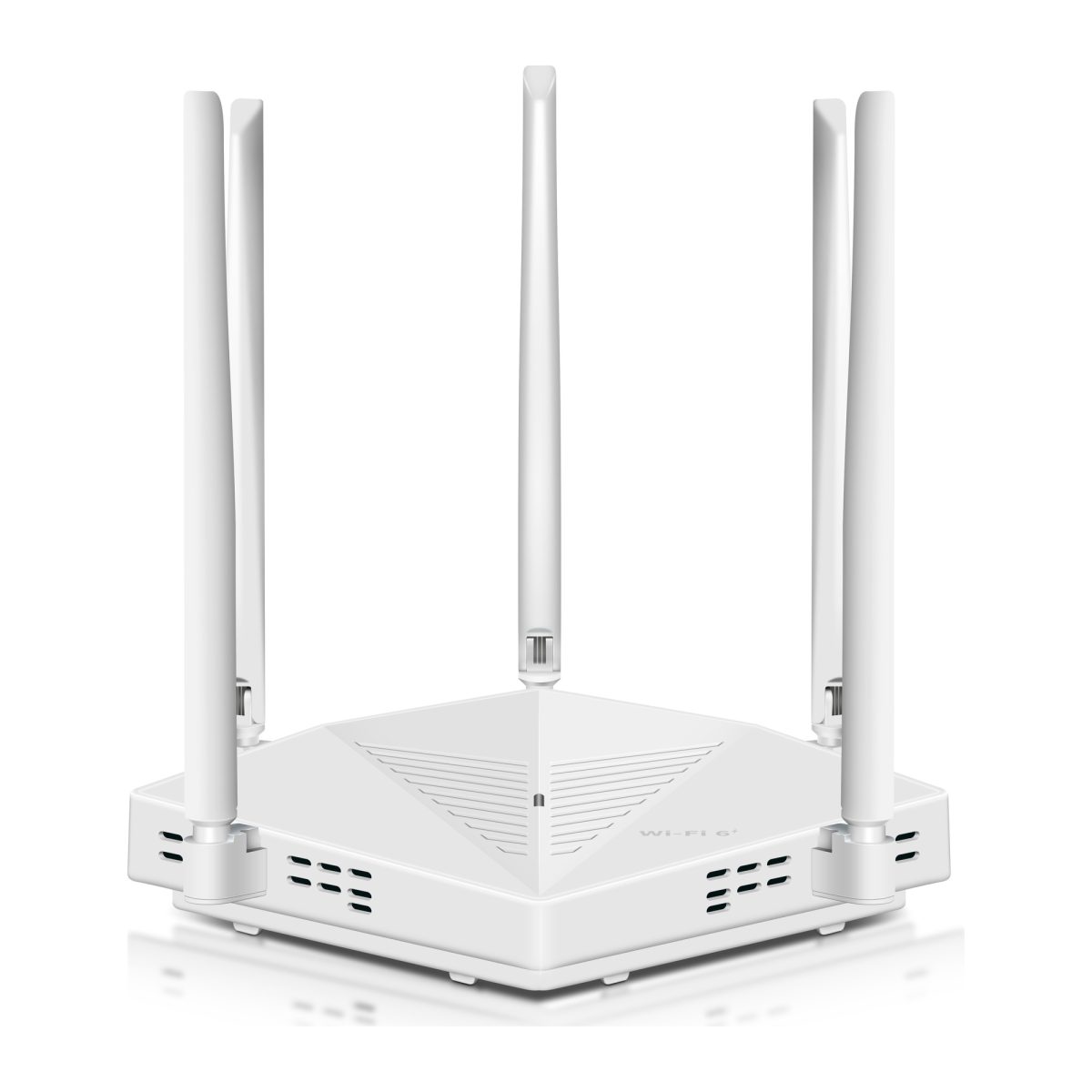
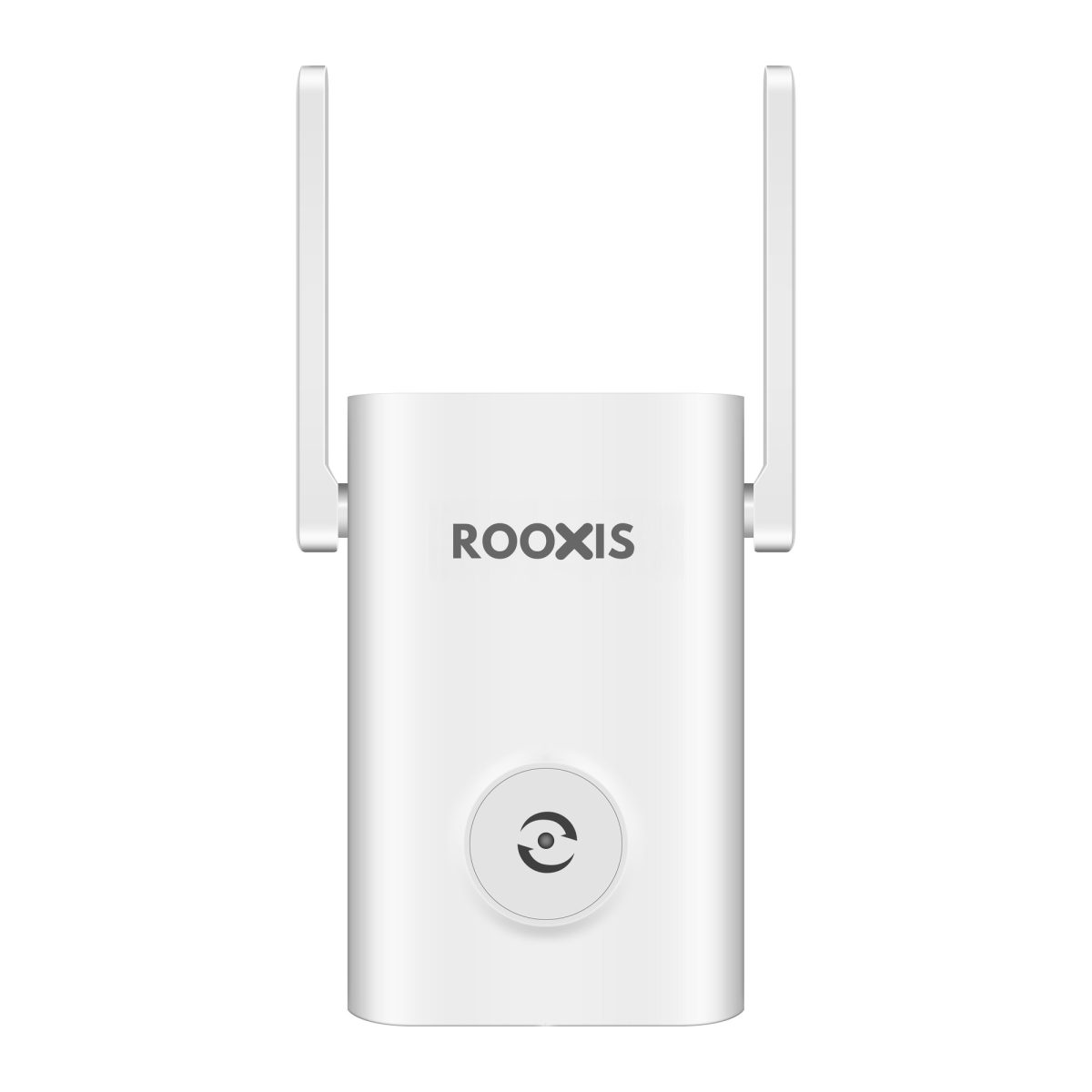
ROOXIS WiFi routers and range extenders are among the types of equipment homeowners can consider for supported network setups.
Choose a device based on compatibility, placement, and the coverage problem rather than assuming a higher advertised wireless speed guarantees longer range.
Option 3: Consider mesh WiFi for several rooms
A mesh WiFi system uses multiple compatible nodes to distribute coverage around a property.
The main node connects to the internet gateway or modem.
Additional nodes serve other areas of the house.
Mesh can be convenient when several rooms or floors need better coverage.
However, each wireless node still needs a good connection to the rest of the system.
Placing one at the farthest edge of a dead zone may produce poor performance.
For large houses, Ethernet backhaul can be especially useful.
With Ethernet backhaul, compatible nodes communicate through cables instead of depending entirely on wireless links.
That can improve consistency where walls and floors interfere with wireless connections.
Option 4: Install wired access points
A wired access point connects to the main network through Ethernet and provides WiFi in another part of the house.
For large homes with thick walls, this is often a dependable long-term arrangement.
For example, an upstairs access point can provide local coverage without depending on a weak signal traveling through the floor below.
The same approach works for a distant office or entertainment room.
Running Ethernet may require professional installation.
Homeowners renovating or building a property can plan those cable routes in advance.
Renters should check whether permanent installation is permitted.
Where suitable wiring already exists, installing an access point may be simpler than expected.
Option 5: Use existing coaxial wiring when appropriate
Some homes have coaxial cable outlets in several rooms.
With compatible wiring and equipment, MoCA adapters can sometimes provide network connections over existing coaxial cables.
This may allow you to connect an access point or compatible mesh node without installing new Ethernet throughout the house.
However, compatibility depends on the wiring, splitters, and connected services.
Do not assume every coaxial outlet can support MoCA.
If the house uses cable television or cable internet over the same wiring, verify compatibility before purchasing equipment.
When the wiring is suitable, this approach can provide a useful alternative to a long wireless connection through several walls.
Which WiFi Setup Works Best for Different Large Houses?
The best WiFi setup depends on the house's layout, not only its size.
A long single-story home may need coverage distributed horizontally.
A three-story house may benefit from access points on several levels.
Thick masonry can make wireless backhaul difficult even when the distances appear short.
Large single-story house
A long single-story house may have a router at one end and bedrooms at the other.
The signal gradually weakens as it passes through rooms and walls.
Start by testing the central hallway.
If the connection remains dependable there, a properly positioned extender or mesh node may improve coverage farther away.
For a particularly long floor plan, wired access points may provide more reliable results.
Place coverage near the rooms where devices are used most frequently.
Do not judge the setup solely by whether a phone can detect the network at the far end.
Test actual streaming, browsing, and video calls.
Two-story house with thick walls
A two-story house with dense internal walls may need a separate source of WiFi upstairs.
If Ethernet is available, connecting an upstairs access point or mesh node through a cable is worth considering.
Without Ethernet, choose a wireless node position carefully.
A landing or hallway may receive a better signal from downstairs than a distant bedroom.
Start with the node in a location where its connection to the main router is reliable.
Then test the rooms beyond it.
Moving the node a modest distance can sometimes make a difference.
Avoid placing it solely where the WiFi signal is weakest.
Three-story house
Three-story homes often need coverage on multiple levels.
One ground-floor router may struggle to reach the top floor through two floor structures.
A properly designed system could use several access points or mesh nodes.
However, the ideal number depends on the building.
Do not assume every floor automatically needs the same equipment.
Start with the areas where people use WiFi.
If possible, connect the access points through Ethernet.
That reduces the need for wireless communication through dense floors.
After installation, check that devices remain connected as people move between levels.
Large house with a basement
Basements often contain concrete, mechanical equipment, and other obstacles.
If the provider installs its gateway in the basement, coverage upstairs may be limited.
Consider whether Ethernet can connect the gateway to a router or access point closer to the main living areas.
Do not add multiple independent routers without understanding their operating modes.
That can create separate networks or other connection issues.
If you need another source of WiFi, use an appropriate access point or compatible mesh configuration.
The goal is to expand coverage while maintaining a manageable home network.
House with a detached garage or office
A detached building presents a different challenge from a distant bedroom.
The network may need to cross outdoor space and pass through exterior walls.
An ordinary indoor WiFi extender may not provide reliable service.
For a detached office, consider a suitable building-to-building wireless bridge or a properly designed wired connection.
Outdoor cabling and equipment require attention to weather exposure, electrical safety, and installation requirements.
For longer distances or difficult conditions, professional installation may be worthwhile.
Do not assume a consumer extender will reliably cover an entire yard and another building simply because the manufacturer's packaging advertises long range.
What If You Also Have Outdoor Security Cameras?
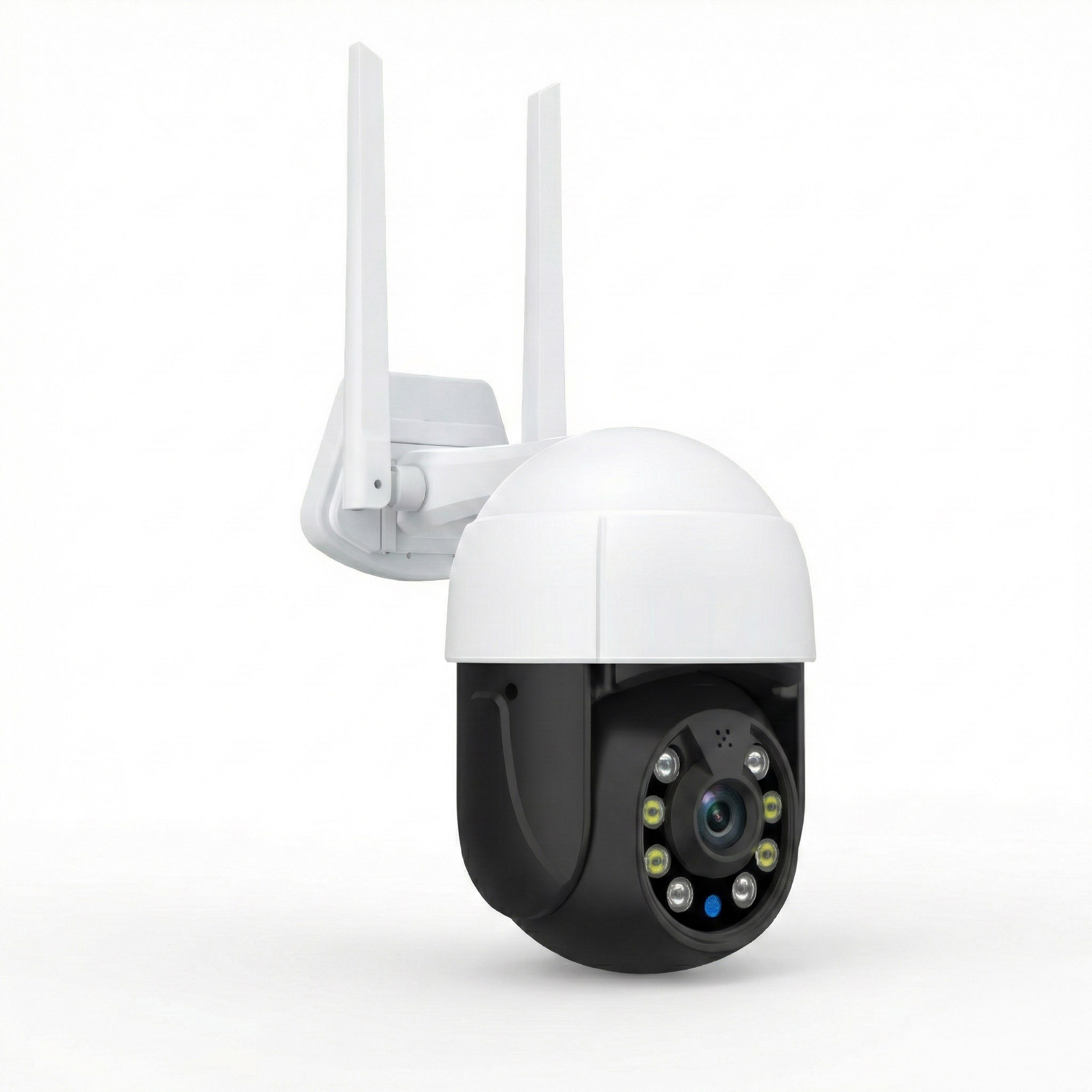
Security cameras are often among the first devices to reveal weak outdoor WiFi coverage.
A camera may work during setup but disconnect after being mounted on an exterior wall.
This can happen when the signal at the final location is marginal.
Before buying a faster internet plan, check whether the camera has a dependable wireless connection.
Check WiFi signal where the camera is installed
Test near the intended mounting location.
Do not rely on a speed test taken inside the nearest room.
An exterior wall can weaken the signal between the router and camera.
Use a phone to check whether the WiFi connection remains usable near the mounting position.
A phone and camera may have different wireless capabilities, so the results are not perfectly interchangeable.
However, a phone struggling to remain connected is a warning sign.
Improve coverage before mounting the camera permanently.
That is easier than removing and reinstalling the device later.
Consider upload speed for cloud-connected cameras
Cameras that send video to cloud services use upload bandwidth.
Several cameras may compete with video meetings and other household uploads.
The amount of bandwidth required depends on the camera model, video settings, and recording behavior.
Check the manufacturer's documentation.
A camera recording locally may have different ongoing internet requirements from one continuously uploading video.
Do not assume every camera uses the same amount of data.
When comparing internet providers, look at typical upload performance if your household uses cloud-connected cameras.
A high download speed alone does not tell you whether the plan suits those devices.
Avoid putting outdoor cameras at the edge of coverage
A camera that barely connects may suffer intermittent interruptions.
That can affect remote viewing, notifications, or uploads.
Try to provide a stable connection at the camera's actual location.
If necessary, use equipment suitable for outdoor network coverage.
Do not place an ordinary indoor extender outside unless the manufacturer explicitly rates it for that environment.
Also consider the distance between the camera and the router.
A small signal improvement near the house may not be enough to serve a camera across a large yard.
Do not confuse camera subscriptions with internet service
Camera subscription fees and internet service charges are separate expenses.
Some security cameras provide local storage without requiring a recurring camera subscription.
Others reserve certain cloud recording features for paid plans.
A no-subscription camera may still need internet access for remote viewing or notifications.
Check how the specific camera stores video and communicates with your phone.
If it primarily records locally, its network requirements may differ from those of a cloud-focused camera.
Choose the internet service and home networking setup based on how the cameras actually operate.
Questions to Ask an Internet Provider Before Signing Up
A large home may need more than a standard gateway installation.
Ask questions before ordering so you know what the provider supplies and what you may need to install yourself.
Will the service use fiber, cable, or another technology at my address?
Ask which connection technology will actually reach your property.
Do not rely only on the provider's general advertising.
A company may offer several technologies in the same region.
Confirm the one available at your exact address.
What are the typical upload and download speeds?
Ask for the Broadband Facts label.
Check typical upload and download performance.
If several household members use video calls or cloud-connected cameras, pay particular attention to upload capacity.
Also review latency where provided.
Can I use my own router or mesh WiFi system?
Ask whether customer-owned routers are supported.
If you plan to connect a mesh system, confirm any gateway requirements.
Check whether bridge mode or passthrough is available when needed.
Do not purchase equipment until you understand how it will connect.
Where will the internet equipment be installed?
Ask where the modem, fiber terminal, or gateway will sit.
If it will be installed in a basement or garage, discuss how you can distribute connectivity to the main living areas.
A suitable Ethernet connection may make the placement much more flexible.
Is whole-home WiFi coverage included?
Some providers offer additional WiFi nodes or installation services.
Ask what the package includes.
Will they test upstairs bedrooms, basements, and distant rooms?
Does the coverage service include outdoor areas?
Do not assume the phrase whole-home WiFi guarantees connectivity in every part of the property.
Are there data limits or additional charges?
Check data allowances, equipment fees, installation charges, and promotional terms.
For households using extensive cloud backups or connected cameras, data policies may matter.
Compare the total ongoing cost rather than the introductory price alone.
What happens if performance is poor after installation?
Ask what support the provider offers.
Will it investigate slow Ethernet performance?
Does it support customer-owned routers?
Will technicians help diagnose weak WiFi in distant rooms, or is that outside the service agreement?
Knowing the support limits makes troubleshooting easier later.
A Step-by-Step Plan Before You Change Internet Providers
Use the following process before canceling your current service.
It helps identify whether you need a different internet connection, better WiFi equipment, or both.
Step 1: Write down the problem areas
List the rooms where connectivity is poor.
Include the upstairs bedroom, basement, office, garage, and outdoor camera locations.
Note whether the connection disappears, slows down, or drops intermittently.
Also record whether the problem affects several devices.
Step 2: Test the internet connection through Ethernet
Connect a suitable computer to the router using Ethernet.
Run a speed test.
Compare the result with your current plan.
If wired performance is consistently poor, investigate the service or gateway before buying extenders.
Step 3: Test near the router and in the dead zones
Run comparable WiFi tests near the router and in problem rooms.
Use the same device where practical.
Record the results.
If performance drops sharply with distance, coverage is likely part of the problem.
Step 4: Check your current router's location
Look for cabinets, large electronics, metal objects, and other obvious obstructions.
Move the router to a more open position if possible.
Repeat the tests.
Do not buy extra equipment before checking whether a placement change helps.
Step 5: Decide whether you need one extra coverage point or several
One distant room may only need a properly positioned extender.
Several floors or rooms separated by thick walls may benefit from mesh equipment or wired access points.
Consider the layout and available cabling before choosing.
Step 6: Check available internet providers
Use the FCC Broadband Map and provider address checks.
Compare available connection technologies.
If your existing service performs well over Ethernet, avoid switching solely because one bedroom has weak WiFi.
Step 7: Compare complete costs
Include the internet subscription, gateway charges, additional networking equipment, and installation.
A suitable home network paired with a reasonably priced connection may be more useful than an expensive plan with poor WiFi distribution.
Step 8: Install and test the final setup
Test the same rooms again after making changes.
Check video calls, streaming, and camera connections.
Confirm that devices remain connected during normal use.
Keep your original measurements so you can see which problems were actually resolved.
Common Mistakes When Choosing Internet for a Large House
Homeowners often spend money on faster plans or additional equipment without identifying the cause of their dead zones.
Avoid these common mistakes.
Mistake 1: Assuming gigabit internet means whole-home WiFi
Gigabit describes available internet bandwidth.
It does not guarantee wireless signal strength in every room.
A distant bedroom may still have poor reception.
Coverage depends on equipment placement, building materials, and the network design.
Mistake 2: Buying a faster plan before testing Ethernet
If a wired computer already receives suitable performance, the incoming service may not be the problem.
Test the connection before upgrading.
More bandwidth does not repair a weak wireless link through several walls.
Mistake 3: Placing an extender inside the dead zone
An extender cannot reliably repeat a signal it barely receives.
Place it where the original WiFi is still dependable.
Then test whether it improves the distant room.
Mistake 4: Assuming more mesh nodes always means better WiFi
Adding nodes without considering placement can create interference or inefficient wireless connections.
Each node needs a suitable path to the rest of the network.
Use Ethernet backhaul where practical.
Mistake 5: Ignoring upload speed
A plan with strong download speed may still have limited upload capacity.
That can matter for video calls, cloud backups, and cloud-connected cameras.
Compare both directions before switching providers.
Mistake 6: Accepting the default gateway location without discussion
The easiest installation point may not be the best WiFi location.
Talk to the provider before installation.
If the gateway must remain in a utility area, plan how to connect access points in the living spaces.
Mistake 7: Treating every disconnected camera as an ISP outage
An outdoor camera may lose WiFi while every other device remains online.
Check the signal at the camera location.
Do not blame the provider until you know whether the incoming connection is also affected.
Mistake 8: Buying equipment without checking compatibility
Not every extender, router, or mesh system integrates with every existing setup in the same way.
Check supported connection methods and gateway requirements.
Plan how the equipment will communicate before purchasing multiple devices.
How to Know When Your Large Home WiFi Is Finally Fixed
The goal is not the highest speed-test number beside the router.
It is dependable connectivity where your family actually uses the internet.
Test real activities in the rooms that previously failed.
Test everyday activity
Open a video call in the upstairs office.
Stream video in the distant bedroom.
Check whether the garage camera remains reachable.
Walk between rooms with a phone connected to WiFi.
These activities reveal practical problems that a single speed test may miss.
If the network works well under ordinary household conditions, the improvement is meaningful.
Look for stable connections
A stable connection is often more useful than a high peak speed that repeatedly collapses.
Check for buffering, frozen calls, and unexpected disconnects.
Restart the network equipment and confirm that devices reconnect normally.
If you use several access points or mesh nodes, check whether phones and laptops remain usable while moving through the house.
Check the internet service separately
If every device loses internet at once, including wired devices, investigate the provider or gateway.
If only one room continues having trouble, focus on that area's wireless coverage.
Keeping those possibilities separate makes future troubleshooting faster.
Revisit the network when your household changes
A new home office, additional security cameras, or a converted garage can change your coverage requirements.
Test those areas before assuming the original network will serve them.
You do not need to rebuild the system every time someone buys a new phone.
But major changes to the house or its internet usage may justify adding coverage or reviewing the service plan.
FAQ
Which internet provider is best for a large house with WiFi dead zones?
A reliable fiber provider is often an excellent choice when available, while cable internet can also serve many large households well. However, the provider does not determine whether WiFi reaches every room. If your existing connection performs well near the router, improve wireless coverage before switching services.
Will switching to fiber internet fix WiFi dead zones?
Not necessarily. Fiber may improve the connection entering your home, but it does not remove walls, floors, or distance between the router and your devices. A large house may still need mesh WiFi or additional access points to provide reliable coverage.
How much internet speed do I need for a 3,000-square-foot house?
Square footage alone does not determine the required speed. Consider how many people stream, work, game, and upload data simultaneously. A reliable plan with a few hundred Mbps may be sufficient for many households, but the right choice depends on actual usage. WiFi coverage must be evaluated separately.
Is mesh WiFi better than a range extender for a large house?
Mesh WiFi can be useful when several rooms or floors need coverage, particularly when compatible nodes use Ethernet backhaul or strong wireless connections. An extender may be sufficient for one specific dead zone. The best choice depends on your layout, building materials, and available wiring.
Can I use my own router with my internet provider?
Many providers allow customer-owned networking equipment, but requirements vary. Some supply a modem, gateway, or fiber terminal that must remain connected. Ask whether your intended router or mesh setup is supported before purchasing equipment, and confirm whether bridge mode or passthrough is available if needed.
Why is my internet fast downstairs but slow upstairs?
The WiFi signal may weaken as it travels through floors, walls, and other obstacles. Your internet service can be fast while the upstairs wireless connection remains poor. Compare performance near the router with performance upstairs using the same device. If the slowdown mainly affects upstairs rooms, better WiFi coverage is usually the first thing to investigate.
The practical answer: Choose a dependable fiber provider if one is available at your address and the plan suits your household. Otherwise, compare cable and other available services using their actual download speeds, upload speeds, reliability, and costs. Before switching, test your current connection through Ethernet. If it performs well and the trouble is limited to distant rooms, improve the WiFi network first. A properly positioned extender, mesh node, or wired access point may solve the dead zones without increasing your monthly internet bill.