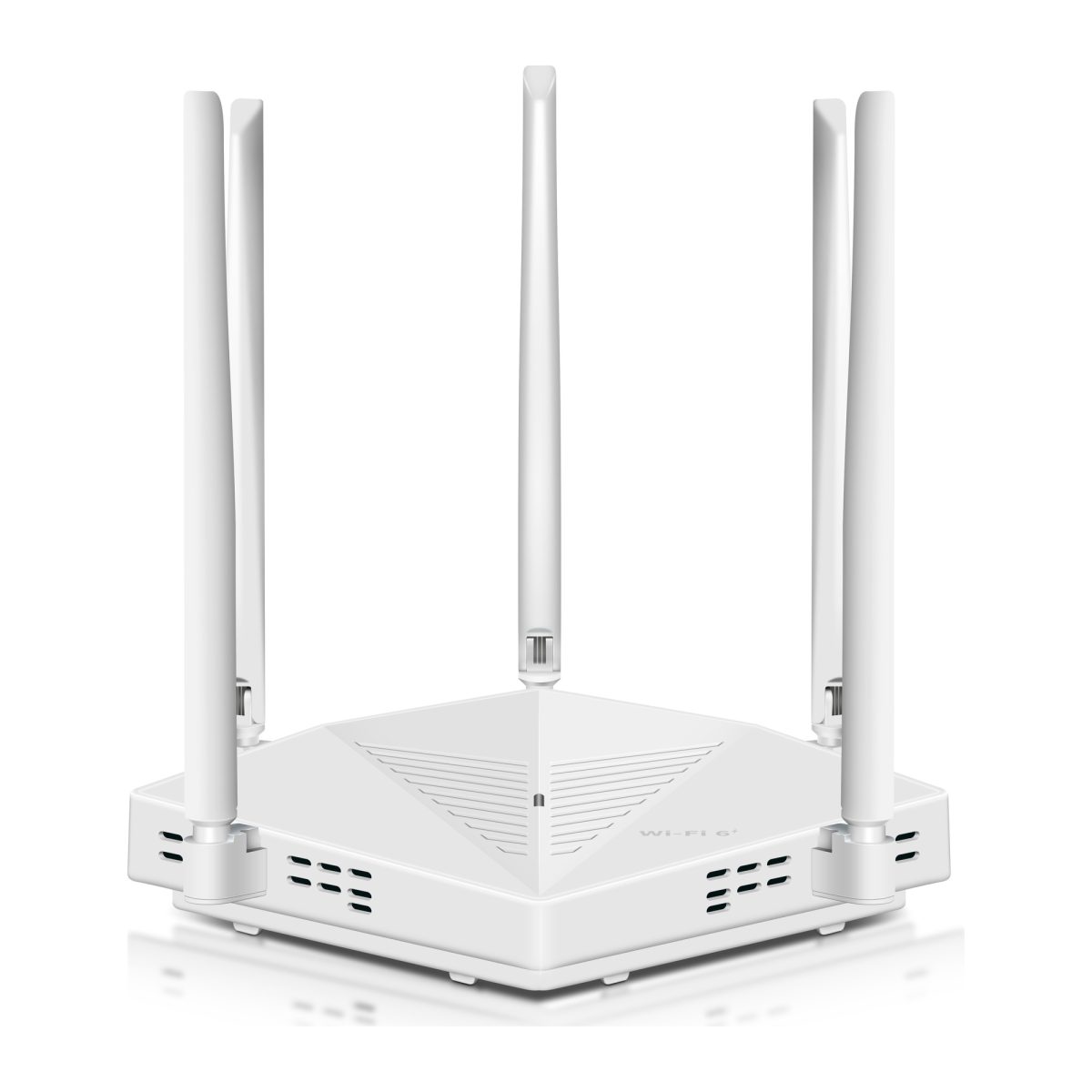
The most common mistake people make when improving WiFi for an older relative is buying a powerful router and expecting it to reach every room. If the router sits at one end of a large house, thick walls, staircases, and distance can still leave bedrooms without a reliable connection.
So, what is the best wi-fi solution for an elderly person with a large house? For most homes with several weak-signal rooms, a mesh WiFi system is the most practical choice. It provides coverage through multiple connected units while keeping one familiar network name. If only one bedroom has poor reception, a well-positioned WiFi extender may be sufficient. In homes with thick concrete walls, wired access points can provide more reliable coverage.
The right solution should make everyday internet use easier. Someone should be able to make video calls from the living room, watch television upstairs, and use a tablet in the kitchen without repeatedly changing networks or restarting equipment. This guide compares the available options, explains what to look for before buying, and shows how to create a dependable setup that does not require constant technical attention.

What Is the Best Wi-Fi Solution for an Elderly Person With a Large House?
A whole-home mesh WiFi system is usually the best starting point when several rooms have weak or unreliable wireless coverage.
A mesh system uses a main router unit and additional connected units, often called nodes. These work together to distribute WiFi around the property.
Instead of depending on one router to reach every corner, the homeowner can position nodes near the areas where coverage begins to weaken.
Consider a two-story house where the internet connection enters through a downstairs study.
The living room and kitchen receive a strong signal, but an upstairs bedroom and a sitting area near the back of the house have unreliable WiFi.
A mesh system can provide additional coverage near those rooms.
Compatible mesh systems also use a shared network name and password. A phone or tablet can generally move between coverage areas without requiring the user to select a completely different network manually.
That is helpful for someone who does not want to manage several connections throughout the day.
However, mesh is not always necessary.
If one bedroom has a weak signal but the rest of the house works well, a single WiFi extender may solve the problem at a lower initial cost.
If thick concrete walls prevent mesh nodes from communicating reliably, Ethernet-connected access points may work better.
The correct purchase depends on where the connection fails, not simply how large the house is.
What Makes WiFi Different in a Large House?
Large properties often have several obstacles between the router and the devices using it.
Distance from the router
A router positioned near the front entrance may struggle to serve a bedroom at the opposite end of the house.
WiFi signal strength generally decreases with distance, particularly when the signal must pass through walls and other materials.
Multiple floors
Wireless signals may need to travel through ceilings or reinforced floors.
A concrete floor containing metal reinforcement can weaken communication between upstairs devices and a downstairs router.
Thick interior walls
Brick, stone, and concrete can create coverage problems even when two rooms are physically close.
A bedroom on the other side of a thick wall may receive a worse signal than a more distant room connected by an open hallway.
Poor router placement
Internet equipment is often installed where the internet service enters the property.
That may be a basement, utility cupboard, garage, or corner room.
These locations are not always suitable for distributing WiFi throughout the house.
Multiple connected devices
A modern household may have phones, tablets, televisions, printers, cameras, and smart speakers connected simultaneously.
Each device needs enough signal quality and network capacity for its normal activities.
The connection should remain dependable in the rooms where those devices are used.
What Matters Most for an Older Resident?
Age alone does not determine someone's technical ability.
Some older homeowners are comfortable installing routers and managing network settings. Others prefer a setup that works without requiring them to open an app.
Choose equipment according to the resident's actual preferences and habits.
Useful priorities include:
-
Reliable coverage in regularly used rooms.
-
One familiar WiFi network name.
-
Automatic reconnection after short interruptions.
-
Clear device status indicators.
-
Simple instructions for common problems.
-
Automatic security updates where supported.
-
Compatibility with existing phones and tablets.
-
Reliable connections for video calls and television.
-
Straightforward assistance from a trusted person.
-
No unnecessary subscription for basic network operation.
For example, someone who regularly video calls their grandchildren from an upstairs bedroom needs stable connectivity in that room.
A powerful router that delivers excellent speeds downstairs but repeatedly drops the upstairs connection does not solve the problem.
Similarly, someone who uses a wireless security camera near the back door needs coverage at the camera's actual installation point.
The important measure is whether everyday devices work where they are needed.
How the WiFi Solutions Were Compared
The options in this guide are compared using practical buying criteria.
The comparison is based on how each technology works, its installation requirements, and the problems it is designed to address.
It does not rely on invented speed tests, unsupported coverage figures, or claims that one product performs best in every house.
Coverage Reliability
The first consideration is whether the solution can provide stable coverage across the required rooms.
A good setup should support ordinary activities without frequent disconnections.
For example, a tablet should remain connected during a video call in the upstairs bedroom.
A smart television should stream normally in the evening without repeated buffering caused by weak WiFi.
Reliable coverage matters more than achieving the highest possible speed test result beside the router.
Ease of Everyday Use
A home network should not require the resident to choose between several WiFi names every time they move.
Mesh systems generally offer coordinated coverage under one network name.
Traditional extenders may create a separate network.
That can still work well, but it requires understanding which network to use in the extended area.
Consider how the network will behave after the initial installation.
A system that requires frequent manual switching is less convenient than one that reconnects supported devices automatically.
Installation Complexity
Installation requirements vary considerably.
A plug-in extender may take only a short guided setup through a browser or app.
A mesh system requires configuring the main unit and placing additional nodes.
Wired access points may require Ethernet cables through walls or ceilings.
The resident should not be expected to handle installation work they do not want to perform.
If professional help is required, include that in the buying decision.
Ongoing Maintenance
All network equipment needs occasional attention.
Routers and access points may receive firmware updates. Passwords may need changing, and devices sometimes require troubleshooting.
Look for products that provide:
-
Clear connection status.
-
Official setup documentation.
-
Automatic updates when supported.
-
Understandable error messages.
-
Straightforward restart procedures.
-
Reliable manufacturer support.
-
Appropriate account recovery controls.
Avoid systems that require unnecessary manual changes to maintain ordinary connectivity.
Compatibility With Existing Devices
Before replacing the router, identify devices that must continue working.
Older tablets, printers, televisions, doorbells, and security cameras may support only certain wireless bands or security standards.
Many smart home devices use 2.4 GHz WiFi.
A modern dual-band network can generally support both 2.4 GHz and 5 GHz devices, but individual setup procedures may vary.
Check compatibility before buying, particularly when the household has devices that are difficult to reconfigure.
Overall Cost
The lowest purchase price is not always the lowest practical cost.
A basic extender may be inexpensive, but several extenders can create a complicated network.
A mesh system may cost more initially but simplify coverage across several rooms.
Wired access points may involve installation expenses but provide dependable long-term connections.
Include:
-
Equipment.
-
Additional nodes.
-
Ethernet cabling.
-
Professional installation.
-
Optional software features.
-
Replacement accessories.
-
Ongoing support needs.
Do not pay for advanced features the household will never use.
Best WiFi Solutions for Older Adults Living in Large Houses
The five options below solve different problems.
The best choice depends on how many rooms need coverage, the building materials, and how much installation work is acceptable.
1. Whole-Home Mesh WiFi: Best for Several Weak Rooms
Best for: Large homes with several bedrooms, long hallways, multiple floors, or numerous areas where the existing router struggles.
A mesh WiFi system distributes wireless coverage through several compatible nodes.
The main node connects to the existing internet equipment.
Additional nodes extend the network into other parts of the house.
Consider a home with a downstairs living room, an upstairs bedroom, and a study near the back entrance.
The main node might sit near the internet connection.
Another node could serve the upstairs landing.
A third may be useful near the back of the property if the layout requires it.
The exact number depends on the house and the system's capabilities.
Strengths
-
Suitable for several weak-signal rooms.
-
Coordinated coverage under one network name.
-
Convenient movement between rooms.
-
Centralized management.
-
Expandable with compatible nodes.
-
Often supports automatic software updates.
-
Useful for households with several connected devices.
Limitations
-
Costs more than a basic extender.
-
Every node requires suitable power.
-
Wireless connections between nodes can still be weakened by walls.
-
Placement affects performance.
-
Some advanced features require paid subscriptions.
-
Initial setup may require a smartphone account.
What to look for
Choose a system with clear setup instructions, a straightforward app, and appropriate security support.
WiFi 6 mesh systems are a practical category for many households.
They support common modern devices while maintaining compatibility with many older WiFi products.
There is usually no need to buy the newest WiFi standard simply for email, browsing, video calls, and ordinary streaming.
A more advanced system may make sense for an unusually demanding network or a very fast internet plan.
But buying WiFi 7 solely because the home is large is not a reliable way to solve coverage problems.
Placement matters
A mesh node needs a dependable connection to the rest of the network.
Do not put an additional node inside the bedroom where the signal has already disappeared.
Place it closer to the main router, perhaps in the hallway or landing outside that room.
Test the connection before deciding on the final position.
When mesh makes sense
Choose mesh when the resident moves between several rooms and would benefit from one coordinated wireless network.
It is particularly useful when coverage is inconsistent across a floor rather than limited to one isolated corner.
2. A WiFi Range Extender: Best for One Isolated Dead Spot
Best for: A house where most rooms have reliable WiFi, but one bedroom, study, or sitting area has a weak signal.
A WiFi extender receives the existing wireless signal and retransmits it.
It does not replace the router or increase the internet speed supplied by the provider.
Its job is to make the existing network reachable in an area where the signal is weak.
Consider a house where the living room, kitchen, and downstairs bedroom work normally.
The upstairs guest room is the only problem.
A well-placed extender may provide enough coverage for browsing, video calls, and television streaming.
Strengths
-
Lower initial cost than replacing an entire network.
-
Compatible with many existing routers.
-
Usually does not require new wiring.
-
Useful for one specific dead spot.
-
Some models offer browser-based setup.
-
Can be relocated if the first position is unsuitable.
Limitations
-
Cannot fix a weak connection from the router.
-
Wireless repeating can reduce available throughput.
-
Some models create separate network names.
-
Devices may remain connected to a weaker network.
-
Several extenders can complicate troubleshooting.
-
Not ideal for covering many distant rooms.
What to look for
Choose a dual-band extender with clear setup instructions and a signal indicator.
An Ethernet port can be useful if the unit supports access point mode.
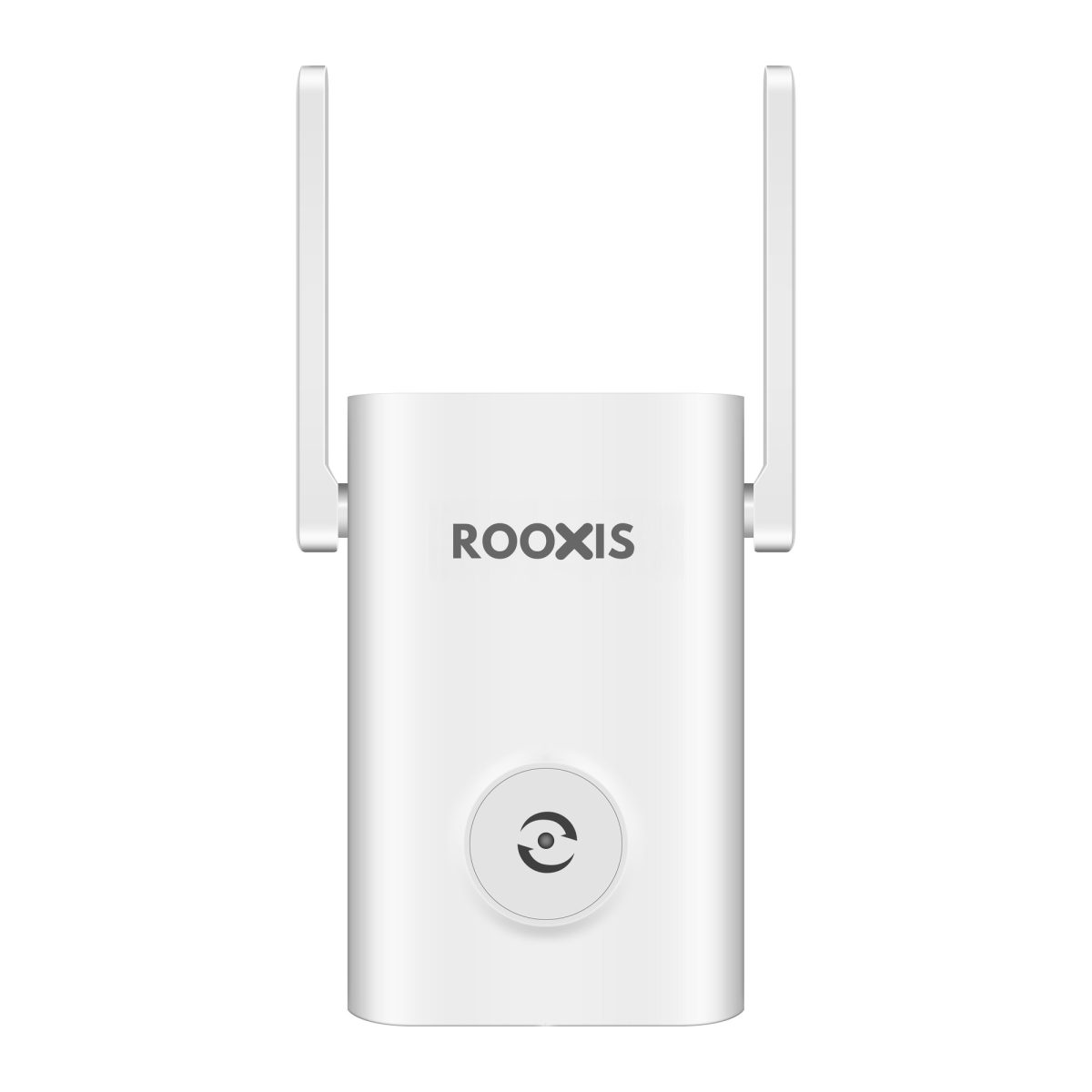
For a household that wants a simple one-room fix, the ROOXIS AC1200 extender is one option to evaluate.
Its documented setup can be completed through a browser using 192.168.8.1 or home.to, without installing a separate configuration app.
The unit supports repeater and access point modes.
Its signal indicators also help with placement.
A blue light indicates a good connection, yellow suggests the unit is too far from the router, and red indicates no connection.
See the ROOXIS AC1200 setup instructions.
Where to position it
The correct location is usually between the router and the weak room.
If the upstairs bedroom has almost no signal, place the extender in a nearby hallway where the existing network still works.
The extender cannot provide good internet access if its own connection to the router is poor.
When an extender makes sense
Use an extender when the coverage problem is limited and the current router is otherwise dependable.
For a whole floor with poor reception, mesh or a wired access point may be more appropriate.
3. Wired Access Points: Best for Thick Walls and Long Hallways
Best for: Large houses with concrete walls, separated wings, multiple floors, or existing Ethernet cabling.
A wireless access point provides WiFi through a wired network connection.
Instead of repeating a signal received over WiFi, it connects to the home network through Ethernet.
This can be particularly helpful where building materials interfere with wireless communication.
Imagine a two-story house with reinforced concrete between floors.
A wireless extender downstairs may struggle to send a dependable signal upstairs.
An Ethernet-connected access point installed on the upper floor avoids relying on that difficult wireless path.
Strengths
-
Stable connection to the main network.
-
Useful where walls weaken WiFi.
-
Suitable for video calls and streaming.
-
Can serve distant parts of a property.
-
Supports multiple access points.
-
Can provide reliable coverage near compatible smart devices and cameras.
Limitations
-
Requires Ethernet wiring.
-
May involve drilling or professional installation.
-
Some equipment needs separate power.
-
Configuration can be more technical.
-
Device roaming depends on the equipment and device behavior.
-
May be unsuitable where wiring changes are not permitted.
Check existing wiring first
Some large homes already have Ethernet ports in a study, hallway, or upstairs bedroom.
These may have been installed during construction.
Before paying to run new cables, determine whether the existing wiring is functional.
A suitable network technician can test the cables and identify where they connect.
Consider Power over Ethernet
Some access points support Power over Ethernet, commonly called PoE.
With compatible equipment, a single Ethernet cable can provide both network connectivity and power.
However, an ordinary Ethernet port does not automatically supply PoE.
The access point must be connected to a suitable PoE switch or injector.
When wired access points make sense
Choose this arrangement when dependable coverage is more important than avoiding installation work.
It is especially useful for a homeowner who wants a permanent solution and does not want to troubleshoot weak wireless links repeatedly.
4. Replacing an Outdated Router: Best When the Existing Router Is the Problem
Best for: Homes where the current router is unreliable, no longer receives security updates, or performs poorly even in nearby rooms.
Sometimes the router itself is the problem.
For example, a router may lose all connections several times a day or restart unexpectedly.
An extender will not fix a failing main router.
Before buying additional coverage equipment, determine whether the existing router is working correctly.
Strengths
-
Can improve stability when replacing defective equipment.
-
May provide newer wireless standards.
-
Can improve nearby coverage.
-
Supports modern security features.
-
Removes dependence on unsupported hardware.
-
May simplify network management.
Limitations
-
One router may still fail to reach distant rooms.
-
Replacement can require reconnecting devices.
-
The router may remain poorly positioned.
-
Some internet providers require compatible equipment.
-
Changing network settings can affect smart home devices.
Check the router before replacing it
Find the manufacturer and model.
Look for official firmware updates and support information.
If the router no longer receives security updates, replacement may be sensible even if it still functions.
Also determine whether the device belongs to the internet provider.
A provider-supplied gateway may handle the internet connection, telephone service, or other functions.
Replacing it without checking compatibility can create unnecessary problems.
When a router replacement makes sense
Replace a router that is defective, unsupported, or unsuitable for the service.
If it works well in nearby rooms but struggles to reach the far end of the house, additional coverage equipment may provide better value than another standalone router.
5. Mesh WiFi With Ethernet Backhaul: Best for Large Multi-Floor Homes
Best for: Homes where mesh WiFi would be convenient, but thick walls or floors make wireless communication between nodes unreliable.
Ethernet backhaul means connecting compatible mesh units using Ethernet cables.
The mesh nodes still provide wireless coverage to phones and tablets.
However, communication between the wired nodes can travel through Ethernet rather than relying entirely on WiFi.
Consider a home with the main internet connection downstairs and an Ethernet socket upstairs.
A compatible mesh unit on the upper floor can connect through that cable.
This may provide a more dependable link than sending the backhaul signal through reinforced concrete.
Strengths
-
More reliable communication between wired nodes.
-
One coordinated WiFi network.
-
Useful in difficult building layouts.
-
Can reduce congestion on wireless backhaul links.
-
Suitable for several floors.
-
Provides the convenience of mesh with wired infrastructure.
Limitations
-
Requires suitable Ethernet cabling.
-
Equipment must support wired backhaul.
-
Incorrect connections can create network problems.
-
Installation may take longer.
-
Available features can differ between router and access point modes.
Check compatibility
Confirm that the mesh system supports Ethernet backhaul.
Do not assume every multi-unit WiFi product can be wired in the same way.
Manufacturers may have specific requirements for cable connections and operating modes.
Some features also change when a mesh system operates in access point mode.
Read the instructions before changing the home network.
When wired mesh makes sense
Choose this setup when the resident wants coordinated coverage across several floors and the home already has Ethernet wiring.
It combines convenient everyday use with a more dependable connection between network units.
WiFi Solution Comparison Table
| WiFi Solution | Best Situation | Everyday Convenience | Installation Effort | Main Limitation |
|---|---|---|---|---|
| Whole-home mesh WiFi | Several weak rooms across a large house | High after correct setup | Moderate | Nodes still require dependable connections |
| Single WiFi extender | One bedroom or isolated dead spot | Moderate | Low | May create a separate network |
| Wired access points | Thick walls, long hallways, existing Ethernet | High after setup | Moderate to high | Requires cabling |
| New standalone router | Existing router is outdated or unreliable | High after setup | Low to moderate | May not reach distant rooms |
| Mesh with Ethernet backhaul | Large multi-floor home with difficult walls | High after setup | Moderate to high | Requires compatible equipment and wiring |
For most large homes with several dead spots, start by evaluating mesh WiFi.
Choose a single extender when one room needs help.
Consider wired access points or wired mesh when concrete walls make wireless connections unreliable.
A router replacement is most appropriate when the existing router itself is outdated or failing.
Features That Make Home WiFi Easier for Older Adults
A strong signal does not automatically create a convenient network.
The system should also be easy to understand, maintain, and troubleshoot.
One Familiar WiFi Name
A consistent WiFi name reduces confusion.
Someone using a tablet should not need to remember separate networks for the living room, upstairs bedroom, and kitchen.
Compatible mesh systems generally provide one coordinated network name.
A traditional extender may use a separate name ending in a suffix such as _EX.
That arrangement can still work, but the resident needs to know which connection serves the problem area.
If the network is being replaced, consider whether retaining the existing WiFi name and password is appropriate.
Doing so may reduce the number of devices that need manual reconnection.
Simple Status Indicators
Router lights can provide useful troubleshooting information.
However, the meaning of a blinking light differs between manufacturers.
Before leaving the installation, explain which indicator shows normal operation.
Also explain what to do if the light changes.
For example, an extender that shows a weak connection may need to move closer to the router.
A router reporting no internet access may require checking the modem or contacting the provider.
A short instruction sheet is more useful than expecting someone to remember several technical status codes.
Automatic Firmware Updates
Router firmware updates can address software defects and security vulnerabilities.
Choose equipment with a clear update process.
Automatic updates are convenient when supported.
However, an update may briefly interrupt the network.
Check whether updates can be scheduled for a suitable period.
A resident who regularly uses video calls in the evening may prefer maintenance outside those hours.
If automatic updates are unavailable, arrange occasional checks through a trusted helper.
Do not leave networking equipment permanently on unsupported firmware.
Clear Device Management
Many modern routers provide an app showing network status and connected devices.
This can help with troubleshooting.
For example, a trusted family member may be able to check whether an upstairs mesh node is connected.
The resident should know who has administrative access.
If the product supports separate account roles, use them appropriately.
Avoid sharing the main administrator password with several people.
Also check how account recovery works.
A network should not become impossible to manage simply because the person who originally installed it is unavailable.
Compatibility With Older Devices
Older smart devices may have limited wireless capabilities.
Common examples include:
-
Wireless printers.
-
Older smart televisions.
-
Video doorbells.
-
Security cameras.
-
Smart plugs.
-
Older tablets.
-
Voice assistants.
Many of these devices use 2.4 GHz WiFi.
Some may not support newer encryption settings or particular network configurations.
Before changing the home network, make a list of connected devices.
Check that the proposed equipment supports them.
After installation, test the printer, television, and security cameras rather than checking only a smartphone.
How to Choose the Right WiFi System for the House
A room-by-room assessment is more useful than choosing equipment from an advertised coverage figure.
A long single-story house may need a different network layout from a compact two-story house with the same floor area.
Start With a Room-by-Room Connection Check
Walk through the house with a phone or tablet connected to the existing WiFi.
Visit the rooms where the resident regularly uses connected devices.
Check:
-
Whether the WiFi connection remains active.
-
Whether ordinary websites open.
-
Whether video calls work.
-
Whether television streaming buffers.
-
Whether the signal becomes weak near certain walls.
-
Whether the device disconnects when moving between rooms.
Record the results.
For example:
-
Living room: Reliable.
-
Kitchen: Reliable.
-
Downstairs bedroom: Reliable.
-
Upstairs landing: Weak.
-
Upstairs bedroom: Frequent disconnections.
-
Back patio: Unreliable.
This pattern suggests that the connection is strongest near the router and weakens toward the upstairs and rear areas.
It may justify additional coverage equipment.
By contrast, if every room has slow internet, investigate the main connection first.
Check Internet Speed Near the Router
Stand close to the router and run a speed test through a trusted service.
Repeat the test in a problem room.
Compare the results.
If performance is reasonable near the router but poor upstairs, the difference may be caused by WiFi coverage.
If performance is poor even beside the router, investigate the internet service, modem, router, or network load.
A WiFi extender cannot increase the speed delivered by the internet provider.
It can only help distribute the connection already available.
Do not purchase a faster internet plan until you know whether internet speed or wireless coverage is the real problem.
Count the Rooms That Need Better Coverage
One weak room and an entire weak floor require different solutions.
If only a guest bedroom has poor WiFi, an extender may be sufficient.
If several upstairs rooms are unreliable, mesh may provide more convenient coverage.
If rooms are separated by thick concrete walls, wired access points may be appropriate.
Avoid installing several independent extenders without understanding how they connect to the router.
A complicated network can be difficult to support, particularly when multiple devices broadcast similar names.
Check Power Outlets and Existing Wiring
Mesh units and WiFi extenders need electricity.
Check whether suitable outlets exist where the equipment should be placed.
Avoid running power cables across walkways or stairs.
An installation should not introduce a trip hazard.
Also check for existing Ethernet ports.
A port near the upstairs study or living room may connect to wiring already installed in the house.
If the wiring is not clearly labeled, have it tested.
Existing Ethernet can make a wired access point or wired mesh installation much simpler.
Consider Who Will Maintain the Network
Ask the resident how they want support handled.
They may prefer to manage the router themselves.
They may want a family member to assist with firmware updates.
Or they may prefer a local technician who can visit when necessary.
Agree on the arrangement before installation.
The resident should know:
-
Who owns the router account.
-
Who can change settings.
-
Where support information is stored.
-
How to identify an internet outage.
-
When to contact the provider.
-
How to revoke someone else's administrative access.
The goal is dependable assistance without giving away unnecessary control of the network.
Step by Step: Setting Up Reliable WiFi in a Large House
Once you have chosen the equipment, install it in a way that makes troubleshooting straightforward.
Avoid changing several network settings at once.
Step 1: Check the Existing Internet Connection
Start with the modem or internet provider's gateway.
Confirm that the internet service works near the main router.
Open a few websites and check a normal activity such as video streaming.
If the internet is unavailable throughout the house, investigate the service before installing additional WiFi equipment.
Adding a mesh node will not restore an internet connection that is down at the modem.
If the provider reports an outage, there is no reason to reset every device in the house.
Step 2: Find the Main Router
Locate the router that currently broadcasts the household WiFi.
It may be in a study, living room, utility room, or cupboard.
Check whether it is surrounded by obstacles.
A router hidden behind metal shelving or inside an enclosed cabinet may provide poor coverage.
If possible, position it in a more open area.
Do not move fixed fiber-optic equipment or disconnect unfamiliar provider wiring without checking the instructions.
Fiber connections can be delicate.
If the router is integrated with provider equipment, ask the provider about suitable placement or additional access points.
Step 3: Choose the Right Equipment
Use the coverage assessment to make the final selection.
Choose mesh for several weak rooms.
Choose an extender for one isolated dead spot.
Choose wired access points when walls or distance prevent dependable wireless connections.
Check the required number of units and available power outlets.
Do not buy equipment based only on the largest printed coverage figure.
Actual coverage depends on the home's construction and installation.
Step 4: Install the Main Unit
For a mesh system, connect the main node according to the manufacturer's instructions.
This typically involves connecting it to the modem or existing gateway and configuring the network through an app.
If retaining the provider's router, check whether the mesh should operate in router mode or access point mode.
Using two routers can create double NAT, which may complicate some network activities.
Do not disable provider settings without understanding their purpose.
Some mesh products offer fewer advanced features in access point mode.
Use the configuration supported by the manufacturer and appropriate to the existing network.
Step 5: Add the Second Coverage Point
Place the next mesh node where it can still communicate reliably with the first.
An upstairs hallway may be useful if it has a better connection than the bedroom at the far end.
Follow the app's placement and signal instructions.
For an extender, complete the initial setup as directed.
Then move it to an outlet between the router and the weak room.
The extender must receive a usable signal before it can serve the distant room.
If the device shows a poor connection indicator, move it closer to the router and test again.
Step 6: Test the Target Rooms
Use the resident's actual phone, tablet, and other devices.
Open websites in the rooms that previously had poor WiFi.
Test a video call if that is a regular activity.
Check television streaming.
Walk between rooms while using the phone.
A good result is not necessarily the highest possible speed.
It is a connection that remains usable during the activities the resident cares about.
If one room still struggles, adjust the nearest mesh node or extender.
Make one placement change at a time so the result is easy to assess.
Step 7: Reconnect Essential Devices
After the network is working, check household devices individually.
Start with:
-
Main smartphone.
-
Tablet.
-
Laptop.
-
Smart television.
-
Printer.
-
Security cameras.
-
Video doorbell.
-
Smart speakers.
A camera or printer may still be configured for the old WiFi network.
If a device requires 2.4 GHz, follow its setup procedure carefully.
After reconnecting everything, restart the router using the normal method and confirm that the important devices reconnect.
A network installation is not finished until the devices the resident actually uses are working.
Step 8: Secure the Network
Use modern wireless encryption.
WPA3-Personal is suitable when supported by the router and connected devices.
WPA2-Personal remains appropriate for compatible equipment where WPA3 is unavailable.
Avoid outdated WEP security.
Choose a strong WiFi password and change default router administration credentials.
Install official firmware updates.
Disable unnecessary remote administration features.
The Federal Trade Commission's home WiFi security guidance recommends using strong passwords, modern encryption, and updated router software.
Configure these protections during installation so the resident does not have to manage them every day.
Step 9: Create a Simple Support Plan
Leave clear instructions describing the installed network.
Include:
-
WiFi network name.
-
How the password can be retrieved securely.
-
Internet provider's support number.
-
Router or mesh model.
-
Location of the main equipment.
-
Normal status light behavior.
-
Trusted support contact.
-
Basic restart instructions.
Do not leave administrator passwords on an exposed note.
A password manager or another secure storage method is preferable.
Show the resident what to do if a tablet disconnects.
Also explain which problems require contacting the internet provider.
A short, useful support plan is better than a long technical manual nobody will read.
How to Install a WiFi Extender Without Complicated Software
A browser-configured extender can be suitable when the existing router works well and only one room needs better coverage.
The ROOXIS AC1200 extender provides a documented browser-based setup process.
Connect to the Extender
Plug the extender into an electrical outlet.
Allow it to start.
On a phone or laptop, open the available WiFi networks.
Select the extender's default setup network shown in its documentation or on its label.
The device may display a warning that this network has no internet connection.
That is normal before configuration.
Remain connected to the setup network.
If the phone automatically switches back to another connection, temporarily reconnect to the extender.
Open the Setup Page
Open a browser.
Enter 192.168.8.1 directly into the address bar.
The documented setup also supports home.to.
The management page should open while the device is connected to the extender's setup network.
If it does not, confirm that the phone or laptop has not switched to the main home WiFi.
Do not enter the local management address into an internet search box.
Use the browser's address bar.
Choose the Operating Mode
Select the mode appropriate to the installation.
Repeater mode connects to the existing router wirelessly.
Access point mode uses a compatible Ethernet connection.
For an isolated dead spot without Ethernet, repeater mode is usually the appropriate choice.
Select the home WiFi network.
Enter its password carefully.
Apply the settings and allow the extender to restart.
If it cannot connect, check the password and signal strength before repeating the setup.
Connect the Resident's Device
After setup, check the available WiFi networks.
The extender may create separate names with suffixes such as _EX or _5G_EX.
Select the appropriate network on the resident's phone or tablet.
Test it in the weak-signal room.
If the extender reports a poor connection, move it closer to the main router.
Once the connection works, explain which network name the resident should use.
Do not assume the device will automatically choose the new network if it remains connected to the original router.
Common WiFi Problems in Large Houses and How to Fix Them
When WiFi fails, identify whether the problem affects one device, one room, or the entire house.
That distinction prevents unnecessary resets.
The Upstairs Bedroom Still Has Weak WiFi
Check the location of the extender or nearest mesh node.
If it sits inside the weak-signal room, move it toward the router.
A hallway or landing may provide a better connection.
Test the bedroom again.
If the signal remains poor, thick flooring or walls may be interfering with the link.
Consider Ethernet backhaul or a wired access point.
Avoid adding another extender until the existing equipment has been positioned correctly.
The WiFi Name Appears, but the Internet Does Not Work
A router can broadcast WiFi even when its internet connection is unavailable.
First, check whether other devices can access the internet.
If every device is affected, examine the modem or gateway.
If only the extended network is affected, check the extender's connection to the router.
Look for error indicators or a disconnected status in the management interface.
Do not perform a factory reset immediately.
A reset may erase the configuration and create more work.
The Tablet Keeps Connecting to the Wrong Network
Some extenders create a separate network name.
A tablet may remain connected to the original router even when the signal becomes weak upstairs.
Open the tablet's WiFi settings.
Check the connected network.
If the extender provides the better connection in that room, select its network.
If the resident needs to switch repeatedly throughout the house, consider a coordinated mesh system.
That may provide a more convenient experience than several independent WiFi names.
The Connection Is Slow Even Beside the Router
Test another device near the router.
If both are slow, investigate the main internet connection.
Check whether someone is downloading large files or using significant bandwidth.
Also review whether the modem or router is reporting an error.
If the internet provider has an outage, additional WiFi equipment will not solve the problem.
Do not pay for a mesh system to fix slow service that is already slow at the router.
Video Calls Freeze in One Room
Compare video-call performance in the problem room and near the router.
If calls work normally near the router, the issue may involve wireless coverage.
A nearby mesh node or access point could help.
Also check whether the room has strong interference or several thick walls between it and the router.
For someone who makes video calls from the same room every day, a wired access point nearby may provide greater stability.
Prioritize a reliable connection over a high advertised peak speed.
The Security Camera Keeps Disconnecting
Check the camera's supported WiFi band.
Many cameras use 2.4 GHz.
Confirm that the router or access point provides compatible connectivity.
Then test signal strength near the camera.
Exterior walls can weaken WiFi, even when the network works well inside the house.
A suitable access point or extender may help.
If the camera is essential for monitoring an entrance, verify that it reconnects automatically after routine network interruptions.
Do not assume that a strong signal in the living room means the outdoor camera has a reliable connection.
The Router Works After Restarting but Fails Again
Repeated failures may indicate a problem beyond ordinary WiFi coverage.
Possible causes include:
-
Outdated firmware.
-
Overheating.
-
Unstable power.
-
Hardware failure.
-
Internet service interruptions.
-
Faulty cabling.
Check that the router has adequate ventilation.
Do not cover it with household items or place it near excessive heat.
Review official updates.
If the problem continues, contact the manufacturer or internet provider.
Repeated factory resets are not a long-term fix.
They may also remove the settings needed to reconnect household devices.
How to Make WiFi Support Easier for an Older Family Member
A reliable network should be supported by a simple maintenance arrangement.
The homeowner should not need to remember technical details or depend on one unavailable person.
Keep the Network Name Consistent
Changing the WiFi network name can require reconnecting every device.
That may include the television, printer, phone, tablet, cameras, and smart speakers.
When possible and secure, keep the familiar network name and password during equipment upgrades.
If changes are necessary, reconnect all important devices before finishing the installation.
Check that the resident knows which network to use.
Avoid leaving several unused network names active if they cause confusion.
Arrange Help Without Giving Away Account Control
A trusted family member may help manage network updates and troubleshooting.
The homeowner should understand what access that person has.
Some router systems support remote administration.
Use this feature only with permission.
Avoid sharing the main administrator password unnecessarily.
Keep the account recovery details under the owner's control.
If the support arrangement changes, review access permissions and remove accounts that no longer need administrative control.
Provide Instructions That Describe Real Problems
Write instructions around situations the resident is likely to encounter.
The internet is not working anywhere.
Check the modem or gateway status. Contact the internet provider if the connection is down.
Only the upstairs tablet has trouble.
Check whether the tablet is connected to the appropriate WiFi network.
The extender indicator is red.
Review the manufacturer's signal instructions and check the connection to the router.
The television works, but the camera is offline.
Check the camera's power and network connection rather than resetting the entire household network.
The WiFi password is needed for a guest.
Explain how to find the password securely or use a guest network if available.
These instructions are more useful than a long list of technical terms.
Avoid Unnecessary Complexity
Do not install multiple overlapping WiFi systems without a clear reason.
Several routers or extenders may create separate networks, inconsistent connections, and difficult troubleshooting.
If one mesh system provides reliable whole-home coverage, another independent extender may add little value.
Keep the design simple.
Use equipment that solves identified problems and can be supported without repeated intervention.
How to Choose the Best WiFi Setup by Situation
The same equipment is not appropriate for every household.
Start with how the resident uses the house.
If an Older Parent Lives Alone in a Two-Story House
Identify the rooms where they spend most of their time.
For example, they may use a tablet downstairs in the morning, watch television in the living room, and make video calls from an upstairs bedroom.
If both floors have multiple weak areas, a mesh system is worth considering.
Position nodes to serve the important rooms.
Use one network name and test the resident's actual devices.
Arrange a trusted support contact for firmware updates and occasional troubleshooting.
If Only One Bedroom Has Poor WiFi
Keep the existing router if it works well elsewhere.
Try a suitable extender.
Install it where the router signal remains strong enough to support a reliable connection.
Then test the bedroom.
If the resident needs to manually change networks every time they enter the room, explain the process or consider a more integrated setup.
There is no reason to replace the entire network when a small adjustment solves the problem.
If the Home Has Thick Concrete Walls
Look for existing Ethernet connections.
A wired access point may provide more reliable service than repeating WiFi through reinforced concrete.
A mesh system with Ethernet backhaul is another option.
Professional installation may be appropriate if cables need to run through walls or ceilings.
The additional installation effort can be worthwhile when wireless solutions repeatedly fail.
If the Resident Uses Video Calls Every Day
Prioritize stable coverage in the room where calls take place.
Test an actual video call after installation.
Do not rely only on WiFi signal bars.
If the resident always sits in an upstairs study, a wired access point near that room may be effective.
If they move between rooms, coordinated mesh coverage may be more convenient.
The objective is clear audio and stable video, not the highest possible speed test result.
If the House Has Outdoor Security Cameras
Check where the cameras connect.
A camera near the front entrance may work normally while one near the garage struggles.
Test connectivity at each location.
Check whether the cameras require 2.4 GHz.
If replacing the router, plan to reconnect them.
For a critical camera, consider whether wired connectivity is possible.
A WiFi extender can help in some situations, but it must have a strong enough connection to the main router.
If the Resident Does Not Want to Manage an App
Choose equipment that requires little interaction after installation.
A mesh system may use an app for setup, but normal connectivity should continue without opening that app every day.
For one dead spot, a browser-configured extender may be suitable.
The person installing the network should test everything and explain only the controls the resident actually needs.
Do not expect the homeowner to manage channel selection, routing rules, or firmware settings during ordinary use.
Mistakes to Avoid When Buying WiFi for a Large House
Most unsuccessful WiFi upgrades begin with buying equipment before identifying the cause of the problem.
These mistakes are worth avoiding.
Buying Based on Advertised Coverage Alone
Coverage estimates are based on particular test conditions.
A product advertised for a large area may perform differently in a house with thick walls and reinforced floors.
Compare the equipment's capabilities with the actual layout.
A smaller mesh system with good placement may provide better usable coverage than a powerful router placed in a poor location.
Do not treat the largest coverage number as a guarantee.
Putting an Extender Inside the Dead Zone
This is one of the most common installation mistakes.
The extender must receive a usable signal from the router.
If it is placed where the original WiFi is already extremely weak, it cannot reliably retransmit the internet connection.
Move it to a hallway or another point between the router and the problem room.
Check its signal indicator.
Then test the connection where the resident needs it.
Assuming a Faster Internet Plan Fixes Weak WiFi
A faster internet plan can increase the bandwidth available at the router.
It does not remove physical obstacles inside the house.
If the upstairs bedroom receives an unreliable wireless signal, paying for faster service may not solve the disconnections.
Test close to the router first.
If the main connection is adequate, improve wireless distribution.
Upgrade the internet plan only when the household genuinely needs more bandwidth.
Installing Too Many Extenders
Several extenders can create overlapping networks and unreliable wireless links.
Phones may remain connected to the wrong access point.
Troubleshooting becomes harder because each device may have separate settings.
For multiple coverage gaps, a coordinated mesh system or wired access points are often easier to manage.
Use additional extenders only when the network design supports them and there is a clear reason.
Ignoring Network Security
A simple network still needs proper security.
Use a strong WiFi password, modern encryption, and current firmware.
Change default administration credentials.
Disable unnecessary remote access.
If a router is no longer supported by its manufacturer, consider replacing it.
Avoid reducing security settings merely to make an unfamiliar old device connect without understanding the implications.
Leaving Without Testing the Resident's Devices
A successful setup screen does not mean the installation is finished.
Test the actual devices used in the home.
The resident's tablet may behave differently from the installer's newer phone.
The printer may still be connected to the old network.
The security camera may have lost its WiFi settings.
Open the television's streaming app, check the tablet, and verify important cameras.
Confirm that devices reconnect after a normal router restart.
The network is ready when the resident can use it without extra steps.
FAQ
Is Mesh WiFi Better Than an Extender for an Elderly Person?
Mesh WiFi is usually more convenient when several rooms need coverage because compatible units work together under one network name. A range extender is often a more economical choice when only one room has weak WiFi. Choose according to the coverage problem and how much manual switching the resident is comfortable with.
How Many Mesh WiFi Units Does a Large House Need?
The number depends on the floor plan, building materials, and the quality of the connections between nodes. Square footage alone cannot determine the correct quantity. Begin with a suitable manufacturer-recommended configuration, test the rooms that matter, and add another compatible node only when necessary.
Can an Older Person Set Up a WiFi Extender Without a Technician?
Yes. Many extenders provide guided setup through a browser or mobile app. The ROOXIS AC1200, for example, supports browser-based configuration through its documented local address. After installation, check the signal indicator and test the target room so the resident understands what a working connection looks like.
Will Mesh WiFi Work With Older Phones and Tablets?
Most modern dual-band mesh systems support many older WiFi devices, although compatibility depends on the device's supported wireless standards and security settings. Some printers, cameras, and smart home products require 2.4 GHz. Check those requirements before buying and test the important devices after installation.
Does a Large House Need a More Expensive Internet Plan?
Not necessarily. If the internet works well near the router but poorly in distant rooms, the problem is likely related to wireless coverage rather than the internet subscription. Improve router placement or add suitable coverage equipment before upgrading the plan. Consider faster service when the existing connection cannot support the household's actual usage.
What Is the Most Reliable WiFi Setup for a Large House With Thick Walls?
Wired access points or a compatible mesh system with Ethernet backhaul are strong options when concrete and other dense materials weaken wireless links. Ethernet provides a dependable connection between network equipment without relying entirely on signals passing through several walls. The right arrangement depends on available cabling and installation requirements.
For a large house with several weak-signal rooms, a properly installed mesh WiFi system usually provides the best balance of coverage and convenience. A single extender is a practical solution for one isolated dead spot. Wired access points are worth considering when thick walls or long distances make wireless connections unreliable.
Before buying equipment, test the rooms the resident actually uses. Check the internet connection near the router, identify the weak areas, and decide whether the problem involves one room or the entire property.
Then install the simplest system that addresses those findings. Keep the network secure, reconnect important devices, and leave clear support instructions.
A good result is straightforward: the resident can make a video call from their usual chair, stream television upstairs, and use their phone throughout the house without having to think about the WiFi network.