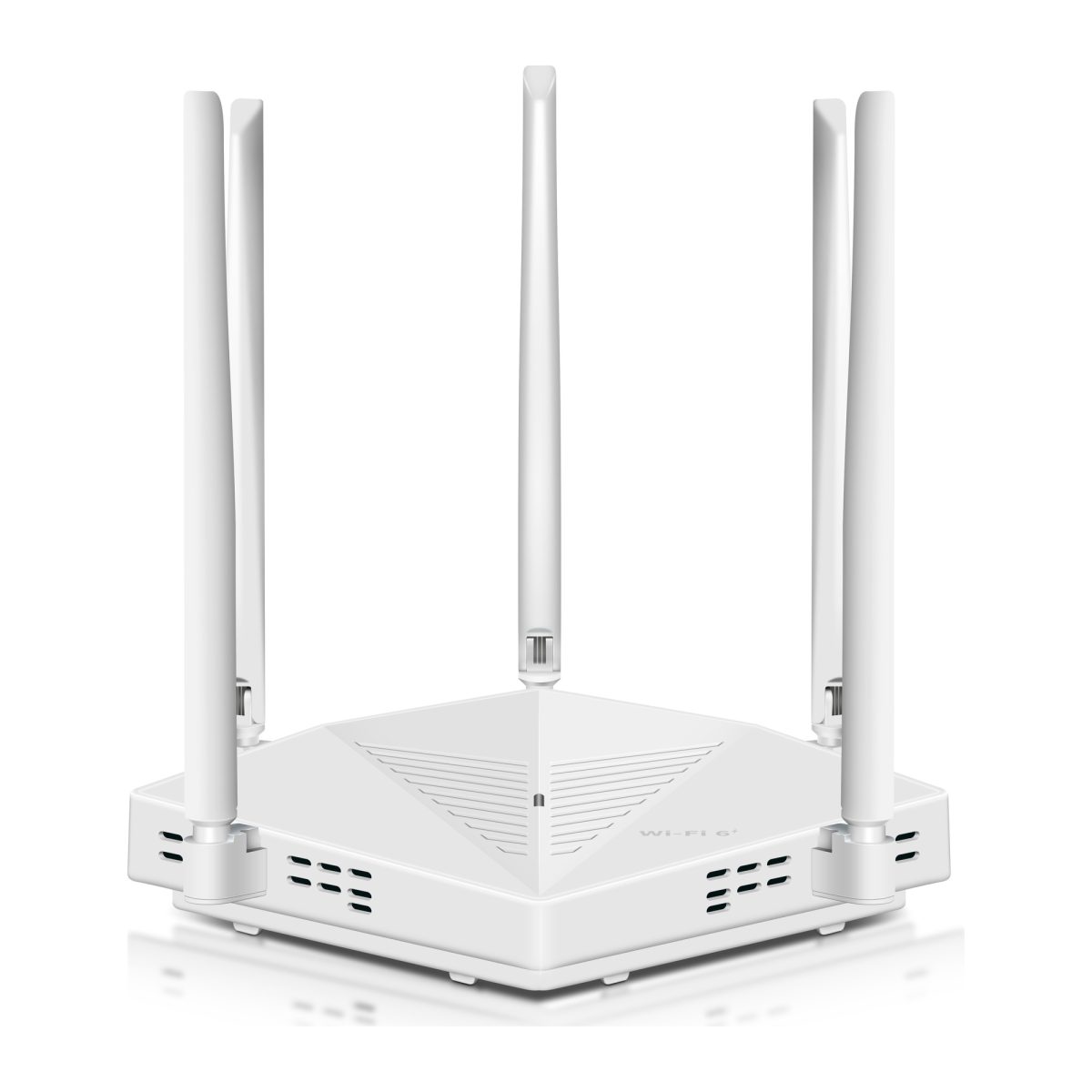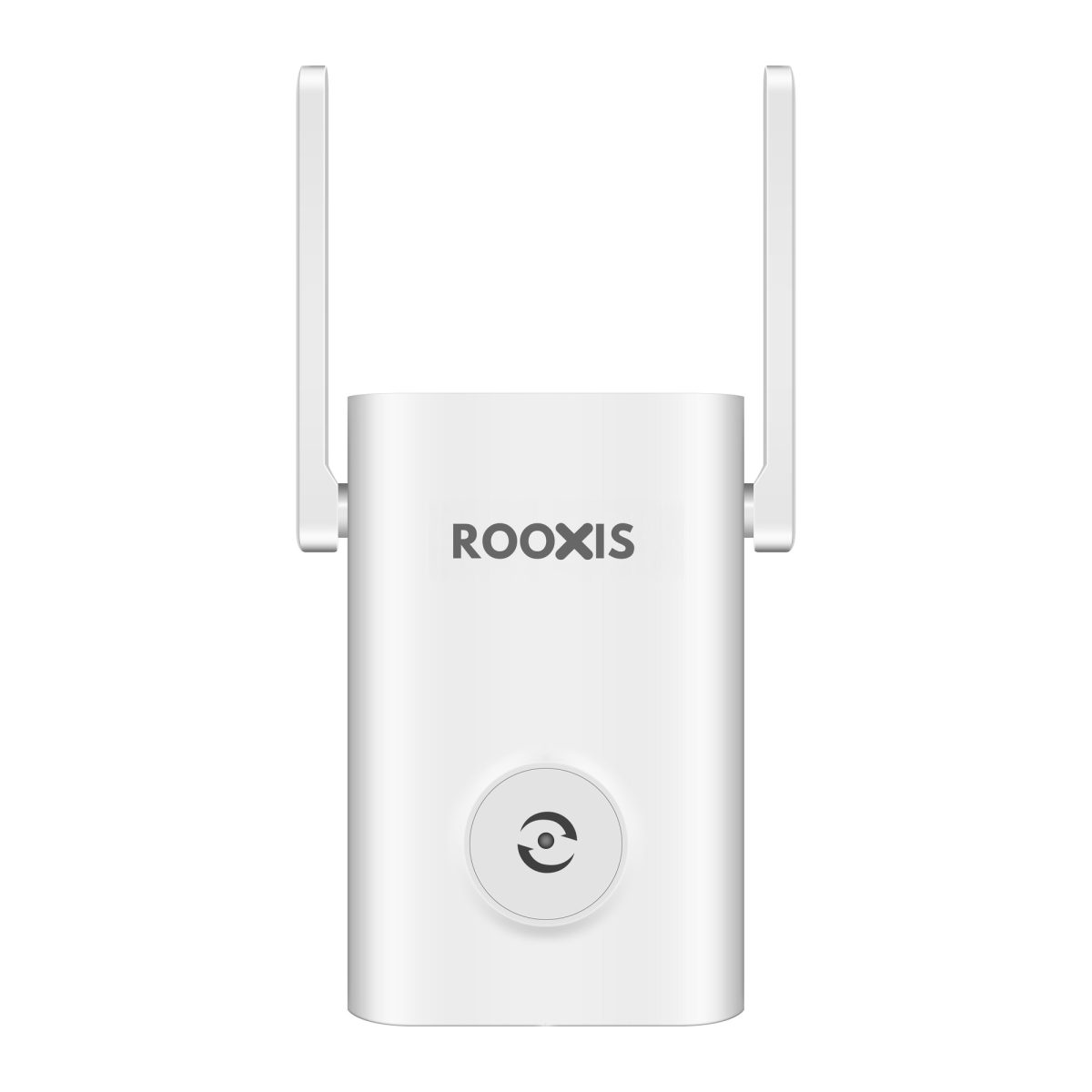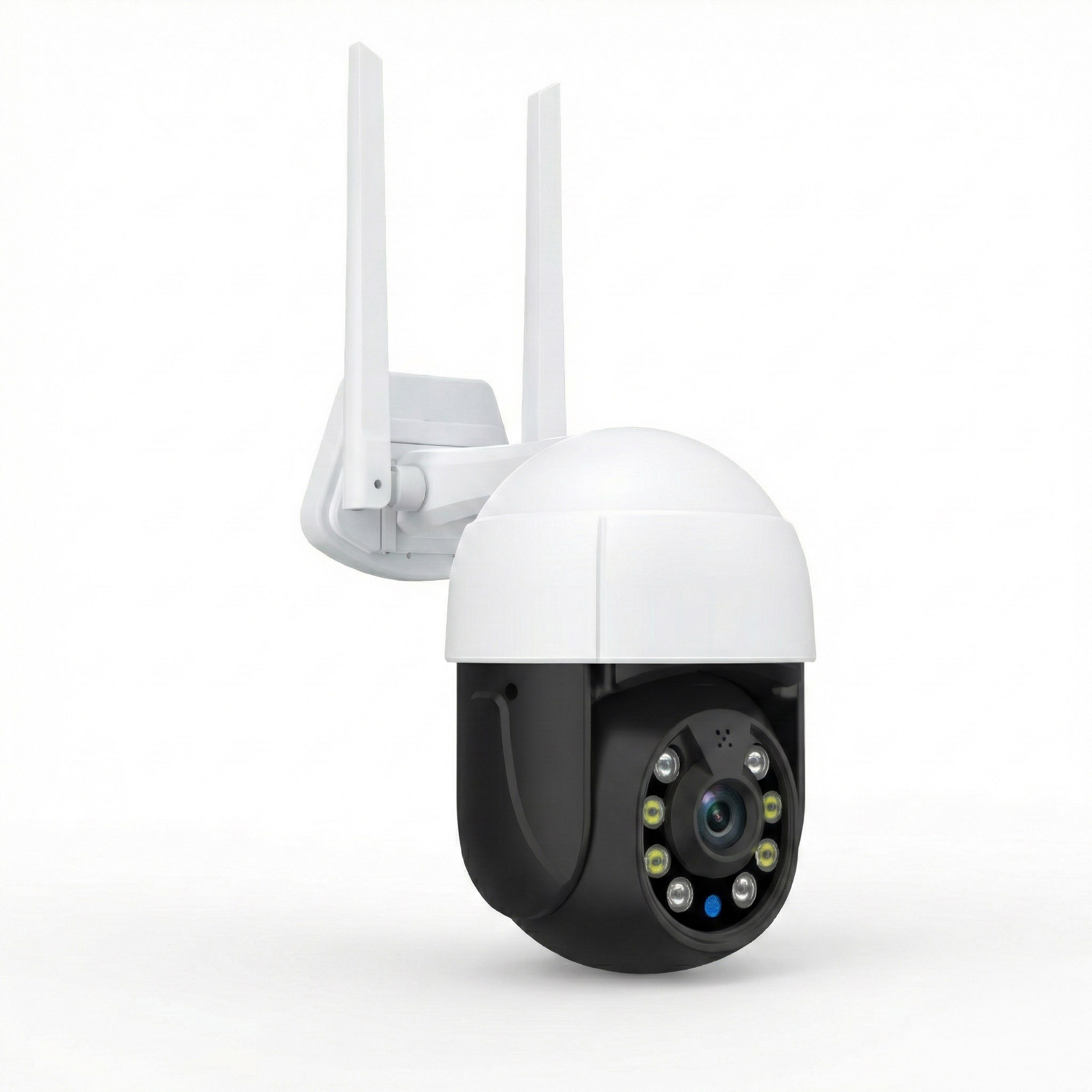
The main networking devices in computer network setups are routers, modems, switches, wireless access points, WiFi range extenders and network adapters. Each performs a different job, from connecting your home to the internet to helping individual computers, smartphones and security cameras communicate.
Knowing which device does what can save you money. If your outdoor camera disconnects every evening, a faster router might not fix it. The camera could be receiving a weak wireless signal through an exterior wall, or its power supply might be unreliable.
The same applies to slow laptops, upstairs WiFi problems and televisions that constantly buffer. Before buying new equipment, work out which part of the connection is causing trouble.

What Are Networking Devices in Computer Network Setups?
Networking devices are physical components that establish, manage or extend connections between computers and other electronic equipment. They allow devices to exchange information through Ethernet cables, wireless signals or a combination of both.
A typical home network might contain:
-
An optical network terminal connected to a fiber internet service.
-
A wireless router in the living room.
-
A network switch behind the television cabinet.
-
A WiFi extender near the staircase.
-
A laptop with a built-in wireless adapter.
-
An outdoor security camera connected through WiFi.
The router manages communication between the home network and external networks. The switch provides additional wired connections. The extender helps wireless signals reach areas where the router alone cannot provide dependable coverage.
Your laptop, television and security cameras are endpoints. They use the network rather than primarily managing or forwarding its traffic.
That distinction matters when troubleshooting.
If the television, laptop and every smartphone lose internet access simultaneously, the problem probably involves something they share, such as the router or internet service.
If only the driveway camera goes offline, start with its power supply, wireless signal and individual network connection.
There is no reason to replace every networking device when only one connection is failing.
Main Networking Devices and Their Functions
1. Modem
A modem connects compatible home networking equipment to an internet service provider through technologies such as cable or DSL.
With cable internet, the modem communicates over a coaxial cable. DSL services use compatible telephone line connections. The modem establishes communication with the provider's equipment and passes the connection to your router or other compatible networking hardware.
Many internet providers supply a combined modem and wireless router, so you might not have two separate boxes.
Where you might find a modem:
-
Beside the wireless router.
-
Near a coaxial wall outlet.
-
Inside a media cabinet.
-
Within a combined internet gateway supplied by your provider.
A modem problem can produce a confusing symptom. Your smartphone shows full WiFi bars, but nothing loads.
The wireless connection between the phone and router is working. The connection between your home and the internet provider may not be.
What to check when something goes wrong:
-
Make sure the modem is receiving power.
-
Check that the incoming cable is securely connected.
-
Inspect the Ethernet cable connecting the modem and router.
-
Look for an Online or Internet indicator.
-
Check your provider's outage information using mobile data.
If you have separate modem and router units, restart the modem first. Wait until it finishes reconnecting before restarting the router.
Do not press the recessed factory reset button. A normal restart and a factory reset are different procedures.
2. Optical Network Terminal
An optical network terminal, or ONT, is used with many fiber internet connections.
Fiber cables carry information using light. The ONT converts those optical signals into network signals that compatible home networking equipment can use.
An Ethernet cable commonly runs from the ONT to the router's WAN port.
Some installations use a separate ONT mounted near the point where fiber enters the property. Others combine optical termination and routing functions in a single gateway.
Common ONT indicators include:
-
Power.
-
PON, referring to the passive optical network connection.
-
LOS, meaning loss of signal.
-
LAN, indicating an Ethernet connection.
The exact meaning of each light depends on the equipment.
If the LOS indicator displays a warning while every device in the house loses internet access, investigate the fiber connection before changing wireless settings.
Restarting an extender upstairs will not repair a fault in the incoming optical service.
Avoid sharply bending fiber cables, pulling on optical connectors or trying to inspect the end of a fiber cable directly. Contact your provider if the equipment indicates an optical connection fault.
3. Router
A router directs network traffic between different networks. In most households, it connects the local network to the internet.
Consumer wireless routers usually combine several networking functions in one enclosure:
-
Internet routing.
-
Wireless access point functionality.
-
Ethernet switching.
-
Automatic IP address assignment.
-
Firewall protection.
-
Network address translation for typical IPv4 connections.
-
Guest WiFi management.
When someone streams a television show while another family member joins a video meeting, the router manages traffic passing between the household network and the relevant online services.
It also provides the infrastructure that lets compatible local devices communicate.
For example, your laptop may still communicate with a network printer during an internet outage, provided the necessary local network services remain available.
When should you investigate your router?
-
Several devices repeatedly disconnect together.
-
Both Ethernet and WiFi connections become unreliable.
-
Connected devices cannot obtain valid IP addresses.
-
The router unexpectedly restarts.
-
Restarting temporarily restores service, but the same problem returns.
Check the router's administration interface before assuming the hardware has failed.
Look for firmware information, connection status, connected clients and available system logs. Some routers also display uptime, which can reveal whether the equipment has been restarting unexpectedly.
Inspect ventilation as well. A router buried behind a television, surrounded by other warm electronics, may operate under less favorable conditions than one installed on an open shelf.
4. Network Switch
A network switch connects multiple Ethernet devices within a local network.
Its most familiar household purpose is providing additional wired connections.
Suppose your router has four LAN ports, but you want to connect a desktop computer, smart television, gaming console, network recorder and wireless access point.
You do not need another internet subscription or a second router. An Ethernet switch can provide the additional connections.
Connect one switch port to a LAN port on the router. The remaining switch ports can then connect your other equipment.
An eight-port switch generally leaves seven ports available for additional devices when one port is used for the router connection.
Two common switch types are:
-
Unmanaged switches: Usually work without manual configuration. They are suitable for ordinary home networking.
-
Managed switches: Offer additional controls such as traffic monitoring, virtual network segmentation and configurable port settings.
For most homeowners, an unmanaged Gigabit Ethernet switch is the practical choice.
Check the port specifications before purchasing. An older switch supporting only 100 Mbps Ethernet can restrict a faster network connection.
A switch does not broadcast WiFi by itself. It expands wired connectivity, although a wireless access point connected to the switch can provide WiFi coverage.
5. Wireless Access Point
A wireless access point connects WiFi devices to a wired network.
Its advantage becomes obvious in houses where wireless signals struggle to pass through concrete floors, brick walls or several rooms.
Imagine your main router is downstairs and an Ethernet wall outlet is available in the upstairs office. Connecting an access point to that outlet creates a wireless coverage point upstairs without depending on a weak signal from downstairs.
The connection between the access point and the rest of the network travels through Ethernet.
An access point is particularly useful for:
-
Houses with existing Ethernet wall outlets.
-
Upstairs offices used for video meetings.
-
Bedrooms separated from the router by thick walls.
-
Garages connected through suitable network cabling.
-
Locations where security cameras require dependable WiFi.
The main router generally continues assigning IP addresses and managing internet traffic.
Some consumer routers and range extenders include an access point mode. Check the manufacturer's operating mode instructions if you already own a spare networking device.
Using supported access point mode can prevent unnecessary routing and address assignment conflicts that sometimes occur when two routers are connected incorrectly.
6. WiFi Range Extender
A WiFi range extender receives an existing wireless signal and retransmits connectivity to devices within its coverage area.
It can solve a common rental property problem: the router works well in the living room, but running Ethernet cables to another bedroom is not permitted.
A suitable extender provides another wireless connection point without requiring permanent network cabling.
Placement determines much of its effectiveness.
If the back bedroom has no usable WiFi signal, plugging an extender into that bedroom is unlikely to help. The extender needs a reliable connection to the original router before it can provide useful coverage to other devices.
Try an outlet in the hallway between the router and the affected room.
A range extender makes sense when:
-
The main router works correctly.
-
One or two areas receive poor wireless coverage.
-
Running Ethernet cables is impractical.
-
An intermediate location receives a usable router signal.
-
Your devices need stable connectivity more than maximum throughput.
Extenders can reduce available wireless throughput and introduce additional latency, particularly when communication with the router and connected devices shares the same wireless resources.
For an outdoor security camera, test whether live video opens consistently and remains connected rather than focusing exclusively on download speed.
Homeowners comparing routers, wireless extenders and outdoor cameras can review the networking equipment available through ROOXIS and choose hardware suited to the actual connection problem.
7. Mesh WiFi Nodes
A mesh WiFi system consists of multiple cooperating networking units that provide wireless coverage across a property.
One unit usually connects to the internet gateway. Additional nodes provide coverage in other parts of the house.
Depending on the system, nodes communicate through wireless backhaul, Ethernet backhaul or both.
Mesh systems commonly use a shared network name and centralized management. Compatible devices may move between coverage points with assistance from supported roaming features, although the connected device ultimately influences when it changes access points.
Mesh networking may be useful when:
-
Several rooms have weak wireless coverage.
-
The property contains multiple floors.
-
Family members regularly move around while using connected devices.
-
Several access points are needed.
-
Managing separate networking equipment has become inconvenient.
Adding mesh nodes does not eliminate physical signal barriers.
A node installed behind several concrete walls may still struggle to communicate with the primary unit. Connecting compatible nodes through Ethernet can improve reliability when cabling is available.
For a small apartment with one weak coverage area, buying an entire mesh system may be unnecessary. For a property with several disconnected coverage areas, coordinated networking equipment can simplify management.
8. Network Interface Card and Network Adapter
A network interface card, commonly called a NIC, allows an individual device to communicate over a network.
Desktop computers and laptops often contain integrated wireless and Ethernet interfaces. External adapters provide additional connectivity when built-in hardware is unavailable or unsuitable.
A USB WiFi adapter can provide wireless connectivity to a compatible desktop computer without integrated WiFi.
A USB Ethernet adapter can give a laptop a wired connection when it lacks a physical Ethernet port.
Common signs of a network adapter problem include:
-
One laptop cannot detect available WiFi networks.
-
WiFi disappears from the computer's settings.
-
Ethernet works on other devices but not on one computer.
-
Connectivity problems begin after a driver update.
-
A USB networking adapter repeatedly disconnects.
On Windows, inspect the network adapter through Device Manager.
-
Right-click the Start button.
-
Select Device Manager.
-
Expand Network adapters.
-
Locate the relevant wireless or Ethernet adapter.
-
Check for warning symbols.
-
Open Properties and read the device status.
If Windows reports a driver or hardware problem, obtain the appropriate driver from the computer or adapter manufacturer's official support website.
Avoid unfamiliar driver download websites and software claiming to repair every outdated driver automatically.
If every other household device connects normally, a problem with one laptop's adapter is more likely than a complete router failure.
9. Network Hub
A network hub is an older device used to connect Ethernet equipment.
Traditional hubs repeat incoming electrical signals to their other ports. They do not make the same forwarding decisions as modern Ethernet switches.
This creates a shared communication environment in which devices compete for transmission opportunities.
Modern switches are more efficient and have largely replaced traditional hubs in home and office networks.
You may encounter network hubs when studying networking components of computer systems, particularly older Ethernet architectures.
However, buying a traditional Ethernet hub to expand a modern household network is generally unnecessary.
A USB hub expands USB connectivity. A smart home hub coordinates compatible smart devices. An Ethernet hub connects network equipment using an older networking method.
Despite their similar names, they are not interchangeable.
10. Network Bridge
A network bridge connects network segments and forwards traffic between them.
Modern Ethernet switches perform bridging functions. Wireless networking equipment may also support dedicated bridge modes.
One practical application is connecting Ethernet-only equipment to a wireless network.
An older television or network recorder might have an Ethernet port but no built-in WiFi. A compatible wireless bridge can receive the wireless connection and provide network connectivity through its Ethernet interface.
Check the operating mode carefully before buying equipment for this purpose.
An extender with an Ethernet port does not necessarily support every bridging arrangement. Some ports provide network access to wired devices, while others support different operating modes.
Confirm that the product supports the specific connection you intend to create.
11. Gateway
A gateway provides communication between networks or systems.
In residential networking, internet providers frequently use the term to describe equipment combining internet connection, routing and wireless functionality.
A cable internet gateway, for example, may contain both a modem and a wireless router.
The term also appears in computer network settings as the default gateway.
The default gateway is usually the router address your device uses when communicating with destinations outside its local network.
Common private router addresses include 192.168.1.1 and 192.168.0.1. Neither address is guaranteed to be correct for your particular equipment.
To find your actual gateway address on Windows:
-
Open the Start menu.
-
Search for Command Prompt.
-
Open Command Prompt.
-
Enter ipconfig.
-
Find the active network connection.
-
Locate the Default Gateway field.
You can often enter that address into a web browser to access the router's administration interface.
Some internet provider gateways restrict browser-based management and require a dedicated application instead.
12. Network Firewall
A firewall controls traffic according to security rules.
Consumer routers usually include network firewall capabilities. Operating systems also provide their own software firewalls.
The router firewall helps restrict unwanted network connections. A computer firewall applies additional controls to traffic reaching or leaving that individual computer.
For ordinary household use, these existing protections are generally a more practical starting point than purchasing a separate hardware firewall.
However, firewall protection has limits.
If someone enters their account credentials into a fraudulent website, the router firewall may not prevent the theft. The same applies when someone deliberately installs an unsafe application.
Keep firewall protection enabled and avoid opening ports unless a legitimate application requires it.
For security cameras, be particularly cautious about exposing camera administration interfaces directly to the internet.
Use supported remote access methods rather than following unfamiliar instructions that require disabling the router firewall.
Networking Devices Comparison Table
Use this comparison when deciding which piece of networking equipment addresses a particular household requirement.
| Networking device | Primary function | Common household use | Internet connection required to perform its basic function? |
|---|---|---|---|
| Modem | Connects equipment to compatible provider networks | Cable or DSL internet service | Required for online access |
| ONT | Converts optical network signals | Fiber internet installations | Required for online access |
| Router | Directs traffic between networks | Internet access and local network management | No |
| Switch | Connects wired devices | Expanding available Ethernet ports | No |
| Access point | Connects wireless devices to a wired network | Additional WiFi coverage | No |
| WiFi extender | Relays an existing wireless connection | Improving coverage in a weak signal area | No |
| Mesh node | Provides coordinated wireless coverage | Multiple rooms and floors | No |
| Network adapter | Connects an individual device | Adding Ethernet or WiFi capability | No |
| Network hub | Repeats Ethernet signals | Older networking installations | No |
| Network bridge | Connects network segments | Linking compatible wired and wireless equipment | No |
| Gateway | Connects networks or combines networking functions | Provider supplied networking equipment | Depends on its function |
| Firewall | Controls network traffic | Restricting unwanted connections | No |
The important distinction is that most local networking equipment can continue operating during an internet outage.
A switch does not stop connecting wired computers simply because your provider experiences a service interruption. However, connected applications that require remote servers may become unavailable.
How Networking Devices Work Together in a Home
How Internet Data Reaches Your Laptop
Opening a website involves more networking components than the wireless connection displayed on your laptop.
The communication generally follows this process:
-
Your laptop connects to a wireless access point, often built into the main router.
-
DNS services help resolve the website name into an IP address.
-
Your router forwards traffic toward the external network.
-
The modem or ONT communicates with the internet provider.
-
Traffic passes through external networks to the destination service.
-
The response returns to your laptop.
The entire process normally occurs without manual configuration.
Problems can appear at different stages.
A damaged Ethernet cable between the router and modem can interrupt internet access while WiFi remains available. A DNS problem can prevent websites from loading by name even though some other network communication continues working.
A weak wireless connection can cause interruptions before traffic even reaches the router.
Testing each part of the connection helps narrow down the fault.
How a Security Camera Sends Video to Your Phone
An outdoor WiFi camera must maintain a network connection capable of carrying its video and other communication.
Depending on its design, the camera may send video directly through the local network, communicate through external servers or use both methods.
Suppose a driveway camera connects to a router inside the living room.
Between the two devices are an exterior brick wall, a garage door and several meters of outdoor space. The camera may technically connect to WiFi but struggle to maintain enough usable throughput for uninterrupted video.
Possible symptoms include:
-
Live video taking a long time to open.
-
Playback stopping unexpectedly.
-
The camera appearing offline intermittently.
-
Delayed access to network-dependent recordings.
-
Slow responses when changing camera settings.
-
Delayed network-dependent notifications.
Check power before investigating wireless performance.
If a camera uses an electrical adapter, inspect the adapter and connection. If it uses a battery, check the reported battery level. If it receives power through Ethernet, inspect the relevant PoE equipment.
A networking upgrade cannot compensate for a camera that keeps losing electrical power.
How Devices Communicate Without the Internet
Your local network and your internet connection are separate things.
The local network connects your household equipment. The internet connects that network to external services.
During an internet outage, a functioning local network may still allow you to:
-
Print documents using a compatible network printer.
-
Transfer files between locally connected computers.
-
Access a local network storage device.
-
View security camera footage through supported local connections.
-
Communicate with compatible smart home equipment.
The exact capabilities depend on the products and their software.
Some camera applications require cloud authentication even when the camera and phone are connected to the same router. Other camera systems support direct local viewing.
If local recording and access matter to you, check these capabilities separately.
A camera with a memory card does not necessarily support every viewing function without internet access. Local recording and local playback are different features.
Understanding Computer Networking Hardware and Software
Networking problems can originate from physical equipment or from the software controlling it.
Understanding hardware and software networking helps you distinguish a damaged Ethernet cable from an incorrect network configuration.
Both can produce similar symptoms, but their solutions are different.
Networking Hardware Components
Networking hardware consists of the physical components responsible for establishing and maintaining connections.
Common examples include:
-
Wireless routers.
-
Modems and ONTs.
-
Ethernet switches.
-
Wireless access points.
-
Network interface cards.
-
USB network adapters.
-
Ethernet cables.
-
Wireless antennas.
-
Power over Ethernet equipment.
A damaged Ethernet connector provides a straightforward hardware example.
If the locking clip has broken, the cable may move slightly whenever someone adjusts the equipment. That movement can interrupt the connection.
Replacing the cable could resolve the problem without changing router settings.
Physical networking faults also include failing power adapters, damaged ports and equipment exposed to unsuitable environmental conditions.
Networking Software Components
Networking software controls how hardware communicates.
It includes:
-
Router firmware.
-
Network adapter drivers.
-
Operating system networking services.
-
DHCP services.
-
DNS services.
-
Firewall software.
-
Wireless authentication mechanisms.
-
Network management applications.
Consider a laptop that detects your wireless network but cannot connect after you changed the router password.
The laptop's wireless hardware may be working correctly. It could simply be attempting to authenticate using the previously saved password.
Open its WiFi settings, forget the saved network and reconnect using the updated credentials.
The relationship between hardware software networking components becomes especially clear in situations like this. Replacing physical equipment would add expense without correcting the saved network configuration.
Essential Networking Terms Homeowners Should Know
When reading about computer hardware software and networking, you will encounter several terms in router settings and troubleshooting instructions.
IP address: A logical address used to identify a network interface for communication. Your router commonly assigns private IP addresses to household devices.
MAC address: An identifier used by a network interface for local communication. Modern phones and computers may use randomized or private MAC addresses.
DHCP: A service that automatically supplies IP addresses and other network configuration details. When DHCP fails, devices may connect to WiFi without obtaining a usable network configuration.
DNS: A naming system that helps devices find online services using domain names rather than manually entered IP addresses.
SSID: The wireless network name shown when you search for available WiFi connections.
Firmware: Software stored on equipment such as routers, extenders and cameras. Firmware controls the device's functions and may receive security or reliability updates.
Bandwidth: The data carrying capacity of a connection.
Latency: Communication delay. It is particularly noticeable during gaming, video calls and interactive camera viewing.
Backhaul: The connection linking an additional networking device, such as an access point or mesh node, to the rest of the network.
These terms become useful when you need to interpret an error message or decide which router setting deserves attention.
How to Identify the Networking Devices in Your Home
Before buying additional networking equipment, spend a few minutes identifying what is already installed.
Start with the incoming internet connection and follow the cables.
Step 1: Locate the Incoming Internet Connection
Find the cable bringing internet service into your home.
Depending on your installation, this could be:
-
A coaxial cable.
-
A fiber optic cable.
-
A telephone line.
-
An Ethernet connection supplied by the provider.
Follow it to the first networking device.
A coaxial cable commonly leads to a cable modem or combined gateway. A fiber connection may terminate at an ONT.
If you live in an apartment with an Ethernet connection supplied through the building, you may not have direct access to the provider's upstream equipment.
Identifying this arrangement helps establish which equipment you can troubleshoot yourself.
Step 2: Identify the Router
Look for the device managing your household network.
Consumer routers commonly have a WAN or Internet port and one or more LAN ports.
They may also display a wireless network name, equipment model and management instructions on a label.
Do not rely exclusively on appearance.
A device with several antennas might be an access point rather than a router. A mesh router may have no visible external antennas.
Check the model number and operating mode if you are unsure.
Step 3: Follow the Ethernet Connections
Inspect the cables connected to the router's LAN ports.
One might lead to a television. Another could connect a desktop computer. A cable disappearing into a wall may serve an access point in another room.
A small device with several Ethernet connections is likely to be a network switch.
If possible, label important cables at both ends.
A label identifying the garage camera, upstairs access point or television connection can make later troubleshooting considerably easier.
Avoid unplugging cables at random, especially when they support security cameras, work computers or other equipment currently in use.
Step 4: Check the Connected Device List
Most home routers offer a connected device list through their administration interface or management application.
On Windows, find the router's address using ipconfig and the Default Gateway field.
On iPhone:
-
Open Settings.
-
Select WiFi.
-
Tap the information icon beside your connected network.
-
Locate the Router field.
After accessing the appropriate router management interface, look for Connected Devices, Clients, Attached Devices or similar terminology.
Compare the displayed entries with the equipment in your home.
Some devices appear under their manufacturer name instead of the name you assigned them. A camera might appear as an unfamiliar manufacturer rather than Driveway Camera.
Private MAC addressing can also affect how phones and computers appear in the list.
Before blocking an unfamiliar device, temporarily disconnect equipment you recognize or compare its network address with the information displayed in its settings.
Do not assume every unfamiliar name belongs to an unauthorized user.
Step 5: Identify Coverage Extension Equipment
Find additional wireless equipment installed around the property.
Check for plug-in extenders, mesh nodes and access points connected through Ethernet wall outlets.
Record how each device connects to the main network.
If the upstairs access point uses Ethernet, check the Ethernet path when it loses connectivity.
If a hallway extender uses wireless backhaul, investigate its connection to the main router.
Knowing the connection method prevents you from troubleshooting wireless signal strength when the actual fault involves a damaged network cable.
Which Networking Device Do You Need to Fix Your Problem?
Your Entire Home Has Lost Internet Access
When every household device loses connectivity, start with shared networking equipment.
Check the modem or ONT, followed by the router.
Look for abnormal status indicators, disconnected cables or an unexpected power interruption.
Next, connect a compatible computer directly to one of the router's LAN ports using Ethernet.
If wired and wireless devices both lack internet access, the problem is unlikely to be limited to wireless coverage.
Check the provider's outage information and the router's internet connection status.
If the provider confirms an outage, buying an extender or switch will not restore the incoming service.
Your WiFi Works Downstairs but Not Upstairs
First, verify that internet access works correctly near the main router.
Then carry a smartphone or laptop upstairs and check the connection in several locations.
If WiFi works near the staircase but becomes unreliable inside the bedroom, the problem is probably related to coverage, interference or building materials.
Your equipment options include:
-
An access point connected through existing Ethernet wiring.
-
A range extender installed where the router signal remains usable.
-
A mesh system when several areas need additional coverage.
If Ethernet wiring already reaches the affected room, use that connection where practical. It removes the need for an additional device to rely entirely on a weak wireless backhaul.
You Have Run Out of Ethernet Ports
Purchase a suitable Ethernet switch rather than a second router.
Connect the switch to an available router LAN port and connect your additional wired equipment to the switch.
An unmanaged Gigabit Ethernet switch will meet the needs of many households.
Remember that traffic traveling from the switch toward the router shares the uplink connection.
For ordinary televisions, computers and home security equipment, this arrangement is often sufficient. Households regularly transferring large files between high speed storage devices may have more demanding switch requirements.
Your Outdoor Camera Keeps Disconnecting
Check the camera's power supply, wireless compatibility and connection strength.
Stand near the installation location with your smartphone connected to the home's WiFi. Check whether the network remains available and whether an ordinary internet connection works.
This is a preliminary check, not proof that the camera receives the same signal quality. Smartphones and cameras have different radio hardware and antennas.
If the camera application displays signal information, review that measurement.
Also consider how conditions change throughout the day.
A metal garage door that remains open during installation but closes every evening can affect the wireless path. Nearby equipment, vehicle placement and other physical obstacles may also influence connectivity.
Possible solutions include:
-
Moving an existing range extender.
-
Installing a wired access point.
-
Using an appropriately rated outdoor access point.
-
Switching to Ethernet where the camera supports it.
-
Using compatible PoE equipment for a wired installation.
Do not install an indoor networking device outdoors unless the manufacturer explicitly supports that environment.
Only One Laptop Has Connection Problems
If every other device connects correctly, begin with the affected laptop.
Make sure airplane mode is disabled and that the correct wireless network is selected.
Move the laptop closer to the router and test again.
If the connection improves substantially, coverage or the laptop's wireless capabilities may be contributing to the problem.
If the laptop still fails to connect, forget the saved network and reconnect using the correct password.
Check Device Manager for network adapter errors.
Where possible, test an Ethernet connection as well.
If Ethernet works but WiFi does not, investigate the wireless adapter, its drivers and wireless configuration before replacing the router.
Your Wired Network Is Slower Than Expected
Check the reported Ethernet link speed between the computer and networking equipment.
On Windows 11, open Settings, select Network & internet and open the relevant Ethernet connection properties.
Look for the reported link speed.
If the computer reports 100 Mbps while the adapter and connected switch both support Gigabit Ethernet, investigate the cable and port.
A damaged cable or poor connector termination can cause Ethernet equipment to negotiate a lower connection speed.
Try a known working cable, then another compatible Ethernet port.
Also inspect every device along the connection path. A single older switch limited to 100 Mbps can restrict traffic passing through it.
Remember that Ethernet link speed describes the local connection. It does not guarantee equivalent internet download speeds.
What Is Power Over Ethernet and Why Does It Matter?
Power over Ethernet, or PoE, allows compatible equipment to receive electrical power and network connectivity through an Ethernet cable.
It is particularly useful for security cameras and wireless access points installed away from convenient electrical outlets.
Instead of running a separate power connection to each camera, compatible PoE equipment supplies power through the network cable.
A basic wired security camera installation might include:
-
A router.
-
A PoE network switch.
-
Compatible Ethernet cabling.
-
PoE security cameras.
-
A network video recorder.
The network video recorder, commonly called an NVR, receives and stores video from compatible IP cameras. Some NVRs contain integrated PoE ports, reducing the need for a separate switch.
Before purchasing equipment, check:
-
The camera's supported PoE standard.
-
The power output supported by each switch port.
-
The switch's total power budget.
-
Cable suitability and installation conditions.
-
Camera compatibility with the intended recording system.
-
Outdoor cable protection requirements.
A switch may have several PoE ports without being able to deliver its maximum per-port power simultaneously across every port. Check both individual port capacity and total available power.
Be especially cautious with passive PoE equipment. Its electrical characteristics may differ from standardized PoE implementations.
Do not connect unfamiliar passive PoE equipment without confirming compatibility.
For outdoor installations, use suitable cabling and weather protection. Exposed runs between buildings may require additional electrical protection or professional installation.
PoE is particularly useful when wireless connectivity is unreliable and the property permits wired camera installation.
Common Misconceptions About Networking Devices
A Router and a Modem Are the Same Thing
A modem communicates with compatible internet provider equipment. A router directs traffic between networks.
A combined gateway contains both functions, which explains why many households refer to their internet box as either a router or modem.
When troubleshooting, identify whether these functions are performed by separate devices or one combined unit.
More Networking Devices Always Improve WiFi
Adding equipment without identifying the problem can introduce unnecessary interference and configuration complications.
Installing multiple extenders in a small apartment, for example, may create overlapping wireless coverage without improving the original router connection.
Start with the affected location and identify what is limiting connectivity.
Add equipment only when it addresses that limitation.
A Strong WiFi Signal Means the Internet Is Working
WiFi bars primarily describe the wireless connection between a device and an access point.
They do not confirm that the router has a working internet connection.
A smartphone can display full wireless signal strength while the modem has lost communication with the provider.
Test another device and check the router's internet status before adjusting wireless settings.
A Network Switch Increases Internet Speed
A switch expands wired connectivity. It does not increase the internet capacity supplied by your provider.
Replacing an older or faulty switch can remove a local bottleneck, allowing compatible equipment to use more of the existing connection capacity.
However, installing a faster switch will not turn a slower internet subscription into a faster one.
A WiFi Extender Creates Additional Internet Bandwidth
An extender provides additional wireless reach using an existing network connection.
It does not create a separate internet service or increase your subscription speed.
If the extender receives an unreliable connection from the main router, connected devices may continue experiencing interruptions despite displaying strong signal bars from the extender itself.
The quality of the backhaul connection matters just as much as the coverage provided to nearby devices.
All Security Cameras Work Better on 5 GHz WiFi
Many residential security cameras support only 2.4 GHz WiFi.
Under comparable conditions, 2.4 GHz signals generally travel farther through obstacles than 5 GHz signals. However, the band may also experience greater congestion and interference.
The 5 GHz band can provide higher throughput when supported and when signal quality is adequate.
Choose the frequency based on camera compatibility, installation distance and connection reliability.
A camera that maintains stable video over 2.4 GHz is more useful than one that repeatedly disconnects from a weak 5 GHz connection.
Every Home Needs a Separate Hardware Firewall
Most households already have firewall capabilities through their router and operating systems.
Dedicated network firewalls can provide additional controls for advanced network configurations, but they are not necessary for every residential installation.
Before purchasing separate equipment, check that the existing router firewall remains enabled, management passwords are secure and firmware receives supported security updates.
Avoid unnecessary port forwarding and remote administration access.
How to Maintain Your Home Networking Equipment
Home networking equipment does not require constant adjustment. Unnecessary configuration changes can create more problems than they solve.
Focus on maintenance that protects existing connections and reduces avoidable failures.
-
Install supported firmware updates: Use the equipment manufacturer's official management interface or application. Avoid unofficial firmware unless you understand the compatibility and security implications.
-
Inspect Ethernet cables: Replace damaged cables, loose connectors and cables associated with recurring disconnections.
-
Maintain ventilation: Keep routers, switches and recorders away from enclosed cabinets containing several heat-producing devices.
-
Secure administrator accounts: Change default management passwords and avoid enabling remote administration without a specific requirement.
-
Use appropriate wireless security: Select WPA2 with AES or WPA3 where supported by your equipment. Avoid obsolete security configurations.
-
Review connected equipment: Investigate unfamiliar network entries and remove unauthorized access when confirmed.
-
Protect exposed installations: Use equipment and cabling rated for the relevant outdoor conditions.
-
Keep configuration records: Store important network information securely, including the router model, wireless settings and equipment locations.
-
Avoid unnecessary factory resets: Resetting equipment can erase wireless credentials, provider settings and custom network configurations.
If a problem returns every few days after restarting the router, write down when it occurs and which devices are affected.
A recurring failure involving every device may point toward shared equipment or the provider. A problem affecting only one room suggests a different investigation.
You do not need every networking device in this guide to build a dependable home network. Use a switch when Ethernet ports run out, an access point when suitable wired connectivity is available, and an extender when a limited wireless coverage problem needs addressing. When the entire house loses internet access, start with the incoming connection and main router instead of adding more wireless equipment.
FAQ
What are the main networking devices in a computer network?
The main networking devices include routers, switches, modems, wireless access points, network adapters, gateways and network bridges. Residential networks may also contain optical network terminals, WiFi range extenders and mesh nodes, depending on the internet service and property layout.
What is the difference between a router and a switch?
A router directs traffic between different networks, including communication between your home network and the internet. A switch connects Ethernet devices within a local network and forwards traffic toward the appropriate destination. Homeowners typically install switches when they need additional wired connections.
Which networking device is used to extend WiFi coverage?
Wireless access points, WiFi extenders and mesh nodes can all provide additional coverage. An access point commonly uses Ethernet backhaul, while a range extender relays an existing wireless connection. The appropriate choice depends on available cabling, signal quality and the number of affected rooms.
What are the hardware and software components of networking?
Networking hardware includes routers, switches, Ethernet cables, access points and network adapters. Networking software includes firmware, drivers, operating system networking services, DHCP, DNS and firewall software. Physical equipment establishes connections, while software controls communication and network configuration.
Can networking devices work without an internet connection?
Yes, routers, switches and access points can continue supporting local network communication without an active internet connection. Compatible printers, computers and security cameras may remain locally accessible. However, features that depend on external servers, cloud authentication or remote access may stop working.
Which networking device is best for outdoor security cameras?
A suitably positioned WiFi extender or access point can improve connectivity for compatible wireless security cameras. Wired cameras may benefit from an Ethernet switch or compatible PoE switch. Check the camera's connection requirements, power compatibility and outdoor installation conditions before purchasing additional equipment.