Your laptop works perfectly beside the router, but video calls freeze in the upstairs office. Outside, your security camera keeps losing its connection even though the WiFi signal looks strong on your phone. Before buying another router, try connecting the affected equipment with a network cable wherever the hardware supports it.
A computer networking cable connection is a physical link that allows devices to exchange data through a wired network. In most homes, this means plugging an Ethernet cable into a router, network switch, computer or compatible camera. A correctly installed wired connection avoids many wireless signal problems and makes it easier to identify where a network fault begins.
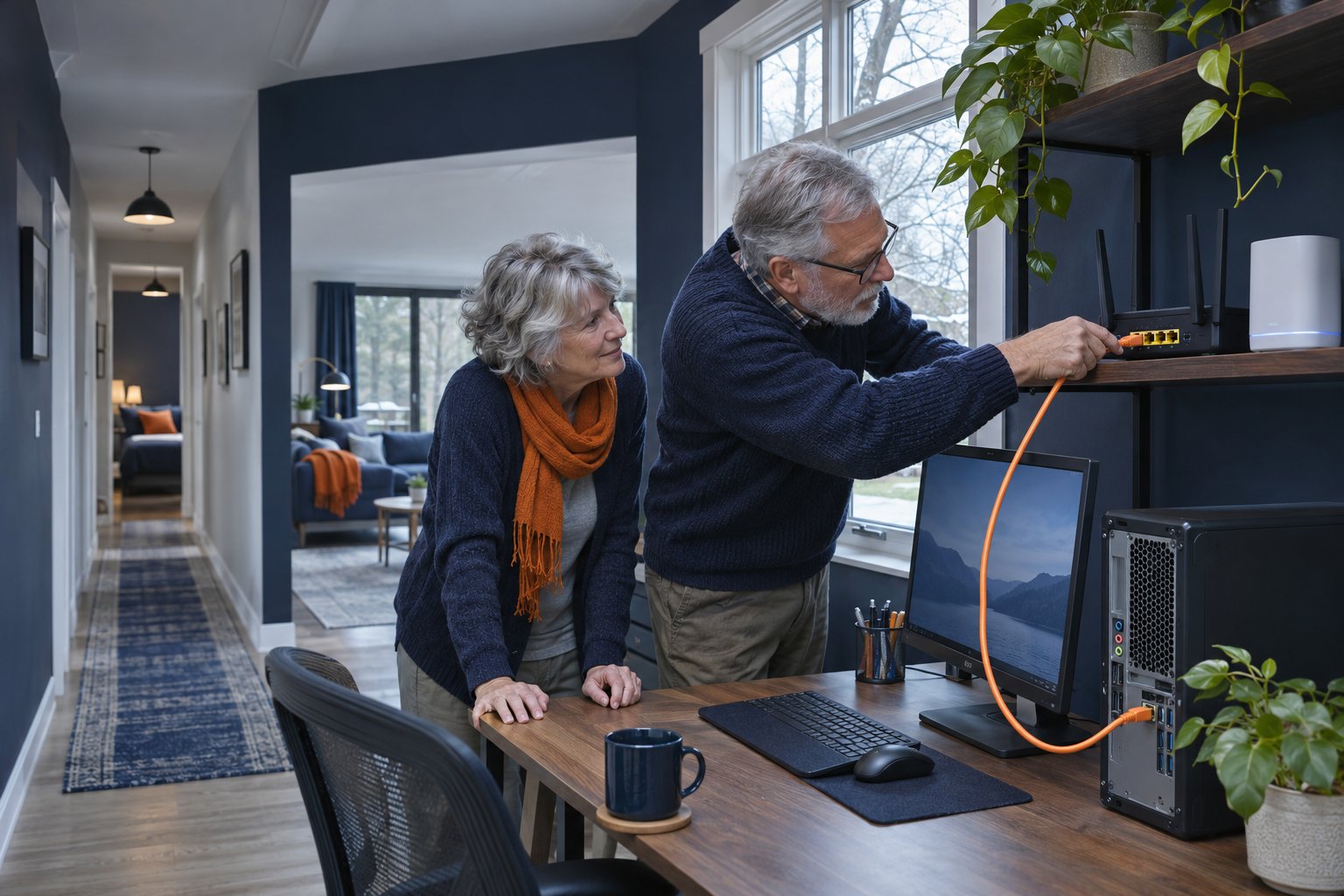
What is a computer networking cable connection?
A network cable carries data between devices. In a typical home, Ethernet is the wired connection used between the router and equipment such as desktop computers, televisions, gaming consoles and network storage devices.
The cable most people recognize has a rectangular plastic plug with a locking tab. It is commonly called an RJ45 Ethernet connector. Inside a standard twisted pair Ethernet cable are four pairs of insulated copper wires. The wires are twisted to help limit electrical interference and unwanted interaction between signals.
When you connect a laptop to a router, the network adapters at both ends establish a link. Your router can then assign the laptop an IP address and provide access to other devices on the local network and, if the internet service is working, the internet.
The cable does not contain an internet subscription or generate a WiFi signal. It simply provides a path for data. You can have a perfectly functioning wired network even when the internet provider is experiencing an outage.
How a wired connection fits into your home network
Consider a living room with a broadband gateway, smart television and games console. The gateway combines several functions in one box, including routing and wireless access. Your television and console can connect to its LAN ports, while your phone continues using WiFi.
All these devices can belong to the same local network. Wiring the television does not mean you have to switch off wireless access for the rest of the household.
If your internet provider supplies a separate modem or fiber terminal, that device normally connects to the router's internet port. Your computers and other wired equipment connect on the LAN side of the router.
The distinction matters when you have unplugged everything to move a cabinet or install a new router. Returning the cables to the wrong ports can leave the router broadcasting WiFi without providing internet access.
Identify the ports before connecting anything
Start by looking at the back of the router rather than guessing which opening accepts a cable. Several ports may look identical even though they perform different jobs.
WAN and LAN ports
The WAN port, sometimes marked Internet, connects the router to the upstream internet equipment. A LAN port connects equipment within your home network. Some routers have configurable ports that can perform either role, so check the device markings and setup instructions if the distinction is unclear.
Do not rely on port color. Manufacturers use different color schemes, and a blue socket on one router may serve a different purpose on another.
| Port or label | Typical connection | What to check |
|---|---|---|
| WAN or Internet | Modem or fiber terminal | Correct upstream cable and router mode |
| LAN or Ethernet | Computer, TV or switch | Link indicator and supported speed |
| PoE | Compatible powered camera or access point | Matching power standard and budget |
| DSL or Phone | Telephone line or voice service | Not an ordinary Ethernet socket |
On some older equipment, a telephone jack looks like a narrow version of an Ethernet socket. Never force a network plug into it. A USB port is also not a substitute for an Ethernet port unless the manufacturer explicitly supports a suitable adapter.
What to do if your laptop has no Ethernet port
Many thin laptops have no built-in network socket. A USB-C or USB-A Ethernet adapter can provide one, provided the adapter supports your operating system and the USB port has the appropriate capabilities.
Choose an adapter that supports at least the speed you expect from the router. A gigabit adapter is sufficient for many ordinary households, but it will not deliver multigigabit speeds merely because it plugs into a fast USB port.
For a first test, plug the adapter directly into the computer. A crowded USB hub or docking station introduces another component that could cause a fault. Once the direct connection works, test the dock separately.
How to make a reliable Ethernet connection
You do not need to change router settings just to connect an ordinary computer to a working home network. Most routers automatically supply the information a computer needs to communicate.
Step 1: Choose a known working cable
For the initial test, use a short, factory terminated Cat5e or Cat6 Ethernet cable. Check the jacket for its category marking and inspect the connectors for damaged clips, bent contacts or cracks.
A cable that has been trapped under a desk leg or crushed in a door may look normal from the outside. If you are investigating a connection fault, borrowing a cable from a device that already works is a better starting point than trusting an untested spare from a drawer.
Look for these physical warning signs:
-
A locking tab that has snapped off.
-
Exposed copper wires near the connector.
-
Sharp bends or flattened sections along the cable.
-
Discoloration or corrosion on the connector contacts.
-
A plug that moves excessively when inserted into a port.
Replace a visibly damaged cable rather than attempting to secure it with adhesive tape. A cable that works only when held at a particular angle will probably cause intermittent connection problems.
Step 2: Connect the computer to a LAN port
Keep the router powered on. Insert one end of the Ethernet cable into an available LAN port and the other end into the computer or its Ethernet adapter.
Push gently until the locking tab engages. If the plug slides out without pressing the tab, the connector may be damaged or not fully inserted.
Do not pull a cable out by its wire. Press the release tab and grip the plug itself. Repeatedly yanking a cable can damage the connector or the socket on the device.
For your first connection test, avoid wall outlets, network switches and docking stations where possible. Connecting the computer directly to the router reduces the number of components that could introduce a fault.
Step 3: Verify that the physical link is active
Many routers and switches have small indicators near their Ethernet ports. A steady light often indicates an established connection, while blinking can indicate data activity.
The exact meaning of the colors varies by model. Some devices have no individual port lights or allow their lights to be disabled.
If neither end reports a link, try another LAN port and another cable. Check that the computer's Ethernet adapter is enabled and that any USB adapter is recognized.
A link light alone is not proof that the internet works. It only tells you that the connected hardware has established a physical network link.
Step 4: Confirm the computer has joined the network
On Windows 11:
-
Open Settings.
-
Select Network & internet.
-
Select Ethernet.
-
Check whether the connection is recognized.
-
Open the Ethernet properties and look for the link speed and IP information.
You can temporarily turn off WiFi to make sure your test uses the cable rather than the wireless connection.
On a Mac:
-
Open System Settings.
-
Select Network.
-
Choose the Ethernet service or the entry corresponding to your adapter.
-
Open Details and select TCP/IP.
-
Check whether the IPv4 configuration is set to Using DHCP.
For an ordinary home router, DHCP allows the computer to receive an IP address automatically.
Do not manually copy the IP address from another household device. Two devices using the same address can interfere with each other's connectivity.
If you are working with a managed office computer or a manually configured network, preserve any settings supplied by the administrator rather than changing them without approval.
Step 5: Test internet access independently
Open a browser and visit a site you have not recently loaded. Then test another unrelated site. A page already stored in the browser cache may appear even if the internet connection has stopped working.
For a more useful comparison, run a speed test while connected by Ethernet and with WiFi temporarily disabled.
Compare it with a wireless test on the same computer, using the same test service and similar conditions.
Pause large household downloads and cloud backups during the comparison. A game download running on another computer can reduce the measured speed regardless of the cable you use.
When comparing results, consider more than download speed. Watch for inconsistent performance, interrupted video calls and sudden connection losses.
If the wired connection is consistently stable but the wireless one fails in the upstairs office, investigate wireless coverage or interference instead of replacing the broadband connection immediately.
Understand what the negotiated link speed tells you
The link speed is the rate negotiated between the Ethernet interfaces. It is not a measurement of the internet service you are paying for.
A laptop can negotiate a 1 Gbps link to the router while receiving only 100 Mbps from its internet provider. Conversely, a household with a faster broadband plan may have an old switch that limits one room to 100 Mbps.
If a gigabit capable computer and router repeatedly negotiate only 100 Mbps, check every part of the physical connection.
A damaged wire pair, a poor termination, a limited USB adapter or an older switch can cause this symptom. Gigabit Ethernet over twisted pair copper normally uses all four wire pairs, whereas common 100 Mbps Ethernet uses two.
| Negotiated link speed | What it may indicate |
|---|---|
| 10 Mbps | Legacy equipment, configuration issues or a connection problem |
| 100 Mbps | Fast Ethernet hardware or a limitation in the cable path |
| 1 Gbps | A standard gigabit Ethernet connection |
| 2.5 Gbps | Compatible multigigabit network interfaces |
| 10 Gbps | Compatible high speed equipment and suitable cabling |
Start with a direct connection between the laptop and router using a known working cable.
If the link now negotiates at 1 Gbps, the problem is likely somewhere along the original path, not necessarily in the computer or router.
If the direct connection still negotiates at 100 Mbps, verify that both ports support gigabit operation.
Leave speed and duplex negotiation on automatic unless the equipment documentation requires a specific setting. Forcing a speed rarely repairs a physically damaged cable.
Remember that actual data transfer rates are normally lower than the negotiated link speed because of networking overhead and other system limitations.
What to do when a room has a wall Ethernet socket
An Ethernet wall outlet does not automatically provide internet access. The cable behind the outlet must terminate somewhere else, and that other end must be connected to the network.
In newer homes, several room cables may run back to a communications cabinet, utility cupboard or patch panel.
Individual wall outlets may have labels corresponding to sockets in that cabinet.
Trace the connection from the room to the router
Find the central termination point. If the room is labeled Office, look for the corresponding office port on the patch panel.
Connect that port to a LAN port on the router or an attached network switch using a short patch cable.
Then connect the computer to the office wall socket. Verify the link and network access as you would for a direct router connection.
A typical connection passes through these components:
-
Router LAN port.
-
Short Ethernet patch cable.
-
Central patch panel.
-
Permanent cable inside the wall.
-
Room Ethernet outlet.
-
Ethernet patch cable leading to the computer.
Every connection point must work correctly.
If the wall socket fails, test both removable patch cables separately before blaming the wiring inside the wall. A broken clip or loose connector is far easier to replace than permanent cabling.
A basic wire map tester can help identify open wires, incorrect pin connections or other wiring faults, depending on its capabilities.
Disconnect the cable from active network and PoE equipment first unless the tester is explicitly designed for live connections.
A basic continuity test cannot prove that the installed cable supports its rated Ethernet performance. More advanced testing equipment may be necessary when a cable passes continuity checks but fails to maintain the expected connection speed.
Avoid creating a second network by accident
If you have only one wall outlet but want to connect a television, console and desktop computer in the same room, use a compatible Ethernet switch.
Connect the wall outlet to the switch and run separate patch cables to the devices.
An unmanaged gigabit switch generally requires no configuration for this purpose.
Do not connect two ordinary cables between the same switches to increase speed. Without appropriate loop prevention or aggregation configuration, redundant connections can disrupt the network.
If you repurpose an old router instead of a switch, check whether it supports access point mode.
A second router running its own routing and address assignment functions can create a separate network or cause conflicts, depending on how it is connected.
This can explain why a computer has internet access but cannot discover a printer or security camera elsewhere in the house. Both devices may be connected to different local networks.
How wired connections help WiFi and home security cameras
You do not have to wire every device to benefit from Ethernet. A few strategic connections can improve the reliability of the equipment that serves wireless devices.
Give an upstairs access point a wired connection
Suppose your router is downstairs and the upstairs bedroom has unreliable WiFi. A wireless range extender may help, but it still needs a usable connection back to the main router.
If an Ethernet cable reaches the upstairs room, a compatible access point can use the cable for its backhaul, meaning the connection that carries traffic back to the main network.
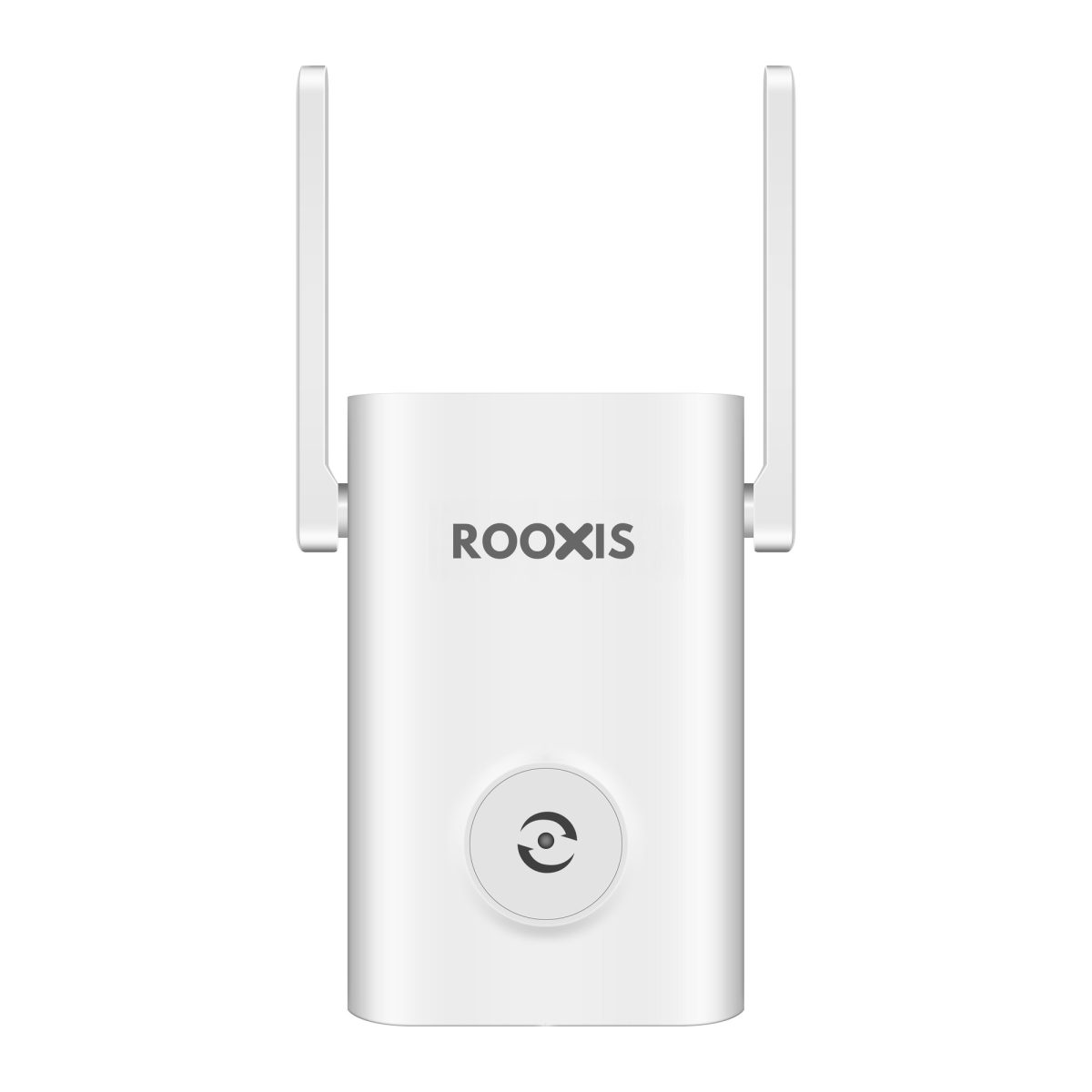
Some range extenders also support access point mode. Check the specific product manual before buying or changing settings.
An Ethernet socket on an extender may be intended only to connect a wired client to an existing wireless link, rather than to accept a wired backhaul.
When comparing ROOXIS networking equipment, look for explicit support for the operating mode you intend to use. A port on its own does not establish that a particular mode is available.
A wired access point can be particularly useful when:
-
Thick walls separate bedrooms from the main router.
-
A home office is located on another floor.
-
Several household members make video calls simultaneously.
-
Wireless cameras struggle to maintain a connection near the edge of the router's coverage.
-
A room already has a functioning Ethernet wall outlet.
The Ethernet cable carries traffic back to the router, leaving the access point responsible for providing wireless coverage within its immediate area.
Understand camera power before running a cable outdoors
A camera with an Ethernet socket may still require a separate power adapter. Other cameras support Power over Ethernet (PoE), which supplies both data and power through compatible Ethernet equipment.
Check the camera manual for its required power method.
A standards based PoE camera can receive power from a compatible PoE switch or injector if the power standard and available wattage meet its requirements.
Do not connect an unidentified passive PoE injector to ordinary network equipment. Passive injectors can supply voltage without the normal compatibility detection used by standards based PoE systems.
Before mounting a camera high on an exterior wall, assemble and test it indoors.
Confirm that it:
-
Powers on correctly.
-
Appears in the camera app or recording system.
-
Displays a stable live video feed.
-
Remains accessible when connected through the intended switch or injector.
-
Records and plays back footage according to its supported features.
Then test the actual cable path before permanently fixing the camera in place.
This sequence helps you distinguish installation faults from camera faults without repeatedly climbing a ladder.
An Ethernet connection cannot add local recording support to a camera that lacks it. Recording location, remote viewing and any subscription requirements depend on the camera and its recording system.
Troubleshoot a network cable connection without replacing everything
Work from the physical connection toward the router and internet service. Changing several things at once can restore access without revealing what actually went wrong.
| Symptom | First useful test |
|---|---|
| Ethernet reports disconnected | Try a known working cable and another LAN port. |
| Ethernet connects but internet fails | Check another device and verify the router's WAN status. |
| Link negotiates at 100 Mbps instead of 1 Gbps | Bypass the wall outlet, switch and dock. Check port ratings. |
| Camera repeatedly restarts | Verify its power supply or PoE budget and test a short cable. |
| Only one website fails | Try other sites before blaming the cable. |
| Connection drops when the cable moves | Inspect the connector, locking tab and socket. |
| Several wired devices disconnect together | Check the shared switch, router and connecting cable. |
When there is a link but no IP address
A computer can establish a physical link without receiving a usable network configuration.
On a typical home IPv4 network, an address beginning with 169.254 can indicate that the computer has assigned itself a local address because it did not receive one from a DHCP server.
Check whether another device connected to the same router has normal access.
If only one computer is affected, disconnect and reconnect its Ethernet adapter or restart the computer.
On a Mac, the TCP/IP settings may offer a Renew DHCP Lease option.
If several devices fail to receive addresses, check the router and any intermediate switches.
Restart the router if appropriate, after warning anyone using it for work, calls or security monitoring.
Do not press the recessed factory reset button. A factory reset can erase wireless passwords, provider settings and custom configuration.
If the computer previously used a manually configured IP address on another network, check whether those settings are still active. A computer configured for an old office network may not communicate correctly with your home router.
When the local network works but the internet does not
On Windows, open Command Prompt and enter ipconfig.
Find the Ethernet adapter and note its Default Gateway. This is commonly the local address of your router.
You can try pinging that address to check whether the router responds. Some devices ignore ping requests, so a failed ping alone does not prove the connection is broken.
Opening the router's local administration page, when supported, provides another check.
If you can access the router but no websites load on any device, investigate the router's internet status or contact your provider.
If internet access fails only for domain names, a DNS problem may be involved.
Do not start replacing in-wall cabling simply because a browser displays a name resolution error.
Consider a household where the security camera remains accessible through its local recording system, but nobody can browse websites. The local Ethernet network may be working correctly while the internet connection is unavailable.
The opposite can also happen. Your phone might browse websites through WiFi while a wired desktop has no access because its Ethernet adapter or cable has failed.
Testing both local connectivity and internet access helps separate these situations.
Route network cables safely in a home or rental
A reliable connection also needs a sensible physical installation. Use a length that reaches the equipment without tension and leaves enough slack for maintenance.
Keep cables out of door hinges and walking routes.
For ordinary copper Ethernet installations supporting gigabit networking, the conventional maximum channel length is 100 meters, including patch cords.
Permanent structured cabling is commonly limited to 90 meters, with the remaining allowance used for patch cords. Specialized cabling and higher speed standards can have different limits.
Use flexible patch cords for movable equipment and suitably rated permanent cable for fixed installations.
Choose solid copper conductors for permanent wiring and avoid copper clad aluminum cabling, particularly for PoE applications.
Outdoor runs require cable and fittings suitable for the exposure conditions. An ordinary indoor cable is not designed to withstand prolonged sunlight and moisture.
For fixed exterior runs, building penetrations, or connections between separate buildings, consult a qualified installer about weather protection, electrical separation, grounding and surge risks.
Fiber can be a useful alternative between buildings because it avoids a conductive data path.
When planning an indoor cable route:
-
Avoid placing cables beneath heavy furniture.
-
Keep connectors accessible for maintenance.
-
Avoid sharp bends around furniture and wall corners.
-
Use appropriately sized cable clips that do not crush the jacket.
-
Leave enough slack to move equipment without pulling the connector.
-
Label both ends of longer cables.
-
Use cabling with the appropriate safety rating for the installation location.
Renters should obtain permission before drilling walls or making permanent changes.
Removable cable covers can be useful for short indoor routes, provided the cable does not create a trip hazard or obstruct doors.
Labeling becomes especially useful when several cables terminate behind a television cabinet or inside a communications cupboard.
A simple label identifying the upstairs office, living room television or driveway camera can save you from disconnecting the wrong device during troubleshooting.
Common misconceptions about wired networking
A higher cable category will automatically make the internet faster.
A compliant Cat5e cable can carry gigabit Ethernet over a standard length channel.
Replacing it with a higher category cable will not increase a router's port speed or the broadband plan's capacity.
If your broadband connection delivers 200 Mbps and your existing Ethernet connection supports 1 Gbps, upgrading the cable alone is unlikely to increase your internet speed.
A blinking Ethernet light means there is a fault.
On many devices, blinking indicates normal network activity.
Consult the device's indicator legend before interpreting a color or flashing pattern as an error.
A wired connection prevents every camera outage.
Wiring removes dependence on a wireless radio link, but power loss, software faults, recording problems and internet outages can still interrupt camera access.
If a camera continues restarting after switching to Ethernet, examine its power supply and recording equipment rather than assuming the network cable is responsible.
A cable splitter is the same as a switch.
An ordinary passive splitter is not a substitute for an Ethernet switch that allows multiple devices to communicate independently.
For extra LAN connections, use a suitable powered switch.
Connecting a computer through Ethernet automatically improves the WiFi signal.
Wiring a computer may reduce some wireless traffic, but it does not physically extend the router's wireless coverage.
To improve coverage in a distant room, you may need better router placement, a compatible range extender or a wired access point.
Every Ethernet port can power a security camera.
Ordinary Ethernet ports provide data connectivity without supplying PoE power.
A PoE camera requires compatible power equipment. Check the camera's specifications before connecting it to an injector or PoE switch.
Ethernet cables never wear out.
Network cables can develop faults through repeated bending, physical damage, connector wear and exposure to unsuitable environmental conditions.
An intermittent cable may establish a connection but disconnect when moved. Testing with a known working replacement is often the quickest way to identify this problem.
Start with a direct cable test at the router. Once that works, add the wall outlets, switches, adapters and camera equipment one at a time.
Check the negotiated link speed, confirm local network access and test internet connectivity before making further changes. That simple order makes it easier to find a faulty component without paying for equipment you do not need.
FAQ
Which cable is used to connect a computer to a network?
A standard Cat5e or Cat6 Ethernet patch cable with RJ45 style connectors is suitable for most home computers and routers. The computer needs an Ethernet port or compatible adapter, and the other end normally plugs into a LAN port on the router or switch.
Can I use Ethernet and WiFi at the same time?
Yes. A home router can serve wired and wireless devices simultaneously, and many computers can maintain both interfaces. Temporarily turn WiFi off when troubleshooting so you can confirm that your test traffic is using Ethernet.
Why is my Ethernet cable connected but there is no internet?
The physical link may be working while the computer lacks a valid IP address or the router has lost its upstream connection. Check whether another device can access the internet, then inspect the Ethernet settings and the router's internet status.
Does a longer Ethernet cable reduce internet speed?
A compliant cable operating within the distance limits for its Ethernet standard should support the negotiated rate. Excessive length, damaged conductors or poor terminations can cause errors, lower negotiated speeds or complete connection failure.
Can I connect an outdoor security camera directly to my router?
You can if the camera supports Ethernet and the router has a compatible LAN port. The camera must also receive power through its approved adapter or compatible PoE equipment, and outdoor cabling must be installed appropriately for the environment.
How do I know if my Ethernet cable needs replacing?
Test the same devices and ports with a known working cable. If the connection becomes stable or returns to the expected link speed only after the cable swap, the original cable or its connectors are likely faulty.