Your WiFi works perfectly during the morning, but once your neighbors return home in the evening, videos start buffering, web pages take longer to load and your outdoor security camera becomes unreliable. Your phone shows several nearby wireless networks, even though you are sitting close to your router.
If you are searching for how to block wifi signal from neighbors, start by changing your router's wireless channel, setting the 2.4 GHz channel width to 20 MHz and moving compatible devices to 5 GHz. These adjustments can reduce interference without physically blocking wireless signals or disrupting another household's internet connection.
Before buying a new router or installing shielding materials, establish whether neighboring WiFi is actually causing the problem. Poor router placement, crowded wireless channels and insufficient coverage can produce similar symptoms, but each requires a different fix.
How to Block WiFi Signal From Neighbors Without Affecting Their Network
Your router cannot selectively prevent a neighbor's wireless signal from entering your property. What it can do is communicate with your devices using frequencies and channels that experience less interference.
For most homeowners and renters, the following changes are worth trying first:
-
Scan nearby WiFi networks to identify crowded channels.
-
Compare channels 1, 6 and 11 on the 2.4 GHz band.
-
Configure the 2.4 GHz channel width to 20 MHz.
-
Connect compatible laptops, televisions and phones to 5 GHz.
-
Move your router away from shared walls where practical.
-
Connect stationary devices through Ethernet when possible.
-
Check existing WiFi extenders for unnecessary coverage overlap.
-
Secure your network against unauthorized connections.
Start with channel selection and channel width. These settings are available on many residential routers and do not require purchasing additional equipment.
Do not worry if your neighbor's network remains visible in your phone's WiFi settings after making these changes. Seeing another wireless network does not mean it is interfering with yours.
Judge the results by connection stability, streaming performance and whether your devices remain connected during normal household use.
Avoid WiFi jammers and equipment designed to deliberately disrupt wireless communications. Such devices can interfere with your own network as well as those belonging to nearby households.
Why Your Neighbor's WiFi Can Interfere With Your Connection
WiFi routers communicate with connected devices using shared radio frequencies. Your router does not receive a private portion of the wireless spectrum when you purchase an internet subscription.
If several routers operate within range of one another, they may compete for opportunities to transmit information.
The situation is particularly noticeable in apartment buildings. Your router might sit against a living room wall, with another household's router positioned just a short distance away on the opposite side.
Both networks can operate normally, but their performance may suffer when wireless traffic becomes heavy.
WiFi Channel Interference
The 2.4 GHz and 5 GHz frequency bands are divided into channels.
Think of a channel as a portion of the available wireless spectrum. Your router uses that portion to exchange information with phones, laptops, televisions and other connected devices.
Problems occur when nearby networks use the same or overlapping portions of the spectrum.
On the 2.4 GHz band, channels 1, 6 and 11 are commonly used nonoverlapping options in the United States when configured with a 20 MHz channel width.
Suppose your router uses channel 6 and several neighboring routers use the same channel. These networks may need to share available airtime, particularly when multiple households are streaming video or transferring large amounts of data.
Switching to channel 5 might seem sensible because fewer networks appear to use it. However, channel 5 overlaps with channel 6 and other nearby channels.
An apparently empty channel is not necessarily a suitable channel.
Too Many Networks in the Same Area
Open the WiFi settings on your phone inside a large apartment building and you may see networks from several surrounding properties.
The number of visible networks is only part of the picture.
Wireless performance also depends on:
-
How strongly each neighboring network reaches your home.
-
Which channels the routers use.
-
Whether those channels overlap.
-
How much wireless traffic each household generates.
-
The materials separating neighboring properties.
-
The channel widths configured on each network.
A nearby router that transfers very little data might cause fewer problems than a moderately strong network carrying several active video streams.
This is why choosing the channel with the fewest visible network names does not always produce the best results.
A wireless scanner provides useful information, but actual connection testing determines whether a channel change has helped.
Interference From Household Electronics
Your neighbor's router might not be responsible for the connection problem.
Other equipment operating around the 2.4 GHz frequency range can also affect wireless performance.
Check for potential interference from:
-
Microwave ovens while operating.
-
Bluetooth speakers and accessories.
-
Certain wireless baby monitors.
-
Older cordless phones.
-
Wireless audio equipment.
-
Additional routers and range extenders.
-
Other wireless smart home devices.
Pay attention to when the connection fails.
If a kitchen security camera becomes unreliable whenever the microwave is running, moving networking equipment away from the appliance may help.
If the connection improves when you unplug an unnecessary range extender, your own networking configuration may be contributing to congestion.
Investigate these possibilities before spending money on equipment intended to block wifi signals from neighboring properties.
How to Tell If Your Neighbor's WiFi Is Causing Problems
Wireless interference can be difficult to identify because its symptoms resemble those of weak coverage, internet service congestion and overloaded household networks.
The following checks help separate these problems.
Your Connection Gets Worse During Busy Hours
Evening connectivity problems are common in residential buildings where many households use their networks simultaneously.
However, your internet provider may also experience higher demand during these periods.
Connect a laptop or desktop computer directly to your router using an Ethernet cable. Test the connection during the same evening hours when your wireless devices normally struggle.
If the wired connection remains stable but WiFi becomes unreliable, investigate the wireless network.
If wired and wireless connections both slow down, check for internet provider congestion, large household downloads or problems with the router itself.
Changing wireless channels will not resolve an underlying internet service problem.
WiFi Signal Strength Is Good but Performance Is Poor
Full WiFi bars indicate that your device receives a reasonably strong wireless signal. They do not tell you how busy the channel is or how quickly your router can exchange information.
You may experience:
-
Frozen video meetings.
-
Delayed website responses.
-
Inconsistent gaming latency.
-
Streaming quality dropping unexpectedly.
-
Security camera feeds taking longer to open.
-
Slow uploads despite strong wireless reception.
If these problems occur close to the router, wireless congestion deserves investigation.
If they occur only in a distant bedroom where the signal is weak, inadequate coverage may be the more significant issue.
Some Rooms Work Better Than Others
Wireless conditions can vary considerably between rooms.
A bedroom beside a shared wall might receive strong signals from the neighboring apartment. An interior room farther from that wall may experience less surrounding wireless activity.
Use the same smartphone or laptop to test both locations.
Check your own router's signal strength as well as connection performance.
If reception from your router is reasonably strong in both rooms but one consistently performs worse, local interference could be contributing to the difference.
If the affected room receives a much weaker signal, improving coverage should be your first priority.
Your 5 GHz Connection Works Better Than 2.4 GHz
Connect a compatible laptop or smartphone to your router's 5 GHz network.
Repeat the activity that previously caused problems while remaining in the same location.
For example, if a laptop experiences interrupted video meetings on 2.4 GHz while sitting near the router, try the same connection on 5 GHz.
An improvement suggests that the original frequency band may be congested or affected by interference.
Keep the comparison fair. Testing 5 GHz from beside the router and 2.4 GHz from a distant bedroom does not tell you which frequency performs better under equivalent conditions.
What You Need Before Changing Your WiFi Settings
Gather the information and equipment you need before opening your router's administration interface.
You will need:
-
A smartphone, tablet or laptop.
-
Access to your router's management application or browser interface.
-
The router's administrative username and password.
-
A wireless scanning application or built-in diagnostic tool.
-
Your current WiFi network name and password.
-
An Ethernet cable, if available.
-
Access to the rooms where connectivity problems occur.
Your WiFi password and router administration password are often different.
The WiFi password connects devices to the network. The administration password allows you to change the router's configuration.
Check the manufacturer's documentation or your internet provider's application if you do not know how to access the router settings.
Before changing channels or frequency options, take screenshots of the existing configuration.
Record the current channel, channel width and network names. If a change causes problems with your security cameras or smart devices, these details make it easier to restore the previous settings.
Avoid performing a factory reset simply because you cannot find a particular option. Some provider supplied routers restrict manual wireless configuration.
How to Reduce WiFi Interference From Neighbors Step by Step
Step 1: Check Your Internet Connection Before Changing Router Settings
Establish whether the problem affects your entire internet connection or only your wireless devices.
Connect a computer directly to the router using Ethernet, if possible.
Run a speed test and open a few websites. If you regularly experience interrupted video meetings or slow file uploads, test those activities as well.
Disconnect the Ethernet cable and repeat the checks over WiFi while sitting close to the router.
Try to keep other household network activity similar during both tests.
What you should see
If Ethernet works normally while WiFi repeatedly struggles, the problem is likely related to wireless networking.
If both connections perform poorly, investigate the internet service, router performance and household bandwidth usage before changing wireless channels.
What to watch for
A wired connection may naturally achieve higher speeds than WiFi. A difference in speed alone does not prove interference.
Look for repeated interruptions, inconsistent latency and noticeable changes during the hours when problems normally occur.
If you do not have an Ethernet connection available, compare wireless performance close to the router and in the affected room.
Step 2: Scan Nearby WiFi Networks
A wireless scanner provides more information than the ordinary list of network names displayed on your phone.
It can help you identify nearby access points, their operating channels and received signal strength.
On Android, install a reputable WiFi analyzer application. Depending on your Android version, you may need to grant nearby device or location permissions for wireless scanning.
On an iPhone, Apple's AirPort Utility includes a WiFi scanner.
To enable it:
-
Install AirPort Utility.
-
Open the iPhone's Settings application.
-
Locate the AirPort Utility settings.
-
Enable WiFi Scanner.
-
Open AirPort Utility and select WiFi Scan.
-
Start scanning nearby networks.
On a Mac, the Wireless Diagnostics utility also provides a scanning window that displays nearby wireless networks.
Scan from beside your router, then repeat the process in rooms experiencing connectivity problems.
What you should see
The scanner should display information such as network names, channels and received signal strengths.
Signal strength is commonly measured in dBm. These readings are usually negative, with numbers closer to zero indicating stronger reception.
A neighboring network received at -45 dBm is stronger at that location than one received at -85 dBm.
What to watch for
Most basic wireless scanners do not measure how much airtime each neighboring network consumes.
A strong network may be relatively inactive, while another network could generate substantial traffic.
Use the scan to identify suitable channels for testing. Do not treat it as definitive proof that a particular neighbor is responsible.
Step 3: Sign In to Your Router's Administration Interface
Many routers provide settings through a local browser interface. Others use a mobile application supplied by the manufacturer or internet provider.
Common router addresses include:
-
192.168.0.1
-
192.168.1.1
-
10.0.0.1
Your router may use a different address.
On Windows, find the correct address by following these steps:
-
Open the Start menu.
-
Search for Command Prompt.
-
Open Command Prompt.
-
Type ipconfig and press Enter.
-
Locate the Default Gateway under your active network connection.
On an iPhone:
-
Open Settings.
-
Tap WiFi.
-
Select the information icon beside your connected network.
-
Find the address listed next to Router.
Enter the address into your browser while connected to your home network.
Sign in using the router's administrative credentials.
What you should see
Look for a section labeled Wireless, WiFi Settings, Advanced Wireless or Radio Settings.
On dual-band routers, there are usually separate configuration options for 2.4 GHz and 5 GHz.
Some devices group these settings under an advanced configuration menu.
What to watch for
Do not change WAN settings, DHCP configuration or internet connection credentials.
Those controls are unrelated to ordinary wireless interference troubleshooting and could interrupt internet access.
You are looking specifically for wireless channel, frequency and channel width settings.
Step 4: Change Your Router's WiFi Channel
Changing channels is one of the simplest ways to address wifi channel interference in a crowded residential area.
Open your router's 2.4 GHz wireless settings.
Locate an option named Channel, Wireless Channel or Control Channel.
If automatic channel selection is enabled, check the channel currently in use through the router interface or wireless scanner.
Compare the surrounding networks on channels 1, 6 and 11.
| WiFi channel | Approximate center frequency | When to consider it |
|---|---|---|
| Channel 1 | 2.412 GHz | Surrounding activity is lighter near the lower end of the band |
| Channel 6 | 2.437 GHz | The middle portion of the band appears less congested |
| Channel 11 | 2.462 GHz | Surrounding activity is lighter near the upper end of the band |
These channels are commonly used together in the United States because they do not overlap when configured with a 20 MHz channel width.
Choose the most promising channel and save the setting.
Your wireless connection may disconnect briefly while the router applies the change.
What you should see
Your devices should reconnect using their existing network name and password.
A fresh wireless scan should show your router operating on the selected channel.
Test the affected devices from their usual locations.
What to watch for
Avoid selecting channels based entirely on the number of detected networks.
For example, a channel used by several distant routers may perform better than a channel occupied by one very strong neighboring network.
Also avoid assuming that a fixed channel will always outperform automatic selection.
Some routers manage channel selection effectively. Compare automatic operation with manual settings and retain whichever provides more consistent results.
Step 5: Set the 2.4 GHz Channel Width to 20 MHz
Channel width determines how much wireless spectrum a router uses.
Wider channels can support higher throughput under suitable conditions. However, they also occupy more of the available spectrum.
In a crowded apartment building, configuring 2.4 GHz WiFi to use a 40 MHz channel can increase overlap with neighboring networks.
Open the 2.4 GHz wireless configuration and locate one of these options:
-
Channel Width.
-
Bandwidth.
-
Channel Bandwidth.
-
Wireless Bandwidth.
Select 20 MHz and save the setting.
What you should see
Your devices should reconnect normally.
The displayed maximum wireless link rate may decrease, but connection reliability can improve when neighboring wireless activity is causing congestion.
This is particularly useful for smart plugs, cameras and other equipment that requires consistent connectivity rather than maximum throughput.
What to watch for
Do not judge the change solely by the highest displayed wireless connection speed.
A narrower channel that produces fewer interruptions may be more useful than a wider channel experiencing congestion.
Apple's recommended WiFi router settings also recommend a 20 MHz channel width for 2.4 GHz networks to improve reliability around other wireless devices.
Step 6: Move Compatible Devices to the 5 GHz WiFi Band
If your household relies heavily on 2.4 GHz, moving compatible devices to 5 GHz can reduce competition for available wireless airtime.
Start with devices that regularly transfer substantial amounts of data:
-
Laptops used for work.
-
Smartphones and tablets.
-
Smart televisions.
-
Gaming consoles.
-
Streaming devices.
-
Compatible desktop computers.
Open the router's wireless settings and confirm that 5 GHz is enabled.
If the router broadcasts separate network names for each frequency, select the 5 GHz network from your device's WiFi settings.
Some routers use one network name for both bands. In that case, the router and connected devices may automatically determine which frequency to use.
Check the router's connected device information to see which band individual devices are using, where that information is available.
What you should see
Devices located reasonably close to the router may experience more consistent performance.
Moving compatible devices away from 2.4 GHz can also leave more airtime available for cameras, smart plugs and older equipment that depends on that frequency.
What to watch for
The 5 GHz band generally has a shorter effective range through walls.
A television near the router may work well on 5 GHz, while a security camera mounted outside the garage may need 2.4 GHz.
Do not disable 2.4 GHz unless you have confirmed that every device requiring WiFi can operate without it.
Changing network names can also require reconnecting existing devices, so avoid unnecessary changes during initial testing.
Step 7: Adjust the 5 GHz Channel and Channel Width if Necessary
Although 5 GHz offers more channel options, neighboring networks can still cause congestion.
This is particularly relevant in apartment buildings where most residents use dual-band routers.
Scan nearby 5 GHz networks and compare the results with your router's current channel.
Start with automatic channel selection. If performance remains inconsistent, test a supported manual channel.
Next, review channel width.
An 80 MHz channel can provide strong throughput when sufficient spectrum is available. In a crowded environment, reducing the width to 40 MHz may provide a more stable connection.
Make one adjustment at a time so you can identify which change affects performance.
What you should see
Your compatible devices should remain connected while delivering consistent browsing, streaming and video call performance.
Repeat your tests from the same room and compare the results with the original configuration.
What to watch for
Certain 5 GHz channels use Dynamic Frequency Selection, also called DFS.
A router using these channels may need to change frequencies when it detects protected radar activity.
Some older wireless devices also have limited support for certain channels.
If a television, laptop or camera stops detecting the network after a channel adjustment, restore automatic selection or choose another supported channel.
Step 8: Move Your Router Away From Shared Walls
Router placement affects the relative strength of your own wireless signal and the signals reaching your home from surrounding properties.
A router sitting against a shared apartment wall may provide unnecessarily strong coverage toward the neighboring property while struggling to reach rooms at the opposite end of your home.
Move the router toward a more central location if its cabling allows.
Look for a position that is:
-
Open and reasonably elevated.
-
Away from shared walls where practical.
-
Clear of large metal objects.
-
Outside enclosed cupboards.
-
Away from microwave ovens.
-
Accessible for restarting and maintenance.
-
Close to frequently used connected devices.
Even if the router cannot be moved to the center of your home, placing it on an open shelf instead of behind a television may help.
What you should see
Devices throughout the property may receive stronger signals from your router.
Improving your own signal can make wireless communication more reliable despite surrounding networks.
What to watch for
A router position that improves bedroom coverage may weaken reception for a driveway camera.
Test every important device after relocating the router, particularly those near exterior walls or on another floor.
Avoid moving equipment solely to increase its distance from a neighbor's router if the new position provides worse coverage inside your own home.
Step 9: Reduce Wireless Traffic Inside Your Own Home
Your household's devices share available wireless resources too.
A gaming console downloading an update, a laptop uploading cloud backups and several televisions streaming simultaneously can create problems even when surrounding networks are relatively quiet.
Open your router's management interface and locate Connected Devices, Clients or Network Devices.
Check which devices are active.
Where practical, connect stationary equipment using Ethernet:
-
Desktop computers.
-
Smart televisions.
-
Gaming consoles.
-
Network storage devices.
-
Streaming boxes.
-
Compatible security camera recorders.
Review whether automatic software updates, cloud backups or large downloads occur during the same periods when your connection becomes unreliable.
Schedule nonessential large transfers for quieter periods if your applications support that option.
What you should see
Moving stationary devices to Ethernet reduces the amount of wireless traffic they generate.
Phones, tablets and other devices that depend on WiFi may then experience more consistent performance.
What to watch for
Reducing wireless traffic does not necessarily resolve internet bandwidth congestion.
A large wired download can still consume internet bandwidth even though it no longer occupies WiFi airtime.
Distinguish wireless congestion from limitations affecting your entire internet connection.
Step 10: Secure Your Network Against Unauthorized Connections
Sometimes a homeowner trying to stop neighbor wifi signal interference is actually concerned that another person might be using their internet connection.
These are separate problems.
A neighboring network can cause wireless interference without connecting to your router. Unauthorized access occurs when someone connects to your network without permission.
Open your router's connected device list and review the entries.
If you discover an unauthorized connection:
-
Change your WiFi password.
-
Use WPA3-Personal where supported.
-
Use WPA2-Personal with AES encryption for compatible older equipment.
-
Replace default router administrative credentials.
-
Disable WPS if you do not need it.
After changing your WiFi password, reconnect household devices using the new credentials.
What you should see
Devices using the previous WiFi password should lose ordinary password-based access until they receive the updated password.
Your own devices should reconnect after you enter the new credentials.
What to watch for
An unfamiliar device name is not proof that your neighbor is connected.
Smartphones often use private or randomized MAC addresses. Smart televisions, cameras and household appliances may also appear under generic manufacturer names.
Identify your household devices before removing connections.
Stronger security prevents unauthorized access, but it does not block radio transmissions from surrounding networks.
Step 11: Check Your Connection During Normal Evening Usage
Do not finish troubleshooting immediately after changing your router settings.
If the problem usually occurs between dinner time and bedtime, test the network during those hours.
Use the same devices and locations that experienced the original problems.
Check whether:
-
Video streaming continues without repeated buffering.
-
Video meetings remain stable.
-
Websites respond consistently.
-
Online games experience fewer latency interruptions.
-
Security cameras remain accessible.
-
Smartphones stay connected to WiFi.
Record the channel, channel width and frequency settings that produced the most reliable results.
What you should see
Your neighbor's networks may still appear in your WiFi settings. That is expected.
The meaningful improvement is that your own devices communicate reliably despite nearby wireless activity.
What to watch for
Wireless conditions change throughout the day.
A channel that appears quiet in the morning may become congested in the evening.
Test during ordinary household use rather than selecting a configuration based on the highest result from one speed test.
Can You Physically Block WiFi Signals From Neighboring Properties?
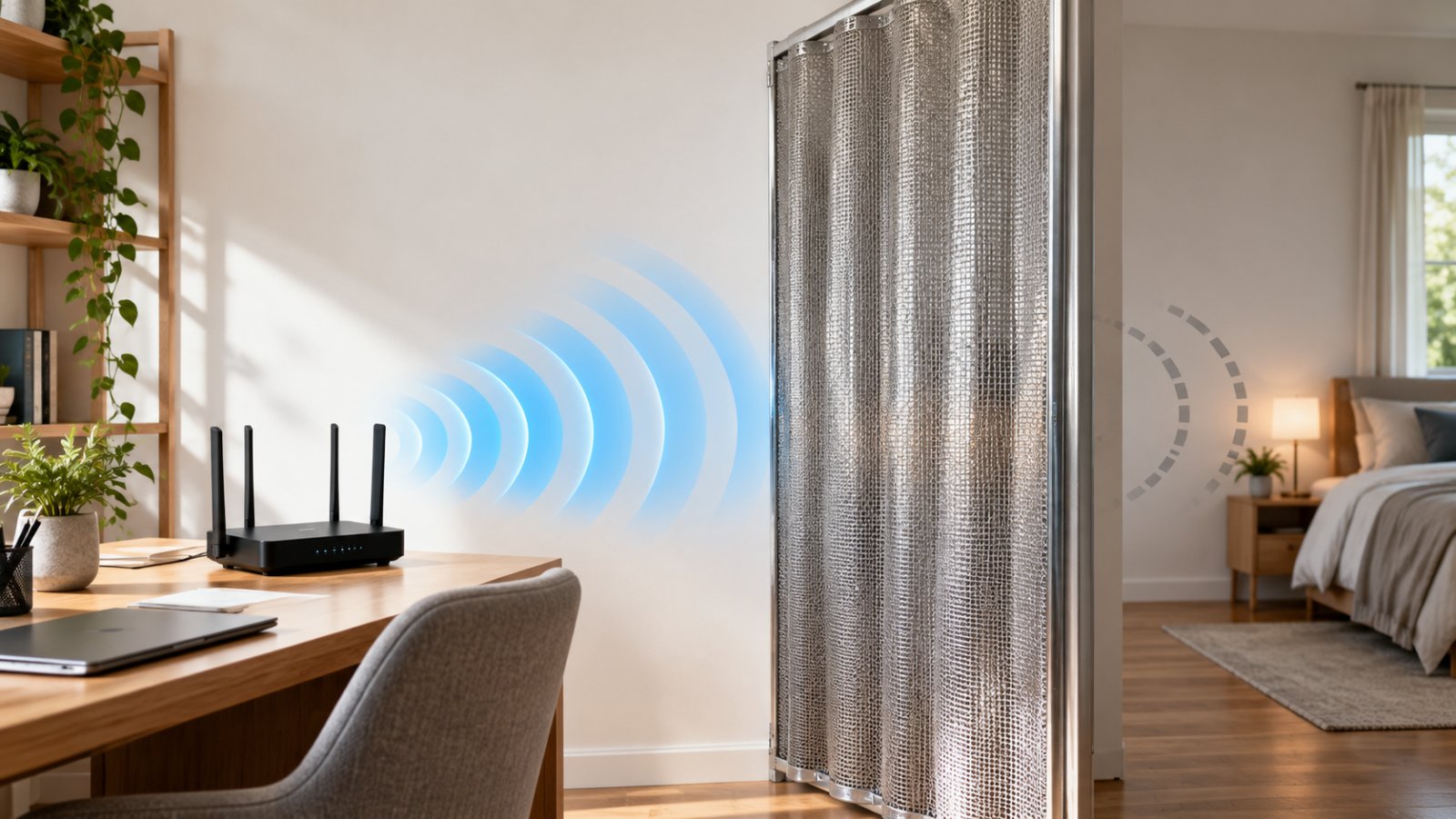
Certain materials weaken wireless transmissions. However, using physical shielding to resolve ordinary household interference often introduces more problems than it solves.
Materials that can attenuate wireless signals include:
-
Reinforced concrete.
-
Thick masonry.
-
Metal panels.
-
Metal-backed insulation.
-
Certain metallic window coatings.
-
Specialized radio frequency shielding materials.
These materials cannot distinguish between your neighbor's wireless transmissions and your own.
Shielding a room may reduce incoming signals while simultaneously weakening coverage from your router.
It can also affect mobile phone reception and other wireless equipment.
For renters, physical modifications may require permission from the property owner.
Does Aluminum Foil Block WiFi Signals?
Aluminum can reflect and weaken radio waves.
However, placing foil behind networking equipment is not a predictable way to improve coverage or reduce interference.
The reflected signals may affect other parts of your home, and the results depend on the surrounding environment.
Wrapping a router or extender in foil is particularly unsuitable because it can obstruct wireless transmission and ventilation.
If the goal is to reduce wifi interference, adjusting channels and improving router placement provides a more controllable solution.
Can WiFi Blocking Paint Reduce Neighboring Interference?
Specialized radio frequency shielding paints are available for particular shielding applications.
Their effectiveness depends on the product, building construction and installation requirements.
Applying shielding paint to one shared wall does not guarantee that neighboring signals will stop entering through other walls, windows, doors or floors.
It may also reduce coverage for your own wireless devices.
For ordinary residential connectivity problems, changing router configuration is generally a more practical first step than modifying the building.
Can Furniture Reduce Neighboring WiFi Signals?
Large objects containing metal can weaken or reflect wireless signals.
A metal storage cabinet placed against a wall might change wireless reception nearby. However, it can also create a new dead zone inside your home.
Rather than rearranging furniture specifically to obstruct a neighboring network, make sure your router has an unobstructed path toward important connected devices.
If moving a cabinet improves reception, check that coverage has not deteriorated elsewhere before treating the change as permanent.
What You Should Never Do to Stop Neighbor WiFi Signal Interference
You can manage the wireless equipment inside your home without disrupting another household's network.
Avoid approaches that deliberately interfere with devices or communications you do not control.
Do Not Use a WiFi Jammer
WiFi jammers deliberately transmit interference to disrupt wireless communications.
They cannot reliably isolate the disruption to a particular neighboring household. Your own wireless devices and other nearby equipment could also be affected.
In the United States, intentionally jamming authorized radio communications, including WiFi, is prohibited under federal law.
Official information is available through the Federal Communications Commission.
Changing your own wireless configuration is the appropriate response to household WiFi congestion.
Do Not Attempt to Disconnect Your Neighbor's Devices
Disconnecting devices from another household's wireless network does not correct the settings on your router.
It disrupts legitimate communications and does not provide a dependable solution to interference.
Only administer networks and equipment that you own or have permission to manage.
If two households experience recurring interference, discussing channel selection is more useful than interfering with each other's connected devices.
Do Not Increase Router Transmission Power Without Understanding the Effect
Some routers allow users to adjust wireless transmission power.
Increasing this setting does not automatically improve connection quality.
Wireless communication works in both directions. A security camera must transmit information back to the router, just as the router must send information to the camera.
Increasing router power may improve the signal received by the camera without correcting the camera's weak return connection.
It can also create unnecessary wireless coverage beyond your home.
Use supported router settings and prioritize appropriate channels, frequency selection and equipment placement.
How to Reduce WiFi Interference for Outdoor Security Cameras
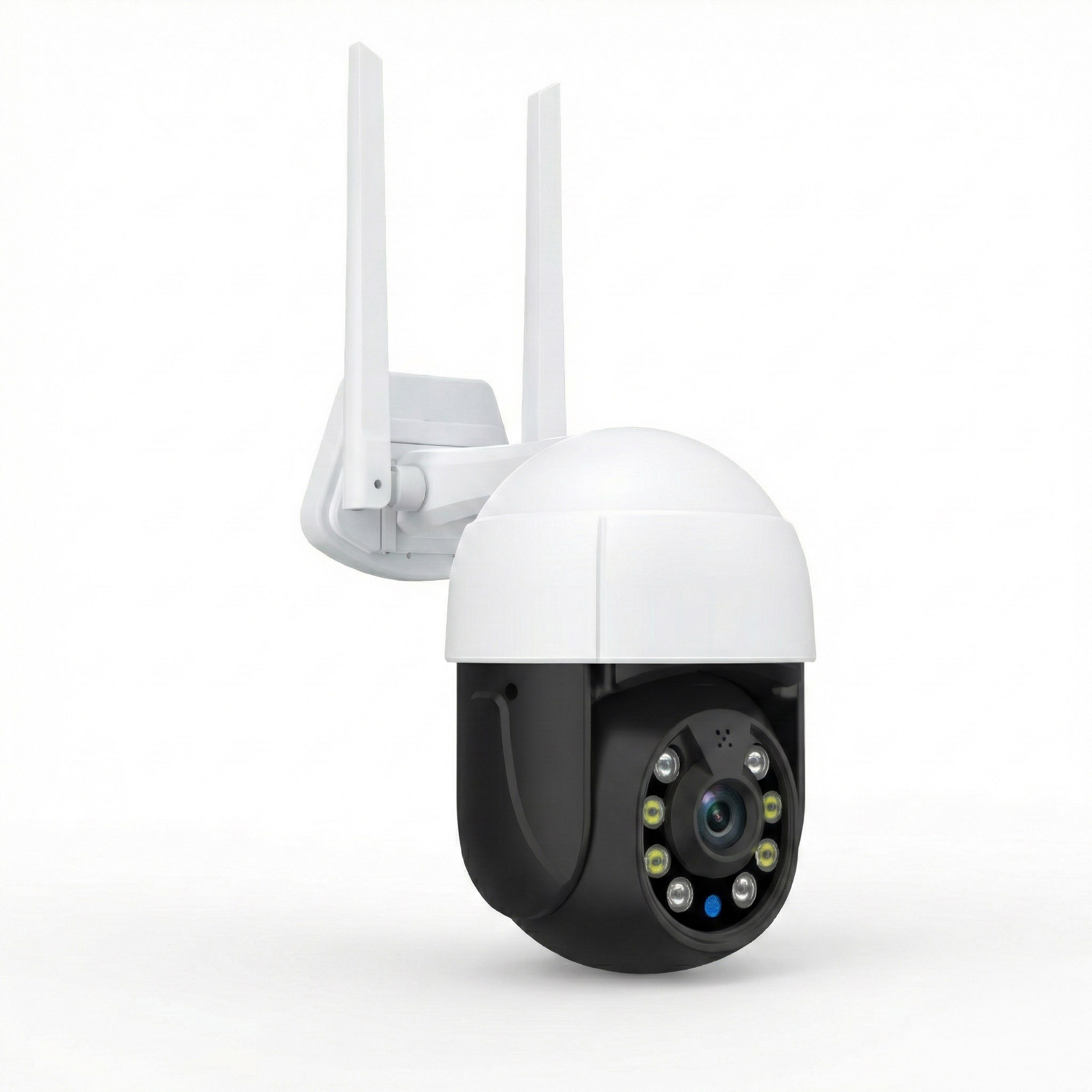
Outdoor security cameras frequently operate near the edge of a home's wireless coverage.
A driveway camera might receive a weak signal from your router because it must travel through a brick exterior wall. At the same time, a neighboring router may reach the camera relatively strongly.
The solution requires checking both coverage and channel conditions.
Check the Camera's Actual Wireless Connection
Open your camera's management application and locate its device information or network settings.
Depending on the model, the application may display:
-
Wireless signal strength.
-
A connection quality indicator.
-
Current connection status.
-
The connected network name.
Check the camera when the property is in its normal condition.
For a garage camera, test with the garage door closed and vehicles parked inside. These objects can affect wireless reception.
Open the live feed and check whether the camera remains available during ordinary use.
A smartphone receiving strong WiFi beside the camera does not guarantee that the camera has equally strong reception. Different devices use different antennas and wireless hardware.
Keep Compatible Cameras on a Reliable 2.4 GHz Channel
Many wireless outdoor cameras use 2.4 GHz because the frequency generally provides better reach through exterior walls.
Check your camera's supported wireless frequencies before changing router settings.
If the camera supports only 2.4 GHz, moving the entire household network to 5 GHz could leave it unable to connect.
Instead, configure a suitable 2.4 GHz channel and use a 20 MHz channel width.
Move compatible laptops, televisions and smartphones to 5 GHz where practical to reduce competition on the camera's frequency band.
After changing wireless security settings or network names, confirm that every camera has reconnected successfully.
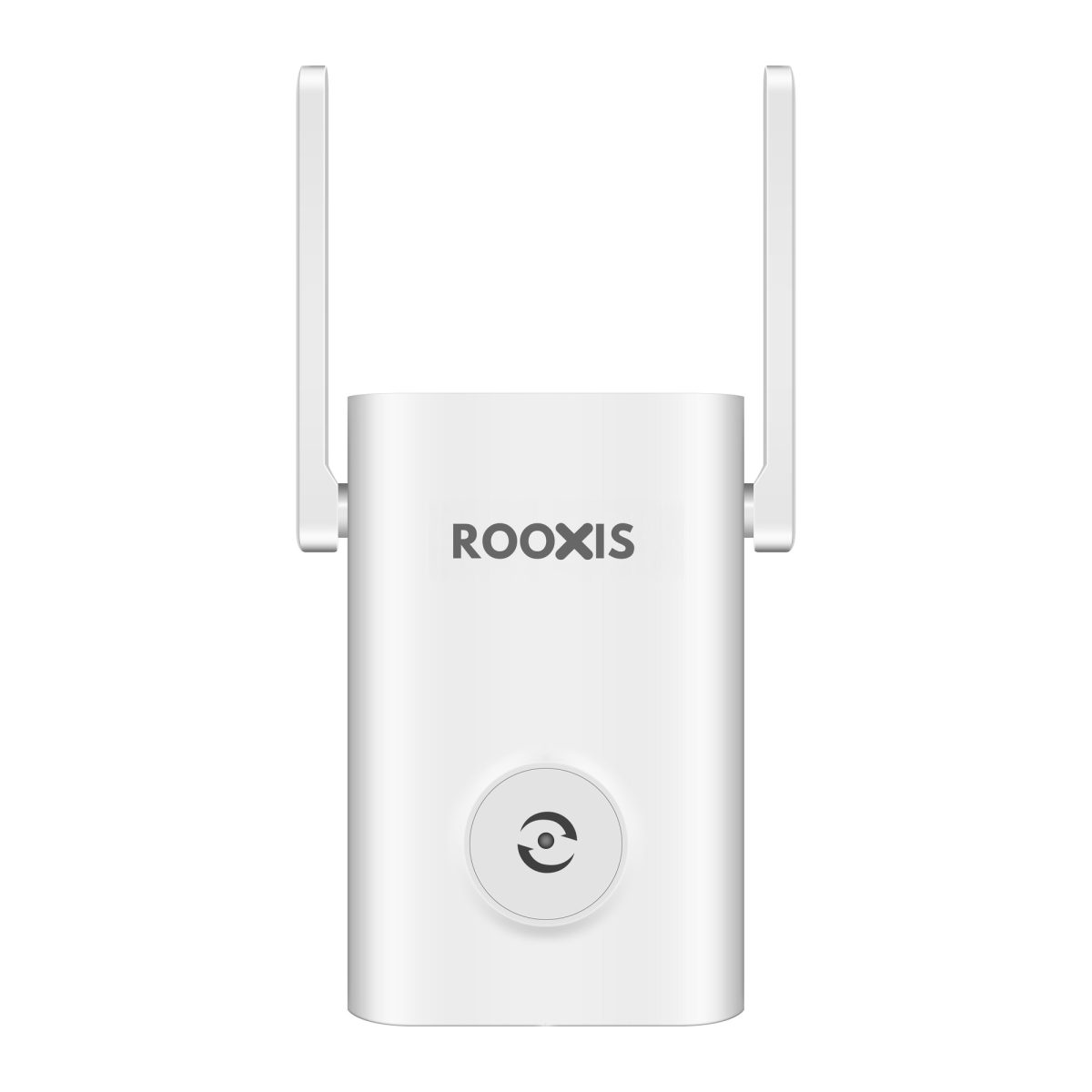
Position a WiFi Extender Between the Router and Camera
An extender can improve camera connectivity when weak coverage is part of the problem.
The extender should receive a dependable signal from the main router while providing additional coverage toward the camera.
For a driveway camera, test an indoor outlet near the front entrance. For a backyard camera, an outlet in a rear room may provide a better connection.
Avoid installing the extender directly in a location where the router's signal is already unreliable.
ROOXIS provides home WiFi equipment and outdoor security cameras for residential installations. When comparing equipment for a wireless camera, check supported frequencies, signal indicators and the connection requirements of your existing devices.
An extender cannot eliminate congestion simply by broadcasting a stronger signal.
If the router and extender communicate over an already crowded channel, the extended network may reproduce the same performance problems.
Address interference first. Add coverage only where it remains necessary.
Common Mistakes When Trying to Reduce WiFi Interference
| Common mistake | Why it causes problems | Better approach |
|---|---|---|
| Selecting an apparently empty channel at random | It may overlap with nearby networks | Compare surrounding channel activity before making changes |
| Using 40 MHz on crowded 2.4 GHz networks | Occupies more wireless spectrum | Configure 20 MHz |
| Hiding the WiFi network name | Does not stop radio transmissions or eliminate interference | Use appropriate channel settings and strong encryption |
| Installing several range extenders | Can increase wireless airtime usage | Identify the original coverage and congestion problems |
| Moving every device to 5 GHz | Older or distant devices may lose connectivity | Select frequencies according to compatibility and reception |
| Wrapping a router in foil | Can obstruct wireless signals and ventilation | Use an open, unobstructed location |
| Purchasing a faster internet subscription | Does not correct local wireless interference | Compare wired and wireless performance first |
| Assuming unfamiliar devices belong to neighbors | Randomized device addresses can cause identification errors | Verify household devices individually |
Another common mistake is changing several settings simultaneously.
If you change the channel, channel width, router location and wireless security settings together, it becomes difficult to identify which adjustment helped.
It also makes troubleshooting harder if a previously reliable security camera stops connecting.
Change one setting, test the affected devices and record the result before moving to the next adjustment.
What to Do If Neighboring WiFi Interference Still Causes Problems
If you have tested suitable wireless channels, narrower channel widths and improved router placement without satisfactory results, investigate the equipment and network configuration more closely.
Update Your Router's Firmware
Router firmware controls how the equipment operates, including wireless configuration and connection management.
Open the manufacturer's application or router administration interface.
Look for a section named Firmware Update, Software Update or System Update.
Check whether an update is available for your exact router model and hardware revision.
Supported firmware updates may improve:
-
Wireless connection stability.
-
Channel management.
-
Device compatibility.
-
Security.
-
Router performance under normal network activity.
Follow the manufacturer's installation instructions and do not disconnect power during the update.
Once the router restarts, confirm that your wireless settings remain correct and repeat the connection tests.
Consider a Newer Dual-Band or WiFi 6 Router
An older router operating only on 2.4 GHz has limited options for avoiding congestion.
If several neighboring households use the same frequency band, changing channels may not provide enough improvement.
A dual-band router allows compatible devices to use 5 GHz while keeping 2.4 GHz available for equipment that needs longer reach or lacks newer frequency support.
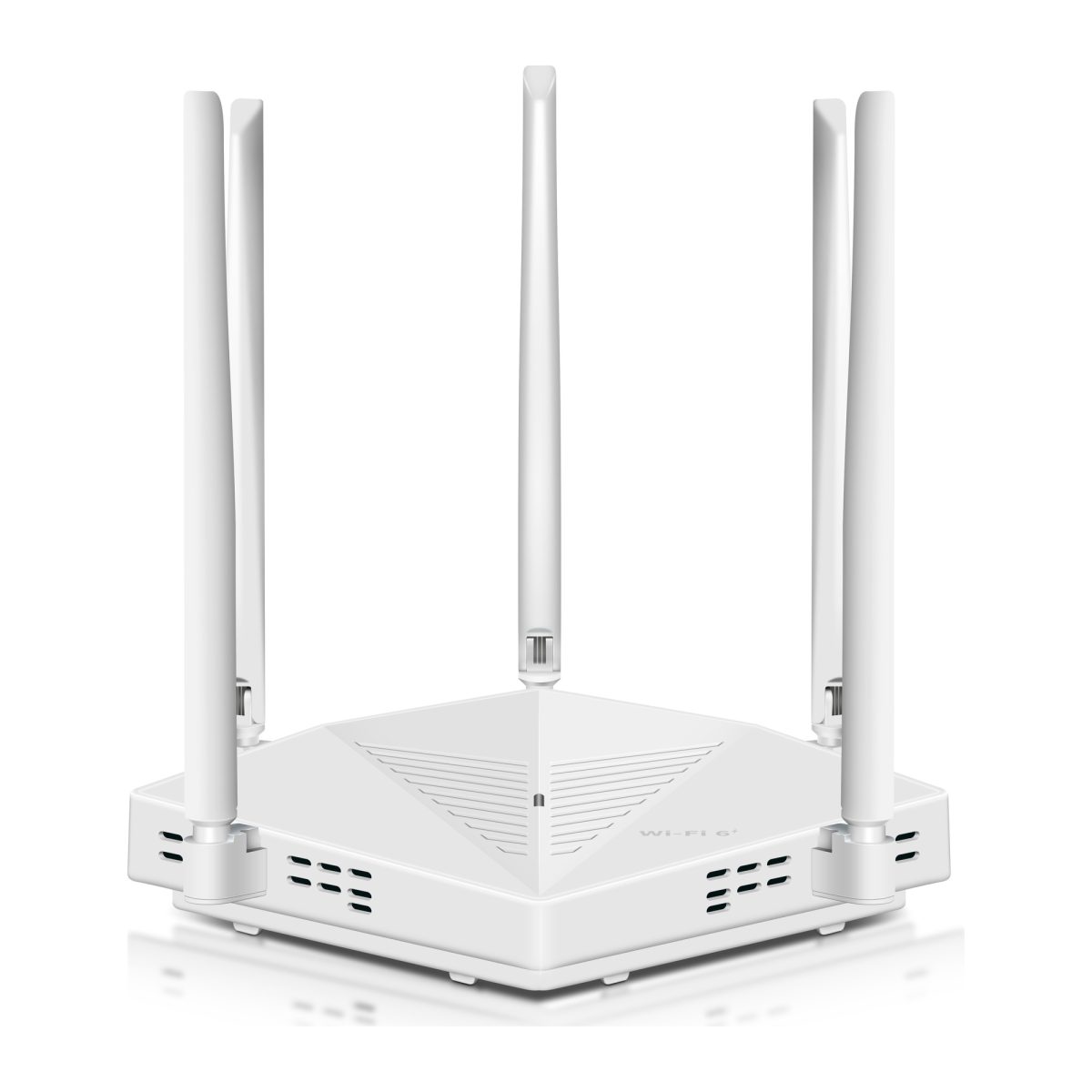
WiFi 6 equipment includes features intended to improve wireless efficiency in environments containing multiple compatible devices and networks.
However, a newer router cannot guarantee interference-free operation.
Before purchasing equipment, check that it supports:
-
Both 2.4 GHz and 5 GHz.
-
Appropriate channel width settings.
-
Current wireless security standards.
-
Your existing connected devices.
-
Suitable configuration and management options.
Do not purchase a router solely because its advertised maximum wireless speed is higher than that of your current model.
The ability to manage crowded wireless conditions may matter more in your home.
Use Wired Access Points Where Practical
A wired access point connects to the main router through Ethernet and provides wireless coverage in another part of the property.
Unlike a conventional wireless extender, it does not need a wireless connection back to the router.
This can be particularly useful in a home office where wireless signals must travel through several walls.
If Ethernet cabling reaches the affected room, installing a wired access point can provide a stronger local wireless signal without introducing an additional wireless relay.
The access point still communicates with connected devices through WiFi, so suitable channel settings remain necessary.
Check whether your home already contains Ethernet outlets before considering additional cabling.
Renters may be able to use existing network sockets without making permanent changes to the property.
Review Your Existing WiFi Extender Configuration
Additional networking equipment does not always improve wireless performance.
If you already use multiple extenders, temporarily disconnect them and test the main router on its own.
Reconnect each extender individually and observe whether performance improves or deteriorates.
Check that every extender:
-
Receives a strong connection from the main router.
-
Uses compatible wireless frequencies.
-
Provides coverage to an area that actually needs it.
-
Operates in the correct mode.
-
Improves connection reliability for nearby devices.
Conventional wireless repeaters often share airtime between the router connection and the devices they serve.
An unnecessary extender can increase wireless activity without solving a coverage problem.
If removing one extender improves network performance, reposition it or leave it disconnected until you establish where additional coverage is genuinely required.
Speak With Your Neighbor About Channel Congestion
If you live in adjoining homes and both households experience wireless problems, discussing channel settings may help.
For example, two households using the same crowded 2.4 GHz channel may benefit from selecting different nonoverlapping channels, provided surrounding wireless conditions permit.
Neither household needs to disclose its WiFi password or router administration credentials.
Keep the discussion focused on wireless congestion rather than blaming someone for operating a network normally.
Neighboring households have equal access to the available wireless spectrum.
Coordinating settings can sometimes help both networks operate more reliably.
Contact Your Internet Service Provider
Contact your internet provider if wired performance is also poor or your provider supplied router does not allow access to the necessary wireless settings.
Explain the symptoms and the checks you have already completed.
Provide details such as:
-
Whether Ethernet connections experience the same problems.
-
Which rooms have poor wireless performance.
-
When interruptions normally occur.
-
Whether changing channels improved reliability.
-
Whether several devices experience similar symptoms.
-
Whether router firmware is current.
-
Whether the problem continues with extenders disconnected.
Specific information gives the provider a better starting point than simply reporting slow WiFi.
If the router is malfunctioning or lacks necessary configuration controls, your provider may be able to troubleshoot or replace it.
Recommended WiFi Settings for Homes With Nearby Wireless Networks
The following configuration provides a practical starting point for households dealing with surrounding wireless activity.
| Router setting | Recommended starting point |
|---|---|
| 2.4 GHz channel | Automatic or the most suitable of channels 1, 6 and 11 in the US |
| 2.4 GHz channel width | 20 MHz |
| 5 GHz channel | Automatic or a supported channel selected after scanning |
| 5 GHz channel width | 80 MHz where suitable, or 40 MHz if congestion affects stability |
| WiFi security | WPA3-Personal or compatible WPA2-AES |
| WiFi network visibility | Enabled |
| Router firmware | Current supported firmware |
| Router placement | Open, central position away from unnecessary obstructions |
| Stationary high usage devices | Ethernet where practical |
| Distant 2.4 GHz security cameras | Reliable reception on a suitable wireless channel |
These settings are starting points rather than guaranteed performance targets.
A small apartment with several nearby routers may benefit from narrower channels. A detached house with fewer surrounding networks may perform well using wider channels.
Start by scanning nearby networks and configuring a suitable 2.4 GHz channel with a 20 MHz width. Move compatible devices to 5 GHz, then test your connection during the evening or whenever problems usually occur.
If those changes improve performance, there is no reason to purchase shielding materials or replace functioning equipment.
The goal is reliable internet access inside your home, not making every neighboring wireless network disappear from your phone.
FAQ
How can I block my neighbor's WiFi signal from entering my house?
Ordinary router settings cannot selectively prevent neighboring wireless signals from entering your property. You can reduce their impact by selecting less congested channels, configuring a suitable channel width, improving router placement and moving compatible devices to 5 GHz.
Can my neighbor's WiFi slow down my internet?
Yes, nearby wireless networks can compete for airtime when they use the same or overlapping channels. This may reduce wireless throughput or increase delays, particularly in apartment buildings. Compare wired and wireless performance before assuming neighboring WiFi is responsible.
What is the best WiFi channel to avoid interference from neighbors?
Channels 1, 6 and 11 are commonly used nonoverlapping choices for 2.4 GHz WiFi in the United States when configured with a 20 MHz channel width. Scan nearby networks to identify suitable options, then test actual connection performance before choosing a permanent setting.
Does switching to 5 GHz reduce WiFi interference?
Switching to 5 GHz can help devices avoid congestion on the 2.4 GHz band. However, 5 GHz generally has a shorter effective range through walls, so it works best for compatible devices that receive a strong signal from the router.
Can aluminum foil stop WiFi signals from neighbors?
Aluminum can reflect and weaken wireless signals, but it cannot selectively block a neighboring network while preserving your own. Improvised foil shielding may create additional coverage problems. Changing wireless channels and improving router placement are more practical alternatives.
Will a WiFi extender reduce interference from neighboring routers?
A WiFi extender can improve coverage where your existing router's signal is weak, but it does not automatically reduce wireless channel congestion. Adjust your router's channel and frequency settings first, then install an extender if additional coverage is still required.