Your laptop keeps dropping WiFi during video meetings, so you decide to connect it directly to the router. Then you start shopping for a network cable and find Cat5e, Cat6, Cat6a, Cat7 and Cat8. The packaging promises different speeds, but which cable will actually fix your connection?
The main Ethernet connection types are twisted-pair copper Ethernet, fiber optic Ethernet and legacy coaxial Ethernet. For most homes, Cat5e and Cat6 copper cables provide everything needed to connect routers, computers, switches, wireless access points and compatible security cameras.
Before spending money on a higher cable category, check your equipment's Ethernet port speeds, the distance between devices and where the cable will be installed. These details matter far more than the largest speed printed on the packaging.

What Are Ethernet Connection Types?
Ethernet connection types describe the physical transmission methods, cable designs and communication standards used to connect devices within a network.
Ethernet belongs to a family of networking technologies standardized under IEEE 802.3. It allows compatible computers, routers, switches, cameras and other equipment to exchange information through wired connections.
Three physical transmission media are associated with Ethernet:
-
Twisted-pair copper cables.
-
Fiber optic cables.
-
Legacy coaxial cables.
Most residential Ethernet installations use twisted-pair copper cables with rectangular connectors that plug directly into networking equipment.
Fiber is more common in internet provider infrastructure, long-distance installations and specialized high-speed networks. Coaxial Ethernet belongs mainly to older computer networking systems.
There is another distinction worth understanding: cable categories and Ethernet connection speeds are not interchangeable.
Cat6 identifies a cable category. Gigabit Ethernet identifies a connection speed.
A Cat6 cable connecting two devices with 100 Mbps Ethernet ports will operate at 100 Mbps. Replacing it with Cat8 will not change the capabilities of those ports.
This is why checking your router, switch or camera specifications should come before choosing a cable.
How Does an Ethernet Connection Work?
Ethernet transfers information between network devices using units of data called frames. These frames contain addressing information that helps networking equipment forward data toward the correct destination.
Consider a smart television connected directly to your router.
When you open a streaming application:
-
The television sends network traffic through its Ethernet connection.
-
The router forwards the relevant requests toward the internet.
-
The streaming service returns video data.
-
The router forwards that data to the television.
-
The television processes and plays the video.
The physical cable carries network signals without relying on a wireless connection between the television and router.
If the television previously received weak WiFi through several walls, connecting it through Ethernet removes that particular source of instability.
The internet connection, streaming service and television software still need to function correctly.
What Happens When You Plug In an Ethernet Cable?
Modern Ethernet devices normally use auto-negotiation to establish a mutually supported connection speed.
Connect a Gigabit Ethernet computer to a Gigabit Ethernet switch using a suitable cable, and the connection should normally negotiate at 1 Gbps.
Connect the same computer to an older 100 Mbps switch, and the connection will normally operate at 100 Mbps instead.
You can see this difference on computers that display their Ethernet link speed.
A correctly functioning connection between two Gigabit devices should generally report 1,000 Mbps. If it consistently reports only 100 Mbps, check the equipment specifications, cable condition and connectors.
A damaged cable can sometimes establish a lower-speed connection even when the equipment supports something faster.
Keep network adapter speed settings on automatic negotiation unless the equipment manufacturer recommends a different configuration.
Why Ethernet Can Be More Reliable Than WiFi
A wireless connection must travel through the surrounding environment. Brick walls, reinforced concrete, metal cabinets and neighboring wireless networks can all affect it.
An Ethernet cable bypasses those wireless obstacles.
This makes wired connections particularly useful for:
-
Desktop computers used for remote work.
-
Gaming consoles experiencing wireless interruptions.
-
Security cameras transmitting continuous video.
-
Smart televisions located far from the router.
-
Network storage devices used for large file transfers.
-
Upstairs wireless access points connected through wired backhaul.
Ethernet can also free wireless capacity for smartphones, tablets and other equipment that genuinely needs WiFi.
However, damaged cables and defective Ethernet ports can introduce their own problems. A wired connection with a broken connector is not inherently more dependable than a healthy wireless connection.
Main Types of Cables in Computer Network Connections
1. Twisted-Pair Copper Ethernet
Twisted-pair copper Ethernet is the connection most homeowners recognize.
A typical modern Ethernet cable contains four pairs of insulated copper conductors. The wires within each pair are twisted together to help reduce electromagnetic interference and unwanted signal interaction between pairs.
The cable usually terminates in a connector commonly called RJ45. Technically, the familiar Ethernet connector is an 8P8C modular connector.
Cat5e, Cat6 and Cat6a are all examples of twisted-pair copper cabling.
You can use compatible copper Ethernet cables to connect:
-
A modem or ONT to a router.
-
A desktop computer to an Ethernet wall outlet.
-
A network switch to a router.
-
A smart television to a nearby switch.
-
An upstairs access point to the main network.
-
Compatible PoE security cameras to powered switches.
-
Mesh WiFi units through wired backhaul.
Copper Ethernet is usually the simplest choice for residential installations because compatible equipment is widely available.
For a home office, television cabinet or network-connected camera, investigate this connection type before considering more specialized alternatives.
2. Fiber Optic Ethernet
Fiber optic Ethernet transmits information using light rather than electrical signals traveling through copper conductors.
It is useful when connections need to cover longer distances, support demanding network speeds or provide electrical isolation between locations.
If you have fiber internet, your provider probably installed an optical network terminal, commonly called an ONT.
The ONT converts the incoming optical connection into a form your networking equipment can use. Many ONTs provide an ordinary copper Ethernet connection to the router.
There is no requirement to install fiber throughout your house just because your internet subscription uses fiber technology.
However, fiber optic Ethernet becomes worth considering in situations such as:
-
Connecting a detached home office to the main house.
-
Extending a network across a large property.
-
Connecting equipment beyond ordinary copper Ethernet distance limits.
-
Installing high-capacity local storage networks.
-
Providing electrical isolation between buildings.
Fiber installations require compatible optical equipment. Depending on the setup, this could include switches with optical ports, fiber transceivers or media converters.
Fiber does not deliver conventional Power over Ethernet to a camera or access point.
If you run fiber to a detached garage, the networking equipment and cameras in that garage will still need a suitable local power supply.
For ordinary connections between rooms, copper Ethernet remains easier to install and maintain.
3. Coaxial Ethernet
Early computer networks sometimes used coaxial cables for Ethernet communication.
Historical Ethernet standards include 10BASE2 and 10BASE5. These technologies have largely disappeared from modern residential networks.
Coaxial cabling itself remains common because many properties contain television and cable internet infrastructure.
A coaxial cable entering your modem does not mean your laptop uses traditional coaxial Ethernet. The modem normally provides a separate Ethernet connection to the router.
There is also a technology called MoCA, which stands for Multimedia over Coax Alliance.
Compatible MoCA adapters can provide network connectivity through suitable existing coaxial wiring. This can be helpful in a house with television outlets in several rooms but no Ethernet wall outlets.
For example, an unused coaxial outlet upstairs may offer a way to establish a wired network connection for an access point.
MoCA is not the same as legacy coaxial Ethernet. Before purchasing adapters, check the existing coaxial wiring, splitter compatibility and any requirements associated with your internet provider.
Ethernet Cable Categories Explained
Ethernet cable categories define the transmission performance requirements of twisted-pair cabling.
The category affects which Ethernet applications the cable can support under appropriate installation conditions.
A higher category does not automatically make an existing connection faster. It simply provides the potential to support more demanding applications when the connected equipment and installation meet the relevant requirements.
Cat5 Ethernet Cable
Cat5 is an older cable category associated with earlier Ethernet installations.
It was widely used for 100 Mbps networking. Some existing Cat5 installations may also support Gigabit Ethernet, depending on their condition and performance.
You might encounter Cat5 cables in older apartments, television cabinets or properties with network wiring installed many years ago.
If an existing cable provides the required speed without interruptions, replacing it may not deliver an immediate benefit.
For new installations, however, Cat5e or Cat6 is a more sensible choice.
If a computer repeatedly negotiates at 100 Mbps through an old Cat5 wall connection, test it using a known working Cat5e or Cat6 patch cable connected directly to the router.
This can help distinguish a cabling limitation from an equipment problem.
Cat5e Ethernet Cable
Cat5e stands for Category 5 Enhanced.
It introduces improved transmission requirements compared with the original Cat5 specification, including better control of crosstalk between wire pairs.
Compliant Cat5e cabling supports Gigabit Ethernet across channels of up to 100 meters. It can also support 2.5 Gigabit Ethernet when the installed cabling and equipment meet the relevant requirements.
Cat5e remains useful for:
-
Desktop computers with Gigabit Ethernet ports.
-
Ordinary residential internet connections.
-
Smart televisions and streaming devices.
-
Gaming consoles.
-
Compatible security cameras.
-
Existing wired access point installations.
Suppose you upgrade your router but already have Cat5e cables running through the walls.
Check the connection speed before arranging expensive rewiring.
If your computer receives a stable Gigabit connection and your internet subscription is slower than that, replacing the existing cabling may accomplish very little.
Keep working Cat5e installations unless you have identified a specific capacity or reliability problem.
Cat6 Ethernet Cable
Cat6 has stricter transmission and crosstalk requirements than Cat5e.
It supports Gigabit Ethernet across compliant channels of up to 100 meters and can support common 2.5 Gbps and 5 Gbps Ethernet applications.
Cat6 can also support 10 Gigabit Ethernet over shorter distances, commonly up to approximately 55 meters under suitable installation conditions. Interference between neighboring cables and other installation factors affect the supported distance.
For most homeowners purchasing new Ethernet cables, Cat6 is a sensible default.
It is suitable for:
-
Home office computers.
-
Gaming consoles.
-
Network switches.
-
Wireless access points.
-
Compatible PoE security cameras.
-
Mesh WiFi backhaul.
-
New residential structured cabling.
When running Ethernet from a downstairs router to an upstairs office, choose suitable Cat6 cable rated for the intended installation.
A short factory-terminated patch cable is appropriate between nearby devices. Permanent in-wall wiring requires cable and termination components designed for that purpose.
Existing Cat5e and new Cat6 cables can operate together within the same network.
Cat6a Ethernet Cable
Cat6a stands for Category 6 Augmented.
It supports 10 Gigabit Ethernet across compliant channels of up to 100 meters.
Its improved transmission performance makes it useful for permanent high-capacity cabling, particularly where future replacement would involve opening walls or removing finished surfaces.
Cat6a may be appropriate when:
-
You are renovating a property and installing permanent network wiring.
-
Your equipment supports 10 Gigabit Ethernet.
-
You regularly transfer large files to network storage.
-
You need longer 10 Gigabit Ethernet connections.
-
You want additional capacity in a difficult-to-replace installation.
Cat6a cables can be thicker and less flexible than ordinary Cat6 cables. Check their dimensions before planning conduits and wall outlet installations.
For a short connection between a laptop and a router with Gigabit ports, Cat6a offers little immediate performance advantage over compliant Cat5e or Cat6.
Buy it for the capacity your installation requires, not simply because it has a higher specification.
Cat7 Ethernet Cable
Cat7 is associated with ISO/IEC Class F structured cabling specifications.
It was developed for demanding networking applications and incorporates shielding to manage interference.
Residential buyers should be cautious when comparing Cat7 products online.
Many consumer cables advertised as Cat7 use familiar RJ45-style connectors. However, the original Class F cabling system has specific connector and overall channel performance requirements.
A Cat7 label on the cable jacket does not establish that the entire connection meets those requirements.
Cat7 is also not a recognized category within the commonly used ANSI/TIA balanced twisted-pair cabling category framework.
If you need reliable household Gigabit or 10 Gigabit networking, compliant Cat6 or Cat6a is generally easier to evaluate and purchase.
An expensive Cat7 patch cable is rarely necessary for connecting a television, security camera or ordinary gaming computer.
Cat8 Ethernet Cable
Cat8 was designed primarily for specialized high-speed networking environments, particularly short connections in data centers.
Compliant Category 8 cabling supports 25 Gigabit and 40 Gigabit Ethernet across channels of up to 30 meters.
Most household routers, computers and security cameras do not contain Ethernet ports operating at these speeds.
Connecting a Cat8 cable between two Gigabit Ethernet devices still produces a Gigabit connection.
The additional category capacity does not increase the speed of your internet subscription or reduce the distance to an online gaming server.
For ordinary household installations, Cat6 remains sufficient. Cat6a becomes relevant when you have specific 10 Gigabit Ethernet requirements.
Cat8 should generally be reserved for equipment and installations that actually require its capabilities.
Ethernet Cable Categories Comparison Table
The table compares the different types of Ethernet cables using common supported applications, transmission distances and practical residential uses.
| Cable category | Common supported Ethernet speeds | Typical maximum channel distance | Household suitability |
|---|---|---|---|
| Cat5 | Commonly 100 Mbps in older installations | Up to 100 meters for supported applications | Existing legacy installations |
| Cat5e | 1 Gbps and compatible 2.5 Gbps applications | Up to 100 meters | Existing household wiring |
| Cat6 | 1 Gbps, 2.5 Gbps, 5 Gbps and shorter 10 Gbps connections | Up to 100 meters for common lower-speed applications; shorter for 10 Gbps | Most new household installations |
| Cat6a | Up to 10 Gbps | Up to 100 meters | Permanent high-capacity cabling |
| Cat7 | Up to 10 Gbps within a compliant Class F system | Up to 100 meters | Specialized installations |
| Cat8 | 25 Gbps and 40 Gbps | Up to 30 meters for these speeds | Specialized short high-speed connections |
These distances apply to compliant installations supporting the relevant Ethernet standards. Poor termination, unsuitable conductors and installation conditions can reduce actual connection performance.
For additional technical information, the Fluke Networks Category 8 cabling reference explains the distance requirements associated with higher-speed Category 8 applications.
For most households, the purchasing decision comes down to three choices:
-
Existing Cat5e: Keep it if the connection is reliable and meets your speed requirements.
-
New Cat6: Choose it for ordinary computers, routers, cameras and access points.
-
New Cat6a: Consider it for permanent installations requiring 10 Gigabit Ethernet capacity.
What Are the 2 Types of Ethernet Cable Wiring?
When people ask about the 2 types of Ethernet cable wiring, they are usually referring to straight-through and crossover cables.
These terms describe how the conductors connect to the pins at either end of the cable.
They are separate from cable categories such as Cat5e and Cat6.
Straight-Through Ethernet Cable
A straight-through Ethernet cable uses the same wiring arrangement at both ends.
Both connectors may follow the T568A pattern, or both may follow T568B.
This is the standard arrangement for most modern household Ethernet connections.
Common uses include:
-
Connecting a computer to a router.
-
Connecting a router to a network switch.
-
Connecting an access point to a switch.
-
Connecting a television to an Ethernet outlet.
-
Connecting a compatible security camera to a PoE switch.
-
Connecting a network recorder to the local network.
When purchasing an ordinary factory-terminated Ethernet patch cable, a straight-through connection is normally what you receive.
You do not need to manually arrange the wires or purchase separate connectors for a conventional connection between nearby household devices.
Crossover Ethernet Cable
A crossover cable changes the connection arrangement of particular wire pairs between its ends.
These cables were commonly used to connect certain older networking devices directly, without a switch between them.
For example, older Ethernet computers sometimes required a crossover cable for a direct computer-to-computer connection.
Modern equipment frequently supports Auto MDI-X, which automatically adjusts the relevant transmission and reception arrangements.
This has made dedicated crossover cables largely unnecessary for residential networking.
If you are connecting a modern router, television, computer or camera, purchase an ordinary straight-through patch cable unless the equipment documentation specifically requests another arrangement.
Shielded vs Unshielded Ethernet Connections
Ethernet cables are also classified according to their shielding construction.
During shopping, you may encounter terms such as UTP, F/UTP and S/FTP.
These describe how the cable manages electromagnetic interference, rather than establishing a particular Ethernet speed.
Unshielded Twisted-Pair Cable
Unshielded twisted-pair cable, commonly called UTP, uses twisted copper pairs without additional metallic shielding.
Its construction is generally easier to work with, particularly for short connections around furniture and household equipment.
Unshielded cabling is suitable for most:
-
Bedrooms.
-
Living rooms.
-
Home offices.
-
Network wall outlets.
-
Television installations.
-
Ordinary access point connections.
If you are connecting a laptop to a router in the same room, unshielded Cat6 is normally sufficient.
Use a cable long enough to reach without stretching it tightly or bending it sharply around furniture.
Avoid trapping the cable beneath a chair wheel or heavy desk leg. Physical damage can cause more immediate problems than the absence of additional shielding.
Shielded Twisted-Pair Cable
Shielded Ethernet cables contain metallic shielding around the cable, individual wire pairs or both.
They can help manage electromagnetic interference in installations where shielding is appropriate.
However, effective shielded cabling requires compatible connectors, termination components and correct bonding arrangements.
Purchasing one shielded patch cable does not automatically improve an otherwise ordinary unshielded home network.
For residential installations, sensible cable routing is usually more useful.
Avoid long parallel cable runs close to mains electrical wiring. Do not route Ethernet cables through conduits intended for electrical power unless the installation specifically permits it under applicable requirements.
If permanent cabling must pass through an electrically demanding environment, consult a qualified installer about the appropriate cable construction and separation requirements.
Solid vs Stranded Ethernet Cable
Two cables with the same category marking can have different internal conductor construction.
This affects their flexibility and suitability for different installations.
Solid Copper Ethernet Cable
Solid conductor Ethernet cable uses a single copper conductor for each individual wire.
It is commonly installed inside walls, ceilings and dedicated network conduits.
Solid cable works well in permanent installations because the cable normally remains stationary after termination.
However, it is less suitable for connections that are repeatedly moved, bent or unplugged.
A solid cable installed between two wall outlets can provide a dependable permanent connection. A stiff solid cable repeatedly wrapped around a laptop charger is a less appropriate use.
For permanent installations, make sure wall jacks, patch panels and termination components are compatible with the cable's conductor type and dimensions.
Stranded Copper Ethernet Cable
Stranded Ethernet cable uses several smaller copper strands within each individual conductor.
This construction makes the cable more flexible and suitable for ordinary patch connections.
Examples include:
-
Connecting a laptop to a wall outlet.
-
Connecting a router to a nearby network switch.
-
Connecting a television to a network outlet.
-
Connecting equipment within a media cabinet.
-
Connecting a desktop computer to a network adapter.
For these situations, a factory-terminated stranded copper patch cable is usually the easiest option.
You avoid having to install connectors yourself, and the cable is better suited to occasional movement.
Why Copper-Clad Aluminum Cables Should Be Avoided
Some inexpensive network cables contain copper-clad aluminum conductors, commonly identified as CCA.
These conductors use an aluminum core with an outer copper coating.
Compared with equivalent copper conductors, CCA has higher electrical resistance. It does not meet recognized balanced copper Ethernet cabling category requirements.
This becomes particularly concerning when the cable supplies electrical power to equipment through PoE.
Higher resistance can increase voltage drop and heating. A long CCA cable may be especially unsuitable for a powered camera that requires additional electricity when infrared illumination activates.
Fluke Networks explains the problems with copper-clad aluminum cabling, including concerns related to electrical resistance and compliance.
When shopping for Ethernet cables, check the conductor material in the product specifications.
Look for clear information about standards-compliant copper construction. Avoid products that advertise a high cable category without providing meaningful conductor or compliance details.
Understanding Ethernet Connection Speeds
Ethernet speed describes how quickly compatible equipment can transfer network data.
The cable must support the relevant application, but both connected devices must also support the intended speed.
Fast Ethernet
Fast Ethernet commonly operates at 100 Mbps.
The familiar 100BASE-TX standard uses twisted-pair copper cabling.
Some televisions, security cameras, older routers and network switches still contain 100 Mbps Ethernet ports.
This does not automatically make them unsuitable.
An individual security camera transmitting compressed video may require considerably less bandwidth than its 100 Mbps port can provide.
However, a 100 Mbps switch serving several computers could restrict large file transfers or a faster internet connection.
Before replacing an Ethernet cable because a device reports 100 Mbps, check whether that is the maximum speed the device supports.
Gigabit Ethernet
Gigabit Ethernet operates at 1 Gbps, equivalent to 1,000 Mbps.
The widely used copper Ethernet standard is 1000BASE-T.
Gigabit connections are common in modern routers, switches, computers and wireless access points.
They provide useful capacity for:
-
Remote working.
-
Television streaming.
-
Local file transfers.
-
Gaming.
-
Network storage.
-
Multiple security camera connections.
Compliant Cat5e and Cat6 cabling can support Gigabit Ethernet.
Actual file transfer speeds are lower than the nominal connection rate because of networking overhead, storage performance and other system limitations.
For ordinary household networking, Gigabit Ethernet remains a practical baseline.
Multigigabit Ethernet
Multigigabit Ethernet commonly refers to connection speeds such as 2.5 Gbps and 5 Gbps.
These connections are useful when ordinary Gigabit Ethernet becomes a bottleneck.
For example, a modern wireless access point serving several high-speed devices may benefit from a faster Ethernet backhaul connection.
A household with high-capacity network storage might also benefit from multigigabit Ethernet between its computer and storage equipment.
However, a 2.5 Gbps router port connected to a Gigabit computer will not make that computer operate at 2.5 Gbps.
Both ends of the connection must support the faster speed.
Cisco's multigigabit Ethernet guidance describes how higher-speed connections can operate over compatible existing copper cabling.
Check whether your existing cable installation can support the desired speed before replacing cables throughout the property.
10 Gigabit Ethernet
10 Gigabit Ethernet provides a connection rate of 10 Gbps.
It is particularly useful for demanding local network applications, such as video editing directly from network storage or transferring large files between high-performance computers.
Cat6a provides a straightforward cabling option for full-length compliant copper 10 Gigabit Ethernet connections.
However, the computer, switch and other equipment involved must support the appropriate connection speeds.
A homeowner using ordinary streaming services and a Gigabit router is unlikely to benefit from installing a 10 Gigabit switch solely for faster web browsing.
Consider the actual network workload before upgrading.
How to Identify Your Ethernet Cable Type
Before ordering new cables, check what is already connected to your equipment.
You may discover that your existing cable supports the connection speed you need.
Step 1: Read the Cable Jacket
Inspect the writing printed along the cable's outer covering.
Look for markings such as:
-
CAT 5E.
-
CAT 6.
-
CAT 6A.
-
U/UTP.
-
F/UTP.
-
Manufacturer information.
-
Conductor gauge.
-
Installation or safety ratings.
These markings help identify the advertised cable category, shielding construction and intended installation environment.
Do not identify cable speed by color.
A blue cable could be Cat5e, Cat6 or something else entirely.
Also remember that printed markings alone do not independently verify the quality or compliance of the cable.
Step 2: Inspect the Connectors
Check both connectors for physical damage.
Look closely for:
-
Broken locking clips.
-
Cracked plastic housings.
-
Damaged electrical contacts.
-
Loose cable jackets.
-
Corrosion.
-
Moisture exposure.
An Ethernet connector should fit securely into its compatible port.
If a connection drops whenever the cable moves, the connector or conductors may be damaged.
Test with a known working replacement before changing router firmware, network drivers or other settings.
A faulty patch cable is easier to replace than permanent network wiring.
Step 3: Check the Connected Equipment
Find the specifications of the router, switch and device connected by the cable.
Manufacturers may describe Ethernet ports using terms such as:
-
Fast Ethernet.
-
10/100 Ethernet.
-
Gigabit Ethernet.
-
10/100/1000 Ethernet.
-
2.5GbE.
-
10GbE.
Check every relevant connection along the network path.
For instance, you might have a Gigabit router and a Gigabit desktop computer connected through an older 100 Mbps switch.
Replacing the desktop's cable with Cat8 will not remove the switch's limitation.
You would need to investigate the switch or change the connection path.
Step 4: Check the Negotiated Connection Speed
On Windows 11:
-
Open Settings.
-
Select Network & internet.
-
Select Ethernet.
-
Open the active Ethernet connection properties.
-
Locate the reported link speed.
A properly functioning Gigabit connection between compatible devices should generally report 1,000 Mbps.
If the reported connection speed is 100 Mbps, first establish whether both Ethernet ports support Gigabit networking.
Then investigate the cable, connectors and any intermediate networking equipment.
On macOS, relevant information may appear in System Information, network settings or adapter management tools, depending on the equipment and software version.
Some router and managed switch interfaces also display negotiated connection speeds for individual ports.
Do not confuse link speed with internet speed.
A computer can have a 1 Gbps Ethernet connection while receiving internet service at 300 Mbps. Both figures can be entirely correct.
Choosing Ethernet Connections for Different Household Situations
Connecting Your Router to the Internet Gateway
The Ethernet connection between your modem or ONT and router carries internet traffic for the household.
A damaged cable in this position can affect every wired and wireless device.
For an ordinary Gigabit connection, compliant Cat5e or Cat6 is generally sufficient.
If your provider offers multigigabit internet, check whether the supplied equipment and your router support the relevant connection speed.
Pay particular attention to the router's WAN port.
A router can have fast LAN ports while its WAN connection supports a lower speed.
Use the designated WAN or Internet port according to the equipment instructions.
If your internet connection becomes unreliable, inspect this cable before replacing the entire router.
Connecting a Home Office Computer
A wired connection is worth testing when your video calls freeze but WiFi works acceptably elsewhere in the house.
For a computer near the router, a suitable Cat6 patch cable is usually sufficient.
If your laptop does not include an Ethernet port, use a compatible USB Ethernet adapter.
Check whether the adapter supports Gigabit Ethernet and whether the computer's USB connection can support its intended performance.
After connecting the cable, temporarily disable WiFi on the computer.
This ensures that you are actually testing the wired connection.
Join a normal meeting, transfer a work document or use your usual online applications.
If the previous connection interruptions disappear, wireless instability may have contributed to the problem.
If they continue, investigate internet upload capacity, provider interruptions and application performance.
Connecting a Smart Television
Many smart televisions have Ethernet ports limited to 100 Mbps.
For ordinary streaming, this can still be sufficient.
If a television in a distant bedroom buffers repeatedly over weak WiFi, a wired Ethernet connection may provide better consistency.
Connect it using a suitable Cat5e or Cat6 cable.
Open the television's network settings and select the wired network option if the television does not switch automatically.
Check whether it reports an active internet connection, then test your usual streaming application.
There is no practical reason to purchase Cat8 solely for a television with a 100 Mbps Ethernet port.
Connecting a Gaming Console
Online gaming benefits from consistent communication delays and a stable network connection.
Connecting a console through Ethernet can eliminate interference affecting its wireless connection.
Cat5e or Cat6 is sufficient for many household gaming installations.
If a working Cat6 cable already provides a stable Gigabit connection, replacing it with Cat8 will not automatically improve gaming latency.
Other factors include:
-
Game server location.
-
Internet provider routing.
-
Network congestion.
-
Background downloads.
-
Other household internet activity.
If gaming becomes unreliable whenever someone uploads large files, investigate connection congestion rather than assuming the Ethernet cable is too slow.
Connecting a Wireless Access Point or Mesh Node
Ethernet is not only useful for wired devices. It can also improve the WiFi available to smartphones, tablets and other wireless equipment.
An Ethernet cable can provide the connection between your main router and an additional wireless access point.
This arrangement is called wired backhaul.
Suppose your router is downstairs and an upstairs office already contains an Ethernet wall outlet.
A compatible access point connected to that outlet can provide local WiFi without depending on a weak wireless connection between floors.
Some mesh systems and range extenders also support Ethernet backhaul or access point mode.
Check the operating modes of the exact device before purchasing it. An Ethernet port alone does not guarantee that every desired connection arrangement is supported.
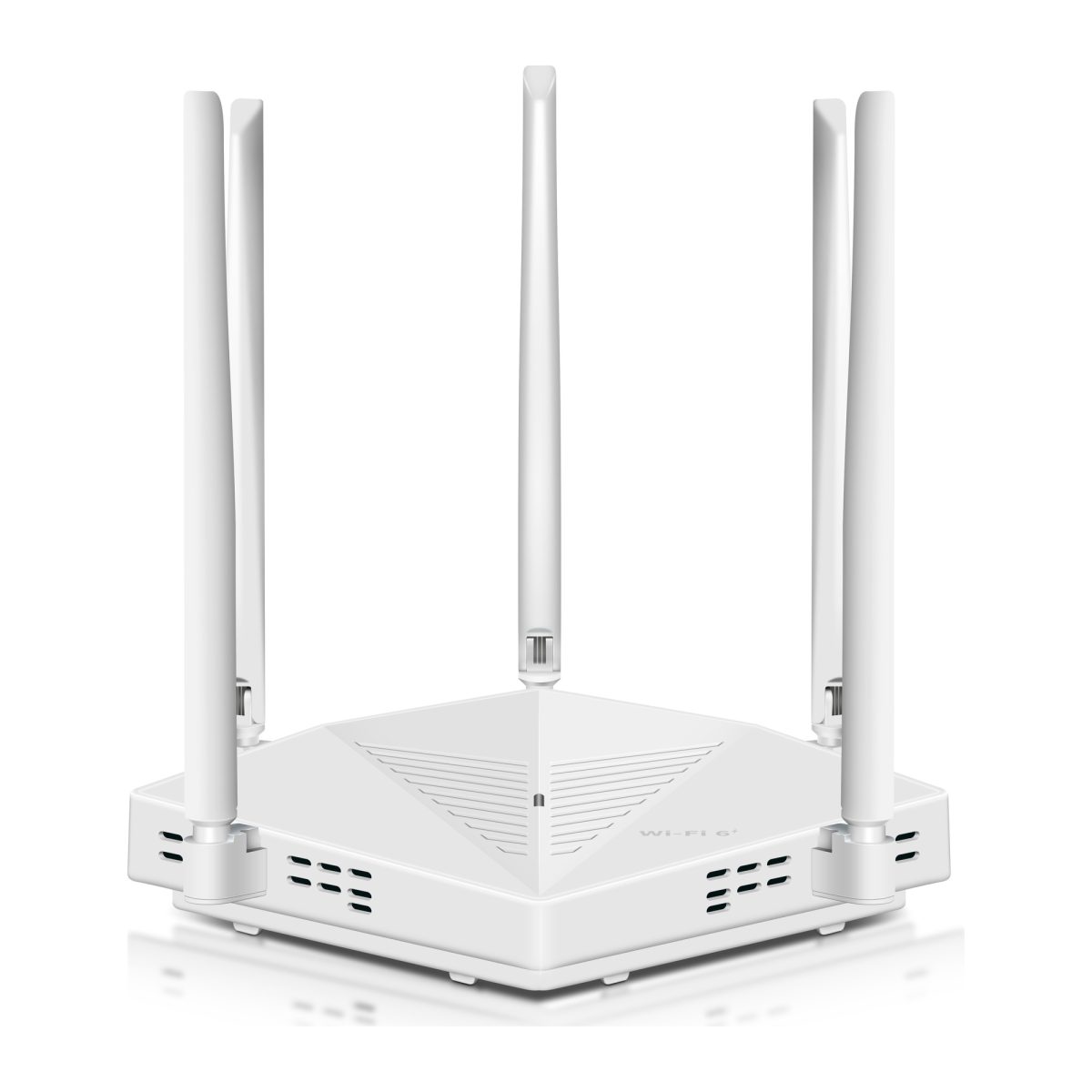
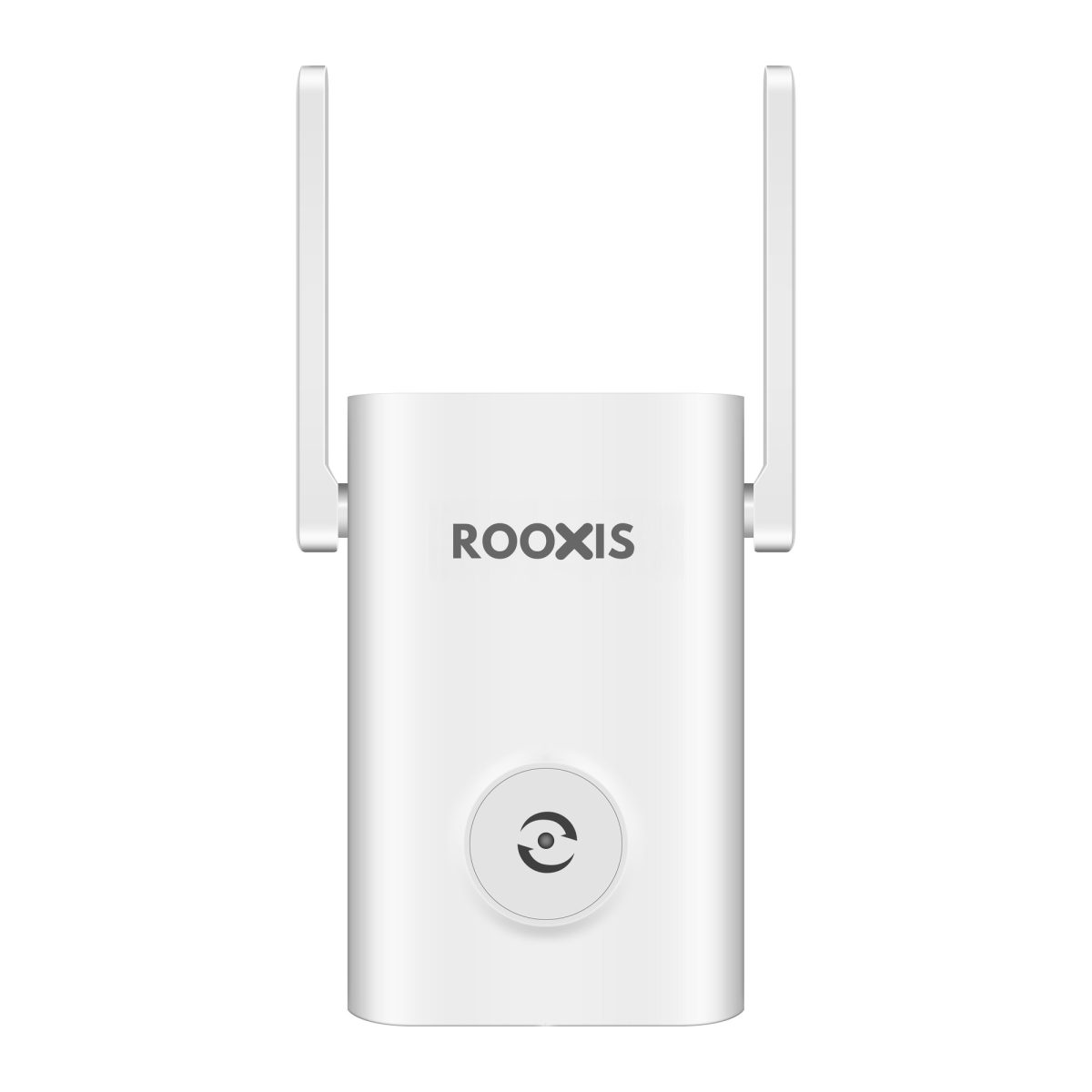
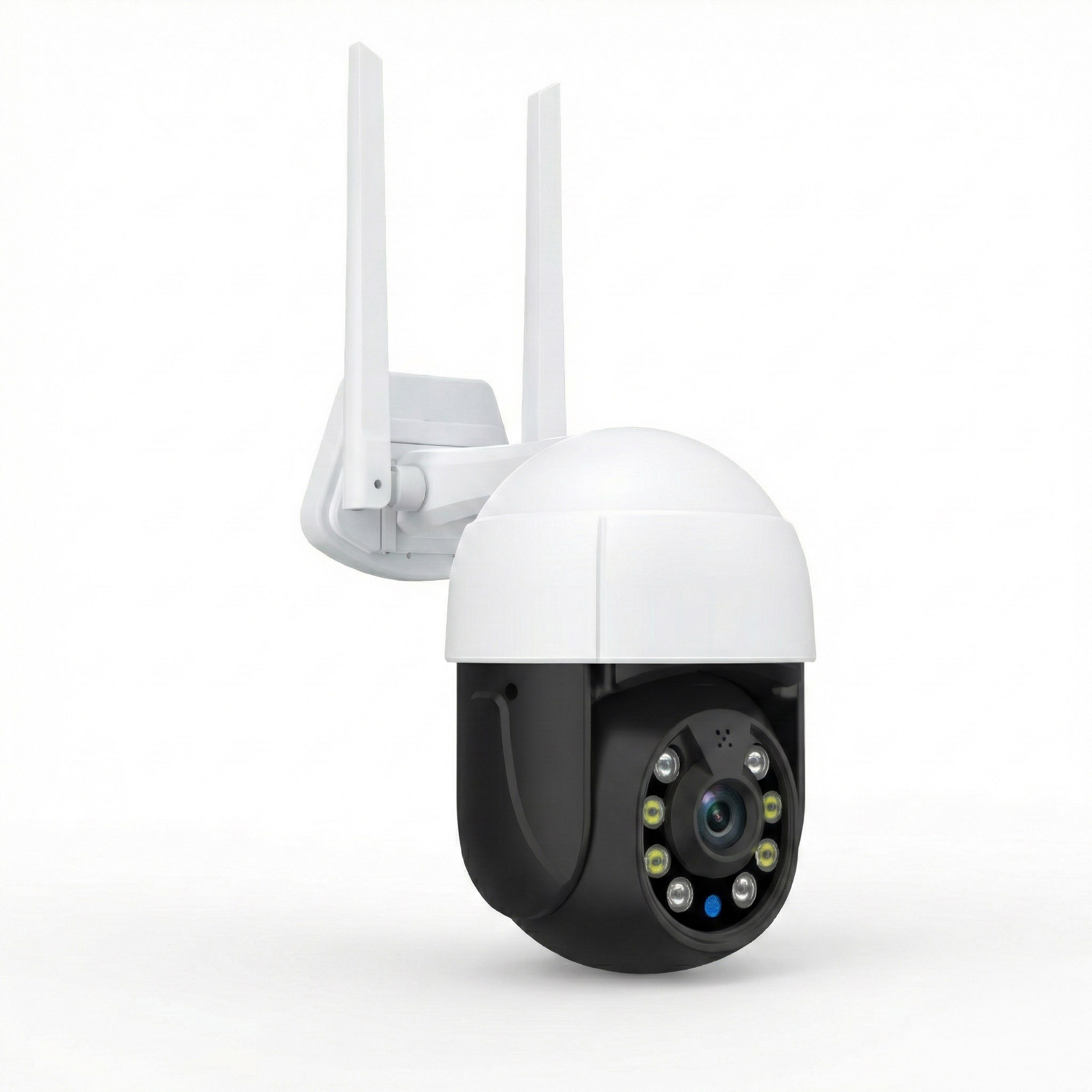
Homeowners comparing networking equipment can explore ROOXIS routers, WiFi extenders and security cameras to identify products appropriate for their intended wired or wireless connection.
Connecting Outdoor Security Cameras
Start with the camera's specifications rather than the Ethernet cable category.
Some outdoor security cameras connect exclusively through WiFi. Others have Ethernet ports. Compatible PoE models receive both electrical power and network data through an Ethernet cable.
For wired outdoor camera installations, check:
-
Whether the cable is rated for outdoor exposure.
-
Whether the installation requires direct burial or protective conduit.
-
Whether the connectors have suitable weather protection.
-
The camera's supported Ethernet connection.
-
The camera's electrical power requirements.
-
The total cable distance.
An outdoor-rated cable is not necessarily suitable for direct burial. Likewise, a weather-resistant cable jacket does not automatically protect an exposed Ethernet connector against moisture.
Use the camera manufacturer's supported weatherproof connection arrangement.
If the camera is WiFi-only, Ethernet can still be useful for connecting an access point closer to the camera's location.
What Is Power Over Ethernet?
Power over Ethernet, commonly called PoE, allows compatible equipment to receive electrical power and network data through the same twisted-pair Ethernet cable.
This is particularly useful when installing cameras and wireless access points away from convenient electrical outlets.
For example, a compatible camera installed beneath a roof overhang can receive power from a PoE switch located inside the house.
A typical installation requires:
-
A compatible PoE switch or injector.
-
Suitable copper Ethernet cabling.
-
A compatible powered device.
Not every Ethernet port supplies power. Not every security camera supports PoE.
Check both products before connecting them.
Common PoE Connection Standards
Different standardized PoE implementations supply different amounts of electrical power.
| PoE standard | Maximum power supplied by compatible sourcing equipment | Common applications |
|---|---|---|
| IEEE 802.3af | 15.4 watts | Compatible basic IP cameras and access points |
| IEEE 802.3at | 30 watts | Higher-power cameras and access points |
| IEEE 802.3bt Type 3 | 60 watts | More demanding networking equipment |
| IEEE 802.3bt Type 4 | 90 watts | Specialized high-power devices |
The electrical power available at the receiving device is lower because some power is lost along the connection.
Check the camera's required PoE standard rather than relying exclusively on the switch's advertised maximum wattage.
Also check whether the switch can supply enough total power for every connected camera.
A switch with several powered ports may not deliver its maximum per-port power simultaneously across all ports.
Which Ethernet Cable Is Best for PoE?
Standards-compliant Cat5e, Cat6 and Cat6a copper cabling can support appropriate PoE applications when the complete installation meets the relevant requirements.
For most new residential PoE camera connections, suitable Cat6 is a practical choice.
Pay attention to:
-
Conductor material.
-
Conductor dimensions.
-
Cable length.
-
Installation temperature.
-
Connector quality.
-
Camera power consumption.
Avoid CCA cables, particularly for longer powered connections.
Be cautious with passive PoE equipment as well. Its electrical behavior can differ from standardized IEEE PoE implementations, and connecting incompatible equipment may cause damage.
If a camera works during daylight but repeatedly disconnects when its infrared lighting activates, investigate its power requirements.
The problem might involve voltage drop, insufficient PoE capacity or a failing power supply rather than inadequate network bandwidth.
How Ethernet Cable Length Affects Performance
For many common twisted-pair Ethernet applications, the maximum compliant channel length is 100 meters, approximately 328 feet.
A conventional structured cabling arrangement commonly includes up to 90 meters of permanent cable and a combined 10 meters of patch cabling.
These limits depend on the applicable Ethernet standard, cable category and installation configuration.
Most ordinary connections between household rooms fall comfortably within these distances.
Larger properties require more planning.
A driveway camera may appear relatively close to the house, but the actual cable path could travel through ceilings, around foundations and along protective conduit.
Measure the complete route, including:
-
Vertical sections.
-
Wall and ceiling paths.
-
Detours around obstacles.
-
Network cabinet connections.
-
Appropriate termination allowance.
Do not measure only the straight-line distance between the router and camera.
Avoid tightly stretching a cable to reach its destination. Leave appropriate allowance for installation and maintenance without introducing unnecessary cable length.
For long connections between separate buildings, fiber can provide additional distance capability and electrical isolation.
Exposed copper connections between buildings can introduce electrical surge and grounding concerns. Seek qualified installation advice before undertaking this type of outdoor wiring.
How to Troubleshoot Common Ethernet Connection Problems
Ethernet Says Connected but There Is No Internet
An Ethernet connection indicator confirms that the device has established a physical network link.
It does not guarantee that the router can reach the internet.
First, check whether another household device can load websites.
If every device has lost internet access, investigate the main router, modem, ONT or internet provider.
If only the Ethernet-connected computer is affected:
-
Unplug and reconnect the Ethernet cable.
-
Try another LAN port on the router.
-
Replace the cable with a known working one.
-
Confirm that the Ethernet adapter is enabled.
-
Review the computer's network address configuration.
-
Restart the computer if necessary.
On Windows, open Command Prompt and enter ipconfig.
Locate the active Ethernet adapter.
If its IPv4 address begins with 169.254 and the computer normally receives its address automatically, it may have failed to obtain an IP address from the network's DHCP service.
Check the physical connection and router configuration before assigning a manual IP address.
Randomly entering network addresses can introduce additional connectivity problems.
Ethernet Is Stuck at 100 Mbps
A Gigabit-capable connection operating at 100 Mbps deserves investigation.
Start by confirming that both connected Ethernet ports support Gigabit speeds.
Then:
-
Connect a known working Cat5e or Cat6 patch cable.
-
Try a different Gigabit-capable port.
-
Temporarily remove unnecessary Ethernet couplers.
-
Inspect the cable connectors.
-
Check that automatic speed negotiation is enabled.
Gigabit copper Ethernet normally requires all four wire pairs. A damaged conductor or incorrect cable termination can prevent Gigabit communication while still allowing a lower-speed connection.
If the computer connects at Gigabit speed using a short cable directly to the router but only reaches 100 Mbps through a wall outlet, investigate the permanent cabling and its termination.
That comparison is more useful than buying another higher-category patch cable.
Ethernet Keeps Disconnecting
Intermittent Ethernet problems often involve physical connections, power interruptions or failing adapters.
Observe what happens immediately before the connection drops.
If moving the laptop causes a disconnection, inspect the cable and adapter.
If several devices connected to the same switch disconnect together, check the switch's power supply and upstream network connection.
If an outdoor camera disconnects after rainfall, investigate the weather protection around its cable termination.
Replace one component at a time.
Start with the easiest component to test, usually the removable patch cable.
Changing the cable, router settings and network adapter simultaneously makes it difficult to identify which component was responsible.
Your Ethernet Connection Is Slower Than WiFi
A wired connection is not automatically faster than every wireless connection.
A modern WiFi connection operating under favorable conditions can outperform a 100 Mbps Ethernet port.
When this happens, check the negotiated Ethernet link speed.
Possible bottlenecks include:
-
Older Fast Ethernet switches.
-
Slow USB Ethernet adapters.
-
Damaged cables.
-
Limited router ports.
-
Internet subscription capacity.
-
Background network activity.
-
Slow network storage devices.
Compare Ethernet and WiFi using the same computer and destination under similar conditions.
Disable WiFi when testing Ethernet. Disconnect Ethernet when testing WiFi.
Otherwise, the computer might select a different connection from the one you intend to measure.
Remember that connection stability and latency also matter. A slower but consistent wired connection may still be useful for a particular device.
A Security Camera Loses Its Wired Connection
Establish whether the camera has lost electrical power, network connectivity or both.
For a PoE camera, inspect the relevant switch port indicators and management information where available.
Check whether the camera appears in the router's connected device list or the network recorder's camera management interface.
If practical, temporarily connect the camera near the PoE switch using a short, known working copper Ethernet cable.
If the camera operates correctly on the short cable but repeatedly fails on its permanent connection, investigate:
-
Cable distance.
-
Cable construction.
-
Connector condition.
-
Outdoor moisture exposure.
-
Incorrect termination.
-
Power loss along the connection.
If the camera fails on both connections, investigate the camera itself and the compatibility of its power source.
Do not assume the permanent cable is faulty until you have isolated it from the other equipment.
Common Misconceptions About Ethernet Connection Types
A Higher Cable Category Always Means Faster Internet
A Cat8 cable cannot make a Gigabit Ethernet port operate at 10 Gbps.
It also cannot increase a 300 Mbps internet subscription to 1 Gbps.
The cable category determines which applications the cable can support. Your equipment and internet service determine the speeds actually available.
Upgrade the cable when the existing cable limits the required connection, not simply because a newer category is available.
Ethernet Cable Colors Indicate Speed
There is no universal Ethernet color system that establishes cable category or connection speed.
A red cable and a blue cable may have identical construction and performance specifications.
Colors are useful for organizing installations.
You could assign one color to security cameras, another to home office equipment and another to wireless access points.
To identify performance capabilities, read the cable markings and manufacturer documentation.
Shielded Ethernet Is Always Better
Shielding is useful in installations where electromagnetic interference warrants it and the complete cabling arrangement supports correct shielding practices.
It is unnecessary for many residential connections.
A compliant unshielded Cat6 patch cable can provide the required performance between a nearby router and desktop computer.
Proper installation matters more than purchasing additional shielding that your environment does not require.
Flat Ethernet Cables Are Always Poor Quality
Cable shape alone does not establish whether a cable meets its advertised specifications.
Some flat Ethernet cables may meet applicable requirements. Others contain questionable conductors or make unsupported claims about high-speed performance.
Check the product's construction, manufacturer information and intended use.
For permanent in-wall wiring and demanding PoE applications, use appropriately rated cabling rather than choosing a product solely because it fits beneath a door.
Avoid routing any Ethernet cable where it can be repeatedly crushed or pinched.
Ethernet Completely Eliminates Internet Problems
Ethernet removes wireless interference from the wired portion of a network connection.
It does not prevent:
-
Internet provider outages.
-
Router failures.
-
DNS problems.
-
Network congestion.
-
Streaming service interruptions.
-
Computer software faults.
-
Defective Ethernet equipment.
If your laptop experiences the same connection problem over both Ethernet and WiFi, the underlying cause may be unrelated to wireless coverage.
Investigate shared networking equipment and external services.
Every Outdoor Camera Needs Gigabit Ethernet
Security camera bandwidth depends on factors such as resolution, frame rate, video compression and recording behavior.
Many cameras operate successfully with 100 Mbps Ethernet ports.
A higher-speed switch can provide useful combined capacity when several cameras share an upstream connection.
However, that does not mean every individual camera requires a Gigabit Ethernet port.
Check the camera's actual connection specifications and expected video traffic.
For many residential installations, stable power and dependable cabling matter more than purchasing the fastest available Ethernet equipment.
What to Check Before Buying an Ethernet Cable
Before placing an order, check these details against your intended installation.
-
Cable category: Cat6 is sufficient for most new household Ethernet connections.
-
Conductor material: Choose standards-compliant copper construction rather than CCA.
-
Equipment compatibility: Confirm the supported Ethernet speeds at both ends of the connection.
-
Cable length: Measure the complete route rather than the direct distance between devices.
-
Connector construction: Look for secure, properly terminated connectors.
-
Installation rating: Choose cabling suitable for indoor, outdoor, in-wall or direct-burial use as required.
-
Shielding: Purchase shielded cabling only when the installation warrants it.
-
PoE requirements: Verify the powered device's standard, electrical requirements and cable suitability.
-
Cable flexibility: Choose flexible stranded patch cables for equipment that moves regularly.
-
Manufacturer documentation: Look for meaningful construction and compliance information.
For an ordinary connection between nearby household devices, a factory-terminated Cat6 patch cable is usually the simplest purchase.
For permanent installations, select appropriate structured cabling and compatible termination components.
Keep existing Cat5e connections if they perform reliably. Choose Cat6 for most new residential connections, and consider Cat6a when installing permanent wiring for 10 Gigabit Ethernet. If a camera or computer keeps disconnecting, test the existing cable and network ports before spending money on a higher cable category.
FAQ
What are the main Ethernet connection types?
The main physical Ethernet connection types are twisted-pair copper Ethernet, fiber optic Ethernet and legacy coaxial Ethernet. Most households use twisted-pair copper cables such as Cat5e and Cat6, while fiber is common in internet provider connections and specialized long-distance network installations.
What are the 2 types of Ethernet cable?
The two traditional Ethernet cable wiring arrangements are straight-through and crossover cables. Straight-through cables are suitable for most modern household connections, while crossover cables were commonly used to connect certain older networking devices directly. Modern equipment frequently supports automatic adjustment through Auto MDI-X.
Which Ethernet cable category is best for home use?
Cat6 is a practical choice for most new household Ethernet installations because it supports Gigabit Ethernet and common multigigabit applications. Existing Cat5e cables can remain suitable when they provide the required connection speed and reliability. Consider Cat6a for permanent installations requiring 10 Gigabit Ethernet.
Can I use different types of Ethernet cables in the same network?
Yes, compatible Cat5e, Cat6 and Cat6a cables can operate within the same household network. Each connection depends on the capabilities of its connected devices and cabling. A slower switch or network adapter can still restrict traffic passing through that part of the network.
Is Cat8 Ethernet cable better than Cat6 for gaming?
Cat8 will not normally improve gaming performance when an existing Cat6 cable already provides a reliable connection at the equipment's supported speed. Online gaming latency also depends on internet routing, server location and network congestion. Cat6 is sufficient for most household gaming installations.
What type of Ethernet cable should I use for outdoor security cameras?
Standards-compliant, outdoor-rated Cat5e or Cat6 copper cabling is suitable for many compatible wired security camera installations. For PoE cameras, verify the required PoE standard, power budget, cable length and connector weather protection. If your camera supports only WiFi, you may instead need Ethernet cabling for a nearby wireless access point.