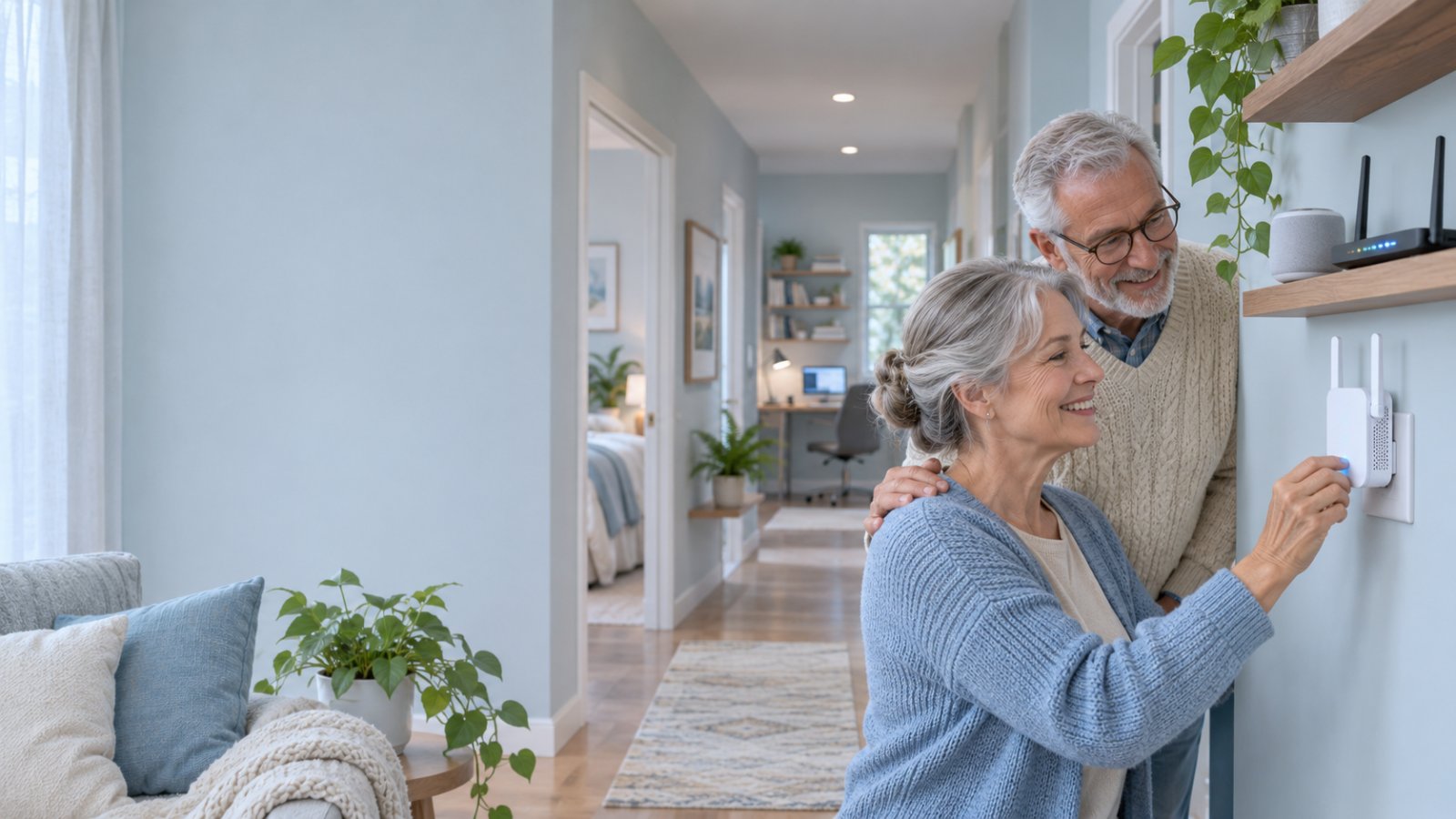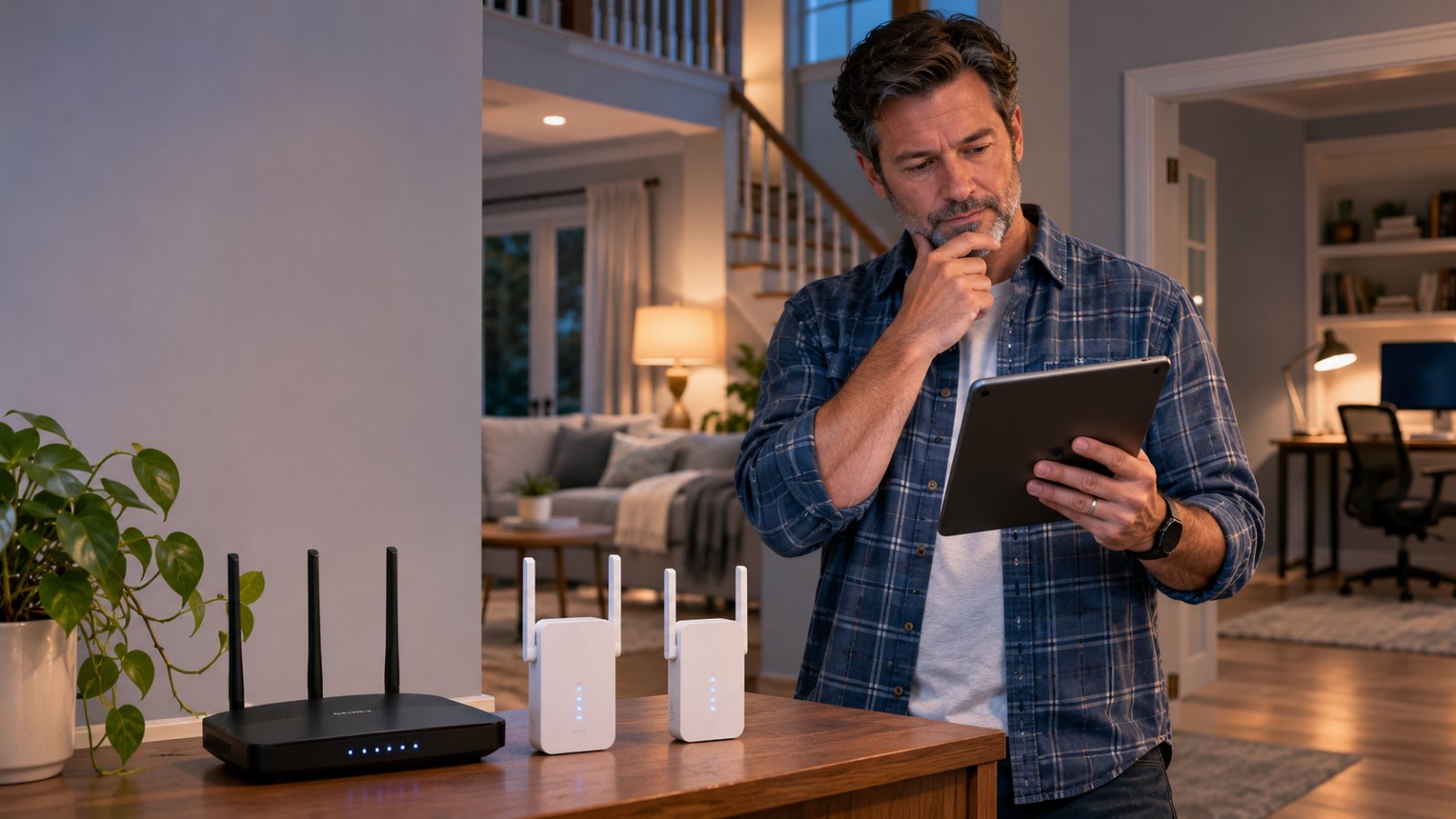
The biggest mistake homeowners make with weak WiFi is buying more repeaters before finding out why the signal drops. A repeater installed in the wrong outlet can make the signal look stronger without making the internet connection any faster.
If you're asking how many wifi repeaters do i need for a 3000 square foot home, the answer is usually zero to two. A centrally placed router may already cover the house. One repeater can often fix a distant bedroom or upstairs office. Two may be useful when different sections of the home have separate coverage problems.
Before ordering another device, check where your WiFi actually struggles. The size of your house matters, but the router's location, the number of floors, wall materials, and the rooms where you use the internet matter more.
How Many WiFi Repeaters Do I Need for a 3000 Square Foot Home?
For a typical 3000-square-foot home, start with your existing router and add one WiFi repeater only if you find a specific coverage gap. If another distant area still has weak reception, a second repeater may help.
You do not need three repeaters just because your home has three bedrooms, nor do you need one repeater for every 1000 square feet.
WiFi coverage does not divide neatly by floor area.
A router in the center of an open single-story home may reach nearly every room. Put the same router in a downstairs corner of a two-story house with thick walls, and you may struggle to connect from the opposite upstairs bedroom.
The problem is not always the router's advertised coverage. It is often the route the wireless signal must take to reach your devices.
A useful rule is to count the separate WiFi dead zones, not the total square footage.
If the entire upstairs hallway and its bedrooms have weak coverage, one well-positioned repeater might improve that whole area.
If the upstairs bedroom and a downstairs office are far apart, you may need two separate coverage points.
And if the signal cannot travel reliably between those locations and the router, wireless repeaters may not be the right solution at all.
Quick Guide: How Many Repeaters to Start With
| Home layout | Recommended starting point | What to check first |
|---|---|---|
| Open single-story home | 0 to 1 repeater | Whether a centrally placed router reaches the farthest rooms |
| Two-story home with a central router | 0 to 1 repeater | Signal strength in upstairs bedrooms and hallways |
| Two-story home with a corner router | 1 to 2 repeaters | Separate dead zones upstairs and downstairs |
| Long or L-shaped house | 1 to 2 repeaters | Weak coverage at the ends of the property |
| Home with concrete walls or reinforced floors | Test before buying repeaters | Whether a reliable wireless connection can pass through the structure |
| Home with several disconnected coverage gaps | Consider mesh or wired access points | Whether multiple repeaters would create unnecessary wireless relays |
These numbers are starting points, not coverage guarantees.
For example, consider a home with reliable WiFi in the living room, kitchen, and downstairs bedrooms, but frequent disconnections in one upstairs office.
Buying two repeaters would be difficult to justify before testing one near the upstairs hallway.
Now consider a single-story house with an office at one end and bedrooms at the other. The router sits near the middle, but both ends suffer from weak reception.
That layout may benefit from two coverage points, assuming each can receive a good connection from the router.
Buy the equipment that solves the actual problem. Extra repeaters sitting in rooms with good WiFi will not make the rest of the house faster.
What Does a WiFi Repeater Actually Do?
A WiFi repeater receives your router's wireless signal and transmits it into another area.
The terms repeater, range extender, and WiFi booster are often used for similar consumer devices. Their capabilities can differ, so the manufacturer's specifications matter.
Imagine your router is downstairs beside the television.
Your phone works normally in the living room. In the upstairs hallway, the connection is weaker but usable. Inside the bedroom at the end of that hallway, video calls regularly freeze.
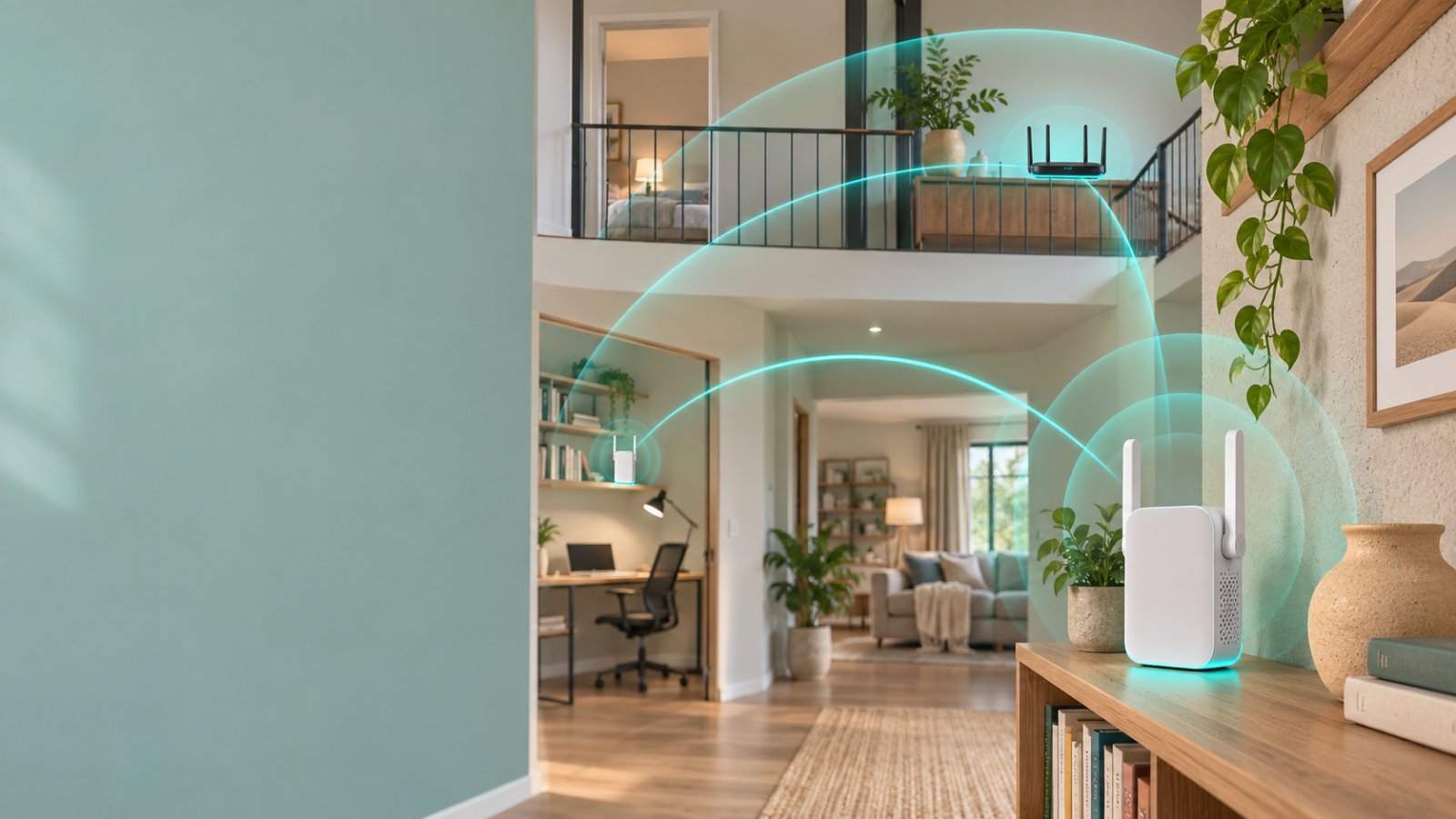
A repeater installed in a suitable hallway outlet can receive the router's signal and extend coverage toward the bedroom.
The crucial part is the connection between the router and repeater.
If the repeater barely receives the original WiFi signal, it cannot turn that poor connection into a fast, reliable one.
It may provide a strong local connection to your phone while still struggling to communicate with the router.
A repeater also does not increase the speed of your internet subscription.
Its purpose is to make an existing connection available where reception is poor.
Why Square Footage Alone Cannot Determine WiFi Coverage
Two houses can have the same floor area and completely different WiFi performance.
One may need no additional equipment. The other may need a wired access point upstairs.
Before deciding how many repeaters to buy, look at the four parts of your home that have the biggest effect on wireless coverage.
1. Your Home's Shape and Floor Plan
A square, open house is generally easier to cover from a central router than a long house divided into small rooms.
Picture a single-story property with an open kitchen and living room in the center. Bedrooms surround the main living space.
The router sits on an open shelf near the middle of the house.
There are relatively few walls between the router and most devices.
Now picture a long ranch-style home with a garage at one end, an office at the other, and several rooms along a narrow hallway.
The same router may struggle to reach both ends.
This is where the floor plan becomes more useful than the property's advertised size.
Walk through your house and identify the rooms with poor WiFi. Then look at their positions relative to the router.
If the weak rooms are clustered together, one repeater may cover them.
If they sit at opposite ends of the house, you may need separate coverage points.
Be careful with L-shaped homes. The signal may have to pass through several walls to reach a room that looks relatively close on the floor plan.
2. The Number of Floors
A two-story home adds another challenge: WiFi must travel through the floor between levels.
The effect depends on how the house was built.
A timber-framed floor may allow a usable signal to pass through. Reinforced concrete, metal structures, and dense construction materials can cause much greater signal loss.
Consider a house with the router in a downstairs corner.
The bedroom directly above it may connect without problems. A room across the upper floor might struggle because the signal must pass through the floor and several walls.
Installing one repeater upstairs may solve the distant room's problem.
But do not automatically put it inside the room with the weakest signal.
The stairwell or an upstairs hallway may provide a better connection to the router.
If the upper floor is separated by heavy concrete and there is no place with a usable signal, consider a wired access point instead.
A repeater needs something reliable to repeat.
3. Wall Materials and Obstructions
Some building materials weaken WiFi considerably more than others.
Common obstacles include:
-
Concrete and brick walls.
-
Reinforced concrete floors.
-
Metal framing and large metal objects.
-
Certain insulation materials.
-
Large mirrors and coated glass.
-
Appliances and metal cabinets.
-
Multiple walls between the router and device.
Even furniture placement can affect performance.
A router installed inside a closed entertainment cabinet may perform worse than the same router on an open shelf.
A repeater behind a refrigerator or large television may also receive a weaker signal than one in an open hallway.
Look at what sits between the router and your problem room.
A bedroom across an open landing may have better WiFi than a bathroom closer to the router but separated by dense walls and plumbing.
This is why coverage claims printed on networking equipment cannot guarantee results in every house.
4. Router Location and Wireless Interference
Before adding repeaters, check where your router is installed.
Internet providers often place routers close to the point where the service line enters the property.
That location may be convenient for installation but poor for whole-home coverage.
For example, a router beside an exterior wall is trying to serve a house that extends mainly in one direction.
A more central position may improve coverage without any extra hardware.
Where practical, place the router:
-
In an open area.
-
Away from large metal objects.
-
Outside enclosed cabinets.
-
Away from unnecessary obstructions.
-
Near the central part of the area that needs WiFi.
Neighboring networks and other electronic equipment can also affect wireless performance.
If WiFi becomes worse at certain times, congestion may be contributing to the problem.
Moving the router or adjusting its wireless settings may help more than buying another repeater.
If you cannot relocate the router because of cabling, use the current location as the starting point for your coverage tests.
How to Check Your WiFi Coverage Before Buying Repeaters
You can identify most home WiFi coverage problems with a smartphone and a few minutes of testing in different rooms.
You do not need to understand networking terminology or purchase a signal meter.
The aim is to answer two questions:
Is the internet slow throughout the house, or only in certain rooms?
Can a repeater be installed somewhere that still receives a good signal from the router?
Step 1: Test the Internet Near Your Router
Take a phone or laptop into the same room as your router.
Connect to your normal home WiFi network.
Open an internet speed testing service and run a test.
Record the download speed, upload speed, and latency.
Repeat the test under similar conditions to see whether the result is reasonably consistent.
This gives you a reference for comparing other rooms.
If the connection is already unusually slow next to the router, do not buy repeaters yet.
Check whether other devices are downloading large files, streaming video, or using substantial bandwidth.
Restart the router if appropriate and follow your internet provider's troubleshooting instructions.
If possible, compare the result with a computer connected directly to the router using Ethernet.
A good wired result with poor WiFi performance points toward a local wireless problem.
Poor results on both connections may suggest a router or internet service issue.
A repeater cannot repair a slow connection coming into your home.
Step 2: Walk Through the Main Rooms
Keep your phone connected to the home network and visit the places where internet reliability matters.
Test the living room, kitchen, bedrooms, office, garage, and any other frequently used areas.
At each location, try the activity you normally perform there.
For example:
-
Open several webpages in the upstairs bedroom.
-
Start a video meeting from the home office.
-
Stream video where the smart TV is installed.
-
Check the connection near an outdoor camera location.
-
Run a speed test in rooms where performance seems poor.
Write down the rooms where the connection slows or drops.
Do not rely entirely on the WiFi bars displayed by your phone.
Those bars are only a rough signal indicator.
A phone can show a strong connection to a repeater even when the repeater has a poor connection to the main router.
The actual browsing, streaming, and calling experience tells you more.
Step 3: Make a Simple Coverage Map
Draw a rough outline of your house.
It does not need to be accurate enough for an architect.
Mark the router's location and the rooms where you tested WiFi.
Use three categories:
-
Good coverage: Normal activities work without noticeable connection problems.
-
Weak coverage: Websites load slowly, video calls freeze, or devices occasionally disconnect.
-
Dead zone: The device repeatedly loses WiFi or cannot maintain a usable connection.
For a two-story house, draw each floor separately.
Now look for patterns.
If three weak rooms are next to one another, one repeater may help them all.
If one weak room is upstairs and another is at the opposite end of the ground floor, you may need two different connection points.
Also identify outlets between the router and each weak area.
Those are the first locations worth testing.
Step 4: Check Which WiFi Band You're Using
Most modern home routers support 2.4 GHz and 5 GHz WiFi.
These bands behave differently.
2.4 GHz generally travels farther and handles some obstacles better. It is also commonly used by smart home devices and can experience considerable interference.
5 GHz can provide faster local wireless performance under suitable conditions, but its signal generally weakens more quickly through walls and floors.
Some newer equipment supports 6 GHz as well.
If your router broadcasts separate network names, connect to the available bands and compare performance in the weak rooms.
A bedroom far from the router may maintain a more dependable connection on 2.4 GHz.
A nearby office may perform better on 5 GHz.
Some routers use one network name and automatically manage the available bands. In that case, check the router's management interface or device connection details if you need to identify the active band.
Do not buy another repeater simply because the 5 GHz connection is weak in a distant room.
Check whether the existing network already provides adequate performance on another supported band.
Where Should You Place WiFi Repeaters in a 3000 Square Foot Home?
Repeater placement matters more than the number printed on the box.
A device installed where the router's signal is weak may extend the appearance of WiFi coverage without delivering a dependable internet connection.
The best location has two characteristics:
-
It receives a good wireless connection from the router.
-
It is close enough to improve coverage in the problem area.
Finding that location usually takes a few tests.
Start Between the Router and the Problem Area
Suppose your router is downstairs and the upstairs bedroom has unreliable WiFi.
Avoid plugging the repeater directly into the bedroom's farthest outlet.
Start near the stairs or in the upstairs hallway.
Check the repeater's connection indicator if it has one.
Many extenders show whether the link to the router is strong, acceptable, or weak.
If the indicator reports a poor connection, move the repeater closer to the router.
Then test the bedroom again.
A location that looks halfway between the router and bedroom is not always the best position.
Walls, ceilings, furniture, and building materials can make one outlet much better than another nearby.
Move the repeater and test actual performance rather than relying on distance alone.
Choose Open Locations
An outlet in an open hallway is often a better starting point than one hidden behind furniture.
Try to avoid installing the repeater:
-
Inside cabinets.
-
Behind a large television.
-
Directly beside a refrigerator.
-
Behind metal shelving.
-
In an area where the router's WiFi is already unusable.
-
In a location exposed to moisture if the device is rated only for indoor use.
Do not worry about finding a visually perfect location during the first test.
Find a location that works. You can then check nearby outlets if you want the device to be less noticeable.
If the repeater has adjustable antennas, follow the manufacturer's positioning guidance.
There is no universal antenna angle that guarantees better coverage for every floor plan.
Avoid Putting Repeaters Too Close Together
Two repeaters placed in neighboring rooms may cover much of the same area.
That adds equipment without necessarily reaching the rooms that need help.
If you decide to install two, give each a clear purpose.
For example, one may serve the upstairs bedroom wing while another serves a downstairs office at the opposite end of the house.
Where possible, connect each repeater directly to the main router.
Avoid connecting the second wirelessly through the first unless the equipment specifically supports that arrangement and there is a good reason to use it.
Each wireless relay adds another link that can affect performance.
When Does a 3000 Square Foot Home Need Two Repeaters?
Two repeaters make sense when separate areas have weak coverage and a single repeater cannot serve both effectively.
They are less useful when the real problem is poor router placement or a wall that blocks the signal.
These home layouts show how the decision changes.
Example 1: Two-Story House With an Upstairs Dead Zone
Consider a two-story house with the main router installed downstairs near the living room.
Most downstairs rooms have reliable WiFi.
The upstairs hallway receives a usable signal, but the bedroom at the far end has frequent connection drops.
Start with one repeater.
Place it where it can receive a good connection from the router, possibly near the stairs or in the hallway.
Test the bedroom after installation.
If the connection improves enough for normal use, there is no need for a second device.
If another upstairs room still has weak WiFi, try moving the repeater before buying anything else.
A small placement change may improve both rooms.
Example 2: Large Single-Story Home With Two Distant Wings
A long single-story home can be harder to cover than a compact two-story house.
Suppose the router is near the center.
A home office is located at one end of the property, while the main bedrooms are at the opposite end.
Both areas struggle with WiFi, but the rooms between them have good reception.
Two repeaters may be reasonable.
The first can serve the office end of the house.
The second can serve the bedroom end.
Each should have its own dependable wireless connection to the router.
Before installing both, check whether moving the router slightly improves one of the weak areas.
You may be able to solve the problem with only one repeater.
Example 3: Two-Story Home With Thick Walls
A home built with reinforced concrete floors and thick masonry walls may have much weaker wireless coverage between rooms.
The router may work perfectly in the downstairs living room but struggle to reach the upstairs hallway.
Installing a repeater upstairs will not help much if the repeater cannot receive a dependable signal.
In this situation, a wired access point may be more effective than multiple repeaters.
If Ethernet cabling is available, an access point upstairs can provide WiFi without depending on a weak wireless connection through the floor.
A mesh system with wired backhaul may also work.
The important point is to solve the connection between floors rather than add devices that all struggle with the same obstruction.
Example 4: Home With a Garage or Outdoor Security Camera
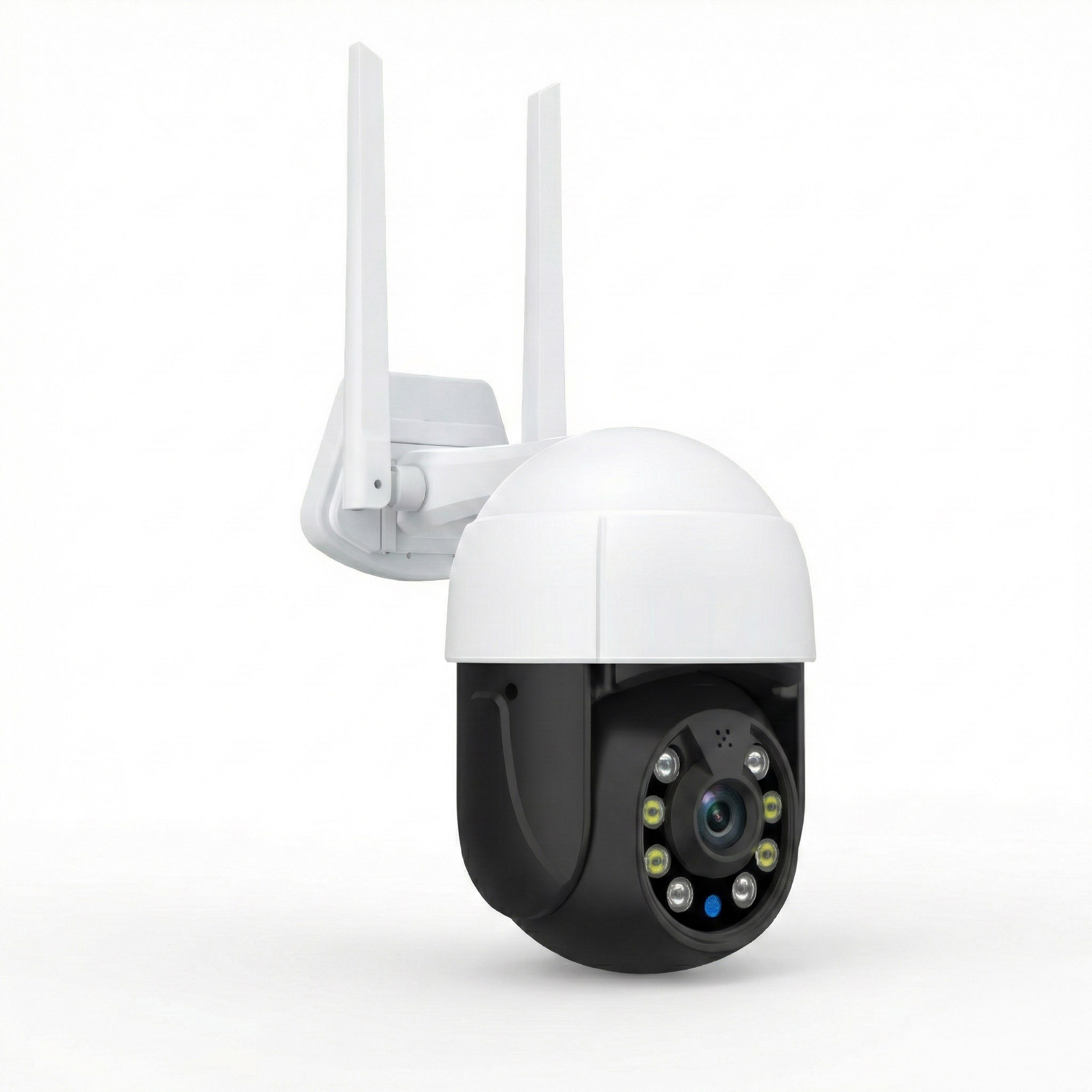
A garage or driveway camera may be just outside your home's main WiFi coverage.
The router may reach nearby indoor rooms but struggle through an exterior wall or metal garage door.
Start by checking the signal at the camera's intended location.
If reception is poor, try a repeater in a protected indoor outlet near that side of the house.
Make sure the repeater still receives a good signal from the router.
If the connection remains unstable, investigate a wired access point or equipment designed for the outdoor environment.
A camera that repeatedly disconnects needs a dependable network connection, not simply more WiFi bars.
How to Install and Test Your First WiFi Repeater
Once you know which part of your home needs help, install one repeater and measure the improvement.
Do not set up several devices at once.
Testing them individually makes it easier to identify which placement works and which device is unnecessary.
Step 1: Confirm Compatibility
Before installation, check the repeater's supported wireless bands and security settings.
Look at your router's specifications and the extender's requirements.
If the extender supports both 2.4 GHz and 5 GHz, confirm how each band can be used.
Also check the available setup methods.
Some extenders support WiFi Protected Setup, commonly called WPS.
Others use a mobile app or a browser-based configuration page.
If your router uses security features that an older extender does not support, you may encounter connection problems.
Follow the manufacturer's compatibility and setup instructions rather than changing security settings without understanding their effect.
Step 2: Complete Setup Near the Router
For the first setup, plug the repeater into an outlet where the router's signal is strong.
Wait until the device finishes starting.
Follow the instructions provided with the extender.
If both devices support WPS, the setup procedure typically involves pressing the relevant buttons within a specified interval.
If WPS is unavailable, connect through the extender's supported setup interface.
You may be asked to select your existing WiFi network and enter its password.
Wait for the extender to confirm that it has connected.
A flashing light during setup does not necessarily mean the connection is complete.
Use the device's indicators or management interface to confirm successful configuration.
Step 3: Move the Repeater Toward the Weak Area
Once setup is complete, move the extender toward the coverage gap.
Start with an outlet between the router and the problem room.
Allow the device to reconnect.
Check the signal indicator or management interface.
If it reports a weak link, move the repeater closer to the router.
If the connection is good, test the problem room.
Do not choose the final location based only on the strongest signal displayed by your phone.
The repeater must maintain a reliable connection to the router as well.
Step 4: Connect Your Devices
Some repeaters create an extended network with a separate WiFi name.
Others can use the same network name as the main router.
If the extender creates a separate name, open your phone's WiFi settings and connect to that network.
Otherwise, you may accidentally test the original router connection instead of the extender.
On devices using a shared network name, check the extender's client list or supported connection information if you need to confirm which device is serving your phone.
Do not assume your phone automatically changed to the strongest access point.
That behavior depends on the phone, router, extender, and network configuration.
Step 5: Repeat the Same Coverage Tests
Return to the rooms where you experienced weak WiFi.
Use the same phone or laptop you tested earlier.
Repeat the activities that previously caused problems.
Check whether:
-
Websites load normally.
-
Video calls remain connected.
-
Streaming works without frequent buffering.
-
Devices stay connected when idle.
-
Speed tests show an improvement over the original weak connection.
Compare the results with your earlier notes.
An extender may provide less speed than a direct connection near the router while still making a previously unusable room reliable.
That can be a worthwhile improvement.
The real question is whether the connection now supports the activities performed in that room.
Step 6: Decide Whether a Second Repeater Is Needed
After the first repeater is installed, check the rest of the house again.
If all important rooms work properly, stop.
If another distant area remains unreliable, test whether repositioning the first repeater can serve both areas.
If not, identify an outlet where a second device could receive a good direct connection from the router.
A second repeater is worth considering when it solves a separate coverage problem.
If no suitable outlet has a dependable connection to the router, investigate mesh or wired networking instead.
Adding a wireless device to a location with no usable source signal will not repair the problem.
Can Too Many WiFi Repeaters Make Your Internet Slower?
Yes. More repeaters can reduce performance when they compete for wireless airtime or relay traffic through several wireless connections.
A repeater does not add bandwidth to your internet plan.
It must communicate with the router and the devices connected to it.
With many conventional single-radio or shared-radio repeating arrangements, the same wireless resources are used to receive and retransmit traffic.
That can lower the effective throughput available to connected devices.
The amount of reduction depends on the equipment, wireless bands, signal quality, interference, and the number of active devices.
This does not mean all repeaters are slow.
It means that installing more of them without a clear coverage need can create additional problems.
Why Daisy-Chaining Can Cause Problems
Daisy-chaining means one repeater connects wirelessly through another repeater.
For example, a router connects to the first repeater, which connects to the second, which serves a laptop in a distant room.
The laptop's traffic must pass through several wireless links before reaching the router.
If one link is weak or congested, the entire connection can suffer.
This can be especially noticeable during video meetings, gaming, and large downloads.
For a 3000-square-foot home, try to avoid long wireless repeater chains.
If both repeaters can connect directly to the router, that is generally a better starting arrangement.
If the second repeater cannot reach the router, a coordinated mesh system or wired access point may be a more suitable choice.
Why Strong Signal Does Not Always Mean Fast Internet
A phone may display a strong WiFi signal because it is close to the repeater.
That does not tell you how well the repeater communicates with the router.
Suppose the repeater is plugged into the far corner of an upstairs bedroom.
Your phone connects to it with a strong local signal.
But the repeater must still send traffic through several walls to reach the downstairs router.
If that connection is weak, webpages may load slowly despite the strong WiFi icon.
Other possible causes include interference, network congestion, and limitations of older wireless equipment.
When testing a repeater, check both the router-to-repeater connection and the performance experienced by your devices.
WiFi Repeater vs Mesh vs Wired Access Point for a 3000 Square Foot Home
A repeater is a useful tool, but it is not the right answer to every large-home WiFi problem.
The choice depends on how much of the house needs better coverage and how reliably the network equipment can connect.
| Solution | Best use | Main limitation |
|---|---|---|
| WiFi repeater or range extender | One or two specific weak areas | Requires a dependable connection to the router |
| Mesh WiFi system | Several rooms or floors requiring coordinated coverage | Wireless backhaul can still be weakened by walls and distance |
| Wired access point | A distant room, floor, or workspace requiring a stable connection | Requires suitable network cabling |
| Router relocation | General coverage problems caused by poor router position | May require changes to cabling or installation |
Choose a Repeater for a Specific Coverage Gap
A conventional repeater makes sense when your main router already handles most of the house.
For example, your downstairs rooms may have good WiFi, while an upstairs bedroom struggles with streaming.
One properly positioned dual-band extender could improve that room without replacing the main router.
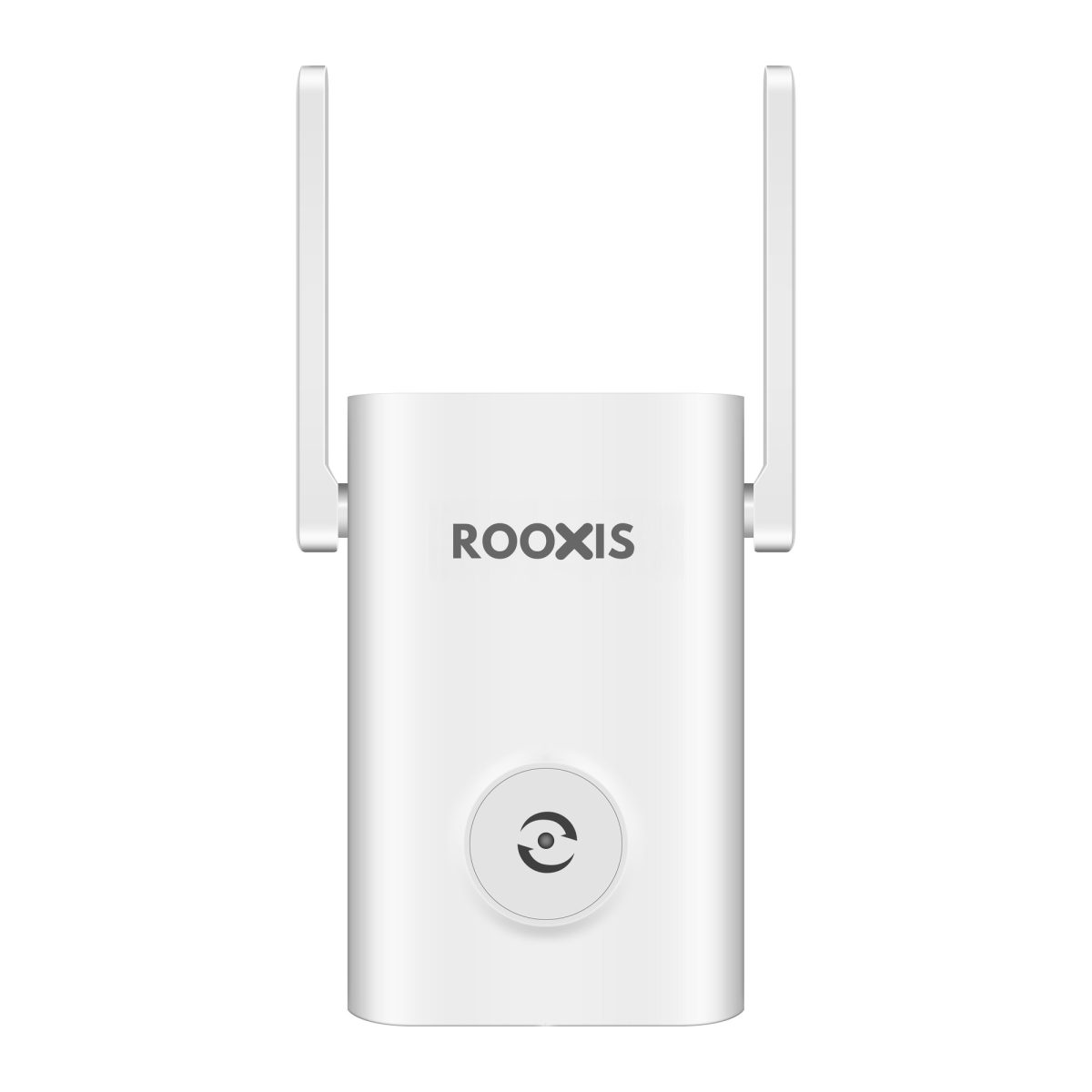
ROOXIS offers an AC1200 dual-band WiFi extender for extending an existing home wireless network.
As with any extender, its actual performance depends on the strength of the connection back to the router and the placement of the device.
If you're setting up that model, the ROOXIS AC1200 setup instructions explain the connection process and device indicators.
Choose Mesh When Coverage Problems Are Widespread
A mesh system may be more suitable when several rooms across different floors have weak or inconsistent WiFi.
Mesh systems use multiple coordinated nodes to provide wireless coverage.
Compatible systems can help devices move between access points more smoothly than a mixture of unrelated repeaters.
However, the nodes still need dependable connections.
A mesh node placed behind a thick concrete wall may struggle for the same reason a conventional repeater struggles.
If the system supports Ethernet backhaul and your home has suitable cabling, connecting nodes through Ethernet can reduce dependence on wireless relay links.
Mesh is worth considering when coverage problems are spread throughout the house rather than concentrated in one room.
Choose a Wired Access Point for Difficult Buildings
A wired access point connects to the network through Ethernet.
It does not depend on receiving the router's WiFi signal.
This makes it useful where wireless signals struggle to pass through floors, walls, or long distances.
Suppose your office is upstairs behind reinforced concrete walls.
A repeater installed inside the office receives a poor signal.
Another repeater in the hallway also struggles.
Running Ethernet to an access point upstairs can provide a more dependable network connection because the access point receives its data through the cable.
For a fixed office, gaming room, or other location that needs consistent performance, wired networking is often worth considering before adding more wireless repeaters.
What About Outdoor Cameras, Smart TVs, and Gaming Devices?
Not every connected device needs the same type of WiFi performance.
A security camera needs a stable connection for video transmission.
A smart TV needs enough consistent bandwidth for streaming.
An online gaming computer needs low latency and minimal packet loss.
Before choosing repeater locations, identify which devices are affected by the weak signal.
Outdoor Security Cameras
Outdoor security cameras often sit beyond the strongest part of a home's WiFi coverage.
A camera mounted above a garage may need to communicate through an exterior wall, metal door, or other obstacles.
Even when a phone connects near that location, the camera may perform differently because its wireless hardware and antenna design are not identical.
Test the signal close to the intended mounting location.
If possible, check the camera's own connection status after installation.
Pay attention to live video reliability, delayed loading, and repeated disconnections.
If a camera uses cloud uploads or remote viewing, its available upload connection also matters.
Check the camera's supported WiFi bands. Some cameras operate only on 2.4 GHz.
A nearby repeater may help, but only if it maintains a dependable connection to the router.
Do not install an indoor-rated repeater outside where rain, condensation, or temperature exposure could damage it.
Smart TVs and Streaming Devices
A television in a distant room may buffer even though phones work normally nearby.
Before adding a repeater, test the connection at the television's location.
Check whether other devices experience the same problem.
If only the television struggles, review its WiFi connection, software, and supported wireless bands.
If the entire room has poor reception, a repeater may help.
Where Ethernet is available, a wired connection can provide greater consistency.
For streaming, a stable connection usually matters more than the highest speed shown during a brief test.
Gaming Computers and Consoles
Online gaming is sensitive to latency and packet loss.
A repeater can improve coverage in a distant gaming room, but additional wireless relays may introduce delays or inconsistent performance.
If the gaming computer or console can connect through Ethernet, that is usually the better starting point.
If wiring is not practical, test the wireless connection while gaming.
Look for connection drops, sudden latency increases, and unstable performance rather than judging the result only by download speed.
A repeater that improves general browsing may not necessarily provide the connection quality needed for competitive online games.
Work-From-Home Computers
Home offices often reveal WiFi problems more clearly than casual browsing.
A webpage may eventually load over a weak connection, but a video meeting can freeze as soon as the connection becomes unstable.
If your office is at the far end of the house, test both download and upload performance.
Also check whether latency or connection reliability changes during a meeting.
If a repeater helps, place it where its link to the router remains strong.
If calls continue to freeze after repositioning, consider a wired connection or dedicated access point.
A dependable office connection is worth more than installing extra repeaters that produce inconsistent results.
Common Mistakes When Adding WiFi Repeaters
Most disappointing repeater installations come down to a few avoidable mistakes.
The device may be working exactly as designed, but the network layout prevents it from delivering the improvement the homeowner expects.
Buying Multiple Repeaters Without Testing
Buying three repeaters for a 3000-square-foot house before checking coverage can leave you with unnecessary equipment.
Start by mapping the rooms where WiFi fails.
If only one bedroom has a problem, test one repeater.
If the connection is poor throughout the entire property, investigate the router and network design first.
Placing the Repeater in the Dead Zone
This is one of the most common placement mistakes.
The homeowner wants WiFi in the upstairs office, so the repeater goes directly into that office.
Unfortunately, it receives the same weak signal as the laptop.
Move the repeater toward the router until the incoming connection improves.
Then check whether its extended signal reaches the office.
Installing Repeaters Behind Furniture
A plug-in repeater behind a large television or cabinet may have a weaker connection than the same device in an open outlet.
If performance is disappointing, try a nearby location with fewer obstructions.
You do not need to mount it at the highest point in the house.
You need a location that provides a dependable connection in both directions.
Assuming Every Device Will Switch Automatically
A phone may remain connected to the main router even after you walk closer to a repeater.
Some devices hold onto an existing connection longer than expected.
If the extender uses a separate network name, connect to it deliberately when testing.
If the router and extender share a network name, use the supported management interface to check connections when possible.
Do not assume that walking into another room means your phone has changed access points.
Ignoring the Router's Original Performance
If internet speed is poor beside the router, a repeater is unlikely to solve the main issue.
Check your internet connection, router condition, and network activity first.
A coverage device cannot compensate for an unreliable broadband connection.
Using Repeaters to Fix Every Networking Problem
Repeaters extend wireless coverage.
They do not fix every problem involving a connected device.
For example, a repeater will not repair a damaged internet cable, correct an invalid password, or make incompatible wireless equipment work together.
They also do not automatically solve overloaded internet connections or problems with an individual camera or computer.
Identify whether the issue is coverage, congestion, configuration, or the internet service itself.
Then choose the appropriate fix.
How to Know Your WiFi Coverage Is Good Enough
Your WiFi does not need to show maximum signal bars in every corner of the house.
It needs to work reliably in the places where you actually use it.
After installing or moving a repeater, check the same rooms you tested earlier.
A good setup should allow you to:
-
Browse normally in bedrooms and living areas.
-
Join video calls without repeated freezing.
-
Stream television without frequent buffering.
-
Keep connected security cameras online.
-
Use phones and tablets without persistent connection drops.
-
Work from the home office without losing the network.
-
Maintain stable connections during normal household activity.
Test the network when other people are using it.
A quiet-house speed test may look fine even though performance suffers when several devices are streaming or downloading.
Also pay attention to what happens after devices wake from sleep or reconnect following a restart.
An extender that works during initial setup but repeatedly loses its router connection needs further attention.
If the important rooms now have reliable WiFi, you have probably solved the coverage problem.
There is no reason to add another repeater just because the property is large.
For many 3000-square-foot homes, one well-positioned repeater is more useful than several poorly placed ones.
FAQ
How many WiFi extenders do I need for a 3000-square-foot house?
Start with zero to one extender and add a second only if testing reveals another separate coverage gap. A centrally located router may already cover the property, while a long or multi-floor layout may need additional access points. Wall materials, router placement, and actual connection performance matter more than square footage alone.
Can one WiFi repeater cover a 3000-square-foot home?
One repeater may be enough if the existing router already serves most rooms and only one area has weak reception. The repeater does not need to cover the entire home by itself. It only needs to extend reliable coverage into the area the router struggles to reach.
Is it better to use two WiFi repeaters or a mesh system?
Two repeaters may work well for two distinct dead zones if both can connect directly and reliably to the main router. A mesh system is often more suitable when coverage problems affect several rooms or floors. If thick walls prevent dependable wireless connections, a wired access point may be the better option.
Do WiFi repeaters reduce internet speed?
Some repeaters reduce effective wireless throughput because they must receive and retransmit data using shared wireless resources. The impact depends on the device, signal conditions, and network layout. A properly positioned repeater can still improve real-world performance in a room that previously had unreliable WiFi.
Should I put a WiFi repeater upstairs or downstairs?
Place the repeater wherever it receives a strong connection from the router while reaching the weak area. For an upstairs bedroom, a hallway or outlet near the stairwell is often worth testing first. Choose the final location based on connection quality and actual performance, not simply which floor the repeater is on.
Can I use three WiFi repeaters in one house?
You can use three repeaters if the equipment supports the arrangement, but that does not mean the network will perform better. Several wireless relays can increase congestion and reduce effective throughput, especially when they connect in a chain. If you need three separate coverage points, compare a mesh system or wired access points before buying more conventional repeaters.
For a 3000-square-foot home, the most practical approach is to test the router first, locate the rooms with weak WiFi, and add one repeater where it can receive a dependable signal.
If a second area still struggles, test another location before buying a second device.
And if walls, floors, or long distances prevent repeaters from connecting reliably, stop adding them. A wired access point or properly designed mesh system is more likely to solve the underlying problem.
The right number of repeaters is the fewest needed to make the rooms you use work reliably.