The biggest mistake people make when buying cellular wireless security cameras is assuming that every wireless camera works without WiFi. Many cameras advertised as wireless still need a home router to send alerts or show live video. A genuine cellular camera uses a mobile network, usually 4G LTE, so it can work at locations without a home internet connection.
That makes cellular cameras useful for remote cabins, detached garages, farms, construction sites, and properties where WiFi coverage is unavailable. However, the camera still needs compatible cellular coverage, a suitable data plan, and a reliable power source. Without those three things, even an expensive camera may struggle to stay connected.
Before buying, check whether you actually need cellular connectivity. A regular WiFi camera may be easier and less expensive to operate if your home network can reach the installation area. This guide explains how cellular cameras work, what they cost to operate, how to install one, and how to fix common connection and recording problems.
What Are Cellular Wireless Security Cameras?
Cellular wireless security cameras are surveillance cameras that connect to a mobile data network instead of relying on a nearby WiFi router.
Most consumer models use 4G LTE connectivity. They communicate through a compatible SIM card or built-in cellular service, much like a smartphone using mobile data.
The camera captures video, detects movement, and communicates with an app on your phone. Depending on the model, recordings may be saved to a microSD card, uploaded to cloud storage, or both.
The main benefit is straightforward: you can monitor a property without installing a fixed broadband connection.
For example, a homeowner may want to watch a detached storage building at the far end of a large property. The home WiFi signal does not reach the building, and running an outdoor Ethernet cable would require substantial work.
If the building has reliable LTE coverage, a cellular camera may be a practical option.
Cellular connectivity does not determine how the camera receives electricity, though.
You can find:
-
Battery-powered cellular cameras.
-
Cellular cameras with compatible solar panels.
-
Wired cellular cameras.
-
Cellular cameras with removable or built-in SIM cards.
-
Models supporting local storage, cloud storage, or both.
A battery-powered WiFi camera and a battery-powered cellular camera may look almost identical. Their network requirements are different.
Always check the connection specifications rather than relying on the word wireless in the product description.
How Does a Cellular Security Camera Work?
A cellular camera combines a video camera with a mobile network modem.
The camera sensor captures footage, while its processor handles functions such as motion detection, recording, and notifications.
The cellular modem establishes a connection with a supported network.
Here is what normally happens when someone approaches the monitored area:
-
The camera detects movement using its supported detection system.
-
It begins recording according to the configured settings.
-
The recording is saved locally or uploaded, depending on the model and storage plan.
-
If cellular connectivity is available, the camera can send an event notification.
-
You open the camera app to review the recording or check the live view.
For example, a camera mounted near a farm entrance detects a vehicle approaching the gate.
It records the event and sends a notification to the owner's phone.
The owner can open the app from another location to see what triggered the alert.
This works because the camera communicates through the cellular network. It does not need to connect to the farmhouse router.
However, the camera must have sufficient mobile data service for remote viewing and notifications.
If cellular coverage disappears, remote access generally stops until the connection returns.
Some models continue recording locally during a network outage. Others may have more limited offline functionality.
Check the specific camera's recording behavior before relying on it at an unattended property.
Does a Cellular Camera Need Home Internet?
No. A true cellular camera does not need a home broadband connection or WiFi router for its normal cellular operation.
It uses internet connectivity delivered through a mobile network.
That distinction matters because people often search for security cameras without internet when they actually mean cameras without home WiFi.
These are different requirements.
Without home WiFi: A cellular camera can communicate using its supported LTE connection.
Without any network connection: Some cameras can record locally, but remote notifications and live viewing generally will not be available.
Without electrical power: The camera cannot operate unless it has a charged battery or another suitable power supply.
Consider a remote cabin where broadband service is unavailable.
An LTE camera may allow the owner to receive alerts at home. But if the area also has no usable cellular reception, the camera cannot transmit those alerts.
A local recording camera may be more appropriate in that situation, provided the owner can retrieve footage directly from the device.
Cellular Security Cameras vs. WiFi Security Cameras
Cellular and WiFi cameras perform many of the same monitoring tasks.
Both may offer motion detection, night vision, two-way audio, local recording, and remote viewing.
The main difference is the connection used to transfer video and notifications.
A WiFi camera communicates through a wireless router or access point.
A cellular camera communicates through the mobile network.
| Feature | Cellular security camera | WiFi security camera |
|---|---|---|
| Network connection | Cellular network, usually 4G LTE | Home router or wireless access point |
| Home broadband required | No | Usually required for remote access |
| Cellular data plan | Usually required for remote features | Not required |
| Power options | Battery, solar-assisted, or wired | Battery or wired |
| Remote viewing | Requires cellular connectivity | Requires suitable WiFi and internet connectivity |
| Local recording | Available on supported models | Available on supported models |
| Best locations | Cabins, farms, remote buildings, temporary sites | Homes, garages, patios, and connected buildings |
| Main limitation | Mobile coverage and data costs | WiFi coverage and router availability |
The right option depends on where the camera will be installed.
A camera beside your front door has different connectivity needs from one mounted at a gate far from the house.
When a WiFi Camera Makes More Sense
Choose a WiFi camera when the installation area already has reliable wireless coverage.
For example, a homeowner wants to monitor the front entrance, driveway, and backyard.
If the router provides stable WiFi at those locations, there may be little reason to pay for separate cellular service.
A WiFi camera uses the home's existing network for remote access.
If the backyard signal is weak, check whether moving the router or installing an extender can improve coverage.
A WiFi extender receives the router's existing wireless signal and retransmits it to nearby devices.
Placement matters.
Installing an extender in the backyard dead zone will not help if it cannot receive a reliable signal from the main router.
Instead, place it somewhere between the router and the camera, where the original WiFi connection is still stable.
For homes that need stronger coverage, ROOXIS networking products and security cameras include WiFi routers, range extenders, and security cameras designed for home monitoring.
ROOXIS cameras use WiFi rather than built-in LTE connectivity. Their supported local storage can avoid a separate cloud recording subscription, but remote access still depends on the network connection.
A WiFi extender does not create cellular service. It only helps extend an existing wireless network.
When Cellular Is the Better Choice
Cellular becomes more useful when connecting the camera to your existing router is impractical.
Typical situations include:
-
A cabin without fixed internet.
-
A remote farm entrance.
-
A detached workshop far from the house.
-
A temporary construction site.
-
A storage building without broadband.
-
An RV parked away from available WiFi.
-
A vacant property before internet installation.
However, cellular is not automatically reliable just because your phone shows a signal somewhere on the property.
The camera must receive adequate service at its mounting position.
A camera installed inside a metal building may perform differently from a phone used outside the building.
Before buying, verify supported cellular networks and test reception near the intended location.
Where Cellular Wireless Security Cameras Work Best
Cellular cameras are useful when a reliable WiFi connection is difficult to provide.
Each location introduces different installation concerns.
A camera at a cabin may need long battery life. A construction-site camera needs secure mounting. A farm camera may have to distinguish relevant movement from frequent animal activity.
Choose the camera around the location's actual conditions.
Remote Cabins and Vacation Properties
A remote cabin may sit unattended for weeks.
If fixed broadband is unavailable, a cellular camera can help monitor an entrance, driveway, or equipment storage area.
First, check whether LTE service reaches the property.
Do not rely only on the mobile provider's coverage map.
Coverage maps are useful starting points, but actual performance can vary with terrain, trees, building materials, and network conditions.
Test connectivity close to the intended camera location.
A phone using the same supported network can provide a preliminary indication of reception, although the camera may perform differently.
Next, consider power.
If the cabin has electricity, a wired cellular camera may reduce battery maintenance.
If power is unavailable, choose a battery-powered model with a compatible charging arrangement.
For a solar-assisted camera, inspect how much sunlight the mounting location receives throughout the day.
A camera positioned under a deep roof overhang may stay protected from rain but receive too little sunlight for effective solar charging.
Also decide how recordings will be stored.
Local recording is useful, but remote retrieval may still consume cellular data.
If nobody visits the cabin frequently, check whether the camera can report battery and storage problems through its app.
Farms, Barns, and Rural Gates
Large rural properties often have WiFi near the house but little or no coverage at distant buildings.
An LTE camera can help monitor entrances and equipment areas without extending the home network across the property.
Possible locations include:
-
Livestock gates.
-
Farm driveways.
-
Detached barns.
-
Equipment sheds.
-
Machinery parking areas.
-
Storage yards.
Choose a mounting position that provides a clear view without being too far from the area of interest.
A camera mounted high on a barn may capture a wide scene but show vehicles and people as small objects.
A lower position may provide better detail, provided the camera can be mounted safely and protected from damage.
Also consider motion activity.
A camera facing moving tree branches or busy livestock areas may generate frequent recordings.
That can increase battery use and cellular data consumption.
If supported, configure detection zones to focus on the entrance, gate, or equipment area.
Construction Sites and Temporary Properties
Construction sites may not have permanent broadband or electrical infrastructure.
A cellular camera can be useful for monitoring a temporary entrance, equipment storage area, or site office.
Select a location where the camera is unlikely to be struck by machinery or blocked by construction materials.
The view may change as the project progresses.
A camera that clearly shows the site entrance during early construction may later be blocked by temporary fencing or stored materials.
Check the camera position regularly.
Also verify that the mounting arrangement is suitable for the surface.
Temporary poles, unfinished walls, and portable structures may require different hardware from a permanent exterior wall.
If the camera uses batteries, plan how staff will access it for charging.
For solar-assisted models, keep panels away from areas where dust or debris can accumulate heavily.
RVs and Mobile Installations
Cellular cameras may be useful for monitoring an RV or temporary campsite when parked.
However, not every cellular camera is designed for use on a moving vehicle.
Some models are intended for fixed mounting and motion-triggered recording.
Before installing one on an RV, check the manufacturer's mounting, power, and operating instructions.
Also consider the mobile network.
Coverage can change significantly between campsites.
A camera that works at one location may have weak reception at another.
If a campsite provides dependable WiFi, a WiFi camera may be an easier option.
For long-term parked installations without suitable WiFi, cellular connectivity can be more practical.
What You Need Before Installing a Cellular Security Camera
A successful installation starts with checking the camera's requirements before drilling holes.
Complete the initial setup at a table or another accessible location.
That way, you can resolve SIM, app, storage, or power problems before mounting the device.
A Compatible Cellular Camera
Check the technical specifications carefully.
Look for:
-
4G LTE support.
-
Compatible mobile networks.
-
Supported frequency bands.
-
SIM card requirements.
-
Data plan activation instructions.
-
Supported recording options.
-
App compatibility.
-
Weather resistance appropriate to the installation.
Do not assume that a camera labeled wireless uses cellular service.
Many outdoor wireless cameras use only 2.4 GHz WiFi.
Likewise, a 4G LTE camera does not automatically support 5G.
The internal modem determines which cellular technologies and bands are available.
For an outdoor installation, review the manufacturer's weather-resistance rating and mounting instructions.
The camera should be suitable for the expected rain, dust, and temperature conditions.
A device designed for sheltered use should not be installed fully exposed to the weather.
A Supported SIM Card and Data Plan
Many cellular cameras use a physical SIM card.
Some come with a preinstalled SIM and require activation through the manufacturer's app.
Others require a separate compatible SIM.
Before purchasing service, confirm:
-
Which mobile providers the camera supports.
-
Whether the camera is locked to a particular service.
-
Which network bands are required.
-
Whether a SIM is included.
-
How activation works.
-
Whether the plan includes enough data for video use.
-
What happens when the data allowance is exhausted.
A standard phone SIM is not guaranteed to work in every LTE camera.
Some manufacturers require specific supported services or activation methods.
Check the camera's compatibility documentation before buying a plan.
If the service uses an APN setting, follow the instructions supplied by the supported provider.
An APN is a network configuration that helps the device establish a mobile data connection.
Do not enter random APN settings intended for another network.
Reliable Power
Cellular connectivity does not eliminate the need for electricity.
A camera may receive power from:
-
A rechargeable battery.
-
A supported solar charging system.
-
A wired power adapter.
For a remote gate, a battery-powered camera may be easiest to install.
For a storage building with electrical service, wired power may reduce maintenance.
If you choose solar charging, check whether the panel receives sufficient sunlight.
Also consider how frequently the camera records.
A camera facing a busy driveway may wake and record more often than one overlooking a quiet storage shed.
That difference affects power consumption.
Suitable Recording Storage
Find out where the footage will be saved.
Some cameras support microSD cards.
Others use cloud storage or a combination of local and cloud recording.
Check whether the camera supports continuous recording or only motion-triggered clips.
Battery-powered cellular cameras often emphasize event recording to conserve power.
Also review memory card compatibility.
A camera may support only certain capacities or formats.
Do not assume any microSD card will work.
If recordings are stored locally, confirm what happens when storage becomes full.
Some devices overwrite the oldest recordings automatically. Others may stop recording or require a setting change.
How to Set Up Cellular Wireless Security Cameras Step by Step
Most cellular cameras follow a similar installation process, although app names and settings vary.
Set up the camera before mounting it permanently.
Use the manufacturer's instructions for the exact model whenever they differ from the general steps below.
Step 1: Check Cellular Coverage at the Installation Location
Begin with the cellular provider's coverage information.
Then perform a practical signal test.
Go to the proposed camera location with a compatible phone or other suitable device using the intended network.
Check whether the connection remains stable.
If possible, test at different nearby positions.
For example, signal reception may be weak inside a metal shed but noticeably better on an exterior wall.
Try moving a short distance away from large metal surfaces, thick walls, or other obstructions.
What to look for
A stable data connection at the intended camera position.
A phone showing signal bars is helpful, but a usable data connection is more informative than signal bars alone.
What to watch for
A connection that repeatedly drops, struggles to transfer data, or works only when you move away from the installation point.
The camera's modem and antenna may perform differently from your phone.
Complete a live-view test using the actual camera before drilling.
Step 2: Activate the SIM Card and Data Plan
Open the camera's setup instructions.
Determine whether the SIM is already installed or needs to be inserted.
If the camera requires a separate SIM, confirm that it is activated and compatible.
Turn off the camera before inserting or removing the SIM when the manufacturer instructs you to do so.
Use the correct SIM size.
Do not force the card into the slot.
Some cameras require activation through the manufacturer's app.
Others connect automatically after recognizing an active SIM.
What to look for
The camera recognizes the SIM and displays a successful cellular connection.
The app may show a network indicator or connection status.
What to watch for
Messages such as SIM not detected, invalid SIM, or network registration failed.
If those appear, confirm activation, compatibility, and installation before changing unrelated camera settings.
Step 3: Power On and Add the Camera to Its App
Charge the camera before the first setup if it uses a rechargeable battery.
Turn it on according to the manufacturer's instructions.
Install the official companion app on your phone.
Open the app and select the option to add a device.
Depending on the model, you may need to scan a QR code or enter a device identifier.
Follow the setup prompts.
Create a strong account password and enable additional account security where available.
Do not reuse passwords from other devices.
What to look for
The app recognizes the camera and reports that it is online.
Open the live feed to confirm that video is available.
What to watch for
The camera appears in the app but remains offline.
Do not mount it permanently until you can open the live view reliably.
Step 4: Install and Check the Memory Card
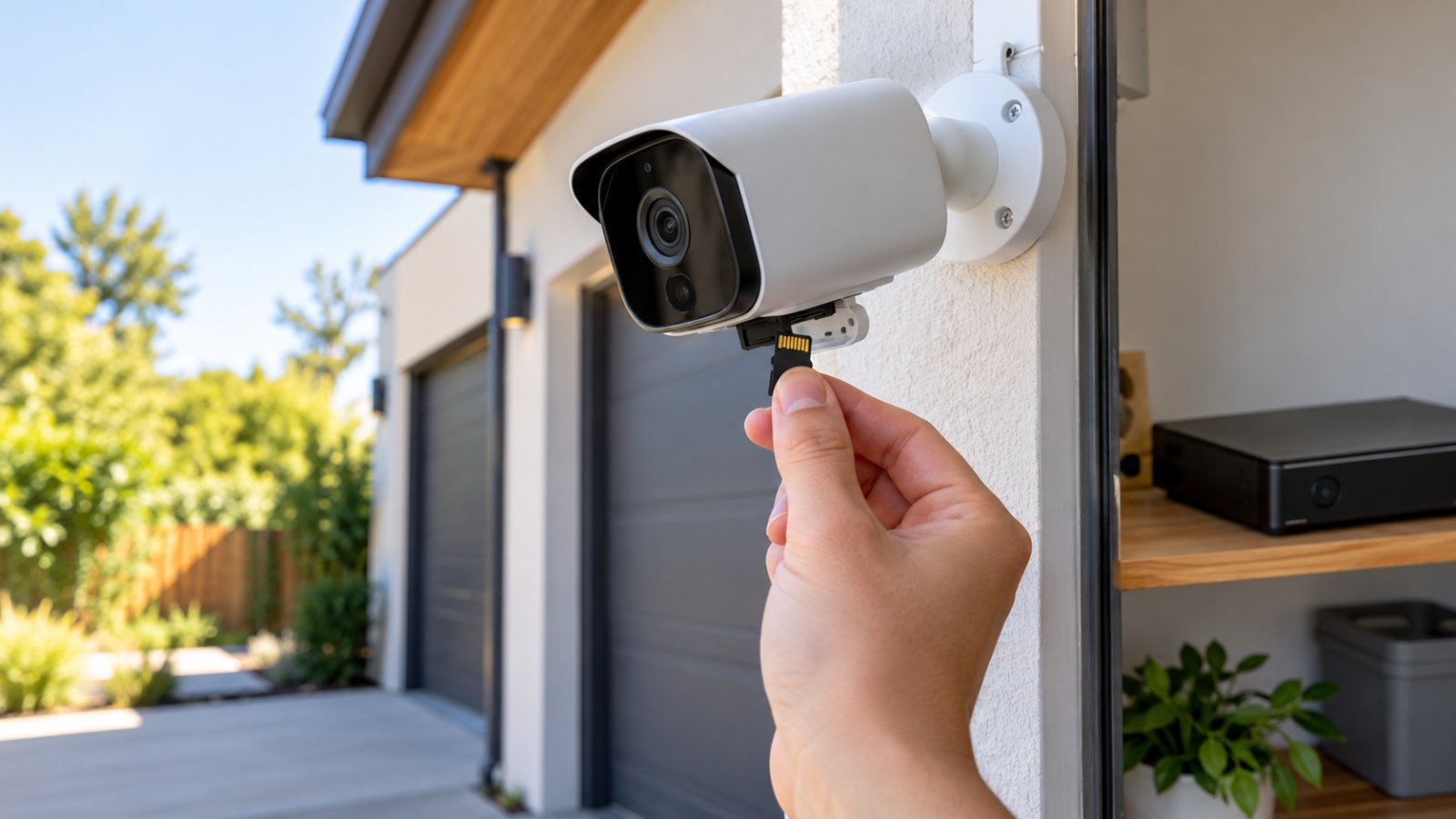
If the camera supports local recording, insert a compatible microSD card.
Check the supported capacity and card specifications.
Open the camera app.
Find the storage menu, which may be called SD Card, Device Storage, or Storage Settings.
Confirm that the camera recognizes the card.
If the manufacturer recommends formatting the card, use the appropriate in-app function.
Formatting erases existing files, so do not format a card containing recordings you need.
Next, enable the required recording mode.
What to look for
The app displays available storage and can save a test recording.
What to watch for
A card-not-recognized message, storage error, or missing recorded clips.
A working live feed does not prove that the camera is saving video.
Step 5: Configure Motion Detection and Alerts
Open the camera's detection settings.
Depending on the model, you may find options for:
-
General motion detection.
-
Person detection.
-
Vehicle detection.
-
Animal detection.
-
Detection zones.
-
Sensitivity.
-
Recording duration.
-
Notification schedules.
Begin with moderate sensitivity.
Then perform a real movement test.
For example, walk along the driveway toward the camera.
Check whether the device records the event.
Next, open the recording and examine whether the movement is visible.
What to look for
The camera records relevant activity and sends the expected notification when connected.
What to watch for
Frequent alerts from moving vegetation, animals, or traffic outside the area you need to monitor.
Adjust the detection zone and sensitivity rather than turning off useful alerts entirely.
Step 6: Test Remote Viewing Away From the Camera
A camera that works during setup may still have remote connectivity problems.
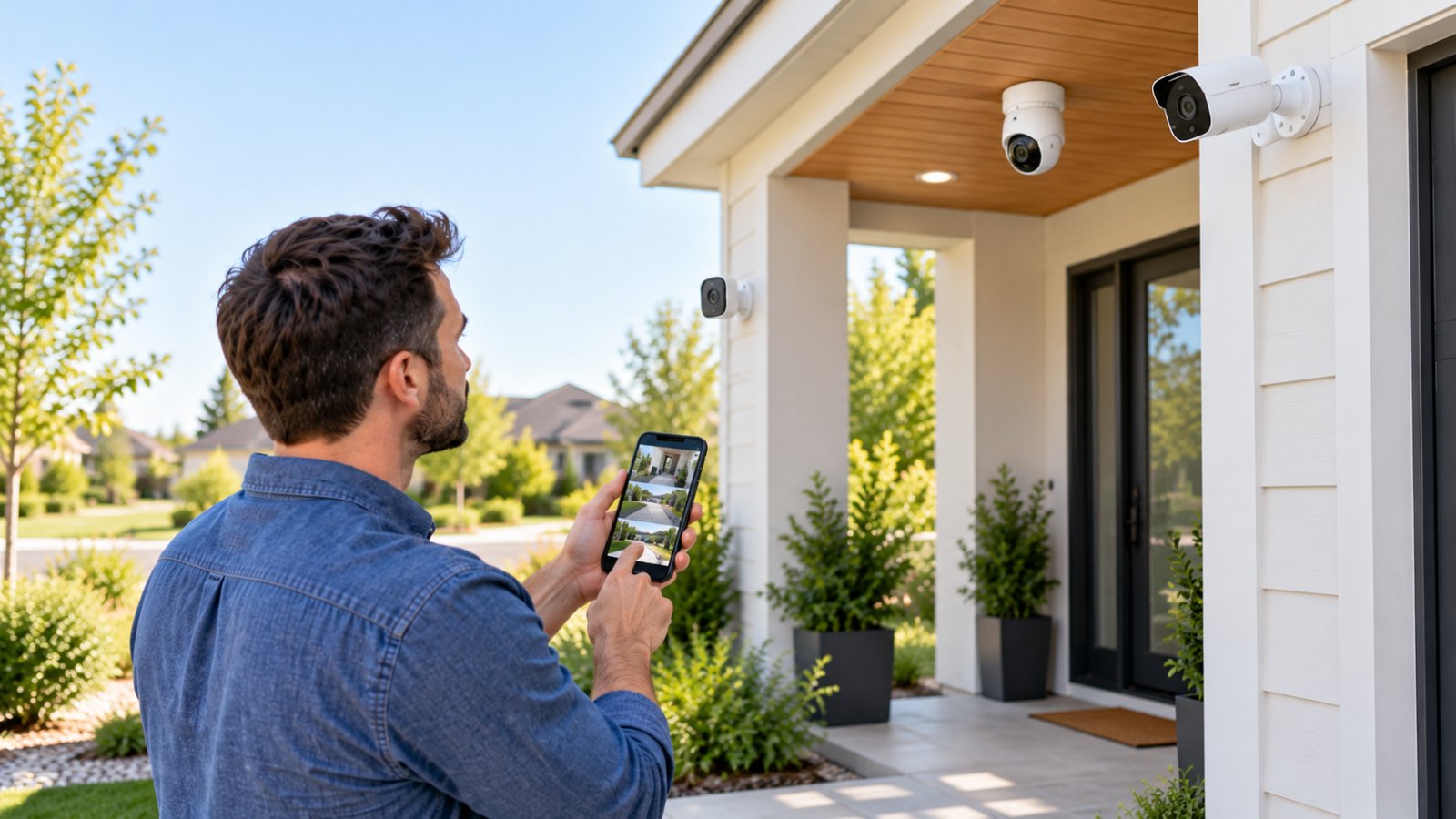
Leave the installation area and open the camera app using your phone's internet connection.
Check the live feed.
Then open a saved recording.
Verify that the camera remains accessible without being connected to a local WiFi network.
If the app supports multiple viewing quality settings, test the available options.
What to look for
The camera connects reliably enough to display the monitoring area and retrieve recordings.
What to watch for
Long loading times, repeated disconnections, or missing clips.
If lower-quality video works but the highest-quality mode does not, available network capacity may be a factor.
Step 7: Mount the Camera and Test Again
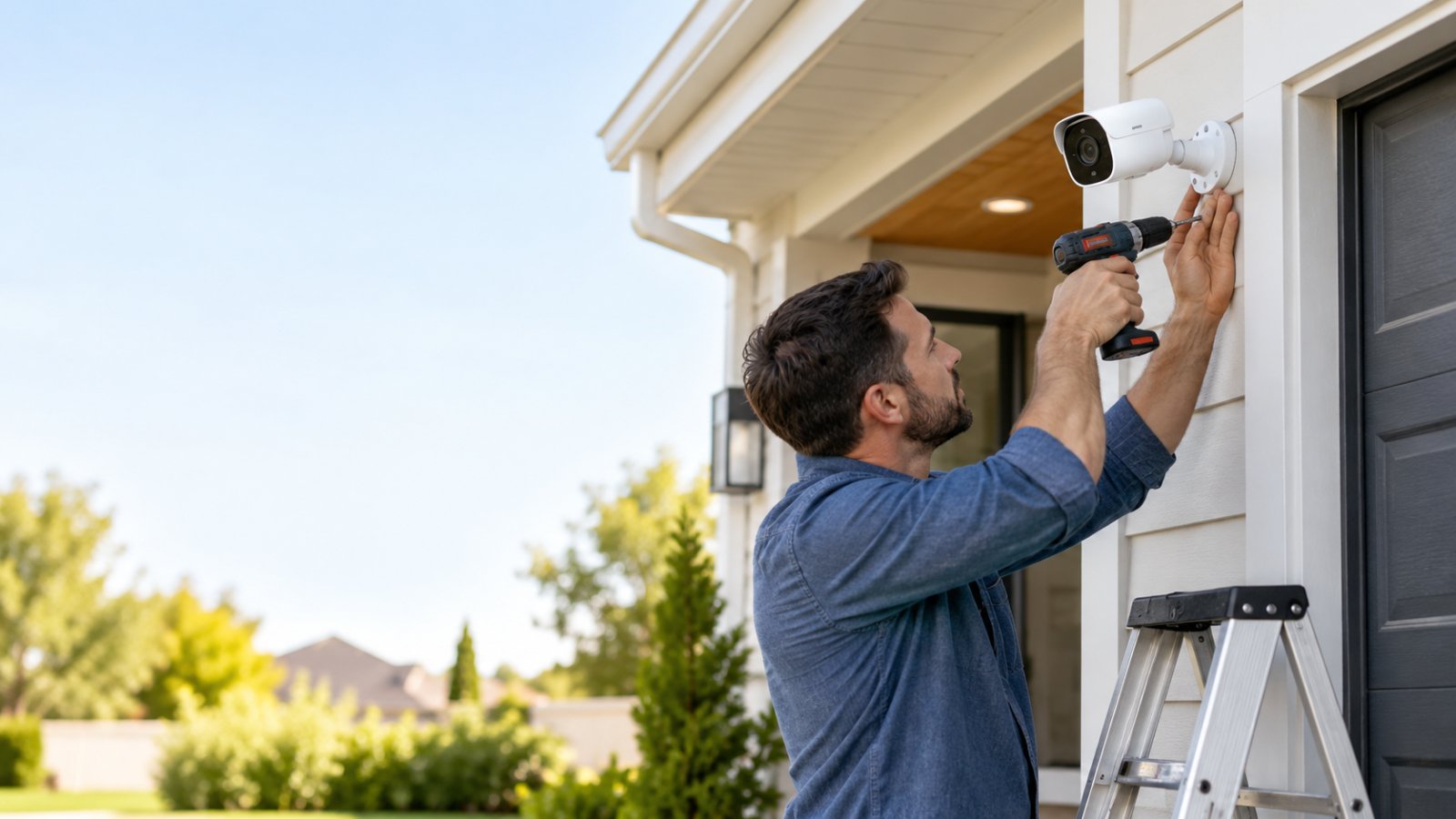
Once the camera works, install it in the intended location.
Check the mounting surface and use suitable hardware.
Consider:
-
Camera height.
-
Viewing angle.
-
Cellular reception.
-
Sun and weather exposure.
-
Battery access.
-
Solar panel placement.
-
Possible obstructions.
-
Property boundaries and privacy.
Before drilling, confirm that the location is clear of hidden electrical wiring, plumbing, or other hazards.
Renters should obtain permission before making permanent changes.
After mounting, reopen the app.
Check the live view, detection area, cellular connection, and recording function.
What to look for
Stable connectivity and a clear view of the intended area.
What to watch for
A camera that worked during setup but becomes unreliable after being mounted against a metal surface or beneath an obstructing structure.
If connectivity changes, adjust the location before completing the installation.
How Much Data Do Cellular Security Cameras Use?
Cellular data usage depends mainly on how much video the camera transfers through the mobile network.
A camera sending occasional motion alerts generally has different requirements from one used for frequent live viewing.
There is no reliable single monthly data figure that applies to every model.
Resolution, video compression, bitrate, event frequency, and storage settings all affect consumption.
What Uses Cellular Data?
The activities that commonly use data include:
-
Watching live video remotely.
-
Streaming saved recordings.
-
Downloading video clips.
-
Uploading clips to cloud storage.
-
Sending connected notifications and related information.
-
Performing certain online camera functions.
Live video can be particularly demanding because the camera continues sending footage while the stream remains open.
For example, checking a remote cabin for a short period is different from leaving its live view running on a tablet throughout the day.
Frequent streaming may consume data quickly.
Higher resolution can increase usage, although the actual amount also depends on compression and bitrate.
Do not select a data plan based only on camera resolution.
Does Local Recording Use Mobile Data?
Saving video directly to a compatible microSD card generally does not require the camera to upload that video over LTE.
However, accessing the recording remotely normally requires transferring it through the cellular network.
For example, the camera records a person approaching a barn entrance.
The clip is saved locally.
Later, you open the app from another city and watch the clip.
The camera may use cellular data to deliver that recording to your phone.
Some cameras also upload events to cloud storage automatically.
Check whether cloud upload is enabled if you are trying to reduce data consumption.
How to Reduce Cellular Data Use
Begin with the settings that cause unnecessary video transfers.
-
Use motion-triggered recording when it meets your monitoring needs.
-
Set detection zones to exclude irrelevant movement.
-
Reduce repeated false alerts.
-
Choose reasonable clip lengths.
-
Use a lower-bitrate preview when supported.
-
Avoid leaving live video open unnecessarily.
-
Use local storage when suitable.
-
Review actual data usage through the provider's account.
Do not reduce video quality so much that recordings become difficult to interpret.
A camera overlooking a driveway still needs enough detail to show useful activity.
Adjust the settings gradually and review actual footage after each change.
Do Cellular Cameras Require a Monthly Subscription?
Most cellular cameras require paid mobile data service for remote connectivity.
That does not necessarily mean they require a separate paid cloud recording subscription.
There are three different things to consider.
Cellular data plan
This provides access to the mobile network.
It is normally needed for remote viewing and connected notifications.
Cloud storage subscription
This may provide online video storage or additional recording features.
Whether it is optional depends on the camera.
Local storage
Some cameras can save footage to a compatible microSD card without a separate cloud storage subscription.
Before buying, read the service requirements for the exact camera.
A product advertised as subscription-free may still need cellular data service.
Similarly, a camera that includes a SIM card may offer only an introductory data allowance or require activation of a paid plan.
How to Estimate Your Ongoing Cost
Start with the manufacturer's data usage guidance.
Then consider your actual viewing habits.
Ask yourself:
-
Will I check the live feed several times a day?
-
Is the camera facing a busy driveway?
-
Will it record passing vehicles frequently?
-
Do I want cloud video storage?
-
Will multiple people access the camera?
-
Do I plan to download recordings regularly?
A camera monitoring a quiet cabin entrance may use less data than one pointed at a busy business parking area.
But the exact difference depends on recording and transmission settings.
After installation, review actual mobile data consumption.
If the camera uses more data than expected, inspect live viewing, upload settings, and motion activity before purchasing a larger plan.
Battery, Solar, and Power Requirements
A camera cannot send alerts or record footage after its power source is exhausted.
Choose the power setup before deciding where to mount the device.
Consider both daily operation and how often someone can reach the camera for maintenance.
Rechargeable Battery Cameras
Battery-powered models are useful when there is no nearby electrical outlet.
They can be suitable for remote gates, storage sheds, and temporary installations.
However, battery runtime depends on how the camera is used.
Frequent motion recording, live streaming, spotlights, and cellular communication can increase power consumption.
Temperature also matters.
Cold weather can affect battery performance, while high temperatures may affect charging and long-term battery health.
After installation, monitor the battery level during normal use.
If the battery drains quickly, examine recording frequency and detection settings.
Also consider whether the camera is spending additional power trying to maintain a weak cellular connection.
Solar-Assisted Cellular Cameras
A compatible solar panel can help recharge the camera's battery.
It does not guarantee that the camera will operate indefinitely without attention.
Charging depends on:
-
Available sunlight.
-
Panel orientation.
-
Shade.
-
Weather.
-
Dust and debris.
-
Temperature.
-
Battery condition.
-
Camera activity.
For example, a panel mounted beneath a thick tree canopy may receive too little direct sunlight.
The battery might remain charged during bright weather but gradually lose power after several cloudy days.
Follow the manufacturer's panel placement guidance.
Do not use an unsupported solar panel or charging adapter.
Inspect charging performance through the app if that information is available.
Wired Cellular Cameras
A wired cellular camera can be useful where electricity is available but WiFi is not.
For example, a detached garage may have power but sit outside the router's reliable coverage area.
A wired LTE camera can use cellular data without relying on battery charging.
Check the camera's voltage and adapter requirements.
Use appropriate weather-protected connections for outdoor installations.
Do not leave indoor-rated electrical adapters exposed to rain.
If electrical work is required, use a qualified installer.
Common Cellular Security Camera Problems and Fixes
When a cellular camera stops working, identify which part has failed.
A camera that cannot connect to LTE requires a different fix from one that streams video correctly but fails to record.
Start with the displayed error or missing function.
Camera Says No Network or SIM Not Detected
First, confirm that the SIM is installed correctly.
Check that the service is activated and compatible with the camera.
If the manufacturer requires the camera to be powered off before SIM removal, follow that instruction.
Reseat the card carefully if appropriate.
Then restart the device.
Open the app and check the connection status.
If the error remains, verify the supported network and frequency bands.
A SIM that works in a smartphone may still be incompatible with a particular camera or service arrangement.
If the camera requests APN information, use the values provided by the supported service.
Do not guess.
What to look for: The camera detects the SIM, registers on the network, and becomes accessible in the app.
What to watch for: Persistent SIM errors, failed network registration, or a device reporting unsupported service.
Camera Works Indoors but Not at the Mounting Point
This usually indicates a location-related connection problem.
First, temporarily move the camera away from the mounting surface.
Test it a short distance from the wall or obstruction.
Metal siding, thick masonry, and enclosed structures can weaken cellular reception.
If the camera connects reliably in another position, reconsider the installation point.
For a metal shed, mounting outside may work better than placing the camera inside.
Some models support compatible external antennas.
Use only the manufacturer's approved antenna arrangement.
Do not modify a sealed outdoor housing.
What to look for: Stable live viewing from the final mounting location.
What to watch for: A connection that works during setup but repeatedly drops after the camera is installed.
Live View Is Slow or Frequently Disconnects
Start by checking whether the camera is online.
Next, confirm that its data plan is active and has not reached a usage limit.
Then test your phone's internet connection.
A poor connection on either end can affect viewing.
If the camera supports multiple streaming qualities, switch temporarily to a lower-quality preview.
If that improves stability, the available network connection may be struggling with the higher data rate.
Also inspect battery status.
A camera operating with very little remaining power may limit certain functions, depending on its design.
What to look for: Live video that opens consistently and remains usable.
What to watch for: Repeated timeouts, excessive loading, or failures limited to high-quality streaming.
Motion Alerts Are Missing
Open the camera app.
Check that motion detection is enabled.
Then inspect notification settings.
Some cameras allow alerts to be silenced during selected hours.
Your phone may also block the app's notifications.
Confirm that the app has permission to send alerts.
Next, walk through the intended detection area.
Check whether the camera saves a recording.
If it records the event but sends no notification, focus on app permissions, alert settings, and connectivity.
If it does not record, check motion detection sensitivity, detection zones, and storage.
What to look for: The camera detects the event, records it, and sends the expected alert.
What to watch for: Notification schedules or detection zones that exclude the activity you want to monitor.
Battery Runs Down Too Quickly
Open the app and review battery information.
Check how frequently the camera has been recording.
A camera pointed toward constant traffic may wake repeatedly throughout the day.
Reduce unnecessary detections where possible.
If the camera uses solar charging, inspect whether the panel receives sufficient sunlight.
Check for shade, dirt, or an unsuitable panel angle.
Also confirm that the charging connection is secure and compatible.
Weak LTE reception can sometimes increase power use as the device attempts to maintain connectivity.
Consider a better mounting location if the signal is consistently poor.
What to look for: Battery levels that remain adequate during normal operation.
What to watch for: A steady decline despite expected solar charging or unusually frequent recording activity.
Camera Is Online but Does Not Record
A working live feed does not guarantee that recording is configured correctly.
Open the storage settings.
Check whether the microSD card is recognized.
Verify that the recording mode is enabled.
If the camera records only motion events, perform a detection test.
Then open playback and look for the new clip.
If the app reports a storage error, check the memory card's compatibility and condition.
Formatting may be recommended, but it erases existing recordings.
Save important footage first if possible.
Also check whether the camera has reached its storage limit and how it handles older files.
What to look for: A recorded clip that appears in playback after the test.
What to watch for: A camera that detects movement but has no available storage or enabled recording mode.
Common Misconceptions About Cellular Security Cameras
Cellular cameras are often described using terms such as wireless, wire-free, off-grid, and no internet.
Those terms can describe different features.
Understanding what each claim means can prevent an unsuitable purchase.
Wireless Means the Camera Needs No Power
Wireless usually refers to how the camera communicates.
It does not mean the device operates without electricity.
Battery-powered models still require charging.
Wired cellular models still require a suitable power connection.
Before buying, check both the network and power specifications.
All Cellular Cameras Work on Every Mobile Network
A cellular camera needs compatible network technology and bands.
Some models support only selected providers or regions.
A camera designed for one market may not support the networks available elsewhere.
Confirm the exact model's compatibility before activating service.
Do not assume that every 4G SIM will work in every LTE camera.
A Cellular Camera Never Needs Internet
A cellular camera does not require fixed home internet.
However, remote viewing and notifications normally use internet connectivity through a mobile network.
Local recording may continue during an outage on supported models.
Remote access generally cannot continue without a working connection.
Solar Cameras Work Forever Without Charging
Solar panels can reduce maintenance, but they depend on suitable sunlight.
A camera may use more power than its panel produces during cloudy weather or periods of frequent recording.
Shaded mounting positions can also limit charging.
Check actual battery performance rather than relying only on a product's solar-powered description.
A Higher Resolution Always Produces Better Security
Resolution is only one factor in useful video.
Camera placement, lighting, viewing angle, motion detection, and image compression also matter.
A high-resolution camera mounted too far from an entrance may not capture the details you need.
Higher-resolution streaming can also increase cellular data usage.
Choose image quality based on the monitoring area and available connection.
Cellular Cameras Can Replace Every WiFi Camera
Cellular cameras are useful where WiFi is unavailable.
They are not automatically a better choice for a connected home.
A house with reliable broadband may be easier to monitor using WiFi cameras.
Installing several LTE cameras could create unnecessary data-plan expenses.
Reserve cellular connectivity for locations where it solves a real coverage or installation problem.
How to Choose the Right Camera for Your Property
Begin with the area you want to monitor.
Then check network availability, power, mounting conditions, and recording requirements.
The best option for a front porch is not necessarily suitable for a remote storage yard.
For a Home With Weak Backyard WiFi
Before buying a cellular camera, test the existing WiFi connection outdoors.
Use your phone near the intended installation area.
If the signal is weak, check whether router placement is contributing to the problem.
Routers placed behind televisions, inside cabinets, or beside large metal objects may provide weaker coverage in some directions.
Move the router to a more open position if practical.
If the backyard still has poor reception, consider a suitable WiFi extender or access point.
Place an extender where it can receive a stable connection from the router.
Then test the camera location again.
If WiFi coverage can be improved reliably, a WiFi camera may avoid the cost of mobile data.
For a Detached Garage or Workshop
Check whether the garage receives usable WiFi.
If it does, a standard WiFi camera may be sufficient.
If the building has electricity but lies beyond the router's range, consider the feasibility of extending the network.
For example, a wired network connection to a suitable access point may be practical where cabling is already available.
If extending WiFi is not reasonable but LTE coverage is good, a cellular camera becomes an option.
Check whether wired or battery power suits the location.
Do not forget the construction materials.
Metal siding and other obstructions may affect the final mounting position.
For a Remote Cabin
Choose a camera with reliable LTE compatibility and a suitable power arrangement.
Local recording is valuable when cellular service is intermittent.
Remote battery monitoring can also be useful if the cabin is rarely visited.
Position the camera toward the entrance or access area rather than attempting to monitor the entire property from a distant mounting point.
Test the view in daylight and darkness.
If the cabin has seasonal weather extremes, review the manufacturer's operating temperature specifications.
For a battery-powered installation, plan how the device will be maintained during periods when the property is unattended.
For a Farm Gate
Start by testing cellular reception at the gate.
Do not assume the signal near the farmhouse will be the same.
Choose a mounting position with a useful view of approaching vehicles and people.
Consider where the camera will receive power.
If you plan to use solar charging, check sunlight throughout the day.
Adjust motion detection zones to exclude unnecessary activity from animals or nearby vegetation.
Test the final installation by approaching the gate as a visitor normally would.
Review the recording to confirm that the camera captures the part of the entrance you need.
For Renters
Check your rental agreement before installing outdoor cameras.
Avoid drilling or making permanent changes without permission.
Some camera models support removable mounting arrangements, but the mount must still safely support the device.
Do not place a camera where it can easily fall or be damaged.
Aim the camera toward areas you are permitted to monitor.
Avoid recording into neighboring windows or private spaces.
If the rental property already has reliable WiFi, a suitable WiFi camera may be simpler to install and operate.
How to Keep a Cellular Camera Reliable Over Time
A camera may work perfectly after installation and develop problems months later.
Vegetation grows, mobile coverage conditions change, batteries age, and storage cards can fail.
A short maintenance routine is more useful than discovering a problem only when you need a recording.
Review cellular data usage
Open your provider account periodically.
Check whether the camera is consuming more data than expected.
If usage has increased, inspect recording activity, cloud upload settings, and live-view habits.
Check battery levels
Look at battery status through the app if supported.
Pay attention to unusually rapid discharge.
For remote locations, establish how and when someone will recharge or inspect the camera.
Inspect the solar panel
Check for leaves, dust, shade, or other obstructions.
Confirm that the charging connection remains secure.
A panel that worked during summer may receive less useful sunlight during shorter winter days.
Test recording and playback
Open a recent recording.
Confirm that the image is clear and the clip plays normally.
Do not assume local storage is working simply because live video is available.
Check the monitoring area
Trees and vegetation may grow into the camera's view.
Outdoor dirt or insects can also affect image quality.
Clean the lens using the manufacturer's recommended method.
Install official firmware updates
Check the manufacturer's app for supported firmware updates.
Follow the official update process and avoid unofficial files.
Updates may address compatibility, reliability, or security issues.
Protect account access
Use a unique password.
Enable additional account protection where available.
Review who has access to the camera and remove users who no longer need it.
Retest remote access
Occasionally open the camera from another location.
Confirm that live viewing, notifications, and playback still work.
For a remote cabin, farm gate, or storage building, that test is particularly valuable because connection problems may otherwise go unnoticed.
The practical goal is to have a camera that records the right events, stays powered, and remains accessible when you need to check the property.
Frequently Asked Questions
Do cellular wireless security cameras work without WiFi?
Yes. True cellular cameras use a compatible mobile network, usually 4G LTE, instead of a home WiFi connection. They can send alerts and support remote viewing without broadband service, provided cellular coverage and an active data plan are available. Some models also support local recording during network outages.
Do cellular security cameras need a SIM card?
Most cellular cameras require a compatible SIM card or a built-in cellular service arrangement. Some include a SIM that must be activated through the manufacturer, while others accept a separately purchased compatible card. Check the camera's supported networks and data-plan requirements before buying service.
Can a cellular outdoor security camera run on solar power?
Many cellular outdoor cameras support compatible solar panels that charge an internal battery. The effectiveness of solar charging depends on sunlight, panel placement, weather, and camera power use. A solar-assisted model may still need occasional manual charging, particularly during extended cloudy periods.
How much does it cost to use a cellular security camera each month?
The cost depends on the cellular provider, selected data plan, and amount of video transferred. Frequent live viewing and cloud uploads generally consume more data than occasional motion alerts. Some cameras offer local recording without a separate cloud subscription, but remote LTE connectivity usually requires paid mobile service.
Can cellular security cameras record without internet?
Some cellular cameras can save recordings to local storage when the mobile connection is unavailable, provided the camera has power and the recording function is enabled. Remote viewing, cloud uploads, and notifications generally require an active connection. Confirm the model's offline recording behavior before relying on it at a remote property.
Should I choose a cellular camera or a WiFi camera for my home?
Choose a WiFi camera if your existing network reliably reaches the installation location and you want to avoid a separate cellular data plan. A cellular camera makes more sense for remote buildings, cabins, gates, or other locations where WiFi is unavailable but LTE coverage is sufficient. Test connectivity, check power requirements, and confirm recording options before purchasing.