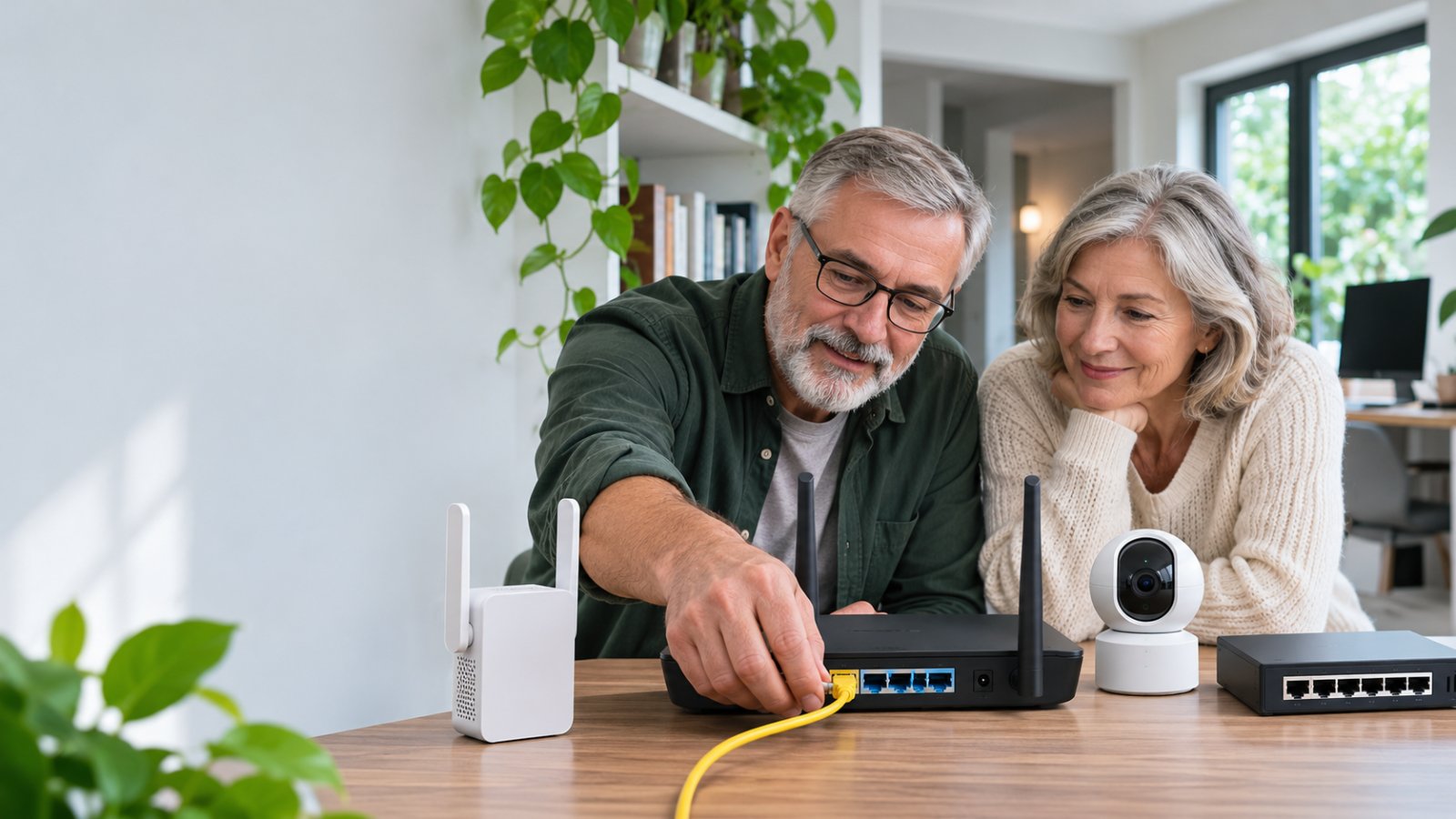
The most common mistake people make when their home WiFi slows down is buying a new router before checking what's actually wrong. A bedroom with weak WiFi, a security camera that keeps disconnecting, and a computer with no internet connection may each need a different fix.
Networking hardware components are the physical devices that connect your home to the internet and allow phones, computers, smart TVs, and security cameras to communicate. The main components include modems, routers, network switches, wireless access points, Ethernet cables, network adapters, and WiFi extenders.
You don't need all of them. A small apartment may work perfectly with one internet provider gateway. A larger house might need an additional access point or switch. The useful skill is knowing what each device does, how to recognize a problem, and when buying another piece of hardware will actually help.

What Are Networking Hardware Components?
Networking hardware components are the physical equipment that moves data between devices and connects your home network to the internet.
In a typical house, the internet connection enters through a modem, fiber terminal, or provider gateway. A router manages traffic between your home and the internet. Your phones and laptops connect through WiFi, while desktop computers and other stationary equipment may use Ethernet cables.
Some homes also have network switches, additional wireless access points, or WiFi extenders.
These devices perform different jobs.
A modem cannot replace a wireless access point. A network switch won't repair a weak WiFi signal. An extender cannot fix an internet service outage.
That distinction saves money.
For example, suppose the internet works normally on a computer connected to the router with Ethernet, but your phone keeps disconnecting in an upstairs bedroom.
The internet service is probably not the first thing to investigate. The problem may involve wireless coverage, interference, or the phone itself.
Now suppose every device loses internet access at the same time, including the wired computer. That points you toward the internet connection, provider equipment, router, or a shared network problem.
Understanding which component controls which connection makes troubleshooting much easier.
The Difference Between Networking Hardware and Network Software
Networking hardware is the equipment you can physically connect, unplug, or replace.
Network software controls how that equipment operates.
For example:
-
A router is hardware. Its firmware controls routing, WiFi settings, and other functions.
-
An Ethernet cable is hardware. Network settings determine how connected devices communicate.
-
A wireless adapter is hardware. Its driver allows the operating system to use it.
-
A wireless access point is hardware. Its configuration controls the network name, security settings, and supported wireless options.
This difference matters when something stops working.
A laptop might fail to connect because its wireless adapter driver has a problem. Replacing the router won't necessarily solve it.
A desktop computer might lose its wired connection because the Ethernet cable has a damaged connector. Changing the router's WiFi channel won't repair that cable.
Start by identifying whether the problem involves a device, a physical connection, a configuration setting, or the internet service.
Only then decide what needs changing.
Essential Networking Hardware Components and Their Functions
Most home networks rely on a small group of devices.
Some are built into the same box. Others are separate pieces of equipment.
Knowing the difference helps when choosing a router, adding wired connections, or troubleshooting a camera that keeps going offline.
1. Modem: Connecting Your Home to the Internet Provider
A modem connects your home to a compatible internet service.
Cable internet commonly uses a cable modem. DSL service uses equipment designed for the provider's telephone-line connection.
Fiber internet works differently. A fiber connection generally uses an optical network terminal, called an ONT, which converts the optical connection into an interface your router or provider gateway can use.
Some internet providers supply one device that combines several functions.
What the modem or ONT does:
-
Connects to the provider's network.
-
Handles the required service connection.
-
Supplies an appropriate connection to the router or gateway.
-
Reports connection status through indicator lights or a management interface.
A standalone modem usually doesn't provide WiFi.
If your internet provider supplied a box that broadcasts WiFi, it is probably a combined gateway rather than a basic modem.
How to check whether the modem is causing trouble
Imagine every device in your house suddenly loses internet access.
First, look at the modem or ONT.
Check the power indicator and the light showing service connectivity. Depending on the model, it may be labeled Online, Internet, DSL, PON, or something similar.
The meaning of each light depends on the equipment. A blinking light that indicates normal activity on one model may indicate a connection problem on another.
Check the manufacturer's instructions or your provider's support information.
Also inspect the visible cables.
Make sure power is connected, the incoming service cable is secure, and the Ethernet cable leading to the router is properly seated.
If the modem or ONT reports a service failure, check for an internet provider outage before buying networking equipment.
A new WiFi extender cannot restore a disconnected internet service.
2. Router: Directing Traffic Between Your Devices and the Internet
A router connects your local network to other networks, including the internet.
It also helps your home devices communicate through an organized network.
Most consumer routers combine several functions:
-
Routing traffic between the home network and the internet.
-
Assigning local IP addresses through DHCP.
-
Providing firewall and access-control features.
-
Managing common IPv4 network address translation.
-
Connecting wired devices through LAN ports.
-
Providing WiFi through a built-in wireless access point.
A router doesn't create internet bandwidth. It manages access to the connection you already have.
How to recognize a router problem
Suppose your laptop and television both connect to WiFi, but neither can open websites.
Open the router's management page.
The address and login instructions are often printed on the router label or provided in its manual.
Look for a section named Internet, WAN, Connection, or Status.
Check whether the router reports an active internet connection.
If the WAN connection is disconnected, inspect the cable connecting the router to the modem, ONT, or provider gateway.
If the router reports a healthy internet connection but one laptop still cannot browse, investigate the laptop before replacing the router.
If wired devices work correctly but every wireless device struggles, check the router's WiFi settings and wireless hardware.
When should you replace a router?
Replacement may be worthwhile when:
-
Its WAN or LAN ports limit the connection speed you need.
-
It repeatedly freezes or restarts despite troubleshooting.
-
It no longer receives appropriate security updates.
-
It lacks a necessary feature.
-
Its wireless capabilities no longer meet the household's requirements.
-
A hardware fault has been reasonably isolated.
A new router is not automatically the answer when one distant room has weak signal.
If the existing router works reliably nearby, improving coverage may be more effective.
3. Wireless Access Point: Providing WiFi Coverage
A wireless access point allows compatible devices to connect to a local network through WiFi.
Most home routers already include one.
A separate access point is useful when you want reliable WiFi in another part of the house and have a suitable wired network connection available there.
Consider a two-story house.
The router sits near the downstairs entrance. The upstairs office has an Ethernet wall jack connected to the main network, but the WiFi signal is weak.
Instead of relying on a wireless extender, you could connect a dedicated access point to that Ethernet connection.
The access point provides WiFi upstairs while the main router continues managing the home network.
An access point can:
-
Provide WiFi in a room or area with poor coverage.
-
Connect wireless devices to an existing wired network.
-
Support additional wireless devices.
-
Offer wireless security and network configuration options.
It doesn't normally need to operate as a second router.
What to check before installing one
Confirm that the Ethernet wall jack actually connects to your home network.
A wall socket isn't useful if the cable behind it was never connected to the router or switch.
Check the access point's power requirements.
Some use a power adapter. Others support compatible Power over Ethernet equipment.
If you're using an old router as an access point, check whether it has a dedicated Access Point or AP Mode.
Using the wrong operating mode can create unnecessary routing complications.
For a homeowner with Ethernet wiring already installed, an access point is often a sensible alternative to adding another wireless repeater.
4. Network Switch: Adding More Wired Connections
A network switch connects multiple wired devices on the same local network.
It's useful when your router runs out of Ethernet LAN ports.
Suppose your router has four LAN ports.
You want to connect a desktop computer, smart TV, gaming console, network storage device, and a wired access point.
Instead of replacing the router just to get additional ports, you can add a switch.
Connect one LAN port on the router to the switch. Then connect the remaining devices to the switch.
Unmanaged network switches
For most homes, an unmanaged switch is sufficient.
These switches usually work without complicated configuration.
Choose one with enough ports for your equipment, plus some room for future connections.
A Gigabit Ethernet switch is a practical option for ordinary home networking when your connected devices also support Gigabit Ethernet.
Managed network switches
Managed switches offer features such as VLAN configuration, traffic monitoring, and additional network controls.
They can be useful for more advanced installations, but they are not necessary for a typical home with several wired devices.
Incorrect configuration can also introduce problems that an unmanaged switch avoids.
What a switch cannot fix
A switch doesn't increase the speed supplied by your internet provider.
It also doesn't strengthen your WiFi signal.
If every device is slow because the provider connection is underperforming, adding a switch won't solve that problem.
Buy a switch when you need more wired connections or specific switching features, not as a general internet speed upgrade.
5. Ethernet Cables: Carrying Data Through Wired Connections
Ethernet cables connect compatible network equipment.
You'll commonly find them between:
-
A modem or ONT and a router.
-
A router and a network switch.
-
A switch and a desktop computer.
-
A router and a wireless access point.
-
A PoE switch and a compatible IP camera.
For stationary devices, Ethernet can provide a dependable alternative to WiFi.
A computer sitting beside the router usually doesn't need to rely on wireless connectivity.
The same applies to some televisions, gaming consoles, access points, and network storage devices.
Cat5e versus Cat6
Cat5e and Cat6 are common cable categories in home networks.
Cat5e can support Gigabit Ethernet over standard structured cabling distances when the cable and installation meet the relevant specifications.
Cat6 offers improved performance characteristics and supports additional high-speed Ethernet applications under suitable conditions.
For most ordinary home networks, properly installed Cat5e or Cat6 cabling can work well.
Replacing a functioning Cat5e cable with Cat6 won't automatically increase your internet speed.
The ports and equipment at both ends must support the desired link speed.
How to check an Ethernet cable
If a wired computer keeps disconnecting:
-
Unplug and reconnect both ends of the Ethernet cable.
-
Check that the connectors lock securely into place.
-
Inspect the cable for cuts, crushing, or severe bends.
-
Replace it temporarily with a known-good cable.
-
Try another appropriate LAN port.
-
Check the connection speed reported by the computer, if available.
If a different cable fixes the issue, you may have avoided replacing a perfectly functional router.
For outdoor installations, use appropriate outdoor-rated cables and protective equipment.
Permanent network wiring should follow the applicable electrical and building requirements.
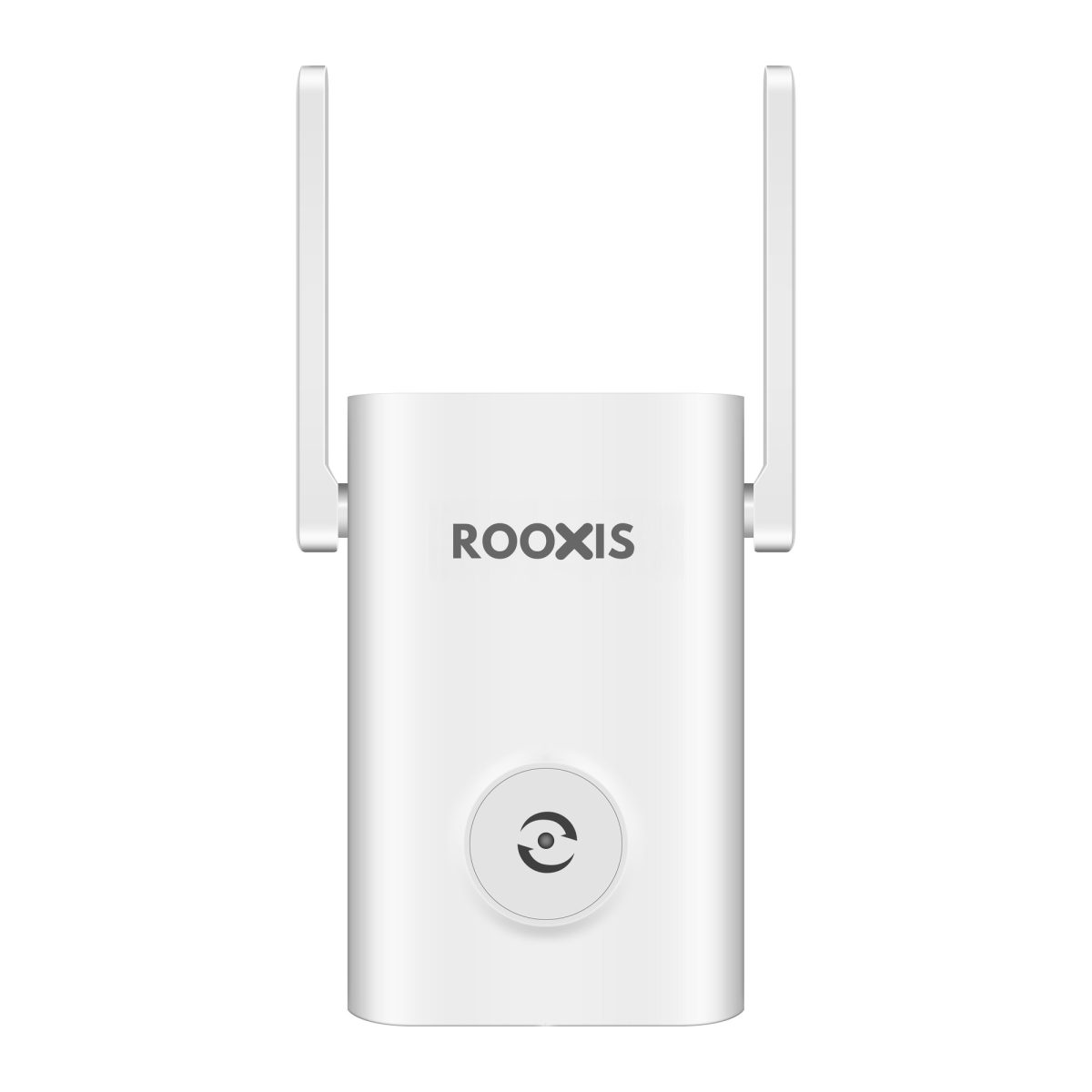
6. WiFi Extender: Reaching Areas with Weak Wireless Coverage
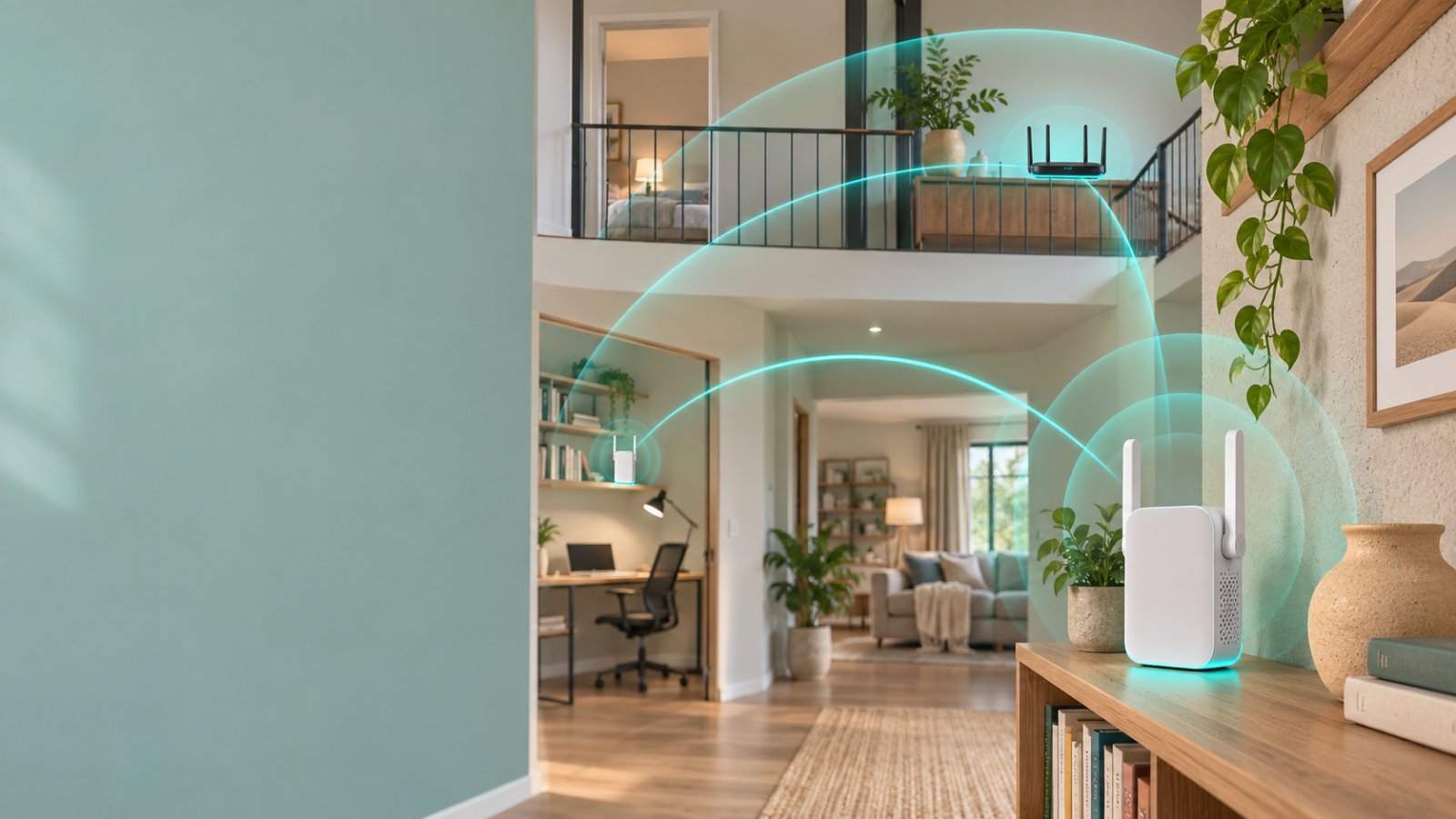
A WiFi extender provides additional wireless coverage by connecting to an existing WiFi network.
It's useful when the router works well in most of the house but struggles to reach a particular room.
For example, the living room and kitchen may have good WiFi while a bedroom near the far end of the property has an unreliable connection.
A suitable extender may help cover that area.
What a WiFi extender does
-
Receives a compatible existing WiFi signal.
-
Provides wireless coverage beyond the router's effective area.
-
Allows devices to connect from an additional location.
-
May offer an Ethernet port, depending on the product.
A conventional wireless extender depends on the quality of its connection back to the main network.
If it's installed in a room where the router's signal is already unreliable, it may repeat that poor connection.
That is why placing the extender directly inside the dead zone often produces disappointing results.
When should you use one?
A WiFi extender makes sense when the main internet connection works properly, only part of the home needs better coverage, and installing Ethernet isn't practical.
It can be particularly useful for renters who cannot make permanent wiring changes.
For example, a renter may want better WiFi in a bedroom without drilling holes or installing an additional access point.
An extender may be the simplest option.
When comparing coverage equipment, the ROOXIS range of WiFi routers and extenders is one place to review available options.
Before selecting a model, check its supported WiFi standards, connection requirements, and compatibility with your current router.
Remember that an extender is a coverage tool.
It won't repair a damaged modem, fix an internet provider outage, or increase the speed of your internet plan.
7. Network Interface Card: Connecting Individual Devices
A network interface card, or NIC, allows a device to communicate over a network.
Many computers have network adapters built in.
A laptop may have a WiFi adapter and an Ethernet adapter. A desktop may include an Ethernet port but require additional hardware for wireless networking.
Common network adapters include:
-
Built-in WiFi adapters.
-
Ethernet adapters integrated into computers.
-
USB WiFi adapters.
-
USB Ethernet adapters.
-
PCIe wireless cards.
When a network adapter is the problem
Suppose every phone in the house connects to WiFi normally, but one laptop repeatedly disconnects.
The router may be functioning correctly.
On a Windows laptop, open Settings and select Network & internet.
Check that WiFi is enabled and that the expected network appears.
You can also open Device Manager and expand Network adapters.
Look for the installed wireless adapter and any reported device errors.
If necessary, check the computer manufacturer's support page for an appropriate driver.
You can also test another network.
If the laptop struggles on different WiFi networks while other devices work, its wireless adapter, driver, or configuration becomes a stronger suspect.
Don't replace the home router just because one computer has a problem.
8. Power over Ethernet Equipment: Supplying Data and Power
Power over Ethernet, usually called PoE, allows compatible networking devices to receive data and electrical power through Ethernet cabling.
It's particularly useful for some wired security cameras and wireless access points.
A compatible PoE camera can receive network connectivity and power through one Ethernet cable.
This reduces the need for a separate electrical outlet near the camera.
Two common PoE devices are:
PoE switch
A PoE switch provides Ethernet connections and power to compatible devices.
It's useful when several PoE cameras or access points need connections.
PoE injector
A PoE injector adds compatible electrical power to an Ethernet connection.
It can be useful when only one device needs PoE and your existing switch doesn't provide it.
What to check before buying
Not every switch supports PoE.
Not every Ethernet camera accepts PoE.
Different PoE standards also have different power limits.
Check the camera or access point specifications for the required standard and power consumption.
Make sure the switch or injector supports those requirements.
For multiple devices, check the total power budget.
For example, a switch may have enough Ethernet ports for several cameras but an insufficient power budget to supply every connected device at once.
Also remember that some cameras use Ethernet for data while requiring a separate power adapter.
Never assume that an Ethernet port automatically supports power delivery.
9. Additional Hardware That May Be Useful
Some home networks need equipment beyond the usual modem, router, and switch.
These devices solve particular problems rather than serving as basic requirements for every household.
Powerline adapters
Powerline adapters carry network data over compatible electrical wiring.
One adapter connects near the router. Another connects to an electrical outlet in a different room.
Performance depends on the building's wiring and electrical conditions.
They can be useful when Ethernet isn't available, but they are not guaranteed to perform as consistently as dedicated network cables.
MoCA adapters
MoCA adapters use suitable coaxial cables to create a network connection.
If your house already has coaxial wiring between rooms, this may provide an alternative to running Ethernet.
You need to check the existing coax connections, splitters, and service compatibility before installing them.
Uninterruptible power supply
A UPS provides temporary backup power for connected equipment.
You might use one to keep a router, modem, or ONT powered during a short outage.
However, your internet service can still go down if the provider's equipment outside the house loses power.
A UPS also needs to support the connected equipment's power requirements.
Network-attached storage
Network-attached storage, or NAS, provides file storage that authorized devices can access over the local network.
It may be useful for household backups, shared files, or compatible camera recording systems.
You don't need a NAS simply to use WiFi or browse the internet.
How Networking Hardware Components Work Together
The easiest way to understand a home network is to follow the connection from the internet provider to an individual device.
Consider a house with fiber internet, a separate router, two wired computers, and several WiFi devices.
Each component has a specific place in that connection.
How Data Travels Through a Typical Home Network
The basic connection might look like this:
Internet provider → ONT → Router → Home devices
The ONT connects the fiber service to the equipment inside the house.
The router manages communication between the home network and the internet.
Wired computers connect through Ethernet.
Phones, tablets, and wireless cameras connect through the router's WiFi or another access point.
If the router doesn't have enough LAN ports, a switch can add more wired connections.
If the upstairs office has poor wireless coverage but an Ethernet connection is available, a separate access point can provide WiFi there.
Not every connection requires the public internet.
For example, a laptop sending a print job to a printer on the same local network may communicate through the router's built-in switching functions or another local switch.
That traffic generally doesn't need to travel to the internet provider and back.
This matters when troubleshooting.
A printer can be unreachable because of a local network problem even when internet browsing works normally.
What Happens When You Open a Website?
When you open a website, your device needs a working network connection.
In many homes, the router provides the device with a local IP address through DHCP.
It also supplies information about the default gateway and DNS configuration.
DNS helps the device find the network address associated with the website.
The router then forwards traffic toward the appropriate destination.
Responses travel back through the network to your device.
Several things can go wrong along the way.
Your laptop might connect to WiFi successfully but fail to receive a valid IP configuration.
The router might have a functioning local network but no internet connection.
A DNS problem might prevent website names from resolving even though some other network communication still works.
A working WiFi connection and a working internet connection are not the same thing.
When your laptop says it is connected to WiFi but websites won't load, check the router's internet status before assuming the wireless signal is weak.
Why One Router Should Usually Manage the Home Network
A common home networking problem appears after someone installs a second wireless router.
Suppose your internet provider supplies a gateway that already performs routing.
You connect another router through its WAN port and leave both devices in router mode.
Now you may have two separate routed networks.
This arrangement can create double NAT and complicate some games, remote access configurations, and local device connections.
Ordinary browsing may still work, so the problem isn't always obvious.
If the second router is intended only to provide better WiFi, access point mode may be more appropriate.
Another option, when supported, is configuring the provider gateway for bridge or passthrough operation and using the separate router as the main routing device.
That depends on the provider and equipment.
Don't change gateway modes without understanding the service requirements.
For a straightforward home network, having one clearly identified device manage routing and DHCP usually makes setup and troubleshooting simpler.
How to Identify Which Networking Component Is Causing Problems
Before buying anything, identify which connection is failing.
You can handle the first checks with a computer, an Ethernet cable, and access to your router settings.
The goal is to narrow the problem to the internet service, wired network, wireless network, or an individual device.
Step 1: Check Whether the Problem Affects Every Device
Start with the devices already connected to your network.
Check a phone, laptop, television, or another device.
Ask these questions:
-
Does every device lose internet access?
-
Do wired devices still work?
-
Is the problem limited to WiFi?
-
Does only one room have poor coverage?
-
Is one camera or computer disconnecting?
-
Does the problem happen at particular times?
The answers tell you where to investigate.
If every device loses internet simultaneously, look at the modem, ONT, router, and internet service.
If wired devices work but WiFi devices don't, focus on the wireless connection.
If only one laptop fails, start with its network adapter and settings.
If only one outdoor camera goes offline, investigate its power supply, wireless connection, and compatibility.
Don't assume every networking problem starts at the router.
Step 2: Test the Internet Connection Near the Router
A wired test helps separate internet service problems from WiFi problems.
Connect a laptop or desktop directly to a suitable LAN port on the router using Ethernet.
Disable WiFi on the computer during the test.
This ensures you're testing the wired connection.
Open a reputable internet speed test and check the result.
Compare it with the speed of your internet plan, allowing for normal overhead and service conditions.
If the result is unexpectedly poor, repeat the test.
Make sure another device isn't downloading a large update or uploading files during the test.
What the results suggest
If the wired connection performs normally but WiFi becomes slow in distant rooms, investigate wireless coverage or interference.
If the wired connection is also unexpectedly slow, investigate the router, internet service, cables, and connected equipment.
If only one computer reports poor wired speed, inspect that computer's Ethernet adapter and cable.
A single speed test won't identify every problem, but it can prevent you from buying a WiFi extender for an issue that affects the entire internet connection.
Step 3: Check the Router's Internet Status
Open the router's management interface.
Use the address and login instructions provided by the manufacturer or shown on the device label.
Look for Internet, WAN, Connection, or Status.
Check whether the router reports an active internet connection.
If it shows a disconnected WAN connection:
-
Check the cable between the router and modem, ONT, or provider gateway.
-
Confirm the cable is connected to the intended WAN port.
-
Check the service indicator on the provider equipment.
-
Review any reported connection error.
-
Contact the internet provider if the service appears unavailable.
If the WAN connection appears healthy, look at the affected device or local network configuration.
Avoid factory-resetting equipment as an early troubleshooting step.
A factory reset may erase your WiFi settings, provider configuration, and other customized options.
Restarting a device and restoring factory settings are not the same thing.
Step 4: Compare WiFi Performance in Different Rooms
Use the same phone or laptop to test WiFi in several locations.
Start close to the router.
Then move to the problem room.
Keep the device and test conditions as consistent as possible.
If the connection works normally near the router but becomes unreliable farther away, coverage is a likely factor.
Walls, floors, metal objects, appliances, and nearby wireless networks can affect reception.
If the signal appears strong but speeds are inconsistent, interference, network congestion, or another bottleneck may be involved.
For example, a phone may show several WiFi signal bars but still struggle during a video call.
That does not automatically mean the signal is too weak.
The network could be congested, the internet upload connection could be saturated, or the device could be experiencing interference.
Check the pattern before changing hardware.
Step 5: Check the Wireless Band
Home WiFi commonly uses 2.4 GHz and 5 GHz bands.
Some newer equipment also supports 6 GHz.
These bands have different characteristics.
2.4 GHz
The 2.4 GHz band generally provides useful coverage through household obstacles, although congestion and interference can reduce performance.
Many smart plugs, cameras, and other smart home devices use this band.
5 GHz
The 5 GHz band often provides more channel capacity and better performance at suitable distances.
Walls and other obstacles can reduce its effective coverage.
6 GHz
The 6 GHz band provides additional spectrum for compatible equipment.
Its performance depends on device support, regional regulations, distance, and building conditions.
To check your router's wireless bands, open its WiFi or Wireless settings.
Some routers use separate network names for different bands.
Others combine them under one name through band-steering features.
Before changing these options, check your devices.
A camera designed for 2.4 GHz WiFi cannot connect to a network that provides only 5 GHz.
Changing wireless settings without checking compatibility can disconnect devices that were previously working.
Step 6: Check for a Faulty Cable or Port
A damaged Ethernet cable can cause connection failures, intermittent dropouts, or reduced link speeds.
Start with the simplest test.
Replace the existing cable temporarily with a known-good one.
If the problem disappears, the original cable or connector may be faulty.
If the problem continues, try another suitable LAN port.
Check the negotiated link speed in the computer's network settings if that information is available.
A desktop and router may both support Gigabit Ethernet, but a damaged cable, older switch, or 100 Mbps port elsewhere in the connection can limit performance.
You don't need to replace the router to fix a damaged cable.
Step 7: Restart Equipment in the Correct Order
Restarting network equipment can resolve some temporary connection problems.
For a conventional setup with a separate modem or ONT and router:
-
Turn off the router.
-
Restart the modem or ONT if appropriate for the provider's equipment.
-
Allow the modem or ONT to complete startup.
-
Wait for its service connection to become available.
-
Turn on the router.
-
Allow the router to reconnect.
-
Test a wired or wireless device.
For a combined gateway, follow the provider's restart instructions.
If the network works again but the problem returns frequently, don't make restarting your permanent fix.
Investigate overheating, unstable power, firmware issues, poor cabling, or service interruptions.
Repeated failures are a reason to diagnose the equipment, not automatically a reason to buy another WiFi extender.
Choosing the Right Networking Hardware for Common Home Problems
Different problems call for different components.
Use the symptoms to decide what to investigate before buying new equipment.
| Home networking problem | Component to investigate | Practical first action |
|---|---|---|
| No internet on any device | Modem, ONT, gateway, or router | Check the service connection and WAN status |
| Weak WiFi in one room | Router WiFi, access point, or extender | Compare coverage near and far from the router |
| Not enough Ethernet ports | Network switch | Add a suitable unmanaged Gigabit switch |
| Desktop computer has no WiFi | Network adapter | Check whether it has a compatible wireless adapter |
| Wired computer keeps disconnecting | Ethernet cable or port | Try a known-good cable and another LAN port |
| Outdoor WiFi camera goes offline | Camera power and WiFi connection | Check power and supported wireless bands |
| Wired cameras need power | PoE switch or injector | Verify compatibility and power requirements |
| Problems after adding another router | Router mode and DHCP configuration | Check whether access point mode is appropriate |
When a New Router Makes Sense
Replace your router when you've identified a limitation that affects your network.
For example, a router with 100 Mbps WAN or LAN ports can restrict performance even when the internet plan and other equipment support higher speeds.
An older router may also lack current wireless security options or manufacturer support.
A replacement may be reasonable when it repeatedly crashes, cannot meet the household's connection needs, or has a confirmed hardware fault.
However, poor coverage in one bedroom doesn't necessarily justify replacing the router.
If performance is good nearby, first investigate how to improve coverage in that part of the house.
When a Network Switch Is the Better Purchase
Buy a switch when your router doesn't have enough wired LAN ports.
Suppose you have a home office with a desktop computer, printer, network storage device, and other wired equipment.
A suitable switch can connect them without requiring a new router.
Check the number of ports and supported link speeds.
For an ordinary home, an unmanaged Gigabit Ethernet switch is often sufficient.
A switch won't strengthen WiFi or improve a slow internet service, so buy it for the additional wired connectivity it provides.
When an Access Point Is Better Than an Extender
If Ethernet wiring is available in the problem area, a wired access point is often worth considering.
It connects to the existing network without relying on a weak wireless link back to the router.
That can make performance more predictable.
An extender is useful when installing Ethernet is difficult and a suitable wireless connection is available at the extender's location.
The choice depends on the building and the connection you can provide.
If you already have Ethernet in an upstairs office, investigate a wired access point before buying an extender.
If you're renting and cannot install cables, a compatible extender may be easier.
Networking Hardware Components for Home Security Cameras
Security cameras often reveal network problems that go unnoticed during ordinary browsing.
A phone may reconnect after a brief interruption without much inconvenience.
A camera may show the same interruption as an offline notification, frozen live view, or missed recording period.
Start by understanding how the camera connects.
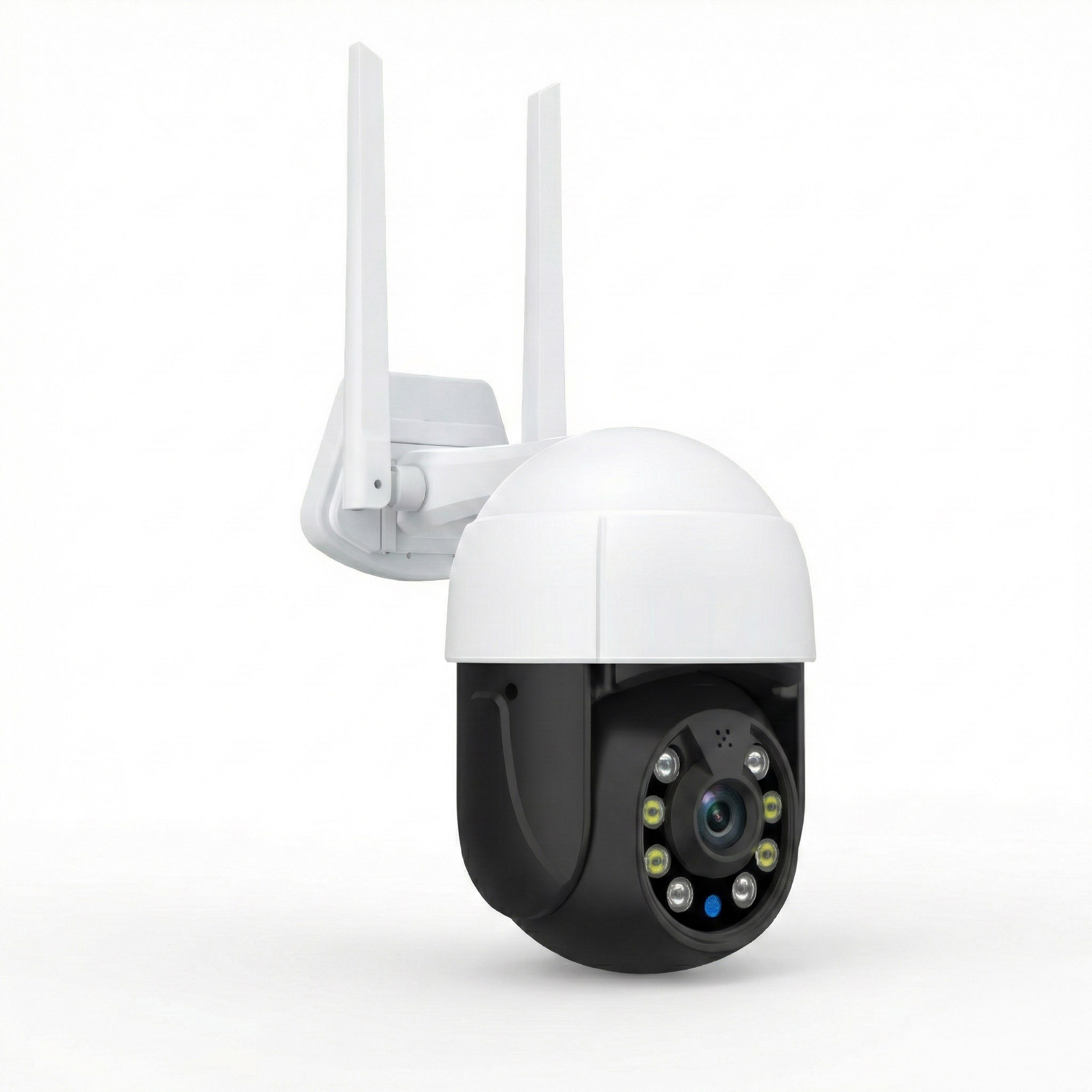
WiFi Cameras Versus Wired IP Cameras
A WiFi camera uses wireless networking to communicate.
That doesn't necessarily mean it's completely wireless.
Many WiFi cameras still require a power adapter.
A wired IP camera uses Ethernet for data.
Some wired IP cameras support Power over Ethernet, which can provide both power and data through the same cable.
Others require separate power.
Before installing a camera, check:
-
Whether it supports WiFi, Ethernet, or both.
-
Which WiFi bands it supports.
-
Whether it needs a separate power adapter.
-
Whether it accepts PoE.
-
Whether the installation location has suitable network connectivity.
-
Whether the camera is designed for indoor or outdoor use.
-
How it records and stores video.
Don't assume that every camera with an Ethernet port supports PoE.
Also, don't assume that a camera advertised as wireless operates without a power cable.
The connection and power requirements are separate specifications.
Why a Security Camera Keeps Disconnecting
Suppose a camera connects successfully during setup near the router.
You move it to its intended location outside the garage, and it starts going offline.
Several things could be wrong.
Weak WiFi at the camera
The camera may be too far from the router or separated by building materials that weaken the signal.
Test network performance near the installation position.
A phone test won't perfectly represent the camera's WiFi hardware, but it can reveal obvious coverage problems.
Incorrect wireless band
Some cameras require a 2.4 GHz connection.
If the required band is disabled or the camera cannot use the selected security configuration, it may fail to connect reliably.
Check the manufacturer's specifications.
Unstable electrical power
A loose power connector or unsuitable adapter can cause repeated restarts.
Check the camera's required voltage and power source.
Use the specified equipment.
Wireless interference
Nearby networks, metal structures, and electrical equipment can affect wireless performance.
Improving coverage, changing a suitable channel, or using a wired connection may help.
Local network configuration
A camera connected to an isolated guest network may not communicate with local devices in the way you expect.
Some camera systems also rely on specific local discovery features.
Check the camera's requirements before changing network isolation settings.
How to Improve Camera Reliability Without Replacing Everything
Start with power.
Make sure the camera receives stable power and isn't restarting unexpectedly.
Next, check the network connection.
If it's a WiFi camera, confirm that the supported wireless band is available where the camera is installed.
Check whether the problem happens consistently or only at certain times.
If the camera supports Ethernet and wiring is practical, a wired connection may be more dependable.
For compatible PoE cameras, confirm the correct power standard and switch or injector capacity.
Outdoor installations need suitable equipment and weather protection.
Also test live viewing and recorded footage separately.
If local recording continues normally but remote viewing becomes slow, the problem may involve internet upload capacity, the remote service, or the device used to view the camera.
If the camera repeatedly disappears from the local network, focus on its connection and power first.
These checks are more useful than replacing every networking device in the house.
Common Misconceptions About Home Networking Hardware
Networking product descriptions often make equipment sound interchangeable.
It isn't.
A router, extender, switch, and access point may all help a home network, but they solve different problems.
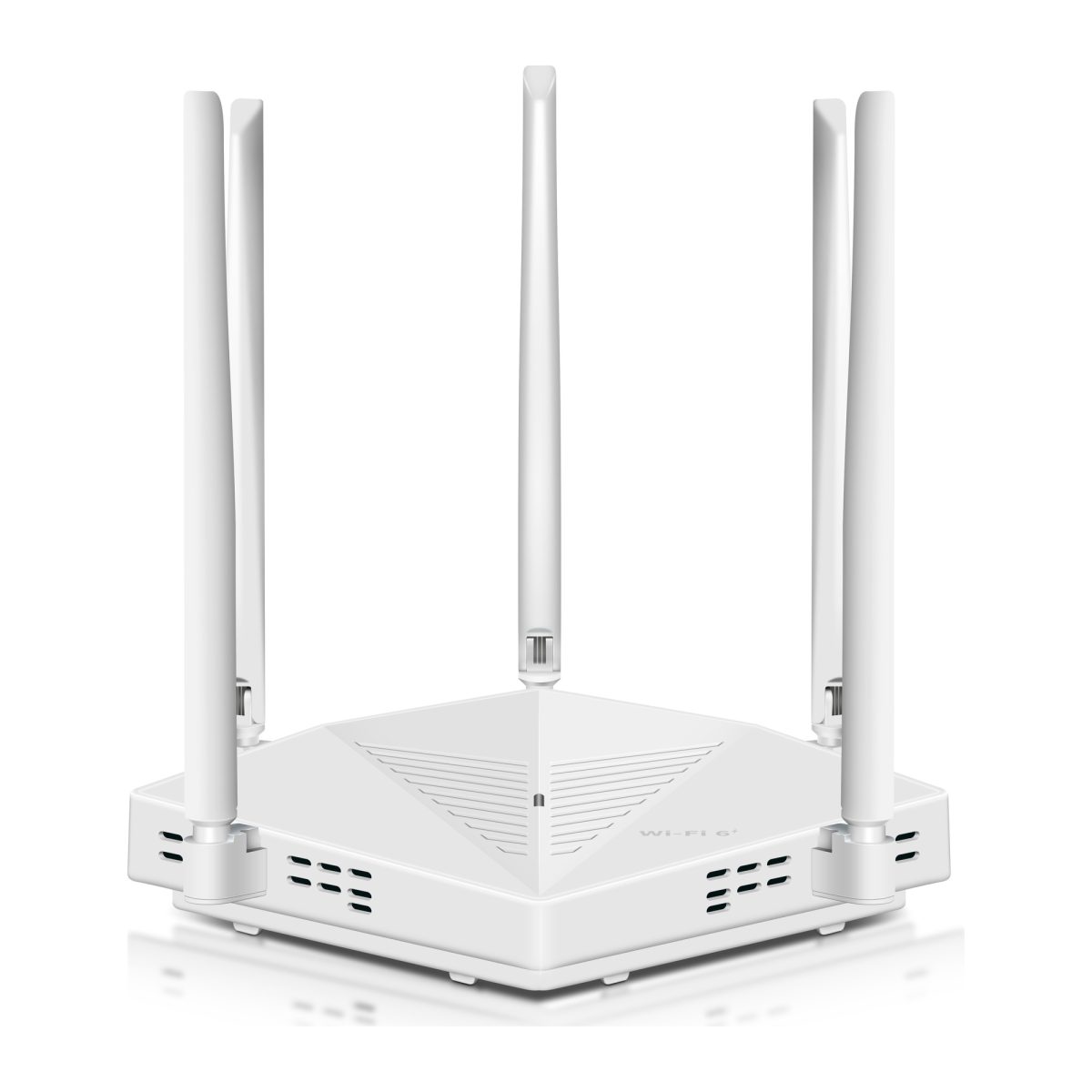
More Antennas Always Mean Better WiFi
A router with several visible antennas doesn't automatically provide better coverage than one with fewer external antennas.
Wireless performance depends on antenna design, radio capabilities, interference, supported standards, and building construction.
A router that performs well in an open living room may struggle behind thick walls.
Look at the equipment's capabilities and your actual coverage problem rather than counting antennas.
A Faster Router Automatically Increases Internet Speed
A router cannot increase the speed supplied by your internet provider beyond the service's available capacity.
If the internet plan is the bottleneck, a more expensive router won't create additional bandwidth.
A newer router can improve performance when the old one is limiting wired or wireless connections.
Test the existing connection first.
Every Home Needs a Network Switch
A switch is useful when you need additional wired Ethernet ports.
If your router already has enough LAN ports and your other devices use WiFi successfully, you may not need a switch.
Adding unnecessary hardware creates more cables, power connections, and possible points of failure.
Buy one when there's a clear need for wired expansion.
WiFi Extenders Increase the Speed of the Internet Connection
A WiFi extender improves wireless reach.
It does not increase the speed of your internet subscription.
Depending on the extender and its connection back to the router, available throughput may be lower than a direct connection.
That can still be worthwhile if the original WiFi was unusable in the problem room.
Evaluate the result where you actually need coverage.
Ethernet Is Always Faster Than WiFi
Ethernet often provides a stable connection for stationary devices.
However, Ethernet performance depends on the connected ports, cable, and equipment.
A wired link restricted to 100 Mbps may perform below a capable modern WiFi connection.
For reliability-sensitive stationary devices, a suitable wired connection is often a good choice.
Just don't assume every Ethernet port supports the same speed.
Every Security Camera Needs a PoE Switch
Many home cameras use WiFi and separate power adapters.
Others use Ethernet but don't support PoE.
A PoE switch is useful only when the connected equipment supports an appropriate PoE standard.
Check the camera specifications before buying one.
A Connected WiFi Icon Means the Internet Is Working
The WiFi icon usually indicates a wireless connection to a network.
It doesn't guarantee that the router has working internet access.
A phone can remain connected to WiFi during a provider outage.
If websites fail to load, check whether the problem is local WiFi connectivity or the internet connection itself.
Changing Every Setting Improves Performance
Changing several network settings at once makes troubleshooting harder.
If performance changes, you won't know which setting caused it.
Start with one specific problem.
Change one relevant setting, save it, and test again.
Record the previous value so you can reverse the change if necessary.
How to Set Up a Reliable Home Network
A reliable home network doesn't require complicated equipment.
It needs a sensible connection layout, compatible devices, secure settings, and enough coverage for the rooms where people actually use the internet.
Step 1: Identify Your Existing Equipment
Start by finding the devices already installed.
Locate the modem, ONT, provider gateway, router, switches, and extenders.
Check the model numbers.
Determine whether the provider gateway already handles routing and WiFi.
This matters because buying a separate router may duplicate functions you already have.
Also identify which devices are connected through Ethernet and which use WiFi.
A basic understanding of the existing layout will make every later troubleshooting step easier.
Step 2: Connect the Primary Equipment Correctly
If you use a separate modem or ONT and router, connect the appropriate Ethernet output to the router's WAN or Internet port.
Connect local wired devices to the router's LAN ports.
If you need additional ports, connect a suitable switch to the LAN.
If you install a separate access point, connect it to the intended local network and configure its operating mode.
Make sure the routing setup matches your provider's requirements.
Avoid accidentally creating additional routed networks when you only intend to improve wireless coverage.
Step 3: Secure the Wireless Network
Open the router's wireless settings.
Use WPA3-Personal when supported by the router and client devices.
Where compatibility requires it, use an appropriate WPA2-AES configuration.
Avoid outdated security methods such as WEP.
Choose a strong, unique WiFi password.
Change default administrator credentials where applicable.
Check the manufacturer's official instructions for firmware updates.
Don't expose the router's management interface to the internet unless there is a specific, properly secured reason.
A well-configured router is more useful than a newer model left with weak security settings.
Step 4: Connect High-Demand Stationary Devices Through Ethernet Where Practical
Use Ethernet for devices that stay in one location when wiring is convenient.
Examples include:
-
Desktop computers.
-
Gaming consoles.
-
Smart TVs.
-
Network storage devices.
-
Compatible access points.
-
Wired IP cameras.
A computer positioned beside the router may be easier to connect through a short Ethernet cable than to troubleshoot over WiFi.
You don't need to wire every device.
Phones, tablets, and portable laptops are designed for wireless use.
Focus on the equipment that benefits most from a stable wired connection.
Step 5: Add Coverage Only Where Needed
Check WiFi performance in the rooms where people actually use connected devices.
You may find that most of the house works well and only one area needs attention.
If Ethernet is available there, consider a wired access point.
If running a cable isn't practical, a suitable wireless extender may help.
Don't add repeaters in every room simply because some walls reduce signal strength.
Poorly configured overlapping networks can introduce interference and roaming problems.
Use enough coverage equipment to solve the problem, not more than necessary.
Step 6: Check Smart Home and Camera Compatibility
Before connecting smart plugs, sensors, cameras, and other equipment, review their wireless requirements.
Some devices support only 2.4 GHz.
Others work with additional bands or use different communication technologies.
Check whether the device needs local access to a phone, hub, or another system.
If you're using a guest network or separate IoT network, make sure the isolation settings allow the communication the device requires.
Avoid unnecessary port forwarding for cameras and other smart home equipment.
Use supported secure access methods and keep firmware current.
Step 7: Document the Network
Keep a simple record of your home network.
Include:
-
Modem or ONT model.
-
Router model.
-
Device responsible for routing and DHCP.
-
WiFi network names and supported bands.
-
Locations of access points and extenders.
-
Important Ethernet connections.
-
Camera connection and power requirements.
-
Official setup and firmware support information.
Store passwords securely.
You don't need a complicated network diagram.
Even a simple record of which cable connects to which device can save time when a camera or computer stops working months later.
When Should You Upgrade Networking Hardware?
You don't need to replace networking equipment every time a new WiFi standard appears.
Upgrade when your existing hardware has a specific limitation that affects your home.
Signs That an Upgrade May Be Worthwhile
Consider upgrading when:
-
The router's ports limit the speed of your internet connection.
-
The router repeatedly freezes or restarts after troubleshooting.
-
The manufacturer no longer provides appropriate security support.
-
You need more wired Ethernet ports.
-
A room has consistently poor WiFi coverage.
-
A security camera needs a more reliable network connection.
-
You need a networking feature the existing equipment doesn't support.
-
A device has a confirmed hardware fault.
Before buying, isolate the problem.
A damaged Ethernet cable may cause disconnections that look like a router fault.
An outdated wireless driver may affect only one laptop.
A provider outage can make every connected device appear broken.
Replacing hardware without checking these possibilities often leaves the problem unchanged.
What to Check Before Buying New Equipment
Start with compatibility and the function you need.
Connection compatibility
Will the equipment work with your existing modem, router, and network?
Port speed
Do the WAN and LAN ports support the speeds you need?
Wireless support
Does the device support the bands and security options your equipment requires?
Installation
Will it connect through Ethernet, WiFi, or another method?
Power
Does it require a power adapter or compatible PoE equipment?
Security support
Does the manufacturer provide firmware updates and clear setup documentation?
Actual purpose
Which problem will the new device solve?
That final question should guide the purchase.
A new extender won't repair a faulty modem.
A switch won't improve wireless signal strength.
A router upgrade may be worthwhile when the existing router is the bottleneck, but not when only one camera has a damaged power connector.
FAQ
What Are the Main Networking Hardware Components?
The main networking hardware components are modems, routers, network switches, wireless access points, Ethernet cables, and network adapters. WiFi extenders and PoE equipment are useful when your home needs additional coverage or compatible powered network connections. Many internet provider gateways combine several of these functions in one device.
What Is the Difference Between a Modem and a Router?
A modem or ONT connects your home to the appropriate internet service. A router manages communication between your local devices and other networks, including the internet. Some provider gateways combine the service connection, routing, and WiFi functions in one box.
Do I Need a Network Switch for My Home WiFi?
You don't need a switch simply because several phones and laptops use WiFi. A switch is useful when you run out of Ethernet LAN ports and want to connect more wired devices. It adds wired connections but doesn't automatically improve wireless coverage or internet speed.
What Networking Hardware Is Best for a Two-Story House?
Start with a suitable router and check WiFi performance on both floors. If one floor has poor coverage, a wired access point or appropriately placed WiFi extender may help. The right choice depends on available wiring, wall materials, distance, and the devices you're trying to connect.
What Hardware Do I Need for Home Security Cameras?
A WiFi camera needs a compatible wireless connection and an appropriate power source. A wired IP camera needs Ethernet and may use either a separate adapter or compatible PoE equipment. Check the camera's network, power, recording, and installation requirements before adding hardware.
Can I Improve My Home Network Without Buying a New Router?
Yes. Replacing a damaged Ethernet cable, updating firmware, correcting wireless settings, or adding coverage in a weak area may solve the problem. Test a wired connection first to determine whether the issue affects the internet service or only WiFi. This helps you avoid replacing a router that's working correctly.
Start with the connection that's failing.
If every device loses internet, investigate the modem, ONT, router, and provider service. If wired devices work but WiFi struggles upstairs, focus on wireless coverage. If one camera goes offline, check its power and network connection before changing the rest of the house.
Once you've identified the failing connection, it's much easier to choose the right networking hardware component. You may find that a different cable, one access point, or a small network switch is all you need.