You install a security camera near your front door, connect it to WiFi, and open the app. Live video works perfectly. Then you try to watch yesterday's delivery and discover that recorded footage requires a paid cloud plan.
That is exactly what you want to avoid when shopping for the best security camera without subscription.
For most homes, a camera that records directly to a microSD card is a sensible starting point. It can store footage without a recurring cloud storage fee, provided the manufacturer includes local recording and playback in the free features. For larger properties with several cameras, a recording hub or wired NVR may offer better storage capacity and management.
The important detail is not simply whether the camera advertises free use. Check whether you can record, review, and export footage without paying every month. This guide compares camera types based on storage, recording options, installation, WiFi reliability, privacy, and long-term maintenance. The recommendations are based on practical buying criteria and published specifications, not invented performance tests.
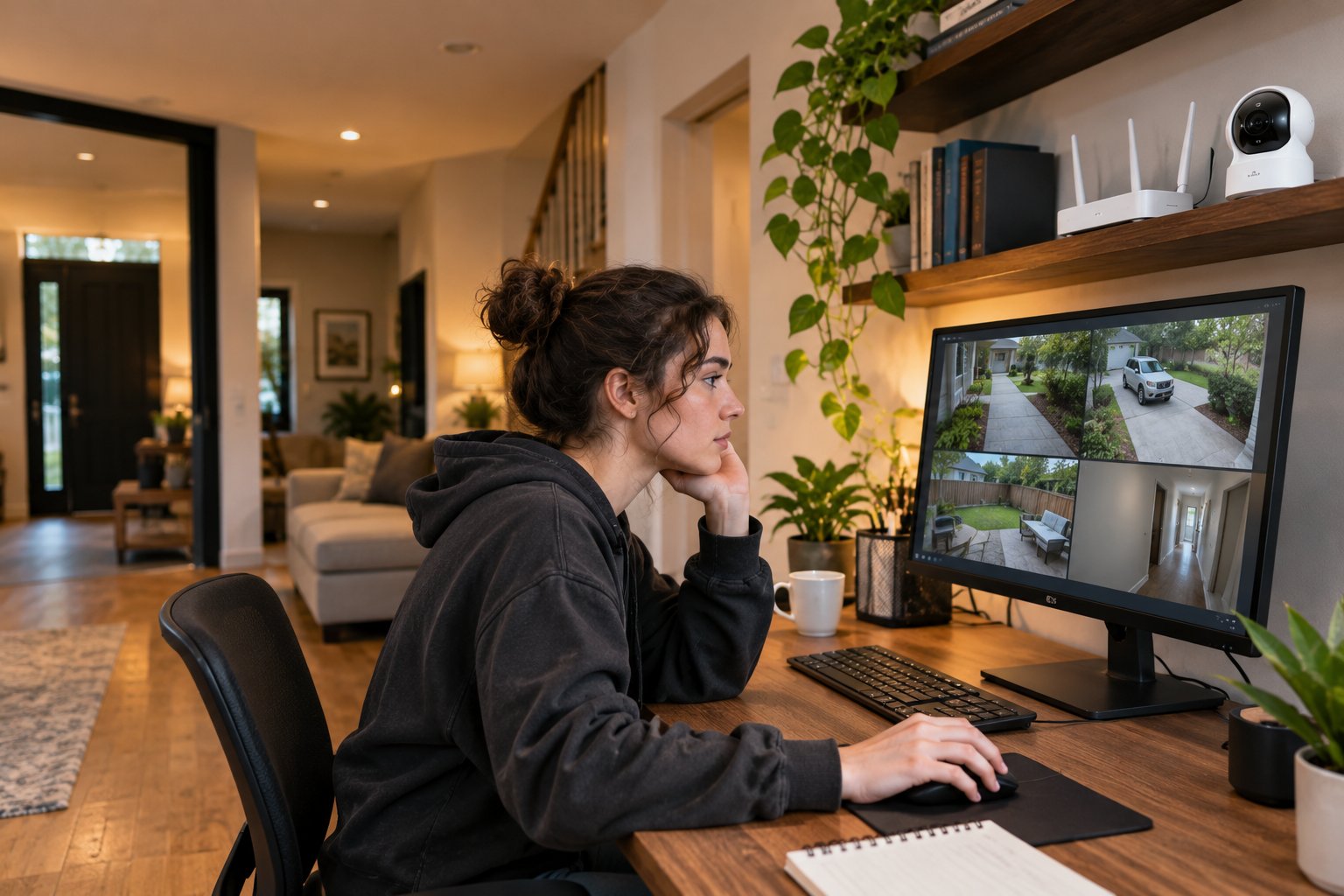
What Is the Best Security Camera Without Subscription?
For a typical homeowner who wants to monitor a front entrance, driveway, or small backyard, a powered WiFi camera with local microSD storage is often the easiest option.
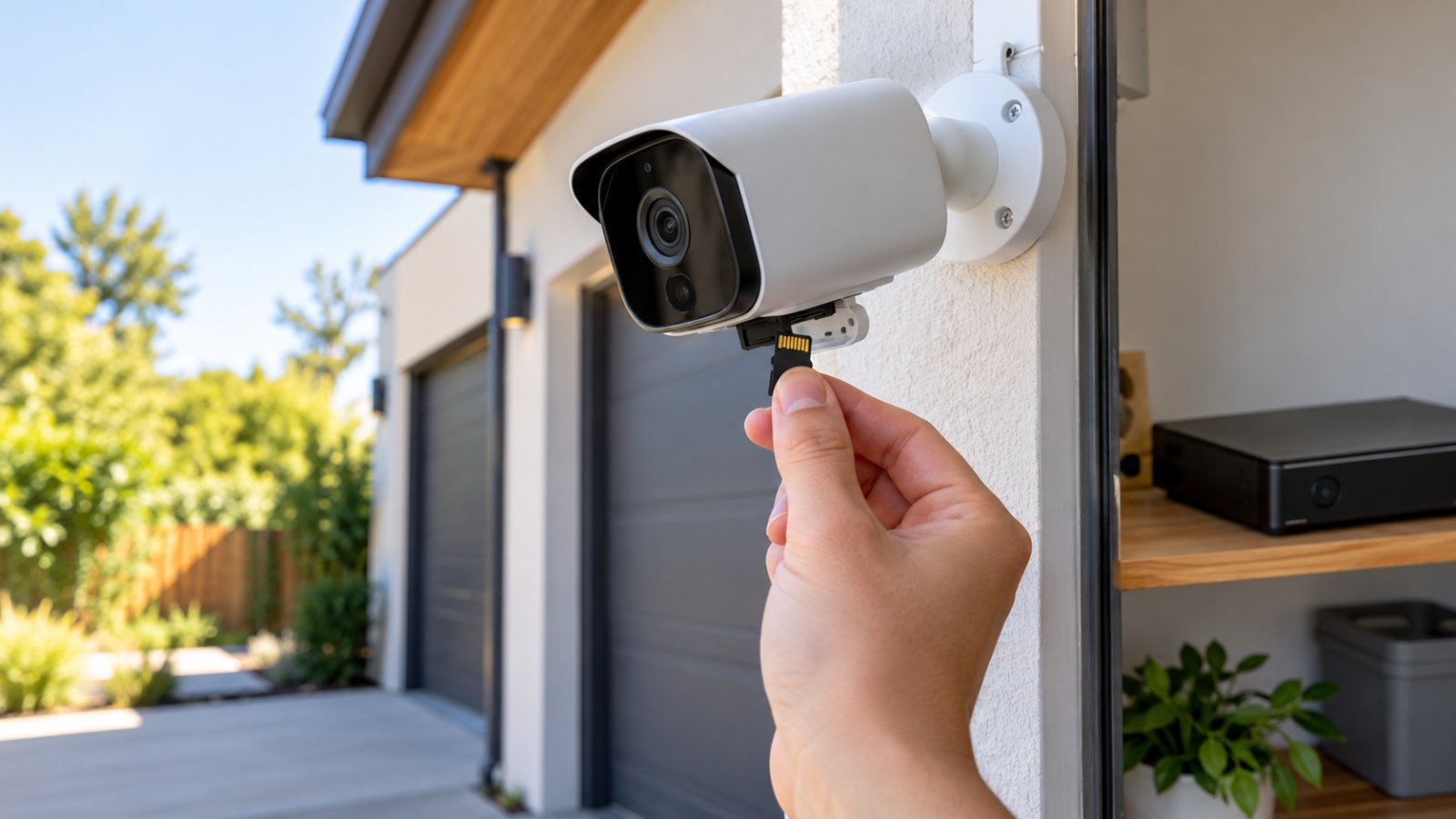
You connect the camera to your home network, insert a compatible memory card, enable recording, and review footage through the supported app.
There is no need to purchase cloud storage if the camera includes the recording and playback features you need.
However, cameras sold as subscription-free do not all work the same way.
One model may allow continuous local recording. Another may save only motion-triggered clips. Some cameras include basic motion alerts but charge extra for identifying people, vehicles, or packages.
That difference matters when something happens outside your home.
Suppose a delivery arrives while you are away. You want to know when the driver approached, where the parcel was placed, and whether anyone came near it afterward.
A camera offering only live viewing cannot answer those questions once the event has passed.
A camera that saves motion clips may help, provided it detected and recorded the activity.
A camera with continuous recording may offer more context, including what happened before the event, but it generally requires more storage.
Choose the recording method before comparing resolution, motion tracking, or other advanced features.
For different home situations:
-
Apartment entrance: A compact camera with local recording and simple mounting.
-
Front porch: A weather-appropriate camera with dependable motion alerts and night visibility.
-
Driveway: A camera with a suitable viewing angle, reliable power, and enough storage.
-
Backyard: An outdoor camera with adjustable detection settings and stable WiFi.
-
Several entry points: Compatible cameras connected to a local hub or NVR.
-
Location without an outlet: A battery camera with clearly documented recording limitations.
An inexpensive camera can be a good purchase when it reliably performs the job you need.
A more expensive camera is not automatically better if its useful recording features remain locked behind a subscription.
What Does No Subscription Actually Mean?
A security camera no monthly fee setup should allow you to use the recording features you need without making a recurring payment.
That sounds straightforward, but product descriptions can be misleading when they do not clearly separate live viewing from recording.
A camera may offer free live video while charging for cloud history.
Another may allow free recording to a memory card but require payment for cloud backup.
A third may save footage to a separate recording hub that you must purchase.
Before buying, check these features individually:
-
Live viewing without payment.
-
Motion-triggered recording.
-
Continuous recording, if needed.
-
Local storage support.
-
Playback of saved footage.
-
Downloading or exporting recordings.
-
Push notifications.
-
Two-way audio.
-
Night vision.
-
Remote viewing.
-
Motion detection settings.
-
Person or vehicle detection, if required.
Do not assume every feature is free because the product description mentions no monthly fees.
Look for the manufacturer's explanation of what happens when you do not subscribe.
A useful test is simple: Can you review last night's recording through the camera's supported system without purchasing a cloud plan?
If the answer is unclear, verify it before buying.
Also remember that subscription-free does not necessarily mean cost-free after purchase.
You may need a memory card, hard drive, suitable power adapter, or compatible recording hub.
Those are equipment expenses rather than recurring cloud storage charges.
How We Compare Subscription-Free Security Cameras
Camera specifications can look impressive without telling you how useful the device will be after installation.
A high-resolution camera with unreliable WiFi may miss the activity you wanted to record.
A battery camera with flexible placement may be unsuitable if you expect uninterrupted recording.
A camera with local storage may still rely on manufacturer services for remote access.
For this guide, the following criteria matter most.
Local recording
Can the camera save footage to a memory card, hub, or recorder without requiring a paid cloud account?
Playback and exporting
Can you find and review recordings when needed? Can you save an important clip outside the camera?
Recording options
Does the model support motion-triggered recording, continuous recording, or both?
Power requirements
Does the camera need a nearby outlet, rechargeable battery, solar accessory, or Ethernet power?
Network compatibility
Does it connect through 2.4 GHz WiFi, 5 GHz WiFi, or Ethernet? Will it work at the intended mounting location?
Storage capacity
How much storage does the device support, and what happens when that storage fills?
Outdoor suitability
Can the camera withstand the temperatures and weather exposure expected at its installation location?
Privacy and security
Does the manufacturer provide software updates, account protection, and reasonable control over who can access footage?
Installation and maintenance
Can you mount, configure, and maintain the camera without unnecessary complexity?
These criteria help distinguish cameras that are genuinely useful without subscriptions from models whose free features are too limited for your needs.
Best Security Camera Types Without Monthly Fees Compared
The most important difference between subscription-free cameras is often where they store recordings.
A microSD camera stores footage inside the device.
A hub-based system stores recordings on separate equipment.
An NVR system receives video from compatible network cameras and records it centrally.
Each approach has advantages.
| Camera Type | Best For | Storage Method | Main Strength | Main Limitation |
|---|---|---|---|---|
| WiFi camera with microSD | Apartments and small homes | Card inside camera | Simple local recording | Card capacity and theft exposure |
| Outdoor pan-and-tilt camera | Driveways and yards | Supported local storage | Adjustable viewing direction | Moving parts and power requirements |
| Battery-powered camera | Locations without outlets | Card or compatible hub | Flexible installation | Charging and recording limitations |
| Camera with local hub | Several compatible cameras | Separate recording hub | Centralized storage | Hub cost and compatibility |
| PoE camera with NVR | Multi-camera installations | Recorder hard drive | Stable wired recording | Cable installation |
| Indoor privacy-focused camera | Home offices and interior rooms | microSD or supported local hub | Convenient room monitoring | Privacy and placement considerations |
The best category depends on how many areas you need to monitor, how long footage must remain available, and whether you can provide permanent power or cabling.
1. WiFi Camera With microSD Storage: Best for Simple Home Monitoring
Best for: Renters, apartment owners, and households monitoring one or two locations.
A local storage security camera with a microSD slot is often the simplest way to avoid cloud recording fees.
Instead of sending all recordings to paid online storage, the camera saves supported video directly to an installed card.
This is particularly practical for a single doorway, small garage, or indoor room.
Imagine you want a camera facing the entrance to your apartment.
You need to check whether someone approached the door while you were out.
If the camera supports free motion recording and local playback, a compatible microSD card may provide everything you need.
You can open the app, select the recorded event, and review the footage.
The important qualification is that the camera must actually support those functions without a subscription.
Strengths
-
No separate recorder required on many models.
-
Relatively simple setup.
-
Compact equipment.
-
Local storage without mandatory cloud recording fees.
-
Suitable for small camera installations.
-
Can be easier to relocate when moving house.
Limitations
-
Memory card capacity is limited.
-
Cards can fail after repeated writing.
-
Older footage may be overwritten.
-
A stolen camera may take the recordings with it.
-
Remote access may require internet connectivity.
-
Some advanced features may still involve subscription charges.
Before buying, inspect the product specifications for maximum supported card capacity.
Check whether the memory card is included.
If it is not, account for that expense.
Also confirm whether the camera supports continuous recording.
A microSD slot alone does not guarantee that every recording mode is available.
Who should choose this type?
A microSD camera is a strong fit when you want one or two cameras and do not need a separate recording system.
If you need recordings preserved after a camera is stolen, or want weeks of continuous video from several cameras, consider storage located elsewhere.
2. Outdoor Pan-and-Tilt Camera: Best for Driveways and Yards
Best for: Homeowners monitoring a driveway, entrance, garden, or other outdoor area where an adjustable view is useful.
A pan-and-tilt camera can change its viewing direction.
That can be helpful when you want to inspect multiple parts of your property.
For example, a camera mounted beside a garage might normally face the driveway.
When you open the app, you may be able to turn it toward the gate or side entrance.
Some models also support motion tracking or preset positions.
But a moving camera has a limitation that buyers sometimes overlook.
It cannot necessarily record every direction at the same time.
If the lens is pointed toward the garden, activity outside its current field of view may not be captured.
This matters when choosing between one adjustable camera and several fixed cameras.
If your priority is watching a specific gate continuously, a fixed view may be more useful.
If you mainly want the ability to inspect different areas remotely, pan-and-tilt functionality becomes more attractive.
Strengths
-
Adjustable viewing direction.
-
Useful for inspecting wider areas.
-
Can reduce manual repositioning.
-
Often includes outdoor night monitoring.
-
Available with local recording on compatible models.
-
Useful for driveways and backyard entrances.
Limitations
-
Does not automatically observe all directions simultaneously.
-
Moving parts add mechanical complexity.
-
Automatic tracking may not suit every installation.
-
Requires dependable power.
-
Outdoor WiFi may be weaker than indoor WiFi.
-
Rain, wind, and strong lighting can affect footage.
ROOXIS offers an outdoor pan-and-tilt camera category with local storage support. Its RXC1 model is listed with 5MP imaging, adjustable viewing, and microSD storage support up to 128GB.
For buyers comparing a subscription-free outdoor option, the key is to verify the available local recording modes and supported storage before purchase.
You can review product details through the ROOXIS product collection.
Who should choose this type?
Choose a pan-and-tilt camera when adjustable viewing is genuinely useful.
For example, it may suit a backyard where you occasionally want to examine different corners.
If several locations require uninterrupted simultaneous monitoring, multiple fixed cameras may be a better arrangement.
3. Battery-Powered Camera: Best for Locations Without Convenient Outlets
Best for: Renters, detached structures, and outdoor locations where running power cables is difficult.
Battery cameras solve a specific installation problem.
They can operate without being continuously connected to a wall outlet.
That makes them useful for locations such as a side gate, detached shed, or entrance where permanent wiring is inconvenient.
However, battery power changes how recording works.
Continuous video recording uses substantial energy.
Many battery cameras therefore prioritize event-based recording.
The camera wakes or activates recording when its detection system identifies activity.
That can conserve power, but it also means the available footage depends on the detection system and recording configuration.
Strengths
-
Flexible installation.
-
No nearby power outlet required during normal battery operation.
-
Useful in certain rental properties.
-
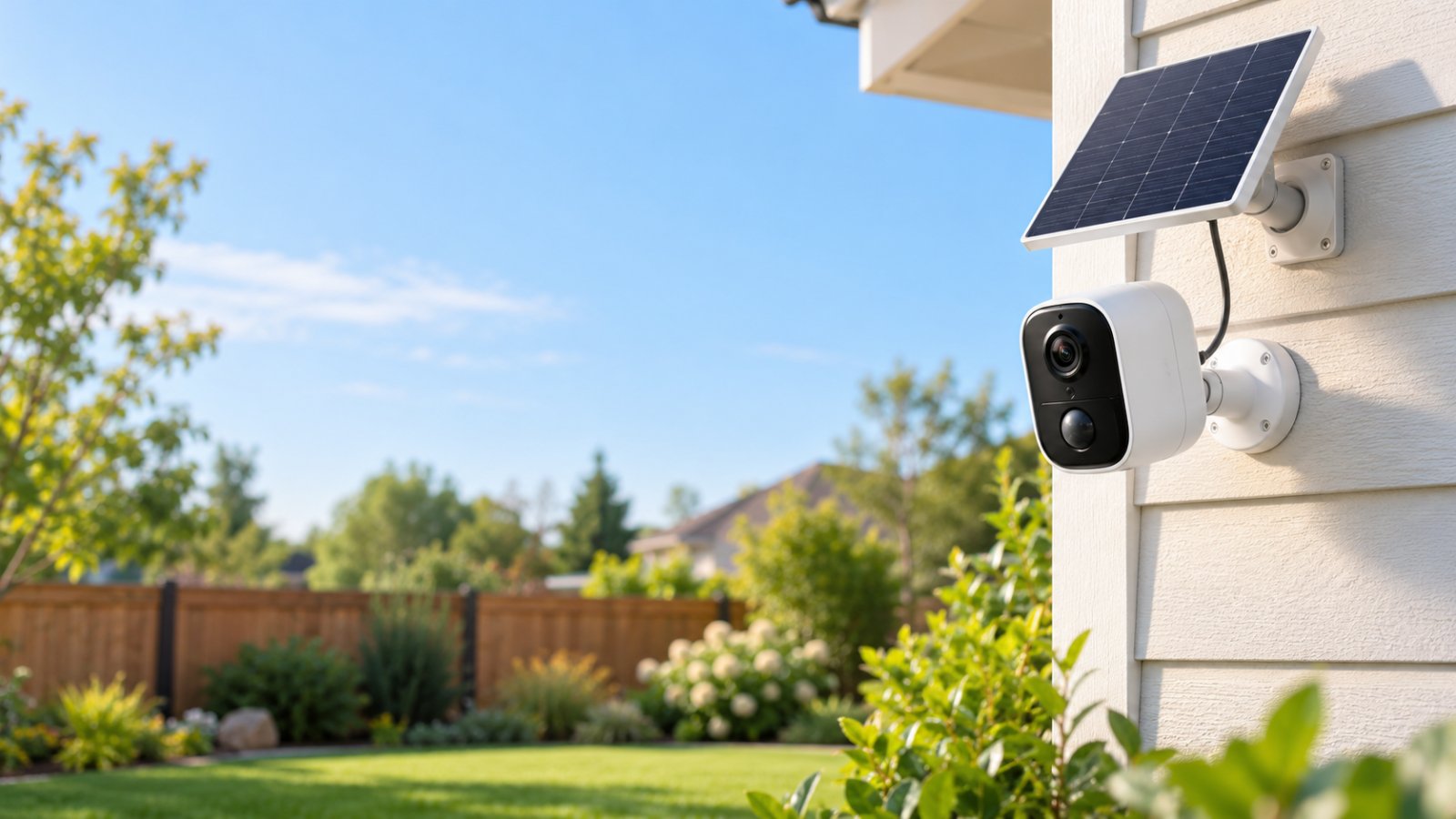
Some models support solar charging accessories.
-
Suitable for locations with occasional activity.
Limitations
-
Batteries require charging or replacement.
-
Cold weather can affect performance.
-
Frequent motion events increase energy usage.
-
Continuous recording may be unavailable.
-
Solar charging depends on suitable conditions.
-
Storage methods vary by manufacturer.
Suppose you want to monitor a garden gate that opens only occasionally.
A battery-powered camera with motion recording may be sufficient.
Now consider a driveway where vehicles and people move throughout the day.
If you want uninterrupted footage, a permanently powered camera may be better.
Do not assume that a camera described as wireless is battery-powered.
Some wireless cameras use WiFi for data but still require an electrical cable.
Who should choose this type?
Choose battery power when installation flexibility matters more than continuous recording.
Before purchasing, confirm battery maintenance requirements, recording options, and whether local storage works without a paid plan.
4. Camera With a Local Recording Hub: Best for Several Cameras
Best for: Households using several compatible cameras and wanting recordings stored separately from individual devices.
A recording hub provides centralized storage for supported cameras.
Depending on the system, footage may be saved to internal storage, a removable drive, or another compatible storage medium.
The main advantage is separating the recordings from the cameras themselves.
Consider a camera mounted near the front gate.
If footage is stored only on a memory card inside that camera, someone removing the device may also remove the recordings.
If footage has already been saved to a separate hub inside the house, those earlier recordings may remain available.
This can be useful for exposed outdoor cameras.
However, not every camera supports a separate recording hub.
Compatibility must be checked carefully.
Strengths
-
Central storage for multiple cameras.
-
Recordings can be kept away from exposed devices.
-
May simplify managing several cameras.
-
Some systems offer more storage than individual cards.
-
Can reduce reliance on cloud recording.
Limitations
-
Additional hardware expense.
-
Limited camera compatibility.
-
Hub power and network requirements.
-
Storage capacity still needs management.
-
A failed hub can affect several cameras.
-
Some remote functions may rely on manufacturer services.
Before buying, check the exact supported models.
Do not assume that two products from the same manufacturer are automatically compatible.
Also review the recording connection.
Some systems require cameras to communicate through specific wireless protocols.
Others use the home network.
Who should choose this type?
A local hub is useful when you already have several compatible cameras or plan to expand within one supported system.
For a single indoor camera, it may add cost without much practical benefit.
5. PoE Camera With NVR: Best for Continuous Multi-Camera Recording
Best for: Homeowners installing several permanent cameras around a property.
PoE stands for Power over Ethernet.
A compatible PoE camera receives power and network data through an Ethernet cable connected to suitable equipment.
An NVR, or Network Video Recorder, stores video from compatible network cameras.
This arrangement is particularly useful when you want reliable recording at several fixed locations.
For example, a house may need cameras covering the driveway, front gate, garage entrance, and backyard.
A wired system can connect those cameras to recording equipment located inside the property.
Unlike a WiFi camera mounted outside, a properly connected PoE camera does not depend on wireless reception through exterior walls.
That can make connectivity more predictable.
Strengths
-
Suitable for multiple permanent cameras.
-
Wired network connections.
-
Often supports continuous recording.
-
Centralized storage and playback.
-
Hard drives can provide substantial capacity.
-
Less dependence on WiFi signal strength.
Limitations
-
Requires network cabling.
-
Installation takes more planning.
-
Higher upfront cost.
-
NVR and camera compatibility must be verified.
-
Hard drives can fail.
-
Remote access may require additional configuration.
A wired system still needs maintenance.
The recorder must have dependable power.
Storage health should be checked periodically.
The cameras and recorder also need appropriate firmware updates.
What about storage?
An NVR may use a hard drive designed for video recording.
The amount of footage retained depends on drive capacity, camera count, resolution, bitrate, and recording schedule.
Continuous recording from several cameras can consume storage quickly.
Many systems overwrite older footage automatically when the drive fills.
That behavior should be configured and tested.
Who should choose this type?
Choose an NVR system when you need several permanently installed cameras and consistent recording matters more than easy relocation.
For renters or people monitoring only one room, the installation effort may be unnecessary.
6. Indoor Privacy-Focused Camera: Best for Apartments and Home Offices
Best for: Indoor entryways, small apartments, home offices, and other specific areas inside a home.
Indoor cameras are usually easier to position than outdoor equipment.
Many can sit on a shelf or desk.
Some can be moved without tools.
That makes them attractive to renters.
However, indoor cameras require more thought about privacy.
A camera facing a living room may record visitors, family conversations, computer screens, and daily routines.
A camera installed for security should not capture more private activity than necessary.
Consider the viewing direction before switching on continuous recording.
Strengths
-
Compact design.
-
Straightforward placement.
-
Often suitable for shelves and desks.
-
Available with local storage.
-
Some models support two-way audio.
-
Easy to relocate.
Limitations
-
Indoor models may not tolerate outdoor weather.
-
Privacy concerns require attention.
-
Memory cards have limited capacity.
-
Remote viewing may depend on internet services.
-
Some features may involve paid plans.
Look for useful privacy controls.
Some cameras provide a software privacy mode.
Others include a physical cover or a mechanism that moves the lens away from the monitored area.
These approaches are not identical.
A physical cover provides a different form of assurance than a software setting.
Who should choose this type?
An indoor camera is appropriate when you need to monitor a defined area and can position it respectfully.
Avoid placing cameras in bedrooms, bathrooms, or other spaces where people reasonably expect privacy.
Local Storage vs. Cloud Storage: What Changes Without a Subscription?
When choosing a camera without monthly fees, the storage method affects cost, reliability, privacy, and how recordings can be recovered.
Local and cloud storage both have practical strengths.
Neither is automatically perfect for every household.
microSD Card Storage
With microSD recording, the camera saves footage to a compatible card installed inside the device.
That keeps the setup simple.
For one camera monitoring a front door, this may be sufficient.
You do not need a separate recorder, and footage can remain under your control.
However, there are two important limitations.
First, the storage capacity is finite.
Second, the recordings may disappear with the camera if someone steals or damages it.
A memory card can also fail after sustained use.
If the camera writes video frequently, choose a high-endurance card suitable for repeated recording.
Check storage health and playback periodically.
NVR and Hard Drive Storage
An NVR stores recordings from compatible cameras on a central drive.
This is useful when several cameras need continuous recording.
A hard drive can provide greater storage capacity than a small microSD card.
It also allows recordings to be kept inside the property rather than at each outdoor mounting location.
But an NVR adds equipment to maintain.
A failed drive can affect recordings from multiple cameras.
If the recorder is stolen or damaged, stored footage may also be lost.
Consider where to place the recorder and whether backup power or additional backup arrangements are appropriate.
Cloud Storage
Cloud storage saves recordings to a remote service.
Its main advantage is that footage can remain available even if the camera is stolen after the recording has been uploaded.
Cloud services may also provide longer event history, easier sharing, or additional analysis features.
The disadvantages include recurring fees, dependence on the service provider, and internet upload requirements.
Cloud storage also introduces privacy considerations because recordings leave the local property.
Before subscribing, review the provider's storage retention, account security, and data-handling practices.
Hybrid Storage
Some cameras combine local and cloud recording.
For example, a camera may save ordinary footage to a memory card while offering optional cloud backup.
That can be useful if you want local recording for daily use but additional protection for important events.
However, hybrid storage is not automatically necessary.
If your goal is simply to monitor a low-risk indoor area without monthly fees, local recording may be sufficient.
For an exposed outdoor camera where losing the device would also mean losing the footage, separate backup storage may be worth considering.
Local Storage Does Not Automatically Mean Complete Privacy
A camera can store video locally while still using online services.
For example, its application may contact manufacturer servers to authenticate an account or enable remote access.
Push notifications may also depend on internet services.
Firmware updates may require online connectivity.
That means local video storage and fully offline operation are different features.
Review the manufacturer's documentation.
Find out whether the camera can record without internet access, whether playback works on the local network, and which functions require external services.
Do not assume that local storage means the camera never communicates online.
How Much Storage Does a Security Camera Need?
A memory card's capacity does not tell you exactly how many days of footage it will retain.
Recording duration depends on what the camera records and how it saves video.
Several settings affect storage consumption:
-
Video resolution.
-
Video bitrate.
-
Compression format.
-
Frame rate.
-
Continuous or motion-triggered recording.
-
Amount of activity.
-
Audio recording.
-
Recording schedule.
-
Number of cameras sharing the storage system.
A busy driveway can produce many motion events.
A quiet indoor room may produce far fewer.
Even cameras with the same resolution may use different amounts of storage because their compression and bitrate settings differ.
Motion Recording vs. Continuous Recording
Motion recording saves footage when the camera detects activity.
It can reduce storage use because the camera does not necessarily save every moment.
For example, a camera watching a rarely used side entrance may produce only occasional clips.
But detection is not perfect.
A camera may miss activity when motion sensitivity is too low, the subject is too far away, or the event occurs outside the configured area.
Continuous recording provides a more complete timeline.
That can be helpful when you need to understand what happened before an event.
It also uses more storage under comparable settings.
For a battery camera, continuous recording may be unavailable or impractical.
Choose based on the footage you need, not simply the amount of storage you want to save.
What Size microSD Card Should You Buy?
Begin with the camera's published maximum supported capacity.
Do not assume every camera supports every card size.
Use a card that meets the manufacturer's requirements.
For frequent recording, consider a high-endurance microSD card designed for repeated video writing.
Avoid buying a card solely because it advertises a large capacity.
Compatibility and reliability matter more than size alone.
Once the card is installed, open the camera application and confirm that it is recognized.
Format it using the supported procedure if necessary.
Remember that formatting erases existing data.
After recording for several days, review the oldest available footage.
That tells you more about practical retention than a generic capacity estimate.
Why Recording Retention Matters
Suppose a parcel disappears from your porch while you are away.
You discover the problem after returning home.
If your camera overwrote the recording before you checked it, the footage is no longer available.
This is why retention deserves attention before purchase.
Consider how quickly you are likely to review an incident.
If you check alerts daily, a shorter event history may meet your needs.
If you travel for extended periods, longer retention or separate backup storage may be preferable.
Also check whether the camera can export important clips.
A recording should not remain available only until the next overwrite cycle.
Save footage you need to preserve before the storage system deletes it.
What Features Should You Look for Before Buying?
After confirming local storage, examine the features that affect actual monitoring.
A camera's advertised resolution is useful information, but it is only one part of image quality.
Mounting position, lighting, power, and network stability often matter just as much.
Video Resolution and Image Quality
Higher resolution can provide more image detail.
However, resolution alone does not guarantee useful footage.
A camera may advertise a high pixel count but produce poor results when the subject is far away, moving quickly, or standing in difficult lighting.
Lens quality, image processing, compression, and exposure also affect the picture.
For a driveway, consider how far the camera is from the area you want to observe.
For a front door, think about the angle at which visitors approach.
A wide view may capture more of the scene but make distant details smaller.
Avoid relying only on promotional screenshots.
Check the intended field of view and realistic installation distance.
Night Vision
A camera monitoring a driveway or entrance needs to produce useful footage after dark.
Many cameras use infrared illumination.
This can provide monochrome night footage when visible light is limited.
Other cameras offer color night recording using ambient light or integrated spotlights.
Check what the camera actually needs for its night features.
A spotlight can improve illumination, but it may also disturb neighbors.
Infrared illumination may create reflections if the camera is mounted too close to glass or reflective surfaces.
Test the installed camera at night before assuming its default settings are adequate.
Motion Detection
Motion detection affects both recording reliability and notification volume.
Basic detection may respond to changes across the image.
More advanced systems may distinguish people, vehicles, animals, or other categories.
Some manufacturers include those capabilities without charge.
Others reserve certain detection functions for paid plans.
Check the exact model.
Also look for detection zones.
A camera facing a driveway near a public road may generate excessive alerts if it monitors every passing vehicle.
A configurable detection zone can help focus on the property entrance.
Two-Way Audio
Two-way audio allows communication through the camera's microphone and speaker.
It can be useful for speaking with a visitor at the front door.
However, audio quality depends on the environment.
Wind, traffic, and distance can reduce clarity.
For an outdoor camera, check whether the microphone and speaker are suitable for the location.
Also consider applicable laws and privacy expectations concerning audio recording.
Weather Resistance
Outdoor cameras must tolerate the conditions where they are installed.
Look for an appropriate environmental protection rating and operating temperature range.
An IP rating provides information about resistance to dust and water under defined testing conditions.
It does not guarantee protection against every possible weather event.
Follow the manufacturer's mounting instructions.
Keep electrical connections appropriately protected.
Do not install an indoor camera outside simply because it sits under a roof.
Power Supply
Power requirements influence camera placement.
A powered camera may support longer recording sessions without battery maintenance.
A battery camera may be easier to mount where outlets are unavailable.
Solar assistance can reduce manual charging on compatible models, but it depends on sunlight and equipment requirements.
Check the exact power arrangement before buying.
A WiFi camera may still need a cable for electricity.
App and Remote Viewing
The camera application is where you will spend time reviewing alerts and footage.
Check whether it allows you to:
-
View live video.
-
Select recording dates.
-
Review motion events.
-
Export saved clips.
-
Change recording settings.
-
Adjust notifications.
-
Manage device sharing.
-
Update firmware.
-
Review storage information.
Do not overlook playback navigation.
A camera that saves hours of footage but makes it difficult to find an event can be frustrating.
Also confirm what happens when the internet is unavailable.
Some local-storage cameras continue recording while remote viewing and notifications stop.
Others have different requirements.
Use the manufacturer's documented behavior rather than assuming all local cameras function identically.
How to Choose a Security Camera by Home Situation
A camera suitable for an apartment entrance may not work well at the far end of a driveway.
Choose according to the location, power availability, recording requirements, and network connection.
Best for Apartment Renters
Renters usually benefit from cameras that are easy to install and remove.
A compact indoor camera with microSD recording can be practical when placed near an entrance.
Check the lease and building rules before mounting equipment in shared areas.
Avoid recording neighboring doors or private spaces unnecessarily.
Look for:
-
Simple installation.
-
Local storage.
-
Free playback.
-
Easy relocation.
-
Suitable privacy controls.
-
Minimal cabling.
If drilling is prohibited, check whether the camera can sit securely on furniture or use an approved removable mount.
Do not choose a mounting method that makes the camera unstable.
Best for a Front Door
A front-door camera should capture the approach and entrance clearly.
Mounting height matters.
Too high, and the camera may show mostly the tops of visitors' heads.
Too low, and it may be easy to tamper with.
Consider daylight, evening lighting, and the direction visitors approach.
If you want to review deliveries, make sure the recording covers the area where packages are usually placed.
Check whether motion-triggered clips include enough context.
For an exposed camera, consider the possibility that someone could remove the camera and its local storage.
Best for a Driveway
Driveways often require a wider field of view.
You may want to monitor a parked vehicle, garage door, or entrance gate.
A fixed camera provides a consistent view of a selected area.
An adjustable camera allows you to inspect other directions.
Choose based on whether uninterrupted coverage of one spot is more important than movement.
Night lighting also deserves attention.
Vehicle headlights can create glare, while poorly illuminated areas may lose detail.
Test the camera from the intended mounting location before finalizing installation.
Best for a Backyard
Backyards can trigger frequent motion alerts from trees, animals, and changing light.
Look for adjustable sensitivity and detection zones.
A weather-resistant camera with a suitable field of view is important.
Consider where people enter the yard.
Mount the camera so its view covers the relevant path rather than a large area where little useful activity occurs.
Also check WiFi signal strength.
A camera mounted outside an exterior wall may receive a weaker connection than your phone inside the house.
Best for a Garage
An attached garage may already have adequate WiFi.
A detached garage can be more difficult.
Distance, thick walls, and metal garage doors can affect wireless performance.
Before buying, test the network near the planned mounting location.
If connectivity is unreliable, investigate whether an access point, suitable extender, or wired connection would be practical.
A camera with excellent image specifications is not useful if it frequently disconnects.
Also review power availability and where its recording storage will be located.
Best for a Multi-Floor Home
A camera on an upper floor may have trouble reaching a router downstairs.
The problem is often more noticeable when the camera is mounted outdoors.
Confirm its supported WiFi band.
Test connectivity near the mounting point.
If the camera uses 2.4 GHz, ensure that a compatible network reaches the area.
For several cameras across multiple floors, a planned network arrangement may be more dependable than adding cameras and hoping the existing WiFi covers them.
How to Set Up a Wireless Camera Without Subscription
A camera is not ready simply because live video appears in its application.
You need to configure storage, confirm recording, and test playback.
Follow the manufacturer's instructions for the exact model.
Step 1: Confirm WiFi Compatibility
Check the camera's supported wireless bands.
Many consumer cameras use 2.4 GHz WiFi.
Some support other configurations.
If your router combines 2.4 GHz and 5 GHz under one network name, check whether the camera's setup process supports that arrangement.
Do not assume a camera connects to 5 GHz because your phone does.
Test signal strength near the intended mounting location before installation.
Step 2: Connect the Camera to Power
Use the supplied or recommended power equipment.
For outdoor cameras, protect electrical connections as instructed.
Do not leave an ordinary indoor adapter exposed to rain.
For a battery camera, charge it according to the manufacturer's instructions before setup.
Confirm that the camera powers on and enters the appropriate setup mode.
Step 3: Install the Official Camera Application
Use the application specified by the manufacturer.
Download it from a trusted app store.
Avoid unfamiliar links claiming to provide special camera software.
Create an account if required.
Use a unique password.
Enable additional sign-in protection where supported.
Step 4: Add the Camera to Your Network
Open the official app.
Choose the option to add a device.
Follow the pairing process.
Some cameras use a setup code.
Others require the device to be placed in pairing mode.
Enter the correct WiFi credentials when prompted.
After pairing, verify that live video works.
If the setup fails, confirm that the camera supports the selected WiFi band and that the network password is correct.
Step 5: Install the microSD Card
Choose a card that meets the manufacturer's requirements.
Follow the instructions for safe installation.
Some cameras should be powered off before the card is inserted.
Do not force the card into the slot.
After installation, open the camera's storage settings.
Confirm that the card is recognized.
If formatting is required, use the supported procedure.
Remember that formatting deletes existing data.
Step 6: Choose the Recording Mode
Open the recording settings.
Select the mode supported by the camera and suitable for the location.
For a quiet side entrance, motion-triggered recording may be enough.
For a busy driveway, continuous recording may provide more context if available.
Check that the camera actually supports the selected mode without a paid plan.
Do not assume that installing a memory card automatically activates recording.
Step 7: Configure Motion Alerts
Open the motion detection settings.
Review sensitivity and available detection zones.
Choose the area you want monitored.
For a driveway beside a busy road, avoid including unnecessary public traffic where practical.
If notifications are excessive, adjust the detection area before turning alerts off entirely.
Check which detection features are free.
Step 8: Test Recording and Playback
Walk through the detection area.
Wait for the camera to save the event according to its recording behavior.
Open the application.
Find the recording history.
Play the clip.
If continuous recording is enabled, review the timeline.
Confirm that the correct date and time are displayed.
This is one of the most important setup checks.
A camera that shows live video but cannot retrieve stored footage has not met your recording requirement.
Step 9: Test Night Monitoring
Check the camera after dark.
Open live view.
Look for usable detail in the areas that matter.
Watch for glare from windows, reflective walls, or nearby lights.
If the camera has a spotlight, confirm that it operates as intended.
Adjust the angle or lighting when necessary.
Do not assume the daytime view represents nighttime performance.
Step 10: Review Storage After Several Days
Return to the recording history after the camera has been operating normally.
Check how far back footage remains available.
If recordings are being overwritten too quickly, review the recording mode and storage capacity.
If the card is not recording reliably, investigate compatibility or possible card failure.
Save any important clips before automatic overwriting removes them.
Common Mistakes When Buying No-Subscription Security Cameras
Several common purchasing mistakes can leave you paying more than expected or discovering that your camera does not record what you need.
Assuming Free Live View Means Free Recording
A camera can provide free live video while requiring payment for recording history.
Check local storage and playback separately.
Do not rely only on a no subscription headline.
Forgetting to Buy a Memory Card
Some cameras support microSD recording but do not include the card.
Without a compatible card, local storage may not function.
Check the package contents before installation.
Buying the Largest Card Without Checking Compatibility
A camera may not support every microSD capacity.
Check the maximum supported size and formatting requirements.
Choose a reliable card suited to video recording.
Assuming Local Footage Is Safe From Theft
If the memory card is inside the camera, removing the camera may also remove the footage.
For exposed outdoor locations, consider whether separate storage provides better protection.
Ignoring WiFi Signal Strength
A camera may work during setup beside the router but struggle after being mounted outside.
Test connectivity near the installation location before drilling or fastening anything.
Overlooking Power Requirements
Wireless does not necessarily mean battery-powered.
Many WiFi cameras still need an electrical connection.
Check cable length, adapter requirements, and safe outdoor installation instructions.
Expecting Battery Cameras to Record Continuously
Many battery cameras save motion-triggered events rather than continuous footage.
Read the recording specifications.
If uninterrupted recording is essential, examine permanently powered options.
Buying on Resolution Alone
A high pixel count does not guarantee useful night footage or clear detail at a distance.
Consider lighting, field of view, mounting position, and image processing.
Ignoring Privacy Settings
Local video storage does not eliminate online account or network security concerns.
Review remote access, sharing permissions, passwords, and firmware support.
Failing to Test Playback
A successful live view is not proof that recording works.
Trigger an event.
Open the history.
Play the video.
Repeat the test periodically.
What to Do if Your Security Camera Stops Recording
When a camera stops saving footage, begin with storage and recording settings.
Do not immediately purchase a cloud subscription or replace the entire device.
If the microSD Card Is Not Detected
Check the card's compatibility.
Follow the manufacturer's instructions for removing and reinstalling it.
Open the storage settings.
If formatting is necessary, preserve any important existing footage first.
A card that repeatedly disappears or produces errors may be failing.
Replace it with a suitable compatible card if necessary.
If Live View Works but Playback Is Empty
Check whether recording is enabled.
Review the recording mode.
If the camera saves motion events, confirm that the event detection settings are active.
Trigger a controlled test.
Then check the recording history again.
If the card is recognized but nothing saves, review the manufacturer's troubleshooting instructions.
If the Camera Is Offline
Confirm that the camera has power.
Check the network connection.
Test WiFi near the mounting location.
If other devices also have poor connectivity there, investigate router placement or coverage.
If only the camera is affected, check its firmware and supported network settings.
Avoid factory resetting it before understanding whether the process could affect access to local recordings.
If Motion Alerts Are Missing
Check notification permissions on your phone.
Then review the camera's detection settings.
Confirm that motion sensitivity and detection zones are appropriate.
Local recording and push notifications may rely on different functions.
A camera might continue recording locally during an internet outage while remote notifications remain unavailable.
If Night Footage Is Too Dark
Check night vision settings.
Clean the lens according to the manufacturer's instructions.
Inspect nearby lighting.
Avoid aiming the camera directly into bright lights.
If reflective surfaces are close to the lens, consider adjusting its position.
If Recordings Disappear Too Quickly
Check the storage capacity.
Review whether automatic overwriting is enabled.
Continuous recording may use storage quickly.
Consider a larger supported card or a suitable recording system with more capacity.
Do not rely on important footage remaining available indefinitely.
Security and Privacy Checklist for Subscription-Free Cameras
A camera without a subscription still needs proper security settings.
It may connect to your home network, provide remote viewing, or store sensitive footage.
Use the following checklist after installation and during periodic maintenance.
Account security
-
Create a unique password.
-
Enable two-factor authentication where available.
-
Review shared account access.
-
Remove access for people who no longer need it.
-
Avoid using the same credentials across unrelated services.
Camera security
-
Install official firmware updates.
-
Use the supported manufacturer application.
-
Change default credentials where applicable.
-
Review remote access options.
-
Remove unnecessary sharing permissions.
Home network
-
Use appropriate WiFi encryption.
-
Set a strong wireless password.
-
Keep router firmware updated.
-
Avoid exposing camera management services directly to the public internet.
-
Consider a separate IoT network where supported and practical.
Recording privacy
-
Avoid monitoring private household spaces unnecessarily.
-
Inform relevant household members about cameras.
-
Review applicable video and audio recording requirements.
-
Restrict access to recorded footage.
-
Delete recordings that are no longer needed.
Storage maintenance
-
Confirm that recordings are being saved.
-
Review playback occasionally.
-
Check storage condition when supported.
-
Preserve important clips.
-
Consider separate backup for critical footage.
How to Choose the Right Security Camera Without Ongoing Fees
Start by deciding how many areas need monitoring and how long the recordings must remain available.
That determines the storage arrangement.
Then consider the power source, network connection, and installation difficulty.
Choose microSD Storage for One or Two Cameras
A microSD camera is often the simplest purchase for a front entrance, small garage, or apartment.
Confirm that local recording and playback are included without a fee.
Check storage capacity and recording modes.
Make sure the card is compatible.
Choose a Powered Camera for Frequent Recording
For a busy driveway or front entrance, a permanently powered camera may be preferable.
It can avoid regular battery charging and may support recording modes unsuitable for many battery cameras.
Verify the exact model's capabilities.
Choose a Battery Camera When Wiring Is the Main Problem
Battery cameras are useful when electrical access is difficult.
They work best when their event-based recording behavior suits the location.
Review charging requirements, storage, and detection limitations.
Choose a Hub When Footage Should Be Stored Separately
A compatible hub can keep recordings away from outdoor cameras.
This may help preserve previously transferred footage if an individual camera is removed.
Check compatibility, power, network requirements, and storage limits.
Choose an NVR for Several Permanent Cameras
A wired NVR system makes sense when you need multiple cameras and centralized recording.
It is especially useful for permanent installations around a house.
Plan the cabling and storage capacity before purchasing.
Choose Based on the Weakest Part of Your Setup
Consider what is most likely to prevent the camera from doing its job.
A weak WiFi signal can interrupt network access.
An unreliable power connection can stop recording.
A memory card that fills too quickly can overwrite useful footage.
Poor positioning can leave important activity outside the frame.
An unsupported app can make long-term maintenance difficult.
Address those practical limitations before paying extra for higher resolution or advanced detection features.
FAQ
Can security cameras work without a monthly subscription?
Yes. Many cameras support recording to a microSD card, local hub, or NVR without a paid cloud plan. Confirm that both recording and playback are included without payment. Optional cloud storage or advanced detection features may still cost extra.
What is the best security camera without subscription for outdoor use?
A powered, weather-appropriate camera with local recording, useful night vision, and reliable connectivity is a practical starting point. A fixed camera can maintain a consistent view of an entrance, while a pan-and-tilt camera allows adjustable viewing. Choose according to the area you need to monitor and the recording modes available without a subscription.
Do wireless security cameras need WiFi to record?
Some local-storage cameras can continue recording without internet access when power and the necessary local connections remain available. Remote viewing and push notifications may stop working until connectivity returns. Check the exact camera's documented behavior because wireless recording requirements vary.
Is a microSD security camera better than cloud storage?
A microSD camera can avoid recurring recording fees and keep video on equipment you own. However, card capacity is limited, and footage may be lost if the camera or card is stolen or damaged. Cloud storage offers off-site recording benefits but may require ongoing payments and internet connectivity.
Can I watch recorded security camera footage on my phone without paying?
Many cameras with local storage allow free playback through their official applications. However, not every model includes this feature without a paid plan. Confirm free playback and exporting before purchase, and check whether remote access requires an internet connection.
How much storage do I need for a security camera without subscription?
Storage requirements depend on resolution, compression, recording mode, and the retention period you need. Continuous recording usually uses more space than occasional motion clips under comparable settings. Choose a supported storage capacity and review actual recording history after installation to determine whether it meets your needs.
Choose a Camera That Saves Footage Without Paying Every Month
For one front door, apartment entrance, or garage, start by comparing cameras that support microSD recording and free playback.
For a driveway or backyard, also check outdoor weather protection, night visibility, power, and WiFi signal strength at the intended mounting location.
If you need several cameras recording continuously, a local hub or wired NVR may be more practical than managing separate memory cards.
Before mounting the camera permanently, install the storage, enable recording, trigger a test event, and play the footage back.
That last check matters more than an impressive feature list. A subscription-free camera is worth buying when it reliably saves the video you need and lets you retrieve it without another monthly bill.