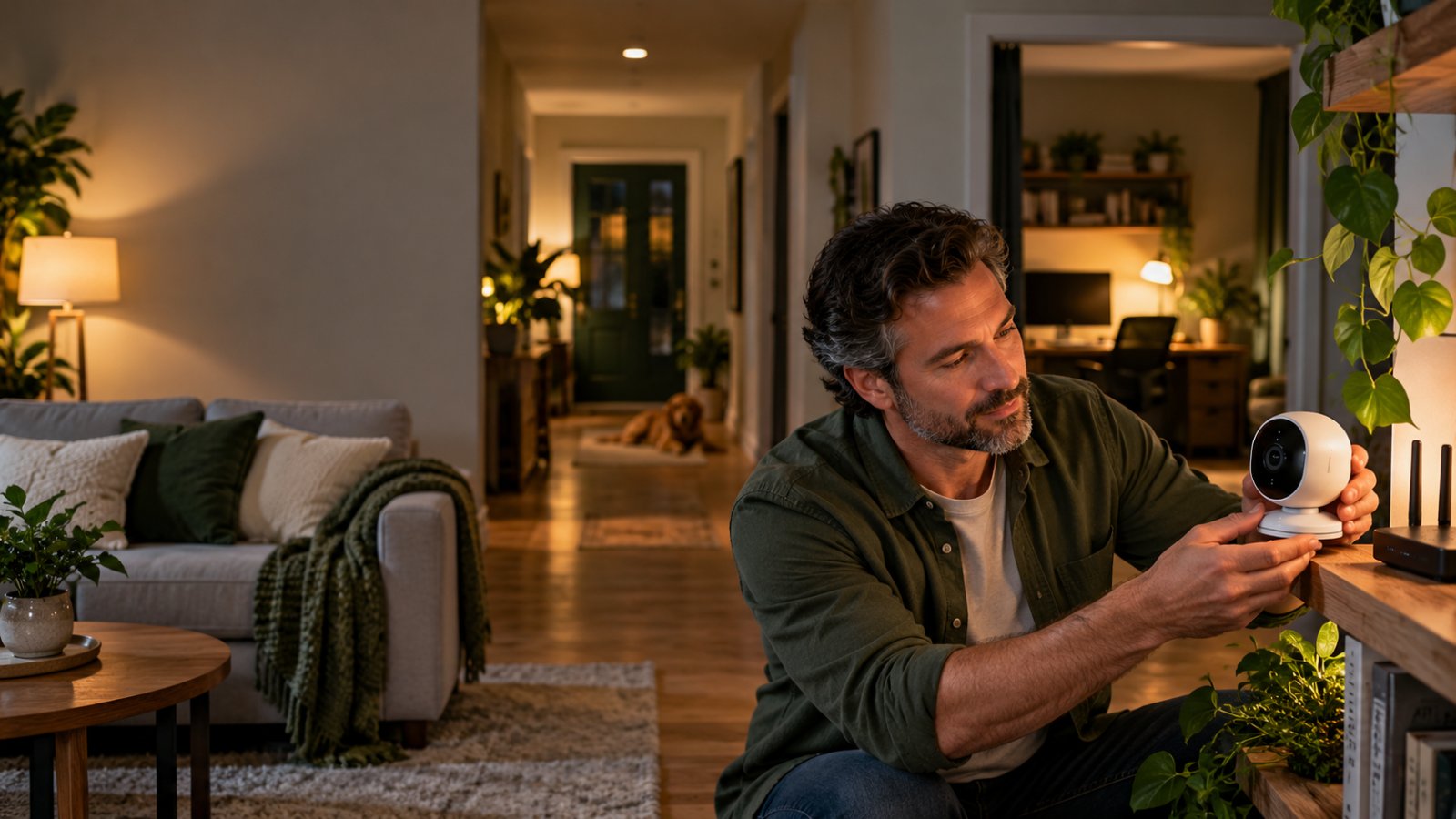
You buy a security camera to watch your front door, install the app, and discover that reviewing yesterday's recordings requires a monthly subscription. Live viewing is free, but the footage you actually need sits behind a payment screen.
The best security camera without subscription should let you record, play back, and save footage locally without paying every month. For most homes, a WiFi camera with a MicroSD card is the easiest option. If you need several cameras or continuous recording, a compatible Network Video Recorder (NVR) may make more sense.
This guide explains how to compare storage options, which features genuinely work without a paid plan, and what to check before buying an indoor or outdoor camera.
Best Security Camera Without Subscription: What to Look for Before Buying
The words "no subscription required" can mean different things depending on the camera.
One model might save motion clips to a MicroSD card for free but charge for cloud recording. Another might offer free live viewing while limiting recorded playback or advanced detection features.
The important question is not simply whether a subscription is optional. It is what happens when you choose not to pay for one.
Before ordering, check these seven details:
-
Local recording: Does the camera save video directly to a MicroSD card, NVR, or compatible network storage device?
-
Free playback: Can you watch recordings from yesterday or last week without upgrading your account?
-
Motion detection: Does the camera record activity automatically without a paid detection plan?
-
Phone notifications: Are basic motion alerts included, or do they require a subscription?
-
Recording schedule: Can you choose continuous recording or motion-based recording, and does the camera support the mode you need?
-
Storage capacity: What is the maximum supported card size, and does the camera overwrite old recordings automatically?
-
Power and connectivity: Will the camera work reliably where you intend to install it?
Check the manufacturer's product specifications and help pages for the exact model. Product listings sometimes mix free features with optional cloud services, making it easy to misunderstand what is included.
If a feature is not clearly documented, confirm it before purchasing.
For example, a camera might advertise smart person detection, but the free version may provide only basic motion alerts. That could still be enough for a garage or storage room. It may be disappointing if you bought the camera specifically to distinguish people from passing vehicles.
How the Camera Categories Were Evaluated
This guide compares camera categories using their practical strengths, installation requirements, storage options, and limitations.
It does not rank cameras using invented test scores or claim that one type is best for every household.
The main factors are:
-
Recording without payment: Whether the camera type can support video storage and playback without mandatory cloud recording fees.
-
Installation difficulty: Whether you need only an outlet and WiFi or must install Ethernet cables and recording equipment.
-
Video usefulness: Whether the camera can capture the detail needed for the intended location.
-
Storage control: How recordings are saved, accessed, protected, and overwritten.
-
Reliability: How power interruptions, weak WiFi, or device failures affect recording.
-
Long-term maintenance: What you need to maintain, including storage cards, batteries, firmware, and network equipment.
A renter checking on a pet has different requirements from a homeowner recording a driveway all night.
For the renter, easy placement and MicroSD recording may be enough. For the driveway, stable power, good night vision, and a dependable recording schedule matter more.
The most useful buying decision starts with the location and works backward to the equipment.
Why Choose a Security Camera Without Monthly Fees?
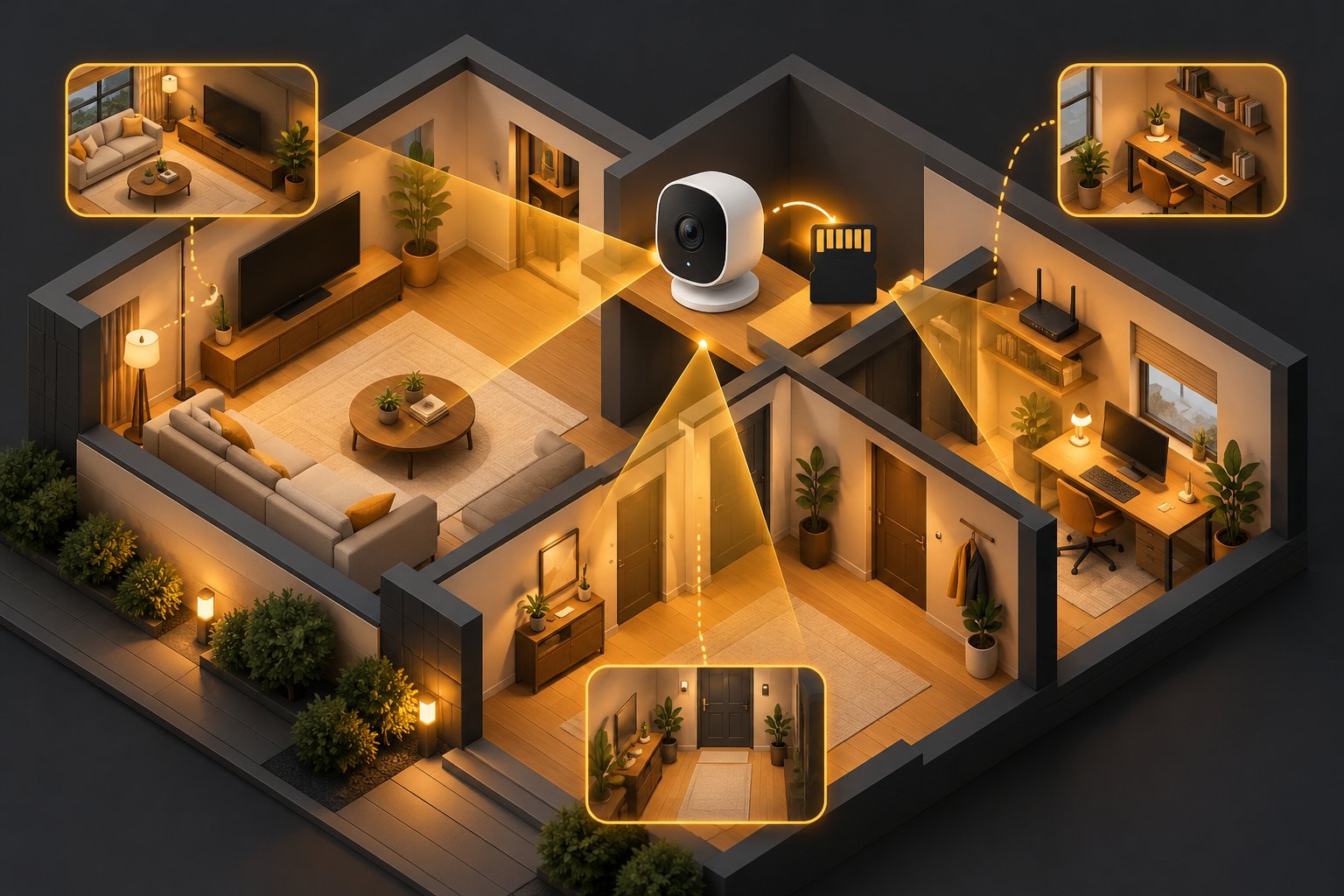
Security cameras without monthly fees are useful when you want to keep recordings without committing to ongoing cloud storage payments.
You might want to check when a package arrived, see what triggered an alarm near the garage, or review activity while you were away for the weekend.
Those tasks do not necessarily require a paid cloud account.
A camera that records locally can handle them, provided it supports the playback and notification features you need.
There are trade-offs, though. Keeping footage at home gives you more control over storage, but also makes you responsible for maintaining and protecting it.
More Control Over Video Storage
Local storage means recordings are saved on equipment you control rather than relying entirely on a remote cloud recording service.
That equipment might be:
-
A MicroSD card inside the camera.
-
A hard drive installed in an NVR.
-
A compatible Network Attached Storage (NAS) device.
-
Another supported recording system on your home network.
For a single indoor camera, a MicroSD card is usually the simplest arrangement.
You insert the card, enable recording, and access saved footage through the camera's supported app or local interface.
A larger camera system can store recordings in a separate location.
For example, several outdoor cameras might send footage to an NVR kept in a locked utility room.
That arrangement has an advantage over relying exclusively on cards inside the cameras. If one camera is damaged or stolen, recordings already saved to the separate recorder may remain available.
However, local storage is not automatically safer from every type of failure.
Memory cards wear out, hard drives fail, and equipment can be damaged by power problems.
If footage is important, check that recording still works and know how to export a copy.
Fewer Ongoing Costs
A camera with free local recording avoids mandatory monthly charges for basic video storage.
That does not mean the entire system costs nothing after purchase.
You may still need to buy a suitable MicroSD card, replacement storage, mounting hardware, or recording equipment.
For an outdoor installation, you might also need a weather-appropriate power arrangement or additional networking equipment.
An NVR system generally involves more upfront equipment than a single MicroSD camera.
Some NAS recording applications also require licenses for additional cameras.
Compare the complete setup cost, not only the camera's advertised price.
For one camera monitoring a room, buying an entire recording system is probably unnecessary.
For several cameras recording continuously, centralized storage may be easier to manage over time.
Local Recording Can Be Useful During Internet Outages
Some cameras continue saving video to local storage when the internet connection is unavailable.
That can be helpful if your broadband connection drops during the night.
However, the camera must still have electrical power, functioning storage, and any local connection required by its recording setup.
Remote viewing and phone alerts may stop working until internet access returns.
A camera that depends on a remote service for parts of its operation may also behave differently during an outage.
Do not assume every camera with a MicroSD slot records offline.
After installing the camera, follow the manufacturer's guidance and test what happens when internet access is interrupted.
The useful result is simple: when connectivity returns, you should be able to review footage recorded during the interruption, if the model supports offline recording.
Cloud Storage Still Has Advantages
Cloud recording solves a problem that local storage does not always handle well.
If someone steals a camera containing its only MicroSD card, the recordings disappear with it.
Footage already uploaded to a cloud service may remain accessible.
Cloud storage can also simplify managing recordings from multiple properties without maintaining a recorder at each location.
The disadvantages include recurring costs, dependence on internet uploads, and the need to trust the provider's storage and account security practices.
Neither approach is perfect.
For a camera watching an indoor hallway, local storage may be sufficient.
For an entrance where theft or deliberate camera damage is a concern, off-device recording or optional cloud backup may be worth considering.
Choose based on what would happen to your footage if the camera itself disappeared.
How No-Subscription Cameras Store Video
A camera's storage method affects more than the amount of footage it keeps.
It determines how you review recordings, what happens when storage fills, and whether footage survives damage to the camera.
For most households, the choice comes down to a MicroSD card or a separate network recorder.
MicroSD Card Local Storage
A MicroSD card is a small removable memory card that fits inside a compatible security camera.
The camera writes recordings directly to the card.
Depending on the model, you can review footage through its mobile app, download clips to your phone, or access the card using another device.
Best for: Apartments, indoor cameras, individual outdoor cameras, and homes that need a straightforward recording setup.
Strengths
-
No separate recording box.
-
Simple installation on compatible cameras.
-
Local recording without mandatory cloud storage.
-
Motion-based and sometimes continuous recording options.
-
Automatic overwriting of older footage on supported models.
Limitations
-
Limited capacity compared with dedicated recorders.
-
Recordings may be lost if the camera is stolen.
-
Cards can wear out or develop errors.
-
Supported capacity and formatting requirements vary.
-
Not every camera records during an internet outage.
Before buying a card, look for the maximum supported capacity in the camera's specifications.
Do not assume that a camera accepting a 128GB card will also accept 256GB.
For frequent or continuous recording, a high-endurance MicroSD card designed for video use is generally a sensible choice.
How to set up MicroSD recording
-
Check the supported card capacity and format.
-
Insert the card following the camera manufacturer's instructions.
-
Open the camera's mobile app.
-
Select the camera and open Settings.
-
Find Storage, SD Card, or Local Recording.
-
Initialize or format the card if the app requires it.
-
Enable motion-based or continuous recording.
-
Trigger an event and open the playback history.
The exact menu labels will vary.
A good result: The app recognizes the card, displays available storage, and plays a saved recording without asking you to subscribe.
A problem to investigate: The card appears installed, but the recording history remains empty after a test event.
Check the recording schedule, storage status, and motion settings before assuming the camera is defective.
NVR and NAS Network Storage
If you want cameras at the front door, driveway, garage, and backyard, managing separate memory cards can become inconvenient.
A separate recording system keeps footage from multiple cameras in one location.
Network Video Recorder (NVR)
An NVR is a dedicated device that receives video from compatible network cameras and saves it to installed storage.
Many NVR systems use hard drives designed for frequent video recording.
Some connect to cameras through a wired network. Others support compatible wireless IP cameras.
Best for: Multiple outdoor cameras, larger properties, and installations requiring continuous recording.
Strengths
-
Centralized storage.
-
Larger practical recording capacity.
-
Easier review of several camera feeds.
-
Footage stored separately from individual cameras.
-
Suitable for continuous recording with compatible equipment.
Limitations
-
Higher upfront cost.
-
More wiring and setup in some installations.
-
Requires compatible cameras.
-
Storage drives eventually need replacement.
-
The recorder needs power and network connectivity.
Network Attached Storage (NAS)
A NAS is a storage device connected to your home network.
Some NAS systems support surveillance software capable of recording video from compatible cameras.
This can make sense if you already use a NAS for household backups or other files.
However, connecting a security camera to a NAS is not guaranteed.
The camera must provide a compatible video stream, and the NAS software must support the camera and the features you need.
Some systems also require paid camera licenses beyond a certain number of connected devices.
Before buying a camera specifically for NAS recording, check the exact model's compatibility with your intended software.
Why RTSP and ONVIF Matter
If you plan to record footage using an NVR, NAS, or other third-party system, pay attention to camera compatibility.
Two terms frequently appear in specifications.
RTSP stream
RTSP stands for Real-Time Streaming Protocol.
It is commonly used to establish and control video streams from compatible network cameras.
A camera providing a usable RTSP stream may be able to send its footage to supported recording software.
ONVIF
ONVIF provides interoperability specifications for compatible IP-based security products.
It can help cameras and recording systems work together.
However, compatibility varies by device, supported profile, and software implementation.
A camera and recorder may both advertise ONVIF support without supporting every feature together.
For example, video recording may work while motion events, two-way audio, or pan-and-tilt controls have limitations.
What to verify before ordering:
-
Does the exact camera model support RTSP or the required ONVIF profile?
-
Is it listed as compatible with your chosen recorder?
-
Can the recorder capture the required resolution?
-
Does motion-triggered recording work through the integration?
-
Are additional camera licenses required?
A camera with a MicroSD slot does not automatically provide RTSP or ONVIF.
Local card recording and third-party network recording are separate capabilities.
Continuous Recording vs Motion-Based Recording
The recording mode affects how much footage you retain and whether important activity gets captured.
Continuous recording
A camera saves video throughout its operating schedule.
This is helpful when you want to review what happened before or after an event that might not trigger motion detection.
For example, a camera watching a shared driveway may need to capture a vehicle entering the area even if the motion trigger does not work as expected.
Continuous recording uses more storage.
It also places sustained writing demands on the storage device.
Motion-based recording
The camera saves a clip when qualifying movement is detected.
This saves storage in quieter locations and makes recordings easier to review.
However, detection settings matter.
If the sensitivity is too low or the activity occurs outside the detection zone, the camera may not save the event.
Some cameras support recording footage from before or after the motion trigger, but these features vary by model.
Battery-powered cameras often favor event recording to conserve energy.
If you want uninterrupted footage, confirm continuous recording support before buying.
Key Features to Look for in a Subscription-Free Camera
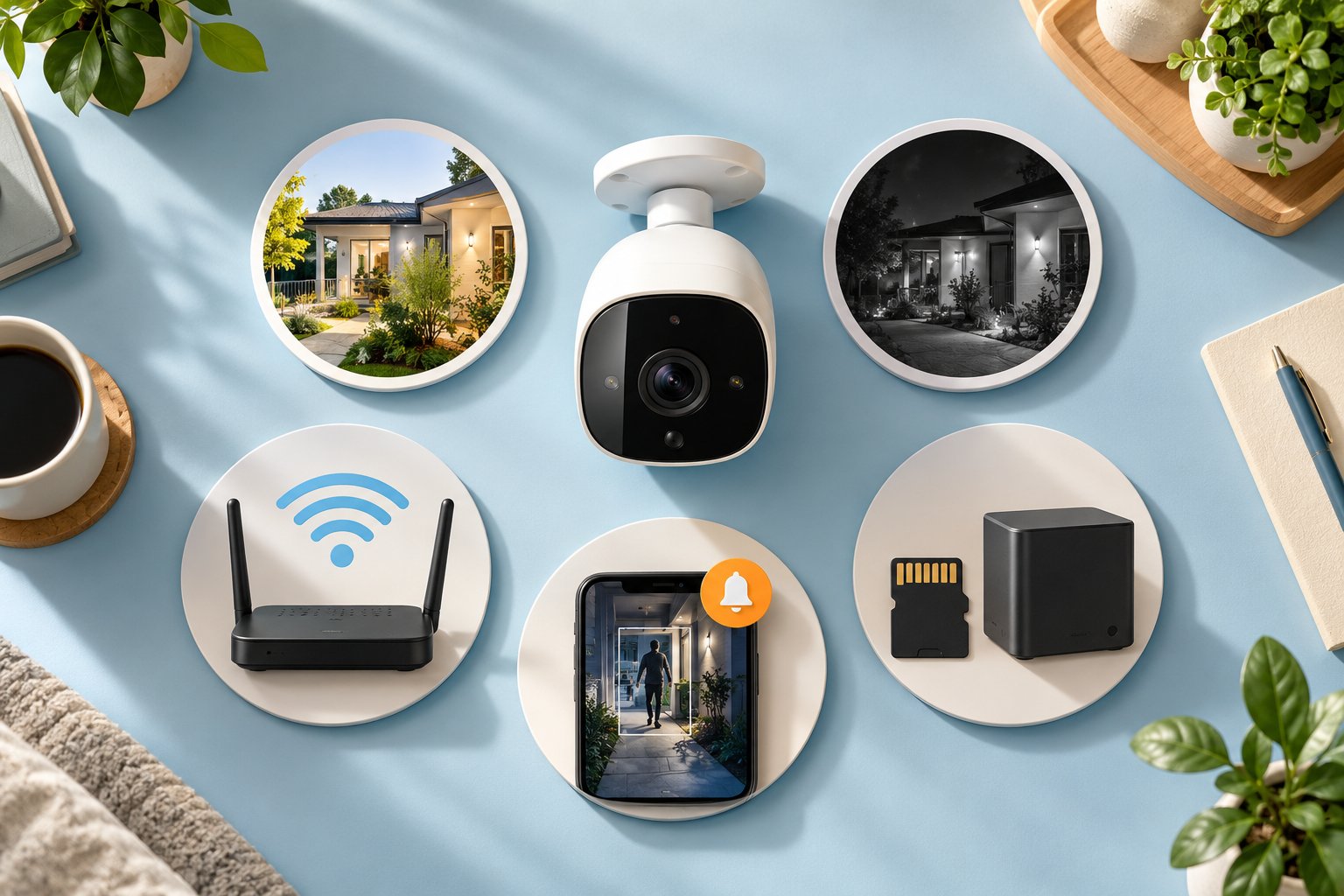
A high-resolution camera is not much help if it disconnects every evening or cannot save a clip without payment.
Check the features that affect the actual footage and your ability to retrieve it.
Resolution and Night Vision Clarity
Resolution tells you how many pixels the camera records.
Common options include 1080p, 2K, and higher-resolution models marketed as 4K.
More pixels can provide additional detail, but resolution alone does not determine whether you can recognize someone in a recording.
Distance, lens design, image compression, lighting, and camera placement also matter.
A wide camera view may capture the entire driveway but show relatively little detail of someone standing near the street.
A camera aimed more closely at a doorway may produce a clearer view of visitors at that location.
Before buying, check:
-
Recorded video resolution, not just the live-view specification.
-
The camera's field of view.
-
Whether full-resolution recording works without a subscription.
-
Available nighttime recording examples.
-
The distance between the camera and the area you need to see.
-
Whether image settings can be adjusted.
Night vision
Infrared night vision typically produces black-and-white footage in darkness.
Color night vision may rely on available light, sensitive imaging hardware, or an integrated light source.
A camera advertised with color night vision does not necessarily produce detailed color footage in complete darkness without illumination.
Think about the actual lighting at the installation location.
A porch light may improve a camera's image of a visitor, while vehicle headlights can create strong glare in a driveway recording.
Check whether important details remain visible when bright and dark areas appear in the same frame.
WiFi Range and Stable Connectivity
A camera can have good resolution and local storage but still miss events because its wireless connection is unreliable.
This matters particularly for outdoor cameras.
Brickwork, concrete, metal garage doors, and exterior insulation can weaken WiFi signals.
A camera near the front door may connect without difficulty while another mounted on the far side of a garage repeatedly disconnects.
Check these details:
-
Whether the camera uses 2.4 GHz, 5 GHz, or both WiFi bands.
-
Signal reliability at the intended mounting location.
-
Whether it reconnects after a router restart.
-
Whether recording continues during an internet outage.
-
Whether a better access point or extender position is needed.
Many smart cameras use 2.4 GHz because it often provides better coverage through household obstacles than 5 GHz.
Some do not support 5 GHz at all.
If your router uses one network name for both bands, follow the manufacturer's setup guidance.
Test before mounting
Take your phone to the intended camera location and check the relevant WiFi connection.
This is not a substitute for testing the actual camera, because antenna performance differs between devices.
It is a useful first check.
Set up the camera near its final location, leave it operating, and review whether live viewing and recording remain stable.
Do this before drilling permanent mounting holes.
Smart Motion Alerts Without Cloud Processing
Motion detection can reduce unnecessary recording and help you find relevant events faster.
Basic motion detection responds to changes in the camera's view.
Some models can identify particular types of activity, such as people, vehicles, or pets.
The processing may happen on the camera, through another local device, or partly through a remote service.
Not every advanced feature is included for free.
Check which functions are available without a subscription:
-
Basic motion detection.
-
Adjustable sensitivity.
-
Motion detection zones.
-
Event recording to local storage.
-
Person or vehicle detection, if advertised.
-
Phone notifications.
-
Motion tracking, where supported.
For a camera facing a driveway, use detection zones to avoid unnecessary activity from the road if the model supports them.
Moving tree branches can also trigger repeated alerts.
Lowering sensitivity or excluding that part of the image may help.
Local detection is different from remote notifications.
A camera may detect motion and record it to a MicroSD card without uploading video to the cloud.
But sending an alert to your phone while you are away generally needs internet connectivity and an app notification service.
That does not automatically mean a paid cloud recording plan is required.
Test event recording and phone alerts separately.
Two-Way Audio and Remote Viewing
Two-way audio allows you to hear sounds near the camera and speak through its built-in speaker.
It can be useful for a front entrance or an indoor camera used to check on pets.
However, the microphone and speaker still have practical limitations.
A camera mounted high above a driveway may not provide clear conversation with someone standing far away.
Wind and road noise can also affect outdoor audio.
Check whether two-way audio is included in the free app and whether the camera supports it during remote viewing.
Remote viewing is another feature worth confirming.
A locally recording camera may still need internet access and the manufacturer's app service to show live video when you are away from home.
Some products require account registration.
Others offer supported local network access for compatible applications.
Do not confuse local storage with completely offline operation.
A camera can save footage at home while using online services for notifications and remote access.
Outdoor Durability and Power Requirements
Outdoor cameras need to tolerate the environment where they are installed.
Check the manufacturer's stated resistance to rain, dust, and operating temperatures.
An outdoor rating does not mean a camera can be submerged in water or installed in any exposure without following mounting instructions.
Power matters too.
Plug-in WiFi cameras use wireless networking but still need an electrical connection.
Battery-powered cameras can be placed without a permanent power cable, but require charging or battery maintenance.
PoE cameras receive compatible network connectivity and electrical power through Ethernet cabling.
Before purchasing, identify where the cable, charger, or power equipment will go.
A camera mounted under a porch may be straightforward to power.
One attached to a detached shed can require more planning.
Indoor vs Outdoor No-Fee Security Cameras
The right camera category depends on what you are watching and how much installation work you want to do.
A single camera for a living room is a different purchase from a system recording several outdoor areas continuously.
Comparison of Security Camera Types Without Subscriptions
| Camera Type | Best For | Main Strength | Main Limitation |
|---|---|---|---|
| Indoor WiFi camera with MicroSD | Apartments, pets, living rooms | Simple setup and local recording | Not designed for outdoor exposure |
| Indoor pan-and-tilt camera | Larger rooms and flexible viewing | Adjustable camera direction | Cannot watch every angle simultaneously |
| Plug-in outdoor WiFi camera | Front doors, porches, driveways | Outdoor monitoring with local recording | Requires power and reliable WiFi |
| Battery-powered outdoor camera | Locations without nearby outlets | Flexible mounting | Battery maintenance and often event-only recording |
| Wired PoE camera with NVR | Multiple cameras and continuous recording | Stable wired connection and central storage | Requires network cabling |
| NAS-compatible IP camera | Homes with existing network storage | Flexible recording and storage management | Compatibility and setup can be complex |
These categories describe common configurations rather than guarantees about every model.
Check the recording, connectivity, and storage features of the exact camera before purchasing.
Indoor WiFi Cameras With MicroSD Storage
Best for: Renters, apartment residents, and homeowners who want to monitor one indoor area.
For checking pets, a living room, or an interior doorway, a compact WiFi camera with MicroSD recording is often sufficient.
It can usually be placed on a suitable shelf or installed with a compatible mount.
Strengths
-
Relatively straightforward setup.
-
No separate recording equipment.
-
Local storage on supported models.
-
Convenient phone-based playback.
-
Suitable for common indoor monitoring tasks.
Limitations
-
Not intended for rain or outdoor conditions.
-
Requires suitable power.
-
Storage remains inside the camera.
-
Recording history is limited by the card and settings.
Look for a camera that makes it easy to find recordings by date or event.
If you are buying for a rental property, also consider how you will mount it without damaging walls.
Indoor Pan-and-Tilt Cameras
Best for: Open-plan living spaces, larger rooms, and areas where you want to change the camera's viewing direction.
Pan-and-tilt cameras use a movable mechanism that allows the lens to point in different directions.
You may be able to turn the camera using its app, and some models offer automatic motion tracking.
Strengths
-
Flexible viewing direction.
-
Useful for larger rooms.
-
Can help monitor activity in different parts of a space.
-
May reduce the need for multiple fixed cameras in some situations.
Limitations
-
The lens cannot necessarily watch every direction at once.
-
Automatic tracking may move the view away from another area.
-
Moving components introduce additional maintenance considerations.
-
Tracking and detection features vary by model.
ROOXIS offers indoor pan-and-tilt camera options with local recording.
When browsing home networking and security devices, check the exact camera's supported storage capacity, app functions, and viewing range.
A wide rotation range is useful, but camera placement still matters.
Position the camera where furniture and doorframes will not block the areas you need to monitor.
Plug-In Outdoor WiFi Cameras
Best for: Front entrances, porches, garages, and driveways with accessible electrical power.
A plug-in outdoor camera can provide ongoing monitoring without battery charging.
Some models support continuous recording, while others offer event-based recording.
Confirm the available options before ordering.
Strengths
-
Suitable for supported outdoor installations.
-
No regular battery charging.
-
Potential support for continuous recording.
-
Useful for entrances and vehicle areas.
-
Local storage options on compatible models.
Limitations
-
Requires electrical power.
-
Outdoor WiFi can be unreliable through thick walls.
-
Installation may involve routing a power cable.
-
Night vision performance depends on lighting and camera design.
For a no subscription outdoor security camera, check exactly how footage is saved.
Look for the supported MicroSD capacity, free playback options, and recording modes.
Also think about card access.
If the card slot is difficult to reach after mounting, downloading clips through the app becomes more important.
Battery-Powered Outdoor Cameras
Best for: Locations where running a power cable is inconvenient, such as fences, gates, and detached structures.
Battery cameras offer more placement flexibility.
Some support compatible solar charging accessories, which may reduce how often the battery needs charging.
Strengths
-
No permanent power cable.
-
Flexible mounting locations.
-
Suitable for occasional activity monitoring.
-
Motion-triggered recording can conserve battery life.
Limitations
-
Batteries need maintenance.
-
Cold weather and frequent activity can affect battery performance.
-
Continuous recording is often unavailable.
-
Local storage may depend on a separate hub.
-
Some functions may require an app service.
Read the recording specifications carefully.
A battery camera advertised with long battery life may achieve that under relatively light activity and specific settings.
A busy driveway can generate many more events than a quiet backyard gate.
If continuous recording is essential, a permanently powered camera may be more suitable.
Wired PoE Cameras With an NVR
Best for: Homeowners installing several permanent cameras or needing continuous recording.
Power over Ethernet, or PoE, supplies network connectivity and electrical power through suitable Ethernet equipment and cabling.
A compatible NVR can record video from multiple cameras to centralized storage.
Strengths
-
Stable network connection when correctly installed.
-
Suitable for multiple cameras.
-
Centralized playback and recording.
-
Practical for continuous monitoring.
-
Less dependence on wireless coverage.
Limitations
-
Network cabling may be difficult to install.
-
Higher initial equipment cost.
-
Requires compatible power and recording hardware.
-
Storage drives need maintenance.
-
Some installations require professional assistance.
This arrangement can make sense during a renovation when cables can be installed before walls are finished.
For a renter who cannot make permanent changes, it may be impractical.
NAS-Compatible IP Cameras
Best for: Homeowners who already own network storage or want greater control over recording software.
Compatible IP cameras can send video to surveillance software running on a NAS.
This allows footage to be kept on storage that is separate from the camera.
Strengths
-
Centralized local recording.
-
Flexible storage arrangements.
-
Useful when managing several cameras.
-
Can integrate with existing network equipment.
-
Potential for more advanced retention settings.
Limitations
-
Requires compatible camera streams.
-
More technical setup.
-
Some recording software has licensing costs.
-
Not every camera feature works through third-party software.
-
Storage and network equipment still need maintenance.
Confirm camera compatibility before purchasing.
Check the exact model, supported RTSP or ONVIF functions, and recorder software requirements.
Do not assume that any camera with a mobile app will work with your NAS.
How to Choose the Right Camera for Your Home
Start with the area you want to monitor.
Then decide how the camera will receive power, connect to the network, and save footage.
That order prevents buying a camera that looks suitable on paper but does not fit the installation location.
If You Rent an Apartment
A compact indoor WiFi camera with MicroSD recording is usually a practical starting point.
Look for a model that can sit securely on furniture or use a mounting method permitted by your rental agreement.
Check the cable length and outlet location.
If you want to monitor different areas of a living room, consider a pan-and-tilt model.
Confirm that local recording and playback remain available without payment.
If You Want to Watch Your Front Door
Choose a camera suitable for the location.
If the entrance is exposed to rain, use an outdoor-rated model installed according to its instructions.
Think about the angle.
A camera positioned too high may show the top of a visitor's head rather than a useful view of their face.
You also need to account for the direction visitors approach from.
Two-way audio may be useful, but test whether people standing at the doorway can hear the speaker clearly.
If You Need Driveway Monitoring
A driveway camera should be selected according to the distance and detail you need.
A wide field of view helps show activity across the driveway.
A narrower view may capture better detail of a specific entrance.
High resolution alone does not guarantee readable license plates or recognizable faces, especially at night.
Check sample footage where available and consider the effects of headlights, darkness, and camera placement.
If continuous monitoring matters, choose a model that supports continuous recording with suitable storage.
If You Need Several Cameras Around the House
Compare individual MicroSD cameras with a centralized recorder.
Separate cards can be convenient for a small number of cameras.
For a larger system, reviewing recordings from each camera individually may become frustrating.
An NVR can bring several camera feeds and recordings together, provided the cameras are compatible.
Consider where you will install the recorder and how you will protect its stored footage.
If Your WiFi Is Weak Outdoors
Test the proposed camera location before buying more equipment.
Metal garage doors, brickwork, and exterior walls can weaken WiFi.
A camera that connects reliably beside the router may struggle once installed outside.
Try setting up the camera near its intended mounting position before fixing it permanently.
If the connection is unstable, consider changing access point placement or improving coverage.
Do not assume that a more expensive camera will solve a weak network.
If You Want the Simplest No-Fee Setup
Choose a camera with documented MicroSD recording, free playback, and basic motion detection.
Avoid paying for advanced storage systems or integrations unless you have a specific need for them.
Before ordering, check the exact features included without a paid plan.
If the product requires a subscription to review ordinary motion recordings, it may not meet your expectations of a no-fee security camera.
How Much Local Storage Do You Need?
The number of recording days depends on how much data the camera saves.
Resolution is only part of the calculation.
Video bitrate, compression, frame rate, movement, and recording schedule also affect storage use.
Bitrate measures the amount of video data recorded per second.
Two cameras using the same resolution can consume different amounts of storage.
A camera recording continuously will usually fill its storage much faster than one that saves short clips only when motion occurs.
Example: A 128GB MicroSD Card
These figures show the theoretical storage required for one camera recording continuously at a constant bitrate.
| Average Video Bitrate | Approximate Data Per Day | Theoretical Time on 128GB |
|---|---|---|
| 2 Mbps | 21.6GB | About 5.9 days |
| 4 Mbps | 43.2GB | About 3 days |
These are calculations, not test results for a particular camera.
They also assume the full advertised 128GB capacity is available for video.
Actual usable capacity is lower because of formatting and other storage overhead.
Some cameras also vary bitrate depending on scene complexity and recording settings.
For event-based recording, retention can be substantially different.
A quiet indoor room might produce relatively few clips. A front door facing a busy street could generate much more footage.
The best way to estimate retention is to let the camera operate under normal conditions, check its storage use, and see how quickly footage accumulates.
Choose Storage Based on How You Review Events
Think about how often you check your recordings.
If you review alerts every evening, a shorter history may be enough.
If you travel frequently and might not check footage for several days, additional storage can be useful.
For continuous recording, larger storage or a separate recorder may make sense.
For motion-only recording, consider how much movement occurs in the camera's field of view.
A camera covering a busy entrance may save far more clips than one watching a rarely used storage room.
Your aim is to retain footage long enough to discover and review an incident before the older files disappear.
Check Automatic Overwriting
Many cameras use loop recording.
Once storage fills, the camera automatically overwrites older footage to make room for new recordings.
That is convenient because recording can continue without manually clearing the card.
But it also means important footage will not remain saved indefinitely.
If something happens that you may need to review later, export the relevant clip as soon as possible.
Check whether the app lets you download it directly to your phone or computer.
Do not assume that marking an event as important automatically protects it from overwriting unless the camera provides that function.
How to Set Up a No-Subscription Security Camera
Getting live video on your phone is only the first part of setup.
Before relying on the camera, confirm that it records, stores, and plays back footage as expected.
Step 1: Confirm Free Features Before Activation
Read the product documentation and app information.
Check whether local recording, playback, motion detection, and notifications are included without payment.
If the app offers a cloud storage trial, find out what happens when it expires.
You should understand which functions remain available before choosing whether to activate the trial.
Step 2: Connect the Camera to Reliable Power and WiFi
Install the camera according to the manufacturer's instructions.
For WiFi models, use a supported network frequency.
Check that the camera stays connected at the intended location.
If it repeatedly loses connection, address that problem before permanently mounting it.
For wired cameras, confirm the network and power equipment meet the camera's requirements.
Step 3: Set Up Local Recording
Insert compatible storage or connect the supported recorder.
Open the camera's settings and locate its storage controls.
Initialize or format the card if necessary.
Choose the recording mode you need.
Check that the camera displays the storage as available.
A card being physically inserted does not mean the camera has started recording.
Step 4: Configure Motion Detection
Enable the supported detection features.
Adjust sensitivity and detection zones where available.
For an outdoor camera, exclude irrelevant movement such as trees or traffic if the camera's settings allow it.
Walk through the area you want monitored and check that the camera detects the movement.
Repeat the test under lighting conditions similar to when the camera will normally operate.
Step 5: Test Playback Without a Subscription
Trigger a test recording.
Open the playback history and find the event.
Play it from beginning to end.
Check whether the video is saved at the expected quality.
If downloading clips is a feature you need, test that too.
You want to discover a playback limitation during setup, not after an actual incident.
Step 6: Test Notifications and Connection Recovery
Enable free notifications if the model supports them.
Trigger motion and check whether your phone receives an alert.
Then verify how the camera behaves after a router restart or a brief connection interruption, following the manufacturer's guidance.
Confirm that it reconnects and resumes recording.
If offline recording is important, test whether footage remains available from the interruption period.
Common Mistakes When Buying Subscription-Free Security Cameras
Many problems begin with assumptions made before ordering.
Confusing free live viewing with free recording
A camera may display live video without payment but charge for recorded history.
Look specifically for local storage and free playback.
Choosing an incompatible MicroSD card
Check capacity and formatting requirements.
For frequent recording, use storage designed to handle repeated video writing.
Assuming wireless means battery-powered
A WiFi camera still may need a permanent power connection.
Check the installation site for a suitable outlet before purchasing.
Expecting continuous recording from a battery camera
Many battery models record only when activity is detected.
Confirm the recording modes rather than assuming continuous operation is included.
Assuming local storage means complete privacy
The video may be saved at home while the app still communicates with manufacturer services.
Review the device's account, remote access, and privacy settings.
Buying a camera for NAS storage without checking compatibility
A MicroSD slot does not establish RTSP or ONVIF support.
Check compatibility for the exact camera and recording software.
Mounting the camera before testing WiFi
A weak connection can cause missed notifications or unreliable remote viewing.
Test the camera at the mounting location first.
Never checking saved footage
Memory cards can fail or become corrupted.
Open the playback history periodically and confirm that recent footage can be viewed.
Forgetting about lighting
A camera that records a clear daytime image may struggle with strong headlights or a dark entrance.
Test the view at night before deciding that the installation is complete.
Relying entirely on one removable card
If the camera is stolen, its recordings may disappear too.
For footage that needs stronger protection, consider recording to a separate secure device or using optional remote backup.
How to Keep a Locally Recording Camera Secure
Saving footage at home does not automatically protect the camera from unauthorized access.
Most app-connected security cameras are still part of your household network.
A few basic measures make a difference.
Use a unique account password
Do not reuse the password from your email or another online account.
Enable multi-factor authentication when the manufacturer supports it.
If several household members need access, use supported account-sharing features rather than distributing one set of credentials unnecessarily.
Keep camera firmware updated
Manufacturers may release updates that address software problems or security vulnerabilities.
Check the supported update process and install appropriate security updates.
Do the same for your home router.
Secure your wireless network
Use suitable current WiFi encryption and a strong password.
If your router supports a separate network for smart home devices, it may be useful for limiting access between devices.
However, some camera features may require communication with phones or other devices on the local network.
Test those functions after changing network settings.
Avoid exposing camera services directly to the internet
Do not forward camera administration ports or RTSP services to the public internet without appropriate security controls.
Use the manufacturer's supported secure remote access method or an appropriately configured private connection.
Protect the recording equipment
A MicroSD card stored inside an outdoor camera is vulnerable to theft along with the device.
An NVR should be placed somewhere secure and protected from avoidable power problems.
For important footage, consider maintaining a separate copy.
Check recordings regularly
Open the app and review a recent event.
Make sure the storage device is functioning and the recording schedule has not been disabled.
Knowing that your camera still records is more useful than assuming it does because the live picture looks normal.
Frequently Asked Questions About Cameras Without Subscriptions
Can a security camera work without any subscription?
Yes. Many cameras record to a MicroSD card, NVR, or compatible NAS without a monthly cloud storage plan. However, some models reserve extended cloud history, advanced detection, or other features for subscribers, so check what local playback and recording functions are included before buying.
How many days of footage fit on a 128GB MicroSD card?
That depends on the camera's bitrate, compression, and recording mode. At a constant 2 Mbps, 128GB theoretically holds about 5.9 days of continuous recording, while 4 Mbps provides about 3 days before storage overhead. Motion-triggered recording may last longer, depending on activity and clip length.
Do subscription-free cameras still send phone alerts?
Many do. A camera can detect motion and record it locally while sending basic notifications through a free mobile app. However, remote alerts generally require an internet connection and a working notification service, and some manufacturers charge for more advanced alert features.
Are cameras with local storage secure?
Local storage reduces dependence on cloud recording, but it does not automatically make the device secure. Use strong passwords, enable available multi-factor authentication, update firmware, and protect your home network. Remember that footage stored only inside the camera can be lost if the device is stolen or damaged.
For one or two cameras, start with free MicroSD recording, reliable playback, and a stable network connection. If you need several cameras or continuous footage, compare a compatible NVR or NAS setup before buying individual devices.
Before installing anything permanently, record a test event, play it back without a subscription, and confirm that the footage is saved where you expect. That simple check tells you more about the camera's usefulness than a long list of advertised features.