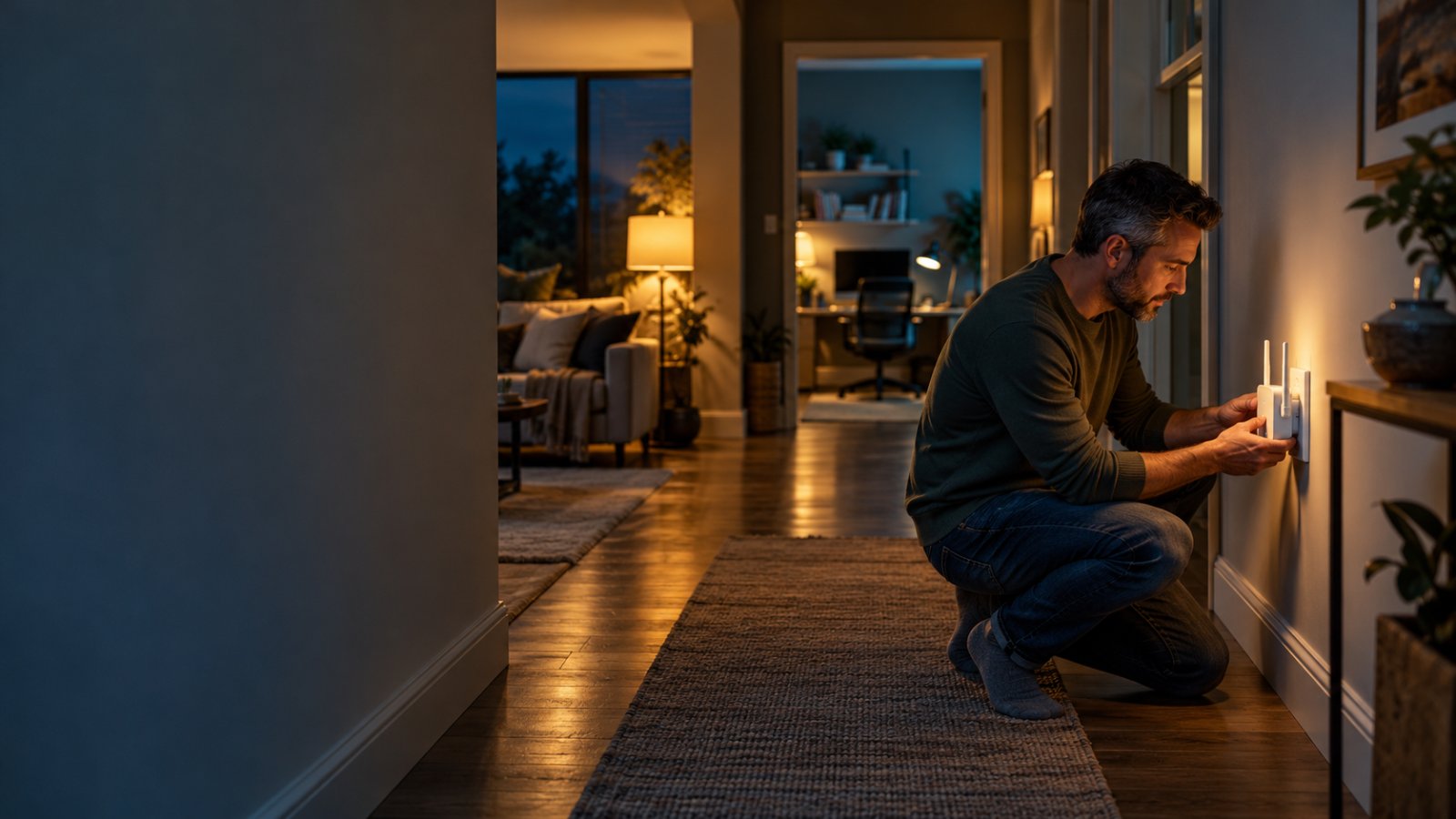
Plugging a WiFi extender into the room with the weakest signal is one of the most common setup mistakes. It may show a strong connection on your phone, but if the extender cannot communicate reliably with the router, your internet will still be slow or keep disconnecting.
For a successful ROOXIS WiFi extender setup, start with the extender plugged into an outlet near your router. Connect it using the WPS button or its browser-based setup page. Once the connection works, move the extender to an outlet between the router and the room where you need better WiFi.
The AC1200 model supports dual-band wireless connections, Repeater Mode, Access Point Mode, and an Ethernet port. This guide explains how to use those features, what the indicator lights mean, and how to fix connection problems without repeatedly resetting your equipment.
ROOXIS WiFi Extender Key Features
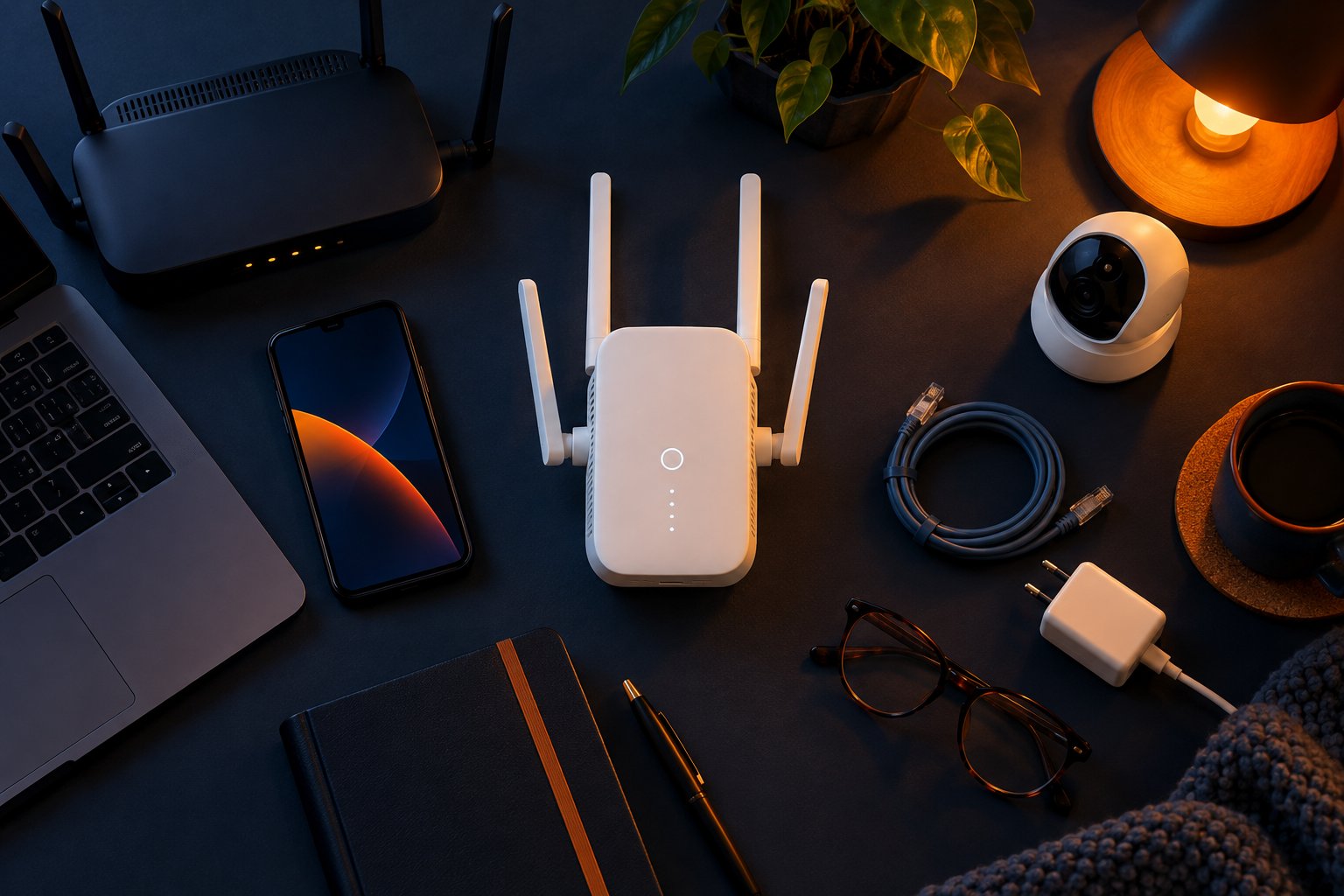
The AC1200 WiFi extender is designed to work with an existing home router.
You do not need to replace your main router to improve reception in a bedroom, home office, or another area with weak wireless coverage.
The extender receives a connection from your existing network and makes WiFi available farther away.
Its usefulness depends on two connections working properly: the connection from the router to the extender and the connection from the extender to your phone, laptop, television, or camera.
Dual-Band WiFi: 2.4 GHz and 5 GHz
The extender supports both 2.4 GHz and 5 GHz wireless bands.
These bands behave differently around walls, furniture, and distance.
2.4 GHz generally offers better reach through obstacles. It is often useful for smart home equipment and devices located farther from the wireless access point.
5 GHz can provide higher throughput when the device is close enough to maintain a strong signal.
For example, a laptop in a nearby bedroom may work well on 5 GHz.
A security camera near an exterior wall might maintain a more dependable connection on 2.4 GHz.
The AC1200 designation refers to a class of dual-band wireless equipment.
It does not mean your laptop will receive 1,200 Mbps through the extender.
Actual internet performance depends on your service, router, wireless conditions, connected devices, and how the extender communicates with the router.
Choose the band that works reliably for the device rather than selecting 5 GHz simply because it has a higher theoretical speed.
WPS Button for Quick Connection
WPS stands for WiFi Protected Setup.
It allows compatible devices to connect without manually entering the router's wireless password during pairing.
This method is convenient when your router has an enabled WPS function.
You start pairing on the router, then activate WPS on the extender.
The devices attempt to establish a connection automatically.
Some routers do not provide WPS or have it disabled.
If yours does not support the feature, use manual setup through a web browser.
There is no need to change the router's settings just to make WPS available if manual setup works normally.
Repeater Mode for Wireless Coverage
Repeater Mode connects the extender to your existing router over WiFi.
It is the usual option when you want to improve wireless reception without running a network cable between rooms.
Consider a home where the router sits in the living room and the upstairs office receives a weak signal.
The extender can be installed near the staircase, provided the router's WiFi still works reliably there.
A laptop upstairs can then connect through the extended network.
The important limitation is the connection back to the router.
If that connection is weak, moving the extender closer to the laptop will not necessarily improve internet access.
Access Point Mode for Wired Connections
Access Point Mode uses Ethernet for the connection to your existing network.
Instead of repeating a wireless signal from the router, the device receives its upstream connection through a network cable.
This can be useful when an upstairs office already has an Ethernet wall outlet connected to the home network.
A wired connection can be more dependable than wireless communication through several walls or floors.
However, the Ethernet outlet must actually connect to your router or suitable network equipment.
An unused wall socket does not automatically provide network access.
If you do not have an appropriate wired connection, Repeater Mode is usually the more practical option.
Ethernet Port for Compatible Devices
The AC1200 includes a 10/100 Mbps Ethernet port.
Its purpose depends on the operating mode.
For example, the port may provide the wired connection used in Access Point Mode.
It may also support an appropriate wired device connection in a compatible configuration.
Remember that connecting a desktop computer to the extender with Ethernet does not necessarily eliminate the wireless link between the extender and router.
In Repeater Mode, the extender still relies on WiFi for its upstream connection.
That wireless link can affect the computer's internet performance.
Signal Indicator Light
The extender's LED helps you understand whether it has a usable connection to the router.
This is particularly useful after moving the device to another outlet.
| Indicator | Meaning | What to Do |
|---|---|---|
| Solid blue | Good router connection | Test internet access in the target room |
| Solid yellow | Router connection is weaker than ideal | Try an outlet closer to the router |
| Solid red | Router connection is not established | Check setup and distance |
| Blinking | Startup or pairing activity | Allow the process to finish |
| Off | No visible power indication | Check the outlet and power |
Suppose the indicator shows solid blue near the staircase.
You move the extender into the upstairs bedroom, and the indicator changes to yellow.
The bedroom outlet may be too far from the router.
Move the extender back toward a stronger signal, then test internet access from the bedroom.
A blue indicator is a useful sign, but actual performance matters too.
A phone may connect to the extender successfully while internet access remains unreliable for another reason.
What the Extender Can and Cannot Fix
An extender is useful when your main router works normally but its wireless signal does not reach one part of your home reliably.
It may help with:
-
A bedroom where WiFi frequently disconnects.
-
A home office where video calls freeze.
-
A television that buffers because reception is weak.
-
An upstairs hallway with inconsistent coverage.
-
A compatible security camera positioned near the edge of the network.
-
A nearby room separated from the router by several walls.
It cannot fix an internet service problem affecting the whole property.
For example, if websites take a long time to open while you are standing beside the main router, the issue may involve your internet connection, router, or network congestion.
Test the original WiFi before installing the extender.
If it works well near the router but becomes unreliable farther away, improving coverage is a reasonable next step.
Step by Step Setup Instructions
The AC1200 supports WPS pairing and manual browser setup.
Both methods connect the extender to your existing router.
Start near the router even if you ultimately want better coverage in another room.
That removes weak signal reception as a possible cause of problems during initial setup.
What You Need Before Starting
Have these items ready:
-
The extender and an available electrical outlet.
-
A working WiFi router.
-
Your router's WiFi network name.
-
The current WiFi password.
-
A phone, tablet, or laptop.
-
Access to the router's WPS function if you plan to use WPS.
Before proceeding, connect your phone directly to the main router.
Open a website.
If the internet does not work, investigate the router or internet service first.
Do not begin troubleshooting the extender while the original connection is unavailable.
Also check which network name you normally use.
Some homes have separate 2.4 GHz and 5 GHz networks, a guest network, or an older router still operating.
You need to select the intended home network during setup.
Connecting via WPS Button
WPS is the quickest option when your router supports it.
Step 1: Plug the Extender Near the Router
Choose an outlet in the same room as the router.
Plug in the extender.
Allow it to finish starting.
The indicator may blink during startup.
Do not begin pressing buttons while the device is still starting.
What you should see: The extender receives power and its indicator becomes active.
What to watch for: If the indicator remains off, try another working outlet before doing anything else.
Step 2: Press WPS on Your Router
Locate the WPS button.
It may be labeled WPS or marked with a pairing symbol.
Press it according to the router's instructions.
Some routers require a short press. Others use a different pairing procedure.
Be careful not to press Reset.
Resetting the router could erase its saved configuration.
What you should see: The router may display a blinking light or another indication that WPS pairing is active.
What to watch for: The router must support WPS and have the function enabled.
Step 3: Press WPS on the Extender
Within two minutes of activating WPS on the router, press the extender's WPS button.
Allow pairing to continue.
Do not keep pressing the button while the devices are attempting to connect.
What you should see: The extender's indicator changes during the pairing process.
What to watch for: If the pairing window expires, restart the procedure from the router.
Step 4: Check the Connection Indicator
Wait for pairing to finish.
A solid blue indicator on the AC1200 means it has established a good connection to the router.
If the light becomes red, pairing has not established the required connection.
Keep the extender near the router and try again.
If repeated WPS attempts fail, use the manual setup method.
Step 5: Find the Extended WiFi Network
Open WiFi settings on your phone or laptop.
Look for the extended network names.
If the original router SSID is HomeWiFi, the extended networks may appear as:
-
HomeWiFi_EX
-
HomeWiFi_5G_EX
The first is associated with the 2.4 GHz extended network.
The second is associated with the 5 GHz extended network.
The extended networks generally use the main router's wireless password.
Select the appropriate network and connect.
Step 6: Test Internet Access
Open a website through the extended network.
Try streaming a video or using another application that requires internet access.
If the connection works near the router, the initial setup is complete.
You can now move the extender toward the weak-coverage room.
Do not assume the extender is ready simply because its network name appears on your phone.
Manual Setup via Web Browser
Manual setup is useful when WPS is unavailable, disabled, or unsuccessful.
You can complete it using a phone or laptop.
Step 1: Connect to the Extender's Default WiFi
Plug the extender into an outlet near the router.
Wait for startup to finish.
Open WiFi settings on your phone or computer.
Find the factory setup network shown on the device label.
For the AC1200, the published setup network names begin with:
-
@ROOXIS-
-
@ROOXIS-5G_
The complete name depends on the device.
Select the matching network.
The AC1200's published setup guidance describes the factory network as not requiring a password.
What you should see: Your device connects to the extender's local setup network.
What to watch for: Your phone may report that the network has no internet access.
That is normal at this stage.
Stay connected to the extender so the configuration page can open.
Step 2: Open the Setup Page
Open a browser.
Enter 192.168.8.1 directly into the address bar.
If the page does not load, try home.to.
These are local setup addresses used while connected to the extender.
What you should see: The extender's configuration interface.
What to watch for: If your phone automatically switches to mobile data or another WiFi network, the setup page may stop responding.
Temporarily prevent that switch while configuring the extender.
Also avoid entering the address into a search engine instead of the browser's address bar.
Step 3: Select the Operating Mode
Choose Repeater Mode for ordinary wireless extension.
This tells the extender to connect to the router through WiFi.
Choose Access Point Mode only when you have the appropriate Ethernet connection and want to provide wireless access through that wired network.
What you should see: The setup process displays available wireless networks or prompts you to select your upstream connection.
What to watch for: Choosing the wrong operating mode can prevent the intended connection from working.
Step 4: Choose Your Router's WiFi Network
Find your home WiFi name in the available network list.
Select the correct SSID.
If several nearby networks have similar names, check carefully.
For example, you may see HomeWiFi, HomeWiFi_Guest, and HomeWiFi_5G.
Choose the network you intend to extend.
What you should see: The chosen router network appears in the configuration process.
What to watch for: Selecting the guest network may not give you the same access to household devices as the main network.
Step 5: Enter the Correct Password
Enter the selected router network's current WiFi password.
Passwords are case-sensitive.
Check uppercase letters, lowercase letters, numbers, and symbols.
Apply or save the configuration.
What you should see: The extender accepts the settings and starts reconnecting or restarting.
What to watch for: An incorrect password can prevent the extender from connecting even if the setup process appears to finish.
Step 6: Allow the Extender to Restart
Leave the extender powered on.
Do not unplug it while settings are being applied.
Wait for the restart to complete.
Then check the indicator.
A solid blue light suggests a good connection.
If the light is red, review the router selection and password.
Step 7: Connect to the Extended Network
Return to WiFi settings on your phone or laptop.
Find the extended SSID.
Select 2.4 GHz or 5 GHz according to your device and location.
Enter the WiFi password if prompted.
Open a website.
Then try a normal online activity.
Only move the extender after confirming that it works near the router.
How to Verify the Setup
Use three checks before installing the extender in its final location.
Check 1: Look at the indicator
The extender should show a usable router connection.
A solid blue indicator is the preferred result.
Check 2: Confirm internet access
Connect your phone directly to the extended SSID.
Open several websites or stream a short video.
If your phone says Connected, no internet, the extender may not have a working connection to the router.
Check 3: Test the target room
Move to the room where WiFi was previously weak.
Repeat the same activity.
If the extended network works near the router but not in the target room, placement deserves another look.
Placement Tips for Maximum Signal Coverage
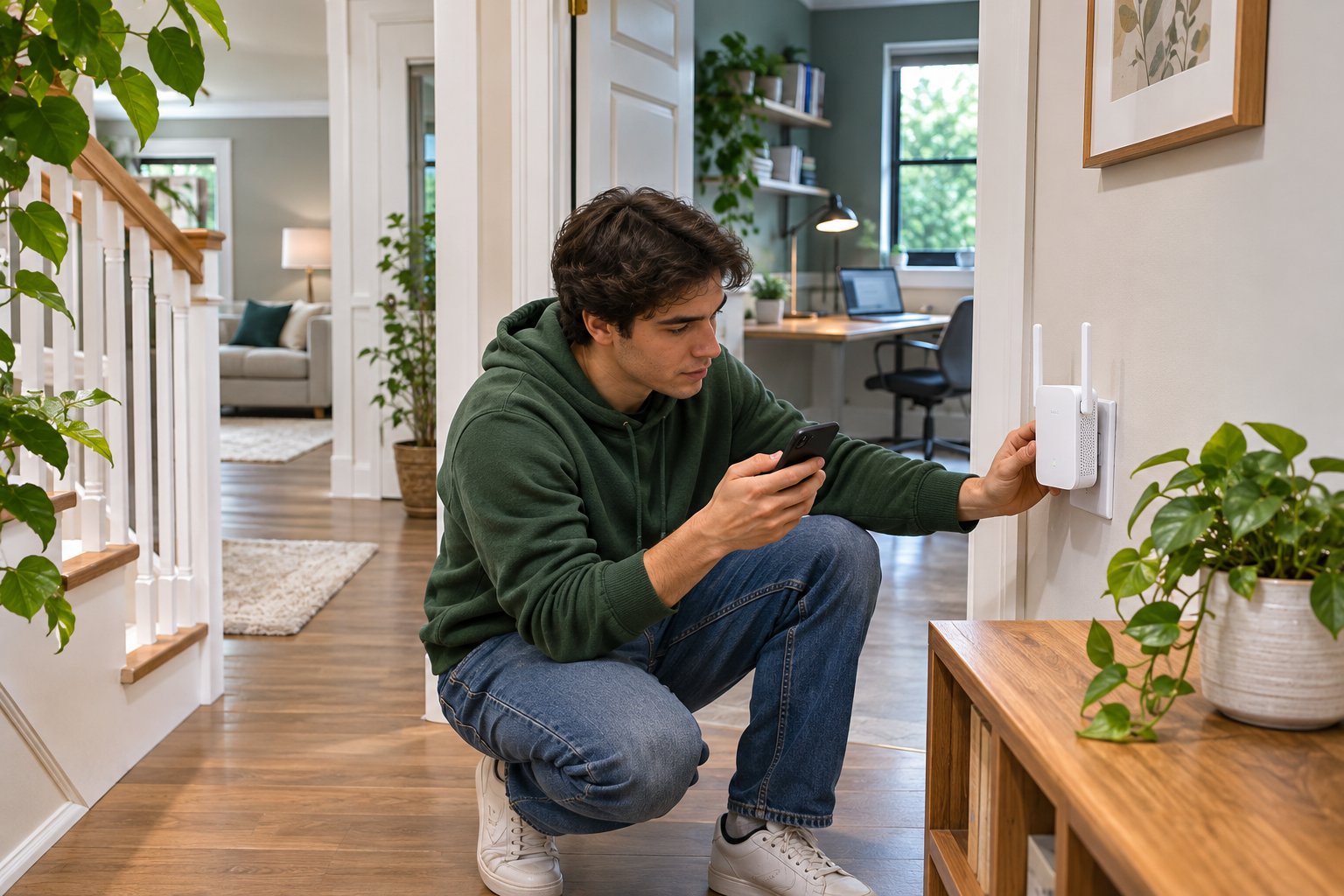
An extender should not be placed solely according to where you use your laptop or television.
The device needs to receive the router's WiFi signal reliably.
Start with an outlet between the router and the room needing better coverage.
The ideal position will depend on the home's layout, walls, floors, and nearby sources of interference.
Start Halfway Toward the Weak Room
Imagine your router is downstairs and the upstairs bedroom has poor reception.
Start near the staircase.
Connect your phone directly to the original router WiFi from that location.
Open a website.
If it works consistently, the outlet may be a suitable location for the extender.
If the connection is already unreliable, move closer to the router.
Once installed, test the bedroom.
You may need to try more than one outlet.
For example, an outlet near an open stairwell may provide better reception than one behind a thick wall.
Use the LED Instead of Guessing
The indicator helps identify whether the extender is too far from the router.
A solid blue light suggests a good connection.
A solid yellow light indicates the router connection is weaker than ideal.
A solid red light means the required connection has not been established.
If the extender shows yellow inside the bedroom but blue near the staircase, try the staircase location.
Then connect your laptop to the extended network from the bedroom.
A good router-to-extender connection matters more than positioning the device beside the laptop.
Avoid Thick Walls and Large Appliances
WiFi performance changes when the signal passes through obstacles.
Thick concrete, metal, and some building materials can substantially weaken reception.
Avoid outlets:
-
Behind large televisions.
-
Inside closed cabinets.
-
Directly beside microwave ovens.
-
Behind refrigerators.
-
Near large metal shelves.
-
Hidden by heavy furniture.
-
Behind several thick walls when another location is available.
Use an open outlet where the extender has reasonable airflow.
Follow the device instructions for antenna positioning.
Then test the connection rather than assuming one position will work in every home.
Placement for an Upstairs Home Office
A home office needs a stable connection, especially during meetings.
Try placing the extender near the upstairs landing.
Connect your laptop to the extended network.
Join a video call or use the work application that previously disconnected.
If the connection remains unstable, move the extender closer to the router.
A shorter, stronger upstream connection can improve performance even when the extender is farther from your desk.
Placement for a Smart Television
A television in a rear bedroom may struggle because the router signal passes through several walls.
Start with an extender location between the router and television.
Connect the television to the extended SSID.
If it supports 5 GHz and is close enough to maintain strong reception, try that band.
If performance is inconsistent, test 2.4 GHz.
Watch the type of content that previously buffered.
A stable stream is more meaningful than the number of bars displayed by the television.
Placement for a Home Security Camera
Some home cameras support only 2.4 GHz WiFi.
Check the camera's specifications before pairing.
If it requires 2.4 GHz, connect it to the matching extended network.
Test the camera's live view after installation.
Do not install an indoor extender outdoors unless it is specifically rated for that environment.
For a camera near the back door, try an indoor outlet that improves coverage toward the camera while maintaining a good connection to the router.
What About Large Houses?
A single extender may help with one weak area.
It may not provide consistent coverage across every room in a large house.
Building materials, floor layout, and router placement affect the results.
For example, a house with an open staircase may offer a more favorable wireless path than a smaller property with reinforced concrete floors.
Test the actual problem areas before adding more extenders.
If several distant rooms need dependable high-speed connections, a different network layout may be more appropriate.
Troubleshooting Common Connection Issues
When the extender stops working, identify which connection has failed.
The problem may involve the link between the extender and router, the connection between your device and extender, or the original internet service.
Checking the right connection first can save unnecessary resets.
WPS Setup Does Not Work
Keep the extender near the router.
Confirm that the router supports WPS and that the function is enabled.
Start pairing on the router.
Then press WPS on the extender within two minutes.
Allow the process to finish.
If it fails, repeat the steps once after checking the router's instructions.
If WPS remains unsuccessful, use browser setup.
Manual configuration does not depend on WPS being enabled.
The Setup Page Will Not Open
Make sure your phone is connected to the extender's factory setup network.
Open a browser and enter 192.168.8.1.
If necessary, try home.to.
If your phone switches to another network because the extender has no internet access, temporarily prevent automatic switching.
A VPN may also interfere with access to the local configuration page.
Disconnect the VPN while completing setup if needed.
Then reconnect it after configuration.
The Extended WiFi Network Is Missing
The factory setup SSID may disappear after the extender has been configured.
Look for the extended network names instead.
For a router named HomeWiFi, these may include:
-
HomeWiFi_EX
-
HomeWiFi_5G_EX
If you cannot find the extended networks, check that the extender has power and has finished restarting.
Review the indicator.
If setup failed, repeat configuration near the router.
Connected to WiFi but No Internet
First, test the main router.
Connect a phone directly to its original WiFi network and open a website.
If that connection does not work, troubleshoot the router or internet service.
If the router works, inspect the extender's LED.
A red indicator suggests the extender has not established the required connection.
Move it closer and review its saved network settings.
If the router password recently changed, reconnect the extender using the new credentials.
The Internet Is Slow Through the Extender
Slow performance can result from a weak upstream connection, interference, or the normal limitations of wireless repeating.
Check the LED.
If the indicator is yellow, try moving the extender closer to the router.
Then compare 2.4 GHz and 5 GHz using a compatible device.
A nearby laptop may perform better on 5 GHz.
A device behind several walls may be more stable on 2.4 GHz.
Also test the original router network.
If it is slow even at close range, the extender may not be the cause.
The Extender Keeps Disconnecting
Check whether the problem affects every device or only one.
If all devices using the extender disconnect, inspect the router-to-extender connection.
Move the extender closer to the router.
Check for interference from nearby equipment.
If only one phone or laptop disconnects, forget the extended network on that device and reconnect.
Also consider whether the router recently changed its wireless settings.
A password or network name change can prevent the extender from reconnecting properly.
The Extender Stopped Working After a Router Update
Router updates can sometimes change wireless settings or interrupt connected devices while the router restarts.
Wait until the router has returned to normal operation.
Connect a phone directly to its WiFi.
Confirm that internet access works.
Then check whether the SSID or wireless password changed.
If it did, update the extender's configuration.
If the router itself remains unstable, review the firmware update guide for relevant maintenance guidance.
Use firmware intended for the exact router model.
Do not install unrelated firmware files as an attempted extender fix.
How to Reset the Extender
A factory reset removes the extender's saved configuration.
Use it when you need to start again or when old settings prevent a connection.
For the AC1200:
-
Leave the extender powered on.
-
Locate the RST button.
-
Press and hold it until the LED flashes red.
-
Release the button.
-
Allow the extender to restart.
-
Repeat WPS or manual setup.
You will need to reconnect the extender to your router after the reset.
Do not use a factory reset as the first solution to weak reception in another room.
Moving the device may solve that problem without erasing anything.
When to Reset and When to Reposition
| Problem | First Action |
|---|---|
| Yellow LED | Move the extender closer to the router |
| Red LED | Check pairing, credentials, and router distance |
| Incorrect WiFi password | Reconfigure the extender |
| Setup page does not load | Connect to the factory setup network |
| Old router settings remain | Consider a factory reset |
| Slow connection beside the router | Check the router and internet service |
| Weak coverage in one room | Adjust extender placement |
The correct fix depends on where the connection is failing.
If the original router works and the extender shows a weak router link, repositioning is the first thing to try.
Understanding Your Extender and Router Together
A router and an extender perform different jobs.
The router provides the main wireless network and access to your internet connection.
The extender expands where devices can connect to that network.
If the router works properly and only one room has weak reception, adding an extender can make sense.
If internet access is unreliable everywhere, check the main network first.
When the Main Router Is the Problem
Take your phone or laptop close to the router.
Connect to its WiFi and open a website.
If the connection is still slow or keeps disconnecting, investigate the router and internet service.
Check whether the router has power and whether its internet connection is functioning normally.
Restart it if appropriate.
Review any recent configuration changes.
An extender cannot increase the bandwidth supplied by your internet provider or repair a router that is repeatedly losing its connection.
When the Extender Is the Better Fix
An extender may help when:
-
WiFi works normally close to the router.
-
Reception becomes weak in a particular room.
-
You can find an outlet with a dependable router signal.
-
You want to keep the existing router.
-
Installing Ethernet cable is impractical.
For example, a renter may have strong reception in the living room but an unreliable connection in a bedroom down the hallway.
An extender positioned between those rooms may provide more dependable access without changing the main router.
Using the Extender With a Dual-Band Router
A compatible dual-band router can provide 2.4 GHz and 5 GHz connections.
The extender can connect through its supported setup process and provide extended wireless access.
For reference, the AC1200 dual band WiFi router product information describes a compatible class of home networking equipment.
You do not need to replace a working router simply because the connection becomes weak in one room.
Start by checking whether the existing router's signal can be extended from a suitable outlet.
Common Setup Mistakes to Avoid
Most setup failures involve a small number of problems: incorrect placement, wrong credentials, unsuitable wireless settings, or confusion between the router and extender networks.
Installing the Extender in a Dead Zone
Do not place the extender where the original router WiFi has already become unreliable.
It needs a stable upstream connection.
Choose an outlet closer to the router and check the LED.
Then test coverage in the problem room.
Connecting to the Wrong Network
Check the SSID carefully during manual setup.
A home may have a main network, guest network, separate 5 GHz SSID, and an older router network.
Selecting the wrong one can create unexpected connection or device-access problems.
Use the intended router network and confirm the choice before saving settings.
Entering the Wrong Password
WiFi passwords are case-sensitive.
Check every character.
If the router password was recently changed, use the updated password.
Do not assume the extender automatically learns new router credentials.
Assuming More Signal Bars Means Faster Internet
Your phone may show excellent reception from the extender while the extender has weak reception from the router.
That can produce a strong WiFi icon with poor internet performance.
Check the indicator and open a website.
A reliable upstream connection is more important than signal bars alone.
Using the Wrong Wireless Band
A camera that supports only 2.4 GHz cannot connect to a 5 GHz network.
A laptop may support both bands but perform differently depending on distance.
Choose a compatible band.
Test the actual connection rather than assuming 5 GHz is always faster in every room.
Resetting Too Early
A reset removes saved settings.
It is useful when configuration is incorrect or the extender needs to connect to a different router.
It will not overcome thick walls or increase the router's signal strength.
If the connection indicator shows yellow, try a better outlet before resetting.
How to Test the Extender After Installation
The useful test is whether WiFi works better in the room where it previously failed.
You can check that using a phone or laptop.
Keep the device and testing location consistent.
Test the Original WiFi First
Stand in the problem room.
Connect directly to your router's original network.
Open a website.
Try an activity that usually causes trouble.
This may be a video meeting, streaming application, or connected camera feed.
Notice whether the connection drops, buffers, or becomes slow.
If you run a speed test, record the result and network name.
Test the Extended Network
Stay in the same location.
Connect manually to the extender's SSID.
Repeat the same activity.
For example, if meetings previously froze at an upstairs desk, test from that desk again.
Do not compare an upstairs test with a result measured beside the router downstairs.
You want to know whether the extender improved the original weak-coverage location.
Check Stability, Not Just Speed
A speed test provides useful information, but it is not the only measure.
For a home office, stable video calls may matter more than peak download speed.
For a smart television, uninterrupted streaming may be the goal.
For a security camera, a dependable live view can be more important than maximum throughput.
Evaluate the connection against the problem you wanted to fix.
Make One Adjustment at a Time
If performance remains poor, move the extender closer to the router.
Test again.
Then try another wireless band if the device supports it.
If needed, check for interference or recent router configuration changes.
Avoid moving the extender, resetting it, and changing router settings all at once.
Making one change at a time helps identify the actual cause.
FAQ
How do I set up my ROOXIS WiFi extender?
Plug the AC1200 extender into an outlet near the router and connect it using WPS or browser setup. For manual configuration, join the extender's default WiFi network, open 192.168.8.1 or home.to, select Repeater Mode, choose your router's network, and enter its password. Wait for the connection to complete and test internet access before moving the extender.
Where should I place the ROOXIS WiFi extender?
Use an outlet between the router and the weak-coverage room where the original WiFi still works reliably. A solid blue indicator suggests a good router connection, while yellow indicates that the connection is weaker than ideal. Avoid closed cabinets, large metal appliances, and outlets behind several thick walls.
How do I reset a ROOXIS WiFi extender?
Keep the AC1200 powered on, then press and hold its RST button until the LED flashes red. Release the button and allow the extender to restart. A factory reset erases its saved settings, so you will need to reconnect it using WPS or browser setup.
Final Setup Check Before You Finish
Before leaving the extender in its final outlet, confirm four things:
-
It connects to the correct router network.
-
Its indicator shows a dependable upstream connection.
-
A phone or laptop can access the internet through the extended SSID.
-
WiFi performance has improved in the room that originally had weak reception.
If the extender works near the router but becomes unreliable farther away, move it closer to the router and test again.
For this type of setup, a dependable router connection and sensible placement usually matter more than repeatedly changing settings.